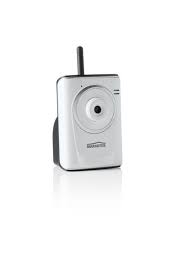
IP EYE ANYWHERE - IP Surveillance Camera MARMITEK - Free user manual and instructions
Find the device manual for free IP EYE ANYWHERE MARMITEK in PDF.


User questions about IP EYE ANYWHERE MARMITEK
0 question about this device. Answer the ones you know or ask your own.
Ask a new question about this device
Download the instructions for your IP Surveillance Camera in PDF format for free! Find your manual IP EYE ANYWHERE - MARMITEK and take your electronic device back in hand. On this page are published all the documents necessary for the use of your device. IP EYE ANYWHERE by MARMITEK.
USER MANUAL IP EYE ANYWHERE MARMITEK
- To prevent short circuits, this product should only be used inside and only in dry spaces. Do not expose the components to rain or moisture. Do not use the product close to a bath, swimming pool etc.
- Do not expose the components of your systems to extremely high temperatures or bright light sources.
- In case of improper usage or if you have altered and repaired the product yourself, all guarantees expire. Marmitek does not accept responsibility in the case of improper usage of the product or when the product is used for purposes other than specified. Marmitek does not accept responsibility for additional damage other than covered by the legal product responsibility.
- This product is not a toy. Keep out of reach of children.
- Do not open the product: the device may contain live parts. The product should only be repaired or serviced by a qualified expert.
- Only connect the adapter to the mains after checking whether the mains voltage is the same as the values on the identification tags. Never connect an adapter when it is damaged. In that case, contact your supplier.
1 GETTING STARTED
Package Contents
Check the items contained in the package carefully. You should have the following items. Once any item contained is damaged or missing, contact the local authorized dealer.
One Marmitek IP Eye AnywhereTM IP Camera with built-in web server
One Power Adapter
One External Antenna (for wireless model)
One Wall/ceiling bracket
One RJ45 network cable
One Installation CD-ROM with Ultra View software package and user manual (English)
One Quick Installation manual
System Requirement
■ Networking
LAN: 10Base-T Ethernet or 100Base-TX Fast Ethernet
WLAN: IEEE 802.11b/g (for wireless model)
■ Accessing the Camera using Web Browser
Platform: Microsoft® Windows® 2000/XP/Vista/7
CPU: Intel Pentium III 800MHz or above
RAM: 512MB
Resolution: 800x600 or above
User Interface: Microsoft® Internet Explorer 6.0 or above
Mozilla Firefox 2.00 or above
Apple Safari 2 or above
UltraView software
Platform: Microsoft® Windows® 2000/XP/Vista/7
CPU: Intel Pentium III 800MHz or above and 512MB RAM for 1 camera connected
CPU: Intel Pentium 4 3.4 GHz or above and 2GB RAM for 9~16 camera connected
Resolution: 1024x768 or above
2 SETTING UP THE CAMERA
Installing the Camera Stand
The camera comes with a camera stand, which uses a swivel ball screw head to lock to the camera's screw hole. When the camera stand is attached, you can place the camera anywhere by mounting the camera through the three screw holes located in the base of the camera stand.
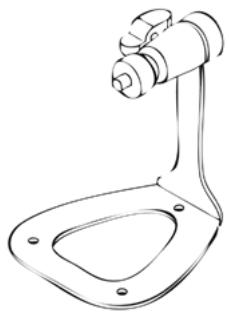
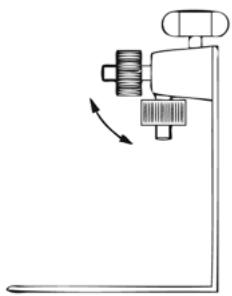
The Camera Stand
Connecting the IP Eye Anywhere™ Camera to LAN
Use the provided Ethernet cable to connect the camera to your local area network (LAN).
When you connect the AC power adapter, the camera is powered on automatically. You can verify the power status from the Power LED on the front panel of the camera.
Once connected, the Link LED starts flashing green light and the camera is on standby and ready for use now.
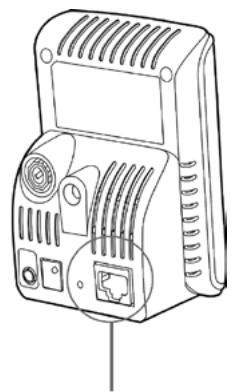
Connecting the Ethernet cable
Connecting the External Antenna
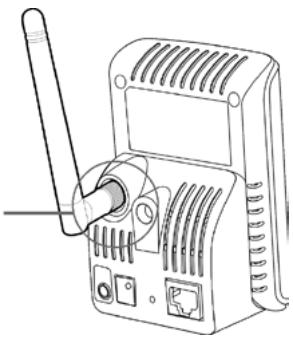
Connecting the Camera to WLAN
If you use a wireless network in your application environment, you need to attach the included external antenna to the camera.
When the camera is powered on, the camera will automatically search any access point with "default" SSID.
NOTE If the camera cannot connect to your wireless network, you need to install the camera in LAN and proceed with WLAN settings.
3 ACCESSING THE CAMERA
Using IPFinder
- Insert the Installation CD-ROM into your computer's CD-ROM drive to initiate the Auto-Run program.
- Click the IPFinder item to launch the utility. The control panel will appear as below.
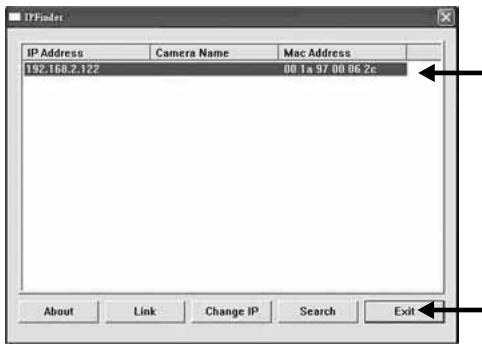
Display the connected camera(s). Double click to link the Camera.
Click Search to find the IP address of the connected camera(s).
Click Change IP to modify the IP address of the selected camera.
Click Exit to close the utility.
- Once you get the IP address of the camera, launch the Web browser or UltraView to access your camera.
TIP The Installation CD-ROM provides a setup program that allows you to install IPFinder on your computer. To install IPFinder, click Install Software then select IPFinder on the Auto-Run screen.
Accessing to the Camera
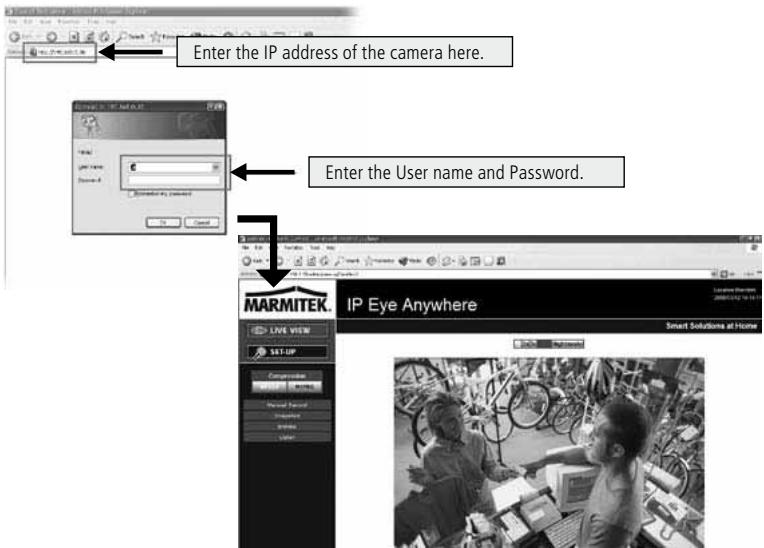
- Open the Web browser on your computer (for example, Microsoft Internet Explorer in this guide)
- Type the default IP address (192.168.0.30) or the IP address found by IPFinder in the Address bar, and then press [Enter].
- When the login window appears, enter the default User name (admin) and password (admin) and press OK to access to the main screen of the camera's Web Configuration.
- Right click and select Install Active X Control.
- Click Install.
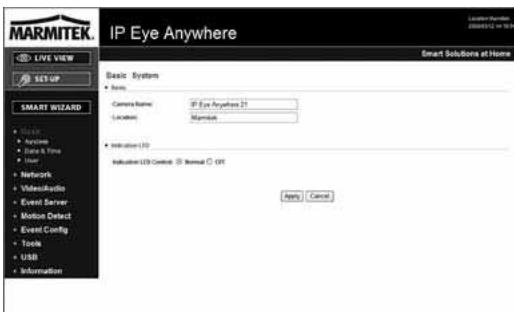
- Click Setup and then Smart Wizard to set up your camera quickly. The Smart Wizard will guide you through the necessary settings with detailed instructions on each step.
4 TIPS
- For more information, please refer to the Advanced Installation Guide on the provided Installation CD-ROM.
- For details of operating UltraView, please refer to the Software User Guide on the provided Installation CD-ROM.
- If you have any problem on the product(s), please contact your local authorized dealer.
TECHNICAL DATA
See page 8 and 9
ATTENTION
This appliance is designed to be used in all EU and EFTA countries.
Attention: The use of this product may be restricted in the following countries:
- Belgium: 2.4 GHz Frequency. The use of this frequency may be restricted in some areas. See http://www.bipt.be for current information.
- France: 2.4 GHz Frequency. The use of channels other than: 10, 11, 12, 13 (2457, 2462, 2467, and 2472 MHz) may be restricted in some areas. See l'Autorité de Régulation des Télécommunications (http://www.artelecom.fr) for current information.

Environmental Information for Customers in the European Union
European Directive 2002/96/EC requires that the equipment bearing this symbol on the product and/or its packaging must not be disposed of with unsorted municipal waste. The symbol indicates that this product should be disposed of separately from regular household waste streams. It is your responsibility to dispose
of this and other electric and electronic equipment via designated collection facilities appointed by the government or local authorities. Correct disposal and recycling will help prevent potential negative consequences to the environment and human health. For more detailed information about the disposal of your old equipment, please contact your local authorities, waste disposal service, or the shop where you purchased the product.
| Technical Data (1) | IP Eye Anywhere 10 | IP Eye Anywhere 11 | IP Eye Anywhere 20 | IP Eye Anywhere 21 |
| Image Sensor | ||||
| Image Sensor | 1/4" Color CMOS Sensor | |||
| Resolution | 640 x 480, 320 x 240, 160 x 120 | |||
| Ligh Minimum Illumination | 0.5 LUX | |||
| Lens | ||||
| Aperture (F/No.) | 2.6 | 2.8 | ||
| Focus Length | 4.6mm | 4.5 mm | ||
| View Angle (Diagonal) | 60 degree | |||
| Image Processing | ||||
| Compression | MJPEG | MPEG4/MJPEG dual streaming | ||
| Auto Exposure Control | Yes | |||
| Auto White Balance | Yes | |||
| Auto Gain control | Yes | |||
| Light Frequency | 50Hz, 60Hz or Outdoor | |||
| Image Resolution and Frame rate | VGA (640 x 480) : 30 fps, QVGA (320 x 240) : 30 fps, QVGA (160 x 120) : 30 fps | |||
| Multi-profile | NA | 3 profiles simultaneously | ||
| System | ||||
| Network Processor | ARM9 base | |||
| System ROM | 4MByte NOR Flash | 8MByte NOR Flash | ||
| System RAM | 16MByte SDRAM | 32MByte SDRAM | ||
| Power | DC5V, 230VAC 50 Hz | |||
| Power Consumption | 6 watts max. | 8 watts max. | ||
| Environment Operation: | Operation: Temp: 0 ~ 45 Humidity: 20% ~ 85% non-condensing | |||
| Storage: Temp: -15 ~ 60 Humidity: 0% ~ 90% non-condensing | ||||
| Audio | ||||
| Audio in | NA | Internal Omni-directional Microphone | ||
| Sensitivity: | NA | -4dB +/- 3dB | ||
| Freq Response: | NA | 50~16000Hz | ||
| Audio Codec | NA | PCM/AMR | ||
| Communication | ||||
| Ethernet | One RJ45 port: IEEE 802.3u compliant | |||
| 10/100 Mbps Fast Ethernet with Auto-MDIX | ||||
| Wireless | NA | 802.11b/g Wireless LAN | NA | 802.11b/g Wireless LAN |
| Supported Protocols | TCP/IP, UDP, ICPM,DHCP,NTP,DNS,DDNS,SMTP,FTP,HTTP, PPPoE, UPnP | TCP/IP, UDP, ICPM, DHCP,NTP,DNS,DDNS,SMTP,FTP,HTTP, Samba, PPPoE, UPnP, RTP, RTSP, RTCP | ||
| LED and Button | ||||
| Power LED | Orange Colour | |||
| Link/act. LED | Green Colour | |||
| Reset button | Push and Release button will be Reboot. Push and hold over 5 sec will be Factory reset | |||
| Others | ||||
| Antenna | NA | External Dipole Antenna | NA | External Dipole Antenna |
| USB Port | NA | One Type A receptacle Connector USB 1.1 Host port (Power distribution: 500mA Max.) | ||
| USB dismount button | NA | Push and hold over 4 sec will be dismount USB device | ||
| Technical Data (2) | IP Eye Anywhere 10 | IP Eye Anywhere 11 | IP Eye Anywhere 20 | IP Eye Anywhere 21 |
| Feature | ||||
| Image setting | Brightness, Sharpness, Saturation | |||
| Upside down and Mirror | Yes | |||
| Digital Zoom | 3x | |||
| Frame rate setting | Yes (1-25fps, Auto) | |||
| Compression Ratio Setting | 5 levels setting: Lowest, Low, Normal, High, Highest | |||
| 3GPP support | No | Yes | ||
| IP Setting | Static IP Address, DHCP, PPPoE | |||
| Support SMTP mail, Scheduling, Two destination email account | ||||
| Time Management | Manual Time Setting, Time Server and NTP Support | |||
| Event Management | Events Triggered by Motion detection or according to schedule, Image Upload/Send over email, FTP | |||
| NA | Recording Video file to PC, Network Storage, USB Flash Disk | |||
| FTP Upload | Scheduling | |||
| Motion detection | 2 scalable windows | |||
| IP Filter | Yes | |||
| System Management | Web Based Administration, Application Software | |||
| Device Configuration | Backup/Restore to/from Configuration file | |||
| User Administration | Password protected and 3 levels of Authorization | |||
| Guest User just have View video function only. | Guest User just have View video and listen Audio function only. | |||
| General User have all authority in Live view page | ||||
| Administrator have View video and All configuration setting. (default: admin/admin) | ||||
| Wireless Security | NA | WEP 64/128 bit, WPA (TKIP), WPA2 | NA | WEP 64/128 bit, WPA (TKIP), WPA2 |
| System log | NA | 100 items ( max) store in SDRAM | ||
| LED control | Normal / Off | |||
| Smart Setup Wizard | Quick Installation setup step by step | |||
| Reset Function | System reboot button. Reset all configuration to factory default values button. | |||
| Browser | Internet Explore 6.0 above, Firefox (MUPEG mode only), Safari (MJPEG mode only) | |||
| API | For developing application software | |||
| Software | ||||
| Supported OS | Windows 2000/ XPVista/7 | |||
| Application Software | View channel:16 CHs, Record, Playback, Motion detect, Backup/Restore to/from Configuration file | |||
| Audio support | ||||
| IPFinder | Auto search IP Address of Camera in LAN | |||
| Minimum system requirements | ||||
| General | ||||
| hardware | CD ROM drive | |||
| Operating system | Microsoft Windows® 2000/XP/Vista/7 | |||
| network | 10Base-T Ethernet or 100Base-TX Fast Ethernet | |||
| Wireless | IEEE 802.11b/g. | IEEE 802.11b/g. | ||
| Camera | ||||
| Processor | Intel Pentium III 350MHz or above | Intel Pentium III 800MHz or above | ||
| Memory | 128MB | 512MB | ||
| Screen Resolution | 800x600 or above | |||
| Web browser | Microsoft Internet Explorer 6.0 or above, Apple Safari 2 or above, Mozilla Firefox 2.00 or above | |||
| Application Software | ||||
| Processor | 1 camera connected: Intel Pentium III 800MHz, 512MB RAM2 ~ 4 cameras connected: Intel Pentium 4 1.3GHz; 512MB RAM5 ~ 8 cameras connected: Intel Pentium 4 2.4GHz; 1GB RAM9 ~ 16 cameras connected: Intel Pentium 4 3.4GHz; 2GB RAM | 1 camera connected: Intel Pentium III 800MHz; 512MB RAM2 ~ 4 cameras connected: Intel Pentium 4 1.3GHz; 512MB RAM5 ~ 8 cameras connected: Intel Pentium 4 2.4GHz; 1GB RAM9 ~ 16 cameras connected: Intel Pentium 4 3.4GHz; 2GB RAM | ||
| Screen Resolution | 1024x768 or above | |||
SICHERHEITSHINWEISE
Resolution: 800x600 o superior
Resolution: 1024x768 o superior
2 CONFIGURAR LA CÁMARA
Instalar la base de la-camera
3 OBTENER ACCESO A LA CÁMARA
VEILIGHEIDSWAARSCHUWINGEN
DECLARATION OF CONFORMITY
Hereby, Marmitek BV, declares that this IP Eye Anywhere is in compliance with the essential requirements and other relevant provisions of the following Directives:
Directive 1999/5/EC of the European Parliament and of the Council of 9 March 1999 on radio equipment and telecommunications terminal equipment and the mutual recognition of their conformity
DIRECTIVE 2004/108/EC OF THE EUROPEAN PARLIAMENT AND OF THE COUNCIL of 15 December 2004 on the approximation of the laws of the Member States relating to electromagnetic compatibility
Council Directive 73/23/EEC of 19 February 1973 on the harmonization of the laws of Member States relating to electrical equipment designed for use within certain voltage limits
Marmitek is a trademark of Marmidenko B.V. IP Eye Anywhere™ is a trademark of Marmitek B.V. All rights reserved.
Copyright and all other proprietary rights in the content (including but not limited to model numbers, software, audio, video, text and photographs) rests with Marmitek B.V. Any use of the Content, but without limitation, distribution, reproduction, modification, display or transmission without the prior written consent of Marmitek is strictly prohibited. All copyright and other proprietary notices shall be retained on all reproductions.