
HOVER - Laptop Accessories DICOTA - Free user manual and instructions
Find the device manual for free HOVER DICOTA in PDF.



| Product type | Wireless optical mouse without batteries with inductive mousepad |
| Brand | DICOTA |
| Model | HOVER |
| Category | Laptop accessories |
| Power supply | By induction via the mousepad connected via USB |
| Connectivity | USB (mousepad) |
| Operating frequency | 119 KHz – 135 KHz |
| Operating temperature | 0°C – 50°C |
| Indicators | Red power indicator (on when mouse is on the pad, flashing when removed); green operation indicator (flashing during adjustment) |
| Adjustment button | Allows optimizing frequency for stable operation |
| Main functions | Wireless optical mouse, no batteries, frequency adjustment, use on dedicated pad |
| Compatibility | Computers with USB port (Windows, Mac, etc.) |
| Warranty | 2 years |
| Customer service | info@dicota.com |
| Safety | Do not use on a metal surface; avoid contact with credit cards, floppy disks, SIM cards |
| Maintenance and cleaning | Clean with a soft, dry cloth; avoid liquids and abrasive products |
| Regulatory information | Compliant with FCC Part 15 (Class B) |
Frequently Asked Questions - HOVER DICOTA
User questions about HOVER DICOTA
0 question about this device. Answer the ones you know or ask your own.
Ask a new question about this device
Download the instructions for your Laptop Accessories in PDF format for free! Find your manual HOVER - DICOTA and take your electronic device back in hand. On this page are published all the documents necessary for the use of your device. HOVER by DICOTA.
USER MANUAL HOVER DICOTA
Battery Free Wireless Optical Induction Mini Mouse
deutsch
Bedienungsanleitung
This device complies with Part 15 of the FCC Rules. Operation is subject to the following two conditions: (1) this device may not cause harmful interference, and (2) this device must accept any interference received, including interference that may cause undesired operation.
Federal Communications Commission Requirements
This equipment has been tested and found to comply with the limits for a Class B digital device, pursuant to Part 15 of the FCC Rules. These limits are designed to provide reasonable protection. This equipment generates, uses and can radiated radio frequency energy and, if not installed and used in accordance with the instructions, may cause harmful interference to radio communications. However, there is no guarantee that interference will not occur in particular installation. If this equipment does not cause harmful interference to radio or television, which can be determined by turning the equipment OFF and ON, the user is encouraged to try to correct the interference by one or more of the following measures:
• Reorient or relocate the receiving antenna.
- Increase the separation between the equipment and receiver.
- Connect the equipment into an outlet on a circuit different from that to which the receiver is connected.
- Consult the dealer or an experienced radio/TV technician of help.
Changes or modifications not expressly approved by the party responsible for compliance could void the user's authority to operate the equipment.
This device complies with Part 15 of the FCC Rules. Operation is subject to the following two conditions:
[1] this device may not cause harmful interference, and
(2) this device must accept any interference received, including interference that may cause undesired operation.
Introduction:
Congratulations on your purchase. Your new Wireless Battery Free optical mouse will offer you wireless freedom, yet no battery is ever needed. Whilst saving the cost of batteries, it assures wrist comfort, lightness, easy operation and no RF-interference.
Battery free mouse pad/mouse installation:
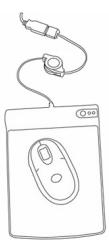
- Connect the mouse pad's USB cable to your computer USB port (Fig.1).
- Red PWR LED "ON" when mouse is on the mouse pad.
- Red PWR LED "Blinking" when mouse is not on the mouse pad.
natural_image
Line drawing of a computer mouse with a cable and connector attached (no text or symbols)Fig. 1
text_image
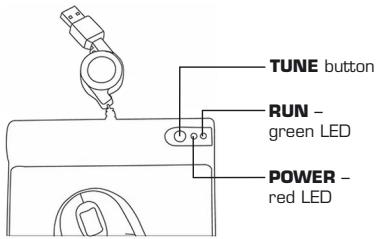
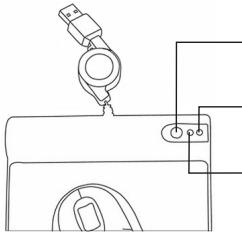
TUNE button RUN - green LED POWER - red LEDPress "TUNE" button to obtain frequency for best performance. (For 1^st time use or whenever the Battery Free Mouse is relocated to another computer.)
When to press the "TUNE" button?
If your mouse cursor does not move, not moving smoothly, or when the PWR LED (red) blinks, press the "TUNE" button until the frequency has been adjusted for the best performance, repeat the process if needed.
How to connect the mouse pad & mouse?
- Connect the mouse pad's USB cable to your computer USB port.
- Place the mouse on the center of the mouse pad, and do not move the mouse. The PWR LED light should now remain lit.
- Press the "TUNE" button.
- PWR LED turns "OFF" and the RUN LED light starts "Blinking".
- When the tuning process is complete, the PWR and RUN LED will return to their original mode.
Note!
- Do not use this product on any metal table or surface. The metal surface may interface with the cross induction frequency and have an adverse effect on the mouse operation.
- Don't keep credit card, ATM magnetic stripe card close to RFID mouse-pad in order to prevent card from losing efficiency.
- Keep working temperature at 0^ C– 50^ C.
- Frequency: 119 KHz–135 KHz
Customer Service:
If you encounter any problem with your Hover, please contact our local subsidiary, partner or dealer, or send us your inquiry to info@dicota.com.
2 years warranty. Please find the complete text in our guarantee on the internet: www.dicota.com.
All the products and software mentioned above are registered trademarks of their respective owners. Errors excepted.


text_image
CE FCdeutsch
Federal Communications Commission Requirements
natural_image
Line drawing of a computer monitor with an attached cable and mouse (no text or symbols)Fig. 1

text_image
TUNE-Taste RUN-LED, grün POWER-LED, rotDirectives de la Federal Communications Commission
Federal Communications Commission Requirements
natural_image
Line drawing of a computer monitor with an attached cable and mouse (no text or symbols)Fig. 1
natural_image
Pure technical line drawing of a mechanical assembly without any text, numbers, or symbolsBotón de ajuste
Federal Communications Commission Requirements
natural_image
Line drawing of a computer mouse with a cable attached, no text or symbols presentFig. 1
