DATABOX ALLROUND - Computer Accessories DICOTA - Free user manual and instructions
Find the device manual for free DATABOX ALLROUND DICOTA in PDF.



| Product type | Carrying case for printer and laptop |
| Dimensions | Approximately 45 x 35 x 15 cm (estimate) |
| Weight | Approximately 4 kg (estimate) |
| Power supply | 220V via power cable, charging of connected devices |
| Main functions | Transport and protection of portable printer and computer, integrated charging, accessory storage |
| Printer compatibility | HP DJ 450, HP DJ 460, HP Officejet H470, Canon i80/iP90/iP100 series |
| Printer attachment | By supplied Velcro straps or optional QuickFix system |
| Box contents | 1 case with lock and 2 keys, 1 female 220V plug, 2 cable sets, 8 Velcro straps, removable pouches for cables/CD/accessories, document holder, padding |
| Care and cleaning | Clean with a soft dry cloth. Avoid moisture, dust and direct sunlight |
| Safety | Integrated lock to secure the case. Always use on a stable surface. Do not close during use or charging |
| Charging devices | Only charge with the case open to prevent heat buildup |
| Spare parts | Not specified. Contact DICOTA after-sales service |
| Warranty | Not specified. See DICOTA general terms and conditions |
| General information | Use with printer and laptop. Floor-to-Desk system possible. Manual available in French, German, English |
Frequently Asked Questions - DATABOX ALLROUND DICOTA
User questions about DATABOX ALLROUND DICOTA
0 question about this device. Answer the ones you know or ask your own.
Ask a new question about this device
Download the instructions for your Computer Accessories in PDF format for free! Find your manual DATABOX ALLROUND - DICOTA and take your electronic device back in hand. On this page are published all the documents necessary for the use of your device. DATABOX ALLROUND by DICOTA.
USER MANUAL DATABOX ALLROUND DICOTA
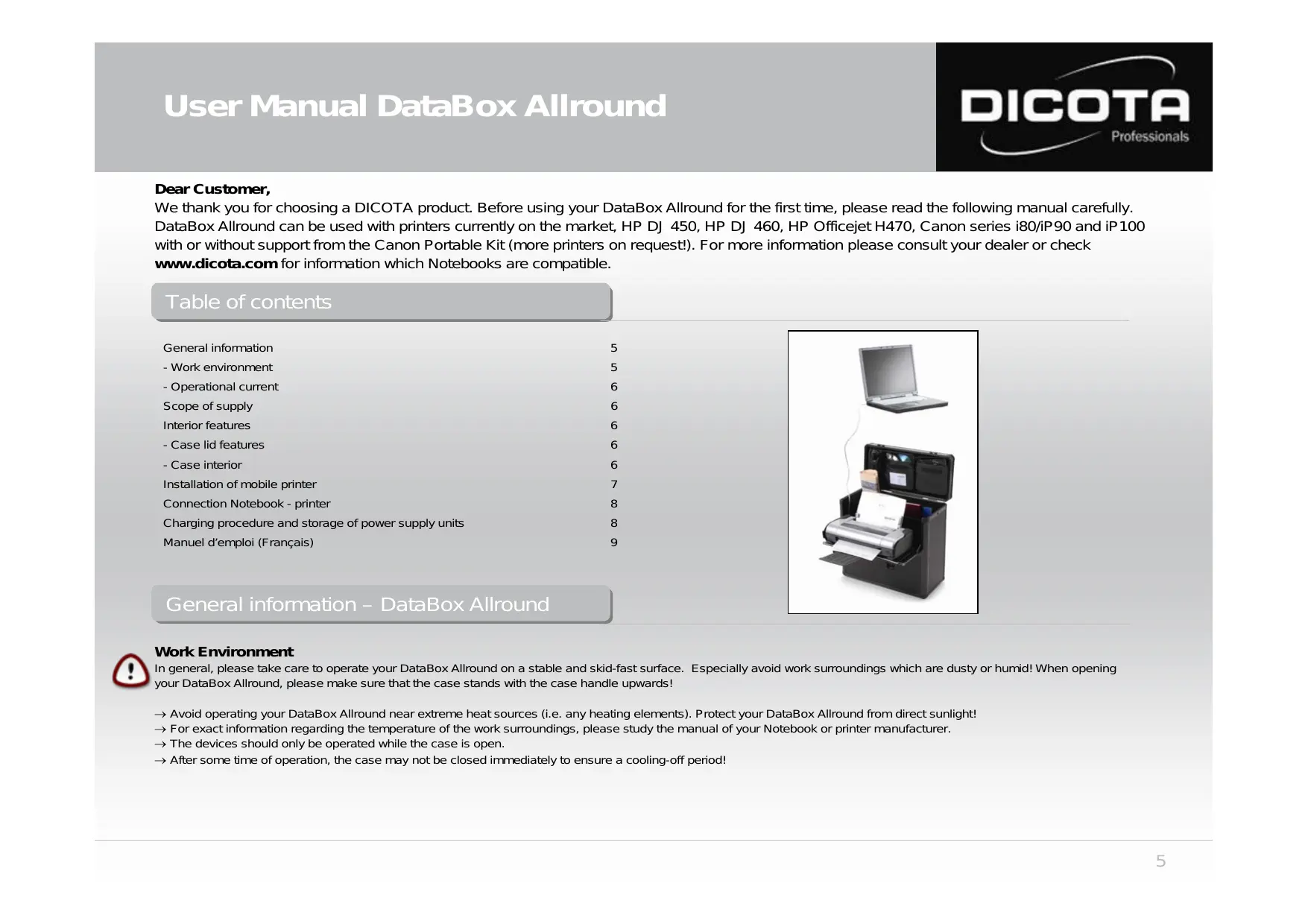
We thank you for choosing a DICOTA product. Before using your DataBox Allround for the first time, please read the following manual carefully. DataBox Allround can be used with printers currently on the market, HP DJ 450, HP DJ 460, HP Officejet H470, Canon series i80/iP90 and iP100 with or without support from the Canon Portable Kit (more printers on request!). For more information please consult your dealer or check www.dicota.com for information which Notebooks are compatible.
Table of contents
General information 5
- Work environment 5
- Operational current 6
Scope of supply 6
Interior features 6
- Case lid features 6
- Case interior 6
Installation of mobile printer 7
Connection Notebook - printer 8
Charging procedure and storage of power supply units 8
In general, please take care to operate your DataBox Allround on a stable and skid-fast surface. Especially avoid work surroundings which are dusty or humid! When opening your DataBox Allround, please make sure that the case stands with the case handle upwards!
Avoid operating your DataBox Allround near extreme heat sources (i.e. any heating elements). Protect your DataBox Allround from direct sunlight!
→ For exact information regarding the temperature of the work surroundings, please study the manual of your Notebook or printer manufacturer.
→ The devices should only be operated while the case is open.
After some time of operation, the case may not be closed immediately to ensure a cooling-off period!

Operational current / charging procedure
→ When connecting to a power socket, please ensure that the power cable is first connected to the case and then to the power socket!
→ The charging procedure should generally be done while the case is open!
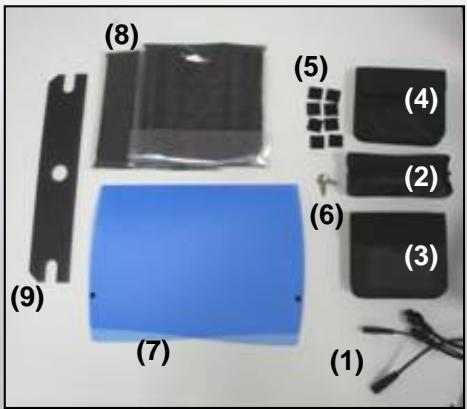
Scope of supply – DataBox Allround
1) 1 × 220 ~V power socket, cable tree 2 × EURO 8 and 2 × IBM
2) Detachable cable pouch
3) Detachable CD case
4) Detachable accessory pouch
5) 8 × 3M Velcro pads (self-adhesive)
6) Lockable box, 2 x key
7) Separate document case
8) Individually adjustable Notebook pads
9) Cable tree cover
Interior features – DataBox Allround
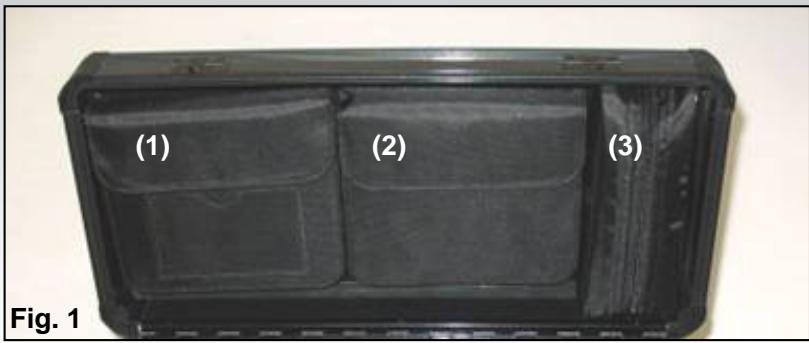
Case lid (Fig.1)
1) Detachable CD case with business card holder
2) Detachable accessory pouch
3) Detachable cable pouch
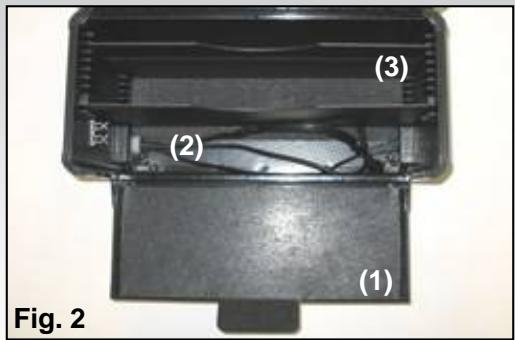
Case interior (Fig. 2)
1) Printer lid can be opened
2) Permanently installed cable tree
3) Individually adjustable front and back side for Notebook mounting
Installation of mobile printer
Open your DataBox Allround. If you have not ordered the „QuickFix“ printer holder for your specific printer, proceed as follows
1) Take eight Velcro pads and press two corresponding pairs together (Fig. 3)
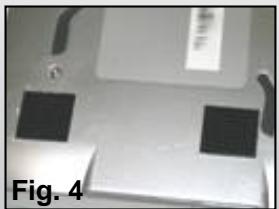
2) Now you have four Velcro pairs with protective films on each side. Remove the protective film on one side of each pair to reveal the adhesive tape beneath and press them to one corner each of your printer. (Fig. 4)

CAUTION!
Before you mount the printer, please check the intended position on the flap since incorrect mounting can cause problems during printer operation.
3) Now you can mount the printer on the open front lid of the DataBox Allround by removing the protective film from the four Velcro pairs and position the printer on the lid. After mounting the printer, leave the lid open for at least twelve hours so the tape really sticks.
Installation of mobile printer with printer holder „QuickFix“!
If you ordered the optional printer holder „QuickFix“, proceed as follows:*
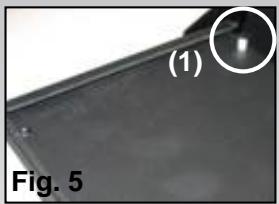
1) Open the DataBox Allround and the printer lid. There are two holders on the rear side of the printer lid (Fig. 5 (1)). These are designated „QuickFix“ mounts.
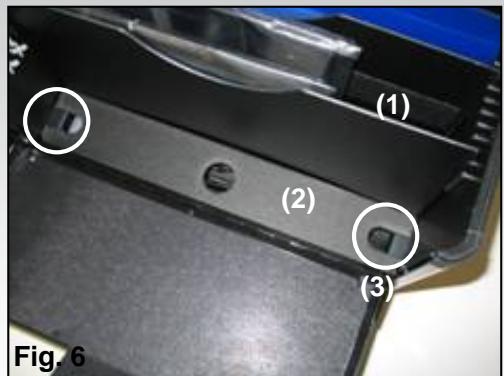
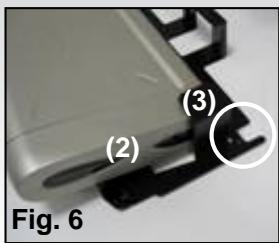
2) The printer must first be shoved into the „QuickFix“ holder (Fig. 6 (2)). Please make sure that the printer is safely mounted in the holder. The holder with the printer is then placed on the printer lid and connected to the other holders (Fig. 5 (1)). In doing so, the grooves of the „QuickFix“ holder (Fig. 6 (3)) must be fully inserted into the holders on the printer lid.
Due to the fact that DataBox Allround is based on the "Floor-to-Desk" system and the Notebook is operated on a table outside the case, the installation of the printer to the Notebook must be done according to the standard installation procedure of the printer or Notebook. How to connect the Notebook with the printer is explained on the following page!
The optional "QuickFix" holder is suitable for many standard printers. If you have any questions, please contact us at info@dicota.com.
*Depending on the printer, there may be other „QuickFix“ holders similar to the one shown!
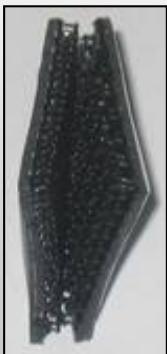
Fig. 3
Connection Notebook - printer
Switch on your Notebook and proceed as follows:
There are two options for connecting the Notebook to your printer:
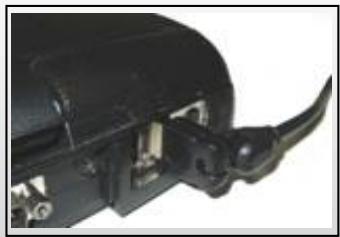
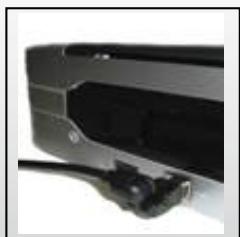
1) Connect printer and Notebook with a USB cable. This cable is not included in the DataBox Allround!
Ensure correct cabling here as well! It is best to lead the USB cable around the printer.
Also make sure that the USB cable is not obstructing the paper bin, thus causing paper jams!
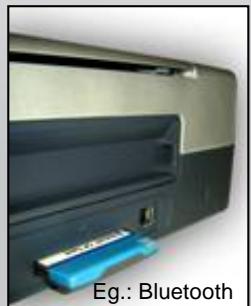
2) Data transfer between printer and Notebook via Bluetooth: (only possible if Notebook and printer are Bluetooth-compatible!)
Bluetooth is an up-to-date radio standard enabling wireless data transfer. On behalf of the Notebook, the connection is established via an internal interface or a PC-card module. On behalf of the printer, the connection can be established via a Compact Flash module.

CAUTION!
Always place your Notebook in the middle compartment between the divider pads, front side down, to prevent damaging Notebooks cables and plugs.
Charging the batteries:
Please refer to the manuals of your printer and your Notebook before connecting the power cable to a power socket. (This cable is not included in the scope of supply of DataBox Allround) Never close the case lid during operation of the printer or while printer or Notebook are being charged. A closed lid could cause overheating in your DataBox Allround that could damage your devices.
Storage of power supply units:
A removable lid (Fig. 6 (3)) closes the storage space for power supply units and protects it inside the DataBox Allround. Place the power supply units that belong to your Notebook and printer into this compartment. Lead the cables through the left and right sides of the lid (Fig. 6 (3)) to Notebook and printer. Close the compartment by placing the lid back on top. Connect the power plugs to two of the three supplied cables within the DataBox Allround. (The third cable is not used)