
USB NOTEBOOK MOUSE INTERNET PHONE - Computer Peripheral TARGUS - Free user manual and instructions
Find the device manual for free USB NOTEBOOK MOUSE INTERNET PHONE TARGUS in PDF.



| Product Type | USB Mouse with Integrated Internet Phone |
| Brand | TARGUS |
| Model | USB NOTEBOOK MOUSE INTERNET PHONE |
| Sensor Technology | Optical |
| Resolution | 800 dpi |
| Interface | USB 1.1 |
| Supported Operating Systems | Windows 2000, XP, Vista |
| Main Functions | Mouse, VoIP phone (Skype, etc.), built-in speaker, headphone jack |
| Indicator Light | Yes (shortcut key) |
| Scroll Wheel | Yes, with volume adjustment function |
| Built-in Audio Device | Yes (sound card) |
| Internet Connection Required | Yes (ADSL, cable modem, dial-up) |
| Package Contents | Mouse, driver CD, user guide |
| Power Supply | Via USB port |
| Warranty | 2 years |
| Technical Support | Phone and website (see manual) |
| Care and Cleaning | Clean with a soft, dry cloth. Avoid glass or reflective surfaces. |
| Safety | Do not point the sensor at eyes. Follow ergonomic guidelines. |
| Recycling | Take to an appropriate recycling center. Policy at www.targus.com/recycling |
Frequently Asked Questions - USB NOTEBOOK MOUSE INTERNET PHONE TARGUS
User questions about USB NOTEBOOK MOUSE INTERNET PHONE TARGUS
0 question about this device. Answer the ones you know or ask your own.
Ask a new question about this device
Download the instructions for your Computer Peripheral in PDF format for free! Find your manual USB NOTEBOOK MOUSE INTERNET PHONE - TARGUS and take your electronic device back in hand. On this page are published all the documents necessary for the use of your device. USB NOTEBOOK MOUSE INTERNET PHONE by TARGUS.
USER MANUAL USB NOTEBOOK MOUSE INTERNET PHONE TARGUS
USB Notebook Mouse Internet Phone

USERGUIDE
Table of Contents
English
Targus USB notebook mouse internet phone. 3
Deutsch
Targus USB-Internettefonmaus fur Notebooks. 14
Espanol
telefonode Internet/ration USB para portail de Targus. 25
François
Internet phone mouse USB Targus per notebook. 47
Nederlandst
Targus USB-notesbookmuis/Internet-telefoo.. 58
Portugues
Congratulations on your purchase of the Targus USB notebook mouse internet phone. This is a combination of mouse and internet phone which is ideal for users who enjoy using VoIP (Skype, web-phone, USB phone, internet phone, etc.). This optical mouse is equipped with a 800-dpi resolution for accurate and precise mouse control. The integrated USB phone with built-in microphone speakerphone and headphone jack makes internet calls in the palm of your hand.
Contents
- Targus USB notebook mouse internet phone
- Setup program with driver CD
- User guide
System Requirements
- Windows® 2000 / XP
- Windows Vista™
- USB 1.1 Interface
- Internet connection (ADSL / Cable modem / Dialup)
- Access to Instant messaging programs (ie. MSN, Yahoo, Skype, Vonage, etc.)
Setting up the mouse internet phone
Connecting the mouse to the computer
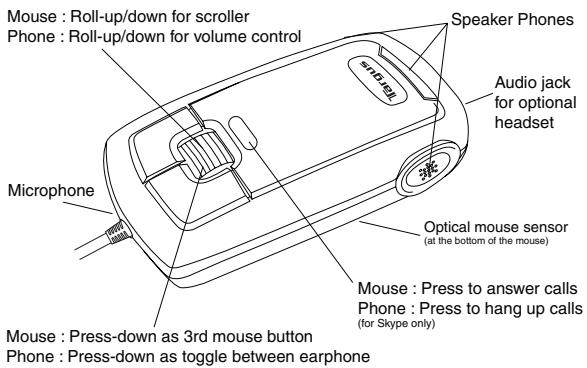
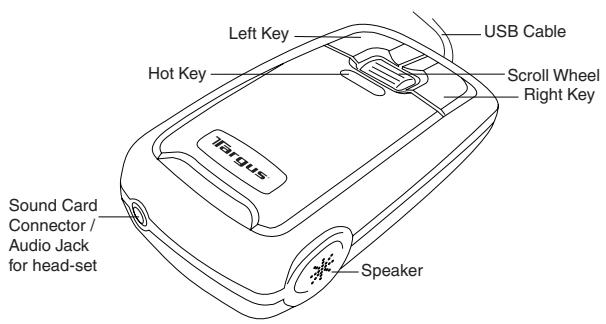
The mouse internet phone hardware installation is the same as the normal mouse installation. Connect the mouse's USB cable to the USB port on the computer. Once connected, the LED in the hot key should turn on.
Installing the mouse internet phone software driver
The mouse internet phone comes with a software driver CD. Insert the software driver CD and the installation screen will prompt automatically. You can also double click the setup file "Setup.exe" and the "Welcome to Setup" window will prompt.

Setup file - Setup.exe
The Installation Wizard window of the Targus Mouse Phone will pop up. Follow any on-screen instructions to complete the installation.
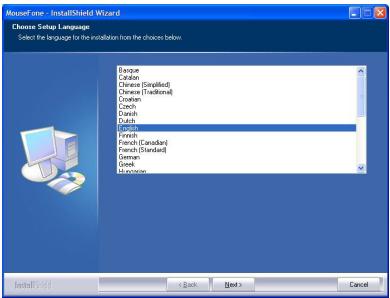
The software will be installed into the default directory on your hard drive. You can choose the location where these files are stored on your computer by pressing the "Change" button. Please follow the on-screen instructions to install the software. Press "Next" and "OK" to continue.
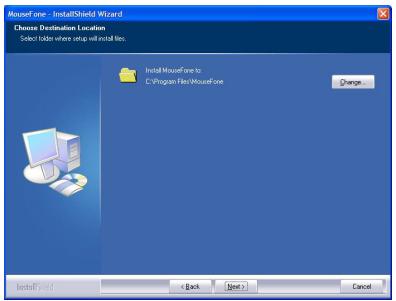
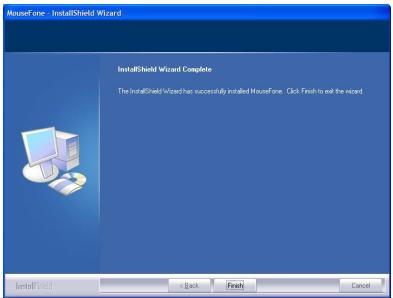
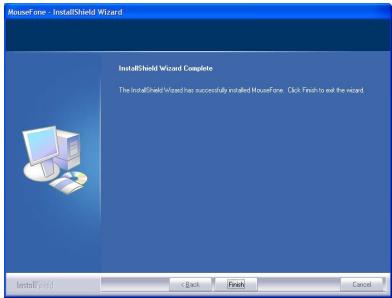
Click Finish and restart your computer when prompted. In order to install the software files properly, you should restart your system.
Once the mouse phone is setup correctly, the LED in the hot key will turn on and the mouse will start to connect to the installed API. If you are launching the mouse phone for the first time and has "Skype" installed, it will pop up with the following screen. If you like to use the phone mouse with Skype, select "Allow this program to use Skype" and press "OK".
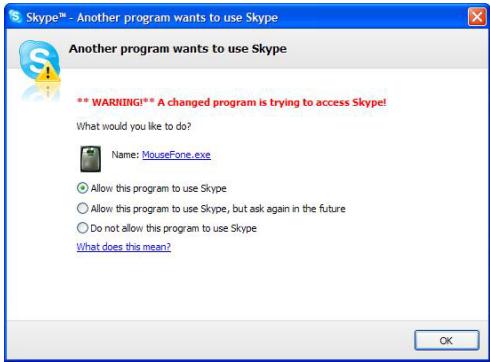

Note: the driver CD does not include the "Skype" software. You will need to obtain your own copy and installed the application. If you do not have Skype installed, this screen will not appear.
Using the mouse internet phone
There will be an icon in the Window's task bar after the software is installed successfully. When the Skype window is minimized, press the "hot key" one time and the Skype window will maximize. Press the "hot key" again to minimize the window.

Right click the icon with the mouse and a setup window will appear.

About: About window shows the information of the mouse phone.
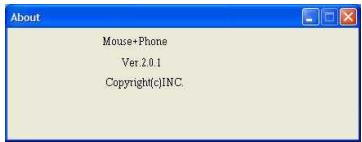

Pressing left click and right click at the same time will switch between using the computer's sound card to output the voice or using the mouse phone's sound card to output the voice. You can turn this function on/off by selecting this option.

Voice will be outputed by computer's sound card.

Voice will be outputed by mouse phone's sound card.
Using the mouse phone as a speaker
After the mouse phone's hardware and software have been successfully installed, the mouse can be set as a default sound device for playback / sound recording / voice playback. You can change this setting in the "Sound and Audio Devices" under window's "Control Panel".
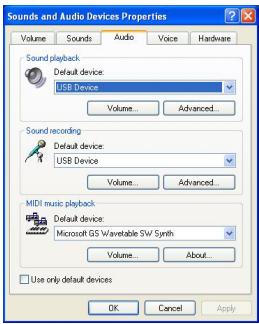
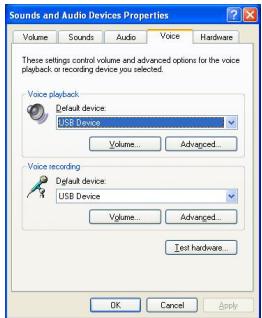
You can also plug an external speaker into the mouse phone's "sound card connector". In this mode, the mouse is used as a sound card. You can adjust the volume with the mouse's scroll wheel. The volume adjusting function is for the corresponding sound card. If you are using the mouse's sound card as the default sound device, the scroll wheel will control the volume for the mouse. And if the default device is set to the computer's sound card, the scroll wheel will control the volume for the computer's sound card. When the volume is being changed, the follow icons will appear.


For Optimal Performance
Never use the optical mouse on glass, mirrored or shiny reflective surfaces as these surfaces will cause the mouse to fail temporarily.
Safety Measures
Never point the optical sensor toward the face, particularly the eyes, to avoid possible injury.
Comfortable Usage
Research suggests that physical discomfort and injury to nerves, tendons, and muscles may be related to repetitive motion, an improperly set up work area, incorrect body posture, and poor work habits.
To reduce the risk of injury, follow these precautions:
- Stand, stretch, and move around several times every hour.
- Switch hands while performing tasks. Use shortcut keys to avoid repetitive or awkward mouse movements.
- Relax your shoulders and keep your elbows at your sides. Adjust the keyboard's position so that you don't have to stretch to reach it.
- Adjust your position so that you don't have to bend your wrists to type; avoid placing your wrists on a sharp edge. If you feel discomfort or numbness in your hands, wrists, arms, shoulders, neck, or back while typing, consult a qualified medical professional.
Technical Support
For technical questions, please visit:
Internet http://www.targus.com/support.asp
English http://www.targus.com/uk/support.asp
German http://www.targus.com/de/support.asp
Spanish http://www.targus.com/sp/support.asp
Italian http://www.targus.com/it/support.asp
Our knowledgeable staff is also available to answer your questions through one of the following telephone numbers.
Austria 0179567642
Belgium 02-717-2451
Denmark 4535-25-8751
Finland 922948016
France 01-6453-9151
Germany 0211-6579-1151
Italy 02-4827-1151
Netherlands 02 0504 0671
Norway 022577729
Portugal +351 21 415 4123
Spain 917456221
Sweden 08-751-4058
Switzerland 01-212-0007
United Kingdom 020-7744-0330
Eastern Europe & others +31 0 20 5040671
Product Registration
Targus recommends that you register your Targus accessory shortly after purchasing it. To register your Targus accessory, go to: http://www.targus.com/registration.asp
You will need to provide your full name, email address, phone number, and company information (if applicable).
Warranty
Targus warrants this product to be free from defects in materials and workmanship for two years. If your Targus accessory is found to be defective within that time, we will promptly repair or replace it. This warranty does not cover accidental damage, wear and tear, or consequential or incidental loss. Under no conditions is Targus liable for loss of, or damage to a computer; nor loss of, or damage to, programs, records, or data; nor any consequential or incidental damages, even if Targus has been informed of their possibility. This warranty does not affect your statutory rights.
Regulatory Compliance
This device complies with Part 15 of the FCC Rules. Operation is subject to the following two conditions: (1) This device may not cause harmful interference, and (2) This device must accept any interference received, including interference that may cause undesired operation.
FCC Statement
Tested to Comply
This equipment has been tested and found to comply with the limits of a Class B digital device, pursuant to Part 15 of the FCC Rules. These limits are designed to provide reasonable protection against harmful interference in a residential installation. This equipment generates, uses, and can radiate radio frequency energy and if not installed and used in accordance with the instructions, may cause harmful interference to radio communications. However, there is no guarantee that interference will not occur in a particular installation.
If this equipment does cause harmful interference to radio or television reception, which can be determined by turning the
equipment off and on, the user is encouraged to try to correct the interference by one or more of the following measures:
- Reorient or relocate the receiving antenna;
- Increase the separation between the equipment and receiver;
- Connect the equipment into an outlet on a circuit different from that to which the receiver is connected;
- Consult the dealer or an experienced radio/TV technician for help.
Changes or modifications not authorized by the party responsible for compliance could void the user's authority to operate this product.
Targus Recycling Directive
At the end of this product's useful life please dispose at an appropriate recycling collection point provided in your country. Targus recycling policy is available for viewing at:
www.targus.com/recycling
Microsoft, Windows, and Windows Vista are either registered trademarks or trademarks of Microsoft Corporation in the United States and/or other countries. All trademarks and registered trademarks are the properties of their respective owners. All rights reserved.
TARGUS USB
INTERNETTELEFONMAUS
FÜR NOTEBOOKS
Einführung
Setup file - Setup.exe
English http://www.targus.com/uk/support.asp
Spanish http://www.targus.com/sp/support.asp
Italianisch http://www.targus.com/it/support.asp
Setup file - Setup.exe
Setup file - Setup.exe
Italian http://www.targus.com/it/support.asp
Setup file - Setup.exe
La病毒感染 me awhile, and I was able to see the computer.

Inglese http://www.targus.com/uk/support.asp
Setup file - Setup.exe
Targus Recycle Policy
Setup file - Setup.exe
Click Finish and restart your computer when prompted. In order install the software files properly, you should restart your system.
Alemão http://www.targus.com/de/support.asp
Espanhol http://www.targus.com/sp/support.asp
Italiano http://www.targus.com/it/support.asp
Osomeone especially isstaqqemdisponivel para responderasusquostoesatravésdeum dos seguintesznerosedteleone.
Austria +43 01 795 676 42
Bélgica +32 0 02-717-2451
Dinamarca +45 0 35-25-8751
Franca +33 0 1-64-53-9151
Finland +35 8 922948016
Visit our Website at www.targus.com/emea
Features and specifications subject to change without notice.
© 2007 Targus Group International, Inc. and Targus Group (UK) Ltd.
- USB Notebook Mouse Internet Phone
- Table of Contents
- English
- Deutsch
- Espanol
- François
- Nederlandst
- Portugues
- Contents
- System Requirements
- Setting up the mouse internet phone
- Connecting the mouse to the computer
- Installing the mouse internet phone software driver
- Using the mouse internet phone
- Using the mouse phone as a speaker
- For Optimal Performance
- Safety Measures
- Comfortable Usage
- Technical Support
- Product Registration
- Warranty
- Regulatory Compliance
- FCC Statement
- Tested to Comply
- Targus Recycling Directive
- TARGUS USB
- INTERNETTELEFONMAUS
- FÜR NOTEBOOKS
- Einführung
- Targus Recycle Policy
Brand : TARGUS
Model : USB NOTEBOOK MOUSE INTERNET PHONE
Category : Computer Peripheral