RR-1090 - Audio Amplifier ROTEL - Free user manual and instructions
Find the device manual for free RR-1090 ROTEL in PDF.



User questions about RR-1090 ROTEL
0 question about this device. Answer the ones you know or ask your own.
Ask a new question about this device
Download the instructions for your Audio Amplifier in PDF format for free! Find your manual RR-1090 - ROTEL and take your electronic device back in hand. On this page are published all the documents necessary for the use of your device. RR-1090 by ROTEL.
USER MANUAL RR-1090 ROTEL
Battery Installation and Recharging 14 13 7
Getting Started 7
IR Emitter/Sensor 12 7
Device Buttons 8
Basic Command Buttons 3 4 6 7 8 8
Menu Command Keys 9 and LCD Display 2 8
PAGEButton 8
MACRO Buttons 8
Menu Button 8
Power Button 8
Serial Connector 15 8
Operating the RR-1090 9
Activating the RR-1090 9
Sending IR Commands 9
Sending Macro Commands 9
Programming Command Codes 9
4-Digit Code Programming 10
Search Code by Brand Name 10
Auto-Search Programming 10
Learning Commands 11
Macro Programming 11
Custom Device Page 12
Deleting Stored Commands 12
Volume Punch-through 13
RESET Function 13
DUPLICATE Function 13
Custom Labels 14
Edit a DEVICE Name 14
Edit a COMMAND Name 14
Move a COMMAND Name 14
Auto-arrange COMMAND Names 15
Other Configuration Options 15
Backlighting 15
Beep Sound 15
Password 15
PC-Link Software 16
Installing PC-LINK Software 16
Loading and Saving Configuration Files 16
Uploading and Downloading Configuration Files 17
Modifying Configuration Files 17
4-Digit Codes 92
A/V 92
TV 92
VCR 93
CD 93
DVD 94
LD 94
SAT/DSS 95
Introduction
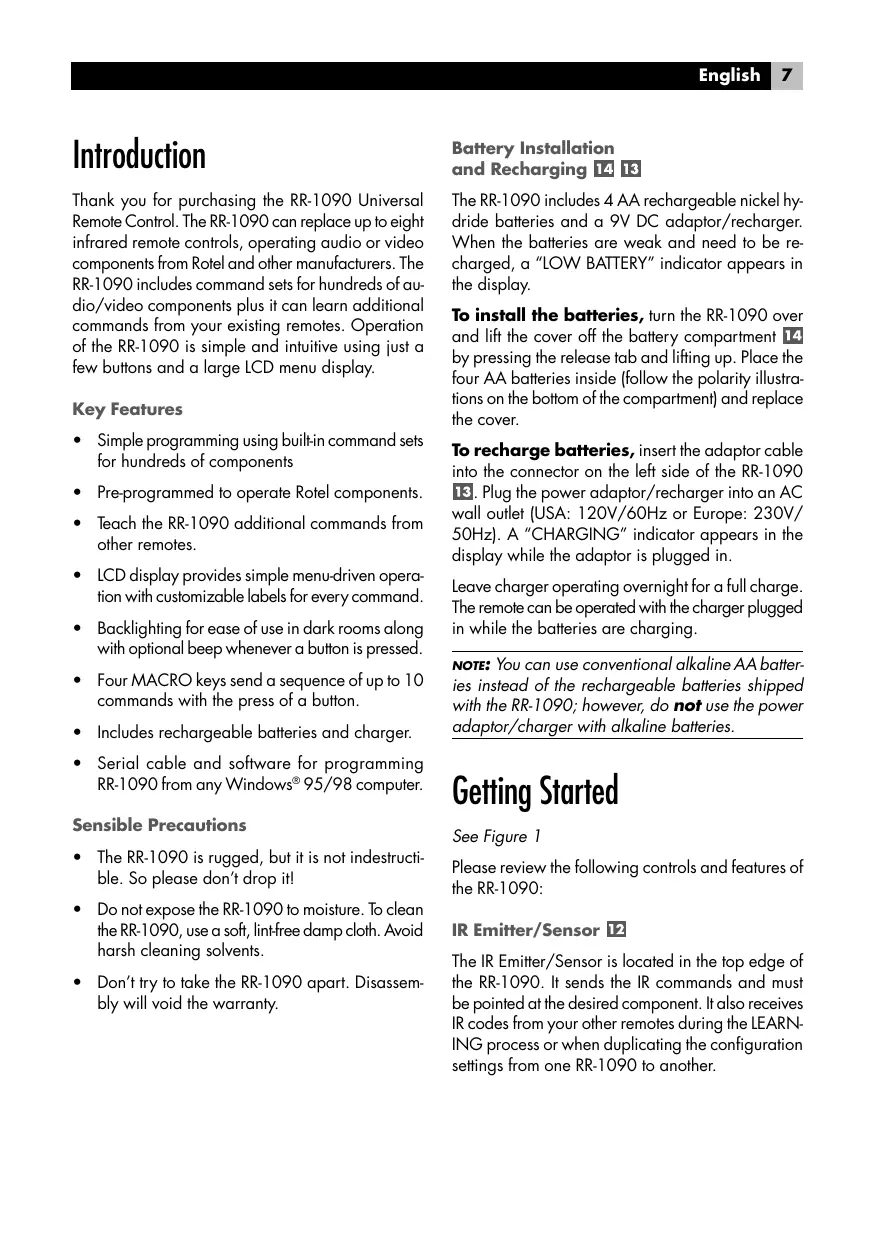
Thank you for purchasing the RR-1090 Universal Remote Control. The RR-1090 can replace up to eight infrared remote controls, operating audio or video components from Rotel and other manufacturers. The RR-1090 includes command sets for hundreds of audio/video components plus it can learn additional commands from your existing remotes. Operation of the RR-1090 is simple and intuitive using just a few buttons and a large LCD menu display.
Key Features
Simple programming using built-in command sets for hundreds of components
- Pre-programmed to operate Rotel components.
- Teach the RR-1090 additional commands from other remotes.
- LCD display provides simple menu-driven operation with customizable labels for every command.
- Backlighting for ease of use in dark rooms along with optional beep whenever a button is pressed.
Four MACRO keys send a sequence of up to 10 commands with the press of a button.
- Includes rechargeable batteries and charger.
- Serial cable and software for programming RR-1090 from any Windows® 95/98 computer.
Sensible Precautions
- The RR-1090 is rugged, but it is not indestructible. So please don't drop it!
- Do not expose the RR-1090 to moisture. To clean the RR-1090, use a soft, lint-free damp cloth. Avoid harsh cleaning solvents.
- Don't try to take the RR-1090 apart. Disassembly will void the warranty.
Battery Installation and Recharging 14 13
The RR-1090 includes 4 AA rechargeable nickel hydride batteries and a 9V DC adaptor/recharger. When the batteries are weak and need to be recharged, a "LOW BATTERY" indicator appears in the display.
To install the batteries, turn the RR-1090 over and lift the cover off the battery compartment by pressing the release tab and lifting up. Place the four AA batteries inside (follow the polarity illustrations on the bottom of the compartment) and replace the cover.
To recharge batteries, insert the adaptor cable into the connector on the left side of the RR-1090 13. Plug the power adaptor/recharger into an AC wall outlet (USA: 120V / 60Hz or Europe: 230V/ 50Hz) . A "CHARGING" indicator appears in the display while the adaptor is plugged in.
Leave charger operating overnight for a full charge. The remote can be operated with the charger plugged in while the batteries are charging.
NOTE: You can use conventional alkaline AA batteries instead of the rechargeable batteries shipped with the RR-1090; however, do not use the power adaptor/charger with alkaline batteries.
Getting Started
See Figure 1
Please review the following controls and features of the RR-1090:
IR Emitter/Sensor 12
The IR Emitter/Sensor is located in the top edge of the RR-1090. It sends the IR commands and must be pointed at the desired component. It also receives IR codes from your other remotes during the LEARNING process or when duplicating the configuration settings from one RR-1090 to another.
Device Buttons 5
Eight round buttons on the RR-1090 select which command set is active and which component will be controlled. For example, press the AV1 button and the RR-1090 becomes the remote control for your Rotel Surround Sound Processor. Press the TV button and the RR-1090 becomes the remote control for your TV set.
To operate the RR-1090, first press the DEVICE key for the desired component. Then, press basic or menu COMMAND buttons to send the infrared commands for that component.
NOTE: The AV1, AV2, and AV3 DEVICE keys can be used for any type of component.
Basic Command Buttons 3 4 6 7 8
The POWER button on the right side of the remote plus two large round 4-way buttons and two smaller round buttons in the center of the RR-1090 duplicate the primary functions for your components - power, volume, channel up/down, play, fast forward, pause, etc. The commands for each button vary, depending on the selected DEVICE button.
Menu Command Keys 9 and LCD Display 2
At the top of the RR-1090 is a group of 12 rectangular buttons surrounding an LCD display. These MENU COMMAND keys provide additional functions shown by menu labels appearing in the display adjacent to each button.
The function of these buttons varies depending on the type of component selected by the DEVICE buttons and the menu page displayed.
PAGE Button 1
Each component selected by a DEVICE button can have up to 48 menu commands. These commands appear in the LCD display in groups (or pages) of twelve. Press the PAGE button to advance to the next page of commands, with new labels appearing in the LCD display. Each press of the PAGE button jumps to the next group for that component, eventually cycling back to the original page.
MACRO Buttons 10
Four buttons labeled M1, M2, M3, and M4 provide a special macro function - sending a sequence of up to 10 commands. For example, a macro sequence could turn on the TV set, select channel 5, turn on the surround processor, and select the TV input.
Two of the MACRO buttons (M3 and M4) are also used in customizing the RR-1090.
Menu Button 11
This button activates and selects between a series of menu screens in the LCD display used for customizing the RR-1090. The MENU button is not used during normal operation.
Power Button 8
In addition to serving as a basic command button, the POWER button is also used during the SETUP procedure when searching the database of IR command codes.
Serial Connector 15
This 4-pin modular connector on the back of the RR-1090 can be used to connect the remote to a standard DB-9 serial connector on a PC using the supplied cable.
Using PC-LINK software supplied with the unit, codes and commands can be uploaded and/or downloaded from a Windows® 95/98 computer to the RR-1090 remote. This allows easy transfer of one remote's programming to other RR-1090 remotes as well as simplified customization. See the section on PC-LINK software in this manual.
Operating the RR-1090
This section of the manual explains the basic operation of the RR-1090 and most of its standard features.
NOTE: The RR-1090 is pre-programmed with the codes for Rotel surround sound processors stored under the AV1 device button. Rotel CD and DVD codes are stored under the CD and DVD buttons.
Activating the RR-1090
To conserve battery power, the RR-1090 goes into "sleep" mode following 60 seconds of inactivity. Press any button to activate the remote. Labels appear in the LCD display when the remote is active
Sending IR Commands
Instead of using multiple remotes to operate your system, you simply press a button on the RR-1090 to make it the remote control for your CD player or the remote control for your TV set and send commands to operate the desired component. Here's how:
- Press any button on the RR-1090 to activate the remote (if necessary).
- Press a DEVICE button 5 to activate the command set for the desired component. For example, press the AV1 button for a Rotel surround processor. The label for your selected device appears in the center of the display.
-
Press a COMMAND button 3 4 6 7 8 9 to send an IR command to the component you have selected. For example, press the VOL+ command to increase the volume on a Rotel surround processor. Basic commands are available on the large round buttons 3 4 6 7 in the center of the remote and the POWER button 8. Additional commands are available on the 12 MENU COMMAND keys at the top of the remote, corresponding to the command labels visible in the LCD display. While a COMMAND button is being pressed, the label associated with that command replaces the DEVICE name in the center of the display.
-
Press the PAGE button 1 to see the next page of 12 available menu commands in the display. Up to four "pages" of commands may be available for a particular component. Press the PAGE button repeatedly to cycle through all available groups of commands for that component. See Figure 3.
NOTE: The COMMAND buttons duplicate controls on many different types of components. Their function depends on the type of component selected. Make sure that you have pressed the correct DEVICE button before sending IR commands.
Sending Macro Commands
Four buttons on the RR-1090 (labeled M1, M2, M3, and M4) can store multiple command macro sequences – for example, a sequence that turns on the TV set, selects channel 5, turns on the surround processor, and selects the TV input. A macro sequence is sent by pressing the MACRO button where the macro is stored.
Programming Command Codes
The RR-1090 contains hundreds of command sets for components. Programming the remote involves selecting the command sets that correspond to the components in your system and assigning each of them to one of the eight DEVICE buttons by entering the 4-digit code for that component. This need only be done once during initial setup of the RR-1090.
The easiest way is to find your components and corresponding 4-digit codes from the list of codes at the end of this manual. If your component is not listed, there are alternative search methods for finding the right command set.
NOTE: Programming the RR-1090 is done in a menu-driven setup mode accessed by pressing the MENU button. At any time during the process, you can exit the setup mode and return to normal operation by pressing the MENU button twice in succession.
4-Digit Code Programming
Find your audio/video component in the code list and note the 4-digit code(s):
- Press the MENU button to reach the main menu.
- Select SETUP from the LCD display menu by pressing the MENU COMMAND key above the first letter of the SETUP label.
- Press one of the DEVICE buttons to select where you wish to store this component's codes. If you choose the multipurpose AV1, AV2, or AV3 device buttons, you will be further prompted to select the type of component (CD, VCR, etc.)
- Select ENTER CODE by pressing the MENU COMMAND key above that label.
- Input the 4-digit code using the MENU COMMAND keys corresponding to the digits in the LCD display. Upon completion, the successfully entered code will be confirmed in the display.
- Once the code has been entered, the menu will present two options. Press another DEVICE key to program additional codes. Press the MENU button to return to the main menu; press the MENU button a second time to exit the setup mode and return to normal operation.
Test the code by sending commands to the components (i.e. the POWER command). If the code does not work properly, repeat the procedure using the next 4-digit code listed for the brand of component.
Search Code by Brand Name
You can also use the following search method to find and test the code numbers available for your brand of component.
- Press the MENU button to reach the main menu.
- Select SETUP from the LCD display by pressing the MENU COMMAND key above the first letter of the SETUP label.
-
Press one of the DEVICE buttons to select where you wish to program this component's codes. If you choose AV1, AV2, or AV3, you will be further prompted to select the type of component (CD, VCR, AMP, etc.).
-
Select BRAND NAME by pressing the MENU COMMAND key above that label.
- Select the first letter of your component's brandname. If necessary, press the M4 button for the next page of letters or the M3 button for the previous page of letters.
- Select your component's brand name from the list appearing in the display (pressing M4 or M3 for additional listings). The prompt "press POWER key to test" appears in the display
- Press the POWER button on the right side of the RR-1090 to test the first available code for your brand. The 4-digit code being tested is shown in the display.
If the POWER command turns on or off the desired component, you have found a code that may work. You can test additional commands by pressing MENU COMMAND keys corresponding to commands for that 4-digit code shown in the display. If successful, press the DEVICE button to save the code.
If the POWER command does not work, press the POWER button to test the next available code for that brand, with the new 4-digit code being tested shown in the display. Continue pressing the POWER button and testing codes until you have found a code that works, saving it by pressing the DEVICE button.
If none of the available codes for that brand work, you will be asked to search the entire library of codes for that kind of component. Select YES to jump to the search procedure (step 5 in the following section). Select NO to return to the main menu
Auto-Search Programming
To search for a code from the full list of available 4-digit codes for a type of component:
- Press the MENU button to reach the main menu.
- Select SETUP from the LCD display menu by pressing the MENU COMMAND key above the first letter of the SETUP label.
-
Press one of the DEVICE buttons to select where you wish to program this component's codes. If you choose AV1, AV2, or AV3, you will be further prompted to select the type of component (CD, VCR, AMP, etc.).
-
Select SEARCH by pressing the MENU COMMAND key below that label. The prompt "press POWER key to test" appears in the display.
- Press the POWER button on the right side of the RR-1090 to test the first available code. The 4-digit code being tested is shown in the display.
If the POWER command turns on or off the desired component, you have found a code that may work your component. You can test additional commands by pressing MENU COMMAND keys corresponding to commands for that 4-digit code shown in the display. If successful, press the DEVICE button to save the code.
If the POWER command does not work, press the POWER button to test the next available code, again with the 4-digit code being tested shown in the display. Continue pressing the POWER button and testing codes until you have found a code that works, saving it by pressing the DEVICE button.
If none of the available codes work, a prompt will tell you that you have tested all available codes. Press the MENU button to return to the main menu.
Learning Commands
If the programmed command sets for your component do not include functions you need, you can teach the RR-1090 individual commands from your existing remotes:
- Place the RR-1090 and the original remote control on a flat surface end to end as shown in Figure 2 at the front of this manual. The IR signals sent by the other remote must be aimed at the IR emitter/sensor of the RR-1090.
- Press the MENU button to reach the main menu.
- Select LEARNING from the LCD display menu by pressing the MENU COMMAND key above the first letter of the LEARNING label.
- Press one of the DEVICE buttons to select where you wish to program this component's codes.
- Select the RR-1090 COMMAND key where you wish to memorize the command. You can choose one of the BASIC COMMAND buttons or one of the MENU COMMAND keys (using the PAGE
button to advance to a new page of MENU COMMANDS if necessary to find an unused key). The LCD display will show "LEARNING".
- Press and hold the corresponding command button on the original remote to send the IR code being learned to the RR-1090.
If the learning procedure fails, the RR-1090 will display "ERROR" and revert back to Step 5 above. Reposition the two remotes and try again, starting from Step 5.
When a code is successfully learned, the RR-1090 will prompt you to edit the label it has assigned to the command. Select NO to keep the current label. Select YES to edit the label and enter the desired letters (using the M3 or M4 buttons to move to the next page of letters). Labels can be up to 5 characters. Press the MENU button to store the new label.
To learn additional commands, repeat from Step 5 above. To return to the main menu, press the MENU button.
NOTE: The RR-1090 has a capacity of 240 commands. If capacity is reached, the remote will display COMMAND FULL and not allow you to learn an additional command. See the section on deleting commands to clear command space.
Macro Programming
Four buttons on the RR-1090 (labeled M1, M2, M3, M4) can store macro sequences of multiple commands sent by pressing one button.
To program a macro sequence, first make sure that all of the desired commands have been learned by the RR-1090 - the macro feature simply records a sequence of individual RR-1090 button commands.
- Press the MENU button to reach the main menu.
- Press the PAGE button for the next page of menu options.
- Select MACRO from the LCD display.
-
Press the MACRO button (M1, M2, M3, or M4) where you wish to store the new macro sequence.
-
Enter the new label for the macro by pressing MENU COMMAND keys corresponding to the letters in the display (using the M3 or M4 buttons to move to the next page of letters). Labels can be up to 5 characters long. After entering the label, press the MENU button to store it.
- Memorize the first step in the macro. Press a DEVICE button to change to the desired device and individual COMMAND keys to memorize commands from the selected device (press the PAGE button to see additional pages of available commands).
- To memorize additional commands, press the selected MACRO button to confirm the previous memorized command and then memorize the next command. Repeat until the entire sequence has been stored.
- When the entire macro sequence has been entered, press the MENU button to store the macro sequence.
NOTE: A macro sequence can contain up to 10 commands, not including any DEVICE button presses.
Custom Device Page
Generally, all commands stored under a DEVICE button operate a single component. However, it is possible to build one special command set, called a CUSTOM PAGE, which includes individual commands copied from other devices. For example, you could build a CUSTOM PAGE command set containing copies of the most used commands from all devices, providing a simple-to-use subset of favorite commands. This CUSTOM PAGE command set can be accessed by pressing the DEVICE button where it is stored. To build a custom device page:
- Press the MENU button to reach the main menu.
- Select PREFERENCE from the LCD display.
- Select CUSTOM PAGE from the LCD display.
-
Press the DEVICE button where you wish to store the CUSTOM PAGE command set.
-
Enter the new label for the device by pressing MENU COMMAND keys corresponding to the letters in the display (using the M3 or M4 buttons to move to the next page of letters). Labels can be up to 7 characters long. After entering the label, press the MENU button to store it.
- Press a DEVICE button to select the device where the first command you wish to copy to the CUSTOM PAGE is located.
- Press the COMMAND key for the first command you wish to add to the CUSTOM PAGE.
- Select the location in the CUSTOM PAGE where you wish to store the command by pressing any MENU COMMAND key. The label for that command appears in the selected location.
- Repeat steps 6-8 for each additional command you wish to copy to the CUSTOM PAGE.
If you wish to auto-arrange the commands, press the M4 button. Press the MENU button to return to the main menu.
NOTE: To copy additional commands at any time, repeat steps 1-3 and steps 6-10. Because you are copying to an existing CUSTOM PAGE, steps 4 and 5 are not necessary and will be skipped.
Deleting Stored Commands
You can erase previously stored commands:
- Press the DEVICE button containing the command you wish to delete.
- Press the MENU button to reach the main menu.
- Select EDIT from the LCD display.
- Select DELETE KEY from the LCD display.
- Press the COMMAND key you wish to erase. You can delete commands from BASIC COMMAND buttons or MENU COMMAND keys (using the PAGE button to scroll through the available pages of commands).
- Select YES or NO to confirm the deletion.
- Repeat steps 5 and 6 to delete additional commands. If desired, press the M4 button to auto-arrange the new commands in the display. Press the MENU button to return to the main menu.
Volume Punch-through
In many systems, the VOLUME is adjusted at the TV set or the A/V processor. For convenience, the RR-1090 has a VOLUME PUNCH-THROUGH feature that copies the volume commands from either the TV device or any programmed A/V device to device keys for other components such as CD players, VCRs, SAT receivers, and DVD players. After enabling this feature, volume controls from either the TV or A/V processor are available even when one of these other DEVICE command sets is active.
To enable the VOLUME PUNCH-THROUGH feature:
- Press the MENU button to reach the main menu.
- Select PREFERENCE from the LCD display.
- Select PUNCH THROUGH from the LCD display.
- Select the volume commands (from either the TV command set or an A/V command set) to copy to another DEVICE by selecting either TV VOL or AMP VOL from the LCD display. If you select AMP VOL, you will need to select the A/V command set with the desired volume commands (AV1, AV2, or AV3) from the next LCD display menu by pressing a MENU COMMAND key.
- Press a DEVICE button to select the target device where you want the volume commands to be copied. The VOLUME PUNCH THROUGH command cannot be copied to a TV device or any A/V device. They can be copied to any other kind of device (CD, SAT, LD, DVD, etc.). If you select an improper DEVICE key, nothing happens. After you have selected an allowable DEVICE key, a confirmation PUNCH THROUGH OK appears in the display.
- Press the MENU button to return to the main menu.
RESET Function
You can return the RR-1090 to its original factory programming at anytime by using the RESET function.
NOTE: Using the RESET function erases all learned commands, labels, and configuration settings. Make sure this is what you want to do!
To reset the RR-1090:
- Press the MENU button to reach the main menu.
- Press the PAGE button to advance to the second page of options.
- Select REMOTE SETTINGS from the LCD display by pressing the MENU COMMAND key above the first letter of the REMOTE SETTINGS label.
- Select RESET from the LCD display by pressing the MENU COMMAND key below the first letter of the RESET label.
- Select YES or NO to confirm. If you select YES, the RR-1090 will erase all custom programming and return to its original factory settings, displaying a series of progress messages followed by the final confirmation DEFAULT SETTING.
- Press the MENU button to return to the main menu.
DUPLICATE Function
The DUPLICATE function transfers programming, including learned commands and custom labels, from one RR-1090 to a second RR-1090. You have the option of transferring data from just a single DEVICE key or from all eight DEVICE keys. To transfer the programming, place two RR-1090 remotes with their IR windows facing each other, then proceed as follows.
On the remote that will be receiving the data:
- Press the MENU button to reach the main menu.
- Press the PAGE button to advance to the second page of options.
- Select DUPLICATE from the LCD display by pressing the adjacent MENU COMMAND key.
- Select RECEIVE from the LCD display by pressing the adjacent MENU COMMAND key. A READY TO RECEIVE INDICATOR appears in the display.
On the remote that will be sending the data:
- Press the MENU button to reach the main menu.
- Press the PAGE button to advance to the second page of options.
- Select DuplicatedATE from the LCD display by pressing the adjacent MENU COMMAND key.
- To transmit codes for all devices, select the COPY ALL DEVICES menu option. To transfer codes for just one device, select COPY ONE DEVICE and then select the DEVICE button to be copied. This begins the data transfer procedure with a SENDING prompt appearing in the display.
At the completion of the transfer procedure a confirmation will appear on the sending RR-1090:
- If the data transfer is successful, "FINISH SENDING" appears.
- If the data transfer fails, "SENDING ER-ROR" appears in the LCD and the unit reverts to normal operating mode. Reposition the two remotes and try again.
NOTE: Do not attempt to use the DUPLICATE function to transfer data from any remote other than another Rotel RR-1090.
Custom Labels
The labels for DEVICE buttons and COMMAND keys can be edited. Also, the location of the COMMAND keys for a device can be moved from one position in the LCD display to another.
Edit a DEVICE Name
To change the name that appears in the center of the LCD display when you select a DEVICE button:
- Press the DEVICE button you wish to rename.
- Press the MENU button to reach the main menu.
- Select EDIT from the LCD display.
-
Select DEVICE NAME from the LCD display.
-
Enter the new label for the device by pressing MENU COMMAND keys corresponding to the letters in the display (using the M3 or M4 buttons to move to the next page of letters). Labels can be up to 7 characters long. After entering the label, press the MENU button to store it.
Edit a COMMAND Name
To change the name that appears in the LCD display next to a MENU COMMAND key:
- Press the DEVICE button containing the COMMAND key you wish to rename.
- Press the MENU button to reach the main menu.
- Select EDIT from the LCD display.
- Select KEY NAME from the LCD display.
- Press the BASIC COMMAND button or MENU COMMAND key (using the PAGE button for additional choices) that you wish to rename.
- Enter the new label for the device by pressing MENU COMMAND keys corresponding to the letters in the display (using the M3 or M4 buttons to move to the next page of letters). Labels can be up to 5 characters long. After entering the label, press the MENU button to store it.
- Repeat steps 5 and 6 to label additional COMMAND buttons or press the MENU button to return to the main menu.
Move a COMMAND Name
To change the location of a MENU COMMAND key in the LCD display:
- Press the DEVICE button containing the COMMAND key you wish to move.
- Press the MENU button to reach the main menu.
- Select EDIT from the LCD display.
- Select MOVE KEY from the LCD display.
- Select the MENU COMMAND key to move.
- Select the new location for the COMMAND key.
- The two COMMAND keys exchange locations.
Auto-arrange COMMAND Names
As an alternative to manually moving keys, you can have the RR-1090 automatically arrange the MENU COMMAND keys for a DEVICE.
- Press the DEVICE button containing the COMMAND keys you wish to auto-arrange.
- Press the MENU button to reach the main menu.
- Select EDIT from the LCD display.
- Select AUTO-ARRANGE from the LCD display.
Other Configuration Options
The RR-1090 features backlighting and a keytone beep to assist in operation. Additionally, password protection can be enabled to protect access to the setup features.
Backlighting
Backlighting makes the LCD display visible in low light conditions. There are three available settings:
- With Light Sense. Senses the lighting level in the room and turns on the backlighting for 5 seconds with any key press when the room is dark. (default setting)
Always On. Backlighting will be turned on for 5 seconds with any key press regardless of the room lighting.
Always Off. Backlighting is disabled.
To configure the backlighting:
- Press the MENU button to reach the main menu.
- Press the PAGE button to advance to the second page of menu options.
- Select REMOTE SETTINGS from the LCD display.
- Select BACKLIT from the LCD display.
- Select one of three backlighting modes from the LCD display.
Beep Sound
The RR-1090 has a keytone feature that beeps to confirm each button press. This feature can be enabled (default) or disabled.
To configure the beep sound:
- Press the MENU button to reach the main menu.
- Press the PAGE button to advance to the second page of menu options.
- Select REMOTE SETTINGS from the LCD display.
- Select BEEP SOUND from the LCD display.
- Select SOUND ENABLE or SOUND DISABLE.
Password
A password can be defined and enabled to prevent access to the setup menus. Once defined and enabled, the password will be required before access to the setup menus is allowed.
The factory default password is "2000", however the password protection is disabled by default.
To enable or disable password protection:
- Press the MENU button to reach the main menu.
- Press the PAGE button to advance to the second page of menu options.
- Select REMOTE SETTINGS from the LCD display.
- Select PASSWORD from the LCD display.
- Select ENABLE or DISABLE.
- If prompted, enter the password by pressing the MENU COMMAND keys corresponding to the characters shown in the display (using the M3 or M4 buttons to move to the next page of characters). After entering the password, press the MENU button.
To change the password:
- Press the MENU button to reach the main menu.
- Press the PAGE button to advance to the second page of menu options.
- Select REMOTE SETTINGS from the LCD display.
-
Select PASSWORD from the LCD display.
-
Select CREATE from the LCD display.
- When prompted, enter the old password by pressing the MENU COMMAND keys corresponding to the characters shown in the display (using the M3 or M4 buttons to move to the next page of characters). After entering the password, press the MENU button.
- Enter the new password by pressing the MENU COMMAND keys corresponding to the characters shown in the display, using the M3 or M4 buttons to move to the next page of characters. Passwords can be up to 4 characters in any combination of letters or numbers. Press the MENU button.
- Re-enter the new password to confirm and press the MENU button. A PASSWORD SET confirmation appears in the display. You can then select ENABLE or DISABLE.
NOTE: Once the password is changed, you cannot access the setup menus if you forget the new password. Unless you have a need for extra protection, we recommend leaving the default password "2000" unchanged.
PC-Link Software
The Windows® 95/98 PC-LINK software provided with the RR-1090 remote can be used to work with complete configuration files for the RR-1090 remote. These configuration files contain a complete set of options, command sets, macros, and custom labels to fully customize a RR-1090 remote. The configuration files can be saved to or opened from the hard disk. They can also be uploaded from or downloaded to the RR-1090 using the supplied serial cable. This provides a convenient way to transfer the desired programming to a number of RR-1090 remotes.
In addition, many of the configuration options for the RR-1090 can be modified in the PC-LINK software, a procedure that may be more convenient than using the RR-1090's own setup menus.
Installing PC-LINK Software
To install and run the PC-LINK software on a Windows® 95/98 computer:
- Insert DISK 1 in your disk drive.
- Run the program SETUP.EXE, either by double-clicking the filename in Windows Explorer or by clicking RUN from the START button menu and typing A:SETUP.EXE.
- Follow the steps in the setup program, accepting the default directory for the installation of the program (C:\PROGRAMS\HT2000) or specifying a new location using the BROWSE button.
- You will be prompted to insert DISK 2 during the installation. When the files are installed, you will be prompted to restart your computer to complete the installation.
- Run the PC-LINK software either by double-clicking the filename HT2000.EXE in Windows Explorer or by clicking RUN from the START button menu and typing C:\PROGRAMS\HT2000.EXE.
Loading and Saving Configuration Files
To use the PC-LINK software, you open a configuration file which appears in the main PC-Link screen as shown in the illustration at the front of the manual. These configuration files can be stored on your computer disk with the file extension *.HTR".
NOTE: The factory default configuration file "DEFAULT.HTR" is installed in the DEFAULT subdirectory of the HT2000 installation directory.
To open a configuration file from a computer disk:
- Select OPEN from the FILE menu.
- Use the dialog box to find the DEFAULT.HTR configuration file (or the file of your choice).
- Click the OPEN button.
To save a configuration file to a computer disk:
- To save a configuration file with the same name, select SAVE from the FILE menu. The new file will overwrite the old file.
- To save a configuration file with a different name, select SAVE AS from the FILE menu. Enter a new file name in the dialog box (the .HTR extension will be added automatically). Click the SAVE button.
Uploading and Downloading Configuration Files
Using the PC-LINK software and the supplied serial cable, you can upload a configuration file from the RR-1090 remote to your computer, modify it, and then download the new configuration settings to the remote.
To use the upload/download feature, you must configure your computer and put the remote in data transfer mode.
Connect the RR-1090 to your computer:
- Plug the 4-pin modular connector on the supplied cable into the jack on the back of the remote.
- Plug the other end of the cable into a DB-9 serial connector (COM1 or COM2) on your computer.
- Start the PC-LINK software and select the port you plugged the cable into (COM1 or COM2) from the PORT menu.
Put the RR-1090 in DATA TRANSFER mode:
- Press the MENU button to reach the main setup menu.
- Press the PAGE button to advance to the second page of options.
- Select PC LINK from the LCD display by pressing the adjacent MENU COMMAND key.
To upload a configuration file from the RR-1090 to the computer:
- Make sure the RR-1090 is in data transfer mode.
- Select UPGLOAD from the FILE menu in the PC-LINK software. An "UPLOADING..." prompt appears in the remote's LCD screen during the transfer.
- When the upload is complete, the configuration file will be opened in the PC-LINK software, where it can be modified, downloaded to another RR-1090, or saved to the computer disk.
To download a configuration file from the computer to the RR-1090:
- Make sure the RR-1090 is in data transfer mode.
- Open the desired file in the PC-LINK software.
- Select DOWNLOAD from the FILE menu in the PC-LINK software. A "DOWNLOADING..." prompt appears in the remote's LCD screen during the transfer.
- When the DOWNLOAD is complete, the new configuration settings will be installed in the RR-1090, overwriting any previous settings.
Modifying Configuration Files
The PC-LINK software can be used to see the current settings of an open configuration file and modify many of them. The modified configuration file can then be saved to a disk or downloaded to a RR-1090. Here are the available options in the PC-LINK software:
To select a DEVICE to be viewed or modified, chose the device from the DEVICE menu. The key names and other settings for that device are displayed in the PC-LINK screen.
To rename a DEVICE, select DEVICE NAME from the EDIT menu or double-click the DEVICE box on the main screen. Type the new name in the dialog box and click OK.
To rename a KEY, click the desired key in the main screen and select KEY NAME from the EDIT menu or double-click the desired key. Type the new name in the dialog box and click OK.
To delete a KEY, click the desired key in the main screen and select DELETE KEY from the EDIT menu. Click YES or NO to confirm.
To rearrange the KEYS for the current device, select ARRANGE KEY from the EDIT. You can also manually move the page keys to another location by clicking the key name, holding the mouse button, and dragging the label to a new location.
To view the steps in a MACRO, select the desired macro from the MACRO menu. The steps recorded in the macro are displayed down the right side of the main screen.
To change the KEY TONE setting, select KEY TONE from the SETTING menu. Click the desired option in the dialog box.
To change the BACKLIGHT setting, select BACKLIT from the SETTING menu. Click the desired option in the dialog box.
To view the PASSWORD setting, select PASSWORD from the SETTING menu.
To view the VOLUME PUNCH-THROUGH setting, select PUNCH THROUGH from the SETTING menu.
Sommaire
Volume Punch-through
Volume "Punch-through"
North Reading, MA 01864-2699
USA
Phone: +1 978-664-3820
Fax: +1 978-664-4109
Rotel Europe
Meadow Road
Worthing, West Sussex BN1 12RX
England
Phone: +44 (0)1903 524 813
Fax: +44 (0)1903 524 831
Rotel Deutschland
Kleine Heide 12