RDV-1092 - DVD player ROTEL - Free user manual and instructions
Find the device manual for free RDV-1092 ROTEL in PDF.



| Product type | DVD Audio/Video Player |
| Brand | ROTEL |
| Model | RDV-1092 |
| Dimensions (W × H × D) | 432 × 92 × 336 mm |
| Rack height (without feet) | 80 mm |
| Weight | 5.1 kg |
| Mains power supply | 110-240 V AC, 50/60 Hz |
| Power consumption | 26 W |
| Supported disc formats | DVD Audio, DVD Video, Audio CD, MP3 (CD-R/RW), DVD-/+R |
| Video outputs | HDMI, DVI, Component (Y/PB/PR), S-Video, Composite |
| Supported video resolutions | 480i/576i, 480p/576p, 720p, 1080i, 1080p |
| Analog audio outputs | 5.1 channels (6 RCA jacks) and stereo (2 RCA jacks) |
| Digital audio outputs | Coaxial (RCA 75 Ω) and optical Toslink |
| Supported audio formats | Dolby Digital, DTS, MPEG, LPCM, MLP (DVD-Audio) |
| Audio frequency response | 2 Hz to 88 kHz (depending on format) |
| Video signal-to-noise ratio (component output) | 65 dB |
| Special features | Zoom, slow motion, fast forward, A-B repeat, programming, random playback, parental control |
| Parental control | Levels 1 to 8, 4-digit password |
| Remote control | RR-DV98 with all functions |
| Included accessories | Audio/video cables, S-Video cable, 75 Ω digital cable, remote control, AAA batteries, manual, power cord |
| Laser class | Class 1 laser (invisible, safe under normal operation) |
| Maintenance and cleaning | Dry cloth or vacuum; do not block ventilation slots |
| Spare parts and repairability | No user-serviceable parts; contact a qualified technician |
| General information | Double electrical insulation; compliant with RoHS and WEEE |
Frequently Asked Questions - RDV-1092 ROTEL
User questions about RDV-1092 ROTEL
0 question about this device. Answer the ones you know or ask your own.
Ask a new question about this device
Download the instructions for your DVD player in PDF format for free! Find your manual RDV-1092 - ROTEL and take your electronic device back in hand. On this page are published all the documents necessary for the use of your device. RDV-1092 by ROTEL.
USER MANUAL RDV-1092 ROTEL
This symbol is to alert the user to the presence of uninsulated dangerous voltages inside the product's enclosure that may constitute a risk of electric shock.
This symbol is to alert the user to important operating and maintenance (service) instructions in this manual and literature accompanying the product.
APPLICABLE FOR USA, CANADA OR WHERE APPROVED FOR THE USAGE
CAUTION: TO PREVENT ELECTRIC SHOCK, MATCH WIDE BLADE OF PLUG TO WIDE SLOT. INSERT FULLY.
ATTENTION: POUR EVITER LES CHOCS ELECTRIQUES, INTRODUIRE LA LAME LA PLUS LARGE DE LA FICHE DANS LA BORNE CORRESPONDANTE DE LA PRESE ET POUSSER JUSQU AU FOND.
CLASS 1 LASER PRODUCT
Complies with DHHS 21 CFR 1040.10 and 1040.11
DANGER: INVISIBLE LASER RADIATION WHEN YOU OPEN THE TOP COVER. AVOID DIRECT EXPOSURE TO LASER BEAM.
CAUTION: USE OF CONTROLS OR ADJUSTMENTS OR PERFORMANCE OF PROCEDURES OTHER THAN THOSE SPECIFIED IN THIS MANUAL MAY RESULT IN HAZARDOUS RADIATION EXPOSURE.
CLASS 1 LASER PRODUCT
C

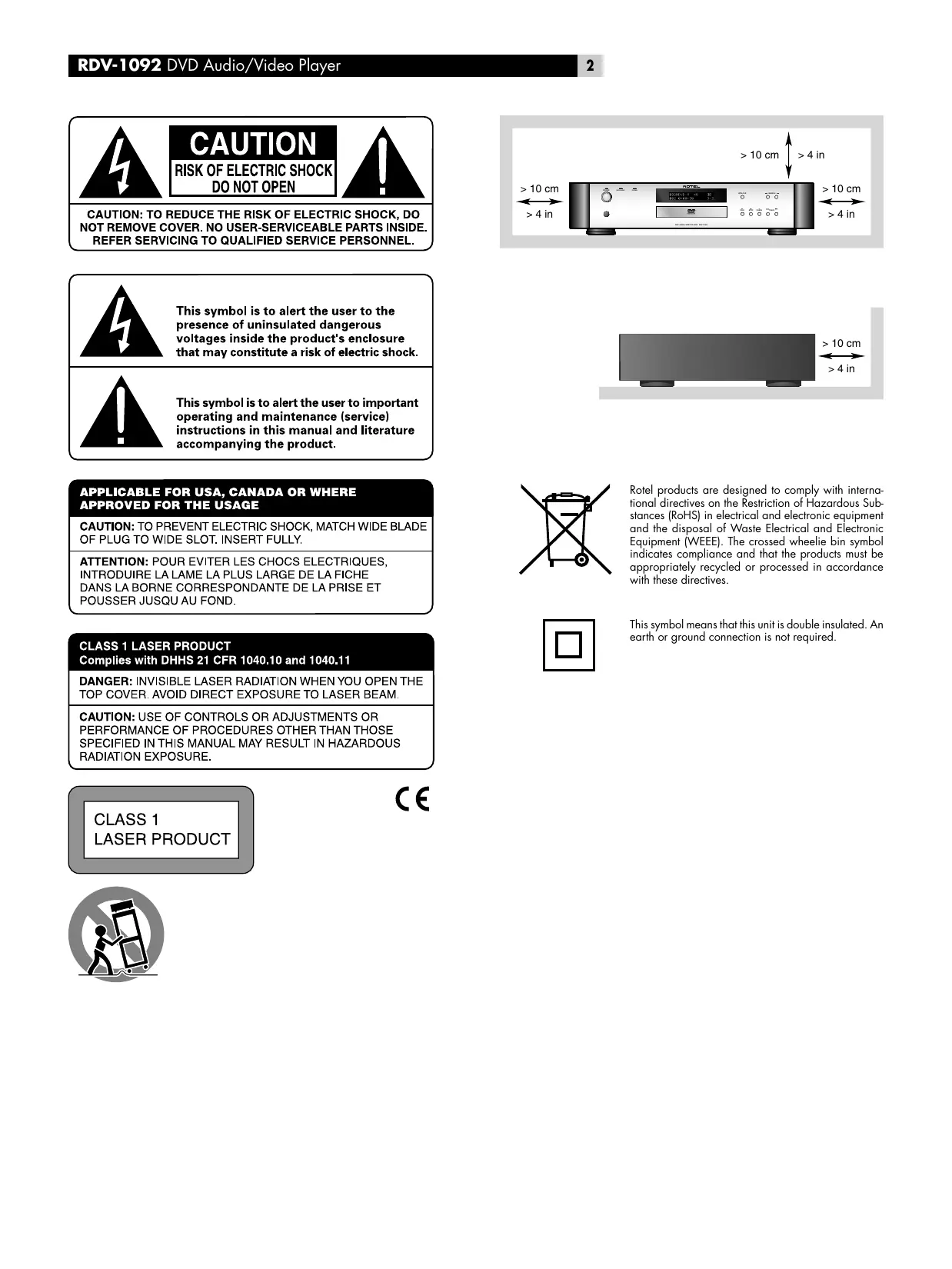
Rotel products are designed to comply with international directives on the Restriction of Hazardous Substances (RoHS) in electrical and electronic equipment and the disposal of Waste Electrical and Electronic Equipment (WEEE). The crossed wheelie bin symbol indicates compliance and that the products must be appropriately recycled or processed in accordance with these directives.

This symbol means that this unit is double insulated. An earth or ground connection is not required.
Notice
The COMPUTER I/O connection should be handled by authorized person only.
FCC Information
This equipment has been tested and found to comply with the limits for a Class B digital device, pursuant to Part 15 of the FCC Rules. These limits are designed to provide reasonable protection against harmful interference in a residential installation. This equipment generates, uses and can radiate radio frequency energy and, if not installed and used in accordance with the instruction, may cause harmful interference to radio communications.
However, there is no guarantee that interference will not occur in a particular installation. If this equipment does cause harmful interference to radio or television reception, which can be determined by turning the equipment off and on, the user is encouraged to try to correct the interference by one or more of the following measures:
- Reorient or relocate the receiving antenna.(TV, radio, etc.)
- Increase the separation between the equipment and receiver
- Connect the equipment to an outlet on circuit different from that to which the receiver is connected.
- Consult the dealer or an experienced radio/TV technician for additional help.
Caution
This device complies with part 15 of the FCC Rules operation is subject to the following to conditions: (1) This device may not cause harmful interference, and (2) this device must accept any interference received, including interference that may cause undesired operation.
Important Safety Instructions
WARNING: There are no user serviceable parts inside. Refer all servicing to qualified service personnel.
WARNING: To reduce the risk of fire or electric shock, do not expose the unit to moisture or water. Do not expose the unit to dripping or splashing. Do not place objects filled with liquids, such as vases, on the unit. Do not allow foreign objects to get into the enclosure. If the unit is exposed to moisture, or a foreign object gets into the enclosure, immediately disconnect the power cord from the wall. Take the unit to a qualified service person for inspection and necessary repairs.
Read all the instructions before connecting or operating the component.
Keep this manual so you can refer to these safety instructions.
Heed all warnings and safety information in these instructions and on the product itself. Follow all operating instructions.
Clean the enclosure only with a dry cloth or a vacuum cleaner.
Do not use this unit near water.
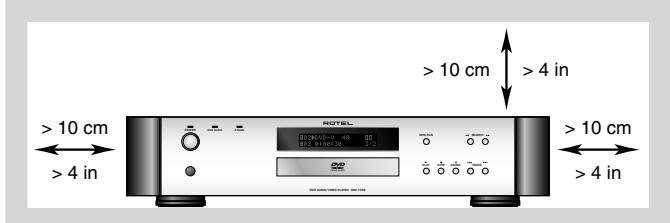
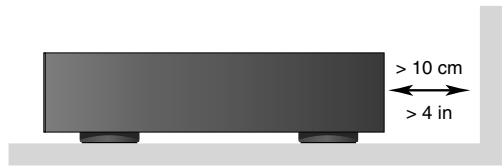
You must allow a minimum 10 cm or 4 inches of unobstructed clearance around the unit. Do not place the unit on a bed, sofa, rug, or similar surface that could block the ventilation openings. If the unit is placed in a bookcase or cabinet, there must be ventilation of the cabinet to allow proper cooling.
Keep the component away from radiators, heat registers, stoves, or any other appliance that produces heat.
The unit must be connected to a power supply only of the type and voltage specified on the rear panel: AC 110-240 V, 50/60 Hz.
Connect the component to the power outlet only with the supplied power supply cable or an exact equivalent. Do not modify the supplied cable. A polarized plug has two blades, with one wider than the other. A grounding plug has two blades plus a third grounding prong. These are provided for your safety. Do not defeat grounding and/or polarization safety provisions. If the supplied plug does not fit your outlet, please consult an electrician for replacement of the obsolete outlet. Do not use extension cords.
The main plug of the power cordset is a disconnect device of the apparatus. In order to completely disconnect the apparatus from the supply mains, the main plug of the power cordset should be unplugged from the mains (AC) outlet. The stand-by LED indicator will not be lit up to show the power cord is unplugged.
Do not route the power cord where it will be crushed, pinched, bent, exposed to heat, or damaged in any way. Pay particular attention to the power cord at the plug and where the cord exits the back of the unit.
The power cord should be unplugged from the wall outlet during a lightning storm or if the unit is to be left unused for a long period of time.
Use only accessories specified by the manufacturer.
Use only with a cart, stand, rack, bracket or shelf system recommended by Rotel. Use caution when moving the unit in a stand or rack to avoid injury from a tip-over.
Immediately stop using the component and have it inspected and/or serviced by a qualified service agency if:
- The power supply cord or plug has been damaged.
- Objects have fallen or liquid has been spilled into the unit.
- The unit has been exposed to rain.
- The unit shows signs of improper operation
- The unit has been dropped or damaged in any way
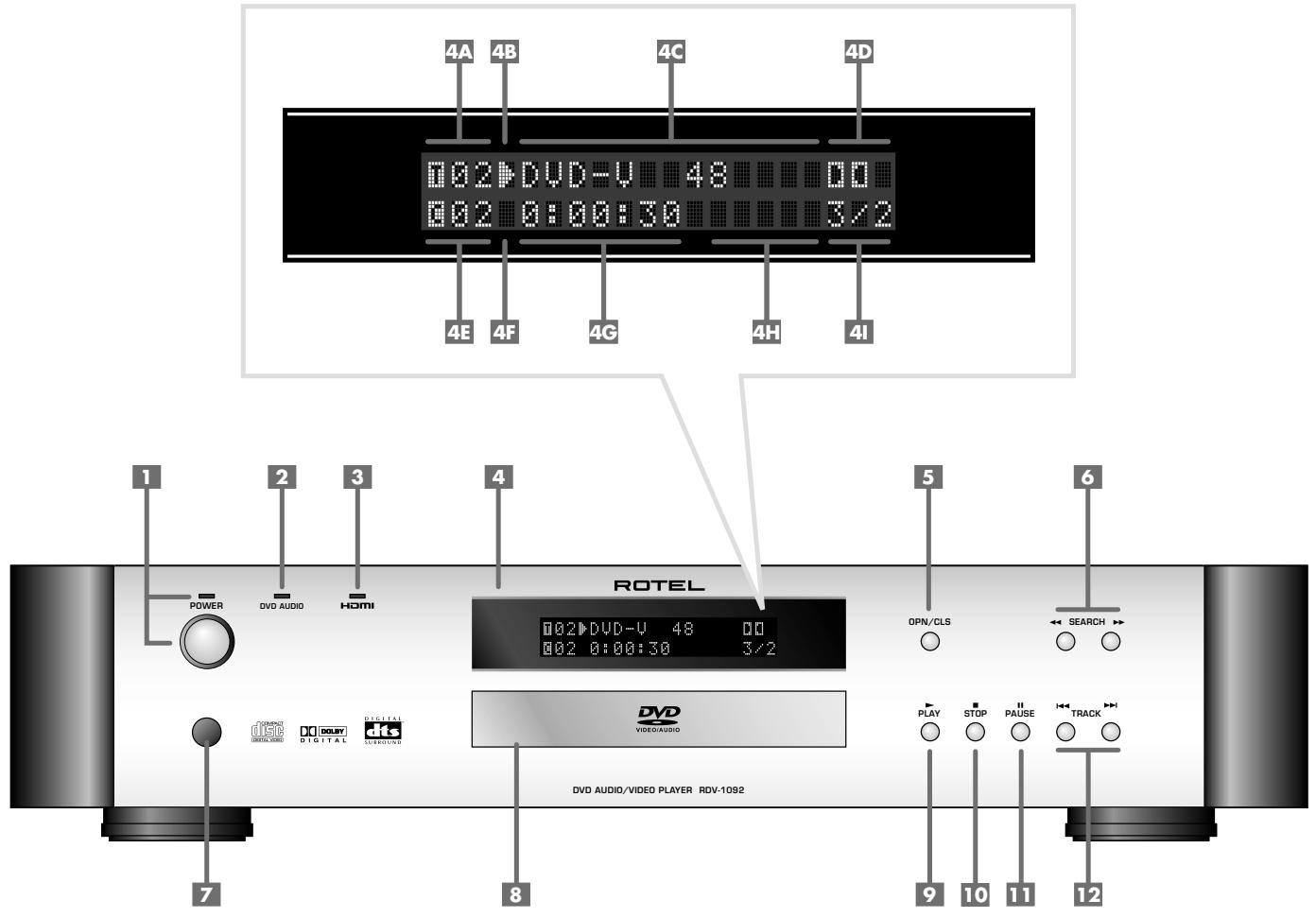
1: Controls and Connections Commandes et branchements Bedienelemente und Anschlüsse
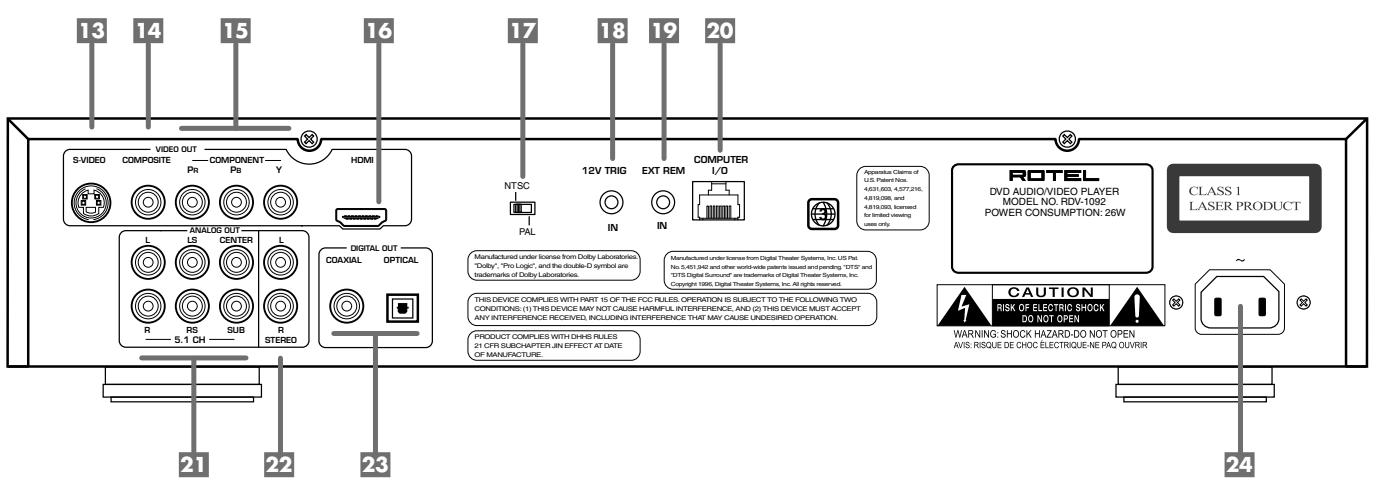
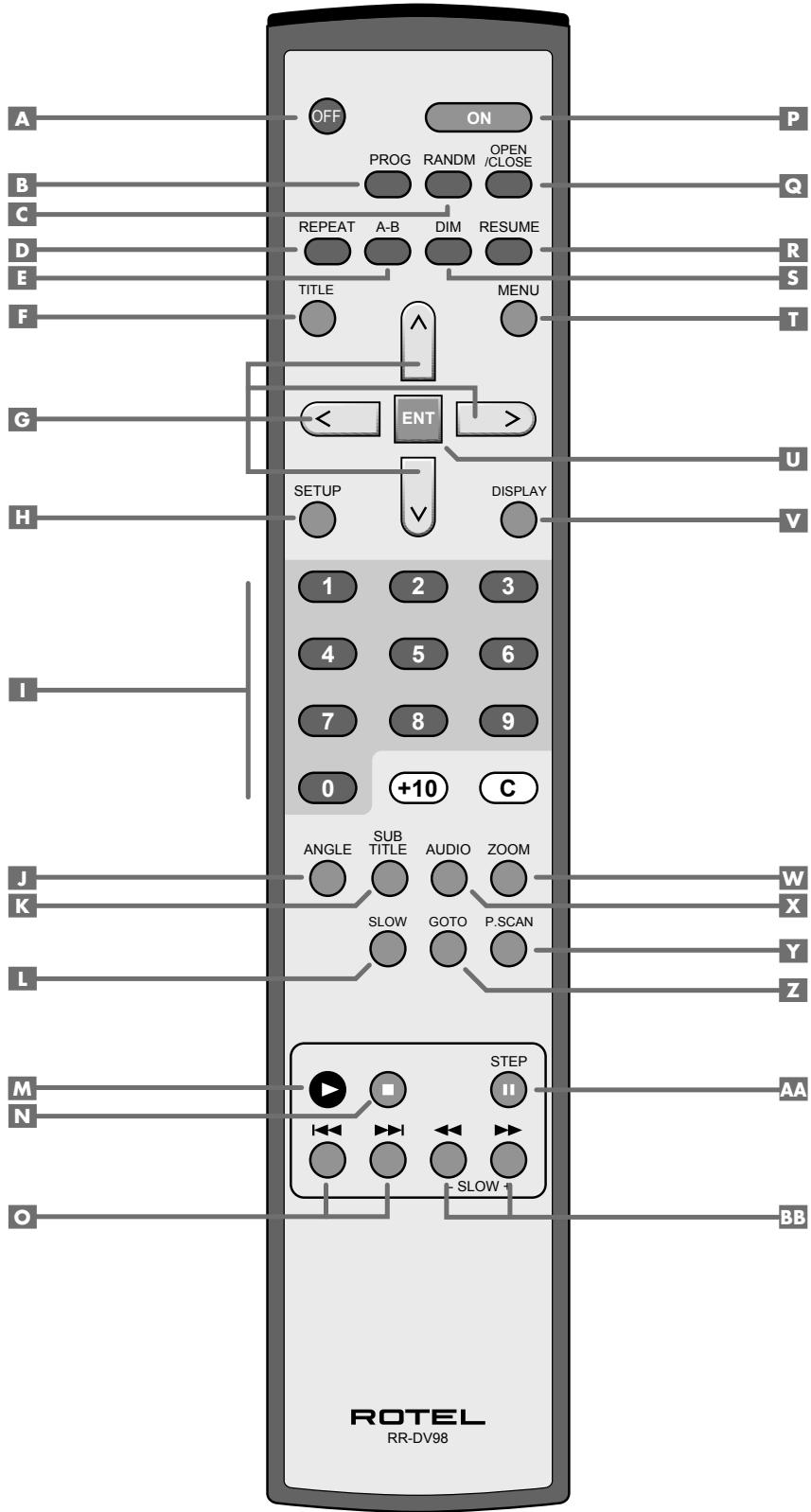
2: RR-DV98 Remote Control
Télécommande RR-DV98
Fernbedienung RR-DV98
3: Digital HDTV connection (HDMI)
4: Digital HDTV connection (DVI)
Boxed numbers refer to RDV-1092 illustration. Boxed letters refer to RR-DV98 illustration.
Notice 3
FCC Information 3
Caution 3
Important Safety Instructions 3
1: Controls and Connections 4
2:RR-DV98 Remote Control. 5
3: Digital HDTV connection (HDMI) 6
4: Digital HDTV connection (DVI) 6
5: Analog HDTV connection (Component Video) ....7
6: Analog TV connection (S-Video/Composite Video) 7
7: Stereo Analog Audio Connections. 8
8: Multichannel Analog Audio Connections. 8
9: Digital Audio Connections. 9
About Rotel 12
Getting Started. 12
Video Features. 12
Audio Features 12
Other Features 12
Supplied Accessories 12
A Few Precautions. 12
Placement 12
CONNECTIONS 13
Cable selection. 13
Audio Connections 13
Analog Audio Outputs 21 22 13
Digital Audio Outputs 23. 13
Video Connections. 13
HDTV Connections. 14
HDMI digital connection 16 14
DVI digital connection 16 14
Component Video connection 15 14
SDTV Connections 14
Component Video connection 15 14
S-Video connection 13 14
Composite Video connection 14 14
NTSC/PAL switch 17 15
Other Connections 15
AC Power Input 24 15
EXT REM IN 19 15
12V TRIGGER Connection 18 15
Computer I/0 20 15
OVERVIEW 15
On-Screen Display. 15
Status Bar 15
Menu Screens 16
Screen Saver 16
Front Panel Overview 16
POWER Button and LED 1 16
LED Indicators 2 3 16
Front-Panel Display 4 16
DiscDrawer 8 16
OPN/CLOSE Button 5 16
Remote Sensor 16
PLAY Button 9 16
STOP Button 10 16
PAUSE Button 11 16
TRACK Buttons 12. 16
SEARCH Buttons 6 16
Remote Control Overview 17
Remote Control Batteries 17
Using the Remote 17
ON/OFF Buttons A P 17
OPN/CLOSE Button 17
PLAY Button M 17
STOP Button N 17
PAUSE Button AA 17
TRACK Buttons 17
SEARCH Buttons 17
Numeric Buttons 17
CURSOR Buttons G 17
ENTER Button U 17
MENUButton 17
SETUP Button 17
DISPLAY Button V 17
TITLE Button F 17
SLOWButton L 17
GOTO Button 17
ANGLE Button 17
SUBTITLE Button K 18
AUDIO Button X 18
ZOOM Button W 18
REPEAT Button 18
A-B Button E 18
DIM Button S 18
RESUME Button R 18
PROG Button B 18
RANDOM Button 18
P.SCAN Button Y 18
USING THE RDV-1092 18
About Discs 18
Disc Formats. 18
DVD Region Codes 19
Disc Structure 19
Digital Audio Formats 19
Basic Features. 19
ON/OFF Functions 1 A P 19
Changing Display Brightness 19
Inserting a Disc 5 8 Q 20
Playing a Disc 9 N 20
Stopping DiscPlayback TO N 20
Pause/Still Frame 11 AA 20
Skip forward/back 12 0 20
High Speed Play 6 BB 20
Slow Speed Play 6 BB 20
Time Display 20
Advanced Features 20
Zoom W 20
Selecting Scene Angles 21
Selecting Audio Tracks T X 21
Selecting Subtitles K T 21
Playing Specific Selections 21
Selecting a Title/Group FG I U Z.....21
Select Chapters from DVD Menu
G I T U Z 21
Entering a Chapter or Track Number
IMUZ 21
Find a Location with Time Search
IMUZ 22
Extra Playback Features 22
Repeat Play D AA 22
A-B Repeat D AA 22
Random Play 23
Program Play B G M T U Z 23
Playing MP3 discs. 23
URD menu G M U 23
Repeat Play D AA 23
24
On-Screen Menus G H U 24
DVDPlayback Menu. 24
Audio Track 24
Camera Angle. 24
Subtitle 24
DVD auto play 24
Subtitle Pref. 24
Audio Lang. Pref. 24
Audio Fmt. Pref. 25
System Setup Menu 25
Status Bar 25
Status Bar Delay. 25
Screen Saver 25
Sleep. 25
Restore Default 25
Menu Language. 25
Dim Front Panel 25
Video Setup Menu 25
Output Format 25
Auto Format 26
Black Level 26
Lip Sync 26
Aspect Ratio 26
CCIR Clipping. 26
Audio Setup Menu 26
Digital Audio Output 26
Compression. 27
Speaker Setup Menu 27
Speaker Size 27
Distance Units 27
Speaker Distance 27
Parental Control Menu. 27
Assign Pass Code 28
Enter Pass Code 28
Change Pass Code 28
Parental Controls 28
Allowed Ratings 28
Unrated Titles 28
High Definition Setup Menu 28
Output Format 28
HDMI Color Format 29
Enhancement. 29
MORE INFORMATION 29
Troubleshooting. 29
Power 29
Operation 29
Picture 29
Audio 29
Specifications 30
General 30
Other 30
Video output 30
Audio output 30
Audio characteristics 30
About Rotel
A family whose passionate interest in music led them to manufacture high fidelity components of uncompromising quality founded Rotel 45 years ago. Through the years that passion has remained undiminished and the family goal of providing exceptional value for audiophiles and music lovers regardless of their budget, is shared by all Rotel employees.
The engineers work as a close team, listening to, and fine tuning each new product until it reaches their exacting musical standards. They are free to choose components from around the world in order to make that product the best they can. You are likely to find capacitors from the United Kingdom and Germany, semi conductors from Japan or the United States, while toroidal power transformers are manufactured in Rotel's own factory.
Rotel's reputation for excellence has been earned through hundreds of good reviews and awards from the most respected reviewers in the industry, who listen to music every day. Their comments keep the company true to its goal – the pursuit of equipment that is musical, reliable and affordable.
All of us at Rotel, thank you for buying this product and hope it will bring you many years of enjoyment.
Manufactured under license from Dolby Laboratories. "Dolby", "Pro Logic", and the double-D symbol are trademarks of Dolby Laboratories.
Manufactured under license from Digital Theater System, Inc. US Pat. No. 5,451,942 and other world-wide patents issued and pending. "DTS" and "DTS 2.0+Digital Out", are trademarks of Digital Theater Systems, Inc."
This product incorporates copyright protection technology that is protected by method claims of certain U.S. patents and other intellectual property rights owned by Macrovision Corporation and other rights owners. Use of this copyright protection technology must be authorized by Macrovision Corporation, and is intended for home and other limited viewing uses only unless otherwise authorized by Macrovision Corporation. Reverse engineering or disassembly is prohibited.
Getting Started
Thank you for purchasing the Rotel RDV-1092 DVD Audio/Video Player. With its precision transport, digital processing, and Rotel's Balanced Design, the RDV-1092 ensures the highest level of audio performance. When used in a high-quality audio system, your DVD player will provide years of enjoyment.
The RDV-1092 is a multipurpose player equipped to handle video and audio discs in a wide range of formats including DVD-Video, DVD-Audio, Audio CD, Video CD, SVCD, and MP3.
Video Features
Supports both NTSC and PAL TV monitors (selectable with back panel switch. Plays both PAL and NTSC discs, converting the signal to the appropriate output.
- High definition video output with user selectable resolutions for both PAL and NTSC systems, optimized for both video and film sources. Internal digital scaleer converts any video source to 480i/576i, 480p/576p, 720p, 1080i, or 1080p.
- Special playback functions such as frame-by-frame, zoom, and variable slow-motion and high-speed play.
DVD-Video features include Multi-angle, Multi-language subtitles, and Multi-language audio.
Audio Features
Supported audio formats include sampling frequencies up to 192kHz linear PCM encoding, up to 24-bit resolution, and MLP. DVD-Audio supports up to 6 channels at sample rates of 48, 96, or 192kHz and sample sizes of 16, 20, or 24 bits. DVD-Video supports 2 channels at sample rates of 48 and 96kHz and sample sizes of 16, 20, or 24 bits. Audio CD/Video CD is limited to 2 channels, 44.1kHz at 16 bits.
Supports the following digital audio formats: Dolby Digital DTS (Digital Theater Systems) MP3 (MPEG 1, Layer 3) MPEG multichannel (linear PCM output) Linear PCM
- Virtual surround sound simulates surround sound with the conventional 2-channel (stereo) audio system.
- Audio outputs include multichannel (5.1) analog audio outputs, stereo analog outputs and both coaxial and optical digital audio outputs.
Other Features
- User-friendly On-Screen Displays.
Full-featured remote control. - Parental lock.
Supplied Accessories
Audio/video cable (1)
Audio cables (2)
S-Video cable (1)
- 75 ohm coax digital audio cable (1)
Remote Control Unit (1)
- RO3(LRO3)/AAA batteries (2)
- Instruction manual (1)
- AC Power Cord (1)
A Few Precautions
Please read this manual carefully. In addition to installation and operating instructions, it will help you get optimum performance from your new DVD Player. Please contact your authorized Rotel retailer for answers to any questions. In addition, all of us at Rotel welcome your questions and comments.
Save the RDV-1092 shipping carton and all enclosed packing material for future use. Shipping or moving the RDV-1092 in anything other than the original packing material may result in damage that is not covered by the warranty.
Placement
Place the RDV-1092 on a solid, level surface away from sunlight, heat, moisture, or vibration. Make sure that the shelf can support the weight of the unit.
Place the RDV-1092 close to the other components in your system and, if possible, on its own shelf. This will make initial hookup, and subsequent system changes easier.
The RDV-1092 can generate heat during normal operation. Do not block ventilation openings. Allow a minimum of 10 cm or 4 inches of unobstructed space around the unit. If installed in a cabinet, make sure that there is adequate ventilation.
Don't stack other components or objects on top of the RDV-1092. Don't let any liquid fall into the unit.
CONNECTIONS
This section describes the back-panel connections and settings that must be made during installation of the RDV-1092. These include the power connection, audio output connections, video output connections, and selecting of the video standard for your TV. In addition, there are optional connections for an external IR remote signal, a +12V turn-on trigger, and an I/O port for computer control.
NOTE: To prevent loud noises, make sure the DVD player and the rest of the system is turned off when making connections.
Cable selection
Use standard audio cables with RCA connectors for analog audio connections. Use the following color code:
Left channel audio: white Right channel audio: red
Choose from three different types of analog video cables. For composite video, use a single 75 ohm video cable with an RCA connector at each end. For S-Video, use an S-Video cable with a special multi-pin connector at each end. For component video, use a set of three matching 75 ohm video cables with RCA connectors at each end. Use the following standard color code:
Composite video: yellow
Component video (Y): green
Component video (PB): blue
Component video (PR): red
NOTE: Do not use standard audio cables in place of 75 ohm video cables. Audio cables will usually pass the signal, but will degrade the quality.
Choose from two different types of digital video cables. For connection to a TV or video processor with an HDMI input, use an HDMI cable. For connection to a DVI input, use an HDMI-to-DVI cable.
Use standard optical digital cables for optical digital signals. Be sure to remove the protective covers from the ends of the cable. Use 75 ohm digital audio cables with an RCA connector on each end for coax digital audio.
Coax digital: black
NOTE: You can substitute a 75 ohm video cable for a coax digital cable, but do not substitute conventional audio interconnect cables for digital signals.
When making signal connections, follow the color codes carefully.
Audio Connections
Digital audio outputs supply an undecoded digital audio signal for use with a surround processor's decoding and D/A converters. This is the preferred connection when using the RDV-1092 with a Dolby Digital/DTS surround processor.
Analog audio outputs supply up to 5.1 channels of decoded analog audio. Use these connections when connecting the RDV-1092 to a receiver or TV set that does not have its own Dolby Digital and DTS decoding, or for passing multichannel DVD-Audio PCM signals to the analog inputs of a receiver.
Analog Audio Outputs 21 22
See Figure 7 and 8
Two sets of RCA jacks, labeled ANALOG OUT sends either six channels of decoded analog audio (front left, front right, rear left, rear right, center, and subwoofer) or two channels of stereo analog audio from the RDV-1092 to the analog audio inputs of an audio surround processor, preamplifier, integrated amplifier, receiver or TV set.
To a surround processor with 5.1 channel inputs, use RCA audio cables to connect the six outputs labeled 5.1CH to the matching multichannel inputs on the surround processor (L to front left, R to front right, LS to left surround, RS to right surround, C to center channel, SUB to subwoofer, etc.)
To a stereo preamp, processor, or TV set with 2-channel inputs, use the pair of RCA outputs labeled STEREO. Connect the STEREO L output to the left audio input of the TV or receiver and the STEREO R output to the right audio input.
Typically, the STEREO outputs send a matrix encoded stereo signal to the surround processor. See the Speaker Size topic in the Setup section of this manual for information on matching the analog output signal to your preamp or processor.
NOTE: The analog audio outputs are typically used only with DVD-Audio discs or with surround processors or TV sets that do not have Dolby Digital or DTS processing. If your processor has Dolby Digital and DTS decoding, you will not need to make any analog audio connections to play video DVDs; one digital connection (described in the following section) will suffice.
Digital Audio Outputs 23
See Figure 9
The RDV-1092's digital outputs provide a digital audio bitstream, which must be used with a processor that accepts a digital signal and has its own Dolby Digital and/or DTS decoding. There are two types of outputs for the digital audio signal: an optical output and a coaxial output. Use whichever you prefer. If you choose the optical connection, remove the plastic cap protecting the connector and save it for future use.
Connect the cable of your choice (optical or coaxial) from the DIGITAL OUT connectors of the RDV-1092 to the matching digital input on the surround processor.
You will probably need to select the correct digital input on your surround processor, using its setup menus.
NOTE: See the Audio Setup Menu in the Setup section of this manual for information on selecting the right type of digital output signal for your processor.
Video Connections
Video outputs send the video signal from the DVD player to the surround processor, video processor, or TV set. A key feature of the RDV-1092 is that it can send a video signal to any high definition or standard definition TV monitor in exactly the format that best matches the native mode and resolution of the TV.
Digital HDTVs, such as LCD and plasma flatscreens, display digital signals directly. These TVs should be connected to the RDV-1092 using the HDMI digital output.
Analog HDTVs, such as CRT and rear-projection sets, display analog signals. Although these can be connected with an HDMI cable,
these TVs should generally be connected with analog Component Video cables to avoid an unnecessary digital-to-analog conversion in the TV.
Standard definition TV monitors should be connected with one of three types of video output connections - RCA composite video, S-Video, or Component Video. On standard televisions, the S-Video output provides better picture quality than the composite video output.
NOTE: In most systems, only one video connection should be made.
HDTV Connections
Connect the RDV-1092 to a high definition TV monitor with HDMI, DVI, or Component Video inputs. The video resolution can be set to match the native resolution of the TV monitor at 480p/576p, 720p, 1080i, or 1080p.
NOTE: Most DVD discs feature Macrovision and/or HDCP copy protection which may not display properly at resolutions of 720p or higher. When using Component Video connections, set the RDV-1092 output resolution to 480i/576i or 480p/576p. The HDMI connections are not affected by Macrovision copy protection.
HDMI digital connection 16
See Figure 3
Use this type of connection with an HDTV that displays digital signals directly, such as LCD, Plasma, and DLP monitors.
Connect one end of an HDMI cable to the VIDEO OUT HDMI connector on the back of the RDV-1092. Connect the other end of the cable to the HDMI input connector on the back of the HDTV or video processor. We recommend a maximum length of 5 meters for HDMI cables.
NOTE: The RDV-1092 video output settings should be configured to match the native resolution of the HDTV. See the Video Setup Menu topic in the Setup section.
DVI digital connection 16
See Figure 4
Use this type of connection with an HDTV that displays digital signals directly, such as LCD, Plasma, and DLP monitors.
Connect one end of an HDMI to DVI cable to the VIDEO OUT HDMI connector on the back of the RDV-1092. Connect the other end of the cable to the DVI input connector on the back of the HDTV. We recommend a maximum length of 5 meters for DVI cables.
NOTE: The RDV-1092 video output settings should be configured to match the native resolution of the HDTV. See the Video Setup Menu topic in the Setup section.
Component Video connection 15
See Figure 5
Use this type of connection with an HDTV with cathode ray tube technology, such as direct view, rear projection, and front projection monitors.
Three cables are required to make Component Video Connections:
- Connect one cable from the COMPO- NENTVIDEO OUT connector labeled Y on the RDV-1092 to the Y input on the TV or surround processor.
- Connect a second cable from the COMPONENT VIDEO OUT connector labeled PB on the RDV-1092 to the PB input on the TV or surround processor.
- Connect a third cable from the COMPO- NENTVIDEO OUT connector labeled Pr on the RDV-1092 to the Pr input on the TV or surround processor.
NOTE: The RDV-1092 video output settings should be configured to match the native resolution of the HDTV. To avoid Macrovision copy protection issues with most DVD discs, set the output to 480i/576i or 480p/576p when using Component Video connections. See the Video Setup Menu topic in the Setup section.
SDTV Connections
When connecting a standard definition TV, the best picture quality will be achieved using Component Video or S-Video cables. If the TV does not have either of these types of connections, use a composite video connection.
Component Video connection 15
See Figure 5
Three cables are required to make Component Video Connections:
- Connect one cable from the COMPO- NENTVIDEO OUT connector labeled Y on the RDV-1092 to the Y input on the TV or surround processor.
- Connect a second cable from the COMPONENTVIDEO OUT connector labeled PB on the RDV-1092 to the PB input on the TV or surround processor.
- Connect a third cable from the COMPO- NENTVIDEO OUT connector labeled PR on the RDV-1092 to the PR input on the TV or surround processor.
NOTE: The RDV-1092 video output settings should be configured to the interlaced 480i/576i setting with a standard definition TV. See the Video Setup Menu topic in the Setup section.
S-Video connection 13
See Figure 6
Connect one end of an S-Video cable to the VIDEO OUT S-VIDEO output on the back of the RDV-1092. Connect the other end of the cable to the S-VIDEO input on the TV or surround processor.
NOTE: The RDV-1092 outputs all S-Video at 480i/576i.
Composite Video connection 14
See Figure 6
Connect one end of an RCA video cable to the VIDEO OUT COMPOSITE output on the back of the RDV-1092. Connect the other end of the cable to the Composite Video input on the TV or surround processor.
NOTE: The RDV-1092 outputs all Composite Video at 480i/576i.
NTSC/PAL switch 17
There are two different standards for video monitors: NTSC in US and Japan, PAL in Europe. The output of the RDV-1092 should be set to match the standard your TV accepts. Put the switch in the NTSC position for use with NTSC video equipment. Put it in the PAL position for the use with PAL equipment.
This switch only relates to the hardware configuration of your TV set and other components. Regardless of the setting, the RDV-1092 can play DVD discs encoded in either format, converting the signal to the format selected with the NTSC/PAL switch.
NOTE: If your TV monitor can display both PAL and NTSC signals, you can choose the "Auto Format" setting in the configuration menus. This setting overrides the back panel switch; the RDV-1092 displays the native format of the disc being played (PAL or NTSC).
Other Connections
AC Power Input 24
It is best to plug the RDV-1092 directly into a 2-pin polarized wall outlet. Avoid the use of extension cords.
Your RDV-1092 will automatically configure itself for the proper AC line voltage ranging from 110 volts to 240 volts at 50 / 60Hz . No setting is required to match the unit to your local voltage.
Plug the supplied cord into the AC INPUT receptacle on the back of the unit. After all connections have been made, plug the cord into an appropriate AC wall outlet.
NOTE: If you are away for an extended period of time, it is a sensible precaution to unplug your audio/video components.
EXTREMIN 19
The EXT REM IN receives IR command codes relayed from an infrared receiver or from the matching EXT REM OUT connector on Rotel surround processors. This feature may be useful when the unit is installed in a cabinet and its front-panel IR sensor is blocked. Consult your authorized Rotel dealer for information on IR receivers and the proper wiring of a cable with 3.5mm plugs to fit the connector.
12V TRIGGER Connection 18
The RDV-1092 can be activated by a remote 12 volt trigger signal from a Rotel surround processor. The 12V TRIG input accepts any control signal (AC or DC) ranging from 3 volts to 30 volts. When a cable is connected to the input and a trigger signal is present, the DVD player is activated. When the trigger signal is interrupted, the unit goes into standby mode. The front panel indicator light remains lit, but the display goes dark and the unit will not operate. Consult your authorized Rotel dealer for information on the 12V TRIG input and the proper wiring of a plug to fit the connector.
NOTE: When using the 12V Trigger, leave the POWER button in the ON position.
Computer I/O 20
The RDV-1092 can be operated from a computer with audio system control software from third-party developers. This control is accomplished by sending operating codes from the computer via a hard-wired RS-232 serial connection.
The COMPUTER I/O input provides the necessary network connections on the back panel. It accepts standard RJ-45 8-pin modular plugs, such as those commonly used in 10-BaseT UTP Ethernet cabling.
For additional information on the connections, cabling, software, and operating codes for computer control of the RDV-1092, contact your authorized Rotel dealer.
OVERVIEW
Basic controls for the RDV-1092 are on the front panel. These controls are duplicated on the remote control along with many more.
To guide you through the operation of the RDV-1092, this section of the manual starts with explaining the basic layout and function of the front panel and the remote control. In the following section, Using the RDV-1092, we explain the features of the unit and how to operate them.
Throughout this manual, numbers in gray boxes refer to the RDV-1092 illustration (Figure 1) at the front of this manual. Letters refer to the RR-DV98 remote illustration (Figure 2). When both appear, the function is found on both the RDV-1092 and the remote. When only one appears, that function is found only on the RDV-1092 or the remote.
On-Screen Display
The RDV-1092 displays menus, status indicators, and interactive menus on the TV monitor. Many of these screens are used to set up preferences and activate advanced features of the unit. Others offer information and choices useful during normal operation of the unit.
NOTE: The default language for all RDV-1092 On-Screen Displays can be changed. See the General Setup topic in the Setup section of this manual.
Status Bar
During operation of the unit, a Status Bar appears on the TV screen when the DISPLAY button is pressed, when a setting is changed or when the Top Menu or URD menus are displayed:
$$ \begin{array}{c c c c} \text {R O T E L} & \text {D V D :} & \text {p l a y} & \text {C h : 1} \ & \text {N o t A v a i l a b l e} & & \end{array} \quad 0 0: 0 1: 2 2 $$
The left side of the Status Bar shows what type of disc is playing. The top line shows the status indicators such as NO DISC, LOADING, PLAY, PAUSE, etc. along with CHAPTER and TIME information. These information displays are self-explanatory. The bottom line indicates the new setting when an adjustment is made or shows displays when attempting to select an option that is not available for the current disc.
Menu Screens
A number of menu screens can appear during configuration of the RDV-1092 such as the sample below:
| MENU | ||
| DVD playback | audio track | Dolby Digital 2.0 |
| system setup | camera angle | Dolby Digital 5.1 |
| video setup | subtitle | |
| audio setup | DVD auto play | up/down to select |
| speaker setup | subtitle pref. | ok to confirm |
| parental control | audio lang. pref. | left or return to go back with no change |
| high def. setup | audio fmt. pref. | menu for help |
| exit menu | ||
The menu screens provide access to various settings and features described in the Configuration section of this manual. The menu system appears when the SETUP button is pressed, typically whether the disc or stopped or playing.
Screen Saver
To prevent damage to a TV monitor during prolonged display of a static image, the unit automatically activates a moving ROTEL logo screen saver display after several minutes.
The screen saver display is turned off, returning to the previous display, when any front-panel or remote button is pressed.
Front Panel Overview
The following is a brief overview of the controls and features on the front panel of the RDV-1092. Details concerning the use of these controls are provided in subsequent sections of this manual describing various tasks.
POWER Button and LED 1
The POWER button serves as a master on/off switch. In the out position, the unit is completely powered down and cannot be activated by the remote. Press the button in to activate the unit, indicated by the front panel display being illuminated. With the front panel POWER button in the on position, the remote control ON/OFF buttons are used to activate the unit or put it in standby mode. In standby mode, the POWER LED remains lit, but the front panel display is turned off.
NOTE: Pressing the OPN/CLOSE or PLAY▶ buttons also turns the unit on when it is in Standby mode.
LED Indicators 2 3
Two front-panel LEDs provide additional information during operation of the RDV-1092.
DVD-Audio lights when the disc contains DVD-Audio programming.
HDMI lights when HDMI or HDMI/DVI cables are connected to the RDV-1092.
Front-Panel Display 4
A lighted display on the front-panel of the RDV-1092 provides information about the status of the unit, activation of special features, and track/time information. See the illustration at the front of this manual for the location of each section of the display:
Title/Group 4A displays the number of the current Title or Group.
Chapter/Track 4E displays the number of the current Chapter or Track.
Play/Pause 4B shows a play or pause indication.
Status/Disc Type 4c displays the current status of the unit (Open, Close, No Disc, etc.). When a disc is playing, this section of the display shows the sampling rate and format of the disc (DVD-V 48kHz, DVD-A 96kHz, etc.)
Audio Format 4D displays the audio format of the inserted disc (Dolby Digital, DTS, PCM, etc.)
Remain 4F shows the letter R when the remaining time of disc or selection is being displayed.
Time 4G displays the elapsed time when a disc is playing
Function indicates which special features are activated, A in the first segment for angle, Z in the second segment for zoom, and an indicator for the type of repeat in the fourth segment.
Audio Channel 41 shows which of the six possible audio channels are in use. 2 / 0 indicates a stereo signal, 3 / 2 indicates a five channels with three front and two surround, 1CH to 6CH for DVD-A discs, etc.
DiscDrawer 8
A motor-driven disc drawer, located in the center of the RDV-1092, slides out to accept a disc and retracts for playback.
OPN/CLOSE Button 5
Press to open or close the Disc Printer.
Remote Sensor 7
The remote sensor receives infrared signals from the remote control. Do not cover or block the sensor.
PLAY Button 9
Press the PLAY button to start playing the disc from the beginning or to resume play if playback is paused.
STOP Button 10
Press the STOP button to stop disc playback.
PAUSE Button 11
Press the PAUSE button to temporarily suspend play or to advance the still picture frame by frame when playback is paused.
TRACK Buttons 12
The TRACKI 一 一 buttons skip forward or back to the beginning of the next selection.
SEARCH Buttons 6
Press the SEARCH buttons to begin variable high-speed play, either forward or reverse, at 2X, 4X, 8X, 16X, 30X, or 60X normal speed.
Remote Control Overview
See Figure 2
The RDV-1092 is supplied with an RR-DV98 remote control that duplicates the front-panel functions and provides additional features.
Remote Control Batteries
Three R03(LR03)/AAA size batteries (supplied) must be installed before the remote can be used. Remove the cover on the back of the RR-DV98. Install the batteries following the polarity symbols, then replace the cover.
NOTE: Remove the batteries from the remote if it will not be used for a long period of time. Do not leave run down batteries in the remote control; they can leak corrosive chemicals which will damage the unit.
Using the Remote
To use the remote, aim it at the remote sensor on the front-panel of the RDV-1092. The operation of the remote sensor can be affected if it is blocked or exposed to bright infrared light. In addition, remote control functions may not work reliably if the batteries in the RR-DV98 are weak.
ON/OFF Buttons A P
These two buttons provide discrete ON/OFF functions. Press the ON button to activate the RDV-1092 and the OFF button to put the unit in standby mode.
NOTE: The front panel master power button must be pressed in for the remote ON/OFF buttons to work.
OPN/CLOSE Button
Pressing this button opens or closes the Disc Printer. If in standby mode, pressing the button activates the unit.
PLAY Button M
The PLAY button duplicates the function of the front panel PLAY button and is used to confirm selections in menus. Press this button to start playing the disc from the beginning or to resume play if playback is paused or to return to normal play from any of the slow motion or fast play modes. If in standby mode, pressing the button activates the unit.
STOP Button N
Press the STOP button to stop a disc that is playing. If playback is restarted after one press of the button, the disc will resume playing from the current position on the disc. Press the button twice to cancel the resume feature. Subsequent play will restart from the beginning of the disc. Playback will also stop when the OFF button on the remote is pressed.
PAUSE Button
Press the PAUSE button to temporarily suspend play or to advance the still picture frame by frame after playback is paused.
TRACK Buttons
The TRACK I▶▶I buttons skip forward/back to the beginning of the next selection.
SEARCH Buttons BB
During playback, press the SEARCH buttons to begin high-speed play, either forward or reverse, at 2X, 4X, 8X, 16X, 30X, or 60X normal speed, increasing with each additional press. Press the PLAY button to resume normal speed playback.
Numeric Buttons
These buttons (1-0 and +10) are used for direct entry of specific Chapters, Titles, and times. Two digit numbers are typically entered by pressing +10 followed by the next digit, as detailed in operating steps.
CURSOR Buttons
Use the four CURSOR / / buttons to navigate the on-screen display menus.
The left/right CURSOR / buttons are also used for Program play mode (CD only).
ENTER Button
This button (labeled ENT) is used to confirm many selections in operating the RDV-1092. We refer to this button as the ENTER button throughout this manual.
MENUButton T
Press the MENU button to activate the menu on the disc.
The MENU button is also used the clear the Program play menu (CD only).
SETUP Button H
Press this button to access the Main Menu screen used in the setup of the RDV-1092.
DISPLAY Button V
The DISPLAY button changes the time shown in the front panel display and shows a time display in the Status Bar display. Several options are available including elapsed time and remaining time of individual Chapters/Tracks or entire Disc/Titles.
TITLE Button F
Press the TITLE button to activate the submenu for the current Title. On some discs, this button will activate the same root menu as the MENU button.
SLOWButton L
Press this button to select slow motion play, either forward or reverse, at 1/2, 1/4, or 1/8 normal speed.
The SLOW button is also used to view still pictures on a DVD-Audio disc. Each press of the button advances to the next picture.
GOTO Button Z
Press the GOTO button for direct selection of a particular Time, Title, or Chapter with the NUMERIC buttons. The first press of the GOTO button allows direct entry of Time. Press the GOTO button a second time for direct entry of a Title number. A third press allows direct entry of a Chapter.
For example, to select Chapter 5, press the GOTO button three times to reach the Chapter entry mode. Then press 0 followed by 5. Press the PLAY or ENT button to begin playback at the selected point.
ANGLE Button J
Press the ANGLE button to select an alternate angle view (if available for the current scene).
NOTE: "Operation not possible" displayed in the status bar indicates that this feature is not available for the current scene.
SUBTITLE Button K
Press the SUBTITLE button to select a subtitle language (if available on the disc).
NOTE: "Operation not possible" displayed in the status bar indicates that this feature is not available on the current disc.
AUDIO Button X
Press the AUDIO button to select alternate audio tracks (if available on the disc).
NOTE: "Operation not possible" displayed in the status bar indicates that this feature is not available on the current disc.
ZOOM Button W
Press the ZOOM button to magnify the image on the TV. Each press of the ZOOM button changes the size of the picture: 1.8x,4x,8x and back to normal size. While zoomed, video image can be moved up, down, left, or right by pressing the CURSOR / / buttons on the remote.
REPEAT Button D
Press the REPEAT button to repeat the currently playing Chapter (usually the current scene). Press the button a second time to repeat the current Title (usually the entire disc). Press a third time to cancel repeat play.
NOTE: The repeat function varies with different kinds of discs. See the detailed instructions in the Using the RDV-1092 section.
A-B Button E
Press the A-B Button for repeat play of a particular segment from point A to point B. The first press marks the beginning, point A. The second press marks the end, point B, and begins the repeat play. The third press cancels the repeat and resumes normal play.
DIM Button S
Press the DIM button to step through brightness settings for the front panel display. The settings are 0 - 6 and OFF. 0 is the brightest setting; 6 the dimmest. OFF turns off the front panel display.
NOTE: This setting overrides the default setting from the Setup menus. The default setting is used after the player is turned on the next time after being turned off.
RESUME Button R
Press the RESUME button to cancel a menu and return to the previous menu.
PROG Button B
Press the PROG button to program tracks in a specified order. Only available for Audio CD discs.
RANDOM Button C
Press the RANDM button to begin play of all tracks on the disc in random order. Only available for DVD-Video, and Audio CD discs.
P.SCAN Button Y
Press the P.SCAN button to change the output resolution for HDTV monitors. Press the button once to display the current resolution. Each additional press advances to the next setting: 480p / 576p, 720p, 1080i, 1080p, , Auto (default 720p) , or Interlace (480i/576i).
Typically, the desired output resolution is set during configuration of the RDV-1092 and will not need to be changed. The PROG SCAN button provides a means of overriding the default setting.
With high definition monitors, the resolution should be set to match the native resolution of the HDTV monitor.
note: The setting must be 480i/576i with conventional analog TV sets which cannot display any of the progressive scan or HDTV resolutions.
USING THE RDV-1092
This section of the manual provides detailed instructions for operating the RDV-1092. It is divided into several topics, starting with basic information needed to get started watching a DVD, followed by information about more advanced features and operations:
Information about the types of discs that can be played
Basic operating features
- Advanced operating features
- Finding specific locations on a disc
- Playing MP3
NOTE: Using the On-Screen Menu system to configure the RDV-1092 and to operate certain features is described in the Setup section of this manual.
About Discs
This section covers basic information on the types of discs that can be played.
Disc Formats
The RDV-1092 can automatically detect and play several different types of disc formats. Look for the standard logo on the packaging for each of the following types of disc the RDV-1092 can play:
| DVD Video | VIDEO VIDEOTM |
| DVD Audio | AUDIO AUDIOTM |
| Audio CD | COMPACT DISC DIGITAL AUDIO |
The RDV-1092 can also play:
DVD-R and DVD+R discs written in the DVD-Video format and finalized.
- CD-R and CD-RW discs written in the Audio CD format and finalized.
- CD-R and CD-RW discs written with MP3 files with the "ISO 9660" format.
DVD Region Codes
DVD-Video discs are encoded with region codes which also appear on the packaging:


A disc can only be played if its region code matches the code printed on the back-panel of the RDV-1092.
The RDV-1092 can play discs encoded in either the NTSC or PAL video formats, outputting the correct video signal as set by the back-panel NTSC/PAL switch.
Disc Structure
Each type of disc has its own organization, allowing you to locate various portions of the program recorded on the disc. Depending on the type of disc, these may be called Titles, Groups, Chapters, or Tracks:
DVD-Video:
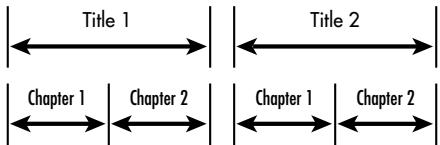
A DVD-Video disc is comprised of Titles and each Title may be divided into Chapters. For example, a DVD-Video disc may contain several movies, each with its own Title number, and each movie may be divided into several Chapters. In a DVD-Video karaoke disc, each song usually has its own Title number and does not have Chapters.
DVD-Audio:
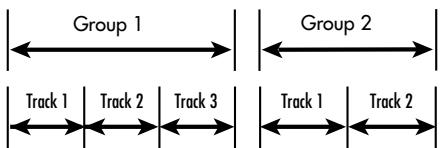
A DVD-Audio disc contains Groups, with each group divided into Tracks. Some DVD-Audio discs also contain a Bonus Group that can only be played back by entering a Key Number password.
Most DVD-Audio discs include other information in addition to audio, such as still pictures, movies and text.
Audio CD:

An Audio CD disc only contains Tracks.
Digital Audio Formats
DVD and CD discs can be encoded with several different digital audio formats. Generally, the type of digital audio encoding is indicated on the disc packaging.
- Dolby Digital. A digital surround format that may contain as many as five discrete audio channels plus an LFE (low frequency effects) channel (referred to as 5.1 channel surround). Particularly for older sound tracks, Dolby Digital may be used for a 2.0 channel stereo sound track with Dolby Surround matrix encoding.
- DTS (Digital Theater Systems). Another 5.1 channel digital surround format similar to Dolby Digital, but somewhat different encoding characteristics. Also plays DTS 96/24 used on DTS music discs.
- MPEG. Another compressed digital format.
DVD-Audio. A high quality digital format for DVD-Audio with the compression ratio of about 2:1 supporting up to 192kHz sampling rate and 24-bit resolution, allowing the PCM signal to be recreated without loss. Some content may only be available at the analog outputs. - LPCM (Linear PCM). Uncompressed digital audio, the format used on CDs and most studio masters.
- MP3 (MPEG 1, Layer 3). Compressed 2-channel digital audio, a format often used for music on recordable CD-R and CD-RW discs.
Basic Features
This section of the manual covers the basic commands and features need to play a disc in the RDV-1092. Additional features are described in later sections.
ON/OFF Functions 1 A P
The RDV-1092 has a master POWER switch on the front panel. When this button is in the out position, the unit is off and cannot be
turned on from the remote. When the front panel POWER button is pressed in, the unit becomes fully activated. With the master POWER button in the ON position, the unit can be activated or put in a standby mode from the remote.
NOTE: In normal use, the front panel POWER button should be left in the IN position.
The remote control has discrete ON and OFF buttons. Press the ON button to activate the unit. Press the OFF button to put the unit into standby mode. The LED above the front panel POWER button lights whenever the POWER button is in the on position. The front panel display is lit when the unit is activated and goes out when the unit is in standby mode.
Pressing the OPN/CLOSE or PLAY button will also activate the unit from standby mode.
NOTE: The unit can also be activated and put in standby mode based on a control signal (from other Rotel components) at the back panel 12V TRIGGER input.
NOTE: To completely power off the RDV-1092 when away from home for a long period of time, unplug the unit from the AC wall outlet.
There is an auto standby function that can automatically turn the unit off after 60, 90, or 120 minutes. See the System Setup item in the Setup Menu section for selecting the time option or disabling this feature.
Changing Display Brightness S
There are seven stages of brightness for the front panel display plus an OFF option. Press the DIM button on the remote repeatedly to step through the options. The 0 setting is the brightest. The 6 setting is the dimmest. OFF turns off the display. If the display is turned off, press the DIM button once to restore the display to the brightest setting.
NOTE: This button overrides the default brightness set in the System Setup item of the Setup menus. When the unit is turned off and then back on, the default setting is restored.
Inserting a Disc 5 8
A disc drawer slides out to accept a disc and retracts for playback. Place the disc in the drawer label-side up. Make sure the disc is properly centered in the tray. The OPN/CLOSE button on the front panel or the remote opens or closes the drawer.
Playing a Disc 9 N
Press the PLAY button on the remote to start playing the disc from the beginning. If the disc drawer is open, it will close automatically.
By default, DVDs either begin playing automatically or display a start-up menu as soon as the disc is inserted. This auto-play feature can be disabled. See DVD Playback in the Setup section of this manual for information.
The PLAY button usually starts play from the beginning of the disc, except after the PAUSE button has been pressed. In this case, the disc will resume playing from the current location. The RDV-1092 also has a resume feature that restarts play at the current location after pressing the STOP button once during playback.
Stopping Disc Playback 10 N
Press the STOP button to stop a disc that is playing.
The first press of the STOP button memorizes the point at which the disc stopped playing. Resume play at that point by pressing the PLAY button. This stored position remains in memory until the disc drawer is opened, or the top menu is selected.
The second press of the STOP button clears the memorized position.
Pause/Still Frame 11 AA
Press the PAUSE button to temporarily suspend play. To resume playing the disc from the current location, press the PLAY button.
Still-Frame: When playing a video disc, a still-frame picture remains on the TV screen with no sound when the PAUSE button is pressed. Press the PAUSE button again to advance to the next still-frame picture. Each button press advances one frame.
Skip forward/back 12
The TRACK I▶按钮 skip forward/back to the beginning of the next selection. While a disc is playing, pressing the right TRACKI▶按钮 once advances to the beginning of the next Chapter or Track. Pressing the left button returns to the beginning of the current scene or song. Pressing twice in quick succession returns to the beginning of the previous Chapter or Track.
Press the button as many times as necessary to find the desired scene or selection.
For a DVD-Video disc: During playback, this feature usually skips to the next Chapter, although it may skip to the next Title on some discs, depending on the disc configuration.
For an Audio CD or DVD-Audio disc: While the disc is playing or stopped, this feature skips to the next Track.
NOTE: There are other methods of locating specific selections on a disc, including direct access with the NUMERIC buttons and using the On-Screen Menu features. See Playing Specific Selections for details.
High Speed Play 6 BB
The SEARCH buttons allow you to activate high speed play, either forward or reverse.
During playback, press and release the SEARCH buttons to begin video and audio playback at 2x normal speed, backwards or forwards. Each time you press the button again, the playback speed increases from to 2x, 4x, 8x, 16x, 30x, or 60x normal speed, and back to normal speed. You can also press PLAY to resume normal playback.
Slow Speed Play 6 BB
Press the SLOW button on the remote to begin slow motion forward play at 1/2 normal speed. Repeatedly press the button to step through additional options (1/4 speed, 1/8th speed, 1/2 speed reverse, 1/4 speed reverse, 1/8 speed reverse) and back to normal play.
NOTE: The sound is muted during slow-motion play. Slow-motion is not available on Audio CDs. On DVD-Audio discs, the SLOW button is used to view still pictures.
Press PLAY to resume normal playback.
NOTE: The sound is muted during slow-motion play. Slow-motion is not available on Audio CDs. Slow motion reverse play is only available on DVD-Video discs.
Time Display
The disc time indicators in the front panel display and the On-Screen status bar can show several different types of information for DVD-Audio, and Audio CD discs. Options include elapsed time or remaining time for a single selection (chapter or track) or entire disc (or Title for DVD-Video).
- Press the DISPLAY button to display the elapsed time of the current disc or Title in the Status Bar and front panel display. On DVD-Video discs, the current Title and Chapter are also displayed for several seconds.
- Repeatedly press the DISPLAY button to step through additional time display options: remaining time of the current Disc/Title, elapsed time of the current Chapter/Track, and remaining time of the current Chapter/Track.
- The Status bar disappears automatically after the amount of time specified in the Status bar delay setting of the System Setup menu.
Advanced Features
The RDV-1092 provides several advanced features for controlling the audio/video content displayed during playback. These include high definition video, zooming, changing the scene angle on DVD-Video discs, selecting alternate languages for the audio portion of DVD programs, and selecting subtitle languages on DVD programs.
Zoom W
When playing a DVD-Video disc, the RDV-1092 can zoom in to enlarge a section of the picture to 1.8, 4, or 8 times its original size. The zoom feature is available for full-motion video during playback or for still-frame pictures while the unit is paused. While zoomed, you can move the displayed image up, down, left, or right to view the desired portion of the full image.
NOTE: It is typical for a zoomed video image to look coarse or blurry.
To zoom in, press the ZOOM button on the remote. Each press of the ZOOM button changes the size of the picture: 1.8x, 4x, 8x , and back to normal size.
To move the zoomed-in video image, press the CURSOR / / buttons in the desired direction. The zoomed image moves up, down, left, or right to show the desired portion of the full image.
NOTE: "Operation not possible" appears in the Status Bar when the zoom feature is disabled on the current disc.
Selecting Audio Tracks T X
Some DVD-Video and DVD-Audio discs have audio tracks recorded in alternate languages, alternate audio formats (such as Dolby Digital 2.0, Dolby Digital 5.1, or DTS) or with alternate content (such as director's commentary). Typically, you select these audio tracks with the disc's setup menus which appear when you insert the disc or which can be accessed during playback by pressing the MENU button.
In addition, you can change to an alternate audio track during playback by pressing the AUDIO button on the remote. The Status Bar display shows the current audio track description and its number along with the total number of available audio tracks. Press the AUDIO button repeatedly until the desired audio track is selected.
Selecting Scene Angles D
Some DVD-Video discs have scenes that can be viewed from multiple user-selectable camera angles. Discs with multiple angles may provide menu screens for angle selection.
Alternatively, you can select different angles (if available on the disc) by pressing the ANGLE button on the remote during playback. The Status Bar appears on screen indicating which angle is selected and how many angles are available. Pressing the button repeatedly steps through the available angles.
Camera angle selection can also be made from the On-Screen Menus.
NOTE: "Operation not possible" appears in the Status Bar when the angle feature is not available on the current disc.
Selecting Subtitles K T
Some DVD-Video and DVD-Audio discs can display subtitles in various languages during playback. Typically, you select these subtitles with the disc's setup menus which appear when you insert the disc or which can be accessed during playback by pressing the MENU button.
In addition, you can change the subtitles during playback by pressing the SUBTITLE button on the remote. The Status Bar appears on the screen showing the current subtitle language and its number along with the total number of available subtitle options. Press the SUBTITLE button repeatedly until the desired subtitle is selected.
Subtitle selection can also be made from the On-Screen Menus.
NOTE: "Operation not possible" appears in the Status Bar when the subtitle feature is not available on the current disc.
Playing Specific Selections
The RDV-1092 provides several methods for locating specific selections from a disc. The simplest method, using the TRACK I▶▶I buttons, is covered in the Basic Features topic. This section details additional methods, such as finding a selection with the disc menu. Also covered is the use of NUMERIC buttons to specify selections plus advanced features like random, program, and repeat play.
Please review the About Discs section of this manual to learn how various types of discs are divided into Titles, Chapters, and Tracks. Finding selections on various disc formats may require slightly different procedures as noted in the following instructions.
Selecting a Title/Group FG I U Z
This feature is usually available on DVD-Video discs that contain multiple Titles. When playing one of these discs, this feature is available at any time, except when a menu screen is being displayed on the TV screen.
To select from a disc menu:
- Press the TITLE button on the remote. Information appears on the front panel display.
- Press the CURSOR / / buttons to highlight the Title selection and press the ENT button.
To select with the NUMERIC buttons:
- Press the GOTO button to toggle from the Time mode to the Title mode.
- Enter the new Title number using the NUMERIC buttons, For example, to select the 5th Title, press 0, then 5. To select the 15th Title, press 1, then 5.
- Press the ENT button to begin play.
Select Chapters from DVD Menu G I T U Z
DVD-Video discs usually have scene selection menus that display the selections on the disc on the TV screen.
- Press the MENU button on the remote if the disc's menu is not already displayed.
- Press the CURSOR / / buttons to highlight the Chapter selection option and press the ENTER button.
NOTE: You can also select Chapters using the GOTO button and the NUMERIC buttons. See the following section.
To select with the NUMERIC buttons:
- Press the GOTO button twice.
- Enter the new Chapter number using the NUMERIC buttons, For example, to select the 5th Chapter, press 0, then 5. To select the 15th Chapter, press 1, then 5.
- Press the ENT button to begin play.
Entering a Chapter or Track Number I M U Z
You can directly access a Chapter or Track by entering the number using the GOTO button and the NUMERIC buttons on the remote.
Pressing the GOTO button steps through three direct access options: Time, Title, Chapter. In order to enter the number of a Chapter or Track, first press the GOTO button three times to enter Chapter mode.
Then, enter the desired Chapter or Track number by simply pressing two digits in order on the NUMERIC buttons:
Examples:
To enter 1, press: 0 1
To enter 14, press: 1 4
To enter 28, press: 2 8
To enter 30, press: 3 1 0
DVD-Video discs:
On DVD-Video discs, this direct access feature is available except when a menu screen is already displayed on the TV screen.
- Press the GOTO button on the remote three times to reach the Chapter mode. The Status bar appears on the TV screen, showing the current Chapter selections.
- Enter the Chapter number using the NUMERIC buttons.
- Press the ENT button to begin play at the selected point. If the disc is stopped when you make the Chapter selection, you can also press PLAY to begin.
NOTE: You can also enter a Title number or a specific elapsed Time for playback by pressing the GOTO button to select Title or Time instead of Chapter in the first step above.
Audio CD discs:
Pressing the GOTO button is not necessary. Simply enter the desired track number with the NUMERIC buttons and playback begins at the selected track. This feature is available at any time, whether the disc is playing or stopped.
NOTE: You can also enter a Track number or a specific elapsed Time for playback by pressing the GOTO button to select Chapter (Track) or Time, then using the NUMERIC buttons to enter digits, followed by the ENT button to begin play.
Find a Location with Time Search I M U Z
You can play a disc from a desired location by specifying the elapsed time using the Time Search function. This direct access feature is available any time a menu screen not displayed on the TV screen.
Pressing the GOTO button steps through three direct access options: Time, Title, Chapter. In order to use the Time Search feature, press the GOTO button once to enter Time mode.
Then, enter the desired elapsed time by simply pressing six digits in order on the NUMERIC buttons for HOURS:MINUTES:SECONDS.
Example: To enter 1 hour, 14 minutes and 0 seconds, press 0, 1, 1, 4, 0, 0.
DVD-Video discs:
- Press the GOTO button once on the remote. The Status Bar appears on the TV screen, showing the elapsed time.
- Enter the desired time in the format HOURS: MINUTES:SECONDS using the NUMERIC buttons. Example: 0, 1, 1, 4, 0, 0.
- Press the PLAY or ENT button to begin play at the selected point.
NOTE: For DVD discs, the elapsed time search only works within the currently playing Title. You can select a different Title by pressing the GOTO button twice in the first step above.
Audio CD discs:
- Press the GOTO button once on the remote. The Status Bar appears on the TV screen, showing the elapsed time.
- Enter the desired time in the format HOURS: MINUTES:SECONDS using the NUMERIC buttons. Example: 0, 1, 1, 4, 0, 0.
- Press the PLAY or ENT button to begin play at the selected point.
Extra Playback Features
Four additional playback features are described in this section of the manual:
- REPEAT which repeats the current Chapter/Track or the entire disc.
- A-B REPEAT which repeats a desired selection from Point A to Point B.
- RANDOM which plays tracks in random order on Audio CD or MP3 discs.
- PROGRAM which allows you to select tracks on a Audio CD disc to be played in a specified order.
Repeat Play D AA
The Repeat Play feature is available for DVD-Video, DVD-Audio, Audio CD, and MP3 discs. The feature continuously repeats a single selection or a number of selections until you stop play.
On a DVD-Video disc, you can repeat a single Chapter or the whole Group. On a DVD-Audio disc, a single Track or the entire Group. On other discs, a single Track or the entire disc.
To begin Repeat Play:
- During playback or when you insert a disc, press the REPEAT button.
Each press of the REPEAT button steps to the next repeat setting as shown in the Status Bar. For each type of disc, the steps are as follows:
DVD-Video:
REPEAT DISC REPEAT TITLE REPEAT CHAPTER REPEAT OFF
DVD-Audio:
REPEAT DISC REPEAT 1 REPEAT OFF
CD and MP3:
REPEAT DISC REPEAT 1 REPEAT OFF
- Repeat play of the desired selection begins as soon as the repeat mode is selected and continues indefinitely.
To stop Repeat play:
- Press STOP to stop playback. On a DVD-Audio, Audio CD, or MP3 disc, the repeat mode is cancelled entirely.
- On DVD-Video discs, playback stops but repeat mode remains active. To cancel repeat mode, press the REPEAT button repeatedly until the setting is cleared.
NOTE: If the Status Bar does appear, REPEAT play is not available for the current disc. REPEAT Play cannot be used on some DVD-Video discs.
A-B Repeat D AA
A-B Repeat Play is available for all discs, except DVD-Audio and MP3. During playback, you specify a starting point (Point A) and an ending point (Point B). The unit will continuously repeat the marked passage.
- During playback, press the A-B button at the desired starting point. The Status Bar appears "Loop Start Set" and the starting point, Point A, is memorized.
- As playback continues, press the A-B button at the desired ending point for the selection, "B". The Status Bar appears showing "Loop End Set" and the ending point, Point B, is memorized. The ending point must be in the same Title or Track as "A".
- Repeat play of the marked selection begins automatically and continues indefinitely.
- Press STOP to end play and cancel the A-B REPEAT feature. You can also cancel by pressing A-B button again. The Status Bar appears showing "Loop Off".
NOTE: If the Status Bar does not appear, A-B REPEAT is not available for the disc.
Random Play C
The Random Play feature is available for all discs. The feature plays all of the tracks on the disc once in random order.
To begin Random Play, press the RANDOM button on the remote. The Status Bar appears showing "Random On".
To cancel Random Play, press the RANDOM button on the remote again. The Status Bar appears showing "Random Off".
Program Play B G M T U Z
Program Plays allows you to select tracks, in any order, on an Audio CD disc. The tracks are then played in the programmed order. To use program play:
- Press the PROG button on the remote. A list of tracks on the Audio CD appears on the TV monitor.
- Use the CURSOR / buttons to highlight the first track desired. Select it for program play with the CURSOR / buttons.
- Repeat Step 2 until all of the desired tracks are selected in the desired order. If you reach the memory limit, no more tracks can be added to the program list.
- After selecting the desired tracks, press the PLAY or ENT button to begin programmed play.
To clear the program list, press the MENU button while the program list is displayed. If the program list is not displayed, press the MENU button twice.
NOTE: If a program play list is active for a CD disc, the Repeat ALL, Repeat 1, and Random play features described previously will repeat or play random selections from the program list instead of the entire disc.
Playing MP3 discs
The RDV-1092 can play MP3 files, from most CD-R and CD-RW discs. These discs, often recorded on computer drives, have a file structure similar to computer discs, with files stored in folders.
Here are a few tips when recording your own discs:
- Select "ISO 9660" as the disc format.
- Record MP3 files at a 44.1 kHz sampling rate, using the 128 kbps data transfer rate. Files must have an .MP3 file extension.
- The player does not support "packet writing (UDF file)" discs.
- The player does not support the ID3 tag.
- The player supports discs recorded with multiple sessions.
- Some discs may not play due to disc characteristics or recording conditions.
Selecting files for playback and other features are made using a special URD menu.
URD menu G M U
Whenever a disc containing MP3 files is inserted in the RDV-1092 or when the PLAY▶ button is pressed, the URD menu appears, showing the available files on the TV monitor:
| URD | |
| 01 let's groove.mp3 | |
| 02 stayin alive.mp3 | |
| 03 john blaze.mp3 | |
| 04 beat it.mp3 | ▲ |
| 05 truckin.mp3 | ▼ |
| 06 the good die young.mp3 | |
| 07 numb.mp3 | |
| 08 its been a while.mp3 | |
| ▼ | |
If the files on the disc are grouped into folders, display will look as follows:
| URD | |
| Folder 1 | |
| Folder 2 | ▲ |
| Folder 3 | |
| Folder 4 | |
To select a Folder: Use the CURSOR / buttons to highlight the desired folder. Press the ENT button and that list of files in that folder are displayed.
To select a Track: Use the CURSOR / buttons to highlight the desired track.
To start playback from the selected Track: Press the ENTER button.
NOTE: Pressing PLAY▶ during playback begins the current Track from the beginning. High speed forward or reverse play using the SEARCH▶▶ buttons.
Repeat Play D A
When playing an MP3 disc, you can repeat a single Track, all the Tracks in the current Group, or all of the Tracks on the disc.
To begin Repeat Play: Press the REPEAT button on the remote control. Each press of the button advances to the next REPEAT mode as follows:
REPEAT DISC REPEAT 1 REPEAT OFF
The repeat indicator appears in the front panel display, showing the repeat setting. The status bar on the TV monitor also shows the current repeat setting.
To stop Repeat play: Press STOP to stop playback. Playback stops but repeat mode remains active. To cancel repeat mode, press the REPEAT button until the OFF mode is selected.
SETUP
The RDV-1092 has a comprehensive On-Screen Menu system that provides access to operating features and user-configured preferences. These include language preferences, video display options, hardware configuration settings, and speaker settings to match the unit to your system.
On-Screen Menus G H U
This section provides general instructions for using the On-Screen Menus to configure the RDV-1092.
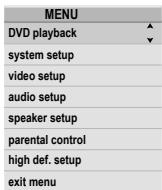
- Press the SETUP button on the remote. The Top Level Menu appears on the TV monitor. This menu provides access to seven categories of settings and features:
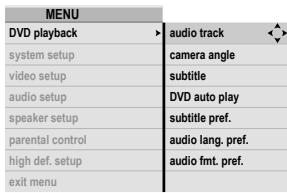
- Press the CURSOR / buttons to highlight the desired item and press the ENTER button or the CURSOR button to display the corresponding pop-up Options Menu. In this example, the options for the DVD playback selection are shown:
- Press the CURSOR / buttons to highlight the desired option and press the ENTER button or the CURSOR button to display the pop-up Settings Menu showing the choices for that option. In this example, the options for the audio track selection are shown:
- Press the CURSOR / buttons to select the desired setting from the pop-up window. In this example, you can select the Dolby Digital 2.0 or Dolby Digital 5.1 audio tracks.
-
Press the ENTER button to confirm the new setting.
-
Use the CURSOR / / buttons to navigate the menus and make additional settings.
- After several minutes, the menus automatically disappear. Or, press the SETUP button again to exit the menu system and return to normal operation.
NOTE: Context-sensitive help instructions appear on the Settings menu or after pressing the MENU button.
The following sections describe the settings available from each of the seven items on the Top Level Menu.
DVD Playback Menu
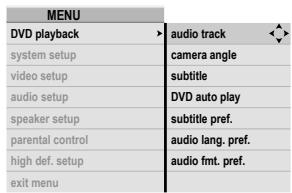
There are seven items on the DVD playback options menu when a disc is inserted in the RDV-1092. If a disc is not inserted the four options under the DVD auto play item are shown automatically.
The following details each of the seven menu items.
Audio Track
Select an audio track for the currently played DVD. The available options depend on the specific disc and may typically include Stereo, Dolby Digital 2.0, Dolby Digital 5.1, DTS 5.1, plus soundtracks recorded in various languages. This selection overrides the default setting, but only for the current disc.
NOTE: This selection can also be made from the DVD's own start-up menu or by pressing the AUDIO button on the remote.
Camera Angle
Some DVD-Video discs include optional camera angles for particular scenes. When these optional camera angles are available, this setting allows you to select your preference. When a disc or scene has no optional camera angles, "1 of 1" will display on the Setting Menu.
NOTE: This selection can also be made from the DVD's own start-up menu or by pressing the ANGLE button on the remote. If no optional camera angles are available, the Status Bar does not appear when the ANGLE button is pressed.
Subtitle
Select a language as the subtitle language for the currently playing DVD when it is available on the disc. You can also select OFF so that DVDs are played without subtitles. This selection overrides the default setting, but only for the current disc.
NOTE: This selection can also be made from the DVD's own start-up menu or by pressing the SUBTITLE button on the remote.
DVD auto play
This selection specifies whether DVDs begin playing automatically when they are inserted into the RDV-1092:
- ON: (default) Discs will begin playing automatically.
- OFF: Discs will not begin playing automatically. "Loading" appears in the front panel display. Press PLAY or the ENT button to start playback.
Subtitle Pref.
Select a language as the default subtitle language for DVDs when that language is available on the disc. You can also select OFF so that DVDs are played without subtitles as the default. You can override the default setting and select a different language when playing a specific disc. When a disc does not have menus in the selected language, the menus are displayed in the disc's default language.
Options include:
- English (default)
Francais
Spanish - Deutsch
Italiano
Audio Lang. Pref.
Select a language as the default audio language for DVD sound tracks when it is available on the disc. You can still override the preference and select a different language
when playing a specific disc. When a disc does not have the selected language, the disc plays its default language.
Options include:
- Auto (default): Plays the disc's own default language
- English
Francais - Spanish
- Deutsch
Italiano
Audio Fmt. Pref.
Select a audio format as the default audio soundtrack for DVDs when it is available on the disc. You can still override the preference and select a different audio format when playing a specific disc. When a disc does not have the selected audio format, the disc plays its default audio format.
Options include:
- Auto (default): Plays the disc's own default audio format.
- PCM Stereo: Plays the stereo PCM digital soundtrack.
- Dolby 5.1: Plays the Dolby Digital 5.1 or Dolby Digital EX soundtrack.
- Dolby Stereo: Plays the Dolby Digital 2.0 stereo soundtrack.
- DTS: Plays the DTS 5.1 or DTS-ES soundtrack.
System Setup Menu
| MENU | |
| DVD playback | status bar |
| system setup | status bar delay |
| video setup | screen saver |
| audio setup | sleep |
| speaker setup | restore default |
| parental control | menu language |
| high def. setup | dim front panel |
| exit menu | |
This menu provides seven settings for general configuration of the system.
Status Bar
The DVD player displays a status bar on the TV screen whenever buttons on the remote are pressed. Status indicators show the play mode, rapid play speed, etc. or alert you to the availability of multi-view angles, multin
gual subtitles, and multilingual sound tracks on a DVD. Generally, the status bar display is useful; however, you may wish to disable the display when recording a DVD.
- ON: Select to enable the Status Bar feature (default).
- OFF: Select to disable the Guide feature.
Status Bar Delay
This setting determines the length of time that the status bar is displayed after pressing a button on the remote. The default setting is 5 seconds, or you can select a different length of time, from 1 to 10 seconds.
Screen Saver
TV Monitors can be damaged if a static image is displayed for a long time. The Screen Saver feature automatically replaces a steady image with a moving image following several minutes of inactivity. The screen saver, when displayed, can be cancelled with the press of any button.
ON: The automatic screen saver function is activated (default setting).
OFF: Disables the screen saver function.
Sleep
The RDV-1092 will automatically turn off after a specified time set with this menu item. This prevents a DVD from returning to a static menu screen if it is left unattended. There are three settings:
- OFF: Enables the Sleep feature. Unit stays on indefinitely (default)
120: Auto Standby turns off the unit after 120 minutes.
90: Auto Standby turns off the unit after 90 minutes. - 60: Auto Standby turns off the unit after 60 minutes.
Restore Default
This item restores the factory default settings.
- OFF: Leaves the settings as they are currently set (default).
- ON: Restores all settings to the factory default settings.
Menu Language
Select the language displayed in the OnScreen Menus and other on-screen status screens displayed by the RDV-1092. Options include:
- English (default)
Francais
Spanish - Deutsch
Italiano
NOTE: Some On-Screen messages are shown in English, regardless of the setting.
Dim Front Panel
The brightness of the front panel display can be reduced to avoid distraction while viewing in a darkened room.
The default setting "0" is the brightest setting. A setting of "6" is the dimmest setting. The "OFF" setting turns the front panel display off.
NOTE: Override this default setting by pressing the DIM button on the remote repeatedly until the desired setting is reached.
Video Setup Menu
| MENU | |
| DVD playback | output format |
| system setup | auto format |
| video setup | black level |
| audio setup | lip sync |
| speaker setup | aspect ratio |
| parental control | ccir clipping |
| high def. setup | |
| exit menu |
The Video Setup menu provides six settings that customize the video output of the RDV-1092:
Output Format
This item displays the setting of the back panel NTSC/PAL switch. This item provides information only. The actual output format setting is made with the back panel switch.
- NTSC: For use with NTSC TV monitors.
PAL: For use with PAL TV monitors.
NOTE: The position of the back panel switch determines the NTSC/PAL output format when the Auto Format (described below) is set to the OFF position.
Auto Format
Most TV monitors are designed to display either NTSC or PAL video signals. With these TVs, simply set the output format with the back panel NTSC/PAL switch.
With multi-format TV monitors that can display both NTSC or PAL video formats, you can have the RDV-1092 match the output format to the format of the disc being played. Use the Auto Format item to override the setting of the back panel switch:
- OFF: The video output format matches the setting of the NTSC/PAL switch on the back panel (default).
- ON: The setting of the back panel switch is ignored and the output format is determined by the disc being played. The format of the last played disc is displayed in the setting.
Black Level
This setting determines the black level for NTSC format video. In the United States, the video standard has been "7.5 IRE", meaning that a video signal above 0 volts is displayed as pure black. This setting will appear somewhat "lighter" in dark areas of the picture. In Japan, the video standard has been "0.0 IRE" meaning that a 0 volt video signal is displayed as pure black. This setting is sometimes called "blacker than black" and will appear somewhat darker in darker areas of the picture.
This item allows you to choose either 7.5 IRE or 0.0 IRE output from the RDV-1092. In general, you should set the black level at 7.5 IRE in the United States so that your DVD output matches that of cable tuners and other sources so the TV picture remains consistent from source to source.
7.5 IRE: For use with NTSC TV monitors in the United States (default).
- 0.0 IRE: For use with NTSC monitors in Japan and other markets.
NOTE: The IRE setting only applies to NTSC output and has no effect with PAL output.
Lip Sync
This setting delays the audio signal by the specified amount to match the video signal. This feature is very seldom needed with DVD
discs, but can be used if the audio is not matched to the video. To adjust:
- Press the ENT button to begin. The Status Bar shows "A/V Delay".
- Press the CURSOR / buttons to adjust from -63 to +64. The default setting is 0 (no lip synch adjustment).
Aspect Ratio
There are two types of TVs: 4:3 aspect ratio and wide-screen 16:9 aspect ratio monitors. Use this preference item to configure the video output to match the aspect ratio of your TV.
With a 4:3 aspect ratio TV, you also need to tell the RDV-1092 how to adjust wide-screen video images to fit, either displaying the wide screen image in a letter box or as a pan/scan image.
16:9 Widescreen
Select this option for a wide-screen 16:9 aspect ratio TV (default). All aspect-ratio matching and zoom modes are handled by the TV.
4:3 Letterbox
Select this option for a 4:3 aspect ratio TV. 4:3 aspect ratio programs fill the screen. Wide-screen video images are displayed full-width with black letterbox masks inserted top and bottom.
4:3 Pan/Scan
Select this option for a 4:3 aspect ratio TV. 4:3 aspect ratio programs fill the screen.
Wide-screen video images are zoomed (pan/scan) to fill the screen vertically with portions of the image cut off the left and right sides.
CCIR Clipping
The European video standards committee has established maximum signal levels for digital component video processing. Most DVD discs adhere to these standards. The RDV-1092 provides an option to apply a "clipping filter" to limit the digital video levels when required for a non-standard DVD.
- OFF: No clipping filter. This default setting should work with DVDs that adhere to the standards.
- ON: Activates an optional clipping filter for use with non-standard DVDs with digital video levels that exceed the CCIR standards.
Audio Setup Menu
| MENU | |
| DVD playback | digital audio output |
| system setup | compression |
| video setup | |
| audio setup | |
| speaker setup | |
| parental control | |
| high def. setup | |
| exit menu | |
The Audio Setup menu provides two settings: the format of digital audio output and a compression mode optimizing Dolby Digital playback for quiet listening.
Digital Audio Output
There are two options for the digital audio output of the RDV-1092. The first option is Multichannel digital output that sends a multichannel (Dolby Digital 5.1, DTS 5.1, etc.) signal to the surround processor for decoding. The other option is Stereo Output that sends a downmixed two-channel digital signal.
- Multichannel: This setting allows a full multichannel digital signal from the RDV-1092 (default). Use this setting with a Dolby Digital or DTS surround sound processor. Note that you can still select 2-channel audio from the DVD's menus.
- Stereo: This setting forces the RDV-1092 to downmix audio to 2-channel stereo for output at the digital audio outputs. Use this
setting when connecting directly to the TV monitor or to a 2-channel audio system.
NOTE: This setting only applies to the digital audio outputs.
Compression
Dolby Digital recordings are capable of wide dynamic range (the difference between the softest and loudest sounds). In some cases, this may tax the audio system. In other cases, you may want to reduce the dynamic range when listening at low volume levels so that dialog is loud enough to hear while preventing sound effects and other dynamic passages from being too loud.
This setting has no impact on the digital output of the RDV-1092. It only changes the dynamic range of the analog signal from the left/right RCA audio outputs.
- OFF: full dynamic range; no compression (default).
1-5: Five settings reducing dynamic range for use with less capable audio systems (such as TV monitor speakers) or late night listening. The 1 setting is very mild compression. The 5 setting is maximum compression.
NOTE: The compression feature only affects Dolby Digital signals.
Speaker Setup Menu
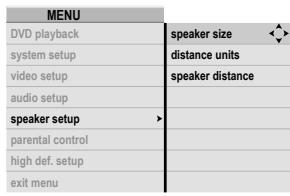
The Speaker Setup menu provides three setup items relating to surround sound and bass management of the audio signals at the analog outputs of the RDV-1092.
NOTE: These settings apply only to audio signals at the analog outputs. They have no effect on the digital audio output of the RDV-1092. In addition, these settings only apply to Dolby Digital and DTS decoding.
Many of the settings on this screen configure the number and type of speakers in the system. Specifically, there are LARGE and SMALL settings that determine whether deep bass is reproduced by the speaker connected to a channel or redirected to a powered subwoofer. The LARGE setting is "full-range"; the speaker will reproduce the entire signal including deep bass recorded in its channel. The SMALL setting is "high-pass"; the speaker will reproduce only frequencies above the crossover point (100Hz). Bass below the crossover will be routed to a powered subwoofer connected to the RDV-1092.
In addition, there are settings for delaying the signal to the center or surround speakers.
Speaker Size
Use this item to configure speaker settings each speaker in the system for the analog audio outputs. Use the CURSOR / buttons to select the speaker you wish to set: Front, Center, Surround, or Subwoofer. Then, use the CURSOR / buttons to choose a setting. Press the ENT button to confirm the setting. You can cancel the menu without any changes by pressing the RESUME button on the remote.
The options for the Subwoofer are:
- YES: Use this setting if a subwoofer is connected to your system. The subwoofer output will carry LFE channel signals from Dolby Digital and DTS 5.1 channel DVD-V discs and redirected bass from other channels configured as SMALL.
- NO: If your system does not have a subwoofer, use this setting.
The options for the other speakers (Front, Center, Surround) are:
- LARGE: This setting sends full-range audio, including low bass, to the front speakers. Use with large, full-range speakers when subwoofer is set to NO.
- SMALL: A high-pass setting that redirects low bass away from these speakers to a subwoofer. Use with small bookshelf speakers when subwoofer is set to YES.
- NONE: Use when there is no speaker for that position, for example, when there is no center channel speaker.
NOTE: There is no SMALL option for the front speakers in a system with no subwoofer.
Distance Units
The following item requires measuring the distance from each speaker to the listening position. Use the Distance Unit item to specify feet or meters as the unit of distance.
- FEET: Specify distance in feet (default).
METERS: Specify distance in meters.
Speaker Distance
This item allows you to specify the distance from each speaker to the listening position. The RDV-1092 uses these distances to delay the signals so that the sound from each speaker location arrives at the listener simultaneously. The maximum distance is 40 feet in 1 foot steps; 12 meters in 0.1 meter steps.
NOTE: This setting only applies when using the analog audio outputs and has no effect on the digital audio outputs. It is primarily necessary when outputting decoded multi-channel audio from DVD-A discs to analog inputs on a receiver.
Use this item to configure speaker settings each speaker in the system for the analog audio outputs. Use the CURSOR buttons to select the speaker you wish to set: Left, Center, Right, Right Surround, Left Surround, or Subwoofer. Then, use the CURSOR buttons to choose a setting in the distance units specified previously. Press the ENT button to confirm the setting. Press the RESUME button to cancel the menu with no changes.
NOTE: Distance settings are only available for speakers specified as being in the system under the Speaker Size setting previously.
Parental Control Menu
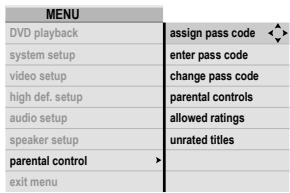
The RDV-1092 has a Parental Lock feature to prevent children from watching inappropriate DVD Video discs. The feature relies on ratings systems (specific to each country) that set a rating level for discs starting from material suitable for viewing by children and increas
ing as the subject matter becomes more inappropriate. The Parental Lock feature sets the restriction anywhere from Level 1 to Level 8. A disc with a higher numerical rating than the specified level requires entry of a password for playback. Thus, if you specify a Level 4 restriction, discs rated Level 1, 2, 3, or 4 play without a password. Discs rated 5, 6, 7, or 8 require a password.
Assign Pass Code
Select this item to specify the 4-digit parental pass code that you will later use to view restricted material.
- Enter the desired 4-digit code using the numeric buttons on the remote.
- Confirm the code by re-entering it.
- Press the ENT button to confirm store the code.
NOTE: Please write down the code you enter for safe keeping! Should you forget your password, you can use the master password 3308.
Enter Pass Code
To play parental protected DVDs or to access any parental protected features, you will be asked to enter the 4-digit pass code you have previously defined.
- Enter the 4-digit code using the numeric buttons on the remote.
- Press the ENT button to confirm store the code.
NOTE: If you have not defined a pass code previously, entering a code here will save it as your pass code for future use.
Change Pass Code
Use this item to change your previously defined pass code:
- Enter the old 4-digit code using the numeric buttons on the remote.
- Press the ENT button to confirm
- Enter the new 4-digit pass code using the numeric buttons.
- Confirm the code by re-entering it.
- Press the ENT button to confirm store the code.
NOTE: Please write down the new code you enter for safe keeping!
Parental Controls
This item allows you to activate or deactivate parental controls:
- OFF: Disables parental controls (default).
- ON: Activates parental controls restricting playback of DVDs that exceed previously defined ratings. With parental controls, you will be asked to enter the pass code to view DVDs exceeding the rating.
NOTE: After parental controls have been activated, you must enter the pass code in order to turn the controls off.
Allowed Ratings
This item allows you to set the highest level of ratings that can be played without entering a pass code:
- Scroll though the list of setting levels to make a selection from the these options:
Level 1: G
Level 2
Level 3: PG
Level 4: PG-13
Level 5
Level 6: R (default)
Level 7: NC-17
Level 8: All
- Press the ENTER button to confirm.
The specified rating level will be played without restriction. Anything higher will be blocked when Parental Controls are turned on.
Unrated Titles
Some DVDs do not have ratings information. This item allows you specify whether these unrated titles will be played when Parental Controls are turned on.
- ALLOW: Unrated titles will be played without restriction, even when Parental Controls are turned on (default).
- RESTRICT: Unrated titles cannot be played without entering the pass code.
High Definition Setup Menu
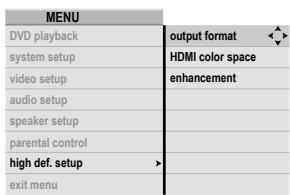
There are three user-adjustable items on the High Definition Setup Menu which set video options for DVD playback. Three more items provide status information only and cannot be changed.
Output Format
When using one of the high definition video connections (Component Video or HDMI), the RDV-1092 internal video scalers can output video in a choice of resolutions to match your TV monitor. Use this item to specify the video resolution that best matches your high-definition. In almost cases, you should match this setting to the native resolution of your TV. Video signals from all source components are scaled up to the specified resolution.
NOTE: Most DVD discs feature Macrovision and/or HDCP copy protection which may not display properly at resolutions of 720p or higher. When using Component Video connections, set the RDV-1092 output resolution to interlaced 480i/576i or progressive 480p/576p. The HDMI connections are not affected by Macrovision copy protection.
- 720p: Progressive-scan high-def resolution.
1080p: Progressive-scan high-def resolution.
1080i: Interlaced high-def resolution. - PROGRESSIVE: 480p (NTSC) or 576p (PAL) progressive-scan resolution (default setting).
- INTERLACED: 480i (NTSC) or 576i (PAL) interlaced resolution. Use this setting with a standard definition TV.
- AUTO: Outputs video at 720p, suitable for use with most HDMI monitors.
HDMI Color Format
There are three different color space standards for digital TV monitors: RGB, YCrCb 4:2:2, and YCrCb 4:4:4. Matching the output of the RDV-1092 to color format is essential when connecting the monitor with HDMI cables. Typically, the AUTO setting will detect the proper format for the digital TV monitor automatically. If not, use one of the manual settings:
- AUTO: The DVD player detect information from the TV Monitor and selects the correct color space automatically. (default)
- RGB: Use when your HDMI connected digital TV monitor supports the RGB color format.
YCrCb 4:2:2: Use when your HDMI connected digital TV monitor supports YCrCb 4:2:2 color. - YCrCb 4:4:4: Use when your HDMI connected digital TV monitor supports YCrCb 4:4:4 color.
Enhancement
The built-in video scler has optional edge enhancement to increase the sharpness of the picture at the expense of somewhat higher video noise. This setting allows you the choice of using edge enhancement with softer video images.
- OFF: Turns off edge enhancement (default).
- LOW: Turns on edge enhancement, with minimal settings.
- MEDIUM: Turns on edge enhancement, with moderate settings.
- HIGH: Turns on maximum edge enhancement.
MORE INFORMATION
Troubleshooting
If you are experiencing difficulties, consult the following list for possible solutions:
Power
Power does not come on.
- Check that the power plug is inserted securely.
Operation
Region Code Error.
- Make sure the Region Code of the inserted disc matched the code shown on the back of the unit.
Unit will not work or operates erratically.
- Microprocessor malfunction due to lightning or static electricity. Turn off the power and unplug the power cord. Connect the power cord again.
- Moisture condensation caused by a sudden change of temperature or humidity. Turn off the power, then turn it on a few hours later.
If only one specific disc will not play, the disc may be defective.
Remote does not work.
- Check the battery installation, install new batteries, aim remote at unit.
Picture
Picture is noisy.
- The player is connected to a VCR directly and the copy guard function is activated. Connect the player directly to the TV.
Cannot get correct picture on TV.
- Connect the RDV-1092 to the TV with the correct kind of cable.
- Make sure that the Video Output setting matches the correct resolution of your TV. You cannot display progressive scan video on standard definition TVs.
Make sure that the PAL/NTSC setting matches your TV.
Picture does not fill screen.
- Set ASPECT RATIO correctly.
HDMI LED flashing continuously and no picture.
- HDMI components must be Ver. 1.1 compatible.
- HDMI cables must be 5 meters or less in length.
No picture at Component video.
- Most DVD Video discs are Macrovision, HDCP compliant. Set the Output format of High Definition setup change to Progressive (480p/576p) or interlace (480i/576i).
Audio
No sound.
- Check the audio cable connection and input settings on preamplifier.
Garbled sound.
- Clean the disc surface.
Specifications
General
Readable discs:
DVD-Audio, DVD-Video, Audio CD, MP3 in CD-R/
RW, DVD-/+R
Video format:
PAL or NTSC. 480i/576i, 480p/576p, 720p,
1080i, 1080p.
Other
Power requirements:
AC 110-240 V, 50/60 Hz
Power consumption:
26 W
Weight:
5.1 kg (11.2 lbs)
Dimensions (W× H× D)
432mm× 92mm× 336mm
17.01" × 3.62''× 13.23''
Front Panel Height
(feet removed/for rack mount)
80 mm/3.15"
Digital Out:
Optical: -21dBm to -15dBm (Peak)
Coaxial: 0.5 Vp-p (75 ohm)
Audio characteristics
Frequency response:
CD (at 44.1 kHz): 2 Hz to 20 kHz
DVD (at 48 kHz): 2 Hz to 22 kHz
DVD (at 96/88.2 kHz): 2 Hz to 44 kHz
DVD (at 192/176.4 kHz): 2 Hz to 88 kHz
Dynamic range:
16 bit: more than 100 dB
20 bit: more than 110 dB
24 bit: more than 110 dB
Wow and flutter:
Unmeasurable (less than ± 0.002%
Total harmonic distortion:
16 bit: less than 0.0018%
20/24 bit: less than 0.0012%
All specifications are accurate at the time of printing.
Rotel reserves the right to make improvements without notice.
Rotel and the Rotel HiFi logo are registered trademarks of The Rotel Co, Ltd., Tokyo, Japan.
ATTENTION :
RISQUE D'ÉLECTROCUTION. NE PAS OUVRIR

ATTENTION: POUR RÉDUIRE LE RISQUE D'ÉLECTROCUTION, NE PAS RETIRER LE CAPOT. IL N'Y A A L'INTERIEUR AUCUNE PIECE SUSCEPTIBLE D'ETRE MODIFIÉE PAR L'UTILISATEUR. EN CAS DE PROBLEME, ADRESSEZ-VOUS À UN REPARATEUR AGRÉ.
Touche OPEN/CLOSE 5 40
Touche tiroir OPEN/CLOSE 41
Touche PLAY M 41
Touche STOP N 41
Touche PAUSE 41
Allumage/extinction ON/OFF 1 A P.....44
Lecture mode A-B D AA 48
Touche tiroir OPEN/CLOSE
Allumage/extinction ON/OFF 1 A P
Exemple:Pour entrert1heure 14 minutes et 0seconde,pressez0,1,1,4,0,0.
Disques DVD-Viséo :
Lecture mode A-B D AA
| Menu URD | |
| 01 let's groove.mp3 | |
| 02 stayin alive.mp3 | |
| 03 john blaze.mp3 | |
| 04 beat it.mp3 | ▲ |
| 05 truckin.mp3 | |
| 06 the good die young.mp3 | |
| 07 numb.mp3 | |
| 08 its been a while.mp3 | |
| ▼ | |
PAL ou NTSC, 480i/576i, 480p/576p, 720p,
1080i, 1080p.
Autres
CLASS 1 LASER PRODUCT
Complies with DHHS 21 CFR 1040.10 and 1040.11
DANGER: INVISIBLE LASER RADIATION WHEN YOU OPEN THE TOP COVER. AVOID DIRECT EXPOSURE TO LASER BEAM.
CAUTION: USE OF CONTROLS OR ADJUSTMENTS OR PERFORMANCE OF PROCEDURES OTHER THAN THOSE SPECIFIED IN THIS MANUAL MAY RESULT IN HAZARDOUS RADIATION EXPOSURE.
CLASS 1 LASER PRODUCT
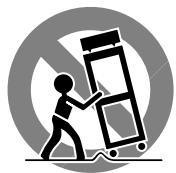
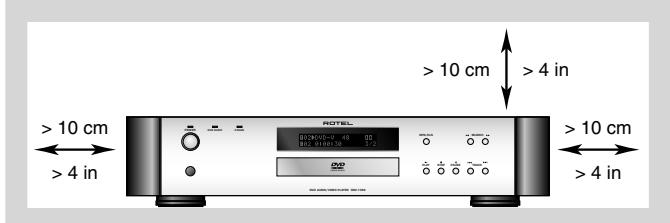
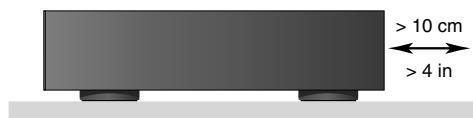

URD(User Root Directory)-Menu G M U
| URD | |
| 01 let's groove.mp3 | |
| 02 stayin alive.mp3 | |
| 03 john blaze.mp3 | |
| 04 beat it.mp3 | ▲ |
| 05 truckin.mp3 | |
| 06 the good die young.mp3 | |
| 07 numb.mp3 | |
| 08 its been a while.mp3 | |
| ▼ | |
COMPONENT (Cinch-Buchse):
Y-Ausgang: 1,0V_SS (75 Ohm)
C-Ausgang (NTSC): 286mV_SS
C-Ausgang (PAL): 300mV_SS (75 Ohm)
HDMI:
Version 1.1
North Reading, MA 01864-2699
USA
Phone: +1 978-664-3820
Fax: +1 978-664-4109
Rotel Europe
Dale Road
Worthing, West Sussex BN1 12BH
England
Phone: +44 (0)1903 221 761
Fax: +44 (0)1903 221525
Rotel Deutschland
Kleine Heide 12