
RDV-1045 - DVD player ROTEL - Free user manual and instructions
Find the device manual for free RDV-1045 ROTEL in PDF.


| Product Type | DVD Player |
| Brand | Rotel |
| Model | RDV-1045 |
| Disc Compatibility | DVD, DVD-R, DVD-RW, CD, CD-R, CD-RW, VCD, SVCD |
| Video Output | Composite, S-Video, Component, SCART (RGB) |
| Audio Output | Analog stereo, Coaxial digital, Optical digital |
| Analog Audio DAC | 24-bit / 192 kHz |
| Video DAC | 12-bit / 108 MHz |
| Progressive Scan | Yes (NTSC/PAL) |
| Audio Formats | Dolby Digital, DTS, PCM, MP3 decoding |
| Remote Control | Included (IR) |
| Front Panel | Aluminum finish with fluorescent display |
| Dimensions (W x H x D) | 430 x 100 x 320 mm |
| Weight | 5.5 kg |
| Power Supply | AC 110-120V / 220-240V, 50/60 Hz |
| Power Consumption | 25 W (standby <1 W) |
| Region Code | Region 1 (or multiregion depending on market) |
| Accessories Included | Remote control, batteries, audio/video cables, power cord, user manual |
| Repairability Index | High (modular design, available spare parts) |
| Safety Certifications | CE, FCC, RoHS |
| Cleaning Instructions | Wipe with dry soft cloth; do not use liquids or solvents |
Frequently Asked Questions - RDV-1045 ROTEL
User questions about RDV-1045 ROTEL
0 question about this device. Answer the ones you know or ask your own.
Ask a new question about this device
Download the instructions for your DVD player in PDF format for free! Find your manual RDV-1045 - ROTEL and take your electronic device back in hand. On this page are published all the documents necessary for the use of your device. RDV-1045 by ROTEL.
USER MANUAL RDV-1045 ROTEL

Owner's Manual
RDV-1045
DVD Player

Register your product at
www.Rotel.com/register
Important Safety Instructions
WARNING: There are no user serviceable parts inside. Refer all servicing to qualified service personnel.
WARNING: To reduce the risk of fire or electric shock, be sure that the apparatus shall not be exposed to dripping or splashing and that no objects filled with liquids, such as vases, shall be placed on the apparatus.
Do not allow foreign objects to get into the enclosure. If the unit is exposed to moisture or a foreign object gets into the enclosure, immediately disconnect the power cord from wall. Take the unit to a qualified service person for inspection and necessary repairs.
Read all the instructions before connecting or operating the component. Keep this manual so you can refer to these safety instructions.
Heed all warnings and safety information in these instructions and on the product itself. Follow all operating instructions.
Clean the enclosure only with a dry cloth or a vacuum cleaner.
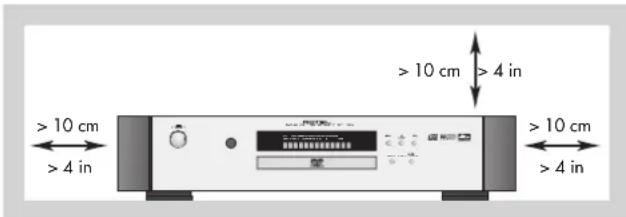
You must allow 10 cm or 4 inches of unobstructed clearance around the unit. Do not place the unit on a bed, sofa, rug, or similar surface that could block the ventilation slots. If the component is placed in a bookcase or cabinet, there must be ventilation of the cabinet to allow proper cooling.
Keep the component away from radiators, heat registers, stoves, or any other appliance that produces heat.
The unit must be connected to a power supply only of the type and voltage specified on the rear panel of the unit.
Connect the component to the power outlet only with the supplied power supply cable or an exact equivalent. Do not modify the supplied cable in any way. Do not attempt to defeat grounding and/or polarization provisions. Do not use extension cords.
Do not route the power cord where it will be crushed, pinched, bent at severe angles, exposed to heat, or damaged in any way. Pay particular attention to the power cord at the plug and where it exits the back of the unit.
The power cord should be unplugged from the wall outlet if the unit is to be left unused for a long period of time.
Immediately stop using the component and have it inspected and/or serviced by a qualified service agency if:
- The power supply cord or plug has been damaged.
- Objects have fallen or liquid has been spilled into the unit.
• The unit has been exposed to rain.
• The unit shows signs of improper operation - The unit has been dropped or damaged in any way
Please use Class 2 Wiring when connecting the speaker terminals of the unit to ensure proper insulation and minimize the risk of electrical shock.
IMPORTANT
FOR LASER PRODUCTS
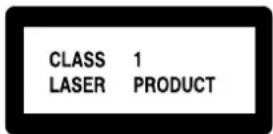
- CLASS 1 LASER PRODUCT
- DANGER: Visible laser radiation when open and interlock failed or bypassed. Avoid direct exposure to beam.
- CAUTION: Do not open the top cover. There are no user serviceable parts inside the player; leave all servicing to qualified service personnel.
WARNING!
To reduce the risk of electrical shock, fires, etc.:
- Do not remove screws, covers or cabinet.
- Do not expose the unit to rain or moisture.
- Do not touch the power cord or plug with wet hands.
| CAUTION- -LASER RADIATION WHEN OPEN.DO NOT STARE INTO BEAM. | |
| ATTENTION- RAYONNEMENT LASER EN CAS D'OUVERTURE.NE PAS REGARDER DES LAIS LEASEAU. | |
| VORSICHT- -LASERSTRALUNG, WENN ABDECKUNG GEÖFENET.NICTI IN DEN STRAHL BLOCKIN. | |
| ADVARSEL- -LASERSTRALUNG VED ABNING.SE KIKE INDI STRÄLEN. | |
| ADVARSEL- -LASERSTRALUNG NAR DEKSEL ÄPNE.STIRR KIKE INN I STRÄLEN. | |
| VARNING- -LASERSTRALING NAR DENNA DEL AÑ ÖPPINA.STRRA INI STRÄLEN. | |
| VARD! | AVATTRESSA OLET ALTIMA LASERSÄTEKYLLE.A.Å TUOLTA SATEGEBEN. |
| 注意:当打打改革会出现激光.请不要直接激光.注意:こころ開くとレーザー元が出来る。レーザー元をのぞきますないでください。 | |

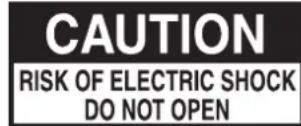

CAUTION: TO REDUCE THE RISK OF ELECTRIC SHOCK, DO NOT REMOVE COVER. NO USER-SERVICEABLE PARTS INSIDE REFER SERVICING TO QUALIFIED SERVICE PERSONNEL.
APPLICABLE FOR USA, CANADA OR WHERE APPROVED FOR THE USAGE
CAUTION: TO PREVENT ELECTRIC SHOCK, MATCH WIDE BLADE OF PLUG TO WIDE SLOT. INSERT FULLY.
ATTENTION: POUR EVITER LES CHOCS ELECTRIQUES, INTRODUIRE LA LAME LA PLUS LARGE DE LA FICHE DANS LA BORNE CORRESPONDANTE DE LA PRISE ET POUSSER JUSQU AU FOND.

This symbol is to alert the user to the presence of uninsulated dangerous voltages inside the product's enclosure that may constitute a risk of electric shock.

This symbol is to alert the user to important operating and maintenance (service) instructions in this manual and literature accompanying the product.


Rotel products are designed to comply with international directives on the Restriction of Hazardous Substances (RoHS) in electrical and electronic equipment and the disposal of Waste Electrical and Electronic Equipment (WEEE). The crossed wheelie bin symbol indicates compliance and that the products must be appropriately recycled or processed in accordance with these directives.

This symbol means that this unit is double insulated. An earth connection*is not required.

Place the unit on a fixed, level surface strong enough to support its weight. Do not place it on a moveable cart that could tip over.
CE
Figure 1: RR-DV99 Remote Control






Press to select an item from a menu or on-screen display, or to change the setting of an item in the on-screen display.









Press to select an item from a menu or on-screen display, or to change the setting of an item in the on-screen display.







During playback press repeatedly to speed up or slow down playback speed. When disc play is paused press repeatedly to play forward or backward at reduced speed.
Figure 2: Front Panel Controls

1 STANDBY button
Turns the unit on or off (standby).
2 STANDBY indicator
Lights when the power cord is connected and the unit is on standby. When the unit is turned on, the STANDBY indicator goes off.
3 Remote sensor
Receives the signal from the remote control unit.
4 Disc tray
Used to load discs.
5 Display Window
Shows various indicators and information about the operation of the RDV-1045.
6 OPN/CLS (OPEN/CLOSE) button
Opens and closes the disc tray.
7 ■ (STOP) button
Stops playback. Also used to erase tracks from a programmed play list.
9 ▶/II (PLAY/PAUSE) button
Starts and pauses playback. Also, used as a SELECT button for PBC of Video CDs.
8 (SKIP) buttons
Used to skip a chapter, title or track. Also used for the page selection of a menu screen (for DVD Video/Video CD).
Holding down ◀◀ ▶▶ during playback reverses or advances playback rapidly.
Figure 3: Display Window
A Disc Content indicators
B VSS (3D Phonic) indicator
C Browsable Still Pictures indicator
D Progressive Scan indicator
E Original Program/Play List indicators
F Track/Chapter indicators
G Programmed Playback indicator
H Random Play indicator
Group/All Repeat Play indicator
J Specified Section Repeat Play indicator
K Multi-Purpose Display
![graph TD A["VD"] --> B["VR WMAMP3"] B --> C["3D PHONIC"] C --> D["B.S.P"] D --> E["PROGRESSIVE"] E --> F["ALL"] F --> G["A-B"] G --> H["I"] H --> I["J"] I --> J["K"] K["E"] --> L["F"] L --> M["G"] M --> N["H"] N --> O["I"] O --> P["J"] P --> Q["K"]](/content/2026/05/1059552/images/499c3f70d0661fc6142233cc4fec76b98a1f9e9b0fc7d83a74498ab8374b6c6e.jpg)
Contents
Important Safety Instructions 2
Figure 1: RR-DV99 Remote Control 3
Figure 2: Front Panel Controls 4
Figure 3: Display Window 4
About Rotel 5
About This Manual 5
Figure 4: Rear Panel Connections 6
About the RDV-1045 6
Precautions 6
Placement 6
Audio/Video Connections 6
Component Input TV Connection 7
Composite Input TV Connection 7
S-Video Input TV Connection 7
Connecting to Audio Equipment with a Digital Input 8
Connecting to an Audio Amplifier or Receiver 8
Connecting the Power Cord....9
AC Input 10 9
RR-DV99 Remote Control 9
Installing the Batteries 9
Precautions for the safe use of batteries 9
Using the Remote Control 9
Remote Control Numeric Buttons 9
External Remote In 16 9
Playable Discs.... 10
Notes on Discs 10
Invalid Operation Icon 10
Unplayable Discs 10
Notes About Disc Copying 10
About Copyright Laws 10
About the Copy Guard System 10
Disc Care and Handling 11
DVD Video Disc Region Codes 11
Initial Setup....11
Turning On the RDV-1045 11
Turn On Messages 11
Setting the Output Signal Type 11
Selecting Preferences 11
Changing the Display Window Brightness 11
Playing a DVD or CD 12
On-Screen Menu 12
Selecting a Track/Chapter with the Numeric Buttons 12
Playing Other Discs.... 12
On Screen Icons.... 12
Display Window 12
DVD VIDEO/DVD AUDIO/DVD VR 12
VCD/SVCD 12
CD 13
MP3/WMA/ASF/MPEG1/MPEG2 disc 13
JPEG disc 13
Changing the Display Window Information 13
Other Disc Play Controls.... 13
Pausing Playback 13
Fast Forward/Reverse Search 13
Slow Motion Playback 13
Skip to Beginning or End 14
One Touch Replay 14
Skipping 5 Minute Intervals 14
Advancing Frame by Frame 14
Resuming Playback 14
Other Playback Features 14
Menu Screen Track Selection 14
Programmed Playback 15
Random Playback 15
Repeat Playback 16
A-B Repeat Playback 16
Other Control Features.... 16
Selecting the Subtitle Language 16
Selecting the Audio Language 16
Selecting the Viewing Angle 16
Magnifying the Picture (Zoom) 17
Adjusting the Picture Quality (VFP) 17
Browsable Still Pictures (BSP) 17
VSS - Simulated Surround Sound 17
Menu and Status Bar 18
Menu Bar Functions 18
Time Search.... 18
Preference Setup 19
Language Menu 19
Picture Menu 19
Audio Menu 19
Others Menu 19
Caring for the RDV-1045.... 20
Cabinet and Disc Tray Cleaning 20
Condensation 20
Locking the Disc Tray 20
Disc Structure 20
DVD VIDEO/DVD VR 20
DVD AUDIO 20
VCD/SVCD/CD 20
MP3/WMA/JPEG/ASF/MPEG1/MPEG2 Discs 20
Additional Disc Information 20
Troubleshooting 22
Power source 22
Operation 22
Images 22
Other 22
If Problems Persist 22
Language Codes 23
Digital Audio Output Table.... 23
Specifications 24
Video Characteristics 24
Audio output 24
Audio Characteristics 24
General Characteristics 24
About Rotel
A family whose passionate interest in music led them to manufacture high fidelity components of uncompromising quality founded Rotel over 45 years ago. Through the years that passion has remained undiminished and the family goal of providing exceptional value for audiophiles and music lovers regardless of their budget, is shared by all Rotel employees.
The engineers work as a close team, listening to, and fine tuning each new product until it reaches their exacting musical standards. They are free to choose components from around the world in order to make that product the best they can. You are likely to find capacitors from the United Kingdom and Germany, semi conductors from Japan or the United States, while toroidal power transformers are manufactured in Rotel's own factory.
Rotel's reputation for excellence has been earned through hundreds of good reviews and awards from the most respected reviewers in the industry, who listen to music every day. Their comments keep the company true to its goal - the pursuit of equipment that is musical, reliable and affordable.
All of us at Rotel, thank you for buying this product and hope it will bring you many hours of enjoyment.
About This Manual
Throughout this manual the controls and components of the RDV-1045 are identified with numbers and letters in dark gray circles. Numbers in circles such as 21 identify items on the RR-DV99 remote control. (To help you remember this think of "round equals remote".)
Numbers in squares such as 9 identify items on the front and rear panel of the unit.
Letters in circles such as A identify items in the front panel display window.
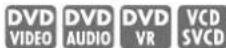
In the operation section of the manual some function descriptions apply only to certain kinds of discs. The types of discs to which the information applies are indicated with symbols such as DVD VHD
About the RDV-1045
Thank you for purchasing the Rotel RDV-1045. It will provide years of enjoyment when used in a high-quality audio/video system.
The RDV-1045 is one of the most flexible components you can add to your audio/video system. In addition to DVD Video discs, the RDV-1045 can play Video and audio CD discs recorded in a variety of formats. It provides a full range of operating features and control functions.
Angle function*
You can select a desired angle from multiple camera angles recorded on the DVD disc.
Zoom function
You can view scenes close-up.
Video Fine Processor (VFP) controls
You can adjust many video image characteristics to suit the type of program being played or personal preferences.
High quality digital sound
You can enjoy high quality sound from disc recorded with a full range of digital audio formats.
Surround function*
The unit is compatible with Dolby Digital surround and DTS surround.
3D Phonic (VSS) function
You can enjoy surround sound with your 2-channel system.
Multi-language subtitles and sound*
You can select a subtitle or sound language from those recorded on the DVD disc.
Multi-disc playback
The RDV-1045 can play Audio CDs and Video CDs as well DVD Video discs.
On-screen display
User-friendly on-screen displays allow you to operate the unit easily.
* Functions only with DVD discs.
Precautions
Please read this manual carefully, particularly the Caution information on page 2. In addition to basic installation and operating instructions this manual provides valuable information on various system configurations as well as general information that will help you get the most from your system. Please contact your authorized Rotel dealer for answers to any questions you might have. In addition, all of us at Rotel welcome your questions and comments.
Save the RDV-1045 shipping carton and all enclosed packing material for future use. Shipping or moving the RDV-1045 in anything other than the original packing material may result in severe damage.
Be sure to keep the original sales receipt. It is your best record of the date of purchase, which you will need in the event warranty service is ever required.
Register your product online at:
www.rotel.com/register
Also keep your original sales receipt. It is your proof of purchase in the event that warranty service is required.
Placement
Place the RDV-1045 on a surface that is level, dry and neither too hot nor too cold (between 41° F and 95° F, 5° C and 35° C). Do not place the unit where it will be exposed to direct sunlight. Avoid locations that are dusty. Do not place the unit too close to the television set. Do not place the RDV-1045 where it will be exposed to vibrations, such as near a subwoofer. To ensure proper ventilation observe the minimum clearance specifications listed in the safety information on page 2.
Audio/Video Connections
NOTE: Do not plug in the power cable until all audio/video signal connections are complete. Do not change any audio/video cable connections until the RDV-1045 has been unplugged from the power outlet.
Carefully read the instructions supplied with the components you are going to connect to the RDV-1045 to be sure they are compatible. If you have questions, contact your authorized Rotel dealer.
NOTE: Connect VIDEO OUT 13 14 15 of the unit directly to the video input of your TV. Connecting VIDEO OUT to a TV via a VCR may result in unacceptable video quality because many discs are copy-protected.
Figure 4: Rear Panel Connections

10 AC power cord receptacle
For the power cord connected to the wall outlet.
11 OPTICAL DIGITAL OUTPUT
Provides a digital output signal to receivers or sound processors that can decode it.
12 Audio ANALOG OUTPUT jacks
Left and right channel analog audio outputs.
13 COMPONENT VIDEO OUTPUT jacks
Outputs component video signals.
14 S VIDEO OUTPUT jack
Outputs an S-video signal.
15 COMPOSITE VIDEO OUTPUT jack
Outputs a composite video signal.
16 External Remote Input ("Ext Rem In")
This feature is useful when the unit is installed in a cabinet and the front panel IR sensor is blocked.
Composite Input TV Connection
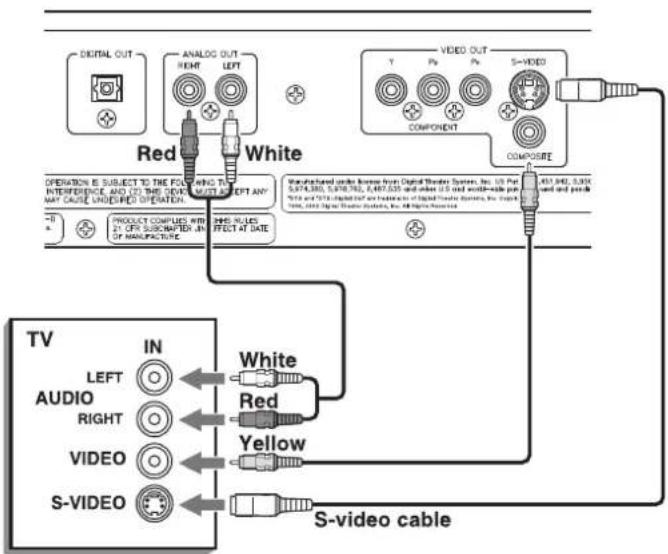
Connect the COMPOSITE VIDEO 15 output to the composite video input of your TV. Connect the ANALOG AUDIO 12 outputs to the audio inputs of your TV. A cable for these connections is supplied.
If your TV has a single monaural audio input instead of a pair of stereo inputs, you need to use a "Y" cable adapter to connect the two output channels of the RDV-1045 to the single input.
You can improve the sound quality of the system by connecting the audio outputs to a separate hi-fi audio system. (See the following section.)
S-Video Input TV Connection
If your TV has an S-video input, you should connect it to the S-VIDEO 15 output of RDV-1045 using an S-video cable. This will produce better picture quality.
NOTES: Do not connect an S-video cord and a component video cord at the same time. The may prevent proper playback
Connect the DVD player directly to a TV or a monitor. Do not route through a video cassette recorder (VCR). Otherwise picture distortion may occur during playback. Connecting the DVD player to a VCR-built-in-TV may also cause picture distortion.
Component Input TV Connection
If your TV has component video signal input jacks you will get better video performance by using the COMPONENT VIDEO 13 output jacks of the RDV-1045. The required cable is not provided. Be sure to connect the "Y" output to the "Y" input, "Pb" output to the "Pb" input, and the "Pr" output to the "Pr" input.
NOTES: When using the Component Video outputs do not connect an S-Video cable.
The component signal inputs on some TV's have BNC type connectors. (BNC connectors are coaxial connectors that have keyed locking collars.) In such instances adapters or a special cable may be needed.
When the Component Video outputs are connected to an NTSC/PAL television you may be able to use the Progressive Scan mode of the RDV-1045 which produces a picture with less flicker. See the P.SCAN section of this manual.
![graph TD A["TV"] --> B["White Component video cable"] A --> C["Audio Cable"] A --> D["Digital OUT"] A --> E["Product CPU 21 OFF SUBUNITATION OF MANUFACTURE"] A --> F["Video OUT"] A --> G["ComPOSITE"] A --> H["Blue Red"] A --> I["Green Blue Red"] A --> J["IN LEFT AUDIO RIGHT VIDEO S-VIDEO"] A --> K["…](/content/2026/05/1059552/images/b4131590ea0d11bdd56fb420832477875f5eed80e9109cb15070bd48ea70c8f9.jpg)
Connecting to Audio Equipment with a Digital Input
You can enhance the sound quality by connecting the OPTICAL DIGITAL OUTPUT 11 of the RDV-1045 to the digital input of an amplifier or signal processor by using an optional digital cable. The digital stereo audio signal from a disc is directly transferred. If you connect the unit to a Dolby Digital or DTS decoder or an amplifier with built-in decoder by using an optional digital cable, you can enjoy high-quality surround sound.
When you make the digital connection, also make the analog connection 12, because, depending on the disc type, no audio may be reproduced from the DIGITAL OUTPUT.
With the digital connection, the Preference menu settings for COMPRESSION and DOWN MIX are disabled. Settings for these items must be made from the decoder.
![graph TD A["Digital equipment"] --> B["IN"] A --> C["RIGHT AUDIO LEFT"] A --> D["IN"] A --> E["White"] F["Optical Digital Cable"] --> G["Digital Optical"] H["Video Out"] --> I["COMPONENT"] J["Red"] --> K["Analog OUT"] L["White"] --> M["Product Complete"] N["Operation is interference may cause or cau…](/content/2026/05/1059552/images/1e259bf05d0e1c847ab12fd331ba4316fca60a75a01ddfee145b166e258f3e39.jpg)
IMPORTANT NOTE ABOUT DIGITAL SIGNAL CONNECTION:
The Digital Audio Output setting in the Audio Preferences on-screen display must be set so the digital output of the RDV-1045 is compatible with the digital input of the component it is connected to. If this preference setting is not done correctly, loud noise may be generated which can damage the speakers. Before using the RDV-1045 with a digital signal connection be sure the proper type of Digital Audio Output has been selected. See the Audio Menu information in the Preferences Setting section of this manual.
NOTE: Bending an optical digital cable at a sharp angle can damage it. Use caution when handling optical cables.
Some optical digital cables have a protective cover over the end of the plug. Be sure to remove any covers before attempting to connect optical cables.
Connecting to an Audio Amplifier or Receiver
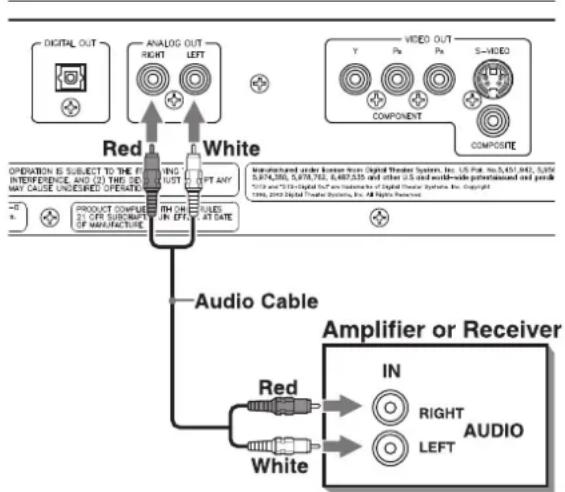
You will get better sound quality if you connect the audio outputs of the RDV-1045 to a high quality amplifier or receiver and use component loudspeakers, rather than those built into the television.
Connect the AUDIO OUTPUTS 12 of the RDV-1045 to any high level input (such as AUX, DVD, CD, etc.) of an amplifier or receiver.
Connecting the Power Cord
AC Input 10
It is best to plug the RDV-1045 directly into a 2-pin polarized wall outlet. Avoid the use of extension cords.
Your RDV-1045 will automatically configure itself for the proper AC line voltage ranging from 110 volts to 240 volts at 50/60Hz. No setting is required to match the unit to your local voltage.
Plug the supplied cord into the AC INPUT receptacle on the back of the unit. After all connections have been made, plug the cord into an appropriate AC wall outlet.
NOTE: If you are away for an extended period of time, it is a sensible precaution to unplug your audio/video components
Observe the following precautions:
- Do not connect or disconnect the power cord with wet hands.
- Disconnect the power cord if you are not going to use the unit for a long time.
- When unplugging the player from the wall outlet, always pull the plug, not the power cord.
- Disconnect the power cord before cleaning the unit.
- Disconnect the power cord before moving the unit.
- Do not damage, alter, twist or pull the power cord. This may damage the cord and cause fire, electric shock, or other accidents. Contact your authorized Rotel dealer and get a new power cord if the cord is damaged.
- Do not put anything heavy, on the unit, or the power cord, as this may cause fire, electric shock, or other accidents.
RR-DV99 Remote Control
Installing the Batteries
The battery compartment is located on the back of the remote control unit. Place three AAA batteries in the remote control according to the polarity markings ("+" and "-") inside the compartment and on the batteries. Replace the battery compartment cover.
The batteries will last about six months with normal use. If the functions of the remote control become erratic, replace the batteries.
Precautions for the safe use of batteries
Observe the following precautions for the safe use of batteries. If they are used improperly their life will be shortened, they may burst or their contents may leak.
- Remove the batteries from the remote control if it will not be used for a long period of time.
- Remove dead batteries and dispose of them properly.
- Never leave dead batteries lying around. Do not take them apart, mix them with other refuse, or throw them into an incinerator.
- Never touch liquid that has leaked out of a battery.
- Do not mix new and old batteries, or batteries of different types, when replacing them.
Using the Remote Control
When using the remote control point it at the front panel of the RDV-1045. The remote control may not always properly operate the RDV-1045 if it used from too far away or if you are at too great of an angle relative to the front panel.
The remote control may also fail to properly operate the RDV-1045 if the remote control sensor ☐ on the front panel is exposed to strong light, such a sunlight.
For best results there must be a direct, unob -structed path from the remote control to the front panel sensor.
Remote Control Numeric Buttons
For many operations selections are made using the RR-DV99 NUMERIC BUTTONS 10. The examples below show how to select various numbered items.
5: 5 1 5: + 1 0 → 1 → 5
External Remote In 16
The 3.5mm mini-jack (labeled EXT REM IN) receives command signals from an industry standard infrared receiver. This feature is useful when the unit is installed in a cabinet and the front panel sensor is blocked. Consult your authorized Rotel dealer for information on external receivers and the proper wiring of a jack to fit the mini-jack receptacle.
playable Discs
The RDV-1045 unit can play the following types of discs:
DVD Video


DVD Audio


VCD

Video CD
SVCD


CD

CD-R

CD-RW

The RDV-1045 can also play back the following discs produced in CD or DVD recorders:
CD-R/ CD-RW DVD-R DVD-RW
| Audio CD | ✓ | ✘ | ✘ | |||
| VCD/SVCD | ✓ | ✘ | ✘ | |||
| MP3/WMA/JPEG | ✓ | ✓4 | ✓4 | |||
| DVD Video | ✘ | ✓ | ✓ | |||
| DVD VR | ✘ | ✓2 | ✓ | |||
| ASF | ✓ | ✓ | ✓ | |||
| MPEG1/MPEG2 | ✓ | ✓ | ✓ |
Discs should be "finalized" while being recorded.
1 A DVD-R recorded in multi-border format is also playable (except for dual layer discs).
2 Only when a DVD-R is compatible with CPRM (Content Protection for Recordable Media), DVD VR format can be used.
3 Among MP3/WMA/JPEG discs, only discs formatted with a combination of Universal Disc Format and ISO 9660 (known as UDF Bridge) are playable.
Other Notes About Recordable Discs
- Some discs may not be played back because of their disc characteristics, recording conditions, or damage or stains on them.
- It is possible to play back finalized +R/+RW (DVD Video Format only) discs. "DVD" lights on the front display panel when a +R/+RW disc is loaded.
- Only sounds can be played back from the following discs: MIX-MODE CD, CD-G CD-EXTRA and CD TEXT
- The RDV-1045 can play NTSC and PAL system discs. If an NTSC disc is played when the Video Signal Type is set to PAL, the NTSC visdeo signal is converted to a PAL60 signal and output.
NOTE: If a disc is dirty, scratched or warped, or has unusual disc or recording characteristics, it may take considerable time for the RDV-1045 to read the disc contents. In some instances the RDV-1045 may not be able to play certain discs.
When playing some DVD VIDEOS, DVD AUDIOs, VCDs or SVCDs the operation of the RDV-1045 may be different from what is described in this manual. This is due to the disc programming and disc structure, not a malfunction of this system.
Other Notes About Playable Discs:
Because the RDV-1045 can play such a variety of disc formats, and because many disc formats can be recorded to a variety of standards, there are many things can affect how certain discs will work. See the "Additional Notes About Playable Discs" section of this manual for more information.
Invalid Operation Icon
With some discs the RDV-1045 may not be able to perform certain operations. For example, some discs may not allow rapid advance/reverse or slow motion playback. When you press a remote control or front panel button if the RDV-1045 cannot perform the operation the Ⓧ Invalid Operation icon appears on your TV screen. Operations are occasionally unacceptable even if it is not displayed.
Unplayable Discs
The RDV-1045 does not play back discs listed below. If you try to play back these discs, noise may generate causing damage to speakers.
- DVD-ROM (except for MP3/WMA/JPEG/ASF/MPEG1/MPEG2 format)
- DVD-RAM
- CD-ROM
- CD-I (CD-I Ready)
- Photo CD
- SACD, etc.
- Damaged discs and discs that are not standard sizeor shape (other than round 12 cm/4/4" or 8 cm/3/16" diameter discs).
- Unfinalized discs
- Discs of irregular shape or discs with tape, seals or adhesives on either the label side or playback side. Playing back these discs may damage the RDV-1045.
• Discs with labels that are not completely bonded to the disc.

Notes About Disc Copying
About Copyright Laws
Check the copyright laws before recording from DVDs, VCDs, SVCDs and CDs. Recording of copy righted material may infringe copyright laws.
About the Copy Guard System
DVDs are protected by a copy guard system. When you connect the RDV-1045 directly to a VCR, the copy guard system can prevent proper playback of the disc.
Notes on Discs
- With some DVD VIDEO discs, the RDV-1045 starts playback automatically after inserting the disc.
- The image may be sometimes poor or noisy due to defects in the disc itself.
- With some discs, operations described in this manual may not be possible.
Disc Care and Handling
Proper handling and storage of discs is very important. If a disc gets dirty, dusty, scratched or warped, playback, sound and picture will be adversely affected.
Handling
- To avoid damage do not touch the surface of the disc.
- Do not apply labels or use any adhesive on either the label side or playback side.
Storing discs
- Keep discs in their cases. If discs are piled on top of one another without their protective cases, they can be damaged.
- Do not put discs where they may be exposed to direct sunlight, or high temperatures or humidity. Avoid leaving discs in a car!
Cleaning discs
- Wipe with a soft dry cloth, moving from the center outwards. If a disc is difficult to clean, wipe with a cloth moistened with water.
- Never use record cleaners, petrol, alcohol or any anti-static agents.
DVD Video Disc Region Codes
All DVD players and DVD discs have a Region Code number. This unit only can play back DVD discs whose Region Code numbers include the unit's Region Code, which is indicated on the region code symbol on the rear panel.
Examples of playable DVD discs for a unit with Region Code "1"


NOTE: With some DVD and Video CD discs, you may not be able to control them according to the instructions described in this manual, because of the contents of the disc.
If a DVD VIDEO with an improper Region Code number is loaded, "REGION CODE ERROR!" appears on the TV screen and playback cannot start.
Initial Setup
Turning On the RDV-1045
When the RDV-1045 is connected to a power outlet the STANDBY indicator 2 on the front panel is always on. Press the STANDBY 1 button on the front panel, or the POWER button 1 on the remote, to turn the unit on and light the display 5.
Turn On Messages
One of the following messages may appear in the display when the RDV-1045 is turned on:
NOW READING – Appears when the DVD player is reading the disc information. Do not try to operate the unit until this message goes away.
REGION CODE ERROR! – Appears when the Region Code of a DVD that has been loaded is not supported by the player.
NO DISC – Appears when no disc is loaded.
OPEN – Appears when the disc tray is opening.
CLOSE – Appears when the disc tray is closing.
SCANNOT PLAY THIS DISC – Appears when you try to play an unplayable disc.
Setting the Output Signal Type
With the RDV-1045 and the TV turned on, press the P.SCAN button 15 on the remote. The current video signal type will flash.
If necessary, press the ◀/▶ buttons 7 25 to select the video signal type suitable for the TV. Then press ENTER B. The selected video signal type is displayed for a short time.
About Output Signals
NTSC is the correct choice for TVs in North America. PAL TVs are used through most of the rest of the world.
With either NTSC or PAL TV's you can select INTERLACE ("NTSC" or "PAL") or PROGRESSIVE ("NTSC PROG" or "PAL PROG"). Picture quality is better with the "PROGRESSIVE" mode. But only newer, high performance TVs can accept progressive signals. A progressive signal is only available from the Component Output Connectors 13 so the TV must have component inputs.
If you are unsure about which setting to use, contact your authorized Rotel dealer.
Output Signal Notes
- The picture may be distorted for a period of time after you press ENTER button. This is not a malfunction of the system.
- Some progressive signal and high-definition TVs are not fully compatible with this unit. This will result in an unnatural picture when playing a DVD VIDEO with progressive scanning. In this case, change the scan mode to INTERLACE.
- Even if the power cord of the DVD player is disconnected from the AC outlet or the power is interrupted, the video signal type setting is stored.
Selecting Preferences
See the "Selecting Preferences" of this manual for information on changing the preferred setting for such things as menu languages, video picture options, audio options and other features.
Changing the Display Window Brightness
To change the brightness of the display window press the DIMMER button 21 of the remote control. Each time you press DIMMER, the brightness of the display changes in the order shown.

If "DIMMER AUTO" is selected, the setting automatically changes to "DIMMER 2" when a video disc is played. The display goes back to the "DIMMER AUTO" setting when play is stopped.
If "DIMMER AUTO" is selected, the setting automatically changes to "DIMMER OFF" while a non-video disc is being played. The display goes back to the "DIMMER AUTO" setting when play is stopped.
Playing a DVD or CD

Press ▲ OPEN/CLOSE 21 5 to open the disc tray. Place a disc, label side up, in the tray. Place smaller 8 cm/3/16" dics in the recessed, inner part of the disc tray.

Press ▲ again to close the tray. Then press ▶/II PLAY/PAUSE 16 9 .To stop disc play press ■(STOP) 17 7 .
NOTES: Do not insert an unplayable disc. (See Playable Discs section.)
When placing a disc on the disc tray, be sure to set it in the recess. Otherwise, the disc may be damaged when the disc tray is closed, or you may not be able to remove the disc from the RDV-1045.
On-Screen Menu
After loading a DVD VIDEO, SVCD or Video CD disc, a menu may appear on the TV screen. From the menu, you can select an item to be played.
For DVD VIDEO
1 Press ▲▼◀ 6 26 7 25 to select an item.
2 Press ENTER ☐. The RDV-1045 starts playback of the selected item.
You can also use the numeric buttons to select an item. Key in the number of the item and press ENTER. The RDV-1045 starts playback of the selected item.
Selecting a Track/Chapter with the Numeric Buttons


Press the Numeric Buttons 10 to select a track or chapter number. Refer to the "Remote Control Numeric Buttons" section. This method of Track/Chapter selection will not work with some discs.
Playing Other Discs

After a disc is loaded, an on-screen display is shown. The sample menu screen shown below is what appears when an MP3 disc is loaded. With a JPEG disc "File" is shown on the right side instead of "Track".

Press the ▲▼6 25 buttons to select a Group. Then press ▶25 to move to the Track (File) list. Use the ▲▼6 25 buttons again to select a Track or File. The Numeric Button10 can also be used to select a Track or Title. Then press ▶(PLAY) 16 or ENTER 38.
When a disc with JPEG images is loaded, pressing ▶ (PLAY) will start a "slide show" of the images. Each image is shown for about 3 seconds. If ENTER is pressed only the selected file is shown.
On Screen Icons
At times you may see the following icons on the screen:
Fast reverse/fast forward search
Slow motion playback (reverse/forward directions)
Containing multi-view angles (See "Selecting Viewing Angles")

The disc cannot accept the operation you have attempted.
Display Window
The information in the diaply window changes, depending on the type of disc that is loaded and the operating mode of the RDV-1045.
DVD VIDEO/DVD AUDIO/DVD VR When a disc is playing

Title/group/ Chapter/ Elapsed playback time original track program/play number list number
- When a DVD AUDIO is played back, "GR" and "TR" are displayed instead of "TITLE" and "CHAP".
- When a DVD VR is played back, "VR" is displayed and "PG" (original program) or "PL" (play list) is displayed instead of "TITLE".
- If "B.S.P." is displayed during DVD AUDIO playback, refer to the "Browsable Still Pictures" section of this manual.
When a disc is stopped

- When a DVD AUDIO is loaded; "DVDA" is displayed instead of "DVDV", and the total numbers of groups and the tracks are displayed instead of the total numbers of the titles.
- When a DVD VR is loaded; "VR" is displayed instead of "DVDV", the total number of original programs or the play lists is displayed instead of the total number of titles, and "DVD VR" is displayed instead of "DVD".
VCD/SVCD
When a disc is playing
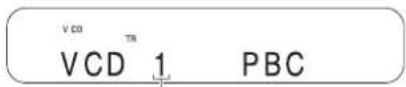
Track number
- PBC (Play Back Control) is a signal recorded in a VCD (version 2.0) for controlling play-back. You can enjoy interactive software or software with a search function using a menu screen recorded in a PBC compatible VCD. To play back a disc without the PBC function, follow the instructions below.
- Specify the track number using the number buttons when the disc is stopped. Refer to the "Remote Control Numeric Buttons" section of this manual.
- Specify the track number using PREVIOUS 19 or NEXT 18 when the disc is stopped, and then press ▶ (PLAY) 16.
- Press RETURN 23 to go back to the upper layer during PBC playback of a VCD or SVCD.
When a disc is stopped
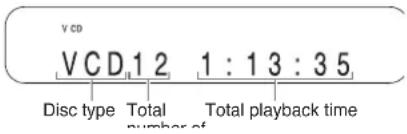
- When the PBC function is activated, the display below appears after the display above is displayed for a short time.

CD
When a disc is playing

When a disc is stopped

MP3/WMA/ASF/MPEG1/MPEG2 disc
When a disc is playing

- When a WMA disc is played back, "WMA" is displayed instead of "MP3".
- When an ASF/MPEG1/MPEG2 disc isplayed back, no disc type indicator is displayed.
When a disc is stopped

- When a WMA disc is loaded, "WMA" is displayed instead of "MP3" in the upper indicator and the lower display.
- When an ASF disc is loaded; "MP3" disappears in the upper indicator, and "ASF" is displayed instead of "MP3" in the lower display.
JPEG disc
When a disc is played back or stopped

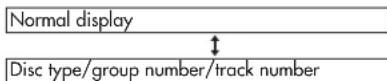
Changing the Display Window Information
While a disc is playing press DISPLA 2 . Each time the button is pressed the information in the display changes.
DVD VIDEO

DVD AUDIO
DVD VR

MP3/WMA disc
![graph TD A["Normal display a"] --> B["File type/group number/track number"] B --> C["Text*"]](/content/2026/05/1059552/images/053bf37ad39a12a53f091ea3458a73efa1ce8b51bf516182055ae9818d023769.jpg)
ASF/MPEG1/MPEG2 discs

* When text, such as a file name, has been recorded in the loaded MP3/WMA disc, the text appears and scrolls in the display window on the DVD player.
Other Disc Play Controls
Pausing Playback
To pause playback when a disc is playing press II (PAUSE) 33.
Fast Forward/Reverse Search


While a disc is playing press ◀◀▶35 34. Each time these buttons are pressed the forward or reverse speed increases. Press▶(PLAY)15 to resume normal speed playback.
Or, while is disc is playing press and hold ➛ ➛ ➛ ➛ ➛ ➛ ➛ ➛ ➛ ➛ ➛ ➛ ➛ ➛ ➛ ➛ ➛ ➛ ➛ ➛ ➛ ➛ ➛ ➛ ➛ ➛ ➛ ➛ ➛ ➛ ➛ ➛ ➛ ➛ ➛ ➛ ➛ ➛ ➛ ➛ ➛ ➛ ➛ ➛ ➛ ➛ ➛ ➛ ➛ ➛ ➞
The speeds of the fast forward/reverse searching will vary, depending on the type of disc being played. Also note that during fast forward/reverse searching the sound may be intermittent or turned off.
Slow Motion Playback

While disc play is caused press ◀▶ 35 34. Each time one of these buttons is pressed the speed of the slow forward or reverse play will increase. Press II (PAUSE) 33 to pause slow motion play. Or press▶ (PLAY) 16 to resume normal speed playback.
No sound is produced during Slow Motion Playback. During Reverse Slow Motion Play-back the picture motion will not be smooth. When playing VCD, SVCD or DVD VR discs, Slow Motion Playback will work only in the forward direction.
Skip to Beginning or End

MPEG1 MPEG2—(moving images only)
To skip to the beginning or end of a track (or chapter or file), while a disc is playing, press I◀◀▶▶I PREVIOUS/NEXT 18 19.
During playback of an MP3/WMA/JPEG/ASF disc, press ➤ ➤ NEXT 19 or ▼25 to play the next file, or press ➤ ➤ PREVIOUS 18 or ▲6 to play the next file.
The Skip funtion does not work with all discs.
One Touch Replay

When a disc is playing, press the REPLAY button. Playback will continue from 10 seconds before the previous location.
One Touch Replay will not skip past the beginning of the track or title being played. This function will not work with some discs.
Skipping 5 Minute Intervals

With the type of discs shown above you can skip forward or backward at intervals of approximately 5 minutes. While a disc is playing press ◀ 7 25.
Intervals are automatically assigned from the beginning of the file. You cannot skip past the beginning or the end of the current file being played. This function will not work with some discs.
Advancing Frame by Frame

DVD AUDIO—(moving images only)
When a disc is paused, press II (PAUSE) repeatedly. Easch time the button is press the next frame shown.
Resuming Playback
When playback is stopped while a selection is playing, you can resume playback from where it was stopped.
NOTE: The Resume function must be turned on in order for this function to work. If the feature does not work as described here check "Preference Menu / Others Menu" section of this manual. This menu can also be used to turn off the Resume Playback feature if you want to.
While a disc is playing press ■ STOP 17 once. "RESUME" will appear in the displayed. Press
▶ PLAY 15 to resume playback. If the STOP button is pressed twice "RESUME" will disappear from the display and the stored location will be cleared.
- The position where playback starts again may be slightly different from the stopped position.
- The location where playback was stopped is remembered even if the RDV-1045 is turned off.
- This function does not work in program playback or random playback.
- When the menu screen is displayed, the resume playback function may not work.
- The audio language, the subtitle language and the viewing angle are stored with the stopped position.
- The stored position will be cleared if the disc tray is opened.
Other Playback Features
Menu Screen Track Selection

Press the MENU 24 or TOP MENU 5 button to display an on-screen menu. Note: With DVD audio discs the TOP MENU button most be used. Not all discs have menu screens.
Press ▲▼◀ ▶6 26 7 25 for DVD audio or video track selection. Or use the numeric buttons 10 to select a track.
If the menu screen has more than one page press ▶▶ NEXT 19 or ◀◀ PREVIOUS 18 to change the page. Note: This applies only to VCD or SVCD discs.
After selecting the track you want press ENTER ☐. With some discs playback may start without pressing ENTER.

Press the TOP MENU 5 button to display the original program or press MENU 24 to display the play list. Note: Not all discs have a play list.
Original Program

Play List

Press ▲▼6 26 to select the desire title. Then press ENTER 8.
When you select the original program using the TOP MENU button, playback will start from the selected title to the following titles. When you select the playlist using the MENU button only the selected title will be played.
Programmed Playback

You can program up to 99 track or chapters to be played in a specific order. The same track or chapter can be programmed more than once.
While the disc is stopped press P. MODE 32. "PROGRAM" will appear in the display and an on-screen menu will appear.
Examples:
Display when a DVD video disc is loaded.

On-screen menu for DVD video programming:

Press the Numeric buttons 10 to program chapters/tracks. Refer to the "Remote Control Numeric Buttons" section.
Display for DVD Video programming:
- Select a title number, and then a chapter number.

Display for DVD AUDIO/MP3/WMA disc programming:
- Select a track number.
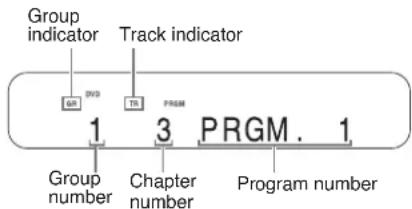
Display for VCD/SVCD/ CD programming:
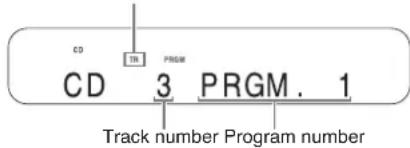
- Select a track number. As you finish the track selection, the total time for the program playback will be displayed.
Track indicator
Example:
On-screen menu for DVD Video programming.

- If you try to enter more than 99 chapters or tracks, "MEMORY FULL" appears.
- If you are programming selections from a VCD, SVCD or CD, when the total playback time reaches 9 hours 59 minutes 59 seconds, "--:" will appear in the display window.
NOTE: Only for a DVD Video, DVD Audio, MP3, WMA disc.: If you press ENTER instead of specifying a track/chapter number, "ALL" is displayed and all of the tracks/chapters included in the selected group/title are programmed.
When you are done programming selections: Press▶ (PLAY)15 to start playing the programmed items selected.
To return to normal playback: While disc play is stopped press P. MOD32 repeatedly until the "PRGM" in the display window is turned off. The program content will not be erased.
To erase the program content:
- Hold down CANCEL29 until "ALL CLEAR!" appears in the display window while the program screen is displayed on the TV screen (if CANCEL is pressed and released quickly, programs will be erased one by one).
- Open the disc tray.
- Turn off the power.
Random Playback

While disc play is stopped press P. MODE 32 repeatedly until "RANDOM" appears in the display window. "RANDOM" will also be displayed on the TV screen.
Press ▶ (PLAY) 15. During Random Play the same chapter or track will not be played twice even if the◀ (PREVIOUS) 18 button is pressed. (Playback will be returned to the beginning of the current chapter or track.)
To return to normal playback: While disc play is stopped, press P. MODE32 repeatedly to turn off "RND" (the upper indicator) in the display window.
The following operations also cancel random playback:
- Open the disc tray.
- Turn off the power.
NOTE: You cannot use the random play-back function with some DVD VIDEO discs.
Repeat Playback

Press REPEAT 4. Each time you press the button the repeat mode changes.
| Display on the TV screen | Display in the display window | Usage for the repeat mode |
| ALLREPEAT TITLE | Repeats the current title | |
| ALLREPEAT ALL | Repeats the whole.disc 1 | |
| GRREPEAT GROUP 2 | Repeats the current group 3 | |
| REPEAT CHAP 4 | Repeats the current chapter | |
| REPEAT TRACK 4 | Repeats the current track | |
| REPEAT OFF Repeat off |
*1 Repeats the whole program during program playback.
*2 For a DVD VR, "PG" is displayed during original program playback, and "PL" is displayed during play list playback.
*3 Repeats the current original program or the current play list for a DVD VR.
*4 "STEP" is displayed during program/ random playback.
The repeat playback can also be set on the menu bar. (See the "A-B Repeat Playback" section.)
The repeat mode will be automatically cancelled if there is a file that cannot be played back.
A-B Repeat Playback

You can play back a specific section of a selection repeatedly by specifying a start point (A) and an end point (B).
While a disc is playing press ON SCREEN twice. The menu bar will be displayed.

Press ◀ ▶7 25 to select OFF. Then press ENTER 8.
Press ▲▼626 to display

Other repeat modes can be selected in this step. For other repeat modes, refer to "Repeat Playack" section.
Press ENTER ☐ at the start point of the part to be repeated (specifying point A). The icon on the menu bar will be 📄A- .
Press ENTER ☐ at the end point of the part to be repeated (specifying point B). The icon on the menu bar will be ⏻A-B. → will appear in the display window on the DVD player and the part between points A and B will be played back repeatedly.
To Cancel A-B Repeat Playback: Press
■ (STOP). Select 📄A-B and press ENTER twice. (Select ⬇OFF.)
NOTE:
- You can use A-B repeat playback only within the same title or track.
- You cannot use A-B repeat playback during program playback, random playback or repeat playback.
- You cannot use the A-B repeat playback function for some DVD VIDEOs. during program playback, random playback or repeat playback.
- You cannot use the A-B repeat playback function for some DVD VIDEOS.
Other Control Features
Selecting the Subtitle Language

The following describes how to control the subtitle display with a DVD Video disc. Most other types of discs will work in the same manner.
While a disc that has subtitles is playing press SUBTITLE 11. A selection menu appears on the screen.

Each time you press the button, the subtitle menu will toggle between on and off.
Press ▲▼6 25 to select a subtitle language. Then press ENTER 8. The subtitle language setting will change automatically in a few seconds even if ENTER is not pressed.
Subtitles can also be controlled using the Menu Bar. See the "Menu and Status Bar" section.
For a language code such as "AA", refer to the "Language Codes" table.
Selecting the Audio Language
While a disc that has multiple audio languages is playing press AUDIO ZEB. A selection menu appears on the screen.

Each time you press the button, the language menu will toggle between on and off.
Press ▲▼6 2B to select a audio language. Then press ENTER B. The audio language setting will change automatically in a few seconds even if ENTER is not pressed.
Audio language selection can also be controlled using the Menu Bar. See the "Menu and Status Bar" section.
For a language code such as "AA", refer to the "Language Codes" table.
If "ST", "L" and "R" are displayed when playing back a VCD, SVCD or DVD VR, they respectively represent "Stereo", "Left sound" and "Right sound".
Selecting the Viewing Angle

While a scene from a disc containing multi-view angles press ANGLE 12. A selection menu appears on the screen.
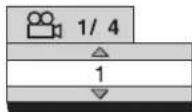
Each time you press the button, the angle will be changed. The angle can also be changed by pressing ▲▼ ⑥ 25. Then press ENTER ⑧. The subtitle language setting will change automatically in a few seconds even if ENTER is not pressed.
The viewing angle can also be controlled using the Menu Bar. See the "Menu and Status Bar" section.
Magnifying the Picture (Zoom)


—(only for moving images)
While a disc is playing or is paused press ZOOM 31. Each time you press the button, the picture magnification is changed.
When the picture is magnified there will be portions of the image you cannot see on the screen. Use the ▲▼◀ ⑧ 26 7 25 buttons to move the viewable area to a different part of the image.
To return to normal playback, press the ZOOM button until "ZOOM OFF" appears on the screen.
For a JPEG disc, you cannot change the picture magnification during slide-show playback. When playing an ASF disc the cursor buttons may allow you to move the viewable part of the image.
Adjusting the Picture Quality (VFP)

When a disc is playing or paused press V(Video Fine Processor). A table with the current settings will appear on the TV screen.

The "GAMMA" setting adjusts the brightness of medium tones while leaving the darkest and brightest portions unchanged. The "SHARPNESS" setting adjusts the sharpness of the on-screen image.
Press ◀ 7 25 to select a VFP mode. "NORMAL" is suitable for normal usage. "CINEMA" is suitable for a dark room. If the "NORMAL" or "CINEMA" setting produces satisfactory results, press ENTER B.
"USER 1 and "USER 2" allow you make detailed adjustments to the various settings on the menu. Press ▲▼6 2E to select an item to be adjusted then press ENTER B.
Adjustment menu example:

Use the ▲▼ buttons again to change the value. Press ENTER to accept the selected setting.
To adjust other items, use the ▲▼ buttons again to select another item to adjust and repeat the process described above. When you are done make adjustments press the VFP button again to save the adjustments. If not adjustments are made for several seconds the settings that have been made will be automatically stored.
Browsable Still Pictures (BSP)
Some Audio DVDs have pictures called B.S.P. (Browsable Still Pictures). The pictures can be viewed as if you are turning pages. You can use this function when the BSP indicator lights in the display window.
While a disc is playing press the PAGE button 13. Each time you press the button, the still picture is changed. You can also switch the picture using ▲▼5 25
BSP Selection menu example:
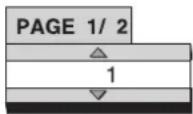
Press ENTER B. The picture setting will change automatically in a few seconds even if ENTER is not pressed.
This feature can also be controlled using the Menu Bar. See the "Menu and Status Bar" section.
VSS - Simulated Surround Sound

Using the VSS function (3D Phonic), you can get a simulated surround effect from your stereo system.
While a disc is playing press the VSS Button 3 repeatedly to select the desired VSS mode. The VSS mode selected and 3D Phonic indicator appear in the display window.
Each time you press the button, the VSS mode changes as follows:
- "ACTION" is suitable for action movies, sport programs or other lively programs.
- Select "DRAMA" to enjoy a sound effect with a relaxing, natural atmosphere.
- Select "THEATER" to enjoy a sound effect as if you were watching the movie in a theater.
3D PHONIC ACTION
To turn off the VSS function press the VSS button on the remote until OFF appears in the display.
NOTES
• VSS is effective for both the speakers and headphones.
- If noise is produced or sound is distorted, turn the VSS feature off.
- For an ASF/MPEG1/MPEG2 disc, VSS does not work and creates no sound effect even when "ACTION", "DRAMA" or "THEATER" is displayed.
Menu and Status Bar

While a disc is playing press ON SCREEN 27 twice. "ON SCREEN" will appear in the display window. The status and menu bars will appear on the TV screen.
DVD Video Status/Menu Bar Example:

Press ◀ 13 25 to select an item on the menu bar to be changed. Press ENTER B. The currently active function is shown in blue. Refer to the Menu Bar Functions section that follows for more information on the control features available on the Menu Bar. To turn off the menu bar, press the ON SCREEN button again.
Menu Bar Functions
TIME Time display selection – Changes the time information in the display window and on the status bar. Each time ENTER is pressed the display is changed.
DVD VIDEO/DVD AUDIO (operating during playback)
TOTAL: Elapsed playback time of the current title/group.
T.REM: Remaining time of the current title/group.
TIME : Elapsed playback time of the current chapter/track.
REM : Remaining time of the current chapter/track.
DVD VR (operating during playback)
TOTAL: Elapsed playback time of the current title/group.
T.REM: Remaining time of the current title/group.
CD (operating during playback)/VCD/SVCD
TIME : Elapsed playback time of the current track.
REM : Remaining time of the current track.
TOTAL: Elapsed playback time of the disc.
T.REM: Remaining time of the disc.
Repeat mode – See the "Repeat Playback" section of this manual on a preceding page.
Time search – See the "Time Search" Section that follows.
CHAP.→ / TRACK→ Chapter search (DVD VIDEO/DVD VR) / Track search (DVD AUDIO) – Selects a chapter/track. Press the Numeric Buttons to input the chapter/ track number and press ENTER B.
Examples: 5: 24: 5 2 → 4
Audio language / Audio (DVD VIDEO/DVD AUDIO/VCD/SVCD) – See the "Selecting the Audio Language" of this manual on a preceding page.
Subtitle language (DVD VIDEO/DVD VR/SVCD) – See the "Selecting the Subtitle Language" section of this manual on a preceding page.
1/3 View angle – (DVD VIDEO/DVD AUDIO) See the "Selecting the Viewing Angle" section of this manual on a preceding page.
PAGE -/- Page switch (DVD AUDIO) – Switches the browsable still pictures (B.S.P.) recorded on a DVD AUDIO. See the "Browsable Still Pictures" section of this manual on a preceding page.
Status Bar Information
DVD Video/DVD Audio/DVD VR (the DVD Video status bar is shown in the example below)

VCD/SVCD/CD/ASF/MPEG1/MPEG2 (the CD status bar is shown in the example below)

Time Search
While a disc is playing press ON SCREEN 27 twice. The Menu Bar will appear. Press ◀▶7 25 to select ▼Press ENTER 8 Input the time using the Numeric Buttons 10.
Example: When you want to play back a Video DVD from the position of (0 hour) 23 minutes 45 seconds, press the buttons in the following order: 0 → 2 → 3 → 4 → 5
You can skip the minute and second setting. If an incorrect Numeric Button is pressed, press ◀ 7 to delete the incorrect entry and re-enter numbers as needed.
When you are done entering numbers press ENTER ☐. To turn off the Menu Bar press ON SCREEN again.
- This function does not work for a DVD Video with no time information recorded.
- This function does not work during program playback or random playback.
- For a CD, you can use this function any time.
- For a VCD or SVCD, you can use this function during playback without the PBC function.
- Time search for a DVD Video is from the beginning of the title. Time search for a DVD Audio is from the beginning of the track being played back.
- Time search for a VCD, an SVCD and a CD is as follows:
When the disc is stopped, time search is from the beginning of the disc.
When the disc is being played, time search is within the track currently being played back.
Preference Setup
The initial settings of the DVD player can be changed with the Preference screen.
NOTE: The top and bottom of the preference screen may not be displayed on a wide TV. If necessary adjust the picture size on the TV.
When the disc is stopped or no disc is loaded press SET UP ⑨. The following screen will be displayed on the TV.

The same procedure for changing the settings on these screens. Use the ◀▶7 25 buttons to highlight on of the icons at the top of the screen. The use the ▲▼6 25 buttons to highlight the item you want to change. Then press ENTER B.
A pull down menu will appear. Use the ▲▼625 buttons again to select the setting you want. Then press ENTER to set the selection.
NOTE: The initial settings for the Preference menus are shown in bold italics.
Language Menu
The following choices are available on the Language Menu.
Menu Language – Selects the language for the DVD VIDEO menu screen.
Audio Language – Selects the audio language for the DVD VIDEO.
Subtitle – Selects the subtitle language for the DVD Video.
On Screen Language – Selects the language displayed on the preference screens.
Picture Menu

This menu is used to select the various picture preferences.
Monitor Type
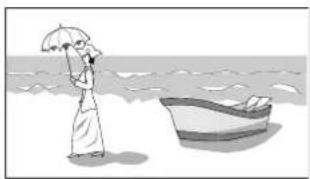
16:9 or 16/9 Multi – For an ordinary wide screen TV.
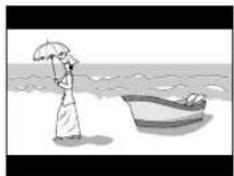
4:3 LB (Letterbox) or 4:3 Multi LB
(Letterbox) – For a TV with conventional 4:3 aspect ratio. When a wide screen picture is input, the black bars appear on the top and bottom of the screen.
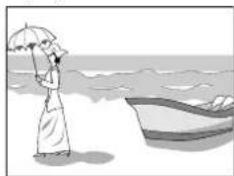
4:3 PS (Pan Scan) / 4:3 Multi PS
(Pan Scan) – For a TV with conventional 4:3 aspect ratio. When a wide screen picture is input, the left and right edges of the picture will not be shown on the screen. (If the disc is not compatible with Pan Scan, the picture will be displayed at the Letterbox ratio.)
NOTE: When using a TV compatible with multiple video signals select "16:9 Multi", "4:3 Multi LB" or 4:3 Multi PS"
Picture Source
Select an item suitable to the video source.
Auto – The video source type (a video or film) is automatically selected.
Film - To view a film or video recorded with the progressive scan method.
Video - To view a normal video.
Screen Saver
Lets you turn the Screen Saver function On (the initial setting or Off. (Screen Saver activates when a still picture remains on the screen for more than 5 minutes.)
File Type
Select an item suitable to the file type.
Audio - For MP3/WMA files.
Still Picture – For JPEG files.
Video - For ASF/MPEG1/MPEG2 files.
Audio Menu

Digital Audio Output
Select the output signal type suitable to the equipment connected to the DIGITAL OUT terminal (a decoder-built-in amplifier or other digital equipment with an optical input terminal). Refer to "Digital Audio Output Table" pn page 23. The default setting is Stream/PCM.
PCM Only – Equipment corresponding only to linear PCM.
Dolby Digital/PCM – Dolby digital decoder or equipment having the same function.
Stream/PCM - DTS/Dolby digital decoder or equipment having the same function.
Down Mix
Select the signal suitable to the equipment connected to the DIGITAL OUT terminal. Set "DOWN MIX" only when "DIGITAL AUDIO OUTPUT" is set to "PCM ONLY".
Dolby Surround - Dolby Pro Logic de - coder-built-in equipment.
Stereo - Ordinary audio equipment.
D (Dynamic) RANGE COMPRESSION
To correct the difference between high volume and low volume when playing back with low volume (only for a DVD recorded with Dolby digital).
Auto - The D. RANGE COMPRESSION function automatically works.
On - The D. RANGE COMPRESSION function always works.
Others Menu

Resume
Select On or OFF.
On Screen Guide
Select On or OFF.
Caring for the RDV-1045
Cabinet and Disc Tray Cleaning
Clean the cabinet and disc tray by gently wiping them with a soft cloth dampened with a small amount of a neutral detergent diluted with water. Do not use benzene, thinner or other organic solvents including disinfectants. These may cause deformation or discoloring.
Condensation
In some situations, condensation (water drops) can accumulate on the optical lens of the disc reading mechanism, preventing the RDV-1045 from working properly. This can happen when:
- When the RDV-1045 is suddenly moved from a cold place to a warmer place.
- When the RDV-1045 is in a cool room and a heating system is turned on.
- When the RDV-1045 is installed in a steamy or damp space.
In any of these cases, leave the system turned on for 1 or 2 hours before use.
Locking the Disc Tray
You can lock the disc tray to prevent a loaded disc from being ejected.
While the RDV-1045 is off, press and hold the ■ STOP 17 button then press the OPEN/CLOSE 21 button. "LOCKED" will appear in the display window. Repeat the procedure to unlock the disc tray. Then "UNLOCKED" will appear in the display window.
Disc Structure
DVD VIDEO/DVD VR
A DVD Video disc consists of "titles" and each title may be divided into "chapters".
A DVD VR disc consists of "original programs" or "play lists" and each original program/play list may be divided into "chapters".
![graph LR A["Title 1/Original program 1/Play list 1"] --> B["Chapter 1"] C["Title 2/Original program 2/Play list 2"] --> D["Chapter 2"] E["Chapter 3"] --> F["Chapter 3"] B --> G["Chapter 1"] D --> H["Chapter 2"] F --> I["Chapter 3"] G --> J["Chapter 1"] H --> K["Chapter 2"] I --> L["Chapter 3"]](/content/2026/05/1059552/images/bdfff488f76715968a1c35a979a821ee06f187c7a32e47dafa2d270777498df4.jpg)
DVD AUDIO
A DVD Audio disc consists of "groups" and each group may be divided into "tracks".
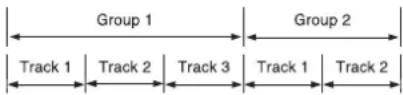
VCD/SVCD/CD
VCD, SVCD and CD consist of "tracks". In general, each track has its own track number. (On some discs, each track may also be further divided by indexes.)

MP3/WMA/JPEG/ASF/MPEG1/MPEG2 Discs
On an MP3/WMA/JPEG/ASF/MPEG1/MPEG2 disc, each still picture (material) is recorded as a track/file. Tracks/files are usually grouped into a folder. Folders can also include other folders, creating hierarchical folder layers.
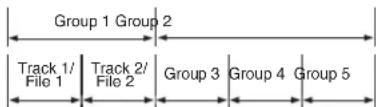
This system simplifies the hierarchical construction of a disc and manages folders by "groups". This system can recognize up to 4 000 tracks/files in a disc. Also, the system can recognize up to 150 tracks/files per group and up to 99 groups in a disc. Since the system ignores tracks/files with numbers exceeding 150 and groups with numbers exceeding 99, these cannot be played back.
- If there is any type of files other than MP3/WMA/JPEG/ASF/MPEG1/MPEG2 files in a folder, those files are also counted in the total file number.
Additional Disc Information About MP3/WMA/JPEG/ASF/ MPEG1/MPEG2 discs
playable MP3/WMA/JPEG/ASF/MPEG1/MPEG2 discs and files
- CDs recorded in the ISO 9660 format are playable (except CDs recorded in the "packet write" format (UDF format)).
• CDs recorded with multiple sessions are also playable. - Files with an extension of ".mp3", ".wma", ".jpg", ".jpeg", ".asf", ".avi", ".mpg" or ".mpeg" (extensions with uppercase and lowercase letters mixed are also acceptable) are playable.
Notes on MP3/WMA/JPEG/ASF discs and files
- A disc may not be played back, or reading it may take a long time depending on its recording conditions or properties.
- The time needed for reading varies with the number of groups or tracks (files) recorded on the disc.
- If a character other than single byte English characters is used in the file name of an MP3/WMA/JPEG/ASF file, the track/file name will not be displayed correctly.
- The order of tracks/groups displayed on the MP3/WMA control screen, and the order of files/groups displayed on the JPEG control screen may be different from that of files/folders displayed on a computer monitor screen.
- A commercially available MP3/WMA disc may be played back in an order different from that indicated on the label attached to the disc.
- Playing back an MP3/WMA/JPEG/ASF disc may take a long time. The elapsed time is not displayed until playback starts. The elapsed time may also not be displayed correctly.
- For an MP3/WMA file, a disc with a sampling frequency of 44.1 kHz and transmission rate of 128 kbps is recommended.
- This system can play back a baseline JPEG file, excluding monochromatic JPEG files.
- This system can play back JPEG data taken with a digital camera conforming to the DCF (Design Rule for Camera File System) standard (when a function such as the automatic image rotation function of a digital camera is applied, the data no longer complies with the DCF standard, so the image may not be displayed).
-
If data has been processed, edited and restored with computer image editing software, the data may not be displayed.
-
This system cannot play back animations such as MOTION2 JPEG, still images (TIFF etc.) other than JPEG, or image data with sound.
- The resolution of 640 x 480 pixels is recommended for JPEG files. If a file has been recorded at a resolution of more than 640 x 480 pixels, display may take a long time. An image with a resolution of more than 8192 x 7680 pixels cannot be displayed.
- The system supports ASF files recorded with the maximum bit rate of 384 kbps and an audio coder decoder of G.726.
- The maximum size of the playback picture is 352 x 288 pixels (CIF).
Notes on MPEG1/MPEG2 discs and files
- The stream structure of MPEG1/MPEG2 discs and files should conform to MPEG system/program stream.
- 720 x 576 pixels (25 fps)/720 x 480 pixels (30 fps) is recommended for the highest resolution.
- This system also supports the resolutions of 352 × 576 / 480 × 576 / 352 × 288 pixels (25 fps) and 352 × 480 / 480 × 480 / 352 × 240 pixels (30 fps).
- The profile and level should be MP@ML (Main Profile at Main Level)/SP@ML (Simple Profile at Main Level)/MP@LL (Main Profile at Low Level).
- Audio streams should conform to MPEG1 Audio Layer- 2 or MPEG2 Audio Layer-2.
Caution for DualDisc playback:
The Non-DVD side of a "DualDisc" does not comply with the "Compact Disc Digital Audio" standard. Therefore, the use of Non-DVD side of a DualDisc on this product may not be recommended.
Troubleshooting
Power source
Power does not come on.
- The power cord of the RDV-1045 is not connected to an AC outlet.
Connect the power cord correctly.
Operation
Controls and button do not work.
- Some specific operations may be restricted for some discs.
The remote control does not work.
- The batteries have run out. Replace the batteries.
A disc cannot be played back.
- In the case of DVD Videos. Check the Region Code number of the disc.
- "PLAYABLE Err" is displayed in the display window.
The disc cannot be played back on this DVD player. Check the disc type. See the "Playable Discs" and "Unplayable Discs" sections of this manual.
MP3, WMA, JPEG, ASF, MPEG1 or MPEG2 files cannot be played back.
- The loaded disc may include files of different types (MP3, WMA, JPEG, ASF, MPEG1 or MPEG2). You can play back only the files of the types selected with "FILE TYPE". See the "Preference Setup/Picture" section of this manual.
Images
No picture appears.
- The composite video cord is not connected correctly.
See the "Audio/Video Connections" section of this manual. - An S-video cord and a component video cord are connected at the same time. Disconnect one of the cords.
The picture is distorted.
- A video cassette recorder is connected between the DVD player and the TV. Connect the DVD player directly to the TV.
The screen size is abnormal.
- The screen size is not set correctly. Select the correct "Monitor Type" for the TV you are using. See the "Preference Setup/Picture" section of this manual.
The TV screen darkens.
- "SCREEN SAVER" is set to "ON". Press any button.
Other
You cannot switch audio or subtitles between languages.
- The disc does not contain multiple languages. If only a single language is recorded on the disc, you cannot switch the current language to another language.
No subtitle is displayed.
- The disc does not contain any subtitles. A DVD Video without subtitles cannot display any subtitles.
- The subtitle language is set to "OFF". Specify a subtitle language. See the "Preference Setup/Language" section of this manual.
- Before or after point A or B in A-B repeat playback, no subtitle may be displayed.
"LR ONLY" is displayed in the display window (for a DVD AUDIO).
- This is not a malfunction. When a down mix prohibited track is played back for multichannel sound, the left and right sounds are output directly as they are.
If Problems Persist
Many functions of the RDV-1045 are controlled by microprocessors that can be affected by things like power surges. You can "reset" the microprocessors by cycling the power supply. If the unit seems "frozen" and does not respond to buttons being pressed, disconnect the power cord from the outlet, wait for a while, and connect the power cord again.s
Language Codes
| AA Afar | MK Macedonian |
| AB Abkhazian | ML Malayalam |
| AF Afrikaans | MN Mongolian |
| AM Ameharic | MO Moldavian |
| AR Arabic | MR Marathi |
| AS Assamese | MS Malay (MAY) |
| AY Aymara | MT Maltese |
| AZ Azerbaijani | MY Burmese |
| BA Bashkir | NA Nauru |
| BE Byelorussian | NE Nepali |
| BG Bulgarian | NL Dutch |
| BH Bihari | NO Norwegian |
| BI Bislama | OC Occitan |
| BN Bengali, Bangla | OM (Afan) Oromo |
| BO Tibetan | OR Oriya |
| BR Breton | PA Panjabi |
| CA Catalan | PL Polish |
| CO Corsican | PS Pashto, Pushto |
| CS Czech | PT Portuguese |
| CY Welsh | QU Quechua |
| DA Danish | RM Rhaeto-Romance |
| DZ Bhutani | RN Kirundi |
| EL Greek | RO Rumanian |
| EO Esperanto | RU Russian |
| ET Estonian | RW Kinyarwanda |
| EU Basque | SA Sanskrit |
| FA Persian | SD Sindhi |
| FI Finnish | SG Sangho |
| FJ Fiji | SH Serbo-Croatian |
| FO Faroese | SI Singhalose |
| FY Frisian | SK Slovak |
| GA Irish | SL Slovenian |
| GD Scots Gaelic | SM Samoan |
| GL Galician | SN Shona |
| GN Guarani | SO Samali |
| GU Gujarati | SQ Albanian |
| HA Hausa | SR Serbian |
| HI Hindi | SS Siswati |
| HR Croatian | ST Sesotho |
| HU Hungarian | SU Sundanese |
| HY Armenian | SV Swedish |
| IA Interlingua | SW Swahili |
| IE Interlingue | TA Tamil |
| IK Inupiak | TE Telugu |
| IN Indonesian | TG Tajik |
| IS Icelandic | TH Thai |
| IW Hebrew | TI Tigrinya |
| JI Yiddish | TK Turkmen |
| JW Javanese | TL Tagalog |
| KA Georgian | TN Setswana |
| KK Kazakh | TO Tongan |
| KL Greenlandic | TR Turkish |
| KM Cambodian | TS Tsonga |
| KN Kannada | TT Tatar |
| KO Korean (KOR) | TW Twi |
| KS Kashmiri | UK Ukrainian |
| KU Kurdish | UR Urdu |
| KY Kirghiz | UZ Uzbek |
| LA Latin | VI Vietnamese |
| LN Lingala | VO Volapuk |
| LO Laothian | WO Wolof |
| LT Lithuanian | XH Xhosa |
| LV Latvian, Lettish | YO Yoruba |
| MG Malagasy | ZU Zulu |
| MI Maori |
Digital Audio Output Table
| Playback disc | DIGITAL AUDIO OUTPUT preference | ||
| PCM ONLY | DOLBY DIGITAL/PCM | STREAM/PCM | |
| 48 kHz, 16/20/24 bitLinear PCM DVD VIDEO96 kHz linear PCM DVD VIDEO | 48 kHz, 16 bit stereo linear PCM | ||
| 48/96/192 kHz,16/20/24 bit linear PCM DVD AUDIO* | 48 kHz, 16 bit stereo linear PCM | ||
| 44.1/88.2/176.4 kHz,16/20/24 bit linear PCM DVD AUDIO* | 44.1 kHz, 16 bit stereo linear PCM | ||
| DTS DVD VIDEO/DVD AUDIO* | 48 kHz, 16 bit stereo linear PCM | DTS bit stream | |
| DOLBY DIGITAL DVD VIDEO/DVDAUDIO* | 48 kHz, 16 bit stereo linearPCM | DOLBY DIGITAL bit stream | |
| VCD/SVCD/CD | 44.1 kHz, 16 bit stereo linear PCM/48 kHz, 16 bit linear PCM | ||
| DTS CD | 44.1 kHz, 16 bit linear PCM | DTS bit stream | |
| MP3/WMA disc | 32/44.1/48 kHz, 16 bit linear PCM | ||
Specifications
Video Characteristics
Readable discs: DVD VIDEO, DVD AUDIO, VideoCD, SVCD, CD-DA, CD-R/RW, DVD-R/RW for MP3, WMA, JPEG
Video format: NTSC(480i)/PAL(576i), PROGRESSIVE selectable
Video output:
COMPONENT (pin jack): Y Output: 1.0 Vp-p
PB/PR Output: 0.7 Vp-p
VIDEO OUT (pin jack): 1.0 Vp-p
S-VIDEO OUT (S jack): Y Output 1.0 Vp-p
C Output (NTSC): 286 mVp-p
C Output (PAL): 300 mVp-p
Horizontal resolution: more than 500 Lines
Signal to noise ratio: 65 dB
Audio output
Analog Out (pin jack): 2.0 Vrms
Digital Out: Optical -21 dBm to -15 dBm (peak)
Audio Characteristics
Frequency response:
CD (at 44.1 kHz) 20 Hz to 20 kHz
DVD (at 48 kHz) 20 Hz to 22 kHz
DVD (at 96 kHz) 20 Hz to 44 kHz
DVD (at 192/176.4 kHz) 20 Hz to 88 kHz
Dynamic range: more than 98 dB
Total harmonic distortion: Less than 0.006%
General Characteristics
Power requirements: AC 110 V – 240 V, 50-60 Hz
Power consumption: 9W (Power ON), 0.9W (Standby)
Weight: 4.6 kg
Dimensions (W x H x D): 432 x 93 x 340 mm
17.01" × 3.62" × 13.23"
Front Panel Height 80 mm/3.15"
(feet removed/for rack mount)
Specifications and appearance subject to change without prior notice.
DTS is a registered trademark of Digital Theater Systems. Manufactured under license from Dolby Laboratories Licensing Corporation. "Dolby" and the double-D symbol are trademarks of Dolby Laboratories Licensing Corporation. All rights reserved.


The Rotel Co. Ltd.
10-10 Shinsen-Cho
Shibuya-Ku
Tokyo 150-0045
Japan
Phone: +81 3-5458-5325
Fax: +81 3-5458-5310
Rotel of America
54 Concord Street
North Reading, MA 01864-2699
USA
Phone: +1 978-664-3820
Fax: +1 978-664-4109
Rotel Europe
Dale Road
Worthing, West Sussex BN11 2BH
England
Phone: +44 (0)1903 221 600
Fax: +44 (0)1903 221 525
Rotel Deutschland
Kleine Heide 12
- OWNER'S MANUAL
- RDV-1045
- DVD PLAYER
- IMPORTANT SAFETY INSTRUCTIONS
- IMPORTANT
- FOR LASER PRODUCTS
- WARNING
- APPLICABLE FOR USA, CANADA OR WHERE APPROVED FOR THE USAGE
- 1 STANDBY BUTTON
- 2 STANDBY INDICATOR
- 3 REMOTE SENSOR
- 4 DISC TRAY
- 5 DISPLAY WINDOW
- 6 OPN/CLS (OPEN/CLOSE) BUTTON
- 7 ■ (STOP) BUTTON
- 9 ▶/II (PLAY/PAUSE) BUTTON
- 8 (SKIP) BUTTONS
- FIGURE 3: DISPLAY WINDOW
- CONTENTS
- ABOUT ROTEL
- ABOUT THIS MANUAL
- ABOUT THE RDV-1045
- ANGLE FUNCTION
- ZOOM FUNCTION
- VIDEO FINE PROCESSOR (VFP) CONTROLS
- HIGH QUALITY DIGITAL SOUND
- SURROUND FUNCTION
- 3D PHONIC (VSS) FUNCTION
- MULTI-LANGUAGE SUBTITLES AND SOUND
- MULTI-DISC PLAYBACK
- ON-SCREEN DISPLAY
- PRECAUTIONS
- PLACEMENT
- AUDIO/VIDEO CONNECTIONS
- 10 AC POWER CORD RECEPTACLE
- 11 OPTICAL DIGITAL OUTPUT
- 12 AUDIO ANALOG OUTPUT JACKS
- 13 COMPONENT VIDEO OUTPUT JACKS
- 14 S VIDEO OUTPUT JACK
- 15 COMPOSITE VIDEO OUTPUT JACK
- 16 EXTERNAL REMOTE INPUT ("EXT REM IN")
- COMPOSITE INPUT TV CONNECTION
- S-VIDEO INPUT TV CONNECTION
- COMPONENT INPUT TV CONNECTION
- CONNECTING TO AUDIO EQUIPMENT WITH A DIGITAL INPUT
- IMPORTANT NOTE ABOUT DIGITAL SIGNAL CONNECTION
- CONNECTING TO AN AUDIO AMPLIFIER OR RECEIVER
- CONNECTING THE POWER CORD
- AC INPUT 10
- RR-DV99 REMOTE CONTROL
- INSTALLING THE BATTERIES
- PRECAUTIONS FOR THE SAFE USE OF BATTERIES
- USING THE REMOTE CONTROL
- REMOTE CONTROL NUMERIC BUTTONS
- EXTERNAL REMOTE IN 16
- PLAYABLE DISCS
- OTHER NOTES ABOUT RECORDABLE DISCS
- OTHER NOTES ABOUT PLAYABLE DISCS
- INVALID OPERATION ICON
- UNPLAYABLE DISCS
- NOTES ABOUT DISC COPYING
- ABOUT COPYRIGHT LAWS
- ABOUT THE COPY GUARD SYSTEM
- NOTES ON DISCS
- DISC CARE AND HANDLING
- HANDLING
- STORING DISCS
- CLEANING DISCS
- DVD VIDEO DISC REGION CODES
- INITIAL SETUP
- TURNING ON THE RDV-1045
- TURN ON MESSAGES
- SETTING THE OUTPUT SIGNAL TYPE
- ABOUT OUTPUT SIGNALS
- OUTPUT SIGNAL NOTES
- SELECTING PREFERENCES
- CHANGING THE DISPLAY WINDOW BRIGHTNESS
- PLAYING A DVD OR CD
- ON-SCREEN MENU
- FOR DVD VIDEO
- SELECTING A TRACK/CHAPTER WITH THE NUMERIC BUTTONS
- PLAYING OTHER DISCS
- ON SCREEN ICONS
- DISPLAY WINDOW
- DVD VIDEO/DVD AUDIO/DVD VR WHEN A DISC IS PLAYING
- WHEN A DISC IS STOPPED
- VCD/SVCD
- WHEN A DISC IS PLAYING
- CD
- MP3/WMA/ASF/MPEG1/MPEG2 DISC
- JPEG DISC
- CHANGING THE DISPLAY WINDOW INFORMATION
- DVD VIDEO
- DVD AUDIO
- DVD VR
- MP3/WMA DISC
- ASF/MPEG1/MPEG2 DISCS
- OTHER DISC PLAY CONTROLS
- PAUSING PLAYBACK
- FAST FORWARD/REVERSE SEARCH
- SLOW MOTION PLAYBACK
- SKIP TO BEGINNING OR END
- ONE TOUCH REPLAY
- SKIPPING 5 MINUTE INTERVALS
- ADVANCING FRAME BY FRAME
- RESUMING PLAYBACK
- OTHER PLAYBACK FEATURES
- MENU SCREEN TRACK SELECTION
- PROGRAMMED PLAYBACK
- EXAMPLES
- DISPLAY FOR DVD VIDEO PROGRAMMING
- DISPLAY FOR DVD AUDIO/MP3/WMA DISC PROGRAMMING
- DISPLAY FOR VCD/SVCD/ CD PROGRAMMING
- EXAMPLE
- TO ERASE THE PROGRAM CONTENT
- RANDOM PLAYBACK
- THE FOLLOWING OPERATIONS ALSO CANCEL RANDOM PLAYBACK
- REPEAT PLAYBACK
- A-B REPEAT PLAYBACK
- TO CANCEL A-B REPEAT PLAYBACK: PRESS
- NOTE
- OTHER CONTROL FEATURES
- SELECTING THE SUBTITLE LANGUAGE
- SELECTING THE AUDIO LANGUAGE
- SELECTING THE VIEWING ANGLE
- MAGNIFYING THE PICTURE (ZOOM)
- ADJUSTING THE PICTURE QUALITY (VFP)
- ADJUSTMENT MENU EXAMPLE
- BROWSABLE STILL PICTURES (BSP)
- BSP SELECTION MENU EXAMPLE
- VSS - SIMULATED SURROUND SOUND
- 3D PHONIC ACTION
- NOTES
- MENU AND STATUS BAR
- MENU BAR FUNCTIONS
- DVD VIDEO/DVD AUDIO (OPERATING DURING PLAYBACK)
- DVD VR (OPERATING DURING PLAYBACK)
- CD (OPERATING DURING PLAYBACK)/VCD/SVCD
- STATUS BAR INFORMATION
- TIME SEARCH
- PREFERENCE SETUP
- LANGUAGE MENU
- PICTURE MENU
- MONITOR TYPE
- 4:3 LB (LETTERBOX) OR 4:3 MULTI LB
- 4:3 PS (PAN SCAN) / 4:3 MULTI PS
- PICTURE SOURCE
- SCREEN SAVER
- FILE TYPE
- AUDIO MENU
- DIGITAL AUDIO OUTPUT
- DOWN MIX
- D (DYNAMIC) RANGE COMPRESSION
- OTHERS MENU
- RESUME
- ON SCREEN GUIDE
- CARING FOR THE RDV-1045
- CABINET AND DISC TRAY CLEANING
- CONDENSATION
- LOCKING THE DISC TRAY
- DISC STRUCTURE
- DVD VIDEO/DVD VR
- VCD/SVCD/CD
- MP3/WMA/JPEG/ASF/MPEG1/MPEG2 DISCS
- ADDITIONAL DISC INFORMATION ABOUT MP3/WMA/JPEG/ASF/ MPEG1/MPEG2 DISCS
- NOTES ON MP3/WMA/JPEG/ASF DISCS AND FILES
- NOTES ON MPEG1/MPEG2 DISCS AND FILES
- CAUTION FOR DUALDISC PLAYBACK
- TROUBLESHOOTING
- POWER SOURCE
- POWER DOES NOT COME ON
- OPERATION
- CONTROLS AND BUTTON DO NOT WORK
- THE REMOTE CONTROL DOES NOT WORK
- A DISC CANNOT BE PLAYED BACK
- MP3, WMA, JPEG, ASF, MPEG1 OR MPEG2 FILES CANNOT BE PLAYED BACK
- IMAGES
- NO PICTURE APPEARS
- THE PICTURE IS DISTORTED
- THE SCREEN SIZE IS ABNORMAL
- THE TV SCREEN DARKENS
- OTHER
- YOU CANNOT SWITCH AUDIO OR SUBTITLES BETWEEN LANGUAGES
- NO SUBTITLE IS DISPLAYED
- LR ONLY" IS DISPLAYED IN THE DISPLAY WINDOW (FOR A DVD AUDIO)
- IF PROBLEMS PERSIST
- SPECIFICATIONS
- VIDEO CHARACTERISTICS
- VIDEO OUTPUT
- AUDIO OUTPUT
- AUDIO CHARACTERISTICS
- FREQUENCY RESPONSE
- GENERAL CHARACTERISTICS
Brand : ROTEL
Model : RDV-1045
Category : DVD player