
PHOTOSMART D7500 - Photo printer COMPAQ - Free user manual and instructions
Find the device manual for free PHOTOSMART D7500 COMPAQ in PDF.


User questions about PHOTOSMART D7500 COMPAQ
0 question about this device. Answer the ones you know or ask your own.
Ask a new question about this device
Download the instructions for your Photo printer in PDF format for free! Find your manual PHOTOSMART D7500 - COMPAQ and take your electronic device back in hand. On this page are published all the documents necessary for the use of your device. PHOTOSMART D7500 by COMPAQ.
USER MANUAL PHOTOSMART D7500 COMPAQ
The information contained in this document is subject to change without notice.
All rights reserved. Reproduction, adaptation, or translation of this material is prohibited without prior written permission of Hewlett-Packard, except as allowed under copyright laws. The only warranties for HP products and services are set forth in the express warranty statements accompanying such products and services. Nothing herein should be construed as constituting an additional warranty. HP shall not be liable for technical or editorial errors or omissions contained herein.
© 2007 Hewlett-Packard Development Company, L.P.
Windows, Windows 2000, and Windows XP are U.S. registered trademarks of Microsoft Corporation.
Windows Vista is either a registered trademark or trademark of Microsoft Corporation in the United States and/or other countries.
Intel and Pentium are trademarks or registered trademarks of Intel Corporation or its subsidiaries in the United States and other countries.
© 2007 Hewlett-Packard Development Company, L.P.
© 2007 Hewlett-Packard Development Company, L.P.
© 2007 Hewlett-Packard Development Company, L.P.
HP Photosmart D7500 series
Basics Guide
Contents
1 HP Photosmart overview
The HP Photosmart at a glance 2
Control panel features 3
Find more information 4
Load paper. 4
Print directly onto a CD/DVD. 7
Avoid paper jams. 9
Print a photo on photo paper. 10
Replace the ink cartridges. 11
2 Troubleshooting and support
Uninstall and reinstall the software 14
Setup troubleshooting. 15
Clear paper jams. 17
CD/DVD print troubleshooting. 17
Information on ink cartridges and the printhead 21
Support process 21
3 Technical information
System requirements 22
Product specifications 22
Regulatory notices 22
Warranty. 23
1 HP Photosmart overview
Use the HP Photosmart to print photos from a memory card or print directly on the surface of specially coated CDs and DVDs. You can access many HP Photosmart functions directly from the control panel, without turning on your computer.

NOTE: This guide introduces basic operations and troubleshooting, as well as provides information for contacting HP support and ordering supplies.
The onscreen Help details the full range of features and functions, including use of the HP Photosmart Software that came with the HP Photosmart.
The HP Photosmart at a glance
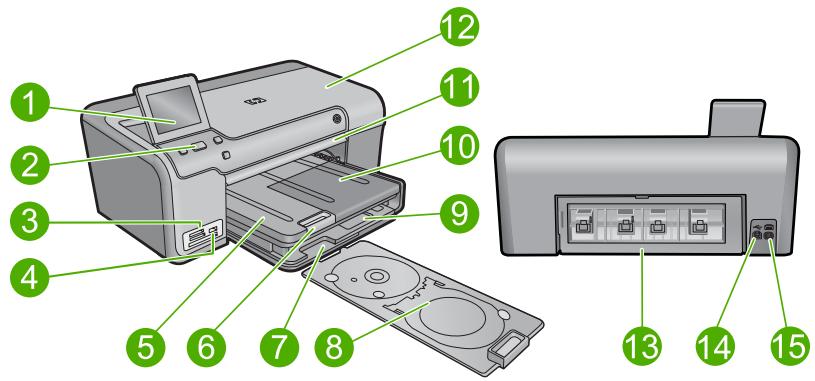
| Label | Description |
| 1 | Color graphics display (also referred to as the display) |
| 2 | Control panel |
| 3 | Memory card slots and Photo light |
| 4 | Front USB port |
| 5 | Output tray |
| 6 | Paper tray extender (also referred to as the tray extender) |
| 7 | CD/DVD holder storage area |
| 8 | CD/DVD holder |
| 9 | Main input tray (also referred to as the input tray) |
| 10 | Photo tray |
| 11 | CD/DVD tray |
| 12 | Ink cartridge door |
| 13 | Rear door |
| 14 | Rear USB port |
| 15 | Power connection* |
- Use only with the power adapter supplied by HP.
Control panel features
The following diagram and related table provide a quick reference to the HP Photosmart control panel features.
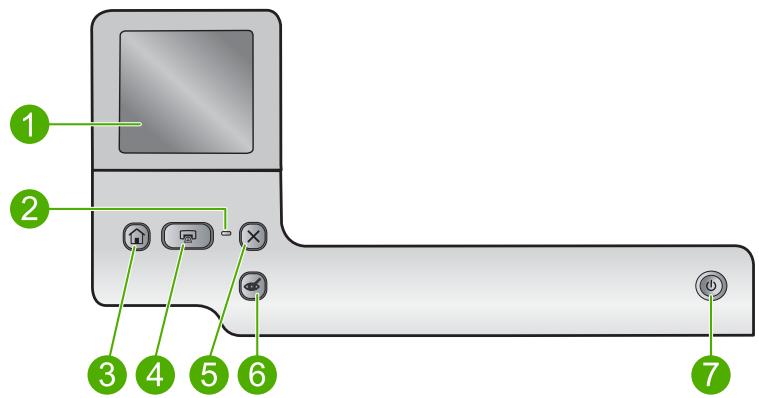
| Label | Icon | Name and Description |
| 1 | Display: The touch screen display shows menus, photos, and messages. The display can be pulled up and angled for better viewing. | |
| 2 | ○ | Attention light: Indicates a problem occurred. See the display for more information. |
| 3 | Home: Returns to the Home screen (the default screen when you turn on the product). | |
| 4 | Print Photos: Prints the photos selected on your memory card. If no photos are currently selected, the product prints the photo currently showing on the display. | |
| 5 | × | Cancel: Stops the current operation and returns to the main screen. |
| 6 | Red-Eye Removal: Turns the Red-Eye Removal feature on or off. This feature turns on when a memory card is inserted. The product automatically corrects red-eye coloring in the photo currently shown on the display. | |
| 7 | On: Turns the product on or off. When the product is off, a minimal amount of power is still used. To completely remove power, turn off the product, and then unplug the power cord. |
Find more information
A variety of resources, both printed and onscreen, provide information about setting up and using the HP Photosmart.
Start Here guide
The Start Here guide provides instructions for setting up your HP Photosmart and installing software. Make sure you follow the steps in the Start Here guide in order.
If you have problems during setup, see Troubleshooting in the last section of the Start Here guide, or see "Troubleshooting and support" on page 14 in this guide.
Onscreen Help
The onscreen Help provides detailed instructions on features of your HP Photosmart that are not described in this guide, including features that are only available using the software you installed with your HP Photosmart. The onscreen Help also provides regulatory and environmental information.
To access the onscreen Help
- Windows: Click Start > All Programs > HP > Photosmart D7500 series > Help.
- Macintosh: Open the HP Device Manager and click the ? icon. Next, click the main menu and select Photosmart D7500 series.
HP Web site
If you have Internet access, you can get help and support from the HP Web site at www.hp.com/support. This Web site offers technical support, drivers, supplies, and ordering information.
Load paper
You can load different types and sizes of paper in the HP Photosmart, including letter or A4 paper, photo paper, transparencies, and envelopes. For more information, see the onscreen Help.
To load full-size paper
- Raise the output tray.
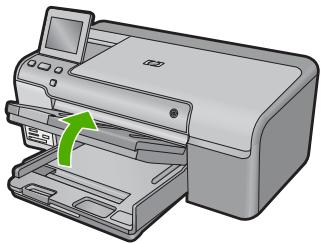

TIP: Tap a stack of paper on a flat surface to align the edges. Make sure all the paper in the stack is the same size and type and free of rips, dust, wrinkles, and curled or bent edges.
- Slide the paper-width guide to its outermost position.
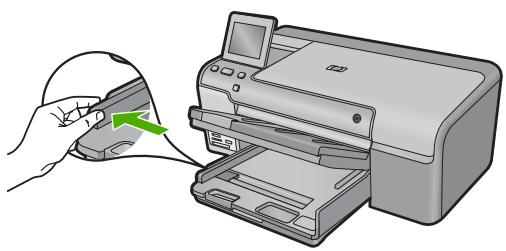
- Insert the stack of paper into the main input tray with the short edge forward and the print side down. Slide the stack of paper forward until it stops.
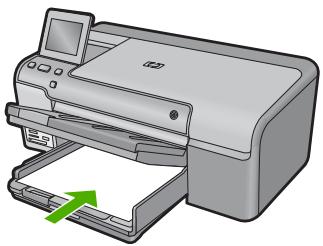
CAUTION: Make sure that the product is idle and silent when you load paper into the main input tray. If the product is servicing the ink cartridges or otherwise engaged in a task, the paper stop inside the product might not be in place. You could push the paper too far forward, causing the product to eject blank pages.
TIP: If you are using letterhead, insert the top of the page first with the print side down.
- Slide the paper-width guide inward until it stops at the edge of the paper. Do not overload the main input tray; make sure the stack of paper fits within the main input tray and is no higher than the top of the paper-width guide.
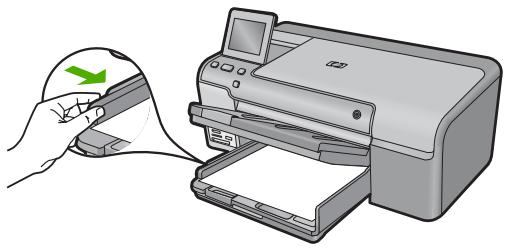
- Lower the output tray. Pull the tray extender towards you, as far as it will go. Flip the paper catch at the end of the tray extender to open the extender the rest of the way.
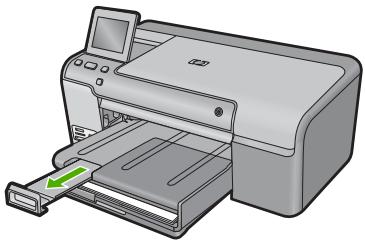

NOTE: When you use legal-size paper, leave the tray extender closed.
To load up to 13 × 18 cm (5 x 7 inch) photo paper in the photo tray
- Raise the photo tray lid.
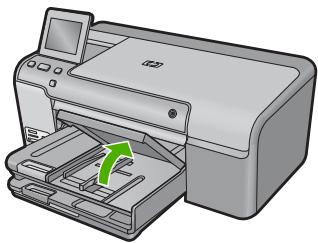
- Slide the paper-width guide to its outermost position.
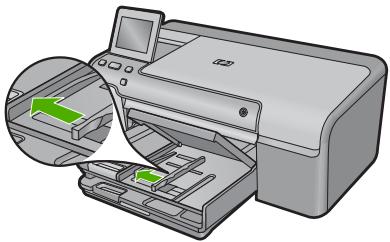
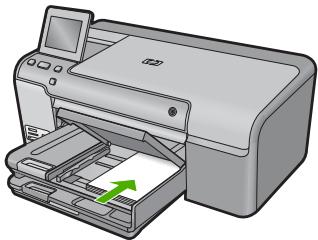
- Insert the stack of photo paper into the photo tray with the short edge forward and the print side down. Slide the stack of photo paper forward until it stops.
If the photo paper you are using has perforated tabs, load the photo paper so that the tabs are closest to you.
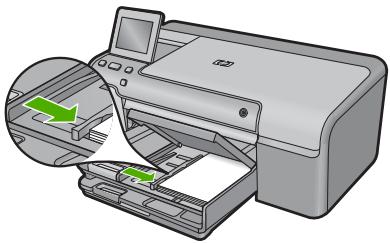
- Slide the paper-width guide inward until it stops at the edge of the paper. Do not overload the photo tray; make sure the stack of photo paper fits within the photo tray and is no higher than the top of the paper-width guide.
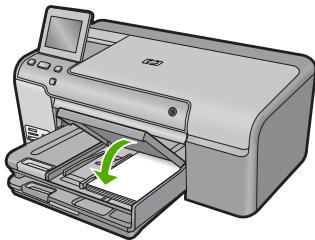
- Lower the photo tray lid.
Print directly onto a CD/DVD
In addition to printing on paper, the HP Photosmart enables you to print directly on the surface of specially coated CDs and DVDs for print jobs started from a connected computer. You can design and create a custom label for your CD or DVD using the software that came with the HP Photosmart. You can then print the label on your printable CD or DVD media.

TIP: It is recommended that you write your data to the CD or DVD before printing the label on it.

NOTE: The HP Photosmart does not support a CD/DVD print job started from the control panel. You must use the software that came with the HP Photosmart to print on a CD/DVD. For more information, see the software help.
To print directly onto a CD/DVD
- Use the software that came with the product to create and print a CD/DVD label.
- If the product is placed close to a wall, move it at least 7.5cm (3 inches) away from the wall.
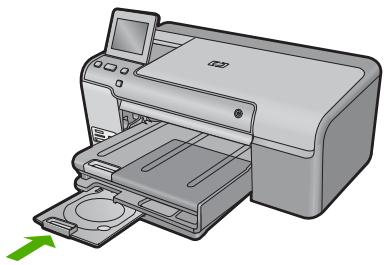
- Carefully remove the CD/DVD holder from the storage area below the main input tray.
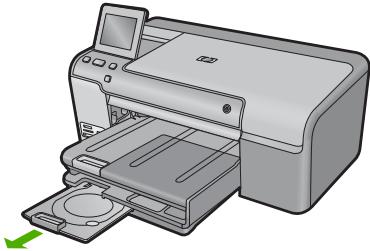
- Securely snap the inkjet printable media onto the CD/DVD holder with the printable side up. The CD/DVD should be placed on the ring at the end of the holder with the arrows.
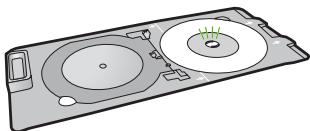
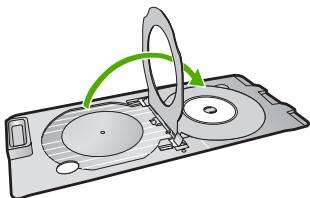
NOTE: If you are using a smaller-sized media, only then should you flip the CD/DVD holder ring over the CD/DVD.
- Lower the CD/DVD tray. The CD/DVD tray is located just below the control panel. When in its lowered position, the CD/DVD tray sits on top of the output tray.
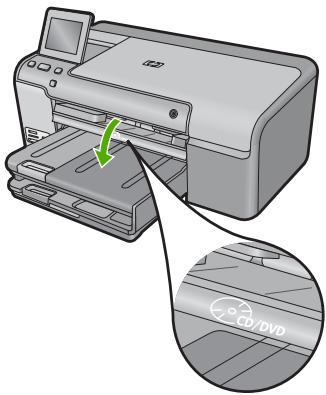
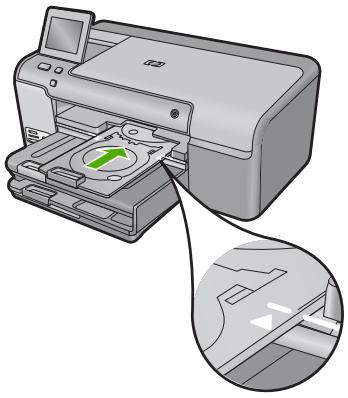
- Push the CD/DVD holder into the product until the white lines on the CD/DVD holder line up with the white lines on the CD/DVD tray, and then touch OK.

NOTE: The product pulls the CD/DVD holder while printing on the media.
- After printing, make sure you insert the CD/DVD holder back into the storage area.
Avoid paper jams
To help avoid paper jams, follow these guidelines.
- Remove printed papers from the output tray frequently.
- Prevent curled or wrinkled photo paper by storing all unused photo paper flat in a resealable bag.
Ensure that paper loaded in the input tray lays flat and the edges are not bent or torn.
If you are printing labels, ensure that the label sheets are no more than two years old. Labels on older sheets might peel off when the paper is pulled through the product, and cause paper jams. - Do not combine different paper types and paper sizes in the input tray; the entire stack of paper in the input tray must be the same size and type.
- Adjust the paper-width guide in the input tray to fit snugly against all paper. Make sure the paper-width guide does not bend the paper in the input tray.
- Do not force paper too far forward in the input tray.
Use paper types that are recommended for the product.
Print a photo on photo paper
To achieve the best print quality, HP recommends using HP papers that are specifically designed for the type of project you are printing along with genuine HP ink. HP papers and HP ink are specifically designed to work well together to provide high-quality output.
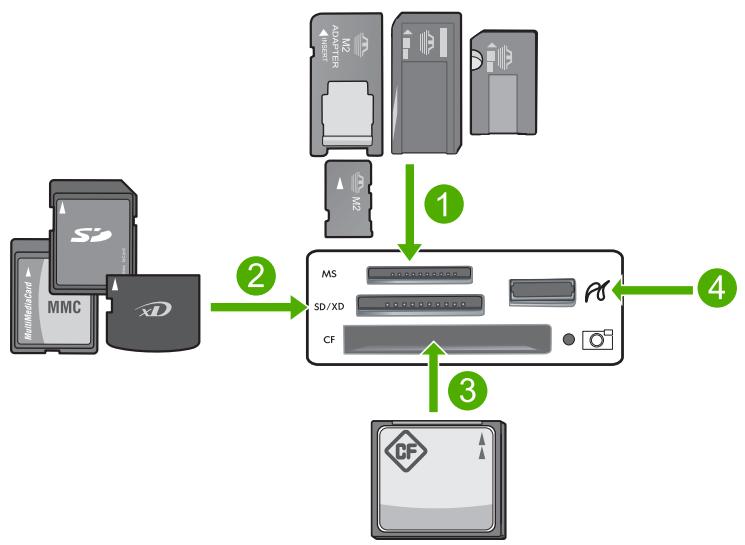
| 1 | Memory Stick, Memory Stick Pro, Memory Stick Select, Memory Stick Magic Gate, Memory Stick Duo or Duo Pro (adapter optional), or Memory Stick Micro (adapter required) |
| 2 | MultiMedia Card (MMC), MMC Plus, Secure MultiMedia Card, MMC Mobile (RS-MMC; adapter required), Secure Digital (SD), Secure Digital Mini, Secure Digital High Capacity (SDHC), TransFlash MicroSD Card (adapter required), or xD-Picture card |
| 3 | CompactFlash (CF) types I and II |
| 4 | Front USB port (for storage devices and PictBridge cameras) |
To print photos
- Load photo paper in the appropriate input tray.
- Insert a memory card into the appropriate slot on the product or connect a storage device to the front USB port.
- Touch View & Print.
- Touch the left or right arrow to scroll through the thumbnails of your photos.
- Touch the photos you want to print.
- Touch Done and then touch the up arrow to increase the number of copies. You must specify at least one copy or the photo will not print.
Tip: If you want to crop, rotate, or make any other changes to the photo before printing, touch Edit.
- (Optional) Continue left-right scrolling to add more photos to the print queue.
-
Touch Done to preview the print job.
-
(Optional) Touch Settings to change the print settings.
- Touch Print or press Print Photos.

TIP: During printing, you can touch Add more photos to add more photos to the print queue.
Replace the ink cartridges
Follow these instructions when you need to replace ink cartridges.

NOTE: If you are setting up the product for the first time, make sure you follow the instructions in the Start Here guide for installing the printhead and the ink cartridges.
If you do not already have replacement ink cartridges for the HP Photosmart, to order cartridges, go to www.hp.com/buy/supplies. If prompted, choose your country/region, follow the prompts to select your product, and then click one of the shopping links on the page.

CAUTION: Wait until you have a new ink cartridge available before removing the old ink cartridge. Do not leave the ink cartridge outside of the product for an extended period of time. This can result in damage to both the product and the ink cartridge.
To replace the ink cartridges
- Make sure the product is turned on.
- Open the ink cartridge door by lifting from the front right of the product, until the door locks into place.
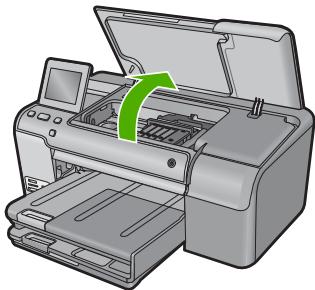
The print carriage moves to the center of the product.

NOTE: Wait until the print carriage stops moving before proceeding.
- Press the tab on the front of the ink cartridge to release it, and then remove it from the slot.
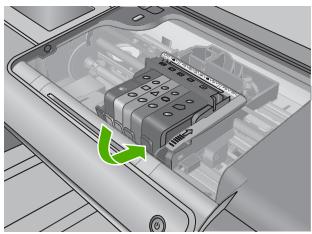
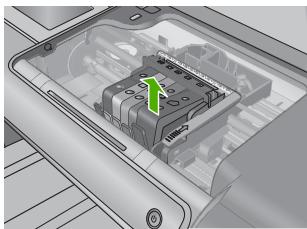
CAUTION: Do not lift the latch handle on the print carriage to remove the ink cartridges.
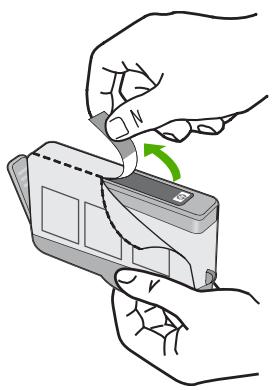
- Remove the new ink cartridge from its packaging by pulling the orange pull-tab straight back to remove the plastic wrap from the ink cartridge.
NOTE: Make sure you remove the plastic wrap from the ink cartridge before installing it in the product, or printing will fail.
- Twist the orange cap to snap it off.
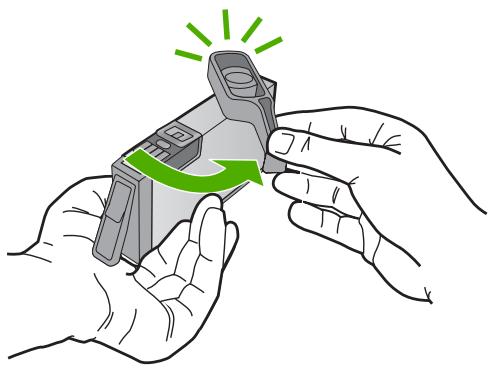
- Using the colored shaped icons for help, slide the ink cartridge into the empty slot until it clicks into place and is seated firmly in the slot.
CAUTION: Do not lift the latch handle on the print carriage to install the ink cartridges. Doing so can result in incorrectly seated ink cartridges and printing problems. The latch must remain down in order to correctly install the ink cartridges.
Make sure that you insert the ink cartridge into the slot that has the same shaped icon and color as the one you are installing.
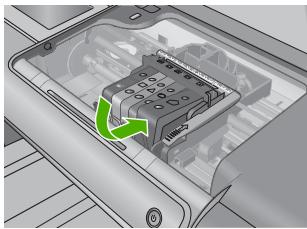
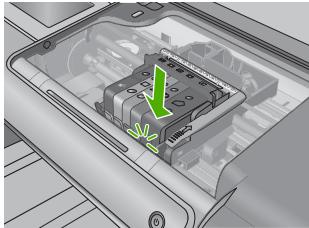
- Repeat steps 3 through 6 for each ink cartridge you are replacing.
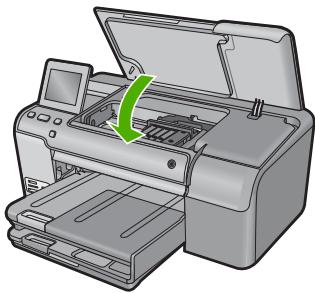
- Close the ink cartridge door.
2 Troubleshooting and support
This chapter contains troubleshooting information for the HP Photosmart. Specific information is provided for installation and configuration issues, and some operational topics. For more troubleshooting information, see the onscreen Help that came with your software.
Many issues are caused when the HP Photosmart is connected to the computer using a USB cable before the HP Photosmart software is installed on the computer. If you connected the HP Photosmart to your computer before the software installation screen prompts you to do so, you must follow these steps:
Troubleshooting common setup issues
- Disconnect the USB cable from the computer.
- Uninstall the software (if you have already installed it).
- Restart your computer.
- Turn off the product, wait one minute, then restart it.
- Reinstall the product software.
CAUTION: Do not connect the USB cable to the computer until prompted by the software installation screen.
For support contact information, see the inside back cover of this guide.
Uninstall and reinstall the software
If your installation is incomplete, or if you connected the USB cable to the computer before prompted by the software installation screen, you might need to uninstall and then reinstall the software. Do not simply delete the HP Photosmart application files from your computer. Make sure to remove them properly using the uninstall utility provided when you installed the software that came with the HP Photosmart.
To uninstall and reinstall the software
- On the Windows taskbar, click Start, Settings, Control Panel (or just Control Panel).
- Double-click Add/Remove Programs (or click Uninstall a program).
- Select HP Photosmart All-in-One Driver Software, and then click Change/Remove. Follow the onscreen instructions.
- Disconnect the product from your computer.
- Restart your computer.

NOTE: It is important that you disconnect the product before restarting your computer. Do not connect the product to your computer until after you have reinstalled the software.
- Insert the product CD-ROM into your computer's CD-ROM drive and then start the Setup program.

NOTE: If the Setup program does not appear, locate the setup.exe file on the CD-ROM drive and double-click it.
NOTE: If you no longer have the installation CD, you can download the software from www.hp.com/support.
- Follow the onscreen instructions and the instructions provided in the Start Here guide that came with the product.
When the software installation is complete, the HP Digital Imaging Monitor icon appears in the Windows system tray.
Setup troubleshooting
Use this section to solve any problems you might encounter while setting up the HP Photosmart hardware.
The product will not turn on
Try the following solutions if there are no light indications, no noise, and no movement from the product when you turn it on.
Solution 1: Make sure you use the power cord that came with the product
Solution
- Make sure the power cord is firmly connected to both the product and the power adapter. Plug the power cord into a power outlet, surge protector, or power strip.
If you are using a power strip, make sure the power strip is turned on. Or, try plugging the product directly into a power outlet. - Test the power outlet to make sure it is working. Plug in an appliance that you know works, and see if the appliance has power. If not, then there might be a problem with the power outlet.
If you plugged the product into a switched outlet, make sure the outlet is switched on. If it is switched to on but still does not work, then there might be a problem with the power outlet.
Cause: The product was not being used with the power cord provided.
If this did not solve the issue, try the next solution.
Solution 2: Reset the product
Solution: Turn off the product, and then unplug the power cord. Plug the power cord back in, and then press the On button to turn on the product.
Cause: The product experienced an error.
If this did not solve the issue, try the next solution.
Solution 3: Press the On button more slowly
Solution: The product might not respond if you press the On button too quickly. Press the On button once. It might take a few minutes for the product to turn on. If you press the On button again during this time, you might turn the product off.
Cause: You pressed the On button too quickly.
If this did not solve the issue, try the next solution.
Solution 4: Contact HP to replace the power supply
Solution: Contact HP support to request a power supply for the product.
Go to: www.hp.com/support.
If prompted, choose your country/region, and then click Contact HP for information on calling for technical support.
Cause: The power supply was not intended for use with this product or it had a mechanical failure.
If this did not solve the issue, try the next solution.
Solution 5: Contact HP support for service
Solution: If you have completed all of the steps provided in the previous solutions and are still having a problem, contact HP support for service.
Go to: www.hp.com/support.
If prompted, choose your country/region, and then click Contact HP for technical support.
Cause: You might need assistance to enable the product or software to function properly.
I connected the USB cable, but I am having problems using the product with my computer
Solution: You must first install the software that came with the product before connecting the USB cable. During installation, do not plug in the USB cable until prompted by the onscreen instructions.
Once you have installed the software, plug one end of the USB cable into the back of your computer and the other into the back of the product. You can connect to any USB port on the back of your computer.
For more information on installing the software and connecting the USB cable, see the Start Here guide that came with the product.
Cause: The USB cable was connected before the software was installed. Connecting the USB cable before you are prompted can cause errors.
After setting up the product, it does not print
Try the following solutions to resolve the issue. Solutions are listed in order, with the most likely solution first. If the first solution does not solve the problem, continue trying the remaining solutions until the issue is resolved.
Solution 1: Press the On button to turn on the product
Solution: Look at the display on the product. If the display is blank and the On button is not lit, the product is turned off. Make sure the power cord is firmly connected to the product and plugged into a power outlet. Press the On button to turn on the product.
Cause: The product might not have been turned on.
If this did not solve the issue, try the next solution.
Solution 2: Set your product as the default printer
Solution: Use the system tools on your computer to change your product to be the default printer.
Cause: You sent the print job to the default printer, but this product was not the default printer. If this did not solve the issue, try the next solution.
Solution 3: Check the connection between the product and computer
Solution: Check the connection between the product and computer.
Cause: The product and computer were not communicating with each other.
If this did not solve the issue, try the next solution.
Solution 4: Check that the ink cartridges are installed properly and have ink
Solution: Check that the ink cartridges are installed properly and have ink.
Cause: There might have been a problem with one or more of the ink cartridges.
If this did not solve the issue, try the next solution.
Solution 5: Load paper in the input tray
Solution: Load paper in the input tray.
Cause: The product might have been out of paper.
Clear paper jams
In case of a paper jam, check the rear door. You might need to clear the paper jam from the rear door.
To clear a paper jam from the rear door
- Press in the tab on the left side of the rear door to release the door. Remove the door by pulling it away from the product.
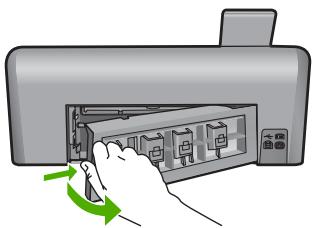
- Gently pull the paper out of the rollers.
CAUTION: If the paper tears when you are removing it from the rollers, check the rollers and wheels for torn pieces of paper that might be remaining inside the product. If you do not remove all the pieces of paper from the product, more paper jams are likely to occur.
- Replace the rear door. Gently push the door forward until it snaps into place.
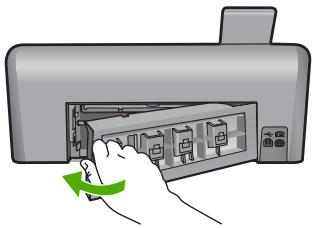
- Touch OK to continue the current job.
CD/DVD print troubleshooting
Use this section to solve any problems you might encounter while printing on CD/DVD surfaces with the HP Photosmart.
The product does not detect the CD/DVD holder
Try the following solutions to resolve the issue. Solutions are listed in order, with the most likely solution first. If the first solution does not solve the problem, continue trying the remaining solutions until the issue is resolved.
Solution 1: Push the CD/DVD holder into the CD/DVD tray
Solution: Push the CD/DVD holder forward into the CD/DVD tray until the lines on the holder line up to the white lines on the tray. The end of the holder marked with arrows goes into the CD/DVD tray first.
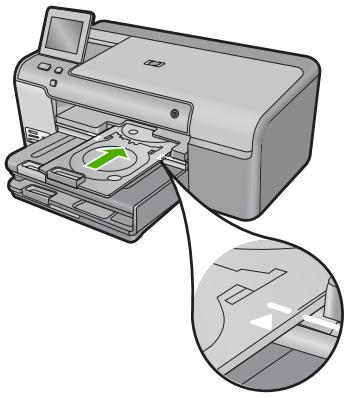
Cause: You did not push the CD/DVD holder far enough into the CD/DVD tray. If this did not solve the issue, try the next solution.
Solution 2: Remove the CD/DVD holder from the storage area
Solution: Remove the CD/DVD holder from the storage area below the main input tray. Lower the CD/DVD tray (located below the control panel).
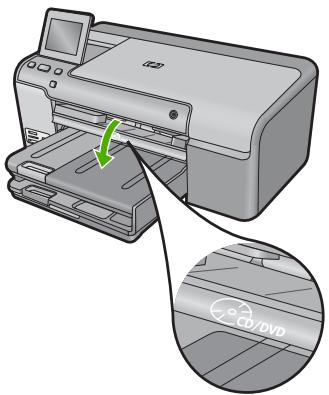
Make sure you loaded a printable disc onto the CD/DVD holder with the printable side up. Push the CD/DVD holder forward into the CD/DVD tray until the lines on the holder line up to the white lines on the tray. The end of the holder marked with arrows goes into the CD/DVD tray first.
Cause: You inserted the CD/DVD holder back into the storage area.
If this did not solve the issue, try the next solution.
Solution 3: Place the CD/DVD on the CD/DVD holder
Solution: Remove the CD/DVD holder from the storage area below the main input tray.
Remove the printable disc from the CD/DVD tray and load it onto the CD/DVD holder with the printable side up. Push the holder forward into the CD/DVD tray until the lines on the holder line up to the white lines on the tray. The end of the holder marked with arrows goes into the CD/DVD tray first.
Cause: You inserted the disc directly into the CD/DVD tray without placing it on the CD/DVD holder.
If this did not solve the issue, try the next solution.
Solution 4: Load the next disc on the CD/DVD holder
Solution: Remove the CD/DVD holder from the CD/DVD tray. Remove the printed CD/DVD from the holder. Load the next disc onto the CD/DVD holder with the printable side up and reinsert the holder into the CD/DVD tray until the lines on the holder line up to the white lines on the tray. When the product detects the holder, the prompt disappears.
Cause: The product prompted you to insert the next disc when printing multiple CD/DVDs in a print job.
The product does not detect a CD/DVD on the holder
Solution: Remove the CD/DVD holder from the CD/DVD tray. Load a printable disc onto the CD/DVD holder with the printable side up and reinsert the holder into the CD/DVD tray until the lines on the holder line up to the white lines on the tray.
Cause: You inserted the CD/DVD holder into the CD/DVD tray without loading a CD/DVD onto the holder.
The product stalled while printing a CD/DVD
Solution: Ensure that there is at least 7.5cm (3 inches) of space behind the product. Also, make sure that the slot on the back of the product is not blocked.
Cause: The product pulled the CD/DVD holder while printing on the CD/DVD. The holder can protrude about 7.5cm (3 inches) from the back of the product. If there is not sufficient space behind the product, the holder stops and printing stalls.
The image on my printed disc is cropped and there is ink on the CD/DVD holder
Solution: If you are loading a regular-size (120 mm) CD/DVD onto the CD/DVD holder to be printed, do not flip the blue ring over the disc. The blue ring should only be used if you are printing on a small-size (80 mm) CD/DVD.
Before trying again, clean the CD/DVD holder to remove ink from the holder. This avoids ink contamination within the product, as well as protects your discs, hands, and clothing from stains later.
After the CD/DVD holder is clean and dry, load a new printable disc onto the holder with the printable side up. Leave the blue ring in its original location on the opposite side of the holder from your disc, as shown below. Reinsert the holder into the CD/DVD tray until the lines on the holder line up to the white lines on the tray and try your print again.
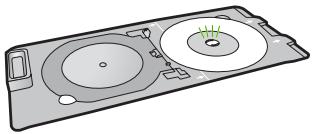
Cause: You loaded the CD/DVD onto the CD/DVD holder incorrectly.
The product is printing on a non-printable area of my disc
Try the following solutions to resolve the issue. Solutions are listed in order, with the most likely solution first. If the first solution does not solve the problem, continue trying the remaining solutions until the issue is resolved.
Solution 1: Change the software settings
Solution: Make sure the design you are printing is appropriate for the size of the media loaded in the CD/DVD holder, including the diameter of the inner and outer rings. Change the software settings accordingly to center and size your design for the disc you are using. Refer to the documentation or the online help of the software you are using for additional information.
Cause: Your design was not the correct size for the CD/DVD you loaded.
If this did not solve the issue, try the next solution.
Solution 2: Load a new CD/DVD with the printable side up
Solution: If you have already burned your content onto the CD/DVD, you might need to burn your contents again onto a new disc. Load the new disc onto the CD/DVD holder with the printable side up. Reinsert the holder into the CD/DVD tray until the lines on the holder line up to the white lines on the tray and try your print again.
Cause: You loaded the CD/DVD upside down on the holder.
The design is not centered on my disc
Solution: Change the software settings to center and size your design for the disc you are using. Refer to the documentation or the online help of the software you are using for additional information.
Cause: Your design settings were not correct.
The ink on the CD/DVD is not drying
Try the following solutions to resolve the issue. Solutions are listed in order, with the most likely solution first. If the first solution does not solve the problem, continue trying the remaining solutions until the issue is resolved.
Solution 1: Use inkjet printable discs
Solution: Make sure that the CD/DVD you use is compatible for inkjet printing. Inkjet printable discs normally have a white printing surface. (Some discs also have a silver printing surface.)
Cause: The surface of the disc was not compatible for printing.
If this did not solve the issue, try the next solution.
Solution 2: Load a new CD/DVD with the printable side up
Solution: If you have already burned your content onto the CD/DVD, you might need to burn your contents again onto a new disc. Load the new disc onto the CD/DVD holder with the printable side up. Reinsert the holder into the CD/DVD tray until the lines on the holder line up to the white lines on the tray and try your print again.
Cause: You loaded the CD/DVD upside down on the holder.
The product reports a CD/DVD size mismatch error
Solution: Cancel the print job and replace the CD/DVD currently loaded on the CD/DVD holder with a CD/DVD that is the same size as specified in the print job, or change the print settings in the software.
Cause: The size of the CD/DVD currently loaded on the CD/DVD holder did not match the size you specified when you started the print job from the computer.
The CD/DVD holder is stuck in the storage area
Solution: Pull the CD/DVD holder out as far as possible, until you feel resistance. Then, insert a flat blunt object (such as a butter knife or screwdriver) into the left corner of the storage slot and push down on the blue ring. With the blue ring pressed down, you should be able to pull the CD/DVD holder out of the storage slot.
Cause: You inserted the CD/DVD holder back into the storage area with a CD/DVD loaded and the blue ring flipped over the disc.
Information on ink cartridges and the printhead
The following tips help maintain HP ink cartridges and ensure consistent print quality.
- Keep all ink cartridges in the original sealed packages until they are needed.
- Turn off the product by pressing the On button. Do not turn off the product by turning off a power strip or unplugging the power cord. If you improperly turn off the product, the printhead assembly might not return to the correct position.
- Store ink cartridges at room temperature (15.6°-26.6°C or 60°-78°F).
HP recommends that you do not remove the ink cartridges from the product until you have replacement cartridges available to install. - If you are transporting the product make sure you turn it off by pressing the On button to power it down properly. Also, make sure you leave the ink cartridges installed. Doing these actions will prevent ink leaking from the printhead assembly.
Clean the printhead when you notice a significant decrease in print quality. - Do not clean the printhead unnecessarily. This wastes ink and shortens the life of the cartridges.
- Handle ink cartridges carefully. Dropping, jarring, or rough handling during installation can cause temporary printing problems.
Support process
If you have a problem, follow these steps:
- Check the documentation that came with the product.
-
Visit the HP online support Web site at www.hp.com/support. HP online support is available to all HP customers. It is the fastest source for up-to-date product information and expert assistance and includes the following features:
-
Fast access to qualified online support specialists
- Software and driver updates for the product
- Valuable product and troubleshooting information for common problems
-
Proactive product updates, support alerts, and HP newsgrams that are available when you register the product
-
Call HP support. Support options and availability vary by product, country/region, and language. For support contact information, see the inside back cover of this guide.
3 Technical information
The technical specifications and international regulatory information for the HP Photosmart are provided in this section. For additional regulatory and environmental information, including the Declaration of Conformity statement, see the onscreen Help.
System requirements
Software system requirements are located in the Readme file.
Product specifications
For product specifications, go to the HP Web site at www.hp.com/support.
Paper specifications
Main input tray capacity: Plain paper sheets: Up to 125 (60 to 90 gsm. (20 lb) paper)
Output tray capacity: Plain paper sheets: Up to 50 (60 to 90 gsm. (20 lb) paper)
- Photo tray capacity: Photo paper sheets: Up to 20

NOTE: For a complete list of supported media sizes, see the printer software.
Physical specifications
Height: 18.32 cm (7.21 inches)
Width: 45.79 cm (18.027 inches)
Depth: 38.31 cm (15.181 inches)
Weight: 5.56 kg (12.25 lbs)
Power specifications
Power consumption: 42 watts maximum (average printing)
Power adapter input rating: AC 100 to 240V 1300mA50 - 60Hz
- Printer DC rating: DC 32 V===1300 mA

NOTE: Use only with the power adapter supplied by HP.
Environmental specifications
Recommended operating temperature range: 15^ to 32^ (59°F to 90°F)
- Allowable operating temperature range: 5^ to 35^ (41°F to 95°F)
Humidity: 15% to 80% RH non-condensing
Non-operating (Storage) temperature range: -20^ to 50^ (-4^ to 122^)
- In the presence of high electromagnetic fields, it is possible the output from the HP Photosmart may be slightly distorted
HP recommends using a USB cable less than or equal to 3 metres (10 feet) in length to minimize injected noise due to potential high electromagnetic fields
Regulatory notices
The HP Photosmart meets product requirements from regulatory agencies in your country/region. For a complete listing of regulatory notices, see the onscreen Help.
Regulatory model identification number
For regulatory identification purposes, your product is assigned a Regulatory Model Number. The Regulatory Model Number for your product is SDGOB-0822. This regulatory number should not be confused with the marketing name (HP Photosmart D7500 series, etc.) or product numbers (Q8440A, etc.).
| HP product | Duration of limited warranty |
| Software Media | 90 days |
| Printer | 1 year |
| Print or Ink cartridges | Until the HP ink is depleted or the "end of warranty" date printed on the cartridge has been reached, whichever occurs first. This warranty does not cover HP ink products that have been refilled, remanufactured, refurbished, misused, or tampered with. |
| Printheads | 1 year |
A. Extent of limited warranty
- Hewlett-Packard (HP) warrants to the end-user customer that the HP products specified above will be free from defects in materials and workmanship for the duration specified above, which duration begins on the date of purchase by the customer.
- For software products, HP's limited warranty applies only to a failure to execute programming instructions. HP does not warrant that the operation of any product will be interrupted or error free.
- HP's limited warranty covers only those defects that arise as a result of normal use of the product, and does not cover any other problems, including those that arise as a result of:
a. Improper maintenance or modification;
b. Software, media, parts, or supplies not provided or supported by HP;
c. Operation outside the product's specifications;
d. Unauthorized modification or misuse. - For HP printer products, the use of a non-HP cartridge or a refilled cartridge does not affect either the warranty to the customer or any HP support contract with the customer. However, if printer failure or damage is attributable to the use of a non-HP or refilled cartridge or an expired ink cartridge, HP will charge its standard time and materials charges to service the printer for the particular failure or damage.
- If HP receives, during the applicable warranty period, notice of a defect in any product which is covered by HP's warranty, HP shall either repair or replace the product, at HP's option.
- If HP is unable to repair or replace, as applicable, a defective product which is covered by HP's warranty, HP shall within a reasonable time after being notified of the defect, refund the purchase price for the product.
- HP shall have no obligation to repair, replace, or refund until the customer returns the defective product to HP.
- Any replacement product may be either new or like-new, provided that it has functionality at least equal to that of the product being replaced.
- HP products may contain remanufactured parts, components, or materials equivalent to new in performance.
- HP's Limited Warranty Statement is valid in any country where the covered HP product is distributed by HP. Contracts for additional warranty services, such as on-site service, may be available from any authorized HP service facility in countries where the product is distributed by HP or by an authorized importer.
B. Limitations of warranty
TO THE EXTENT ALLOWED BY LOCAL LAW, NEITHER HP NOR ITS THIRD PARTY SUPPLIERS MAKES ANY OTHER WARRANTY OR CONDITION OF ANY KIND, WHETHER EXPRESS OR IMPLIED WARRANTYES OR CONDITIONS OF MERCHANTABILITY, SATISFACTORY QUALITY, AND FITNESS FOR A PARTICULAR PURPOSE.
C. Limitations of liability
- To the extent allowed by local law, the remedies provided in this Warranty Statement are the customer's sole and exclusive remedies.
- TO THE EXTENT ALLOWED BY LOCAL LAW, EXCEPT FOR THE OBLIGATIONS SPECIFICALLY SET FORTH IN THIS WARRANTY STATEMENT, IN NO EVENT SHALL HP OR ITS THIRD PARTY SUPPLIERS BE LIABLE FOR DIRECT, INDIRECT, SPECIAL, INCIDENTAL, OR CONSEQUENTIAL DAMAGES, WHETHER BASED ON CONTRACT, TORT, OR ANY OTHER LEGAL THEORY AND WHETHER ADVISED OF THE POSSIBILITY OF SUCH DAMAGES.
D. Local law
- This Warranty Statement gives the customer specific legal rights. The customer may also have other rights which vary from state to state in the United States, from province to province in Canada, and from country to country elsewhere in the world.
- To the extent that this Warranty Statement is inconsistent with local law, this Warranty Statement shall be deemed modified to be consistent with such local law. Under such local law, certain disclaimers and limitations of this Warranty Statement may not apply to the customer. For example, some states in the United States, as well as some governments outside the United States (including provinces in Canada), may:
a. Preclude the disclaimers and limitations in this Warranty Statement from limiting the statutory rights of a consumer (e.g., the United Kingdom);
b. Otherwise restrict the ability of a manufacturer to enforce such disclaimers or limitations; or
c. Grant the customer additional warranty rights, specify the duration of implied warranties which the manufacturer cannot disclaim, or allow limitations on the duration of implied warranties.
- THE TERMS IN THIS WARRANTY STATEMENT, EXCEPT TO THE EXTENT LAWFULLY PERMITTED, DO NOT EXCLUDE, RESTRICT, OR MODIFY, AND ARE IN ADDITION TO, THE MANDATORY STATUTORY RIGHTS APPLICABLE TO THE SALE OF THE HP PRODUCTS TO SUCH CUSTOMERS.
HP Limited Warranty
Dear Customer,
You will find below the name and address of the HP entity responsible for the performance of the HP Limited Warranty in your country.
You may have additional statutory rights against the seller based on your purchase agreement. Those rights are not in any way affected by this HP Limited Warranty.
Ireland: Hewlett-Packard Ireland Ltd. 30 Herbert Street IRL-Dublin 2
United Kingdom: Hewlett-Packard Ltd, Cain Road, Bracknell, GB-Berks RG12 1HN
HP Photosmart D7500 Series Grundlagenhandbuch
Inhalt
Consultez le site: www.hp.com/support.