
PHOTOSMART 1315 - Photo printer COMPAQ - Free user manual and instructions
Find the device manual for free PHOTOSMART 1315 COMPAQ in PDF.


| Product type | Inkjet photo printer |
| Brand | COMPAQ (manufactured by Hewlett-Packard) |
| Model | PHOTOSMART 1315 |
| Dimensions (W × D × H) | 440 × 204 × 375 mm |
| Weight | 6.5 kg |
| Power supply | Mains 100-240 V, 50-60 Hz |
| Power consumption | Standby: approx. 7 W, printing: up to 50 W |
| Maximum print resolution | Up to 2400 × 1200 dpi (color) and 600 dpi (black and white) |
| Printing technology | Thermal inkjet, HP PhotoREt III, ColorSmart III |
| Ink cartridges | Black HP #45 (51645) and color HP #78 (C6578) |
| Media types | Plain paper, photo paper, envelopes, transparencies, labels, cards, iron-on transfers |
| Paper sizes | A4, Letter, Legal, 10 × 15 cm (photo), envelopes (DL, C6, US #10, A2) |
| Tray capacity | Main tray: 100 sheets, photo tray: 20 sheets 10×15 cm |
| Connectivity | USB 1.1, parallel IEEE 1284, infrared (IrDA), optional HP JetDirect print server ports |
| LCD screen | Color tiltable screen for viewing and selecting photos |
| Memory card reader | CompactFlash Type I/II, SmartMedia, Memory Stick, IBM Microdrive (up to 527 MB) |
| Direct printing | Yes, from a memory card without a computer |
| Email sending | Yes, via the control panel (requires a connected computer) |
| Creative functions | Adding borders, cropping, brightness adjustment, color effects (sepia, black and white, antique), photo album creation |
| Maintenance and cleaning | Clean cartridges via computer software or by printing a test page; do not touch the nozzles or copper contacts |
| Safety | Use only HP power cords, do not refill cartridges, unplug before any internal maintenance |
| Spare parts and repairability | Ink cartridges (HP #45 and #78), optional automatic duplex printing module (HP C6463A), USB and parallel cables available separately |
| Manual languages | French, English, and others (translation available on request) |
Frequently Asked Questions - PHOTOSMART 1315 COMPAQ
User questions about PHOTOSMART 1315 COMPAQ
0 question about this device. Answer the ones you know or ask your own.
Ask a new question about this device
Download the instructions for your Photo printer in PDF format for free! Find your manual PHOTOSMART 1315 - COMPAQ and take your electronic device back in hand. On this page are published all the documents necessary for the use of your device. PHOTOSMART 1315 by COMPAQ.
USER MANUAL PHOTOSMART 1315 COMPAQ
control panel buttons
The following table is a quick reference guide to the buttons that appear on your printer's control panel.
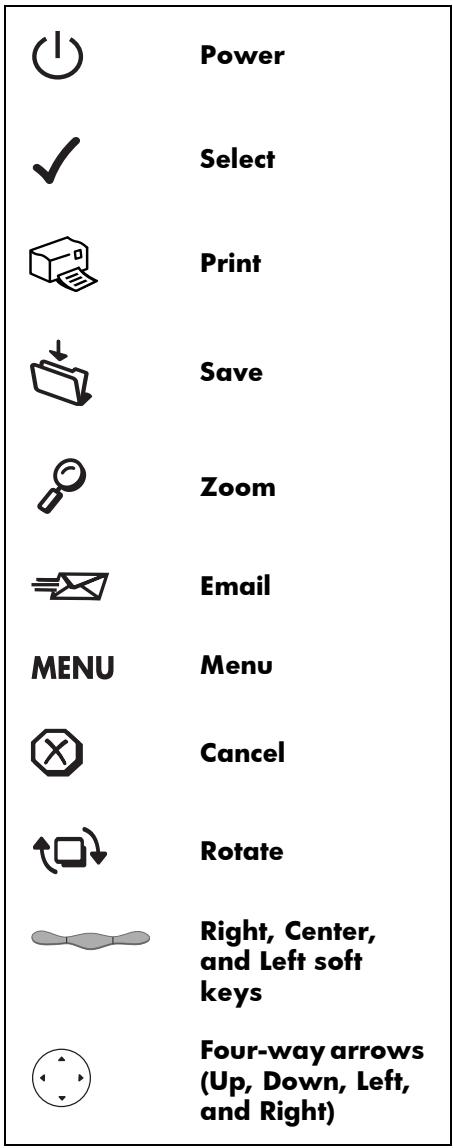
contents
1 getting started 1
welcome 1
viewing the onscreen user's guide 1
primer features 2
items you will need. 3
cables 3
memory cards 3
hp-designed inkjet paper 3
prinert parts. 4
control panel 6
2 printer basics. 7
loading paper 7
loading paper in the IN tray 8
loading photo paper in the photo tray. 9
installing or replacing the print cartridges. 10
understanding memory cards 12
memory card types supported 12
inserting a memory card. 13
reading the indicator lights 15
understanding the LCD. 16
positioning the LCD. 16
using the select button 16
menu map 17
understanding and adjusting the printer settings. 18
setting the paper detection 18
setting the number of copies 19
setting the photo size 19
deselecting an image 20
understanding the advanced features of your printer 20
3 printing from the printer's control panel 21
deciding which images to print 22
viewing images on the color LCD 22
printing a photo index page 23
printing photos from the control panel 24
printing individual or multiple photos 24
printing more than one copy of a photo 25
printing a continuous range of photos. 26
printing all photos 27
printing photos at different sizes 27
printing using a DPOF file 28
printing files using infrared (IR) 29
printing a test page 29
4 getting creative with your printer 31
sending email 32
emailing from a Windows PC. 32
emailing from a Macintosh 33
adding borders to your photos 34
printing photo album pages 36
cropping a photo 38
adjusting the photo brightness 39
changing the photo color effect 40
improving the photo color. 41
making greeting cards and calendars 42
5 troubleshooting 43
important Windows PC information 44
error messages 57
paper errors 57
auto-detect errors 58
print cartridge errors 58
memory card errors 58
email errors 61
6 specifications 63
system requirements 63
specifications 64
index 67
getting started
1
welcome
Thank you for purchasing an HP PhotoSmart 1315 printer! Your new printer prints everything from great quality color photos to quality black and white text documents. Before you get started, be sure to set up your printer—see the Setup Guide included with the printer for quick and easy instructions.
This guide describes how to use your new printer. It includes a quick reference to get you acquainted with your new printer and plenty of detailed printing and troubleshooting information. If you do not find the information you are looking for in this guide, use the Onscreen User's Guide.
viewing the onscreen user's guide
Note: You must have Adobe Acrobat Reader version 4.0 or later installed to view the Onscreen User's Guide. If you do not have Acrobat Reader, you will be asked to install it from the HP PhotoSmart CD before you can view the Onscreen User's Guide.
After you have installed the HP PhotoSmart software on your computer, you can view the Onscreen User's Guide.
To view the Onscreen User's Guide:
- Windows PC: From the Start menu, choose Programs, HP PhotoSmart, Photo Printing, Tools and Information, View printer users guides.
- Macintosh: In the User Docs folder, select your language, then open the file titled hp photosmart user guide.
primer features
Use your new HP PhotoSmart 1315 printer to:
- Print photos directly from a digital camera's memory card without using your computer. To start printing using your memory card, see "printing photos from the control panel" on page 24.
- Print high-quality documents and projects such as photo album pages, greeting cards, iron-on transfers, or newsletters from a computer. To start printing a document or project from your Windows PC, see the Onscreen User's Guide located on the HP printer software CD.
- Email your favorite photos to family and friends. To send your favorite photos by email, see "sending email" on page 32.
- View and print edited versions of your images using the printer's color LCD. To view and edit images on the LCD, see "getting creative with your printer" on page 31.
View a slide show of all the images on your memory card. To view a slide show of the images stored on your memory card, see the Onscreen User's Guide located on the HP printer software CD. - Use the printer's control panel to add borders and greetings to the images stored on your memory card. To add borders to your photos, see "adding borders to your photos" on page 34.
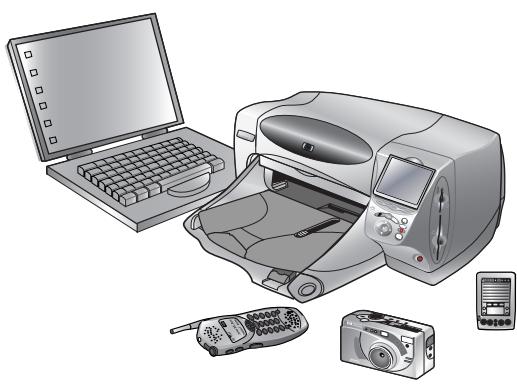
- Print files wirelessly from an infrared device such as a personal digital assistant (PDA), laptop computer, or digital camera. To start printing using infrared, see the Onscreen User's Guide located on the HP printer software CD.
items you will need
Depending on how you will use the printer, you may need the following:
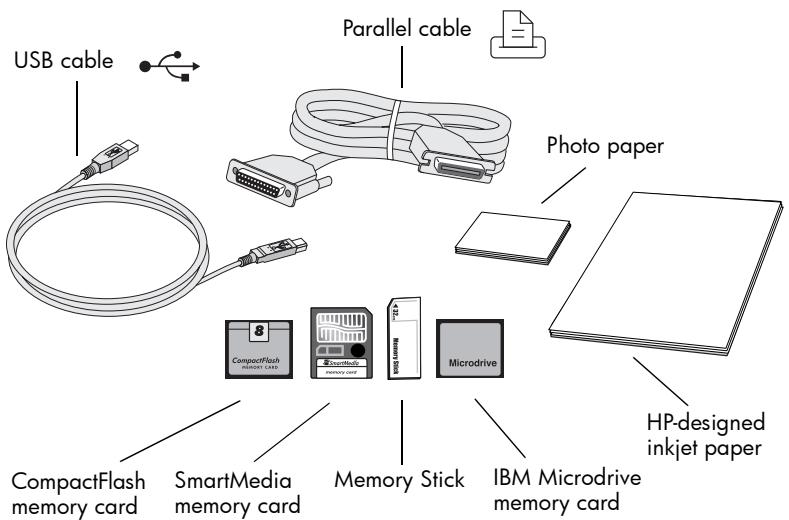
cables
To connect the printer to a computer, you need either a bi-directional IEEE 1284-compliant parallel cable or a USB-compliant interface cable. These cables are available where you purchased your printer or at most computer supply stores, and must be purchased separately.
memory cards
If you use a digital camera's memory card with the printer, make sure the memory card is a CompactFlash Type I or II, SmartMedia, Memory Stick, or IBM Microdrive memory card. Your printer supports memory cards up to 527 MB. For more information, see "understanding memory cards" on page 12. Memory cards can be purchased at most computer supply stores.
hp-designed inkjet paper
You can print on many different types and sizes of paper. We recommend using HP-designed inkjet paper for the best output quality. If you are printing a photo, be sure to print on HP Premium Plus Photo Paper for the best photo quality. HP papers can be purchased at most computer and office supply stores or on the Web at www.hpshopping.com (US only).
Note: Your printer comes with a tri-color ink cartridge (HP #78), to give you high-quality photo images, and a low-fill black ink cartridge (HP #45) to give you great quality 600 dpi documents. Replacement cartridges can be purchased at most computer and office supply stores or on the Web at www.hpshopping.com (US only).
primer parts
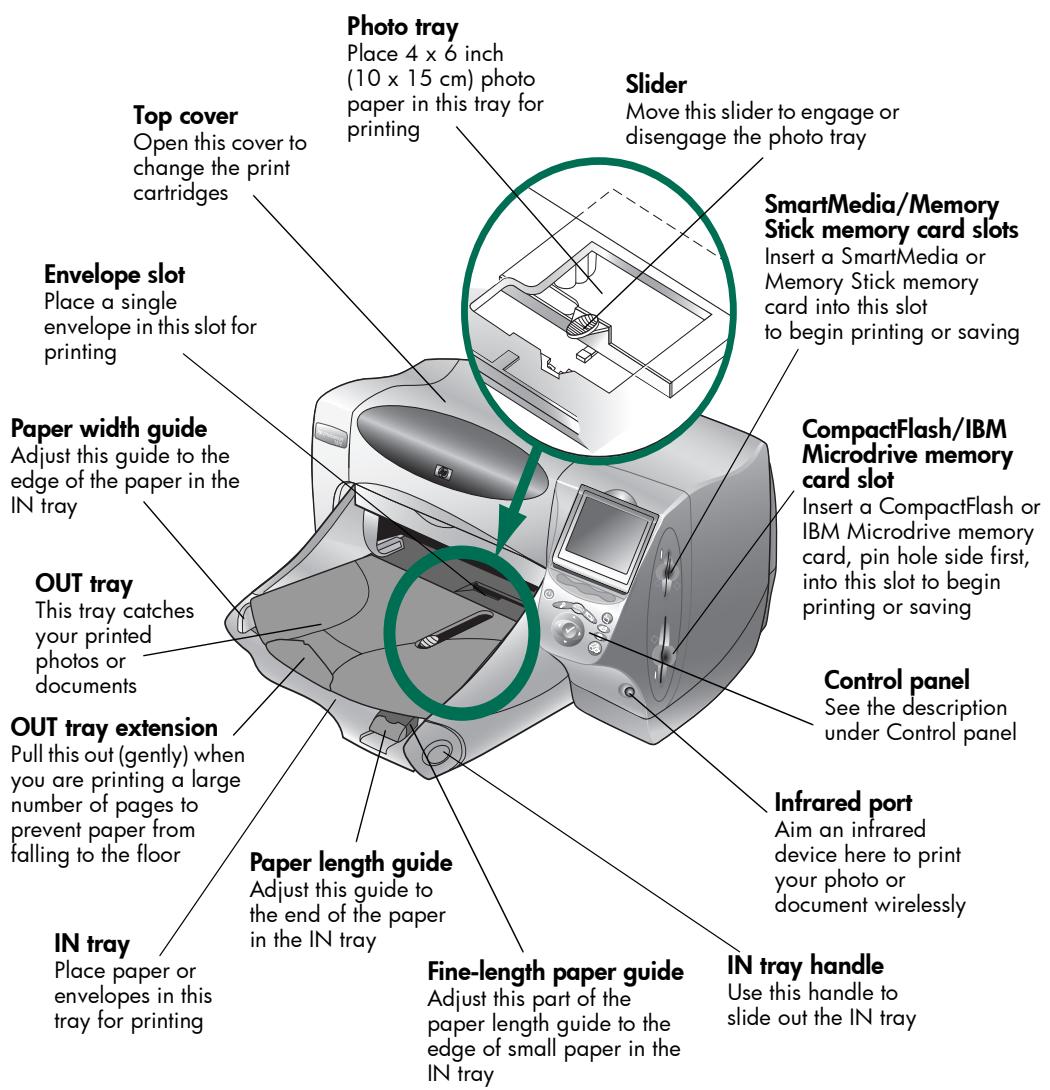

Parallel port
Use this port to connect the printer to the computer if you are using a parallel cable (Windows PC only)

USB port
Use this port to connect the printer to the computer if you are using a USB cable (Windows PC or Macintosh)
Power cord connection
Connect the power cord included with the printer here
Rear access door
Remove this door to clear a paper jam
control panel
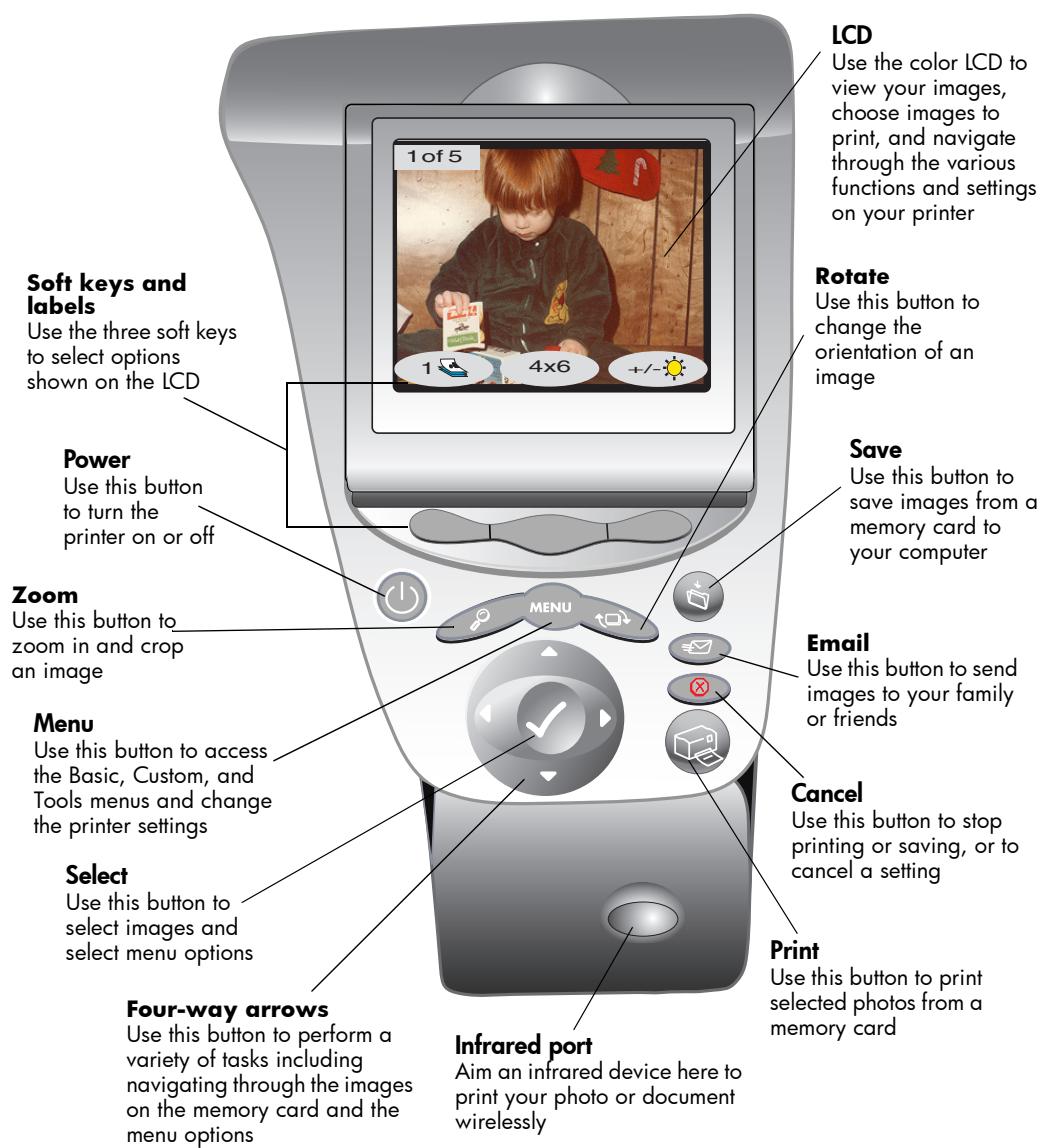
primer basics
2
loading paper
You can print on many different types and sizes of paper. We recommend using HP-designed inkjet paper for the best output quality. For example, if you are printing a photo, be sure to print on HP Premium Plus Photo Paper for the best photo quality.
Note: If you are using HP-designed inkjet paper, remember to set the paper type in the printer Properties dialog box.
For a list of available HP-designed inkjet paper, visit the Web at www.hpprintcenter.com. HP papers can be purchased at most computer and office supply stores or on the Web at www.hpshopping.com (US only).
You can load a:
- Stack of paper in the IN tray
- Stack of 4 × 6 inch ( 10 × 15 cm ) photo paper in the photo tray
- Single envelope
- Stack of envelopes
See the Onscreen User's Guide for information about loading envelopes, index cards, and other small media.
loading paper in the IN tray
You can load many different types of paper in the IN tray, including plain paper, HP Photo Paper, and HP Premium Inkjet Transparency Film.
To load paper in the IN tray:
1 Lift the OUT tray.
2 Pull out the IN tray by using the handles on the side of the tray.
3 Pull out the paper length guide on the IN tray and slide the paper width guide as far to the left as it will go.
4 Place a stack of paper into the IN tray.
- Load the paper printing side down. The printer prints on the face-down side of the paper; the finished document faces up in the OUT tray.
Always load paper in the portrait direction, with the long edge along the long edge of the IN tray.
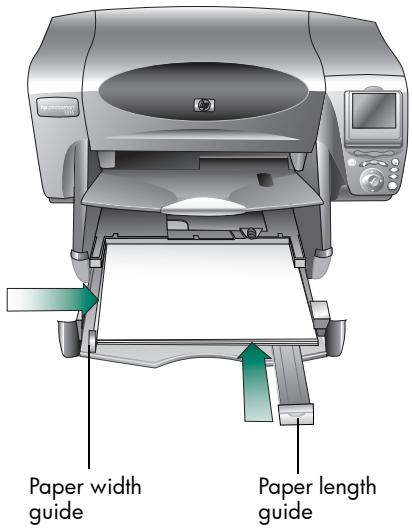
- Be careful not to use too much or too little paper. It may be difficult for the printer to "grab" a sheet of paper when there are only one or two sheets in the IN tray. Check that the stack of paper contains several sheets but is no higher than the top of the paper length guide.
- Use one type and size of paper at a time. Do not mix paper types or sizes in the IN tray.
5 Move the slider (visible through a slot in the OUT tray) toward you until it stops. This disengages the photo tray.
6 Adjust the paper width guide and paper length guide to fit close to the edges of the paper without bending the paper. This helps the paper feed straight into the printer.
7 Slide the IN tray back into place and lower the OUT tray.
loading photo paper in the phototray
You can print on 4 × 6 inch ( 10 × 15 cm) photo paper. Do not put more than 20 sheets in the photo tray.
When you use the photo tray, you can leave paper in the IN tray. If you run out of photo paper in the photo tray, the printer will continue to print using paper from the IN tray.
To load photo paper in the photo tray:
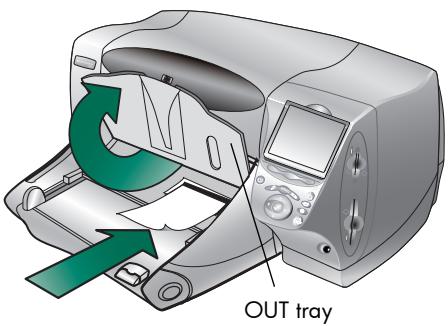
1 Move the slider (visible through a slot in the OUT tray) toward you until it stops. This disengages the photo tray.
2 Lift the OUT tray.
3 Load paper in the photo tray with the printing side down. If you are using perforated paper, insert the paper so the tab feeds in last. The printer prints on the face-down side of the paper; the finished document faces up in the OUT tray.
4 Lower the OUT tray to its original position.
5 Move the slider away from you (toward the inside of the printer) until it stops against the edge of the paper. This engages the photo tray.
Note: When you are finished using the photo tray, disengage it so the printer uses the paper in the IN tray.
installing or replacing the print cartridges
To get the best performance from your printer, use only genuine HP supplies, including genuine HP factory-filled print cartridges.
To get maximum use from your print cartridges, do not unplug the printer or turn off the power source (such as a power strip) until the Power light is off.
Caution:
Check that you are using the correct print cartridges. Use one black print cartridge HP #45 (51645) and one color cartridge HP #78 (C6578). Do not refill print cartridges yourself. Damage resulting from the modification or refilling of HP print cartridges is specifically excluded from the HP printer warranty coverage.
To install or replace print cartridges:
1 On the printer's control panel, press the Power button to turn the printer on.
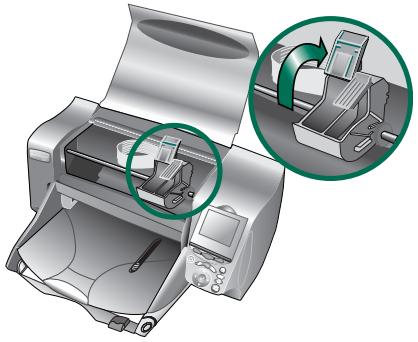
2 Open the top cover. The print cartridge cradle moves to the center of the printer.
3 Lift the cradle latch of the print cartridge you want to install or replace.
4 If you are replacing a print cartridge, lift out the old print cartridge and recycle or discard it.
5 Remove the plastic tape from the new print cartridge:
Take the print cartridge out of its package.
- Grasp the tab and peel off the plastic tape.
Make sure you only remove the clear tape from the nozzles and leave the copper-colored contact.
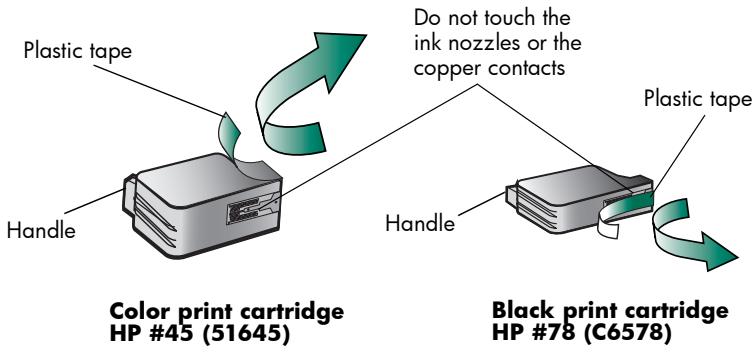
Note: Do NOT touch the ink nozzles or the copper contacts. Touching these parts may cause print cartridge failure.
6 Insert the print cartridge:
- Hold the cartridge handle and with the copper side going in first, carefully insert the print cartridge into the cradle. Take caution and avoid tearing the copper-colored contacts against the printer's contact pins.
- Close the cradle latch to lock the print cartridge in place.
7 Close the top cover.
8 When the LCD prompts you, load plain paper in the IN tray if you do have not already loaded paper. For more information, see "load
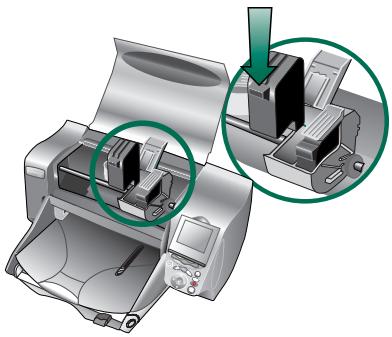
9 On the printer's control panel, press the Right soft key to select OK. The printer begins printing a calibration page to check the print cartridges and their alignment.
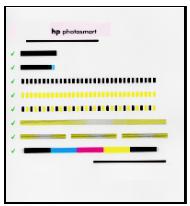
Successful calibration page
understanding memory cards
If your digital camera uses a memory card to store images, you can insert the memory card into the printer to print, save, or email your photos. The printer guides you through the process.
For more information on how to print files from a memory card, see "printing from the printer's control panel" on page 21.
memory card types supported
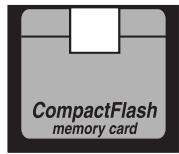
CompactFlash Type I & II
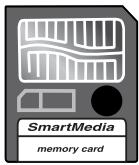
SmartMedia
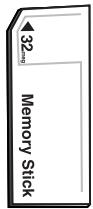
Memory Stick
IBM Microdrive
Your printer can read CompactFlash Association (CFA) certified Type I & II, SmartMedia, Memory Stick, and IBM Microdrive memory cards up to 527 MB. These cards are manufactured by several vendors and are available in a variety of storage capacities. You can purchase memory cards where you purchased your digital camera or at most computer supply stores.
Caution: Using another type of memory card may damage the memory card, the printer, or both.
If your digital camera supports multiple file types, it may also be able to save photos in several different file formats such as JPEG, uncompressed TIFF, FlashPix, and RAW. You can print JPEG and uncompressed TIFF files directly from the memory card, or you can print and save any file type from your computer. For information about supported file formats, see "specifications" on page 64.
inserting a memory card
Once you have taken pictures with your digital camera, you can print photos immediately or save them directly to your computer using the printer. Before you insert a memory card, be sure the printer is turned ON.
Note: The printer can only access one memory card slot at a time.
When the memory card is inserted correctly, the card slot light illuminates and the LCD displays the first photo on the memory card.
Caution: Do not pull out the memory card while the card slot light is blinking. Removing a card while it is being accessed may damage the printer or the memory card, or corrupt the information on the memory card.
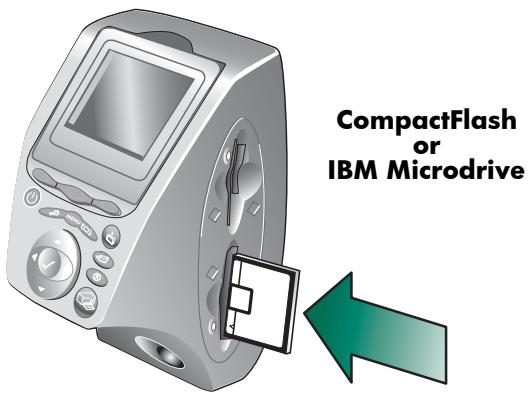
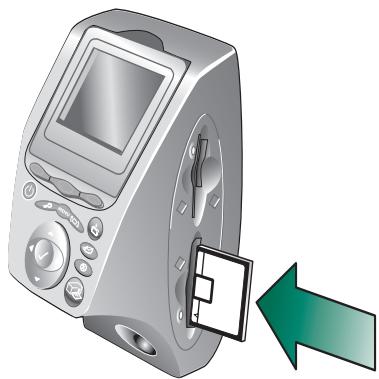
To insert a CompactFlash or IBM Microdrive memory card:
- Insert the memory card into the bottom card slot so the front of the card faces toward you and the edge with pin holes is placed into the printer first.
Caution: If you do not insert the edge with pin holes into the printer first, you can damage the memory card, the printer, or both.
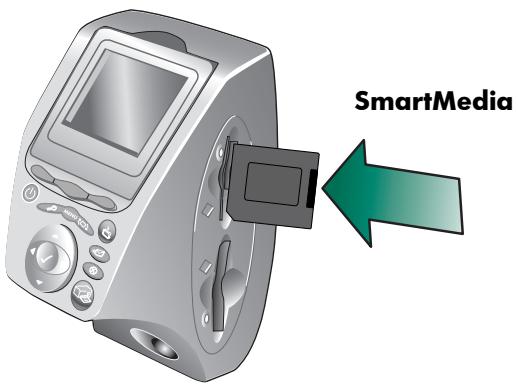
To insert a SmartMedia memory card:
- Insert the memory card into one of the top card slots so the front of the card (the black side) faces toward you and the top edge of the card is placed into the printer first.
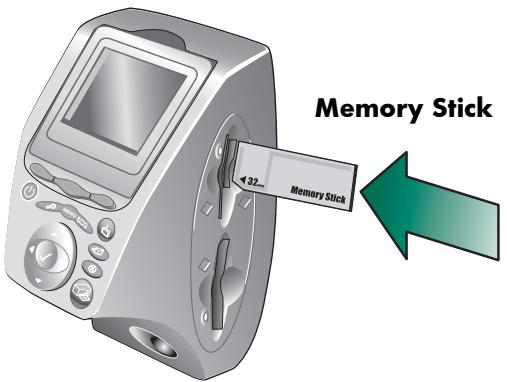
To insert a Memory Stick:
- Insert the Memory Stick into one of the top card slots so the back of the card (the side with the metal contacts) faces away from you and the end with the metal contacts is placed into the printer first.
reading the indicator lights
Power light
On (Green)
The power is on
Blinking (Green)
The printer is busy (printing or saving, for example)
Blinking (Amber)
The printer requires attention
Off
The printer power is off
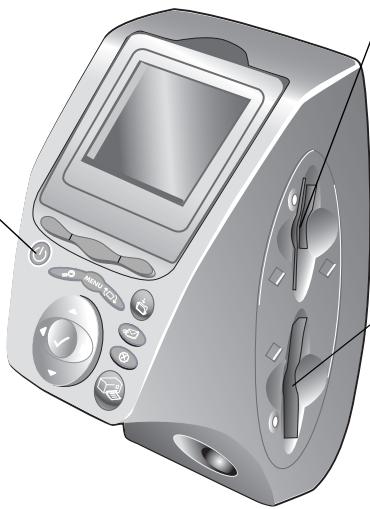
SmartMedia/Memory Stick memory card slot light (Green)
On
The memory card is inserted correctly
Blinking
Information is being transmitted to and from the memory card to the printer or computer
Off
There is no memory card inserted
CompactFlash/IBM Microdrive memory card slot light (Green)
On
The memory card is inserted correctly
Blinking
Information is being transmitted to and from the memory card to the printer or computer
Off
There is no memory card inserted
Caution: Do not pull out the memory card while the card slot light is blinking. Removing a card while it is being accessed may damage the printer or the memory card, or corrupt the information on the memory card.
understanding the LCD
Your printer comes equipped with a color LCD that allows you to review and print your photos quickly and easily with a memory card inserted. You can review up to 2000 images at a time, although the capacity of your memory card determines how many images it can store.
Note: You cannot view non-photo files on the LCD.
The LCD also has a "screen saver" that activates automatically when a memory card is inserted and the printer has not been accessed for eight minutes. The screen saver randomly displays a thumbnail image on the LCD, then after approximately two minutes, the displayed image disappears and the LCD becomes blank.
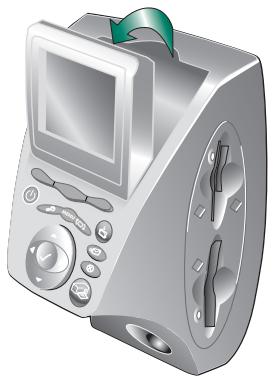
positioning the LCD
The LCD on your printer is adjustable to a 90 degree angle.
using the select button
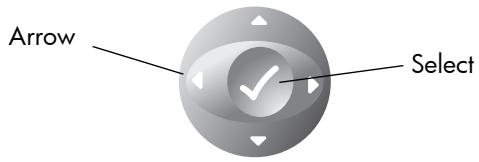
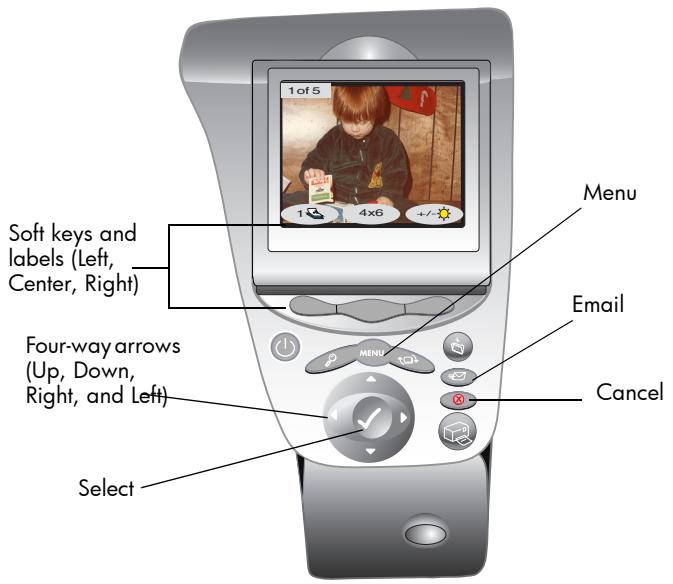
Use the Up, Down, Left, and Right arrows to scroll through the images stored on the memory card and through the menu options. Use the Select button to select images and menu options. The image must be displayed on the LCD and the menu option must be highlighted to select it. A check mark appears in the upper right corner of the image on the LCD when it has been selected.
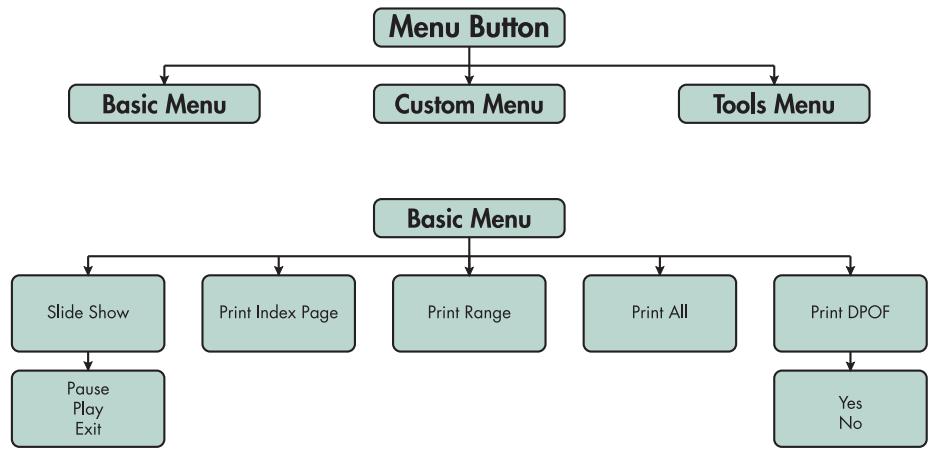
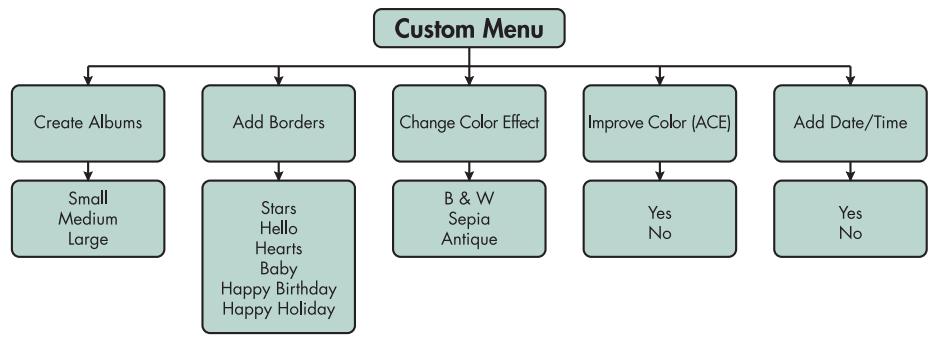
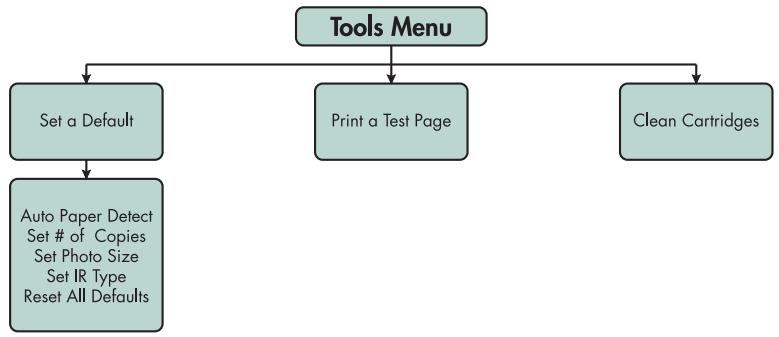
menu map
understanding and adjusting the printer settings
You can use the printer's control panel to adjust the printer settings such as number of copies, image size, date and time stamp, infrared type, paper detection, and default factory settings. For a list of the menu options, see "menu map" on page 17.
The adjustments you make only affect the print jobs created from the printer's control panel, not jobs sent from your computer.
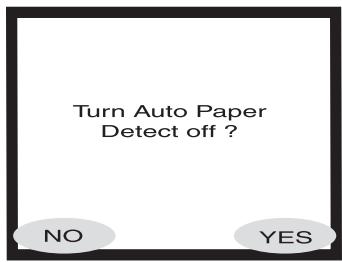
setting the paper detection
Note: By default, the printer automatically detects paper size and type by scanning the paper loaded in the printer. You can also choose to override the automatic detection by manually setting the paper size.
To change the paper detection:
1 Press the Menu button.
2 Press the Right soft key to display the Tools menu.
3 Press the Down arrow to highlight Set a Default.
4 Press the Select button.
5 Press the Down arrow to highlight Auto Paper Detect.
6 Press the Select button.
7 Press the appropriate soft key to select Yes or No.
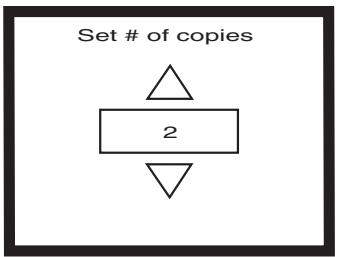
setting the number of copies
You can print a maximum of 99 copies of a photo at a time.
To select the number of copies for printing:
1 Press the Menu button.
2 Press the Right soft key to display the Tools menu.
3 Press the Down arrow to highlight Set a Default.
4 Press the Select button.
5 Press the Down arrow to highlight Set # of copies.
6 Press the Select button.
7 Press the Up or Down arrow to increase or decrease the number of copies.
8 Press the Select button.
setting the photo size
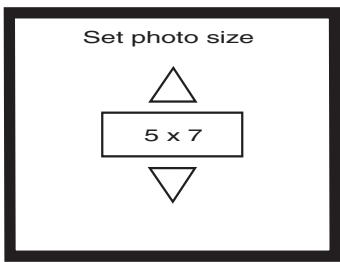
Setting the photo size determines by default how large or small the photo prints on the paper.
To set the photo size:
1 Press the Menu button.
2 Press the Right soft key to display the Tools menu.
3 Press the Down arrow to highlight Set a Default.
4 Press the Select button.
5 Press the Down arrow to highlight Set Photo Size.
6 Press the Select button.
7 Use the Up or Down arrows to navigate through the selections, then press the Select button when the size you want displays on the LCD.
deselecting an image
If you are choosing images to print or save using the printer's control panel, you can deselect one or more selected images without deselecting all the images.
To deselect an image:
1 Press the Right or Left arrow until the image you want to deselect appears on the LCD.
2 Press the Select button. The check mark in the upper right corner of the LCD disappears to indicate the selected image has been deselected.
3 Repeat steps 1 and 2 to deselect other images.
understanding the advanced features of your printer
Your HP PhotoSmart 1315 printer offers a variety of advanced features that make photo projects easy and enjoyable. You can access these features from the printer's control panel or from the printer software.
To learn about the advanced features:
See "getting creative with your printer" on page 31.
- See the Onscreen User's Guide located on the printer software CD for details about printing and saving with a Windows PC or a Macintosh.
printing from the printer's control panel
3
Your HP PhotoSmart 1315 printer allows you to print directly from a memory card or infrared device without being connected to a computer. Your printer also allows you to save photos from a memory card to your computer. For information about saving photos to your Windows PC or your Macintosh, see the Onscreen User's Guide located on the printer software CD.
The printer gives you great printing results automatically by using an optical sensor to detect paper type and size and to select the ideal print mode for most popular papers and films. If you want to override the automatic paper detection, you can manually set the paper type and size. If you want to print photos on 4 × 6 inch (10 x 15 cm) photo paper from the photo tray, check that the photo tray is engaged. See "loading photo paper in the photo tray" on page 9.
deciding which images to print
When you are deciding which images to print, you can use:
- Your printer's color LCD to view image thumbnails (small versions of your images)
- A printed photo index page to see all the images stored on the memory card
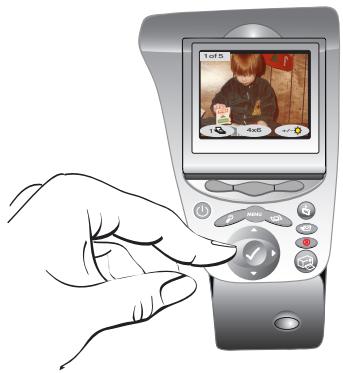
viewing images on the color LCD
Your printer has a color LCD that allows you to view the images stored on your memory card.
To view the images using the LCD:
1 Insert a memory card into the printer.
2 Press the Right or Left arrow to scroll through your images.
printing a photo index page
A photo index page displays thumbnail views of all the images in the order they are stored on the memory card. The photo index page may be several pages long, depending on how many images are stored on the memory card. The index number appears on the lower left corner of each thumbnail. The printer changes the image orientation to accommodate the maximum number of images on each photo index page.
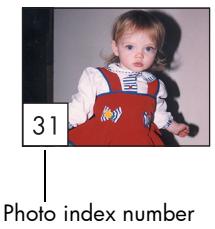
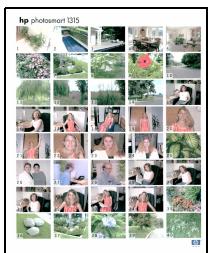
Photo index page
Use the index numbers to decide which images to print. The index number may be different from the number associated with the image in your digital camera. If you add or delete images from your memory card, reprint a photo index page to see the new index numbers.
To print a photo index page:
1 Insert a memory card into the printer.
2 Press the Menu button.
3 Press the Left soft key to display the Basic menu.
4 Press the Down arrow to highlight Print Index Page.
5 Press the Select button.
The printer automatically prints the photo index page.
printing photos from the control panel
Printing photos from a memory card is as easy as inserting the memory card into the printer, selecting the images you want to print, and pressing the Print button. You can print:
Individual or multiple photos.
More than one copy of selected photos.
A continuous range of photos, such as photos 1 through 10.
All the images on the memory card.
- Photos at different sizes.
- Photos from a Digital Print Order Format (DPOF) file.
If you want to print your photos on photo paper, check that the photo tray contains paper and that the tray is engaged, or that the IN tray contains photo paper. See "loading paper" on page 7.
printing individual or multiple photos
When you select multiple images for printing, the printer, by default, automatically arranges the images on the page to fit as many as possible on each sheet of paper. To save paper, some photos may be turned sideways to fit on the page (all photos may not print right side up), the order you selected the images for printing is be ignored, and the photos print from the largest to smallest photo size. The pages with a combination of photo sizes print last.
If you would like to print your photos with a custom layout and the orientation you select, see "printing photo album pages" on page 36.
To print individual or multiple photos:
1 Insert a memory card into the printer.
2 Press the Right or Left arrow until the image you want to print appears on the LCD.
3 Press the Select button. A check mark appears in the upper right corner of the LCD to indicate the image has been selected.
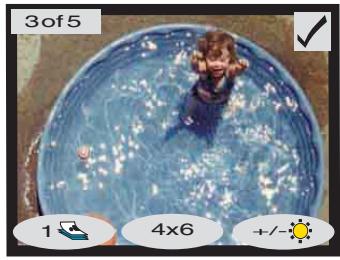
4 To select additional images, press the Right or Left arrow again until the LCD displays the next photo you want to print, then press the Select button. Repeat this step to continue selecting additional images.
Tip: The printer allows you to select up to 2000 images, although the capacity of your memory card determines how many images it can store.
5 Once you have selected all the images you want to print, press the Print button.
printing more than one copy of a photo
You can print more than one copy of a selected photo.
To print more than one copy of a photo:
1 Insert a memory card into the printer.
2 Press the Right or Left arrow until the image you want to print appears on the LCD.
3 Press the Left soft key once for two copies, twice for three copies, and so on until the desired number of copies is displayed on the LCD.
4 Press the Select button.
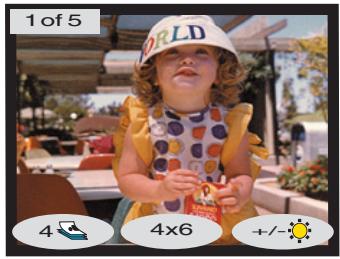
Note: The printer allows you to print a different number of copies for each image stored on the memory card.
5 Press the Print button.
printing a continuous range of photos
You can print a continuous range of images stored on the memory card.
To print a continuous range of images:
Insert a memory card into the printer.
2 Press the Menu button.
3 Press the Left soft key to display the Basic menu.
4 Press the Down arrow to highlight Print Range.
5 Press the Select button.
6 Press the Right or Left arrow until the first image you want to print appears on the left side of the LCD.
7 Press the Select button to set the selected image as the beginning of the range you want to print.
The white arrows move to the image on the right side of the LCD and you are asked to select the end of the range.
8 Press the Right or Left arrow until the last image you want to print appears on the LCD.
9 Press the Select button to set the selected image as the end of the range you want to print.
The LCD displays the photo range.
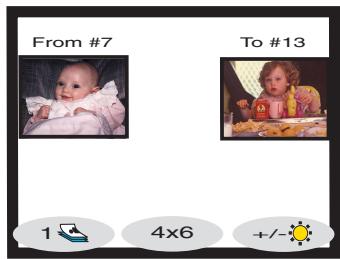
10 Change the number of copies, photo size, and photo brightness of the images you selected.
11 Press the Print button.
printing all photos
You can print all the images on the memory card.
To print all images on the memory card:
1 Insert a memory card into the printer.
2 Press the Menu button.
3 Press the Left soft key to display the Basic menu.
4 Press the Down arrow to highlight Print All.
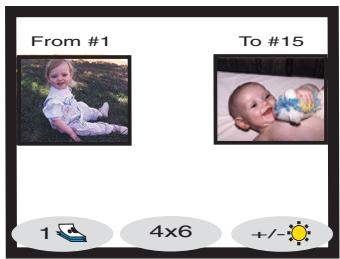
5 Press the Select button. All images are selected.
6 Change the number of copies, photo size, and photo brightness of the images you selected.
7 Press the Print button.
printing photos at different sizes
You can print your photos in multiple sizes. The printer allows you to print each image stored on the memory card at a different size.
To print your photos in different sizes:
1 Insert a memory card into the printer.
2 Press the Right or Left arrow until the image you want to print appears on the LCD.
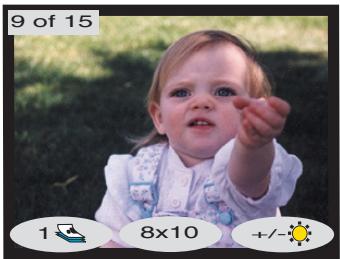
3 Press the Center soft key to change the photo size. A new photo size appears below the photo on the LCD.
4 When the desired photo size appears below the photo on the LCD, press the Select button.
5 Select additional photos and sizes.
6 Press the Print button.
printing using a DPOF file
DPOF files are files you create using your digital camera. DPOF files are stored on the memory card and contain information such as which images are selected and how many of each image are to be printed or saved. The printer can read a DPOF file from the memory card so you don't have to use the printer to re-select the images to print or save. Review your digital camera's documentation to see if it supports DPOF files.
To print using a DPOF file:
1 Select the images you want to print by creating a DPOF file using your digital camera. The settings you can specify (such as number of copies) are specific to your camera. See your digital camera's documentation for details on how to create a DPOF file.
2 Insert the memory card containing the DPOF file into the printer. Your printer automatically recognizes the DPOF file on the memory card and the LCD displays "Print the DPOF photos?"
3 Press the appropriate soft key:
If you select Yes, printing is automatic. All the selected images print in 4 × 6 inch (10 × 15 cm) by default.
If you select No, the LCD returns to the default state and displays the first image stored
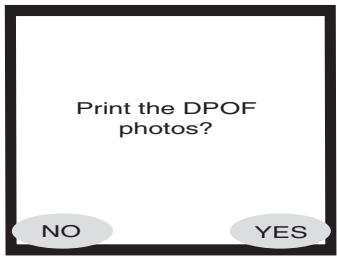
on the memory card. You can access the DPOF later from the Basic menu.
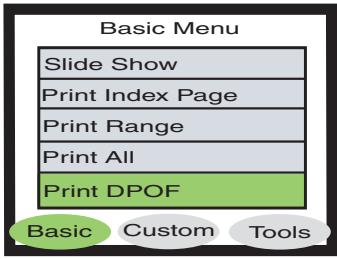
To print using a DPOF from the Basic menu:
1 Make sure a memory card containing a DPOF file is inserted into the printer.
2 Press the Menu button.
3 Press the Left soft key to display the Basic menu.
4 Press the Down arrow to highlight Print DPOF.
5 Press the Select button.
printing files using infrared (IR)
printing a test page
See the Onscreen User's Guide located on the printer software CD for information about printing files using infrared (IR).
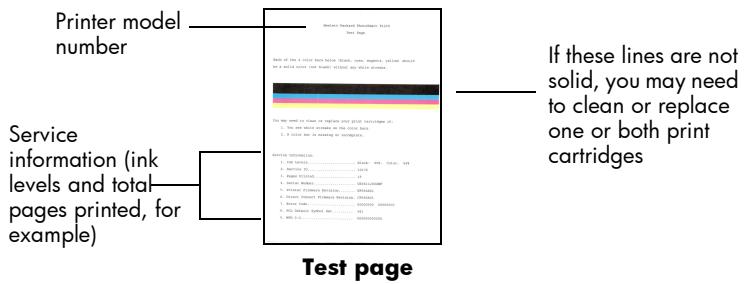
You can print a test page to check your print cartridges and make sure the paper is loaded correctly.
To print a test page:
1 Make sure plain paper is loaded in the IN tray. See "loading paper" on page 7.
2 Press the Menu button.
3 Press the Right soft key to display the Tools menu.
4 Press the Down arrow to highlight Print a Test Page.
5 Press the Select button.
The printer begins printing a test page.
getting creative with your printer
4
Your HP PhotoSmart 1315 printer is designed to make photo projects fun and easy with or without your computer. Your family and friends will enjoy the personalized and unique photo albums you make for them. Crop or adjust the color of your favorite photo. Create black and white photos from your color photos. Email your photos to your family. The affordable projects you can create are endless. Just use your imagination!
From the control panel, you can access the Basic, Custom, and Tools menus and make changes to your images. See the menu map in "understanding the LCD" on page 16 for a list of the menu options.
sending email
Instantly share photos with family and friends anywhere in the world via email.
Note: Your printer has to be connected to your computer and you must have an Internet email account set up to send photos via email.
emailing from a Windows PC
Your printer supports the following email applications running on your Windows PC:
- America Online
Microsoft Outlook
Microsoft Outlook Express 5.02 - Netscape Mail
Eudora
Hotmail
To send photos via email using a Windows PC:
1 Insert a memory card into the printer.
2 Press the Right or Left arrow until the image you want to email appears on the LCD.
3 Press the Email button on the printer's control panel.
The LCD displays the message "Sending..."
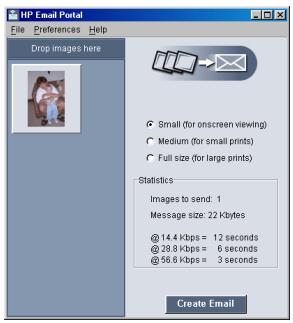
4 When the HP Email Portal dialog box appears on your computer screen, select the resolution, then click Create Email.
The printer sends the photo to your computer and attaches it to a new email message using your default email program.
5 Enter the recipient's email address, a subject for the email, and any message you want to send, then send the email message.
emailing from a Macintosh
Your printer supports the following email applications running on your Macintosh:
Microsoft Outlook Express 5.02 (OS 8.6 and 9 only)
Eudora Pro 5.1
- America Online 5.0 (OS 8.6 and 9 only)
Microsoft Entourage 9.0 Office 2001 (OS 8.6 and 9 only)
- CTM PowerMail (OS 9 and X only)
Apple OS X Mail 1.0
There are several ways to send images via email. One way is to use your printer's control panel.
To send images via email using your printer's control panel:
1 Insert a memory card into the printer.
2 Press the Right or Left arrow until the image you want to email appears on the LCD.
3 Press the Email button on the printer's control panel.
The LCD displays the message "Sending..." and the HP Photo Mailer window appears on your computer screen. The image you selected to email appears in the left side of the Photo Mailer window.
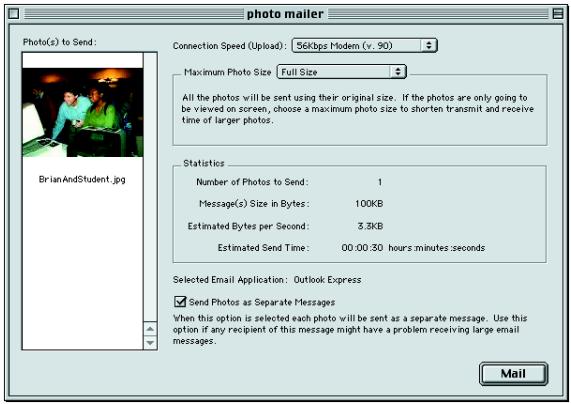
4 Use the drop-down menus and check box to:
- Select the Connection Speed for your Internet connection.
- Select the Maximum Photo Size.
- Select Send Photos as Separate Messages if you want each photo to be sent in a separate message.
5 Click Mail.
The printer sends the photo to your computer and attaches it to a new email message using your default email program.
6 Enter the recipient's email address, a subject for the email, and any message you want to send, then send the email message.
adding borders to your photos
Your printer allows you to add borders to the photos stored on your memory card quickly and easily. Choose from the six border options and add a special touch to your photos before giving them to your family and friends.
To add borders to your photos:
1 Insert a memory card into the printer.
2 Press the Right or Left arrow until the image you want to add a border to appears on the LCD.
3 Press the Menu button.
4 Press the Center soft key to display the Custom menu.
5 Press the Down arrow to highlight Add Borders.
6 Press the Select button.
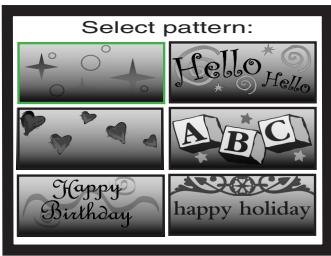
7 Select from the border options displayed on the LCD by using the Up, Down, Left, or Right arrows, then press the Select button:
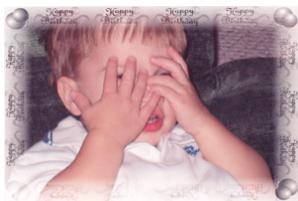
Happy Birthday shows balloons and a birthday greeting
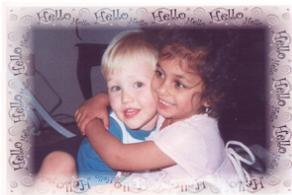
Hello places a friendly greeting
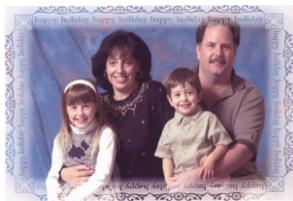
Happy Holiday frames the photo with a friendly holiday wish
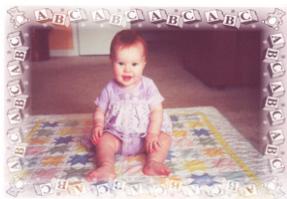
Baby places teddy bears and ABCs along the perimeter
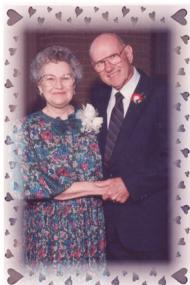
Hearts places a border of hearts
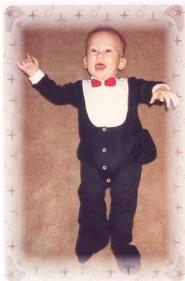
Stars displays a border of stars
8 When the photo appears on the LCD with the selected border, press the Select button.
9 Press the Print button.
printing photo album pages
You can manually select how images will be arranged on the page and then print photo album pages. The arrangement of the photo album page depends on the photo orientation, the order you select the photos for the album page, and the photo album page layout you select.
The three photo album page layout options are as follows:
- Small prints up to six photos per album page
Medium prints up to four photos per album page
Large prints up to two photos per album page
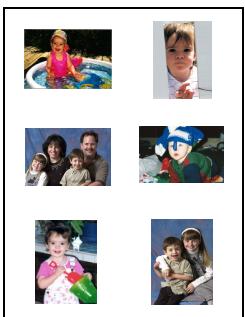
Small
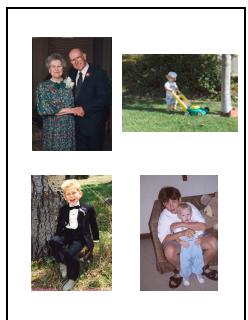
Medium
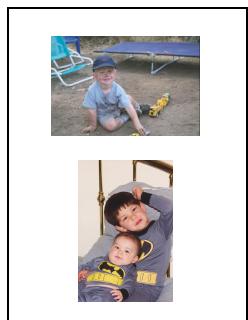
Large
Note: If you have a Windows PC, you can also print photo album pages from the printer software. See the Onscreen User's Guide located on the printer software CD for details.
To print an album page:
1 Insert a memory card into the printer.
2 Press the Menu button.
3 Press the Center soft key to display the Custom menu.
4 Press the Down arrow to highlight Create Albums.
5 Press the Select button.
6 Press the appropriate soft key to select the Small, Medium, or Large layout option.
The selected layout option appears on the LCD beside a thumbnail of the current image on the memory card.

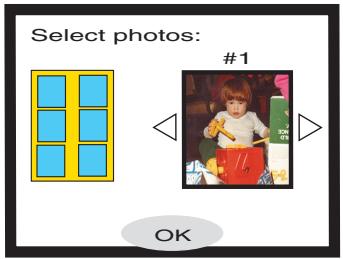
7 Press the Right or Left arrow until the first image you want to place on the album page appears on the LCD.
8 Press the Select button to select the image for the album page.
9 Repeat steps 7 and 8 until all the frames on the album page are full or you have selected as many images as you want to print. OK
10 Press the Center soft key to select OK and review your page setup.
A preview of your album page appears on the LCD.
11 Press the Print button.
Note: It is not necessary to fill all the frames on an album page to print the page or set up more album pages.
cropping a photo
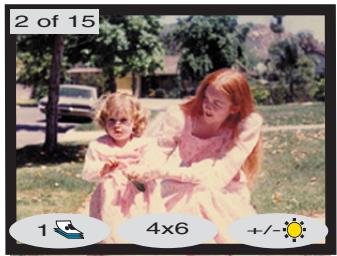
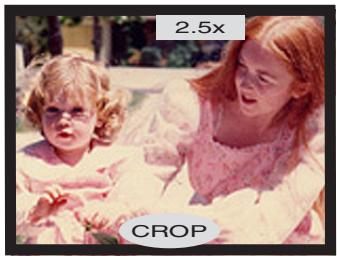
Your printer can crop a photo to show only the desired part of the image or to adjust the size of the image. Your printer must be in zoom mode to crop a photo.
To crop and print a photo:
1 Insert a memory card into the printer.
2 Press the Right or Left arrow until the image you want to crop appears on the LCD.
3 If you want to change the printed photo size, press the Center soft key to select a photo size.
4 Press the Zoom button repeatedly until the image appears in the zoom percentage you want.
Note: Pressing the Zoom button five times returns the LCD to the idle state.
5 Use the Up, Down, Left, and Right arrows to move to the portion of the image you want to print.
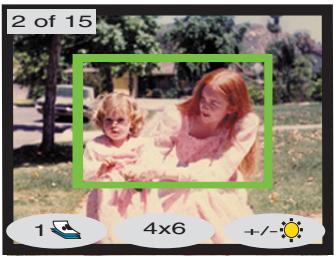
6 Press the Center soft key to apply the crop command. The entire photo appears on the LCD with a green rectangle indicating the area that will print.
7 Press the Select button to select the cropped photo for printing.
8 Press the Print button.
adjusting the photo brightness
You can adjust the relative brightness of your images before printing.
To adjust the image brightness:
1 Insert a memory card into the printer.
2 Press the Right or Left arrow until the image you want to adjust appears on the LCD.
3 Press the Right soft key.
A column of ovals appears to the right of the image to indicate the current brightness. If you do not select the brightness within seven seconds, the LCD returns to the idle state.
4 Press the Up or Down arrows to adjust the level of brightness.
Note: As you move up the column of circles, the photo appears brighter and as you move down the column the photo appears darker.
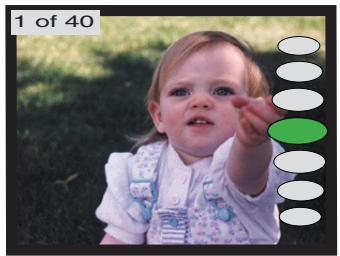
5 When the image appears in the desired brightness, press the Select button.
6 Press the Print button.
changing the photo color effect
When printing from the control panel, you can set the printer to convert color images to print in Black & White, Sepia, or Antique. Photos printed in Sepia print in brown tones similar to photos produced in the early 1900s. Photos printed in Antique print in the same brown tones as Sepia but with some pale colors added to give the appearance that they are hand tinted.
To print a photo in Black & White, Sepia, or Antique:
1 Insert a memory card into the printer.
2 Press the Right or Left arrow until the image you want to adjust appears on the LCD.
3 Press the Menu button.
4 Press the Center soft key to display the Custom menu.
5 Press the Down arrow to highlight Change Color Effect.
6 Press the Select button.
7 Press the appropriate soft key to display the image in the selected color effect.
8 Press the Select button twice to display a check mark in the upper right hand corner of the LCD.
9 Press the Print button.
Note: After you finish printing the photo, the photo color setting returns to the default setting, Color. If you want to continue printing in Black & White, Sepia, or Antique, change the photo color setting before each print job.
improving the photo color
Using HP's Automatic Color Enhancement (ACE) technology, your HP PhotoSmart 1315 printer can automatically enhance the color of images that are underexposed.
Note: This setting only applies to the image displayed on the LCD. To improve the color of additional images, repeat these steps.
To improve the color of a photo:
1 Insert a memory card into the printer.
2 Press the Right or Left arrow until the image you want to adjust appears on the LCD.
3 Press the Menu button.
4 Press the Center soft key to display the Custom menu.
5 Press the Down arrow to highlight Improve Colors (ACE).
6 Press the Select button.
7 Press the appropriate soft key to select Yes or No.
8 Press the Print button.
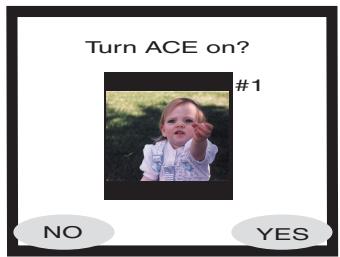
Note: You can also adjust your images from your computer. See the Onscreen User's Guide located on the printer software CD for more information.
making greeting cards and calendars
If you have a Windows PC, you can create colorful greeting cards and calendars using the extra software included with the printer. Use the templates provided in the software to create cards and calendars, or customize the templates to design your own.
Special HP papers for cards and calendars can be found at most computer and office supply stores or on the Web at www.hpshopping.com (US only).
troubleshooting
5
Your HP PhotoSmart printer is designed to be reliable and easy to use. The following pages offer tips and advice for addressing frequently asked questions. Before you begin, make sure:
- All the cable connections between your printer and computer are secure.
- You are using the correct cable for your operating system. For more information, see "cables" on page 3.
Find answers to your questions quickly on the following pages:
Windows is displaying a "connection lost message."
See "important Windows PC information" on page 44.
The printer software will not install.
See "software problems" on page 45.
The printer is connected through USB and is having problems.
See "USB connection problems" on page 47.
The printer is very slow.
See "printer problems" on page 50.
- Photos are not printing correctly.
See "print quality problems" on page 56.
There is an error message on the printer's LCD.
See "error messages" on page 57.
important Windows PC information
If you are using your HP PhotoSmart printer with a Windows PC, the printer requires a continuous connection to the computer. The computer uses this communication link to access and read the status of memory cards in the printer, as well as print cartridge ink levels, and other feedback from the printer.
If the connection between your Windows PC and your HP PhotoSmart printer has been lost, a warning message appears on your computer screen.
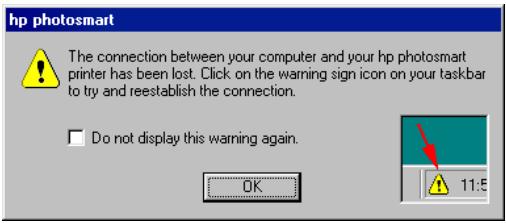
- The computer might not be plugged into the printer or the power source. Try checking the printer's power and computer cables.
- Using hubs or docking stations that can have multiple devices connected to them can temporarily break the connection to the printer while the other devices are being accessed. Wait until the other device is no longer being accessed, or try connecting the printer directly to the computer.

Your Windows Taskbar will display the Yellow Caution icon whenever a connection is broken.
- Click the icon and select Connect to try to re-establish a connection.
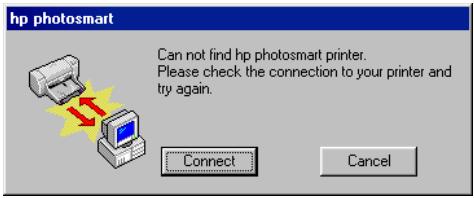
Note: If you want the connection to remain broken, click Cancel. When you are ready to re-connect, click the Taskbar icon and select Connect.
Additional messages will appear while the computer tries to establish the connection to the printer. When this is finished, one of the following messages may appear:
- Found hp photosmart printer - Printing and card access are now available.
- Cannot find the hp photosmart printer - Printing may be available but card access is NOT available.
software problems
| Problem | Possible cause | Solution |
| I inserted the printer software CD, but the computer could not read it. | The CD was not properly installed. OR The CD-ROM drive may be damaged. OR The CD may be damaged. | 1 Reinsert the CD and try again. 2 Try inserting a CD you know works. If that CD does not work, you may need to service your CD-ROM drive. 3 If other CDs work but the printer software CD does not work, you may have a damaged CD. You can download the printer software from the HP Web site or call the software distribution center. See the Services and Support booklet that came with your printer. |
software problems (continued)
| Problem | Possible cause | Solution |
| The software did not install correctly. OR You need to uninstall the printer software for any reason. | There may be a conflict with your virus protection program. OR There may be a conflict with another software program. OR There may be a conflict with another device already connected to the computer. | Windows PC 1 Uninstall the printer software. Insert the printer software CD into your computer, click Remove HP PhotoSmart software, then follow the instructions on your computer screen. 2 When the uninstall is completed, shut down Windows, turn the computer OFF and then turn it back ON. 3 Close any active virus protection programs. 4 Reinstall the printer software. See the Setup Guide for instructions. Macintosh 1 Uninstall your printer software. Insert the printer software CD into your computer, select Uninstall from the Installer, then follow the instructions on your computer screen. 2 Close any active virus protection programs. 3 Exit all software programs. 4 Reinstall the printer software. |
USB connection problems
| Problem | Possible cause | Solution |
| My printer is connected with a USB cable through another USB device or a hub and when I try to print I get a message saying “There was an error writing to <name of USB port>.” | Your printer may not be getting good data from the other device or hub. OR Two-way communication between the printer and the computer was interrupted by another device attached to the hub. | Connect the printer directly to the USB port on the computer. Try disconnecting other USB devices from the hub and print your document again. |
| The USB cable is too long. | See “Specifications” on page 64 for the supported USB cable length and make sure you are using a supported length. | |
| I have connected my printer using a USB cable, and when I try to print I get a message saying “There was an error writing to Dot4.” (Windows PC only) | There is a problem with the USB connection. | Unplug the USB cable from the computer, then plug it in again. Restart your computer. |
| When I connect a USB cable between the printer and my computer, the “New Hardware Wizard” message does not appear.(Windows PC only) | You may not be using Windows 98, 2000, Me, or XP. | Make sure your computer’s operating system is Windows 98, 2000, Me, or XP and that your computer is connected using a USB cable. |
| Your USB cable may not be working or may not be connected properly. | 1 Disconnect and then reconnect the USB cable from your printer. 2 Make sure the cable is securely attached both to the computer and to the printer. 3 If you are still having problems, try using another USB cable. | |
| The USB cable is too long. | See “Specifications” on page 64 for the supported USB cable length and make sure you are using a supported length. | |
| You may not have USB enabled. | 1 In Windows 98, 2000, Me, or XP, click Start, Settings, Control Panel. 2 Double-click the System icon. 3 Click the Device Manager tab. 4 Click the (+) icon next to the Universal Serial Bus Controller option. If you see a USB host controller and a USB root hub listed, USB is probably enabled. If you do not see these devices listed, refer to your computer’s documentation or contact the computer manufacturer for more information on enabling and setting up USB. OR 1 Unplug the printer’s power cord. 2 Plug the power cord back into the printer. If you cannot enable USB, you can use a parallel cable to connect your printer to your computer. |
USB connection problems (continued)
| Problem | Possible cause | Solution |
| When I connected a USB cable between the printer and my computer, the "New Hardware Wizard" message appeared once, but the printer did not install. Now the "New Hardware Wizard" will not appear again. (Windows PC only) | Installation was not completed, it was cancelled, or there was an error. | 1 Disconnect the USB cable from your computer and then reconnect it.2 Remove the printer software and then reinstall it. • Insert the printer software CD into the computer. • Click Remove HP PhotoSmart software. • Follow the instructions on your computer screen to uninstall the software. • When the uninstall is completed, turn the computer OFF and then ON again. • Reinstall the printer software. |
| When I connect a USB cable between the printer and my computer, an "Unknown device" message appears. (Windows PC only) | Static electricity has built up in the cable between your computer and printer. OR You may have a defective USB cable. OR The software could not identify the new printer; the printer-USB connection may be defective. | 1 Disconnect the USB cable from your printer.2 Disconnect the power cord from the printer.3 Wait approximately 30 seconds.4 Plug the power cord back into the printer.5 Plug the USB cable back into the printer.6 If "Unknown device" continues to appear in the "New Hardware Wizard" dialog box, check the Web for updates or contact HP Services and Support. See the Services and Support booklet that came with your printer for contact information. |
primer problems
| Problem | Possible cause | Solution |
| The printing is very slow. (continued on next page) | Your computer may have less than the recommended system requirements. | Check the amount of free RAM (memory) and processor speed in your computer. See "specifications" on page 64 for system requirements. |
| Too many software programs may be running at the same time. | Close all unnecessary software programs. | |
| You may be using outdated printer software. | Check the printer driver you are using. Check HP's Web site for the most recent software updates. See the Services and Support booklet for a list of Web site addresses. | |
| You may be printing a complex document containing graphics or photographs. | Free up some space on your hard disk. Having less than 100MB of free space of your computer's hard disk can mean longer processing time. Be patient. Large, complex documents containing graphics or photographs print slower than text documents. |
printer problems (continued)
| Problem | Possible cause | Solution |
| The printing is very slow. | You may have chosen 2400 x 1200 dpi. OR You may be trying to print a high resolution photo. | Windows PC • In printer Properties, in Photo Paper Printing, select PhotoREt instead of 2400 x 1200 dpi, then print your document again. Macintosh 1 On the Paper Type/Quality panel, select Best quality instead of High Resolution Photo. 2 Try printing again. |
| You may be using a USB hub and other USB devices are in use. | • Attach the printer's USB cable directly to the computer rather than to a hub. • Avoid using other devices attached to a hub while printing. | |
| The Paper Type option may be set to Automatic. | When the paper type is set to Automatic, the printer scans the paper to determine the appropriate paper type. This may take a few extra seconds. To avoid this, select a specific paper type before printing. Windows PC • Select the appropriate paper type on the Setup tab of printer Properties. Macintosh • Select the appropriate paper type on the Paper Type/Quality panel of the Print dialog box. |
printer problems (continued)
| Problem | Possible cause | Solution |
| The printer will not turn on. | The printer may have drawn too much power. | Disconnect the printer from the power cord for approximately 10 seconds. Reconnect the power cord and press the Power button to turn on the printer. |
| The printer is plugged into a power strip and the power strip is turned off. | Turn on the power strip. | |
| The Power light is blinking (green). | The printer may be processing information. | Be patient. The printer needs some time to finish processing the information. |
| The Power light is blinking (amber). | The printer needs attention. | Read the printer LCD for instructions. |
| The Power light is blinking (red). | A fatal error has occurred. | 1 Unplug the printer's power cord, wait one minute, then plug it in again. 2 If this doesn't work, call HP Services and Support. See the Services and Support booklet that came with your printer for a list of contact numbers. |
| Paper falls to the floor after printing. | The OUT tray extension may not be pulled out. | Gently pull out the OUT tray extension. When your print job finishes, push the OUT tray extension back into its storage slot. |
| The connection icon appears in the taskbar. (Windows PC only) | There is a connection or communication problem between the printer and the computer. | Click the connection icon, then click Connect in the dialog box. If there is still a connection problem, check that the connection cable is securely attached both to the computer and to the printer. |
| The printer cannot recognize the file on the memory card. | Your memory card contains file types the printer cannot read. | Set your camera to save the file types the printer supports. See “Specifications” on page 64 for a list of supported file types, and see your camera's documentation for instructions on setting your camera to save specific file types. |
printing problems
| Problem | Possible cause | Solution |
| No page came out of the printer. (continued on next page) | The printer needs attention. | Read the printer LCD for instructions. |
| Power may be off or there may be a loose connection. | 1 Make sure the power is on. 2 Make sure that all cable connections are secure. | |
| You may not have any paper in the paper tray. | Check that paper is loaded correctly in the paper tray. See “loading paper” on page 7 for paper loading instructions. | |
| The printer's top cover may be open. | Close the printer's top cover. | |
| A problem may exist with one of the print cartridges. | Print a test page and replace the print cartridges if necessary. | |
| The printer may still be processing information. | See “The printing is very slow.” on page 50. |
printing problems (continued)
| Problem | Possible cause | Solution |
| No page came out of the printer. (continued on next page) | There may be a paper jam. | Check the printer's LCD for instructions. Remove the paper from the paper tray or the OUT tray. If you were printing labels, make sure a label did not become unglued from the label sheet while going through the printer. If the paper jam has cleared, print your document again. If the paper jam has not cleared, try removing the rear access door. 1 Unplug the printer, open the rear access door by turning the knob counterclockwise, and remove the door. 2 Gently pull the jammed paper out of the printer, then replace the rear access door. 3 Plug the printer back in and turn it on. 4 When you have cleared the paper jam, print your document again. |
| No page came out of the printer. (Macintosh only) | Not enough memory is allocated in the System's PrintMonitor application. | Allocate more memory to the application in the Get Info dialog box. |
| A blank page came out of the printer. | You may be out of ink. | Print a test page, and if it is necessary, replace the print cartridge. |
| You may have forgotten to remove the plastic tape from the print cartridge. | Make sure you have removed the protective piece of plastic tape from each of the print cartridges. | |
| You may be trying to print a fax. | 1 Save the fax in a graphic format, such as TIFF. 2 Place it in a word processing document and print it from there. | |
| You may have previously begun a print job and then cancelled it. | If you cancel a print job before the file has printed, the printer may have already loaded paper in preparation for printing. When you start the next print job, the printer ejects the blank page before continuing with the current job. | |
| The document did not print using the selected default print settings. | The printer's default print settings may be different from the application's print settings. In this situation, the application's print settings will be used. | Select the appropriate print settings within the application. |
| The date and time stamp did not appear on the printed photo. | The date and time stamp was never created by your camera. OR You accessed the photo file containing a date and time stamp from the computer. | Use a photo that contains a date and time stamp set by your camera and access it directly from the printer's control panel, not the computer. |
| Automatic is set as the paper type, but when preparing to print, the printer ejects the paper. | The printer may be placed in direct sunlight, overwhelming the Automatic Paper-Type Sensor. | Move the printer out of direct sunlight. |
print quality problems
| Problem | Possible cause | Solution |
| The document printed at an angle or is off-center. | Paper may not be loaded correctly. | 1 Make sure the paper is correctly oriented in the paper tray. 2 Make sure the paper guides fit snugly against the paper. |
| Print quality is poor. | You may be running out of ink. | • Print a test page to determine if you are running out of ink and replace the print cartridge if necessary. |
| You may not be using the best paper type for your output. | • Make sure you are using a paper type intended for the printer. • Choose paper that is specifically designed for the output (photographs, transparencies, etc.) rather than plain paper. | |
| You may be printing on the wrong side of the paper. | Make sure the paper is loaded print side down. | |
| You may need to clean the print cartridges. | See the Onscreen User's Guide for information about how to clean the print cartridges. | |
| Photos are not printing correctly. | You may not have inserted the photo paper correctly. | Insert the photo paper print side down. |
| The photo paper may not be inserted properly. | 1 Insert the photo paper as far as it will go into the paper tray. 2 Make sure that the paper guides rest snugly against the photo paper. | |
| The print quality is different if the paper type is set to Automatic rather than the specific paper type. | When the paper type is set to Automatic, the print quality is automatically set to Normal. When the paper type is set to a specific paper type, the default print quality may be different. | Windows PC • Select the appropriate paper type on the Setup tab of printer Properties, then choose the desired print quality. Macintosh • Select the appropriate paper type on the Paper Type/Quality panel of the Print dialog, then choose the desired print quality. |
print quality problems (continued)
| Problem | Possible cause | Solution |
| Automatic is set as the paper type, but the printer does not use the optimal print mode. | The paper may be marked, scratched, or wrinkled. OR The paper may be dark in color or contain metallic fibers. | If the paper is damaged in any way, the sensor may not detect paper type and size accurately. Make sure the paper is clear and free of scratches or wrinkles. Windows PC • Select the appropriate paper type on the Setup tab of printer Properties. Macintosh • Select the appropriate paper type on the Paper Type/Quality panel of the Print dialog box. |
| The paper may be letterhead or stationery with a preprinted pattern at the top edge. | Change the paper type detection from Automatic to Manual. |
error messages
paper errors
| LCD Message | Problem | Solution |
| Paper is too small. Choose a larger paper size. Press OK. | The paper size is too small to print the job selected. | • Load larger paper and press OK (Right soft key) to continue printing. OR • Choose Cancel (Left soft key). |
| Wrong paper size. Cropping may occur. Press OK to continue or Cancel the job. | The size of paper does not match the specified size. | • Press OK (Right soft key) to continue the print job. If the paper is smaller than the specified size, data might be cropped to fit the page. OR • Load correctly sized paper and press OK (Right soft key) to continue printing. OR • Choose Cancel (Left soft key). |
auto-detect errors
| LCD Message | Problem | Solution |
| Media scan failed. Press OK to retry or Cancel the job. | The auto-detect scanner failed. | Try to print again. OR Turn off Auto Paper Detect and manually select the paper type and size when the printer prompts you. See “setting the paper detection” on page 18. |
| Unsupported media size. Job was cancelled. Press OK. | An unsupported paper size is loaded in the paper tray. | Press OK (Right soft key), load supported media size, then retry the print job. |
| Paper size mismatch. Load correct paper size. Press OK or Cancel the job. | Your paper size was changed in the middle of the print job. | Load the correct size of paper. |
print cartridge errors
| LCD Message | Problem | Solution |
| Print cartridges failed. Replace both cartridges. | Both print cartridges have failed. | Replace both cartridges with the correct HP print cartridges. |
| Black ink is low. You may need to replace it soon. | Your black print cartridge is low on ink. | Replace the black print cartridge with an HP #45 print cartridge. |
| Color ink is low. You may need to replace it soon. | Your color print cartridge is low on ink. | Replace the color print cartridge with an HP #78 print cartridge. |
memory card errors
| LCD Message | Problem | Solution |
| Use only one card. Please remove a memory card. | Your printer has more than one memory card inserted. | Remove the unused memory card. |
memory card errors (continued)
| LCD Message | Problem | Solution |
| Memory card in backwards. The front label should face you. | Your CompactFlash, IBM Microdrive, or Memory Stick memory card has been inserted backwards. | Remove the memory card and reinsert it with the front label facing you. |
| Memory card in backwards. Black side should face you. | Your SmartMedia memory card has been inserted backwards. | Remove the memory card and reinsert it with the black side facing you. |
| Card is not fully inserted. Push card in a little more. | Your memory card is not inserted fully into the printer. | Push the memory card into the slot firmly. |
| Card was removed. Job was cancelled. Press OK. | Your memory card was removed from the printer while you were trying to access it without the computer. | Reinsert the card and try the job again. |
| Card was removed. Job was cancelled. See computer for details. Press OK. | Your memory card was removed from the printer while you were trying to access it using the computer. | Reinsert the card and try the job again. |
| File directory structure is corrupted. | The file directory structure is corrupted and cannot be accessed. | Download the files to your computer using your digital camera. OR Use another memory card. OR Reformat the memory card. |
memory card errors (continued)
| LCD Message | Problem | Solution |
| Photo is corrupted. | The printer detects that a file specified in the job is corrupted and cannot be accessed. | See the printer's user manual for information about supported file types. Press OK (Right soft key). The printer may not print the file or it may not print the file correctly. OR Press Cancel (Left soft key) to cancel the print job. OR If you are printing from a memory card, try saving the file from the memory card to your computer, and then print the file from your computer software. OR If a photo is missing, check that you have not accidentally deleted the photo from the memory card. |
| Some photos are corrupted. | The printer detects that more than one file specified in the job is corrupted and cannot be accessed. | |
| Photo type is not supported. | The file specified for the job is not of a supported file type. | |
| Photo is missing. | A photo specified for the job is missing from the memory card. | Make sure that you have not accidentally deleted any photos from the memory card. Print a new photo index page to see the index number associated with each photo. |
| Some photos are missing. | More than one photo specified for the job is missing from the memory card. | |
| Cannot print photos. | Some files specified for the print job have errors (corrupt, missing, or are unsupported file types). If there are more than 10 errors the printer will cancel the print job. | Select other photos and restart the print job. |
memory card errors (continued)
| LCD Message | Problem | Solution |
| Card may be damaged. | The printer cannot access the memory card. | Try downloading the photos or files to the computer directly from your digital camera, then print from the computer. OR Use another memory card. OR Reformat the memory card. |
| Card may be damaged. Job was cancelled. Press OK. | The printer cannot access the memory card and the print job has to be cancelled. | |
| Card access error. Job was cancelled. Press OK. | The printer cannot access the files on the memory card and the print job has to be cancelled. | |
| Some photo #s are not on card. Job was cancelled. Press OK. | The printer detected that some of the specified photos were not on the card. | Make sure that you have not accidentally deleted any photos from the memory card. Print a new photo index page to see the index number associated with each photo. |
| Some photo #s are not on card. Check the DPOF file. Press OK. |
email errors
| LCD Message | Problem | Solution |
| Email error...unable to send. | The card was removed from the printer as the computer was trying to access it. OR The computer cannot access the selected file because it has been deleted from the memory card. OR The file on the memory card is corrupted. | 1 Remove the memory card from the printer, then reinsert it. 2 Resend the photo to the computer. |
email errors (continued)
| LCD Message | Problem | Solution |
| No response from computer. | The printer cannot communicate with the computer because the computer is not connected or the emailing software that came with your printer is cannot be accessed at the moment. | Verify that the computer is on, the cable is connected, and the emailing software is running. |
specifications
6
system requirements
Windows PC
| Component | Minimum |
| Operating system | Windows 98, Me, 2000, XP |
| Processor | Pentium 233 MHz |
| RAM | 64 MB |
| Free disk space | 250 MB |
| Video display | 800x600, 16-bit or higher |
| CD-ROM drive | 4x or better |
Macintosh
| Component | Minimum |
| Operating system | Mac OS 8.6 or higher |
| Processor | G3 or G4 with built-in USB port (PCI USB ports not supported) |
| RAM | 64 MB |
| Free disk space | 200 MB |
| Video display | 800x600, 16-bit or higher |
| CD-ROM drive | 4x or better |
specifications
| Paper Trays | One letter-size tray, one 4 x 6 inches (10 x 15 cm) photo tray |
| Input Capacity | 100 sheets letter, 20 sheets 4 x 6 inches (10 x 15 cm) photo, 15 envelopes, 20 banners, 30 cards, 25 transparencies, 20 sheets of labels |
| Output Capacity | 60 to 70 sheets |
| Two-Sided Printing | With optional Automatic Two-Sided Printing Module (HP C6463A); supports plain paper only |
| Media Types | Paper (plain, inkjet, photo, and banner), envelopes, transparencies, labels, cards (index, greeting), iron-on transfers |
| Media Sizes, Standard | Paper: Letter, legal, executive (3 x 3 inches to 8.5 x 14 inches, 4 x 6 inches), photo (76 x 76 mm to 216 x 356 mm, 102 x 152 mm); European A4 (210 x 297 mm) Envelopes: US No.10 (4.124 x 9.5 inches, 105 x 241 mm); A2 Invitation (4.375 x 5.75 inches, 111 x 146 mm); European DL (220 x 110 mm); European C6 (114 x 162 mm) |
| Media Sizes, Maximum | Recommended maximum weight: 16-24 lb. (60-90 g/m2) Recommended maximum length: 14 inches (356 mm) Recommended maximum thickness: 0.011 inches (.3 mm) |
| Memory | 16 MB |
| Memory Card Compatibility | Memory cards up to 527 MB: CompactFlash Type I & II, IBM Microdrive, SmartMedia, Memory Stick |
| Memory Card Supported File Formats | Printing directly from the printer: JPEG (baseline), uncompressedTIFF (RGB and YCbCr), and DCF files created by a digital camera Printing and saving using the computer: all file types |
| Connectivity, Standard | Bi-directional IEEE 1284-compliant; USB 1.1 for Windows 98, 2000, Me, XP, and Mac OS 8.6 or higher only (no longer than 15 feet; 5 meters) |
| Connectivity, Optional | HP JetDirect External Print Servers; 70x, 75x, 170x, 175x (Windows PC); wp100 (Macintosh); 175 x, 300x, 500x, wp110 (Windows PC and Macintosh) |
| Infrared Protocols Supported | HP JetSend, OBEX, IrLPT |
| Print Quality, Black | 600 dpi with REt (Resolution Enhancement Technology) |
| Print Quality, Color | HP PhotoREt III (up to 2400 x 1200 dpi) |
| Technology, Color | HP PhotoREt III, HP ColorSmart III, HP SmartFocus, Automatic Contrast Enhancement |
Print Technology
Drop on-demand thermal inkjet printing
Print Cartridges
1 black HP #45 (51645), 1 color HP #78 (C6578)
Prints Color
Yes
Print languages
HP PCL 3 enhanced
Dimensions
17 × 8 × 15 inches (440 × 204 × 375 mm)
Weight
14 lb (6.5 kg)
USB Support
USB 1.1 (Windows 98, 2000, Me, XP, and Mac OS 8.6 or higher only); no longer than 15 feet (5 meters)
index
A
Accessories 3
cables 3
HP custom paper 3
memory cards 3
Album pages 36
Antique photos 40
B
Black & white
changing photos to 40
Blinking lights 52
Borders, adding to photos 34
Brightness of photos 39
Buttons, control 6
C
Cables
required for the printer 3
Calendars 42
Canceling selected photos 19, 20
Captions, adding to photos 34
Card slots
indicator lights 15
locations 4
Color
adding effects 40
improving for photos 41
troubleshooting 56
CompactFlash memory cards 12
Connecting the printer
types of cables needed 3
Control panel
buttons, see inside front cover
illustration 6
indicator lights 15
printing from 21
saving from 21
selecting photos 24
Copies
printing several of one photo 25
setting a default number 19
Creative printing 31
Cropping photos 38
D
DPOF files
defined 24
printing 28
E
Effects
adding color 40
button 6
sending photos 32
supported applications 32
Envelope slot 4
Error messages 44, 57
F
Flashing lights 52
Front panel
see Control panel
G
Greeting cards 42
H
HP custom paper 3
1
IBM Microdrive memory card 12
Image size
setting the default 19
IN tray
adjusting the paper guides 8
loading paper 8
location 4
Indicator lights 15
Infrared printing 29
Inserting
memory cards 13
print cartridges 10
L
Laying out photo pages 36
LCD
error messages 57
positioning 16
understanding 16
viewing photos 22
Lights 15
Loading paper
IN tray 8
overview 7
photo tray 9
M
Macintosh
supported email applications 33
system requirements 63
type of cable needed to connect to 3
viewing the Onscreen User's Guide 1
Memory card slots
indicator lights 15
locations 4
Memory cards
CompactFlash 14
IBM Microdrive 14
inserting 13
Memory Stick 15
overview 12
printing DPOF files 24
selecting photos to print 24
SmartMedia 14
types 3, 12
understanding 12
Memory Stick 12, 15
Menu map 17
N
Numbering of photos 22
0
Onscreen User's Guide 1
OUT tray
location 4
P
Page layout, selecting 36
Paper
HP custom 3
jams,clearing 54
loading 7
loading a stack 8
loading in the IN tray 8
loading in the photo tray 9
size 18
type 18
types you can use 7
Paper guides
adjusting 8
locations 4
Paper tray
see IN tray
PC
see Windows PC
Photo index page
printing 23
Photo tray
disengaging 8, 9
engaging 9
loading paper 9
location 4
slider 4
Photos 24, 26, 27
adding borders 34
brightness 39
cancelingsection19,20
choosing 22
color effects 40
cropping 38
improving color 41
printing album pages 36
printing multiple copies 25
selecting page layout 36
selecting using the control panel 24
sending by email 32
setting the default size 19
troubleshooting printing issues 56
viewing 22
Power
button 6
light 15, 52
Print button 6
Print cartridges
installing 10
Print quality, troubleshooting 56
Print size
changing 27
Printer
buttons 6
controls 6
features 2
LCD 6
lights 15
parts 4
required cables 3
setting up 1
specifications 64
Printer settings
adjusting 18
Printing
adding color effects 40
adjusting the photo brightness 39
calendars 42
creative projects 31
DPOF files 28
from the control panel 21
greeting cards 42
improving color 41
infrared 29
multiple copies of photos 25
photot index page 23
selecting photos 24
test page 29
printing a range 26
printing all 27
printing multiple 24
Proof sheet
see Photo index page
R
Requirements
cables 3
Macintosh 63
memory cards 3
Windows PC 63
RE† 64
s
Save button 6
Saving
from the control panel 21
Select button 16, 31
Selecting
page layout 36
photos using a photo index page 23
photos using the control panel 24
using the Select button 16
Sending photos by email 32
Sepia photos 40
Setting up the printer 1
Settings
adjusting 18
Setup
installing print cartridges 10
items you will need 3
loading paper 7
SmartMedia memory cards 12
Soft keys 6
Software
troubleshooting installation problems 46
uninstalling 46
Specifications 64
System requirements
Macintosh 63
Windows PC 63
T
Test page, printing 29
Troubleshooting
CD problems 45
photo printing 56
print quality problems 56
printing problems 50
software installation 46
USB problems 47
viewing the Onscreen User's Guide 1
U
Unknown device 49
USB
cable 3
errors 47
V
Viewing
Onscreen User's Guide 1
photos 22
W
Windows PC
supported email applications 32
system requirements 63
type of cable needed to connect to 3
viewing the Onscreen User's Guide 1
warnings 44
© Copyright 2001 Hewlett-Packard Company
All rights are reserved. No part of this document may be photocopied, reproduced, or translated to another language without the prior written consent of Hewlett-Packard Company.
The information contained in this document is subject to change without notice. Hewlett-Packard shall not be liable for errors contained herein or for consequential damages in connection with the furnishing, performance, or use of this material.
HP, the HP logo, JetSend, and PhotoSmart are property of Hewlett-Packard Company.
Microsoft and Windows are registered trademarks of Microsoft Corporation.
CompactFlash, CF, and the CF logo are trademarks of the CompactFlash Association (CFA).
Mac, the Mac logo, and Macintosh are registered trademarks of Apple Computer, Inc.
IBM is a registered trademark of International Business Machines Corporation.
Palm, Palm III, Palm V, and Palm VII are registered trademarks of 3Com Corporation or its subsidiaries.
Other brands and their products are trademarks or registered trademarks of their respective holders.
The copyrights to certain photos within this document are retained by the original owners.

Printed on recycled paper
Printed in U.S., 8/01

ENERGY STAR® is a U.S. registered mark. As an ENERGY STAR® partner,
Hewlett-Packard Company has determined that this product meets the ENERGY STAR guidelines for energy efficiency.
www.hp.com/photosmart
©2001 Hewlett-Packard Company
C8634-90154


i n v e n t
- control panel buttons
- contents
- getting started 1
- printer basics. 7
- printing from the printer's control panel 21
- getting creative with your printer 31
- troubleshooting 43
- specifications 63
- index 67
- getting started
- 1
- welcome
- viewing the onscreen user's guide
- To view the Onscreen User's Guide:
- primer features
- items you will need
- cables
- memory cards
- hp-designed inkjet paper
- primer parts
- Parallel port
- USB port
- Power cord connection
- Rear access door
- control panel
- primer basics
- 2
- loading paper
- loading paper in the IN tray
- To load paper in the IN tray:
- loading photo paper in the phototray
- To load photo paper in the photo tray:
- installing or replacing the print cartridges
- Caution:
- To install or replace print cartridges:
- understanding memory cards
- Caution: Using another type of memory card may damage the memory card, the printer, or both.
- inserting a memory card
- To insert a CompactFlash or IBM Microdrive memory card:
- To insert a SmartMedia memory card:
- To insert a Memory Stick:
- reading the indicator lights
- Power light
- On (Green)
- Blinking (Green)
- Blinking (Amber)
- Off
- SmartMedia/Memory Stick memory card slot light (Green)
- On
- Blinking
- CompactFlash/IBM Microdrive memory card slot light (Green)
- understanding the LCD
- positioning the LCD
- using the select button
- understanding and adjusting the printer settings
- setting the paper detection
- To change the paper detection:
- setting the number of copies
- To select the number of copies for printing:
- setting the photo size
- To set the photo size:
- deselecting an image
- To deselect an image:
- understanding the advanced features of your printer
- printing from the printer's control panel
- 3
- deciding which images to print
- To view the images using the LCD:
- printing a photo index page
- To print a photo index page:
- printing photos from the control panel
- printing individual or multiple photos
- To print individual or multiple photos:
- printing more than one copy of a photo
- To print more than one copy of a photo:
- printing a continuous range of photos
- To print a continuous range of images:
- printing all photos
- To print all images on the memory card:
- printing photos at different sizes
- To print your photos in different sizes:
- printing using a DPOF file
- To print using a DPOF file:
- To print using a DPOF from the Basic menu:
- printing files using infrared (IR)
- printing a test page
- To print a test page:
- getting creative with your printer
- 4
- sending email
- emailing from a Windows PC
- To send photos via email using a Windows PC:
- emailing from a Macintosh
- To send images via email using your printer's control panel:
- adding borders to your photos
- To add borders to your photos:
- printing photo album pages
- To print an album page:
- cropping a photo
- To crop and print a photo:
- adjusting the photo brightness
- To adjust the image brightness:
- changing the photo color effect
- To print a photo in Black & White, Sepia, or Antique:
- improving the photo color
- To improve the color of a photo:
- making greeting cards and calendars
- troubleshooting
- 5
- important Windows PC information
- software problems
- software problems (continued)
- USB connection problems
- USB connection problems (continued)
- printer problems (continued)
- printing problems (continued)
- print quality problems (continued)
- error messages
- paper errors
- memory card errors (continued)
- email errors
- email errors (continued)
- specifications
- 6
- system requirements
- index
- A
- B
- C
- D
- E
- F
- G
- H
- L
- M
- N
- 0
- P
- PC
- R
- s
- T
- U
- V
- W
Brand : COMPAQ
Model : PHOTOSMART 1315
Category : Photo printer