
PHOTOSMART PRO B9100 - Photo printer COMPAQ - Free user manual and instructions
Find the device manual for free PHOTOSMART PRO B9100 COMPAQ in PDF.


| Brand | COMPAQ |
| Model | Photosmart Pro B9100 |
| Category | Professional photo printer |
| Print type | Thermal inkjet, 8 colors (CMYK + light gray + matte black + photo black + light cyan + light magenta) |
| Maximum resolution | Up to 4800 x 1200 optimized dpi (with HP Advanced Photo Paper) |
| Supported paper sizes | From 7.6 x 12.7 cm to 33 x 48.3 cm (3 x 5 inches to 13 x 19 inches) |
| Main tray capacity | 200 sheets of plain paper, 60 sheets of photo paper, 50 envelopes |
| Special feed tray | 1 sheet of rigid media up to 1.5 mm thick |
| Connectivity | USB 2.0 High Speed, Ethernet 802.3 |
| Dimensions (W x D x H) | 675 x 430 x 235 mm |
| Weight | 17.1 kg |
| Power consumption | 65 W peak, 22 W average printing, 9.8 W standby, 0.4 W off |
| Ink cartridges | 8 HP 38 pigment ink cartridges: photo black, light gray, matte black, cyan, magenta, yellow, light magenta, light cyan |
| Print heads | 4 HP 70 print heads: photo black/light gray, matte black/cyan, magenta/yellow, light magenta/light cyan |
| Main features | Borderless photo printing, advanced color management, Adobe Photoshop plug-in, closed-loop calibration, nozzle substitution |
| Maintenance and cleaning | Automatic and manual print head cleaning, exterior cleaning with a soft damp cloth |
| Safety | Do not use solvents; unplug before cleaning; use only HP cartridges |
| Spare parts and repairability | User-replaceable ink cartridges and print heads; HP support available |
| Warranty | 1 year for the printer, 1 year for the print heads, 90 days for software |
| Operating environment | Temperature 15-35°C, humidity 20-80% RH |
Frequently Asked Questions - PHOTOSMART PRO B9100 COMPAQ
User questions about PHOTOSMART PRO B9100 COMPAQ
0 question about this device. Answer the ones you know or ask your own.
Ask a new question about this device
Download the instructions for your Photo printer in PDF format for free! Find your manual PHOTOSMART PRO B9100 - COMPAQ and take your electronic device back in hand. On this page are published all the documents necessary for the use of your device. PHOTOSMART PRO B9100 by COMPAQ.
USER MANUAL PHOTOSMART PRO B9100 COMPAQ
HP Photosmart Pro B9100 series
User Guide

| 021 672 280 | الج LZAR |
| Argentina (Buenos Aires) | 54-11-4708-1600 |
| Argentina | 0-800-555-5000 |
| Australia | 1300 721 147 |
| Australia (out-of-warranty) | 1902 910 910 |
| Österreich | +43 0820 87 4417 |
| 17212049 | الإستن |
| België | +32 070 300 005 |
| Belgique | +32 070 300 004 |
| Brasil (Sao Paulo) | 55-11-4004-7751 |
| Brasil | 0-800-709-7751 |
| Canada | 1-(800)-474-6836 (1-800 hp invent) |
| Central America & The Caribbean | www.hp.com/support |
| Chile | 800-360-999 |
| 中国 | 021-3881 4518 800-810-3888 |
| Colombia (Bogotá) | 571-606-9191 |
| Colombia | 01-8000-51-4746-8368 |
| Costa Rica | 0-800-011-1046 |
| Česká republicka | 810 222 222 |
| Denmark | +45 70 202 845 |
| Ecuador (Andinatel) | 1-999-119 |
| Ecuador (Pacifitel) | 800-711-2884 |
| 1-800-225-528 | |
| 800-711-2884 | |
| (02) 6910602 | مسر |
| El Salvador | 800-6160 |
| España | +34 902 010 059 |
| France | +33 0892 69 60 22 |
| Deutschland | +49 01805 652 180 |
| ÉMÁDA (attno to Εξμετρικό) | +30 210 6073603 |
| ÉMÁDA (evióc ELMÁDAOC) | 801 11 75400 |
| ÉLMÁDA (attno Kūtppo) | 800 9 2654 |
| Guatemala | 1-800-711-2884 |
| 香港特別行政區 | (852) 2802 4098 |
| Magyarország | 06 40 200 629 |
| India | 1-800-425-7737 |
| 91-80-28526900 | |
| Indonesia | +62 (21) 350 3408 |
| +971 4 224 9189 | العاني |
| +971 4 224 9189 | العاني |
| +971 4 224 9189 | العاني |
| +971 4 224 9189 | العاني |
| +971 4 224 9189 | العاني |
| Ireland | +353 1890 923 902 |
| 1-700-503-048 | YMWU |
| Italia | +39 848 800 871 |
| Jamaica | 1-800-711-2884 |
| 日本 日本(携带電話の场合) | 0570-000511 03-3335-9800 |
| 0800 222 47 | الإستعمال |
| 荷兰国 | 1588-3003 |
| Luxembourg Luxemburg | +352 900 40 006 +352 900 40 007 |
| Malaysia | 1800 88 8588 |
| Mauritius | (262) 262 210 404 |
| México(Ciudad de México) México | 55-5258-9922 01-800-472-68368 |
| 081 005 010 | الترجمة |
| Nederland | +31 0900 2020 165 |
| New Zealand | 0800 441 147 |
| Nigeria | (01) 271 2320 |
| Norge | +47 815 62 070 |
| 24791773 | عربية |
| Panamá | 1-800-711-2884 |
| Paraguay | 009 800 54 1 0006 |
| Perú | 0-800-10111 |
| Philippines | 2 867 3551 |
| Polska | 22 5666 000 |
| Portugal | +351 808 201 492 |
| Puerto Rico | 1-877-232-0589 |
| Republica Dominicana | 1-800-711-2884 |
| Reunion | 0820 890 323 |
| România | 0801 033 390 |
| Rocsnia (MockBa) Rocsnia (CAnkrt-Tleterp6ypr) | 095 777 3284 812 332 4240 |
| 800 897 1415 | الإستعمال |
| Singapore | 6 272 5300 |
| Slovensko | 0850 111 256 |
| South Africa (international) South Africa (RSA) | +27 11 2589301 0860 104 771 |
| Rest of West Africa | +351 213 17 63 80 |
| Suomi | +358 0 203 66 767 |
| Sverige | +46 077 120 4765 |
| Switzerland | +41 0848 672 672 |
| 臺灣 | 02-8722-8000 |
| Tnu | +66 (2) 353 9000 |
| 071 891 391 | الإستعمال |
| Trinidad & Tobago | 1-800-711-2884 |
| Türkiye | +90 212 444 71 71 |
| YpkaiHa | (044) 230-51-06 |
| 600 54 47 47 | الإستعمال |
| United Kingdom | +44 0870 010 4320 |
| United States | 1-(800)-474-6836 |
| Uruguay | 0004-054-177 |
| Venezuela (Caracas) Venezuela | 58-212-278-8666 0-800-474-68368 |
| Viète Nam | +84 88234530 |
Copyrights and trademarks
© 2006 Hewlett-Packard Development Company, L.P.
Hewlett-Packard Company notices
The information contained in this document is subject to change without notice.
All rights reserved. Reproduction, adaptation, or translation of this material is prohibited without prior written permission of Hewlett-Packard, except as allowed under copyright laws.
The only warranties for HP products and services are set forth in the express warranty statements accompanying such products and services. Nothing herein should be construed as constituting an additional warranty. HP shall not be liable for technical or editorial errors or omissions contained herein.
Trademarks
HP, the HP logo, and Photosmart are property of Hewlett-Packard Development Company, L.P.
Microsoft and Windows are registered trademarks of Microsoft Corporation.
Mac, the Mac logo, and Macintosh are registered trademarks of Apple Computer, Inc.
Adobe® and Adobe Photoshop® are trademarks of Adobe Systems Incorporated.
Other brands and their products are trademarks or registered trademarks of their respective holders.
Regulatory model identification number SNPRB-0504
For regulatory identification purposes, the product is assigned a Regulatory Model Number. The Regulatory Model Number for the product is SNPRB-0504. This regulatory number should not be confused with the marketing name (HP Photosmart Pro B9100 series) or product number (Q5736A).
Environmental statements
For Environmental Stewardship information, see the electronic Help.
Contents
1 Welcome 3
Find more information 3
Printer parts 4
Printer menu 8
2 Basic printing. 11
Media trays 11
Load the main tray 12
Load the specialty media tray 13
Choose the right paper or other media 18
Specialty media 18
Supported sizes 19
Tips 20
Print from a software program 20
Change print settings 21
Change the print speed or quality 22
Set the paper type 22
Print in grayscale 23
Set the default print settings 23
Optimize print quality for slow computers 24
Make the HP Photosmart Pro B9100 series the default printer 24
3 Color management. 25
What is color management? 25
Use the HP Photosmart Pro print plug-in for Adobe Photoshop® 26
Start the HP Photosmart Pro print plug-in 27
Change the HP Photosmart Pro print plug-in defaults 27
Install the HP Photosmart Pro print plug-in 27
Use application-based color management 27
Use printer-based color management 29
4 Care and maintenance 33
Leave the printer on 33
Replace the ink cartridges 33
Check the ink levels 34
Replace the ink cartridges 34
Replace faulty printheads 36
Clean the printer 39
Clean the printer 39
Clean the printheads automatically 40
Clean the printhead nozzles manually 40
Align and calibrate the printer 42
Print a test page 42
Print a sample page 43
Download printer software updates 43
Uninstall the printer software 44
Troubleshooting 45
Printer software installation problems 45
Printer hardware problems 46
Printing problems 47
Error messages 50
Paper errors 51
Printer setup errors 52
Ink cartridge and printhead errors 53
Network errors 54
6 HP support 57
Support process 57
HP support by phone 57
Phone support period 57
Placing a call 57
After the phone support period 58
Additional warranty options 58
A Networking. 59
Networking basics (Windows and Mac) 59
Internet connection 60
Recommended network configurations 60
Ethernet network without Internet access 60
Ethernet network with Internet access by dial-up modem 60
Ethernet network with broadband Internet access provided by a router 61
Connect the printer to the network 61
Install the printer software on a Windows computer 62
Install the printer software on a Mac 63
Use the embedded web server 64
Print a network settings page 64
B Specifications 65
System requirements 65
Printer specifications 66
C HP Warranty 69
Index 71
1 Welcome
Thank you for purchasing an HP Photosmart Pro B9100 series printer.
Designed especially for professional and serious amateur photographers, this printer provides the following advanced technologies and features:
- An 8-color system that yields rich, bright, fade-resistant, and color-accurate photos, especially when used with HP Advanced Photo Paper.
- Four dual-color printheads that provide up to four times faster printing than previous technologies.
- Support for a very wide range of media sizes and types, from 7.6 × 13 cm to 32 × 48 cm (3 x 5 inches to 13 × 19 inches), and from light photo stock to 1.5 mm rigid media.
Automatic ink nozzle monitoring and cleaning and on-the-fly nozzle substitution, for minimum downtime. - Closed-loop color calibration for assured color accuracy.
- Advanced color management with the HP Photosmart Pro print plug-in for Adobe Photoshop®, which streamlines your color management workflow.
This section includes the following topics:
Find more information
- Printer parts
- Printer menu
Find more information
The printer comes with the following documentation:
- Quick Start guide: Read this document first, to learn how to set up the printer and install the printer software.
- User Guide: The User Guide is the book you are reading. This book describes the basic features of the printer and contains troubleshooting information.
- Electronic Help: The electronic Help describes the printer software features and contains software troubleshooting information.
After you have installed the HP Photosmart printer software on a computer, open and explore the HP Photosmart Help:
- Windows: From the Start menu, select Programs or All Programs, point to HP, HP Photosmart Pro B9100 series, and then click HP Photosmart Printer Help.
- Mac: Select Help, Mac Help in the Finder, and then choose Library, HP Photosmart Printer Help.
HP Solution Center (Windows only): The HP Solution Center provides information about all of your HP devices.
- Learn about the printer and its software, and view troubleshooting solutions, including informative How Do I? animations
- Update your printer software
- Change printer settings
Order supplies
- Start HP Photosmart Premier software
After you have installed the HP Photosmart printer software on a computer, open and explore the HP Solution Center.
Windows: Right-click the HP Digital Imaging Monitor icon on the Windows taskbar, and then click Launch/Show HP Solution Center.

Note In this user guide, printer software refers to the HP Photosmart software that comes on the CD with the printer. The printer driver is the part of the printer software which controls the printer.
Printer parts
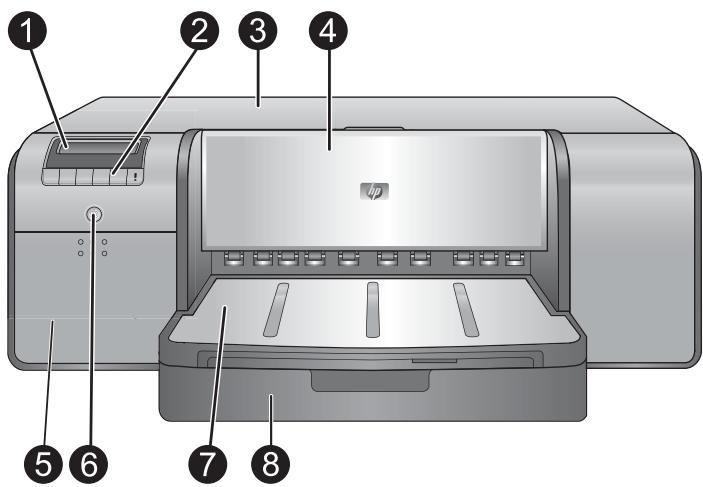
Front of printer
| 1 | Printer screen: Check the ink levels and see print or error messages here. |
| 2 | Control panel: Use these buttons to open and navigate the printer menu, cancel print jobs, and respond to prompts on the printer screen. |
| 3 | Top door: Lift to gain access to the printheads and to clear paper jams. |
| 4 | Specialty media tray (closed): Lower to insert a single sheet of rigid or thick media, such as card stock. Place the media with the side to be printed facing up in this tray. Do not load media thicker than 1.5 mm, or more than one sheet at a time. |
| 5 | Ink cartridge door: Press the raised bumps at the top of the door to open the door and insert or remove ink cartridges. |
| 6 | On button: Press to turn on the printer. Flashes blue if the printer is busy. |
| 7 | Output tray: Print jobs come out here. For easier access to the main tray, you can remove the output tray by sliding it towards you. |
| 8 | Main tray: Place a stack of plain paper or photo paper in this tray for printing. Place the media into this tray with the side to be printed facing down. |
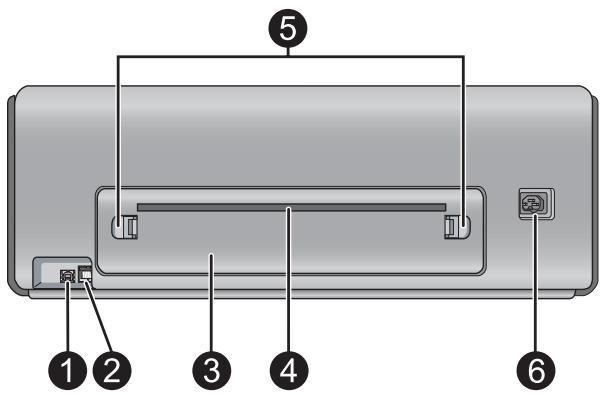
Back of printer
| 1 | USB port: Use this port to connect the printer to a computer. |
| 2 | Ethernet port: Use this port to connect the printer to a network. |
| 3 | Rear door: Remove this door to clear paper jams. |
| 4 | Rear paper slot: Print jobs from the specialty media tray pass back and forth through this slot before being ejected on the output tray at the front of the printer. Check that there is enough room behind the printer for the paper to pass back and forth through the slot without any obstructions. When you are printing from the specialty media tray, the space behind the printer should be equivalent to the length of paper you are printing on. |
| 5 | Rear door releases: Press the two releases on either side of the rear paper slot to remove the rear door. |
| 6 | Power cord connection: Use this port to connect the power cord included with the printer. |
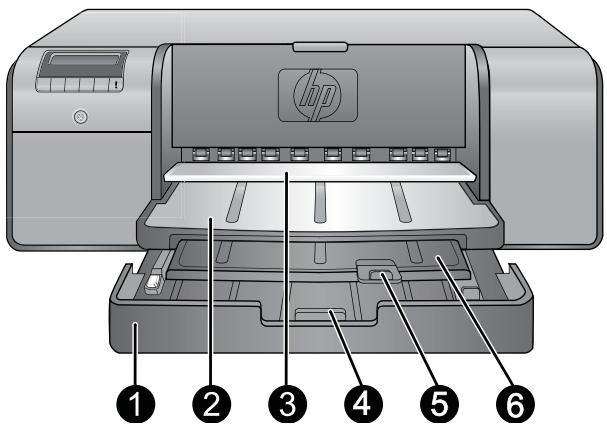
Paper trays
| 1 | Main tray: Place a stack of photo paper, plain paper, or other non-rigid media in this tray for printing. Load the media in portrait orientation and with the side to be printed facing down. Squeeze the main tray release to lengthen or shorten the main tray, depending on the size of paper you are loading. |
| 2 | Output tray: Print jobs come out here. For easier access to the main tray, remove this tray by pulling it out towards you. |
| 3 | Specialty media tray (open): Insert a single sheet of rigid or thick media, such as card stock, in this tray. Load the media with the side to be printed facing up. |
| 4 | Main tray release: Squeeze this release and pull it towards you to extend or retract the main tray extension, or to remove the tray from the printer. |
| 5 | Paper catch: Flip up to keep print jobs from falling off the output tray extension. |
| 6 | Output tray extension: Pull it towards you to extend the output tray to catch the printed paper as it is ejected from the printer. |
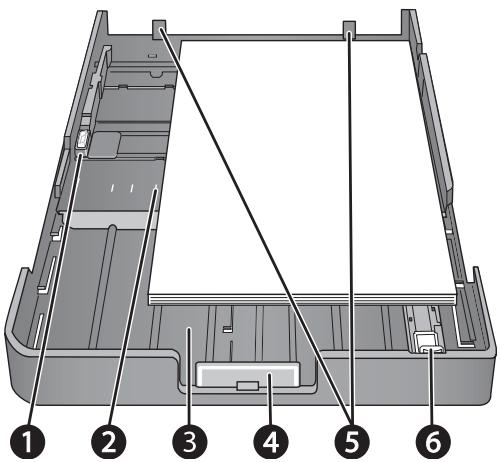
Main tray
| 1 | Paper-width guide: Adjust this guide to fit close to the left edge of the paper in the tray by pressing the button on the front of the guide and sliding the guide across. |
| 2 | Paper-size markings: Refer to these markings to guide you for loading paper in the correct orientation. |
| 3 | Main tray extension: Extend the main tray to load larger sizes of paper. Fully extended, the main tray can hold up to 32 x 48 cm (13 x 19 inch) paper. |
| 4 | Main tray release: Squeeze this release and pull it towards you to extend or retract the main tray extension, or to remove the tray from the printer. |
| 5 | Paper stops: Align the paper against these stops so that the paper feeds correctly into the printer. |
| 6 | Paper-length guide: Adjust this guide to fit close to the end of the paper in the tray. |
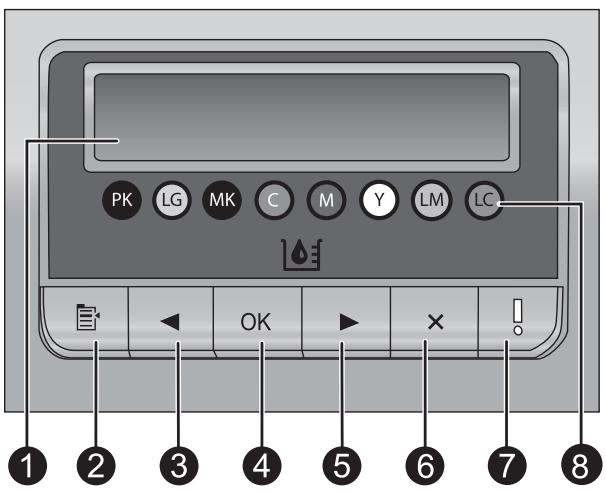
Control panel
| 1 | Printer screen: Use this screen to view menus and messages. |
| 2 | Menu: Press to view the printer menu. |
| 3 | Previous: Press to navigate to a previous menu option. |
| 4 | OK: Press to select a menu option or respond to a prompt on the printer screen. |
| 5 | Next: Press to navigate to the next menu option. |
| 6 | Cancel: Press to exit a menu option or to stop the current print job. |
| 7 | Attention light: Flashes red if an error requiring user action occurs. An error message is also displayed on the printer screen. Appears solid amber if there is an unrecoverable error. For more information, see Troubleshooting. |
| 8 | Ink level dots: These dots show you the position of each colored ink cartridge in the ink cartridge stalls below. When the printer is idle, the printer screen displays a bar graph to indicate the ink level of each cartridge in the order of the colored dots. |
Printer menu
Press Menu to open the printer menu.
To navigate the printer menu
- Press or to scroll through the menus or options displayed on the printer screen.
- Any menu with a triangle next to it has submenus or options. Press OK to display the submenus or options.
- Press Cancel to exit the current menu.
The printer menu structure
The following options are available from the printer menu.
- Print test page: Select this option to print a test page containing information about the printer such as the condition of the ink cartridges, the printer serial number, and the firmware version. See Print a test page.
- Print sample page: Select this option to print a sample photo. See Print a sample page.
Network settings:
- Show IP address: Select this option to view the printer IP address (a numeric address that identifies the printer on a network).
- Print network settings page: Select this option to print a network configuration page that you can use to troubleshoot network connections or for the initial network setup. See Print a network settings page.
-
Reset network settings: Select this option to reset the printer network settings to the factory defaults.
-
Clean printheads: Select this option to clean the printheads if you notice white lines or single-color streaks on the photos you print. After the cleaning finishes, the printer prints a test page. See Clean the printheads automatically.
-
Calibrate printer:
Align printheads: Select this option to align the printheads. Load Letter or A4-sized HP Advanced Photo Paper - Glossy in the main tray before you start this procedure to achieve best results.
- Closed loop calibration: Select this option to calibrate the printer color. The printer makes automatic adjustments and corrections using HP proprietary technology to give consistent and accurate color reproduction. Load Letter or A4-sized HP Advanced Photo Paper - Glossy in the main tray before you start this procedure to achieve best results.
- Reset closed loop calibration: Select this option to reset the printer color calibration to the default settings. Load Letter or A4-sized HP Advanced Photo Paper - Glossy in the main tray before you start this procedure to achieve best results.
- Language: Select this option to indicate the language you want used on the printer screen.
- Show ink level percentage: Select this option to show the ink level for each of the ink cartridges.

Note 1 The ink levels shown are an estimate only. Actual ink volumes may vary.
Note 2 Ink in the cartridges included in the printer box is used for printer initialization. Ink from these cartridges, as well as from replacement cartridges, is also used to keep print nozzles clear and ink flowing smoothly.
2 Basic printing
This section contains the following topics:
Media trays
- Load the main tray
- Load the specialty media tray
- Choose the right paper or other media
- Tips
- Print from a software program
- Change print settings
- Set the default print settings
Make the HP Photosmart Pro B9100 series the default printer
Media trays
The printer has two media trays:
- Main tray: The main tray can hold and automatically load multiple sheets of media. Only thin, flexible media can be loaded into this tray, due to the bending that media is subject to as it passes through the printer from this tray.
Specialty media tray: The specialty media tray is designed primarily for thick, rigid media. Paper from this tray is fed straight through the printer, without being bent. When you use this tray, check that there is clear space behind the printer at least equal to the length of the media you are printing on. Load one sheet of media at a time into this tray, and be sure that the media is no thicker than 1.5mm . Single sheets of lightweight paper can also be loaded into this tray.
Both trays support a wide range of media sizes, from 7.6 × 12.7 cm to 32 × 48 cm (3 x 5 inches to 13 x 19 inches). See Choose the right paper or other media for a description of specific paper types for use with this printer.
Use the following guidelines for determining which tray to load a particular type of media into:
| Media | Main tray | Specialty media tray |
| Photo, Inkjet, and Plain PapersExamples: HP Advanced Photo Paper; Brochure, photo, inkjet, and plain papers | Recommended | Supported |
| Digital Fine Art Papers <220 gsmExamples: Photo Rag | Supported | Recommended |
| Digital Fine Art Papers >220 gsm | Not supported | Recommended |
| Examples: Canvas; Photo Rag; Watercolor paper | ||
| Rigid Media Examples: Photo board | Not supported | Recommended |
| Any media thicker than 1.5 mm | Not supported | Not supported |

Note You do not need to remove media from the main tray before you use the specialty media tray.
Load the main tray
To load the main tray
- Remove the output tray completely by grasping the sides of the tray with both hands and sliding it out towards you. The main tray is now accessible.
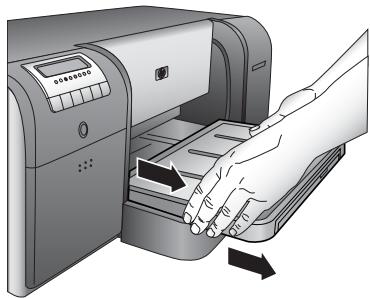
- Move the paper-width and paper-length guides to make room for the paper.
- Place a stack of paper in the main tray, in portrait orientation and with the side to be printed facing down. Align the paper against the right side of the tray and against the paper stops at the back of the tray. Check that the stack of paper is no higher than the top of the paper-width guide.

Tip For easier access or for loading larger sizes of media, extend the main tray by squeezing the main tray release and pulling the tray towards you. You can remove the tray from the printer if necessary, by grasping the sides of the tray with both hands and pulling it towards you.
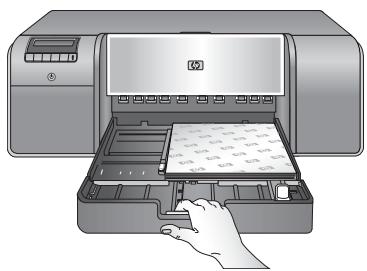
If you extended or removed the main tray to load paper, push in the main tray to the end of the paper by squeezing the release and pushing in the tray, and push the tray back into the printer until it is fully seated. Be sure to adjust the length of the main tray and reseat the tray in the printer before you adjust the paper-length and paper-width guides or the paper will jam.
- Adjust the paper-width and paper-length guides so they rest gently against the edges of the paper.
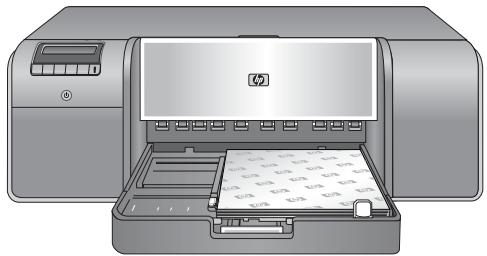
- Check that the paper is lying flat in the tray.
- Replace the output tray. If you are printing on paper larger than 21.6 × 28 cm (8.5 x 11 inches), pull out the output tray extension by holding the output tray with one hand and pulling out the extension with your other hand. Flip up the paper catch.
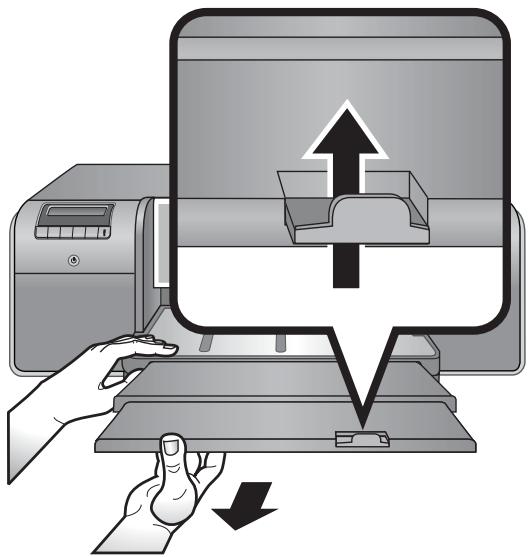

Note If you are using non-HP brands of glossy media in the main tray, and the printer does not feed the paper or feeds multiple sheets through at once, try reducing the number of sheets in the main tray to 20 sheets, or use the specialty media tray to print on one sheet at a time.
Load the specialty media tray
It is recommended that before you print on expensive specialty media, you practice using the specialty media tray by loading a single sheet of plain paper and printing an image or document.
For information on loading canvas media, see To load canvas in the specialty media tray. For all other types of media, see To load the specialty media tray.

Note You do not need to remove media from the main tray before you use the specialty media tray.
To load the specialty media tray
- Check that there is space behind the printer for the paper to pass back and forth through the rear paper slot. The space behind the printer should be equivalent to the length of the paper you are printing on.
- Lower the specialty media tray. Wait while the printer raises the printhead assembly in preparation for printing.
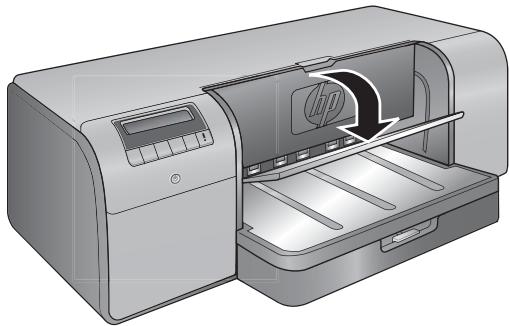
- Pull out the output tray extension by holding the output tray with one hand and pulling out the extension with your other hand. Flip up the paper catch at the end of the output tray extension to prevent paper from falling onto the floor.
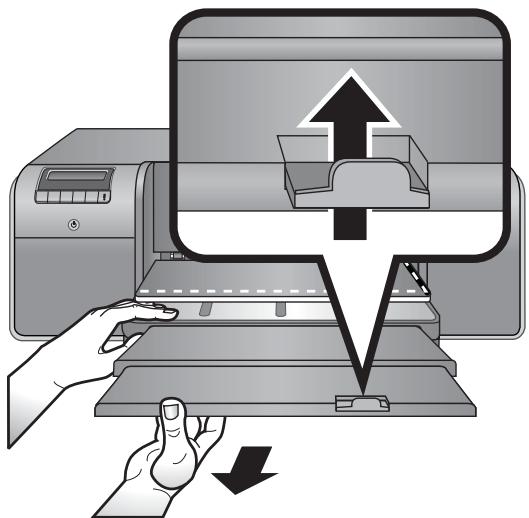
- Load one sheet with the side to be printed facing up on the specialty media tray. Feed the media into the printer until the back edge of the media (the edge nearest you) is lined up with the dashed white line on the tray. For large sizes of media, the media will project through the rear paper slot at the back of the printer. If you are using tabbed paper, insert the paper so the tab feeds in first.
Align the right edge of the media against the raised edge of the tray and not against the side of the printer. Misaligned media can result in skewing or other printing problems, including paper jams.
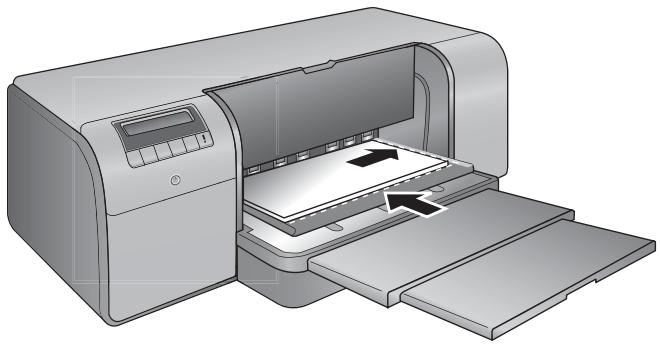

Tip If the media is curled, you can open the top door to check that the media feeds under the rollers smoothly. Be sure to close the top door again.
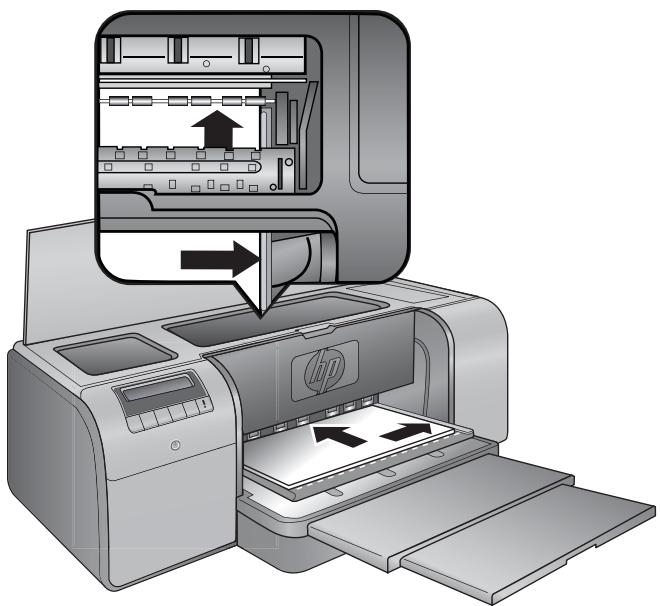
5. Press OK on the printer.
To load canvas in the specialty media tray
- Lower the specialty media tray.
Wait while the printer raises the printhead assembly in preparation for printing.
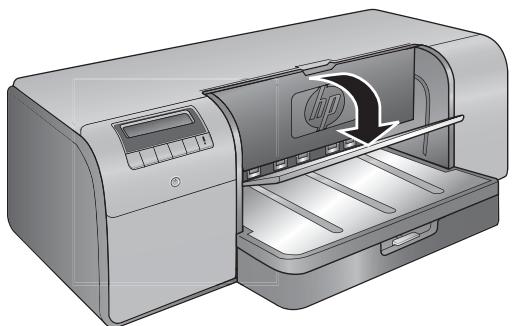
- Pull out the output tray extension by holding the output tray with one hand and pulling out the extension with your other hand. Flip up the paper catch at the end of the output tray extension to prevent paper from falling onto the floor.
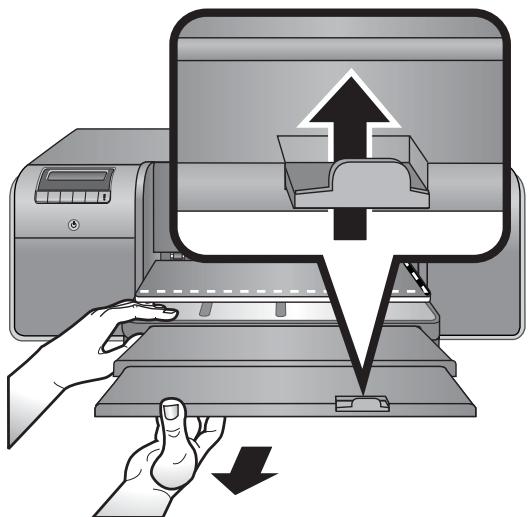
- Load one sheet of canvas media with the side to be printed facing up on the specialty media tray.
a. Open the top door to check that the media feeds under the rollers smoothly.
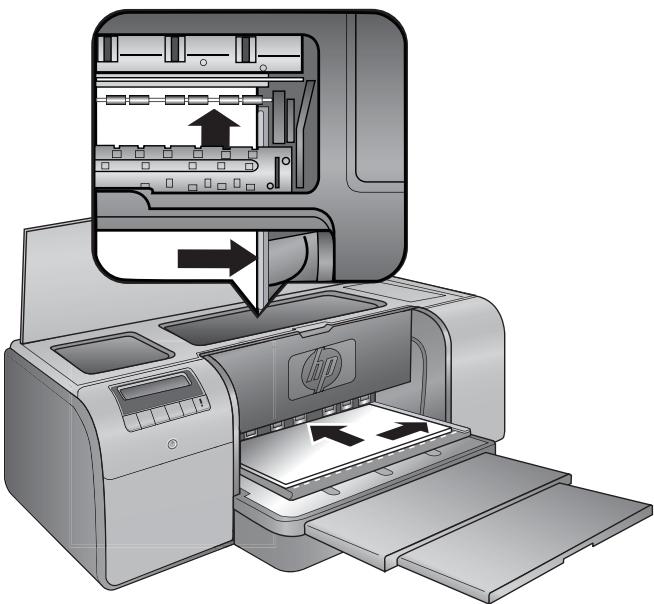
b. Feed the media into the printer until the back edge of the media (the edge nearest you) is lined up with the dashed white line on the tray. For large sizes of media, the media will project through the rear paper slot at the back of the printer.
c. Close the top door.
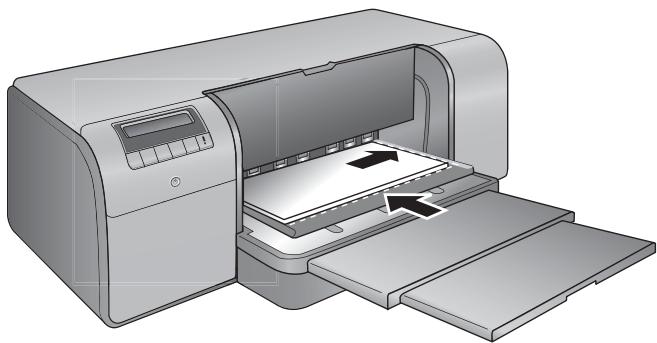
- Select Canvas as the media type in the printer driver on the computer, and then click Print to send your print job to the printer.
The printer checks that the media is flat enough to print on.
If the media is not flat enough, the printer screen displays Paper jam. Remove media and check flatness. Press OK to continue. If this occurs, remove the media from the back of the printer. Place the media in a plastic bag and gently bend it until it lies flat. Load the media again. If the problem persists, use a different, flatter sheet of media.

Note Store media in a plastic bag to prevent curling.
5. Press OK on the printer.

Note When you print on certain types of media, the printer does not fully eject the media from the printer. Grasp the media with both hands and pull it from the front of the printer.
Choose the right paper or other media
For a list of available HP inkjet paper, or to purchase supplies, go to:
www.hpshopping.com (U.S.)
www.hpshopping.ca (Canada)
www.hp.com/eur/hpoptions (Europe)
- www.hp.com (All other countries/regions)
To get the best and longest-lasting results from the printer, choose from these high quality papers.
| To print | Use this paper or media |
| High quality, long lasting prints and enlargements | HP Advanced Photo Paper This paper is available in several finishes, including glossy and satin-matte. Not all finishes are available in all countries/ regions or in every paper size. |
| Color calibration and printhead alignment | HP Advanced Photo Paper - Glossy |
| Casual photos from e-mail and the Web | Plain paper |
| Text documents, draft versions, and test pages | Plain paper |
Specialty media
The printer prints on a variety of HP and non-HP specialty media. Experiment with some of the types listed here for special effects:
HP Hahnemuhle Smooth Fine Art Paper
HP Hahnemuhle Watercolor Paper
HP Aquarella Art Paper
HP Artist Matte Canvas
- Photo Rag
- Photo Board (up to 1.5 mm in thickness only)
Some media types may not be available in all countries/regions. Check with your local media provider.

Warning Do not load media thicker than 1.5mm as it can damage the printer.
Supported sizes
Both trays support paper sizes ranging from 7.6 × 12.7 cm to 32 × 48 cm (3 x 5 inches to 13 × 19 inches), including:
Metric
10× 15 cm (with or without tab)
Panorama 10× 30cm
13× 18cm
A3
A4 (including Panorama)
A5
A6
B4
B5
E
Imperial
- Index card 3 × 5 inches
Index card 4 x 6 inches - Index card 5 x 8 inches
3.5 x 5 inches - 4 × 6 inches (with or without a tab)
Panorama 4 x 10 inches
Panorama 4 x 11 inches
Panorama 4 x 12 inches - 5 × 7 inches
8x10inches
11x14inches
11x17inches
12 x 12 inches
13 x 19 inches (B+)
U.S.
Letter
Legal
Executive
Tabloid
Japan
L
2L
Hagaki
- Ofuku Hagaki
Envelopes
- Envelope No. 10
A2 envelope
C6 envelope
DL envelope

Warning Do not load media thicker than 1.5mm as it can damage the printer.
Tips
Keep your paper in good condition for printing
- Store the photo paper in its original packaging or in a resealable plastic bag to prevent excessive curling, which can prevent proper feeding.
- Keep the paper flat in a cool, dry place. If the corners curl, place the paper in a plastic bag and gently bend it in the opposite direction until it lies flat.
- Handle the paper by the edges to prevent smears and fingerprints on the surface.
- Do not leave media in the main tray when you are not printing, because the media can curl when left exposed to the air.
Paper loading tips
- Be sure to adjust the length of the main tray to match the paper size you are using and reseat the tray back in the printer before you set the paper-length guide against the paper. If you set the paper-length guide first, and then adjust the tray length, the paper might jam.
- Load only one type and size of paper at a time in the main tray.
- After loading paper, extend the output tray extension and flip up the paper catch to hold your printed pages. This prevents printed pages from dropping off the output tray.
Print tips
- If you are printing photos, transfer the photos from your digital camera to the computer using the steps outlined in your camera documentation. You can then open the photos in your image editing software program and print them from there.
For information on installing the printer software, see Networking. - Be sure to download the latest printer software update every couple of months to ensure you have the latest features and improvements. For more information, see Download printer software updates.
Print from a software program
Follow the steps below to print a photo or document using the basic printer settings. To modify the settings, see Change print settings. To use the more advanced color management settings, see Color management.
To print from a software program (Windows)
- Make sure you have paper loaded correctly.
- On the File menu in your software program, click Print.
- Select the HP Photosmart Pro B9100 series as the printer. If you have already set the HP Photosmart Pro B9100 series as the default printer, you can skip this step. The HP Photosmart Pro B9100 series will already be selected.
- If you need to change settings, click the button that opens the Properties dialog box. Depending on your software program, this button might be called Properties, Options, Printer Setup, or Printer.
- Select the appropriate options for your print job by using the features available in the Advanced, Printing Shortcuts, Features, and Color tabs.

Tip You can easily select the appropriate options for your print job by choosing one of the predefined print tasks on the Printing Shortcuts tab. Click a type of print task in the Printing Shortcuts box. The default settings for that type of print task are set, and summarized on the Printing Shortcuts tab. If necessary, you can adjust the settings here, or you can make your changes on the other tabs in the Properties dialog box.
- Click OK to close the Properties dialog box.
- Click Print or OK to begin printing.
To print from a software program (Mac)
- Make sure you have paper loaded correctly.
- On the File menu in your software program, click Page Setup.
- Select the HP Photosmart Pro B9100 series as the printer. If you have already set the HP Photosmart Pro B9100 series as the default printer, you can skip this step. The HP Photosmart Pro B9100 series will already be selected.
- Select the paper size from the Paper Size pop-up menu, and then click OK to save the settings.
- On the File menu in your software program, click Print.
- Select the appropriate options for your print job using the features available on the panes.

Tip Define print tasks for print jobs that you do often in the Presets pop-up menu.
- Click Print to begin printing.
Change print settings
This section contains the following topics:
- Change the print speed or quality
- Set the paper type
- Print in grayscale

Note The electronic Help provides more information on the many print settings available in the printer driver. To learn how to open the electronic Help, see Find more information.
Change the print speed or quality
To change the print speed or quality (Windows)
- Open the Printer Properties dialog box.
- Click the Features tab.
- In the Paper Type drop-down list, select the type of paper that you have loaded.
- In the Print Quality drop-down list, select the appropriate quality setting for your project:
FastDraft:Prints at the fastest printing speed.
- Normal: Provides the best balance between print quality and speed. This is the appropriate setting for most documents.
- Best: Provides high quality printing.
Maximum dpi: Provides the highest quality prints possible, but requires longer to print than Best and requires a large amount of disk space.
To change the print speed or quality (Mac)
- Open the Print dialog box.
- Choose the Paper Type/Quality pane.
-
Click the Paper tab.
-
From the Quality pop-up menu, select the appropriate speed and quality setting for your project:
FastDraft:Prints at the fastest printing speed.
- Normal: Provides the best balance between print quality and speed. This setting is appropriate for most documents.
Best: Provides high quality printing.
Maximum dpi: Provides the highest quality prints possible, but requires longer to print than Best and requires a large amount of disk space.
Set the paper type
The default paper type setting for printing is based on the printing shortcut you select. If you print on special papers, you can change the paper type from the Properties dialog box.
To select a specific paper type (Windows)
- Open the Printer Properties dialog box.
- Click the Features tab.
- Click More in the Paper Type drop-down list, and then select the paper type that you want to use.
- Click OK.
- Select any other print settings that you want, and then click OK.
To select a specific paper type (Mac)
- Open the Print dialog box.
- Choose the Paper Type/Quality pane.
-
Click the Paper tab.
-
In the Paper Type pop-up menu, click the appropriate paper type.
- Choose any other print settings that you want, and then click Print.
Print in grayscale
You can print documents or photos in grayscale for dramatic black and white photos.
To print in grayscale (Windows)
- Open the Printer Properties dialog box.
- Click the Color tab, and then click Print in Grayscale in the Color Options area.
- In the Print in Grayscale drop-down list, select one of the following:
Composite gray
Gray inks only
- Select any other print settings you want, and then click OK.
To print in grayscale (Mac)
- Open the Print dialog box.
- Choose the Paper Type/Quality pane.
- Click the Paper tab.
- In the Color pop-up menu, choose Grayscale.
- Choose any other print settings that you want, and then click Print.

Note For more information on color settings in the printer driver, see Color management.
For more information on the HP printer driver:
- Windows: Right-click the HP Digital Imaging Monitor icon on the Windows taskbar and then select Launch/Show HP Solution Center. Click Onscreen Guide and select the Help for your device. In the print dialog itself, right-click any option and click the What's This? box to learn more about that option.
- Mac: Choose Help, Mac Help in the Finder, and then choose Library, HP Photosmart Printer Help.
Set the default print settings
If you frequently print photos or documents on the same size and type of paper, you can set print defaults or presets with all your preferred settings.
To change the default print settings (Windows)
- In the HP Solution Center, click Settings, point to Print Settings, and then click Printer Settings.
- Make changes to the print settings, and then click OK.
To create presets (Mac)
- On the File menu in your software program, click Print.
-
Choose the settings on each pane that you want to use frequently.
-
In the Presets pop-up menu, choose Save as.
- Type the name of your new preset, and then click OK.
Optimize print quality for slow computers
The HP Photosmart Pro B9180 printer is capable of printing large images at high resolution. The associated files for such images are necessarily very large. The printer relies on your pc's ability to efficiently transfer these large files as the image is being printed. If you have a computer that is too slow, in CPU speed or RAM capacity for example, the print quality will not be optimum. There are several things you can do to improve the print quality when printing from a slow computer:
- Close all open applications except the one you are printing from. Make sure there are no processes running in the background.
- Change your color management option to "Managed by Application." See Color management for more information.
- Do not use/disable color management.
- If you are printing a landscape image, rotate it into portrait orientation and select portrait orientation in the driver before printing.
- Increase your system's RAM capacity.
- Increase your system's processor speed, or upgrade to a faster processor.
Make the HP Photosmart Pro B9100 series the default printer
Windows 2000
- On the Windows taskbar, click Start, point to Settings, and then click Printers.
- Right-click the HP Photosmart printer icon, and then click Set as Default Printer.
Windows XP
- On the Windows taskbar, click Start, and then click Control Panel.
- Open Printers and Faxes.
- Right-click the HP Photosmart printer icon, and then click Set as Default Printer.
Mac
- In the System Preferences, click Print & Fax, and then click Printing.
- Choose an option from the Selected printer in Print Dialog pop-up menu.
If you want the default printer always to be the same printer, choose that printer from the menu. The default printer does not change even after you print to a different printer.
If you want the default printer always to be the one you last printed to, choose Last printer used from the menu. The default printer changes whenever you print to a different printer.
3 Color management
This section contains the following topics:
What is color management?
- Use the HP Photosmart Pro print plug-in for Adobe Photoshop®
- Use application-based color management
- Use printer-based color management

Note In this user guide, printer software refers to the HP Photosmart software that comes on the CD with the printer. The printer driver is the part of the printer software which controls the printer.
What is color management?
Color management affects the way the colors in your photos are printed. Because the printer, image editing software programs, the operating system, and imaging devices such as cameras, scanners, and monitors, all display colors differently, the color management strategy you choose affects whether colors are printed more or less accurately.
Color management is based on color spaces1. Most imaging devices use the RGB2 color space, while commercial printers use the CMYK3 color space. The differences between the two color spaces can cause printed photos to look markedly different from what you see on the monitor.
Color management is a complex subject and a detailed discussion is beyond the scope of this user guide, which only provides some typical examples. For more information, see the documentation that came with your third-party image editing software program, or visit the HP Web site. Go to www.hp.com/support, select your country/region and your language, and then type HP Photosmart Pro B9100 in the product/name search box. Press ENTER and then select the HP Photosmart Pro B9100 series printer. In the Question or keywords search box type color management and then press ENTER. Click the topic you want to review.
1 Three-dimensional mathematical models for organizing color.
2 The RGB color space creates colors by mixing red, green, and blue light. Technologies that rely on light (monitors, scanners, or digital cameras) use this color space.
3 The CMYK color space used in the printing industry is based on the light-absorbing qualities of ink printed on paper. CMYK stands for cyan, magenta, yellow, and black, the colors used in four-color process printing.
Choose a color management strategy
| Use the HP Photosmart Pro print plug-in for Adobe Photoshop®. | Use application-based color management. | Use printer-based color management. |
| · Advanced color management · Uses the Adobe Photoshop algorithms to produce high resolution prints · Single streamlined dialog box with the most commonly used color management settings | · Advanced color management · Uses the Adobe Photoshop algorithms to produce high resolution prints · Several dialog boxes for all the color management settings | · Simple color management · Uses the printer driver color management settings |

Tip 1 It is possible to have color management features turned on both in the printer driver and in a software program such as Adobe Photoshop. This double correction produces unsatisfactory results. Use either printer-based or application-based color management, but not both at the same time.
Tip 2 Periodically, calibrate the printer color to ensure that the printer provides consistent and accurate color reproduction on all the supported paper types. See Align and calibrate the printer.
Use the HP Photosmart Pro print plug-in for Adobe Photoshop®
The HP Photosmart Pro print plug-in for Adobe Photoshop streamlines the printing process and simplifies professional color management. The plug-in provides a central dialog box for color management and other print settings. It combines settings from the printer driver and the Adobe Photoshop Print with Preview dialog box so you no longer have to make your way through a confusing maze of dialog boxes each time you print.
The HP Photosmart Pro print plug-in for Adobe Photoshop is installed automatically with the HP Photosmart printer software if you have Adobe Photoshop 7.0 on the same computer.

Note Adobe Photoshop is a standalone 3rd party software product, not included with the printer.
For more information on application-based color management, see Use application-based color management.
Start the HP Photosmart Pro print plug-in
To start the plug-in
- Open an image in Adobe Photoshop.
- Select File, point to Automate, and then click Photosmart Pro print....
The print preview area in the plug-in dialog box displays the current image in a scaled size in its true aspect ratio. Paper borders, if any, are displayed in their relative size and location. Use the handles to resize the image. Move the image around or crop it by dragging.
Change the HP Photosmart Pro print plug-in defaults
To change plug-in defaults
- Open an image in Adobe Photoshop.
- Select File, point to Automate, and then click Photosmart Pro print....
- Change the settings in the HP Photosmart Pro print plug-in.
- Click Done.
Install the HP Photosmart Pro print plug-in
The HP Photosmart Pro print plug-in for Adobe Photoshop is installed automatically with the HP Photosmart printer software if you have Adobe Photoshop on the same computer. If you install Adobe Photoshop after you install the printer software, you can then install the HP Photosmart Pro print plug-in separately.
To install the HP Photosmart Pro print plug-in (Windows)
- Insert the HP Photosmart CD in the computer CD-ROM drive.
- Click Install Photosmart Pro print, and then follow the onscreen instructions.
To install the HP Photosmart Pro print plug-in (Mac)
- Click the HP Device Manager icon in the Dock. If the HP Device Manager icon is not in the Dock, choose Applications, Hewlett-Packard, and then HP Device Manager.
- Click Maintain Printer.
- Select the printer from the list, and then click Launch Utility. The HP Printer Utility appears.
- Click Photosmart Pro print plug-in for Adobe Photoshop.
- Click Install Photosmart Pro print.
Use application-based color management
Application-based color management offers more sophisticated control than the printer-based form, but also involves greater complexity and more steps.
Using application-based color management involves:
- Using device profiles: Application-based color management relies on files called ICC ^4 device profiles. An ICC profile describes a device's color space. The software program component of your color management system uses these profiles to
convert colors between each device's color space. The HP Photosmart Pro B9100 series software installation installs HP ICC profiles automatically for the printer.
- Calibrating the monitor: Monitors exhibit a color degradation over time that can interfere with producing professional quality printed photography. As a result, the ICC profile that comes with most new monitors gradually becomes invalid and no longer accurately reflects the color space available on the device. Calibrating the monitor at least once a month to produce a custom ICC profile is the best way to ensure that the color space available on the monitor is accurately defined for your color management system. You can calibrate a monitor visually using a system or utility software program, such as Adobe Gamma, but this type of calibration does not meet the high quality standards expected for professional photography.
Professionals usually invest in a calibration kit consisting of a software program and a piece of hardware that captures the current state of the RGB environment on the monitor and saves it as a custom ICC profile. Monitor calibration kits are available from GretagMacBeth, Monaco Systems, and LaCie, as well as other manufacturers.
To print using application-based color management features, you have to change settings in the printer driver and in the image editing software program. Here is one example of a typical print job using application-based color management in Adobe Photoshop (version 7 or CS). See the documentation that came with your image editing software program for complete instructions on using the product's color management features.
To print using application-based color management
- Open the photo you want to print in Adobe Photoshop.
- Select File, and click Print with Preview in Adobe Photoshop.
- Make sure Show More Options is checked in the Print with Preview dialog box, and then select Color Management from the drop-down list.
- In the Print Space area of the Print with Preview dialog box, select the appropriate HP Photosmart Pro B9100 series profile for the paper and ink set you are using. The HP Photosmart printer software installer installed several profiles for you automatically.
- Select Perceptual from the Intent drop-down list. Selecting the Use Black Point Compensation option is also recommended.
- Click Page Setup in the Print with Preview dialog box, set up the page for the current image, and then click OK.
- Click Print.
Windows users
a. Click Properties in the Print dialog box.
b. Click the Color tab in the Print dialog box.
c. Select Managed by application from the Color Management area of the Print dialog box, and then click OK.
d. Click the Features tab, select an appropriate paper type from the Paper Type drop-down list, and then click OK.
e. Click OK.
Mac users
a. Choose Paper Type/Quality in the Print dialog box.
b. Choose Application Managed Colors from the Color pop-up menu.
c. Select an appropriate paper type from the Paper pop-up menu.
- Click Print.
Use printer-based color management
The HP Photosmart Pro B9100 series printer offers built-in automatic color management that is easy to configure. Printer-based color management produces attractive results and should be adequate for many users.
Choose from the following printer driver color space settings based on the color space used by your imaging device and your usage of ICC profiles. Change these settings on the Color tab (Windows) or the Paper Type/Quality pane (Mac). For an example of how to change these settings, see To print using printer-based color management.
Printer driver color space settings
| Setting | When to use it |
| Colorsmart/sRGB (Default setting)The printer driver is set to Colorsmart/sRGB by default because most imaging devices, such as monitors, cameras, and scanners, use sRGB. In this mode, the printer converts colors from sRGB to the printer ink colors.Tip Do not use this mode if you are also using ICC profiles and your software program to manage color. This can decrease the color fidelity since the colors are converted twice-first by the software program and then by the printer. | · When your digital camera, scanner, or image editing software program is set to sRGB · For the easiest, most basic form of color management · When you are not using ICC profiles |
| Adobe RGB or Adobe RGB (1998)You can set some imaging devices to Adobe RGB, an enhanced version of the sRGB color space that was developed for high-fidelity digital photography. In this mode, the printer converts colors from Adobe RGB to the printer ink colors. | · When your digital camera, scanner, or image editing software program is set to Adobe RGB · For high quality digital photography · When you are not using ICC profiles |
| Tip Do not use this mode if you are also using ICC profiles and your software program to manage color. This can decrease the color fidelity since the colors are converted twice—first by the software program and then by the printer. | |
| Application Managed Colors Application-based color management lets the image editing software program convert from the image color space to the printer ink colors. The conversion takes place in the image editing software program. In this mode, the printer does not do any color management. Using application-based color management involves changing settings both in the printer driver and in your software programs, and requires ICC profiles for all your devices. For more information, see Use application-based color management. | · When you want to use the color management features of an image editing software program, such as Adobe Photoshop · For the greatest level of control over color quality · When you want to use ICC profiles |
To print using the color management features built into the HP Photosmart Pro B9100 series printer, you have to change settings in the printer driver and in the image editing software program. Here is one example of a typical print job using printer-based color management with Adobe Photoshop (version 7 or CS).
To print using printer-based color management
- Open the file you want to print in Adobe Photoshop.
- Select File, and then click Print with Preview in Adobe Photoshop. Make sure Show More Options is selected in the Print with Preview dialog box, and then select Color Management from the drop-down list.
- In the Print Space area of the Print with Preview dialog box, select the same RGB color space setting you intend to use in the printer driver (Windows). In most cases this is sRGB or Adobe RGB. On a Mac, choose Printer Color Management instead.
- Click Page Setup in the Print with Preview dialog box, set up the page for the current image, and then click OK.
- Click Print.
Windows users
a. Click Properties in the Print dialog box.
b. Click the Color tab in the Properties dialog box.
c. Select a color space from the Color Management drop-down list:
- Colorsmart/sRGB (default)
AdobeRGB
Select the same color space you selected as an RGB working space in the
Adobe Photoshop Color Settings dialog box.
d. Click the Features tab, select the desired paper type from the Paper Type dropdown list, and then click OK.
Mac users
a. Choose Paper Type/Quality in the Print dialog box.
b. Choose a color space from the Color pop-up menu in the Print dialog box:
- Colorsmart/sRGB
AdobeRGB
Select the same color space you selected as an RGB working space in the Adobe Photoshop Color Settings dialog box.
- Click OK.
4 Care and maintenance
This section contains the following topics:
- Leave the printer on
- Replace the ink cartridges
- Replace faulty printheads
Clean the printer
Align and calibrate the printer - Print a test page
- Print a sample page
Download printer software updates - Uninstall the printer software
Follow the guidelines in this section to extend the life span of the printer and printing supplies, and to ensure that the photos you print are always of the highest quality.
Leave the printer on
HP recommends that you always leave the printer plugged in and turned on so that it can periodically perform self-servicing routines. If you leave the printer off for an extended period of time, you will experience a decline in print quality, automatic maintenance routines will need to be run, and you may have to replace one or more printheads.
The printer performs a self-servicing routine if the printer is idle for 24 hours or more. The length of time it takes for the servicing routine to be completed depends on how long the printer has been idle. As part of the servicing routine, a nozzle health sensor checks the printhead nozzles for blockages, clears any blockages found, if possible, and substitutes nozzles as needed. For more information on cleaning the prinheads, see Clean the prinheads automatically and Clean the printhead nozzles manually.
Replace the ink cartridges
For information on installing the ink cartridges and printheads the first time after you purchase the printer, see the Quick Start guide.
For optimal printing results, HP recommends using only HP ink cartridges. Inserting an incorrect cartridge may invalidate the printer warranty.
HP does not recommend modifying or refilling HP cartridges. Damage that results from modifying or refilling HP cartridges is not covered by the HP warranty.
For best print quality, HP recommends that you install all retail ink cartridges before the date stamped on the box.
Do not open the ink cartridge packet until you are ready to install the ink cartridge.
Check the ink levels
To check the ink levels from the printer
- Press Menu on the printer.
- Press until you see Show ink level percentage on the printer screen.
- Press OK.
- Press to see the percentage of ink remaining in each ink cartridge.

Note The ink levels shown are an estimate only. Actual ink volumes may vary.
To check the ink levels from the computer (Windows)
- Right-click the HP Digital Imaging Monitor icon on the right side of the Windows taskbar, and then select Launch/Show HP Solution Center.
- Click Settings, and then select Status.
- Click the Estimated Ink Levels icon.

Note The ink levels shown are an estimate only. Actual ink volumes may vary.
To check the ink levels from the computer (Mac)
- Click HP Photosmart Studio in the Dock.
- Click the Devices tab.
- Choose Maintain Printer from the Settings pop-up menu.
- Click Launch Utility.
- Choose the Supplies Status pane.

Note The ink levels shown are an estimate only. Actual ink volumes may vary.
Replace the ink cartridges
For proper operation, install all of the following eight ink cartridges:
HP 38 Photo Black (PK) Pigment ink cartridge
HP 38 Light Gray (LG) Pigment ink cartridge
HP 38 Matte Black (MK) Pigment ink cartridge
HP 38 Cyan (C) Pigment ink cartridge
HP 38 Magenta (M) Pigment ink cartridge
HP 38 Yellow (Y) Pigment ink cartridge
HP 38 Light Magenta (LM) Pigment ink cartridge
HP 38 Light Cyan (LC) Pigment ink cartridge
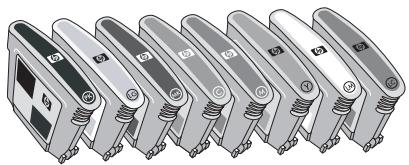
If you are replacing ink cartridges, check that you are using the correct cartridges.
To replace the ink cartridges
- Open the ink cartridge door by pressing the raised bumps at the top of the door until the door clicks open.
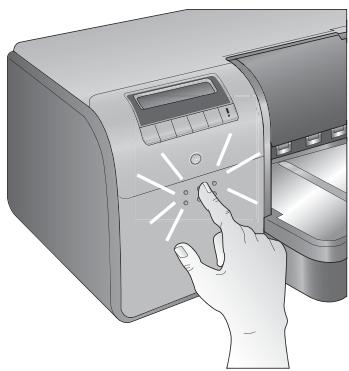
- Remove the ink cartridges that need to be replaced. Grasp a cartridge and pull it out of the stall.
- Shake the new ink cartridges vigorously, at least six times, before opening their packages.
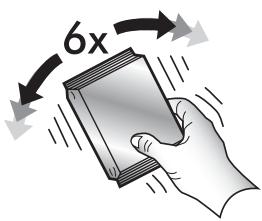
- Unwrap the ink cartridges, and then insert each cartridge into its color-coded stall in the orientation shown. Press firmly on the cartridges to ensure proper contact.
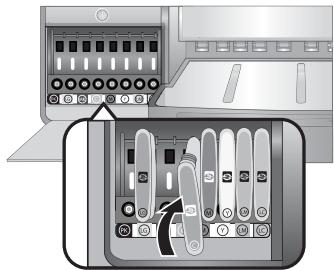
- Close the ink cartridge door.

Note All eight cartridges and four printheads must be correctly installed for the printer to work. If this is the first time you are installing the ink cartridges and printheads, see the Quick Start guide for information on the initial set up of ink cartridges and printheads. If you need to replace the printheads, see Replace faulty printheads.
Follow these tips to help maintain HP ink cartridges and ensure consistent print quality:
- Keep all unused ink cartridges in their original sealed packages until they are needed. Store ink cartridges at room temperature (15–35 degrees C or 59–95 degrees F).

Note Each ink cartridge has an expiration date. When you receive an ink expiration message, you can continue printing by pressing OK on the control panel. HP recommends replacing the expired ink cartridges. HP cannot guarantee the quality or reliability of expired ink cartridges.
- Do not remove the plastic tape covering the gold contacts until you are ready to install the ink cartridge in the printer. If the plastic tape has been removed from the ink cartridge, do not attempt to reattach it. Reattaching the tape damages the ink cartridge.
Replace faulty printheads
If a message appears on the printer screen directing you to replace a printhead, try cleaning the prinheads. See Clean the prinheads automatically. If you still see the message on the printer screen after you have cleaned the prinheads, call HP support. If the support staff tell you that the printhead needs to be replaced, purchase a replacement printhead, and then follow these steps. To purchase replacement prinheads, go to:
www.hpshopping.com (U.S.)
www.hpshopping.ca (Canada)
www.hp.com/eur/hpoptions (Europe)
- www.hp.com (All other countries/regions)
For proper operation, all of the following four printheads must be installed and in good condition:
HP 70 Photo Black/Light Gray printhead
HP 70 Matte Black/Cyan printhead
HP 70 Magenta/Yellow printhead
HP 70 Light Magenta/Light Cyan printhead
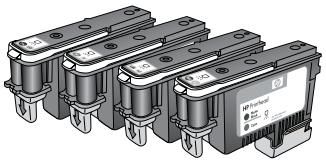
To replace printheads
- Open the top door.
- Press and hold OK until the printhead assembly moves to the left side of the printer and stops.
- Raise the blue printhead assembly cover. Before you begin, notice the metal bar that holds down the cover. Pull the cover forward by the handle so that it unclips from the metal bar, then raise it up out of the way.
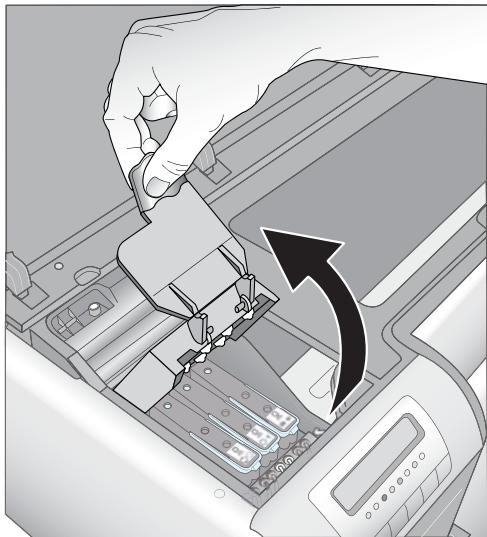
- Remove the faulty printhead. To do this, raise the fold-down blue handle on the printhead, and use it to pull the printhead straight out of its slot.
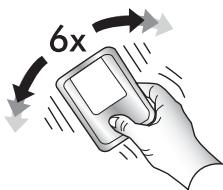
- Shake the new printhead vigorously, at least six times, before opening the package
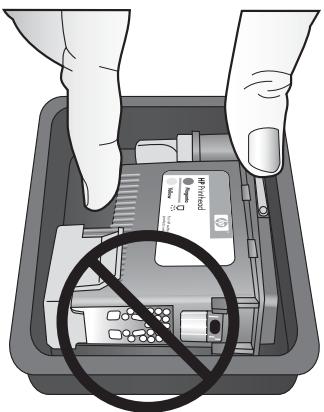
- Lift out the printhead. Be careful not to touch the gold-colored contacts on the printhead. In particular, guard against scratching the contacts with your fingernails.
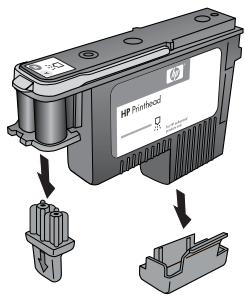
- Remove and discard the orange protective covers from the printhead. Do not touch the gold-colored contacts on the printhead.
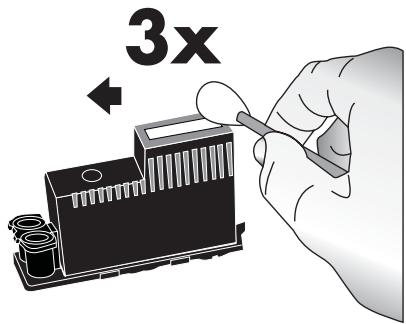
- Open the pre-moistened swab included inside the printhead package.
- Wipe the printhead nozzles with the foam tip of the swab. Wipe along the length of the nozzles at least 3 times.
- Insert the new printhead into its color-coded stall in the orientation shown. Press straight down on the printhead until it is all the way in. The printhead is designed to insert in only one direction.
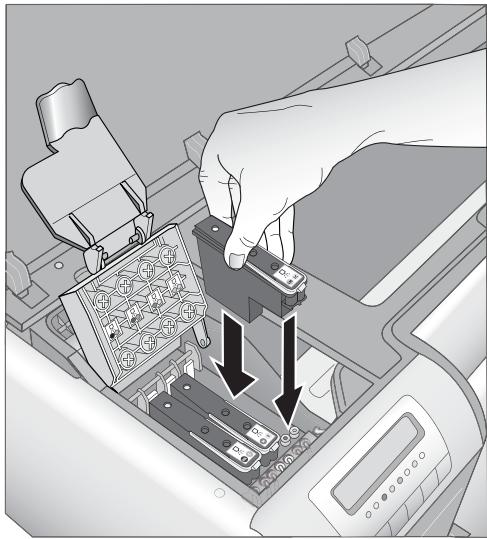
- Lower the open printhead assembly cover so that it clips under the metal bar, and then fold the cover back down to its original position.
- Close the top door.
The printer automatically performs printhead alignment and color calibration. Make sure that you have loaded HP Advanced Photo Paper - Glossy in the main tray, and then click OK to perform the alignment and calibration. For information about alignment and calibration, see Align and calibrate the printer.
Clean the printer
For best results, keep the outside of the printer clean. If you notice any ink residue on the outside of the printer, be sure to clean it off using the following steps.

Note Never clean the inside of the printer.
Clean the printer
To clean the outside of the printer
- Turn off the printer by pressing the On button.
- Wipe the outside of the printer with a soft cloth that has been lightly moistened with water. Be sure to wipe away any ink residue that has accumulated on the output tray.

Caution Do not use any type of cleaning solution. Household cleaners and detergents might damage the printer finish.
- Press On to turn on the printer.

Do not clean inside the printer
Clean the printheads automatically
If you notice white lines or single-color streaks on the photos you print, the printheads might need to be cleaned.
To clean the printheads automatically
- Press Menu on the printer control panel.
- Select Clean printheads, and then press OK.
- Following the directions on the printer screen, load paper so the printer can print a test page after cleaning the printheads. Use Letter or A4-sized plain paper to conserve photo paper.
- Press OK to begin cleaning the printheads.
If you still notice white streaks or missing colors on the test page, you might need to clean the printhead nozzles manually. For more information, see Clean the printhead nozzles manually.

Note 1 Do not clean the printheads more often than necessary, since the cleaning uses ink.
Note 2 If a message appears on the printer screen directing you to replace a printhead, try cleaning the prinheads as directed here, first automatically, and then manually if necessary. If the message still appears on the printer screen after cleaning, call HP support. If the support staff tell you that the printhead needs to be replaced, see Replace faulty prinheads for more information.
Clean the printhead nozzles manually
If you use the printer in a dusty environment, debris might accumulate on the gold-colored nozzles and cause printing problems. If you have tried cleaning the printheads automatically using the Clean printheads procedure from the control panel, and you are still experiencing image quality problems, you can clean the printhead nozzles manually using the following procedure.
To clean the printhead nozzles
- Gather the following items to clean the nozzles on the printheads:
Distilled water (tap water might contain contaminants that can damage the ink cartridge).
- Cotton swabs or other soft, lint-free material that will not stick to the ink cartridge. Do not use a paper product, such as coffee filters or paper tissues.
Sheets of paper or paper towels to rest the printheads on.
- Open the top door of the printer.
- Press OK until the printhead assembly moves to the left side of the printer and stops.
- Raise the printhead assembly cover.
- Remove a printhead and place it on a piece of paper with the ink nozzle plate facing up.

Caution 1 Do not touch the ink nozzle plate or gold-colored contacts with your fingers. Doing so will result in clogs, ink failure, and bad electrical connections.
Caution 2 Do not leave the printhead outside the printer for more than 30 minutes. Ink nozzles exposed to the air longer than this might dry out and cause printing problems.
- Lightly moisten a cotton swab with distilled water and squeeze any excess water from the swab by pressing it against a clean plastic or tile surface. Do not use your fingers to squeeze the excess water from the swab, because the oil from your fingers could contaminate the swab.
- Gently wipe along the length of the nozzle plate on the printhead with the cotton swab.
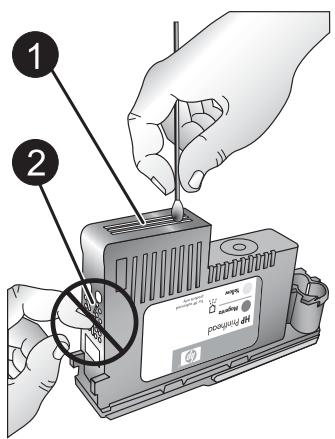
1 Ink nozzle plate
2 | Do not touch or clean the gold-colored contacts
- Repeat steps 6 and 7 until no ink residue or dust appears on a clean swab.
- Insert the printhead in the printer, and then close the top door.
The printer automatically performs printhead alignment and color calibration. Make sure that you have loaded HP Advanced Photo Paper - Glossy in the main tray,
and then click OK to perform the alignment and calibration. For information about alignment and calibration, see Align and calibrate the printer.

Note If a message appears on the printer screen directing you to replace a printhead, call HP support. If the support staff tell you that the printhead needs to be replaced, see Replace faulty printheads for more information.
Align and calibrate the printer
The first time you install printheads in the printer or if you replace a faulty printhead, the printer performs a printer alignment and calibration automatically. However, if colors in the photos you print are misaligned, or if the alignment page does not print correctly when you install a new printhead, use the following procedures to align and calibrate the printer manually.
For consistent and accurate color reproduction on all the supported paper types, be sure to calibrate the printer color periodically. Before aligning and calibrating the printer, check that you are using the correct paper. Use HP Advanced Photo Paper - Glossy for printhead alignment and printer color calibration. Use Letter or A4-sized paper. If you use a different type of paper, the results may not be accurate.
To align the printheads
- Load Letter or A4-sized HP Advanced Photo Paper - Glossy in the main tray.
- Press Menu on the printer control panel.
- Select Calibrate printer, and then press OK.
- Select Align printheads, and then press OK.
To calibrate the printer color using closed loop calibration
- Load Letter or A4-sized HP Advanced Photo Paper - Glossy in the main tray.
- Press Menu on the printer control panel.
- Select Calibrate printer, and then press OK.
- Select Closed loop calibration, and then press OK.
To reset the closed loop calibration
- Load Letter or A4-sized HP Advanced Photo Paper - Glossy in the main tray.
- Press Menu on the printer control panel.
- Select Calibrate printer, and then press OK.
- Select Reset closed loop calibration, and then press OK.
Print a test page
You can print a test page to check the condition of the ink cartridges. The test page also contains useful information about the printer, including the printer serial number and firmware version.
To print a test page
- Press Menu on the printer control panel.
- Select Print test page, and then press OK.
Print a sample page
You can print a sample page to verify that the printer can successfully print a photo. If you are having trouble printing a photo from your software program, use this option as part of the troubleshooting process to determine whether the problem is with the printer or software program.
To print a sample page
- Load paper in the main tray. Use plain paper to conserve photo paper.
- Press Menu on the printer control panel.
- Select Print a sample page, and then press OK.
Download printer software updates
Download the latest printer software updates periodically to ensure you have the latest features and improvements.

Note The printer software update that you download from the HP Web site updates only the printer driver. It does not update the HP Photosmart Premier software.
To download the printer software (Windows)
- Make sure the computer is connected to the Internet.
- From the Windows Start menu, select Programs, point to HP, and then click HP Software Update.
-
Click Next. HP Software Update searches the HP Web site for printer software updates.
-
If the computer has the most recent version of the printer driver installed, No updates are available for your system at this time appears in the HP Software Update window.
-
If the computer does not have the most recent version of the printer driver installed, a software update appears in the HP Software Update window.
-
If a software update is available, check the box beside the update to select it.
-
Click Next.
-
Follow the onscreen instructions.

Note You can also download printer software updates by going to www.hp.com/support, selecting your country/region, entering the printer name in the search box, and clicking Software & Driver Downloads.
To download the printer software (Mac)
- Make sure the computer is connected to the Internet.
-
On your Mac in the Finder, choose Go, and then click Applications.
-
Choose Hewlett-Packard, point to Photosmart, and then click HP Photosmart Update.
- Follow the onscreen instructions to check for software updates. If you are behind a firewall, you need to enter the proxy server information in the updater.

Note You can also download printer software updates by going to www.hp.com/ support, selecting your country/region, entering the printer in the search box, and clicking on Software & Driver downloads.
Uninstall the printer software
If you need to uninstall the printer software, follow these steps.
Uninstall the printer software (Windows)
- From the Windows Start menu, click Programs or All Programs, click HP, and then click HP Photosmart Pro B9100 series.
- Click Uninstall.
Uninstall the printer software (Mac)
- Open the HP Device Manager.
- Click Uninstall in the pop-up menu. The HP Uninstaller dialog box appears.
- Click the printer, and then click Uninstall.
- Click Quit, and then empty the Trash.
- Disconnect the printer from the computer, and then restart the computer.
5 Troubleshooting
The printer is designed to be reliable and easy to use, but if you have any problems, refer to this section for possible solutions. It contains information about the following topics:
- Printer software installation problems
- Printer hardware problems
- Printing problems
- Error messages
For additional troubleshooting information, see the electronic Help.
Printer software installation problems

Note Before contacting HP support, read this section for troubleshooting tips or go to the online support services at www.hp.com/support. The name of HP support services may vary by country/region.
If the printer software did not install successfully or if the printer and computer are not communicating properly after software installation, check this section for possible solutions.
Before proceeding, check all cable connections between the printer and computer, and ensure that you are using the most recent version of the printer software.
The System Requirements dialog box is displayed during installation
Cause A component of the computer system does not meet minimum system requirements.
Solution Upgrade the component to the minimum system requirement and then reinstall the printer software.
The computer could not read the HP Photosmart CD
Solution Make sure the CD is not dirty or scratched. If other CDs work but the HP Photosmart one does not, you might have a damaged CD. You can request a new CD from HP support. If other CDs do not work, you might need to service the CD-ROM drive.
The installation software does not start automatically when the CD is inserted (Windows only)
Solution From the Windows Start menu, select Run. Click Browse, and then navigate to the CD drive where you inserted the HP Photosmart CD. Double-click the setup.exe file.
The Found New Hardware Wizard opens but doesn't recognize the printer (Windows only)
Cause You might have connected the USB cable before completing the software installation.
Solution Disconnect the USB cable and restart the software installation. Connect the USB cable when prompted during software installation.
The computer stops responding during software installation
Cause Virus protection software or another software program is running in the background and slowing down the installation process.
Solution Wait while the software finishes copying files; this might take several minutes. If, after several minutes, the computer is still not responding, restart the computer, pause or disable any active virus protection software, quit all other software programs, and then reinstall the printer software.
Printer hardware problems

Note 1 Before contacting HP support, read this section for troubleshooting tips or go to the online support services at www.hp.com/support. The name of HP support services may vary by country/region.
Note 2 If you want to connect the printer to a computer with a USB cable, HP recommends using a cable of less than 3 meters (10 feet) in length to minimize injected noise due to potential high electromagnetic fields.
The On light is flashing blue but the printer is not printing
Solution The printer is busy processing information; wait for it to finish.
The Attention light is flashing red
Solution Check the printer and computer screens for instructions. For information on specific error messages see Error messages.
If the Attention light continues to flash red go to www.hp.com/support, or contact HP support.
The Attention light is solid amber
Solution Turn off the printer, and then unplug its power cord. Wait about 30 seconds, and then plug it in again. Turn on the printer.
If the Attention light remains amber go to www.hp.com/support, or contact HP support.
The Attention light flashed amber briefly after I turned the printer off
Solution This is a normal part of the power-down process; it does not indicate a problem with the printer.
The printer is plugged in but will not turn on
Solution
- The printer might have drawn too much power. Unplug the printer power cord. Wait about 30 seconds, and then plug the cord back in. Turn on the printer.
- The printer might be plugged into a power strip that is turned off. Turn on the power strip, and then turn on the printer.
The power cord could be defective.
The printer makes noises when I turn it on, or starts making noises after sitting unused for a while
Solution The printer might make noises after a period of inactivity or when its power supply has been interrupted and then restored. This is normal operation. The printer is performing an automatic maintenance procedure to ensure it produces the best quality output. For more information, see Leave the printer on.
Printing problems

Note Before contacting HP support, read this section for troubleshooting tips or go to the online support services at www.hp.com/support. The name of HP support services may vary by country/region.

Tip View the How do I? animations available from the HP Solution Center to see how to load paper in the main tray or the specialty media tray, how to clear a paper jam, and how to install and replace ink cartridges and printheads.
Printing is very slow
Cause You might be printing a PDF or a project containing high-resolution graphics or photos. Large, complex projects containing graphics or photos print slower than text documents.
Solution Consider using lower resolution graphics in the project, if possible, or allow for longer print times in your workflow.
Paper does not feed into the printer correctly from the main tray
Solution
- If you are using non-HP brands of glossy media or thick media in the main tray, and the printer does not feed the paper or feeds multiple sheets through at once,
try reducing the number of sheets in the main tray to 20 sheets, or use the specialty media tray to print on one sheet at a time.
- Remove the main tray from the printer and check that the paper stack is lying flat in the tray, and has not been pushed up over the paper stops. When you replace the tray, be sure to push the tray into the printer until it is seated correctly.
- There might be too much paper loaded in the tray. Check that the paper is not stacked above the height of the paper-length guide. If it is, remove some paper and try printing again.
- The paper guides might not be adjusted correctly. Make sure the paper-width and paper-length guides fit close to the edges of the paper without bending the paper.
- Two or more pieces of paper might be sticking together. Remove the paper from the main tray, fan the edges of the stack to separate the sheets of paper, and then reload the paper and try printing again.
If the paper is wrinkled or bent, try using different paper. - The paper might be too thin or too thick. Use HP inkjet paper for best results. For more information, see Choose the right paper or other media.

Tip For more information on loading paper, see Choose the right paper or other media or view the How do I? animations available from the HP Solution Center.
Printed pages are dropping off of the output tray
Solution Always extend the output tray extension and flip up the paper catch when you print.
The printout is rippled or curled
Solution
- Check that the media type setting in the printer software matches the type of media loaded in the tray.
- Use the printer software to lower the ink saturation level. See the electronic Help for more information.
The document printed at an angle or is off-center
Solution The paper might not be loaded correctly. Reload the paper, making sure it is correctly oriented in the tray and that the paper-width and paper-length guides fit close to the edges of the paper. For more information on loading paper, see Choose the right paper or other media or view the How do I? animations available from the HP Solution Center.
Colors are not printing satisfactorily
Solution
- A cartridge is out of ink. Replace it.
- Some of the ink nozzles on the printheads are clogged. Clean the printheads. See Clean the printheads automatically.
- The color management settings of the printer might not be set properly. For more information, see Color management.
- Check that the media type setting in the printer software matches the type of media loaded in the tray.
The paper jammed while printing or no page came out of the printer
Solution
If the paper jammed while printing, try the following:
- Turn off the printer, and then unplug it from the power source. Remove the rear door. Gently remove the jammed paper from the printer, and then replace the rear door. Open the top door and clear the printer of any paper obstructing the paper path. If needed, gently move the printhead assembly to one side to remove the paper. Plug the printer back in and turn it on. Try printing again.
-
If you were printing labels, make sure a label did not become unglued from the label sheet while going through the printer.
Dry conditions can cause paper to curl, which can cause paper jams, so store expensive specialty media in a plastic bag rather than in the main tray. -
Try pulling out the main tray and replacing it in the printer, making sure to push the tray in as far as it will go, until it is fully seated.
The printer might need attention. Read the printer screen for instructions.
A blank page came out of the printer
Solution
- Check the ink-level percentages on the printer screen. Replace any empty ink cartridges. For more information, see Replace the ink cartridges.
- You might have begun printing and then cancelled the process. If you cancelled the process before printing started, the printer might have already loaded paper in preparation for printing. The next time you print, the printer ejects the blank page before starting the new printing project.
The printer ejects the paper when preparing to print
Solution Direct sunlight could be interfering with the operation of the automatic paper sensor. Move the printer out of direct sunlight.
Print quality is poor
Solution
- Use photo paper designed for the printer. For best results, use HP Advanced Photo Paper.
- You might be printing on the wrong side of the paper. Make sure the paper is loaded in the main tray with the side to be printed facing down or in the specialty media tray with the side to be printed facing up.
- You might have selected a low-resolution setting on the digital camera. Reduce the print size of the image and try printing again. For better results in the future, set the digital camera to a higher photo resolution.
-
There might be a problem with a printhead. Try the following:
-
Run an automatic cleaning procedure from the printer control panel. For more information, see Clean the printheads automatically.
- Calibrate the printer from the control panel. For more information, see Align and calibrate the printer.
-
Clean the nozzles on the printheads. For more information, see Clean the printhead nozzles manually.
-
If you are printing from a large file (for example, printing a large image at high dpi), and your system has insufficient RAM and/or a processor of insufficient speed, your print quality may be poor. Try the following workarounds, or increase your system processor speed and physical memory size (RAM). Please visit www.hp.com/support (search keyword: PHOTOSMART PRO B9180) for more information on this issue. To optimize print quality for slow computers:
-
Close all applications except the application you are printing from. Make sure there are no processes running in the background.
- Change your color management strategy to "Managed by Application," or disable color management. See Color management for more information.
- If you are printing a landscape image, rotate it into portrait orientation and select portrait orientation in the driver before printing.
A scratch or dent appears along the edge of printed rigid media
Solution When you load rigid media that is 28cm (11 inches) wide on the specialty media tray, place the media 15mm (0.5 inches) to the left of the raised edge of the tray, instead of aligning it flush with the raised edge. Make sure that the back edge of the media (the edge nearest to you) is aligned with the dashed white line on the tray.
Error messages
Error messages that are displayed on the printer screen can be divided into the following types:
- Paper errors
- Printer setup errors
- Ink cartridge and printhead errors
Network errors
Paper errors
Before contacting HP support, read this section for troubleshooting tips or go to the online support services at www.hp.com/support. The name of HP support services may vary by country/region.

Tip View the How do I? animations available from the HP Solution Center to see how to load paper in the main tray or the specialty media tray, how to clear a paper jam, and how to install and replace ink cartridges and printheads.
Error message: Remove media.
Solution When you print on certain types of media using the specialty media tray, the printer does not fully eject the media from the printer. If the printer prompts you to Remove media, grasp the media with both hands and gently pull it from the front of the printer.
Paper jam. Remove media and check flatness. Press OK to continue.
Solution When you print on canvas media using the specialty media tray, the printer performs a preliminary test to check that the media is flat so that the media or the printer will not be damaged. If the media is not flat enough, the printer prompts you to remove the media to check for flatness. Grasp the media with both hands and gently pull it from the back of the printer through the rear slot. Place the media in a plastic bag and gently bend it in the opposite direction until it lies flat.
Error message: Paper jam. Clear jam then press OK.
Solution
-
Try pulling out the main tray and replacing it in the printer, making sure to push the tray in as far as it will go, until it is fully seated.
If the paper jammed while printing, try the following: -
Turn off the printer, and then unplug it from the power source. Remove the rear door. Gently remove the jammed paper from the printer, and then replace the rear door. Open the top door and clear the printer of any paper obstructing the paper path. If needed, gently move the printhead assembly to one side to remove the paper. Plug the printer back in and turn it on. Try printing again.
- If you were printing labels, make sure a label did not become unglued from the label sheet while going through the printer.
Dry conditions can cause paper to curl, which can cause paper jams, so store expensive specialty media in a plastic bag rather than in the main tray.
Error message: Out of paper. Load paper then press OK.
Solution Load paper, and then press OK to print again. For paper-loading instructions, see Load the main tray.
Error message: Automatic paper sensor failed.
Solution The automatic paper sensor is obstructed or damaged. Try moving the printer out of direct sunlight, and then press OK and try printing again. If this does not work, go to www.hp.com/support or contact HP support. The name of HP support services may vary by country/region.
Error message: Paper size mismatch.
Cause The size of the paper in the tray does not match the photo size selected in the printer driver.
Solution Load a paper size that matches the photo size selected, or change the photo size in the printer driver to match the paper you are using. For paper-loading instructions, see Load the main tray.
Printer setup errors
Before contacting HP support, read this section for troubleshooting tips or go to the online support services at www.hp.com/support. The name of HP support services may vary by country/region.

Tip View the How do I? animations available from the HP Solution Center to see how to load paper in the main tray or the specialty media tray, how to clear a paper jam, and how to install and replace ink cartridges and printheads.
Error message: Priming incomplete. Remove printheads. Reinsert setup caps.
Solution The first time you set up the printer, follow the directions in the Quick Start guide.
After you have installed the ink cartridges, the printer primes the ink cartridges to start the flow of ink and purge air from the ink line. If you remove the setup caps from inside the printer before the ink cartridges have been installed or before the ink cartridges have been primed, the printer screen displays the error Priming incomplete.
- Remove the printheads, if installed, reinsert the setup caps, and then close the top door.
- Check that you have installed all the ink cartridges in the correct stalls in the ink cartridge compartment on the front of the printer. Close the ink cartridge door. The printer primes the ink cartridges to start the flow of ink and purge air from the ink line.
- Wait until you are prompted on the printer screen to open the top door, and then remove the setup caps and install the printheads.
Error message: Non-optimal alignment. To realign - select Align printheads. Press OK to continue.
Solution Printhead alignment was unsuccessful. Select Align printheads, and then press OK to perform the printhead alignment again. For best results, make sure you have loaded HP Advanced Photo Paper - Glossy.
Error message: Closed loop calibration unsuccessful. Press OK to continue.
Solution Closed loop calibration was unsuccessful. Press OK. Make sure that you have loaded HP Advanced Photo Paper - Glossy in the main tray, select Closed loop calibration, and then press OK to perform the calibration again.
Error message: Extended inactivity detected. Recommend closed loop calibration. Press OK to continue.
Solution If the printer is turned off for an extended period of time, the printer prompts you to perform a closed loop calibration. Make sure that you have loaded HP Advanced Photo Paper - Glossy in the main tray, and then click OK to perform the calibration and to maintain the best print quality.
Error message: Top door is open.
Solution Close the top door of the printer.
Ink cartridge and printhead errors
Before contacting HP support, read this section for troubleshooting tips or go to the online support services at www.hp.com/support. The name of HP support services may vary by country/region.

Tip View the How do I? animations available from the HP Solution Center to see how to load paper in the main tray or the specialty media tray, how to clear a paper jam, and how to install and replace ink cartridges and printheads.
Error message: The ink in the following cartridge(s) is past its expiration date. —OR— The following ink cartridge(s) appears to be missing or damaged —OR— Cannot print. Replace the following empty ink cartridge to resume printing.
Solution The specified ink cartridge or printhead might be old or damaged. Remove the cartridge and then reinstall it. For more information, see Replace the ink cartridges. If this does not work, replace the cartridge. If the printhead needs to be replaced, contact HP support for special instructions.
Error message: Replace the following ink cartridge(s) soon -OR- The ink in the following ink cartridge(s) is nearing its expiration date -OR- The original HP ink in the following ink cartridge(s) has been depleted.
Solution Press OK to continue, or replace the specified cartridge(s). For more information, see Replace the ink cartridges.
Error message: Replace the following faulty ink cartridge(s).
Solution Replace the failed cartridge(s) with new HP ink cartridges. For more information, see Replace the ink cartridges.
Error message: The following ink cartridge(s) is not intended for use in this printer.
Solution You have inserted a ink cartridge that does not work with the printer. Replace the cartridge with one that is compatible with the printer. For more information, see Replace the ink cartridges.
Error message: Install the following printhead(s).
Solution One of the printheads has not been installed correctly. Remove the printheads and follow the instructions in the Quick Start guide for installing the ink cartridges and printheads.
Error message: Replace the following faulty printhead(s). -OR- Replace the following incompatible printhead(s).
Solution Contact HP support for special instructions on troubleshooting printhead problems.
Error message: Replace the following incompatible printhead(s).
Solution One or more of the printheads is incompatible. Replace the incompatible printheads with the correct printheads. For more information, see Replace faulty printheads.
Network errors
Before contacting HP support, read this section for troubleshooting tips or go to the online support services at www.hp.com/support. The name of HP support services may vary by country/region. You can also find help with networking the printer by going to the home page of the embedded web server in the printer. See To open help for the embedded web server.
Error message: Network not connected.
Solution The printer cannot find the network. Make sure the ethernet cable is properly connected to the ethernet port and the network. If your network requires a
6 HP support
Support process
HP support by phone
Additional warranty options
Support process
If you have a problem, follow these steps:
- Check the documentation that came with the HP Photosmart printer.
-
Visit the HP online support Web site at www.hp.com/support. HP online support is available to all HP customers. It is the fastest source for up-to-date device information and expert assistance and includes the following features:
-
Fast access to qualified online support specialists
- Software and driver updates for the HP Photosmart printer
- Valuable HP Photosmart printer and troubleshooting information for common problems
-
Proactive device updates, support alerts, and HP newsgrams that are available when you register the HP Photosmart printer
-
For Europe only: Contact your local point of purchase. If the HP Photosmart printer has a hardware failure, you will be asked to bring it back to your local point of purchase. (Service is provided at no charge during the device limited warranty period. After the warranty period, you will be quoted a service charge.)
- Call HP support. Support options and availability vary by device, country/region, and language.
HP support by phone
For a list of support phone numbers, see the phone number list on the inside of the front cover.
Phone support period
One year of phone support is available in North America, Asia Pacific, and Latin America (including Mexico). To determine the duration of phone support in Europe, the Middle East, and Africa, go to www.hp.com/support. Standard phone company charges apply.
Placing a call
Call HP support while you are in front of the computer and the HP Photosmart printer. Be prepared to provide the following information:
Device model number (located on the label on the front of the device)
Device serial number (located on the back or bottom of the device)
- Messages that appear when the situation occurs
-
Answers to these questions:
-
Has this situation happened before?
Can you re-create it? - Did you add any new hardware or software to your computer at about the time that this situation began?
- Did anything else occur prior to this situation (such as a thunderstorm, device was moved, etc.)?
After the phone support period
After the phone support period, help is available from HP at an additional cost. Help may also be available at the HP online support Web site: www.hp.com/support. Contact your HP dealer or call the support phone number for your country/region to learn more about support options.
Additional warranty options
Extended service plans are available for the printer at additional costs. Go to www.hp.com/support, select your country/region and language, then explore the services and warranty area for information about the extended service plans.
A Networking
The instructions in this section describe how to install the printer in an ethernet (wired) network. A wired setup allows the printer to communicate with computers through a router, hub, or switch. Broadband Internet access is required in order to take full advantage of the printer feature set.

Note For USB installation, see the Quick Start guide that came in the box.
Before proceeding with this section, make sure that you have already set up your wired network. See the documentation that came with your network hardware. Also make sure you have set up the printer as described in the setup instructions that came in the box.
- Networking basics (Windows and Mac)
- Connect the printer to the network
Install the printer software on a Windows computer
Install the printer software on a Mac
Use the embedded web server - Print a network settings page
Networking basics (Windows and Mac)
Networking lets networked devices, such as computers and printers, communicate with each other. A wired or ethernet network is the most common type of network in offices and in homes.
The network adapter in the printer itself supports both 10 Mbps and 100 Mbps ethernet networks. To connect the printer to a network, you need a CAT-5 ethernet cable equipped with a RJ-45 plug. This is not the same as a USB cable. You must purchase the ethernet cable separately. It is not included with the printer.

Caution Although the RJ-45 plug of a CAT-5 cable resembles a common phone plug, it is not the same. Never use a regular phone wire to connect the printer to an ethernet network. You can damage the printer and other network devices by doing so.
The following illustration shows an example of the printer networked with several computers through a network hub, switch, or router. A cable or DSL modem links the hub and all the networked devices to broadband Internet access.
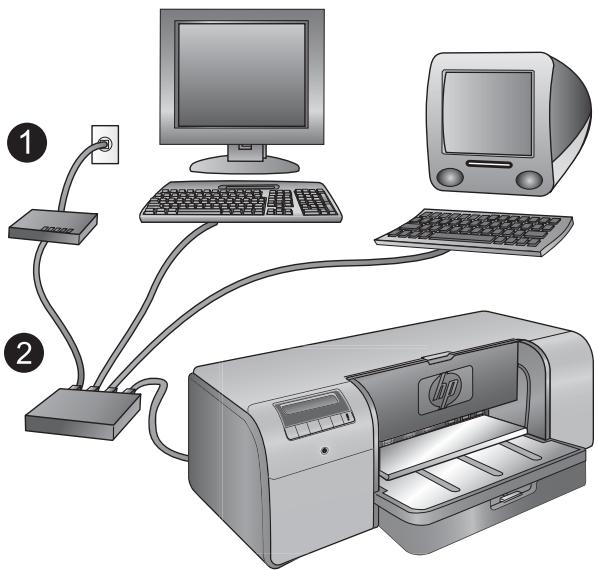
| 1 | Cable or DSL modem connecting the networked devices to broadband Internet access |
| 2 | A network access point (hub, switch, or router) into which all the devices are connected through ethernet cables |
Networked devices connect to each other through a central device. The most common types include:
- Hubs: Simple, inexpensive network devices that let several computers communicate with each other or share a common printer. Hubs are passive. They only provide a way for communication to flow between other devices.
- Switches: Switches are similar to hubs, but can examine the information sent between devices and forward the information only to the proper device. Switches can lessen bandwidth usage on a network and help keep it running more efficiently.
- Routers: Routers or gateways connect both devices and networks. A common use is to connect several home computers on a network to the Internet. Routers often include a built-in firewall that can help protect a home network from unauthorized access.

Note For specific information about setting up and configuring the hardware on your network, see the documentation that came with the hardware.
Internet connection
If your network is connected to the Internet through a router or gateway, HP recommends that you use a router or gateway that supports Dynamic Host Configuration Protocol (DHCP). A gateway with DHCP support manages a pool of reserved IP addresses that it assigns dynamically as needed. See the documentation that came with the router or gateway.
Recommended network configurations
The following network configurations support the printer. Determine the type of network configuration you have, and then see Connect the printer to the network and Install the printer software on a Windows computer or Install the printer software on a Mac for instructions on connecting your printer to the network and then installing the software.
Ethernet network without Internet access
The computers and printer communicate with each other, forming a simple network, through a hub. None of the networked devices has access to the Internet.
Ethernet network with Internet access by dial-up modem
The computers and printer communicate with each other, forming a simple network, through a hub. One of the computers has access to the Internet through a modem and dial-up account. None of the other networked devices, including the printer, has direct access to the Internet.
Ethernet network with broadband Internet access provided by a router
The printer is connected to a router that acts as a gateway between the user network and the Internet. This is the ideal network configuration.
Connect the printer to the network
To connect the printer to a wired network, you need the following:
A network access point such as a hub, router, or switch with an open port
- A CAT-5 ethernet cable with RJ-45 plug

Note 1 You should not connect the printer directly to a computer using an ethernet cable. Peer-to-peer networking is not supported.
Note 2 After you connect the printer to the network as described in this section, you must install the printer software. See Install the printer software on a Windows computer or Install the printer software on a Mac.
To connect the printer to the network
- If there is a plastic protective cap in the ethernet port on the back of the printer, remove it.
- Connect the ethernet cable to the back of the printer.
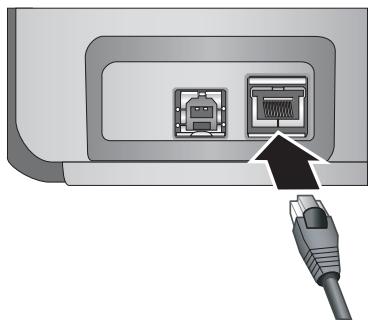
- Connect the ethernet cable to an empty port on the hub, router, or switch.
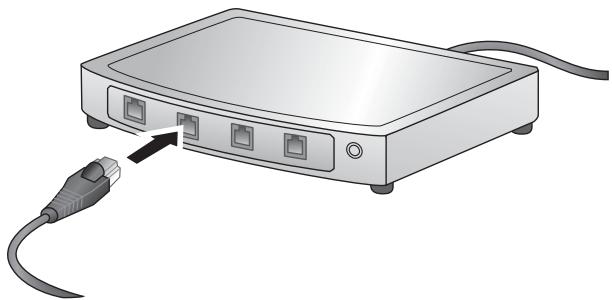
After you finish connecting the printer to the network, install the printer software. You cannot print from a computer until you do the software installation.
Install the printer software on a Windows computer
Install the printer software on a Mac
Install the printer software on a Windows computer

Note Set up the printer as indicated in the Quick Start guide that came in the box.
Installation takes approximately 20 minutes, but time can vary based on the amount of available hard drive space and the processor speed of the computer. Make sure you have already connected the printer to the network with an ethernet cable before you begin the installation.

Note The printer software must be installed as described in this section on every networked computer from which you want to print to the HP Photosmart Pro B9100 series printer. After the installation, printing is just like printing through a USB connection.

Tip Do not use the Windows Add Printer control panel utility to install the printer software. You must use the HP installer to install the printer on a network properly.
To install the printer software
- Print a network configuration page. You might need the information included in this report if the installer cannot detect the printer. See Print a network settings page.
- Insert the HP Photosmart printer software CD into the computer CD-ROM drive.
- Click Next and follow the instructions provided by the installer to check and prepare the system, and install drivers, plug-ins, and software. This takes several minutes.
- At the Connection Type screen, select Through the network, and then click Next. The Searching screen displayed as the Setup program searches for the printer on the network.
If the Printer Found screen is displayed, do this:
a. Verify that the printer description is correct. (Use the configuration page to verify the printer name and hardware address. See Print a network settings page.)
b. If the printer description is correct, select Yes, install this printer, and then click Next. If more than one printer is found on the network, select HP Photosmart Pro B9100 series as the device to configure and install, and then click Next. If you have more than one printer on your network, use the Hardware Address (MAC) item listed in the network configuration page to identify the specific HP Photosmart Pro B9100 series printer that you want to install.
If the Check Cable Connection screen is displayed, do this:
a. Follow the onscreen instructions, select Specify a printer by address, and then click Next.
b. On the Specify Printer screen, enter the Hardware Address (MAC) number listed in the network configuration page in the Hardware Address (MAC) box.
Example: 02bad065cb97
MAC stands for Media Access Control, a hardware address that identifies the printer on the network.
c. Enter the IP Address listed in the network configuration page in the IP Address box, and then click Next.
Example: 169.254.203.151
d. When the Printer Found screen is displayed, select Yes, install this printer, and then click Next.
e. In the Confirm Settings screen, click Next.
f. Follow the onscreen instructions.
- When prompted, click Finish to exit the installation.
Install the printer software on a Mac

Note Set up the printer as indicated in the Quick Start guide that came in the box.
Installation time can take 3-4 minutes depending on your operating system, the amount of available hard drive space, and the processor speed of the Mac. Make sure you have already connected the printer to the network with an ethernet cable before you begin the installation. If you have already installed this printer on a USB connection, you do not have to follow these instructions to do a network installation. Instead, see To change a USB-connected printer to a network connection.

Note 1 The printer software must be installed as described in this section on every networked computer from which you want to print to the HP Photosmart Pro B9100 series printer. After the installation, printing is just like printing to a printer connected by a USB cable.
Note 2 For Mac OS X 10.2.8 systems: Download the Mac OS X 10.2.8 printer driver from www.hp.com/support, and follow the onscreen installation instructions.
To install the printer software on Mac OS X 1.3, 10.4, or later
- Insert the HP Photosmart printer software CD into the Mac CD-ROM drive.
- Double-click the CD icon on the desktop.
- Double-click the HP Photosmart Installer icon.
- Enter the name and password used to administer your Mac, and then click OK.
- Select your language, and then select HP Photosmart Pro B9100 series as the device. Follow the onscreen instructions.
- When the HP Photosmart Installer window is displayed, choose Easy Install or Custom Install, and then click Install.
- Click Continue to run the HP Setup Assistant.
- When the HP Setup Assistant is displayed, click Next.
- Highlight the HP Photosmart Pro B9100 series printer, and then click Next. If the printer is not listed in the window, make sure that the printer is on and the network cable is connected to the printer.
- Follow the onscreen instructions to set up your printer using the Printer Setup Utility.
- Click Next.
- When the Congratulations page is displayed, click Finish.
To change a USB-connected printer to a network connection
- Connect the printer to the network. See Connect the printer to the network.
- Print a network configuration page and locate the IP Address entry.
- Open a web browser and enter the IP Address to access the embedded web server in the printer. For more information on the embedded web server, see Use the embedded web server.
- Click the Networking tab.
- Click mDNS in the Applications area on the left.
- Type a unique name (63 characters or less) in the mDNS Service Name box.
- Click Apply.
- Select the printer in the Print dialog box. If the printer does not appear in the list, select Edit Printer List to add the printer.
-
In the Printer List window, click Add.
-
Select Rendezvous or Bonjour from the pull-down menu.
- Select the printer from the list, and then click Add.
Use the embedded web server
The embedded web server in the printer provides a simple way to manage the networked printer. Using any web browser from either a Windows or Mac computer, you can communicate with the printer over the network to:
- Check printer status and estimated ink levels
View network statistics - Adjust the printer network configuration by specifying a proxy server, setting a DNS name, or manually entering an IP address
- Restrict access to configuration pages
- Order supplies
- Go to the HP Web site for support
To open the embedded web server home page
- Print a network configuration page. See Print a network settings page.
- Enter the printer IP address indicated on the network configuration page into the address box of your browser.
Example IP address: 10.0.0.81
The home page for the embedded web server is displayed.
For information about network terms and the embedded web server that is not covered in this guide, view the embedded web server help.
To open help for the embedded web server
- Go to the embedded web server home page. See To open the embedded web server home page.
- Click Help in the Other Links area of the home page.
Print a network settings page
You can print a network settings page from the printer without even being connected to a computer. The network settings page provides useful information regarding the printer IP address, network statistics, and other network settings. You can also display a summary of select network settings on the printer itself.
To print a network settings page
- Press Menu on the printer.
- Press until Network settings is displayed, and then press OK.
- Press until Print network settings page is displayed, and then press OK.
B Specifications
This section lists the minimum system requirements for installing the HP Photosmart printer software, and provides selected printer specifications.
System requirements
| Component | Windows | Mac |
| Operating system | Microsoft® Windows 2000 Professional, XP Home, XP Professional, or XP Professional x64 EditionNote x64 systems can be connected directly to the printer via USB only; networking with x64 systems is not supported. | Mac OS X 10.2.8, 10.3, 10.4, or laterNote The printer driver for Mac OS X 10.2.8 systems must be downloaded from www.hp.com/support. |
| Processor | Minimum: Intel® Pentium II 233 MHz (or equivalent), or higherRecommended: Intel® Pentium 4 (or equivalent), or higher | Minimum: PowerPC with G3, G4, G5, or Intel® Core processorRecommended: PowerPC with G5 2 GHz or Intel® Core Duo processor |
| RAM | Minimum: 256 MBRecommended: 1 GB | Minimum: 256 MBRecommended: 512 MB |
| Free disk space | Minimum: 200 MBRecommended: 450 MB | Minimum: 500 MB |
| Video display | Minimum: SVGA monitor (800 x 600, 16-bit color)Recommended: SVGA monitor (1024 x 768, 32-bit color) | Minimum: SVGA monitor (800 x 600, 16-bit color)Recommended: SVGA monitor (1024 x 768, 32-bit color) |
| CD-ROM drive | Required | Required |
| Browser | Microsoft Internet Explorer 5.01 with SP2 or later | — |
| USB | USB port (Cable not included) | USB port (Cable not included) |
| Networking | Ethernet port (Cable not included) | Ethernet port (Cable not included) |
Printer specifications
| Category | Specifications |
| Connectivity | USB 2.0 High speedEthernet 802.3 |
| Dimensions | Weight: 17.1 kg (37.7 lbs)Height: 235 mm (9.2 inches)Width: 675 mm (26.6 inches)Depth: 430 mm (16.9 inches) |
| Environmental specifications | Recommended during operation: 15-35°C (59-95°F),20-80% RHMaximum during operation: 5-40°C (41-104°F), 5-95% RHStorage temperature range: -30-65°C (-22-149°F) |
| Ink cartridges | HP 38 Photo Black (PK) Pigment ink cartridgeHP 38 Light Gray (LG) Pigment ink cartridgeHP 38 Matte Black (MK) Pigment ink cartridgeHP 38 Cyan (C) Pigment ink cartridgeHP 38 Magenta (M) Pigment ink cartridgeHP 38 Yellow (Y) Pigment ink cartridgeHP 38 Light Magenta (LM) Pigment ink cartridgeHP 38 Light Cyan (LC) Pigment ink cartridge |
| Margins | Printing on rigid media: Top/Bottom 14 mm (0.55 inches);Left/Right 3 mm (0.12 inches)Borderless printing on all other media: Top/Bottom/Left/Right 0.0 mm (0.0 inches) |
| Media specifications | Maximum length: 483 mm (19 inches)Maximum width: 330 mm (13 inches)Maximum weight for main tray: 220 gsm, non-rigid mediaMaximum thickness for specialty media tray: 1.5 mm,one sheet at a time |
| Media sizes | Supported sizes7.6 x 12.7 cm to 33 x 48.3 cm (3 x 5 inches to13 x 19 inches), including:Metric: 10 x 15 cm (with or without tab), Panorama10 x 30, 13 x 18 cm, A3, A4, A5, A6, B4, B5, EImperial: Index card 3 x 5 inches, Index card 4 x 6 inches,Index card 5 x 8 inches, 3.5 x 5 inches, 4 x 6 inches (withor without tab), Panorama 4 x 10 inches, Panorama4 x 11 inches, Panorama 4 x 12 inches, 5 x 7 inches, |
| 8 x 10 inches, 11 x 14 inches, 11 x 17 inches, 12 x 12 inches, 13 x 19 inches U.S.: Letter, Legal, Executive, Tabloid Japan: L, 2L, Hagaki, Ofuku Hagaki Envelopes: Envelope No. 10, A2 envelope, C6 envelope, DL envelope | |
| Media types | Paper (photo, plain, inkjet, and specialty media) Envelopes Transparencies Labels Cards (index, greeting, Hagaki, A6, L-size) Iron-on transfers |
| Network support | Microsoft Windows 2000 Professional, XP Home, and XP Professional Mac OS X 10.2.8, 10.3, 10.4, or later |
| Paper trays and supported paper sizes | Main tray 7.6 x 12.7 cm to 33 x 48.3 cm (3 x 5 inches to 13 x 19 inches) Specialty media tray 7.6 x 12.7 cm to 33 x 48.3 cm (3 x 5 inches to 13 x 19 inches) Output tray All supported sizes |
| Paper tray capacity | Main tray 200 sheets of plain paper 60 sheets of photo paper 50 envelopes 20-40 cards (depending on thickness) 30 sheets of labels Specialty media tray 1 sheet of any media up to 1.5 mm thick Output tray 50 sheets of plain paper 20 sheets of photo paper 10 cards or envelopes |
| Power consumption | Printing: 65 W peak, 22 W average Idle: 9.8 W average Off: 0.4 W average |
| Power cord model number | 8121-0740 (North America)8121-0731 (Europe (except countries/regions listed below), Korea)8121-0731 + 8121-0733 (Denmark, Sweden Norway, Finland)8121-0731 + 8121-0739 + 8121-0740 (Middle East, Africa (except south), CIS, Russia)8121-0837 (Australia)8121-0737 + 8121-1004 (Israel, South Africa)8121-0738 (Switzerland)8121-0739 (United Kingdom, Ireland, Hong Kong, Singapore)8121-0742 (China)8121-0964 (Taiwan)8121-0790 (Japan) |
| Printheads | HP 70 Photo Black/Light gray printheadHP 70 Matte Black/Cyan printheadHP 70 Magenta/Yellow printheadHP 70 Light Magenta/Light Cyan printhead |
| USB support | Microsoft Windows 2000 Professional, XP Home, XP Professional, and XP Professional x64Mac OS X 10.2.8, 10.3, 10.4, or laterHP recommends that the USB cable be less than 3 meters (10 feet) in length |
C HP Warranty
| HP product | Duration of limited warranty |
| Software Media | 90 days |
| Printer | 1 year |
| Print or Ink cartridges | Until the HP ink is depleted or the "end of warranty" date printed on the cartridge has been reached, whichever occurs first. This warranty does not cover HP ink products that have been refilled, remanufactured, refurbished, misused, or tampered with. |
| Printheads | 1 year |
A. Extent of limited warranty
- Hewlett-Packard (HP) warrants to the end-user customer that the HP products specified above will be free from defects in materials and workmanship for the duration specified above, which duration begins on the date of purchase by the customer.
- For software products, HP's limited warranty applies only to a failure to execute programming instructions. HP does not warrant that the operation of any product will be interrupted or error free.
- HP's limited warranty covers only those defects that arise as a result of normal use of the product, and does not cover any other problems, including those that arise as a result of: a. Improper maintenance or modification;
b. Software, media, parts, or supplies not provided or supported by HP;
c. Operation outside the product's specifications;
d. Unauthorized modification or misuse.
- For HP printer products, the use of a non-HP cartridge or a refilled cartridge does not affect either the warranty to the customer or any HP support contract with the customer. However, if printer failure or damage is attributable to the use of a non-HP or refilled cartridge or an expired ink cartridge, HP will charge its standard time and materials charges to service the printer for the particular failure or damage.
- If HP receives, during the applicable warranty period, notice of a defect in any product which is covered by HP's warranty, HP shall either repair or replace the product, at HP's option.
- If HP is unable to repair or replace, as applicable, a defective product which is covered by HP's warranty, HP shall, within a reasonable time after being notified of the defect, refund the purchase price for the product.
- HP shall have no obligation to repair, replace, or refund until the customer returns the defective product to HP.
- Any replacement product may be either new or like-new, provided that it has functionality at least equal to that of the product being replaced.
- HP products may contain remanufactured parts, components, or materials equivalent to new in performance.
- HP's Limited Warranty Statement is valid in any country where the covered HP product is distributed by HP. Contracts for additional warranty services, such as on-site service, may be available from any authorized HP service facility in countries where the product is distributed by HP or by an authorized importer.
B. Limitations of warranty
TO THE EXTENT ALLOWED BY LOCAL LAW, NEITHER HP NOR ITS THIRD PARTY SUPPLIERS MAKES ANY OTHER WARRANTY OR CONDITION OF ANY KIND, WHETHER EXPRESS OR IMPLIED WARRANTYES OR CONDITIONS OF MERCHANTABILITY, SATISFACTORY QUALITY, AND FITNESS FOR A PARTICULAR PURPOSE.
C. Limitations of liability
- To the extent allowed by local law, the remedies provided in this Warranty Statement are the customer's sole and exclusive remedies.
- TO THE EXTENT ALLOWED BY LOCAL LAW, EXCEPT FOR THE OBLIGATIONS SPECIFICALLY SET FORTH IN THIS WARRANTY STATEMENT, IN NO EVENT SHALL HP OR ITS THIRD PARTY SUPPLIERS BE LIABLE FOR DIRECT, INDIRECT, SPECIAL, INCIDENTAL, OR CONSEQUENTIAL DAMAGES, WHETHER BASED ON CONTRACT, TORT, OR ANY OTHER LEGAL THEORY AND WHETHER ADVISED OF THE POSSIBILITY OF SUCH DAMAGES.
D. Local law
- This Warranty Statement gives the customer specific legal rights. The customer may also have other rights which vary from state to state in the United States, from province to province in Canada, and from country to country elsewhere in the world.
- To the extent that this Warranty Statement is inconsistent with local law, this Warranty Statement shall be deemed modified to be consistent with such local law. Under such local law, certain disclaimers and limitations of this Warranty Statement may not apply to the customer. For example, some states in the United States, as well as some governments outside the United States (including provinces in Canada), may:
a. Preclude the disclaimers and limitations in this Warranty Statement from limiting the statutory rights of a consumer (e.g., the United Kingdom);
b. Otherwise restrict the ability of a manufacturer to enforce such disclaimers or limitations; or
c. Grant the customer additional warranty rights, specify the duration of implied warranties which the manufacturer cannot disclaim, or allow limitations on the duration of implied warranties.
- THE TERMS IN THIS WARRANTY STATEMENT, EXCEPT TO THE EXTENT LAWFULLY PERMITTED, DO NOT EXCLUDE, RESTRICT, OR MODIFY, AND ARE IN ADDITION TO, THE MANDATORY STATUTORY RIGHTS APPLICABLE TO THE SALE OF THE HP PRODUCTS TO SUCH CUSTOMERS.
HP Limited Warranty
Dear Customer,
You will find below the name and address of the HP entity responsible for the performance of the HP Limited Warranty in your country.
You may have additional statutory rights against the seller based on your purchase agreement. Those rights are not in any way affected by this HP Limited Warranty.
Ireland: Hewlett-Packard Ireland Ltd. 30 Herbert Street IRL-Dublin 2
United Kingdom: Hewlett-Packard Ltd, Cain Road, Bracknell, GB-Berks RG12 1HN
Appendix C
Index
A
after the support period 58
aligning printheads. See
calibrating the printer
alignment page 42
attention light 8
B
buttons 8
C
calibrating the printer 42
calling HP support 57
care and maintenance 33
cartridges. See ink cartridges
cleaning
primer 39
printheads automatically 40
printheads manually 40
color management
application-based 27
calibrating a monitor 27
ICC device profiles 27
installing ICC profiles 27
primer-based 29
computer
printing from 11
system requirements 65
control panel 4,8
D
documentation, printer 3
E
electronic Help 3
error messages 50
ethernet 59
ethernet port 5
H
help. See troubleshooting
help, electronic 3
Hewlett-Packard Company notices 4
HP Software Update 43
HP Solution Center 3
1
ink cartridge door 4
ink cartridges
checking ink levels 34
testing 42
L
loading paper 12
M
main tray 4
menu, printer 8
N
network settings page 64
networking
connecting printer to
network 61
embedded web server 64
ethernet 59
network settings page 64
software installation (Mac) 63
software installation
(Windows) 62
0
output tray 4
P
paper
buying and choosing 18
jams 49
loading 12
specialty 18
specifications 66
trays 4
phone support 57
phone support period
period for support 57
placing a call 57
power cord connection 5
print cartridges. See ink cartridges
print driver
recommended settings 11
primer
calibrating 42
cleaning 39
documentation 3
error messages 50
maintaining 33
menu 8
parts 4
specifications 66
primer driver
changing settings 21
primer software, updating 43
printheads
cleaning 40
cleaning nozzles 40
inserting 37
printing
changing settings 21
from a computer 11
test page 42
troubleshooting problems
47
Q
quality
printing test page 42
R
rear door 5
rear door releases 5
rear paper slot 5
s
screen, printer 4
software
driver 11
primer driver 11
troubleshooting 45
updating 43
specialty media 18
specialty media tray 4
specifications 65
support process 57
system requirements 65
T
test page 42
trays,paper 4
troubleshooting
error messages 50
flashing lights 46
primer hardware
problems 46
printing problems 47
software installation 45
U
USB
specifications 66
USB port 5
- HP Photosmart Pro B9100 series
- Copyrights and trademarks
- Hewlett-Packard Company notices
- Trademarks
- Regulatory model identification number SNPRB-0504
- Environmental statements
- Contents
- HP support 57
- A Networking. 59
- B Specifications 65
- C HP Warranty 69
- Welcome
- Find more information
- Printer parts
- Front of printer
- Back of printer
- Paper trays
- Main tray
- Control panel
- Printer menu
- To navigate the printer menu
- The printer menu structure
- Basic printing
- Media trays
- Load the main tray
- To load the main tray
- Load the specialty media tray
- To load the specialty media tray
- To load canvas in the specialty media tray
- Press OK on the printer.
- Choose the right paper or other media
- Specialty media
- Supported sizes
- Metric
- Imperial
- U.S.
- Japan
- Envelopes
- Tips
- Keep your paper in good condition for printing
- Paper loading tips
- Print tips
- Print from a software program
- To print from a software program (Windows)
- To print from a software program (Mac)
- Change print settings
- Change the print speed or quality
- To change the print speed or quality (Windows)
- To change the print speed or quality (Mac)
- Set the paper type
- To select a specific paper type (Windows)
- To select a specific paper type (Mac)
- Print in grayscale
- To print in grayscale (Windows)
- To print in grayscale (Mac)
- For more information on the HP printer driver:
- Set the default print settings
- To change the default print settings (Windows)
- To create presets (Mac)
- Optimize print quality for slow computers
- Make the HP Photosmart Pro B9100 series the default printer
- Windows 2000
- Windows XP
- Mac
- Color management
- What is color management?
- Use the HP Photosmart Pro print plug-in for Adobe Photoshop®
- Start the HP Photosmart Pro print plug-in
- To start the plug-in
- Change the HP Photosmart Pro print plug-in defaults
- To change plug-in defaults
- Install the HP Photosmart Pro print plug-in
- To install the HP Photosmart Pro print plug-in (Windows)
- To install the HP Photosmart Pro print plug-in (Mac)
- Use application-based color management
- To print using application-based color management
- Windows users
- Mac users
- Use printer-based color management
- Printer driver color space settings
- To print using printer-based color management
- Care and maintenance
- Leave the printer on
- Replace the ink cartridges
- Check the ink levels
- To check the ink levels from the printer
- To check the ink levels from the computer (Windows)
- To check the ink levels from the computer (Mac)
- To replace the ink cartridges
- Replace faulty printheads
- To replace printheads
- Clean the printer
- To clean the outside of the printer
- Clean the printheads automatically
- To clean the printheads automatically
- Clean the printhead nozzles manually
- To clean the printhead nozzles
- Align and calibrate the printer
- To align the printheads
- To calibrate the printer color using closed loop calibration
- To reset the closed loop calibration
- Print a test page
- To print a test page
- Print a sample page
- To print a sample page
- Download printer software updates
- To download the printer software (Windows)
- To download the printer software (Mac)
- Uninstall the printer software
- Uninstall the printer software (Windows)
- Uninstall the printer software (Mac)
- Troubleshooting
- Printer software installation problems
- The System Requirements dialog box is displayed during installation
- The computer could not read the HP Photosmart CD
- The installation software does not start automatically when the CD is inserted (Windows only)
- The Found New Hardware Wizard opens but doesn't recognize the printer (Windows only)
- The computer stops responding during software installation
- Printer hardware problems
- The On light is flashing blue but the printer is not printing
- The Attention light is flashing red
- The Attention light is solid amber
- The Attention light flashed amber briefly after I turned the printer off
- The printer is plugged in but will not turn on
- Solution
- The printer makes noises when I turn it on, or starts making noises after sitting unused for a while
- Printing problems
- Printing is very slow
- Paper does not feed into the printer correctly from the main tray
- Printed pages are dropping off of the output tray
- The printout is rippled or curled
- The document printed at an angle or is off-center
- Colors are not printing satisfactorily
- The paper jammed while printing or no page came out of the printer
- A blank page came out of the printer
- The printer ejects the paper when preparing to print
- Print quality is poor
- A scratch or dent appears along the edge of printed rigid media
- Error messages
- Paper errors
- Error message: Remove media.
- Paper jam. Remove media and check flatness. Press OK to continue.
- Error message: Paper jam. Clear jam then press OK.
- Error message: Out of paper. Load paper then press OK.
- Error message: Automatic paper sensor failed.
- Error message: Paper size mismatch.
- Printer setup errors
- Error message: Priming incomplete. Remove printheads. Reinsert setup caps.
- Ink cartridge and printhead errors
- Network errors
- HP support
- Support process
- If you have a problem, follow these steps:
- HP support by phone
- Phone support period
- Placing a call
- After the phone support period
- Additional warranty options
- A Networking
- Networking basics (Windows and Mac)
- Internet connection
- Recommended network configurations
- Ethernet network without Internet access
- Ethernet network with Internet access by dial-up modem
- Ethernet network with broadband Internet access provided by a router
- Connect the printer to the network
- To connect the printer to the network
- Install the printer software on a Windows computer
- To install the printer software
- If the Printer Found screen is displayed, do this:
- If the Check Cable Connection screen is displayed, do this:
- Install the printer software on a Mac
- To install the printer software on Mac OS X 1.3, 10.4, or later
- To change a USB-connected printer to a network connection
- Use the embedded web server
- To open the embedded web server home page
- To open help for the embedded web server
- Print a network settings page
- To print a network settings page
- B Specifications
- C HP Warranty
- Extent of limited warranty
- Limitations of warranty
- Limitations of liability
- Local law
- HP Limited Warranty
- Dear Customer,
- Index
- A
- B
- C
- D
- E
- H
- 1
- L
- M
- N
- 0
- P
- Q
- R
- s
- T
Brand : COMPAQ
Model : PHOTOSMART PRO B9100
Category : Photo printer