
GPS NAVIGATOR 3301 - GPS Navigator PALM - Free user manual and instructions
Find the device manual for free GPS NAVIGATOR 3301 PALM in PDF.



| Product Type | Navigateur GPS (GPS Navigator) |
| Brand | PALM |
| Model | GPS NAVIGATOR 3301 |
| Connectivity | Bluetooth (wireless) with included GPS receiver |
| Navigation software | TomTom NAVIGATOR |
| Compatible products | Smartphones Palm Treo (650, 680, 700p) and Windows Mobile (Treo 700w, 700wx, 750, 750v) |
| Power supply | Rechargeable battery (4 to 5 hours autonomy in car) |
| GPS receiver | Included, Bluetooth connection, default authentication key: 0000 |
| Expansion card | Included with TomTom software |
| Activation | Via 15-character product code (automatic or manual at www.ttcode.com) |
| Available languages | French, German, English, Spanish, Italian, Dutch, Portuguese, Chinese and others |
| Care and cleaning | Clean with a dry cloth, do not open, protect from moisture and extreme temperatures |
| Safety | Do not obstruct driver's view, do not use while driving, obey traffic laws |
| Certifications | FCC (Part 15), CE (EMC Directive 89/336/EEC), Canada ICES-003 Class B |
| Warranty | Limited warranty included in box (see terms) |
| Support | Palm website: www.palm.com/support |
Frequently Asked Questions - GPS NAVIGATOR 3301 PALM
User questions about GPS NAVIGATOR 3301 PALM
0 question about this device. Answer the ones you know or ask your own.
Ask a new question about this device
Download the instructions for your GPS Navigator in PDF format for free! Find your manual GPS NAVIGATOR 3301 - PALM and take your electronic device back in hand. On this page are published all the documents necessary for the use of your device. GPS NAVIGATOR 3301 by PALM.
USER MANUAL GPS NAVIGATOR 3301 PALM
© 2006 Palm, Inc. All rights reserved.
Palm, Treo, Palm OS, and the Palm logo are among the trademarks or registered trademarks owned by or licensed to Palm, Inc. All other brand and product names are or may be trademarks of, and are used to identify products or services of, their respective owners.
The TREO trademark is used by Palm in Sweden and Denmark with the express consent of Pfizer and its affiliated companies. The products marketed and/or sold by Palm under the TREO trademark are in no way affiliated with Pfizer or its business.
© 2006 TomTom International B.V., The Netherlands. Patents Pending. All rights reserved.
TomTom and the TomTom logo are registered trademarks of TomTom International B.V., The Netherlands. All other trademarks are the property of their respective owners. Our end user license agreement and a limited warranty apply to this product; they are included in this package. You can also review both at www.tomtom.com/legal.
Disclaimer and limitation of liability
Palm, Inc. assumes no responsibility for any damage or loss resulting from the use of this guide.
Palm, Inc. assumes no responsibility for any loss or claims by third parties which may arise through the use of this device and any accompanying or associated software provided by Palm, Inc.
Palm, Inc. assumes no responsibility for any damage or loss caused by deletion of data as a result of malfunction, dead battery, or repairs. Be sure to make backup copies of all important data on other media to protect against data loss.
NOTE Please read the End User Software License Agreement included with this product before using the accompanying software program(s). Using any part of the software indicates that you accept the terms of the End User Software License Agreement.
v 2.0
Getting started
The Palm® GPS Navigator provides detailed maps, route planning, and voice navigation.
The GPS Navigator uses TomTom NAVIGATOR software and maps on your device. To use Navigator, your device makes a wireless connection to the included GPS receiver using Bluetooth® wireless technology. The receiver then transmits information to the NAVIGATOR software that is displayed on your device screen.
This guide explains how to set up the TomTom NAVIGATOR software on your device. Certain steps for setting up the NAVIGATOR software are different depending on whether you have a compatible device that runs on Palm OS® software or a compatible device that runs on Windows Mobile® software.
Compatible Palm OS devices
- Palm® Treo™ 650 smartphone
- Palm® Treo™ 680 smartphone
- Palm® Treo™ 700p smartphone
Compatible Windows Mobile devices
- Palm® Treo™ 700w or 700wx smartphone
- Palm® Treo™ 750 or 750v smartphone
For information on setting up the GPS receiver, see the GPS Navigator Setup poster included in this package. For more detailed instructions on using TomTom NAVIGATOR, refer to the TomTom NAVIGATOR Quick Start Guide.
Installation requirements
One of the compatible devices listed above. For information on other supported devices, visit the Palm website at www.palm.com.
- GPS receiver (included).
- Expansion card (included).
Setting up NAVIGATOR software on your device
Install NAVIGATOR software
1 Turn the GPS receiver on and position it in a location with an unobstructed view of the sky.
2 Make sure your device's Bluetooth functionality is turned on:
Palm OS devices Go to Applications and select Bluetooth 8. Select On if it is not already selected.

Windows Mobile devices Go to the Today screen and tap Bluetooth Check the Turn on Bluetooth box if it is not already checked.

3 Insert the TomTom NAVIGATOR expansion card included in this package into your device's expansion card slot.
4 On a Windows Mobile device, select Yes if prompted. After the installation is complete, select OK.
NOTE On a Palm OS device, the software application opens automatically.
Select your basic NAVIGATOR settings
1 Tap the language you want, and then tap Yes.
| Catalan | Latviski |
| Čëstina | Lietuvškai |
| Dansk | Nederland |
| Deutsch | Norsk |
| Eesti | Polski |
| English UK | Portuguese |
| English US | Slovenčina |
| Espanol | Suomi |
| François | Svenska |
| Italiano | Türkce |
| Magyar | Vlaams |
2 When prompted, tap the screen to begin preference selection.
3 Select right- or left-handed operation, and then tap Done.
4 Select how distances are displayed, and then tap Done.
5 Select how time is displayed, and then tap Done.
6 Tap the left and right arrows to select a voice, and then tap Select.

7 If prompted to select a map, tap the map you want.
Activate the NAVIGATOR software
1 If you have a data plan with your wireless carrier, tap Automatic. If you do not have a plan or aren't sure, tap Manual.
2 If you selected Automatic, tap Activate and then enter the 15-character code printed on the product code label. The software is activated through your device's wireless connection.

3 If you selected Manual, do the following:
- On your computer, go to www.ttcode.com and select the Product Activation option for your country.
- Enter the 15-character code printed on the product code label, and then enter the device code displayed on your device screen.

-
On your device, tap Activate.
-
Enter the activation code displayed on your computer screen.
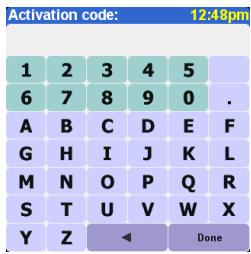
4 Tap Done.
Complete NAVIGATOR software setup
1 Tap Continue, and then tap Yes.

2 Enter or scroll to your zip code or city, and then tap it when it is displayed.
3 Enter or scroll to your street name, and then tap it when it is displayed.
4 Enter your house number, and then tap Done.
5 On the Select your GPS receiver screen, select TomTom/Palm GPS, and then tap Select.

6 Do one of the following:
Palm OS devices If prompted, enter the four-digit passkey 0000 (four zeroes), and then select Add to trusted devices list. You need to enter the passkey the first time you create a partnership between your device and the receiver only.
Windows Mobile devices Once you tap Select, your device creates a partnership with the receiver automatically.
7 Repeatedly tap the screen to take a tour of NAVIGATOR.
8 On the Legal notice screen, read the information and then tap I agree if you agree.
NOTE You must tap I agree to use the software.

NAVIGATOR is now ready for use on your device.
Exiting NAVIGATOR
You should exit the NAVIGATOR application when you are finished using it.
1 On the NAVIGATOR navigation screen, tap the top portion of the screen to open the Main Menu.
2 Tap the blue arrow until the Main Menu 3 of 3 screen is displayed.
3 Tap Exit application.

Common questions
What is the passkey I'm asked to enter when creating a partnership between my device and the Bluetooth® GPS receiver?
Like a password, the passkey is a security measure. Connections can happen only between your device and a Bluetooth device that has the same passkey.
The passkey for the receiver is 0000 (four zeroes). You should need to enter the passkey only the first time you establish a Bluetooth connection between your device and the receiver.
My device does not seem like it successfully connected to the receiver after setup. What should I do?
If the setup process does not seem to work, try manually creating a partnership between your device and the receiver.
For Palm OS devices:
1 Go to Applications and select Bluetooth
2 Select On if it is not already selected.
3 Select Setup Devices, and then select Trusted Devices.
4 Select Add Device.
5 Select the GPS receiver from the discovery results list. If the receiver doesn't appear in the list, select Find More.
6 Enter the four-digit passkey 0000 (four zeroes) on your device.
7 Select Done.
For Windows Mobile devices:
1 Go to your Today screen and tap Bluetooth
2 Check the Turn on Bluetooth box if it is not already checked.
3 Select the Devices tab, and then select New Partnership.
4 Select the GPS receiver from the device list, and then press Next (right action key).
5 Enter the four-digit passkey 0000 (four zeroes) on your device, and then press Next (right action key).
6 Check the Serial Port box, and then press Finish (right action key).
7 Press OK
Should I keep my device and the receiver connected to the vehicle power adapter while they are in use?
If your device is fully charged, it can run for about four to five hours in the car. For longer trips, it is a good idea to keep the
vehicle power adapter connected to keep both your device and the receiver charged. This prevents the batteries from getting too low for the Bluetooth connection to function.
Where can I get customer support if I need it?
Go to the Palm website at www.palm.com/support.
Important safety and legal information
Please read the following information to ensure safe use of the GPS Navigator.
Global Positioning System
The Global Positioning System (GPS) is a satellite-based system that provides location and timing information around the globe. GPS is operated and controlled under the sole responsibility of the Government of the United States of America, which is responsible for its availability and accuracy. Any changes in GPS availability and accuracy may impact the operation of your GPS receiver. Environmental conditions will affect the operation of your GPS receiver. TomTom B.V. and Palm cannot accept any liability for the availability and accuracy of GPS.
Use With Care
Use of a GPS receiver for navigation does not by any means substitute for the need to drive with due care and attention.
WARNING!
Do not mount the GPS Navigator where the driver's field of vision is obscured or where airbags may deploy, and do not place it on the dashboard without securing it reliably. Do not mount the unit or route the cables in such a way as to interfere with control of the vehicle. Failure to follow these guidelines could result in an accident or collision resulting in serious injury or death.
Drive safely using information from street signs and landmarks in addition to the GPS Navigator. Do not become distracted by the GPS Navigator while operating the vehicle. Use voice prompts to minimize the need to look at the display. Do not input destinations or access other functions that take time to complete unless the vehicle is safely stopped. Make all settings before departing or pull off the road in a safe and legal manner if changes need to be made.
CAUTION
Use GPS Navigator only as an aid to navigation. It is not designed for any use requiring precise measurements. The Global Positioning System (GPS) is operated by the government of the United States of America and is subject to changes which could affect the accuracy and performance of this GPS equipment.
NOTICE TO DRIVERS
When using this product you must obey your local vehicle codes. Some vehicle codes restrict any object or material from being placed, displayed, installed, affixed, or applied upon the windshield or side or rear windows. Where such codes exist, when using this product, the suction cup mount pad should be used instead of attaching the mount directly to the vehicle windshield or side or rear windows. Palm is not responsible for any damages, fines, or penalties that may result from disregarding this notice.
Aircraft and Hospitals
Use of devices with an antenna is prohibited on most aircraft, in many hospitals, and in many other locations. The GPS receiver must not be used in these environments.
Heat-Reflective Shields
Some newer-model vehicles may have a heat-reflective shield embedded in the windshield, which may prevent proper GPS signal reception if the receiver is placed behind the windshield. To enable proper reception:
- Place the receiver in a different position, or
- Place the receiver behind the rearview mirror, where many vehicles have an opening in the heat reflective shield, as indicated by a black outline.
Installation, Use, and Maintenance
IMPORTANT Do not attempt to service this product yourself. Do not open, puncture, or disassemble the product.
In order for the GPS receiver to work properly, make sure that the receiver has an unobstructed view of the sky. Protect the receiver
from excessive heat, extreme cold, dust, liquids, and direct sunlight. Do not use in a humid environment or on an unstable surface. Make sure the receiver is always securely mounted to prevent accidental movement. Handle all parts, cables, and connectors with care. Use only supplied and recommended accessories and power supplies. Ensure that any power supply is cooled by placing it in a ventilated area. The power supply and the receiver unit may become warm or hot during operation. Unplug the product from any external power source before cleaning. Only clean the product with a dry cloth. Follow the instructions in this manual carefully.
FCC statement
This device complies with part 15 of the FCC rules. Operation is subject to the following two conditions: (1) This device may not cause harmful interference, and (2) this device must accept any interference received, including interference that may cause undesired operation.
This equipment has been tested and found to comply with the limits for a Class B digital device, pursuant to Part 15 of the FCC rules. These limits are designed to provide reasonable protection against harmful interference in a residential installation. This equipment generates, uses, and can radiate radio frequency energy and, if not installed and used in accordance with the instructions, may cause harmful interference to radio communications. However, there is no guarantee that interference will not occur in a particular installation. If this equipment does cause harmful interference to radio or television reception, which can be determined by turning the equipment off and on, the user is encouraged to try to correct the interference by one or more of the following measures:
Reorient or relocate the receiving antenna.
- Increase the separation between the equipment and receiver.
- Connect the equipment into an outlet on a circuit different from that to which the receiver is connected.
Consult the dealer or an experienced radio/TV technician for help.
The use of shielded I/O cables is required when connecting this equipment to any and all optional peripheral or host devices. Failure to do so may violate FCC rules.
IMPORTANT Changes or modifications not covered in this manual must be approved in writing by the manufacturer's Regulatory Engineering Department. Changes or modifications made without written approval may void the user's authority to operate this equipment.
Responsible Party:
HOLUX Technology, Inc.
1F, No.30, R&D Rd. II,
Hsinchu City 300,
Taiwan (R.O.C)
+886-3-6687000

Palm GPS Navigator
Tested to Comply
With FCC Standard
FOR HOME OR OFFICE USE
Canadian ICES-003 Statement
This Class B digital apparatus meets all requirements of the Canadian Interference-Causing Equipment Regulations. Operation is subject to the following two conditions: (1) This device may not cause harmful interference, and (2) this device must accept any interference received, including interference that may cause undesired operation.
CE Compliance Statement
This product was tested by Palm, Inc. and found to comply with all the requirements of the EMC Directive 89/336/EEC as amended.
Static Electricity, ESD, and Your Palm Device
Electrostatic discharge (ESD) can cause damage to electronic devices if discharged into the device, so you should take steps to avoid such an occurrence.
Description of ESD Static electricity is an electrical charge caused by the buildup of excess electrons on the surface of a material. To most people, static electricity and ESD are nothing more than annoyance. For example, after walking over a carpet while scuffing your feet, building up electrons on your body, you may get a shock-the discharge event-when you touch a metal doorknob. This little shock discharges the built-up static electricity.
ESD-susceptible equipment Even a small amount of ESD can harm circuitry, so when working with electronic devices, take measures to help protect your electronic devices, including your Palm® device, from ESD harm. While Palm has built protections against ESD into its products, ESD unfortunately exists and, unless neutralized, could build up to levels that could harm your equipment. Any electronic device that contains an external entry point for plugging in anything from cables to docking stations is susceptible to entry of ESD. Devices that you carry with you, such as your Palm device, build up ESD in a unique way because the static electricity that may have built up on your body is automatically passed to the device. Then, when the device is connected to another device such as a docking station, a discharge event can occur.
Precautions against ESD Make sure to discharge any built-up static electricity from yourself and your electronic devices before touching an electronic device or connecting one device to another. The recommendation from Palm is that you take this precaution before connecting your Palm device to your computer, placing a device in a cradle, or connecting it to any other device. You can do this in many ways, including the following:
Ground yourself when you're holding your device by simultaneously touching a metal surface that is at earth ground. For example, if your computer has a metal case and is plugged into a standard three-pronged grounded outlet, touching the case should discharge the ESD on your body.
- Increase the relative humidity of your environment.
Install ESD-specific prevention items, such as grounding mats.
Conditions that enhance ESD occurrences Conditions that can contribute to the buildup of static electricity in the environment include the following:
Low relative humidity.
- Material type. (The type of material gathering the charge. For example, synthetics are more prone to static buildup than natural fibers like cotton.
- The rapidity with which you touch, connect, or disconnect electronic devices.
While you should always take appropriate precautions to discharge static electricity, if you are in an environment where you notice ESD events, you may want to take extra precautions to protect your electronic equipment against ESD.

For information on environmental programs, visit www.palm.com/environment.
HOLUX Technology, Inc.
1F, No.30, R&D Rd. II
Hsinchu City 300,
Taiwan (R.O.C)
+886-3-6687000

Palm-GPS-Navigator
Konformitat mit
FCC-Standard
FÜR PRIVAT-ODER
BUROGEBRAUCH
Partie responsible :
HOLUX Technology, Inc.
1F, No.30, R&D Rd. II
Hsinchu City 300,
This Class B digital apparatus meets all requirements of the Canadian Interference Causing Equipment Regulations. Operation is subject to the following two conditions: (1) This device may not cause harmful interference, and (2) this device must accept any interference received, including interference that may cause undesired operation.
HOLUX Technology, Inc.
1F, No.30, R&D Rd. II,
Hsinchu City 300,
Taiwan (R.O.C)
+886-3-6687000

Palm GPS Navigator
HOLUX Technology, Inc.
1F, No.30, R&D Rd. II
Hsinchu City 300,
Taiwan (Republica da China)
+886-3-6687000

Navegador GPS da Palm
HOLUX Technology, Inc.
1F, No.30, R&D Rd. II
Hsinchu City 300
Taiwan (R.O.C)
+886-3-6687000

Palm GPS Navigator
www.palm.com/support
重要安全和法律信息
HOLUX Technology, Inc.
1F, No.30, R&D Rd.II
Hsinchu City 300,
Taiwan (R.O.C)
+886-3-6687000

Palm GPS 导航器
经测试符合
FCC标准
供家庭或办公使用
加拿大ICES-003声明
www.palm.com/support
重大安全及法律資訊
HOLUX Technology, Inc.
1F, No.30, R&D Rd.II
Hsinchu City 300,
Taiwan (R.O.C)
+886-3-6687000

Palm GPS導航器
經測試符合
FCC標準
家庭或辦公使用
加拿大ICES-003聲明
United States of America
- Disclaimer and limitation of liability
- Getting started
- Compatible Palm OS devices
- Compatible Windows Mobile devices
- Installation requirements
- Setting up NAVIGATOR software on your device
- Install NAVIGATOR software
- Select your basic NAVIGATOR settings
- Activate the NAVIGATOR software
- Tap Done.
- Complete NAVIGATOR software setup
- Exiting NAVIGATOR
- Common questions
- Should I keep my device and the receiver connected to the vehicle power adapter while they are in use?
- Where can I get customer support if I need it?
- Important safety and legal information
- Global Positioning System
- Use With Care
- WARNING!
- CAUTION
- NOTICE TO DRIVERS
- Aircraft and Hospitals
- Heat-Reflective Shields
- Installation, Use, and Maintenance
- FCC statement
- Responsible Party:
- Canadian ICES-003 Statement
- CE Compliance Statement
- Static Electricity, ESD, and Your Palm Device
- Partie responsible :
- 重要安全和法律信息
- 加拿大ICES-003声明
- 重大安全及法律資訊
- 加拿大ICES-003聲明
Brand : PALM
Model : GPS NAVIGATOR 3301
Category : GPS Navigator