
PAGEPRO 1350E - Laser printer KONICA - Free user manual and instructions
Find the device manual for free PAGEPRO 1350E KONICA in PDF.


| Product type | Monochrome laser printer |
| Brand | KONICA MINOLTA |
| Model | PagePro 1350E |
| Dimensions (H x W x D) | 283 x 387 x 455 mm |
| Weight | Approx. 7 kg |
| Print resolution | Up to 1200 x 1200 dpi (half speed), 600 x 600 dpi, 1200 x 600 dpi |
| Print speed | Up to 21 pages per minute (letter) at 600 dpi, 20 ppm (A4) |
| First print out | Less than 13 seconds (1200 x 600 dpi) |
| Operating temperature | 10°C to 35°C |
| Operating humidity | 15% to 85% RH |
| Power supply | 220-240 V, 50-60 Hz, 900 W max |
| Standard memory | 16 MB SDRAM |
| Maximum memory | 144 MB (1 DIMM slot 128 MB) |
| Processor | D8701 at 200 MHz |
| Interfaces | Parallel IEEE 1284, USB 2.0 |
| Tray 1 capacity | 250 sheets (75 g/m² paper) |
| Manual feed tray capacity | 1 sheet |
| Output tray capacity | 100 sheets |
| Media types | Paper, envelopes, labels, transparencies, postcards, thick paper, letterhead |
| Media weight | 60 to 163 g/m² depending on tray |
| Duplex printing | Manual |
| Special features | Toner save, watermarks, N-up, scaling, separation sheet |
| Noise level | Printing: < 54 dB, Standby: < 39 dB |
| Consumables | Toner cartridge (standard 3000 pages, high capacity 6000 pages), drum (16,000-20,000 pages) |
| Maintenance | External cleaning and feed roller, consumable replacement |
| Safety | UL 60950, CSA C22.2 No. 60950, CE, FCC Class B |
| Optional accessories | 128 MB DIMM |
Frequently Asked Questions - PAGEPRO 1350E KONICA
User questions about PAGEPRO 1350E KONICA
0 question about this device. Answer the ones you know or ask your own.
Ask a new question about this device
Download the instructions for your Laser printer in PDF format for free! Find your manual PAGEPRO 1350E - KONICA and take your electronic device back in hand. On this page are published all the documents necessary for the use of your device. PAGEPRO 1350E by KONICA.
USER MANUAL PAGEPRO 1350E KONICA
PagePro™ 1350E User's Guide
4136-7765-02A
1800785-001B
Trademarks
KONICA MINOLTA and the KONICA MINOLTA logo are trademarks or registered trademarks of KONICA MINOLTA HOLDINGS, INC.
PagePro is a trademark or registered trademark of KONICA MINOLTA BUSINESS TECHNOLOGIES, INC.
All other trademarks and registered trademarks are the property of their respective owners.
Copyright Notice
Copyright © 2005 KONICA MINOLTA BUSINESS TECHNOLOGIES, INC., Marunouchi Center Building, 1-6-1 Marunouchi, Chiyoda-ku, Tokyo, 100-0005, Japan. All Rights Reserved. This document may not be copied, in whole or part, nor transferred to any other media or language, without written permission of KONICA MINOLTA BUSINESS TECHNOLOGIES, INC.
Notice
KONICA MINOLTA BUSINESS TECHNOLOGIES, INC. reserves the right to make changes to this guide and to the equipment described herein without notice. Considerable effort has been made to ensure that this guide is free of inaccuracies and omissions. However, KONICA MINOLTA BUSINESS TECHNOLOGIES, INC. makes no warranty of any kind including, but not limited to, any implied warranties of merchantability and fitness for a particular purpose with regard to this guide. KONICA MINOLTA BUSINESS TECHNOLOGIES, INC. assumes no responsibility for, or liability for, errors contained in this guide or for incidental, special, or consequential damages arising out of the furnishing of this guide, or the use of this guide in operating the equipment, or in connection with the performance of the equipment when so operated.
SOFTWARE LICENSE AGREEMENT
This package contains the following materials provided by Konica Minolta Business Technologies, Inc. (KMBT): software included as part of the printing system, the digitally-encoded machine-readable outline data encoded in the special format and in the encrypted form ("Font Programs"), other software which runs on a computer system for use in conjunction with the Printing Software ("Host Software"), and related explanatory written materials ("Documentation"). The term "Software" shall be used to describe Printing Software, Font Programs and/or Host Software and also include any upgrades, modified versions, additions, and copies of the Software.
The Software is being licensed to you under the terms of this Agreement.
KMBT grants to you a non-exclusive sublicense to use the Software and Documentation, provided that you agree to the following:
- You may use the Printing Software and accompanying Font Programs for imaging to the licensed output device(s), solely for your own internal business purposes.
- In addition to the license for Font Programs set forth in Section 1 ("Printing Software") above, you may use Roman Font Programs to reproduce weights, styles, and versions of letters, numerals, characters and symbols ("Typefaces") on the display or monitor for your own internal business purposes.
- You may make one backup copy of the Host Software, provided your backup copy is not installed or used on any computer. Notwithstanding the above restrictions, you may install the Host Software on any number of computers solely for use with one or more printing systems running the Printing Software.
- You may assign its rights under this Agreement to an assignee of all of Licensee's right and interest to such Software and Documentation ("Assignee") provided you transfer to Assignee all copies of such Software and Documentation Assignee agrees to be bound by all of the terms and conditions of this Agreement.
- You agree not to modify, adapt or translate the Software and Documentation.
- You agree that you will not attempt to alter, disassemble, decrypt, reverse engineer or decompile the Software.
- Title to and ownership of the Software and Documentation and any reproductions thereof shall remain with KMBT.
- Trademarks shall be used in accordance with accepted trademark practice, including identification of the trademark owner's name. Trademarks can only be used to identify printed output produced by the Software. Such use of any trademark does not give you any rights of ownership in that trademark.
- You may not rent, lease, sublicense, lend or transfer versions or copies of the Software that the Licensee does not use, or Software contained on any unused media, except as part of the permanent transfer of all Software and Documentation as described above.
-
In no event will KMBT or its licensor be liable to you for any consequential, incidental INDI-RECT, PUNITIVE or special damages, including any lost profits or lost saving, even if KMBT has been advised of the possibility of such damages, or for any claim by any third party. KMBT or its licensor disclaims all warranties with regard to the software, express or implied, including, without limitation implied warranties of merchantability, fitness for a particular purpose, title and non-infringement of third party rights. Some states or jurisdictions do not allow the exclusion or limitation of incidental, consequential or special damages, so the above limitations may not apply to you.
-
Notice to Government End Users: The Software is a "commercial item," as that term is defined at 48 C.F.R.2.101, consisting of "commercial computer software" and "commercial computer software documentation," as such terms are used in 48 C.F.R. 12.212. Consistent with 48 C.F.R. 12.212 and 48 C.F.R. 227.7202-1 through 227.7202-4, all U.S. Government End Users acquire the Software with only those rights set forth herein.
- You agree that you will not export the Software in any form in violation of any applicable laws and regulations regarding export control of any countries.
Contents
1 Introduction 1
Getting Acquainted with Your Printer 2
Printer Parts 2
Front View 2
Rear View 2
About the Indicator Functions 3
Indicator Functions 3
Continuing a Print Job after an Error Message 3
Printing a Test Page 3
Cancelling a Print Job 4
2 Working with the PCL 6 Printer Driver 5
Displaying PCL 6 Printer Driver Settings 6
Displaying Settings under Windows XP/Server 2003 6
Displaying Settings under Windows 2000/Me/98SE/NT 4.0 6
Using the PCL 6 Printer Driver 7
Common Buttons 7
OK 7
Cancel 7
Apply 7
Help 7
Easy Set 7
Page Layout 7
Printer Figure 7
Setup Tab 8
Paper Tab 8
Quality Tab 8
Device Options Setting Tab 9
3 Working with the PCL 5e Printer Driver 11
Displaying PCL 5e Printer Driver Settings 12
Displaying Settings under Windows XP/Server 2003 12
Displaying Settings under Windows 2000/Me/98SE/NT 4.0 12
Using the PCL 5e Printer Driver 13
Common Buttons 13
OK 13
Cancel 13
Apply 13
Layout Tab (Windows XP/Server 2003/2000) 13
Paper/Quality Tab (Windows XP/Server 2003/2000) 13
Advanced Document Settings Dialog Box
(Windows XP/Server 2003/2000) 14
Device Settings Tab (Windows XP/Server 2003/2000) 14
Paper Tab (Windows Me/98SE) 14
Device Options Tab (Windows Me/98SE) 14
Page Setup Tab (Windows NT 4.0) 15
Advanced Tab (Windows NT 4.0) 15
Device Settings Tab (Windows NT 4.0) 15
4 Working with the Status Display 17
Working with the Status Display 18
Introduction 18
Environment 18
Opening the Status Display 18
Altering the Size of the Status Display Window 18
Opening the Control Panel 18
Paper tab 19
Printer Setting Tab 19
Counter Tab 19
Configuration Tab 19
Using the Status Display 19
Recognizing Status Display Alerts 20
Recovering from a Status Display Alert 20
Closing the Status Display 20
5 Using Media 21
About Media 22
What sizes/weights of media can I use? 22
What type and amount of media can I load? 23
Media Storage 23
Media Not Suitable for Printing 24
What Is the guaranteed imageable (printable) area? 25
Page Margins 25
Loading Media 26
How do I refill Tray 1? 26
How do I refill the manual feed tray? 27
Printing on Media 28
How do I load and print custom media? 28
How do I load and print envelopes? 28
How do I load and print labels? 30
How do I load and print postcards? 31
How do I load and print thick stock? 32
How do I load and print transparencies? 33
Manual Duplexing 34
How do I manually duplex? 34
6 Replacing Consumables 35
Replacing the Toner Cartridge 37
Replacing the Drum Cartridge 42
7 Maintaining the Printer 47
Cleaning the Printer 48
Exterior 48
Pick-up Roller 49
8 Troubleshooting 51
Indicator Messages 52
Status Message 52
Error Messages 54
Service Messages 56
Clearing Jams 57
Solving Problems-Printing Quality 60
9 Installing Accessories 65
Introduction 66
Antistatic Protection 66
Dual In-Line Memory Module (DIMM) 67
Installing a DIMM 67
A Appendix 69
Safety Specifications 70
Technical Specifications 70
Printer 70
Parallel Interface Connectors and Cable 72
USB Interface Connectors and Cable 72
Consumables Life Expectancies Chart 72
Our Concern for Environmental Protection 73
What is an ENERGY STAR product? 73
Introduction
1
Getting Acquainted with Your Printer
Printer Parts
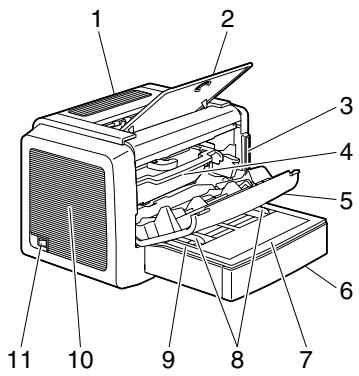
The following drawings illustrate the parts of your printer referred to throughout this guide, so please take some time to become familiar with them.
Front View
1—Top cover
2—Output tray
3-Control panel
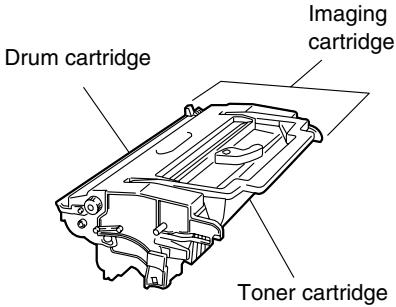
4-Imaging cartridge
(Toner cartridge plus Drum cartridge)
5—Front cover
6—Tray 1
7—Tray cover
8—Paper guides for manual feed tray
9—Manual feed tray
10—Ventilation grilles
11—Power switch
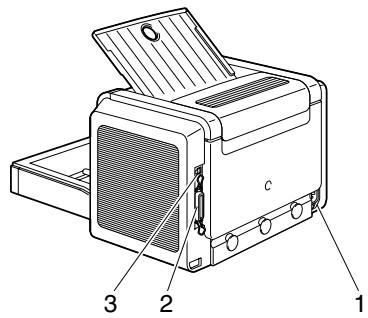
Rear View
1—AC power connection
2-Parallel port
3-USB port
About the Indicator Functions
Indicator Functions
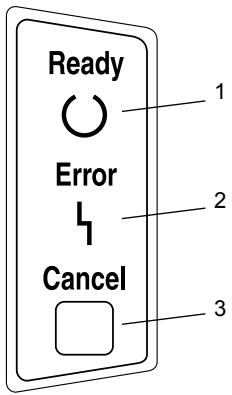
The control panel has two indicators and one button. The control panel indicators provide information on the status of the printer.
1—Ready indicator
2—Error indicator
3—Cancel button
The Cancel button allows you to:
Continue a print job after an error message
Print a test page
Cancel a print job
Continuing a Print Job after an Error Message
You can continue the print job after correcting the following types of errors:
When there is no more paper in the tray
When paper of a different format than that set in the printer driver was fed into the printer
1 Check that one of the above errors has occurred.
2 Perform the remedial action according to the error.
3 Press the Cancel button to operate the media feed. The print job continues.
For details on the error messages, refer to Chapter 8, "Troubleshooting" on page 51.
Printing a Test Page
You can print the following four kinds of test pages by pressing the Cancel button:
Operator Panel Status Sheet: Hold the Cancel button down for more than 5 seconds.
■ Configuration Page: Press the Cancel button two times.
■ PCL Font List: Press the Cancel button three times.
- Demo Page: Hold the Cancel button down for less than 5 seconds.
Cancelling a Print Job
You can cancel a print job that is currently being processed.
1 While data is being processed or printed (the green "Ready" indicator is blinking), hold down the Cancel button for more than 5 seconds.
2 Release the Cancel button after both indicators light up. The current print job has now been cancelled.
Working with the PCL 6 Printer Driver
2
Displaying PCL 6 Printer Driver Settings
Displaying Settings under Windows XP/Server 2003
1 From the Start menu, click Control Panel.
2 In Pick a category, click Printers and Other Hardware.
3 In Pick a task..., click View installed printers or fax printers.
4 In the Printers and Faxes directory, select the KONICA MINOLTA PagePro 1350E printer icon.
5 To display the printer driver settings, from the File menu, click Printing Preferences....
Displaying Settings under Windows 2000/Me/98SE/ NT 4.0
1 From the Start menu, point to Settings, and then click Printers to display the Printers directory.
2 Select the KONICA MINOLTA PagePro 1350E printer icon.
3 Display the printer driver settings:
Windows 2000—From the File menu, click Printing Preferences...
Windows Me/98SE—From the File menu, click Properties, and then click the Printer Properties tab.
Windows NT 4.0—From the File menu, click Document Defaults...
Using the PCL 6 Printer Driver

Refer to the printer drivers online help for information on all of the functions.
Common Buttons
The buttons described below appear on each tab.
OK
Click to exit the Properties dialog box, saving any changes made.
Cancel
Click to exit the Properties dialog box without saving any changes made.
Apply
Click to save all changes without exiting the Properties dialog box.
Help
Click to view online help.
Easy Set
Click on Default to reset the functions of the tab to their original values.
Page Layout
Check this option button to display a sample of the page layout in the figure area.
Printer Figure
Check this option button to display an image of the printer in the figure area.
Setup Tab
The Setup tab allows you to
■ Print several pages of a document on the same page (n-up printing)
■ Provide a watermark on printed documents
Design custom watermarks
Specify manual duplex printing
Specify the paper source
Define the type of media
■ Print using a form overlay
Create/edit a form overlay
Paper Tab
The Paper tab allows you to
- Specify the size of the original document
Define custom media sizes
Fit printed documents to a specified media size
Select the output media size
Scale (enlarge/reduce) documents
Adjust the printing position
Specify the number of copies
Turn on/off the printer's sorting function
Turn on/off the Proof Print function
Specify the orientation of the media
Rotate the print image 180^ to the media orientation
Quality Tab
The Quality tab allows you to
Specify the resolution
Turn on/off Toner Save mode
- Optimize the exchange of text and graphics data with the printer (All Raster)
Optimize the print quality of text and graphics (Fine-Art)
Specify the toner density
Activate/deactivate the use of TrueType fonts
Device Options Setting Tab
The Device Options Setting tab allows you to
- Specify the total amount of memory installed in the printer
View version and copyright information about the printer driver
Working with the PCL 5e Printer Driver
3
Displaying PCL 5e Printer Driver Settings
Displaying Settings under Windows XP/Server 2003
1 From the Start menu, click Control Panel.
2 In Pick a category, click Printers and Other Hardware.
3 In Pick a task..., click View installed printers or fax printers.
4 In the Printers and Faxes directory, select the KONICA MINOLTA PagePro 1350E 5e printer icon.
5 To display the printer driver settings, from the File menu, click Printing Preferences....
Displaying Settings under Windows 2000/Me/98SE/ NT 4.0
1 From the Start menu, point to Settings, and then click Printers to display the Printers directory.
2 Select the KONICA MINOLTA PagePro 1350E 5e printer icon.
3 Display the printer driver settings:
Windows 2000—From the File menu, click Printing Preferences...
Windows Me/98SE—From the File menu, click Properties, and then click the Printer Properties tab.
Windows NT 4.0—From the File menu, click Document Defaults...
Using the PCL 5e Printer Driver

Refer to the printer driver's online help for information on all of the functions.
Common Buttons
The buttons described below appear on each tab.
OK
Click to exit the Properties dialog box, saving any changes made.
Cancel
Click to exit the Properties dialog box without saving any changes made.
Apply
Click to save all changes without exiting the Properties dialog box.
Layout Tab (Windows XP/Server 2003/2000)
The Layout tab allows you to
- Specify the orientation of the media
- Specify the order in which the pages of a document should be printed
■ Print several pages of a document on the same sheet of media (n-up printing)
Paper/Quality Tab (Windows XP/Server 2003/2000)
The Paper/Quality tab allows you to
Specify a media source
Identify the type of media to be printed
Advanced Document Settings Dialog Box (Windows XP/Server 2003/2000)
Click the Advanced... button on either the Layout tab or the Paper/Quality tab to open the Advanced Document Settings dialog box.
The settings in this dialog box allow you to control and fine-tune many of the advanced features of your printer driver. The features are organized in a tree format with three main branches: Paper/Output, Graphic and Document Options.
Device Settings Tab (Windows XP/Server 2003/2000)
The Device Settings tab is in a different location and must be called up as follows:
1 Click the KONICA MINOLTA PagePro 1350E 5e printer icon.
2 From the File menu, click Properties.
3 Click the Device Settings tab.
The Device Settings tab allows you to view and change the setup of the printer and its options. To change a setting, select the item that you want to change, and then select the desired setting from either the box or dropdown list that appears.
Paper Tab (Windows Me/98SE)
The Paper tab allows you to
■ Specify the media size (see chapter 6 for a list of supported media sizes)
Define custom media sizes
■ Print several pages of a document on the same sheet of media (n-up printing)
- Specify the orientation of the media
Specify a media source
Specify the number of copies
Device Options Tab (Windows Me/98SE)
The Device Options tab allows you to
Adjust the density of the toner used during printing
- Improve the appearance of text and graphics by using fewer dots (Light) or more (Dark) dots
- Specify the total amount of memory installed in your printer
- Specify how much memory is reserved for special printer functions, such as macros
- Reserve some of the printer's memory for an output buffer (Some very complex documents require page protection in order to print. However, page protection uses more of your printer's memory.)
Control printer memory tracking
Page Setup Tab (Windows NT 4.0)
The Page Setup tab allows you to
- Specify the media size (see chapter 6 for a list of supported media sizes)
Specify a media source
Specify the number of copies
■ Specify the orientation of the media
Advanced Tab (Windows NT 4.0)
The settings in this window allow you to control and fine-tune many of the advanced features of your printer driver. The features are organized in a tree format with three main branches: Paper/Output, Graphic and Document Options.
To change the setting for a feature, first select the feature in the top window and then select one of the corresponding settings in the bottom window.
Device Settings Tab (Windows NT 4.0)
The Device Settings tab is integrated in a different system sector and must be called up separately.
1 Select the KONICA MINOLTA PagePro 1350E 5e printer icon.
2 From the File menu, click Properties.
3 Click the Device Settings tab.
The Device Settings tab allow you to view and change the setup of the printer and its options. To change a setting, select the item that you want to change, and then select the desired setting from either the box or dropdown list that appears.
To change the setting for a feature, first select the feature in the top window and then select one of the corresponding settings in the bottom window.
Working with the Status Display
4
Working with the Status Display

Refer to the Status Display's online help for more information on all of these functions.
Introduction
The Status Display shows information about the current status of the computer's local printer.
Environment
The Status Display can be used with Windows XP, Server 2003, 2000, Me, 98SE and NT 4.0 connected via a parallel cable or USB cable.

Windows NT 4.0 does not support a USB connection.
Opening the Status Display
Use one of the following steps to open the Status Display.
Windows XP/Server 2003—Choose Start, All Programs, then KONICA MINOLTA PagePro 1350E, and then KONICA MINOLTA PagePro 1350E status.
Windows 2000/Me/98SE/NT 4.0—From the Start menu, choose Programs, then KONICA MINOLTA PagePro 1350E, and then KONICA MINOLTA PagePro 1350E status.
Altering the Size of the Status Display Window
From the Display menu, choose Reduce to decrease the size of the window, or
From the Display menu, choose Expand to increase the size of the window.
Opening the Control Panel
The Control Panel lets you check the basic settings of the printer and set alerts. Perform the following step to open the Control Panel.
From the Display menu, choose Printer Setting...
Paper tab
The Paper tab allows you to
- Specify how the printer should respond to a media size error (the requested media size is not available)
- Specify whether Tray 1 is to be used as a multipurpose tray or as a tray set to a single media size
Printer Setting Tab
The Printer Setting tab allows you to
- Specify whether a print job is to continue after a certain amount of time has elapsed despite a media size error
Switch between fast and normal printing modes
Turn on/off the detection of a media size error - Turn on/off the Midnight Mode and specify the length of time until the printer automatically enters the Midnight Mode
Define the length of time the printer waits for the end of a print job before timing out
Define the language used for the internal printer test pages
Counter Tab
The Counter tab allows you to
Check the status of papertrays and toner.
Configuration Tab
The Configuration tab summarizes the most important printer settings for quick reference. No settings can be specified on this tab.
Using the Status Display
- When the background of the right-hand printer graphic is green, the printer is in standby mode or a job is printing normally.
- When the background of the right-hand printer graphic is red, there is an error and the job has been interrupted. The status of the printer and the error message are shown in the dialog boxes on the left.
The function areas include:
■ Printer Status—Displays text messages that describe the current operational status of the printer.
How to recover—Provides you with explanations of what you need to do in order to correct problems and recover from error conditions.
Warning Status—Displays text messages that alerts you of such conditions as low toner.
■ Printer Status figure—Shows a graphic representation of the printer and indicates where the problem is.
■ Printing Status—Displays the status of the current print job.
■ Popup Setting—Allows you to choose which message(s) you want to bring to the foreground when that particular condition occurs with the printer.
Supplies Status—Displays toner cartridge usage status (percentage remaining).
Recognizing Status Display Alerts
When the Status Display detects a printing problem, several actions occur at the same time, depending on your settings. First, the icon changes from green to yellow or red, depending on the severity of the printer problem.
Recovering from a Status Display Alert
When the Status Display notifies you of a printing problem, double-click on its icon to open the Status Display. The Status Display identifies which printer has an error and what type of error has occurred.
Closing the Status Display
To close the Status Display from the File menu, choose Exit.

If you click the X button in the upper-right corner of the Status Display window to close the window, the Status Display remains available at the bottom right of the taskbar. Double-click the icon to open it again.
Using Media
5
What sizes/weights of media can I use?
| Media | Media Size | Weights | |
| Millimeters | Inches | ||
| A4 | 210.0 × 297.0 | 8.2 × 11.7 | 60–90 g/m2(16–24 lb) |
| B5 (JIS) | 182.0 × 257.0 | 7.2 × 10.1 | |
| A5 | 148.0 × 210.0 | 5.9 × 8.3 | |
| Legal | 215.9 × 355.6 | 8.5 × 14.0 | |
| Letter | 215.9 × 279.4 | 8.5 × 11.0 | |
| Statement | 140.0 × 216.0 | 5.5 × 8.5 | |
| Executive | 184.0 × 267.0 | 7.25 × 10.5 | |
| Folio | 210 × 330.0 | 8.25 × 13.0 | |
| Letter Plus | 216 × 322 | 8.5 × 12.69 | |
| UK Quarto | 203 × 254 | 8 × 10 | |
| Foolscap | 203 × 330 | 8 × 13 | |
| G. Letter | 203 × 267.0 | 8 × 10.5 | |
| G. Legal | 216 × 330 | 8 1/2 × 13 | |
| Chinese 16 | 185.0 × 260.0 | 7.3 × 10.2 | |
| Chinese 32 | 130.0 × 185.0 | 5.1 × 7.3 | |
| 16K | 195 × 270 | 7 3/4 × 10 3/4 | |
| B5 (ISO) | 176.0 × 250.0 | 6.6 × 9.8 | 91–163 g/m2(25–90 lb) |
| Envelope #10 | 105 × 241 | 4.125 × 9.5 | |
| Envelope C5 | 162.0 × 229.0 | 6.4 × 9.0 | |
| Envelope DL | 110.0 × 220.0 | 4.3 × 8.7 | |
| Envelope Monarch | 98.0 × 191.0 | 3.875 × 7.5 | |
| Envelope C6 | 114.0 × 162.0 | 4.5 × 6.4 | |
| Envelope Cho #3 | 120 × 235 | 4 3/4 × 9 1/4 | |
| Envelope Cho #4 | 90 × 205 | 3 1/2 × 8 | |
| Japanese Postcard | 100.0 × 148.0 | 3.9 × 5.8 | |
| Double Postcard | 148 × 200 | 5 3/4 × 7 3/4 | |
| Thick stock | 91–163g/m2(25–90 lb) | ||
What type and amount of media can I load?
| Media Source/Maximum Amount Media Type | Input Capacity | ||
| Tray 1 | Manual Feed Tray | ||
| Plain Paper | 60–90 g/m2(16–24 lb) | 250 sheets | 1 sheet |
| Special Media | Envelopes | 10 sheets | 1 sheet |
| Label sheets | 10 sheets | 1 sheet | |
| Letter head | 10 sheets | 1 sheet | |
| Postcards (Japanese Size) | 50 sheets (first face) | 1 sheet | |
| 20 sheets (second face) | 1 sheet | ||
| Thick paper 91–163 g/m2(24–90 lb) | 10 sheets | 1 sheet | |
| Transparencies | 5 sheets | 1 sheet | |
Note
Do not allow media to go above the fill limit mark inside the tray or the media may not be fed correctly.
Media Storage
Keep media on a flat, level surface in its original wrapper until it is time to load it.
If media has been removed from its wrapper, place it in its original packaging and store in a cool, dark place.
When storing media, avoid
Moisture, excess humidity
Keep media between 30% to 65% relative humidity. Toner does not adhere well to moist or wet paper
On the other hand, media that has been stored for a long time without staying in its packaging may dry up too much and also cause jamming.
Direct sunlight
Excess heat (up to 35^ / 95^ )
Dust
Leaning against other objects or placed in an upright position
Before purchasing a large quantity or special media, do a trial printing with the same media and check the print quality.
Media Not Suitable for Printing
Note
Do not use the media types listed below. These could cause poor print quality, media jams, or damage to the printer. Also, using them will void your warranty.
Coated with a processed surface (such as carbon paper, digitally gloss-coated media, colored paper that has been treated)
Carbon backed
- Iron-on transfer media (heat-sensitive paper, heat-pressure paper, heat-press transfer paper)
Cold water transfer paper
Pressure sensitive
Special media designed specifically for inkjet printers (superfine paper, glossy paper, glossy film, postcards, etc.)
Media that has already been printed with
An inkjet printer
A monochrome or color laser printer or copier
- A heat-transfer printer
- Another printer or fax machine
Wet (or damp)
Layered
Adhesive
■ Folded, creased, curled, embossed, warped, or wrinkled
Perforated, three-hole punched, or torn
Too slick, too coarse, too textured
Different in texture (roughness) on the front and back
Too thin or too thick
Stuck together because of static electricity
Composed of foil or gilt; too luminous
Heat sensitive or cannot withstand the fusing temperature (205^ / 401^)
- Irregularly shaped (not rectangular or not cut at right angles)
■ Attached with glue, tape, paper clips, staples, ribbons, hooks, or buttons
Acidic
Any other media that is not approved
Use media that is
Suitable for plain-paper laser printers, such as standard paper
What Is the guaranteed imageable (printable) area?
Each media size has a specific imageable area, the maximum area on which the printer can print clearly and without distortion.
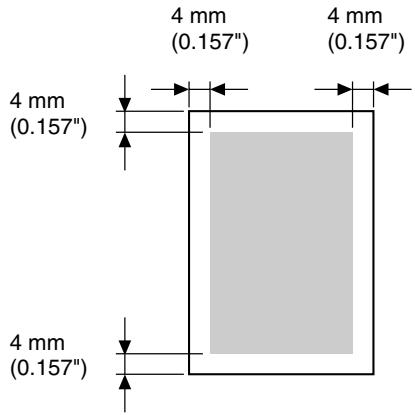
Page Margins
Margins are set through your application. Some applications allow you to set custom page sizes and margins while others have only standard page sizes and margins from which to choose. If you choose a standard format, you may lose part of your image (due to imageable area constraints). If you can custom-size your page in your application, use those sizes given for the imageable area for optimum results.
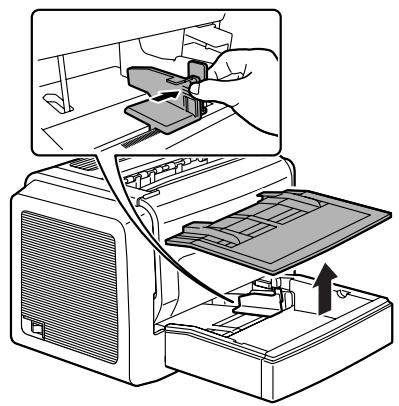
How do I refill Tray 1?

Refill the tray only when it is completely empty.
1 Remove the tray cover from Tray 1. Squeeze the right paper guide and open the paper guides.
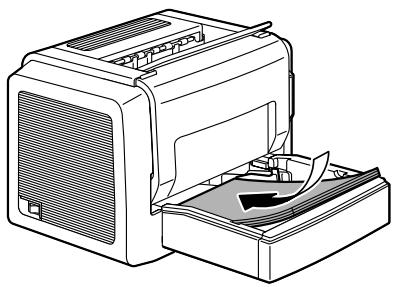
2 Load the media lengthwise and printing-side up in the tray.
A maximum of 250 sheets (75 g/m² [20 lb] plain paper) can be loaded. If media is loaded past the media limit mark, it may not be fed correctly.
Load letterhead with the side to be printed facing up and the preprinted letterhead at the top (facing the printer).
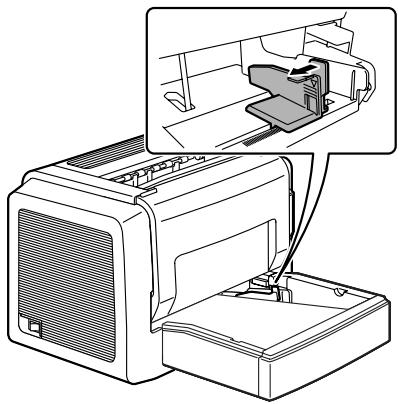
3 Squeeze the right paper guide and adjust the paper guides so that both the left and right sides of the media are secure. Then, re-place the tray cover onto Tray 1.
How do I refill the manual feed tray?

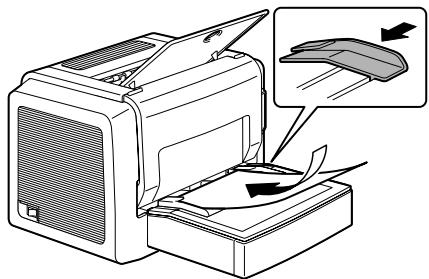
When using the manual feed tray, the sheet of paper must be fed in one at a time.
1 Make sure that the tray cover is properly attached to Tray 1.
2 Open the paper guides.
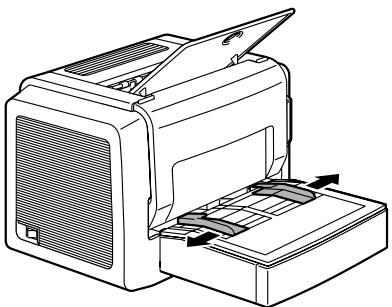
3 Insert the sheet of paper as far as possible into the manual feed tray with the side to be printed on facing up, and then adjust the paper guides so that both sides of paper are a secure.
How do I load and print custom media?
Do not use custom media that does not have approved dimensions
Width: 76 mm (3") up to 216 mm (8.5")
Length: 127 mm (5") up to 356 mm (14")
1 In the printer driver (Setup tab/Media Type option), select Plain Paper.
2 Set the media size (Paper tab/Original Document Size/Edit Custom...)
3 Load the custom media lengthwise and printing-side up in Tray 1.
4 Adjust the paper guides to the width of the custom media.
Note
Improperly adjusted guides may cause poor print quality, media jams, or printer damage.
5 Print the custom media.
How do I load and print envelopes?

Before printing on envelopes, we recommend printing a test page. If the print result is not oriented as desired, select Rotated (Paper tab/Orientation option).
Do not use envelopes that have
Sticky flaps
- Tape seals, metal objects, paper clips, fasteners, or peel-off strips for sealing
Transparent windows
Rough surface
Material that will melt, vaporize, or emit dangerous fumes
■ Been presealed
Use envelopes that are
Common office envelopes with diagonal joints, sharp folds and edges, and ordinary gumed flaps
Approved for laser printing
Dry
1 In the printer driver (Setup tab/Media Type option), select Envelope.
2 Select the size of the envelope (Paper tab/Original Document Size option).
3 Remove the tray cover from Tray 1. Place the envelopes on a flat surface, and flatten them by pressing down the corners.
4 Flex the envelope stack (including the edges) to remove any stiffness.
5 Correct any bent corners, and tap the envelopes on a flat surface to align them.
6 Squeeze the right paper guide and open the paper guides.
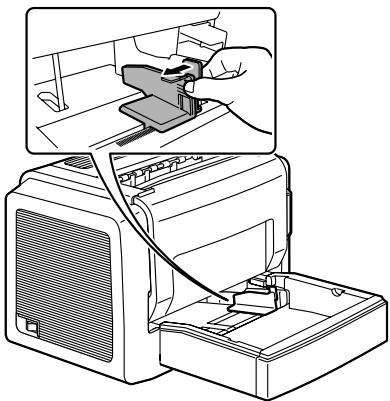
7 Load the envelopes lengthwise and the printing-side up as shown in the illustrations.
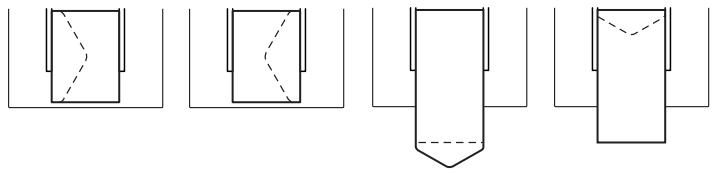
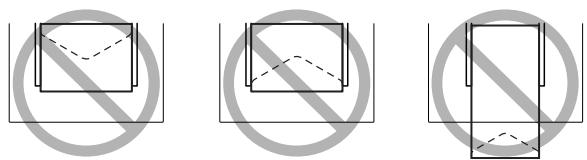
Note
Print envelopes on the front address side only. Some parts of the envelope consist of three layers of paper—the front, back, and flap. Anything printed in these layered regions may be lost or faded.
8
Recheck the paper guides to make sure they are adjusted to the width of the envelopes.
Note
Improperly adjusted guides may cause poor print quality, media jams, or printer damage.
9
Print the envelopes.
10
Open the flap of each envelope immediately (before it cools) after the envelope is delivered to the output tray.

Because the envelopes pass through heated rollers, the gumed area on the flaps may seal. Using envelopes with emulsion-based glue avoids this problem.
How do I load and print labels?
A label consists of a face sheet (the printing surface), adhesive, and a carrier sheet:
The face sheet must follow the plain paper specification.
The face sheet surface must cover the entire carrier sheet, and no adhesive should come through on the surface.
You can print continuously with label paper. However, this could affect the media feed, depending on the media quality and printing environment. If problems occur, stop the continuous print and print one sheet at a time.
Format label data within your application. Try printing your data on a plain sheet of paper first to check placement. Check your application documentation for other information on printing labels.
Do not use label sheets that
Have labels that easily peel off
Labels may stick to the fuser, causing them to peel off and media jams to occur.
Are precut
Do not use
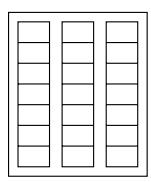
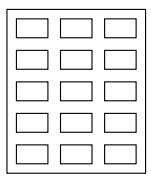
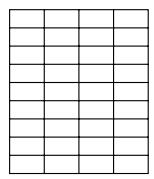
OK to use

Full page labels (uncut)
Use label sheets that are
Recommended for laser printers
1 In the printer driver (Setup tab/Media Type option), select Thick Paper.
2 Select the size of the label (Paper tab/Original Document Size option).
3 Remove the tray cover from Tray 1. Load the label media lengthwise and printing-side up in Tray 1.
4 Adjust the paper guides to the width of the label media.
Note
Improperly adjusted guides may cause poor print quality, media jams, or printer damage.
5 Print the labels.
How do I load and print postcards?
Do not use postcards that are
Coated
Warped or bent
Designed for inkjet printers
Multicolored
Preprinted or multicolored (may result in printer jamming)
Use postcards that are
Postcards (100× 148mm / 3.9× 5.8 in.) recommended for laser printers
1 In the printer driver (Setup tab/Media Type option), select Postcard.
2 Select the size of the postcard (Paper tab/Original Document Size option).
3 Remove the tray cover from Tray 1. Place the postcards on a flat surface, and flatten them by pressing down the corners.
4 Remove any media in Tray 1.
5 Load the postcard media lengthwise and printing-side up in Tray 1.
6 Adjust the paper guides to the width of the postcards.
Note
Improperly adjusted guides may cause poor print quality, media jams, or printer damage.
7 Print the postcards.
How do I load and print thick stock?
Test all thick stock to ensure acceptable performance and to ensure that the image does not shift.
Do not use thick stock that is
- Mixed with any other media in the media trays (as this will cause printer jamming)
Note
Do not mix thick stock with any other media in the same tray, as this will cause printer jamming.
1 In the printer driver (Setup tab/Media Type option), select Thick Paper.
2 Select the size of the stock (Paper tab/Original Document Size option).
3 Remove the tray cover from Tray 1. Load the thick stock media lengthwise and printing-side up in Tray 1.
4 Adjust the paper guides to the width of the thick stock.
Note
Improperly adjusted guides may cause poor print quality, media jams, or printer damage.
5 Print the thick stock.
How do I load and print transparencies?
Note
Using unsupported transparency media such as coated color transparencies will result in damaging the printer and in voiding your warranty.
Remove transparency media as soon as possible from the output tray to avoid static buildup.
If you touch the face of transparencies with your bare hands, print quality may be affected. Do not handle transparency media too much.
You can print continuously with transparencies. However, this could affect the media feed, depending on the media quality, static buildup, and printing environment. If you have problems loading a large number of transparencies at a time, try loading only 1-10 sheets.
Do not use transparencies that
Are coated, such as transparencies designed for color printers or copiers
Have static electricity that will cause them to stick together
Use transparencies that are
Monochrome, uncoated transparencies (also known as OHP film)
1 In the printer driver (Setup tab/Media Type option) select Transparency.
2 Select the size of the transparency (Paper tab/Original Document Size option).
3 Fan a few transparencies.

Fanning a large number will build up static electricity.
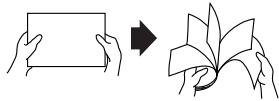
4 Remove the tray cover from Tray 1. Load the transparency media lengthwise and printing-side up in Tray 1.
5 Adjust the paper guides to the width of the transparencies.
Note
Improperly adjusted guides may cause poor print quality, media jams, or printer damage.
6 Print the transparencies.
7 Immediately remove the printed transparencies from the output tray.
Manual Duplexing
Select paper with high opacity for duplex (2-sided) printing. For best results, print a small quantity to make sure the opacity is acceptable.
How do I manually duplex?

Media jams may occur if the printed sheet(s) reinserted are not entirely flat.
1 In the printer driver (Setup tab/Duplex/Booklet option), select the appropriate setting from Short Edge Binding, Long Edge Binding, Booklet Left Binding, or Booklet Right Binding.
2 From the print dialog box of your software, select the necessary settings and print all pages.
3 Remove the single-sided print-outs from the output tray, and then insert them into Tray 1 with the same orientation that they were fed out.
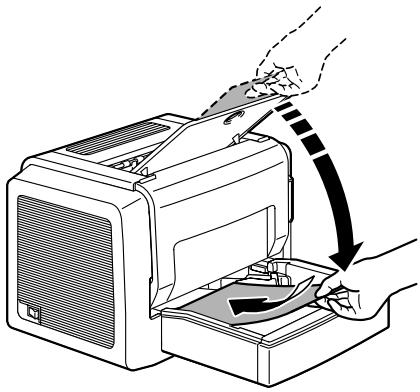
4 Click Proceed on the screen of your PC or press the Cancel button.
Replacing Consumables
6
When replacing a toner cartridge, refer to the following table. For optimum print quality and performance, use only approved KONICA MINOLTA toner cartridges for your specific printer type, as listed in the table below. You can find your printer type and the toner cartridge part numbers on the consumables reorder label on the inside of the front cover of your printer.
| Printer Type | Printer Part Number | Toner Cartridge Type | Toner Cartridge Part Number |
| EU | 5250223-200 | Standard-Capacity Toner Cartridge | 1710566-002 |
| High-Capacity Toner Cartridge | 1710567-002 |
Note
If a toner cartridge used is of an unapproved type, cleaning will be performed after each page is printed, which reduces the print speed.
Replacing the Toner Cartridge
When it is time to replace the toner cartridge, "Toner Cartridge Low" displays in the Status Display. The supplies status indication in the Status Display is only a reference. Printing can continue even though the warning appears. However, printing gradually fades out, so replace the toner cartridge as soon as possible.

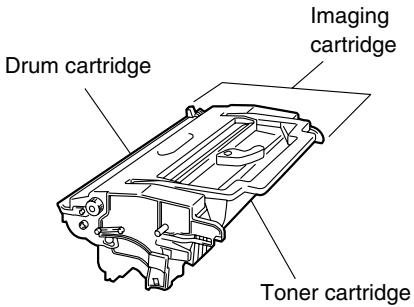
In this manual, a toner cartridge attached to a drum cartridge is referred to as an imaging cartridge.
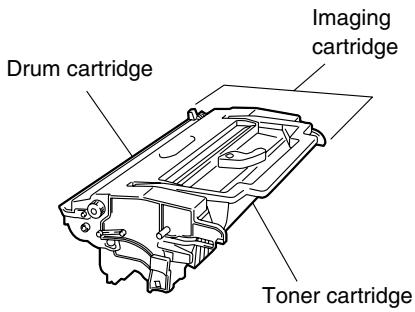
1 Open the front cover.
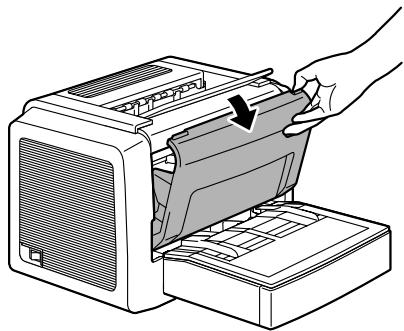
2 Pull the handle of the imaging cartridge toward you, and then pull out the imaging cartridge.
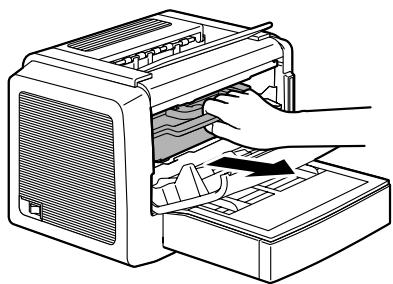
Note
Do not expose the imaging cartridge to light for a long period of time. If the drum cartridge is exposed to light, decreased image quality may result.
3 Move the lever on the toner cartridge in the direction of the arrow.
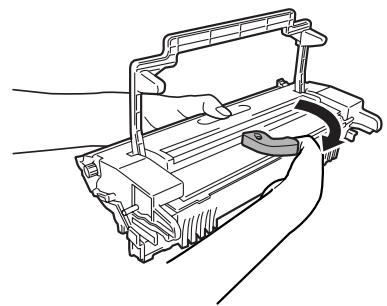
4 Using both hands, separate the toner cartridge and drum cartridge.
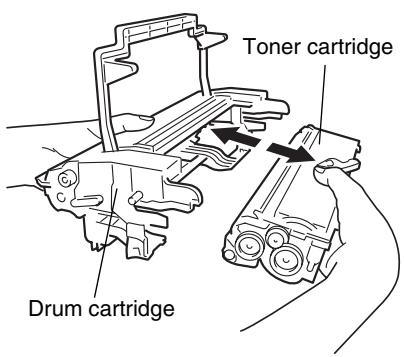
Note
When separating the toner cartridge and drum cartridge, keep them level.
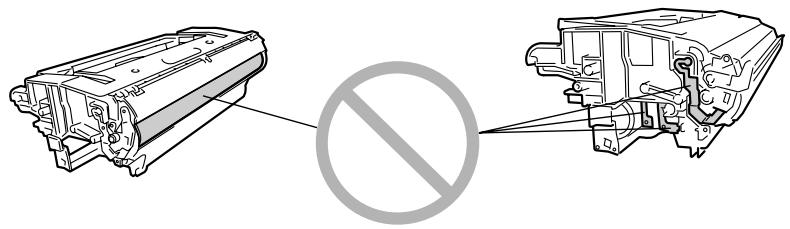
Do not touch the OPC drum under the flap of the drum cartridge, otherwise decreased image quality may result.
Do not touch any metal parts of the drum cartridge and toner cartridge, otherwise damage from static electricity may result.
5 Remove a new toner cartridge from its box.

Do not throw away the box. It may be used to pack the used toner cartridge.
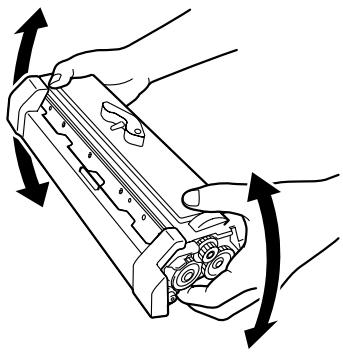
6 Holding it firmly with both hands, rock the toner cartridge left and right, to distribute the toner evenly.
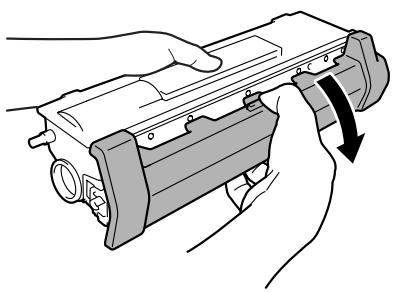
7 Remove the protective cover from the toner cartridge.
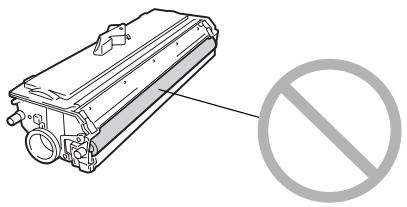
Note
Do not touch the developing roller of the toner cartridge, otherwise decreased image quality may result.
8 Holding both the toner cartridge and the drum cartridge in your hands, align the colored guide on the drum cartridge with the matching colored projection on the toner cartridge to fit the two cartridges together.
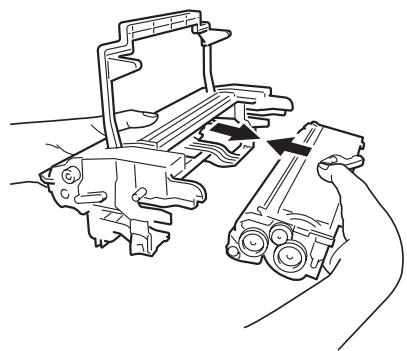
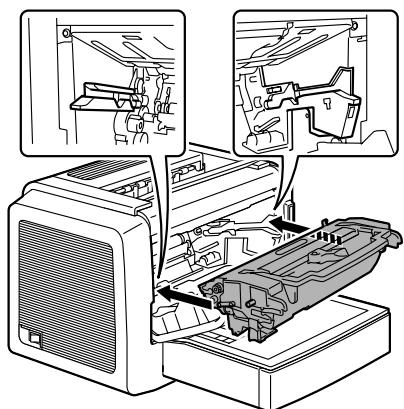
9 Align the imaging cartridge with the guides in the printer, and then insert the cartridge.
Note
Do not insert the imaging cartridge at an angle or with extreme force, otherwise the printer may be damaged.
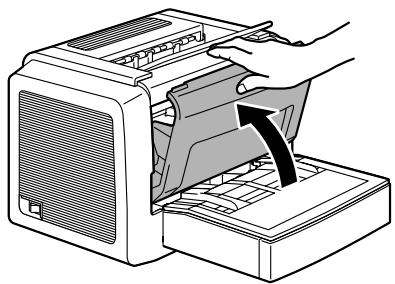
10 Close the front cover.
Replacing the Drum Cartridge
When the printed documents become faint or blurred, the drum cartridge may be at the end of its life.
The drum cartridge has a capacity of about 16,000 (one-page jobs) to 20,000 (continuous printing) letter/A4 pages (at an average of 5% or less toner coverage).
Select the Print menu in the Status Display, print out the Configuration page (Print Configuration Page), and then check the total number of prints.
Note
The OPC drum is extremely sensitive to bright light, direct sunlight, and touch. Always leave the drum cartridge in its protective package until you're ready to install it.

In this manual, a toner cartridge attached to a drum cartridge is an imaging cartridge.
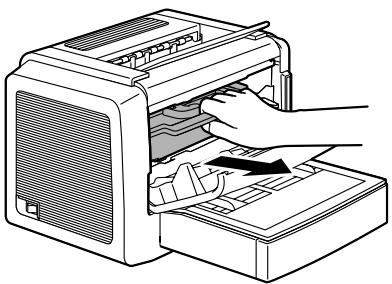
1 Open the front cover.
2 Pull the handle of the imaging cartridge toward you, and then pull out the imaging cartridge.
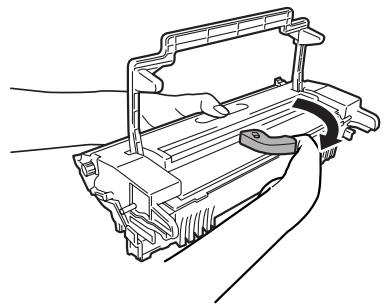
3 Move the lever on the toner cartridge in the direction of the arrow.
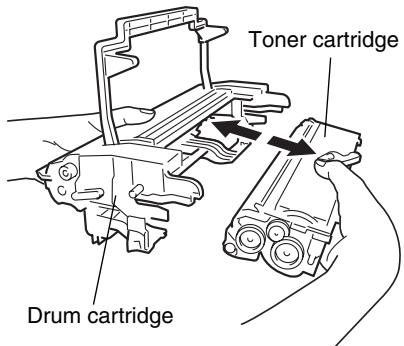
4 Using both hands, separate the toner cartridge and drum cartridge.
Note
When separating the toner cartridge and drum cartridge, keep them level.
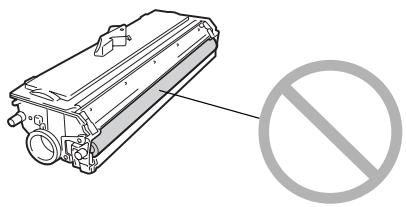
Do not touch the developing roller of the toner cartridge, otherwise decreased image quality may result.
5 Remove a new drum cartridge from its box.

Do not throw away the box. It will be used to pack the used drum cartridge.
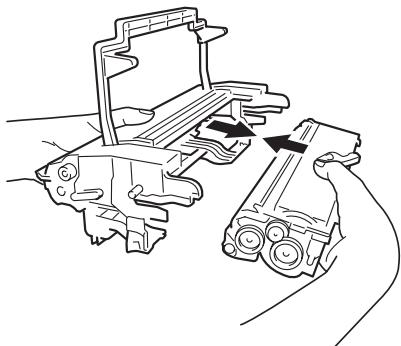
6 Holding both the toner cartridge and the drum cartridge in your hands, align the colored guide on the drum cartridge with the matching colored projection on the toner cartridge to fit the two cartridges together.
Note
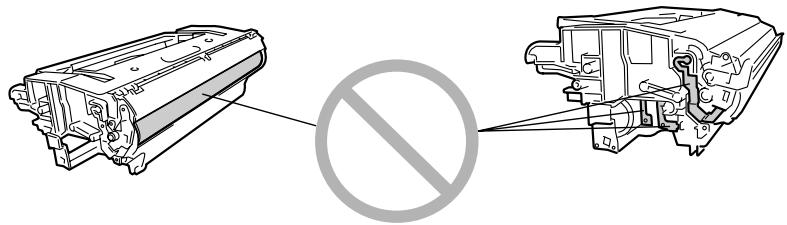
Do not touch the OPC drum under the flap of the drum cartridge, otherwise decreased image quality way result.
Do not touch any metal parts of the drum cartridge and toner cartridge, otherwise damage from static electricity may result.
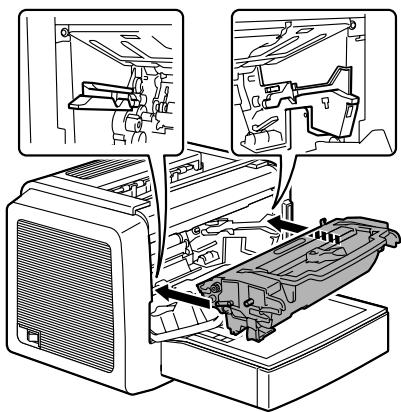
7 Align the imaging cartridge with the guides in the printer, and then insert the cartridge.
Note
Do not insert the imaging cartridge at an angle or with extreme force, otherwise the printer may be damaged.
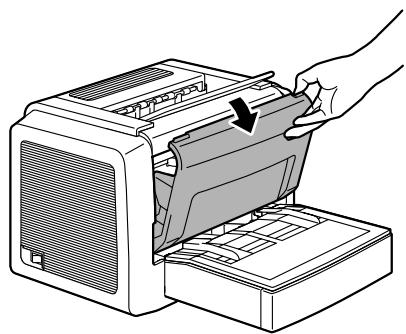
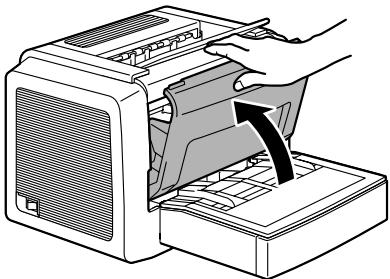
8 Press on the front cover grip and close the front cover.
Maintaining the Printer
7
Cleaning the Printer
Exterior
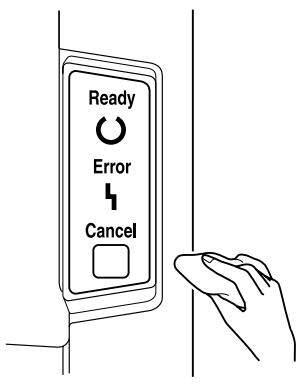
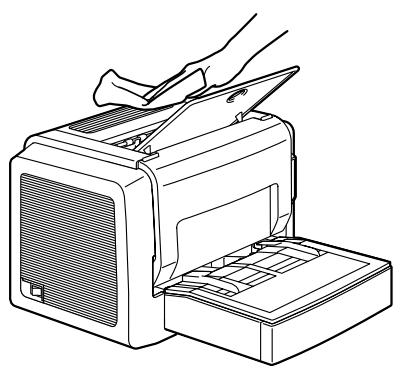
Note
Never spray cleaning solutions directly on the printer's surface; the spray could penetrate through the air vents of the printer and damage the internal circuits.

CAUTION
Do not spill water or detergent into the printer, otherwise the printer will be damaged and an electric shock may occur.
Pick-up Roller
1 Turn off the printer, unplug the power cord, and disconnect all interface cables before cleaning.
2 Grab the front cover grip and open the front cover.
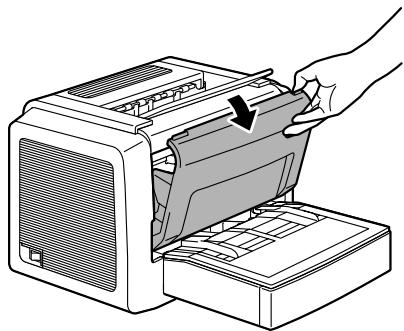
3 Pull the handle of the imaging cartridge toward you, and then pull out the imaging cartridge.
Note
Do not expose the imaging cartridge to light for a long period of time. If the drum cartridge is exposed to light, decreased image quality may result.
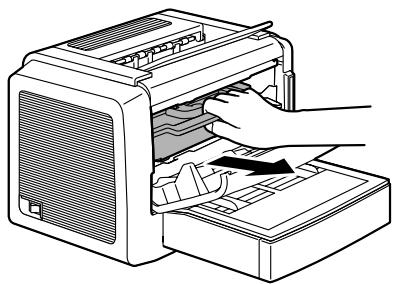

CAUTION
The fusing unit is extremely hot. Touching any part near the fusing unit may result in burns.

Do not touch the image transfer roller inside the printer, otherwise decreased image quality may result.
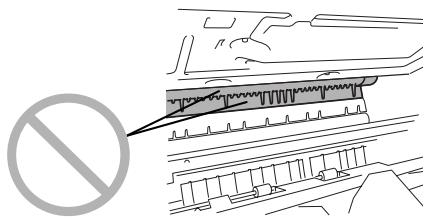
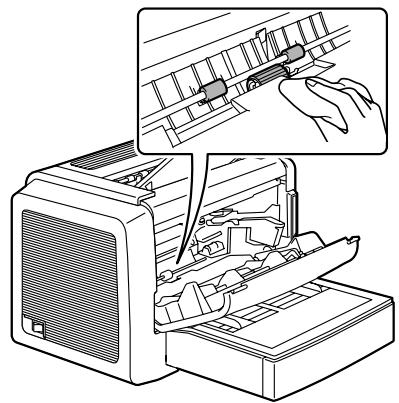
4 Wipe the pick-up roller with a soft, dry cloth.
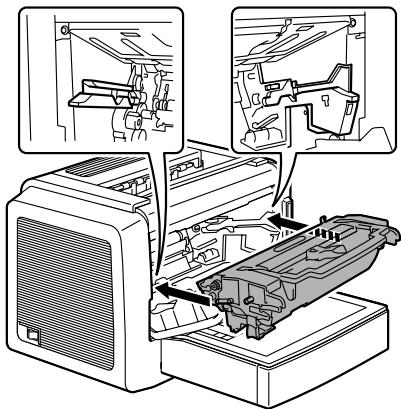
5 Align the imaging cartridge with the guides in the printer, and then insert the cartridge.
Note
Do not insert the imaging cartridge at an angle or with extreme force; otherwise, the printer may be damaged.
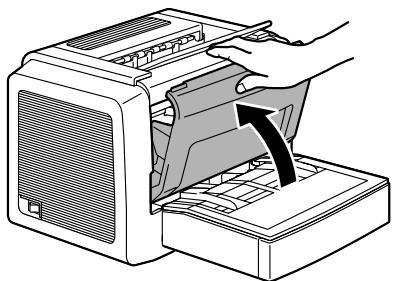
6 Close the front cover.
Troubleshooting
8
Indicator Messages
The control panel indicators (Ready, Error) provide information about your printer and help you locate each problem.
The indicators may show six types of signals:
Off
On
Slow blinking—1 blink every 2 seconds
Blinking—1 blink per second
Rapid blinking-2 blinks per second
Alternate blinking—Alternate
Status Message
Status messages indicate the current condition of the printer. The printer status also can be checked on the Status Display. (Refer to the "Working with the Status Display" on page 18.)
| Ready indicator (green) | Error indicator (orange) | Condition | Action |
| Off | Off | Power off | None |
| On | Off | Ready to print | None |
| Rapid blink- ing | Off | Warming up | None |
| Blinking | Off | Processing data | None |
| Printing | |||
| On | On | Initializing (power on) | None |
| Canceling a print job | |||
| Resetting a counter | |||
| Slow blinking | Off | Power save mode | None |
| On | Slow blinking | Toner near empty | Prepare the toner cartridge. |
| On | Blinking | Toner empty | Replace the toner cartridge. |
| On | Rapid blink- ing | End of toner cartridge service life | Replace the toner cartridge. |
| No toner cartridge is installed. | Install the toner car- tridge. | ||
| Unapproved toner car- tridge installed. | Install a KONICA MINOLTA toner cartridge. |
Note
If a toner cartridge used is of an unapproved type, cleaning will be performed after each page is printed, which reduces the print speed.
Error Messages
These messages indicate errors which you must correct before a print job can continue or the printer status returned to "Ready".
| Ready indicator (green) | Error indicator (orange) | Condition | Action |
| Blinking | Memory Overflow or Job too Complex | Hold down the Cancel button for more than 5 seconds to cancel the print job. Decrease the amount of data to be printed (for example, by decreasing the resolution or by printing only a few pages at a time), and then try printing again. If that does not solve the problem, install an optional memory module. | |
| Communication Error. | Check the printer cable. | ||
| Video Under-run | Hold down the Cancel button for more than 5 seconds to cancel the print job. Decrease the amount of data to be printed (for example, by decreasing the resolution), and then try printing again. | ||
| Rapid blinking alter-nately | No media in the tray specified in the printer driver. | Load the appropriate type of media into Tray 1 or the manual feed tray, and then press the Cancel but-ton (less than 5 seconds.) | |
| Media size error If the “Auto Continue” option has been acti-vated in the Status Display, the sheet already fed in, is automatically ejected after a predeter-mined time. | Load the appropriate size media into Tray 1 or the manual feed tray, and then press the Cancel button (less than 5 seconds.) | ||
| Waiting for the Manual Duplex. | Reload the media so the second side can be printed, and then press the Cancel but-ton (less than 5 seconds.) (Refer to the “Manual Duplexing” on page 34.) | ||
| Waiting for a proof print | Press the Cancel but-ton (less than 5 seconds) if the proof print is acceptable to con-tinue the print job. If it is not acceptable, hold down the Cancel but-ton for more than 5 seconds to cancel the current job. | ||
| Off | Slow blink-ing | Paper empty | Load media into Tray 1 or the manual feed tray, and then press the Cancel button (less than 5 seconds.) |
| Off | Blinking | Media jam | Clear the jam, close the front cover, and then continue with the print job. |
| Off | On | Front cover or top cover is open. | Close the front cover or top cover. |
Service Messages
This message indicates a more serious fault that can only be corrected by a customer service engineer.
| Ready indicator (green) | Error indicator (orange) | Condition | Action |
| Off | Rapid blink- ing | Fatal error | Turn the printer off, then on again. If the problem persists, contact your vendor or authorized ser- vice provider. |
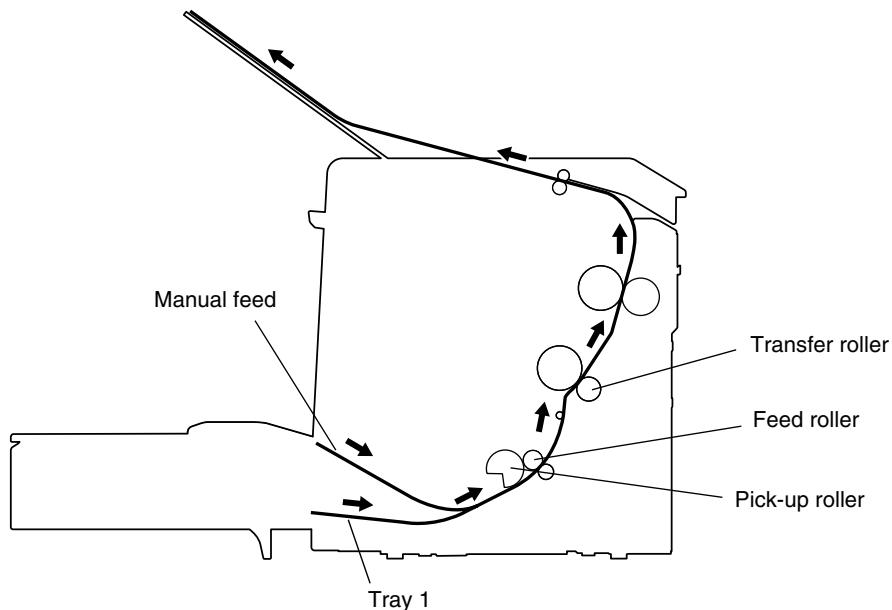
Clearing Jams
Understanding the printer's media path will help you locate media jams.
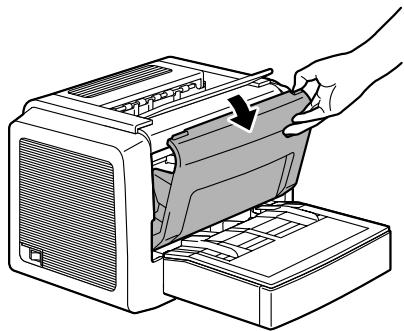
1 Open the front cover.
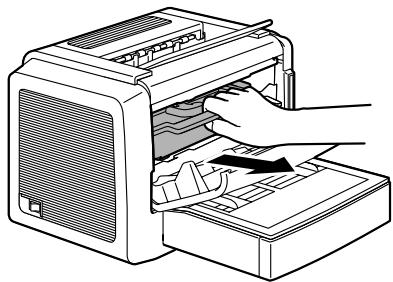
2 Pull the handle of the imaging cartridge toward you, and then pull out the imaging cartridge.
Note
Do not expose the imaging cartridge to light for a long period of time, otherwise decreased image quality may result.
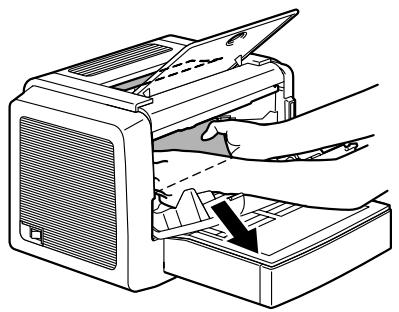
3 Pull out the jammed media along the feeding direction.
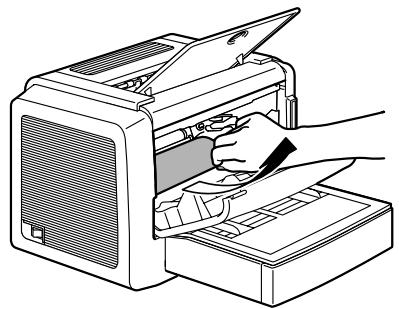
Note
If media is jammed in the fusing unit, pull the media downward to remove it.

CAUTION
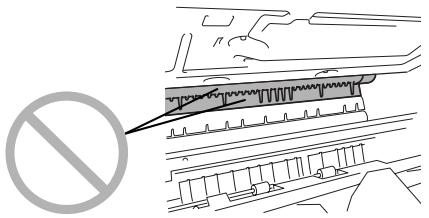
The fusing unit is extremely hot. Touching any part near the fusing unit may result in burns.

Do not touch the image transfer roller inside the printer, otherwise decreased image quality may result.
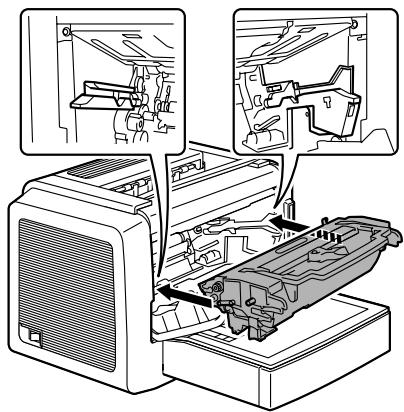
4 Align the imaging cartridge with the guides in the printer, and then insert the cartridge.
Note
Do not insert the imaging cartridge at an angle or with extreme force, otherwise the printer may be damaged.
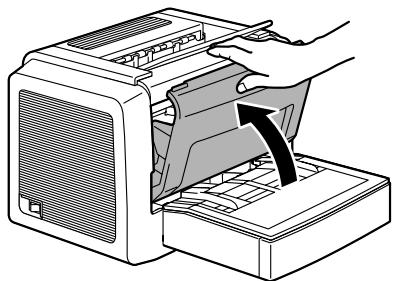
5 Close the front cover.
Solving Problems-Printing Quality
| Symptom | Cause | Solution |
| Blank page | The toner cartridge may be defective. | Remove the toner cartridge and check it for damage. Replace the toner cartridge, if necessary. |
| Black page | The toner cartridge may be defective. | Remove the toner cartridge and check it for damage. Replace the toner cartridge, if necessary. |
| Your printer may require servicing. | Contact your local vendor, or refer to the General Information Guide. | |
| Print too light | The toner cartridge may running out of toner. | Remove the toner cartridge and shake it left and right a few times to distribute remaining toner. If the problem persists, replace the toner cartridge. |
| ABCDE | ||
| ABCDE | ||
| ABCDE | ||
| ABCDE | The toner cartridge may be defective. | Remove the toner cartridge and check it for damage. Replace the toner cartridge, if necessary. |
| Print too dark | The toner cartridge may be defective. | Remove the toner cartridge and check it for damage. Replace the toner cartridge, if necessary. |
| ABCDE | The toner cartridge may be defective. | Remove the toner cartridge and check it for damage. Replace the toner cartridge, if necessary. |
| ABCDE | ||
| ABCDE | ||
| ABCDE | ||
| ABCDE | ||
| Uneven print density | The toner may be unevenly distributed inside the toner cartridge. | Remove the toner cartridge and shake it left and right a few times to distribute the remaining toner. |
| ABCDE | ||
| ABCDE | The toner cartridge may be defective. | Remove the toner cartridge and check it for damage. Replace the toner cartridge, if necessary. |
| ABCDE | ||
| ABCDE | The image transfer roller may be defective. | Contact your local vendor. |
| Irregularities | The media may have absorbed some moisture due to high humidity or because of direct contact with water. | Since toner will not adhere well to wet media, replace the media you are using with dry media and try printing again. |
| ABCDE | ||
| ABCDE | ||
| ABCDE | ||
| White or black lines | The toner cartridge may be defective. | Remove the toner cartridge and check it for damage. Replace the toner cartridge, if necessary. |
| ABCDE ABCDE ABCDE ABCDE | ||
| Dark lines on the edges. | The transfer roller is dirty. | Contact your local vendor. |
| Toner smudges | The toner may be unevenly distributed inside the toner cartridge. | Remove the toner cartridge and shake it left and right a few times to distribute remaining toner. |
| ABCDE ABCDE ABCDE ABCDE | ||
| Smudges on the media indicate a dirty feed roller. | Contact your local vendor. | |
| There is insuf- ficient fusing or the image comes off when rubbed. | The media is moist from humidity. | Remove the moist media and replace it with new, dry media. |
| Media with specifications not covered by the printer warranty is being used. | Use media that is covered by the printer warranty. | |
| The media type may be incor- rectly set. | When printing envelopes, labels, thick stock, and trans- parencies, the appropriate media type must be specified in the printer driver. | |
Installing Accessories
9
Note
Use of accessories not manufactured or supported by KONICA MINOLTA will void your warranty.
This chapter provides information about the following accessory.
| Dual In-Line Memory Modules (DIMMs) | 128 MB DIMM (unbuffered) |
Note
Installing accessories always requires that the printer and accessories are turned off and unplugged during installation.
Antistatic Protection
Note
If an antistatic wrist strap is provided in your printer option kit, attach one end of it to your wrist and the other end to any convenient electrical ground (for example, the bare metal chassis of equipment, as on the back of a computer, that is plugged in but turned off). Never attach the wrist strap to any piece of equipment with an electrical current present. Turn off all power switches first. Plastic, rubber, wood, painted metal surfaces, and telephones are not acceptable grounding points. The printer is not an acceptable grounding point either because it must be unplugged before you perform this task.
If you do not have an antistatic wrist strap, discharge your body's static electric charge by touching a grounded surface before you handle any printer boards or components and before removing the controller board. Also avoid walking around after grounding yourself.
Dual In-Line Memory Module (DIMM)

You may need additional memory for complex graphics, and for duplex printing.
Dual in-line memory modules (or DIMMs) are compact circuit boards with surface-mount memory chips.
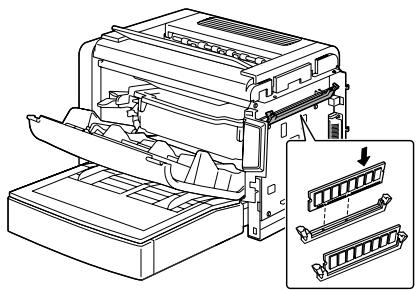
Your printer comes with 16 MB SDRAM printer memory on board. However, you can upgrade to a maximum of 144 MB of RAM through the installation of an additional DIMM. Additional memory must be 128 MB DIMM. Your printer comes with one available DIMM slot.
Installing a DIMM
Note
It is very important to protect the printer controller board and any associated circuit boards from electrostatic damage. Before performing this procedure, review the antistatic caution on page 66. In addition, always handle circuit boards by the edges only.
1 Turn the printer off and disconnect the power cord and the interface cables (if attached) from the printer.
2 Open the front cover.
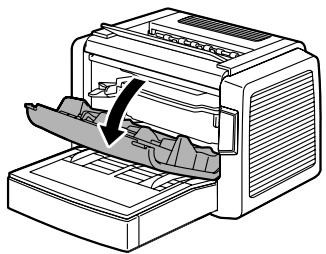
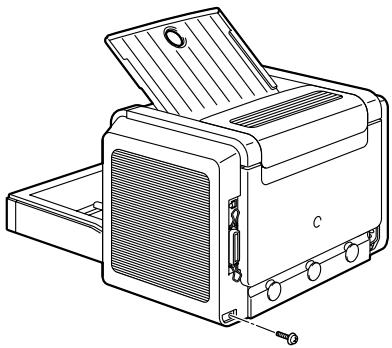
3 Remove the screw on the back of the right cover.
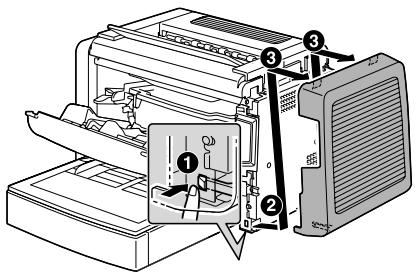
4 Unhook the tab on the inside of the right cover by inserting your finger from the bottom of the printer, then pressing on the tab backward.
Remove the right cover by lifting it up and out.
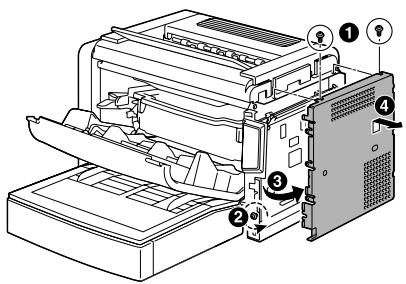
5 Remove the two screws at the top of the inner metal panel, and then loosen the screw at the front tab.
Remove the left side of this panel out, and then slide the panel up to remove it.
6 Insert the new DIMM straight into the DIMM connector until the latches snap into the locked position.
Move the left side of this panel out, and then slide the panel up to remove it.
7 Reattach the inner metal panel.
8 Reattach the right cover.
9 Close the front cover.
10 Print a configuration page (Refer to "Printing a Test Page" on page 3) and verify that the amount of RAM installed in your printer is listed.
Appendix
A
Safety Specifications
| Printer | ||
| Safety standards | U.S. model | UL 60950, CSA C22.2 No. 60950 |
| European model | EU Directive 73/23/EEC EU Directive 93/68/EEC EN 60950 (IEC 60950) | |
| China model | GB 4943 | |
| EMC standards | U.S. model | FCC part 15 subpart B class B ICES-003 |
| European model | EU Directive 89/336/EEC EN 55022 (CISPR Pub. 22) class B EN 61000-3-2 EN 61000-3-3 | |
| China model | GB 9254 class B, GB 17625.1 | |
| Australian model | AS/NZS 3548 class B | |
Technical Specifications
Printer
| Type | Desktop laser beam printer |
| Print system | Electrostatic dry powder imaging system |
| Exposure system | Laser diode + polygon mirror scanning |
| Developing system | Electrophotographic printing system |
| Resolution | 1200dpi × 1200dpi (at half speed),600dpi × 600dpi or 1200dpi × 600dpi |
| Print speed | 600dpi × 600dpi or 1200dpi × 600dpi20 pages per minute for A421 pages per minute for letter1200dpi × 1200dpi10 pages per minute for A4 or letter |
| First print | 1200dpi × 600 dpiWithin 13 seconds (A4/Letter)1200dpi × 1200 dpiWithin 22 seconds (A4/Letter) |
| Warm-up time | 21 seconds or less at startup |
| Media sizes | ·Paper—Letter, Legal, Executive, G Letter, Statement, Folio, Letter Plus, UK Quarto, Foolscap, G Legal, 16K, A4, A5, B5 JIS, Chinese 16K, Chinese 32K, custom paper sizes ·Envelopes—#10, Monarch, DL, C5, C6, B5 (ISO), Choukei-3Gou and Choukei-4Gou ·Postcard, Double Postcard |
| Paper/Media | ·Plain paper (60 to 90g/m2; 16 to 24 lb.) ·Recycled paper (60 to 90g/m2; 16 to 24 lb.) ·Transparencies ·Envelopes ·Thick paper (90 to 163g/m2; 24 to 43 lb.) ·Postcard ·Letterhead ·Label sheet |
| Paper feeding | ·Tray 1 ·Manual feed tray |
| Input capacity | ·Tray 1: 250 sheets ·Manual feed tray: 1 sheet |
| Output capacity | ·Output tray: 100 sheets |
| Operating temperature | 10° to 35°C (50° to 95°F) |
| Operating humidity | 15 to 85% |
| Power supply | 220-240 V, 50-60 Hz |
| Power consumption | 220-240 V: 900 W |
| Amperage | 220-240 V: 4.5 A or less |
| Acoustic Noise | Printing: 54 dB or less Standby: 39 dB or less |
| External dimensions (with Tray1 and the output tray closed) | Height: 283 mm (11.1 in.) Width: 387 mm (15.2 in.) Depth: 455 mm (17.9 in.) |
| Weight | Printer: approximately 7kg (15.4 lb.) Drum cartridge: approximately 0.3kg (0.7 lb.) Toner cartridge: approximately 0.5kg (1.1 lb.) |
| Interface | IEEE 1284 compliant type B (Compatible/Nibble/ECP) USB 2.0 (High speed) compliant |
| CPU | D8701 (200 MHz) |
| Standard memory | 16 MB |
Parallel Interface Connectors and Cable
| Connectors | Printer: Parallel 36-pin connector Computer: EIA 25-pin connector |
| Cable type | Shielded Each signal and earth pair should be twisted |
| Pin assignments | IEEE 1284 compliant type B connector |
USB Interface Connectors and Cable
| Connectors | Printer: Series B plug Computer: Series A plug |
| Cable type | Require twisted data conductors or a shielded |
| Pin assignments | 1: VBUS 2: D+ 3: D- 4: GND Shell: Shield |
Consumables Life Expectancies Chart
| Item | Average Life Expectancy (in Simplex Pages) |
| Toner Cartridge | At 5% coverage, using A4-size media Starter Cartridge = 1,500 printing Replacement Cartridge = 3,000 continuous printing or 2,400 intermittent printing. 6,000 continuous printing or 4,800 intermittent printing. |
| Drum cartridge | 16,000 intermittent printing (for example, one-page jobs) 20,000 continuous printing |
Our Concern for Environmental Protection

As an ENERGY STAR® Partner, we have determined that this machine meets the ENERGY STAR Guidelines for energy efficiency.
What is an ENERGY STAR product?
An ENERGY STAR product has a special feature that allows it to automatically switch to a "low-power mode" after a period of inactivity. An ENERGY STAR product uses energy more efficiently, saves you money on utility bills and helps protect the environment.
Index
A
Accessories 66
DIMMs 67
Additional memory 67
Antistatic protection 66
C
Cleaning
Exterior 48
Pick-up Roller 49
D
Drum cartridge
Replacing 42
Dual in-line memory modules 67
Duplex 34
E
Electrostatic discharge 66
1
Indicator 3
Error messages 54
Service messages 56
Status message 52
L
Loading
Media 23, 26
M
Manual Duplexing 34
Media
Clearing jams 57
Loading 23, 26
Size 22
Storage 23
Type 23
Weight 22
P
Page margins 25
Paper tab 8, 13
Printable area 25
Printer
Parts 2
Printer driver 7, 13
Paper tab 8, 13
Quality tab 8, 14, 15
Setting 6, 12
Setup tab 8, 14, 19
Printing
Envelope 28
Label 30
Postcard 31
Thick stock 32
Transparency 33
Q
Quality tab 8, 14, 15
S
Setup tab 8, 14, 19
Static electricity discharge 66
Status display
Closing 20
Opening 18
Using 19
T
Toner cartridge
Replacing 37
Troubleshooting 51
Clearing jams 57