
BIZHUB 362 - Multifunction Printer KONICA - Free user manual and instructions
Find the device manual for free BIZHUB 362 KONICA in PDF.


| Product Type | Multifunction printer (copier, printer, scanner, optional fax) |
| Brand | KONICA MINOLTA |
| Model | BIZHUB 362 (also 282/222) |
| Scan Format | Letter, Legal, 11×17, A4, B4, A3 |
| Scan Resolution | Up to 600 × 600 dpi (200 × 100, 200 × 200, 400 × 400, 600 × 600 dpi) |
| File Formats | TIFF, PDF |
| Encoding Methods | MH, MR, MMR (for IP fax); MH, MMR (for Scan to PC) |
| Network Connectivity | Ethernet 10Base-T / 100Base-TX, TCP/IP |
| Power Supply | 220–240 V AC, 50/60 Hz |
| Dimensions (approx.) | 650 × 650 × 750 mm (depending on configuration) |
| Weight (approx.) | 65 kg (depending on configuration) |
| Main Functions | Printing, copying, scanning, IP fax, Scan to PC, IP Scanner, IP relay, management via PageScope Web Connection |
| Number of One-Touch Keys | Up to 540 records (IP addresses or host names) |
| Mail Programs | Up to 30 programs, 300 recipients per program |
| Maintenance and Cleaning | Use a soft cloth slightly damp; do not use solvents; clean the automatic document feeder (ADF) and the exposure glass regularly. |
| Security | User authentication, account tracking, transmission restrictions, SSL/TLS encryption for network communications. |
| Spare Parts and Repairability | Contact an authorized service representative; user manuals are available in PDF. |
| General Information | ENERGY STAR compliant; requires installation of optional scanner kit for advanced scanning functions. |
Frequently Asked Questions - BIZHUB 362 KONICA
User questions about BIZHUB 362 KONICA
0 question about this device. Answer the ones you know or ask your own.
Ask a new question about this device
Download the instructions for your Multifunction Printer in PDF format for free! Find your manual BIZHUB 362 - KONICA and take your electronic device back in hand. On this page are published all the documents necessary for the use of your device. BIZHUB 362 by KONICA.
USER MANUAL BIZHUB 362 KONICA
Advanced Scan Operations
Contents
1 Introduction
1.1 Energy Star 1-4
What is an ENERGY STAR® Product? 1-4
1.2 Trademarks and registered trademarks 1-5
License information. 1-5
OpenSSL Statement 1-6
1.3 About this manual.. 1-9
Structure of the manual 1-9
Notations 1-9
Images that are used 1-10
Function precautions 1-10
Functions that cannot be used 1-10
1.4 User manuals 1-12
User manual [Copy Operations] 1-12
User manual [Network Scanner Operations] 1-12
User manual [Box Operations] 1-12
User manual [Print Operations] 1-12
User manual [Advanced Scan Operations] (this manual) 1-12
User manual [Facsimile Operations] 1-12
1.5 Explanation of manual conventions 1-13
Safety advices 1-13
Sequence of action 1-13
Tips 1-14
Special text markings 1-14
2 Features
2.1 IP address faxing 2-3
2.2 Scan to PC 2-4
2.3 IP Scanner 2-5
2.4 IP Relay 2-6
2.5 PageScope Web Connection 2-7
3 IP address faxing
3.1 Specifying a recipient with a one-touch dial button 3-3
Selecting a one-touch dial button 3-3
Specifying a recipient by touching a one-touch dial button 3-3
Entering the number of the one-touch dial button 3-5
Searching for a one-touch recipient 3-7
3.2 Entering an address 3-9
To enter an address. 3-9
3.3 Specifying the scanning quality and zoom ratio 3-12
Quality 3-12
To select an Quality setting 3-13
Density 3-14
To select a Density setting. 3-14
Original Size Setting. 3-15
3.4 Specifying additional functions 3-16
Specifying the transmission source information 3-18
Specifying the transmission report printing condition 3-20
Specifying 2in1 transmission. 3-21
Specifying double-sided transmission settings 3-22
Specifying priority transmission 3-23
Specifying timer transmission settings 3-23
Specifying the stamp setting 3-25
3.5 If the transmission could not be completed 3-26
Viewing the transmission report 3-26
Resending 3-27
3.6 Receiving an IP address fax 3-28
3.7 Adding a recipient 3-29
To program a one-touch dial button 3-31
Changing/deleting a one-touch dial button 3-34
Copying a one-touch dial button 3-35
Registering/editing/deleting the secondary recipient 3-36
Naming an index 3-37
To name an index 3-37
Registering a mail program 3-39
To register a mail program. 3-41
Changing/deleting a mail program 3-44
4 Scan to PC operations
4.1 Before saving 4-3
Installing IP Scanner on the computer 4-3
Checking the network settings 4-3
4.2 Specifying a destination with a one-touch dial button 4-4
Selecting a one-touch dial button 4-4
Specifying a recipient by touching a one-touch dial button 4-5
Entering the number of the one-touch dial button 4-7
Searching for a one-touch recipient 4-9
4.3 Entering an address 4-11
To enter an address 4-11
4.4 Specifying the scanning quality and zoom ratio 4-14
Quality 4-14
To select an Quality setting. 4-15
Density 4-16
To select a Density setting 4-16
Original Size Setting. 4-17
4.5 Specifying additional functions 4-18
Specifying the transmission report printing condition 4-20
Specifying 2in1 transmission 4-21
Specifying double-sided transmission settings 4-22
4-24
Specifying timer transmission settings 4-25
Specifying the stamp setting 4-26
Specifying the file name 4-27
4.6 If the data could not be saved 4-28
Viewing the transmission report. 4-28
Resending 4-29
4.7 Registering a destination 4-30
Programming a one-touch dial button 4-30
To program a one-touch dial button 4-32
Changing/deleting a one-touch dial button 4-35
Copying a one-touch dial button 4-36
Registering/editing/deleting the secondary recipient 4-37
5 IP Scanner
5.1 Before using IP Scanner 5-3
IP Scanner and ImageReceiver 5-3
Using a dial-up router 5-4
Using a modem or terminal adapter 5-4
Using Windows XP Service Pack 2/Windows Vista. 5-4
Allowing ImageReceiver to be used 5-6
ImageReceiver port conflicts 5-7
SSL transmissions 5-8
Installing certificates 5-10
5.2 Installing/uninstalling utilities 5-13
ImageReceiver installation methods 5-13
Installing utilities. 5-14
Uninstalling utilities (for Windows 2000/XP/Server 2003) 5-17
5.3 IP Scanner operations 5-19
Main window. 5-19
Available commands. 5-21
Scanner Settings dialog box. 5-23
Sort Settings dialog box (Scanner tab) 5-25
Sort Settings dialog box (RX Document tab) 5-26
Sort Settings dialog box (TX Document tab) 5-27
Divided Settings dialog box 5-29
Receive Notify Settings dialog box 5-30
ViewWindow 5-32
Printer Setting dialog box 5-33
Print Property dialog box 5-34
5.4 ImageReceiver operations.. 5-36
ImageReceiver icon 5-36
ImageReceiver commands 5-37
Automatic Print Settings dialog box 5-40
Folder and Printer Settings dialog box 5-41
5.5 Registering scan buttons and scan operations 5-42
General operation 5-42
Starting IP Scanner 5-42
Registering a scan button. 5-43
Scanning a document using the registered settings 5-46
Viewing the scanned image 5-48
Specifying automatic printing with IP Scanner 5-49
Automatically printing with IP Scanner 5-52
Specifying automatic printing with ImageReceiver 5-53
Automatically printing using a one-touch dial button 5-56
Exiting IP Scanner. 5-56
5.6 Other operations 5-57
Forwarding a received document to IP Scanner 5-57
Forwarding to IP Scanner 5-58
6 IP Relay operations
6.1 Before transmitting 6-3
Setting "Gateway TX" to "Restrict" 6-3
Specifying settings for relay stations 6-3
6.2 Specifying a recipient with a one-touch dial button 6-4
Selecting a one-touch dial button 6-4
Specifying a recipient by touching a one-touch dial button 6-5
Entering the number of the one-touch dial button. 6-7
Searching for a one-touch recipient 6-9
Specifying chain dialing 6-11
6.3 Entering a fax number 6-12
To enter a fax number. 6-12
6.4 Specifying the scanning quality and zoom ratio 6-15
Quality 6-15
To select an Quality setting. 6-16
Density 6-17
To select a Density setting. 6-17
Original Size Setting. 6-18
6.5 Specifying additional functions 6-19
Specifying the transmission report printing condition 6-21
Specifying 2in1 transmission 6-22
Specifying double-sided transmission settings 6-23
Specifying the priority transmission setting 6-25
Specifying timer transmission settings 6-26
Specifying the stamp setting 6-27
6.6 If the transmission could not be completed 6-28
Viewing the transmission report. 6-28
Resending 6-29
6.7 Registering a recipient 6-30
Programming a one-touch dial button 6-30
To program a one-touch dial button 6-32
Changing/deleting a one-touch dial button 6-35
Copying a one-touch dial button 6-36
Registering/editing/deleting the secondary recipient 6-37
7 Specifying settings using PageScope Web Connection
7.1 Settings that can be specified using PageScope
Web Connection 7-3
Scan tab (User mode) 7-3
Network tab (Administrator mode) 7-4
7.2 Using PageScope Web Connection 7-5
System requirements. 7-5
Accessing PageScope Web Connection 7-6
If user authentication settings have been applied 7-7
If account track settings have been applied. 7-7
Structure of pages 7-8
Logging on to Administrator mode. 7-10
Web browser cache 7-12
With Internet Explorer 7-12
With Netscape 7-12
7.3 One-Touch Key Registration (User mode) 7-13
Naming an index 7-17
Registering a one-touch dial recipient 7-19
Registering a secondary recipient 7-21
To regist a secondary recipient 7-22
Changing the settings for a one-touch dial recipient. 7-25
Deleting a one-touch dial recipient. 7-27
7.4 IP Relay Settings (Administrator mode) 7-29
Selecting the IP relay station to be used 7-29
To select a relay station 7-30
Registering an IP relay station 7-32
To register an IP relay station 7-33
8 Specifying management settings
8.1 Available parameters 8-3
Parameters that can be specified from the Administrator
Management screen 8-3
List of required network settings 8-3
8.2 IP Relay Settings 8-6
Registering an IP relay station 8-6
To register an IP relay station 8-6
Selecting an IP relay station 8-9
Specifying the relay result port 8-10
8.3 Specifying software switch settings (machine functions) 8-11
Software SW settings. 8-11
To specify a software switch setting. 8-13
Specifying settings to limit dialing and broadcast transmissions (mode 018) 8-15
Specifying settings for the image in the results report (mode 023) 8-16
Specifying settings for checked receiver transmissions (mode 200) 8-17
Specifying transmission source information for direct faxing and IP address faxing (mode 351) 8-19
Specifying whether transmission source information is added when directly faxing, performing an IP relay operation, or forwarding received documents (mode 352) 8-20
Specifying the default address input screen (mode 366) 8-21
Specifying settings for the information indicated in the report for direct faxing/IP relay transmissions (mode 368)* 8-22
Specifies the coding method for IP relay transmissions (mode 381) 8-23
Specifying settings concerning the transmission results for IP relay transmissions (mode 382) 8-24
Specifying settings to limit the use of communication modes-1 (mode 475) 8-26
Specifying settings to limit the use of communication modes-2 (mode 476) 8-28
Specifying settings to limit the use of communication modes-3/Specifying restrictions for registering fax addresses and printing reports and specifying how one-touch dial recipients are displayed (mode 477)* 8-30
Specifying the deleting method for [Del.] in input screens (mode 478) 8-32
Specifying settings for limiting user authentication to only Scan functions (mode 479) 8-33
9 Troubleshooting
9.1 When a certain screen appears 9-3
9.2 Error codes 9-4
Scan to PC operations 9-4
IP Scanner operations. 9-5
IP relay operations 9-6
9.3 Troubleshooting 9-7
IP address faxing 9-7
Scan to PC operations. 9-8
IP Scanner operations 9-9
IP relay operations and others 9-14
10 Appendix
10.1 Specifications 10-3
IP address faxing specifications 10-3
Scan to PC specifications. 10-3
IP Scanner specifications 10-4
IP relay specifications 10-4
10.2 Entering text 10-5
To type text. 10-5
List of available characters 10-6
10.3 Glossary 10-7
10.4 Index 10-11
1
Introduction
1 Introduction
Thank you for choosing this machine.
This user manual contains details on the operations required to use the advanced Scan functions of the bizhub 362, 282 and 222, precautions on their use, and basic troubleshooting procedures. In order to ensure that these machines are used correctly and efficiently, carefully read this user manual before using the machine. After reading the user manual, store it in the user manual holder so that it can easily be referred to when questions or problems arise during operation.
Views of the actual equipment may be slightly different from the illustrations used in this user manual.
1.1 Energy Star®

As an ENERGY STAR® Partner, we have determined that this machine meets the ENERGY STAR® Guidelines for energy efficiency.
What is an ENERGY STAR® Product?
An ENERGY STAR® product has a special feature that allows it to automatically switch to a "low-power mode" after a period of inactivity. An ENERGY STAR® product uses energy more efficiently, saves you money on utility bills and helps protect the environment.
1.2 Trademarks and registered trademarks
KONICA MINOLTA, KONICA MINOLTA Logo, and The essentials of imaging are registered trademarks or trademarks of KONICA MINOLTA HOLDINGS, INC.
PageScope and bizhub are registered trademarks or trademarks of KONICA MINOLTA BUSINESS TECHNOLOGIES, INC.
Netscape Communications, the Netscape Communications logo, Netscape Navigator, Netscape Communicator, and Netscape are trademarks of Netscape Communications Corporation.
Compact-VJE
Copyright 1986-2003 VACS Corp.
RC4^® is a registered trademark or trademark of RSA Security Inc. in the United States and/or other countries.
RSA^ ® is a registered trademark or trademark of RSA Security Inc. RSA BSAFE® is a registered trademark or trademark of RSA Security Inc. in the United States and/or other countries.
License information
This product includes RSA BSAFE Cryptographic software from RSA Security Inc.

OpenSSL Statement
OpenSSL License
Copyright © 1998-2000 The OpensSsL Project. All rights reserved. Redistribution and use in source and binary forms, with or without modification, are permitted provided that the following conditions are met:
- Redistributions of source code must retain the above copyright notice, this list of conditions and the following disclaimer.
- Redistributions in binary form must reproduce the above copyright notice, this list of conditions and the following disclaimer in the documentation and/or other materials provided with the distribution.
- All advertising materials mentioning features or use of this software must display the following acknowledgment: "This product includes software developed by the OpenSSL Project for use in the OpenSSL Toolkit. (http://www.openss.org/"
- The names "OpenSSL Toolkit" and "OpenSSL Project" must not be used to endorse or promote products derived from this software without prior written permission. For written permission, please contact opensssl-core@openssll.org.
- Products derived from this software may not be called "OpenSSL" nor may "OpenSSL" appear in their names without prior written permission of the OpenSSL Project.
- Redistributions of any form whatsoever must retain the following acknowledgment:
"This product includes software developed by the OpenSSL Project for use in the OpenSSL Toolkit (http://www.openss.org/"
THIS SOFTWARE IS PROVIDED BY THE OpensSL PROJECT "AS IS" AND ANY EXPRESSED OR IMPLIED WARRANTYES, INCLUDING, BUT NOT LIMITED TO, THE IMPLIED WARRANTYES OF MERCHANTABILITY AND FITNESS FOR A PARTICULAR PURPOSE ARE DISCLAIMED. IN NO EVENT SHALL THE OpensSL PROJECT OR ITS CONTRIBUTORS BE LIABLE FOR ANY DIRECT, INDIRECT, INCIDENTAL, SPECIAL, EXEMPLARY, OR CONSEQENTIAL DAMAGES (INCLUDING, BUT NOT LIMITED TO, PROCEDURE OF SUBSTITUTE GOODS OR SERVICES; LOSS OF USE, DATA, OR PROFITS; OR BUSINESS INTERRUsION) HOWEVER CAUSED AND ON ANY THEORY OF LIABILITY, WHETHER IN CONTRACT, STRICT LIABILITY, OR TORT (INCLUDING NEGLIGENCE OR OTHERWISE)ARISING IN ANY WAY OUT OF THE USE OF THIS SOFTWARE, EVEN IF ADVISED OF THE POSSIBILITY OF SUCH DAMAGE.
This product includes cryptographic software written by Eric Young (eay@crypt-Soft.com). This product includes software written by Tim Hudson (tjh@cryptsoft.com).
Original SSLeay License
Copyright © 1995-1998 Eric Young (eay@cryptsoft.com) All rights reserved. This package is an SSL implementation written by Eric Young (eay@cryptsoft.com).
The implementation was written so as to conform with Netscape's SSL. This library is free for commercial and non-commercial use as long as the following conditions are adhered to. The following conditions apply to all code found in this distribution, be it the RC4, RSA, Ihash, DES, etc., code; not just the SSL code.
The SSL documentation included with this distribution is covered by the same copyright terms except that the holder is Tim Hudson (tjh@cryptsoft.com).
Copyright remains Eric Young's, and as such any Copyright notices in the code are not to be removed. If this package is used in a product, Eric Young should be given attribution as the author of the parts of the library used. This can be in the form of a textual message at program startup or in documentation (online or textual) provided with the package.
Redistribution and use in source and binary forms, with or without modification, are permitted provided that the following conditions are met:
- Redistributions of source code must retain the copyright notice, this list of conditions and the following disclaimer.
- Redistributions in binary form must reproduce the above copyright notice, this list of conditions and the following disclaimer in the documentation and/or other materials provided with the distribution.
- All advertising materials mentioning features or use of this software must display the following acknowledgement:
"This product includes cryptographic software written by Eric Young (eay@crypt-soft.com)"
The word 'cryptographic' can be left out if the routines from the library being used are not cryptographic related.
- If you include any Windows-specific code (or a derivative thereof) from the apps directory (application code) you must include an acknowledgement:
"This product includes software written by Tim Hudson (tjh@cryptsoft.com)"
THIS SOFTWARE IS PROVIDED BY ERIC YOUNG "AS IS" AND ANY EXPRESS OR IMPLIED WARRANTYES, INCLUDING, BUT NOT LIMITED TO, THE IMPLIED WARRANTYES OF MERCHANTABILITY AND FITNESS FOR A PARTICULAR PURPOSE ARE DISCLAIMED. IN NO EVENT SHALL THE AUTHOR OR COLNTRIBUTORS BE LIABLE FOR ANY DIRECT, INDIRECT, INCIDENTAL, SPECIAL, EXEMPLARY, OR CONSEQUENTIAL DAMAGES (INCLUDING, BUT NOT LIMITED TO, PROCEDURE OF SUBSTITUTE GOODS OR SERVICES; LOSS OF USE, DATA, OR PROFITS; OR BUSINESS INTERRUPTION) HOWEVER CAUSED AND ON ANY THEORY OF LIABILITY, WHETHER IN CONTRACT, STRICT LIABILITY, OR TORT
(INCLUDING NEGLIGENCE OR OTHERWISE) ARISING IN ANY WAY OUT OF THE USE OF THIS SOFTWARE, EVEN IF ADVISED OF THE POSSIBILITY OF SUCH DAMAGE.
The licence and distribution terms for any publicly available version or derivative of this code cannot be changed, i.e., this code cannot simply be copied and put under another distribution licence [including the GNU Public Licence.]
All other product names mentioned are trademarks or registered trademarks of their respective companies.
Information carried in this manual including design and related materials, and software contained in the machine and software attached to the CD-ROM are valuable assets of NEC, NEC AccessTechnica, Ltd. and respective licensee(s).
NEC, NEC AccessTechnica, Ltd. and the licensee shall reserve all rights to design, produce, copy, use and sell this manual, including the patents, copyrights, and other proprietary rights, except when such an action is permitted to be transferred to another company with a written consent.
1.3 About this manual
This user manual covers the functions that are added when the scanner unit is installed on the bizhub 362, 282 and 222.
This section introduces the structure of the manual and the notations used for product names, etc.
This manual is intended for users who understand the basic operations of computers and this machine. For operating procedures of the Windows or Macintosh operating system and software applications, refer to the corresponding manuals.
Structure of the manual
This manual consists of the following chapters.
Chapter 1 Introduction
Chapter 2 Features
Chapter 3 IP address faxing
Chapter 4 Scan to PC operations
Chapter 5 IP Scanner
Chapter 6 IP Relay operations
Chapter 7 IP Relay operations
Chapter 8 Specifying management settings
Chapter 9 Troubleshooting
Chapter 10 Appendix
Notations
| Product Name | Notation in the Manual |
| bizhub 362/282/222 | this machine or this device or 362/282/222 |
| Internal network controller | Printer controller |
| Microsoft Windows NT 4.0 | Windows NT 4.0 |
| Microsoft Windows 2000 | Windows 2000 |
| Microsoft Windows XP | Windows XP |
| Microsoft Windows Vista | Windows Vista |
| Microsoft Windows Server 2003 | Windows Server 2003 |
| Microsoft Windows Server 2008 | Windows Server 2008 |
| When the operating systems listed above are all written together | Windows NT 4.0/2000/XP |
Images that are used
Generally, the touch panel screens and application windows that appear in this manual show that only the optional scanner unit has been installed.
Function precautions
Follow the precautions listed below when using these functions.
- Since the privacy of transmissions through the Internet or an intranet is limited, we recommend sending important documents directly to the recipient through a common telephone line.
- Telephones on a LAN cannot be used.
- It may take some time for a transmission to be sent due to Internet/intranet traffic.
- Depending on the mail servers, it may not be possible to send documents with a large number of pages or a large amount of image data.
Functions that cannot be used
The following functions can be used with normal fax transmissions using a common telephone line, but cannot be used if only the scanner unit is installed.
- Batch transmission
- Polling reception
- Polling transmission
- Quick scan transmission
- Password transmission
Remote copying - Confidential box transmissions
- Bulletin registration
- On-hook dialing
Remote bulletin retrieval - "No Reduction" setting

Note
Password transmission and remote copying can be specified in the operation, but they will not function.
The following functions can be used.
Quality settings
Density settings
- Original Size Setting
Transmission report
2in1
- Double-sided transmission
- Stamp (optional)
Transmission source information
- Priority transmission
- Timer transmission
- Rotation transmission
*Functions that can be used with Internet faxing and IP address faxing
1.4 User manuals
The following user manuals have been prepared for this machine.
User manual [Copy Operations]
This manual contains details on basic operations and the operating procedures for the various copy functions.
- Refer to this user manual for details on operating procedures for copy functions, including precautions on installation/use, turning the machine on/off, loading paper, and troubleshooting operations such as clearing paper misfeeds.
User manual [Network Scanner Operations]
This manual contains details on specifying network functions for standard equipment and on operations for scanning functions.
- Refer to this user manual for details on operating procedures for network functions and for using the Scan to E-Mail, Scan to FTP, Scan to SMB and Internet fax operations.
User manual [Box Operations]
This manual contains details on operating procedures for using the Box functions.
- Refer to this user manual for details on printing a proof copy or a locked job and on functions that use the optional hard disk drive, such as routing and saving documents in boxes.
User manual [Print Operations]
This manual contains details on operating procedures using the standard built-in printer controller.
- For details on the printing functions, refer to user manual (PDF file) on User Software CD-ROM.
User manual [Advanced Scan Operations] (this manual)
This manual contains details on the operating procedures for the functions that can be used when the optional scanner unit is installed.
- Refer to this user manual for details on using the IP address faxing, IP Relay and Scan to PC operations and on using IP Scanner.
User manual [Facsimile Operations]
This manual contains details on operating procedures for using the Fax functions.
- Refer to this user manual for details on operating procedures for the Fax functions when the fax kit is installed.
1.5 Explanation of manual conventions
The marks and text formats used in this manual are described below.
Safety advices

DANGER
Failure to observe instructions highlighted in this manner may result in fatal or critical injuries in fact of electrical power.
Observe all dangers in order to prevent injuries.

WARNING
Failure to observe instructions highlighted in this manner may result in serious injuries or property damage.
Observe all warnings in order to prevent injuries and to ensure safe use of the copier.

CAUTION
Failure to observe instructions highlighted in this manner may result in slight injuries or property damage.
Observe all cautions in order to prevent injuries and to ensure safe use of the copier.
Sequence of action
1 The number 1 as formatted here indicates the first step of a sequence of actions.
2 Subsequent numbers as formatted here indicate subsequent steps of a sequence of actions.
? Text formatted in this style provides additional assistance.
Text formatted in this style describes the action that will ensure the desired results are achieved.
An illustration inserted here shows what operations must be performed.
Tips


Note
Text highlighted in this manner contains useful information and tips to ensure safe use of the copier.


Reminder
Text highlighted in this manner contains information that should be reminded.

Detail
Text highlighted in this manner contains references for more detailed information.
Special text markings
[Copy] key
The names of keys on the control panel are written as shown above.
MACHINE SETTING
Display texts are written as shown above.
2
Features
2 Features
2.1 IP address faxing
Scan data is sent through the Intranet, without passing though a mail server on the network. The data can only be received by a machine of the same type as this one and set up to receive IP address faxes.
- This machine must be connected to a LAN and the network settings must be specified. For details on specifying the network settings, refer to the User manual [Network Scanner Operations]. For network settings related to this machine, refer to "Available parameters" on page 8-3.
- If a destination is registered with a one-touch dial button, a transmission can be sent simply by touching the one-touch dial button.
- For details, refer to chapter 2, "IP address faxing" on page 3-3.
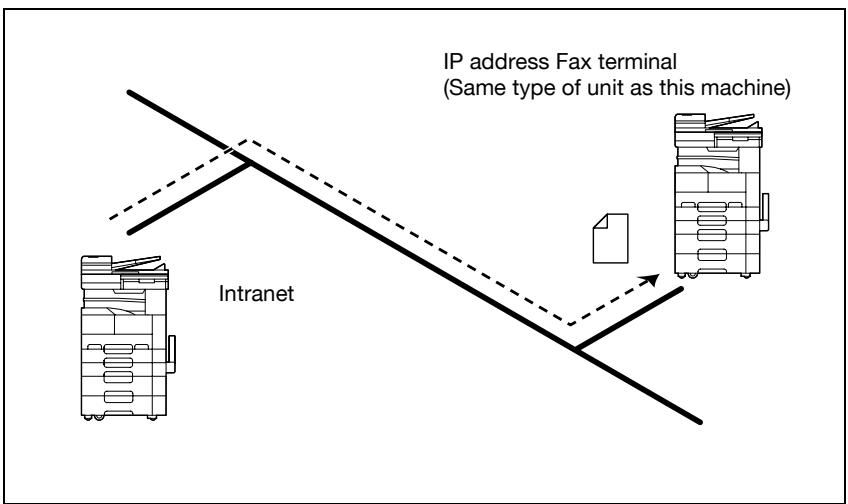
2.2 Scan to PC
Scan data is sent to the specified computer on the network and saved in a folder that has already been set up. This allows paper documents to be saved as electronic data simply with the touch a button, even in an environment where a mail server is not used.
Using the included IP Scanner and ImageReceiver utilities, the folder where the data is to be saved must be specified in advance on the computer receiving the data. In addition, depending on the settings specified in IP Scanner, a folder can be created with the name of the one-touch button and the data can be saved in it.
The document is sent as a TIFF or PDF image file.
TIFF image files can be viewed on Windows with the included Tiff Viewer.
- PDF image files can be viewed with Adobe Reader.
- Even in an environment that does not have a LAN, a crossover cable can be used to directly connect this machine to the computer so that the Scan to PC operation can be used.
- If there is a DHCP server on the network, this function may not operate correctly since IP addresses are automatically assigned to each computer. In this case, specify a fixed IP address for the computer or use IP Scanner to save the data.
- This machine must be connected to a LAN and the network settings must be specified. For details on specifying the network settings, refer to the User manual [Network Scanner Operations]. For network settings related to this machine, refer to "Available parameters" on page 8-3.
- For details, refer to chapter 3, "Scan to PC operations" on page 4-3.
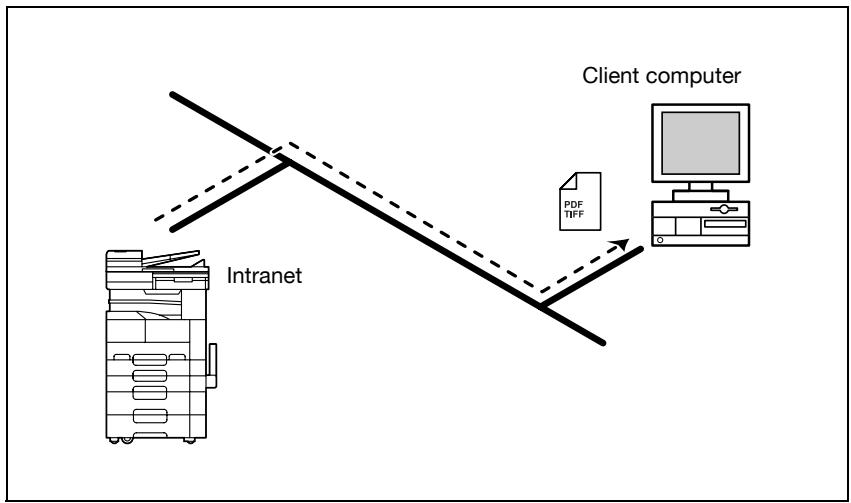
2.3 IP Scanner
Scan data is sent to the specified computer on the network, and the data is saved in a folder created with the same name as the registered scan button.
From the computer, register scan settings as a scan button on this machine to save paper documents as electronic data simply by touching the scan button.
- The document is sent as a TIFF or PDF image file.
TIFF image files can be viewed on Windows with the included Tiff Viewer. - PDF image files can be viewed with Adobe Reader.
- Even in an environment that does not have a LAN, a crossover cable can be used to directly connect this machine to the computer so that IP Scanner can be used.
- This machine must be connected to a LAN and the network settings must be specified. For details on specifying the network settings, refer to the User manual [Network Scanner Operations]. For network settings related to this machine, refer to "Available parameters" on page 8-3.
- For details, refer to chapter 4, "IP Scanner" on page 5-3.
- Documents sent as a fax transmission or as an Internet fax can also be forwarded to the computer specified in IP Scanner by the administrator.
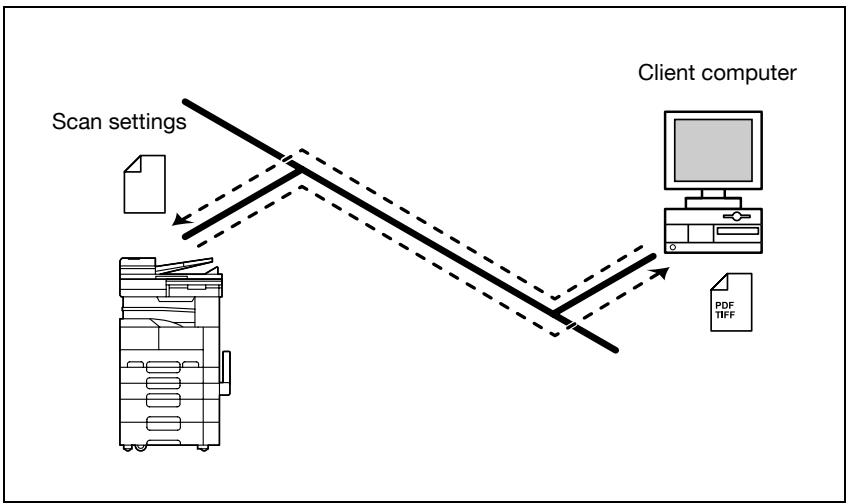
2.4 IP Relay
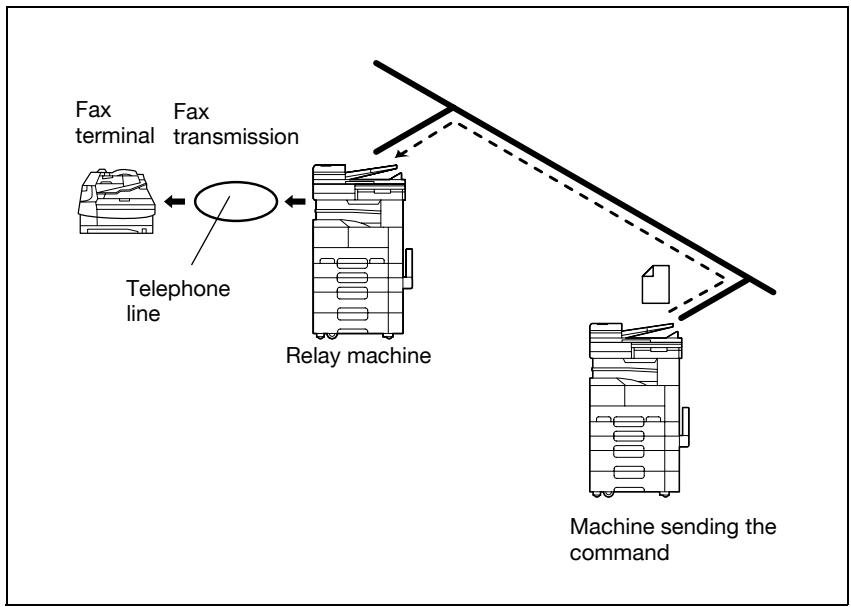
A fax is sent through a relay machine connected to the LAN.
If one relay machine is connected to a telephone line in an intranet, specify the relay machine from the machines (this machine) connected to the LAN to send a fax using the telephone line.
The results of the relayed fax transmission can be checked from the machine that sent the fax transmission.
- This machine must be connected to a LAN and the network settings must be specified. For details on specifying the network settings, refer to the User manual [Network Scanner Operations]. For network settings related to this machine, refer to "Available parameters" on page 8-3.
- If a destination is registered with a one-touch dial button, a transmission can be sent simply by touching the one-touch dial button.
- For details, refer to chapter 5, "IP Relay operations" on page 6-3.
2.5 PageScope Web Connection
The computer can be used to check the machine transmission/printing status and whether or not the fax is printed. In addition, various items can be registered, such as one-touch buttons.
PageScope Web Connection has a mode for operations performed by general users and a mode for operations performed by the administrator.
- This machine must be connected to a LAN and the network settings must be specified. For details on specifying the network settings, refer to the User manual [Network Scanner Operations].
- For details, refer to chapter 6, "Specifying settings using PageScope Web Connection" on page 7-3.
3
IP address faxing
3 IP address faxing
3.1 Specifying a recipient with a one-touch dial button
If the IP address of a recipient is registered with a one-touch dial button, data can be sent simply by touching the one-touch dial button. In addition, other transmission functions can be added or a mail program can be registered.
For details on registering a one-touch dial button or a mail program, refer to "Adding a recipient" on page 3-29.
Selecting a one-touch dial button
A one-touch dial button can be selected in any of the following ways. Use the appropriate method according to the number of recipients and the desired use.
- Directly touching the one-touch dial button
- Entering the number of the one-touch dial button
- Searching for the name of a recipient
Specifying a recipient by touching a one-touch dial button
1 Position the document to be scanned.
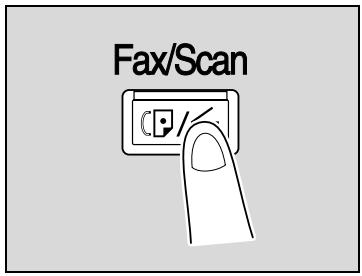
2 Press the [Fax/Scan] key.
- The screen that appears after the [Fax/Scan] key is pressed can be specified using the "Default Screen" parameter in the User's Choice screen. For details, refer to the User manual [Copy Operations].
3 Touch [One-Touch].
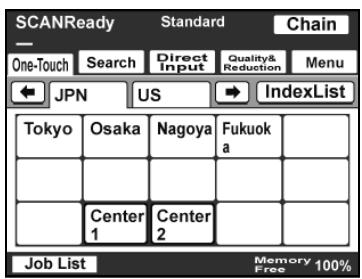
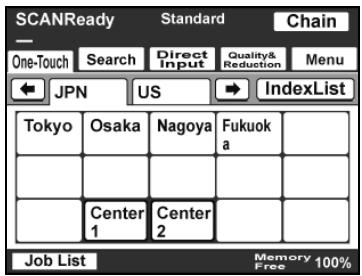
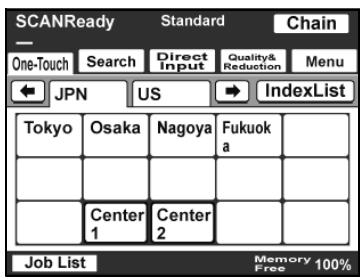
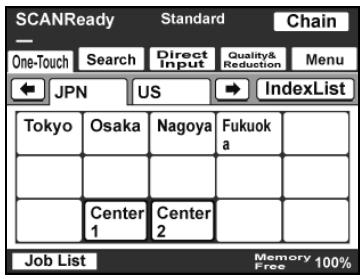
4 Select the index containing the desired recipient, and then touch the one-touch dial button.
- Multiple recipients can be specified for simultaneous transmission with the same one-touch dial button. A maximum of 300 recipients can be specified with a single one-touch dial button.
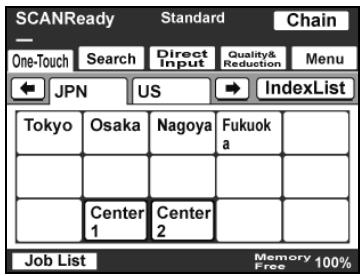
- To select an index, touch the tab of the desired index, or touch or to select a different tab.
- If software switch settings were specified to prevent broadcast transmissions, a fax cannot be sent to multiple recipients. For details on the software switch settings, refer to "Specifying software switch settings (machine functions)" on page 8-11.
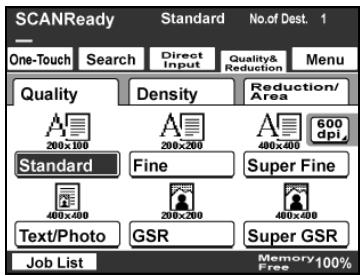
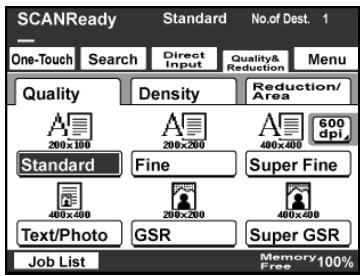
5 Specify the appropriate settings on the Quality & Reduction tab according to the document to be sent.
- For details, refer to "Specifying the scanning quality and zoom ratio" on page 3-12.
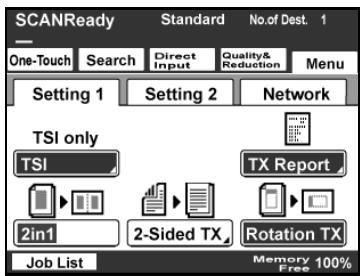
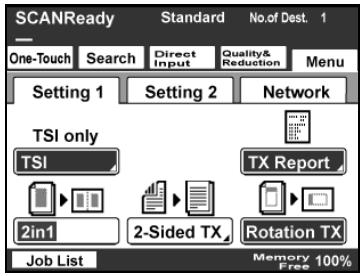
6 Specify the necessary settings on the Menu tab.
- If the optional fax kit has been installed, specify the necessary settings on the FAX Menu tab.
- For details, refer to "Specifying additional functions" on page 3-16.
7 Press the [Start] key.
Entering the number of the one-touch dial button
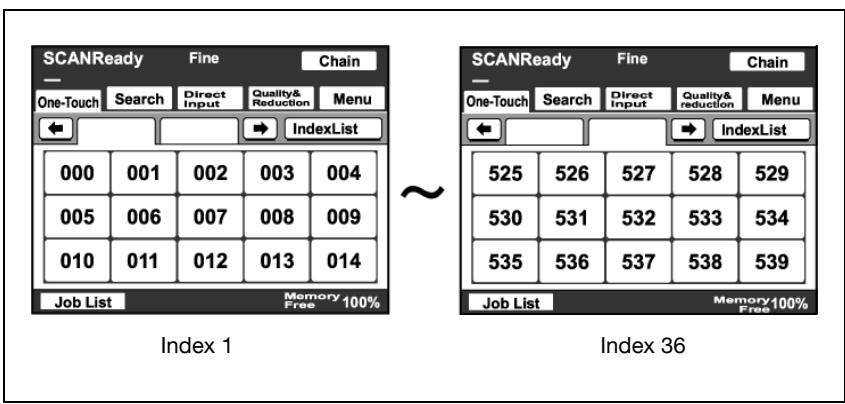
Each one-touch dial button is assigned a number, as shown below.
Instead of touching a one-touch dial button, specifying the number of the one-touch dial button allows a recipient to quickly be selected.
1 Position the document to be scanned.
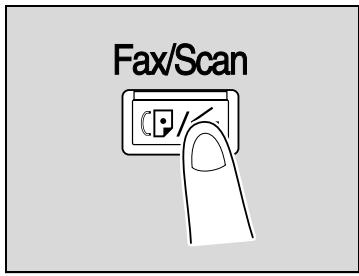
2 Press the [Fax/Scan] key.
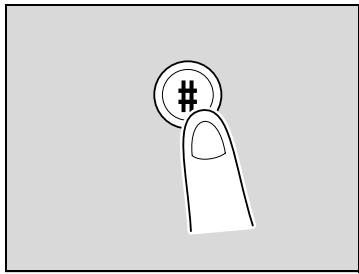
3 Press the [#] key in the control panel.
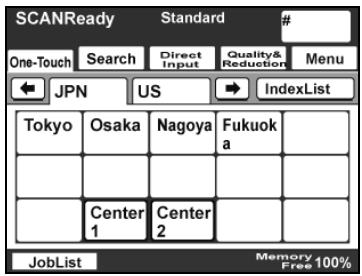
4 Using the keypad, type in the number of the one-touch dial button.
- The specified one-touch dial button is highlighted.
- Multiple recipients can be specified for simultaneous transmission with the same one-touch dial button. A maximum of 300 recipients can be specified with a single one-touch dial button.
- If software switch settings were specified to prevent broadcast transmissions, a fax cannot be sent to multiple recipients. For details on the software switch settings, refer to "Specifying software switch settings (machine functions)" on page 8-11.
5 Specify the appropriate settings on the Quality & Reduction tab according to the document to be sent.
- For details, refer to "Specifying the scanning quality and zoom ratio" on page 3-12.
6 Specify the necessary settings on the Menu tab.
- If the optional fax kit has been installed, specify the necessary settings on the FAX Menu tab.
- For details, refer to "Specifying additional functions" on page 3-16.
7 Press the [Start] key.
Searching for a one-touch recipient
The name of a recipient registered with a one-touch dial button can be searched for in order to select the one-touch dial button.
1 Position the document to be scanned.
2 Press the [Fax/Scan] key.
3 Touch [Search].
- If an LDAP search is possible, touch [LDAP Search] to search further.
4 Type in the name of the recipient, and then touch [Search].
A screen appears, containing the list of one-touch dial buttons programmed with a recipient whose name begins with the entered name.
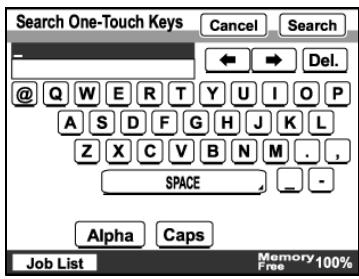
5 Touch the desired one-touch dial button to select it.
- Multiple recipients can be specified for simultaneous transmission with the same one-touch dial button. A maximum of 300 recipients can be specified with a single one-touch dial button.
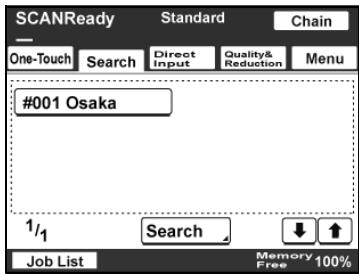
- If software switch settings were specified to prevent broadcast transmissions, a fax cannot be sent to multiple recipients. For details on the software switch settings, refer to "Specifying software switch settings (machine functions)" on page 8-11.
6 Specify the appropriate settings on the Quality & Reduction tab according to the document to be sent.
- For details, refer to "Specifying the scanning quality and zoom ratio" on page 3-12.
7 Specify the necessary settings on the Menu tab.
- If the optional fax kit has been installed, specify the necessary settings on the FAX Menu tab.
- For details, refer to "Specifying additional functions" on page 3-16.
8 Press the [Start] key.
3.2 Entering an address
The address of a recipient not registered in a one-touch dial button can be entered directly to be specified.

Note
If software switch settings were specified to limit dialing, a fax cannot be sent by directly typing in the address. For details on the software switch settings, refer to "Specifying software switch settings (machine functions)" on page 8-11.
To enter an address
1 Position the document to be scanned.
2 Press the [Fax/Scan] key.
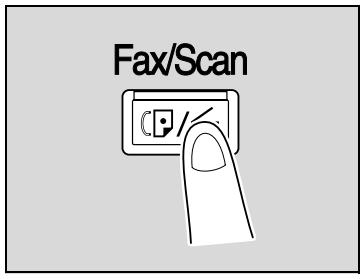
3 Touch [Direct Input].
4 Select the communication mode. Touch [Change Comm. Mode].
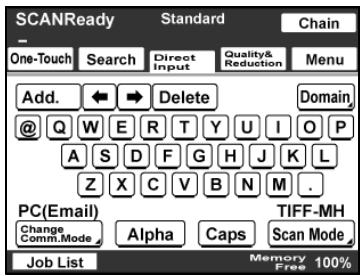
5 Touch [InternetFAX], then [IP-TX], and then touch [Enter].
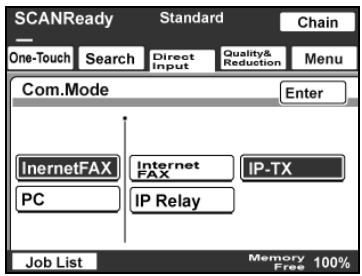
6 Type in the IP address of the recipient machine.
- If a DNS server is specified from the Network Setting screen, the host name can be typed in. Touch [Host], and then type in the host name.
- To change the entered address, press the [C] (clear) key, and then enter the correct address.
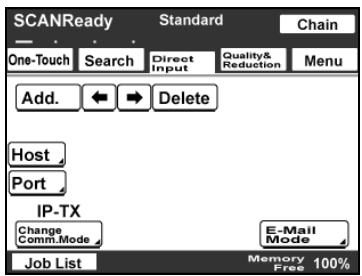
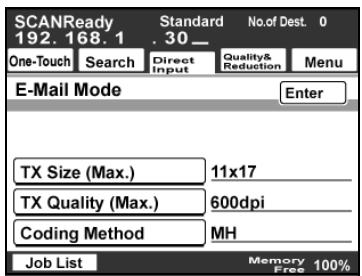
7 To select the maximum transmission size and coding method, touch [E-Mail Mode].
8 On the E-Mail Mode screen, settings can be specified for the following. Select the desired settings, and then touch [Enter].
- TX Size (Max.): Specify the maximum document size that can be transmitted. Select "Letter/Legal" or "11 x 17".
TX Quality (Max.): Select the maximum resolution that can be sent. Select "200dpi", "400dpi" or "600dpi".
Coding Method: Select the coding method for the data to be sent. Select "MH", "MR" or "MMR". The data amount for the coding methods increase as follows: MMR, MR, MH.
9 To change the port number, touch [Port].
- To change the port number, press the [C] (clear) key, use the keypad to type in the port number, and then touch [Enter].
- To return to the default setting, touch [Default].
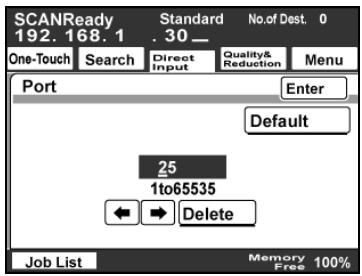
10 Specify the appropriate settings on the Quality & Reduction tab according to the document to be sent.
- For details, refer to "Specifying the scanning quality and zoom ratio" on page 3-12.
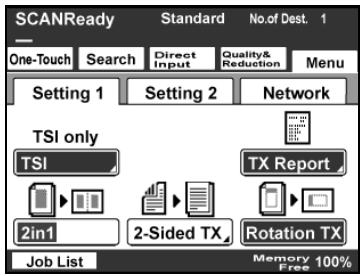
11 Specify the necessary settings on the Menu tab.
- If the optional fax kit has been installed, specify the necessary settings on the FAX Menu tab.
- For details, refer to "Specifying additional functions" on page 3-16.
12 Press the [Start] key.
3.3 Specifying the scanning quality and zoom ratio
Touch [Quality & Reduction] in the screen that appears when the [Fax/Scan] key is pressed to specify the scanning image quality and zoom ratio.

Detail
When a transmission is finished, the transmission settings return to their defaults.
Quality
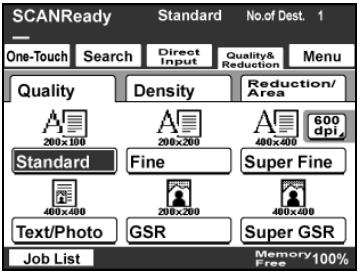
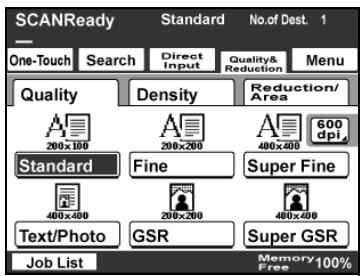
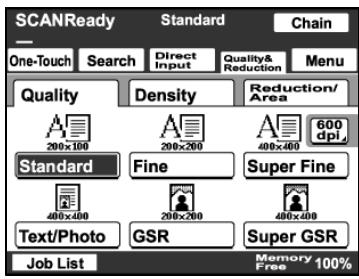
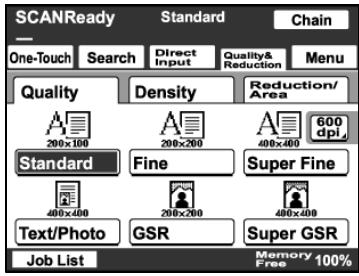
Select the scanning resolution (amount of details). From the following available resolution settings, select the appropriate resolution according to the type of document being scanned.
| Setting | Description |
| Standard | For documents with normal text (such as handwriting) |
| Fine | For documents containing small print, such as newspa- pers, or documents containing detailed illustrations |
| Super Fine | |
| 600dpi Text | |
| Text/Photo | For documents containing both text and images with color shades (such as photos) |
| 600dpi Text&Photo | |
| GSR | For documents with color shades, such as photos |
| Super GSR | |
| 600dpi Photo |

Detail
If data is sent with the "Text/Photo" setting selected, moiré patterns may appear in some photos. This is not a sign of a malfunction. To reduce the appearance of moiré patterns, send the data with the "GSR" or "Super GSR" setting.
If a high resolution was selected in order to send a clean image, the size of the image data that is sent may become large and the provider or server may not allow the data to be sent. First, check the size limitations for data that can be sent.
To select an Quality setting
1 Touch [Quality & Reduction].
2 Touch [Quality], and then touch the button for the desired Quality setting.
- To select a higher resolution, touch [600 dpi].
Density
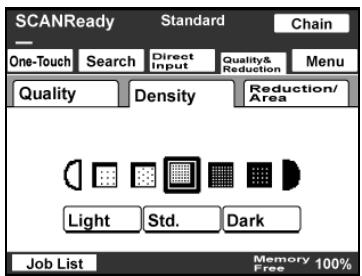
From the following available resolution settings, select the appropriate resolution according to the type of document being scanned.
| Setting | Description |
| Light | For documents with a dark background color, such as newspaper and blueprints |
| \(\uparrow\) | For normal documents |
| \(\downarrow\) | For documents with faint or colored text |
| \(\mathbf{Dark}\) |
To select a Density setting
1 Touch [Quality & Reduction].
2 Touch [Density], and then touch the button for the desired Density setting.
Original Size Setting
The scanned area can be specified as a standard size. However, a portion of a large document can be sent or a non-standard-sized document can be sent as a standard size.
1 Touch [Quality & Reduction].
2 Touch [Reduction/Area], and then touch [Original Size Set].
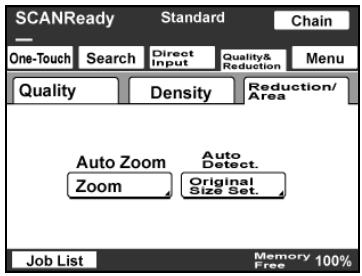
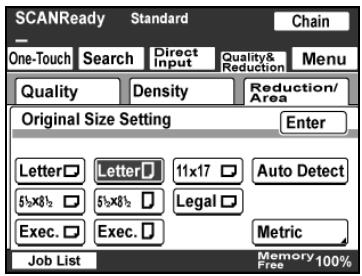
3 Select the desired scanning size, and then touch [Enter].
- Touch [Auto Detect] to automatically select the size closest to the size of the document. However, if the document is smaller than Letter size, Letter size is selected.
3.4 Specifying additional functions
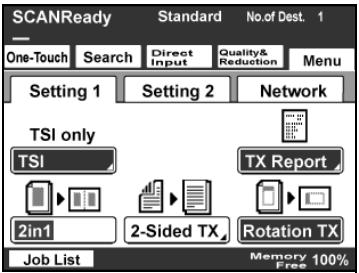
Touch [Menu] in the screen that appears when the [Fax/Scan] key is pressed to add the following functions.

Note
If the optional fax kit has been installed, [Menu] changes to [Fax Menu].
| Function | Description | |
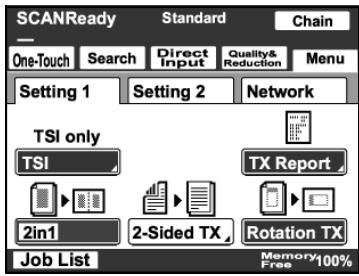
| Setting 1 tab *(Set 1 tab) | TSI | Select the information, such as this machine's name, fax number or address or the recipient's name, that is printed at the edge of the page. For details on registering transmission source information, refer to the User manual [Network Scanner Operations]. If a recipient's name is selected, the recipient name registered with the one-touch dial button is printed. |
| TX Report | Select the conditions for printing the transmission results report. Default: Select this setting to print the report according to the setting specified from the Administrator Management screen. ON: Select this setting to print the report, regardless of the transmission result. If TX Fails: Select this setting to print the report only if the transmission failed. OFF: Select this setting to not print the report, regardless of the transmission result. | |
| 2in1 | Select whether or not to send the data using the "2in1" function (reducing two pages to fit in a single page). | |
| 2-Sided TX | Select whether or not a double-sided transmission is performed. The position of the binding margin and the page orientation can also be specified. | |
| Rotation TX | Select whether or not to rotate the scan image according to the paper orientation of the receiving machine. This function can be specified when sending an A4-size image with a resolution of 200 dpi or less. | |
| Setting 2 tab *(Set 2 tab) | Priority TX | Select whether or not the data is sent with priority over the other jobs. |
| Timer TX Setting | Specify the time that the fax is to be sent. | |
| Stamp | Specify whether the scanned image is stamped to indicated that it has been scanned. The document must be loaded into the ADF. Note In order to use the "Stamp" function, optional stamp unit must be installed. | |
- Changes to () if the optional fax kit has been installed.

Note
The following parameters and functions have no effect, even if settings have been specified.
- "Subject Selection" on the Network tab
- "Reply Address" on the Network tab
- "File Name" on the Network tab
- "Email Notification" on the Network tab
Specifying the transmission source information
Select the information, such as this machine's name, fax number or address or the recipient's name, that is printed at the edge of the page.
FROM: NEWYORK
Image data has been attached to the e-mail.
1 Touch [Menu].
- If the optional fax kit has been installed, touch [FAX Menu].
2 Touch [TSI] on the Setting 1 tab.
- If the optional fax kit has been installed, touch [TSI] on the Set 1 tab.
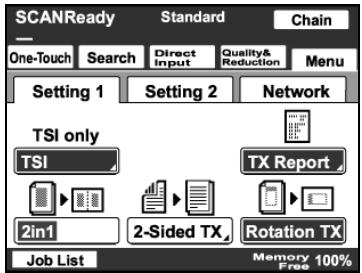
3 Select the print type for the transmission information, and then touch [TSI Selection].
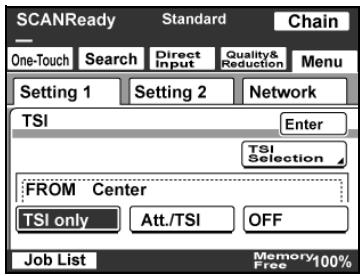
4 Select the transmission source name, and then touch [Enter].
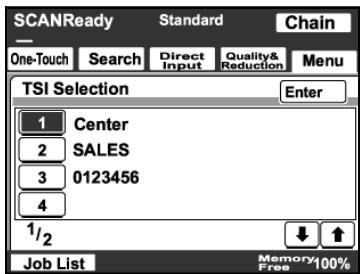
5 Touch [Enter].
**Specifying the transmission report printing condition**
The conditions for printing the transmission result report can be specified.
The conditions for printing the transmission result report are preset with the "Report Settings" parameters from the Administrator Management 1 screen. Follow the procedure described below to change these conditions.
1 Touch [Menu].
- If the optional fax kit has been installed, touch [FAX Menu].
2 Touch [TX Report] on the Setting 1 tab.
- If the optional fax kit has been installed, touch [TX Report] on the Set 1 tab.

3 Specify the desired printing condition, and then touch [Enter].
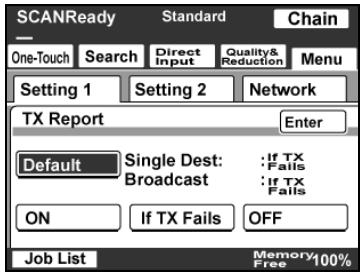
Specifying 2in1 transmission
1 Touch [Menu].
- If the optional fax kit has been installed, touch [FAX Menu].
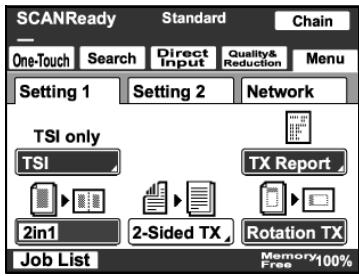
2 Touch [2in1] on the Setting 1 tab.
- If the optional fax kit has been installed, touch [2in1] on the Set 1 tab.
The button is highlighted. To cancel the function, touch the button again to deselect it.
Specifying double-sided transmission settings
1 Touch [Menu].
- If the optional fax kit has been installed, touch [FAX Menu].
2 Touch [2-Sided TX] on the Setting 1 tab.
- If the optional fax kit has been installed, touch [2-Sided TX] on the Set 1 tab.
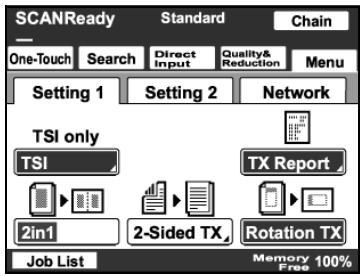
3 Select the appropriate binding margin position.
- Left Bind: The document is scanned with a binding margin on the left side.
- Top Bind: The document is scanned with a binding margin at the top.
- Auto: The binding margin is set according to the scanning direction.
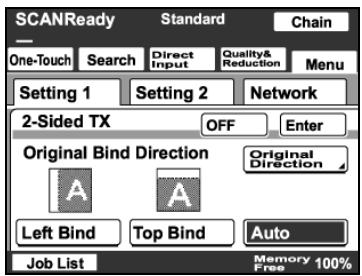
4 Touch [Original Direction].
5 Select the orientation of the document, and then touch [Enter].
- Auto: The long side of the document is automatically set as the binding position.
6 Touch [Enter].
- To cancel the function, touch [OFF].
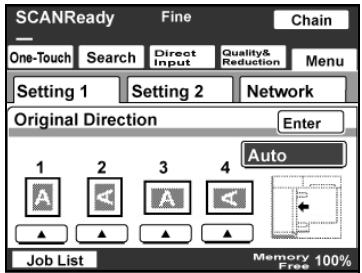

Detail
When loading a double-sided document with pages of different widths, we recommend loading the pages with the same orientation. When a document with pages of different orientations is scanned, the orientation of the image data may not be correct.
Specifying priority transmission
1 Touch [Menu].
- If the optional fax kit has been installed, touch [FAX Menu].
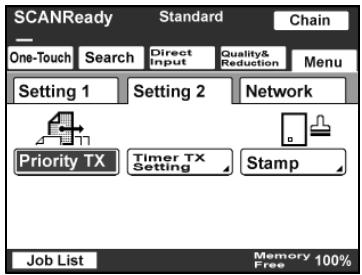
2 Touch [Priority TX] on the Setting 2 tab. - If the optional fax kit has been installed, touch [Priority TX] on the Set 2 tab.
The button is highlighted. To cancel the function, touch the button again to deselect it.
Specifying timer transmission settings
1 Touch [Menu].
- If the optional fax kit has been installed, touch [FAX Menu].
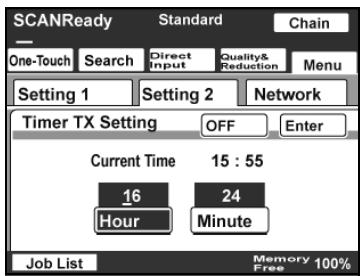
2 Touch [Timer TX Setting] on the Setting 2 tab.
- If the optional fax kit has been installed, touch [Timer TX Setting] on the Set 2 tab.
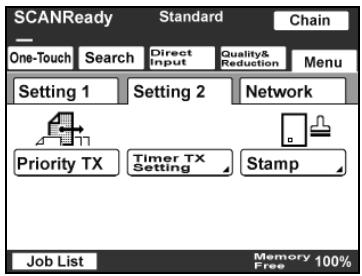
3 Specify the time that the transmission is to be sent.
- Touch [Hour] or [Minute], and then use the keypad to type in the desired time.
4 Touch [Enter].
- To cancel the function, touch [OFF].

Note
Up to 200 documents can be specified with a timer transmission.
Specifying the stamp setting
1 Touch [Menu].
- If the optional fax kit has been installed, touch [FAX Menu].
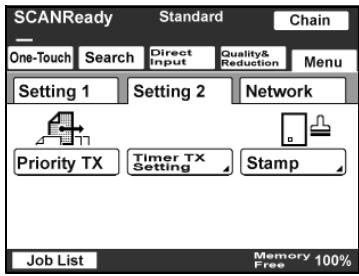
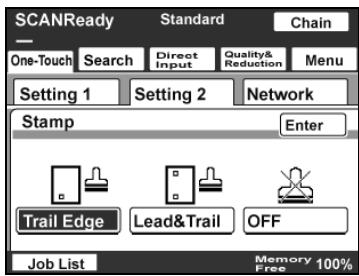
2 Touch [Stamp] on the Setting 2 tab.
- If the optional fax kit has been installed, touch [Stamp] on the Set 2 tab.
3 Select the stamping position, and then touch [Enter].
3.5 If the transmission could not be completed
If the transmission could not be completed correctly, a transmission result report is printed.

Detail
The setting for printing the transmission report can be changed. For details, refer to the User manual [Network Scanner Operations].
Viewing the transmission report
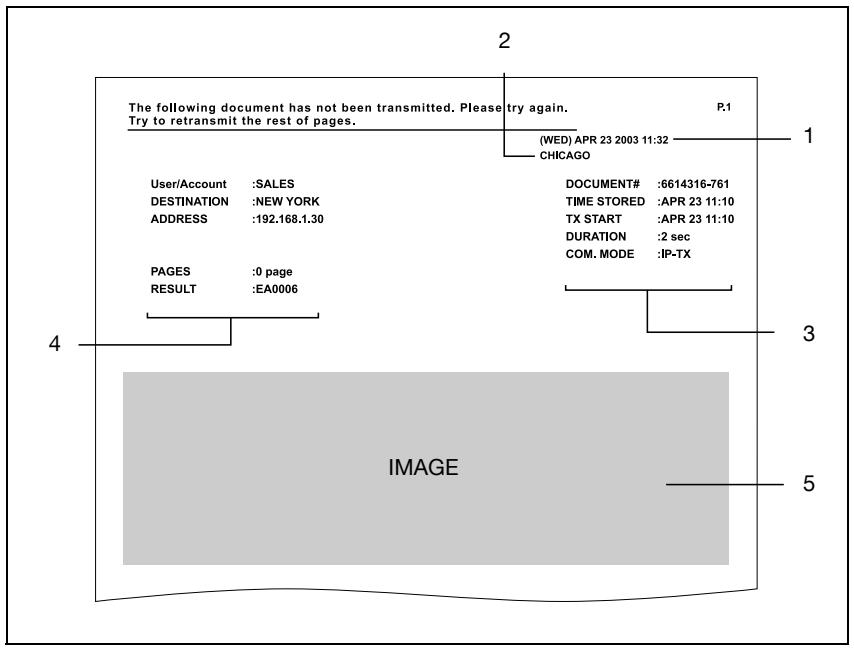
| No. | Item | Description |
| 1 | Report output date | Shows the date that the report was printed. |
| 2 | Transmission source name | Shows the name and address of the transmission source. |
| 3 | Transmission information | Shows the number for the transmitted document, the time required, and the communication mode. |
| 4 | Transmission results | Shows the transmission results. Any of the following may be indicated. OK: The transmission was completed successfully. INTERR: The transmission was interrupted. F.MEM: The memory is full. NG: The transmission was completed unsuccessfully. PT.DEL: The transmission to some recipients failed. F.DATA: The size of the data exceeds the allowable limit. IMG NG: The transmission resolution was incorrect so the transmission was ended. Error code: For details, refer to "Error codes" on page 9-4. |
| 5 | Transmission image | Shows a part of the transmitted image. |
Resending
A maximum of 20 documents that could not be sent are saved to be sent again.
1 Touch [Job List], touch [Type], and then select the document that could not be sent.
- If [Retry] or [Change Destination] appears in the screen, the document can be resent without being scanned again.
2 To send the document to the same recipient, touch [Retry].
- To send the document to a different recipient, touch [Change Destination].
3.6 Receiving an IP address fax
If an IP address fax is sent to this machine, it is automatically received and printed.
The IP address of this machine must first be specified in the Network Setting screen.

Detail
The reception method specified from the FAX Setting screen (displayed from the Administrator Management 1 screen) is valid only if the fax is received using a general telephone line. This setting is not applied when an IP address fax is received.
3.7 Adding a recipient
If a recipient is registered with a one-touch dial button, the transmission can be sent easily and accurately.
Two types of recipients can be registered with a one-touch dial button: a main recipient and a secondary recipient, where the data is sent if the transmission to the main recipient fails.

Note
If "Restrict One-Touch Editing" on the Administrator Set screen (displayed from the Administrator Management 1 screen) is set to "ON", if software switch settings were specified to limit registration of one-touch dial buttons to the administrator, or if "Enhance Security" is set to "ON", one-touch dial buttons can only be registered, edited or deleted from Administrator mode. For details on the settings in Administrator mode, refer to the User manual [Facsimile Operations]. For details on the software switch settings, refer to "Specifying software switch settings (machine functions)" on page 8-11.

Detail
Any of the following communication modes can be specified for the secondary recipient.
-PC(E-Mail)
-PC (Scanner)
- InternetFAX (Internet FAX)
- InternetFAX (IP-TX)
- InternetFAX (IP Relay)
- FAX (G3)*
- The communication mode can be specified if the optional fax kit is installed.

Note
Certain communication modes may not be available, depending on the machine settings. For details, check with the administrator.
Settings can be specified for the following.
| Item | Description |
| One-Touch Name | Type in the name of the recipient that will appear on the one-touch dial button. Up to 12 characters can be entered. |
| Destination | Type in the IP address or host name for the recipient. |
| TX Size (Max.) | Specify the maximum document size that can be transmitted. Select "Letter/Legal" or "11x17". |
| TX Quality (Max.) | Select the maximum resolution that can be sent. Select "200dpi", "400dpi" or "600dpi". |
| Coding Method | Select the coding method for the data to be sent. Select "MH", "MR" or "MMR". The data amount for the coding methods increase as follows: MMR, MR, MH. |
| Port | Type in the port number (between 1 and 65535). |

Reminder
If the [Utility/Counter] key was pressed to register items and specify settings, be sure to press the [Reset] key in the control panel after returning to the initial screen.
To program a one-touch dial button
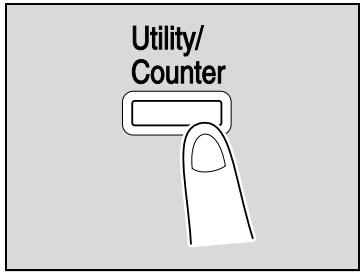
1 Press the [Utility/Counter] key.
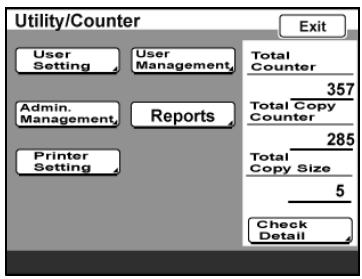
2 Touch [User Setting].
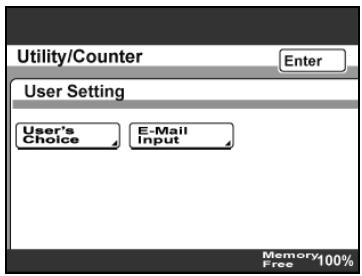
3 Touch [E-Mail Input].
- If the optional fax kit has been installed, touch [FAX].
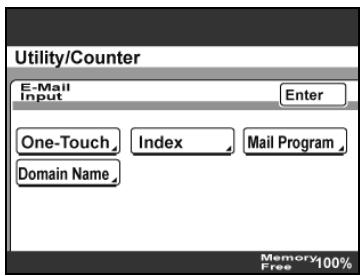
4 Touch [One-Touch].
5 Touch the one-touch dial button to be programmed.
- Touch an index tab or touch [Index List], and then touch the desired one-touch dial button.
- If the machine is set to allow LDAP searches, a screen appears, allowing the one-touch dial button to be set to either
permit or prohibit the address from being found with an LDAP search. For this button, select "OFF".
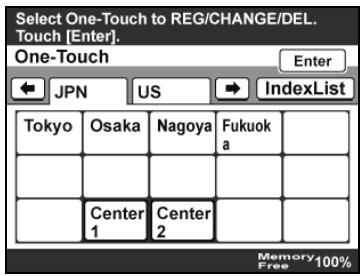
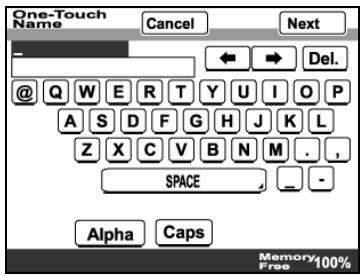
6 Type in the recipient name that will appear on the one-touch dial button, and then touch [Next].
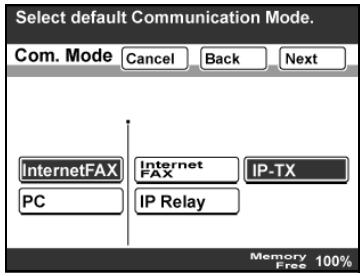
7 Select the communication mode. Touch [InternetFAX], touch [IP-TX], and then touch [Next].
8 Type in the IP address of the recipient.
- If a DNS server is specified from the Network Setting screen, the host name can be typed in. Touch [Host Name], and then type in the host name.
- To change the entered address, press the [C] (clear) key, and then enter the correct address.
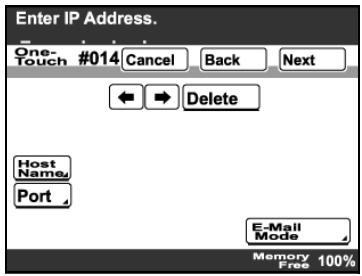
9 To select the maximum transmission size and coding method, touch [E-Mail Mode].
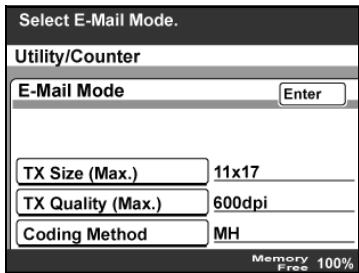
10 On the E-Mail Mode screen, settings can be specified for the following. Select the desired settings, and then touch [Enter].
- TX Size (Max.): Specify the maximum document size that can be transmitted. Select "Letter/Legal" or "11×17".
TX Quality (Max.): Select the maximum resolution that can be sent. Select "200dpi", "400dpi" or "600dpi".
Coding Method: Select the coding method for the data to be sent. Select "MH", "MR" or "MMR". The data amount for the coding methods increase as follows: MMR, MR, MH.
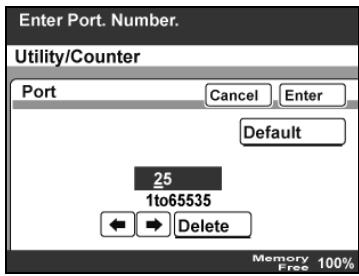
11 To change the port number, touch [Port].
-
To change the port number, press the [C] (clear) key, use the keypad to type in the port number, and then touch [Enter].
-
To return to the default setting, touch [Default].
12 Touch [Next].
13 Check the information to be registered, and then touch [Enter].
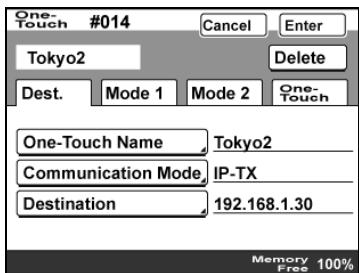
14 Touch [Enter] in each screen until the initial screen appears.
Changing/deleting a one-touch dial button
1 Perform steps 1 through 4 of the procedure in "To program a one-touch dial button".
2 Touch the one-touch dial button that you wish to change or delete.
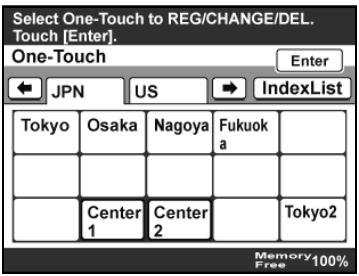
3 Touch the button for the setting to be changed, and then change the setting.
- To delete the one-touch dial button, touch [Delete].
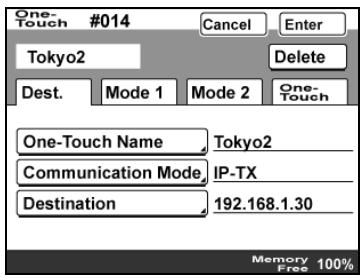
4 Check the information to be registered, and then touch [Enter].
- When deleting, a confirmation message appears. Touch [Yes].
5 Touch [Enter] in each screen until the initial screen appears.
Copying a one-touch dial button
1 Perform steps 1 through 4 of the procedure in "To program a one-touch dial button".
2 Touch the button for the one-touch recipient to be copied.
3 Touch [One-Touch], and then touch [One-Touch Copy].
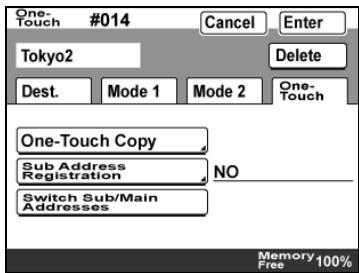
4 Touch the button where the one-touch dial button settings are to be copied.
- Select a one-touch dial button where no settings have been registered yet.
- To deselect the one-touch dial button where the information is to be copied to, touch the selected one-touch dial button again.
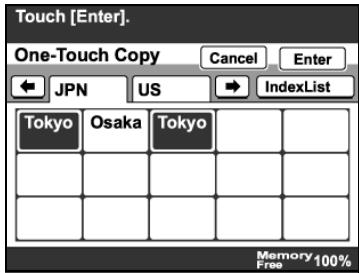
5 Touch [Enter] in each screen until the initial screen appears.
Registering/editing/deleting the secondary recipient
1 Perform steps 1 through 4 of the procedure in "To program a one-touch dial button".
2 Touch the one-touch dial button to be programmed with a secondary recipient.
3 Touch [One-Touch], and then touch [Sub Address Registration].
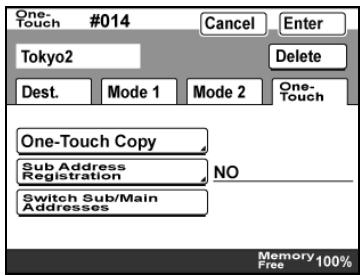
4 Enter the information for the secondary recipient, and then touch [Enter].
- If a secondary destination is already registered, check the settings that appear, and then touch [Change Settings] or [Delete].
- When deleting, a confirmation message appears. Touch [Yes].
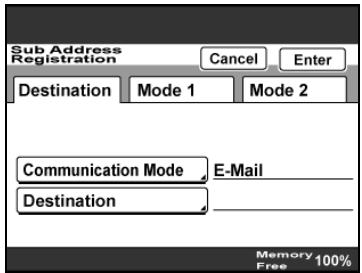
5 Touch [Enter] in each screen until the initial screen appears.
Naming an index
By categorizing one-touch dial buttons in indexes named, for example, as "Offices" or "Customers", the desired one-touch dial button can easily be found.

Detail
The entered index name can contain a maximum of 8 characters.
36 indexes can be registered, and up to 15 one-touch dial buttons can be registered in each index.
To name an index
1 Perform steps 1 through 3 of the procedure in "To program a one-touch dial button".
2 Touch [Index].
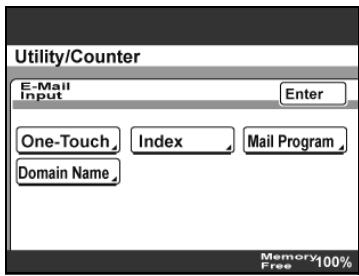
3 Touch the index button to be programmed.
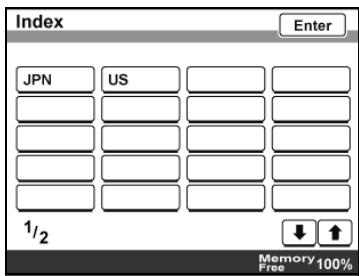
4 Type in the index name, and then touch [Enter].
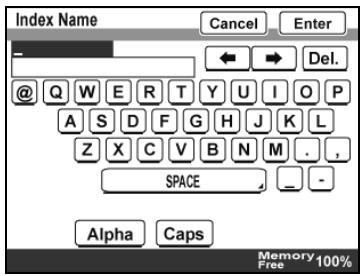
5 Touch [Enter] in each screen until the initial screen appears.
Registering a mail program
If the functions used during transmission are registered with the recipient information, a transmission can be performed with the registered settings simply by touching a button. These are called mail programs. This is convenient for sending a transmission to a specific recipient with specific settings.

Detail
Up to 30 mail programs can be registered. However, the total number of one-touch dial buttons and mail programs must not exceed 540.
Up to 300 recipients can be registered with a single mail program.
Some functions or parameters registered with a mail program have no effect depending on the operation performed, as shown in the following table. For details on each function and parameter, refer to the appropriate page.
: Has an effect
: Has an effect under certain conditions
- : Does not have an effect
| Operation Function/Parameter | IP address fax- ing | Scan to PC | IP Relay |
| Quality | ○ | ○ | ○ |
| Density | ○ | ○ | ○ |
| Zoom | ● | ● | ● |
| Original Size Setting | ○ | ○ | ○ |
| TSI | ○ | ● | ○ |
| TX Report | ○ | ○ | ○ |
| 2in1 | ○ | ○ | ○ |
| 2-Sided TX | ○ | ○ | ○ |
| Rotation TX | ▲ | ● | ▲ |
| Priority TX | ○ | ○ | ○ |
| Timer TX Setting | ○ | ○ | ○ |
| Stamp | ▲ | ▲ | ▲ |
| Subject Selection | ● | ● | ● |
| Reply Address | ● | ● | ● |
| File Name | ● | ○ | ● |
| Email Notification | ● | ● | ● |

Detail
For details on the settings for the following operations, refer to the User manual [Network Scanner Operations].
- Scan to E-Mail
- Scan to FTP
- Scan to SMB
- Scan to HDD
- Internet fax

Note
In order to use the "Stamp" function, optional stamp unit must be installed.

Reminder
If the [Utility/Counter] key was pressed to register items and specify settings, be sure to press the [Reset] key in the control panel after returning to the initial screen.
To register a mail program
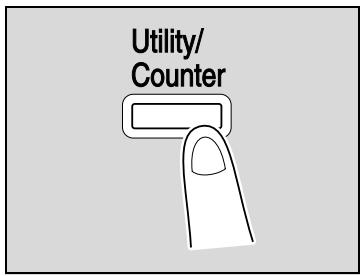
1 Press the [Utility/Counter] key.
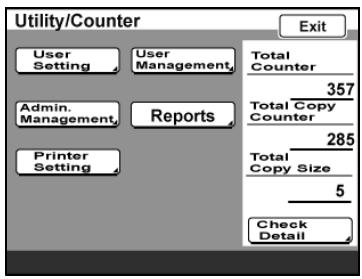
2 Touch [User Setting].
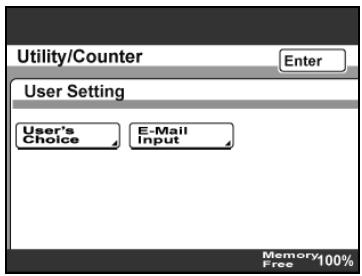
3 Touch [E-Mail Input].
- If the optional fax kit has been installed, touch [FAX].
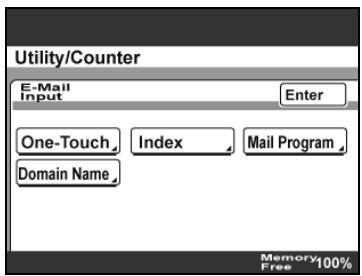
4 Touch [Mail Program].
- If the optional fax kit has been installed, touch [FAX Program].
5 Touch the one-touch dial button to be programmed.
- Touch an index tab or touch [Index List], and then touch the desired one-touch dial button.
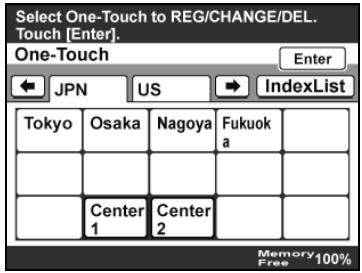
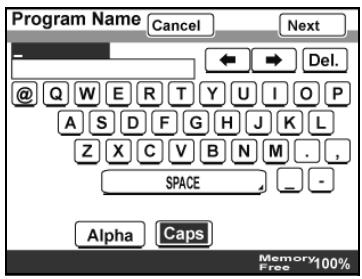
6 Type in the program name that will appear on the one-touch dial button, and then touch [Next].
The program name can contain up to 12 characters.
- If the optional fax kit has been installed, touch [Next] to display a screen for selecting a program. Select the desired program, and then touch [Next].
7 Specify the recipient.
- To specify a recipient with a one-touch dial button, touch [One-Touch], touch a one-touch dial button to select a recipient, and then touch [Enter].
- To search for a one-touch dial button, touch [Search], specify the recipient, and then touch [Enter].
- If no recipient is to be registered, touch [No Destination].
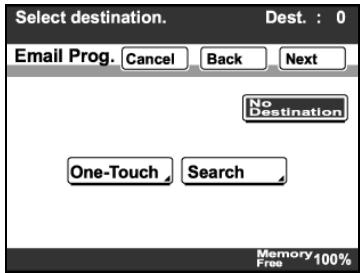
8 Touch [Next].
9 Touch [Transmission Setting].
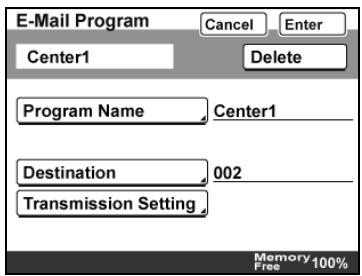
10 Specify the functions to be registered.
- Touch [Quality] to specify settings for "Quality", "Density", "Zoom", and "Original Size Setting".
- Touch [Menu 1] to specify settings for "TSI", "TX Report", "Priority TX", "Timer TX Setting", "2in1", "2-Sided TX", "Rotation T
- Touch [Menu 2] to specify settings for "Subject Selection", "Reply Address", "File Name", and "Email Notification".
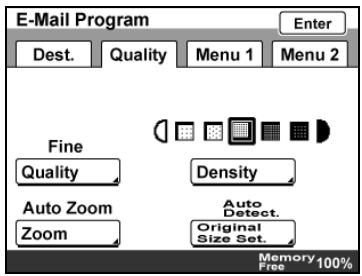
11 Touch [Enter].
12 Check the information to be registered, and then touch [Enter].
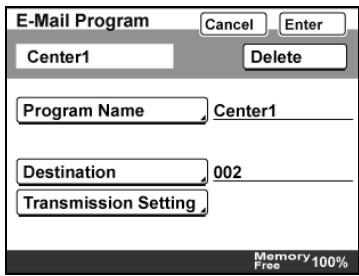
13 Touch [Enter] in each screen until the initial screen appears.
Changing/deleting a mail program
1 Perform steps 1 through 4 of the procedure in "Registering a mail program".
2 Touch the one-touch button for the mail program that you wish to change or delete.
- Touch an index tab or touch [Index List], and then touch the desired one-touch dial button.
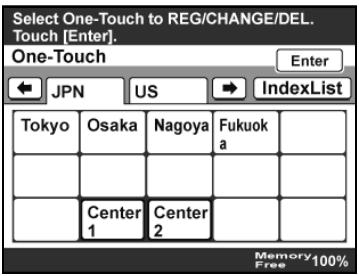
3 Touch the button for the setting to be changed, and then change the setting. To delete the mail program, touch [Delete].
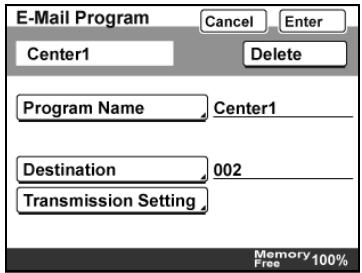
4 Check the information to be registered, and then touch [Enter].
- When deleting, a confirmation message appears. Touch [Yes].
5 Touch [Enter] in each screen until the initial screen appears.
4
Scan to PC operations
4 Scan to PC operations
4.1 Before saving
Perform the following operations before using the Scan to PC operation.
Installing IP Scanner on the computer
When IP Scanner is installed, two utilities (IP Scanner and ImageReceiver) are installed.
When the computer is restarted after the utilities are installed, ImageReceiver starts automatically, and its icon appears in the Windows taskbar. When performing a Scan to PC operation, make sure that
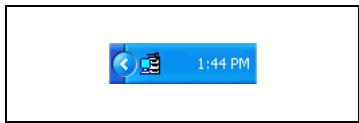
ImageReceiver has started normally. While ImageReceiver is running, its icon appears in the Windows taskbar.

Detail
If ImageReceiver has not started up, start it up by clicking "Start", pointing to "Programs" (or "All Programs"), then "IP Scanner", then clicking "ImageReceiver".
Checking the network settings
If there is a DHCP server on the network, data may not be sent correctly since IP addresses are automatically assigned to each computer. In this case, specify a fixed IP address for the computer or use IP Scanner.

Detail
For details on installing and using IP Scanner and on checking the scanned image, refer to chapter 4, "IP Scanner" on page 5-3.
4.2 Specifying a destination with a one-touch dial button
If the IP address of a computer is registered with a one-touch dial button, data can be saved on the computer simply by touching the one-touch dial button. In addition, other transmission functions can be added or a mail program can be registered.

Detail
For details on registering a one-touch dial button, refer to "Registering a destination" on page 4-30.
For details on registering a mail program, refer to "Registering a mail program" on page 3-39.
Selecting a one-touch dial button
A one-touch dial button can be selected in any of the following ways. Use the appropriate method according to the number of destinations and the desired use.
- Directly touching the one-touch dial button
- Entering the number of the one-touch dial button
- Searching for the name of the destination
Specifying a recipient by touching a one-touch dial button
1 Position the document to be scanned.
2 Press the [Fax/Scan] key.
- The screen that appears after the [Fax/Scan] key is pressed can be specified using the "Default Screen" parameter in the User's Choice screen. For details, refer to the User manual [Copy Operations].
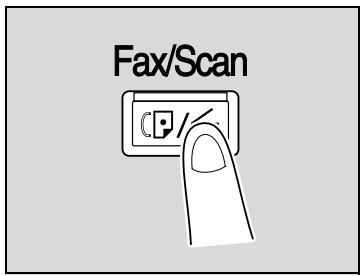
3 Touch [One-Touch].
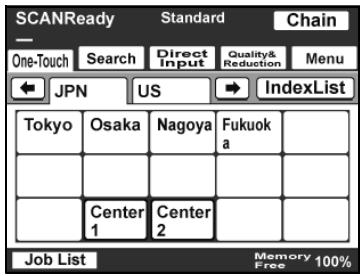
4 Select the index containing the desired recipient, and then touch the one-touch dial button.
- To select an index, touch the tab of the desired index, or touch or to select a different tab.
- For details on changing the index names, refer to "Naming an index" on page 3-37.
- Multiple recipients can be specified for simultaneous transmission with the same one-touch dial button. A maximum of 300 recipients can be specified with a single one-touch dial button.
- If software switch settings were specified to prevent broadcast transmissions, a fax cannot be sent to multiple recipients. For details on the software switch settings, refer to "Specifying software switch settings (machine functions)" on page 8-11.
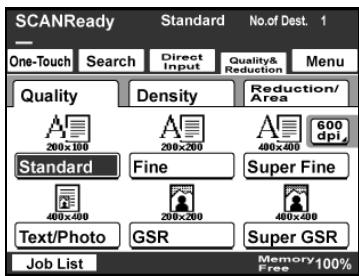
5 Specify the appropriate settings on the Quality & Reduction tab according to the document to be sent.
- For details, refer to "Specifying the scanning quality and zoom ratio" on page 4-14.
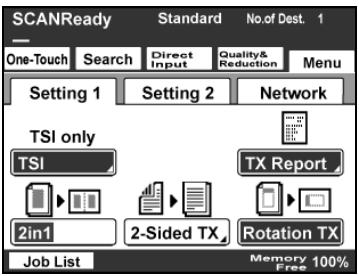
6 Specify the necessary settings on the Menu tab.
- If the optional fax kit has been installed, specify the necessary settings on the FAX Menu tab.
- For details, refer to "Specifying additional functions" on page 4-18.
7 Press the [Start] key.
Entering the number of the one-touch dial button
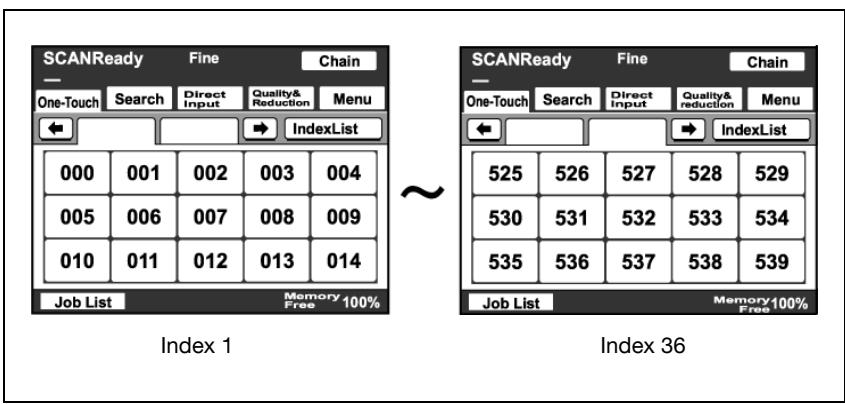
Each one-touch dial button is assigned a number, as shown below.
Instead of touching a one-touch dial button, specifying the number of the one-touch dial button allows a recipient to quickly be selected.
1 Position the document to be scanned.
2 Press the [Fax/Scan] key.
3 Press the [#] key in the control panel.
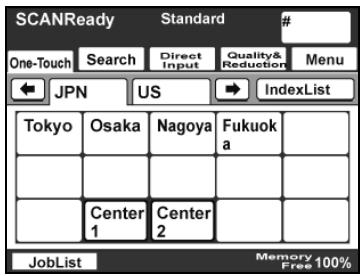
4 Using the keypad, type in the number of the one-touch dial button.
- The specified one-touch dial button is highlighted.
- Multiple recipients can be specified for simultaneous transmission with the same one-touch dial button. A maximum of 300 recipients can be specified with a single one-touch dial button.
- If software switch settings were specified to prevent broadcast transmissions, a fax cannot be sent to multiple recipients. For details on the software switch settings, refer to "Specifying software switch settings (machine functions)" on page 8-11.
5 Specify the appropriate settings on the Quality & Reduction tab according to the document to be sent.
- For details, refer to "Specifying the scanning quality and zoom ratio" on page 4-14.
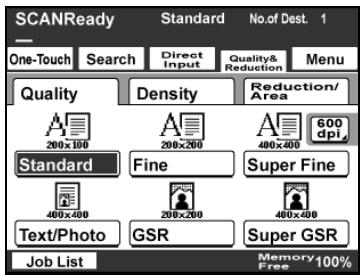
6 Specify the necessary settings on the Menu tab.
- If the optional fax kit has been installed, specify the necessary settings on the FAX Menu tab.
- For details, refer to "Specifying additional functions" on page 4-18.
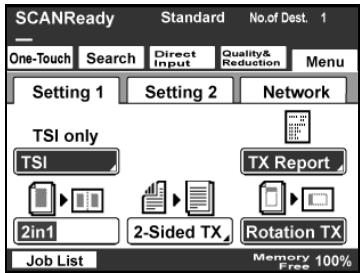
7 Press the [Start] key.
Searching for a one-touch recipient
The name of a recipient registered with a one-touch dial button can be searched for in order to select the one-touch dial button.
1 Position the document to be scanned.
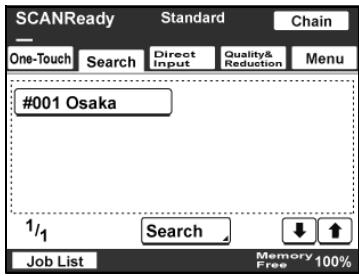
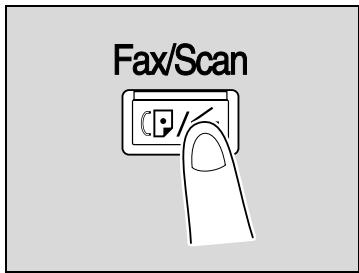
2 Press the [Fax/Scan] key.
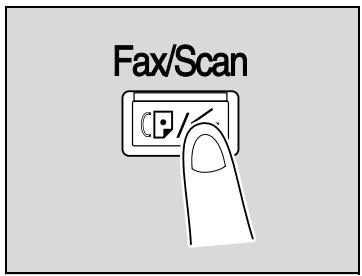
3 Touch [Search].
- If an LDAP search is possible, touch [LDAP Search] to search further.
4 Type in the name of the recipient, and then touch [Search].
A screen appears, containing the list of one-touch dial buttons programmed with a recipient whose name begins with the entered name.
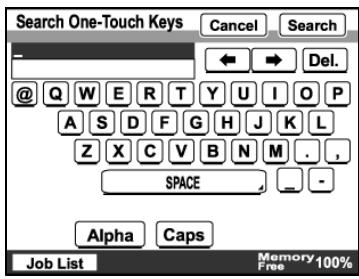
5 Touch the desired one-touch dial button to select it.
- Multiple recipients can be specified for simultaneous transmission with the same one-touch dial button. A maximum of 300 recipients can be specified with a single one-touch dial button.
- If software switch settings were specified to prevent broadcast transmissions, a fax cannot be sent to multiple recipients. For details on the software switch settings, refer to "Specifying software switch settings (machine functions)" on page 8-11.
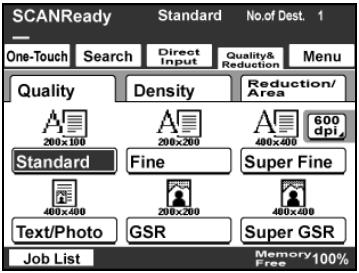
6 Specify the appropriate settings on the Quality & Reduction tab according to the document to be sent.
- For details, refer to "Specifying the scanning quality and zoom ratio" on page 4-14.
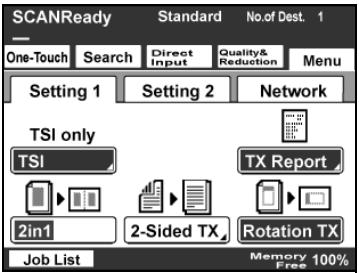
7 Specify the necessary settings on the Menu tab.
- If the optional fax kit has been installed, specify the necessary settings on the FAX Menu tab.
- For details, refer to "Specifying additional functions" on page 4-18.
8 Press the [Start] key.
4.3 Entering an address
The address of a recipient not registered in a one-touch dial button can be entered directly to be specified.

Note
If software switch settings were specified to limit dialing, data cannot be saved by directly typing in the address. For details on the software switch settings, refer to "Specifying software switch settings (machine functions)" on page 8-11.
To enter an address
1 Position the document to be scanned.
2 Press the [Fax/Scan] key.
3 Touch [Direct Input].
4 Select the communication mode. Touch [Change Comm.Mode].
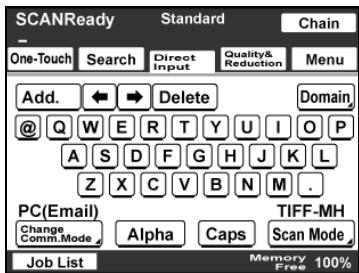
5 Touch [PC], then [Scanner], and then touch [Enter].
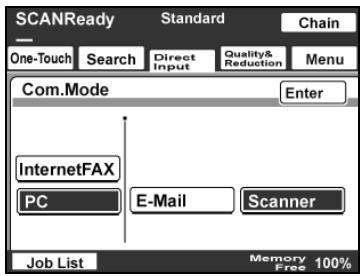
6 Type in the IP address of the machine where the data is to be saved.
- If a DNS server is specified from the Network Setting screen, the host name can be typed in. Touch [Host], and then type in the host name.
- To change the entered address, press the [C] (clear) key, and then enter the correct address.
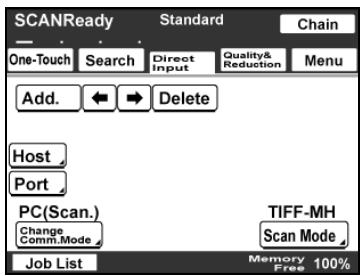
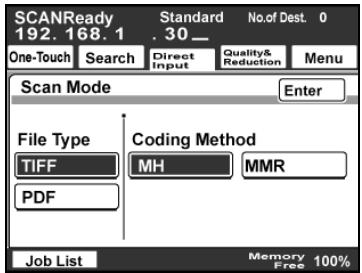
7 To select the file format and coding method, touch [Scan Mode].
8 On the Scan Mode screen, settings can be specified for the following. Select the desired settings, and then touch [Enter].
- File Type: Select either "TIFF" or "PDF".
- Coding Method: Select the coding method ("MH" or "MMR") for the data to be sent. The data amount with the MMR coding method is less than with the MH method.
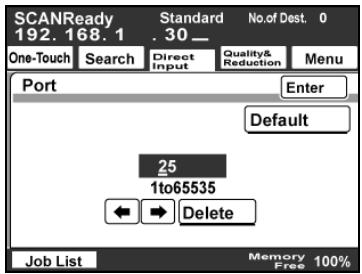
9 To change the port number, touch [Port].
- To change the port number, press the [C] (clear) key, use the keypad to type in the port number, and then touch [Enter].
- To return to the default setting, touch [Default].
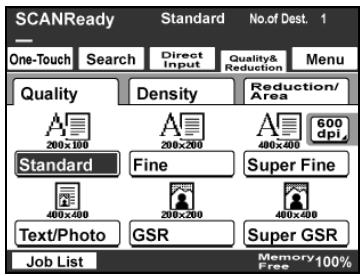
10 Specify the appropriate settings on the Quality & Reduction tab according to the document to be sent.
- For details, refer to "Specifying the scanning quality and zoom ratio" on page 4-14.
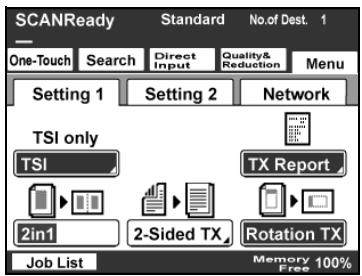
11 Specify the necessary settings on the Menu tab.
- If the optional fax kit has been installed, specify the necessary settings on the FAX Menu tab.
- For details, refer to "Specifying additional functions" on page 4-18.
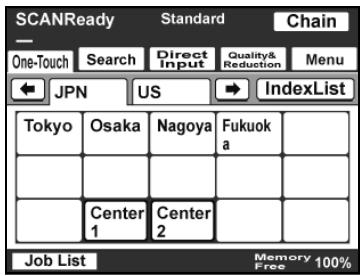
12 Press the [Start] key.
4.4 Specifying the scanning quality and zoom ratio
Touch [Quality & Reduction] in the screen that appears when the [Fax/Scan] key is pressed to specify the scanning image quality and zoom ratio.

Detail
When a transmission is finished, the transmission settings return to their defaults.
Quality
Select the scanning resolution (amount of details). From the following available resolution settings, select the appropriate resolution according to the type of document being scanned.
| Setting | Description |
| Standard | For documents with normal text (such as handwriting) |
| Fine | For documents containing small print, such as newspapers, or documents containing detailed illustrations |
| Super Fine | |
| 600dpi Text | |
| Text/Photo | For documents containing both text and images with color shades (such as photos) |
| 600dpi Text&Photo | |
| GSR | For documents with color shades, such as photos |
| Super GSR | |
| 600dpi Photo |

Detail
If data is sent with the "Text/Photo" setting selected, moiré patterns may appear in some photos. This is not a sign of a malfunction. To reduce the appearance of moiré patterns, send the data with the "GSR" or "Super GSR" setting.
If a high resolution was selected in order to send a clean image, the size of the image data that is sent may become large and the provider or server may not allow the data to be sent. First, check the size limitations for data that can be sent.
To select an Quality setting
1 Touch [Quality & Reduction].
2 Touch [Quality], and then touch the button for the desired Quality setting.
- To select a higher resolution, touch [600 dpi].
Density
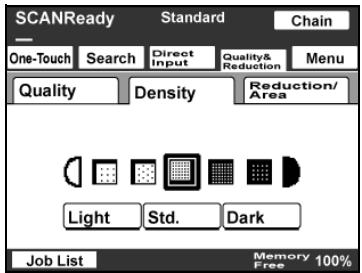
From the following available resolution settings, select the appropriate resolution according to the type of document being scanned.
| Setting | Description |
| Light | For documents with a dark background color, such as newspaper and blueprints |
| \(\uparrow\) | For normal documents |
| \(\downarrow\) | For documents with faint or colored text |
| \(\mathbf{Dark}\) |

Detail
If "600 dpi Text" or "600 dpi Text & Photo" is selected, the density can be set to one of three levels: "Light", "Std.", and "Dark".
To select a Density setting
1 Touch [Quality & Reduction].
2 Touch [Density], and then touch the button for the desired Density setting.
Original Size Setting
The scanned area can be specified as a standard size. However, a portion of a large document can be sent or a non-standard-sized document can be sent as a standard size.
1 Touch [Quality & Reduction].
2 Touch [Reduction/Area], and then touch [Original Size Set].
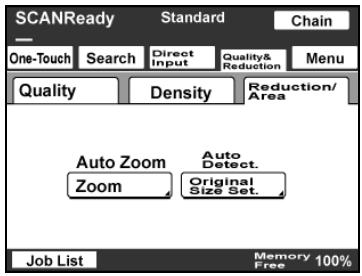
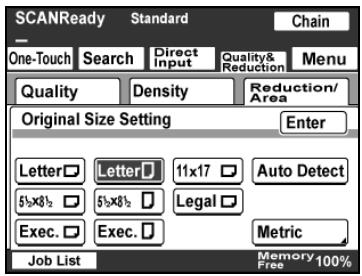
3 Select the desired scanning size, and then touch [Enter].
- Touch [Auto Detect] to automatically select the size closest to the size of the document. However, if the document is smaller than Letter size, Letter size is selected.
4.5 Specifying additional functions
Touch [Menu] in the screen that appears when the [Fax/Scan] key is pressed to add the following functions.

Note
If the optional fax kit has been installed, [Menu] changes to [Fax Menu].
| Function | Description | |
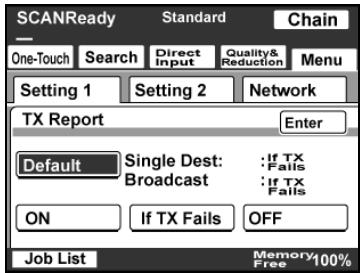
| Setting 1 tab *(Set 1 tab) | TX Report | Select the conditions for printing the transmission results report. Default: Select this setting to print the report according to the setting specified from the Administrator Management screen. ON: Select this setting to print the report, regardless of the transmission result. If TX Fails: Select this setting to print the report only if the transmission failed. OFF: Select this setting to not print the report, regardless of the transmission result. |
| 2in1 | Select whether or not to send the data using the "2in1" function (reducing two pages to fit in a single page). | |
| 2-Sided TX | Select whether or not a double-sided transmission is performed. The position of the binding margin and the page orientation can also be specified. | |
| Setting 2 tab *(Set 2 tab) | Priority TX | Select whether or not the data is sent with priority over the other jobs. |
| Timer TX Setting | Specify the time that the fax is to be sent. | |
| Stamp | Specify whether the scanned image is stamped to indicate that it has been scanned. The document must be loaded into the ADF. Note In order to use the "Stamp" function, optional stamp unit must be installed. | |
| Network *(Net.) | File Name | The name of the saved data file can be specified. Up to 16 characters can be entered. |
- Changes to () if the optional fax kit has been installed.

Note
The following parameters and functions have no effect, even if settings have been specified.
- "TSI" on the Setting 1 tab
- "Rotation TX" on the Setting 1 tab
- "Subject Selection" on the Network tab
- "Reply Address" on the Network tab
- "Email Notification" on the Network tab
**Specifying the transmission report printing condition**
The conditions for printing the transmission result report can be specified.
The conditions for printing the transmission result report are preset with the "Report Settings" parameters from the Administrator Management 1 screen. Follow the procedure described below to change these conditions.
1 Touch [Menu].
- If the optional fax kit has been installed, touch [FAX Menu].
2 Touch [TX Report] on the Setting 1 tab.
- If the optional fax kit has been installed, touch [TX Report] on the Set 1 tab.
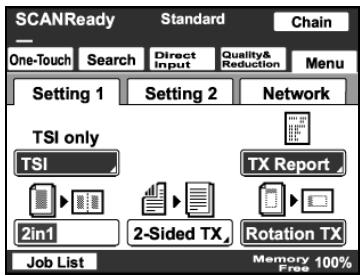
3 Specify the desired printing condition, and then touch [Enter].
Specifying 2in1 transmission
1 Touch [Menu].
- If the optional fax kit has been installed, touch [FAX Menu].
2 Touch [2in1] on the Setting 1 tab.
- If the optional fax kit has been installed, touch [2in1] on the Set 1 tab.
The button is highlighted. To cancel the function, touch the button again to deselect it.
Specifying double-sided transmission settings
1 Touch [Menu].
- If the optional fax kit has been installed, touch [FAX Menu].
2 Touch [2-Sided TX] on the Setting 1 tab.
- If the optional fax kit has been installed, touch [2-Sided TX] on the Set 1 tab.
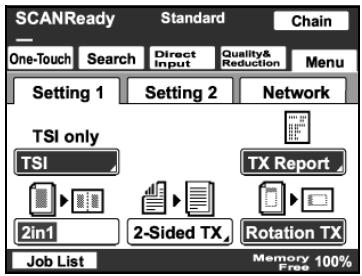
3 Select the appropriate binding margin position.
- Left Bind: The document is scanned with a binding margin on the left side.
- Top Bind: The document is scanned with a binding margin at the top.
- Auto: The binding margin is set according to the scanning direction.
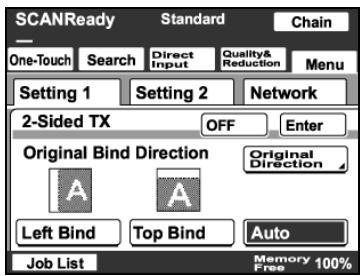
4 Touch [Original Direction].
5 Select the orientation of the document, and then touch [Enter].
- Auto: The long side of the document is automatically set as the binding position.
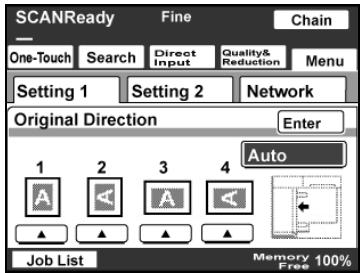
6 Touch [Enter].
- To cancel the function, touch [OFF].

Detail
When loading a double-sided document with pages of different widths, we recommend loading the pages with the same orientation. When a document with pages of different orientations is scanned, the orientation of the image data may not be correct.
Specifying priority transmission
1 Touch [Menu].
- If the optional fax kit has been installed, touch [FAX Menu].
2 Touch [Priority TX] on the Setting 2 tab.
- If the optional fax kit has been installed, touch [Priority TX] on the Set 2 tab.
The button is highlighted. To cancel the function, touch the button again to deselect it.
![KONICA BIZHUB 362 - Touch [Priority TX] on the Setting 2 tab. - 1](/content/2025/01/172103/images/b53237e3bb63fc71203a3278a2ed729a2c7681ff4bd7db199a61893248215e19.jpg)
Specifying timer transmission settings
1 Touch [Menu].
- If the optional fax kit has been installed, touch [FAX Menu].
2 Touch [Timer TX Setting] on the Setting 2 tab.
- If the optional fax kit has been installed, touch [Timer TX Setting] on the Set 2 tab.
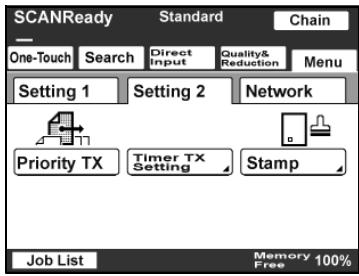
3 Specify the time that the transmission is to be sent.
- Touch [Hour] or [Minute], and then use the keypad to type in the desired time.
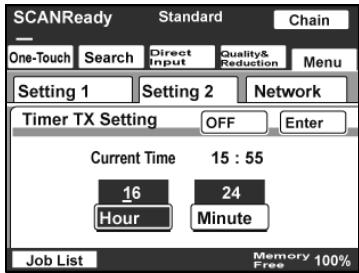
4 Touch [Enter].
- To cancel the function, touch [OFF].

Note
Up to 200 documents can be specified with a timer transmission.
Specifying the stamp setting
1 Touch [Menu].
- If the optional fax kit has been installed, touch [FAX Menu].
2 Touch [Stamp] on the Setting 2 tab.
- If the optional fax kit has been installed, touch [Stamp] on the Set 2 tab.
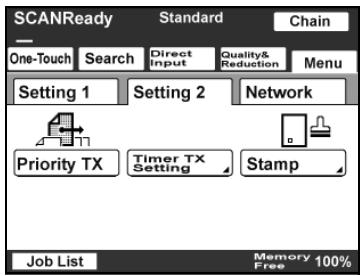
3 Select the stamping position, and then touch [Enter].
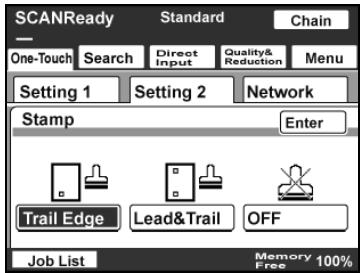
Specifying the file name
The name of the data file attached to an e-mail message can be specified. Up to 16 characters can be entered.
1 Touch [Menu].
- If the optional fax kit has been installed, touch [FAX Menu].
2 Touch [File Name] on the Network tab.
- If the optional fax kit has been installed, touch [File Name] on the Net. tab.
3 Type in the file name, and then touch [Enter].
It is not necessary to enter the file extension.
- To cancel the setting, touch [OFF].
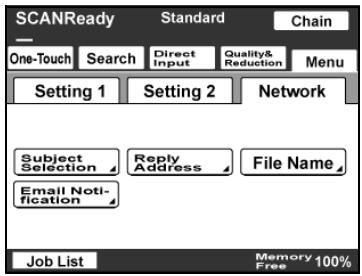
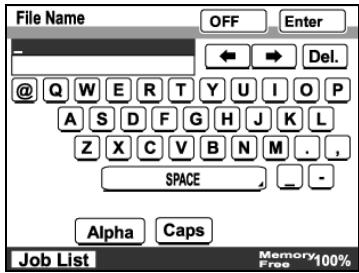
4.6 If the data could not be saved
If the transmission could not be completed correctly, a transmission result report is printed.

Detail
The setting for printing the transmission report can be changed. For details, refer to the User manual [Network Scanner Operations].
Viewing the transmission report
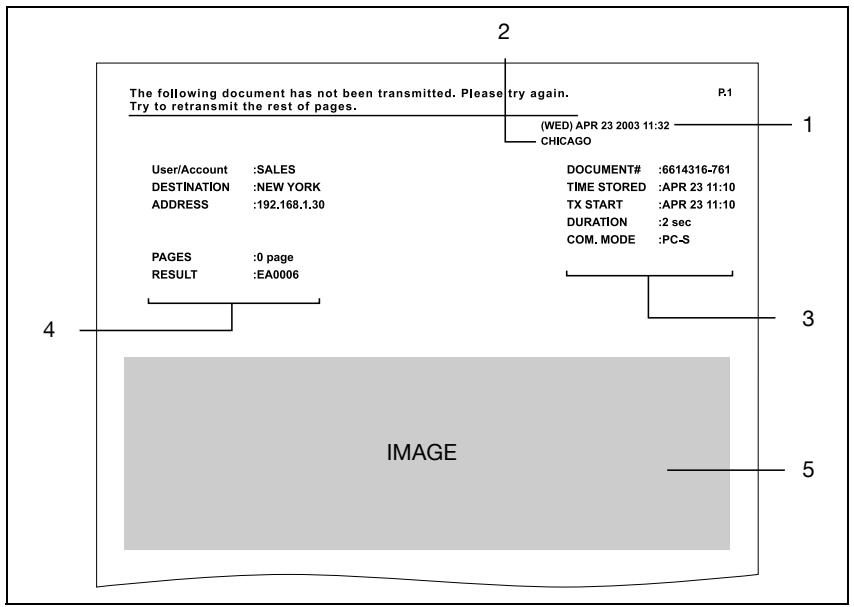
| No. | Item | Description |
| 1 | Report output date | Shows the date that the report was printed. |
| 2 | Transmission source name | Shows the name and address of the transmission source. |
| 3 | Transmission information | Shows the number for the transmitted document, the time required, and the communication mode. |
| 4 | Transmission results | Shows the transmission results. Any of the following may be indicated. OK: The transmission was completed successfully. INTERR: The transmission was interrupted. F.MEM: The memory is full. NG: The transmission was completed unsuccessfully. PT.DEL: The transmission to some recipients failed. F.DATA: The size of the data exceeds the allowable limit. IMG NG: The transmission resolution was incorrect so the transmission was ended. Error code: For details, refer to "Error codes" on page 9-4. |
| 5 | Transmission image | Shows a part of the transmitted image. |
Resending
A maximum of 20 documents that could not be sent are saved to be sent again.
1 Touch [Job List], touch [Type], and then select the document that could not be sent.
- If [Retry] or [Change Destination] appears in the screen, the document can be resent without being scanned again.
2 To send the document to the same recipient, touch [Retry].
- To send the document to a different recipient, touch [Change Destination].
4.7 Registering a destination
Programming a one-touch dial button
If a recipient is registered with a one-touch dial button, the transmission can be sent easily and accurately.
Two types of recipients can be registered with a one-touch dial button: a main recipient and a secondary recipient, where the data is sent if the transmission to the main recipient fails.

Note
If "Restrict One-Touch Editing" on the Administrator Set screen (displayed from the Administrator Management 1 screen) is set to "ON", if software switch settings were specified to limit registration of one-touch dial buttons to the administrator, or if "Enhance Security" is set to "ON", one-touch dial buttons can only be registered, edited or deleted from Administrator mode. For details on the settings in Administrator mode, refer to the User manual [Facsimile Operations]. For details on the software switch settings, refer to "Specifying software switch settings (machine functions)" on page 8-11.

Detail
Any of the following communication modes can be specified for the secondary recipient.
-PC (E-Mail)
- PC (Scanner)
- InternetFAX (Internet FAX)
- InternetFAX (IP-TX)
- InternetFAX (IP Relay)
- FAX (G3)*
- The communication mode can be specified if the optional fax kit is installed.

Note
Certain communication modes may not be available, depending on the machine settings. For details, check with the administrator.
Settings can be specified for the following.
| Item | Description |
| One-Touch Name | Type in the name of the recipient that will appear on the one-touch dial button. Up to 12 characters can be entered. Example: Tokyo br |
| Destination | Type in the IP address of the computer where the data is to be saved. |
| Port | Type in the port number (between 1 and 65535). |
| File Type | Select the format ("TIFF" or "PDF") of the file that is to be sent. |
| Coding Method | Select the coding method for the data to be sent. Select "MH" or "MMR". The data amount with the MMR coding method is less than with the MH method. |

Reminder
If the [Utility/Counter] key was pressed to register items and specify settings, be sure to press the [Reset] key in the control panel after returning to the initial screen.
To program a one-touch dial button
1 Press the [Utility/Counter] key.
2 Touch [User Setting].
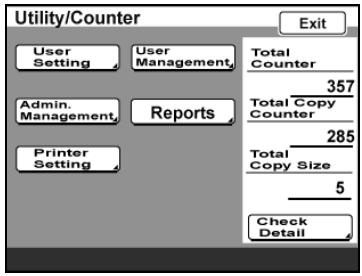
3 Touch [E-Mail Input].
- If the optional fax kit has been installed, touch [FAX].
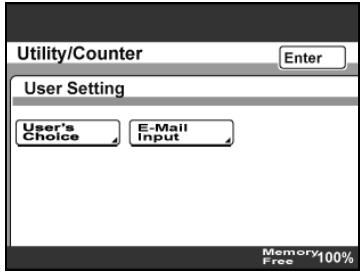
4 Touch [One-Touch].
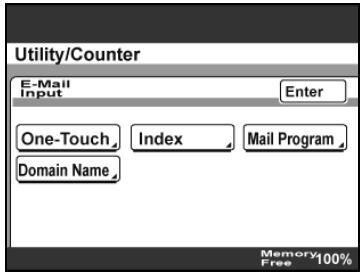
5 Touch the one-touch dial button to be programmed.
- Touch an index tab or touch [Index List], and then touch the desired one-touch dial button.
- If the machine is set to allow LDAP searches, a screen appears, allowing the one-touch dial button to be set to either
permit or prohibit the address from being found with an LDAP search. For this button, select "No".
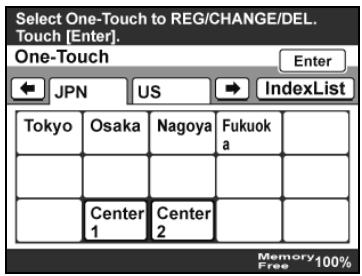
6 Type in the recipient name that will appear on the one-touch dial button, and then touch [Next].
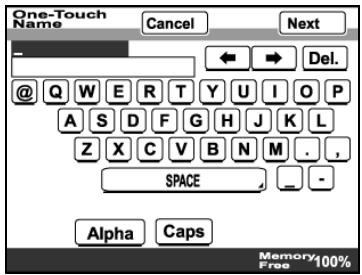
7 Select the communication mode. Touch [PC], touch [Scanner], and then touch [Next].
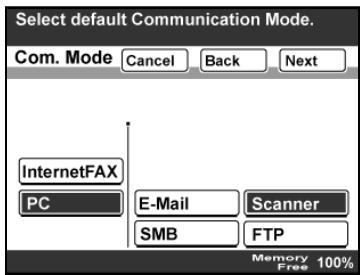
8 Type in the IP address of the machine where the data is to be saved, and then touch [Next].
- If a DNS server is specified from the Network Setting screen, the host name can be typed in. Touch [Host Name], and then type in the host name.
To change the entered address, press the [C] (clear) key, and then enter the correct address.
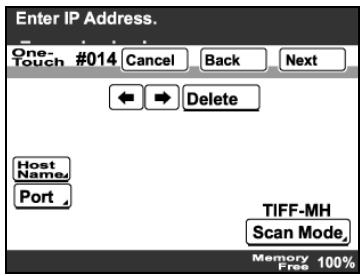
9 To select the file format and coding method, touch [Scan Mode].
10 On the Scan Mode screen, settings can be specified for the following. Select the desired settings, and then touch [Enter].
- File Type: Select either "TIFF" or "PDF".
Coding Method: Select the coding method ("MH" or "MMR") for the data to be sent. The data
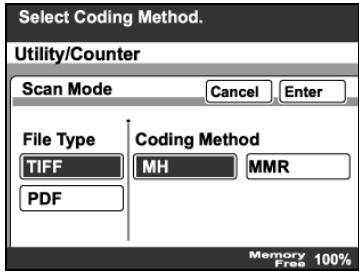
amount with the MMR coding method is less than with the MH method.
11 To change the port number, touch [Port].
- To change the port number, press the [C] (clear) key, use the keypad to type in the port number, and then touch [Enter].
- To return to the default setting, touch [Default].
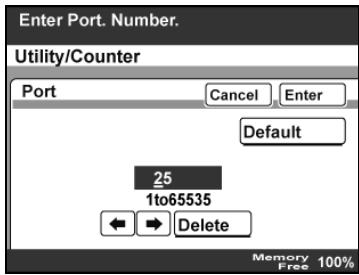
12 Touch [Next].
13 Check the information to be registered, and then touch [Enter].
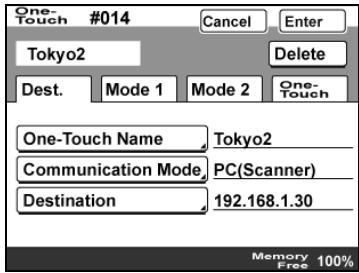
14 Touch [Enter] in each screen until the initial screen appears.
Changing/deleting a one-touch dial button
1 Perform steps 1 through 4 of the procedure in "To program a one-touch dial button".
2 Touch the one-touch dial button that you wish to change or delete.
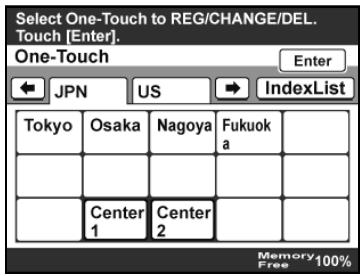
3 Touch the button for the setting to be changed, and then change the setting.
- To delete the one-touch dial button, touch [Delete].
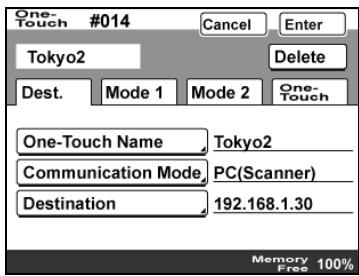
4 Check the information to be registered, and then touch [Enter].
- When deleting, a confirmation message appears. Touch [Yes].
5 Touch [Enter] in each screen until the initial screen appears.
Copying a one-touch dial button
1 Perform steps 1 through 4 of the procedure in "To program a one-touch dial button".
2 Touch the button for the one-touch recipient to be copied.
3 Touch [One-Touch], and then touch [One-Touch Copy].
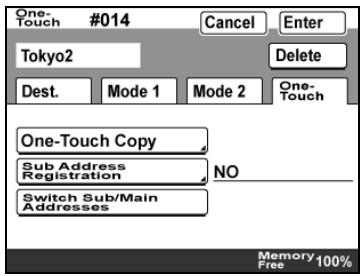
4 Touch the button where the one-touch dial button settings are to be copied.
- Select a one-touch dial button where no settings have been registered yet.
- To deselect the one-touch dial button where the information is to be copied to, touch the selected one-touch dial button again.
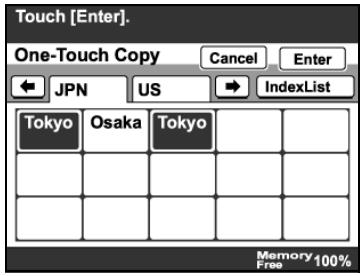
5 Touch [Enter] in each screen until the initial screen appears.
Registering/editing/deleting the secondary recipient
1 Perform steps 1 through 4 of the procedure in "To program a one-touch dial button".
2 Touch the one-touch dial button to be programmed with a secondary recipient.
3 Touch [One-Touch], and then touch [Sub Address Registration].
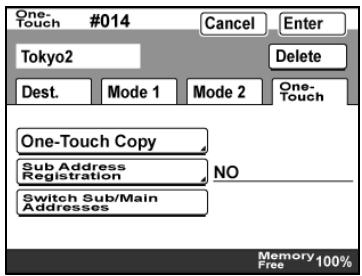
4 Enter the information for the secondary recipient, and then touch [Enter].
- If a secondary destination is already registered, check the settings that appear, and then touch [Change Settings] or [Delete].
- When deleting, a confirmation message appears. Touch [Yes].
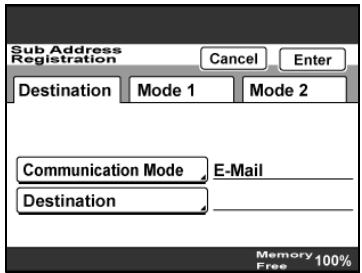
5 Touch [Enter] in each screen until the initial screen appears.
5
IP Scanner
5 IP Scanner
5.1 Before using IP Scanner
This section contains various information that should be understood before IP Scanner is used.
IP Scanner and ImageReceiver
Descriptions for IP Scanner and ImageReceiver are provided below.
- These utilities are available only when a document is scanned. For details on saving a received fax transferred to IP Scanner, refer to "Forwarding a received document to IP Scanner" on page 5-57.
- An data scanned with this machine and sent to a computer is received with ImageReceiver and saved as an image file with IP Scanner. Before using IP Scanner, make sure that ImageReceiver has been started.
- While ImageReceiver is running, its icon appears in the Windows taskbar. Normally, ImageReceiver starts automatically when Windows is started.
- If ImageReceiver has not started up, start it up by clicking "Start", pointing to "Programs" (or "All Programs" with Windows XP), then "IP Scanner", then clicking "ImageReceiver".
- When ImageReceiver begins to receive image data, the icon in the Windows tasktray flashes.
- Depending on the specified ImageReceiver settings, image data can be received with ImageReceiver, even if IP Scanner is not started.

Detail
With IP Scanner, JBIG-encoded TIFF files cannot be viewed.
Using a dial-up router
Before using IP Scanner, correctly specify the IP address of this machine. Caution must be taken particularly if IP Scanner is used in an environment where a dial-up router is used.
If the IP address is incorrectly specified in an environment where a dial-up router is used, the dial-up router may dial unnecessarily.
In addition, depending on the network settings specified on the computer, the dial-up router may dial unnecessarily, regardless of whether the IP address is correctly specified.
Using a modem or terminal adapter
If a computer installed with a modem (or connected to a terminal adaptor) is being used, the modem (or terminal adaptor) may dial.
If this occurs, select "Never dial a connection" or "Dial whenever a network connection is not present" below "Dial-up and Virtual Private Network settings" on the Connections tab of the Internet Properties dialog box. For details, refer to the manual for the operating system.
Using Windows XP Service Pack 2/Windows Vista
With Windows XP Service Pack 2 with Advanced Securities (SP2)/Windows Vista, transmission performed by ImageReceiver may be affected by the enhanced security features (Windows firewall is activated as a standard setting).
In order to use ImageReceiver, click [Unblock] in the Windows Security Alert message. All transmissions performed by ImageReceiver are set to pass through the Windows firewall, and all ImageReceiver functions can be used as usual.

Detail
If [Keep Blocking] was clicked, all transmissions performed by ImageReceiver are blocked by the Windows firewall, and the ImageReceiver functions can no longer be used. For details on allowing ImageReceiver to be used, refer to "Allowing ImageReceiver to be used" on page 5-6.
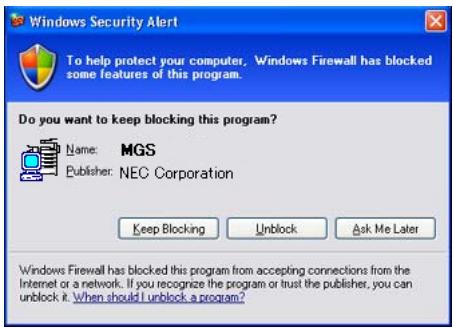

Detail
The Windows Security Alert message appears when ImageReceiver is started under the following conditions.
- When Windows XP SP2 or Windows Vista is installed when ImageReceiver is already installed
- When ImageReceiver is re-installed on a computer installed with Windows XP SP2 or Windows Vista
Allowing ImageReceiver to be used
If [Keep Blocking] was clicked in the Windows Security Alert message, ImageReceiver can no longer be used. In this case, follow the procedure described below to allow ImageReceiver to be used.
1 Open Control Panel, and then double-click "Security Center", which was installed with Windows XP SP2.
2 In the Windows Security Center dialog box, click "Windows Firewall".
3 In the Windows Firewall dialog box, click the Exceptions tab. (For Windows Vista, select "Allow a program through Windows Firewall".)
4 In the "Programs and Services" list, check that "MGS" with the ImageReceiver program name is registered.
5 Select the "MGS" check box.
6 Click [OK].

Detail
The firewall setting can only be changed by a user with administrator privileges.
ImageReceiver port conflicts
If a mail server is running on a computer installed with IP Scanner, a confirmation message appears.
If IP Scanner (and ImageReceiver) and the mail server are being used on the same computer, click [Change ImageReceiver port].
However, to use this function, the setting must match the Port setting for the one-touch dial button used with the Scan to PC operation.
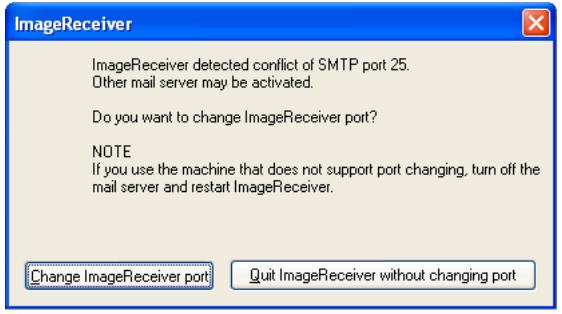
The port number can be checked after it is changed by clicking "Help", then "Computer Information" in IP Scanner.
When using IP Scanner (and ImageReceiver) without changing the port number, stop the mail server, and then restart ImageReceiver.
If the port number was unintentionally changed, uninstall IP Scanner, and then install it again.
SSL transmissions
- Transmissions for using IP Scanner to program/delete scan buttons can be encrypted.
- If this machine is set for SSL transmissions, the following dialog box may appear.
Security Alert

Information you exchange with this site cannot be viewed or changed by others. However, there is a problem with the site's security certificate.
The security certificate was issued by a company you have not chosen to trust. View the certificate to determine whether you want to trust the certifying authority.
The security certificate date is valid.
The name on the security certificate is invalid or does not match the name of the site
Do you want to proceed?
Yes
No
View Certificate
If this dialog box appears, click [View Certificate], and then install a certificate.
Once a certificate is installed, this dialog box may not appear during the period that the certificate is valid. When the certificate expires, this dialog box will appear again, and the certificate must be installed again.
For details installing certificates, refer to "Installing certificates" on page 5-10.
- Use PageScope Web Connection to create certificates.
For details on the creating certificates, refer to the User manual [Network Scanner Operations].
- If IP Scanner is communicating with a device using SSL, an icon of a key appears in the lower-right corner of the window.
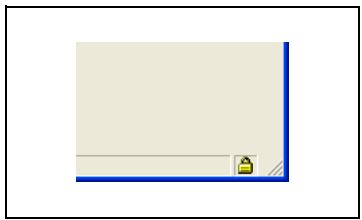

Detail
In order for IP Scanner to communicate with this machine using SSL, Internet Explorer 5.0 or later is required.
For SSL communication, an Internet Explorer encryption level of 56 bits or more is required. If the encryption level is not 56 bits or more, obtain the encryption pack from the Microsoft Web site and install it.
To enable SSL transmissions and use IP Scanner, use IP Scanner version 1.55.x or later.
Installing certificates
1 When the Security Alert dialog box appears, click [View Certificate].
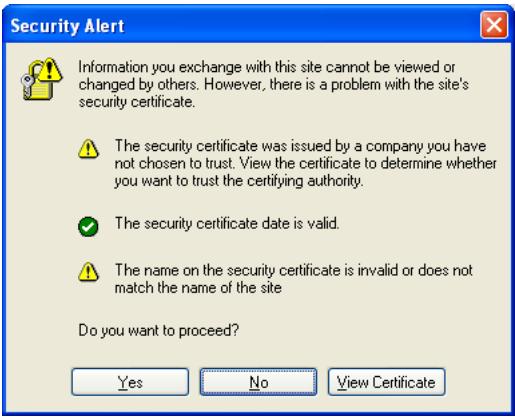
2 Click [Install Certificate].
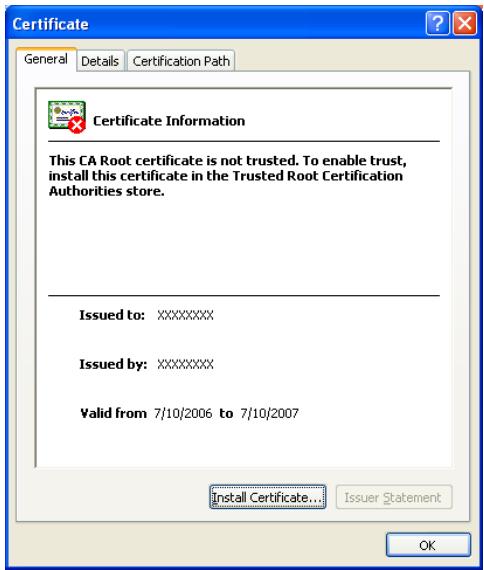
3 Click [Next].
![KONICA BIZHUB 362 - Click [Next]. - 1](/content/2025/01/172103/images/c17d35c08a2fc8df7528fbb3c5c86aed7a9e4f9fd33e8e4dbf07e030184dc3bd.jpg)
4 Select the "Automatically select the certificate store based on the type of certificate" check box, and then click [Next].
![KONICA BIZHUB 362 - Select the "Automatically select the certificate store based on the type of certificate" check box, and then click [Next]. - 1](/content/2025/01/172103/images/7060de5e7d56b3a863ee2e8306fcf9617f7eec8e0fab918c5660c10c20297855.jpg)
5 Click [Finish].
![KONICA BIZHUB 362 - Click [Finish]. - 1](/content/2025/01/172103/images/3b446c16473aff51ee84798227b381e5b96ece4dcb89b477ae0b63466dae54ad.jpg)
6 Click [Yes].
![KONICA BIZHUB 362 - Click [Yes]. - 1](/content/2025/01/172103/images/a8693fa9d965ba3e6186e86f43363e423cced3795325783564d073d6dac2298c.jpg)
The certificate is installed.
5.2 Installing/uninstalling utilities
IP Scanner is available from the utilities disk included with this machine. About 35 MB of hard disk free space is required to install IP Scanner.
ImageReceiver installation methods
Install ImageReceiver in either of the following ways, depending on your operating environment.
| Installation method | Description |
| Installs as application | This is the normal installation method. The settings for saved image data used in IP Scanner can be used. |
| Installs as service | Use this installation method when being used on a server or shared terminal. The utility can be installed on computers running Windows Server 2003, XP or 2000. ImageReceiver can be used even if the user has not logged on; however, the settings for saved image data used in IP Scanner cannot be used. |
Installing utilities
1 Start up the computer, and then insert the CD-ROM. The installer starts up.
2 Select "Install IP Scanner".
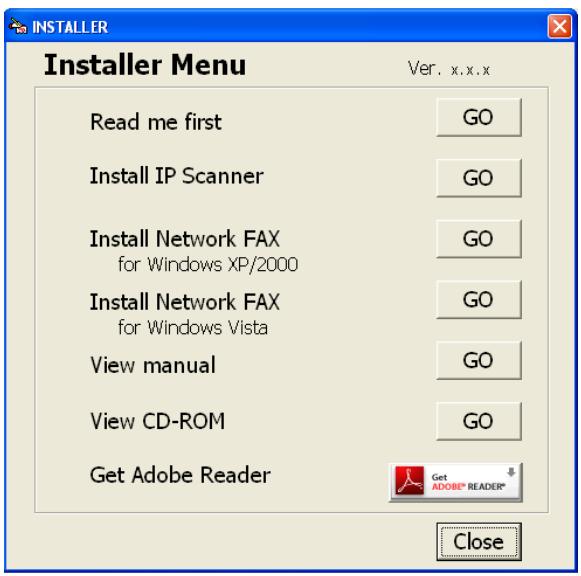
3 Check the contents of the dialog box, and then click the [Next] button.
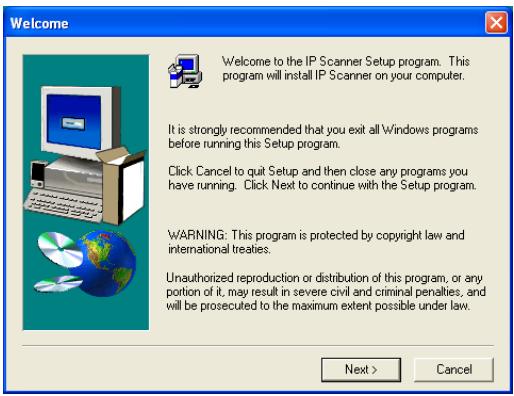
4 Follow the instructions that appear to finish the installation.
5 In the Setup Complete dialog box, click [Finish].
Setup Complete
Readme file can be opened after setup procedures. Desktop icon can be created on a desktop.
Yes, read readme file now.
Yes, create desktop icon.
Click Finish to complete Setup.
<Back
Finish
6 Restart the computer.

Note
An influence on ImageReceiver communication occurs in an environment where Windows XP Service Pack 2 with Advanced Securities (SP2)/Windows Vista is used along with the security function enhancement. Refer to "Using Windows XP Service Pack 2/Windows Vista" on page 5-4.
Uninstalling utilities (for Windows 2000/XP/Server 2003)
Before uninstalling IP Scanner, exit ImageReceiver.
1 In Windows, select "Start", and then "Control Panel" to open the Control Panel.
- With Windows 2000, select "Start", "Settings", and then "Control Panel" to open the Control Panel.
2 Double-click "Add or Remove Programs".
- With Windows 2000, double-click "Add/Remove Programs".
3 Select "IP Scanner", and then click [Change/Remove].
- With Windows Vista, select "IP Scanner", and then click [Uninstall].
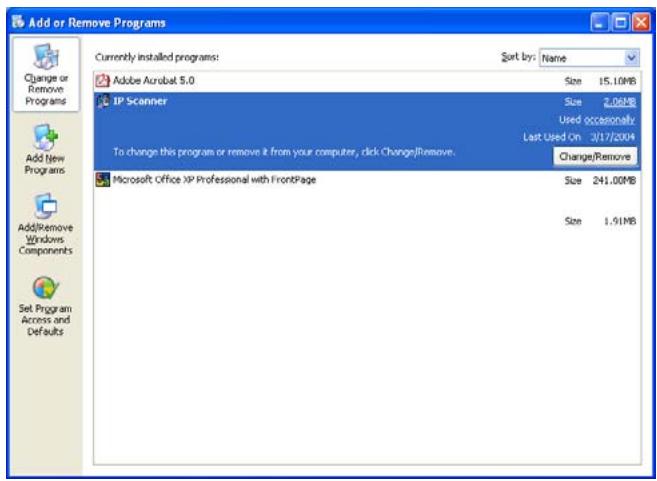
4 Click [Yes].
![KONICA BIZHUB 362 - Click [Yes]. - 1](/content/2025/01/172103/images/44f8c6c20c57d0a4c8ebe2732e9e5cfc65ab410c61919caa18813cb52ab58802.jpg)
5 Follow the instructions that appear to finish the uninstallation.
6 Restart the computer.
5.3 IP Scanner operations
The window and menu for IP Scanner is described below.
Main window
This window appears when IP Scanner is started.
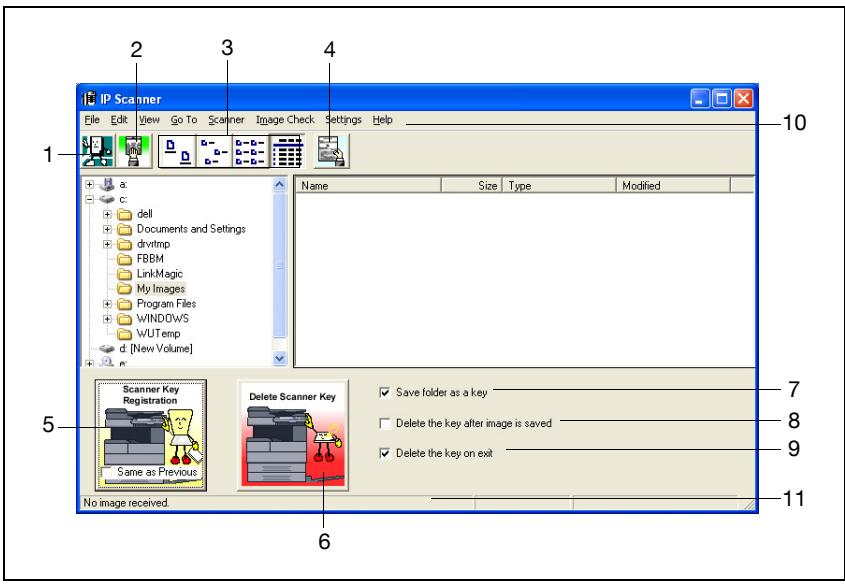
| No. | Element Name | Description |
| 1 | Close button | Click this button to exit IP Scanner. |
| 2 | Check RX now button | Click this button to check if scan data has arrived. |
| 3 | Large Icons, Small Icons, List, and Details buttons | Click these buttons to change how the icons are displayed. |
| 4 | Thumbs nails button | Click this button to start ViewWindow and display a list of thumbnails for all TIFF, PDF and JPG files in the open folder. For details, refer to "ViewWindow" on page 5-32. |
| 5 | [Scanner Key Registration] button | Click this button to display the Scanner Settings dialog box to program a button on the machine for specifying the computer where data is to be sent. For details, refer to "Scanner Settings dialog box" on page 5-23. If the "Same as Previous" check box is selected, the button will be programmed with the same settings as the previous button that was programmed. If a machine is not connected, the illustration of the machine appears faint. |
| 6 | [Delete Scanner Key] button | Click this button to erase the programmed scan button on the machine. |
| 7 | "Save folder as a key" check box | If this check box is selected, a folder with the same name as the button is automatically created when a scan button is programmed. |
| 8 | "Delete the key after image is saved" check box | If this check box is selected, the scan button is automatically erased as soon as the scanned image is saved in a folder. |
| 9 | "Delete the key on exit" check box | If this check box is selected, the scan button is automatically erased when IP Scanner is exited. |
| 10 | Menu bar | Click the commands in the menus to specify various settings. For details, refer to "Available commands" on page 5-21. |
| 11 | Status bar | Displays the operating status of the application. |
Available commands
The commands on the various menus are described below.
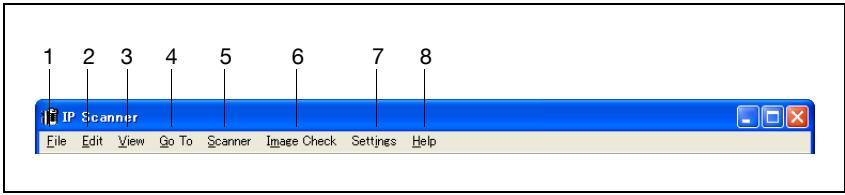
| No. | Menu | Command | Description |
| 1 | File | View file | Select this command to view the selected image file. |
| New Folder | Select this command to create a new folder in the folder that is displayed. | ||
| Delete | Select this command to delete the selected file or folder. | ||
| Rename | Select this command to change the name of the selected file or folder. | ||
| Exit | Select this command to exit IP Scanner. | ||
| 2 | Edit | Cut | Select these commands to select, move, copy files or folders. |
| Copy | |||
| Paste | |||
| Select All | |||
| 3 | View | Large Icons | Select these commands to change how the icons are displayed. |
| Small Icons | |||
| List | |||
| Details | |||
| Thumbsals | Select this command to display thumbnails of the scanned documents. For details, refer to "ViewWindow" on page 5-32. | ||
| Refresh | Select this command to update the display of files and folders. | ||
| 4 | Go To | Saving folder | Select this command to display the folder where the data was saved. |
| 5 | Scanner | Scanner Key Registration | Select this command to program a scan button on the machine. |
| Scanner Key Delete | Select this command to erase the programmed scan button on the machine. | ||
| Reg. Same as Previous | Select this command to program the button with the same settings as the previous button that was programmed. | ||
| 6 | Image Check | Check now | Select this command to check if scan data has arrived. |
| Automatic | Select this command to automatically check if scan data has arrived. | ||
| Manual | Select this command to manually check if scan data has arrived. | ||
| 7 | Settings | Connection Setting | Select this command to specify the IP address of the machine. |
| Image Folder Setting | Select this command to change the folder where the image is saved. | ||
| NoteA removable drive, CD-ROM drive or network drive cannot be speci-fied as the destination folder. | |||
| Viewer Settings | Select this command to change the viewer that is opened from IP Scanner. | ||
| Sort Settings | Select this command to specify settings for sorting scanned documents. For details, re-fer to "Sort Settings dialog box (RX Docu-ment tab)" on page 5-26. | ||
| Divided Settings | Select this command to specify settings for dividing scanned documents. For details, re-fer to "Divided Settings dialog box" on page 5-29. | ||
| Receive Notify Set-tings | Select this command to specify settings for computer notification for transmitting scanned documents. For details, refer to "Receive Notify Settings dialog box" on page 5-30. | ||
| Selected folder as saving location | Select this command to specify the dis-played folder as the save destination. | ||
| Configure Arrival Notification | Select this command to specify the dis-played folder as the notification folder for computer reception notifications. | ||
| Show dialogue after received | Select this command to display a message to notify that the image was received. | ||
| Notify other PC after received | Select this command to send a notification informing a different computer that the image was received. | ||
| 8 | Help | Computer Informa-tion | Select this command to display the IP ad-dress of the computer and the SMTP port of ImageReceiver. |
| Help Topics | Select this command to display the Help for IP Scanner. | ||
| About This Product | Select this command to display the version information for IP Scanner. |
Scanner Settings dialog box
This dialog box appears so that scan settings can be registered on the machine.
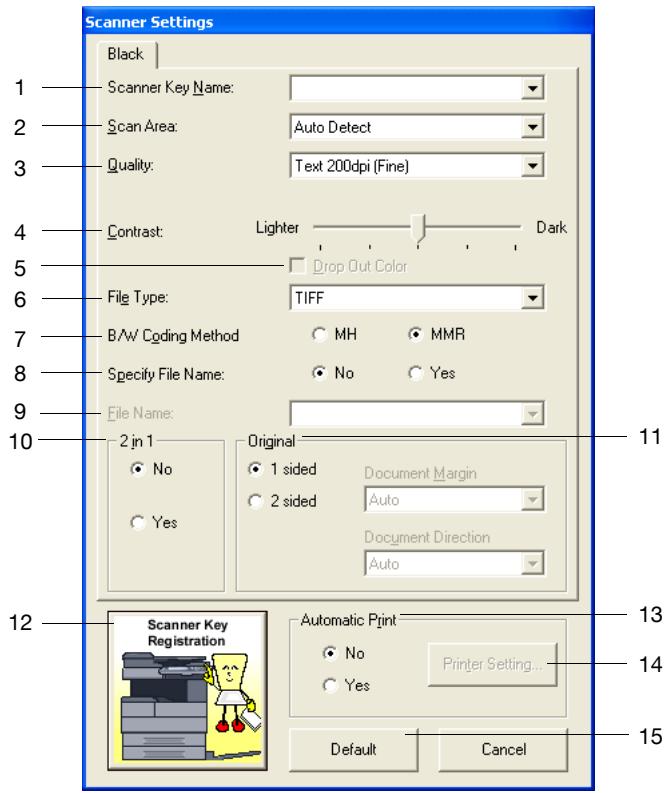
| No. | Element Name | Description |
| 1 | "Scanner Key Name" box | Type in the name of the scan button that will appear in the machine's touch panel. If the "Save folder as a key" check box in the main window was selected, a folder with the same name as the button is created on the computer. |
| 2 | "Scan Area" box | Select the area to be scanned. If "Auto Detect" is selected, the scanning area is automatically determined according to the size of the document. |
| 3 | "Quality" box | Select the scanning resolution. |
| 4 | "Contrast" slider | Specify the density for scanning. |
| 5 | "Drop Out Color" check box | This item is not available with this machine. |
| 6 | "File Type" box | Select "TIFF" or "PDF" for the format in which the file is saved. |
| 7 | "B/W Coding Method" parameter | Select "MH" or "MMR" as the encoding method for saving files. Some images cannot be viewed on the computer, depending on the encoding. In that case, select "MH" to increase the possibility that the image can be viewed. The size of the encoded data depends on the image data; however, generally, MH data is larger than MMR data. |
| 8 | "Specify File Name" parameter | "Yes": Select this setting to save the image data with the specified file name. "No": Select this setting to save the file with a name consisting of the device name and date that the image was scanned. |
| 9 | "File Name" box | Type in the name that the file will be saved with when "Specify File Name" is set to "Yes". |
| 10 | "2in1" group box | "Yes": Select this setting to save a two-page document as a one-page scan image. This setting is available only if an automatic document feeder is used. |
| 11 | "Original" group box | Select whether the document is single-sided or double-sided. If "2 sided" is selected, the location of the binding margin and the document orientation can be specified. |
| 12 | [Scanner Key Registration] button | Click this button to program a button on the machine for specifying the location where data is to be saved. |
| 13 | [Automatic Print] group box | If "Yes" is selected, "Automatic Print Settings" becomes available in ImageReceiver. |
| 14 | [Printer Setting] button | Click this button to display the Printer Setting dialog box. This button is available when "Automatic Print" is set to "Yes". |
| 15 | [Default] button | Click this button to revert all parameters to their default settings. |
Sort Settings dialog box (Scanner tab)
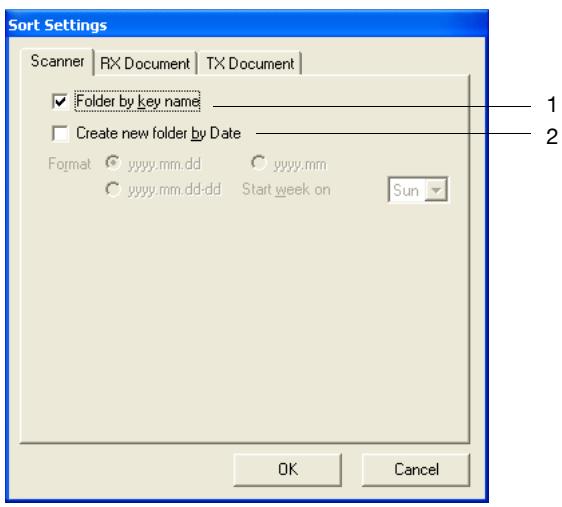
| No. | Element Name | Description |
| 1 | "Folder by key name" check box | If this check box is selected, a folder with the same name as the programmed scan button is automatically created. When sending a Scan to PC transmission from this machine, a folder is automatically created with the same name as the destination of the one-touch dial button. If a transmission is sent with the address entered directly, a folder is automatically created with the name "(Input)". This check box is connected to the "Save folder as a key" check box in the main window. |
| 2 | "Create new folder by Date" check box | If this check box is selected, the data is saved in a folder created with a name from the date that the image was sent from the machine. The format of the date can be specified. Example: For December 24, 2005 (Saturday) • yyyyMMdd: 2005.12.24 • yyyyMMdd: 2005.12 • yyyyMMdd-dd: 2005.12.18-24 "If "Start week on" was set to "Sun" (A week is considered to be 7 days from the selected day. However, at the end of the month, the months will not be straddled.) |
Sort Settings dialog box (RX Document tab)
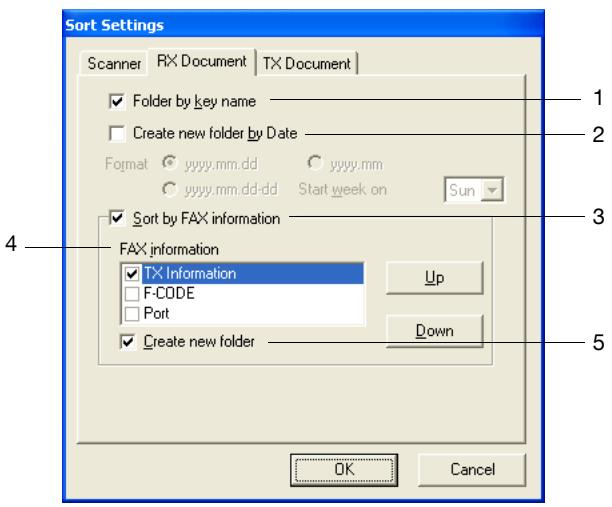
| No. | Element Name | Description |
| 1 | "Folder by key name" check box | If this check box is selected, a folder is automatically created with the same name as the programmed one-touch dial button when a received document is transferred to IP Scanner. This check box is not connected to the "Save folder as a key" check box in the main window. |
| 2 | "Create new folder by Date" check box | If this check box is selected, the data is saved in a folder created with a name from the date that the document was sent. The format of the date can be specified. Example: For December 24, 2005 (Saturday) • yyyyMMdd: 2005.12.24 • yyyyMMdd: 2005.12 • yyyyMMdd-dd: 2005.12.18-24 "If "Start week on" was set to "Sun" (A week is considered to be 7 days from the selected day. However, at the end of the month, the months will not be straddled.) |
| 3 | "Sort by FAX information" check box | If this check box is selected, the data is sorted, for example using the fax recipient information, and saved in a folder. |
| 4 | "FAX Information" list | Click [Up] or [Down] to select the fax information to be used for sorting. From the selected items, the items toward the top of the list will be given priority when the data is sorted. |
| 5 | "Create new folder" check box | If this check box is selected, the document (image data) is saved in a new folder created from the sender information if there is no folder created with the sender information of the received document. |
Sort Settings dialog box (TX Document tab)
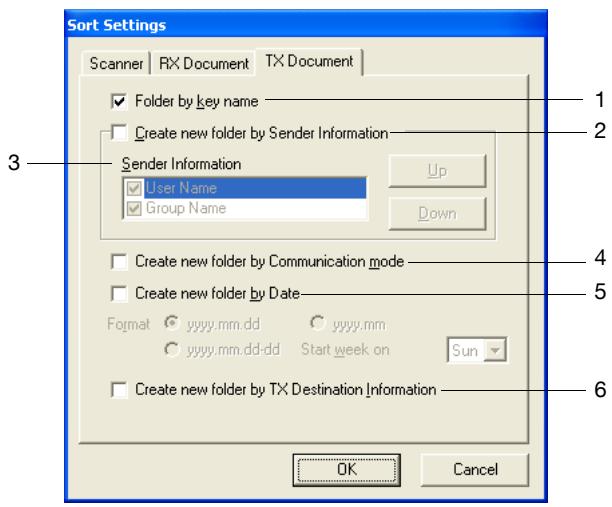
| No. | Element Name | Description |
| 1 | "Folder by key name" check box | If this check box is selected, a folder is automatically created with the same name as the programmed one-touch dial button when a sent document is transferred to IP Scanner. This check box is not connected to the "Save folder as a key" check box in the main window. |
| 2 | "Create new folder by Sender Information" check box | If this check box is selected, the data is saved in a folder created with a name from the sender information (user name or account name) of the sent document. |
| 3 | "Sender Information" box | Click [Up] or [Down] to select the sender information to be used for sorting. From the selected items, the items toward the top of the list will be given priority when the data is sorted. If no account is to be specified, set "Group Name" to "Public". |
| 4 | "Create new folder by Communication mode" check box | If this check box is selected, the data is saved in a folder created with the number corresponding to the communication mode of the sent document. |
| 5 | "Create new folder by Date" check box | If this check box is selected, the data is saved in a folder created with a name from the date that the document was sent. The format of the date can be specified. Example: For December 24, 2005 (Saturday) • yyyyMMdd: 2005.12.24 • yyyyMMdd: 2005.12 • yyyyMMdd-dd: 2005.12.18-24 *If "Start week on" was set to "Sun" (A week is considered to be 7 days from the selected day. However, at the end of the month, the months will not be straddled.) |
| 6 | "Create new folder by TX Destination Information" check box | If this check box is selected, the data is saved in a folder created with a name from the sender information of the sent document. |
Divided Settings dialog box
This dialog box appears so that settings can be specified to divide and save scanned documents.
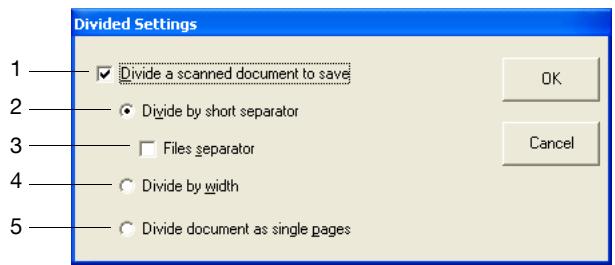
| No. | Element Name | Description |
| 1 | "Divide a scanned document to save" check box | If this check box is selected, a scanned document can be divided and saved as separate files. A document to be divided and saved can be scanned in one operation. |
| 2 | "Divide by short separator" setting | If this setting is selected and a document of different page lengths is scanned, those pages are identified as inter-leaves, and the document is divided by those interleaves and saved as separate files.When loading the document into the ADF, load the document so that the left sides of the pages (leading edges) are aligned.There are limitations on the page sizes that can be mixed.Refer to "Mixed originals paper sizes".This setting is available only if the "Divide a scanned document to save" check box is selected. |
| 3 | "Files separator" check box | If this check box is selected, the pages inserted as inter-leaves are also saved as image data. |
| 4 | "Divide by width" setting | If this setting is selected and a document of different page widths is scanned, the pages of the same width are saved together as a separate file.When loading the document into the ADF, load the document so that the top edges of the pages (edges toward the rear of the machine) are aligned.This setting is available only if the "Divide a scanned document to save" check box is selected. |
| 5 | "Divide document as single pages" setting | If this setting is selected, each page of the scanned document is saved as a separate file.This setting is available only if the "Divide a scanned document to save" check box is selected. |
Receive Notify Settings dialog box
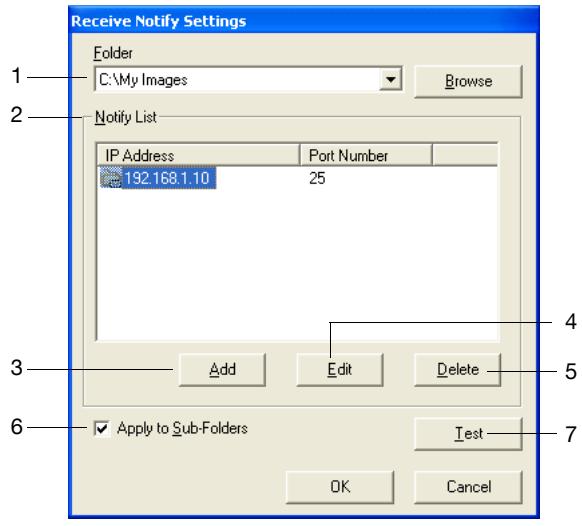
| No. | Element Name | Description |
| 1 | Saving destination | A different computer can be notified when an image is re- ceived in a specific folder. Here, select the destination fold- er where the image is received and the different computer is notified. |
| 2 | "Notify List" | Displays information on the notification destination speci- fied for the selected folder. A faint icon beside a folder indi-cates that the notification destination is set for a containing folder. |
| 3 | [Add] button | Click this button to add a notification destination. Type in the IP address of the computer that will receive the notifi- cation, and then click [OK]. If a port number is specified, select the "Specify Port" check box, and then specify the port number. Specify the SMTP port number used by ImageReceiver on the computer to receive the notification (normally "25"). |
| Add IP Address | ||
| IP Address Port Number | ||
| 25 | ||
| Specify Port | ||
| OK Cancel | ||
| 4 | [Edit] button | Click this button to edit or change the selected notification destination. If the notification destination is set for a containing folder (the icon is faint), [Edit] is not available. |
| 5 | [Delete] button | Click this button to delete the selected notification destination. If the notification destination is set for a containing folder (the icon is faint), [Delete] is not available. |
| 6 | "Apply to Sub-Folders" check box | If this check box is selected, the same notification settings are applied to all subFolders contained in the selected folder. |
| 7 | [Test] button | Click this button to send a test notification to the selected notification destination. The following message appears on the computer specified as the notification destination. ImageReceiver - Test Notify Computer Name: UTILITY3 Folder : E:\My Images This is Test Notify OK ImageReceiver must be started up on the computer specified as the notification destination. In addition, a test notification cannot be sent to a notification destination specified as a containing folder (the icon is faint). |
ViewWindow
If the thumbnail display was clicked, a reduced image of all images saved in the selected folder can be viewed. Click an image to view the file.
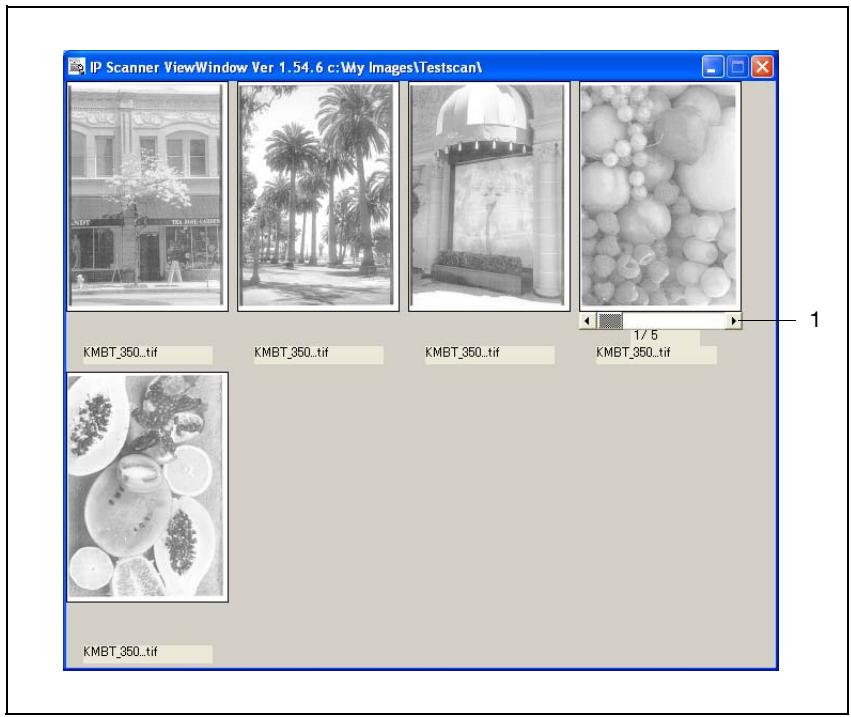
| No. | Description |
| 1 | Appears when the file contains multiple pages. Click the bar to change the page. |

Note
JBIG-encoded TIFF files cannot be displayed.
Images created with a device other than this machine (for example, with a computer) may not be displayed.
Printer Setting dialog box
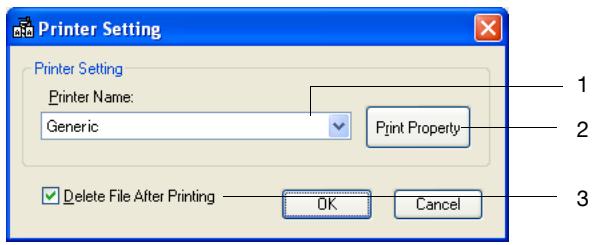
| No. | Element Name | Description |
| 1 | "Printer Name" box | From the printers registered in the computer's Printers folder, select the printer to be used for automatic printing. |
| 2 | [Print Property] button | Click this button to display the Print Property dialog box. |
| 3 | "Delete File After Printing" check box | If this check box is selected, the received image data is deleted after it is automatically printed. |
Print Property dialog box
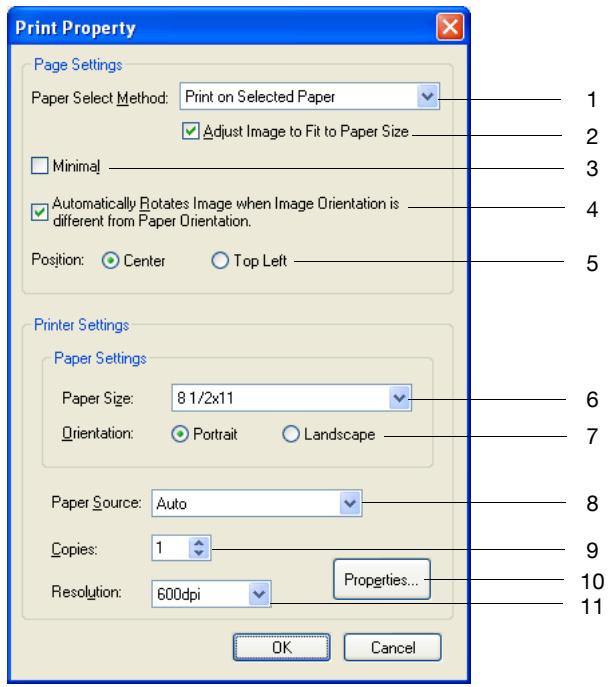
| No. | Element Name | Description |
| 1 | "Paper Select Method" box | Specify the method for selecting paper used for automatic printing. If "Print on Selected Paper" is selected, the data is printed on the paper and with the orientation specified in this dialog box, regardless of the size of the image. If "Print on Paper Same as Image Size" is selected, the data is printed on the paper and with the orientation matching that of the image, regardless of the settings specified in this dialog box. If "Select When Printing" is selected, the Print Select dialog box appears before printing. "Select When Printing" does not appear if ImageReceiver was installed as a service. |
| 2 | "Adjust Image to Fit to Paper Size" check box | If this check box is selected, the image is printed en-larged/reduced to fit the size of the paper. |
| 3 | "Minimal" check box | If this check box is selected, the image is printed reduced so that no part of the image is lost. |
| 4 | "Automatically Rotates Image when Image Orientation is different from Paper Orientation." check box | If this check box is selected, the image is rotated before being printed when the orientation of the image differs from that of the paper. |
| 5 | "Position" parameter | Select how images are arranged in the paper when printed. |
| 6 | "Paper Size" box | Select the paper size. The paper sizes that can be used with the selected printer are listed. |
| 7 | "Orientation" parameter | Select the printing orientation. |
| 8 | "Paper Source" box | Select the paper supply method. The paper supply methods that can be used with the selected printer are listed. |
| 9 | "Copies" box | Specify the number of copies printed. Specify a number that does not exceed the maximum number of copies that can be specified with the selected printer. |
| 10 | [Properties] button | Click this button to display the printer properties for the selected printer. |
| 11 | "Resolution" box | Select the printing resolution. The resolutions that can be used with the selected printer are listed. |
5.4 ImageReceiver operations
ImageReceiver icon
After IP Scanner is installed, the ImageReceiver icon appears in the Windows taskbar when the computer is started. If this icon is not displayed, the scanned image cannot be received by the computer.
The icon changes as shown below, depending on the ImageReceiver settings.
| Icon | Description |
| An image is open in IP Scanner. (green) | |
| An image is open in ImageReceiver. (blue) | |
| An image is open in ImageReceiver (when the utility was installed as a service). (blue) |
ImageReceiver commands
Right-click the icon in the taskbar to display a menu.
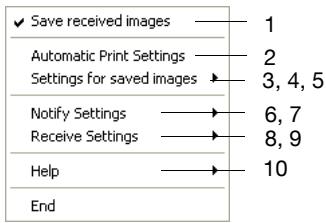
| No. | Command | Description |
| 1 | Save received images | If there is a check mark beside this command, image data is opened in ImageReceiver at the same time that it is re-ceived, even if IP Scanner is not started.When "Save received images" is clicked, a message appears, confirming whether or not the setting specified in IP Scanner or ImageReceiver is to be taken over. To take over the setting, click [Yes]. |
| 2 | Automatic Print Settings | Click this command to display the Automatic Print Settings dialog box. For details, refer to "Automatic Print Settings di-alog box" on page 5-40. |
| 3 | "Settings for saved images"-Image Folder Set-ting" | Click this command to change the folder where the image data is saved. This command is available only if there is a check mark beside "Save received images". A removable drive, CD-ROM drive or network drive cannot be specified as the destination folder. |
| 4 | "Settings for saved images"-Sort Settings" | Select this command to specify settings for sorting scanned documents. This command is available only if there is a check mark beside "Save received images". For details, refer to "Sort Settings dialog box (Scanner tab)" on page 5-25. |
| 5 | "Settings for saved images"-Divided Settings" | Select this command to specify settings for dividing scanned documents. This command is available only if there is a check beside "Save received images". For de-tails, refer to "Divided Settings dialog box" on page 5-29. |
| 6 | "Notify Settings"-Re-ceive Notify Settings" | Select this command to specify settings for computer notif-cation for transmitting scanned documents. This com-mand is available only if there is a check beside "Save received images". For details, refer to "Receive Notify Set-tings dialog box" on page 5-30. |
| 7 | "Notify Settings"- "Error Notify Settings" | Select this command to display the Error Notify Settings di-alog box. |
| Error Notify Settings | ||
| Error notify to other PC | ||
| IP Address Port Number | ||
| 25 | ||
| Specify Port | ||
| Test OK Cancel | ||
| To send error notifications to another computer, select the "Error notify to other PC" check box, type in the IP address of the computer that will receive the notification, and then click [OK]. To specify a port number, select the "Specify Port" check box, and then specify the port number. Specify the number of the SMTP port used by ImageRe- ceiver on the computer to receive the notification (normally "25"). Click [Test]. A test notification is sent to the specified recipient. | ||
| 8 | "Receive Settings"- "RX Display" | If there is a check mark beside this command, a dialog box appears, notifying the user that image data has been re-ceived. |
| ImageReceiver - Image Confirmation | ||
| The image(s) is registered in the following folder(s). | ||
| OK Hide Details | ||
| Name Folder | ||
| KMBTXX C:\My Images\Testscan | ||
| Open Folder Open Image | ||
| From the Image Confirmation dialog box, the viewer can be started and the folder specified as the destination for sav- ing images can be viewed. In addition, from this dialog box, image data files can be deleted or renamed. | ||
| 9 | "Receive Settings"- "Connection Filter" | Click this command to display the Connection Filter dialog box. |
| If the "Filter" check box is selected, the connection desti-nation can be restricted by clicking [Add] to register an IP address.In the "Allowed IP Address" list, register the IP address of the computer that receives notifications sent between this machine and the computer.If the "Display Received Image Notify" check box is select-ed, the computer reception notification is received from a different computer.If the "Display Error Notify" check box is selected, compu-ter error notifications from a different computer are re-ceived. | ||
| 10 | Help | Displays the Help for ImageReceiver, its version informa-tion, the reception log, and the error log. |
Automatic Print Settings dialog box
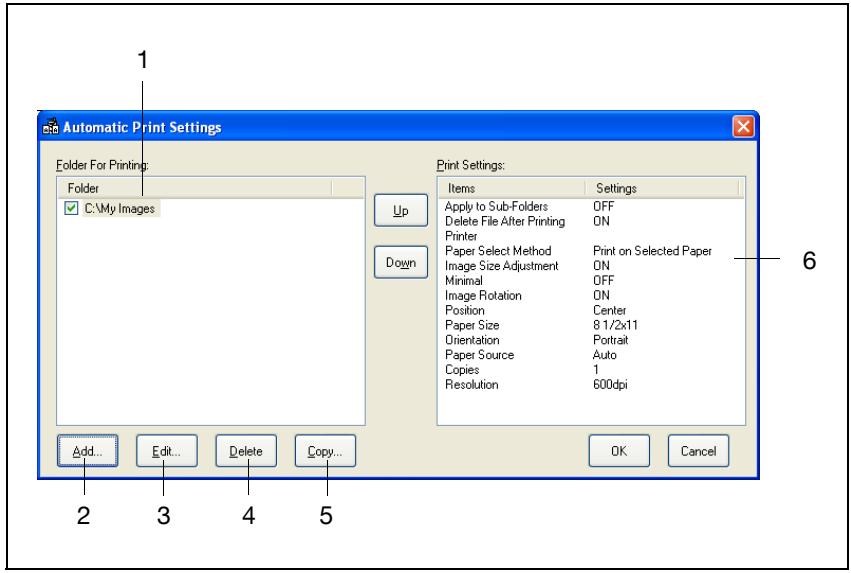
| No. | Element Name | Description |
| 1 | "Folder For Printing" list | This list shows the folder that was specified for automatic printing. If multiple folders are listed, printing settings are given pri- ority, starting from the top. Click [Up] and [Down] to specify the priority of the automat- ic printing folders. |
| 2 | [Add] button | Click this button to display the Folder and Printer Settings dialog box. Automatic printing folders can be added. |
| 3 | [Edit] button | Click this button to display the Folder and Printer Settings dialog box. The settings for automatic printing folders can be edited. |
| 4 | [Delete] button | Click this button to delete the selected automatic printing folder. |
| 5 | [Copy] button | Click this button to display the Folder and Printer Settings dialog box. The settings for the selected automatic printing folder can be duplicated. |
| 6 | "Print Settings" box | This box shows the settings for the folder shown in the "Folder For Printing" list. |
Folder and Printer Settings dialog box
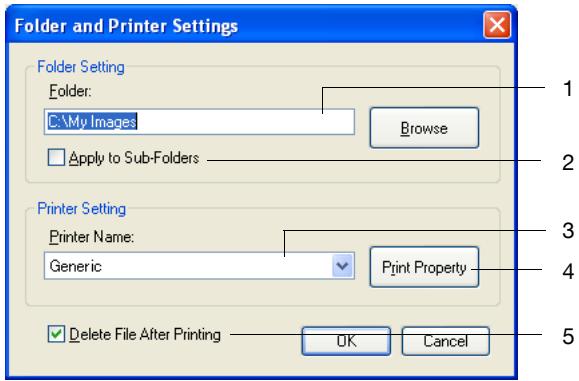
| No. | Element Name | Description |
| 1 | "Folder" box | This box shows the folder that was specified for automatic printing. To select a different folder, click [Browse], and then select the desired folder. |
| 2 | "Apply to Sub-Folders" check box | If this check box is selected, the same automatic printing settings are applied to all sub-folders contained in the se- lected folder. |
| 3 | "Printer Name" box | From the printers registered in the computer's Printers fold- er, select the printer to be used for automatic printing. |
| 4 | [Print Property]button | Click this button to display the Print Property dialog box. For details, refer to "Print Property dialog box" on page 5-34. |
| 5 | "Delete File After Print- ing" check box | If this check box is selected, the received image data is de- leted after it is automatically printed. |
5.5 Registering scan buttons and scan operations
General operation
Follow the procedure described below to scan using IP Scanner.
1 Start IP Scanner. (from the computer)
2 Program a scan button. (from the computer)
3 Scan the document. (from the machine)
4 View the scanned image. (from the computer)
5 Exit IP Scanner. (from the computer)
Starting IP Scanner
1 Click "Start", point to "Programs" (or "All Programs" with Windows XP), then "IP Scanner", and then click "IP Scanner".
2 Type in the IP address of the machine, and then click [OK].
- If the machine's IP address is already specified, this step is not necessary.
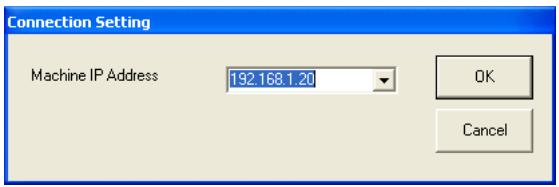
The main window appears.
Registering a scan button
Specify the machine scanning settings from IP Scanner, and then transfer them to the machine and save them as a scan button. Make sure that ImageReceiver is running.
Only one scan button can be programmed from a single computer (same IP address).
A maximum of 6 scan buttons can be programmed on this machine. If 6 scan buttons have already been programmed, select a button in the machine's touch panel, and then touch [Delete] to delete it. In this case, "Scanner Available" remains displayed in IP Scanner. Click [Delete Scanner Key] to display "Scanner Key Registration".
1 In the main window, click [Scanner Key Registration].
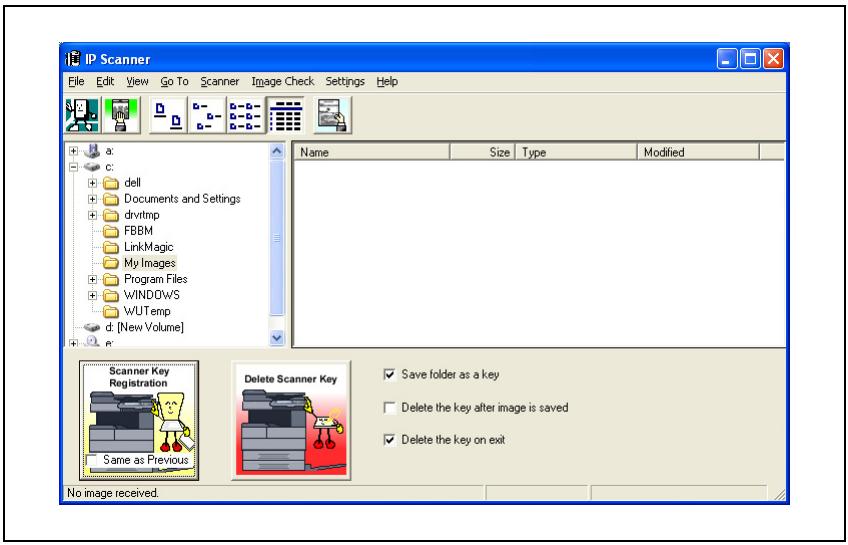
2 Specify the scan settings in the Scanner Settings dialog box.
- For details, refer to "Scanner Settings dialog box" on page 5-23.
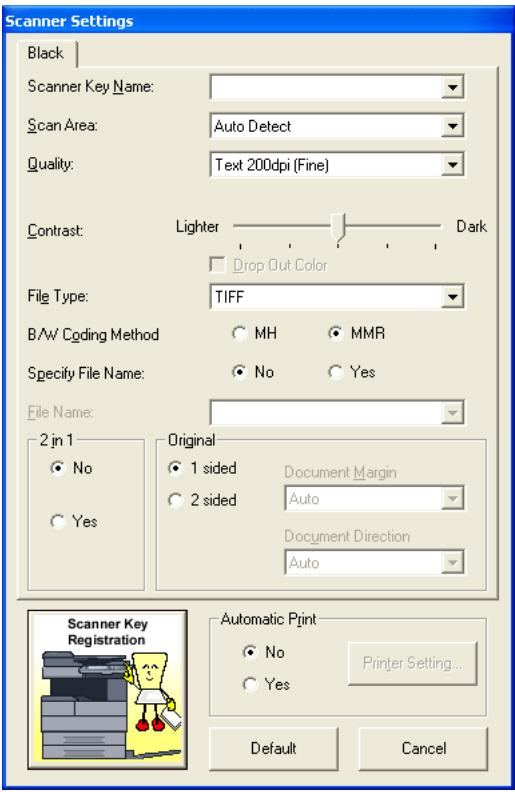
3 Click [Scanner Key Registration].
![KONICA BIZHUB 362 - Click [Scanner Key Registration]. - 1](/content/2025/01/172103/images/53c7fadaf214c1f0d680f0088994fb47bc534a493c92499d5b40fc02330fbe34.jpg)
4 Click [OK].
- To check the computer IP address, click "Help", then "Computer Information".
The scan button on the machine is programmed.
![KONICA BIZHUB 362 - Click [OK]. - 1](/content/2025/01/172103/images/9914c145ab2d19961cc6e7783d77d604aa16d36f07c34174eccdd6f0991a7ab8.jpg)
Scanning a document using the registered settings
1 Position the document to be scanned.
2 Press the [Extra Scan] key in the control panel.
3 Touch the programmed scan button.
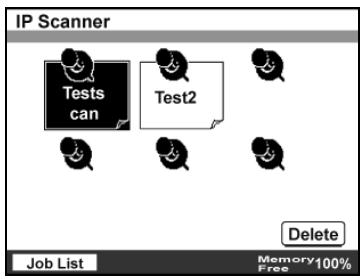
4 Press the [Start] key.
The document is scanned, and sent to the specified computer. If "Show dialogue after received" was specified, a dialog box appears on the computer, indicating that data has been received.
![KONICA BIZHUB 362 - Press the [Start] key. - 1](/content/2025/01/172103/images/d0221797310159132b16ec6c63045cb296b596a707af33fa93f3c7927b06b860.jpg)
Viewing the scanned image
1 Start IP Scanner.
2 In the main window, select the folder where the data is saved, and then double-click the image file.
The software linked to the file is started, and the image is displayed.
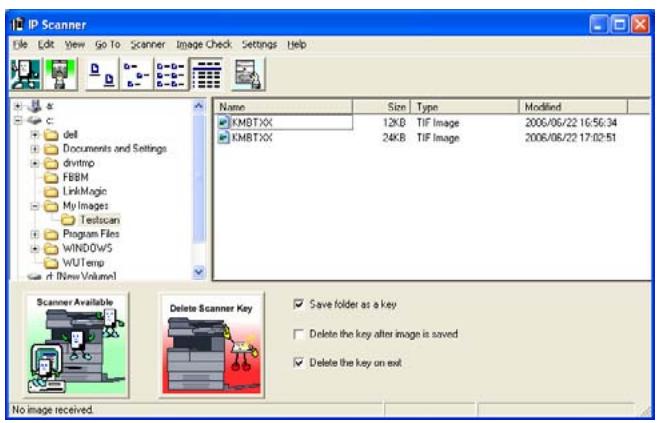

Detail
If the "Save folder as a key" check box in the main window was selected, the image file is saved in a folder created with the same name as the button.
If [Thumbnails] was selected, a reduced image of the TIFF and PDF files saved in the open folder can be viewed.
Click a thumbnail to open ViewWindow and view the image.
Specifying automatic printing with IP Scanner
1 Start IP Scanner.
2 In the main window, click [Scanner Key Registration].
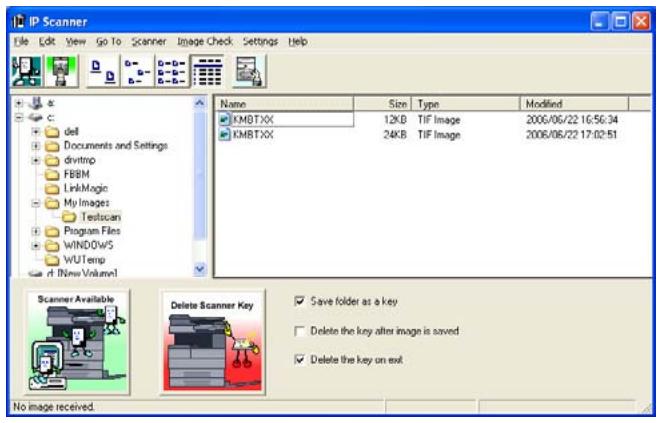
3 Specify the scanner key name in the Scanner Settings dialog box.
- For details, refer to "Scanner Settings dialog box" on page 5-23.
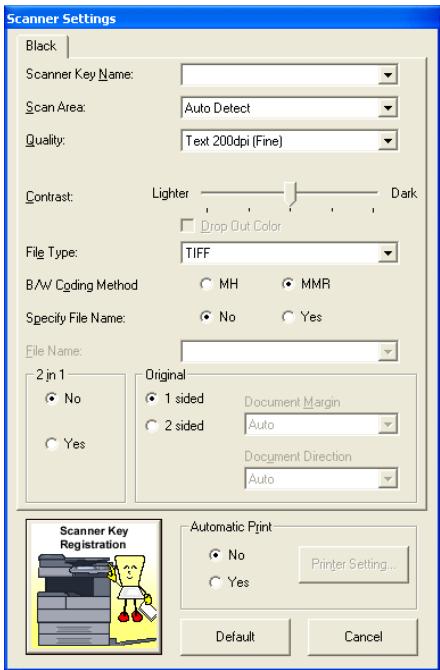
4 Specify settings beside "Scan Area", "Quality" and "Contrast".
5 Select "Yes" beside "Automatic Print", and then click [Printer Setting].
6 Select a printer, and then click [Print Property].
- For details, refer to "Printer Setting dialog box" on page 5-33.
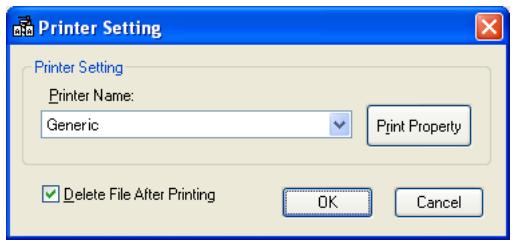
7 Specify the necessary settings in the "Page Settings" and "Printer Settings" group boxes, and then click [OK].
- For details, refer to "Print Property dialog box" on page 5-34.
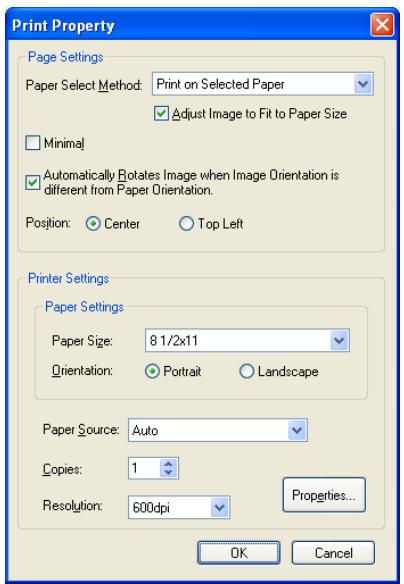
8 Click [OK].
9 Click [Scanner Key Registration]. The scan button on the machine is programmed.
Automatically printing with IP Scanner
1 Position the document to be scanned.
2 Press the [Extra Scan] key.
3 Touch the scan button programmed for automatic printing.
- Touch the button with the same name as that registered from the computer.
Only one scan button can be programmed from a single computer (same IP address).
The selected button appears highlighted.
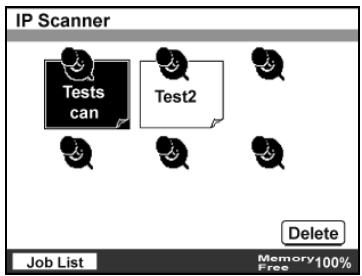
4 Press the [Start] key.
The transmission to the computer begins, and after the computer receives the image data, it is printed according to the specified automatic printing settings.

Detail
A maximum of six scan buttons can be programmed on this machine. If the maximum number of scan buttons have been programmed, select a button in the machine's touch panel, and then touch [Delete] to delete it. In this case, "Scanner Available" remains displayed in IP Scanner. If this occurs, click [Delete Scanner Key], and then follow the instructions that appear until [Scanner Key Registration] appears.
Specifying automatic printing with ImageReceiver
1 Right-click the ImageReceiver icon, and then click "Automatic Print Settings".
- For details, refer to "ImageReceiver operations" on page 5-36.
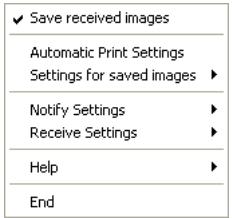
2 Click [Add] in the Automatic Print Settings dialog box.
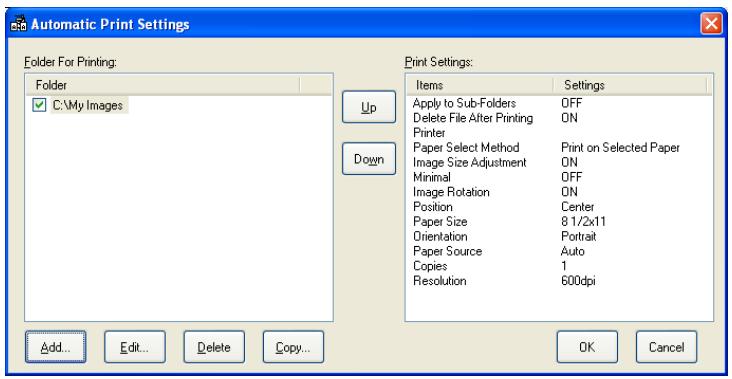
3 Specify the necessary settings in the "Folder Setting" group box of the Folder and Printer Settings dialog box.
- Make sure that the folder settings specified here correspond to the sort settings.
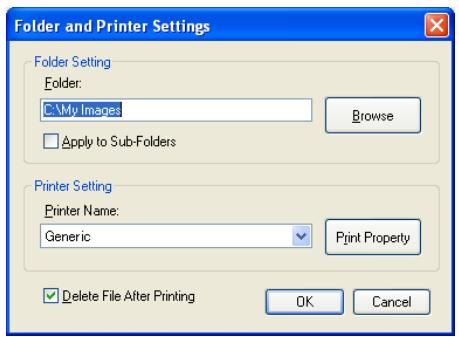
4 Select a printer, and then click [Print Property].
5 Specify the necessary settings in the "Page Settings" and "Printer Settings" group boxes, and then click [OK].
- For details, refer to "Print Property dialog box" on page 5-34.
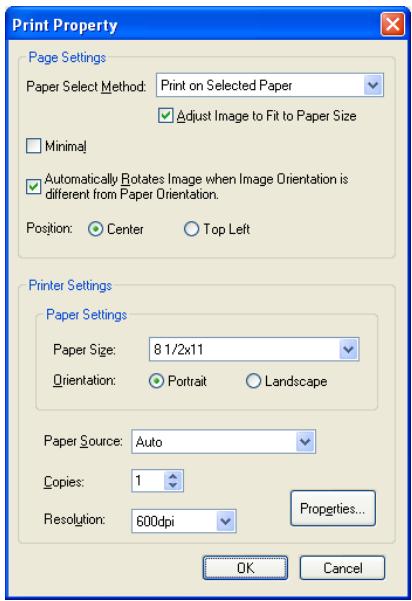
6 Click [OK] in the Folder and Printer Settings dialog box.
7 Click [OK] in the Automatic Print Settings dialog box.
Automatically printing using a one-touch dial button
1 Position the document to be scanned.
2 Press the [Fax/Scan] key.
3 Select the computer specified for automatic printing.
- For details on using one-touch dial buttons, refer to "Specifying a destination with a one-touch dial button" on page 4-4.
- For details on programming one-touch dial buttons, refer to "Programming a one-touch dial button" on page 4-30.
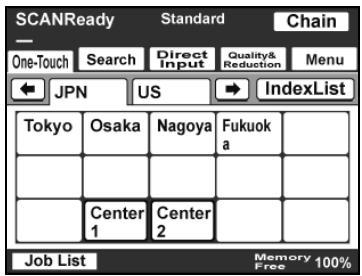
4 Press the [Start] key.
The transmission to the computer begins, and after the computer receives the image data, it is printed according to the specified automatic printing settings.
Exiting IP Scanner
On the "File" menu, click "Exit".
5.6 Other operations
Forwarding a received document to IP Scanner
Received image data can be converted to a TIFF or PDF image file, then forwarded to the IP Scanner on the computer.
In order to transfer a received document to IP Scanner, the following settings must be specified.
| Parameter | Page Reference | |
| To manage docu-ments | F-Code | User manual [Facsimile Operations] |
| PortRX Doc. SettingsForwarding Destination | User manual [Network Scanner Oper- tions] | |
| To register the IP address of a distribution destination with a one-touch dial button | "Registering a destination" (p. 4-30) | |
If the "Sort by FAX information" check box is selected in the RX Document tab of the dialog box displayed by clicking "Sort Settings" on the "Settings" menu of IP Scanner, the image file is saved in a folder created with a name from the transmission source information (telephone number, etc.) for the received fax document.
If the recipient information contains characters that cannot be used in folder names / : ^ ? < > or |), a folder is not created using the recipient information. In this case, the image file is saved in a folder created with the name of the button or the date. (If characters that cannot be used in the folder name are used to register the name of the button, the characters are replaced with "_ " (underline).) However, if the "Folder by key name" check box or the "Create new folder by Date" check box is not selected, the data is saved in the folder "My Images". If the forwarding destination computer is not turned on or if ImageReceiver has not started up, the forwarded document cannot be received. In that case, the received document is printed and the image file is deleted after being printed.
If it is difficult to identify the recipient from a folder name created with only the recipient information, for example, if the recipient information (transmission source information) contains only a telephone number, a more easily identifiable name can be added in front of the recipient information. To change the folder name, click "Rename" in Windows.
Example: "Sales $ 123456789" Type in the name as follows:

Note
Data from the same recipient can be saved in the same folder, even the folder name is later changed.
Forwarding to IP Scanner
Specify the following settings to save received document data in the specified computer folder.
1 In a one-touch dial button, register the IP address of the computer where the data will be forwarded.
- Select Scan to PC as the transmission mode.
2 Specify the forwarding settings from the Document Management screen (displayed from the Administrator Management 1 screen).
- For details on the document management settings, refer to the User manual [Network Scanner Operations].
3 In the Sort Settings dialog box (RX Document tab) of IP Scanner, specify the folder where the data is to be filed.
6
IP Relay operations
6 IP Relay operations
6.1 Before transmitting
Perform the following operations before using the IP Relay operation. Specify the following settings to use this machine to send the command for sending a fax relayed through another machine.
Setting "Gateway TX" to "Restrict"
Set "Gateway TX" in the Scanner Settings screen (displayed by touching [Admin. 2] - [Network Settings] - [Network Setting1]) to "Restrict".

Detail
If this machine is to be used as a relay machine, set "Gateway TX" to "Allow". For details on using this machine as a relay machine, refer to the User manual [Facsimile Operations].
Incorrect transmissions to unintended recipients can be prevented. For details, refer to "Specifying software switch settings (machine functions)" on page 8-11.
Specifying settings for relay stations
Specify the IP address and domain name of the relay machines. Select relay machines that are connected to the general telephone line. For details, refer to the following pages.
To specify the settings from this machine's control panel, refer to "IP Relay Settings" on page 8-6.
To specify the settings from PageScope Web Connection, refer to "IP Relay Settings (Administrator mode)" on page 7-29.
6.2 Specifying a recipient with a one-touch dial button
If a recipient is registered with a one-touch dial button, data can be sent simply by touching the one-touch dial button. In addition, other transmission functions can be added or a mail program can be registered.

Detail
For details on registering a one-touch dial button, refer to "Registering a recipient" on page 6-30.
For details on registering a mail program, refer to "Registering a mail program" on page 3-39.
Selecting a one-touch dial button
A one-touch dial button can be selected in any of the following ways. Use the appropriate method according to the number of recipients and the desired use.
- Directly touching the one-touch dial button
- Entering the number of the one-touch dial button
- Searching for the name of a recipient
- Specifying chain dialing
Specifying a recipient by touching a one-touch dial button
1 Position the document to be scanned.
2 Press the [Fax/Scan] key.
- The screen that appears after the [Fax/Scan] key is pressed can be specified using the "Default Screen" parameter in the User's Choice screen. For details, refer to the User manual [Copy Operations].
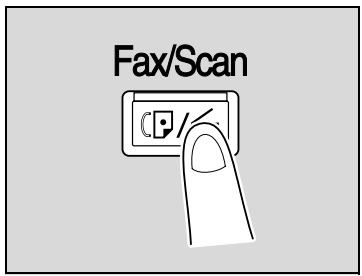
3 Touch [One-Touch].
4 Select the index containing the desired recipient, and then touch the one-touch dial button.
- Multiple recipients can be specified for simultaneous transmission with the same one-touch dial button. A maximum of 300 recipients can be specified with a single one-touch dial button.
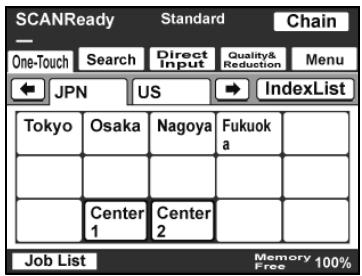
To select an index, touch the tab of the desired index, or touch or to select a different tab.
- For details on changing the index names, refer to "Naming an index" on page 3-37.
- If software switch settings were specified to prevent broadcast transmissions, a fax cannot be sent to multiple recipients. For details on the software switch settings, refer to "Specifying software switch settings (machine functions)" on page 8-11.
5 Specify the appropriate settings on the Quality & Reduction tab according to the document to be sent.
- For details, refer to "Specifying the scanning quality and zoom ratio" on page 6-15.
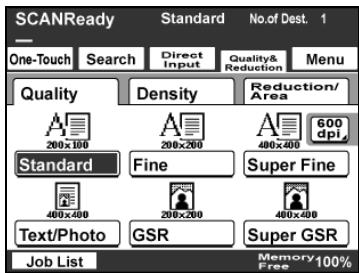
6 Specify the necessary settings on the Menu tab.
- If the optional fax kit has been installed, specify the necessary settings on the FAX Menu tab.
- For details, refer to "Specifying additional functions" on page 6-19.
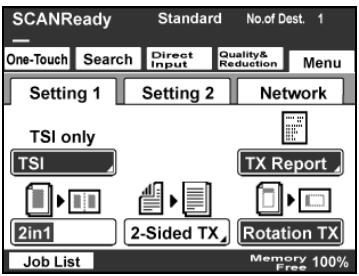
7 Press the [Start] key.
Entering the number of the one-touch dial button
Each one-touch dial button is assigned a number, as shown below.
Instead of touching a one-touch dial button, specifying the number of the one-touch dial button allows a recipient to quickly be selected.
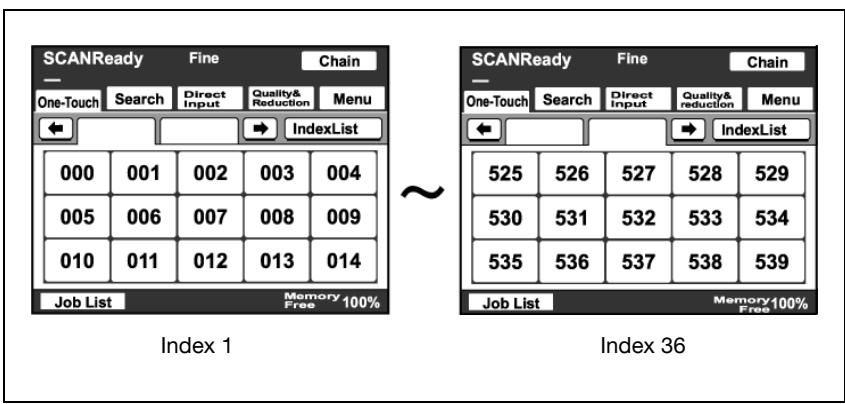
1 Position the document to be scanned.
2 Press the [Fax/Scan] key.
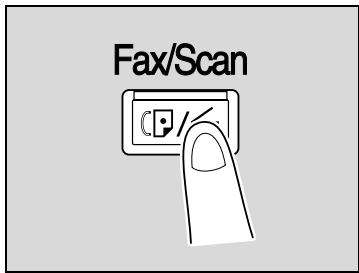
3 Press the [#] key in the control panel.
4 Using the keypad, type in the number of the one-touch dial button.
- The specified one-touch dial button is highlighted.
- Multiple recipients can be specified for simultaneous transmission with the same one-touch dial button. A maximum of 300 recipients can be specified with a single one-touch dial button.
- If software switch settings were specified to prevent broadcast transmissions, a fax cannot be sent to multiple recipients. For details on the software switch settings, refer to "Specifying software switch settings (machine functions)" on page 8-11.
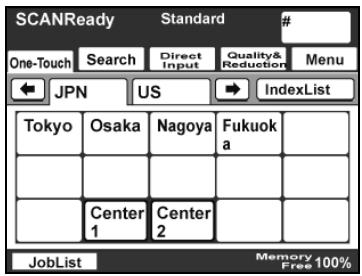
5 Specify the appropriate settings on the Quality & Reduction tab according to the document to be sent.
- For details, refer to "Specifying the scanning quality and zoom ratio" on page 6-15.
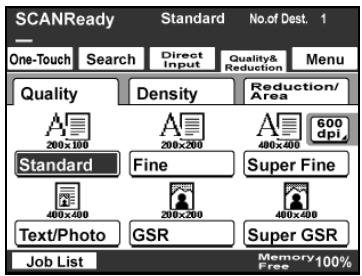
6 Specify the necessary settings on the Menu tab.
- If the optional fax kit has been installed, specify the necessary settings on the FAX Menu tab.
- For details, refer to "Specifying additional functions" on page 6-19.
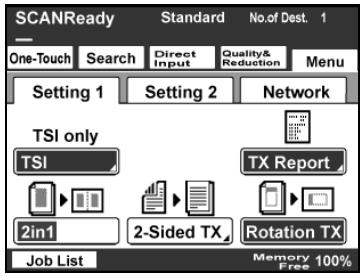
7 Press the [Start] key.
Searching for a one-touch recipient
The name of a recipient registered with a one-touch dial button can be searched for in order to select the one-touch dial button.
1 Position the document to be scanned.
2 Press the [Fax/Scan] key.
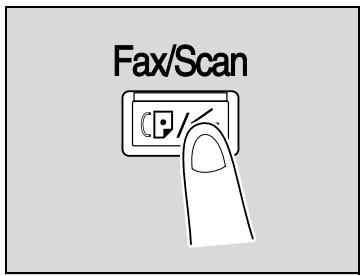
3 Touch [Search].
- If an LDAP search is possible, touch [LDAP Search] to search further.
4 Type in the name of the recipient, and then touch [Search].
A screen appears, containing the list of one-touch dial buttons programmed with a recipient whose name begins with the entered name.
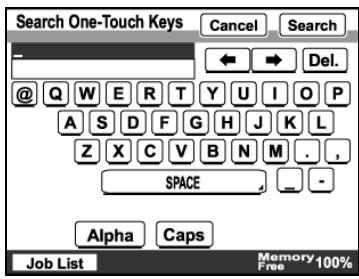
5 Touch the desired one-touch dial button to select it.
- Multiple recipients can be specified for simultaneous transmission with the same one-touch dial button. A maximum of 300 recipients can be specified with a single one-touch dial button.
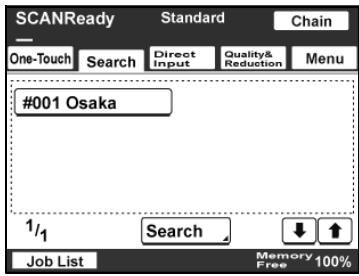
- If software switch settings were specified to prevent broadcast transmissions, a fax cannot be sent to multiple recipients. For details on the software switch settings, refer to "Specifying software switch settings (machine functions)" on page 8-11.
6 Specify the appropriate settings on the Quality & Reduction tab according to the document to be sent.
- For details, refer to "Specifying the scanning quality and zoom ratio" on page 6-15.
7 Specify the necessary settings on the Menu tab.
- If the optional fax kit has been installed, specify the necessary settings on the FAX Menu tab.
- For details, refer to "Specifying additional functions" on page 6-19.
8 Press the [Start] key.
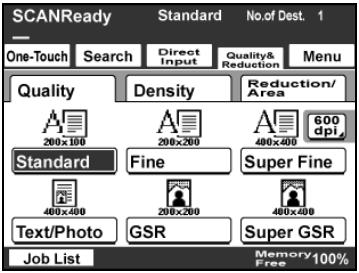
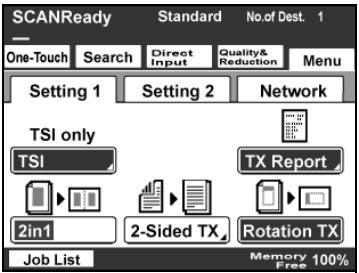
Specifying chain dialing
If the recipient's address is longer than 64 characters, the address can be specified by combining addresses registered to one-touch dial buttons and an entered address.
Touch [Chain], and then select one-touch dial buttons or enter an address.

Detail
Chain dialing can only be used with one recipient per transmission.
With chain dialing, the address can contain up to 192 characters (64 characters from a one-touch dial button + 64 characters from a one-touch dial button + 64 characters from an entered address).

Note
The one-touch dial buttons to be used with chain dialing must be programmed in advance.
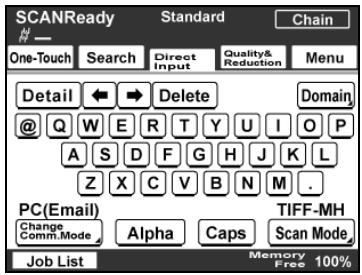
6.3 Entering a fax number
The fax number of a recipient not registered in a one-touch dial button can be entered directly to be specified.

Note
If software switch settings were specified to limit dialing, a fax cannot be sent by directly typing in the fax number. For details on the software switch settings, refer to "Specifying software switch settings (machine functions)" on page 8-11.
To enter a fax number
1 Position the document to be scanned.
2 Press the [Fax/Scan] key.
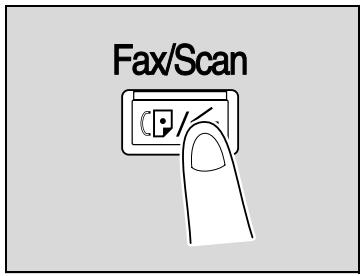
3 Touch [Direct Input].
4 Select the communication mode. Touch [Change Comm. Mode].
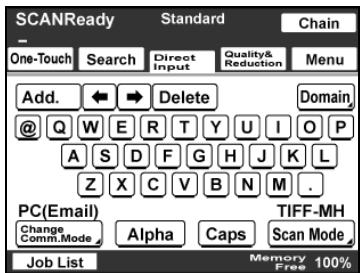
5 Touch [InternetFAX], then [IP Relay], and then touch [Enter].
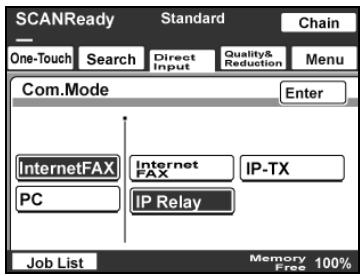
6 Type in the fax number of the recipient.
- To change the entered fax number, press the [C] (clear) key, and then enter the correct fax number.
- The entered number can be up to 64 digits long.
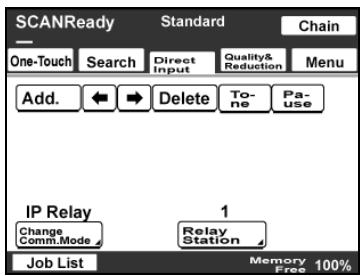
7 To change the relay machine, touch [Relay Station], and then select the desired relay station.
- Click "IP Relay Settings" (page 8-6) on the Network Setting screen to register the relay machine in advance.
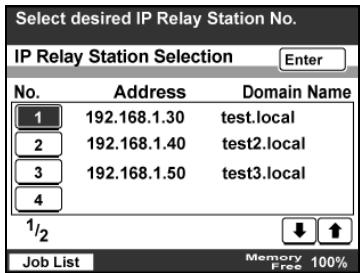
8 Touch [Enter].
9 Specify the appropriate settings on the Quality & Reduction tab according to the document to be sent.
- For details, refer to "Specifying the scanning quality and zoom ratio" on page 6-15.
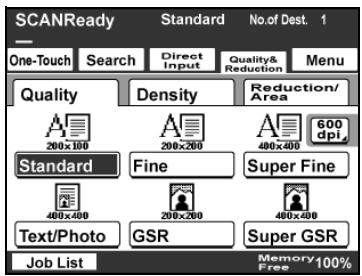
10 Specify the necessary settings on the Menu tab.
- If the optional fax kit has been installed, specify the necessary settings on the FAX Menu tab.
- For details, refer to "Specifying additional functions" on page 6-19.
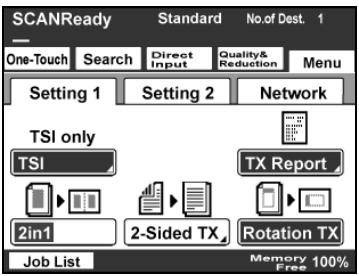
11 Press the [Start] key.
6.4 Specifying the scanning quality and zoom ratio
Touch [Quality & Reduction] in the screen that appears when the [Fax/Scan] key is pressed to specify the scanning image quality and zoom ratio.

Detail
When a transmission is finished, the transmission settings return to their defaults.
Quality
Select the scanning resolution (amount of details). From the following available resolution settings, select the appropriate resolution according to the type of document being scanned.
| Setting | Description |
| Standard | For documents with normal text (such as handwriting) |
| Fine | For documents containing small print, such as newspapers, or documents containing detailed illustrations |
| Super Fine | |
| 600dpi Text | |
| Text/Photo | For documents containing both text and images with color shades (such as photos) |
| 600dpi Text & Photo | |
| GSR | For documents with color shades, such as photos |
| Super GSR | |
| 600dpi Photo |

Detail
If data is sent with the "Text/Photo" setting selected, moire patterns may appear in some photos. This is not a sign of a malfunction. To reduce the appearance of moire patterns, send the data with the "GSR" or "Super GSR" setting.
If a high resolution was selected in order to send a clean image, the size of the image data that is sent may become large and the provider or server may not allow the data to be sent. First, check the size limitations for data that can be sent.
To select an Quality setting
1 Touch [Quality & Reduction].
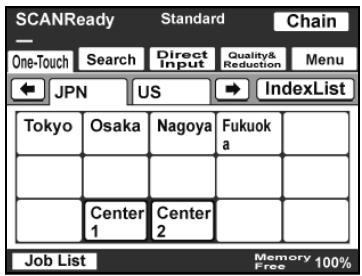
2 Touch [Quality], and then touch the button for the desired Quality setting.
- To select a higher resolution, touch [600 dpi].
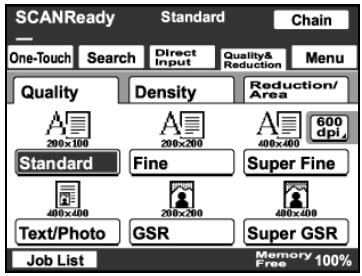
Density
From the following available resolution settings, select the appropriate resolution according to the type of document being scanned.
| Setting | Description |
| Light | For documents with a dark background color, such as newspaper and blueprints |
| \(\updownarrow\) | For normal documents |
| \(\downarrow\) | For documents with faint or colored text |
| Dark |

Detail
If "600 dpi Text" or "600 dpi Text & Photo" is selected, the density can be set to one of three levels: "Light", "Std.", and "Dark".
To select a Density setting
1 Touch [Quality & Reduction].
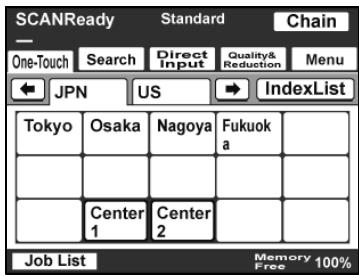
2 Touch [Density], and then touch the button for the desired Density setting.
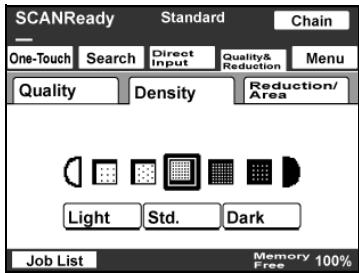
Original Size Setting
The scanned area can be specified as a standard size. However, a portion of a large document can be sent or a non-standard-sized document can be sent as a standard size.
1 Touch [Quality & Reduction].
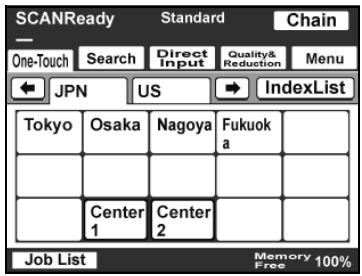
2 Touch [Reduction/Area], and then touch [Original Size Set.].
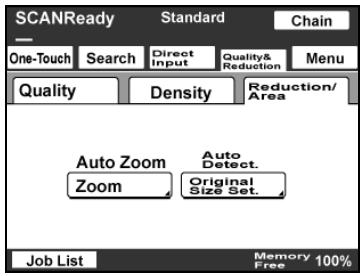
3 Select the desired scanning size, and then touch [Enter].
- Touch [Auto Detect] to automatically select the size closest to the size of the document. However, if the document is smaller than Letter size, Letter size is selected.
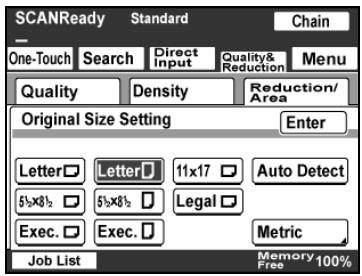
6.5 Specifying additional functions
Touch [Menu] in the screen that appears when the [Fax/Scan] key is pressed to add the following functions.

Note
If the optional fax kit has been installed, [Menu] changes to [Fax Menu].
| Function | Description | |
| Setting 1*(Set 1) | TSI | Select the information, such as this machine's name, fax number or address or the recipient's name, that is printed at the edge of the page. For details on registering transmission source information, refer to the User manual [Net-work Scanner Operations]. If a recipient's name is selected, the recipient name registered with the one-touch dial button is printed. |
| TX Report | Select the conditions for printing the transmission results report. Default: Select this setting to print the report according to the setting specified from the Administrator Management screen. ON: Select this setting to print the report, regardless of the transmission result. If TX Fails: Select this setting to print the report only if the transmission failed. OFF: Select this setting to not print the report, regardless of the transmission result. | |
| 2in1 | Select whether or not to send the data using the "2in1" function (reducing two pages to fit in a single page). | |
| 2-Sided TX | Select whether or not a double-sided transmission is performed. The position of the binding margin and the page orientation can also be specified. | |
| Rotation TX | Select whether or not to rotate the scan image according to the paper orientation of the receiving machine. This function can be specified when sending an A4-size image with a resolution of 200 dpi or less. | |
| Setting 2*(Set 2) | Priority TX | Select whether or not the data is sent with priority over the other jobs. |
| Timer TX Setting | Specify the time that the fax is to be sent. | |
| Stamp | Specify whether the scanned image is stamped to indicate that it has been scanned. The document must be loaded into the ADF. Note In order to use the "Stamp" function, optional stamp unit must be installed. | |
- Changes to ( ) if the optional fax kit has been installed.

Note
The following parameters have no effect, even if settings have been specified.
- "Subject Selection" on the Network tab
- "Reply Address" on the Network tab
- "File Name" on the Network tab
- "Email Notification" on the Network tab
Specifying the transmission report printing condition
The conditions for printing the transmission result report can be specified.
The conditions for printing the transmission result report are preset with the "Report Settings" parameters from the Administrator Management 1 screen. Follow the procedure described below to change these conditions.
1 Touch [Menu].
- If the optional fax kit has been installed, touch [FAX Menu].
2 Touch [TX Report] on the Setting 1 tab.
- If the optional fax kit has been installed, touch [TX Report] on the Set 1 tab.
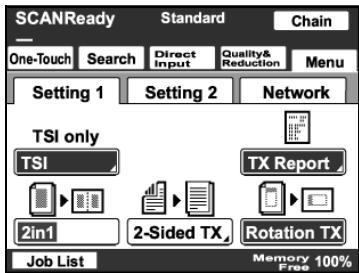
3 Specify the desired printing condition, and then touch [Enter].
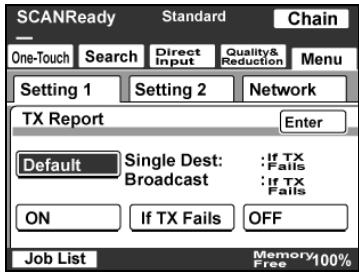
Specifying 2in1 transmission
1 Touch [Menu].
- If the optional fax kit has been installed, touch [FAX Menu].
2 Touch [2in1] on the Setting 1 tab.
- If the optional fax kit has been installed, touch [2in1] on the Set 1 tab.
The button is highlighted. To cancel the function, touch the button again to deselect it.
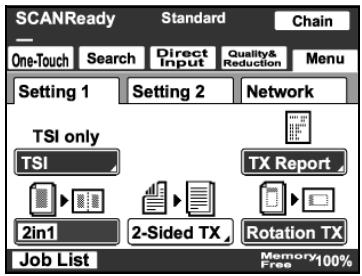
Specifying double-sided transmission settings
1 Touch [Menu].
- If the optional fax kit has been installed, touch [FAX Menu].
2 Touch [2-Sided TX] on the Setting 1 tab.
- If the optional fax kit has been installed, touch [2-Sided TX] on the Set 1 tab.
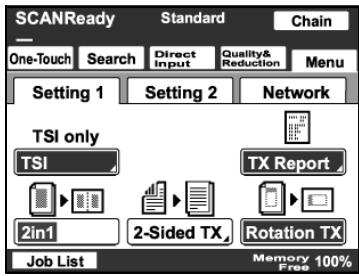
3 Select the appropriate binding margin position.
- Left Bind: The document is scanned with a binding margin on the left side.
- Top Bind: The document is scanned with a binding margin at the top.
- Auto: The binding margin is set according to the scanning direction.

4 Touch [Original Direction].
5 Select the orientation of the document, and then touch [Enter].
- Auto: The long side of the document is automatically set as the binding position.
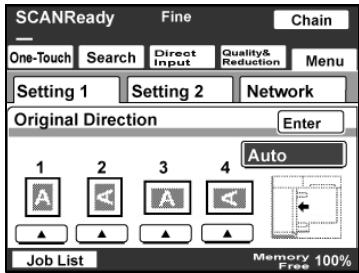
6 Touch [Enter].
- To cancel the function, touch [OFF].

Detail
When loading a double-sided document with pages of different widths, we recommend loading the pages with the same orientation. When a document with pages of different orientations is scanned, the orientation of the image data may not be correct.
Specifying the priority transmission setting
1 Touch [Menu].
- If the optional fax kit has been installed, touch [FAX Menu].
2 Touch [Priority TX] on the Setting 2 tab.
- If the optional fax kit has been installed, touch [Priority TX] on the Set 2 tab.
The button is highlighted. To cancel the function, touch the button again to deselect it.
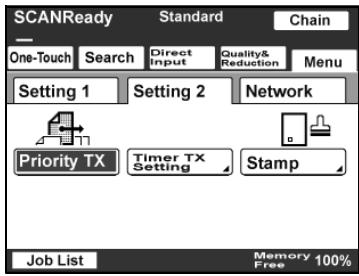
Specifying timer transmission settings
1 Touch [Menu].
- If the optional fax kit has been installed, touch [FAX Menu].
2 Touch [Timer TX Setting] on the Setting 2 tab.
- If the optional fax kit has been installed, touch [Timer TX Setting] on the Set 2 tab.
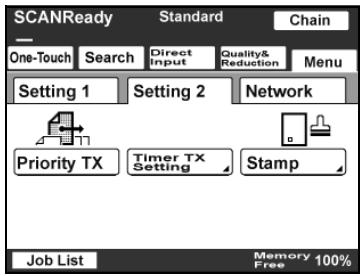
3 Specify the time that the transmission is to be sent.
- Touch [Hour] or [Minute], and then use the keypad to type in the desired time.
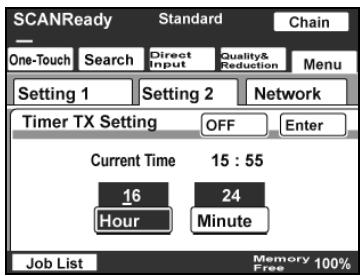
4 Touch [Enter].
- To cancel the function, touch [OFF].

Note
Up to 200 documents can be specified with a timer transmission.
Specifying the stamp setting
1 Touch [Menu].
- If the optional fax kit has been installed, touch [FAX Menu].
2 Touch [Stamp] on the Setting 2 tab.
- If the optional fax kit has been installed, touch [Stamp] on the Set 2 tab.
3 Select the stamping position, and then touch [Enter].
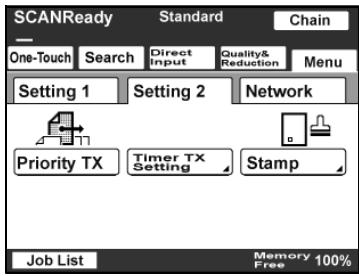
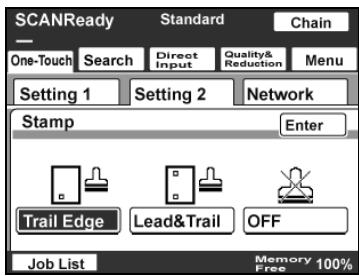
6.6 If the transmission could not be completed
If the transmission could not be completed correctly, a transmission result report is printed.

Detail
The setting for printing the transmission report can be changed. For details, refer to the User manual [Network Scanner Operations].
Viewing the transmission report
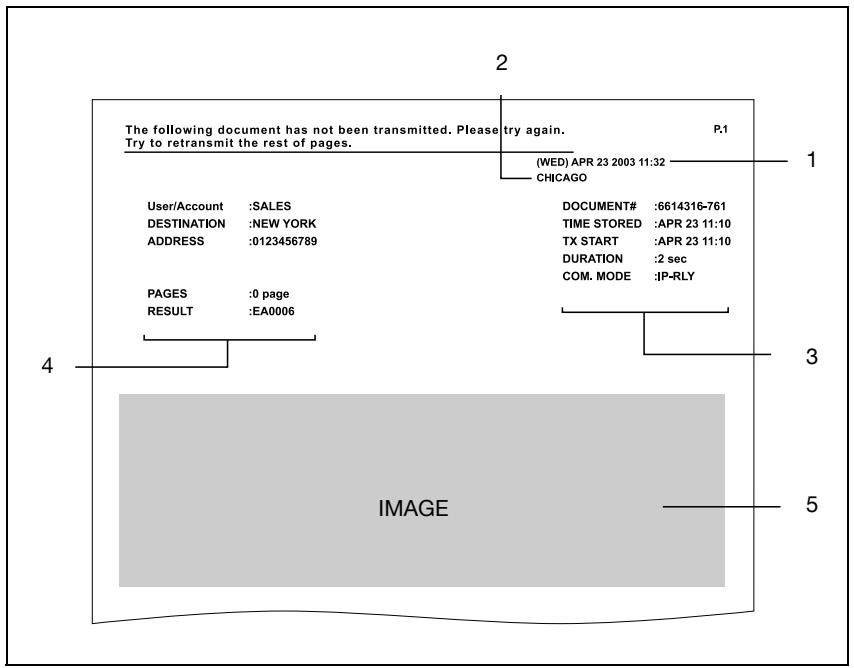
| No. | Item | Description |
| 1 | Report output date | Shows the date that the report was printed. |
| 2 | Transmission source name | Shows the name of the transmission source. |
| 3 | Transmission information | Shows the number for the transmitted document, the time required, and the communication mode. |
| 4 | Transmission results | Shows the transmission results. Any of the following may be indicated. OK: The transmission was completed successfully. INTERR: The transmission was interrupted. F.MEM: The memory is full. NG: The transmission was completed unsuccessfully. PT.DEL: The transmission to some recipients failed. F.DATA: The size of the data exceeds the allowable limit. IMG NG: The transmission resolution was incorrect so the transmission was ended. Error code: For details, refer to "Error codes" on page 9-4. |
| 5 | Transmission image | Shows a part of the transmitted image. |
Resending
A maximum of 20 documents that could not be sent are saved to be sent again.
1 Touch [Job List], touch [Type], and then select the document that could not be sent.
- If [Retry] or [Change Destination] appears in the screen, the document can be resent without having to be scanned again.
2 To send the document to the same recipient, touch [Retry].
- To send the document to a different recipient, touch [Change Destination].
6.7 Registering a recipient
Programming a one-touch dial button
If a recipient is registered with a one-touch dial button, the transmission can be sent easily and accurately.
Two types of recipients can be registered with a one-touch dial button: a main recipient and secondary recipients, where the data is sent if the transmission to the main recipient fails.

Note
If "Restrict One-Touch Editing" on the Administrator Set screen (displayed from the Administrator Management 1 screen) is set to "ON", if software switch settings were specified to limit registration of one-touch dial buttons to the administrator, or if "Enhance Security" is set to "ON", one-touch dial buttons can only be registered, edited or deleted from Administrator mode. For details on the settings in Administrator mode, refer to the User manual [Facsimile Operations]. For details on the software switch settings, refer to "Specifying software switch settings (machine functions)" on page 8-11.

Detail
Any of the following communication modes can be specified for the secondary recipient.
- PC (E-mail)
- PC (Scanner)
- InternetFAX (Internet FAX)
- InternetFAX (IP-TX)
- InternetFAX (IP Relay)
-
FAX (G3)*
-
The communication mode can be specified if the optional fax kit is installed.

Note
Certain communication modes may not be available, depending on the machine settings. For details, check with the administrator.
Settings can be specified for the following.
| Item | Description |
| One-Touch Name | Type in the name of the recipient that will appear on the one-touch dial button. Up to 12 characters can be entered. Example: Tokyo br |
| Destination | Type in the fax number for the recipient. The entered number can be up to 64 digits long. |
| IP Relay Station Setting | Select the relay station. |

Reminder
If the [Utility/Counter] key was pressed to register items and specify settings, be sure to press the [Reset] key in the control panel after returning to the initial screen.
To program a one-touch dial button
1 Press the [Utility/Counter] key.
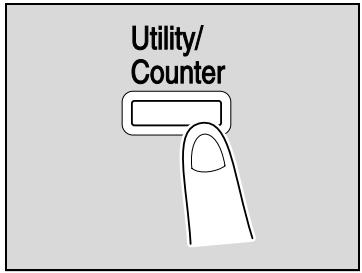
2 Touch [User Setting].
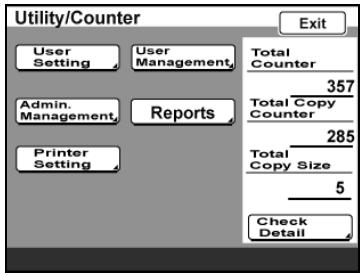
3 Touch [E-Mail Input].
- If the optional fax kit has been installed, touch [FAX].
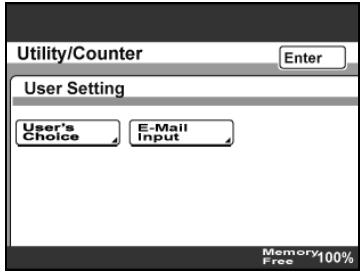
4 Touch [One-Touch].
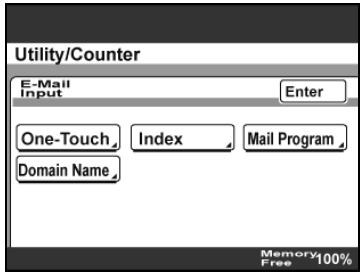
5 Touch the one-touch recipient button to be registered.
- Touch an index tab or touch [Index List], and then touch the desired one-touch dial button.
- If the machine is set to allow LDAP searches, a screen appears, allowing the one-touch dial button to be set to either
permit or prohibit the address from being found with an LDAP search. For this button, select "No".
6 Type in the recipient name that will appear on the one-touch dial button, and then touch [Next].
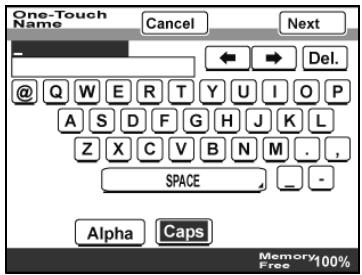
7 Select the communication mode. Touch [InternetFAX], touch [IP Relay], and then touch [Next].
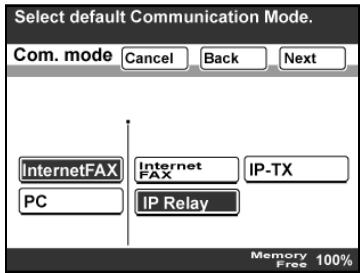
8 Type in the fax number for the recipient.
- The entered number can be up to 64 digits long.
- To change the entered fax number, press the [C] (clear) key, and then enter the correct fax number.
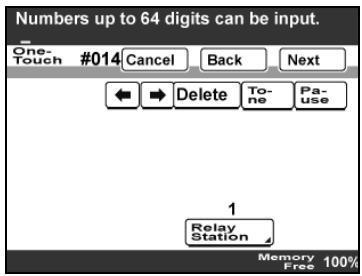
9 To change the relay machine, touch [Relay Station], and then select the desired relay station.
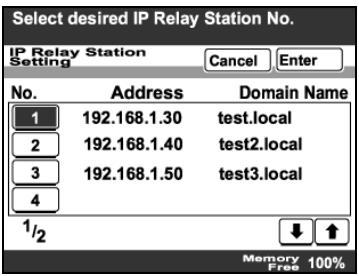
10 Touch [Enter].
11 Touch [Next].
12 Check the information to be registered, and then touch [Enter].
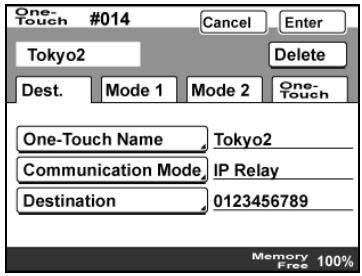
13 Touch [Enter] in each screen until the initial screen appears.
Changing/deleting a one-touch dial button
1 Perform steps 1 through 4 of the procedure in "To program a one-touch dial button".
2 Touch the one-touch dial button that you wish to change or delete.
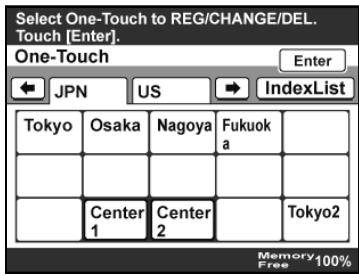
3 Touch the button for the setting to be changed, and then change the setting.
- To delete the one-touch dial button, touch [Delete].
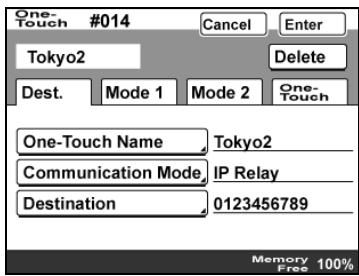
4 Check the information to be registered, and then touch [Enter].
5 Touch [Enter] in each screen until the initial screen appears.
Copying a one-touch dial button
1 Perform steps 1 through 4 of the procedure in "To program a one-touch dial button".
2 Touch the button for the one-touch recipient to be copied.
3 Touch [One-Touch], and then touch [One-Touch Copy].
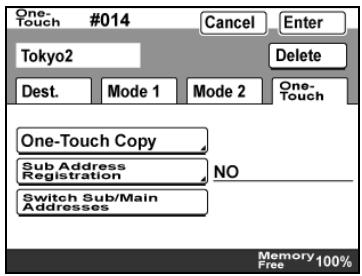
4 Touch the button where the one-touch dial button settings are to be copied.
- Select a one-touch dial button where no settings have been registered yet.
- To deselect the one-touch dial button where the information is to be copied to, touch the selected one-touch dial button again.
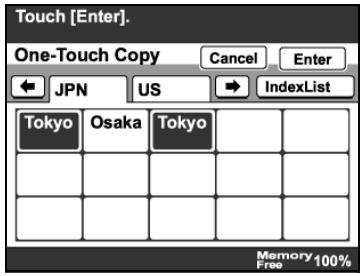
5 Touch [Enter] in each screen until the initial screen appears.
Registering/editing/deleting the secondary recipient
1 Perform steps 1 through 4 of the procedure in "To program a one-touch dial button".
2 Touch the one-touch dial button to be programmed with a secondary recipient.
3 Touch [One-Touch], and then touch [Sub Address Registration].
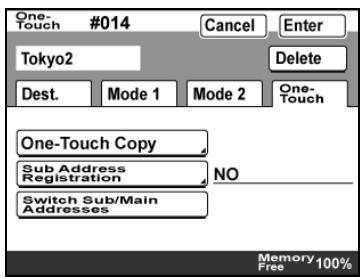
4 Enter the information for the secondary recipient, and then touch [Enter].
- If a secondary destination is already registered, check the settings that appear, and then touch [Change Settings] or [Delete].
- When deleting, a confirmation message appears. Touch [Yes].
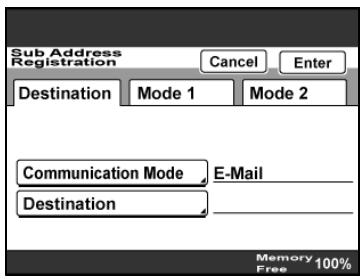
5 Touch [Enter] in each screen until the initial screen appears.
7
Specifying settings using PageScope Web Connection
7 Specifying settings using PageScope Web Connection
7.1 Settings that can be specified using PageScope Web Connection
PageScope Web Connection is a device management utility supported by the HTTP server integrated into the device. Using a Web browser on a computer connected to the network, machine settings can be specified from PageScope Web Connection.
Specifying settings with the utility is convenient since text can easily be typed in from your computer instead of with the machine's control panel.
The following network and scan function settings can be specified.
PageScope Web Connection provides a User mode, which can be accessed by all users, and an Administrator mode, which can only be accessed with the required administrator access code. The following settings can be specified in each mode.
Scan tab (User mode)
| Parameter | Description |
| One-Touch Key Registration | Program one-touch dial registrations for recipients of document sent by IP address faxing, and the Scan to PC and IP relay operations. The registered data can also be changed or deleted. In addition, the index name can be changed. |
| FAX Program Registration | Register fax programs as one-touch dial registrations. Unlike the one-touch dial registrations where only recipients are registered, scan settings and multiple recipients can be registered. The registered data can also be changed or deleted. For details, refer to the User manual [Network Scanner Operations]. |

Note
If the optional fax kit has been installed, the Scan tab changes to the Fax/Scan tab.

Note
If the "Restrict One-Touch Editing" parameter on the Administrator Set screen (displayed from the Administrator Management screen) is set to "ON", the Scan (2) tab is added to the Administrator mode page so that one-touch recipients can be registered, changed and deleted. The Scan tab does not appear on the User mode page.
Network tab (Administrator mode)
| Parameter | Description |
| IP Relay Settings | When sending a fax as an IP relay, specify the IP address and domain name of the relay machines. In addition, the main relay stations to be used can be selected. |
For details on other network settings required to use this machine, refer to the User manual [Network Scanner Operations].
7.2 Using PageScope Web Connection
System requirements
| Item | Environment |
| Network | Ethernet (TCP/IP) |
| Computer applications | For Windows NT 4.0: Microsoft Internet Explorer 4 or later, or Netscape Navigator 4.73 or 7.0 For Windows 2000: Microsoft Internet Explorer 5 or later, or Netscape Navigator 7.0 For Windows XP/Server 2003: Microsoft Internet Explorer 6 or later, or Netscape Navigator 7.0 For Windows Vista/Server 2008: Microsoft Internet Explorer 7 or later, or Netscape Navigator 7.0 *With Microsoft Internet Explorer 5.5, one-touch dial but-tons may not be exported correctly. Use Microsoft Internet Explorer 5.5 Service Pack 1 or later. |

Detail
PageScope Web Connection is a device management utility supported by the HTTP server integrated into the device.
Using a Web browser on a computer connected to the network, machine settings can be specified from PageScope Web Connection.

Reminder
Do not use a proxy server when accessing from PageScope Web Connection.

Note
If this machine has been set so that TCP/IP use is prohibited, PageScope Web Connection cannot be used.
Accessing PageScope Web Connection
PageScope Web Connection can be accessed directly from a Web browser.
1 Start up the Web browser.
2 In the Address bar, type the IP address of this machine, and then press the [Enter] key.
http://IP_address_of-machine>
Example: If the IP address of this machine is 192.168.1.20
http://192.168.1.20/

Detail
When SSL/TLS is enabled, the URL becomes:
https://
Even if "http://" is entered, the URL at "https://" is automatically
accessed. (If "Enhance Security" is set to "ON", SSL is forcibly enabled.)
If user authentication settings have been applied
If user authentication or external server authentication settings have been applied, the following page appears.
Type in the user name and the password, and then click [Log-in].

Detail
For details on user authentication, refer to User manual [Copy Operations].
Contact the network administrator for a user name and password.
When logged on with user authentication, a timeout occurs and you will automatically be logged off from Administrator mode if no operation is performed for 10 minutes.
If "Enhance Security" is set to "ON" or if access locks are specified with the software switch settings, incorrectly entering the password three times locks the machine so that no operation can be performed. If this machine is locked, contact the administrator of the machine.
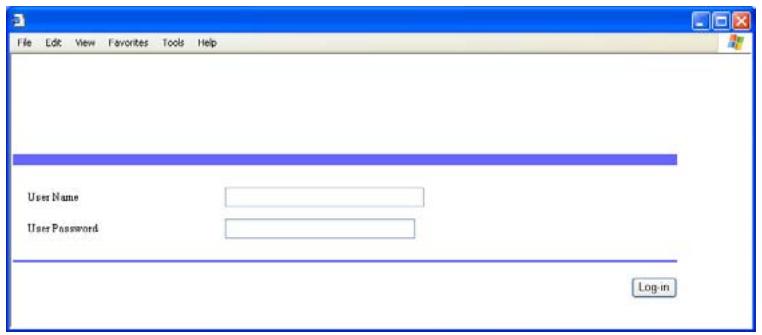
To log off, click [Log-out] in the upper-right corner of the page.
If account track settings have been applied
If account track settings have been applied, the account number is not required in order to access PageScope Web Connection.
Structure of pages
The page that appears immediately after PageScope Web Connection is accessed is called the User mode page. All users can view this page.

Detail
By entering the password in the "Administrator Password" box, the Administrator mode page can be displayed. For details, refer to "Logging on to Administrator mode" on page 7-10.
The pages of PageScope Web Connection are constructed as shown below.
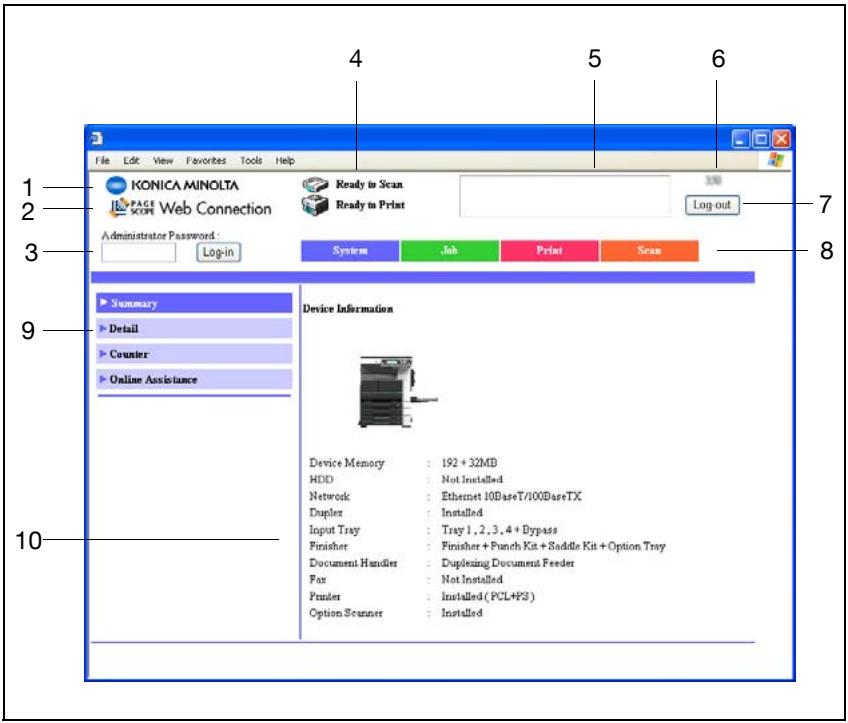
| No. | Item | Description |
| 1 | Konica Minolta logo | Click the logo to go to the Konica Minolta Web site at the following URL. http://konicaminolta.com |
| 2 | PageScope Web Con- nection logo | Click the PageScope Web Connection logo to display the version information. |
| 3 | Administrator mode log-on box | Enter the password to log on to Administrator mode. |
| 4 | Status display | The statuses of this machine's printer section and scanner section are displayed using icons. |
| 5 | Message display | If an error occurred in the machine, the status of the mal-function/error and other error information are displayed. |
| 6 | Device name | The name of the device being accessed is displayed. |
| 7 | [Log-out] button | This button appears after you have logged on when user authentication settings have been applied. Click this but-ton to log off. |
| 8 | Tabs | Select the category of the page to be displayed. The fol-lowing tabs are displayed in User mode. • System • Job • Print • Scan ...Note If the optional fax kit has been installed, the Fax/Scan tab appears. |
| 9 | Menu | Information and settings for the selected tab are listed. The menu that appears differs depending on the tab that is selected. |
| 10 | Information and settings | Details of the item selected from the menu are displayed. |

Note
To reset the status display and message display, click [Refresh] in the browser.
Logging on to Administrator mode
You can switch between User mode and Administrator mode. However, you must be logged on to Administrator mode in order to specify system or network settings.
When logged on to Administrator mode, the control panel of this machine is locked and cannot be used.
Depending on the status of the machine, you may not be able to log on to Administrator mode.
- When logged on to Administrator mode, a timeout occurs and you will automatically be logged off from Administrator mode if no operation is performed for 10 minutes.
1 Type in the administrator access code, and then click [Log-in].
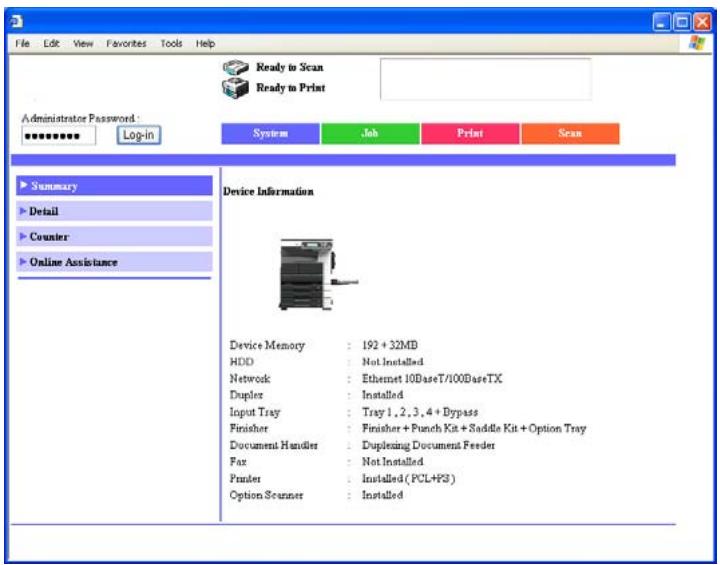
The Administrator mode page appears.
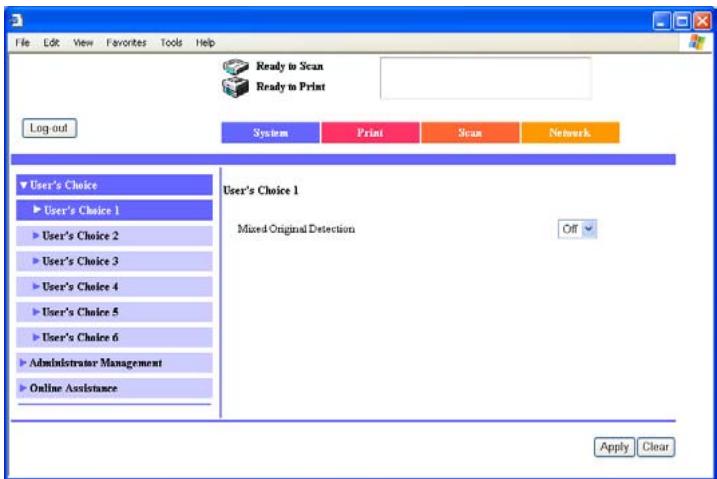
2 To return to User mode, click [Log-out].
Web browser cache
The most recent information may not appear in the PageScope Web Connection pages because older versions of pages are saved in the cache for the Web browser. In addition, problems may occur when the cache is used.
When using PageScope Web Connection, disable the cache for the Web browser.

Detail
If the utility is used with the cache enabled and Administrator mode was timed out, the timeout page may appear even when PageScope Web Connection is accessed again. In addition, since the machine's control panel remains locked and cannot be used, the machine must be restarted. In order to avoid this problem, disable the cache.

Note
The menus and commands may vary depending on the Web browser version. For details, refer to the Help for the Web browser.
With Internet Explorer
1 On the "Tools" menu, click "Internet Options".
2 On the General tab, click [Settings] under "Temporary Internet files".
3 Select "Every visit to the page", and then click [OK].
With Netscape
1 On the "Edit" menu, click "Preferences".
2 In the "Category" box on the left side of the dialog box, click "Advanced", then "Cache".
3 Under "Compare the page in the cache to the page on the network", select "Every time I view the page".
7.3 One-Touch Key Registration (User mode)
Register recipients of scanned data as one-touch dial registrations. In addition, the index name can be specified.

Detail
36 indexes can be registered on this machine, and up to 15 one-touch dial buttons and fax programs can be registered in each index.
The following types of recipients can be registered.
| Type | Description |
| TX: PC (Scanner) | Register a recipient of a Scan to PC operation. A second-ary recipient can also be registered in case the transmission failed. |
| TX: InternetFAX (IP-TX) | Register a recipient of an IP address fax. A secondary recipient can be registered in case the transmission failed. |
| TX: InternetFAX (IP-Relay) | Register a recipient of an IP relay transmission. A second-ary recipient can be registered in case the transmission failed. |
The following parameters are available on the page for each communication mode.
If "TX: PC (Scanner)" was selected
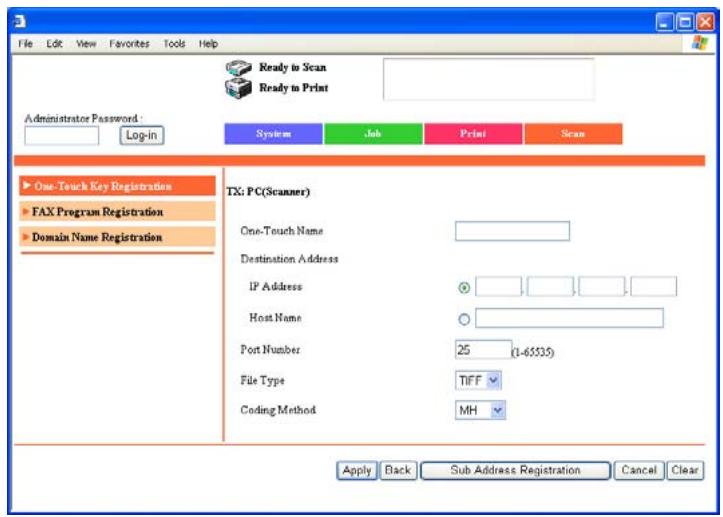
| Parameter | Description |
| One-Touch Name | Type in the name of the recipient that will appear as the name of the one-touch dial registration. Up to 12 characters can be entered. Example: Tokyo br |
| Destination Address | Type in the IP address or host name for the recipient. Note A host name can be typed in if “DNS Configuration” (specified from the Network Setting screen) is set to “YES”. |
| Port Number | Type in the port number (between 1 and 65535). |
| File Type | Select the format (“TIFF” or “PDF”) of the file that is to be sent. |
| Coding Method | Select the coding method for the data to be sent. Select “MH” or “MMR”. The data amount with the MMR coding method is less than with the MH method. |
If "TX: InternetFAX (IP-TX)" was selected
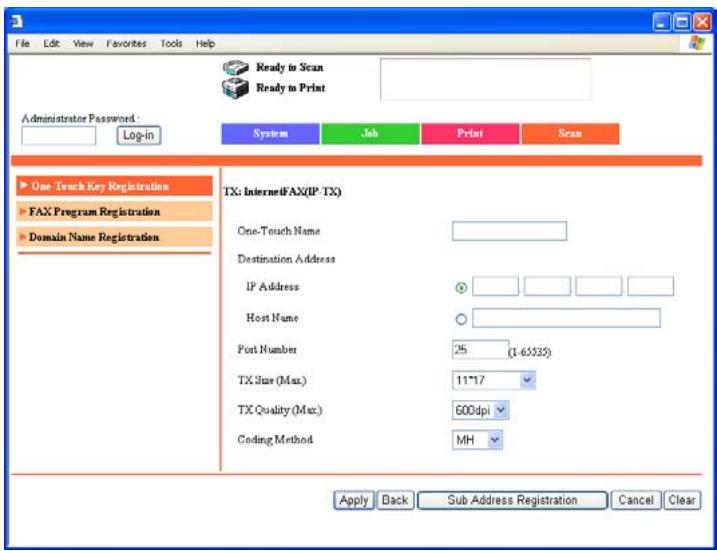
| Parameter | Description |
| One-Touch Name | Type in the name of the recipient that will appear as the name of the one-touch dial registration. Up to 12 characters can be entered. Example: Tokyo br |
| Destination Address | Type in the IP address or host name for the recipient. Note A host name can be typed in if "DNS Configuration" (specified from the Network Setting screen) is set to "Yes". |
| Port Number | Type in the port number (between 1 and 65535). |
| TX Size (Max.) | Specify the maximum document size that can be transmitted. Select "Letter/Legal" or "11×17". |
| TX Quality (Max.) | Select the maximum resolution that can be sent. Select "200dpi", "400dpi" or "600dpi". |
| Coding Method | Select the coding method for the data to be sent. Select "MH", "MR" or "MMR". The data amount for the coding methods increase as follows: MMR, MR, MH. |
If "TX: InternetFAX (IP-Relay)" was selected
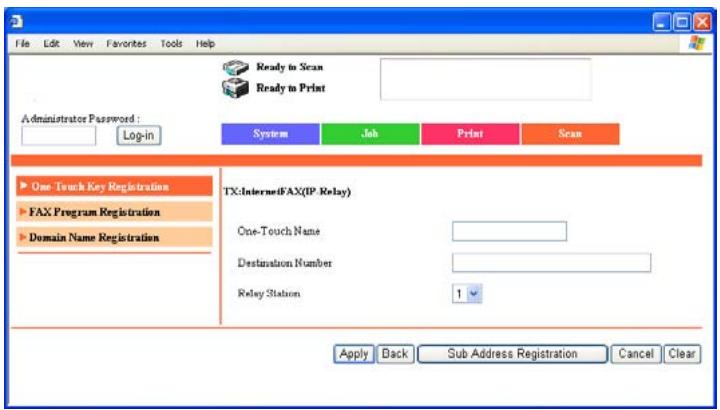
| Parameter | Description |
| One-Touch Name | Type in the name of the recipient that will appear as the name of the one-touch dial registration. Up to 12 characters can be entered. Example: Tokyo br |
| Destination Number | Type in the fax number for the recipient. The entered number can be up to 64 digits long. |
| Relay Station | Select the relay station. |
Naming an index
1 Click the Scan tab.
- If the optional fax kit has been installed, click the Fax/Scan tab.
2 Click [One-Touch Key Registration].
3 From the "Index" list, click a named index (center table).
The one-touch dial recipients saved in the selected index appear at the bottom of the page.
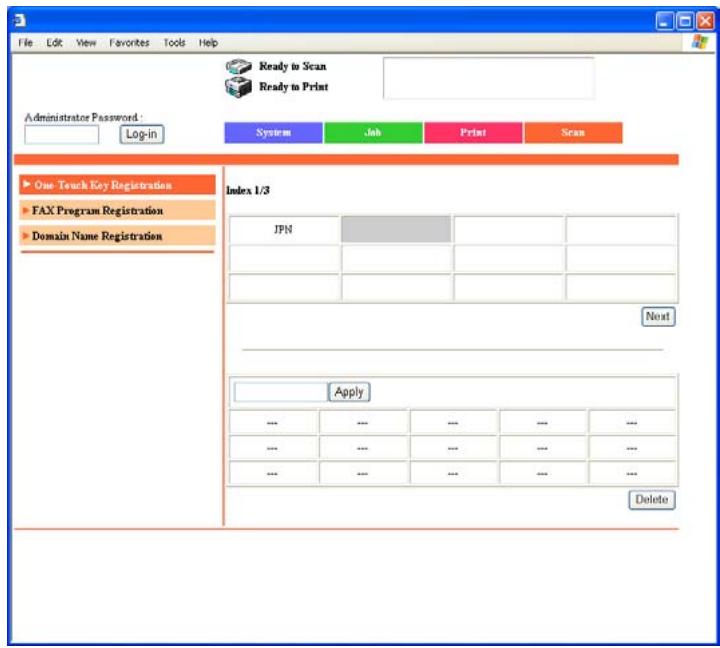
4 Type in the name of the index, and then click [Apply].
Up to 8 characters can be entered.
The indexes are listed at the top of the page.
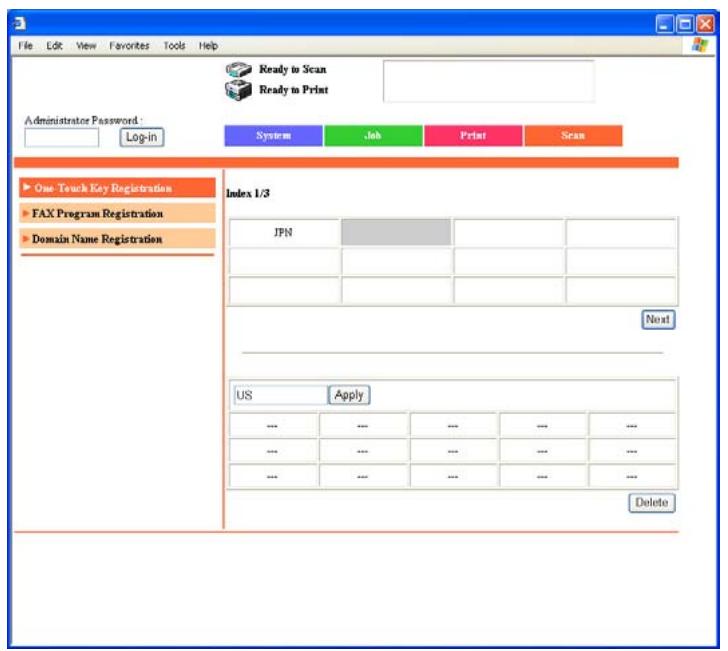
Registering a one-touch dial recipient
1 Click the Scan tab.
- If the optional fax kit has been installed, click the Fax/Scan tab.
2 Click [One-Touch Key Registration].
3 From the "Index" list, click the index where the one-touch dial recipient is to be saved.
The one-touch dial recipients saved in the selected index appear at the bottom of the page.
4 Click a one-touch dial registration that is not yet programmed.
- One-touch dial registrations that are not yet programmed appear as "...".
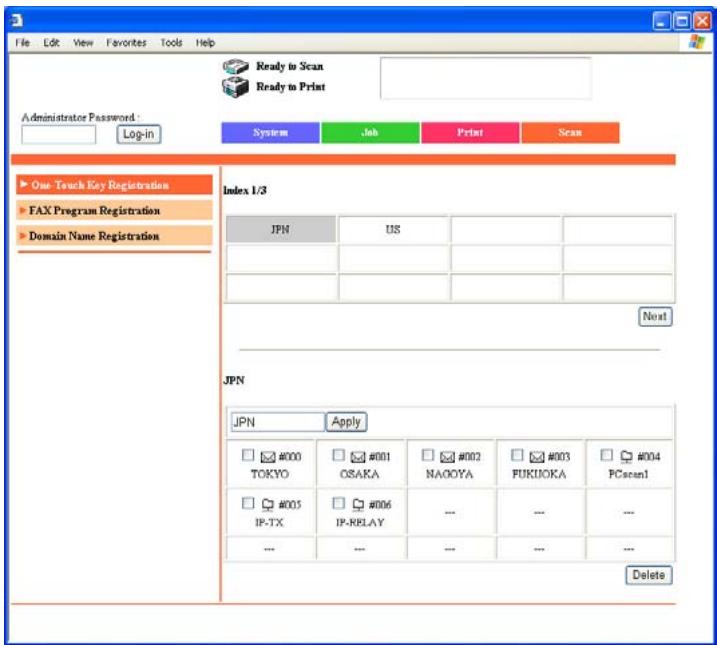
5 Select the communication mode to be registered, and then click [Next].
- Certain communication modes may not be available, depending on the machine settings. For details, check with the administrator.
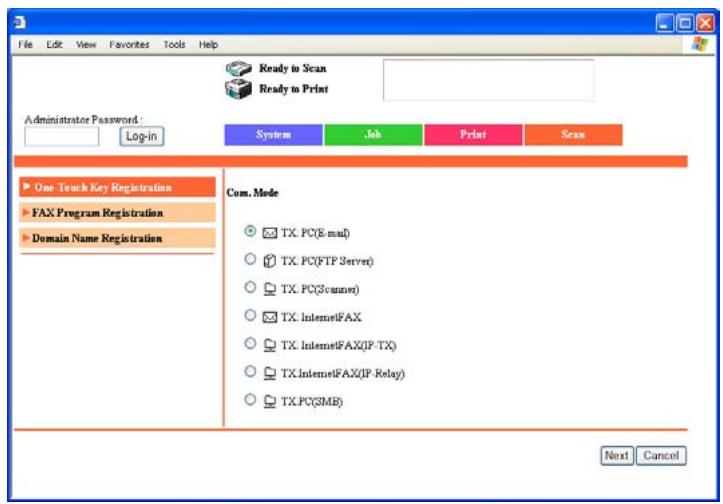
6 Specify the parameters in the page for the selected communication mode.
7 Click [Apply].
The one-touch dial recipient is registered.
Registering a secondary recipient
If "TX: PC (Scanner)", "TX: InternetFAX (IP-TX)" or "TX: InternetFAX (IP-Relay)" was selected, a secondary recipient can be specified in case the transmission failed.

Detail
Any of the following communication modes can be specified for the secondary recipient.
- TX: PC (E-mail)
- TX: PC (Scanner)
- TX: InternetFAX (IP-TX)
- TX: InternetFAX (E-mail)
- TX: InternetFAX (IP-Relay)
-
FAX (G3)*
-
The communication mode can be specified if the optional fax kit is installed.

Note
Certain communication modes may not be available, depending on the machine settings. For details, check with the administrator.
To regist a secondary recipient
1 Click the box for the one-touch dial recipient to be programmed with a secondary recipient.
2 Click [Next].
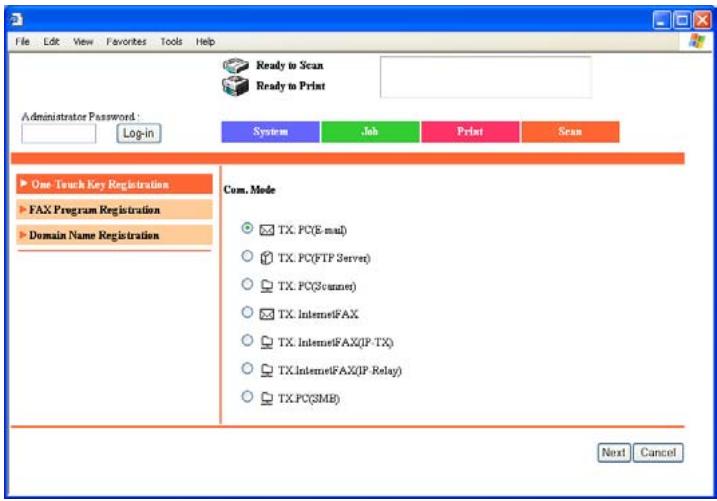
3 Click [Sub Address Registration].
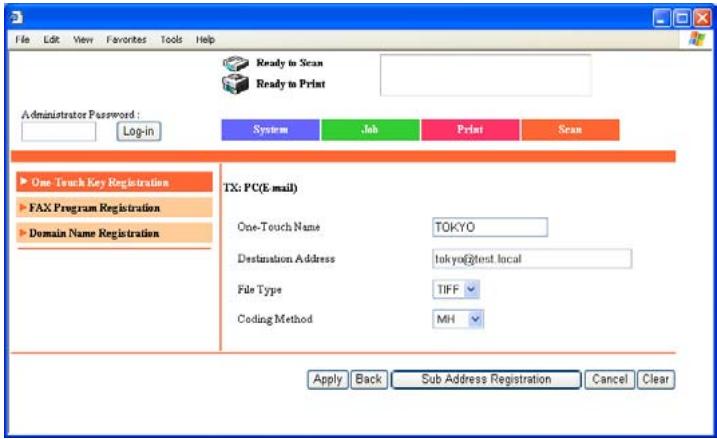
4 Select the communication mode for the secondary recipient, and then click [Next].
- Certain communication modes may not be available, depending on the machine settings. For details, check with the administrator.
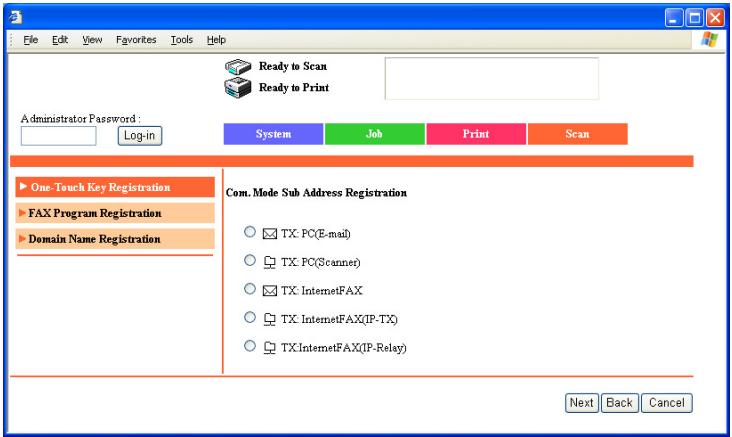
5 Specify the various settings, and then click [Apply].
- For details on the various settings, refer to "Registering a one-touch dial recipient" on page 7-19.
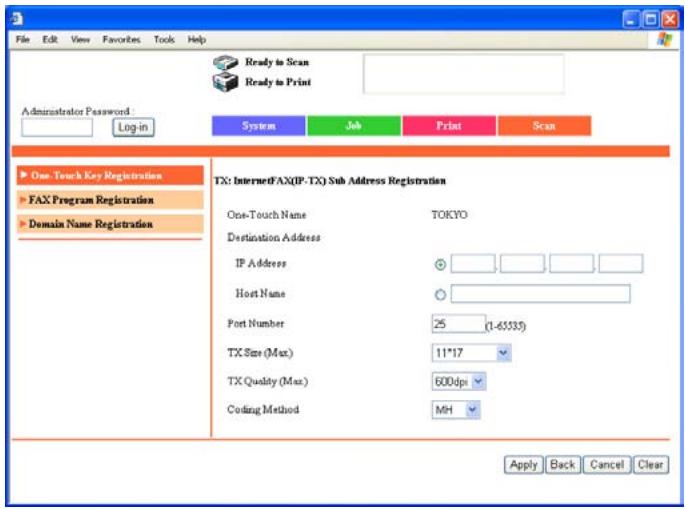

Note
The name that appears beside "One-Touch Name" is the same as that specified for the main recipient. All other parameters can be specified.
To delete the registered secondary recipient, click [Sub Address Delete].
Changing the settings for a one-touch dial recipient
1 Click the Scan tab.
- If the optional fax kit has been installed, click the Fax/Scan tab.
2 Click [One-Touch Key Registration].
3 From the "Index" list, click the index that contains the one-touch dial recipient that is to be changed.
The one-touch dial recipients saved in the selected index appear at the bottom of the page.
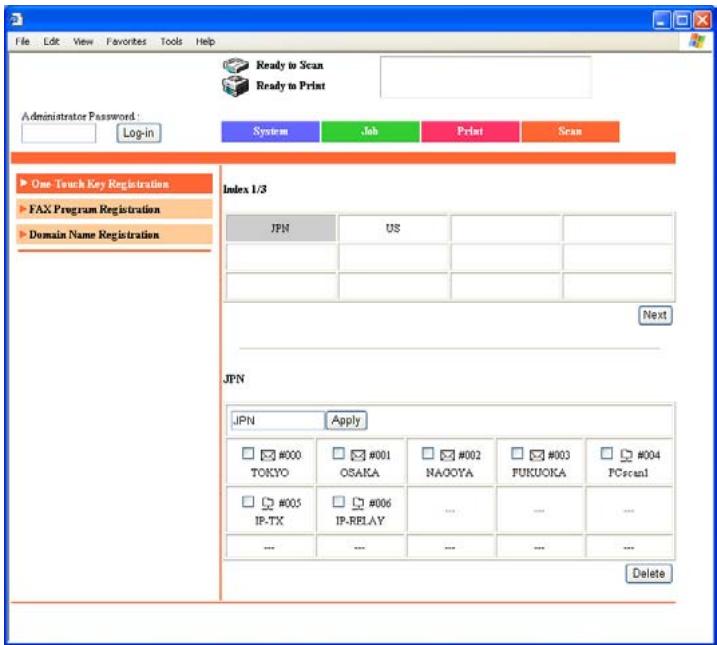
4 Click the one-touch dial recipient whose settings are to be changed.
- A fax program cannot be selected, even if it clicked.
5 To change the communication mode, select the mode, and then click [Next].
Certain communication modes may not be available, depending on the machine settings. For details, check with the administrator.
If a secondary destination is already registered, "TX: PC (FTP Server)" and "TX: PC (SMB)" do not appear.
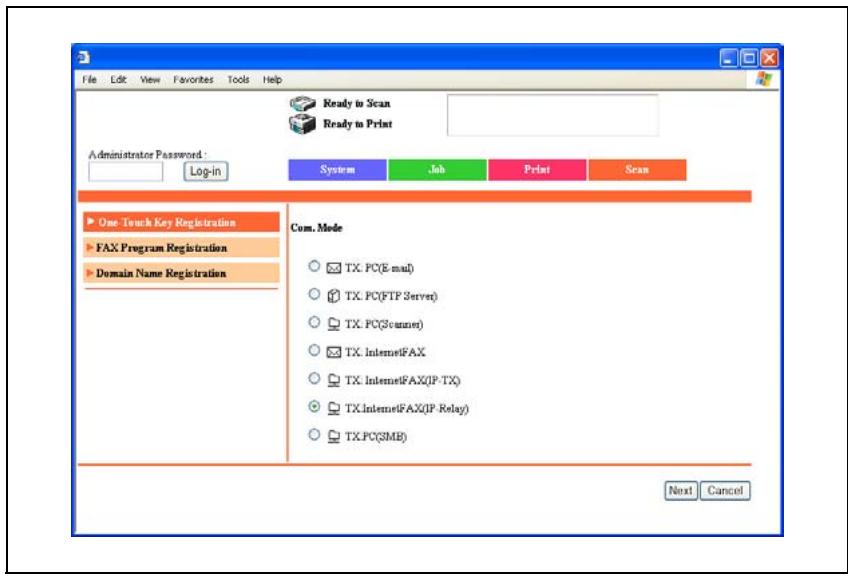
6 Specify the parameters in the page for the selected communication mode.
- For details on the various settings, refer to "Registering a one-touch dial recipient" on page 7-19.
Deleting a one-touch dial recipient
1 Click the Scan tab.
- If the optional fax kit has been installed, click the Fax/Scan tab.
2 Click [One-Touch Key Registration].
3 From the "Index" list, click the index that contains the one-touch dial recipient that is to be changed.
The one-touch dial recipients saved in the selected index appear at the bottom of the page.
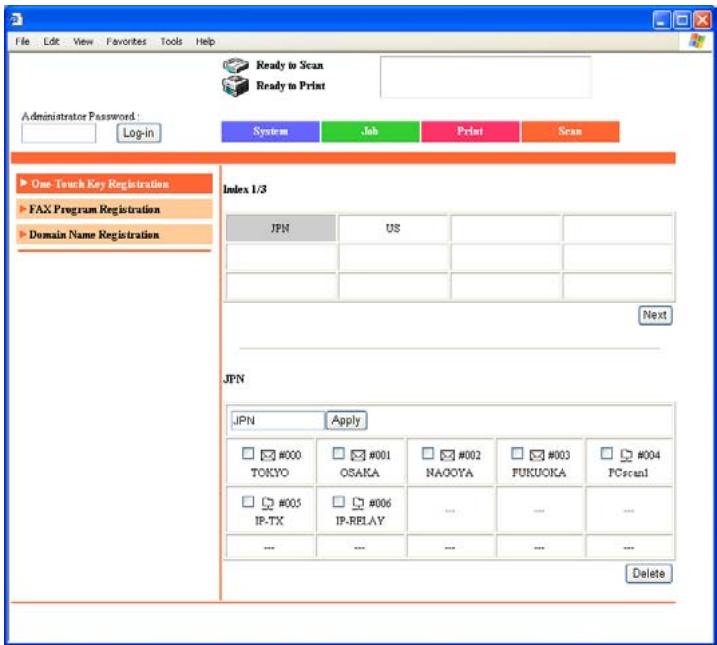
4 Select the check box of the one-touch dial recipient to be deleted.
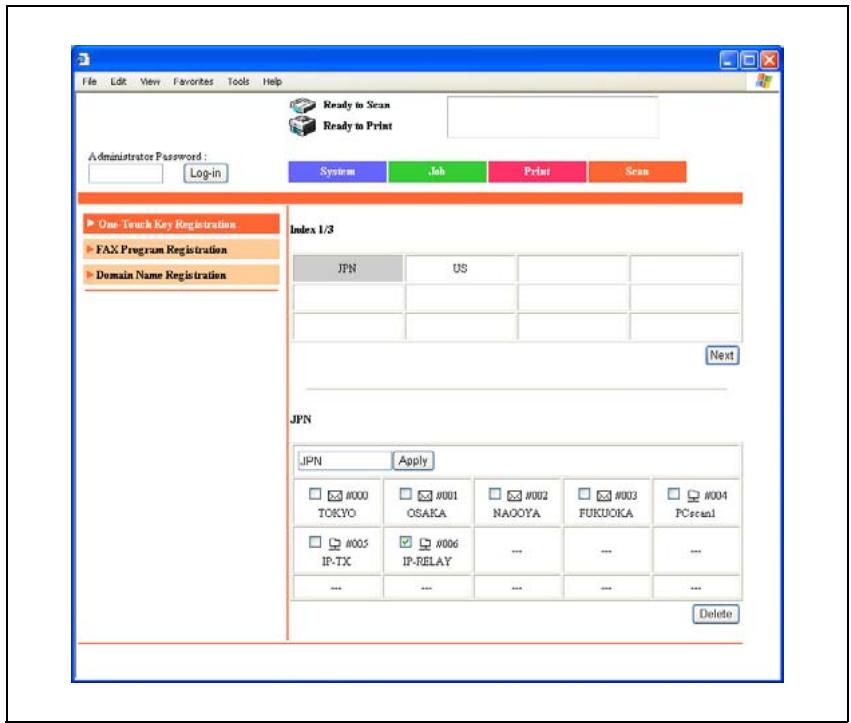
5 Click [Delete].
7.4 IP Relay Settings (Administrator mode)
When sending a fax as an IP relay, specify the IP address and domain name of the relay machines. In addition, the main relay stations to be used can be selected.
Selecting the IP relay station to be used
Select an IP relay station from the IP relay machines that have been registered in advance.
For details on registering an IP relay station, refer to "Registering an IP relay station" on page 7-32.
Settings can be specified for the following.
| Parameter | Description |
| IP Relay Destination | The IP address of the currently selected relay station ap-pears. To change the relay station, click [Select]. |
| Relay Result Port | Type in the number of the port that will receive the results. If this number is changed, it will be applied after the machine is turned off, then on again. |
To select a relay station
1 In the Administrator mode, click the Network tab.
2 Click [IP Relay Settings], then [IP Relay Settings].
3 To change the relay station, click [Select].
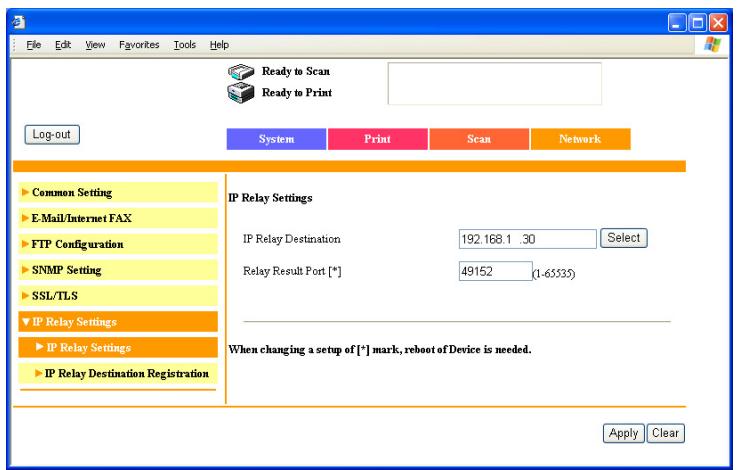
4 Select a registered relay station, and then click [Apply].
![KONICA BIZHUB 362 - Select a registered relay station, and then click [Apply]. - 1](/content/2025/01/172103/images/8ebb09857de06725deef847c9dbbe6be41dd35a26d06334dfde2085245fa4594.jpg)
5 If necessary, change the Port setting.
6 Click [Apply].
![KONICA BIZHUB 362 - Select a registered relay station, and then click [Apply]. - 2](/content/2025/01/172103/images/2f6a4ab789122973d8c8bb71424d12479fe3310ad0fbdc8632837e0b74171a5f.jpg)
Reminder
If the port number is changed, be sure to turn the machine off, then on again after the settings have been specified.
When turning the machine off, then on again with the main power switch, wait about 10 seconds to turn the machine on after turning it off. The machine may not operate correctly if it is turned on immediately after being turned off.
Registering an IP relay station
An IP relay machine can be registered or its settings can be changed. Up to 8 IP relay stations can be registered.
Settings can be specified for the following.
| Parameter | Description |
| IP Relay Address | Type in the IP address or host name for the relay machine. |
| Note | |
| A host name can be typed in if "DNS Configu-ration" (specified from the Network Setting screen) is set to "YES". | |
| Port | Type in the port number (between 1 and 65535). |
| Domain Name | Type in the domain name of the relay station. |
To register an IP relay station
1 In the Administrator mode, click the Network tab.
2 Click [IP Relay Settings], then [IP Relay Destination Registration].
3 To register a new relay station, click a box where an IP relay station address has not been registered ("---").
- To change registered settings, click an IP address that appears.
- To delete an IP relay station, select the check box for the IP relay station to be deleted, and then click [Delete].
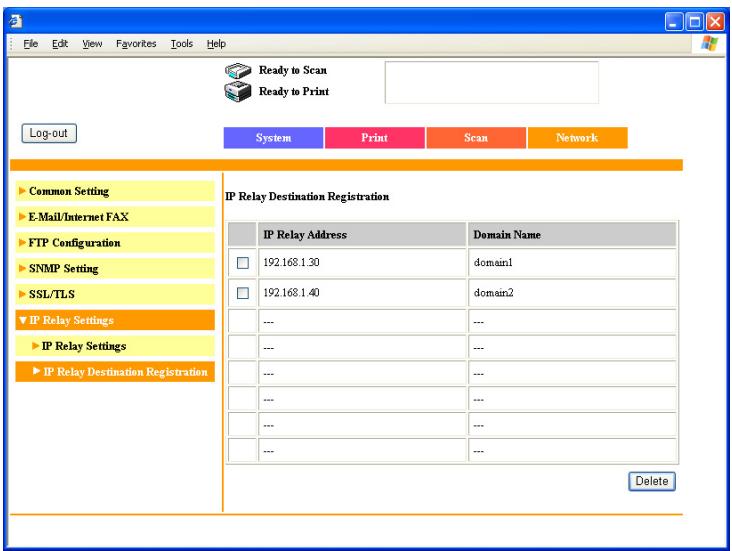
4 Specify the settings for the relay station, and then click [Apply].
![KONICA BIZHUB 362 - Specify the settings for the relay station, and then click [Apply]. - 1](/content/2025/01/172103/images/1fed898cdd9c31372d9697feaa30c6a957c8dd7703d86b58b0ff386c8497466c.jpg)
8
Specifying management settings
8 Specifying management settings
8.1 Available parameters
Parameters that can be specified from the Administrator Management screen
The following Administrator Management parameters are related to the information in this manual.
| Parameter | Description |
| IP Relay Settings | When sending a fax as an IP relay, specify the IP address and domain name of the relay machines. In addition, the main relay stations to be used can be selected. |
| Software SW | Use to specify the machine settings. |

Reminder
If the [Utility/Counter] key was pressed to register items and specify settings, be sure to press the [Reset] key in the control panel after returning to the initial screen.
List of required network settings
The network settings should be specified as shown below in order for the operations described in this manual to be used.
For details on network settings other than those available on the IP Relay Settings screen, refer to the User manual [Network Scanner Operations].
: Required
: Available
: Necessary depending on environment
Unavailable with the operation

Detail
When using IP address faxing and IP Relay operations, do not specify a setting for "Self-Domain Name".
| Operation Parameter | IP Address Fax | Scan to PC | IP Scanner | IP Relay |
| Basic Settings | ||||
| DHCP | ▲ | ▲ | ▲ | ▲ |
| IP Address Setting | ○ | ○ | ○ | ○ |
| Subnet Mask | ○ | ○ | ○ | ○ |
| Gateway | ▲ | ▲ | ▲ | ▲ |
| Self-Domain Name | ● | ● | ● | ● |
| Network Board Set | ▲ | ▲ | ▲ | ▲ |
| DNS Settings | ||||
| YES/NO | ▲ | ▲ | ● | ▲ |
| Host Name | ▲ | ▲ | ● | ▲ |
| Domain Name | ▲ | ▲ | ● | ▲ |
| DNS Server Address | ▲ | ▲ | ● | ▲ |
| Machine Name | ||||
| Machine Name | ✓ | ✓ | ✓ | ● |
| SMTP Settings | ||||
| SMTP Server Address | ● | ● | ● | ● |
| E-Mail Address | ● | ● | ● | ● |
| SMTP Authentication User Name | ● | ● | ● | ● |
| SMTP Authentication Pass- word | ● | ● | ● | ● |
| POP3 Settings | ||||
| POP3 Server Address | ● | ● | ● | ● |
| POP3 User Name | ● | ● | ● | ● |
| POP3 Password | ● | ● | ● | ● |
| Auto-RX Check | ● | ● | ● | ● |
| Priority Compress Level | ||||
| E-Mail Mode | ✓ | ● | ● | ● |
| Scan Mode | ● | ✓ | ● | ● |
| Scanner Settings | ||||
| Activity Report | ● | ● | ● | ● |
| RX Doc. Header Print | ● | ● | ● | ● |
| E-Mail Header Text | ● | ● | ● | ● |
| Gateway TX | ● | ● | ● | ▲ |
| Subject Registration | ● | ● | ● | ● |
| Divide Settings | ● | ● | ● | ● |
Ping: Specify as necessary.
Frame Type Set: Specify a frame type when connecting to the NetWare server and using the PC print function.
LDAP Setting: Specify when performing an LDAP search.
IP Filtering: Specify when using the IP filtering function.
IP Relay Settings
| IP Relay Station Registration | ● | ● | ● | ○ |
| IP Relay Station Setting | ● | ● | ● | ○ |
| Relay Result Port | ● | ● | ● | ○ |
8.2 IP Relay Settings
Registering an IP relay station
An IP relay station can be registered. Up to 8 IP relay stations can be registered.
Settings can be specified for the following.
| Parameter | Description |
| IP Relay Address | Type in the IP address or host name for the relay machine. |
| Port | Type in the port number (between 1 and 65535). |
| Domain Name | Type in the domain name of the relay station. |
To register an IP relay station
1 After entering Administrator mode, touch [Admin. 2].
2 Touch [Network Settings], [Network Setting 2], then [IP Relay Settings].
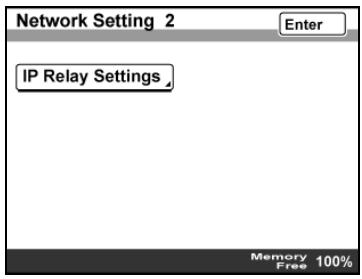
3 Touch [IP Relay Station Registration].
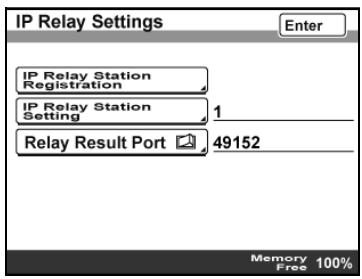
4 Touch the button for the number where the relay station is to be registered.
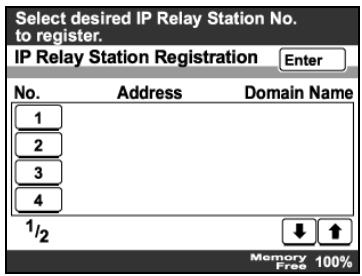
5 Touch [IP Relay Address].
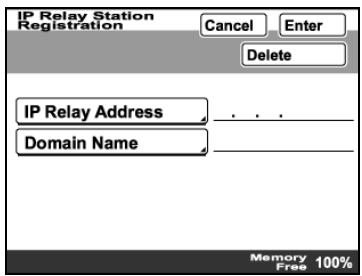
6 Type in the IP address of the relay station.
- To register the relay station by its host name, touch [Host Name], and then type in the host name. [Host Name] appears only if "DNS Settings" is set to "YES".
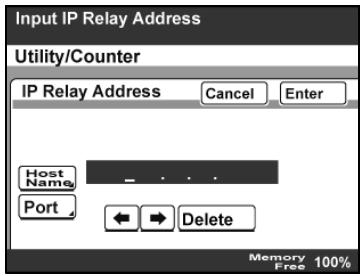
7 To change the port number, touch [Port], and then type in the desired port number.
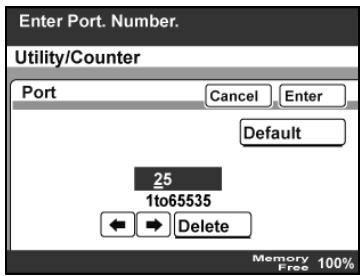
8 Touch [Enter].
9 Touch [Domain Name].
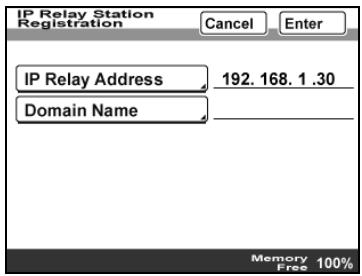
10 Type in the domain name of the IP relay station, and then touch [Enter].
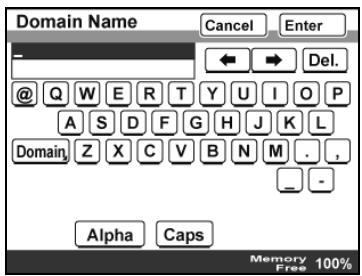
11 Touch [Enter] in each screen until the initial screen appears.
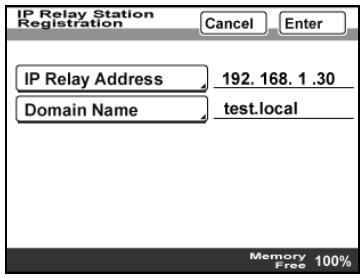
Selecting an IP relay station
1 After entering Administrator mode, touch [Admin. 2].
2 Touch [Network Settings], [Network Setting 2], then [IP Relay Settings].
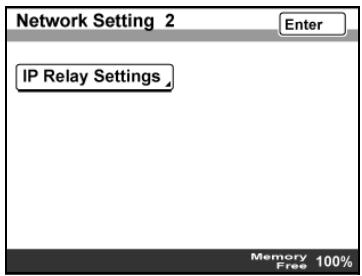
3 Touch [IP Relay Station Setting].
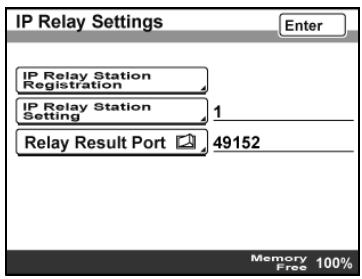
4 Touch the button for the relay station to be used, and then touch [Enter].
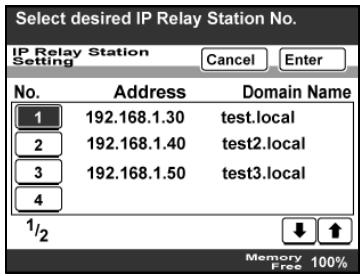
5 Touch [Enter] in each screen until the initial screen appears.
Specifying the relay result port
1 After entering Administrator mode, touch [Admin. 2].
2 Touch [Network Settings], [Network Setting 2], then [IP Relay Settings].
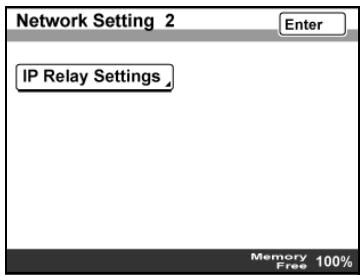
3 Touch [Relay Result Port].
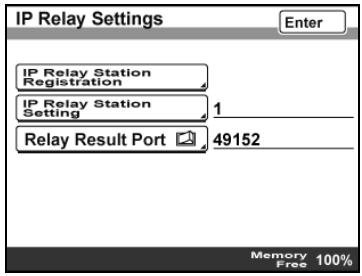
4 Type in the number of the port where the result is to be received, and then touch [Enter].
- To change the current setting, press the [C] (clear) key, and then type in the desired setting.
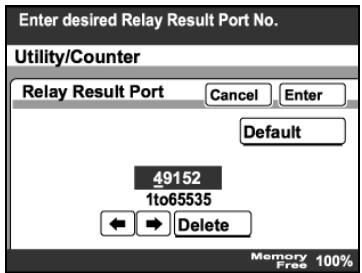
5 Touch [Enter] in each screen until the initial screen appears.
8.3 Specifying software switch settings (machine functions)
By specifying the software switch settings ("Mode Selection", "Bit Selection" and "Hex Selection"), various machine functions can be changed to meet your specific needs.

Reminder
Do not change any modes or bits other than those described in this manual.

Note
When "Enhance Security" is set to "ON", the software switch settings cannot be changed.
Software SW settings
| Parameter | Description |
| Mode Selection | The parameter to be specified is expressed as a three-digit number. Use the keypad to type in the value. |
| Bit Selection | The bits are the eight numbers that construct the mode status. By specifying a binary number (0 or 1) for each of the bits (0 through 7), a setting for each parameter can be specified. |
| HEX Selection | Specify a setting for each mode as a hexadecimal number (0 through 9 and A through F). Bit setting "0011 0000" is expressed as the hexadecimal setting "30". Specify a mode setting by using either bits or hexadecimal values. |
Examples of settings for "Bit Selection" (binary numbers) and "HEX Selection" (hexadecimal numbers) are shown below.
| Decimal number | "Bit Selection" setting (binary number) | "HEX Selection" setting (hexadecimal number) |
| 0 | 0000 0000 | 00 |
| 1 | 0000 0001 | 01 |
| 2 | 0000 0010 | 02 |
| 3 | 0000 0011 | 03 |
| 4 | 0000 0100 | 04 |
| 5 | 0000 0101 | 05 |
| 6 | 0000 0110 | 06 |
| 7 | 0000 0111 | 07 |
| 8 | 0000 1000 | 08 |
| 9 | 0000 1001 | 09 |
| 10 | 0000 1010 | 0A |
| 11 | 0000 1011 | 0B |
| 12 | 0000 1100 | 0C |
| 13 | 0000 1101 | 0D |
| 14 | 0000 1110 | 0E |
| 15 | 0000 1111 | 0F |
| 16 | 0001 0000 | 10 |
| 17 | 0001 0001 | 11 |
| 18 | 0001 0010 | 12 |
| 19 | 0001 0011 | 13 |
| 20 | 0001 0100 | 14 |
| . | . | . |
| . | . | . |
| . | . | . |
| 252 | 1111 1100 | FC |
| 253 | 1111 1101 | FD |
| 254 | 1111 1110 | FE |
| 255 | 1111 1111 | FF |
To specify a software switch setting
1 After entering Administrator mode, touch [Admin. 2].
2 Touch [Software SW].
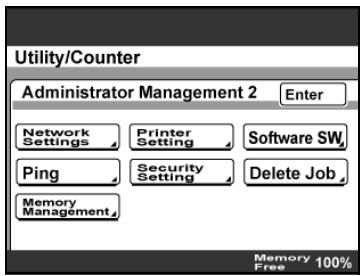
3 Touch [Mode Selection], and then use the keypad to type in the mode number.
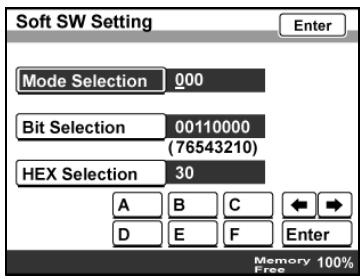
4 Specify a mode setting by using either bits or hexadecimal values.
- To specify the bits, touch [Bit Selection], touch or to move the cursor to the bit to be changed, use the keypad to specify the bit, and then touch [Enter].
- To specify the hex value, touch [HEX Selection], use the keypad or touch [A] through [F] to specify the value, and then touch [Enter].
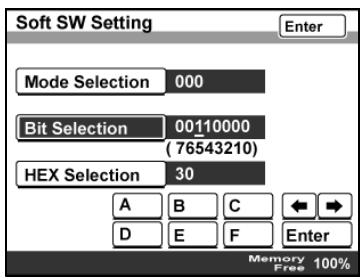
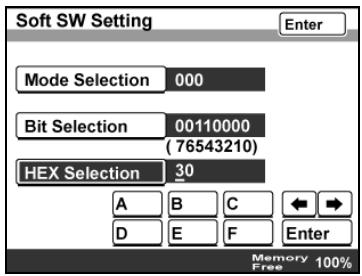
5 To change the setting for a different mode, repeat steps 3 and 4.
6 Touch [Enter] in each screen until the initial screen appears.
7 Turn the machine off, then on again.

Reminder
When turning the machine off, then on again with the main power switch, wait about 10 seconds to turn the machine on after turning it off. The machine may not operate correctly if it is turned on immediately after being turned off.
**Specifying settings to limit dialing and broadcast transmissions (mode 018)**
Specify whether or not broadcast transmissions and dialing to specify destinations are limited.
Settings at time of purchase
| Bit | 7 6 5 4 3 2 1 0 |
| Setting | 0 0 0 0 0 0 1 (HEX: 01) |
Specifying the setting
During the production of this unit, the settings in the shaded cells were selected. The numbers on the right side indicate the page numbers with descriptions for the corresponding function.
| Bit | Description | Setting | Description | Page Refer-ence |
| 7, 6, 5, 4 | -------- | 0000 | *Do not change these bits when specifying setting for this function. | -------- |
| 3 | Specifies whether or not dialing to specify a destination is pro-hibited. *1 | 0 | Permitted | -------- |
| 1 | Prohibited | |||
| 2 | Specifies whether or not broadcast trans-missions are prohibited. | 0 | Permitted | -------- |
| 1 | Prohibited | |||
| 1, 0 | -------- | 01 | *Do not change these bits when specifying setting for this function. | -------- |
*1 Prohibited when bit 6 of software switch setting mode 477 is set so that the settings can only be specified in Administrator mode
Specifying settings for the image in the results report (mode 023)
Specify whether or not an image of the transmitted document is added to the results report
Settings at time of purchase
| Bit | 7 6 5 4 3 2 1 0 |
| Setting | 1 1 1 1 1 0 0 0 (HEX: F8) |
Specifying the setting
During the production of this unit, the settings in the shaded cells were selected. The numbers on the right side indicate the page numbers with descriptions for the corresponding function.
| Bit | Description | Setting | Description | Page Refer-ence |
| 7, 6, 5, 4 | -------- | 1111 | *Do not change these bits when specifying setting for this function. | -------- |
| 3 | Specifies whether or not an image of the transmitted document is added to the results report. | 0 | Is not added | p. 3-20, p. 4-20, p. 6-21 |
| 1 | Is added | |||
| 2, 1, 0 | -------- | 000 | *Do not change these bits when specifying setting for this function. | -------- |
**Specifying settings for checked receiver transmissions (mode 200)**
Specify whether or not the fax transmission is sent after checking the CSI (called subscriber ID) signal from the recipient's machine.
Settings at time of purchase
| Bit | 7 6 5 4 3 2 1 0 |
| Setting | 0 0 0 0 0 1 0 0 (HEX: 04) |
Specifying the setting
During the production of this unit, the settings in the shaded cells were selected.
| Bit | Description | Setting | Description | Page Refer-ence |
| 7, 6, 5 | -------- | 000 | *Do not change these bits when specifying settings for this function. | -------- |
| 4 | Specifies whether or not the machine performs a checked receiver transmission if the called number does not contain special characters for a checked receiver transmission. | 0 | Does not perform a checked receiver transmission | -------- |
| 1 | Performs a checked receiver transmission | |||
| 3, 2, 1, 0 | Specifies the number of digits of the CSI signal that are compared when performing a checked receiver transmission. (If the called number does not fulfill the number of digits specified here, a comparison is made with all digits of the called number. If a comparison is made with a comparison number using special characters, the comparison is made with all digits of the comparison number, regardless of the number of digits specified with this setting.) | 0000 | Cancel | -------- |
| 0001 | 1 digit | |||
| 0010 | 2 digits | |||
| 0011 | 3 digits | |||
| 0100 | 4 digits | |||
| 0101 | 5 digits | |||
| 0110 | 6 digits | |||
| 0111 | 7 digits | |||
| 1000 | 8 digits | |||
| 1001 | 9digits | |||
| 1010 | 10 digits | |||
| 1011-1111 | *Do not specify this setting for this function. |
Compared item and the setting for the number of digits compared in the CSI signal
Example: When the number of digits to be compared in the CSI signal is set to 6 and a 10-digit CSI signal is received
| Compared item | Comparison relationship | Operation |
| Recipient's telephone number | When the recipient's telephone number has more digits than the number of digits to be compared from the CSI signal | The comparison is performed according to the setting for the number of digits compared in the CSI signal. (With a 10-digit called number, digit 6 from the end is compared.) |
| When the recipient's telephone number has less digits than the number of digits to be compared from the CSI signal | The comparison is performed only with the number of digits in the called number. (With a 4-digit called number, digit 4 from the end is compared.) | |
| Comparison number | When the comparison number has less digits than the number of digits in the CSI signal | The comparison is performed only with the number of digits in the comparison number. (With a 10-digit comparison number, digit 10 from the end is compared.) |
| When the comparison number has more digits than the number of digits in the CSI signal | The comparison is performed only with the number of digits in the comparison number. (With a comparison number of 11 or more digits, digit 11 from the end is compared. However, since the CSI signal contains only 10 digits, it will not match, resulting in a transmission error.) |
**Specifying transmission source information for direct faxing and IP address faxing (mode 351)**
Specify the transmission source information for directly faxing or forwarding received IP address fax documents.
Settings at time of purchase
| Bit | 7 6 5 4 3 2 1 0 |
| Setting | 0 0 0 1 1 0 0 0 (HEX: 18) |
Specifying the setting
During the production of this unit, the settings in the shaded cells were selected.
| Bit | Description | Setting | Description | Page Refer-ence |
| 7, 6, 5, 4,3, 2 | -------- | 000110 | *Do not change these bits when specifying setting for this function. | -------- |
| 1 | Specifies whether the device name of the transmission source or the IP address is add-ed to the Subject line when a received IP adress fax is forwarded. | 0 | Priority given to device name | -------- |
| 1 | Priority given to IP address | -------- | ||
| 0 | -------- | 0 | *Do not change this bit when specifying settings for this function. | -------- |
**Specifying whether transmission source information is added when directly faxing, performing an IP relay operation, or forwarding received documents (mode 352)**
Specify how transmission source information is added when directly faxing, performing an IP relay operation, or forwarding received documents.
Settings at time of purchase
| Bit | 7 6 5 4 3 2 1 0 |
| Setting | 1 1 0 1 0 0 0 0 (HEX: D0) |
Specifying the setting
During the production of this unit, the settings in the shaded cells were selected.
| Bit | Description | Setting | Description | Page Refer-ence |
| 7 | -------- | 1 | *Do not change this bit when specifying settings for this function. | -------- |
| 6 | Specifies where transmission source information is added with direct faxing and IP relay operations. | 0 | Outside of the document | -------- |
| 1 | Inside the document | |||
| 5 | Specifies whether or not a transmission source information is added to received documents that are forwarded. | 0 | Not added | -------- |
| 1 | Added | |||
| 4 | Specifies how transmission source information is added when a received document is forwarded. | 0 | Outside of the document | -------- |
| 1 | Inside the document | |||
| 3,2,1,0 | -------- | 0000 | *Do not change these bits when specifying setting for this function. | -------- |
Specifying the default address input screen (mode 366)
Specify the default screen for IP address faxing and Scan to PC operations. Settings at time of purchase
| Bit | 7 6 5 4 3 2 1 0 |
| Setting | 0 0 0 0 1 0 0 0 (HEX: 08) |
Specifying the setting
During the production of this unit, the settings in the shaded cells were selected. The numbers on the right side indicate the page numbers with descriptions for the corresponding function.
| Bit | Description | Setting | Description | Page Refer-ence |
| 7 | 0 | *Do not change this bit when specifying settings for this function. | ||
| 6 | Specifies the default address input screen for IP address faxing and Scan to PC operations. | 0 | Gives priority to IP address input | p. 4-30 |
| 1 | Gives priority to host name input | |||
| 5, 4, 3, 2, 1, 0 | 001000 | *Do not change these bits when specifying setting for this function. |
**Specifying settings for the information indicated in the report for direct faxing/IP relay transmissions (mode 368)**
Specify whether or not the results of direct faxing or IP relay transmissions are indicated in the reception report.
Settings at time of purchase
| Bit | 7 6 5 4 3 2 1 0 |
| Setting | 1 1 0 0 0 0 1 0 (HEX: C2) |
Specifying the setting
During the production of this unit, the settings in the shaded cells were selected.
| Bit | Description | Setting | Description | Page Refer-ence |
| 7 | -------- | 1 | *Do not change this bit when specifying settings for this function. | -------- |
| 6 | Specifies the valid range of administrator passwords.*Regardless of the setting specified for this bit, this machine is set to normally require the administrator pass-word with the machine and with PageScope Web Connection. | 1 | The administrator pass-word is required with this machine and with Page-Scope Web Connection. | -------- |
| 5, 4, 3, 2 | -------- | 0000 | *Do not change these bits when specifying setting for this function. | -------- |
| 1 | Specifies whether or not the results of scan transmissions are indi-cated in the transmis-sion report. | 0 | Not indicated | -------- |
| 1 | Indicated | |||
| 0 | Specifies whether or not the results of direct faxing or IP relay trans-missions are indicated in the reception report. | 0 | Not indicated | -------- |
| 1 | Indicated |
Specifies the coding method for IP relay transmissions (mode 381)
Specify the default settings for the coding method for IP relay transmissions. Settings at time of purchase
| Bit | 7 6 5 4 3 2 1 0 |
| Setting | 1 0 0 0 0 0 0 0 (HEX: 80) |
Specifying the setting
During the production of this unit, the settings in the shaded cells were selected.
| Bit | Description | Setting | Description | Page Refer-ence |
| 7,6,5,4,3 | -------- | 10000 | *Do not change these bits when specifying setting for this function. | -------- |
| 2,1,0 | Specifies the coding method for IP relay transmissions. | 000 | MH | -------- |
| 001 | MR | |||
| 010 | MMR | |||
| 011 | JBIG | |||
| Others | *Do not specify any set-tings other than those mentioned above when specifying settings for this function. |
**Specifying settings concerning the transmission results for IP relay transmissions (mode 382)**
Specify the length of time until the transmission results for an IP relay transmission times out and the operation that is performed when a timeout occurs.
Settings at time of purchase
| Bit | 7 6 5 4 3 2 1 0 |
| Setting | 0 1 0 0 0 0 0 0 (HEX: 40) |
Specifying the setting
During the production of this unit, the settings in the shaded cells were selected.
| Bit | Description | Setting | Description | Page Refer-ence |
| 7 | Specifies the operation that is performed when the return of transmission results for an IP relay transmission times out. | 0 | Transmission error | -------- |
| 1 | Normal transmission | |||
| 6, 5, 4, 3 | Specifies the length of time until transmission results for an IP relay transmission times out. | 0000 | 0 minutes | -------- |
| 0001 | 5 minutes | |||
| 0010 | 10 minutes | |||
| 0011 | 15 minutes | |||
| 0100 | 20 minutes | |||
| 0101 | 30 minutes | |||
| 0110 | 40 minutes | |||
| 0111 | 50 minutes | |||
| 1000 | 1 hour | |||
| 1001 | 2 hours | |||
| 1010 | 3 hours | |||
| 1011 | 4 hours | |||
| 1100 | 5 hours | |||
| 1101 | 6 hours | |||
| 1110 | 7 hours | |||
| 1111 | 8 hours | |||
| 2, 1, 0 | -------- | 000 | *Do not change these bits when specifying setting for this function. | -------- |
- If the specified timeout time is short, for example, 5 or 10 minutes, the status of a document queued to be sent from a relay machine or the G3 transmission time for the relay machine and recipient may cause a timeout (failed transmission).
Specifying settings to limit the use of communication modes-1 (mode 475)
Specify whether to permit or prohibit the use of individual communication modes. Prohibited communication modes do not appear in their selection screens.

Note
Programmed one-touch dial buttons can be used for transmission even if a prohibited communication mode has been specified.
If all communication modes are prohibited (modes 475 to 477), some screens, such as those for specifying transmission settings, may not normally be displayed.
Settings at time of purchase
| Bit | 7 6 5 4 3 2 1 0 |
| Setting | 0 0 0 0 0 0 0 (HEX: 00) |
Specifying the setting
During the production of this unit, the settings in the shaded cells were selected. The numbers on the right side indicate the page numbers with descriptions for the corresponding function.
| Bit | Description | Setting | Description | Page Refer-ence |
| 7 | Specifies whether or not the use of TCP/IP is prohibit- ed. | 0 | Permitted | -------- |
| 1 | Prohibited | |||
| 6 | Specifies whether or not the use of LPD is prohibited. | 0 | Permitted | -------- |
| 1 | Prohibited | |||
| 5 | Specifies whether or not the use of a RAW port is prohibit- ited. | 0 | Permitted | -------- |
| 1 | Prohibited | |||
| 4 | Specifies whether or not the use of SLP is prohibited. | 0 | Permitted | -------- |
| 1 | Prohibited | |||
| 3 | Specifies whether or not the use of a Scan to FTP is pro-hibited. | 0 | Permitted | -------- |
| 1 | Prohibited | |||
| 2 | Specifies whether or not the use of an FTP server is pro-hibited. | 0 | Permitted | -------- |
| 1 | Prohibited | |||
| 1 | Specifies whether or not the use of SNMP is prohibited. | 0 | Permitted | -------- |
| 1 | Prohibited | |||
| 0 | -------- | 0 | *Do not change this bit when specifying settings for this function. | -------- |
Specifying settings to limit the use of communication modes-2 (mode 476)
Specify whether to permit or prohibit the use of individual communication modes. Prohibited communication modes do not appear in their selection screens.

Note
Programmed one-touch dial buttons can be used for transmission even if a prohibited communication mode has been specified.
If all communication modes are prohibited (modes 475 to 477), some screens, such as those for specifying transmission settings, may not normally be displayed.
Settings at time of purchase
| Bit | 7 6 5 4 3 2 1 0 |
| Setting | 0 0 0 0 0 0 0 (HEX: 00) |
Specifying the setting
During the production of this unit, the settings in the shaded cells were selected. The numbers on the right side indicate the page numbers with descriptions for the corresponding function.
| Bit | Description | Setting | Description | Page Refer-ence |
| 7 | Specifies whether or not the use of the Scan to SMB operation is prohibited. | 0 | Permitted | -------- |
| 1 | Prohibited | |||
| 6 | Specifies whether or not the use of SMB printing is prohibit- ed. | 0 | Permitted | -------- |
| 1 | Prohibited | |||
| 5 | Specifies whether or not the use of G3 faxing is prohibited. | 0 | Permitted | -------- |
| 1 | Prohibited | |||
| 4 | Specifies whether or not the use of the Scan to HDD oper- tion is prohibited. | 0 | Permitted | -------- |
| 1 | Prohibited | |||
| 3 | Specifies whether or not the use of the Scan to E-Mail oper- ation is prohibited. | 0 | Permitted | -------- |
| 1 | Prohibited | |||
| 2 | Specifies whether or not the use of the Internet fax operation is prohibited. | 0 | Permitted | -------- |
| 1 | Prohibited | |||
| 1 | Specifies whether or not the use of IP re-lay is prohibited. | 0 | Permitted | -------- |
| 1 | Prohibited | |||
| 0 | Specifies whether or not the use of IP ad-dress fax operation is prohibited. | 0 | Permitted | -------- |
| 1 | Prohibited |
**Specifying settings to limit the use of communication modes—3/**-specifying restrictions for registering fax addresses and printing reports and specifying how one-touch dial recipients are displayed (mode 477)
Specify whether to permit or prohibit the use of individual communication modes. Prohibited communication modes do not appear in their selection screens.
Specify whether or not fax addresses can be registered and reports can be printed by users, and specify whether or not one-touch dial information is displayed in screens and reports.

Note
Programmed one-touch dial buttons can be used for transmission even if a prohibited communication mode has been specified.
If all communication modes are prohibited (modes 475 to 477), some screens, such as those for specifying transmission settings, may not normally be displayed.
Settings at time of purchase
| Bit | 7 6 5 4 3 2 1 0 |
| Setting | 0 0 0 0 0 0 0 (HEX: 00) |
Specifying the setting
During the production of this unit, the settings in the shaded cells were selected. The numbers on the right side indicate the page numbers with descriptions for the corresponding function.
| Bit | Description | Setting | Description | Page Refer-ence |
| 7 | Specifies whether or not the use of the computer (scatterer) is prohibited. | 0 | Permitted | -------- |
| 1 | Prohibited | |||
| 6 | Specifies whether settings for register-ing fax addresses or printing reports can be specified by only the administrator or also by the user. | 0 | Settings can also be specified by users. | -------- |
| 1 | Settings can only be specified in Administrator mode. | |||
| 5 | Specifies whether or not only recipient names are displayed (and the fax number or address is not displayed) in reports and Job List screens and when a one-touch dial button is touched. '1, '2 | 0 | Displayed | -------- |
| 1 | Not displayed | |||
| 4 | -------- | 0 | *Do not change this bit when specifying setting for this function. | -------- |
| 3 | Specifies whether or not the use of TCP-Socket is prohibited. | 0 | Permitted | -------- |
| 1 | Prohibited | |||
| 2, 1, 0 | -------- | 000 | *Do not change these bits when specifying setting for this function. | -------- |
1 If bit 6 is set to "1", the settings will not be applied if bit 5 is set to "1" (not displayed). If you do not wish to display the fax number or address of the recipient, bit 6 must also be set to "1" (settings can only be specified in Administrator mode).
2 If the recipient is directly specified from the Direct Input tab, the recipient is displayed, even if "1" (not displayed) is selected.
Specifying the deleting method for [Del.] in input screens (mode 478)
Specify the deleting method for [Del.] in input screens.
Select whether the character at cursor's position or the character to the left of the cursor is deleted.
Settings at time of purchase
| Bit | 7 6 5 4 3 2 1 0 |
| Setting | 0 0 0 0 0 0 0 (HEX: 00) |
Specifying the setting
The grayed out cells are the settings at the time of purchase.
| Bit | Description | Setting | Description | Page Refer-ence |
| 7 | Specify the deleting method for [Del.] in input screens. | 0 | Deletes the character at the cursor's position | p. 10-5 |
| 1 | Deletes the character to the left of the cursor | |||
| 6, 5, 4, 3, 2, 1, 0 | -------- | 0000000 | *Do not change these bits when specifying setting for this function. | -------- |
![KONICA BIZHUB 362 - Specifying the deleting method for [Del.] in input screens (mode 478) - 1](/content/2025/01/172103/images/563febdbea166c286cf113598d6ae398773b26966043e7c017eb5df446f6de7b.jpg)
Note
Default setting: 0
Specifying settings for limiting user authentication to only Scan functions (mode 479)
Specify whether or not user authentication is performed only when the [Fax/Scan] or [Extra Scan] key is pressed.
Settings at time of purchase
| Bit | 7 6 5 4 3 2 1 0 |
| Setting | 0 0 0 0 0 0 0 (HEX: 00) |
Specifying the setting
During the production of this unit, the settings in the shaded cells were selected. The numbers on the right side indicate the page numbers with descriptions for the corresponding function.
| Bit | Description | Setting | Description | Page Refer-ence |
| 7, 6, 5 | -------- | 000 | *Do not change these bits when specifying setting for this function. | -------- |
| 4, 3, 2, 1, 0 | Specifies whether or not to limit authenti-cation on Fax and Scan functions. | 11001 | Limited | -------- |
| 00000 | Not limited |

Reminder
Do not specify settings for mode 479 other than those described in "Specifying the setting".

Detail
If user authentication is limited to Scan functions, touch [Account/User Auth.] in the Administrator Management 1 screen, and then select "External Server" as the user authentication method. For details on the external server authentication settings, refer to the User manual [Copy Operations].

Troubleshooting
9 Troubleshooting
9.1 When a certain screen appears
If the following screen appears, perform the operation described below.
The administrator is logged on to the machine from a computer on the network. Wait until the administrator has finished their operation and logged off.
If the administrator exits the browser without logging off, the administrator must log on again, then log off.
Registering in network.
Now registering the network settings. All operations cannot be done. Please wait a while.
9.2 Error codes
If an error occurred during a transmission, an error code appears in the Job List or in a report. Perform the operations described below.
Scan to PC operations
| Error Code | Cause | Remedy |
| EAXXXX | The IP address specified by the recipient is incorrect. | Correct the recipient's IP address. |
| ImageReceiver was not started. | Start ImageReceiver. | |
| The IP address of the recipient is not specified correctly in the dialog box that appears after clicking "Receive Settings", then "Connection Filter" in ImageReceiver, specify the correct IP address, and then restart ImageReceiver. | Click "Receive Settings", then "Connection Filter" in ImageReceiver, specify the correct IP address, and then restart ImageReceiver. | |
| ImageReceiver is not operat-ing correctly. | Restart the computer. Re-install IP Scanner. Check the TCP/IP settings on the computer. | |
| The LAN cable is not connect-ed. | Check that the LAN cable is correctly connected. | |
| The network settings on the computer are not specified correctly. | Check the TCP/IP settings on the computer. | |
| The network load on the recipient's computer is too high. | Check that large e-mail messages are not being received at the recipient's computer and that large files are not being downloaded from the Web. | |
| Too much data is being sent. | If a high scanning resolution has been specified, decrease the number of pages scanned at one time and scan the document again. | |
| Access is blocked by the setting specified for the computer's firewall (Windows firewall) for the Internet con- nection. | Change the setting specified for the computer's firewall (Windows firewall) for the Internet connection according to the instructions from your network administrator. |
IP Scanner operations
| Error Code | Cause | Remedy |
| EAXXXX | ImageReceiver was not start-ed. | Start ImageReceiver. |
| The IP address of the recipient is not specified correctly in the dialog box that appears after clicking "Receive Settings", then "Connection Filter". | Click "Receive Settings", then "Con- nection Filter", specify the correct IP address, and then restart ImageRe- ceiver. | |
| ImageReceiver is not operat- ing correctly. | Restart the computer. Re-install IP Scanner. Check the TCP/IP settings on the com- puter. | |
| The LAN cable is not connect- ed. | Check that the LAN cable is correctly connected. | |
| The network settings on the computer are not specified correctly. | Check the TCP/IP settings on the com- puter. | |
| The network load on the re- cipient's computer is too high. | Check that large e-mail messages are not being received at the recipient's computer and that large files are not being downloaded from the Web. | |
| Too much data is being sent. | If a high scanning resolution has been specified, reduce the resolution or de- crease the number of pages scanned at one time, and then scan the docu- ment again. | |
| Access is blocked by the set- ting specified for the compu- ter's firewall (Windows firewall) for the Internet con- nection. | Change the setting specified for the computer's firewall (Windows firewall) for the Internet connection according to the instructions from your network administrator. |
IP relay operations
| Error Code | Cause | Remedy |
| E53XXX | Since the recipient specified for gateway transmission is incorrect, transmission is not possible. | Check with the sender. |
| E65XXX | An attempt was made to send data that cannot be sent through a gateway transmission. An attempt was made to send an e-mail message with a file attachment in a format other than TIFF-F or with text where one line exceeds 1000 characters. | Check with the sender. |
| EBXXXX | Data sent through a gateway transmission cannot be received. | Check that the mail server can transmit and that the network settings are correct. |
9.3 Troubleshooting
Remedies for several possible problems are described below.
IP address faxing
| Problem | Cause | Remedy |
| Transmission is not possible. | The connections are incorrect. | Check the LED indicator on the hub and check the connections. |
| Since the image data is too large, a timeout occurred at the receiving end. | • Increase the timeout setting on the receiving end. • Decrease the size of the image data, and then try transmitting again. | |
| The settings necessary for the device are not registered. | Specify the necessary network settings. | |
| The LAN cable is damaged. | Replace the LAN cable. | |
| IP has been limited with IP filtering. | Check with the administrator of the machine. | |
| Other causes | Check the list of transmissions in the Job List screen for details of the transmission error, and then refer to the table of error codes. |
Scan to PC operations
| Problem | Cause | Remedy |
| Transmission is not possible. | ----- | Check the list of transmissions in the Job List screen for details of the transmission error, and then refer to the table of error codes. |
| The LAN cable is damaged. | Replace the LAN cable. | |
| IP has been limited with IP filtering. | Check with the administrator of the machine. | |
| The data is not received by the computer. | ----- | Check the list of transmissions in the Job List screen for details of the transmission error, and then refer to the table of error codes. |
| The data was received, but the image cannot be viewed. | IP Scanner has not started up. | Start up IP Scanner, check for new transmissions, and then replace the received data file with the image file. |
| An application that allows images to be viewed is not installed, or the application is installed, but is not linked to images. | Install the viewing application. Link the file to a viewing application that allows you to view TIFF and PDF files. | |
| An error occurred while the image was converted by IP Scanner or the file was not created correctly. | That file is unusable. Exit ImageReceiver, and then send the scan again. If a high scanning resolution has been specified, reduce the resolution or decrease the number of pages scanned at one time, and then scan the document again. | |
| Transmission from a terminal or reception to a computer cannot be interrupted. | It takes some time to interrupt the operation. | Wait until the operation is interrupted. To interrupt the operation quickly, exit ImageReceiver. However, data already received at the computer but not yet processed with IP Scanner will be deleted. |
IP Scanner operations
| Problem | Cause | Remedy |
| Transmission is not possible. | -------- | Check the list of transmissions in the Job List screen for details of the transmission error, and then refer to the table of error codes. |
| Settings are not specified correctly in the dialog box that appears after clicking "Receive Settings", then "Connection Filter". | Check the settings in the dialog box that appears after clicking "Receive Settings", then "Connection Filter". | |
| The LAN cable is damaged. | Replace the LAN cable. | |
| Two LAN boards are installed. | This configuration cannot be used if two LAN boards are installed. Change the priority order in the computer (Windows) network settings. | |
| The data is not received by the computer. | -------- | Check the list of transmissions in the Job List screen for details of the transmission error, and then refer to the table of error codes. |
| Another mailer is started up. | Exit the mailer. | |
| The data was received, but the image cannot be viewed. | IP Scanner has not started up. | Start up IP Scanner, check for new transmissions, and then replace the received data file with the image file. |
| An application that allows images to be viewed is not installed, or the application is installed, but is not linked to images. | Install the viewing application. Link the file to a viewing application that allows you to view TIFF and PDF files. | |
| An error occurred while the image was converted by IP Scanner or the file was not created correctly. | That file is unusable. Exit ImageReceiver, and then send the scan again. If the image resolution is high, reduce the resolution or decrease the number of pages before scanning. | |
| Transmission from a terminal or reception to a computer cannot be interrupted. | It takes some time to interrupt the operation. | Wait until the operation is interrupted. To interrupt the operation quickly, exit ImageReceiver. However, data already received at the computer but not yet processed with IP Scanner will be deleted. |
| The message "Failed to connect to machine" appears. | The machine has not been turned on. | Turn on the machine. |
| The device IP address entered in IP Scanner is incorrect. | Correct the IP address. | |
| The TCP/IP setting for the computer is incorrect. | Check the network settings on the computer. | |
| Use of TCP/IP from this machine has been prohibited. | Check with the administrator of the machine. | |
| The computer is not connected to a network. | Check the network connections for the computer. | |
| The LAN cable is not connected. | Check that the LAN cable is correctly connected. | |
| Although SSL settings are enabled, no certificate is installed. | Install a certificated. For details, refer to the User manual [Network Scanner Operations]. | |
| Although SSL settings are enabled, a version of Internet Explorer that is earlier than 5.0 is used. | Use Internet Explorer 5.0 or later. | |
| Although SSL settings are enabled, the encryption level for Internet Explorer is less than 56 bits. | Obtain the encryption pack from the Microsoft Web site and install it. | |
| A Security Alert message appears. | Install a certificate. | |
| The message "Connection Failure with ImageReceiver. Do you want to start up ImageReceiver?" appears. | ImageReceiver was not started. | Start ImageReceiver. |
| ImageReceiver is not operating correctly. | Restart the computer. Reminder When turning the machine off, then on again with the main power switch, wait about 10 seconds to turn the machine on after turning it off. The machine may not operate correctly if it is turned on immediately after being turned off. | |
| The message "Im-ageReceiver detected of XXX" appears. | Other software is using this port. | The mail server and IP Scanner cannot be used together. Do not start up the mail server. In addition, if other software is the cause, exit the software that is causing the problem. Follow the instructions to change the port. |
| The message "Connection Failure with ImageReceiver." appears. | IP Scanner or ImageReceiver is not operating correctly. | Restart the computer. If the problem is still not resolved, uninstall IP Scanner, and then install it again. |
| The message "Failed to create image files." appears. | The received data is unusable. | Exit ImageReceiver, start it again, and then send the scan again.When ImageReceiver is exited,received data that has not yet been processed with IP Scanner will be deleted. |
| A high load was temporarily placed on the computer. | While receiving the scan transmission image, complicated processes cannot be performed by the computer. | |
| The file size of the received data is large. | The received data may have exceeded the amount that can be used by that computer. Reduce the resolution or decrease the number of pages before scanning and sending again. | |
| There is no storage directory. | Create a directory. | |
| The directory is read-only. | Allow the directory to be written. | |
| The message "Selected Scanner Key not found." appears. | The button has already been erased from the machine. | Check if the button has already been erased from the machine, and then program a scan button again. |
| Even though the but-ton on the machine has been erased, the icon that indicates that transmission can be performed has changed to an icon for programming a scan button. | Delete the scan button from the machine. Otherwise, turn the machine off, then on again. | Click the [Delete Scanner Key] button. |
| Even though [Check now] was clicked, nothing happened. | No file was received. | Scan again. |
| Image files cannot be opened. | The file is not an image file received from the device. | Use a viewer compatible with TIFF and PDF files. |
| The image file image is not displayed correctly. | Display the image in the viewer at a reduced size. | View the image at a zoom ratio of 100%. |
| The received data is unusable. | Scan the document again. | |
| IP Scanner cannot be started up. | TCP/IP is not ready. | Open Network and Dial-up Connections in Windows, add the Microsoft TCP/IP protocol, and then restart the computer. |
| IP Scanner is already started up. | Two copies of the utility cannot run at the same time. | |
| ImageReceiver was not started. | TCP/IP is not ready. | Open Network and Dial-up Connections in Windows, add the Microsoft TCP/IP protocol, and then restart the computer. |
| Since ImageReceiver was started up during the previous uninstallation, then reinstalled without restarting the computer, ImageReceiver may have been deleted after restart. | Uninstall IP Scanner, and then re-install it. | |
| The message "Number of Scanner Keys reached maximum." appears. | Six IP Scanner scan buttons have already been programmed. | Delete any unnecessary buttons. |
| The message "Scanner key name has invalid character." appears. | Characters other than the standard characters cannot be used in button names. | Specify a button name that contains only the standard characters. |
| The message "Incorrect IP address" appears. | Letters are entered into the IP address. | Specify the IP address in the format xxx.xxx.xxx.xxx. |
| The message "Currently this command not accepted." appears. | While communicating with the copier, for example, while programming or deleting a button, the next transmission is performed. | Wait until the current connection is cut (until the message "Currently this function is not available. Try again later." disappears from the taskbar at the bottom of the window) before performing the next operation. |
| The message "Failed to write image file" appears. | There is not enough space in the save destination. | Change the save destination or create some free space on the drive. |
| There is a problem with the drive of the save destination. | Change the save destination. | |
| The message "Image folder not found" appears. | The specified folder does not exist. | Check the name of the storage folder. Change the name of the storage folder. |
| The message "Correspondence from printer is illegal" appears. | An old version of IP Scanner is used. | Install the newest version of IP Scanner. |
| Data is not automatically printed. | The setting for automatic printing is not specified in the Scanner Settings dialog box. | To print automatically by scanning with an IP Scanner button, select "Yes" beside "Automatic Print" in the Scanner Settings dialog box. |
| Data is not sorted into the folder specified for automatic printing. | To print automatically with a one-touch dial button, check that data is sorted into the folder specified for automatic printing. | |
| The setting to open images in ImageReceiver has not been specified. | Select "Save received images" in ImageReceiver. | |
| The message "-page could not be printed" appears. | There is not enough computer memory space available. | Exit any applications that are not being used, and then try automatically printing again. Change the size of the computer's virtual memory, and then try automatically printing again. Reduce the resolution, and then try automatically printing again. |
| The specified paper size is not supported by the computer. | Check the settings specified in the "Paper Select Method" box and the "Paper Settings" group box. | |
| The message "Print- ing failed since the selected printer could not be found" appears. | The printer specified for automatic printing is not registered. | Check that the printer specified in the "Printer Name" box is registered (in-stalled). |
| The wrong printer is used for printing. | Other settings have higher priority. | Check the priority in the "Folder For Printing" list in the Automatic Print Settings dialog box. |
| The wrong paper size is used for printing. | The setting in the "Paper Select Method" box was not specified correctly. | Check the setting specified in the "Pa- per Select Method" box. |
| The settings in the "Paper Settings" group box were not specified correctly. | Check the settings specified in the "Paper Settings" group box. | |
| The wrong paper size is used for scanning. | Specify a setting beside "Scan Area", and then try automatically printing again. | |
| The setting for automatically rotating the image is not spec-ified. | Select the "Automatically Rotates Im- age when Image Orientation is different from Paper Orientation." check box in the Print Property dialog box. | |
| There is loss on the edges of the print re-sult. | The setting that considers the printer's printable area is not selected. | If there is a slight loss on the edges, selec- the "Minimal" check box in the Print Property dialog box. |
| "Top Left" is selected beside "Position". | If there is a slight loss at the top and the left edges, select "Center" beside "Pos- sition" in the Print Property dialog box. | |
| The print result does not fit within the pa- per. | The setting to reduce the im- age to fit within the paper is not selected. | Select the "Adjust Image to Fit to Paper Size" check box in the Print Property dialog box. |
| The print result is not the same size as the original image. | Different paper is selected. | Select "Print on Paper Same as Image Size" beside "Paper Select Method" in the Print Property dialog box. |
| The "Minimal" check box is selected. | Clear the "Minimal" check box in the Print Property dialog box. | |
| "Center" is selected beside "Position". | Select "Top Left" beside "Position" in the Print Property dialog box. | |
| There is a pattern (moiré patterns) in the print result. | A pattern may appear with some printers. | Change the resolution, and then try au- tomatically printing again. |
IP relay operations and others
| Problem | Cause | Remedy |
| The automatic print- ing operation is slow. | The image data is large. | Reduce the resolution, and then try au- tomatically printing again. |
| Problem | Cause | Remedy |
| A fax cannot be sent from this machine. | The communication mode for gateway transmissions is incorrectly specified. | Check the settings for gateway transmissions. |
| [Network Settings] does not appear in the Administrator Management screen. | The device is not operating correctly. | Contact your service representative. |
10
Appendix
10 Appendix
10.1 Specifications
IP address faxing specifications
Scan to PC specifications
| Item | Specifications |
| Transmission protocol | E-mail transmission: SMTP (IETF RFC2821 and RFC2822) and TCP/IP |
| Transmitted document sizes | Letter ☐/☐, Legal ☐, 11 × 17 ☐, A4 ☐/☐, B4 ☐, A3 ☐ |
| Resolution | 200 × 100 dpi, 200 × 200 dpi, 400 × 400 dpi, 600 × 600 dpi |
| Data format | TIFF-F |
| Coding method | MH, MR, MMR |
| Compatible lines | Ethernet LAN (100BASE-TX and 10BASE-T connections) |
| Destination registration | Registration of recipient IP address or host name: Maximum of 540 registrations |
| Item | Specifications |
| Transmission protocol | TCP/IP |
| Transmitted document sizes | Letter ☐/☐, Legal ☐, 11 × 17 ☐, A4 ☐/☐, B4 ☐, A3 ☐ |
| Resolution | 200 × 100 dpi, 200 × 200 dpi, 400 × 400 dpi, 600 × 600 dpi |
| Data format | TIFF, PDF |
| Coding method | MH, MMR |
| Compatible lines | Ethernet LAN (100BASE-TX and 10BASE-T connections) |
| Destination registration | Registration of computer IP address or host name: Maximum of 540 registrations |
| Folder specification | Specify one folder on the computer. SubFolders specified from the computer can be created for each type of data. |
IP Scanner specifications
IP relay specifications
| Item | Specifications |
| Transmission protocol | TCP/IP |
| Transmitted document sizes | Letter ☐/☐, Legal ☐, 11 × 17 ☐, A4 ☐/☐, B4 ☐, A3 ☐ |
| Resolution | 200 × 200 dpi, 400 × 400 dpi, 600 × 600 dpi |
| Data format | TIFF, PDF |
| Coding method | MH, MMR |
| Compatible lines | Ethernet LAN (100BASE-TX and 10BASE-T connections) |
| Destination registration | Destination registration unnecessary (automatic notification of IP address sent from computer when queued for scanning): Specify folders for up to six buttons |
| Folder specification | Specify one folder on the computer. SubFolders specified from the computer can be created for each type of data. |
| Item | Specifications |
| Relay stations | Maximum of 8 relay stations |
| Recipient | Fax |
10.2 Entering text
This section contains details on using the keyboard that appears in the touch panel for typing in passwords and text to register one-touch recipients. The keypad can also be used to type in numbers.
The following procedure describes how to enter characters in the User Name screen when registering users for user authentication.
To type text
In the keyboard that appeared, touch the button for the desired character.
Numbers can also be typed in with the keypad.
- To type in uppercase letters, touch [Caps].
- To cancel Caps mode, touch [Caps] again.
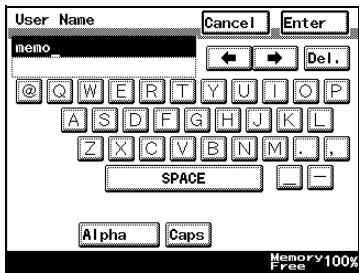

Note
To cancel the entered text, touch [Cancel].
To clear all entered text, press the [C] (clear) key.

Detail
To switch between entering letters or symbols, touch the button for switching the input mode.
To change a character in the entered text, touch and to move the cursor to the character to be changed, touch [Del.], and then type in the desired letter or number.
The software switch settings can be used to change how characters are deleted. For details on the software switch settings, refer to "Specifying software switch settings (machine functions)" on page 8-11.
If the number of characters exceeds the limit allowed, the last character is replaced with the last character entered.
List of available characters
| Type | Characters |
| Alphanumeric characters / symbols | ABCDEFGHIJKLMNOPQRSTUWXYZabcdefghijklmnopqrstuvwxyz\[\{\text{Space}\}!\#\$\%&\{'\}+\).\.\.;<=>?@]\_\{\}\*\~0123456789 |
10.3 Glossary
| Term | Definition |
| 10Base-T/100Base-TX/1000Base-T | A standard for Ethernet, which is connected through a cable consisting of twisted copper wire pairs. The transmission speed of 10Base-T is 10 Mbps, of 100Base-TX is 100 Mbps, and of 1000Base-T is 1000 Mbps. |
| Active Directory | A service that manages all information such as hardware resources for servers, clients, and printers on a network supported by Microsoft and the attributes and access permissions of the users |
| APOP | Abbreviation for Authenticated Post Office Protocol. An authentication method with encrypted passwords, which results in increased safety, as compared to the usual unencrypted passwords used by POP to retrieve e-mail messages |
| Auto IP | A function for automatically acquiring the IP address. If acquisition of the IP address failed with DHCP, an IP address is acquired from the address space of 169.254.0.0. |
| bit | Abbreviation for Binary Digit. The smallest unit of information (data quantity) on a computer or printer. Displays data using 0 or 1. |
| BMP | Abbreviation for Bitmap. A file format for saving image data that uses the .bmp extension. Commonly used on Windows platforms. You can specify the color depth from monochrome (2 values) to full color (16,777,216 colors). Images are not usually compressed when saved. |
| Byte | Unit of information (data quantity) on a computer or printer. Configured as 1 byte equal to 8 bits. |
| Client | A computer that uses the services provided by a server through a network |
| Contrast | The difference in intensity between the light and dark parts of the image (light/dark variation). An image with little light/dark variation is said to have a low contrast, and an image with large light/dark variation is said to have a high contrast. |
| Default | The initial settings. The settings first selected when the machine is turned on, or the settings first specified when the function is selected. |
| Default Gateway | A device, such as a computer or router, used as a "gateway" to access computers not on the same LAN |
| Density | An indication of the amount of darkness in the image |
| DHCP | Abbreviation for Dynamic Host Configuration Protocol. A protocol in which a client computer on a TCP/IP network automatically specifies the network settings from the server. With collective management of the IP address for DHCP clients on the DHCP server, you can avoid duplication of an address and you can build a network easily. |
| DNS | Abbreviation for Domain Name System. A system that acquires the supported IP addresses from host names in a network environment. DNS allows the user to access other computers over a network by specifying host names, instead of difficult to memorize and understand IP addresses. |
| DPI (dpi) | Abbreviation for Dots Per Inch. A resolution unit used by printers and scanners. Indicates how many dots per inch are represented in an image. The higher the value, the higher the resolution. |
| Driver | Software that works as a bridge between a computer and a peripheral device |
| Ethernet | LAN transmission line standard |
| File Extension | The characters added to the file name in order to differentiate file formats. The file extension is added after a period, for example, ".bmp" or ".jpg". |
| Gateway | Hardware and software used as the point where a network is connected to a network. A gateway also changes data formats, addresses, and protocols according to the connected network. |
| Gradation | The light and dark levels of an image. As the number increases, smoother brightness variations can be reproduced. |
| Grayscale | Monochrome image expressive form using the gradation information from black to white |
| GSS-SPNEG/Omega/Digest MD5 | Authentication methods for logging on to the LDAP server. The authentication method (GSS-SPONGO, SIMPLE or Digest MD5) for the LDAP server differs depending on the server being used and the server settings. |
| Halftone | The method of producing the light and dark parts of an image through varying sizes of black and white dots |
| Hard Disk | Large capacity storage device for storing data. The data can be stored even if the power is turned off. |
| Host Name | Displayed name of a device over a network |
| HTTP | Abbreviation for HyperText Transfer Protocol. A protocol used to send and receive data between a Web server and a client (Web browser). Documents containing images, recordings, and video clips can be exchanged with the expressive form information. |
| IMAP | Abbreviation for Internet Message Access Protocol. The protocol for retrieving e-mail messages with the function for managing mailboxes on the server. Currently, IMAP4 (the fourth version of IMAP) is most often used. |
| Install | To install hardware, operating systems, applications, printer drivers on to a computer |
| IPP | Abbreviation for Internet Printing Protocol. A protocol that sends and receives print data and controls printers over the Internet on a TCP/IP network. Data can also be sent to printers in remote areas to print over the Internet. |
| IP Address | A code (address) that is used to identify individual network devices over the Internet. A maximum of three digits for four numbers are displayed such as 192.168.1.10. IP addresses are assigned to devices, including computers, that are connected to the Internet. |
| LAN | Abbreviation for Local Area Network. A network that connects computers on the same floor, in the same building, or in neighboring buildings. |
| LDAP | Abbreviation for Lightweight Directory Access Protocol. On a TCP/IP network, such as the Internet or an intranet, this protocol is used to access a database for managing environment information and the e-mail addresses of network users. |
| Memory | Storage device for storing data temporally. When the power is turned off, the data may or may not be erased. |
| NetWare | Network operating system developed by Novell. NetWare IPX/SPX is used as the communication protocol. |
| MH | Abbreviation for Modified Huffman. A data compression encoding method for fax transmissions. Documents containing mostly text are compressed to about 1/10 their original size. |
| MIB | Abbreviation for Management Information Base. In a TCP/IP transmission, this uses SNMP to define the management information format for a group of network devices. There are two formats: the manufacturer-specific private MIB and the standardized MIB. |
| MMR | Abbreviation for Modified Modified Read. A data compression encoding method for fax transmissions. Documents containing mostly text are compressed to about 1/20 their original size. |
| OS | Abbreviation for Operating System. Basic software for controlling the system of a computer. |
| Abbreviation for Portable Document Format. An electronically formatted document that uses the .pdf extension. Based on the Post-Script format, you can use the free Adobe Acrobat Reader software to view documents. | |
| Pixel | An image pixel. The smallest unit of an image. |
| POP | Abbreviation for Post Office Protocol. A protocol for retrieving e-mail messages from a mail server. Currently, POP3 (the third version of POP) is most often used. |
| Port Number | The number that identifies the transmission port for each process running on a computer on the network. The same port cannot be used by multiple processes. |
| Proxy Server | A server that is installed to act as an intermediary connection between each client and different servers to effectively ensure security over the entire system for Internet connections |
| Resolution | Displays the ability to reproduce the details of images and print matter correctly |
| Preview | A function that allows you to view an image before processing a print or scan job |
| Property | Attribute informationWhen using a printer driver, various functions can be specified in the file properties. In the file properties, you can check the attribute information of the file. |
| Protocol | The rules that allow computers to communicate with other computers or peripheral devices |
| Scanning | With the scanning operation of the scanner, an image is read while the row of image sensors is gradually moved. The direction that the image sensors are moved is called the main scanning direction, and the direction in which the image sensors are arranged is called the sub-scanning direction. |
| Screen Frequency | Indicates the density of dots used to create the image |
| Single/Page TIFF | A single TIFF file that contains only a single page |
| SMTP | Abbreviation for Simple Mail Transfer Protocol. A protocol for sending and forwarding e-mail. |
| SNMP | Abbreviation for Simple Network Management Protocol. A management protocol in a network environment using TCP/IP. |
| SSL/TLS | Abbreviation for Secure Socket Layer/Transport Layer Security. The encoding method for safely transmitting data between the Web server and browser. |
| Subnet Mask | The unit used to divide a TCP/IP network into small networks (sub-networks). It is used to identify the bits in a network address that are higher than the IP address. |
| TCP/IP | Abbreviation for Transmission Control Protocol/Internet Protocol. The defacto standard protocol used by the Internet that uses IP addresses to identify each network device. |
| TIFF | Abbreviation for Tagged Image File Format. One of the file formats for saving image data. (The file extension is ".tif".) Depending on the tag indicating the data type, information for various image formats can be saved in a single image data. |
| Uninstall | To delete software installed on a computer |
| Web Browser | Software such as Internet Explorer and Netscape Navigator for viewing Web pages |
10.4 Index
Numerics
2in1 3-16, 3-21, 4-18, 4-21, 6-19, 6-22
2-Sided TX 3-16, 3-22, 4-18, 4-22, 6-19, 6-23
A
Accessing 7-6
Account track 7-7
Administrator mode 7-10
Automatic print setting 5-49, 5-53
Automatic print settings dialog box 5-40
Automatic printing 5-52, 5-56
C
Cache 7-12
Chain dialing 6-11
Check RX now 5-19
Close 5-19
Coding method 3-10, 3-30, 3-33, 4-12, 4-31, 7-14, 7-15
Connection setting 5-22
D
Delete scanner key 5-19
Density 3-14, 4-16, 6-17
Destination address 3-30, 4-31, 7-14, 7-15
Destination name 3-30, 4-31, 6-31, 7-14, 7-15, 7-16
Destination number 6-31, 7-16
Dial-up router 5-4
Divided settings 5-22
Divided settings dialog box 5-29
E
Entering addresses 3-9, 4-11
Error codes 9-4
F
Fax number 6-12
File name 4-18, 4-27
File type 4-12, 4-31, 7-14
Folder and printer settings dialog box 5-41
Forwarding 5-57
G
Gateway TX 6-3
1
Image folder setting 5-22
ImageReceiver 5-3, 5-36
Index 3-37, 7-17
Installing 4-3, 5-14
IP address faxing 2-3
IP relay 2-6
IP relay destination 8-6
IP relay settings 7-4, 7-29, 8-3, 8-6
IP relay station 8-9
IP Scanner 2-5, 4-3, 5-3
M
Mail program 3-39
Modem/terminal adapter 5-4
N
Network settings 8-3
Notify settings 5-22
0
One-touch dial button 3-3, 4-4, 6-4
One-touch dial button number 3-5, 4-7, 6-7
Original size setting 3-15, 4-17, 6-18
P
PageScope Web Connection 2-7, 7-3
Port conflicts 5-7
Port number 3-30, 4-31, 7-14, 7-15
Print property dialog box 5-34
Printer setting dialog box 5-33
Priority TX 3-16, 3-23, 4-18, 4-24, 6-19, 6-25
Programming one-touch dial buttons 3-31, 4-30, 6-30
Q
Quality 3-12, 4-14, 6-15
R
Receive notify settings dialog box 5-30
Receiving an IP address fax 3-28
Recipient 3-29, 6-30
Registering fax programs 7-3
Registering one-touch Recipients 7-3, 7-13
Relay result port 8-10
Relay stations 6-3, 7-16
S
Scan buttons 5-42
Scan to PC 2-4
Scanner key registration 5-19
Scanner settings dialog box 5-23
Searching one-touch dial buttons 3-7,4-9,6-9
Secondary recipient 3-36, 4-37, 6-37, 7-21
Selecting relay stations 6-31
Software switch settings 8-3, 8-11
Sort settings 5-22
Sort settings dialog box 5-25, 5-26, 5-27
SSL transmission 5-8
Stamp 3-16, 3-25, 4-18, 4-26, 6-19, 6-27
System requirements 7-5
T
Thumbnails 5-19
Timer TX setting 3-16, 3-23, 4-18, 4-25, 6-19, 6-26
Transmission report 3-16, 3-20, 3-26, 4-18, 4-20, 4-28, 6-19, 6-21, 6-28
Transmission source 3-16, 3-18, 6-19
TX quality (Max.) 3-10, 3-30, 3-33, 7-15
TX size (Max.) 3-10, 3-30, 3-33, 7-15
U
Uninstalling 5-17
User authentication 7-7
V
Viewer settings 5-22
ViewWindow 5-32