
POCKET DV 6800 - Digital Camera AIPTEK - Free user manual and instructions
Find the device manual for free POCKET DV 6800 AIPTEK in PDF.



| Product Type | Digital Camera |
| Brand | AIPTEK |
| Model | POCKET DV 6800 |
| Dimensions | 110 x 72 x 34 mm |
| Weight | Approximately 150 g (with battery) |
| Power Supply | Rechargeable Li-ion battery 8210 (3.7 V, 850 mAh), mains charger included |
| Photo Sensor | 5 Megapixels (8M model) or 3 Megapixels (6M model) |
| Photo Resolution | Up to 3264x2448 (8M model) or 2816x2112 (6M model) |
| Video Recording | MPEG-4 (VGA 640x480 or QVGA 320x240) up to 30 fps |
| Zoom | Digital 4x |
| LCD Screen | 2.4-inch TFT, rotatable up to 270° |
| Internal Memory | 32 MB flash (16 MB storage available) |
| External Memory | SD/MMC card (max. 2 GB) |
| File Formats | ASF (video), JPEG (photo), WAV (audio), MP3 (music) |
| Multimedia Functions | Dictaphone, MP3 player, webcam (PC Camera) |
| Outputs | USB 2.0, AV (NTSC/PAL) |
| AV Input | Yes, to record from a TV or DVD player |
| Flash | Built-in, modes Auto, Forced, Off |
| Stabilizer | Yes, blur reduction |
| Self-timer | Yes, 10 seconds |
| Direct Printing | PictBridge compatible |
| Maintenance | Clean with a dry cloth, avoid water and extreme temperatures |
| Safety | Do not disassemble, use only provided accessories, keep out of reach of children |
| Spare Parts | 8210 Li-ion battery available from retailer, charger, USB cable, AV cable |
| Repairability | Removable battery, accessible memory card, professional repair recommended |
Frequently Asked Questions - POCKET DV 6800 AIPTEK
User questions about POCKET DV 6800 AIPTEK
0 question about this device. Answer the ones you know or ask your own.
Ask a new question about this device
Download the instructions for your Digital Camera in PDF format for free! Find your manual POCKET DV 6800 - AIPTEK and take your electronic device back in hand. On this page are published all the documents necessary for the use of your device. POCKET DV 6800 by AIPTEK.
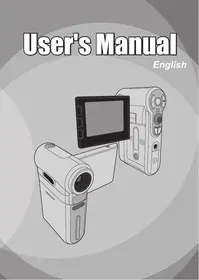
USER MANUAL POCKET DV 6800 AIPTEK
Dear user, thanks for purchasing this product. Much investment in time and effort has gone into its development, and it is our hope that it will give you many years of trouble-free service.
Safety Notice
- Do not drop, puncture or disassemble the camera; otherwise the warranty will be voided.
- Avoid all contact with water, and dry hands before using.
- Do not expose the camera to high temperature or leave it in direct sunlight. Doing so may damage the camera.
- Use the camera with care. Avoid pressing hard on the camera body.
- For your own safety, avoid using the camera when there is a storm or lightning.
- Do not use batteries of different specifications. Doing so may lead to the potential for serious damage.
- Remove the battery during long periods between usage, as a deteriorated battery may affect the functionality of the camera.
- Remove the battery if it shows signs of leaking or distortion.
- Use only the accessories supplied by the manufacturer.
- Keep the camera out of the reach of infants.





Table of Contents
Welcome 1
Safety Notice 1
Table of Contents 2
Getting Started 4
Knowing Your Camera Parts 4
Installing the Battery 5
Using the Charger 6
Inserting a Memory Card (Optional) 7
Attaching the Carrying Strap 8
Basic Operations 9
Turning On Your Camera 9
Turning Off Your Camera 9
Using the LCD Monitor 10
Reading LCD Indicators 11
Setting Time and Language 12
Recording a Video Clip 13
Taking a Still Picture 15
Recording a voice clip 16
Recording TV program or DVD. 17
Playing back your recordings 18
Playing MP3 music 19
Connecting the camera to a TV 21
Advanced Operations 22
Menu operation 22
Menu illustration 22
Menu items in Camera mode 23
Menu items in Playback mode 27
Menu items in MP3 mode 28
Table of Contents
Menu items in Voice mode 28
Menu items in Setting mode 29
Copying Files to Your PC 32
Installing the driver to your PC 32
Connecting the camera to your PC 34
Copying files to the PC 35
Viewing/Playing files on your PC 37
File location 38
Using PC Camera 39
Installing the software 39
Starting the application 39
Using the PC Camera 42
Appendix: A 45
Troubleshooting 45
Flicker Settings 48
System Message 48
Storage Capacity 49
Battery Life Indicator 50
Battery Life 50
Appendix B 51
Instructions for ArcSoft MediaConverter™ 51
Appendix C 59
Specifications 59
Appendix D 60
System Requirements 60
Getting Started
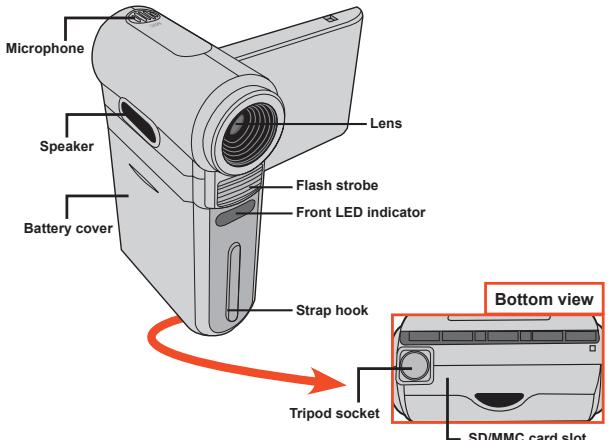
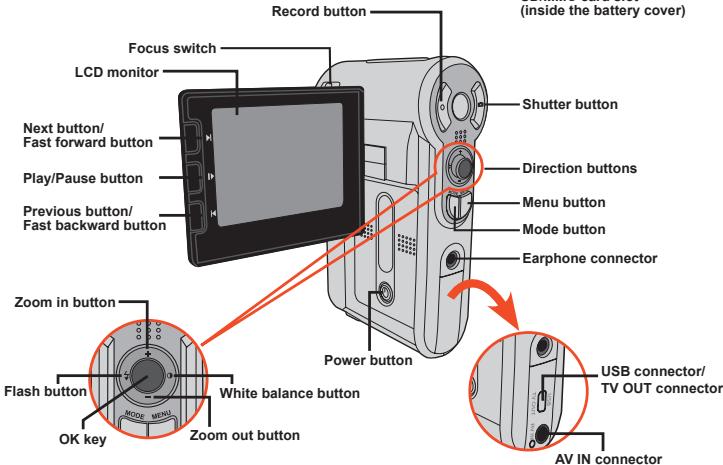
Knowing Your Camera Parts
Installing the Battery
1. Open the battery cover.
Slide the battery cover open as indicated.
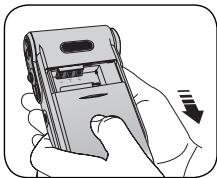
2. Install the battery.
Place the accessory Li-Ion battery into the compartment. Note that the metallic contacts must be aligned with the contacts in the compartment.
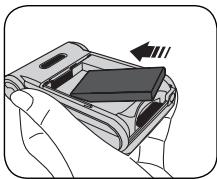
3. Replace the cover.
After the battery is properly installed, replace the battery cover.
Treat the Li-ion battery with care:
- Keep the battery away from fire or high-temperature environment (over 140°F or 60°C ).
- Do not drop the battery or try to disassemble it.
- If the battery is not used for long periods, fully discharge and charge the battery at least once a year to maintain its lifecycle.
Upon using the battery for the first time, you are recommended to fully discharge and then charge the battery to ensure its lifecycle. Purchasing additional batteries: This camera uses one 8210 Li-Ion battery as power source. You can purchase the 8210 Li-Ion Rechargeable battery (3.7 volt; 850mAh) at your local shop.

Using the charger
The battery attached is not fully charged. Please charge the battery at least 4 hours for first time use.

Connect one end of the supplied AC adapter to the charger stand and the other end to a wall outlet.

Place the depleted battery pack into the charger.
Note that the metallic contacts must be aligned with the contacts in the charger.
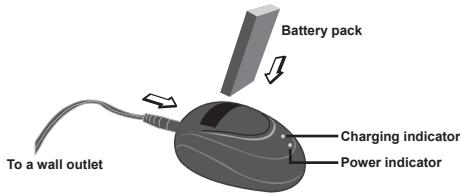

The charging indicator turns red and the charge starts.

When the charging indicator turns green, the battery pack is fully charged.
This charger can only be used to charge the accessory battery pack. Do not use it to charge other unknown batteries. When in use, do not place the charger near fire or in an enclosed area that retains heat.

Inserting a memory card (optional)
In addition to the built-in flash memory, your camera can store data on a Secure Digital (SD) card or a MultiMedia card (MMC).
To insert a memory card, do the following:
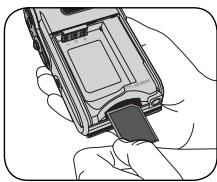
(1) Open the battery cover. (2) Gently push the card as indicated until the card reaches the bottom of the slot.
To remove the memory card, gently push the card and it will pop up. Then pull the card out of the slot.
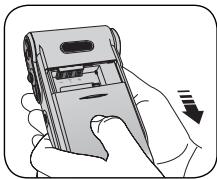

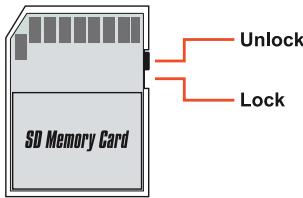
Write protection
The SD card comes with a write-protect switch. When the write-protect switch is set to the Lock position, the card will become non-writable. To ensure that the camera can operate normally, you should set the write-protect switch to the Unlock position before inserting the SD card.
Do not remove the memory card while the camera is processing data (when the LED is blinking). When a memory card is inserted, the camera will use the card as the main storage medium. Files stored in the camera's built-in memory will become inaccessible until the card is removed.
Attaching the carrying strap
1. Thread one end of the strap into the strap hook.
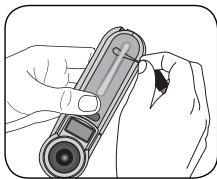
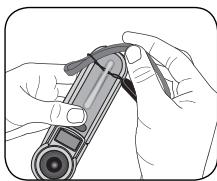
2. Thread the strap as illustrated on the right.
Basic Operations
Turning on your camera
Open the LCD monitor and the camera will be automatically powered on.
OR
When the camera is powered off with the LCD monitor open, press and hold down the Power button for 1 second to turn on the camera.
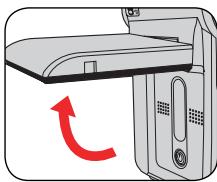
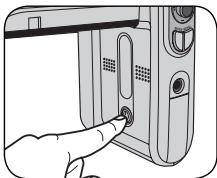
If the camera is not turned on after pressing the Power button, please check:
- The battery pack is well installed in the camera.
- The battery pack has enough power left.
Turning off your camera
Press and hold down the Power button for 1 to 3 seconds to turn off the camera.
OR
If the camera stays inactive for a long period of time, it may automatically shut down due to the Auto-Off setting. See page 30 for more information.

Using the LCD monitor
The LCD monitor can be used to compose image settings for shooting, to review recorded files, or to change menu options.
The LCD monitor can be rotated to the following positions:
1. Open the LCD monitor.
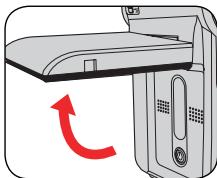
2. Rotate the LCD monitor.
The LCD monitor can be rotated up to 270 degrees as indicated. You can position the panel at any angle to serve your filming purpose.
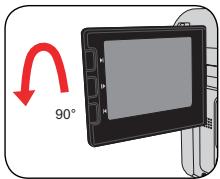
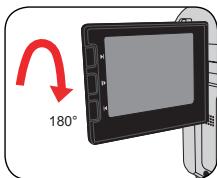
When the LCD monitor is flipped over, the previewed image on the LCD will be automatically adjusted.

Reading LCD indicators
Digital Camcorder mode: *1 This icon will change according to the storage medium you are using: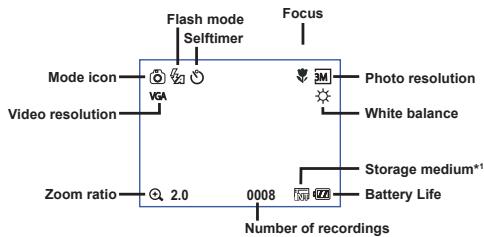

internal memory.

memory card.
Playback mode: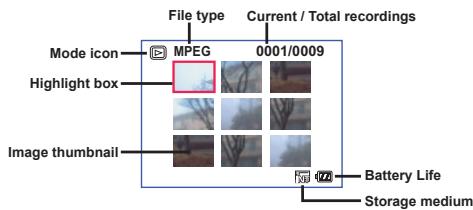
Setting time and language
When you power on the camera for the first time, you are recommended to adjust the time and language settings.
1 Turn on the camera. 2 Press the Mode button and use the Direction buttons to select the Setting (品) mode. Then press the OK key to enter. 3 Use the Direction buttons to select the Date & Time (30) item. 4 Press the OK key or move the Direction buttons toward right to enter the sub-menu. 5 Move the Direction buttons left or right to shift between items. Move the Direction buttons up or down to adjust the value. Press the OK key or right key of the Direction buttons to confirm the setting. 6 Press the Menu button or Mode button to return to the menu, and then use the Direction buttons to select the Language (ABC) item. 7 Press the OK key or move the Direction buttons toward right to enter the sub-menu. 8 Use the Direction buttons to select a suitable language and press the OK key to confirm.

Recording a video clip
1 Adjust the focus.
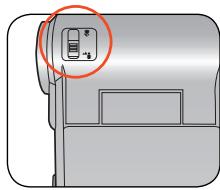
Set the Focus Switch to an appropriate setting. Normally, you should set the focus to ( ) for most filming conditions. Select ( ) only for close-ups. The focus is adjustable during recording.
| 70cm~∞ (28"~∞) | |
| 50cm~70cm (20"~28") |
2 zooming
Move the Direction buttons up or down to zoom in or zoom out the screen. The maximum magnification is 4X.
Zoom out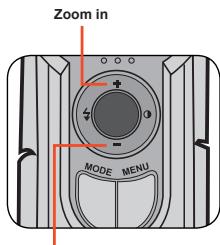
The zoom function is also available during recording. Adjust other advanced settings if necessary. See the section "Advanced Operations" on page 22 for more information.
Recording a video clip (continued)
3 Press the Record button to start recording.
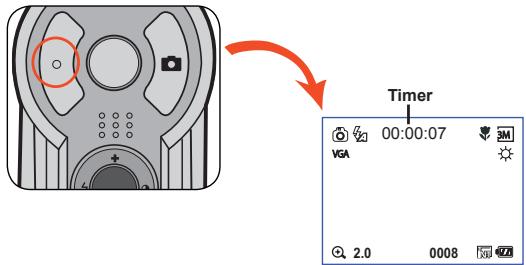
4 Press the Record button again to stop recording.
Taking a still picture
1 Adjust the focus.
Set the Focus Switch to an appropriate setting. Normally, you should set the focus to ( ) for most filming conditions. Select (▲) for scenery photos. Select ( ) only for close-ups.
| 70cm~∞ (28"~∞) |
| 50cm~70cm (20"~28") |
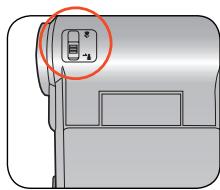
2 Zooming
Use the Zoom button or Up/Down key to zoom in or zoom out the screen.

Adjust other advanced settings if necessary. See the section "Advanced Operations" on page 22 for more information.
Zoom in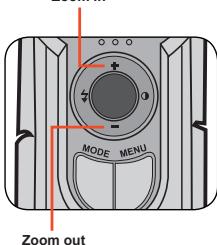
3 Press the Shutter button to take a still picture.
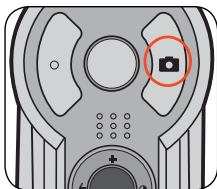
Recording a voice clip
Press the Mode button and use the Direction buttons to select the Voice ( ) mode. Then press the OK key to enter.
2 Press the Record button to start recording.
Avoid blocking the microphone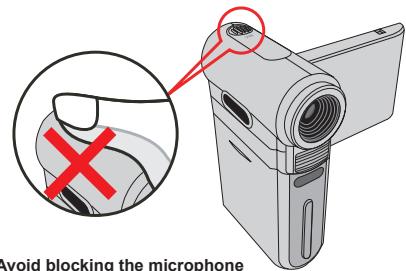
Before or during recording, you can move the Direction buttons toward left or right to adjust microphone sensibility, thus setting the sound volume of the recording.
3 When you are done, press the Record button again to stop recording.

Recording TV program or DVD
The advanced MPEG-4 digital video recording technology allows you to record TV program via AV-IN cable.
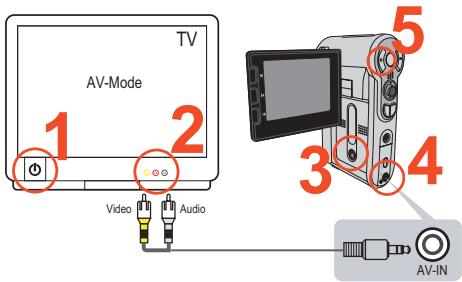
Turn on your TV or DVD player. 2 Connect the AV cable to the AV-Out terminal on the TV or DVD player. (Normally, it's not necessary to switch the mode, please refer to the User's Manual of the TV or DVD player.) 3 Turn on the camera. 4 Connect the other end of the AV cable to the camera's AV-IN terminal. Make sure that the images displayed on the TV or DVD player is also displayed on the camera's LCD monitor. 5 Press the Record button to start recording. 6 Press the Record button again to stop recording.
There are two resolution settings available for recording videos: VGA (640x480) and QVGA (320x240).
VGA mode is suitable for displaying on the TV, but memory-consuming. The recording time for the 1GB memory card can last approximately 1 hour.
QVGA mode is suitable for displaying on the small screen (such as the LCD monitor). The recording time for the 1GB memory card can last approximately 2 hours.
For more information on VGA and QVGA's settings, please refer to page 25.
- Playing back your recordings
Press the Mode button and use the Direction buttons to select the Playback ( ) mode. Then press the OK key to enter. Or press the Play/Pause button ( ) below the LCD monitor.
2 Operations in playback mode:
| File type | How to... | Action |
| Index mode | Shift between index mode and full-screen mode | In index mode, press the OK key to switch to full-screen mode. In full-screen mode, press the Menu button to switch to index mode. (When reviewing a picture, if you move the Direction buttons down when the zoom ratio is 1.0x, the screen will switch to index mode.) |
| Full-screen mode | Shift between files | 1. In index mode: Use the Direction buttons to move the highlight box. 2. In full-screen mode: Use the Direction buttons to move left or right. |
| Picture | Zoom in/out | Use the Direction buttons to move up or down. |
| Lock/Release zoom ratio | When the zoom ratio is greater than 1.0x, press the OK key. | |
| Browse the enlarged picture | When the zoom ratio is locked, use the Direction buttons to browse the picture. | |
| Video & Audio | Start playing | When selected (in full-screen mode), the file automatically starts playing. |
| Pause/Resume playing | During playing/While paused, press the OK key. | |
| Adjust the volume level | During playing, use the Direction buttons to move up or down. | |
| Stop playing | During playing, press the Menu button. | |
| Return to the preview screen | Press the Shutter button. | |
| Fast forward | During playing, press the Next (▶) button. To stop, press the Play/Pause (▶) button. | |
| Fast backward | During playing, press the Previous (▶) button. To stop, press the Play/Pause (▶) button. | |
| Select the next file | While paused/stopped, press the Next (▶) button. | |
| Select the previous file | While paused/stopped, press the Previous (▶) button. |
Playing MP3 music
Copy MP3 files to the camera
Before you can play MP3 music, you need to copy MP3 files to the camera first.
1 Connect the camera to your PC.
Turn on the camera, and connect the camera to a PC using the USB cable. For details on connecting the camera to your PC, see page 34.
2 Copy files to the camera.
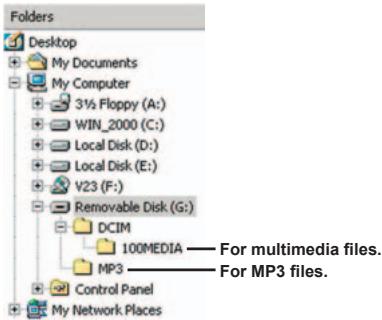
After the camera is connected to the PC, double-click on My Computer and you will find a removable disk. Create a "MP3" folder in the removable disk, and then you can copy MP3 files into the folder for playing.
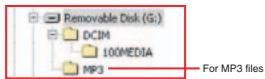
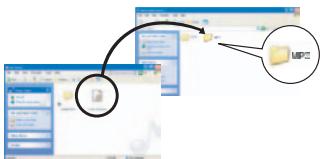
MP3 files must be placed in the "MP3" folder for playing. To take advantage of the removable disk function, Windows 98SE users may need to install the accessory driver. See page 32-33 for details on the installation.
Playing MP3 music (continued)
Playing music in MP3 mode
1 Press the Mode button and use the Direction buttons to select the MP3 ( ) mode. Then press the OK key to enter.
MP3 mode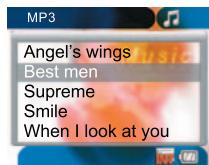
2 Operations in MP3 mode:
| How to... | Action |
| Shift between tracks | Use the Direction buttons to move up or down. Or press the Next (▶) button or Previous (▲) button. |
| Start playing | Press the OK key or the Play/Pause (■) button. |
| Pause/Resume playing | During playing/While paused, press the OK key or the Play/Pause (■) button. |
| Adjust sound volume | Use the Direction buttons to move left or right. |
| Stop playing | During playing, press the Menu button or use the Direction buttons to move up or down. |

Connecting the camera to a TV
Connect your camera and TV via the accessory AV cable for real-time display. You can display your video clips, still pictures, and audio recordings directly on your TV, sharing them with your friends and family.
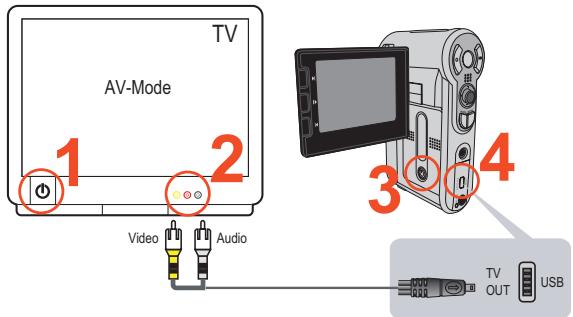
1 Turn on your TV and switch the TV to AV mode.
The TV system is different across countries. To configure the TV-out setting, please refer to page 29. (ex. Taiwan/America: NTSC; Europe/China: PAL)
2 Connect the audio and video ends of the AV cable to the TV. 3 Turn on the camera. 4 Connect the other end of the AV cable to your camera.
Advanced Operations
- Menu operation
The menu items provide several options for you to fine-tune your camera functions. The following table gives details on menu operations.
| How to... | Action |
| Bring up the menu | Press the Menu button. |
| Move the highlight bar | Use the Direction buttons to move up or down. |
| Enter sub-menu/ Confirm an item | Press the OK key. |
| Exit menu/Go back to upper menu | Press the Menu button (when in sub-menu). |
Menu illustration
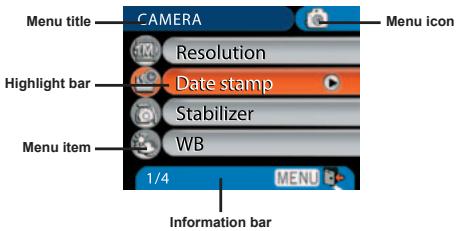

Menu items in Camera mode
Power-on → Press the Menu button.
| Item | Option | Description | |
| Resolution | 6 Mega-pixel Camera | 1M | Set picture resolution to 1280x960. |
| 3M | Set picture resolution to 2048x1536. | ||
| 6M | Set picture resolution to 2816x2112. | ||
| 8 Mega-pixel Camera | 3M | Set picture resolution to 2048x1536. | |
| 5M | Set picture resolution to 2560x1920. | ||
| 8M | Set picture resolution to 3264x2448. | ||
| Date Stamp | On | Print a date mark on each picture. | |
| Off | Disable date mark. | ||
| Stabilizer | On | Minimize blur caused by hand shake. | |
| Off | Disable stabilizer. | ||

Menu items in Camera mode (continued)
| Item | Option | Description |
| WB | Auto | The camera automatically adjusts white balance. |
| Sunny | This setting is suitable for outdoor recording in sunny weather. | |
| Cloudy | This setting is suitable for recording in cloudy weather or shady environments. | |
| Fluorescent | This setting is suitable for indoor recording with fluorescent lamp lighting, or environments with high color temperature. | |
| Tungsten | This setting is suitable for indoor recording with incandescent lamp lighting, or environments with low color temperature. | |
| Photo-Frame | 1 ~ 10 | This setting allows you to add customized frames to photos. 10 background frames are available on the LCD monitor. |
| 0 | The Photo-Frame function is disabled. | |
| Histogram | On | Image histogram displays on the screen. |
| Off | Disable histogram. | |
| Flash | Auto | The flash automatically fires when the lighting is insufficient. |
| On | The flash is forced to fire in every shot. | |
| Off | The flash is disabled. |

Menu items in Camera mode (continued)
| Item | Option | Description |
| Effect | Normal | Make recordings in natural color. |
| B&W | Make recordings in black and white. | |
| Classic | Make recordings in sepia-toned color. | |
| Exposure | -2~+2 | Manually adjust the exposure to gain better effect when the preview image appears too bright or too dark. A positive value indicates the image will be brighter than usual; while a negative value makes the image dimmer. |
| Selftimer | On | Enable the selftimer. After the selftimer is turned on, the camera will have ten seconds delay before recording when the Shutter button is pressed. |
| Off | Disable selftimer. | |
| Icon | On | Enable OSD (on screen display) icons to display on the screen. |
| Off | Disable OSD icons. | |
| Video | VGA VGA | Set the video resolution to VGA (640x480 pixels). |
| QVGA QVGA | Set the video resolution to QVGA (320x240 pixels). |

Menu items in Camera mode (continued)
| Item | Option | Description |
| Two-in-One | On | This setting allows you to combine two images taken individually into one photo. |
| Off | Disable the Two-in-One function. | |
| NightShot | On | This setting allows you to take a photograph with a dark background. Since the shutter speed will slow down when taking photographs at a dark place, we recommend using a tripod to eliminate blurring from hand shake. |
| Off | Disable the Night Mode function. |

Menu items in Playback mode
Power-on → Press the Mode button → Enter the Playback mode → Press the Menu button.
| Item | Option | Description |
| Delete | One | Delete current file. |
| All | Delete all pictures and video.audio files stored in the memory. | |
| Slide Show | - | The camera displays images in sequence. Only JPEG pictures and the first frames of MPEG files will be displayed. You can press the Menu button to stop the slide show. |
| One | Print current image when connected to a PictBridge-ready printer. | |
| All | Print all images when connected to a PictBridge-ready printer. | |
| Cancel | Cancel action. |
- If there are no files in the camera, no items will be seen.
Before using the Print command in the menu, you need to connect the camera to a PictBridge compatible printer via the accessory
USB cable. See page 31 for more details on connecting a printer.

Menu items in MP3 mode
Power-on → Press the Mode button → Enter the MP3 mode → Press the Menu button.
| Item | Description |
| Delete One | Delete current track. |
| Cancel | Cancel action. |

Menu items in Voice mode
Power-on → Press the Mode button → Enter the Voice mode → Press the Menu button.
| Item | Description |
| Delete One | Delete current voice recording. |
| Delete All | Delete all voice recordings. |
Menu items in Setting mode
Power-on → Press the Mode button → Enter the Setting mode → Press the Menu button.
| Item | Option | Description |
| Date & Time | - | Set date and time. |
| Beep | On | Enable beep sound. |
| Off | Disable beep sound. | |
| Flicker | 50Hz50Hz | Set flicker frequency to 50Hz. For settings reference, see page 48. |
| 60Hz60Hz | Set flicker frequency to 60Hz. For settings reference, see page 48. | |
| TV-out | NTXNTSC | Set TV system compatibility to NTSC. This option is suitable for America, Taiwan, Japan, and Korea areas. |
| PALPAL | Set TV system compatibility to PAL. This option is suitable for Germany, England, Italy, Netherlands, China, Japan, and Hong Kong. | |
| +Icon | On | Enable OSD icons to display on the screen. |
| Off | Disable OSD icons. | |
| LCD Bright | -2~+2 | Set LCD brightness. A positive value makes the LCD brighter; while a negative value makes the LCD dimmer. |
| Format | Yes | Format the storage medium. Note that all files stored in the medium will be gone. |
| No | Cancel action. |

Menu items in Setting mode (continued)
| Item | Option | Description |
| Auto Off | Off | Disable Auto-off function. |
| 1 min | The camera automatically shuts down when staying inactive for over 1 minute. | |
| 3 min | The camera automatically shuts down when staying inactive for over 3 minutes. | |
| 5 min | The camera automatically shuts down when staying inactive for over 5 minutes. | |
| ABC Language | - | Lets you select the language used for OSD. |
| Default | Yes | Restore factory defaults. Note that your current settings will be overridden. |
| No | Cancel action. | |
| USB Mode | Menu | When connected to a PC, the camera displays a menu for you to choose a desired connection mode. |
| Camera | When connected to a PC, the camera automatically enters Camera (PC camera) mode. | |
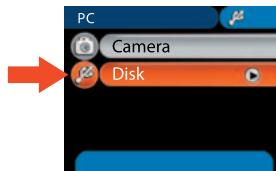
| Disk | When connected to a PC, the camera automatically enters Disk (removable disk) mode. | |
| Printer | When connected to a PC, the camera automatically enters Printer mode. | |
| Start Movie | On | Enable Start Movie function. |
| Off | Disable Start Movie function. |

Menu items in Setting mode (continued)
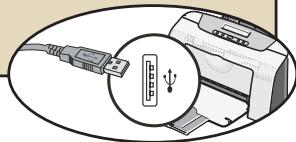
To connect the camera to a PictBridge compatible printer, follow these steps:
1) Power on the camera.
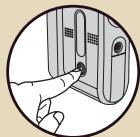
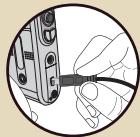
2) Set the camera USB mode to Printer (page 30). 3) Open the connector cover and connect one end of the accessory USB cable to the camera.
4) Connect the other end of the USB cable to the printer.
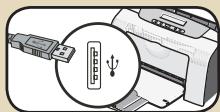
Copying Files to Your PC
• Installing the driver to your PC
You need to install the camera driver to ensure that video clips can be played back on your PC. To install the software:
Insert the driver CD.
Turn on your computer. Then place the accessory CD into the CD-ROM drive.
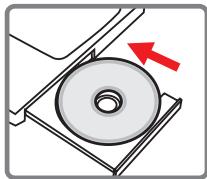
Do not connect the camera to your computer at this stage. Shut down all other applications running on your computer. If the autorun screen does not appear automatically, double-click on My Computer and then the CD-ROM drive. Then start the Setup.exe program manually.
2 Start the installation.
Click on the driver icon to launch the installation of the driver.
Notice for Windows 2000 users:
During the installation process, a warning message regarding digital signature may appear twice or more. Please click on Yes to continue the process. The software is fully compatible with Windows 2000 operating system.
Installing the driver to your PC (continued)
3 Install the driver.
The Install Shield Wizard will then appear and automatically install the program. Click on Next and follow the on-screen instructions to complete the installation.
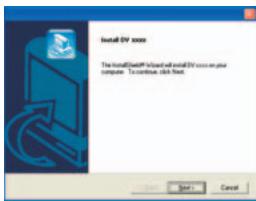
4 Install codecs.
After the driver installation is completed, the program will prompt you to install Windows Media Player Codes. If
you are not sure whether the codecs have been installed in your computer, please click on Yes and follow the on-screen instructions to complete the installation.
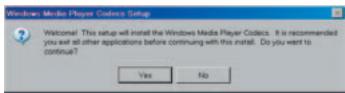
5 Install Direct X 9.0c or above.
After the CODES installation is completed, you will be prompted to install Direct X 9.0c or above if the program is not yet installed in your computer. Please click on Yes to continue.
Windows Media Player Codes and Direct X 9.0c or above are necessary for viewing the video clips recorded by the camera.
6 Restart the computer.
After the installation is completed, you may need to restart your computer for the driver to take effect.
Connecting the camera to your PC
1. Connect the USB cable to your computer.
Turn on your computer, and then connect the accessory USB cable to the USB port of your computer. Make sure the cable and the port are correctly aligned.
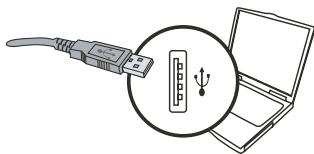
2. Turn on the camera.
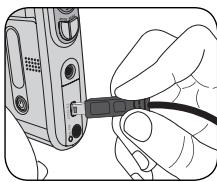
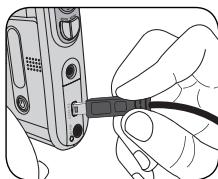
3. Connect the USB cable to your camera.
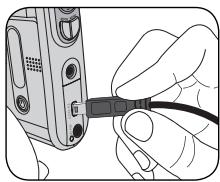
Connect the other end of the USB cable to your camera.
The default is set to "Disk" mode. If you would like to set other modes as default, please refer to the "USB Mode" section on page 30 for more information.
Notice for Windows 2000/XP/ME users:
If you want to disconnect the camera from your computer, please follow these steps:
- Double-click in the system tray.
- Click (USB Disk), and then click Stop.
- Select the camera when the confirmation screen appears and click OK.
- Follow the on-screen instructions to safely disconnect the camera from your computer.

Copying files to the PC
This step varies depending on your operating system:
For Windows XP users:
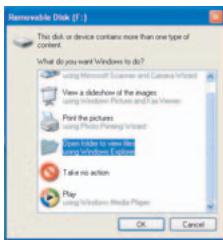
After the camera is connected to your computer, a dialogue window will appear automatically. Please select the item "Open folder to view files using Windows Explorer" and click OK.
For Windows 2000/ME/XP users:
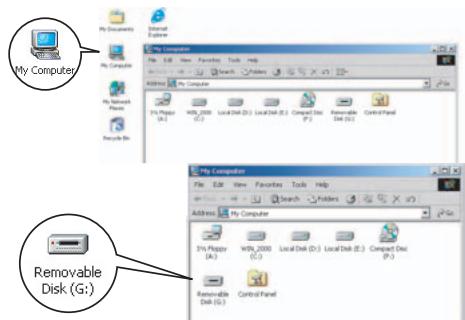
Double-click on My Computer. Then double-click on the icon of the removable disk that has just appeared.
Double-click on My Computer. Then double-click on the icon of the removable disk that has just appeared.
2 Double-click on the DCIM file folder.
Windows XP
Windows 2000/ME/98 SE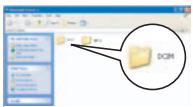
3 Double-click on the 100MEDIA file folder.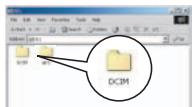
Windows XP
Windows 2000/ME/98 SE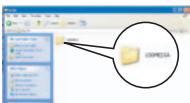
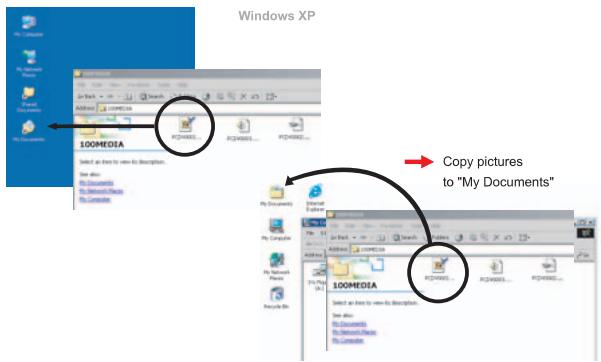
4 Drag the target file into My Documents or the destination folder.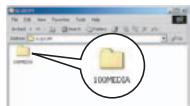
4 Drag the target file into My Documents or the destination folder.
Viewing/Playing files on your PC
Double-click on My Documents or any other folder that stores your files.

Windows XP Windows 2000/ME/98 SE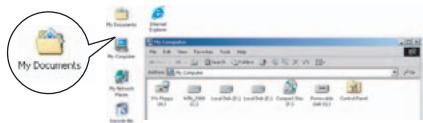
2 Double-click on the desired file, and the file will be opened by the program matching the file type.
Windows XP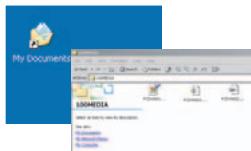
Windows 2000/ME/98 SE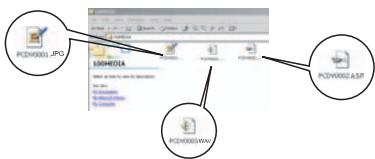
File location
After connecting the camera to your computer, a removable disk will appear in your computer. The removable disk actually represents the storage medium of your camera. In the disk you can find all of your recordings. Refer to the figure below to see where the files are stored.
Using PC Camera
Installing the software
The PC camera software is included in the camera driver, and therefore you should install the driver before using the PC camera function. If you have not yet installed the driver, see page 32 for details on the installation.
Starting the application
1 Turn on the camera and connect the camera to your computer.
Turn on the camera, and then connect the camera to your computer using the accessory USB cable. See page 34 for more details.
2 Switch to Camera mode.
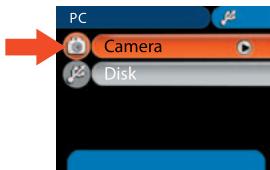
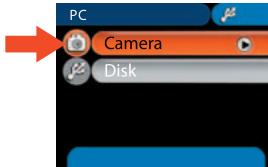
Press the Menu button to bring up the options menu. Use the Direction buttons to select the Camera item and press the OK key to confirm.
The default is set to "Disk" mode. If you would like to set other modes, please refer to the "USB Mode" section on page 30 for more information.
If you want to use the Video Conferencing function, please install programs such as NetMeeting to serve the purpose.

Starting the application (continued)
Notice for Windows ME users:
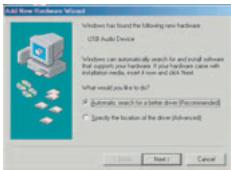
When the indicated screen appears, please select "Automatic search for a better driver" and click Next to continue.
Notice for Windows 98SE users:
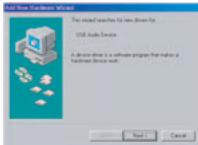
- Click Next when the following screen appears.
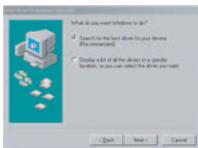
- When the following screen appears, select "Search for the best driver for your device" and click Next to continue.
- During installation, some users may need to insert a licensed 98SE CD into the CD-ROM drive for copying the needed files.
- Follow the on-screen instructions to complete the installation.
Notice for Windows 2000 users:
When using the PC camera function for the first time, the warning message regarding digital signature may appear twice or more. Please click Yes to continue the installation. The camera is fully compatible with Windows 2000 operating system.
Starting the application (continued)
3. Launch the PC Camera program.
Double-click the icon ( ) on the Desktop to start the program. After the program starts, you can begin to use the PC camera function.
If you cannot find the program shortcut on the desktop, you can start the program from the Programs menu.
Using the PC Camera
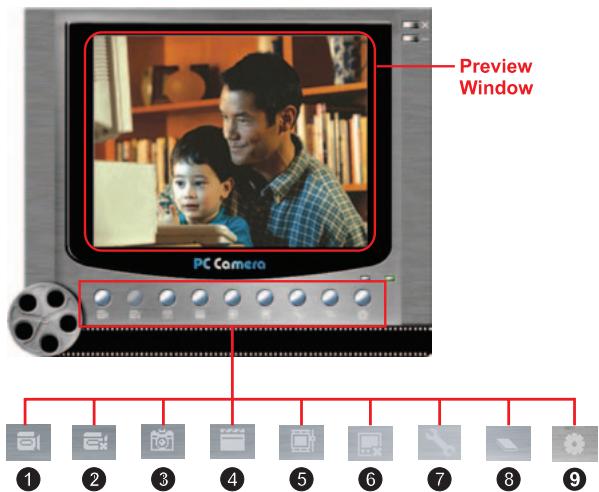
1 Start recording a video clip Stop recording 3 Snapshot 4 Format* Source
Start/Stop preview window 7 Setting Open album 9 Select video source
- Sub-menu available.
To view pictures taken by the PC Camera, please click on to open the photo album. Or, as an alternate option, go to the "Work Temp" folder to find the files.
Using the PC Camera (continued)
Recording an AVI movie
- Click on the icon.
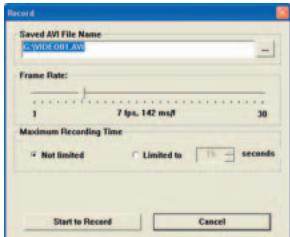
- Press to specify the path and name of the AVI file.
- Set the frame rate and recording time according to your needs.
- Press the Start to Record button to begin recording.
- To stop recording, click on the icon.
Taking a snapshot
Click on the icon to take a snapshot.
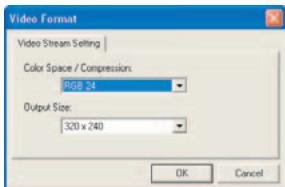
Configuring format options
Color Space:
Select one of the following functions according to your needs. - RGB 24: This item is for retaining better quality. - MJPG: This item indicates the AVI movie will be more compressed to gain the advantage of faster processing speed. Output Size:
Set output size to change the size of the preview window. The default size is 320x240. Select larger pixels when you need a larger preview window.

Using the PC Camera (continued)

Configuring source options
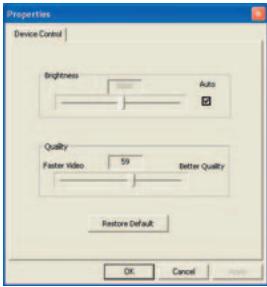
Device Control:
- Brightness: You can check the "Auto" item and let the program adjust image brightness for you, or uncheck the "Auto" item and slide the bar to adjust image brightness manually.
- Quality: If the network bandwidth is congested when using PC Camera, slide the bar toward "Faster Video" to avoid this problem.

Configuring flicker options
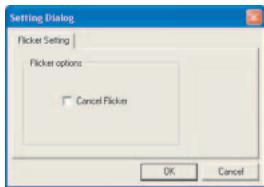
If you take your camera abroad, and find the screen of your computer flickers when using PC Camera function, please check the Cancel Flicker item to prevent noises from appearing on the screen. Or, you can refer to the Flicker Settings table on page 48 for proper flicker value that suits the country you are staying.
Appendix: A

Troubleshooting
| When using the camera: | ||
| Problem | Cause | Solution |
| The camera can not be powered on normally. | The battery is out of power. | Replace the battery. |
| The battery is incorrectly installed. | Re-install the battery. | |
| The camera is still powered on, but the LCD monitor does not display. | If the camera stays idle over one minute, the LCD monitor will automatically shut down to save power. | Press any button except the power button to reactivate the display. |
| Can not take pictures or video clips when pressing the Shutter or Record button. | Out of memory. | Free some space from the SD/MMC card or the internal memory. |
| The camera is recharging the flash strobe. | Wait until the flash strobe is fully charged. | |
| Using a “protected” SD card. | Set the SD card to be writable. | |
| The LCD monitor displays “MEMORY ERROR” or “CARD ERROR” message. Or the camera cannot read the memory card. | The format of the memory card is not compatible with the camera. | Use the camera “Format” function to format the card. |
| The memory card is corrupted. | Replace the memory card with a new one. | |
Appendix A
| When using the camera: | ||
| Problem | Cause | Solution |
| I did not delete the pictures and video clips, but can not find them in the memory card. | The lost recordings are saved in the internal memory. | It happens when you insert a memory card after taking a few pictures or video clips. You can access those files after removing the memory card. |
| Cannot use the flash strobe. | If the battery icon indicates low battery, the flash strobe may be disabled due to insufficient voltage. | Replace the battery. |
| The camera does not respond to any action during operation. | The camera encounters software failure. | Remove the battery pack and replace it into the compartment. Then power on the camera. |
| The recorded pictures appear too blurred. | The focus is not correctly set. | Adjust the focus to an appropriate position. |
| The recorded pictures or video clips appear too dark. | The environment of shooting or recording does not have adequate light. | Use flash strobe when taking pictures. Add extra light sources when recording video clips. |
| Noises occur when viewing images on the LCD monitor or on the computer. | The flicker setting does not match the standard of the country you are staying. | Adjust the flicker setting. For more information, please refer to the "Flicker Settings" table on page 48. |
Appendix A
| When connecting the camera to the computer or TV: | ||
| Problem | Cause | Solution |
| I cannot view the video clips on my computer. | Driver or software is not installed on the computer. | Install Direct X 9.0c or above and Windows Media 9.0 Codec to solve this problem. See page 32 for details on installing the software, or go to http://www.microsoft.com to download the required files. |
| Driver installation failed. | The installation is terminated abnormally. | Remove the driver and other related programs. Follow the installation steps in the manual to re-install the driver. |
| The camera has been connected to the PC via the USB cable before installing the driver. | Install the driver before plugging in the USB cable. | |
| The TV screen does not display after connecting the camera to the TV. | The camera is not correctly connected to the TV. | Reconnect the camera to TV correctly. |
| A conflict with other installed camera or capture device occurred. | The device is not compatible with the camera. | If you have any other camera or capture device installed in your computer, please completely remove the camera and its driver from the computer to avoid the conflict. |
| Noises occur on my computer screen when using Video Conferencing. | The flicker setting does not match the standard of the country you are staying. | Adjust the flicker setting. For more information, please refer to the "Flicker Settings" table on page 48. |
Appendix A
Flicker Settings
| Country | England | Germany | France | Italy | Spain | Netherlands |
| Setting | 50Hz | 50Hz | 60Hz | 50Hz | 50Hz | 50Hz |
| Country | Portugal | America | Taiwan | China | Japan | Korea |
| Setting | 50Hz | 60Hz | 60Hz | 50Hz | 50/60Hz | 60Hz |
Note: The flicker setting is based on the frequency standard of your local power supply.
System Message
| Message | Description |
| Recording | The camera is recording a file. |
| Please Unlock SD Card | If you insert a SD card and the card is set to “Protected”, this message will show up when the camera tries to write data into the card. |
| No File | When the camera is set to Playback mode without any existing file to play, this message will show up. |
| Please Change Battery | The battery life of the camera is low. You should replace the battery with a new one immediately. |
| Memory Full | The storage memory is full and can not store any more files. Please change the SD/MMC card or delete some files to free some memory space. |
| Card Error | The inserted card is not compatible with the camera. Please change the card or try formatting the card. |
| Memory Error | The camera can not access data in the internal memory. Please format the medium to solve this problem. |
| Strobe Is Charging | The flash strobe is charging. |
| File Format Error | The file being played is not compatible with the camera. |
| Deleting | The camera is performing file deletion. |
| Formatting | The camera is formatting the storage medium. |
| Setting | The camera is performing a setting action. |
Appendix A

Storage Capacity
| Memory | Video (min.) | Audio (min.) | |
| VGA | QVGA | Maximum | |
| Flash memory (16MB for storage) | 2 | 7 | 15 |
| SD/MMC card (128MB) | 6 | 22 | 90 |
| SD/MMC card (256MB) | 12 | 44 | 190 |
| SD/MMC card (512MB) | 24 | 88 | 380 |
| SD/MMC card (1GB) | 48 | 176 | 760 |
| Memory | Still picture | |||||
| 8 Mega-pixel camera | 6 Mega-pixel camera | |||||
| 8M | 5M | 3M | 6M | 3M | 1M | |
| Flash memory (16MB for storage) | 20 | 30 | 50 | 25 | 50 | 170 |
| SD/MMC card (128MB) | 130 | 210 | 300 | 170 | 300 | 1000 |
| SD/MMC card (256MB) | 260 | 420 | 600 | 340 | 600 | 2000 |
| SD/MMC card (512MB) | 520 | 840 | 1200 | 680 | 1200 | 4000 |
| SD/MMC card (1GB) | 1040 | 1680 | 2400 | 1360 | 2400 | 8000 |
Note: The actual value of capacity may vary (up to ±30%) depending on the color saturation and complexity of your subject and surroundings.
Appendix A
Battery Life Indicator
| Icon | Description |
| Full battery life | |
| Moderate battery life | |
| (white) | Low battery life * If the indicator turns red, flash strobe is disabled. |
| Empty battery life |
Note: To avoid sudden outage of power supply, you are recommended to replace the battery when the icon indicates low battery life.
Battery Life
| Still picture | Video clip |
| Number of shots | Recording time (minute) |
| 290 | 90 |
| * shoot every 30 seconds ** flash is on *** resolution is set to 2816x2112 pixels | * resolution is set to VGA (640x480 pixels) |
Note: This table is for your reference only. The actual battery life depends on your battery type and recharge level.
Appendix B

Instructions for ArcSoft MediaConverter™
Introduction
ArcSoft MediaConverter is a powerful all-in-one multimedia file converter. This utility quickly and effortlessly converts photo, video, and music files into formats optimized for use on your portable device. Multiple files and file types can be converted at the same time. It's easy! Three simple steps are all it takes. (Refer to page 54 for more information.)

System requirements
To install and run the MediaConverter, your system must meet the following minimum requirements:
Microsoft Windows 98 SE/ME/2000/XP (Home or Professional) 50 MB free hard drive space 256 MB RAM DirectX 9 (DirectX 9c recommended) Microsoft Windows Media Player 9.0 (for converting WMA and WMV files) Microsoft Windows 98 SE/ME/2000/XP (Home or Professional) Apple QuickTime 6.5 (for converting MOV files)
Appendix B

Supported file formats
Video
Video files are converted and copied to the selected location as MPEG-4 encoded AVI files, WMV files or MPEG-4 encoded ASF files (Default).
Supported file types for conversion
- AVI (Microsoft Video 1 format, Cinepak, Intel Indeo, uncompressed, etc.)
- MPEG-1 in MPEG, MPG, MPE
- DAT (VCD MPEG1)
- MPEG-4 in AVI format
- MPEG-4 in ASF
- WMV - QuickTime MOV
QuickTime 6.5 and Windows Media Player 9.0 or above are required for QuickTime MOV and WMV file conversion, respectively.
Supported file types for export
- AVI (MPEG-4 SP)
- WMV
- ASF (MPEG-4 SP)
Appendix B
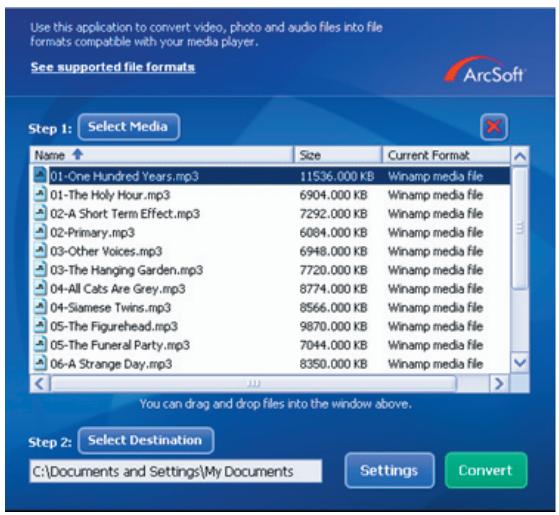
Converting files
Appendix B

Step 1: Select media
- Adding files for conversion
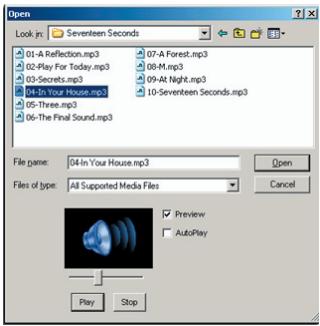
1. Click the "Select Media" button. 2. An "Open" window will appear. Navigate to the folder that contains the files you'd like to convert.
a. Use the "Files of type" pull-down to filter the file types you'd like to display. b. Preview highlighted files to be sure that they're the ones you want. Check the "AutoPlay" box to start the playback automatically after you click a file.
Repeat steps 1 and 2 above until all the files you want are added. In addition to using the above method, you can also drag-and-drop files directly to the file list in the program window.
Removing files
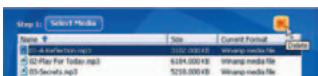
To delete a file from the list, highlight it and click the "X" icon.
Appendix: B

Step 2: Select destination
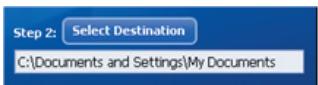
Click the "Select Destination" button to select the location where your converted files will be saved. The default save location is "C:\Documents and Settings\[current user]\My documents". However, you'll most likely want to save the files to your portable device. In this case, make sure your device is connected, and then click "Select Destination" and choose the device.
Settings
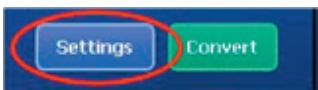
Various program settings can be accessed by clicking the "Settings" button. Each section lets you select one of two settings: "Optimize for the selected device," and "Use custom conversion settings."
Appendix: B
Optimize for the selected device
This is the default setting. The program will automatically set the conversion parameters according to your selected device.
Use custom conversion settings
If you decide to use this option, you can set the various conversion parameters manually.
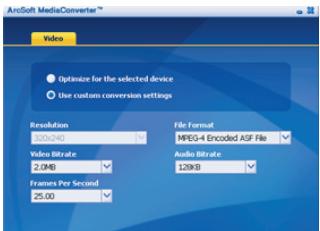
Video settings
When converting a video file, there are several different parameters:
- Resolution (Options include QVGA (320 x 240) [default] and VGA (640 x 480))
- File Format (MPEG-4 encoded AVI files, WMV files or MPEG-4 encoded ASF files) Video Bitrate (Options include 500KB, 1.0MB, 1.5MB, 2.0 MB [default], 2.5 MB, and 3.0 MB)
- Audio Bitrate (Options include 96 KB, 128 KB [default], 192 KB)
- Frame Per Second (Options include [in fps] 15.00, 20.00, 24.00, 25.00 [default], and 29.97)
Selecting "Optimize for the selected device" uses the default values above, where applicable.
After viewing/modifying the various settings, select either "Save" or "Cancel" to return to the main screen. Click "Save" if you'd made changes that you'd like to keep. Otherwise, click "Cancel."
Appendix: B

Step 3: Convert
When you're ready, select (highlight) the files you'd like to convert from the list, and then click the "Convert" button.
A progress bar will display the current status. Various popups may appear asking for specific confirmation. A popup will appear and inform you once all the files have been converted and stored to the location you selected.
Playing the converted ASF files in your camera
To play the video clips or movies (MPEG-4 in ASF format only) converted by ArcSoft MediaConverter in your MPEG-4 digital camera, please follow the steps below.

Step 1
Insert a SD/MMC card in the card slot of the camera and connect the camera to PC via the USB cable. You could follow the instructions of "Connecting the camera to your PC" on page 34 for more information.
Appendix: B

Step 2
Save the ASF files converted by MediaConverter on PC to your camera.
1. Copy the converted ASF files. 2. Open Windows Explorer to find a "Removable Disk" that appeared in My Computer. 3. Double-click on the icon of Removable Disk. 4. Double-click on the DCIM file folder. 5. Double-click on the 100MEDIA file folder. 6. Paste the files into the 100MEDIA file folder. 7. Change the file names to CLIP**.ASF. ** could be any 4-digit number from 0001 to 9999.
The file name must follow the naming principle of your camera, so that the camera can identify the files saved on 100MEDIA.

Step 3
Now you can use the Playback () mode to enjoy the video clips or movies on the large LCD monitor!
The ArcSoft MediaConverter in this package is a customized version for your digital camera. You may visit the website http://www.arcsoft.com for more product information.
Appendix: C

Specifications
| Item | Description | |
| Model | 8 Mega-pixel camera | 6 Mega-pixel camera |
| Image sensor | 5 Mega (2560x1920 pixels) | 3 Mega (2048x1536 pixels) |
| Resolution | Still image: 3M/5M/8M Movie: 640x480 (VGA) 320x240 (QVGA) | Still image: 1M/3M/6M Movie: 640x480 (VGA) 320x240 (QVGA) |
| Lens | 4X digital zoom lens F2.8~F5.3 | 4X digital zoom lens F3.0 |
| File format | ASF, JPEG WAV, MP3 | |
| Video frame rate | 640x480, up to 30fps; 320x240, up to 30fps | |
| Internal memory | 32MB flash memory (16MB for storage) | |
| External memory | SD/MMC (Max. 2GB) | |
| LCD display | 2.4" TFT LCD | |
| TV out | NTSC/PAL system supported | |
| AV in | Yes | |
| Interface | USB 2.0 | |
| Microphone | Yes | |
| Speaker | Yes | |
| Night shot | Yes (both in still image and video modes) | |
| Stabilizer | Yes | |
| Direct print | Supports PictBridge compatible printer | |
| Battery | 8210 Li-ion rechargeable battery (3.7V 850mAh) | |
| Dimensions | 110x72x34 mm (43"x28"x13") | |
Note: Specifications are subject to change without notification.
Appendix: D

System Requirements
Operating System: Windows 98SE/ME/2000/XP
CPU: Pentium III or above
System RAM: 128MB or above
Graphic Card: 64MB, 24 bit true color
CD-ROM speed: 4x or above
Software: Direct X 9.0c or above and Windows Media Player CODEcs
Other: USB connector
User's Manual
Deutsch
Allumervoirecamera 9
Color Space (Spazio colore):
IcnoB3ObaHne XXK MoHToPA 10
3nueHnHnKaTOpOB KK dncnpe 11
UctahOBka BpeMeHn IraIka 12
Bundeocbemka 13
ΦOTOCbEMKA 15
Aydno3a nscb 16
3anncb teennepeedau nnn 3anncb c DVD. 17
Playing back and viewing images. 18
Playing music in MP3 format. 19
Connecting the camera to a TV. 21
Additional operations. 22
Operations with the menu. 22
Illustrations. 22
Menu items in camera mode. 23
Menu items in playback mode. 27
Menu items in MP3 mode. 28
Contents
Menu items in photo mode. 28
Menu items in setup mode. 29
Copying files to a PC. 32
Setting the driver on a PC. 32
Connecting the camera to a computer. 34
Coding of frames on PIK 35
Viewing frames on PIK 37
Positioning of frames 38
Using the web camera 39
Installing software 39
Launching the application 39
Using the web camera 42
Appendix A: 45
Troubleshooting 45
Frequency settings 48
System messages 48
Installing the memory card
(Not included in the delivery package)
The built-in flash memory camera can store data on a Secure Digital (SD) card or on a Multimedia Card (MMC).
Do not remove the memory card while the camera is processing data (the indicator light is flashing). If a memory card is installed, the camera uses it as the primary data storage. Data stored in the camera's built-in flash memory will be unavailable until the card is removed.
Connect the camera.
After connecting the camera to the PC, turn on the camera and find the removable disk on your computer. Create a folder named "MP3" on the removable disk and copy the MP3 files into this folder for subsequent playback.
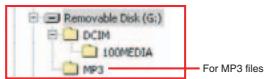
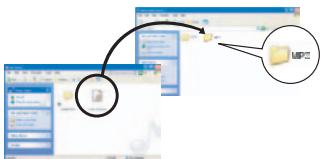
MP3 files intended for playback must be in the "MP3" folder. If you are using Windows 98, the installation of the appropriate driver may be required.

Playing MP3 music (continued)

Playing music in MP3 mode

Press the "MODE" button, then use the navigation buttons to select "MP3" mode ( ). Then press "OK" to confirm.
MP3 mode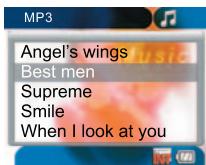

1) Turn on the camera.
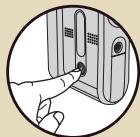
2) Select "USB Mode" from the camera's menu (p.30). 3) Open the connector cover and connect one end of the USB cable to the camera's USB port.
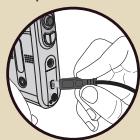
4) Connect the other end of the USB cable to the printer.
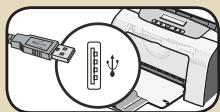
5) Turn on the printer.
Copying files to a PC
Installing the driver on a PC
2 Turn on the camera.
3 Connect the USB cable to the camera.
1 Turn on the camera and connect it to the computer.
Turn on the camera and connect it to the computer using the USB cable included in the kit. For more information, see page 34.
2 Turn on the photo mode.
Press the button to open the settings menu. Using the buttons, select the item <Photo Camera> and press the button to confirm.
It is recommended to turn on the "Disk" mode. If you want to use other modes, see the additional information in the "USB Mode" section on page 30.
If you want to use the video conference function, install a program such as "NetMeeting" for this purpose.

3 Start the application (continued)
Playback of converted ASF files on the camera
Using the PC camera (continued)

Play in AVI film
Using the PC camera (continued)
- SAFETY NOTICE
- TABLE OF CONTENTS
- WELCOME
- GETTING STARTED
- BASIC OPERATIONS
- ADVANCED OPERATIONS
- COPYING FILES TO YOUR PC
- USING PC CAMERA
- APPENDIX: A
- APPENDIX B
- APPENDIX C
- APPENDIX D
- KNOWING YOUR CAMERA PARTS
- INSTALLING THE BATTERY
- OPEN THE BATTERY COVER
- INSTALL THE BATTERY
- REPLACE THE COVER
- USING THE CHARGER
- INSERTING A MEMORY CARD (OPTIONAL)
- WRITE PROTECTION
- ATTACHING THE CARRYING STRAP
- TURNING ON YOUR CAMERA
- OR
- TURNING OFF YOUR CAMERA
- USING THE LCD MONITOR
- OPEN THE LCD MONITOR
- ROTATE THE LCD MONITOR
- READING LCD INDICATORS
- SETTING TIME AND LANGUAGE
- RECORDING A VIDEO CLIP
- ADJUST THE FOCUS
- ZOOMING
- RECORDING A VIDEO CLIP (CONTINUED)
- PRESS THE RECORD BUTTON TO START RECORDING
- PRESS THE RECORD BUTTON AGAIN TO STOP RECORDING
- TAKING A STILL PICTURE
- PRESS THE SHUTTER BUTTON TO TAKE A STILL PICTURE
- RECORDING A VOICE CLIP
- RECORDING TV PROGRAM OR DVD
- PLAYING BACK YOUR RECORDINGS
- OPERATIONS IN PLAYBACK MODE
- PLAYING MP3 MUSIC
- COPY MP3 FILES TO THE CAMERA
- CONNECT THE CAMERA TO YOUR PC
- COPY FILES TO THE CAMERA
- PLAYING MP3 MUSIC (CONTINUED)
- PLAYING MUSIC IN MP3 MODE
- OPERATIONS IN MP3 MODE
- CONNECTING THE CAMERA TO A TV
- MENU OPERATION
- MENU ILLUSTRATION
- MENU ITEMS IN CAMERA MODE
- MENU ITEMS IN CAMERA MODE (CONTINUED)
- MENU ITEMS IN PLAYBACK MODE
- MENU ITEMS IN MP3 MODE
- MENU ITEMS IN VOICE MODE
- MENU ITEMS IN SETTING MODE
- MENU ITEMS IN SETTING MODE (CONTINUED)
- INSTALLING THE DRIVER TO YOUR PC
- INSERT THE DRIVER CD
- START THE INSTALLATION
- NOTICE FOR WINDOWS 2000 USERS
- INSTALLING THE DRIVER TO YOUR PC (CONTINUED)
- INSTALL THE DRIVER
- INSTALL CODECS
- INSTALL DIRECT X 9.0C OR ABOVE
- RESTART THE COMPUTER
- CONNECTING THE CAMERA TO YOUR PC
- CONNECT THE USB CABLE TO YOUR COMPUTER
- TURN ON THE CAMERA
- CONNECT THE USB CABLE TO YOUR CAMERA
- NOTICE FOR WINDOWS 2000/XP/ME USERS
- COPYING FILES TO THE PC
- FOR WINDOWS XP USERS
- FOR WINDOWS 2000/ME/XP USERS
- DOUBLE-CLICK ON MY COMPUTER. THEN DOUBLE-CLICK ON THE ICON OF THE REMOVABLE DISK THAT HAS JUST APPEARED
- DOUBLE-CLICK ON THE DCIM FILE FOLDER
- WINDOWS XP
- DRAG THE TARGET FILE INTO MY DOCUMENTS OR THE DESTINATION FOLDER
- VIEWING/PLAYING FILES ON YOUR PC
- DOUBLE-CLICK ON MY DOCUMENTS OR ANY OTHER FOLDER THAT STORES YOUR FILES
- DOUBLE-CLICK ON THE DESIRED FILE, AND THE FILE WILL BE OPENED BY THE PROGRAM MATCHING THE FILE TYPE
- FILE LOCATION
- INSTALLING THE SOFTWARE
- STARTING THE APPLICATION
- TURN ON THE CAMERA AND CONNECT THE CAMERA TO YOUR COMPUTER
- SWITCH TO CAMERA MODE
- STARTING THE APPLICATION (CONTINUED)
- NOTICE FOR WINDOWS ME USERS
- NOTICE FOR WINDOWS 98SE USERS
- LAUNCH THE PC CAMERA PROGRAM
- USING THE PC CAMERA
- USING THE PC CAMERA (CONTINUED)
- RECORDING AN AVI MOVIE
- TAKING A SNAPSHOT
- CONFIGURING FORMAT OPTIONS
- CONFIGURING SOURCE OPTIONS
- DEVICE CONTROL
- CONFIGURING FLICKER OPTIONS
- APPENDIX A
- FLICKER SETTINGS
- SYSTEM MESSAGE
- STORAGE CAPACITY
- BATTERY LIFE INDICATOR
- BATTERY LIFE
- INSTRUCTIONS FOR ARCSOFT MEDIACONVERTER™
- INTRODUCTION
- SYSTEM REQUIREMENTS
- SUPPORTED FILE FORMATS
- VIDEO
- SUPPORTED FILE TYPES FOR CONVERSION
- SUPPORTED FILE TYPES FOR EXPORT
- CONVERTING FILES
- STEP 1: SELECT MEDIA
- ADDING FILES FOR CONVERSION
- REMOVING FILES
- APPENDIX: B
- STEP 2: SELECT DESTINATION
- SETTINGS
- OPTIMIZE FOR THE SELECTED DEVICE
- USE CUSTOM CONVERSION SETTINGS
- VIDEO SETTINGS
- STEP 3: CONVERT
- PLAYING THE CONVERTED ASF FILES IN YOUR CAMERA
- STEP
- APPENDIX: C
- SPECIFICATIONS
- APPENDIX: D
- USER'S MANUAL
- ADDITIONAL OPERATIONS
- CONTENTS
- COPYING FILES TO A PC
- USING THE WEB CAMERA
- INSTALLING THE MEMORY CARD
- (NOT INCLUDED IN THE DELIVERY PACKAGE)
- CONNECT THE CAMERA
- INSTALLING THE DRIVER ON A PC
- CONNECT THE USB CABLE TO THE CAMERA
- TURN ON THE CAMERA AND CONNECT IT TO THE COMPUTER
- TURN ON THE PHOTO MODE
- START THE APPLICATION (CONTINUED)
- PLAYBACK OF CONVERTED ASF FILES ON THE CAMERA
- PLAY IN AVI FILM
Brand : AIPTEK
Model : POCKET DV 6800
Category : Digital Camera