
PORTABLE KEYBOARD - Portable Keyboard PALM - Free user manual and instructions
Find the device manual for free PORTABLE KEYBOARD PALM in PDF.



| Product Type | Portable Keyboard |
| Brand | Palm |
| Model | Portable Keyboard (for Palm III, V, VII, m100, m500 series) |
| Power Supply | No batteries required; powered by the handheld via the docking connector |
| Main Functions | Text input, keyboard shortcuts, international characters, calculator functions, application control |
| Connectivity | Palm model-specific docking connector |
| Compatibility | Make sure you have the correct version for your Palm model (III, V, VII, m100, m500 series) |
| Dimensions (folded) | Approximately 15 cm x 8 cm x 2 cm (estimated) |
| Weight | Approximately 150 g (estimated) |
| Material | Durable plastic |
| Available Keyboard Layouts | English (US), English (US-Dvorak), German, Japanese |
| Keyboard Shortcuts | Cursor movements, text selection, soft buttons, menu commands, extended characters |
| Maintenance | Use on a hard, flat surface. Clean with a soft, dry cloth. Do not expose to moisture. |
| Safety | Avoid shocks and twisting. Keep away from liquids. |
| Box Contents | Portable keyboard, installation CD-ROM, user manual |
| Spare Parts | Not available separately. In case of failure, contact technical support. |
| General Information | User manual in French available as PDF. Website: palm.com/custsupp/keyboard |
Frequently Asked Questions - PORTABLE KEYBOARD PALM
User questions about PORTABLE KEYBOARD PALM
0 question about this device. Answer the ones you know or ask your own.
Ask a new question about this device
Download the instructions for your Portable Keyboard in PDF format for free! Find your manual PORTABLE KEYBOARD - PALM and take your electronic device back in hand. On this page are published all the documents necessary for the use of your device. PORTABLE KEYBOARD by PALM.
USER MANUAL PORTABLE KEYBOARD PALM
Palm™ Portable Keyboard Handbook
Introducing the PalmTM Portable Keyboard 5
Installing the Application 5
Setting Up the Keyboard 6
Closing the Keyboard 8
Customizing Your Keyboard 10
Changing General settings 10
Assigning applications to command key combinations. 11
Changing Layout settings 12
Viewing keyboard shortcuts 13
Keyboard Shortcuts 14
Cursor movements 14
Activate onscreen buttons. 15
Menu commands. 15
Extended character set. 16
Table 1: Accent marks. 16
Table 2: Characters, symbols, punctuation marks 16
Calculator functions 18
Frequently Asked Questions 18
General questions and answers. 19
Does the keyboard require batteries? 19
Can I use the same keyboard for all handhelds? 19
Can I perform a HotSync® operation on the handheld while using the keyboard? 19
Does the keyboard support international characters? 19
Palm™ Portable Keyboard Handbook
Copyright
Copyright © 1998-2001 Palm, Inc. or its subsidiaries. All rights reserved. Graffiti, HotSync, PalmConnect, and Palm OS are registered trademarks of Palm, Inc. or its subsidiaries. The HotSync logo and Palm are trademarks of Palm, Inc. or its subsidiaries. Other product and brand names may be trademarks or registered trademarks of their respective owners.
Disclaimer and Limitation of Liability
Palm, Inc. and its subsidiaries assume no responsibility for any damage or loss resulting from the use of this handbook.
Palm, Inc. and its subsidiaries assume no responsibility for any loss or claims by third parties which may arise through the use of this software. Palm, Inc. and its subsidiaries assume no responsibility for any damage or loss caused by deletion of data as a result of malfunction, dead battery, or repairs. Be sure to make backup copies of all important data on other media to protect against data loss.
Important: Please read the End User Software License Agreement with this product before using the accompanying software program(s). Using any part of the software indicates that you accept the terms of the End User Software License Agreement.
Introducing the Palm™ Portable Keyboard
The Palm™ Portable Keyboard is the convenient, portable solution for typing text and commands quickly and easily into your Palm OS® handheld. This compact and fully functional keyboard enables you to do the following:
Type text and special characters into your Palm applications
- Quickly access your main applications with keyboard buttons
Enter commands and options with function keys
Travel anywhere with a keyboard for your handheld
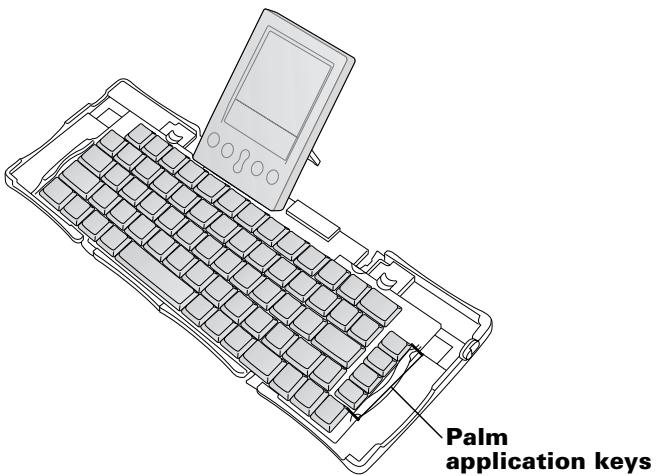
Before you can use your keyboard, you must do the following:
Install the Palm Portable Keyboard application on your handheld
- Set up the keyboard and attach your Palm OS handheld
Installing the Application
Before you install the Palm Portable Keyboard application on your handheld, it's a good idea to perform a HotSync® operation to back up your data.
The application for the Palm Portable Keyboard controls the way the portable keyboard interacts with your handheld. It's a PRC file like most other applications for your handheld.
To install the keyboard application:
- Insert the CD-ROM into the CD-ROM drive.
- Follow the onscreen instructions to complete the installation.
Note: If installation does not begin, click the Windows Start button, choose Run, enter D:\autorun.exe, and then click OK. If necessary, replace D: with the drive letter assigned to your CD-ROM drive.
Setting Up the Keyboard
Always use your keyboard on a hard, flat surface.
To open the keyboard:
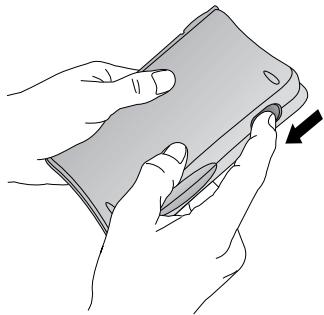
- Hold the keyboard in your hands and slide the latch down to open the case.
- Unfold the keyboard and place it on a hard, flat surface.
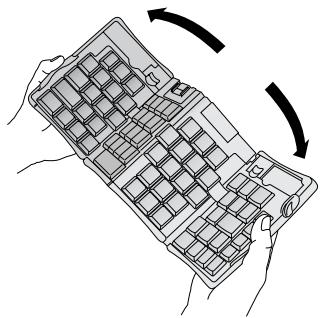
- Grasp the two side-grips (with red borders) and slide them in toward the keyboard's center until the keyboard sections are completely together.
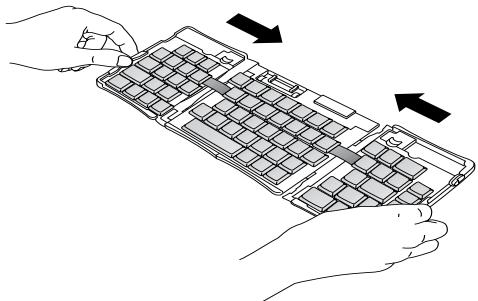
- Your next step depends on the kind of keyboard you are opening. Keyboard for the Palm™ m500 series: While holding the keyboard, slide the docking connector support bracket out until the flat support springs upward.
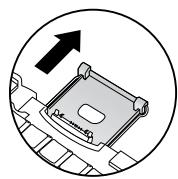
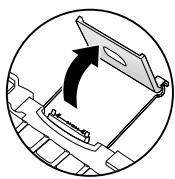
Keyboard for the Palm III™ series, Palm VII™ series, and Palm™ m100 series: While holding the keyboard, slide the docking connector support bracket out until the flat support springs upward; then tilt up the docking connector.
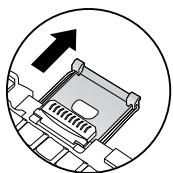
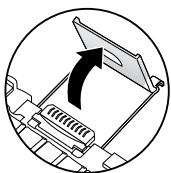
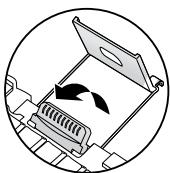
Keyboard for the Palm V™ series: While holding the keyboard, slide the docking connector support bracket out until it clicks; then tilt it up and push the flat support outward.
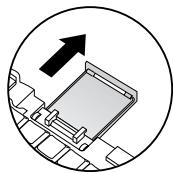
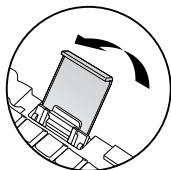
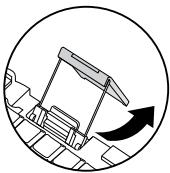
To connect your handheld:
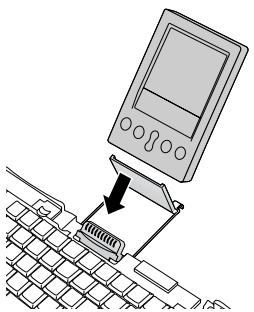
- Line up your handheld with the angle of the support bracket.
- Slide your handheld securely onto the keyboard docking connector. Your handheld turns on automatically.
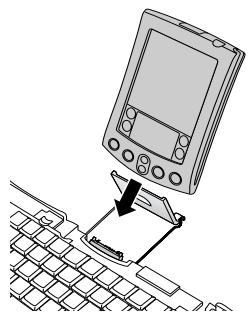
Palm m500 series
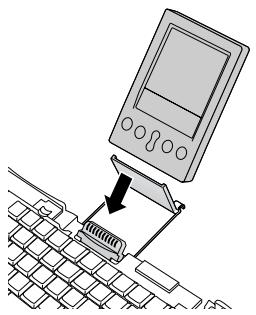
Palm III series, Palm VII series, and Palm m100 series
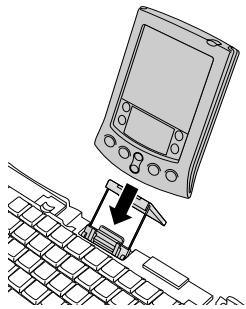
Palm V series
After you install the keyboard application and connect the handheld, you can begin typing.
Note: If you connect your handheld to the keyboard before installing the keyboard PRC file, you will start a HotSync operation. Install the keyboard PRC file first.
To remove your handheld:
For the Palm m500 series: Tilt the handheld forward, and then pull up.
For the Palm III series, Palm VII series, Palm m100 series, and Palm V series: Pull handheld up.
Closing the Keyboard
When you finish using your keyboard, remove the handheld, unlock and fold up the keyboard, and close it back into a portable case.
To close the keyboard:
- Pull your handheld up and away from the docking connector.
- Fold the docking connector support bracket in and down flat; then slide it back into the keyboard.
- With your thumbs, slide the side-grips to the outside of the keyboard. Make sure the two outer keyboard sections are as far apart as possible.
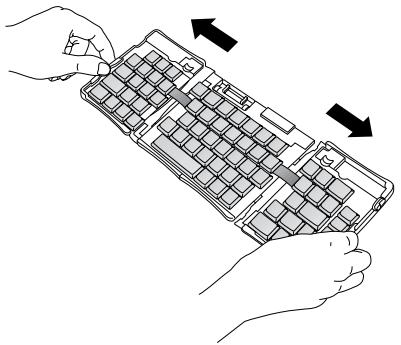
- Fold the center section upward, and bring the left and right sides together. The keyboard now forms a "W."
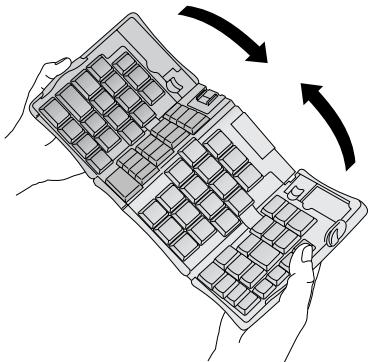
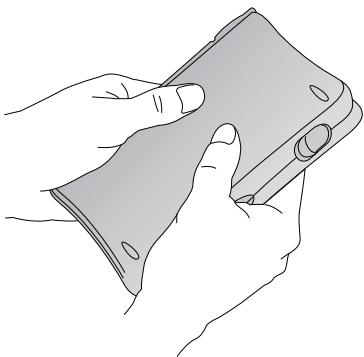
- Continue to fold the keyboard shut. Press the two sides of the case together, and then snap all four corners shut. You feel a click at all four corners.
Customizing Your Keyboard
You can customize your keyboard using the options available in the keyboard application on your handheld.
Changing General settings
The General settings control the interaction of the keyboard with the handheld.
To change General settings:
- Tap the Applications icon 0
- Tap the Keyboard icon
- Change the settings.
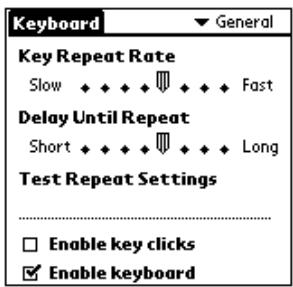
Key Repeat Rate: Drag the indicator to speed up or slow down the rate at which a character is typed when you hold down the key.
Delay Until Repeat: Drag the indicator to lengthen or shorten the time between typing the first key to repeat and the appearance of the subsequent repeated keys.
Test Repeat Settings: Hold down a key in this edit line to test your selections for Key Repeat Rate and Delay Until Repeat.
Enable key clicks: Tap in order to hear a click when you press a key. The System Sound option in the General Preferences for your handheld must also be set to Low, Medium, or High.
Enable keyboard: Tap to turn the keyboard driver off and on. The default setting is on (selected).
Assigning applications to command key combinations
You can open the main handheld applications — Date Book, Address Book, To Do List, and Memo Pad — using the four keys on the far right of your portable keyboard.
You can also open an application by using a command key combination that you assign to it.
To assign an application to a command key combination:
- Tap the Applications icon 0
- Tap the Keyboard icon
- Tap the pick list in the upper-right corner of the screen and select Cmd Keys.
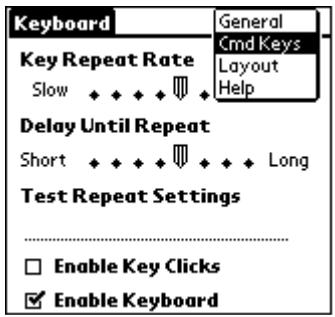
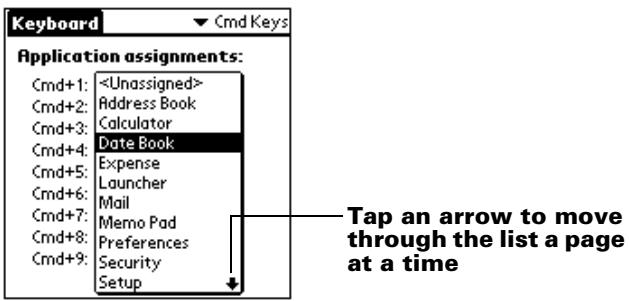
- Tap the pick list of the command key combination that you want to assign to an application.
- Select the application that you want to assign to the key combination.
Changing Layout settings
You can select from among four keyboard layouts and between two tab options.
To change Layout settings:
- Tap the Applications icon 0
- Tap the Keyboard icon
- Tap the pick list in the upper-right corner of the screen and select Layout.
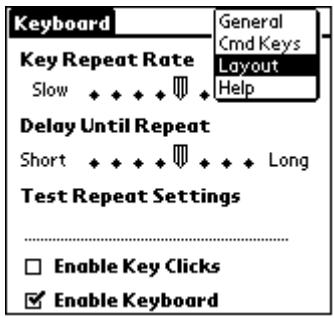
- Change the settings.
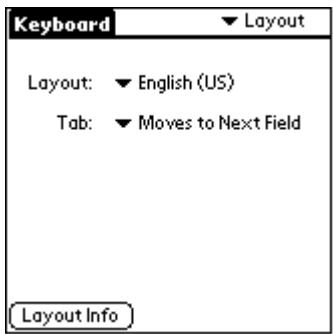
Layout: Select from four keyboard layouts: English (US), English (US-Dvorak), German, or Japanese.
Tab: Select either Moves to Next Field (default setting) or Inserts Tab. Whichever option you choose, pressing Fn-Tab performs the other action. For example, if you select Inserts Tab, pressing Tab inserts a tab in the current text field while pressing Fn-Tab moves the cursor to the next field.
Layout Info: Gives information about the keyboard layout you selected.
Viewing keyboard shortcuts
Your keyboard comes with a full set of keyboard shortcuts for performing handheld functions. Use the Shortcuts list to view the available shortcuts.
To view the list of keyboard shortcuts:
- Tap the Applications icon .
- Tap the Keyboard icon
- Tap the pick list in the upper-right corner and select Help.
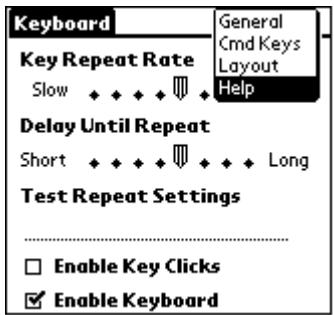
- Use the onscreen scroll bar or the scroll button on the front panel of your handheld to move through the list.
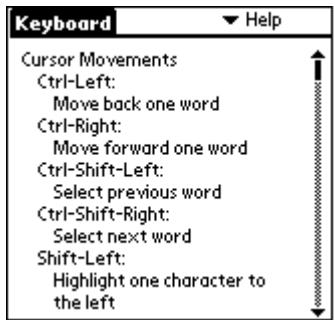
See "Keyboard Shortcuts" for the keyboard shortcuts that appear in the list on your handheld.
Keyboard Shortcuts
This section lists the keyboard shortcuts that are available on your portable keyboard.
Cursor movements
This table lists the shortcuts for moving the cursor and selecting text.
| Shortcut | Action |
| Ctrl - Left arrow | Moves cursor left (back) one word |
| Ctrl - Right arrow | Moves cursor right (forward) one word |
| Ctrl - Shift - Left arrow | Selects previous word |
| Ctrl - Shift - Right arrow | Selects next word |
| Shift - Left arrow | Selects character to the left of the cursor |
| Shift - Right arrow | Selects character to the right of the cursor |
| Shift - Up arrow | Selects previous line |
| Shift - Down arrow | Selects next line |
| Cmd - Left arrow | Moves cursor to the beginning of the line |
| Cmd - Right arrow | Moves cursor to the end of the line |
| Fn - Up arrow | Scrolls up |
| Fn - Down arrow | Scrolls down |
| Tab | Tabs forward through edit lines |
| Shift - Tab | Tabs backward through edit lines |
| Fn - Tab | Inserts a tab in a line |
Activate onscreen buttons
This table lists the key combinations to activate onscreen buttons.
Note: You can also activate a button by pressing Ctrl-Cmd and a letter unique to the button name.
Keystroke
Equivalent onscreen button
Fn - Enter
OK
Fn - Del
Delete
Fn - Done
Cancel
Fn - New
New
Fn-.
Send, Check & Send, Send & Check
Fn - Left arrow
Show
Fn - Right arrow
Details
Fn-,
Note
Fn - /
Edit
Menu commands
This table lists the key combinations to activate handheld commands.
Keystroke
Action
Ctrl - x
Cuts selected text
Ctrl - c
Copies selected text
Ctrl - v
Pastes cut or copied text
Fn-Cmd
Enters shortcut mode
Fn - =
Toggles backlight
Cmd - space
Brings up handheld's onscreen international keyboard
Extended character set
The following two tables list the function key and character combinations to generate extended characters.
Table 1: Accent marks
First, type the letter to which you want to add an accent. Then press the function key and the character indicated.
For example, to type the o in Köln, type the o, and then press Fn and ; (function key and semicolon). The umlaut appears over the o.
| Keystroke | Character example | Description |
| Fn - ' | á | Acute accent |
| Fn - ^ | â | Circumflex |
| Fn -; | ä | Umlaut |
| Fn - ` | à | Grave accent |
| Fn - ~ | ã | Tilde |
| Fn - o | å | Aring (with letter “a” only) |
See "Does the keyboard support international characters?" later in this book to learn how to use the Alt key to make the portable keyboard mimic the onscreen international keyboard on your handheld.
Table 2: Characters, symbols, punctuation marks
| Keystroke | Character example | Description |
| Fn - O | ∅ | Uppercase Oslash (naught) |
| Fn - o | ∅ | Lowercase oslash (naught) |
| Fn - ? | i | Upside down “?” |
| Fn - ! | j | Upside down “!” |
| Fn - A | Æ | Uppercase AE ligature |
| Fn - a | æ | Lowercase ae ligature |
| Fn - b | β | Beta |
| Fn - w | ■ | Bullet |
| Fn - c | , | Cedilla |
| Fn - g | © | Copyright |
| Fn - d | ° | Degrees |
| Fn - <hyphen> | ÷ | Divide |
| Fn - e | € | Euro |
| Fn - u | μ | Micro |
| Fn - \ | ¶ | Paragraph symbol |
| Fn - p | £ | Pound sterling |
| Fn - r | ® | Registered trademark |
| Fn - s | S | Section |
| Fn - t | TM | Trademark |
| Fn - y | ¥ | Japanese yen |
| Fn - + | ± | Plus/minus |
| Fn - 2 | 1/2 | Half |
| Fn - 3 | 3/4 | Three-quarters |
| Fn - 4 | 1/4 | One-quarter |
| Fn - $ | ¢ | Cents |
| Fn - f | f | Script f |
| Fn - [ | ‘ | Left single curly quote |
| Fn - ] | ’ | Right single curly quote |
| Fn - { | “ | Left double curly quote |
| Fn -} | ” | Right double curly quote |
Calculator functions
This table lists keystrokes to activate calculator functions.
| Keystroke | Action | |
| + | - * / = | Add, subtract, multiply, divide, equals |
| C | Clear all | |
| E | Clear last entry | |
| M | Clear memory | |
| P | Set current number on display in memory | |
| R | Recall value in memory | |
Frequently Asked Questions
If you encounter a problem with your keyboard, first review both "General questions and answers" below and the following sources:
The readme file in your C:\Palm\Keyboard folder on the desktop computer
The web site http://www.palm.com/custsupp/keyboard for the latest FAQ and/or Troubleshooting guide for the keyboard
If you are still having problems, contact Technical Support. For US and international telephone numbers, see the Worldwide Customer Support card that comes with your keyboard. International support numbers are also available in the International page of the web site http://www.palm.com.
General questions and answers
Does the keyboard require batteries?
No. The keyboard is designed to use an extremely low amount of power from your handheld.
Can I use the same keyboard for all handhelds?
No. The keyboard is available in several versions, depending on your handheld model. Please check the packaging for handheld compatibility.
Can I perform a HotSync® operation on the handheld while using the keyboard?
No. The keyboard does not replace the functionality of your cradle. To perform a HotSync operation after entering data with the keyboard, remove your handheld from the keyboard and place it in your cradle. Then press the HotSync button.
Does the keyboard support international characters?
Yes. You can enter international characters in two ways:
Use keyboard shortcuts: Use the function key (Fn) in combination with another key to add accent marks to letters you type and to type punctuation marks. See "Extended character set" earlier in this book.
For example, to type the o in Köln, type the o, and then press Fn and ; (function key and semicolon). The umlaut appears over the o.
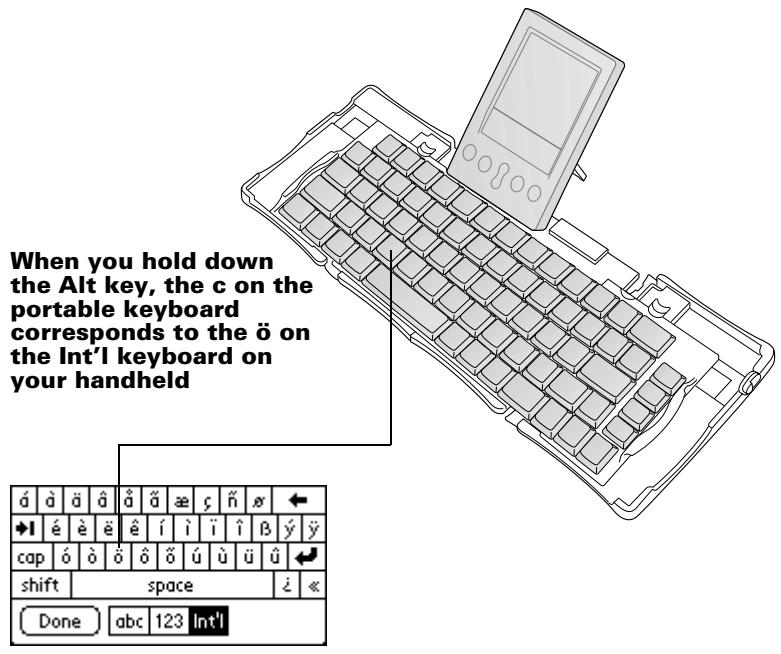
Use the Alt key on the portable keyboard: When you press and hold down the Alt key, the next key you press produces the character corresponding to that location on your handheld's onscreen international keyboard.
For example, to type the ö in Köln, press and hold down Alt; then press c on your portable keyboard.
Inhalt
Tableau 1: accents. 55
-
-
- / = Addition, soustraction, multiplication, division, égal
-
C Tout effacer
E Effacer la derniere entree
M Effacer la mémoire
-
-
- / = Sumar, restar, multiplicar, dividir, igual
-
C Borrar todo
KibodteeJiJiJiJiJiJiJiJiJiJiJiJiJiJiJiJiJiJiJiJiJiJiJiJiJiJiJiJiJiJiJiJiJiJiJiJiJiJiJiJiJiJiJiJiJiJiJiJiJiJiJ169
mult handheld. 169
KoBrdSaugJosteHotSync®J#e#u#e#u#u#u#u#u#u?169
KlboTrnDn daKoR er nOrae rnrnnnnae 169
Palm™ 超大容量 3D打印 原装
转
Palm III Series, Palm VII Series, Palm m100 Series
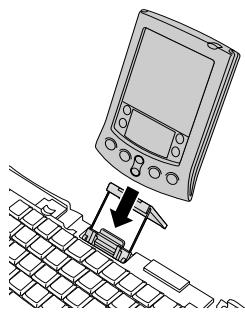
Palm V Series
handheld to create a bound:
■ Palm m500 Series: handheld将着以为日用的后,
■ Palm III Series, Palm VII Series, Palm m100 Series, Palm V Series: handheld을 편로 썸이에 기재지다.
KIBODEJ
五、法國國國國國國國國國國國國國國國國國國國國國國國國國國國國國國國國國國國國國國國國國國國國國國國國國國國國國國國國國國國國國國國國國國國國國國國國國國國國國國國國國國國國國國國國國國國國國國國國國國國國国
歌歌扎罗托格里蒙克卡扎不合法的范:
AltkitiayohhyohyohandheldfohjyhofofofofofofofofofofofofofofofofofofofofofofofofofofofofofofofofofofofofofofofofofofofofofofofofofofofofofofofofofofofofofofofofofofofofofofofofofofofofofofofofofofofofofofofofofofofofofofofofofofofofofO
2: 2
KIBoBTeE EeTJHaPJIyHcNJa?
ohniO,kiBrdnncgSsrgn of 1rwnlhandheldrobrta snaogahdoik selzcdyou nnda.
Mothend handheld'
AhniO,kiBrdnhandheld moelcdfapa fagzi bprersearmansaugohsuc hnu nida.期kiTepsiDorHnhandheld的haoHsengtochinahselSiO.
AhniO, kIbO3D is KIraIeIeJi.
기본드는 한국어 사자을 퉜원화내다?
,
[1] 《论语》卷三:“子曰:‘吾子以吾子而食,不食者则食。’”
海将,Koln的o到信默哈越用o到信默的d如Fnki;(能能与和
- Palm™ Portable Keyboard Handbook
- Introducing the PalmTM Portable Keyboard 5
- Installing the Application 5
- Setting Up the Keyboard 6
- Closing the Keyboard 8
- Customizing Your Keyboard 10
- Keyboard Shortcuts 14
- Frequently Asked Questions 18
- Copyright
- Disclaimer and Limitation of Liability
- Introducing the Palm™ Portable Keyboard
- Installing the Application
- To install the keyboard application:
- Setting Up the Keyboard
- To open the keyboard:
- To connect your handheld:
- To remove your handheld:
- Closing the Keyboard
- To close the keyboard:
- Customizing Your Keyboard
- Changing General settings
- To change General settings:
- Assigning applications to command key combinations
- To assign an application to a command key combination:
- Changing Layout settings
- To change Layout settings:
- Viewing keyboard shortcuts
- To view the list of keyboard shortcuts:
- Keyboard Shortcuts
- Cursor movements
- Activate onscreen buttons
- Keystroke
- Equivalent onscreen button
- Menu commands
- Action
- Extended character set
- Table 1: Accent marks
- Calculator functions
- Frequently Asked Questions
- General questions and answers
- Does the keyboard require batteries?
- Can I use the same keyboard for all handhelds?
- Can I perform a HotSync® operation on the handheld while using the keyboard?
- Does the keyboard support international characters?
- Inhalt
- Palm™ 超大容量 3D打印 原装
- 转
- handheld to create a bound:
- KIBODEJ
- 歌歌扎罗托格里蒙克卡扎不合法的范:
- 2: 2
- KIBoBTeE EeTJHaPJIyHcNJa?
- Mothend handheld'
- 기본드는 한국어 사자을 퉜원화내다?
Brand : PALM
Model : PORTABLE KEYBOARD
Category : Portable Keyboard