
ZYWALL USG 200 - Firewall ZYXEL - Free user manual and instructions
Find the device manual for free ZYWALL USG 200 ZYXEL in PDF.



| Product Type | Firewall |
| Brand | ZYXEL |
| Model | ZyWALL USG 200 |
| Dimensions (W x D x H) | 43.8 x 34.8 x 4.4 cm (1U rack) |
| Weight | Approximately 3.5 kg |
| Power Supply | 12 V DC power adapter included |
| Power Consumption | Approximately 30 W |
| Network Interfaces | 7 RJ-45 10/100/1000 ports |
| Console port | RS-232 (115200 bps, 8N1) |
| Auxiliary port | RS-232 for backup modem |
| USB port | 1 USB port for 3G card (e.g., Huawei E220) |
| Expansion slot | PCMCIA for WiFi or 3G card (compatible ZyXEL G-170S) |
| Default IP address | 192.168.1.1 |
| Default password | 1234 |
| Supported protocols | DHCP (server and client), VPN, IDP, content filtering, stateful firewall |
| Rack mounting | Mounting kit included (19 inches) |
| Maintenance and cleaning | Clean with a dry, lint-free cloth |
| Security | Reset button for factory reset; password can be changed |
| Operating temperature | 0 °C to 40 °C |
Frequently Asked Questions - ZYWALL USG 200 ZYXEL
User questions about ZYWALL USG 200 ZYXEL
0 question about this device. Answer the ones you know or ask your own.
Ask a new question about this device
Download the instructions for your Firewall in PDF format for free! Find your manual ZYWALL USG 200 - ZYXEL and take your electronic device back in hand. On this page are published all the documents necessary for the use of your device. ZYWALL USG 200 by ZYXEL.
USER MANUAL ZYWALL USG 200 ZYXEL
ZyWALL USG 100/200 Series
Unified Security Gateway
Quick Start Guide
Version 2.10
3/2008
Edition 1
DEFAULT Login
LAN Port
P4
LAN IP Address
http://192.168.1.1
UserID
admin
Password
1234
CONTENTS
ENGLISH 2
DEUTSCH 9
ESPANOL 16
FRANÇAIS 23
ITALIANO 30
PyCCKN 37
简体中文 45
繁體中文 52
1 Checking the Package Contents
Your package should include one of each of the following:
ZyWALL
-
RJ-45 Ethernet cable
-
Compact disk (CD)
Power cord
-
RS-232 console Y-cable
-
Rack-mounting kit
Printed Quick Start Guide
2 Rack-mounted Installation
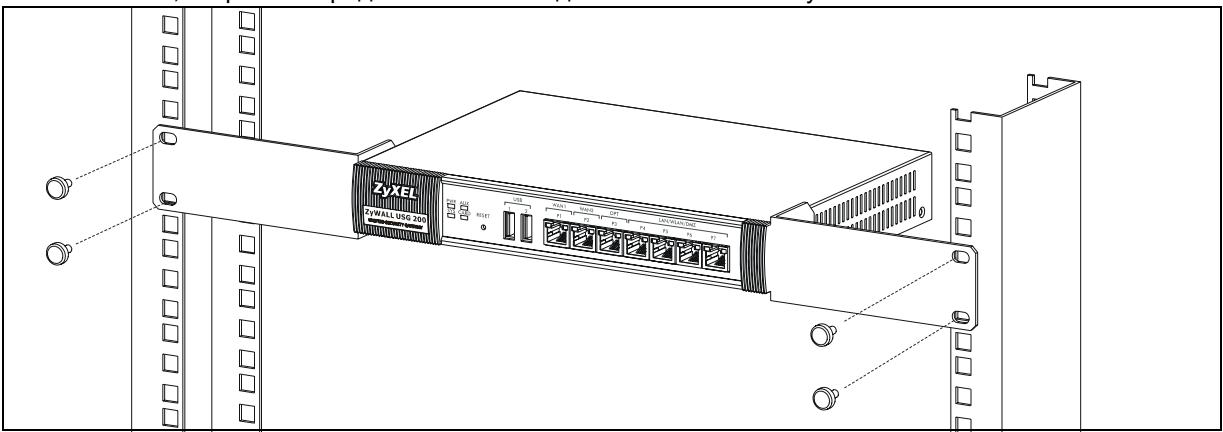
Mount the ZyWALL in a 19-inch rack or place it on a sturdy, flat surface.
Note: Leave 10cm of clearance at the sides and 20~cm in the rear.
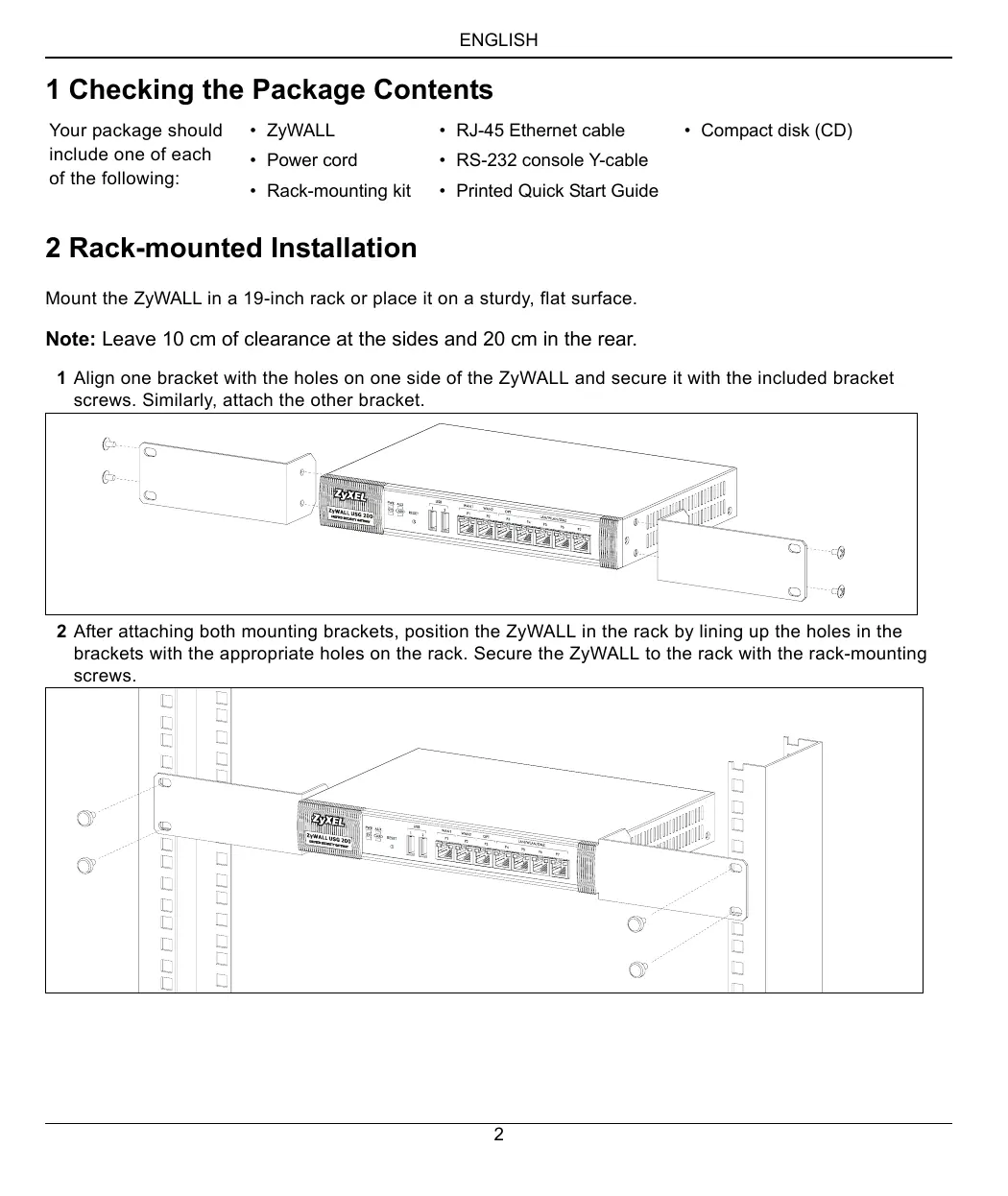
1 Align one bracket with the holes on one side of the ZyWALL and secure it with the included bracket screws. Similarly, attach the other bracket.
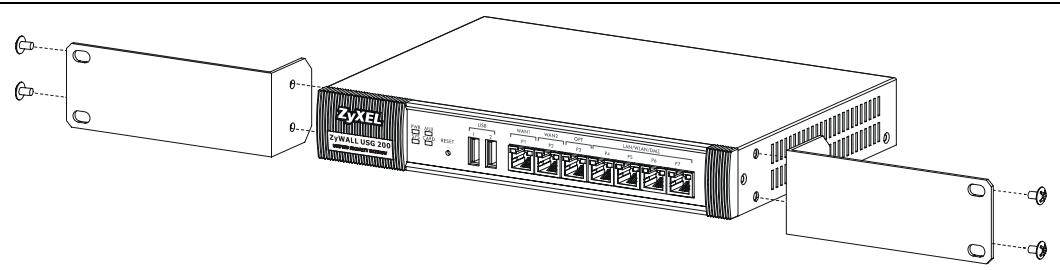
2 After attaching both mounting brackets, position the ZyWALL in the rack by lining up the holes in the brackets with the appropriate holes on the rack. Secure the ZyWALL to the rack with the rack-mounting screws.
3 Connecting the Hardware
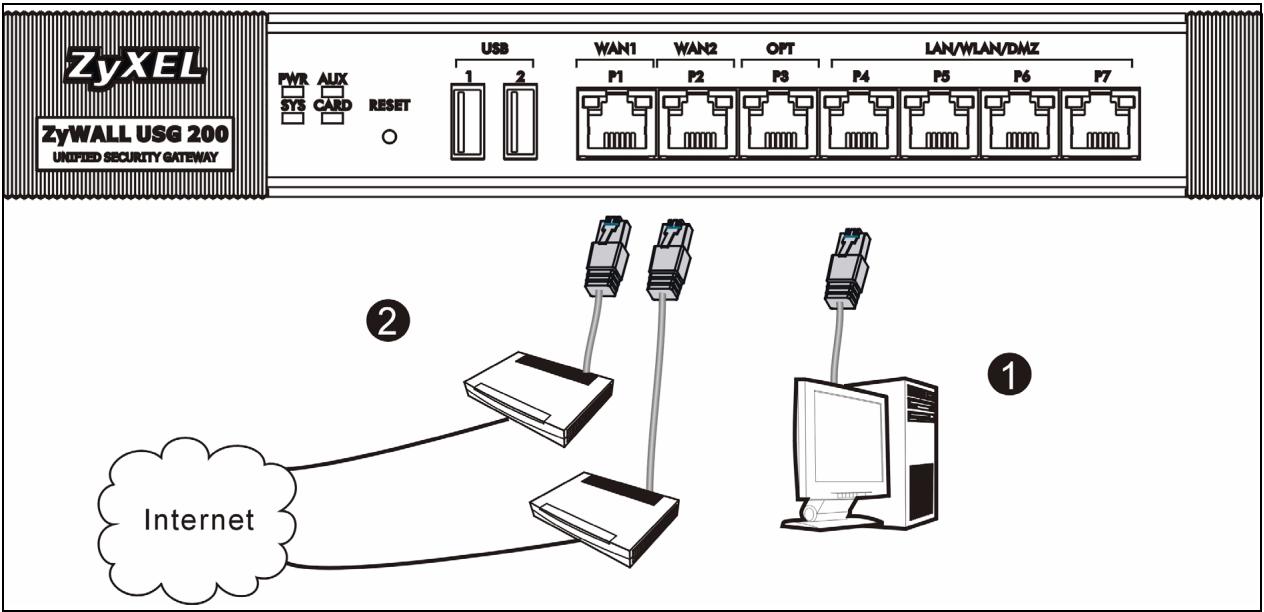
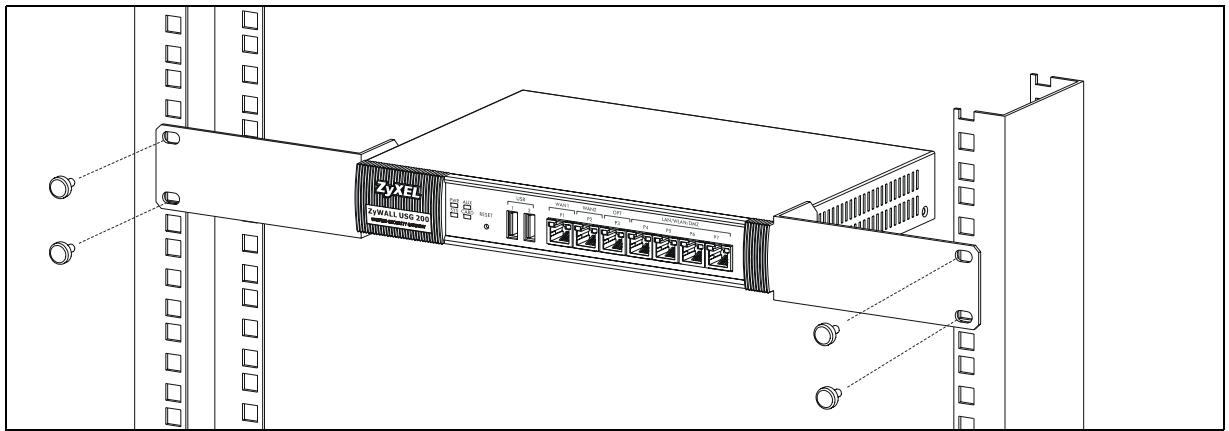
1 It is recommended that you configure the ZyWALL before using it to protect your network. Use an Ethernet cable to connect a computer to port P4.
2 Use another Ethernet cable(s) to connect port 2 and/or port 3 to an Ethernet jack with Internet access.

3 Use the included power adaptor to connect the power socket (on the rear panel) to a power outlet.
4 Look at the front panel. The PWR light turns on. The SYS light blinks during system testing and initialization and then stays on when the system is ready.
4 Web Login
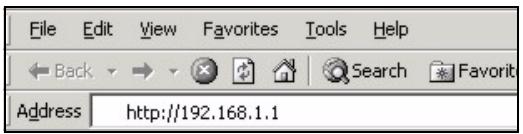
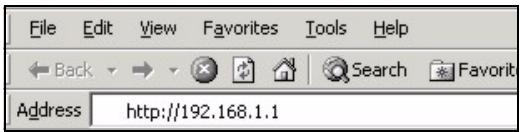
1 Launch your web browser and go to http://192.168.1.1 (the ZyWALL automatically redirects you to https://192.168.1.1).
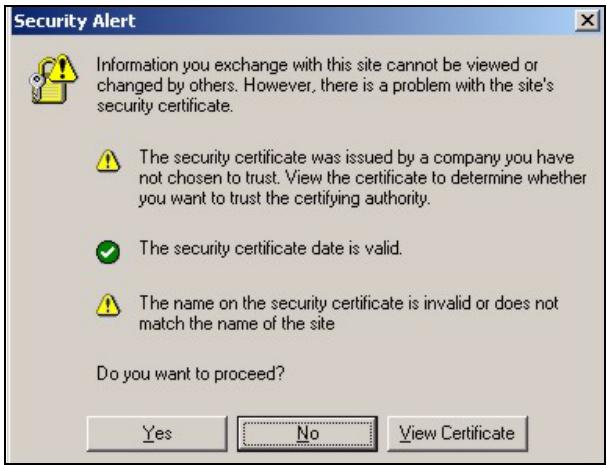
2 Click Yes to proceed if you get a security alert or certificate screen.
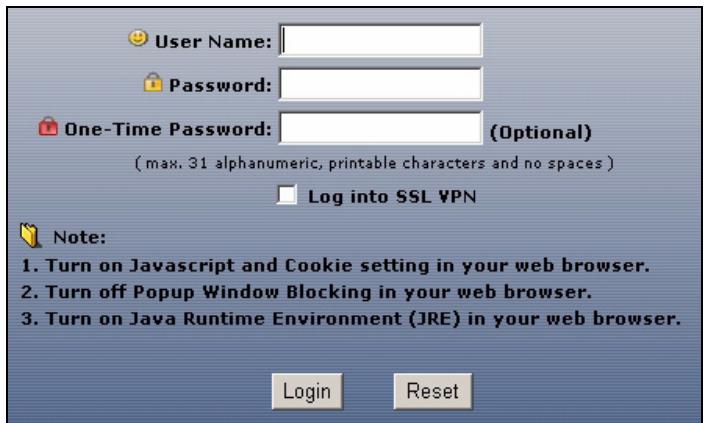
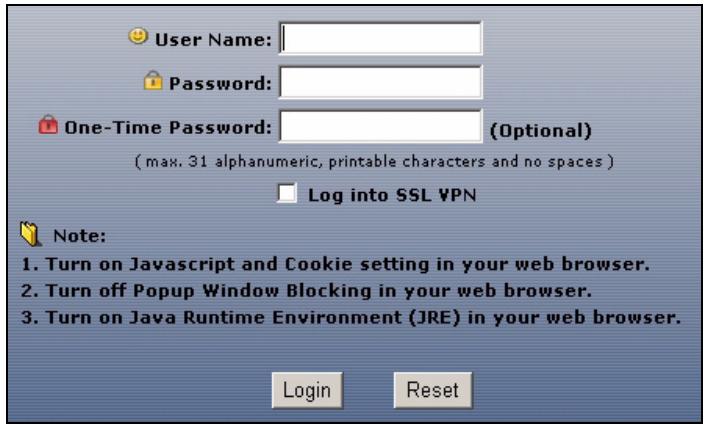
3 Enter admin as the user name and 1234 as the password. Click Login.
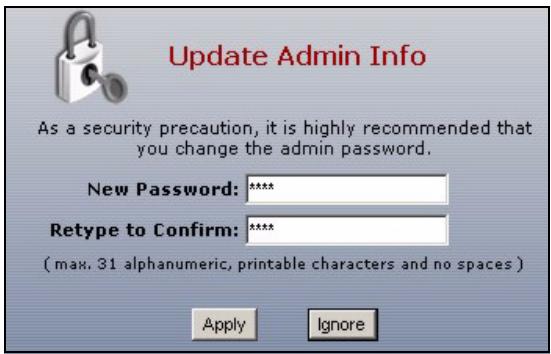
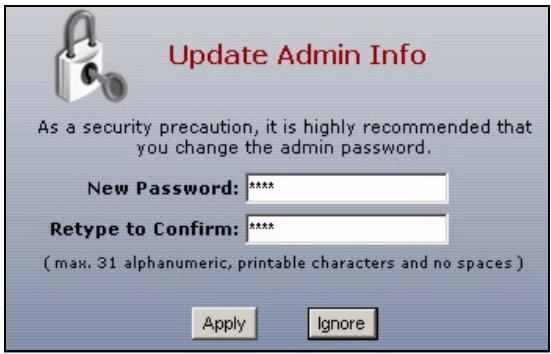
4 It is strongly recommended that you change the password. Type and retype a new password, and click Apply.
5 Installation Setup Wizard
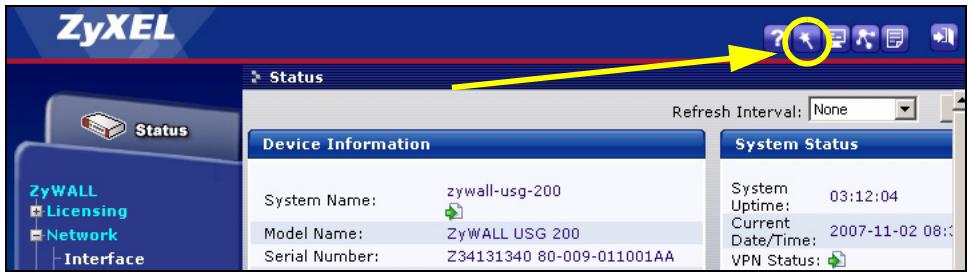
The Status screen opens. Click the Wizard icon in the upper right corner.
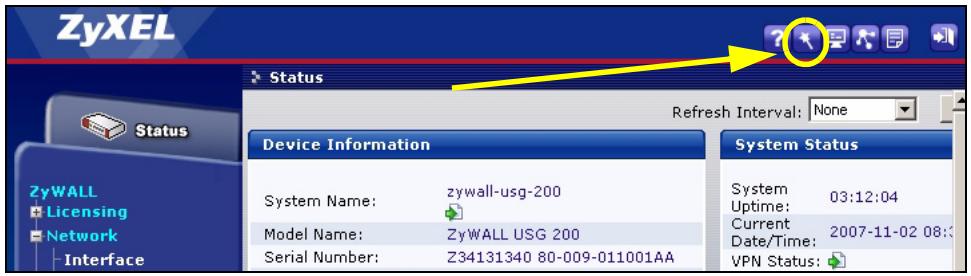
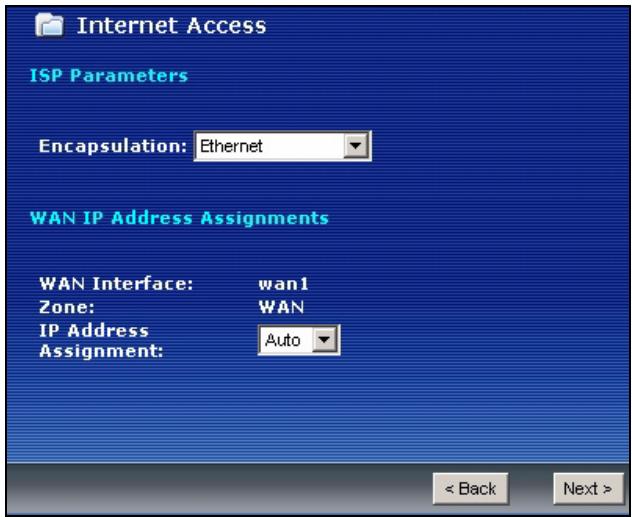
Use an installation setup wizard to connect to the Internet and register the ZyWALL and/or activate trial services, like IDP and content filter.
Note: Use the installation wizard only for initial configuration starting from the default configuration.
Changes you make in the installation wizard may not be applied if you have already changed the ZyWALL's configuration.
- INSTALLATION SETUP, ONE ISP sets up a single Internet connection for wan1.
- INSTALLATION SETUP, TWO ISP sets up Internet connections for wan1 and wan2.
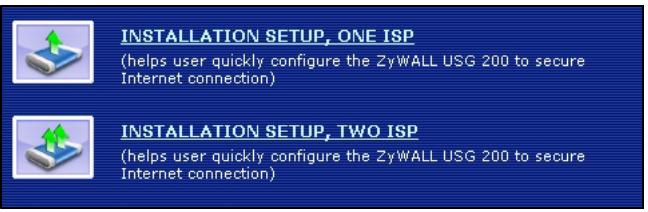
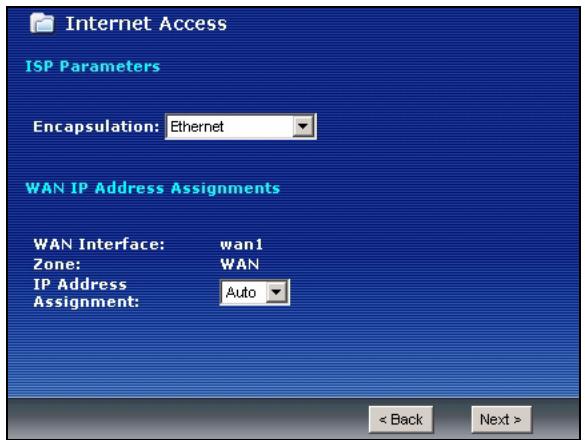
The wizard screens vary depending on the encapsulation type you use. Refer to information provided by your ISP and the web help screens to know what to enter in each field. You can leave fields blank if you don't have that information.
6 Default Settings and Port Details
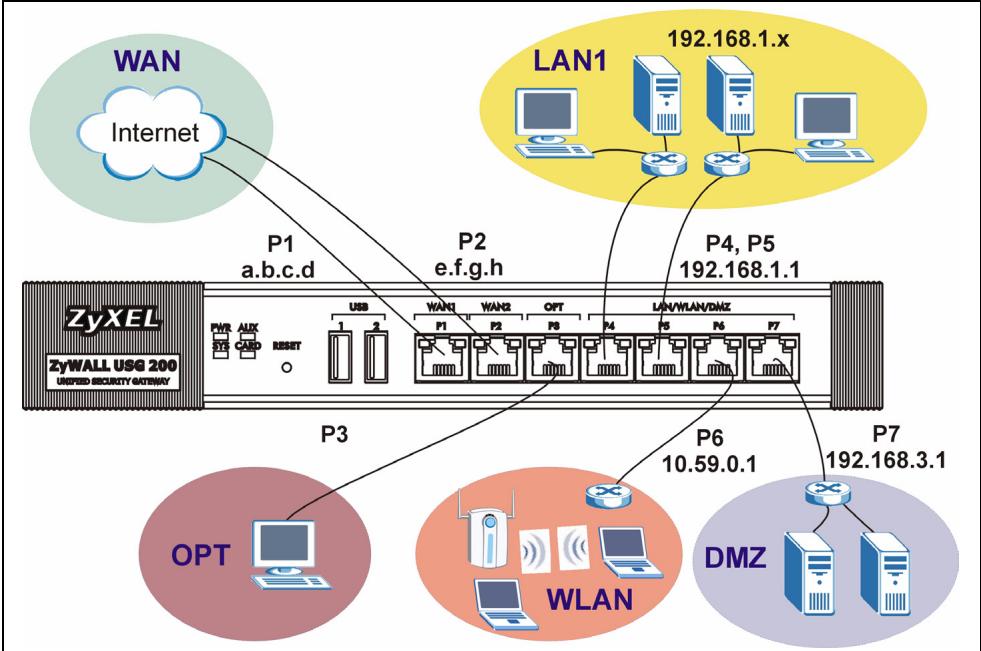
The ZyWALL is configured for the following network topology by default. (ZyWALL USG 200)
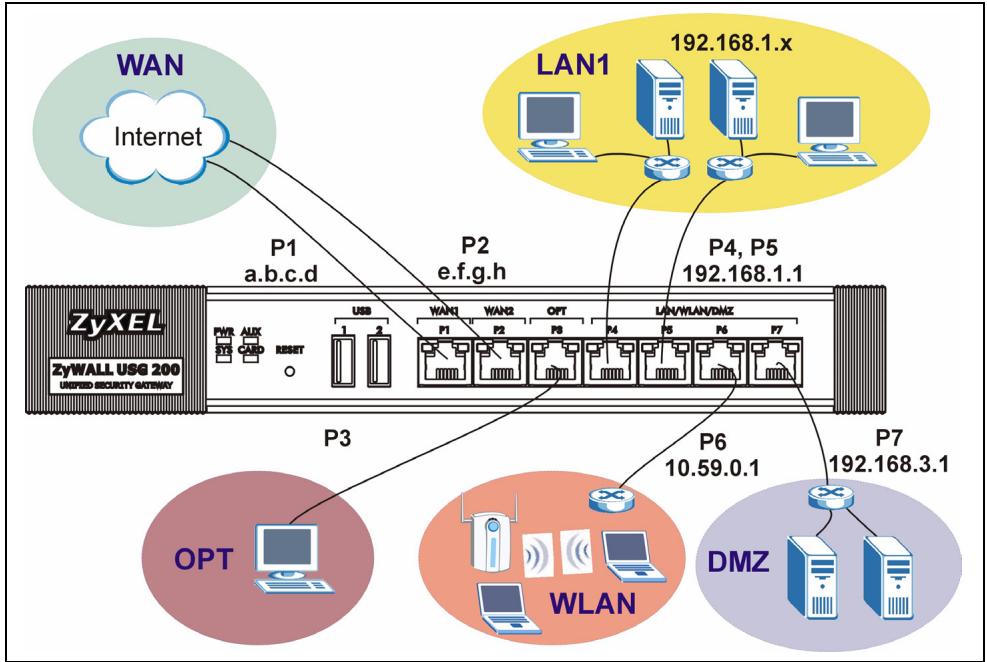
ZyWALL USG 200
| Port | Interface | Zone | IP Address and DHCP Settings | Suggested Use With Default Settings |
| P1, P2 | wan1, wan2 | WAN | DHCP clients | Connections to the Internet |
| P3 | opt | OPT | None, DHCP server disabled | Third WAN, additional LAN, WLAN, or DMZ port or a separate network. |
| P4, P5 | lan1 | LAN1 | 192.168.1.1, DHCP server enabled | Protected LAN |
| P6 | ext-wlan | WLAN | 10.59.0.1, DHCP server enabled | Wireless access points |
| P7 | dmz | DMZ | 192.168.3.1, DHCP server disabled | Public servers (such as web, e-mail and FTP) |
| AUX | aux | None | None | Auxiliary modem |
| CONSOLE | n/a | None | None | Local management |
ZyWALL USG 100
| Port | Interface | Zone | IP Address and DHCP Settings | Suggested Use With Default Settings |
| P1, P2 | wan1, wan2 | WAN | DHCP clients | Connections to the Internet |
| P3, P4, P5 | lan1 | LAN1 | 192.168.1.1, DHCP server enabled | Protected LAN. |
| P6 | ext-wlan | WLAN | 10.59.0.1, DHCP server enabled | Wireless access points |
| P7 | dmz | DMZ | 192.168.3.1, DHCP server enabled | Public servers (such as web, e-mail and FTP) |
| AUX | aux | None | None | Auxiliary modem |
| CONSOLE | n/a | None | None | Local management |
| Label | Type | Description |
| USB | USB | Connect a (USB) 3G wireless card to access the Internet through a 3G network. At the time of writing, you can use the Huawei E220. |
| P1~P7 | RJ-45 | Use 8-wire Category 5e or above Ethernet cables to connect routers, switches, computers, routers, access points, and so on. |
| AUX | RS-232 | Use an RS-232 console cable to connect dial backup/dial-in modem. |
| CONSOLE | RS-232 | Use an RS-232 console cable to connect a local computer for command-based management. |
| EXTENSION CARD SLOT | PCMCIA | Insert a wireless LAN card to use the wireless LAN feature. At the time of writing, you can use ZyXEL's G-170S wireless card. You can optionally insert a 3G wireless card to access the Internet wirelessly via a 3G network. At the time of writing, you can use a Sierra Wireless AC850 or AC860 3G wireless card. |
7 Troubleshooting
| Problem | Corrective Action |
| None of the LEDs turn on. | Make sure that you have the power cord connected to the ZyWALL and plugged in to an appropriate power source. Make sure you have the ZyWALL turned on. Check all cable connections. |
| If the LEDs still do not turn on, you may have a hardware problem. In this case, you should contact your local vendor. | |
| Cannot access the ZyWALL from the LAN. | Check the cable connection between the ZyWALL and your computer or switch. Refer to section 3 for details. |
| Ping the ZyWALL from a LAN computer. Make sure your computer's Ethernet card is installed and functioning properly. Also make sure that its IP address is in the same subnet as the ZyWALL's.In the computer, click Start, (All) Programs, Accessories and then Command Prompt. In the Command Prompt window, type "ping" followed by the ZyWALL's LAN IP address (192.168.1.1 is the default) and then press [ENTER]. The ZyWALL should reply. | |
| If you've forgotten the ZyWALL's password, use the RESET button. Press the button in for about 5 seconds (or until the PWR LED starts to blink), then release it. It returns the ZyWALL to the factory defaults (password is 1234, LAN IP address 192.168.1.1 etc.; see your User's Guide for details). | |
| If you've forgotten the ZyWALL's IP address, you can use the commands through the console port to check it. Connect your computer to the CONSOLE port using a console cable. Your computer should have a terminal emulation communications program (such as HyperTerminal) set to VT100 terminal emulation, no parity, 8 data bits, 1 stop bit, no flow control and 115200 bps port speed. | |
| Cannot access the Internet. | Check the ZyWALL's connection to the Ethernet jack with Internet access. Make sure the Internet gateway device (such as a DSL modem) is working properly. |
| Check the WAN port's status in the Status screen. Use the installation setup wizard again and make sure that you enter the correct settings. |
8 Procedure to View a Product's Certification(s)
1 Go to www.zyxel.com.
2 Select your product from the drop-down list box on the ZyXEL home page to go to that product's page.
3 Select the certification you wish to view from this page.
- KpaTkoe pyKoBOdCTBo (6poUHopa)
2 YctaHObKa B CToiKy
YcTpoIcTBo ZyWALL MoKeT yCtahAbJIbBaTbcB 19-IOHMOByO cToKy IJn Ha IIO6yIO TBepdyIO NIOCKyIO NOBepxHOCTb.
PnmeHne. OCTaBte BeHTnJIaIcUHOHbIe 3a3Opbl no 10 cm no 6okam n 20 cm c3aN.
1 3aKpeNITE no 6okam ycTpoiCTBa KPOHHTeHb BnHTAMn N3 KOMJIeKTA NOCTaBKn.
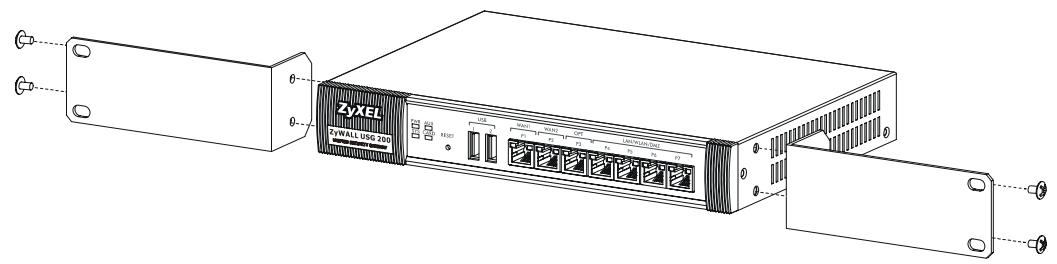
2 UctahOBInTe yCTpOINCTBO B CTOnKy B BBbIbpaHny IO3nCIO N, y6eINBUncB I npaBnIbHOCTn erO NOJIOKeHHN, 3aKpeINTE ppeHa3HaueHHbIMN dJIa MOHTaKa B CTOnKy BUNTAMN.
3Подключени
Ipeed noikJIOHHeHm y6eIntecb, yTO BbIKNoaTeIb nITaHnHa 3aHne IaHEI HaxOHTcB B NOLOXKeHn "BbIKJIIOUeHO".
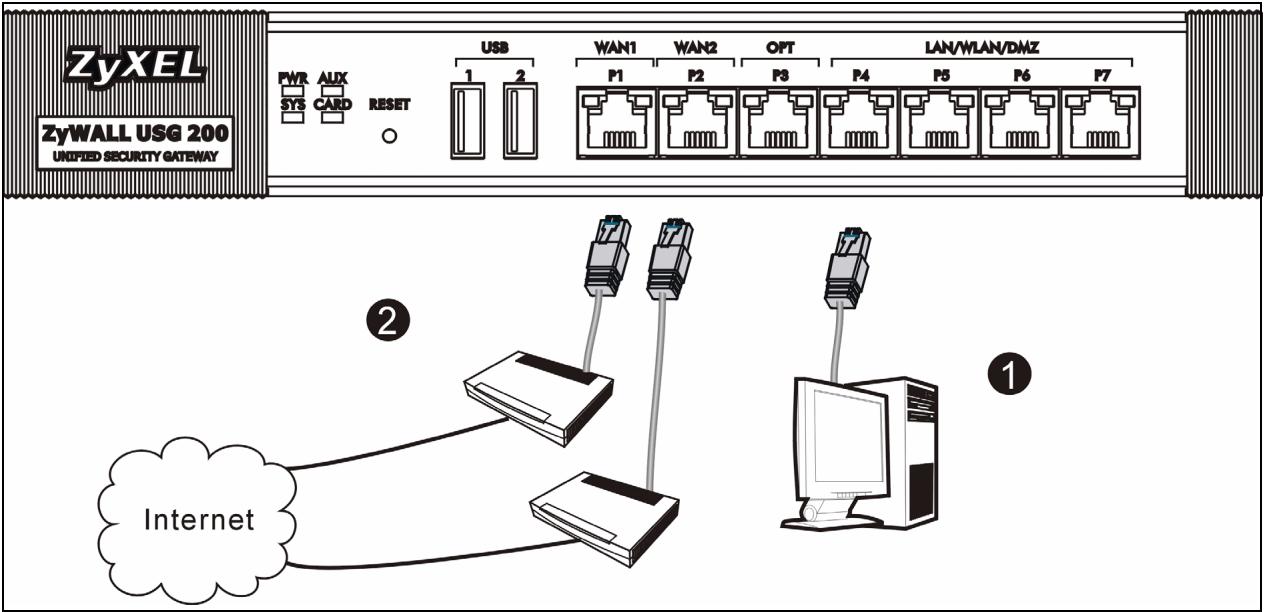
1 Ipeep nooknuehenem ycTpoiCtBa ZyWALL k 3aunuaeMoN cTe peKOMeHnyeTc BbIOnHntb ero npedBapntbHyu HacTPOky. NooknouHte KOMnbIoTeK nopTy P4 ka6elem Ethernet.
2 PoiKJIIOHTe Ka6eIaMn Ethernet K nopTaM 2 n/IIIN 3 IINHIN, NO KOToPbIM OcyIeCTBJIeTc DOCTyN B INTEpHET.

1 PoiKJIIOUHTe npIJIaRaembI cTeBOI aADANTep K cTeBOMy pa3bemy (Ha 3aJHne IaHeN) n B po3eTKy 3NEKTPocETn.
3 ПосмOTРе на порEDHIO paHIEL. ДОЛжЕн 3aROpETbCS ИДИКaTOp PWR Ha nepeDHe nAHeN. ИнДИКaTOp SYS mIraet no xOdy BblONHHeNBAHytpeHHe rTeCTa n INHuaJIIN3aUIn. Ero noctoHHOc CBueHne roBOpIT O rotOBHOCr CnCTeMbI.
4 Be6-koHΦnrgypaTop
1 3anycntte web-6pay3epипенит ha ctrpaHnCy http://192.168.1.1 (пponзоДeТ aВТOMaTчecкое пениразвленноHa aDpec https://192.168.1.1).
2 B clyuae BbIbOda KaKnx-Ⅱn6o 3anpocOB Ha noTBePckJeHne nToEHuaJIbHO He6e3OnaChbIX onepaun nn npHema ceptnnKaTOB dJn npdoJnKeHna Haxmnte Yes.
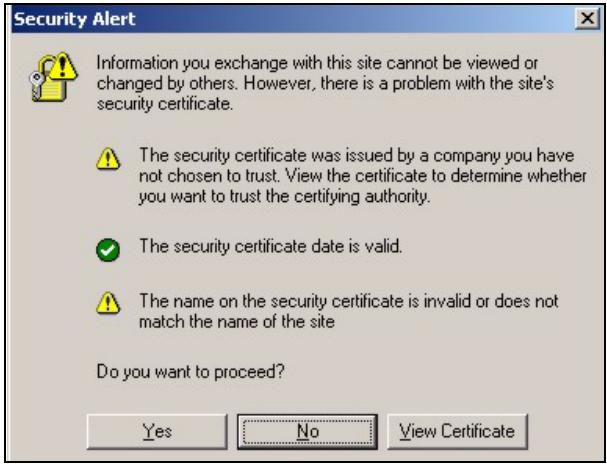
3 BBeInte B none User name nMn nonb30BaTeTnA admin nB nOte Password — napoIb 1234. HaxMnte KhoNky Login.
4 PekomeHnyetc cpa3y je cmeHntb napoIb. Habeprte HOBi napoiB v none New Password u eue pa3 — B none Retype to Confirm; 3aTeM haxmnte KhoNky Apply.
5 MacTepпервональнонастpoиkn Installation Setup Wizard
Pocne otKpbItna
EkpaHa Status
BOCIOJIb3yI TeCb
3Haaykom Wizard

pacnoIOnOKeHHbIM B
npaBOM BepxHem yIy.
Macep nepbohaJIbHoi hacpoiKn installation setup wizard cnyxntДЯ NOdkHoueHn K INTepHeTy n perncTaqun ycToBCTBa ZyWALL n/Inn akTbauCn npo6Horo DoctuNa K DOponHnTeJbHbIM cepBvCaM, TaKIM kak cnyXba oBnapJxHn n PpeDoTbpaUeHn BTOpxeHn nIIN φnIbTp KOHTeHa.
(helps user quickly configure the ZyWALL USG 200 to secure Internet connection)

INSTALLATION SETUP, TWO ISP
(helps user quickly configure the ZyWALL USG 200 to secure Internet connection)
B npoucece paobotb MaCTepa MoryT NOBtbcra Te nIIN INHbIe 3KpaHbI, B 3aBnCmOcTN OT nCpONb3yEmoTO TnPa INKanCyrAun. NcPOnb3yIte dIJIaIaONHeHn IOneN CBeDeHn, IpeIOCTaBLeHbIe INTEpHET-IPoBaIdepom I coDEpXaUncEcaB W web-CnCTeMe cnpaBKn. B OTCyTCTBVe HEo6XoDImOu INΦOpMaUnN OCTaBbTe nOJIe NycTbIM.
6 3NaueHnKaOHΦnrgpauCnOHbIX npaMeTpOB n HacTpOuKn NopTOB NO-ymOJUaHHIO
C hactpoikamn no-ymoJuaHIO yctpoiCTBO ZyWALL paccuHTaHO ha nCnoJIb3OBAHne B cIeNyUoJe TOnOJIoTNI CETN.
ZyWALL USG 200
ZyWALL USG 200
| Порт | Интуг佩с | Зona | IP-адес и настroduи DHCP | Проблараиме усаньоваши в завodской konфигураци |
| P1, P2 | wan1, wan2 | WAN | DHCP-Kлиенты | Поклочения К Иntерны |
| P3 | opt | OPT | Het, сөрөр DHCP Вүлүчөн | Төрөлөрт WAN (ГВС), дөрөнөтөнл LAN (ЛВС), WAN (БЛВС), пол DMZ ил одөльна сөт. |
| P4, P5 | lan1 | LAN1 | 192.168.1.1, сөрөр DHCP Вүлүчөн | Зашшения ЛВС |
| P6 | ext-wlan | WLAN | 10.59.0.1, сөрөр DHCP Вүлүчөн | Бесправочные точки достура |
| P7 | dmz | DMZ | 192.168.3.1, сөрөр DHCP Вүлүчөн | Овшебостунные сөрөры (web,等领域 ровен碍 почты и FTP) |
| AUX | aux | Het | Het | Вс所提供огателовий м odeм |
| CONSOLE | Het | Het | Het | Пokedъhoe уразалениe |
ZyWALL USG 100
- ZyWALL USG 100/200 Series
- Quick Start Guide
- DEFAULT Login
- CONTENTS
- Checking the Package Contents
- Rack-mounted Installation
- Connecting the Hardware
- Web Login
- Installation Setup Wizard
- Default Settings and Port Details
- Troubleshooting
- Procedure to View a Product's Certification(s)
- YctaHObKa B CToiKy
- 3Подключени
- Be6-koHΦnrgypaTop
- MacTepпервональнонастpoиkn Installation Setup Wizard
- INSTALLATION SETUP, TWO ISP
- 3NaueHnKaOHΦnrgpauCnOHbIX npaMeTpOB n HacTpOuKn NopTOB NO-ymOJUaHHIO
Brand : ZYXEL
Model : ZYWALL USG 200
Category : Firewall