
VANTAGE REPORT - Network router ZYXEL - Free user manual and instructions
Find the device manual for free VANTAGE REPORT ZYXEL in PDF.



| Product Type | Network Management and Reporting Software |
| Brand | ZyXEL |
| Model | VANTAGE REPORT |
| Category | Network Router (Software) |
| Minimum System Requirements | Pentium IV 2.6 GHz CPU, 1 GB RAM, 80 GB hard disk, Windows XP/2000/2003 Server |
| Supported Browsers | Internet Explorer 6.0+, Mozilla 1.7.12+, Firefox 1.07+ |
| Used Network Ports | TCP 3316, UDP 514, configurable HTTP port |
| Installation | Via CD or installation file, requires MySQL and Tomcat |
| Main Functions | Collects logs and traffic statistics, generates graphical and tabular reports, scheduled reports, email alerts |
| Available Versions | Standard, Professional, Time-limited Evaluation |
| Device Management | Manual addition or list import, up to 25 devices in standard version |
| Authentication | Default username and password (root/root) |
| Email Configuration | SMTP server, administrator email account, send test |
| Registration and Upgrade | Via myZyXEL.com, license key for professional version |
| ZyXEL Device Compatibility | ZyWALL 2/10W (v3.62+), ZyWALL 5/35/70 (v3.63+), IDP 10 (v2.0+), Prestige DSL (v3.40+) |
| Maintenance and Cleaning | Regular software updates, check MySQL/Tomcat services |
| Security | Password authentication, session timeout (15 min), communication via HTTPS possible |
| Spare Parts and Repairability | Not applicable (software), support via seller contact or ZyXEL website |
| General Information | Network reporting server software for traffic analysis and visualization |
Frequently Asked Questions - VANTAGE REPORT ZYXEL
User questions about VANTAGE REPORT ZYXEL
0 question about this device. Answer the ones you know or ask your own.
Ask a new question about this device
Download the instructions for your Network router in PDF format for free! Find your manual VANTAGE REPORT - ZYXEL and take your electronic device back in hand. On this page are published all the documents necessary for the use of your device. VANTAGE REPORT by ZYXEL.
USER MANUAL VANTAGE REPORT ZYXEL
Vantage Report collects log entries and traffic statistics from ZyXEL devices and then generates graphical and tabular reports about network performance and events.
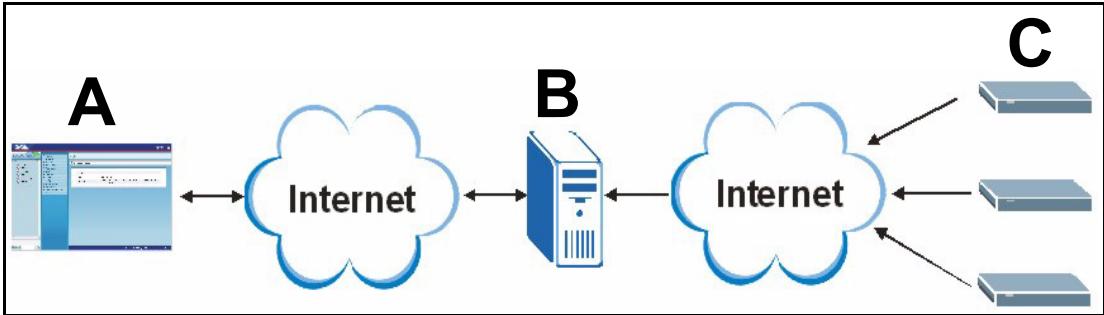
Install Vantage Report on the Vantage Report server (B). Then, use the web configurator (A) to configure it. (The web configurator can run on a remote computer or on the Vantage Report server.) Finally, configure the ZyXEL devices (C) to send their log entries and traffic statistics to the Vantage Report Server. The Vantage Report server collects this information and builds statistical reports about the network. You and others can look at these reports any time in the web configurator or in regular e-mail messages.
Overview
1 Preparation - Make sure the Vantage Report server meets the minimum requirements, and get the Vantage Report server ready for installation.
2 Installation - Install Vantage Report on the Vantage Report server.
3 Login - Use the web configurator to access the Vantage Report server.
4 E-mail Setup - Set up the administrator e-mail address and SMTP mail server settings in Vantage Report, and test the SMTP settings.
5 Registration - When you install Vantage Report, you get the standard version. You do not have to register Vantage Report unless you want to get the trial version or upgrade to the professional version. (See section 5 for more information about versions.)
6 Device Setup - Set up the ZyXEL devices, and add them in the Vantage Report server.
1 Preparation
Check these things before you install Vantage Report.
1.1 Check Minimum Requirements
If your Vantage Report server does not meet the minimum requirements, you should upgrade it or use a different server that does meet the minimum requirements.
| CPU | Pentium IV 2.6 GHz or faster recommended |
| RAM | 1024 MB or more (for good performance with 25 devices) |
| Hard Disk | 80 GB or more |
| Operating System | Windows XP Professional, Windows 2000/2003 Server |
| Browser | Internet Explorer 6.0 (Service Pack 1) or later on Windows |
| (Running on Server or Other Computer) | Mozilla 1.7.12 or later on Windows |
| Firefox 1.07 or later on Windows | |
| 1024 by 768 resolution | |
| Other | SMTP daemon |
| Requirements for Featured Services | TCP port 3316 and UDP port 514 |
1.2 Save Device List (Vantage Report v2.2 only)
If you currently use Vantage Report v2.2, you should save the list of devices in Vantage Report before you uninstall it. Then, in section 6.2, you can load this file, instead of adding each device manually to Vantage Report.
Note: You cannot load this file in section 6.2 if it adds more devices than the Vantage Report version and license allows. See section 5 for more details.
1 On the included CD, click Documents > Upgrade Notes.
2 Follow the directions to copy the migration folder (and all its contents) from the included CD to the Vantage Report v2.2 installation directory (for example, C:\Program Files\ZyXEL\Vantage Report).
3 Start Vantage Report v2.2, if it is not already running.
4 In the migration folder in the Vantage Report v2.2 installation directory, run exportDeviceList.bat. This program creates a file called Devices.xml in the same folder.
5 Copy Devices.xml to a different folder, where it will not be deleted when you uninstall Vantage Report v2.2 in section 1.3.
1.3 Uninstall Old Versions of Vantage Report
1 If an old version of Vantage Report is running, stop it.
2 In Windows 2000, click Start > Settings > Control Panel > Add/Remove Programs > Vantage Report > Change/Remove. Follow the prompts to remove Vantage Report.
In Windows XP, click start > Control Panel > Add/Remove Programs > Vantage Report > Change/Remove. Follow the prompts to remove Vantage Report.
1.4 Close MySQL and Tomcat
When you install Vantage Report, you also install MySQL and Tomcat. If these applications run on the Vantage Report server, make sure these applications are closed before you install Vantage Report. Follow these steps to check whether or not these applications are running and to stop them.
1 In Windows 2000, click Start > Settings > Control Panel > Administrative Tools > Services. The Services screen opens.
In Windows XP, click start > Control Panel > Performance and Maintenance > Administrative Tools > Services. The Services screen opens.
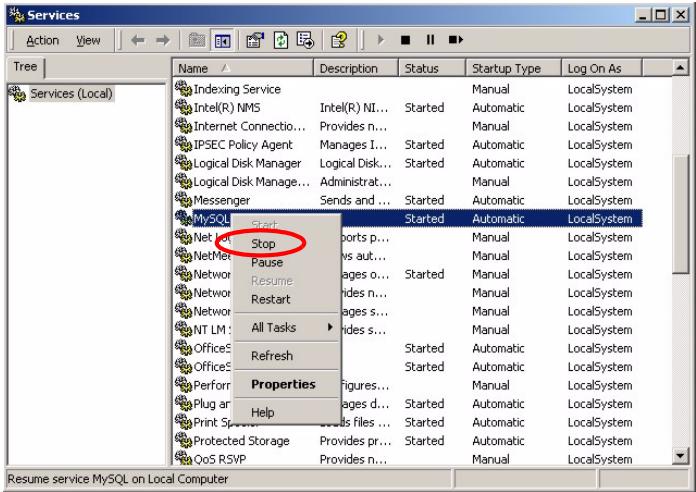
2 If there are no MySQL or Tomcat services running on the Vantage Report server, go to the next section. Otherwise, right-click on any MySQL or Tomcat service that is running. The menu that you see above appears.
3 Select Stop in the menu. Repeat steps 2 and 3 if other MySQL or Tomcat services are still running on the Vantage Report server.
2 Installation
Put the CD into your CD-ROM. The following screen appears.
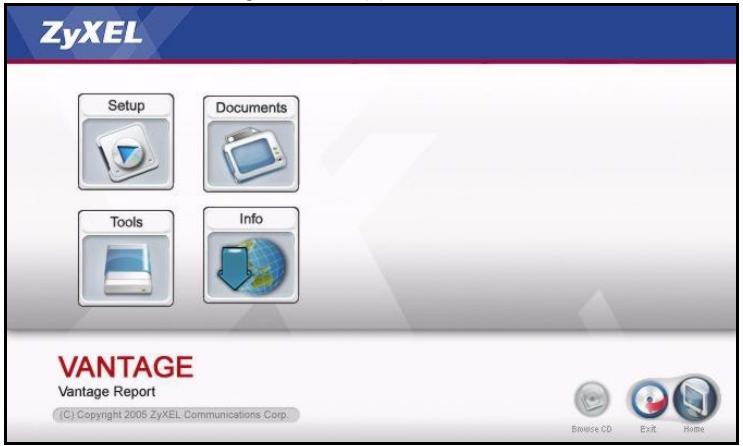
Click Setup > Vantage Report to start installing Vantage Report. The CD may first extract some files. Then, the Vantage Report installation wizard appears.
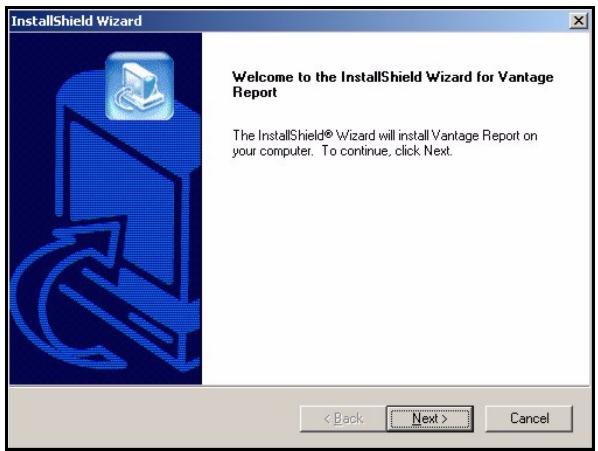
Click Next. Follow the prompts. Before you finish, the following screen appears.
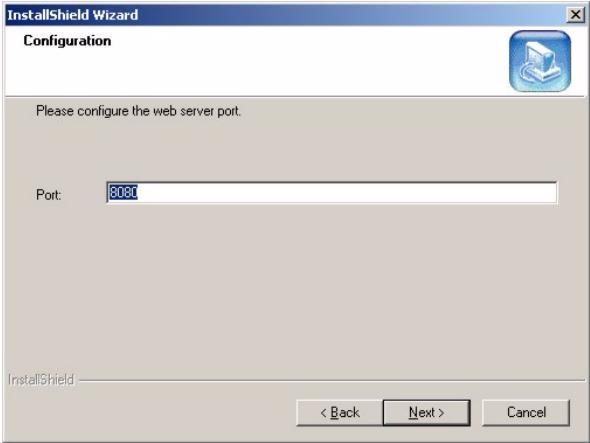
Enter the port number you want Vantage Report to use for web services. You cannot change this later without re-installing Vantage Report. Make sure this port number does not conflict with other services in your network. Click Next when you are ready.
When you finish installing Vantage Report, restart the Vantage Report server.
3 Login
By default, the Vantage Report server starts automatically when you log in to the Vantage Report server. To access the Vantage Report server,
1 Open a browser window, and go to http://a.b.c.d:xxxxx/vrpt, where
- a.b.c.d is the IP address of the Vantage Report server. If you open the web configurator on the same computer on which you installed Vantage Report, enter localhost.
- xxxxx is the port number you entered during installation. (See section 2.)
For example, http://localhost:8080/vrpt or http://212.100.9.161:9090/vrpt.
The Login screen appears. If it does not appear, see Troubleshooting.
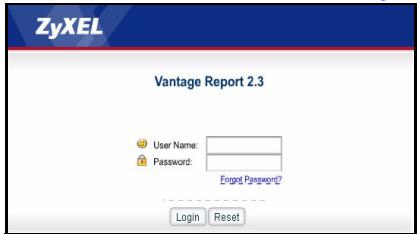
2 In the login screen, enter your user name and password, and click Login.
- Default user name: root
- Default password: root
The main screen appears. It is divided into three parts.
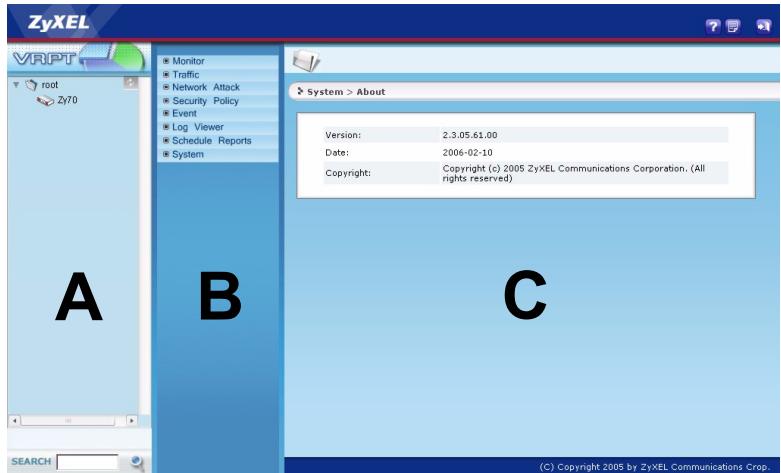
Use the device window (A) to select a device. Right-click to add and remove devices.
Use the function window (B) to select a report.
Use the report window (C) to look at and adjust the selected report for the selected device.
4 E-mail Setup
You should have an e-mail account on a SMTP mail server for Vantage Report. You can use an existing account or create a new one. In either case, you must have the SMTP mail server (IP or domain name), e-mail address, user name (if required), and password (if required).
4.1 Set Up Administrator E-mail Address
You should set up the e-mail address for the Vantage Report administrator first. This e-mail address is used to test the SMTP settings in section 4.2. It is also used for system notifications or if you forget the password for the root account. (If you forget the password, click Forget Password? in the Login screen.) See the User's Guide for more detail.
1 Log in to the Vantage Report server. (See section 3.)
2 In the function window, click System > User Maintenance. The User List screen appears.
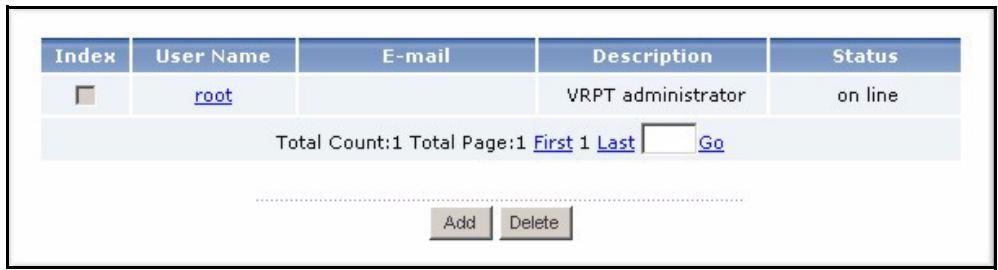
3 Click root. The Edit User screens appears.
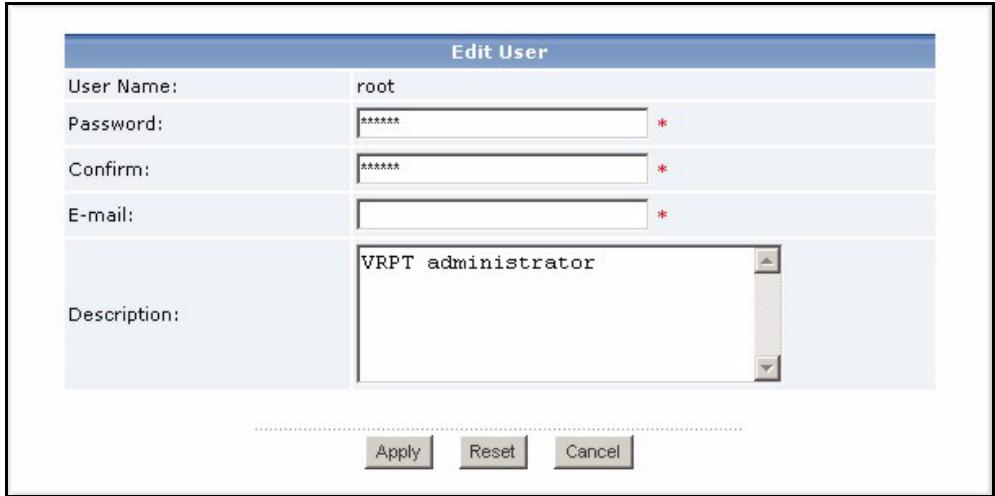
4 Type the e-mail address for the Vantage Report administrator in the E-mail field.
5 Click Apply.
4.2 Set Up SMTP Mail Server
1 In the function window, click System > Server Configuration. The Server Configuration screen appears.
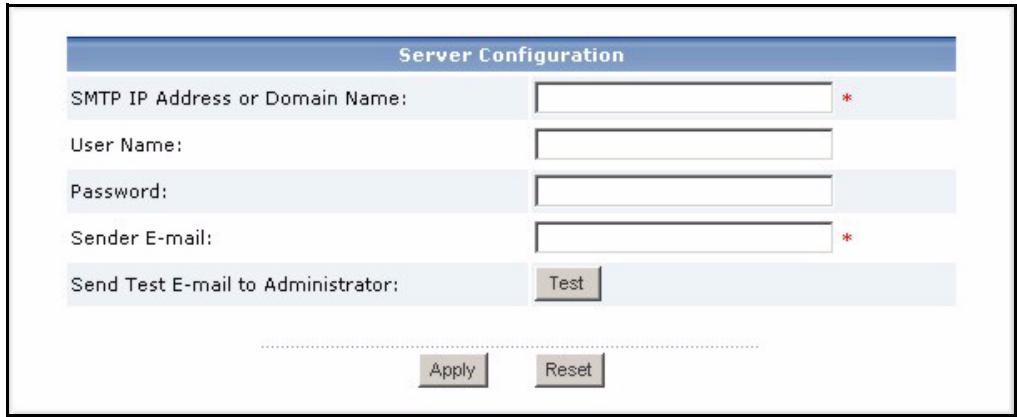
2 Follow the directions in the table below to fill in the Server Configuration screen.
| LABEL | DESCRIPTION |
| SMTP IP Address or Domain Name | Enter the IP address or domain name of the SMTP mail server on which Vantage Report has an account. |
| Username | Enter the user name required by the SMTP mail server. If the username is not required, leave this field blank. |
| Password | Enter the password required by the SMTP mail server. If the password is not required, leave this field blank. |
| Sender E-mail | Enter the e-mail address you want to be the sender when Vantage Report sends e-mail. This is the e-mail address from which Vantage Report e-mail appears to be sent. |
3 Click Apply. (You must save these settings before you can test them in the next step.)
4 Click Test. Vantage Report sends a test message to the e-mail address you specified in section 4.1.
5 Confirm that the specified e-mail account received the message from Vantage Report. If it did not receive the e-mail, see Troubleshooting.
5 Registration
You only have to register Vantage Report if you want to get the trial version or upgrade to the professional version.
- The standard version provides a variety of statistical and scheduled reports for one device.
- The professional version supports more reports, more features, and more devices than the standard version.
- The trial version is a limited-time, free trial of the professional version. It does not support as many devices as the professional version, however.
The Vantage Report server must have access to http://www.myZyXEL.com during registration. In addition, some information may also be required for setup.
| If you have a myZyXEL.com account, you need your ... |
| • myZyXEL.com user name • myZyXEL.com password |
| If you want to upgrade to the professional version, you need your ... |
| • license key (iCard in the folder you received when you purchased the professional version) |
1 Log in to the Vantage Report server. (See section 3.)
2 In the function window, click System > Registration. The Registration screen appears.
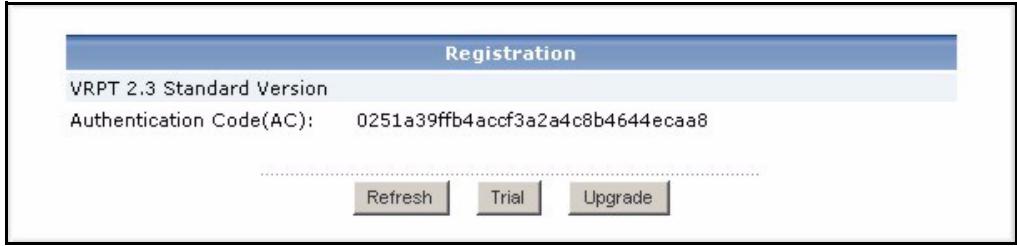
3 If you want to get the trial version, click Trial.
If you want to upgrade to the professional version, click Upgrade.
In either case, the following screen appears. Some fields do not appear in your screen if you already have a myZyXEL.com account or if you are getting the trial version.
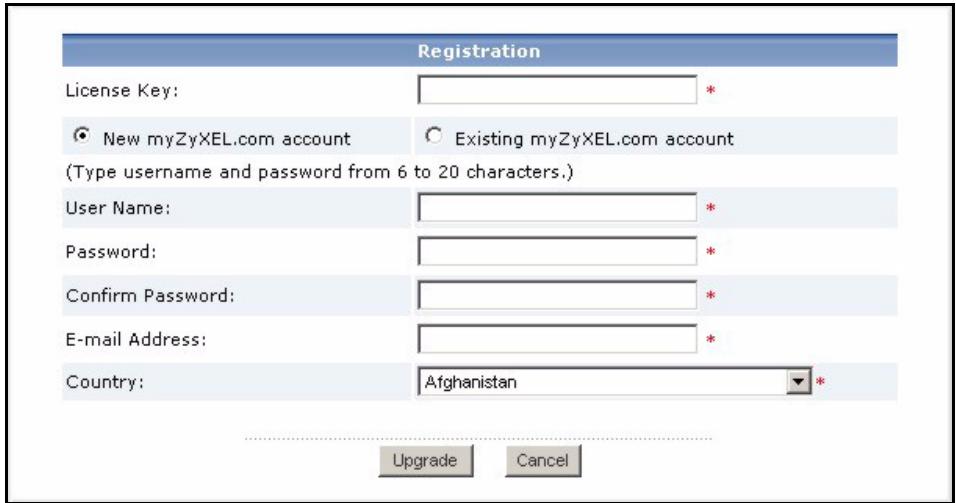
4 Follow the directions in the table below to fill in this screen.
| LABEL | DESCRIPTION |
| License Key | Enter the license key on the iCard if you are upgrading to the professional version. The iCard is in the folder you receive when you purchase the professional version. |
| New myZyXEL.com account | Select this if you do not have a myZyXEL.com account. Vantage Report creates the account for you. |
| Existing myZyXEL.com account | Select this if you already have a myZyXEL.com account. |
| UserID | If you do not have a myZyXEL.com account, enter the user name that you would like to use for your new myZyXEL.com account. Your user name can consist of alphanumeric characters and underscores ( ) and must be 6 - 20 characters long. If you already have a myZyXEL.com account, enter the user name for that account. |
| Password | If you do not have a myZyXEL.com account, enter the password that you would like to use for your new myZyXEL.com account. Your password can consist of alphanumeric characters and underscores ( ) and must be 6 - 20 characters long. If you already have a myZyXEL.com account, enter the password for that account. |
| Confirm Password | Retype your password. |
| E-mail Address | Enter the e-mail address where you would like to be notified about your new myZyXEL.com account. |
| Country | Select the place where you work. |
5 Click Upgrade. The updated Registration screen appears. If it does not, see Troubleshooting.
6 Device Setup
Check the release notes for each of your ZyXEL devices to find out if the current firmware supports Vantage Report. Make sure you check the release notes for the exact version; for example, check the release notes for v3.64(XV.5), not just v3.64. Some models and some firmware versions only support some reports. Generally, the following firmware versions support some or all reports in Vantage Report.
ZyWALL 2/10W version 3.62 or later
ZyWALL 5/35/70 version 3.63 or later
IDP 10 version 2.0 or later
- Prestige(P-) DSL version 3.40 or later
You have to configure each ZyXEL device to send its log entries and traffic statistics to the Vantage Report server, and you have to add each device to Vantage Report.
6.1 Configure ZyXEL Devices
These steps may vary for different devices. If you already set up devices for previous versions of Vantage Report, check this section to make sure the device configuration has not changed.
1 Log in to the web configurator for the device, and click Logs > Log Settings. The top part of a typical screen is shown below.
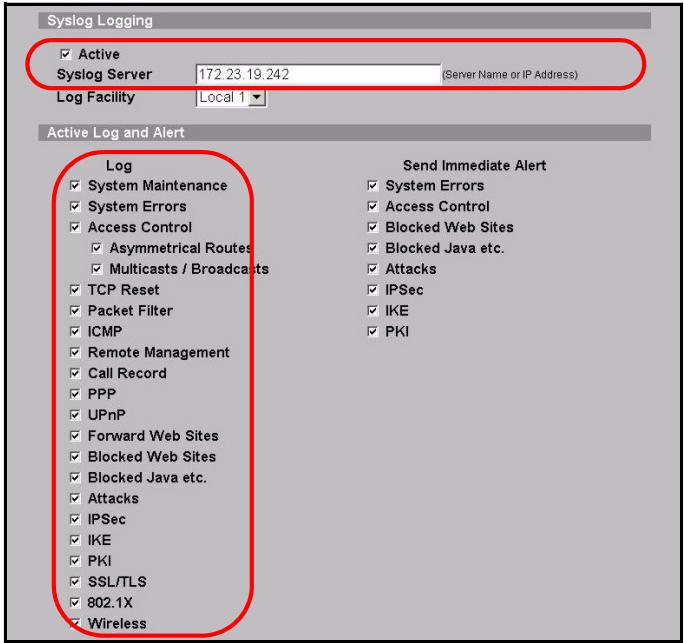
2 In the System Logging section, select the Active check box.
3 Type the IP address or name of the Vantage Report server in the Syslog Server field.
4 In the Log column, select the categories you want to see in Vantage Report. System Maintenance, Forward Web Sites, Restricted Web Sites, Attacks, IPSec, IDP, Anti-Virus, and Anti-Spam are required for various reports in Vantage Report. (Some of these are not available in every device.) You can only look at log messages for other categories.
5 Click Apply to save your changes.
6 Click Logs > Reports. If the device does not have this screen, skip steps 6 - 8. The top section of a typical screen is shown below.

7 In the Setup section, select the Send Raw Traffic Statistics to Syslog Server for Analysis check box.
8 Click Apply to save your changes.
9 If the ZyXEL device provides IDP, go to IDP > Signature (in most ZyXEL devices). Make sure the device records log entries for the attack types you want to see in Vantage Report.
10If the ZyXEL device provides anti-virus protection, go to Anti-Virus > General (in most ZyXEL devices). Make sure the device records log entries for viruses the services (in which the device found the virus) you want to see in Vantage Report.
6.2 Add ZyXEL Devices to Vantage Report
If you followed the directions in section 1.2 (for Vantage Report v2.2), follow the directions in section 6.2.2. Otherwise, follow the directions in section 6.2.1.
6.2.1 Add Devices Manually
You must have the LAN MAC address and model type of the device.
1 Log in to the Vantage Report server. (See section 3.)
2 In the device window, right-click on root. The following menu appears.
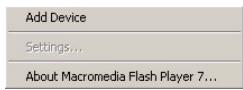
3 Select Add Device. The Add Device screen appears.
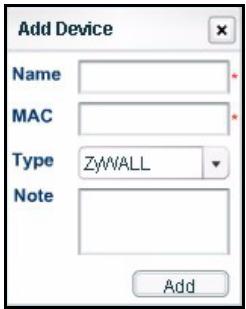
4 Follow the directions in the table below to fill in the Add Device screen.
| LABEL | DESCRIPTION |
| Name | Enter the name of the device you want to add to Vantage Report. The name can consist of alphanumeric characters or underscores (___) and may be 1 - 28 characters long. This name is used to refer to the device in Vantage Report, and it has to be unique in Vantage Report. In some cases, the device's System Name might be appropriate. |
| MAC | Enter the LAN MAC address of the device you want to add. You must enter 12 hexadecimal numbers (0 - 9, A - F). Do not use colons (:). This address is usually located on a label that is on the bottom of the device. If there are two addresses on the label, the LAN MAC address is usually on the top. |
| Type | Select the model type of the device you want to add. |
| Note | Enter any additional notes you want to make here. You can enter up to 50 printable ASCII characters. You can also leave this field blank. |
5 Click the Add button. The device should now appear in the device window. You can select it (for example, if you want to generate a statistical report for it) by clicking on it once. See the User's Guide for more information.
6.2.2 Import a Device List
1 Log in to the Vantage Report server. (See section 3.)
2 In the function window, click System > Data Maintenance > Device List Import & Export. The Device List Export / Import screen appears.
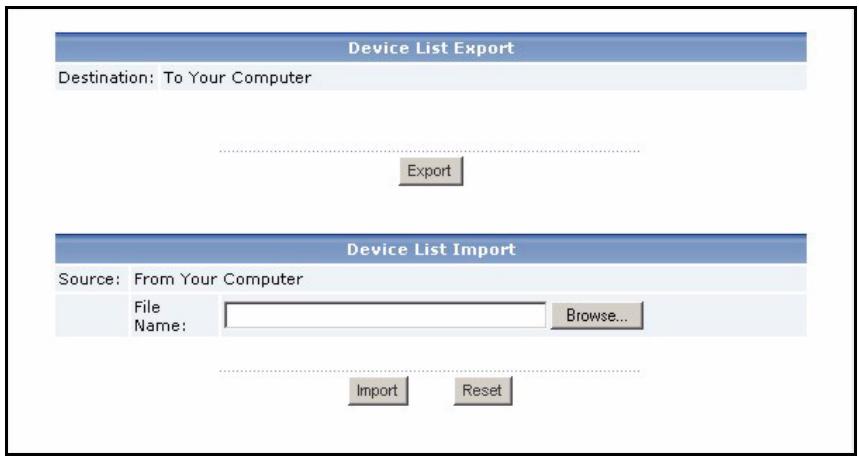
3 Enter the name and location of the file you saved in section 1.2, or click Browse... to look for it.
4 Click Import. The following message appears.
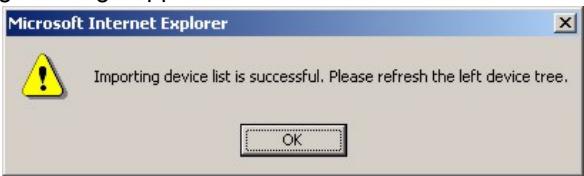
5 Click OK to close the message.
6 In the device window, click the Refresh icon in the upper right corner. The devices you had in Vantage Report v2.2 should appear.
Follow the directions in section 6.2.1 to add additional devices manually.
Troubleshooting
See the User's Guide for additional troubleshooting.
| PROBLEM | CORRECTIVE ACTION |
| The web configurator is not connecting to the Vantage Report server. The Vantage Report server does not start up automatically. | Make sure you are using the correct URL. Enter http://a.b.c.d:xxxxx/vrpt, where • a.b.c.d is the IP address of the Vantage Report server. If you open the web configurator on the same computer on which you installed Vantage Report, enter localhost. • xxxx is the port number you entered during installation. (See section 2.) For example, you might enter http://localhost:8080/vrpt or http://212.100.9.161:9090/vrpt. Make sure packets on TCP port 3316, UDP port 514, and the port number you specified during installation are forwarded to the Vantage Report server, especially if the Vantage Report server runs behind a NAT or firewall. Make sure the Vantage Report server is running. • The Vantage Report server runs as a service. Follow the directions in section 1.4 to check it. • Make sure the following system variables are defined. PATH=C:\WINNT\system32;C:\WINNT;C:\WINNT\System32\Wbem The drive letter and names of folders depend on your Vantage Report server. To check these variables in Windows 2000, click Start > Settings > Control Panel > System > Advanced > Environment Variables. In Windows XP, click start > Control Panel > System > Advanced > Environment Variables. Make sure the variables are in the System Variables box. • Delete vrtp\conf\lastLogTime.txt in the Vantage Report installation directory. Then, restart the server. • The Vantage Report server does not start automatically if there is a port conflict on the port number you specified during installation. Click Start > Run, and enter netstat -a to find out if there is a port conflict. If the problem continues, contact your local vendor. |
| The web configurator returns to the Login screen when I try to do something. | For security reasons, the web configurator times out in fifteen minutes. Log in again. |
| Vantage Report did not send the test e-mail to the administrator's e-mail account. | Make sure the SMTP settings and e-mail account are correct. If your SMTP mail server requires authentication, make sure you entered the user name and password correctly. See section 4. Make sure the Vantage Report server can connect to the SMTP mail server. If the problem continues, contact your local vendor. |
| I cannot register (get the trial version or upgrade to the professional version). | Make sure you have the right license key, and make sure you enter the requested information correctly. See section 5. Make sure the Vantage Report server can connect to http://www.myzyxel.com. The Vantage Report server interacts with this site during registration. If the problem continues, contact your local vendor. |
Viewing Your Product's Certifications
Go to www.zyxel.com, select your product from the drop-down list box on the ZyxEL home page, and select the certification you wish to view.
Vantage Report
New myZyXEL.com account
Existing myZyXEL.com account
(Type username and password from 6 to 20 characters.)
UserID:
Password:
Confirm Password:
E-mail Address:
Country:
Upgrade
Cancel
4 依照下表指示填寫此畫面中的項目。
Authentication Code(AC): 0251a39ffb4acf3a2a4c8b464eeca8
Refresh

Upgrade
3ДяуctaHOBKn npo6HOB BepcNBOCNoIb3yTeCb KhoNkoi Trial.
Для посяда на рedingakши Professional naхмITE Upgrade.
Otkpoetc cneyuoum 3kpan. Ecnn y bac yke ectb yueTna 3aInscb Ha caTe myZyXEL.com, a taKke npu yctahOBKe npoHOBn Bercn IN HeKOTOpbIe n3 IOneMOrTy OTCyTCTBOBaTb.
Registration
License Key:
New myZyXEL.com account
Existing myZyXEL.com account
(Type username and password from 6 to 20 characters.)
User Name:
Password:
Confirm Password:
E-mail Address:
Country:
Upgrade
Cancel
4BBeInTe daHbIe cornacho Hnctpykunm B tabnue Hnke.