
MPS6150C - Multifunction Printer OKI - Free user manual and instructions
Find the device manual for free MPS6150C OKI in PDF.



| Product type | Color multifunction printer |
| Functions | Print, copy, scan |
| Print resolution | Up to 1200 x 600 dpi (estimated) |
| Print speed | Not specified in manual, approximately 20-30 pages/min (estimated) |
| Supported paper sizes | Letter, Legal 14/13.5/13, A4, A5, A6 (tray 1), B5, Executive, custom sizes (MF tray) |
| Supported paper weight | Tray 1: 64-120 g/m²; Optional tray 2: 64-176 g/m²; MF tray: 75-203 g/m² |
| Tray capacity | Tray 1: 300 sheets (75 g/m²), Optional tray 2: 530 sheets, MF tray: 100 sheets |
| Output tray capacity | Top output: 250 sheets; rear output: 100 sheets |
| Duplex printing | Yes, automatic |
| Special media types | Transparencies, labels, envelopes, thick paper, banners (MF tray only) |
| Connectivity | USB, network (Ethernet) |
| Display and control panel | LCD screen with buttons: ENTER, +/-, ON LINE, CANCEL, BACK |
| Power saving features | Sleep mode (adjustable delay, default 5 minutes) |
| Consumables | Color toner (CMYK) and image drums |
| Common error messages | Paper jam, toner empty, insufficient memory, tray empty |
| Dimensions (approx.) | 400 x 500 x 400 mm (estimated) |
| Weight (approx.) | 25 kg (estimated) |
| Available languages | FR, EN, ES, etc. |
Frequently Asked Questions - MPS6150C OKI
User questions about MPS6150C OKI
0 question about this device. Answer the ones you know or ask your own.
Ask a new question about this device
Download the instructions for your Multifunction Printer in PDF format for free! Find your manual MPS6150C - OKI and take your electronic device back in hand. On this page are published all the documents necessary for the use of your device. MPS6150C by OKI.
USER MANUAL MPS6150C OKI
Multi-Purpose Tray 7
Exit Trays 9
Print Media Settings 10
General Information 10
Selectable Media Weight Settings 11
Print Media 12
Paper 12
Transparencies, Labels 13
Thick Paper, Envelopes 14
Power Save Mode 15
Control Panel. 16
Clearing Media Jams. 17
Duplex (370, 373) 17
Duplex (371) 18
Paper Feed (372, 380, 390). . . . 19
Internal (381) 20
Paper Tray (391, 392). 22
Common Error Messages. 23
Ordering Replacement Supplies . 25
Service & Support. 26
Table des matieres
Supports d'impression. 35
Papier. 35
Transparents, Étiquettes 36
Settings made in the printer driver will override the printer menu settings.
Navigating the Menu
- Press

ENTER
to enter the Menu mode.
- Press


or
repeatedly to scroll through the Categories, Items and Values.
- Press

ENTER
to select a Category, Item or Value to change, or to engage the new setting for a Value.
- Press

ON LINE
to exit the Menu mode.
For Example
If the MP Tray will normally be loaded with transparencies, set the printer menu as follows:
- Press ENTER.
- Press + repeatedly until you see
MPT MEDIA TYPE PLAIN
*
- Press ENTER. The second line of the display starts blinking.
- Press + repeatedly until TRANSPARENCY appears on the second line of the display.
- Press ENTER. An asterisk appears next to your selection.
- Press ENTER. The setting is engaged.
- Press ON LINE.
Using the Printer Menu
Menu Summary
Summary of Menu Categories
Information Menu
Print the Menu Map, Network settings or Demo page.
Print Menu
Set the number of copies, feed tray used, etc.
Media Menu
Set media size and weight for the various trays, etc.
▶Color Menu
Set color density, registration, etc.
Sys Config Menu
Set power save, timeouts, etc.
USB Menu
Set parameters for USB.
Network Menu
Set network parameters.
Maintenance Menu
Enable power save, and set other printer parameters.
Usage Menu
Indicates page counts and remaining life for consumables.
Printing the MenuMap
The MenuMap provides a listing of the current printer menu settings.
- Press + one or more times until you see
INFORMATION MENU
- Press ENTER.
PRINT MENU MAP EXECUTE
- Press ENTER.
The MenuMap prints and the printer goes back on line.
Tray 1 and Optional Tray 2
Media Specifications
| Media Weight Range | Tray 1: 17 to 32 lb. US Bond (64 to 120 g/m2) Optional Tray 2: 17 to 47 lb. US Bond (64 to 176 g/m2) |
| Media Size Range: | Letter, Legal-14, Legal-13.5, Legal-13, A4, A5, A6 [Tray 1 only], B5, Executive |
| Capacity: | Tray 1: 300 sheets of 20-lb. (75 g/m2) paper Optional Tray 2: 530 sheets of 20-lb. (75 g/m2) paper |
Loading Paper
1
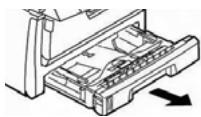
2
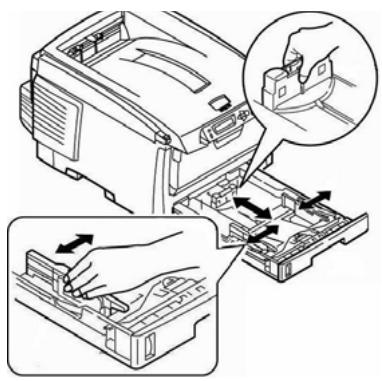
3

4
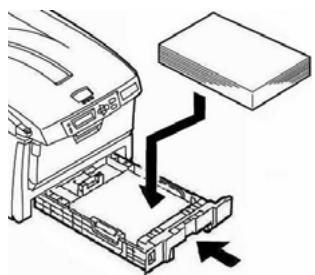
To Change the Media Default
- Press ENTER.
- Press + repeatedly until MEDIA MENU appears on the display.
- Press ENTER.
TRAY1 PAPERSIZE LETTER
-
Press + repeatedly until you see
-
TRAY1 MEDIAWEIGHT, or
-
TRAY2 MEDIAWEIGHT
-
Press ENTER.
The second line of the display starts blinking.
- Press + repeatedly until the second line of the display shows the Value (Light, Medium, or Heavy [see page 11]) you wish to use.
- Press ENTER.
- Press ON LINE.
Multi-Purpose Tray
Media Specifications
| Weight Range | 20 to 54 lb. US Bond (42 to 113 lb. Index, 75 to 203 g/m2 metric) |
| Size Range: | Min. 4.13" x 5.83" [105 to 148 mm], max. 8.5" x 14" [216 x 356 mm] (Non-standard sizes must be defined in driver before printing: see your on-line User's Guide.)Banners: 8.25 to 8.5" [210 to 216 mm] wide by up to 49" [1.22 m] long. Must be fed one sheet at a time. |
| Takes: | 100 sheets 20-lb. (75 g/m2) paper, 50 transparencies, 10 envelopesLabels: max. feed stack = about 3/8-inch (1 cm) high |
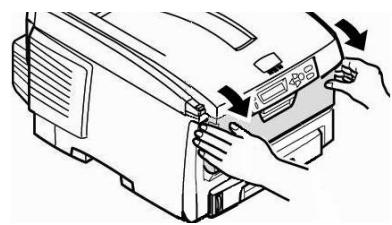
Loading Paper
1
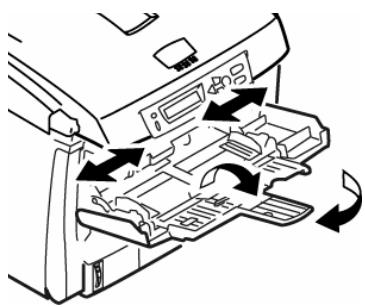
2
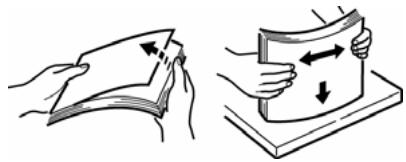
3
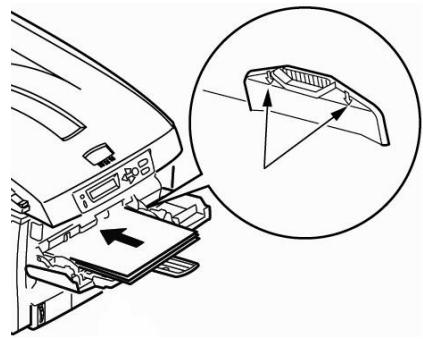
4
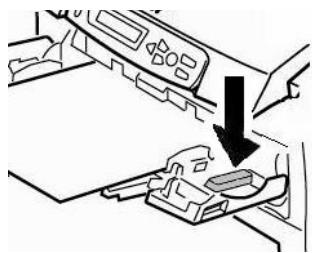
5
Letterhead stationery
- Single-sided printing: load face up, top edge into the printer.
- Double-sided printing: load face down with top edge away from the printer.
Multi-Purpose Tray
Default Media
Note
For the MP Tray, the default settings are:
Media Type = Plain.
Media Size = Letter
Transparencies
To Set Transparencies as the default media in the MP Tray, see page 4.
Heavy Paper, Labels, Envelopes
To Set Heavy Paper, Labels, or Envelopes as the Default Media in the MP Tray:
First, set the Media Size
- Press ENTER to enter the Menu mode.
- Press + repeatedly until MEDIA MENU appears on the display.
- Press ENTER.
TRAY1 PAPERSIZE LETTER
- Press + repeatedly until MPT PAPER SIZE appears on the display.
- Press ENTER. The second line of the display starts blinking.
-
Press Press + repeatedly until the second line of the display shows the Value (for envelopes, select COM-10 ENVELOPE) you wish to use.
-
Press ENTER twice. The setting is engaged and the second line of the display stops blinking.
- Envelopes: If you are setting the MP Tray for envelopes, press ON LINE and you are done.
Heavy paper/labels: If you are setting the MP Tray for heavy paper or labels, keep going.
Heavy Paper and Labels Only: Set the Media Type
- Press+.
MPT MEDIATYPE PLAIN
*
- Press ENTER. The second line of the display starts blinking.
- Press + repeatedly until your choice of CARD STOCK or LABELS appears on the second line of the display.
- Press Enter.
- Press Back. The setting is engaged and the second line of the display stops blinking.
- Press ON LINE. The printer goes back on line.
Top (Face Down) Exit Tray
This is the exit tray that is normally used.
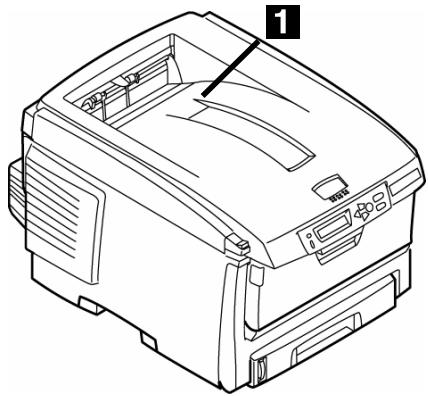
For papers up to 47 lb. US Bond (176 g/m²).
- Holds up to 250 sheets of 20-lb. US Bond (75g / m^2) paper.
- Sheets exit face down.
Rear (Face Up) Exit Tray
- Provides straight-through, curl-free print path for transparencies, envelopes, labels and heavy paper.
- Handles paper from 17 to 54 lb. US Bond (64 to 203g / m^2
- Holds up to 100 sheets of 20-lb. US Bond (75g / m^2) paper.
- Sheets exit face up (for multi-page documents, select reverse order printing in your application Print dialog box).
Note
If the rear tray is open, all printed pages will exit there regardless of the printer driver setting.
Opening the Rear-Feed Tray
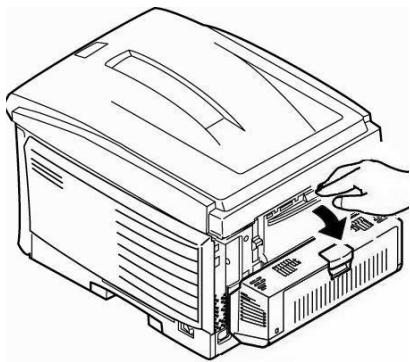
1
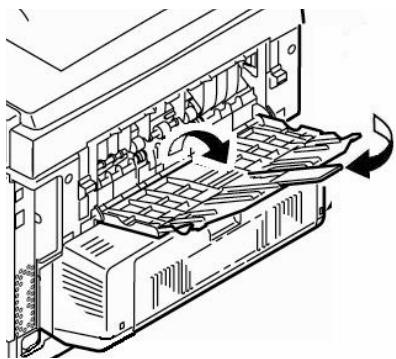
2
Print Media Settings
General Information
Why Change Settings?
Always make sure the media setting matches the print media you are using.
Improper media settings:
- cause poor quality printing
- cause flaking
can damage the printer
Printer Driver Versus Printer Menu
Print media settings can be made in the printer driver or in the printer menu.
- Printer driver settings override printer menu settings.
Default Settings
The default media weight setting for all trays is Medium (20 to 27 lb. US Bond [75 to 101 g/m²]).
Changing the Default
See pages 6 and 8.
Resetting to the Original Defaults
- Press ENTER.
- Press - repeatedly until you see MAINTENANCE MENU on the display.
- Press ENTER.
MENURESSET EXECUTE
- Press ENTER.
The printer resets and returns to the on-line state.
Temporarily Changing the Media Weight for an Individual Print Job
If you are printing a job on special media, you can temporarily load the media in a tray and change the media settings for that tray in the driver as you print the job.
Print Media Settings
Selectable Media Weight Settings
Ranges for Printer Media Weight
Media weight settings can be made in the printer menu or the printer driver.
Important!
Settings made in the printer driver override the printer menu settings.
Selectable Media Weight Settings
| Setting | Media Weight |
| Light | US Bond: 17 to 19 lb. Index: 35 to 40 lb. Metric: 64 to 71 g/m2 |
| Medium | US Bond: 20 to 27 lb. Index: 42 to 56 lb. Metric: 75 to 101 g/m2 |
| Heavy | US Bond: 28 to 32 lb. Index: 58 to 67 lb. Metric: 105 to 120 g/m2 |
| Ultra Heavy | US Bond: 33 to 54 lb. Index: 69 to 113 lb. Metric: 124 to 203 g/m2 |
US Bond versus Index
To determine if a paper weight is US Bond or Index, check the metric equivalent. E.g.,
35 lb. US Bond = 132 g/m²
35 lb. Index = 64 g/m²
For more information, go to www.paper-paper.com/ weight.html.
Sample Ream Labels
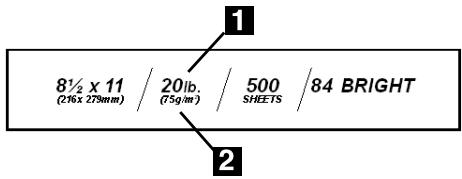
US BOND
1 Media Weight, US Bond [sometimes given as substance]
2 Media Weight, Metric
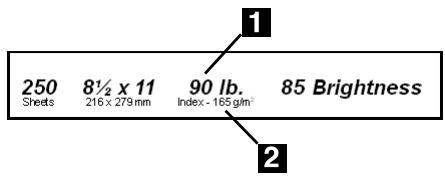
INDEX
1 Media Weight, Index
2 Media Weight, Metric
Print Media
Paper
Specifications
Caution!
The ink on pre-printed letterhead stationery must be able to withstand 446^ ( 230^ ) for 0.2 second, including mechanical pressures to 25 psi ( 1.8kg/cm^2 ).
Important!
If you experience curling when printing a file in duplex mode, switch to 28-lb. US Bond paper.
| Feed | Sizes | Exit | Media Weight1 | Recommended Media1 |
| Tray 1 | Letter | Top | Light (17-19 lb.) | ·Oki 52206101 Bright White Proofing Paper, 32 lb. |
| Executive | Rear | Medium (20-27 lb.) | ·Hammermill Laser Printer Radiant White, 24 lb. | |
| Legal-14 | Heavy (28-32 lb.) | ·Xerox 4024, 20 lb. | ||
| Legal-13.5 | ||||
| Legal-13 | ||||
| A4, A5, A6 | ||||
| B5 | ||||
| Tray 2 | Same as Tray 1, but no A6. | Top | Light (17-19 lb.) | Same as Tray 1 |
| Rear | Medium (20-27 lb.) | |||
| Heavy (28-32 lb.) | ||||
| Ultra Heavy (33-54 lb.): limited to 47 lb.max. | ||||
| MP Tray | Same as Tray 1, but custom sizes can also be used.2 | Rear Only | Medium (20-27 lb.) | Same as above, plus: ·Oki 52206002 Banner Paper |
| Heavy (28-32 lb.) | ||||
| Ultra Heavy (33-54 lb.) |
- Weights in this column are US Bond (see page 11 for more information).
- Min. = 4.13'' × 5.83'' ; max. = 8.5'' × 14'' : must be defined in the printer driver.
Banner Paper.
- Width: 8 14 to 8 12 (210 to 216 mm)
Length: 14 to 48" (357.4 to 1220 mm) -
Paper Weight: up to 34 lb. US Bond (128 g/m2)
-
MP Tray Only
- Rear Exit Tray Only
- Simplex (1-sided) Only
Note: Banner paper must be fed in one sheet at a time.
Print Media
Transparencies, Labels
Caution!
Print media must be able to withstand 446^ (230^) for 0.2 second, including mechanical pressures to 25 psi (1.8kg/cm^2) .
General Parameters
Size: Letter or A4
- Feed: MP Tray Only
- Exit: Rear Exit Tray Only
Transparencies
Important!
Use only recommended transparencies.
Recommended
Transparencies
- Oki 52205701 Premium Color Transparency
3M CG3720
Printing
Individual Jobs
Make the following settings in the printer driver as you print the job:
Source = MP Tray
Media Size = Letter or A4
Media Type = Transparency
All Jobs (Set Transparencies as the Default)
Set the printer menu as follows (see page 4):
- MP Tray PaperSize = Letter (the default) or A4
- MP Tray MediaType = Transparency
Labels
Loading Labels
- MP tray
Label side up - Top edge aimed into the printer.
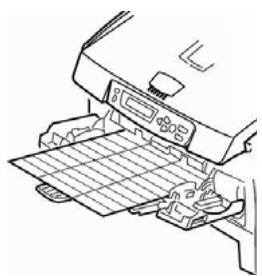
Recommended Labels
- Avery 5161 White Laser Label, Letter Size
- Avery 7162, 7664, 7666 White Laser Labels, A4 Size
Printing
Individual Jobs
Make the following settings in the printer driver as you print the job:
Source = MP Tray
Media Size = Letter or A4
Media Type = Labels
All Jobs (Set Labels as the Default)
Set the printer menu as follows (see page 8):
- MP Tray PaperSize - Letter or A4
- MP Tray MediaType = Labels
Note: Use the rear exit tray only.
Thick Paper
Caution!
To avoid damage to the printer, ALWAYS CHANGE THE PRINTER SETTINGS WHEN PRINTING ON THICK MEDIA.
Recommended
- Oki 52205601, 52205602, 52205603 Premium Card Stock
Printing
Individual Jobs
Make the following settings in the printer driver as you print the job:
- Source = Tray1 (17-32 lb. US Bond) or MP Tray (20-54 lb. US Bond)
- Size = Letter, Executive, Legal-14, Legal-13.5, Legal-13, A4, A5, A6, B5, Custom (must be defined in the printer driver).
- Type = Heavy (28-32 lb. US Bond) or Ultra Heavy (33-54 lb. US Bond).
All Jobs (Set Thick Paper as the Default)
Set the printer menu to (see page 8):
-
PaperSize = Same as for individual print jobs.
Media Type: -
Tray 1 = Heavy (28-32 lb. US Bond)
- MP Tray = Heavy (28-32 lb. US Bond) or Ultra Heavy (33-54 lb. US Bond)
Envelopes
Caution!
Envelopes must be able to withstand 446^ F ( 230^ C ) for 0.2 second, including mechanical pressures to 25 psi ( 1.8 ~kg / cm^2 )
Important!
For the best print results, use only the recommended envelopes.
Never use envelopes with metal clasps, snaps, windows, or V-flap seals:
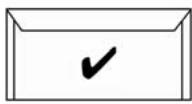
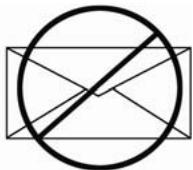
Recommended
- Oki 52206301, 52206302 Premium Envelopes.
Printing
Individual Jobs
Make the following settings in the printer driver as you print the job:
Source = MP Tray
Size = COM-10
All Jobs (Set Envelopes as the Default)
Set the printer menu to (see page 8):
- PaperSize = COM-10 ENVELOPE
Power Save Mode
Power Save sets how long the printer waits before going into standby mode. The default is 5 minutes.
This saves energy, but the printer requires time to warm up when it receives a print job or if you want to enter the menu and change settings.
For more information, see your on-line User's Guide.
Control Panel

BACK Button
In the Menu mode, press BACK to go back to the previous Item or Category, or to place the printer back on line.
+Button
Press + to enter the Menu mode or to go to the next Category, Item or Value in the Menu.
Press and hold this button to advance rapidly through the entries.
- Button
Press - to go back to the previous Category, Item or Value in the Menu.
Press and hold - to rapidly advance backwards through the entries.
ENTER Button
Press ENTER to enter the Menu mode.
When the printer is in the Menu mode, press ENTER to select a Category or Item to change. Once you have changed the setting to a new Value, press ENTER to engage the Value.
ON LINE Button
Press ON LINE to switch the printer between on line and off line status.
When the printer is in the Menu mode, press ON LINE to exit the Menu mode and return the printer to on line.
If there is a paper size mismatch error, press ON LINE to force the job to print.
Press ON LINE to start a manual print job from the MP Tray once paper has been loaded.
If there is a memory overflow, press ON LINE to recover and place the printer back on line.
CANCEL Button
Press and hold CANCEL to stop printing the current job.
When the printer is in the Menu mode, press CANCEL to exit the Menu mode and place the printer back on line.
READY Light (Green)
On: printer is on line.
Off: printer is off line.
Flashing: printer is receiving data.
ATTENTION Light (Red)
On: Warning or Error status
Off: Normal status.
Flashing: Alarm status.
Clearing Media Jams
Duplex (370, 373)
Jam 370 or 373
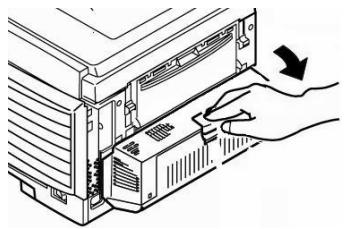
1
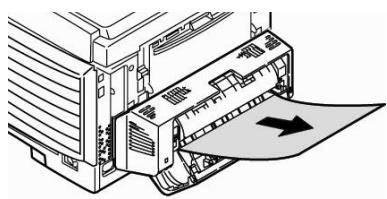
2
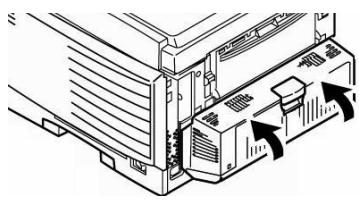
3
Caution!
Fuser may be hot!
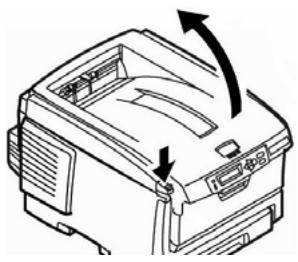
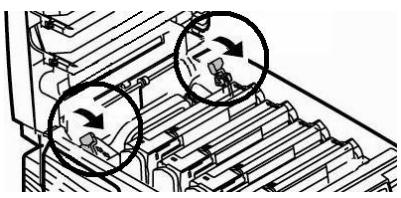
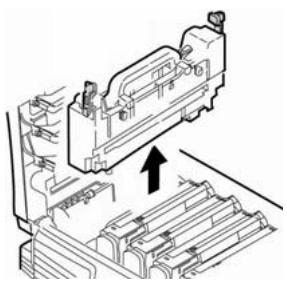
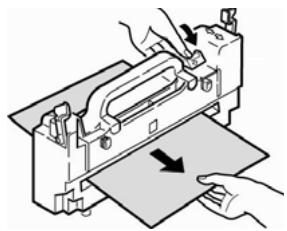
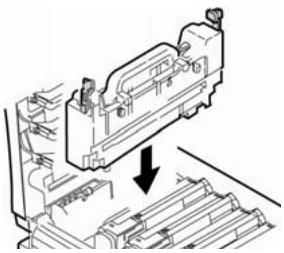
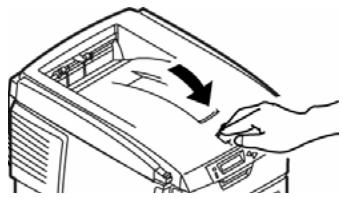
If the Sheet is Trapped in the Fuser:
1
2
3
4
5
6
Clearing Media Jams
Duplex (371)
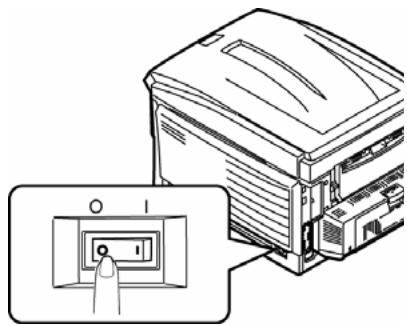
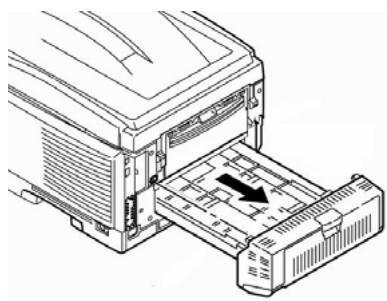
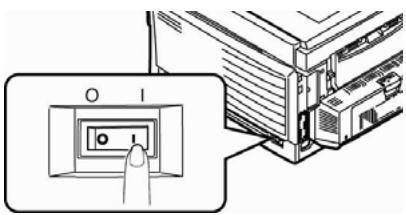
Jam 371
1 Power off!
2
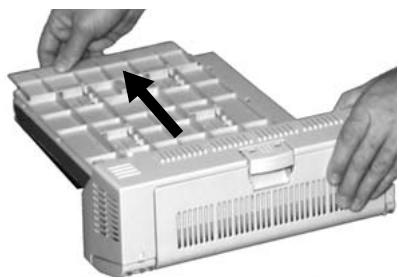
3
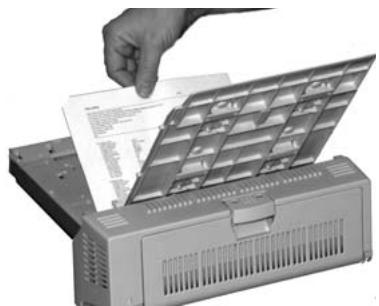
4
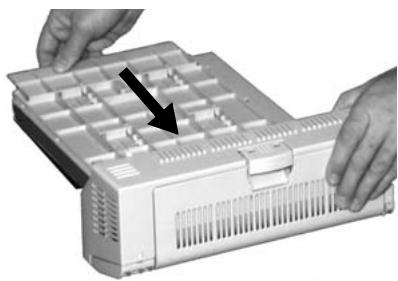
5
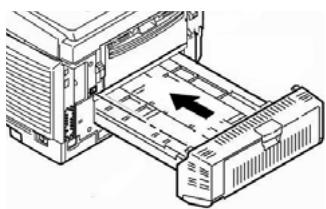
6
7
Front Cover Jams 372, 380
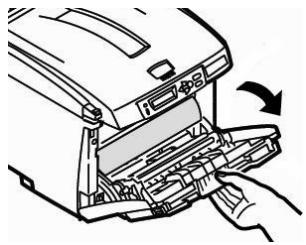
1
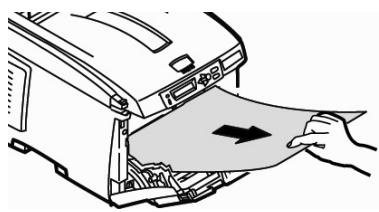
2
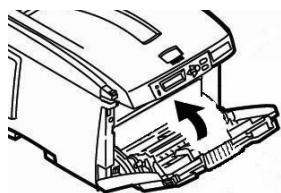
3
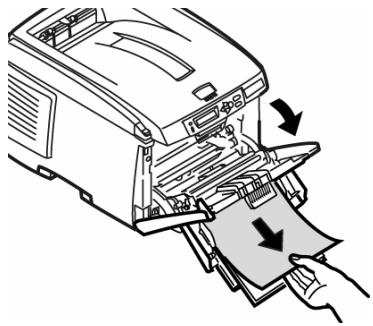
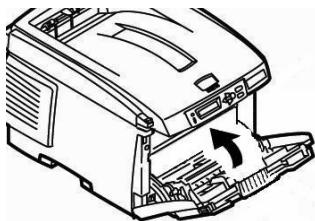
MP Tray Jam 390
If the Sheet Can't Easily Be Pulled Out from the Front:
1
2
Clearing Media Jams
Internal (381)
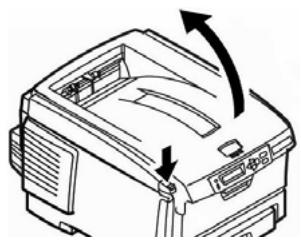
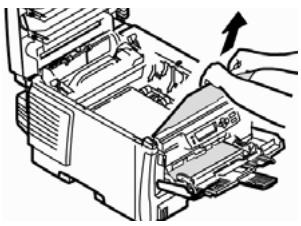
Jam 381
1
Caution!
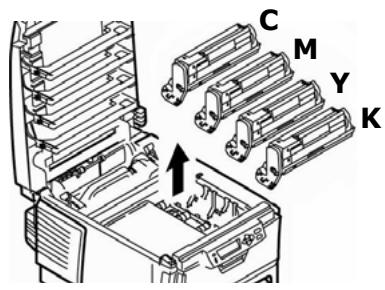
The fuser behind the cyan (C) toner may be HOT.
2
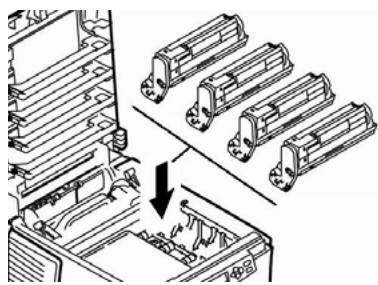
Caution!
To avoid damage to the drums:
- Be sure to set the drums on a flat surface.
- Do not expose the drums to light for more than 5 minutes.
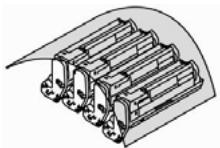
- Do not touch the shiny green area on the bottom.
3
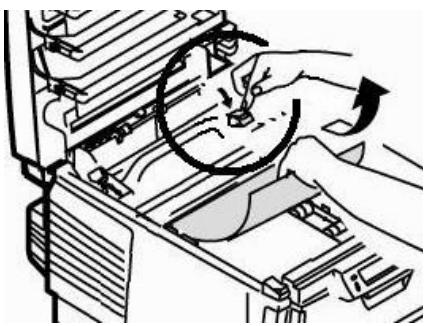
Note
To remove a sheet trapped in the fuser:
4
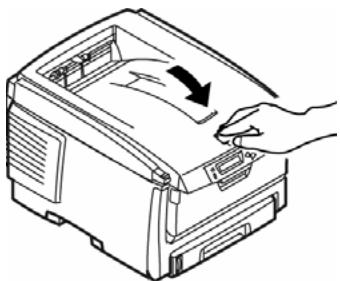
5
Clearing Media Jams
Internal (382, 383)
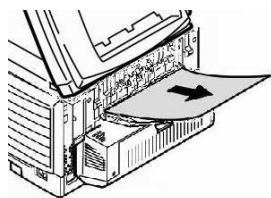
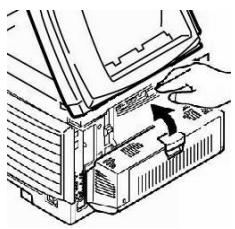
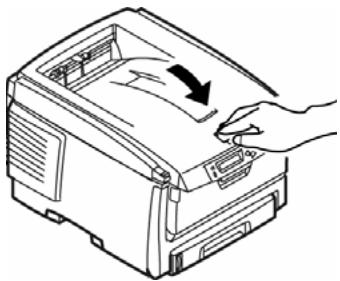
Jams 382, 383
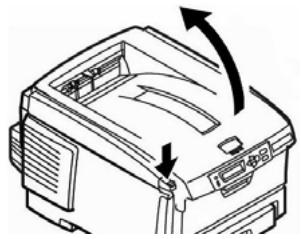
1
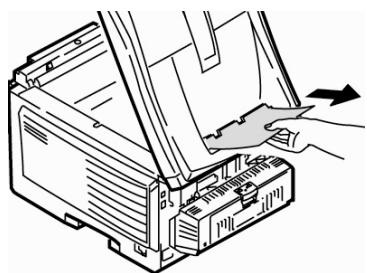
2
- If the sheet does not come out easily, continue.
- If the sheet does come out easily, close the cover.
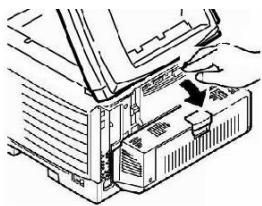
3
4
5
6
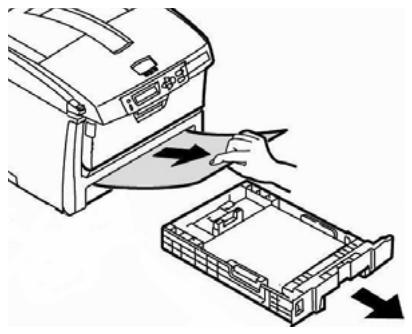
Jam 391 (Tray 1)
1
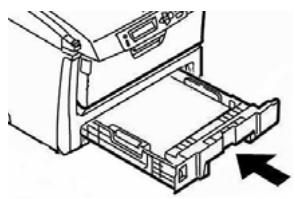
2
Jam 392 (Optional Tray 2)
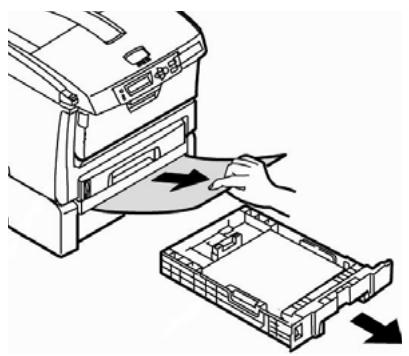
1
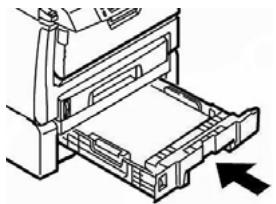
2
Both
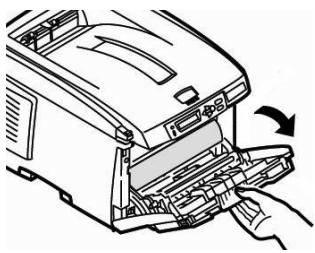
3
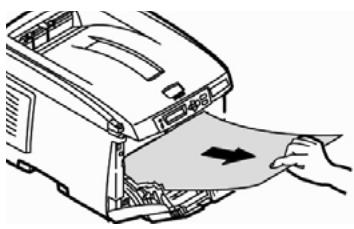
4
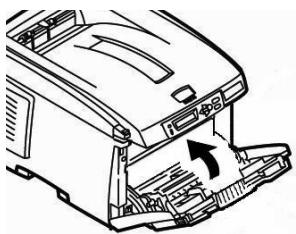
5
Common Error Messages
For additional error messages, see your on-line User's Guide.
XXX TONER SENSOR ERROR
Open the cover. Push the XXX Toner lock lever toward the back of the printer as far as it will go. Close the cover. If this does not clear the message, call your local service dealer.
XXX ORDER TONER
Note
If you have changed the LOW TONER setting to STOP, the ATTENTION light will blink and you must either replace the toner cartridge immediately or press the ON LINE button to continue printing.
Be sure you have a genuine OKI replacement toner cartridge on hand.
INSTALL NEW TONER nnn:XXXX TONER EMPTY
Replace the XXXX toner cartridge with a genuine OKI Toner Cartridge.
TONER NOT INSTALLED XXXX
Note
Toner XXXX is missing or an incorrect toner cartridge is installed. When this message appears, the printer stops after every 20 pages. To continue printing, you must open and close the top cover.
Replace the toner with a genuine OKI Toner .
NON GENUINE TONER XXXX
Note
The toner cartridge indicated (XXXX) is not a genuine OKI Toner Cartridge. When this message appears, the printer stops after every 20 pages. To continue printing, you must open and close the top cover.
Remove the toner cartridge and replace it with a genuine OKI Toner Cartridge.
XXXX DRUM LIFE
Replace the xxxx image drum. (See the instructions supplied with the new image drum.)
Common Error Messages (cont.)
INSTALL ADDITIONAL MEMORY 420: MEMORY OVERFLOW
- Reduce the size of the file being printed (e.g., print the file as separate groups of pages instead of all the pages at one time).
- Install additional memory in the printer (see your on-line User's Guide for more information).
TRAY t EMPTY
Load more media in the indicated tray.
CANCELING JOB (USER DENIED)
The Job Accounting software has detected a print job from a user who is either
not authorized to print or
- trying to print a color job and only authorized to print black and white jobs.
The user should contact the System Administrator to see if their authorization can be changed.
Ordering Replacement Supplies
How to Order
- Consult the dealer where you purchased your printer.
- Consult an Oki Data Authorized Sales or Service Dealer. For your nearest dealer, call 1-800-654-3282.
U.S., Puerto Rico, Guam, U.S. Virgin Islands only: Order on the Internet at www.okiPRINTINGSOLUTIONS.COM.
U.S. only: Order toll-free by phone at 1-800-654-3282, using VISA®, MasterCard®, or AMEX®.
Service & Support
First ...
Consult the store where you purchased your printer.
Additional OKI Resources
Available 24 hours a day, 7 days a week
- Visit our web site: www.okiPRINTINGSOLUTIONS.COM.
- Visit MY.OKIDATA.COM.
Call 1-800-654-3282.
OKI is a registered trademark of Oki Electric Industry Company, Ltd.
3M is a trademark or registered trademark of 3M.
AmEx is a registered trademark of American Express Co.
Avery is a registered trademark of Avery Dennison Corporation.
HammerMill is a registered trademark of HammerMill.
MasterCard is a registered trademark of MasterCard International, Inc.
VisA is a registered trademark of Visa.
Windows is either a registered trademark or trademark of Microsoft Corporation in the United States and other countries.
Xerox is a trademark of Xerox Corporation.
Source = Bac MF
- Format = Lettre ou A4
- Type de support = Transparent
Source = Bac MF
- Format = COM-10