
MPS9650C - Multifunction Printer OKI - Free user manual and instructions
Find the device manual for free MPS9650C OKI in PDF.



| Product type | Color laser multifunction printer |
| Brand | OKI |
| Model | MPS9650C |
| Printing technology | LED (LED array) |
| Main functions | Print, copy, scan |
| Media sizes | Letter, Tabloid, Tabloid Extra, A4, B5, COM-10 envelopes, banners |
| Media weight | 64 to 301 g/m² (depending on tray) |
| Paper tray capacity | 5 trays + multipurpose tray, face-down output up to 500 sheets, side output up to 200 sheets |
| Paper feeding | Trays 1-5 and multipurpose tray |
| Duplex printing | Automatic (built-in duplexer) |
| Maintenance | Cleaning of LED heads and feed rollers |
| Security | Password-protected printing, protected administrator settings |
| Reports and diagnostics | Demonstration page, font list, configuration report, built-in help |
| Network options | Ethernet network, configurable network settings |
| Available spare parts | Toner cartridges, LED lens cleaner, fuser unit |
| General information | Downloadable manual in PDF format, multilingual support, OKI website |
Frequently Asked Questions - MPS9650C OKI
User questions about MPS9650C OKI
0 question about this device. Answer the ones you know or ask your own.
Ask a new question about this device
Download the instructions for your Multifunction Printer in PDF format for free! Find your manual MPS9650C - OKI and take your electronic device back in hand. On this page are published all the documents necessary for the use of your device. MPS9650C by OKI.
USER MANUAL MPS9650C OKI
Changing Settings. 5
Menu Summary 6
Changing Paper (Media) Settings 7
Changing Default Settings 8
Print Media. 9
Paper Weight 9
Loading Trays 1-5. 11
Loading the MP Tray 12
Exit Paths 14
Face Down (Top Exit) 14
Face Up (Side Exit) 15
Recommended Media . 16
Paper, Card Stock 16
Labels,Envelopes,
Transparencies. 17
Paper (Media) Jams 18
Tray Side Cover 19
Printer Side Cover. 20
Printer Top Cover 21
Duplexer 26
Maintenance 31
Cleaning the LED Heads. 31
Cleaning the Paper Tray Feed Rollers 33
Reports 37
Printing Reports 37
Error Messages 38
Help Button 38
Service Information 39
Table des matières
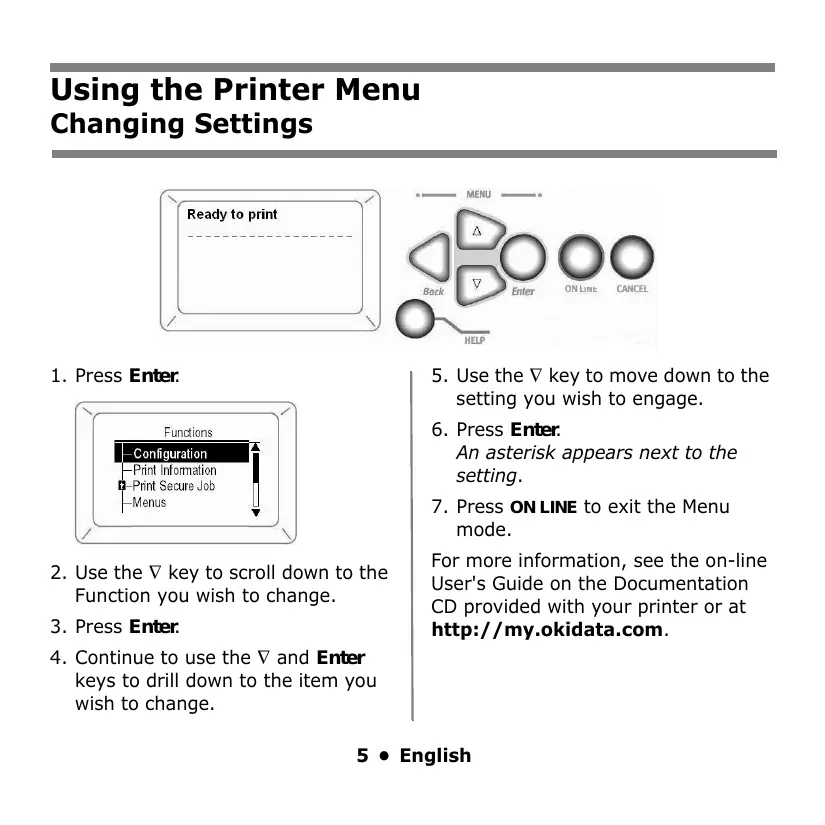
- Use the key to scroll down to the Function you wish to change.
- Press Enter.
-
Continue to use the and Enter keys to drill down to the item you wish to change.
-
Use the key to move down to the setting you wish to engage.
- Press Enter. An asterisk appears next to the setting.
- Press ON LINE to exit the Menu mode.
For more information, see the on-line User's Guide on the Documentation CD provided with your printer or at http://my.okidata.com.
Using the Printer Menu
Menu Summary
- Configuration
- Page Count, Supplies Life
Network and System Settings, etc.
- Print Information
- Printer & Network Configurations
- Print Demo Page
- Lists, etc.
- Print Secure Job
(Password Protected)
Appears only if the optional Hard Disk Drive (HDD) is installed.
- Print out confidential documents downloaded to the HDD
- Menu
- Set the size, weight and type of media for the various feed trays
- Admin Setup
(Password Protected)
- Various Network Setups
- Print Setup
- PS and PCL Setups
- IBM and Epson Setups
Color Setup - Memory and Flash Memory Setups
HDD and System Setups - Reset/Save/Restore Settings
- Calibration
- Density adjustments
- Registration
Color tuning
- Print Statistics
(Password Protected)
Using the Printer Menu Changing Paper (Media) Settings
Why Change?
Wrong media settings can cause:
- poor quality printing
flaking
damage to the printer
Media Weight
The default media weight setting for all trays is AUTO.
Individual Print Jobs
If you are using special media for only one print job, you can adjust the media settings in the driver. Load the media in the appropriate tray (usually the MP tray). In your application, click File → Print and adjust the media settings as necessary.
All Print Jobs (Defaults)
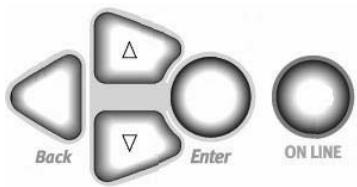
- Press Enter.
- key → Menu. Press Enter.
- With Tray Configuration highlighted, press Enter.
- key → tray to be configured. Press Enter.
- Use the and Enter keys to scroll through the submenus and to make your setting changes.
- Press ON LINE to exit the Menu Mode.
Using the Printer Menu Changing Default Settings
Reset to Factory Defaults
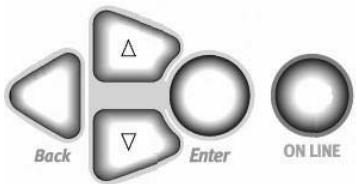
- Press Enter.
- Use the key to scroll down to Admin Setup. Press Enter. Enter Password appears
- Use the Δ and keys to set the first digit in the password. Press Enter.
Note: The default Password is 0000.
- Repeat the previous step until all four digits of the password are entered.
-
Press Enter.
-
key → Settings. Press Enter.
- Highlight Reset Settings. Press Enter.
- Press Enter. The printer resets and goes back to the Ready to Print state.
Print Media Paper Weight
Note: For information on paper parameters as they relate to input trays and output areas see the on-line User's Guide on the Documentation CD provided with your printer or at http://my.okidata.com.
Note: Select the appropriate settings in either the printer menu or in the printer driver.
Note: Printer driver settings override printer menu settings.
US Bond
| Setting | US Bond (metric) |
| Auto (default) | 17 to 57-lb. (64 to 216 g/m2) |
| Light | 17-lb. (64 g/m2) |
| Medium Light | 18 to 19-b. (68 to 71 g/m2) |
| Medium | 20 to 24-lb. (75 to 90 g/m2) |
| Medium Heavy | 25 to 28-lb. (94 to 105 g/m2) |
| Heavy | 29 to 34-lb. (109 to 128 g/m2) |
| Ultra heavy 1 | 35 to 50-lb. (132 to 188 g/m2) |
| Ultra heavy 2 | 51 to 58-lb. (192 to 218 g/m2) |
| Ultra heavy 3 [MP Tray only] | 59 to 80-lb. (222 to 301 g/m2) |
9 • English
Print Media Paper Weight (cont.)
Index
| Setting | Index (metric) |
| Auto (default) | 35 to 118.6-lb. (64 to 216 g/m2) |
| Light | 35-lb. (64 g/m2) |
| Medium Light | 37 to 40-lb. (68 to 71 g/m2) |
| Medium | 42 to 50-lb. (75 to 90 g/m2) |
| Medium Heavy | 52 to 56-lb. (94 to 105 g/m2) |
| Heavy | 60 to 71-lb. (109 to 128 g/m2) |
| Ultra heavy 1 | 73 to 104-lb. (132 to 188 g/m2) |
| Ultra heavy 2 | 106 to 141-lb. (192 to 218 g/m2) |
| Ultra heavy 3 [MP Tray only] | 123 to 166-lb. (222 to 301 g/m2) |
Note: To determine if a paper weight is US Bond or Index, check the metric equivalent.
Example: 35 lb. US Bond = 132 g/m²
35 lb. Index = 64 g/m²
For more information, go to www.paper-paper.com/weight.html
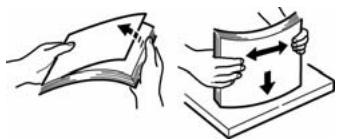
Print Media Loading Trays 1-5
Loading Media in Trays 1-5
For more information, see the on-line User's Guide on the Documentation CD provided with your printer or at http://my.okidata.com.
1.
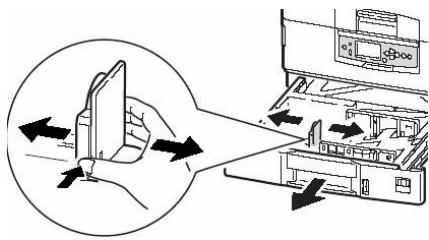
2.
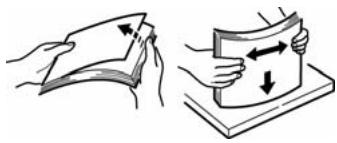
3. Print side down:
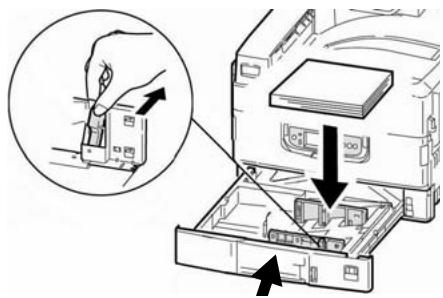
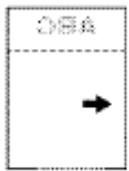
Note: For Letterhead stationery:
Long edge feed—face down, top toward the back of the printer.
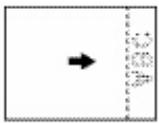
Short edge feed face down, top to the right:
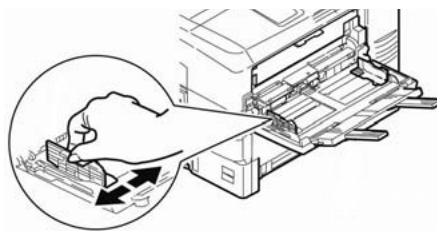
Print Media Loading the MP Tray
Loading Media, MP Tray
For more information, see the on-line User's Guide on the Documentation CD provided with your printer or at http://my.okidata.com.
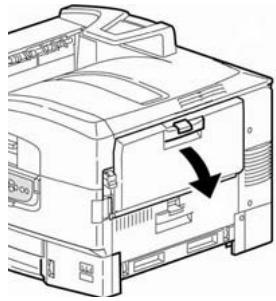
1.
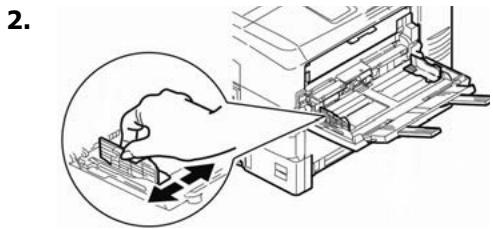
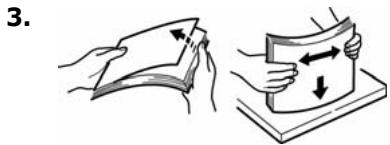
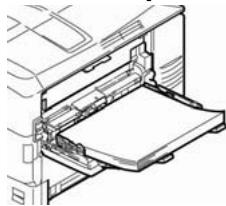
4. Print side up.
Print Media Loading the MP Tray (cont.)
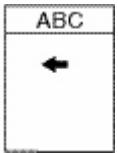
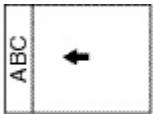
Note: Letterhead Stationery (Letter, A4 or B5):
Long edge feed—aim the top toward the back of the printer:
Short edge feed—aim the top into the printer:
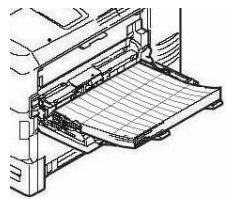
Note: Transparencies & Labels:
- Print side up.
- Default = long edge feed.
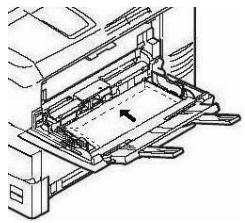
Envelopes:
- Flap side down, aimed into the printer:
Exit Paths
Face Down (Top Exit)
This is the tray that is normally used.
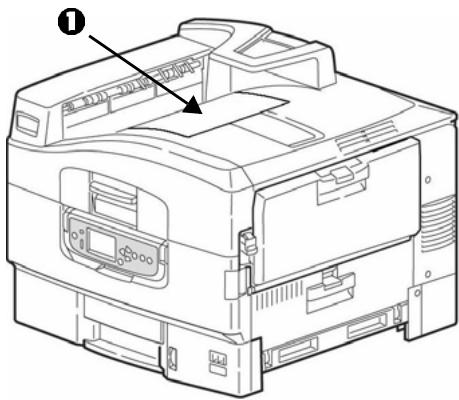
The tray holds up to 500 sheets of 20-lb. (75 g/m²) paper.
The Face-Up exit tray (see the next page) must be used for special media or for heavy papers.
Exit Paths
Face Up (Side Exit)
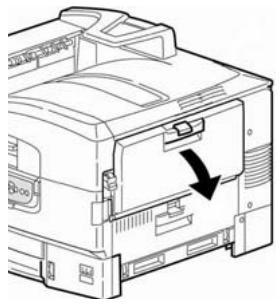
The side (face-up) exit tray provides a straight-through print path. Use the straight-through path when printing labels, heavy card stock, transparencies, or when printing from the MP Tray. It holds up to 200 sheets of 20-lb. (75g / m2) paper.
Opening the Face-Up Exit Tray
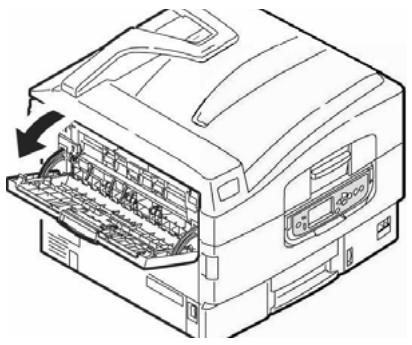
1.
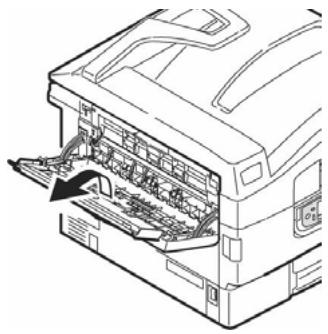
2.
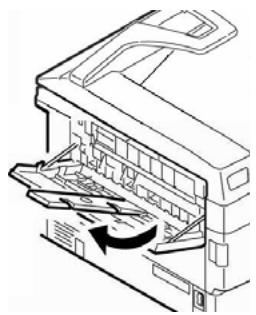
3.
Recommended Media
Paper, Card Stock
| Media Type | Recommended |
| Paper | Letter: • OKI® 52208001 Bright White, 32-lb. US Bond • HammerMill® Laser Print Radiant, White, 24-lb. US Bond • Xerox® 4024, 20-lb. US Bond |
| Tabloid/Tabloid Extra: • Oki 52206102, 52206103 Bright White, 32-lb. US Bond • HammerMill Laser Print Radiant, White, 24-lb. US Bond | |
| Banners: • Oki 52207901, 8.5" x 35.4", 32-lb. US Bond, 25 sheets • Oki 52206002, 8.5" x 35.4", 32-lb. US Bond, 100 sheets • Oki 52206001, 12.9" x 35.4", 32-lb. US Bond, 100 sheets | |
| Thick (Cards) | Letter: • Oki 52205601 series Card Stock • Wausau Exact Index: 49108 (90-lb.) or 49508 (110-lb.) To prevent damage to the printer, it is very important to check the printer's media settings before printing on thick paper. |
Recommended Media Labels, Envelopes, Transparency
| Media Type | Recommended |
| Labels | Letter: Avery® 5161 A4: Avery 7162, 7664, 7666 Use labels designated for laser printers. Labels must cover the entire carrier sheet. |
| Envelopes | COM-10: Oki 52206301, 52206302 For the best print results, use only the recommended envelopes. Never use envelopes with metal clasps, snaps, windows, or V-flap seals. |
| Transparencies | Letter: • Oki 52205701 • 3M® CG3720 For the best print results, use only the recommended transparencies. Never use office transparencies designed for use by hand with marker pens. These will melt in the fuser and cause damage. |
Paper (Media) Jams
In General
If you are experiencing frequent paper jams, check the following items.
- Is the printer level?
- Is the media you are using within specification? Media that is too light or too heavy will often cause jams.
- Are the settings (printer and driver) appropriate for the media being used?
- Do not use creased or curled media.
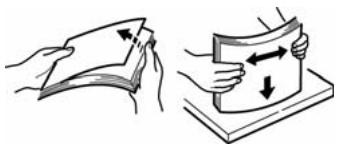
- Remove the media from the tray. Fan and align the stack. Replace the media.
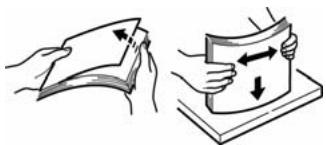
- Envelopes are jamming. Make sure the stack is properly aligned. Load envelopes flap down, top edge toward the printer.
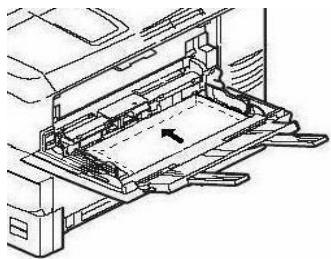
- Clean the feed rollers (see page 33).
Note:
For more information, see the on-line User's Guide on the Documentation CD provided with your printer or at http://my.okidata.com.
Paper (Media) Jams
Tray Side Cover
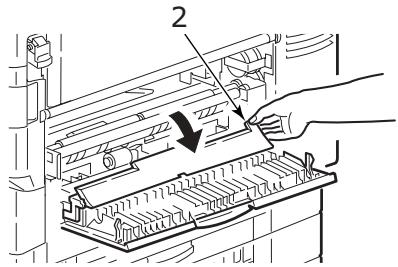
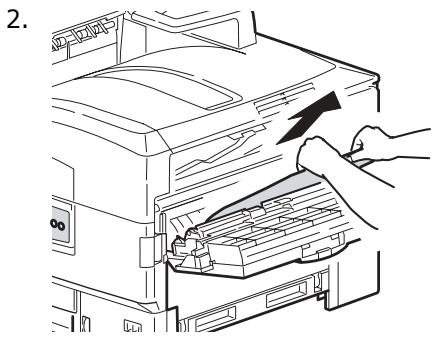
- Squeeze the catch (1) and open the side cover.
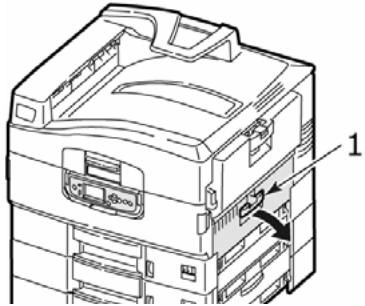
- Hold the tab (2), then turn the paper guide outward
Paper (Media) Jams
Printer Side Cover
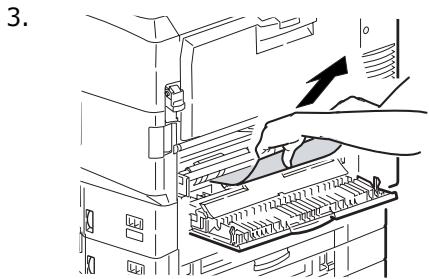
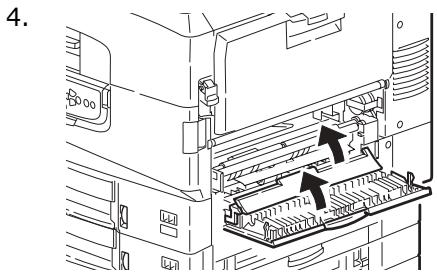
- Pull the release lever and open the side cover.
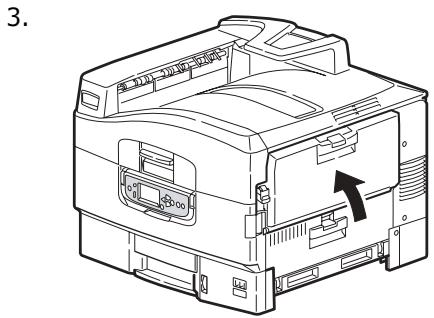
Paper (Media) Jams
Printer Top Cover
- Squeeze the top cover handle and open the top cover.
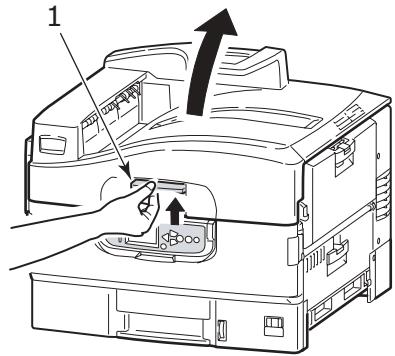
WARNING!
Be careful not to touch the fuser unit which is hot after printing.
- Squeeze the basket handle and raise the drum basket.
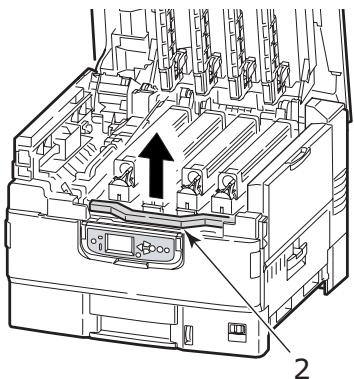
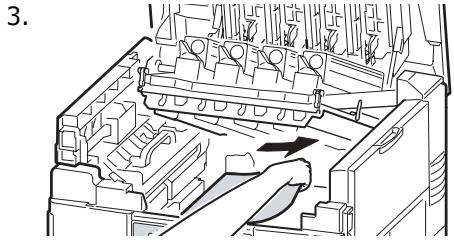
Paper (Media) Jams Printer Top Cover (cont.)
WARNING!
Be careful not to touch the fuser unit which may be hot after printing. If the fuser unit is hot, wait until it cools before attempting to remove any jammed paper.
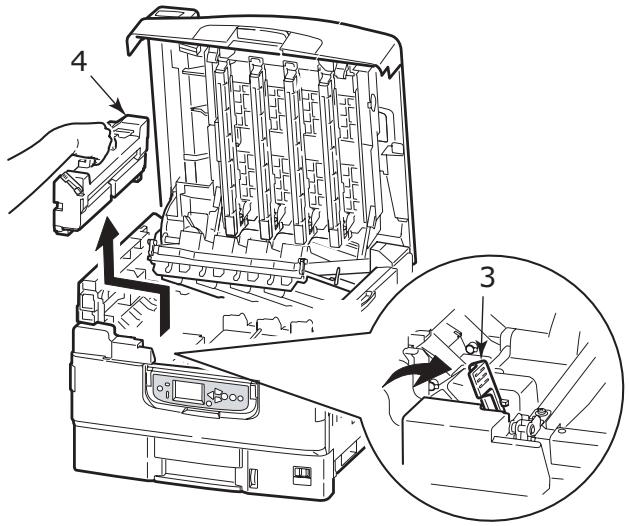
- Push the lock lever and lift out the fuser unit.
22 • English
Paper (Media) Jams Printer Top Cover (cont.)
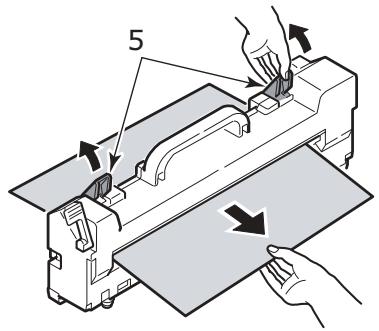
- Pull up the jam release levers (3) to release the paper.
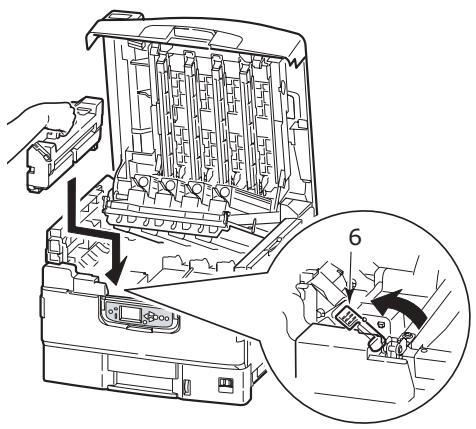
- Replace the fuser unit and turn the lever (6) to lock it in place.
Paper (Media) Jams Printer Top Cover (cont.)
- Open the face-up stacker (7).
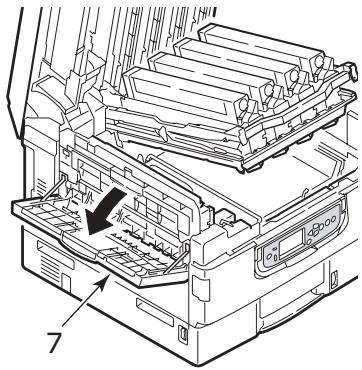
- Open the side cover (8) and remove any jammed paper.
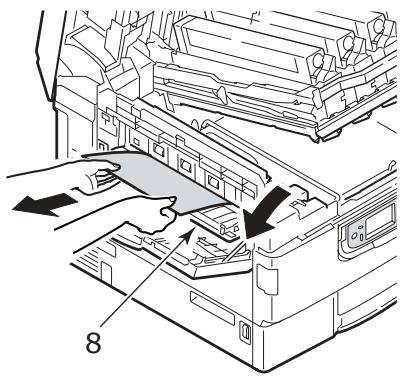
Paper (Media) Jams Printer Top Cover (cont.)
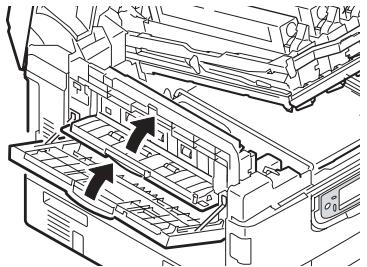
- Close the side cover and the face-up stacker.
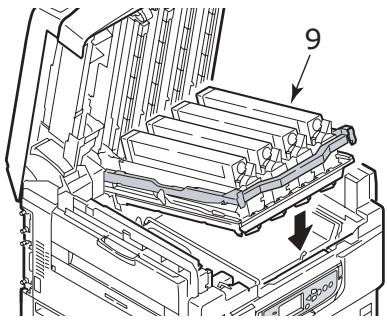
- Lower the image drum basket (9).
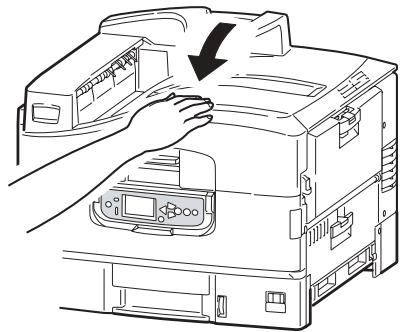
- Close the top cover.
Paper (Media) Jams
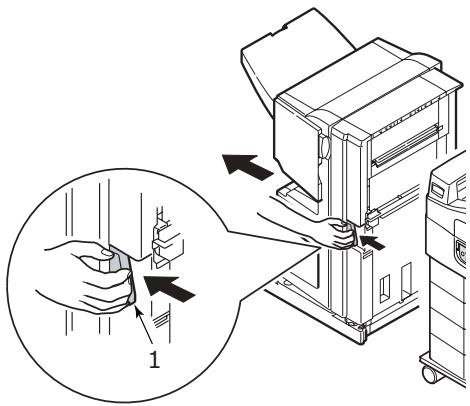
Duplexer
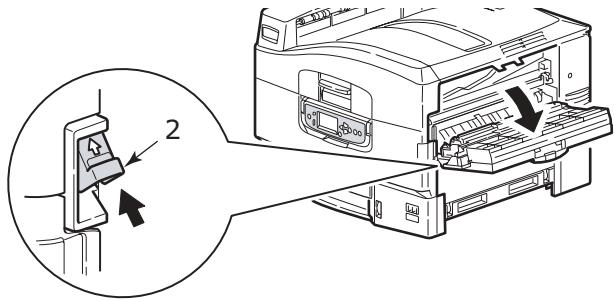
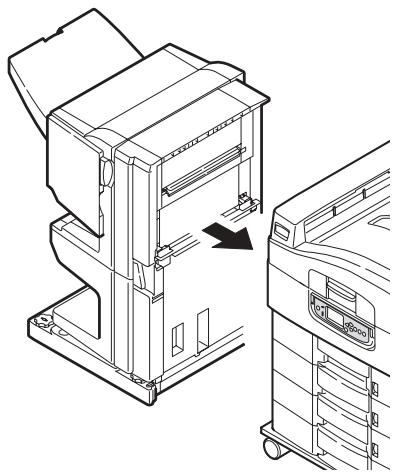
- If you have the optional finisher unit installed, push in on the lever (1) and separate the finisher from the printer.
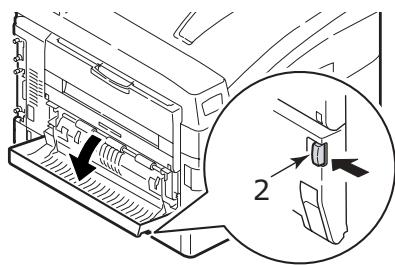
- Press the duplex cover release button (2) and open the cover.
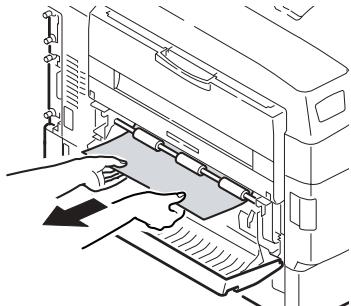
- Remove any jammed paper.
Paper (Media) Jams
Duplexer (cont.)
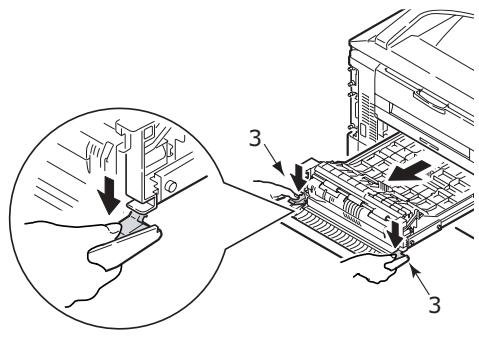
- Squeeze the duplex release levers (3) and pull out the duplexer.
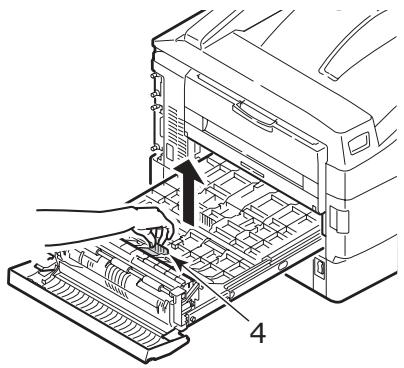
- Holding the front top cover by the grip (4), push it gently inwards, then raise it.
Paper (Media) Jams
Duplexer (cont.)
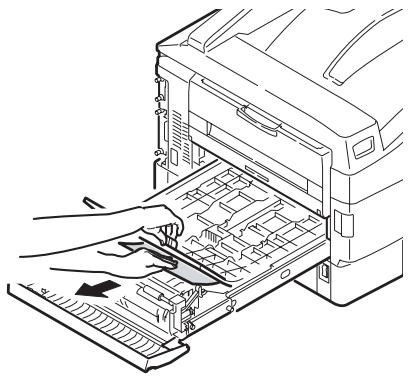
- Gently remove the jammed paper..
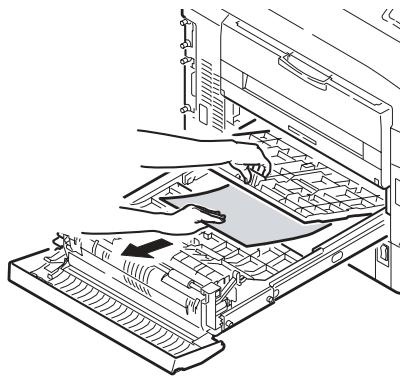
- In a similar manner, check for and clear any paper jammed under the rear top cover.
Paper (Media) Jams
Duplexer (cont.)
8.
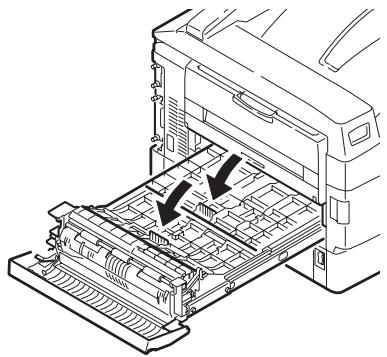
9.
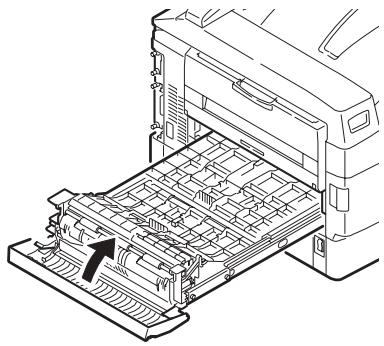
10.
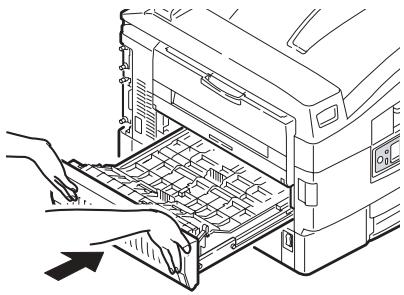
Paper (Media) Jams
Duplexer (cont.)
- If you have the optional finisher, push it back into place on the printer.
Maintenance Cleaning the LED Heads
Cleaning the LED Heads
Clean the LED heads:
- any time you replace a toner cartridge (a LED lens cleaner is included with each replacement toner cartridge)
-
if printing is showing signs of faded images, white stripes or blurred letters
-
Open the top cover.
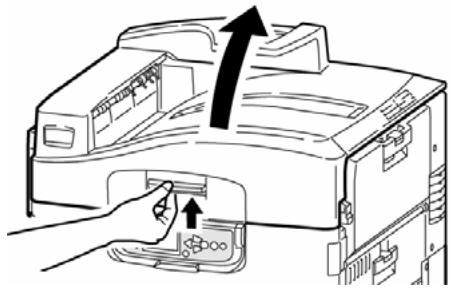
Maintenance
Cleaning the LED Heads (cont.)
- Use the LED cleaner provided with the toner cartridges or a soft, lint-free cloth to gently wipe each of the four heads (1). Move the cleaner as shown, using a fresh section for each pass. Be careful not to damage the guards (2).
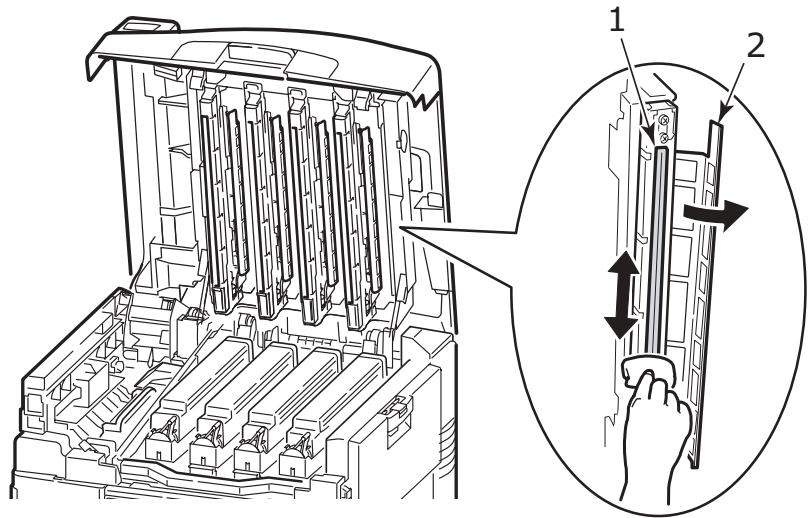
- Close the top cover.
Maintenance
Cleaning the Paper Tray Feed Rollers
Cleaning the Paper Tray Feed Rollers
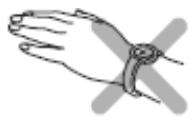
- Remove items such as wrist watches or bracelets so they do not catch in the mechanism.

- If a hard disk drive is installed in the printer, press and hold the Shutdown/Reset button on the control panel for 3 seconds and wait for the display to tell you it is
okay to turn off the printer. Otherwise go to the next step.

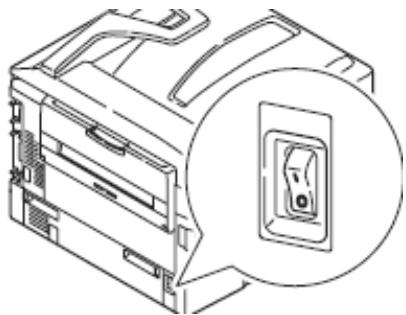
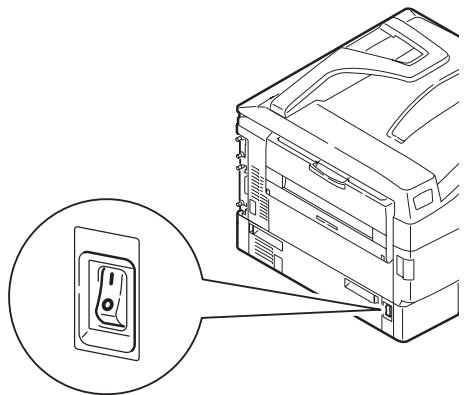
- Turn the printer off.
Maintenance
Cleaning the Paper Tray Feed Rollers (cont.)
- Open Tray 1 side cover and pull out the paper guide plate (1).
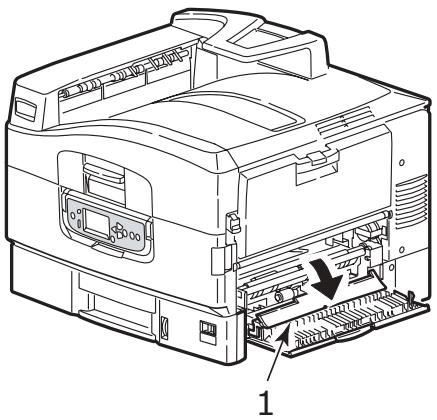
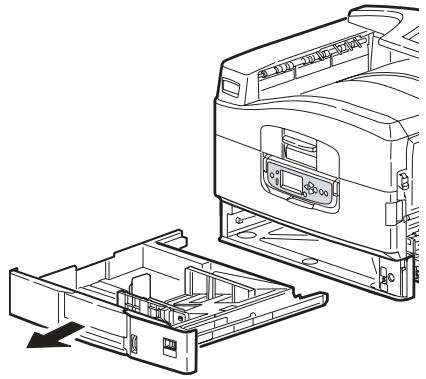
- Remove Tray 1 from the printer.
Maintenance
Cleaning the Paper Tray Feed Rollers (cont.)
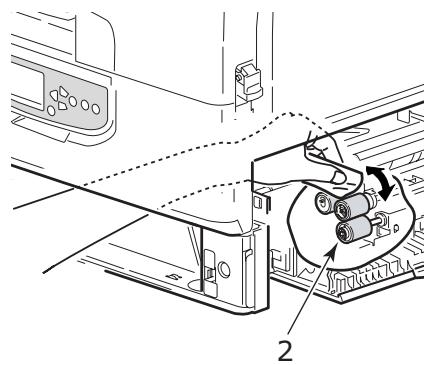
- Gaining access through the gap left by Tray 1, wipe the 3 paper feed rollers (2) with a soft cloth lightly moistened with water.
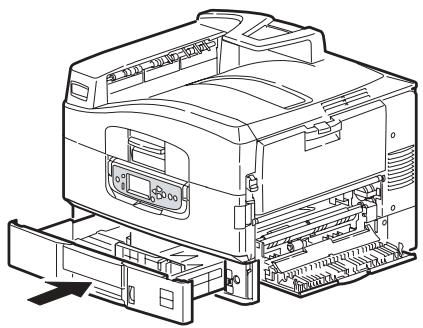
- Replace Tray 1.
Maintenance
Cleaning the Paper Tray Feed Rollers (cont.)
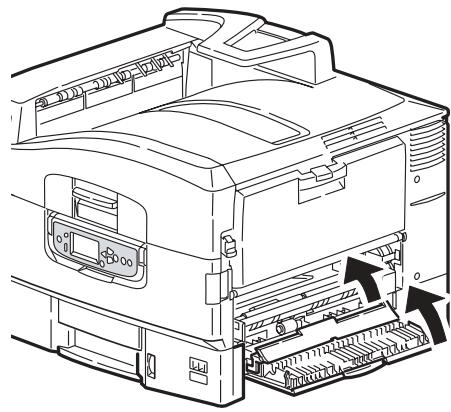
- Return the paper guide plate to its original position and close Tray 1 side cover.
- Turn on the printer.
Reports Printing Reports
Printing Reports
- Press Enter.
- key → Print Information. Press Enter.
-
key → report you wish to print:
-
Configuration: general information on your printer's configuration, plus a listing of the current menu settings.
Network: choose either a single-page summary printout, or a multi-page detailed list of network information. -
Demo Page: prints the Demo page.
-
File List: files stored on the printer's hard drive.
- PS Font List: PostScript fonts in the printer.
- PCL Font List: PCL fonts in the printer.
- IBM PPR Font List: IBM ProPrinter emulation fonts in the printer.
- Epson FX Font List: Epson FX emulation fonts in the printer.
-
etc. (for more information, see the on-line User's Guide on the Documentation CD provided with your printer or at http://my.okidata.com).
-
Press Enter. The report prints and the printer goes back on line.
Error Messages
Help Button
Your printer has a built-in help system.
When an error message appears on the display, press HELP. The display shows information that will help you correct the error.
Use the key to move down through the Help information.
For more information, see the on-line User's Guide on the Documentation CD provided with your printer or at http://my.okidata.com.
Service Information
Available 24 Hours a Day, 7 Days a Week
- Visit our multilingual web site www.OkiPrintingSolutions.com
-
Visit http://my.okidata.com
-
drivers and utilities
troubleshooting - Product news
- and much more!
Call 1-800-654-3282.
OKI is a registered trademark of Oki Electric Industry Company, Ltd.
3M is a trademark or registered trademark of 3M.
Adobe, and PostScript are trademarks of Adobe Systems, Inc. which may be
registered in certain jurisdictions.
HammerMill is a registered trademark of HammerMill.
Xerox is a trademark of Xerox Corporation.
Wausau Exact is a registered trademark of Wausau-Mosinee Paper Corp.
Supports recommendés
Papier, Cartonné
Supports recommendés
Étiquettes, Enveloppes, Transparents
http://www.okiprintingsolutions.com
Information de service
http://www.okiprintingsolutions.com
www.okiprintingsolutions.com
1.
2.
www.okiprintingsolutions.com
1.
2.
3.
http://www.okiprintingsolutions.com
- PRINT MEDIA. 9
- EXIT PATHS 14
- RECOMMENDED MEDIA . 16
- PAPER (MEDIA) JAMS 18
- MAINTENANCE 31
- REPORTS 37
- ERROR MESSAGES 38
- SERVICE INFORMATION 39
- TABLE DES MATIÈRES
- USING THE PRINTER MENU
- MENU SUMMARY
- CONFIGURATION
- PRINT INFORMATION
- PRINT SECURE JOB
- (PASSWORD PROTECTED)
- MENU
- ADMIN SETUP
- CALIBRATION
- PRINT STATISTICS
- USING THE PRINTER MENU CHANGING PAPER (MEDIA) SETTINGS
- WHY CHANGE
- MEDIA WEIGHT
- INDIVIDUAL PRINT JOBS
- ALL PRINT JOBS (DEFAULTS)
- USING THE PRINTER MENU CHANGING DEFAULT SETTINGS
- RESET TO FACTORY DEFAULTS
- PRINT MEDIA PAPER WEIGHT
- 9 • ENGLISH
- PRINT MEDIA PAPER WEIGHT (CONT.)
- PRINT MEDIA LOADING TRAYS 1-5
- LOADING MEDIA IN TRAYS 1-5
- PRINT SIDE DOWN
- PRINT MEDIA LOADING THE MP TRAY
- LOADING MEDIA, MP TRAY
- PRINT MEDIA LOADING THE MP TRAY (CONT.)
- EXIT PATHS
- FACE DOWN (TOP EXIT)
- FACE UP (SIDE EXIT)
- OPENING THE FACE-UP EXIT TRAY
- RECOMMENDED MEDIA
- PAPER, CARD STOCK
- RECOMMENDED MEDIA LABELS, ENVELOPES, TRANSPARENCY
- PAPER (MEDIA) JAMS
- IN GENERAL
- NOTE
- TRAY SIDE COVER
- PRINTER SIDE COVER
- PRINTER TOP COVER
- WARNING
- PAPER (MEDIA) JAMS PRINTER TOP COVER (CONT.)
- DUPLEXER
- DUPLEXER (CONT.)
- MAINTENANCE CLEANING THE LED HEADS
- CLEANING THE LED HEADS
- MAINTENANCE
- CLEANING THE LED HEADS (CONT.)
- CLEANING THE PAPER TRAY FEED ROLLERS
- CLEANING THE PAPER TRAY FEED ROLLERS (CONT.)
- REPORTS PRINTING REPORTS
- PRINTING REPORTS
- ERROR MESSAGES
- HELP BUTTON
- SERVICE INFORMATION
- AVAILABLE 24 HOURS A DAY, 7 DAYS A WEEK
- SUPPORTS RECOMMENDÉS
- PAPIER, CARTONNÉ
- ÉTIQUETTES, ENVELOPPES, TRANSPARENTS
- INFORMATION DE SERVICE
Brand : OKI
Model : MPS9650C
Category : Multifunction Printer