
ML 491 - Dot Matrix Printer OKI - Free user manual and instructions
Find the device manual for free ML 491 OKI in PDF.



| Product type | Dot matrix printer |
| Brand | OKI |
| Model | ML 491 |
| Printing technology | Dot matrix with needles |
| Printing speed | Up to 300 cps (characters per second) in draft mode |
| Printing resolution | Up to 360 x 360 dpi |
| Maximum paper size | Width 420 mm (A3 landscape format) |
| Media types | Continuous paper, cut sheets, labels, envelopes |
| Interfaces | Parallel (Centronics) and serial (RS-232C) |
| Network option | OkiLAN 6130 card for Ethernet 10/100 Mbps |
| Power supply | 100-240 V AC, 50/60 Hz |
| Power consumption | Approximately 150 W operating, 10 W standby |
| Dimensions (W x D x H) | Approximately 589 x 544 x 218 mm |
| Weight | Approximately 18.5 kg |
| Monthly duty cycle | Up to 20,000 pages per month |
| Noise level | Approximately 55 dB(A) operating |
| Main functions | Single-sided printing, multi-part (carbon) printing, continuous paper management |
| Maintenance and cleaning | Regular cleaning of the print head and paper path with a lint-free cloth |
| Safety | Mandatory grounding, do not use an unprotected extension cord |
| Spare parts and repairability | Interchangeable ink ribbon, replaceable print head, parts available from the manufacturer |
| General information | User manual available in French, English, Spanish and Portuguese |
Frequently Asked Questions - ML 491 OKI
User questions about ML 491 OKI
0 question about this device. Answer the ones you know or ask your own.
Ask a new question about this device
Download the instructions for your Dot Matrix Printer in PDF format for free! Find your manual ML 491 - OKI and take your electronic device back in hand. On this page are published all the documents necessary for the use of your device. ML 491 by OKI.
USER MANUAL ML 491 OKI
The OkiLAN 6130 Print Server enables Ethernet network users to connect to a network-configured printer. It supports 10/100-megabit networks, TCP/IP Direct Printing and Server-Based Printing.
Note: The OkiLan 6130 can only be used be used without a parallel cable being connected.
Installing the OkiLAN 6130 Network Card
- Turn off printer power.
- Unplug the power cord.
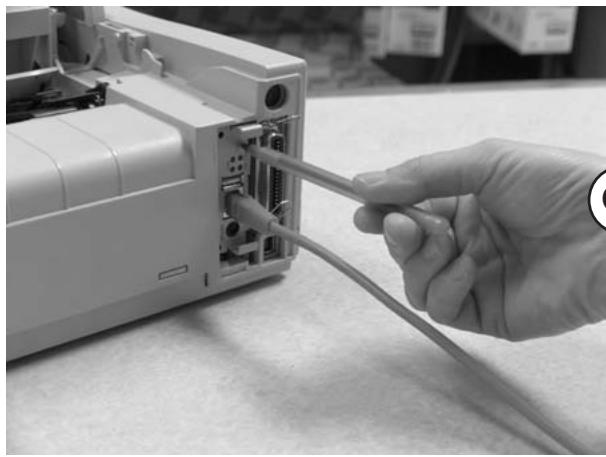
- Detach the interface cable from the rear of the printer.
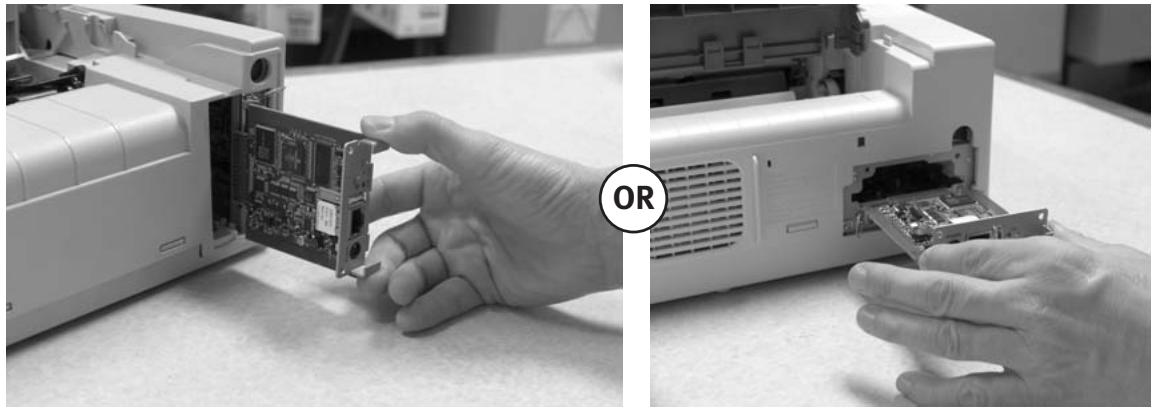
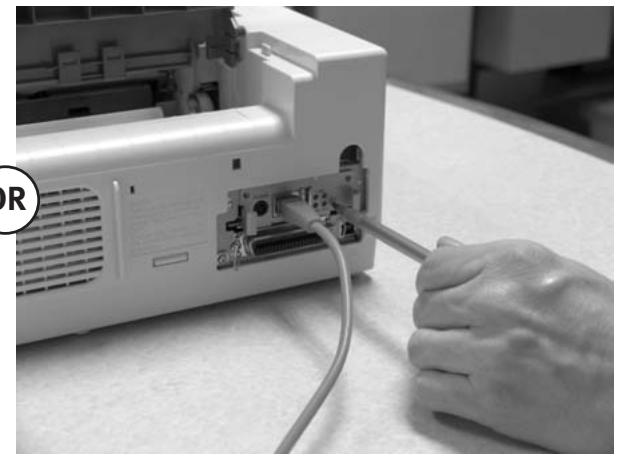
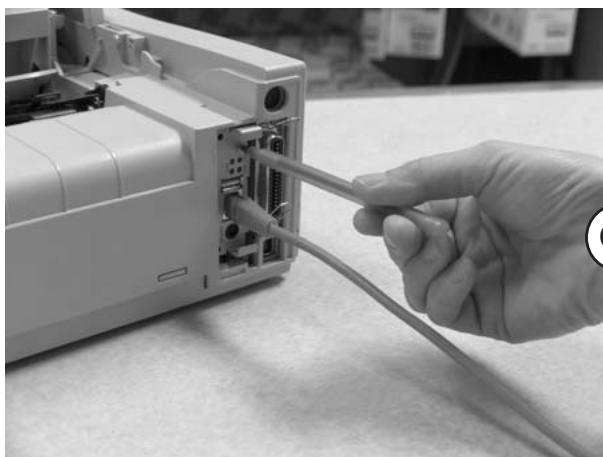
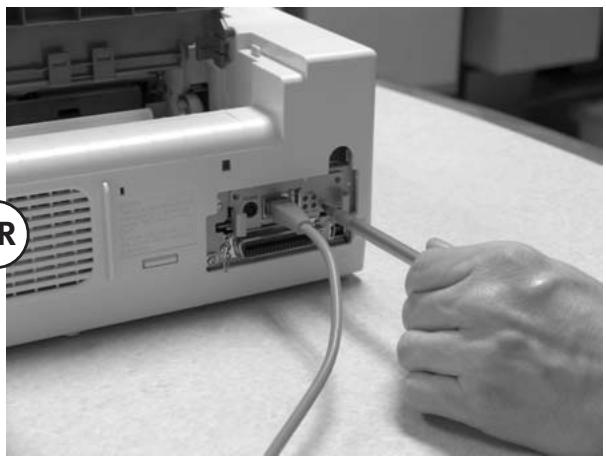
Note: Your printer may look like either example below.
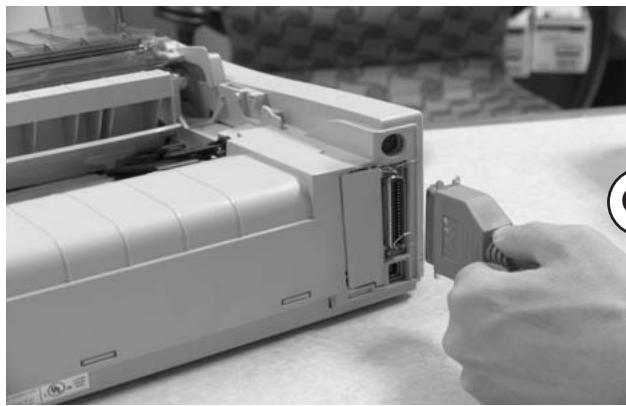
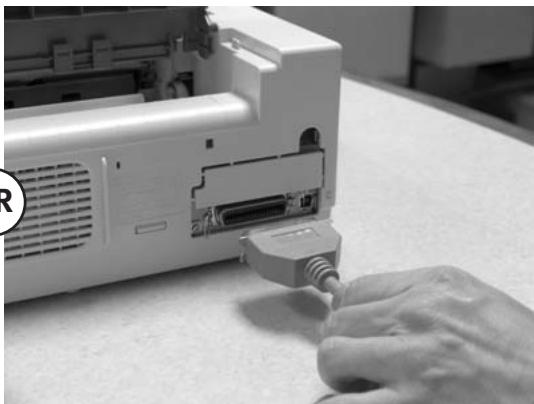
- Pry off the breakaway panel next to the interface connector with a screwdriver
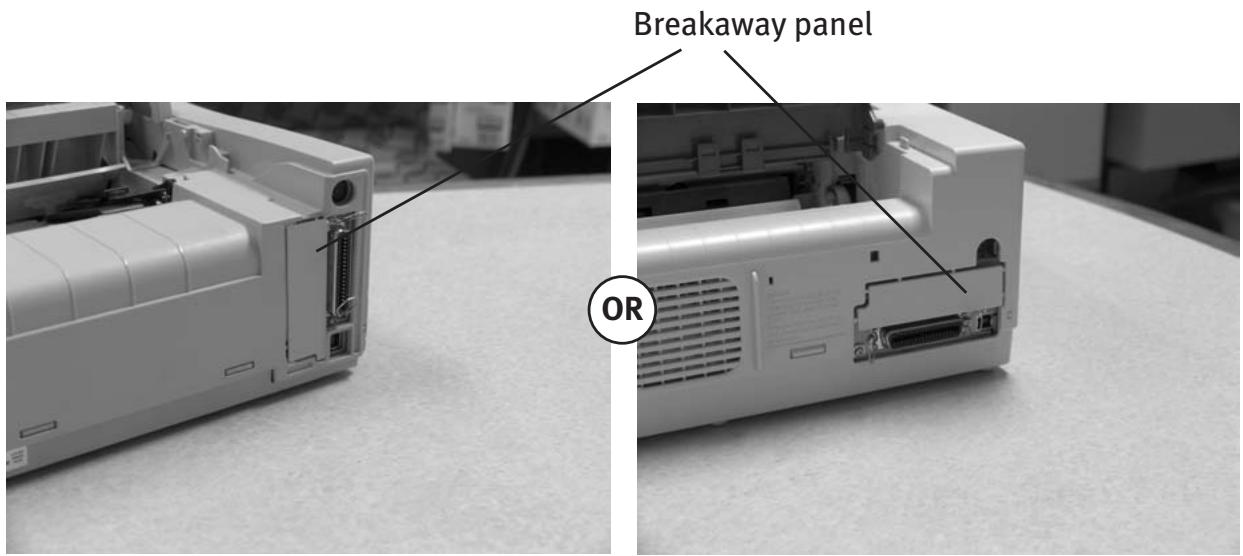
- Insert the OkiLAN 6130 by sliding it along the rails in the recess of the printer, until it is plugged into the socket in the rear of the recess.
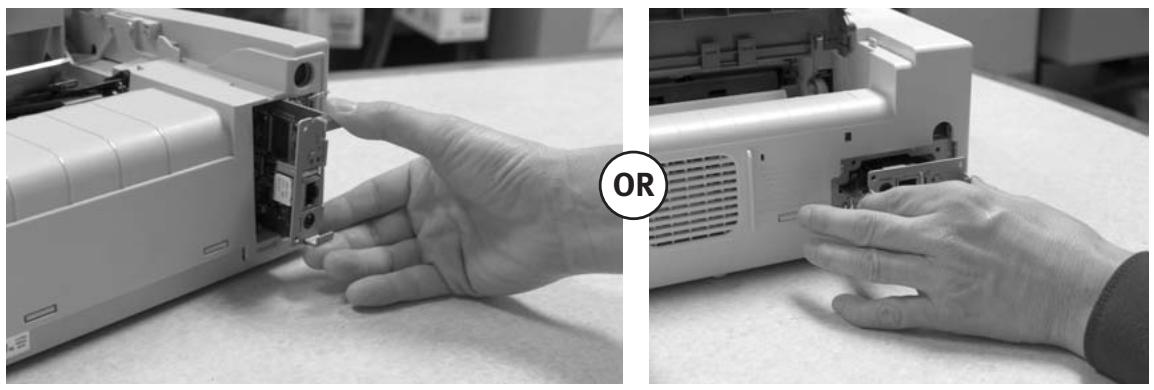
- Attach the 10/100Base-T UTP cable to the receptacle on the back of the OkiLAN 6130. Attach the other end of the cable to the Network.
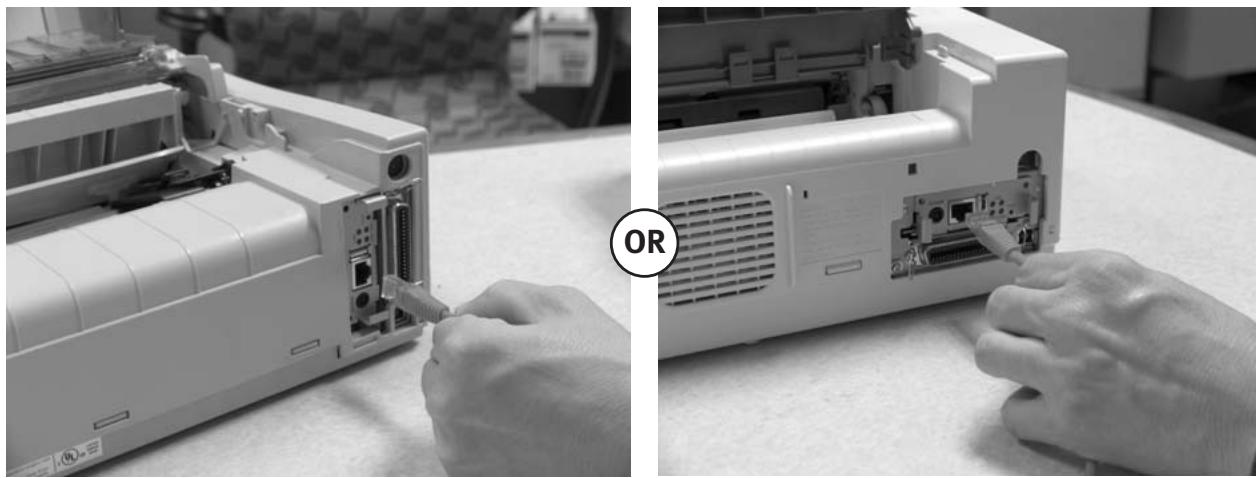
- Plug the power cord into the power outlet (if provided).
Powering On the OkiLAN 6130
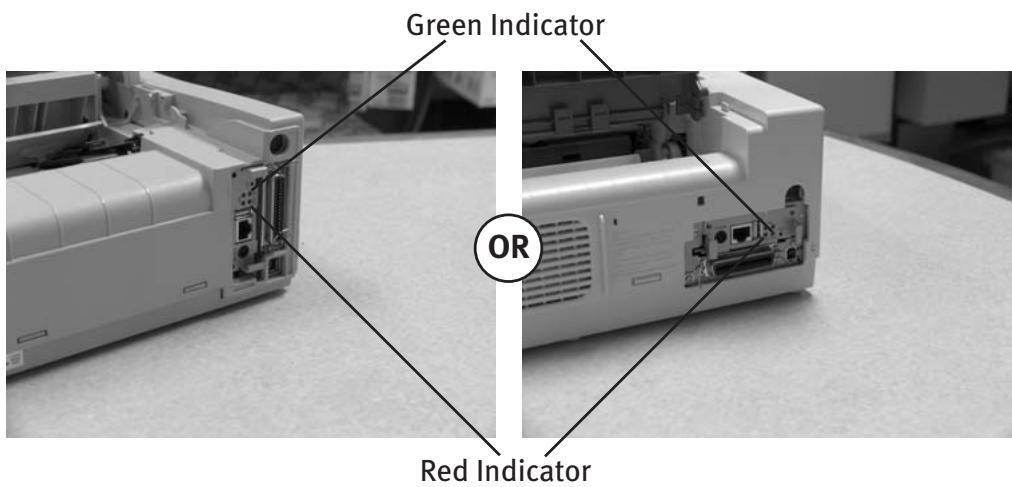
Turn printer power on. The red and green indicators on the OkiLAN 6130 blink during self-test. When self-test completes successfully, the red indicator goes off and the green indicator stays on.
Printing a Configuration Sheet
To print configuration information, press and hold the Test button on the front of the OkiLAN 6130 for five seconds.
Note: By default, the configuration sheet prints in ASCII text.
The content of the configuration sheet depends on your printer and system setup.
Configuring Your Print Server
Using OKI's ExtendView Utility to Configure Your IP Address
First, download the ExtendView utility from OKI Data's website at http://www.okidata.com – navigate to the page for your specific product, then click on Drivers, then Utilities, to locate the software.
Next, install the ExtendView utility and launch the application.
- In the ExtendView utility, highlight the device you are going to configure.
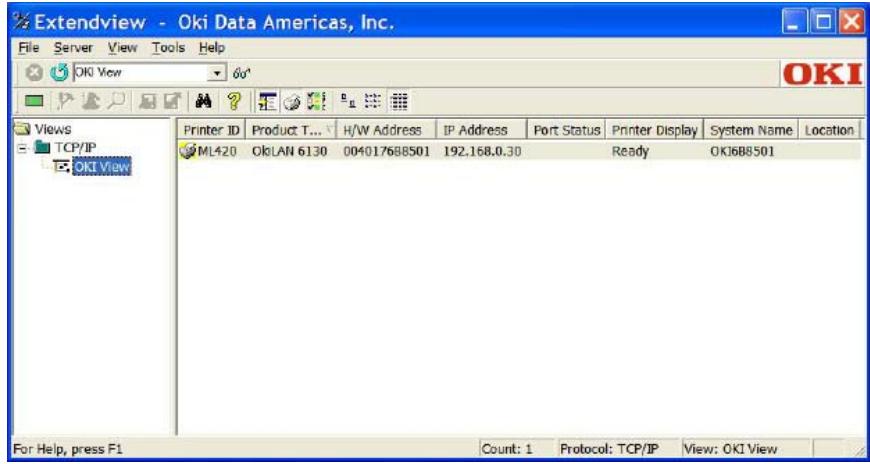
- Choose the configuration option from the dropdown menu.
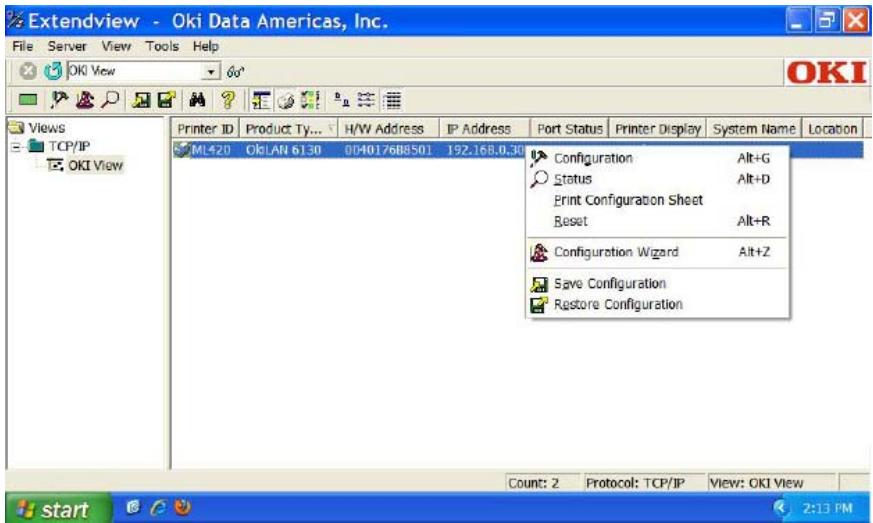
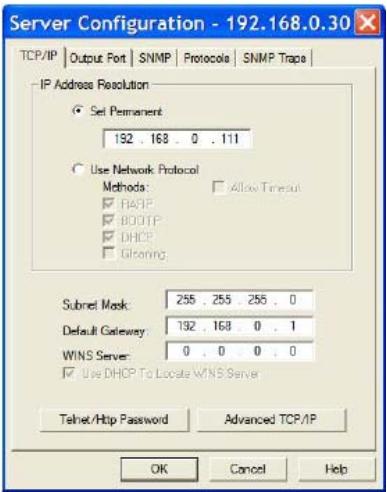
- From the Server Configuration box, click Set Permanent. Then, if you wish to change the IP address, Subnet Mask and Default Gateway, you may do so.
When the desired options have been set, click OK. The Print Server will automatically be reset at this point, and your options will have been saved.
(If you have network configuration questions, please contact your network administrator.)
Proceed to the instructions for Installing Your Driver.
Using Your Print Server's Built-In Web Page to Configure Your IP Address (Alternate Method)
First, open your browser. Then, type the IP address of your Print Server into the browser's address bar. (If the IP address is unknown, you can obtain it by pressing and holding the Test Button on the front of the OkiLAN 6130 for five seconds)
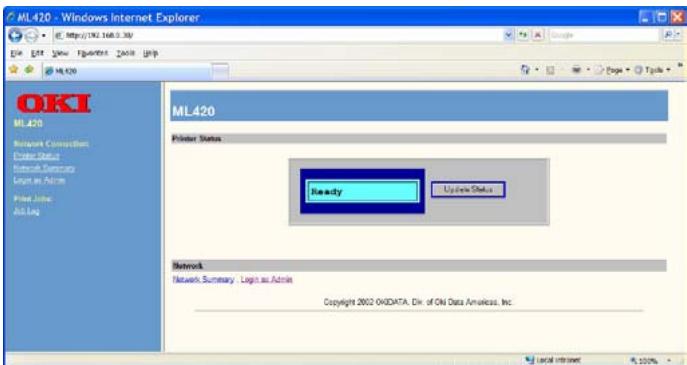
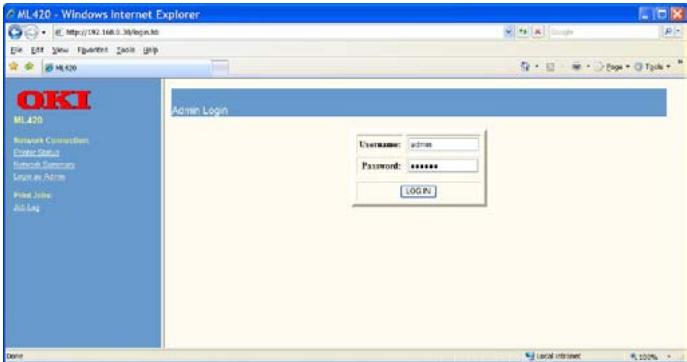
1. Log into the Print Server as Admin. (Username: admin Password: OkiLAN)
2. Select the TCP/IP option from the Network Connection menu to launch the TCP/IP Configuration menu.
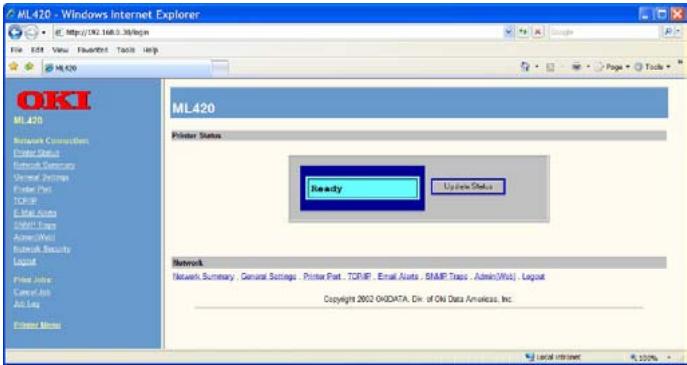
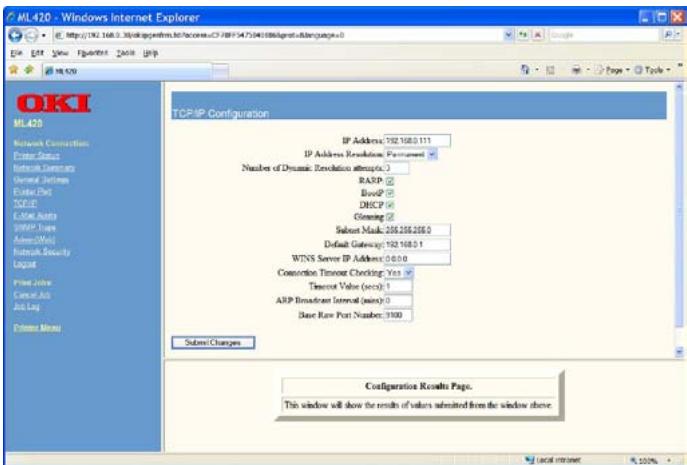
- From the TCP/IP Configuration Menu, click Set Permanent under the IP Address Resolution option. Then, if you wish to change the IP address, Subnet Mask and Default Gateway, you may do so.
When the desired options have been set, click Submit Changes. The Print Server will automatically be reset at this point, and your options will have been saved.
(If you have network configuration questions, please contact your network administrator.)
Proceed to the instructions for Installing Your Driver.
Installing Your Driver
From the CD or OKI Data website - follow the installation instructions.
Entering the Printer IP Address
While installing the printer driver for TCP/IP using the CD supplied with your printer.
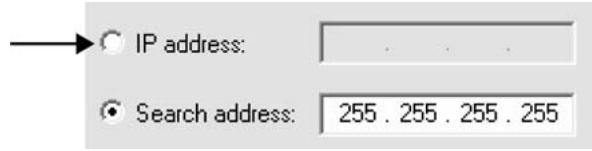
When you come to the screen requesting the IP Address for the printer, you must select "IP Address" (instead of the default "Search address") and type in the printer's IP Address before clicking Next. If you need help, please contact your Network Administrator for the IP Address to use.
LPR
Make sure there are no error conditions in the printer (e.g., paper jam) before you use LPR to discover the printer. The product driver utility is available from OKI Data's website at http://www.okidata.com
Resetting to Factory Defaults
- Turn off the printer.
- Turn on the printer and wait for the print server to boot up (about 30 seconds).
- Press and hold the Test button on the front of the OkiLAN 6130 for 20 seconds. The lights will flash briefly after releasing the button, then the card will reset.
Note: Your printer may look like either example below.
OR
- Release the TEST button.
The print server resets to the factory default settings and reboots.
- Installing the OkiLAN 6130 Network Card
- Powering On the OkiLAN 6130
- Printing a Configuration Sheet
- Configuring Your Print Server
- Using OKI's ExtendView Utility to Configure Your IP Address
- Using Your Print Server's Built-In Web Page to Configure Your IP Address (Alternate Method)
- Log into the Print Server as Admin. (Username: admin Password: OkiLAN)
- Select the TCP/IP option from the Network Connection menu to launch the TCP/IP Configuration menu.
- Installing Your Driver
- Entering the Printer IP Address
- LPR
- Resetting to Factory Defaults
Brand : OKI
Model : ML 491
Category : Dot Matrix Printer