
DVD-305 - DVD player LENCO - Free user manual and instructions
Find the device manual for free DVD-305 LENCO in PDF.


| Product Type | Portable Car DVD Player |
| Brand | LENCO |
| Model | DVD-305 |
| Power Supply | 12 V DC (11-15 V), cigarette lighter adapter included; optional AC/DC power adapter |
| Power Consumption | Operation < 550 mA, standby < 20 mA |
| Compatible Disc Formats | DVD-VIDEO, CD-DA/CD-R/CD-RW/MP3, VIDEO CD (VCD), MPEG4 |
| Video Output | Composite 1.0 Vp-p, 75 Ω |
| Audio Output | Analog stereo, 2.0 Vrms, 10 kΩ |
| Audio Frequency Response | 20 Hz - 20 kHz |
| Audio Signal-to-Noise Ratio | 80 dB (JIS) |
| Remote Control | Yes, with CR2025 3V lithium button cell battery |
| USB Port | Yes, on the front panel (compatible with USB storage devices) |
| Memory Card Reader | Yes, SD/MMC/MS on the front panel |
| Playback Functions | Repeat (disc, chapter, track, A-B), random play, programming, zoom (200-400%), search, slow motion, fast forward/reverse |
| Special DVD Functions | Subtitle language selection, audio language, camera angle, parental control (levels 1-8), title menu |
| Safety | Class I laser product; do not open, refer to qualified service personnel |
| Maintenance and Cleaning | Clean discs with a soft, dry cloth from center to edge. Avoid solvents. |
| Supplied Accessories | DVD player, remote control with battery, cigarette lighter adapter, AV cable (9-pin), user manual, warranty card |
Frequently Asked Questions - DVD-305 LENCO
User questions about DVD-305 LENCO
0 question about this device. Answer the ones you know or ask your own.
Ask a new question about this device
Download the instructions for your DVD player in PDF format for free! Find your manual DVD-305 - LENCO and take your electronic device back in hand. On this page are published all the documents necessary for the use of your device. DVD-305 by LENCO.
USER MANUAL DVD-305 LENCO
- Multi-subtitle Languages Function
Multi-audio Languages Function - Multi-angle Function
Parental Control
Remote Control
USB Interface
Memory Card Interface
FEATURES
Compatible with PAL DVD (Video CD) and NTSC DVD (Video CD)
This player can play discs recorded in either PAL or NTSC format.
- A single LSI chip now integrates all major DVD playback circuit functions including MPEG2 decoder, video D/A converter, and audio decoders.
- L/R stereo analog audio outputs for connection to existing head unit aux inputs. Video output is composite video.
- Supplied remote handles multi-function software (multi-language audio-track/subtitle, multi-angle, multi-story, etc.), plus all basic functions.
USE THIS PRODUCT SAFELY
Use the Proper Power Supply
This product is designed to operate with a 12 volt DC, negative ground battery system.
Protect the Disc Mechanism
Avoid inserting any foreign objects into the disc drive of this player. Failure to observe this may cause malfunction due to the precise mechanism of this unit.
Use Authorized Service Centres
Do not attempt to disassemble or adjust this precision product. Please refer to the Service Centre list included with this product for service assistance.
Safety Information 5
Disc Notes 6
The Player 7
Front View 7
Back View 8
Remote Control 9
Location and Function of Keys. 9
Preparing the Remote Control 11
General Operation 12
Turn the unit On/Off 12
Basic Play 12
DVD Video Menu Play 12
Mode Selection. 12
Menu function 12
Advanced Operation 13
Repeat Play/Paragraph Repeat Play 13
On-screen Display Function 13
PAL/NTSC system selection. 14
Random Playing. 14
Goto Function 14
Zoom Function. 14
Special Function for DVD 14
Special Function for VCD and CD 15
Data Disc Play Operation. 15
Memory Card Operation 16
USB Play Operation. 16
Setup. 17
System Setup 17
Language Setup 17
Audio Setup 17
Trouble Shooting 18
Specifications 19
Examine the contents of the box that you DV player was packed in. There should be the following:
DVD Player
- Remote Control with a button cell lithium battery (CR2025 3V)
Cigarette Lighter Plug
- 9 - Pin AV Lead for Connection to DVD AV output
- AC/DC Adaptor for home use (OPTIONAL)
- Instruction Book
Warranty Card
CAUTION:
MOBILE DVD PLAYER IS A CLASS I LASER PRODUCT. HOWEVER THIS MOBILE DVD PLAYER USES A VISIBLE/INVISIBLE LASER BEAM WHICH COULD CAUSE HAZARDOUS RADIATION EXPOSURE IF DIRECTED. BE SURE TO OPERATE THE MOBILE DVD PLAYER CORRECTLY AS INSTRUCTED. USE OF CONTROLS OR ADJUSTMENTS OR PERFORMANCE OF PROCEDURES OTHER THAN THOSE SPECIFIED HEREIN MAY RESULT IN HAZARDOUS RADIATION EXPOSURE. DO NOT OPEN COVERS AND -DO NOT REPAIR YOURSELF. REFER SERVICING TO QUALIFIED PERSONNEL.
WARNING:
- TO REDUCE THE RISK OF FIRE OR ELECTRIC SHOCK, DO NOT EXPOSE THIS EQUIPMENT TO RAIN OR MOISTURE.
- TO REDUCE THE RISK OF FIRE OR ELECTRIC SHOCK, AND ANNOYING INTERFERENCE, USE ONLY THE RECOMMENDED ACCESSORIES.
- THIS DEVICE IS INTENDED FOR CONTINUOUS OPERATION.
This product incorporates copyright protection technology that is protected by method claims of certain U.S. patents and other intellectual property rights owned by Macrovision Corporation and other rights owners. Use of this copyright protection technology must be authorized by Macrovision Corporation, and is intended for home and other limited viewing uses only unless otherwise authorized by Macrovision Corporation. Reverse engineering or disassembly is prohibited.
Region Management Information
Region Management Information: This Mobile DVD Player is designed and manufactured to respond to the Region Management Information that is recorded on a DVD disc. If the Region number described on the DVD disc does not correspond to the Region number of this Mobile DVD Player, this Mobile DVD Player cannot play this disc.
Disc formats supported by this player

VIDEO
DVD
12 cm disc

DIGITALVIDEO
Video CD
12 cm disc

DIGITAL AUDIO
CD
12 cm disc


MP3
12 cm disc
MPEG4
12 cm disc
Handling and Cleaning
- Dirt, dust, scratches and warping disc will cause misoperation.
- Do not place stickers or make scratches on discs.
- Do not warp discs.
- A disc should always be kept in its case when not in use to prevent damage.
-
Do not place discs in the following places:
-
Direct sunlight
- Dirty, dusty and damp areas
- Near car heaters
- On the seats or dashboard
Disc Cleaning
Use a dry soft cloth to wipe the surface. If the disc is quite dirty, use a soft cloth slightly moistured with isopropyl (rubbing) alcohol. Never use solvents such as benzine, thinner or conventional record cleaners as they may mar the surface of the disc.
Note:
A disc may become somewhat scratched (although not enough to make it unusable) depending on your handle it and conditions in the usage environment. Note that these scratches are not an indication of any problem with the player.
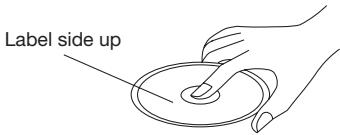

Do not touch the underside of the disc
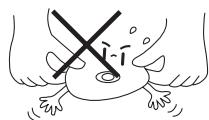
Do not bend
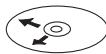
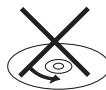
Wipe the disc from center toward the outside edge
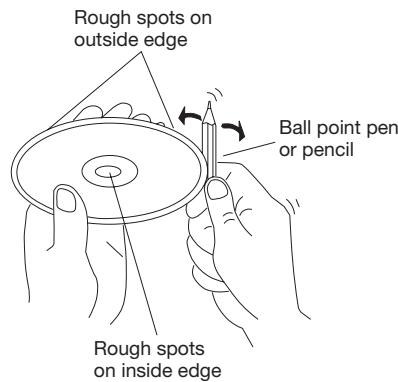
Preparing New Discs with Rough Spots
A new disc may have rough edges on its inside and outside edges. If a disc with rough edges is used, the player may not be able to play the disc. Therefore, remove the rough edges in advance by using a ball point pen or pencil as shown on the right. To remove the rough edges, press the side of the pen or pencil against the inside and outside edges of the disc.
FRONT VIEW
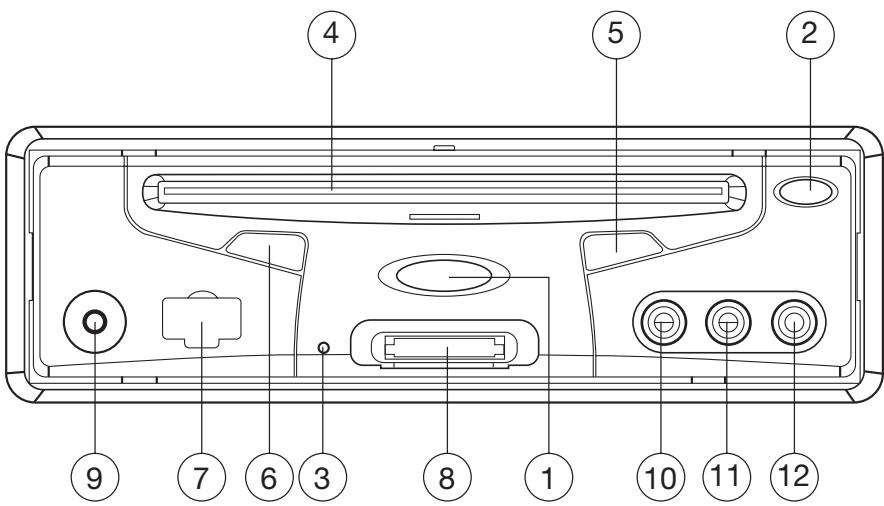
- (POWER)
- (Eject Button)
- Reset Button
- Disc Slot
- (PLAY/PAUSE)
- IR (REMOTE SENSOR)
- USB Interface
- SD/MMC/MS Card interface
- AUX IN
- VIDEO IN 1
11.AUDIO IN 1L - AUDIO IN 1R
BACK VIEW
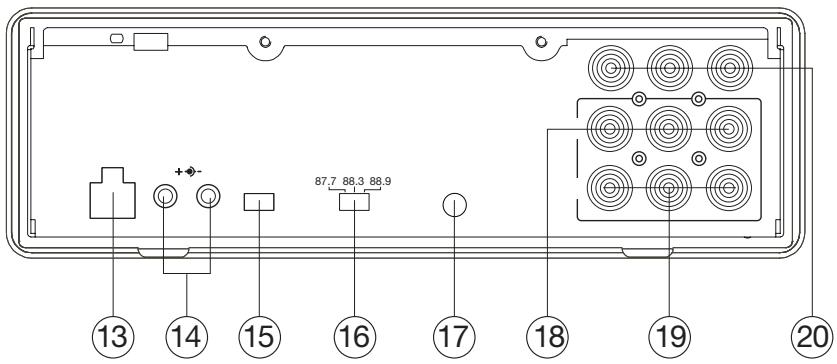
- DC 12V INPUT Socket
- DC 12V OUTPUT Socket
- AV OUTPUT TYPE Switch
-
WAVE BAND Switch
-
REMOTE Socket
- AUDIO/VIDEO OUTPUT 1
- AUDIO/VIDEO OUTPUT 2
- AUDIO/VIDEO INPUT 2
Location and Function of Keys
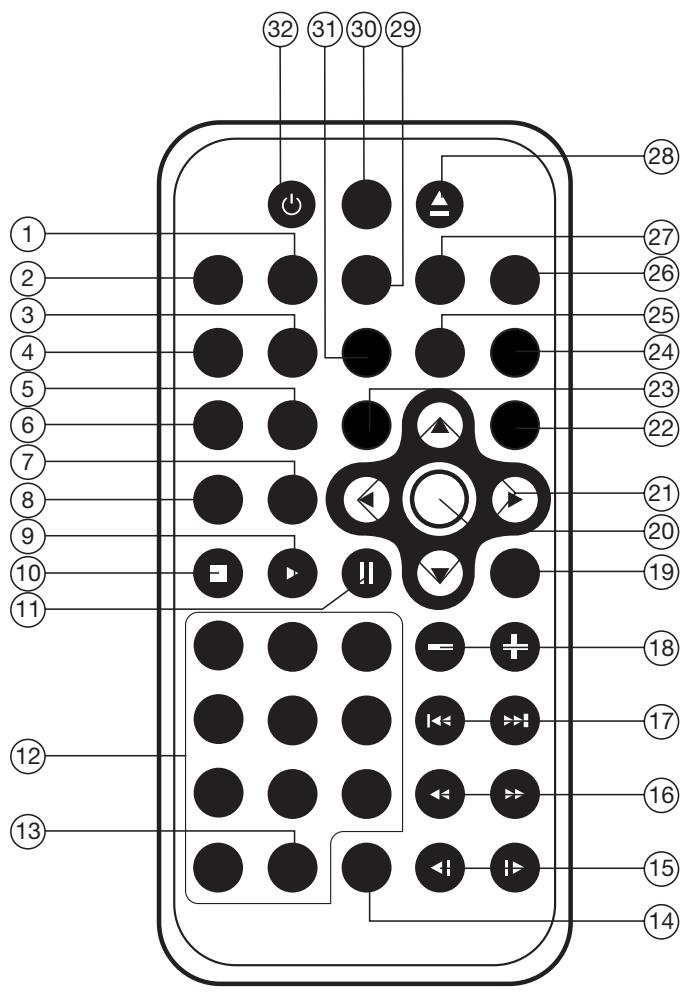
-
ZOOM
-
MUTE
-
RESUME
-
SHUFFLE
-
A-B
-
REPEAT
-
GOTO
8.PROGRAM
9.
10.
- II
- 0-10
- --
- CLEAR
- SLOW▶/▲
- /
- /
CH+/CH-
18. VOLUME+/-
19. MENU
20. OK
21. / , /
22. SETUP
23. TITLE
24. ANGLE
25. AUDIO
26. MODE
27. P/N
28.▲EJECT
29. PBC Changing between PBC ON and PBC OFF on the VCD disc.
30. DISPLAY Display statistical disc information during playback.
31. SUB-T Changing of the SUBTITLE language on multi-subtitle language DVD disc.
32. POWER Press POWER to turn the unit ON or OFF.
Preparing the Remote Control
Install the battery into the remote control.
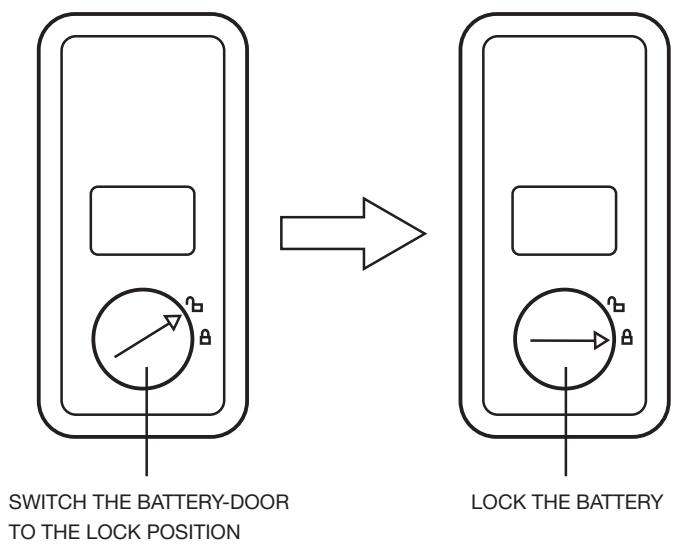
1) First put the battery into the batter house, then use the battery-door cover the battery, and press it firmly.
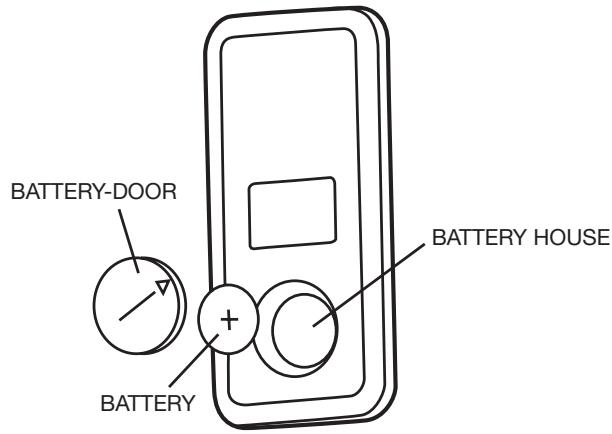
2) Switch the battery-door to the lock position. (Please refer to the following diagram.) Battery: a button cell lithium battery (CR2025 3V)
Using the Remote Control:Face the remote control towards the player front face IR mark (remote control signal receiver). Operation angle: About ± 30 degree in each the direction of the front of the IR mark.
TURNING THE UNIT ON/OFF Turning on the Player
After all connections are completed correctly, Press the power button on the front panel to turn on the power. When the unit is on, it will search the disc automatically. If there is a disc in the disc slot, the unit will start playback automatically.
Turning off the Player
When the power is on press the power button on the front panel or on the remote control to turn off the power.
Loading a Disc
Insert the disc into the disc slot with the printed side facing up, the player will play the disc automatically.
Removing a Disc
When the disc stops playing, press the eject button on the front panel to eject the disc.
BASIC PLAY
Stopping Playback
- Shortly press the button on the front panel or on the remote control one time to pre-stop the unit playback. When the button on the front panel or on the remote control is pressed, normal playback will continue.
- Press the button twice to stop the playback and go back to the DVD LOGO.
Pausing Play
Pressing on the remote control or on the front panel during playback will stop playback temporarily. To return to normal playback, press or If you play a DVD/VCD/SVCD, press on the remote control again to stop at the next picture (step function). If you play a CD/MP3/Picture CD, pressing on the remote control again is ineffective.
Rapid Forward / Rapid Reverse
Press the / during playback.
Each time the button is pressed, the speed of rapid forward/reverse changes according to the disc as follows.
DVD/VCD/CD/MP3:

Slow MotionPlayback(ForDVDOnly)
Press the / button on the remote control during play.
Each time the button is pressed, the speed of slow forward/reverse changes according to the disc as follows.
DVD:

In slow motion state, press OK or on the remote control or on the front panel to recover normal playback.
Skipping Track
Press the / / buttons on the remote control or on the front panel during playback. Press to skip to the next track, and press to skip to the previous track.
Note:
For some VCD2.0 discs (PBC-playback control), the / buttons may be unavailable.
Volume Level Adjustment
Pressing the VOLUME+/- button on the remote control to increase or decrease the volume level.
DVDVIDEO MENU PLAY
When playing a DVD disc in the DVD player:
1) The disc will be played automatically and stop at menu picture.
2) Use the / , / cursor buttons on the remote control to move between the highlight bars in the menu.
3) Press the OK button on the remote control to confirm the selected item.
MENUFUNCTION
Press the MENU button on the remote control during DVD mode will return to the menu stored in the current disc.
AV OUTPUT
There is a AV OUTPUT TYPE Switch on the rear case, when switch it to A,
AUDIO/VIDEO OUTPUT (1) / (2) are controlled by MODE button on the front panel or on the remote control, and the output signal can be changed among DVD, AV IN 1 (on the front panel) and AV IN 2 (on the rear case). When you switch it to B, AUDIO /VIDEO OUTPUT (1) can not be controlled by the MODE button.
AUDIO /VIDEO OUTPUT (1) is connected to AV IN 1 directly.
AUDIO /VIDEO OUTPUT (2) is controlled by the MODE button, and you can change it among DVD, AV IN 1 and AV IN 2.
REPEAT PLAY/PARAGRAPH REPEAT PLAY
Repeat play: When you want to repeat the whole disc or a track or a chapter in the disc.
1) Press the REPEAT button repeatedly to select different repeat modes.
2) For different kinds of disc, pressing the REPEAT button has different effects.
For DVD:

For VCD/SVCD/CD/MP3/WMA:

Note: the REPEAT feature does not support VCD2.0 (with PBC ON).
Paragraph Repeat Play: When you want to repeat a desired paragraph.
A-B repeat allows a passage to be repeated continuously.
1) Press the A-B button at the start of the required passage.
REPEAT A -
2) Press the A-B button again at the end of the passage.
REPEAT A-B
3) Then the unit will repeat the passage you just set from A to B.
4) To revert to normal playback, press the A-B button again.
REPEAT CANCEL
ON-SCREEN DISPLAY FUNCTION
Press the DISPLAY button during playback to display the console information of the current disc on the screen.
For DVD:
Once you press the DISPLAY button you will see the information in the following order.
| DVD TT 1/2 CH 1/1 | 00:00:01 |
| DVD TT 1/2 CH 1/1 | C- 00:13:53 |
| 01/1 ENG 5.1CH 1/4 ENG 8.0FF | |
| DVD TT 1/2 CH 1/1 | T 00:00:03 |
| DVD TT 1/2 CH 1/1 | T- 00:29:27 |
| DVD TT 1/2 CH 1/1 | C 00:01:02 |
1) Item: TT
Function: Display the current title number and total title numbers.
2) Item: CH
Function: Displays the current chapter number and total chapter numbers.
3) Item: 日
Function: Displays the played time of the whole disc.
4) C:- Displays the remaining time of the current chapter.
5) T: Displays the player time of time current title.
6) T: Displays the remaining time of the current title.
7) C: Displays the played time of the current chapter.
8) 1/1 ENG 5.1CH 1/4 ENG OFF Displays the current disc's LANGUAGE, AUDIO TYPE, SUBTITLE LANGUAGE and PLAY ANGLE.
For VCD:
| CD | TRK | 4/16 | HDCD | C | 00:00:08 |
| CD | TRK | 4/16 | HDCD | C | -00:03:31 |
| CD | TRK | 4/16 | HDCD | T | 00:13:21 |
| CD | TRK | 4/16 | HDCD | T | -00:58:04 |
The meaning of the menu is the same as the DVD menu above.
GOTO FUNCTION
FOR DVD:
Press the GOTO button, the screen will display the following message:
DVD
T
11/03CH
001/004①
00:20:00
Use the number keys to enter the desired Title, Chapter or Time, then press the OK key to confirm.
FOR VCD (WITH PBC OFF)/CD:
VCD
TRK
1/1
PBC
(4)
0
:25:17
You can enter the Track and Time then press the OK key to confirm.
ZOOM FUNCTION
Allows the picture to be increased in size. Press the ZOOM button on the remote control to toggle between 2 scale, 3 scale and 4 scale, 1/2 scale, 1/3 scale, 1/4 scale. When the scale is 1/4, press the ZOOM button again to cancel the zoom function.

During Zoom mode, press the / , / buttons to move pictures up, down, left, or right.
SPECIAL FUNCTIONS FOR DVD Multi-subtitle Language Function
Press SUB-T during playback. The following information will be shown on the screen.
[1 CHINESE]
Each time the button is pressed, the subtitle language changes in sequential order.
Notes:
- The language number is different according to the disc.
- Some discs only contain one subtitle language.
Multi-audio Language Function
Press AUDIO on the remote control during playback. The following information will be shown on the screen.
[3 ENGLISH 5.1CH]
Each time the button is pressed, the
audio soundtrack language changes in sequential order.
Notes:
- The language number is different according to the disc.
- Some discs only contain one soundtrack language.
Multi-angle Function
Press ANGLE during playback. The following information will be shown on the screen.
ANGLE 1
[1/4]
Each time the button is pressed, the angle changes in sequential order.
Notes:
- The angle number is different according to the disc.
- The function only works for discs having scenes recorded at different angles.
FREQUENTLY ASKED QUESTIONS
- When inserting a DVD disc, it shows "region error", why?
DVD players and discs all have a "REGION CODE".
If the region number described on the DVD disc does not correspond with the region number of this DVD player, the unit cannot play the disc.
- When inserting a DVD disc, there is a window shown on the screen that requires entering a 4 character password, why?
It is because the current disc has "Parental Control" level, the player's parental level is set below the level of the disc, you should enter the correct password to play the disc normally.
NOTE:
For how to set the "Parental Control" level, please refer to "SETUP\LOCK" in the following page.
ATTACHMENT: PARENTAL CONTROL
DVD discs have a parental level assigned to the disc.
The range of parental controls is from 1 to 8. The player can be set in a similar way. If the player's parental level is set to
8 it will play all discs. If the player's parental level is set below 8, only discs with a lower or equal parental level will play.
For example if the player is set to 5, only discs with parental control ratings of 5, 4, 3, 2, & 1 will play. To play a higher rated disc you must change the player's rating to a higher number.
For example, consider a disc that generally is suitable for most audiences, and is rated as level 2 for the most part. However in the middle there are also scenes rated at 5 & 7 (not suitable for children).
Alternative scenes with lower rating are included.
The player plays the highest rated scene that the parental setting allows.
A section of the disc can have several different sequences that vary in parental control level. In the above example of a disc with parental control, the player will show a different section depending on the parental control level set in the player's menu. In this way parents can control the content of films and there is no indication that any censorship has occurred.
The meaning of the levels 1 to 8 varies depending upon the country and the type of content on the disc.
The parental control levels are:
Unlock
1 KID SAFE
2G
3 PG
4 PG 13
5 PG-R
6R
7 NC 17
8 ADULT
SPECIAL FUNCTIONS FOR VCD AND CD
For VCD and CD discs, there is one special function "Program Play" which makes it different from DVD discs.
- The function is effective in PBC OFF mode. Pressing the PROGRAM button will activate program edit interface.
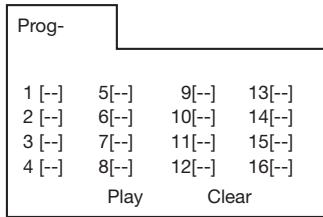
- For how to set the program menu, please refer to the operation of the audio files in the media player below.
Note:
- After you have programmed the tracks, press the PROGRAM button to switch between program play and normal play.
- Press the OK button to exit the edit interface.
When you insert a data disc including audio (MP3, WMA), movie (MPEG), picture (JPG) files into the disc slot, the following media play window will be shown on the screen:
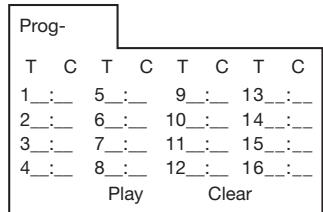
1)Use the / or the / cursor button to select the items you want to program.
2)The items you selected will be highlighted.
3) Input the sequence number you want to program by the numeric buttons (0-9,10+) on the remote control.
4) Press OK or select the "play" operation button on the bottom area to program playback.
There is a memory card interface on the front panel of the unit. Using the SD/MMC/MS card:
1) When there is no disc in the disc slot and no USB driver is connected, and you insert memory card into the memory card interface, the unit will read the card automatically.
2) When there is a disc in the disc slot or when a USB drive is connected, and you insert a memory card, the unit will play the disc or read the USB drive. Press the (stop) or the (pause) button to enter STOP or PAUSE mode, then press the GOTO button to enter the reading card mode.
Note: When reading the memory card, please don't touch or take out the card. If you followed the instruction above, and the unit can't read the card, please check if the card is in good condition, or take out the card then insert it into the card interface once more.
USB PLAY OPERATION
On the front panel of the unit, there is an USB interface. An USB driver can be connected through this interface.
1) When there is no disc in the disc slot and without inserting a memory card, connect a USB driver to the USB interface, the unit will read the files stored in the USB device Automatically.
2) When there is a disc in the disc slot or a memory card is inserted into the memory card interface, connecting a USB driver to the USB interface, the unit will play the disc or read the card. Press (stop) or (pause) button to enter STOP or PAUSE mode, then press GOTO button to read the USB device.
Note:
When reading the USB device, please don't touch or take out the card. If you followed the instruction above, the unit can't read the card, please check if the card is in good condition, or take out the card then insert it into the card interface once more.
- The main unit can only support the standard USB-memory disc which is approved by Microsoft.
-
USB MP3 player is not a standard which means different brands or different models have their own standard. So our product cannot support every MP3 player.
-
When connecting an MP3 player and there is a normal battery in the player (non rechargeable battery), you should remove the battery from the MP3 player then connect it to the USB interface. Otherwise, it may cause battery burst.
- When in USB play mode, be sure not to remove the USB drive from the USB interface.
In DVD mode, when the disc is playing or in the stop mode, press SETUP on the remote control to enter the setup menu.
- When the cursor is on the topside, use the / buttons to move between the different pages.
- Press the button to move the cursor to the setup page below and then you can use the / buttons to move between the different setup options.
- Press the button to display the choice list for each setup option and then use the / buttons and the OK button to change your selection.
SYSTEM SETUP
When you open the setup menu, you will see the system setup page at first, see below:
SYSTEM SETUP
TV SYSTEM
SCREEN SAVER
TV TYPE
DATABASE
RATING
DEFAULT
EXIT SETUP
1) TV SYSTEM: Change the TV mode to NTSC, PAL or AUTO.
2) SCREEN Saver: set the SCREEN Saver on or off.
3) TV TYPE: Change the TV TYPE to 4:3PS, 4:3LB or 16:9.
4) PASSWORD: Change the PASSWORD to lock or unlock, the default PASSWORD is "0000".
5) RATING: Change the parental RATING to 1KID SAFE, 2G, 3PG, 4PG13, 5PG-R, 6R, 7NC-17, or 8ADULT.
6) DEFAULT: Restore the system setup to the factory default.
LANGUAGE SETUP
- When you open the language setup menu, you will see the language setup page:
LANGUAGE SETUP
OSD LANGUAGE
AUDIO LANG
SUBTITLE LANG
MENU LANG
EXIT SETUP
You can change the OSD/ AUDIO/ SUBTITLE/ MENU language to ENGLISH / GERMAN / SPANISH / FRENCH / PORTUGUESE / ITALIAN / (RUSSIAN)(RUSSIAN only for MENU LANG).
AUDIO SETUP
- When you open the AUDIO menu, you will see the following picture:
AUDIO SETUP
AUDIO OUT KEY
EXIT SETUP
1) AUDIO OUT: Change to SPDIF/OFF, SPDIF/RAW or SPDIF/PCM.
2) KEY: Change to -4, -2, 0, +2, or +4.
If it appears that your DVD unit is faulty, first consult this checklist. It may be that something simple has been overlooked.
Under no circumstances should you try to repair the player yourself, as this will invalidate the warranty. Only qualified service personnel can remove the cover or service this player.
NO POWER
- Check if the on/off button on the front of the player is set to ON.
- Check if the AC or DC power plug of the mains unit is properly connected.
- Check if there is power at the AC or DC outlet.
- Check if the battery is properly connected to the DVD unit or if the voltage of the battery is too low.
NO PICTURE
- Select the correct TV or AV input.
- Check the video connection.
DISTORTED PICTURE
- Check the disc for fingerprints and clean with a soft cloth, wiping from centre to edge.
- Sometimes a small amount of picture distortion may appear. This is not a malfunction.
COMPLETELY DISTORTED PICTURE
- The disc format is not according to the TV-set used (PAL/NTSC).
NO COLOR IN PICTURE
- The disc format is not according to the TV-set used (PAL/NTSC).
THE DISC DOES NOT PLAY
- Ensure the disc label is upwards.
- Clean the disc.
- Check if the disc is defective by trying another disc.
NO SOUND
- Check the audio connections.
- If using a HIFI amplifier, try another sound source.
DEVICE DOESN'T RETURN TO the START-UP SCREEN WHEN THE DISC IS REMOVED
- Press power to turn off the unit, then press it again to turn on the unit.
THE PLAYER DOES NOT RESPOND TO THE REMOTE CONTROL
- Aim the remote control directly at the sensor on the front of the player.
- Avoid all obstacles which may interfere with the signal path.
- Inspect or replace the remote control batteries.
DISTORTED OR B/W PICTURE
- The disc format is not according to the TV-set used (PAL/NTSC).
BUTTONS DO NOT WORK
- Turn the player off and on with the power on/off button on the side of the player.
Supply Voltage
Current Consumption Power Consumption
Signal System Discs Played
Audio Output Level Audio Signal Output Characteristics
: 12V DC (11V-15V), test voltage 14.4V, negative ground
Less than 2A
Max. 550mA Stand by < 20mA
: Compositive video 1.0±0.2Vp-p 75Ω
: (1) DVD-VIDEO Disc
(2) Compact Disc (CD-DA/CD-R/CD-RW/MP3)
(3)VIDEO CD
: 10KΩ (2 ch 2.0±0.5Vrms)
: (1) Frequency Response : 20 Hz - 20 KHz
(2) S/N Ratio : 80 dB (JIS)
(3)Wow and Flutter : Below measurement limits
Note:
Specifications and design are subject to modification, without notice, due to improvements in technology.
This product incorporates copyright protection technology that is protected by method claims of certain U.S. patents and other intellectual property rights owned by Macrovision Corporation and other rights owners. Use of this copyright protection technology must be authorized by Macrovision Corporation, and is intended for home and other limited viewing uses only unless otherwise authorized by Macrovision Corporation. Reverse engineering or disassembly is prohibited.
If at any time in the future you should need to dispose of this product please note that: Waste electrical products should not be disposed of with household waste. Please recycle where facilities exist. Check with your Local Authority or retailer for recycling advice. (Waste Electrical and Electronic Equipment Directive)
| CD | TRK | 4/16 | HDCD | C | 00:00:08 |
| CD | TRK | 4/16 | HDCD | C | -00:03:31 |
| CD | TRK | 4/16 | HDCD | T | 00:13:21 |
| CD | TRK | 4/16 | HDCD | T | -00:58:04 |
DVD TT 1/2 CH 1/1 T 00:00:03
DVD TT 1/2 CH 1/1 T-00:29:27
DVD TT 1/2 CH 1/1 C 00:01:02
1) Angabe: TT
CD TRK 4/16 HDCD C 00:00:08
CD TRK 4/16 HDCD C-00:03:31
CD TRK 4/16 HDCD T 00:13:21
CD TRK 4/16 HDCD T-00:58:04
FÜR VCD (BEI AUSGESCHALTETEM PBC)/CD:
VCD
TRK
1/1
PBC
00
:25:17
MANUEL PEUT SE RESULTER PAR
UNE EXPOSITION AUX
RADIATIONS.
NE COUVREZ PAS ET - NE TENTEZ
PAS DE REPARER L'APPAREIL
VOUS MEME. CONFIEZ
L'ENTRETIEN DE CET APPAREIL A
DU PERSONNEL QUALIFIE.
AVERTISSEMENT:
- AFIN DE REDUIRE LES RISQUES D'ELECTROCUTION ET D'INCENDIE, N'EXPOSEZ PAS CET EQUIPEMENT A LA PLUIE OU L'HUMIDITE.
- AFIN DE REDUIRE LES RISQUES D'ELECTROCUTION ET D'INCENDIE, ET DE REDUIRE LES
INTERFERENCES, UTILISEZ
SEULEMENT LES ACCESSOIREs RECOMMANDES.
- CET EQUIPEMENT EST DESTINE A
UNE UTILISATION CONTINUE.
| CD | TRK | 4/16 | HDCD | C | 00:00:08 |
| CD | TRK | 4/16 | HDCD | C | -00:03:31 |
| CD | TRK | 4/16 | HDCD | T | 00:13:21 |
| CD | TRK | 4/16 | HDCD | T | -00:58:04 |
POUR LES DISQUES VCD (AVEC LA
FUNCTION PBC DESACTIVEE)/CD:
VCP TRK 1/1 PBC 00:25:17
DVD TT 1/2 CH 1/1 T 00:00:03
DVD TT 1/2 CH 1/1 T-00:29:27
DVD TT 1/2 CH 1/1 C 00:01:02
1) Elemento: TT
CD TRK 4/16 HDCD C 00:00:08
CD TRK 4/16 HDCD C-00:03:31
CD TRK 4/16 HDCD T 00:13:21
CD TRK 4/16 HDCD T-00:58:04