
HUB USB RÉSEAU #F5L009EA - USB Hub BELKIN - Free user manual and instructions
Find the device manual for free HUB USB RÉSEAU #F5L009EA BELKIN in PDF.


| Product type | USB Network Hub |
| Brand | Belkin |
| Model | F5L009EA |
| Power supply | AC adapter (included) |
| Network interface | Ethernet 10/100 |
| Number of USB ports | Not specified (network hub for sharing USB devices) |
| Supported operating systems | Windows XP (32-bit), Windows Vista (32-bit) |
| Main functions | USB printer sharing, remote access to USB devices, automatic connection, usage request management |
| Maximum number of simultaneous connections | 16 |
| Technology | Virtual USB network |
| System requirements | Network router with DHCP, Ethernet connection |
| Safety | FCC and CE certifications; indoor use only |
| Warranty | Limited lifetime manufacturer warranty |
| Customer service | Phone and online support (www.belkin.com) |
| Maintenance | No specific maintenance required; avoid humid or dusty environments |
| Repairability | Product not user-serviceable; contact Belkin support in case of failure |
Frequently Asked Questions - HUB USB RÉSEAU #F5L009EA BELKIN
User questions about HUB USB RÉSEAU #F5L009EA BELKIN
0 question about this device. Answer the ones you know or ask your own.
Ask a new question about this device
Download the instructions for your USB Hub in PDF format for free! Find your manual HUB USB RÉSEAU #F5L009EA - BELKIN and take your electronic device back in hand. On this page are published all the documents necessary for the use of your device. HUB USB RÉSEAU #F5L009EA by BELKIN.
USER MANUAL HUB USB RÉSEAU #F5L009EA BELKIN
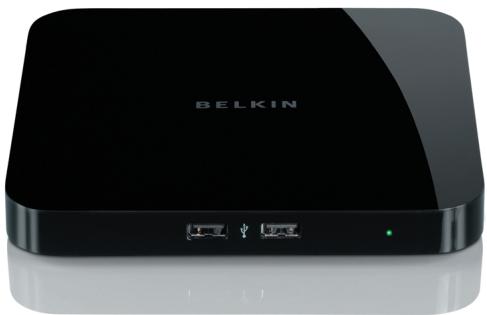
Congratulations and thank you for purchasing the Network USB Hub (the Hub) from Belkin. By connecting to your network router, this innovative sharing tool gives you a great way to enhance its capabilities, as well as those of all the USB devices connected throughout your network. It lets you access your USB devices remotely without the hassle of setting up network software. Now you can easily print to the USB printer in your home office from your living room or bedroom—through any network router.
The Hub works with Windows® XP and Windows Vista™ (32-bit). In order to use the Hub, you must have a networking router connecting your network.
1. Preparing for Setup
NOTE: If you are connected to a network router that uses Dynamic Host Configuration Protocol (DHCP), which most networks do, you do not need to set up your Hub.
1.1 Plug the AC adapter into the Hub.
1.2 Check the Power LED (green). It should be illuminated.
1.3 Plug the Ethernet cable into the Hub.
1.4 Plug the other end of the Ethernet cable into your network router.
2. Installing the Software
IMPORTANT: If you do not install the software on your PC, the Hub will not work.
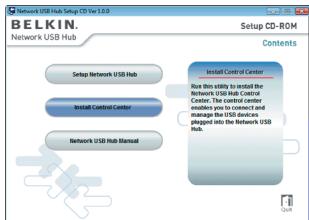
2.1 Insert the setup CD into your CD-ROM drive. You will see the Hub Setup CD screen. Click "Install Control Center".
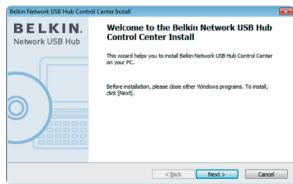
2.2 You will see the "Welcome" screen. Click "Next".
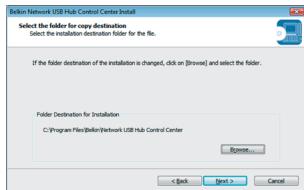
2.3 Choose a destination folder in which to install the software, or simply click "Next"
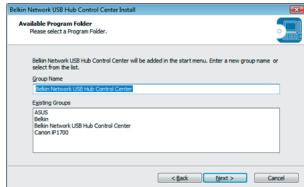
2.4 Choose the program group for the software, or simply click "Next".
1
2
3
4
5
2.5 To start the installation. Click "Start".
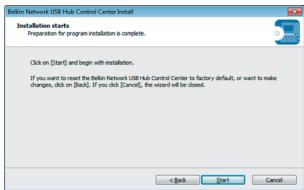
2.6 Installation is complete. Click "Finish".
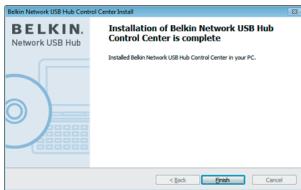
Once the setup is completed, launch the Belkin Network USB Hub Control Center through the "Start" menu. The main Control Center (see image below) gives you a visual depiction of your connection configuration.
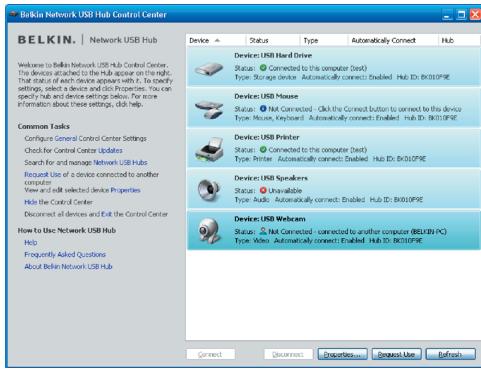
You can connect to a device by double-clicking the device on the list, or by selecting it on the list, and then clicking "Connect", on the bottom of the screen. To disconnect a device, just double-click it on the list, or select it and then click "Disconnect", on the bottom of the screen.
You can change device names, settings, and more by selecting the device from the list, and then clicking "Properties".

Device:USB Printer
Status: Connected to this computer (test)
Type: Printer Automatically connect: Enabled Hub ID: BK010F9E
What the designations mean
Device: Name of the device. You can change the name by clicking "Properties".
Status: Status of the device. The status changes automatically.
Connected to this computer: Devices shown are currently connected to the computer that you are using.
Type: Category of the device. This is detected automatically.
Automatically connect: This allows the PC to automatically connect to this device. This can be enabled or disabled in "Properties".
Hub ID: The ID of the Hub into which the device is plugged. This is detected automatically.

Device: USB Mouse
Status: 0 Not Connected - Click the Connect button to connect to this device Type: Mouse, Keyboard Automatically connect; Enabled Hub ID: BK010F9E
Not Connected: It is available for you to use. You can connect to this device by double-clicking the bar or by clicking "Connect".

Device:USBWebcam
Status: Not Connected - connected to another computer (BELKIN-PC) Type: Video Automatically connect: Enabled Hub ID: BK010F9E
Not Connected: The device is being used by someone else and it is not available. You can make a request for the device by clicking "Request Use".

Device: USB Speakers
Status: Unavailable
Type: Audio Automatically connect: Enabled Hub ID: BK010F9E
Unavailable: The device has been disconnected from the Hub. It will be removed from the list when you click "Refresh".
Requesting a device when it is being used by someone else
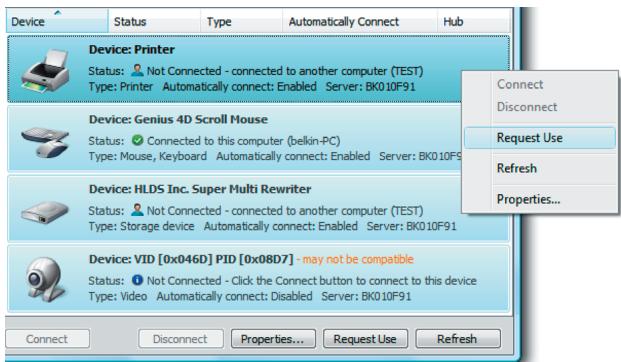
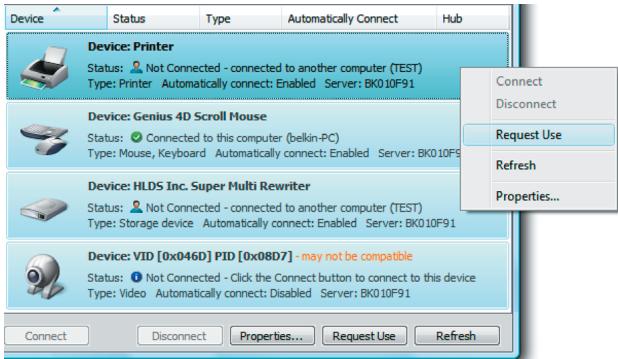
If someone else is connected to a device that you want to use, you can make a device request. Right-click on the device in the list and select "Request Use" from the pop-up menu, or, you can select the device from the list and click "Request Use".
"Device Request" displays a message on the other user's computer screen that looks like this:
The user of the other computer must accept the request, by clicking "Yes", in order to make it available to you.
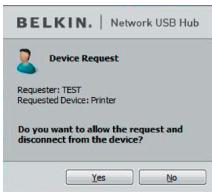
When the other user clicks "Yes", the device will be disconnected automatically from that user's computer and it will be available for you to use.
Changing the connection settings
You can set the Control Center to automatically connect to devices when the software launches. Selecting "Automatically Connect" simplifies the overall experience for most users; however, it may not be a suitable default setting if the devices are shared among many users.
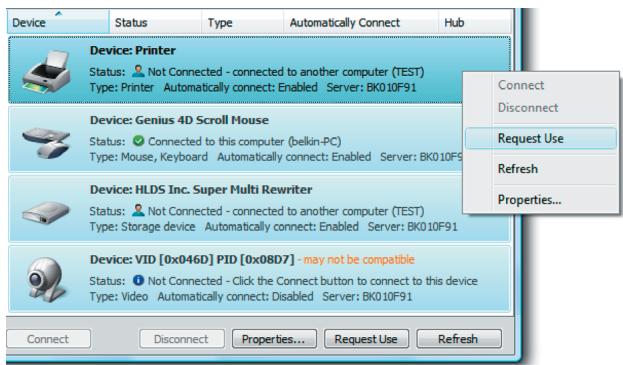
To change the connection setting, right-click on the device name in the list and click "Properties", select it, and then click "Properties".
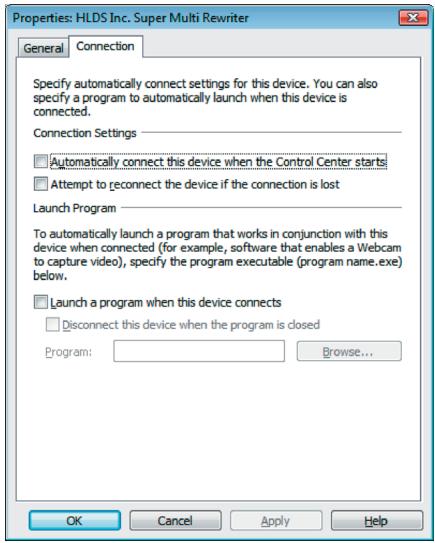
Click on the "Connection" tab and check or uncheck the box next to "Automatically connect this device when the Control Center starts", depending on whether or not you want to automatically connect the device on start-up, then click "Apply".
Sharing a USB printer
You can set the Network USB Hub Control Center to share any USB printers on the network.
Note: You must install the printer driver on your computer before enabling sharing.
- First, connect to the printer.

Device:USB Printer
Status: Connected to this computer (test)
Type: Printer Automatically connect: Enabled Hub ID: BK010F9E
- Install the printer driver that came with the printer.
- Repeat steps 1 and 2 on the other computers that will share the printer.
- Right-click on the printer from the list and click "Properties", or select the printer from the list and click "Properties" on the bottom.
- Click on the "Connection" tab and check the box next to "This is a shared printer...".
- Select the printer from the list. It should match the correct printer.
- Click "Apply".
- Repeat steps 5-7 on the other computers that will share the printer.
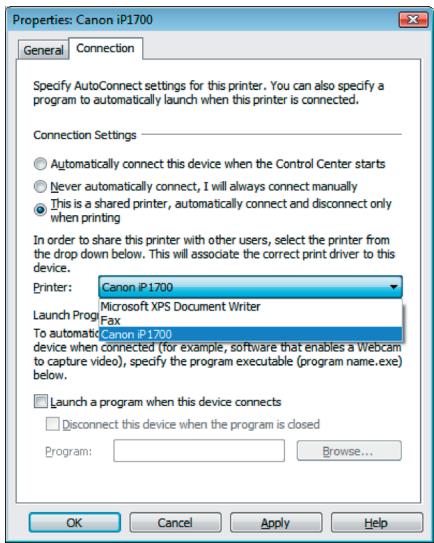
Changing the Network USB Hub Control Center settings
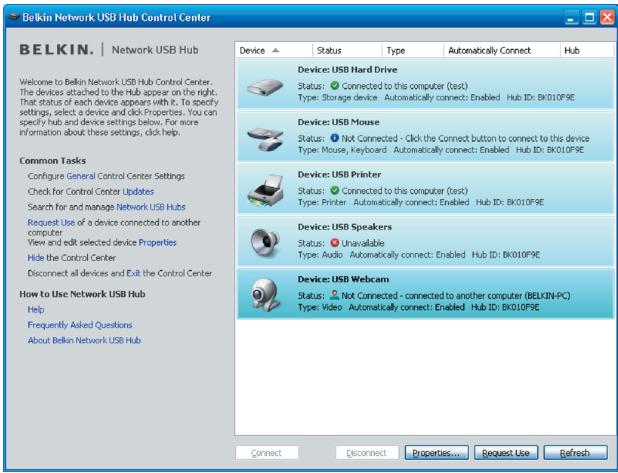
Click the "General" link, under "Common Tasks" on the left of the "Control Center" screen to open the "Network USB Hub settings" window.
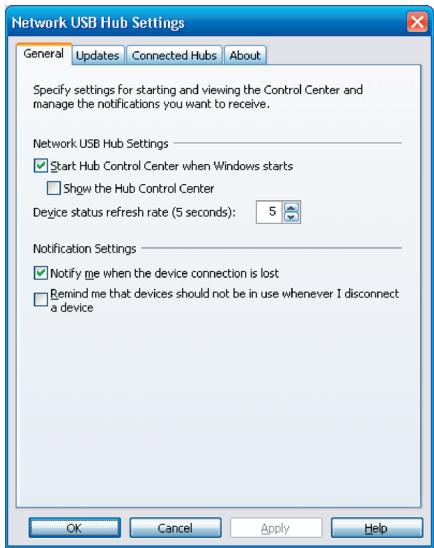
Simply check or uncheck the box to determine whether you want to launch the Network USB Hub Control Center when Windows starts.
Checking "Show the Hub Control Center" causes the "Control Center" screen to display when you launch Windows.
Certain USB devices may not be compatible with the Hub.
Since the Network USB Hub uses virtual network technology, some USB devices (e.g., TV tuners, webcams, and USB audio devices) may not be compatible with it. You may see a warning message like the one illustrated below.

Device: VID [0x046D] PID [0x08D7] - may not be compatible
Status: 1 Not Connected - Click the Connect button to connect to this device
Type: Video Automatically connect: Disabled Server: BK010F91
WLAN connection
The Network USB Hub's virtual network technology may not work properly if the WLAN connection is interrupted. If you have problems with the Network USB Hub or connected USB devices, please make sure that your WLAN connection is strong and stable.
The Network USB Hub can support up to 16 connections
Virtual network technology limits the number of devices the Hub can support to 16 total connections.
(Important: One connection does not equal one device; some devices involve more than one connection.
For instance, a multifunction printer is typically comprised of four connections.)
The Network USB Hub and VPN
Since VPN filters the connection between the computer and other network devices, the Hub may not work with VPN enabled. If you experience difficulty with the Hub's operation, disable the VPN connection while using the Hub.
FCC Statement
DECLARATION OF CONFORMITY WITH FCC RULES FOR ELECTROMAGNETIC COMPATIBILITY
We, Belkin International, Inc., of 501 West Walnut Street, Compton, CA 90220, declare under our sole responsibility that the product: F5L009
to which this declaration relates: Complies with Part 15 of the FCC Rules. Operation is subject to the following two conditions: (1) this device may not cause harmful interference, and (2) this device must accept any interference received, including interference that may cause undesired operation. This equipment may only be operated indoors. Operation outdoors is in violation of 47 U.S.C. 301 and could subject the operator to serious legal penalties.
CE Declaration of Conformity
We, Belkin International, Inc., declare under our sole responsibility that the F5L009, to which this declaration relates, is in conformity with Generic Emissions Standard EN55022:1998 Class B, EN50081-1, and with Generic Immunity Standard EN50082-1:1992.
Belkin International, Inc., Limited Lifetime Product Warranty What this warranty covers.
Belkin International, Inc. ("Belkin") warrants to the original purchaser of this Belkin product that the product shall be free of defects in design, assembly, material, or workmanship.
What the period of coverage is.
Belkin warrants the Belkin product for the lifetime of the product.
What will we do to correct problems?
Product Warranty.
Belkin will repair or replace, at its option, any defective product free of charge (except for shipping charges for the product).
What is not covered by this warranty?
All above warranties are null and void if the Belkin product is not provided to Belkin International, Inc., for inspection upon Belkin's request at the sole expense of the purchaser, or if Belkin International, Inc., determines that the Belkin product has been improperly installed, altered in any way, or tampered with. The Belkin Product Warranty does not protect against acts of God (other than lightning) such as flood, earthquake, war, vandalism, theft, normal-use wear and tear, erosion, depletion, obsolescence, abuse, damage due to low voltage disturbances (i.e. brownouts or sags), non-authorized program, or system equipment modification or alteration.
How to get service.
To get service for your Belkin product you must take the following steps:
- Contact Belkin International, Inc., Express Business Park, Shipton Way, Rushden NN10 6GL, United Kingdom, or call (0)845 607 77 87, within 15 days of the Occurrence. Be prepared to provide the following information:
a. The part number of the Belkin product.
b. Where you purchased the product.
c. When you purchased the product.
d. Copy of original receipt.
- Your Belkin Customer Service Representative will then instruct you on how to forward your receipt and Belkin product and how to proceed with your claim.
Belkin International, Inc., reserves the right to review the damaged Belkin product. All costs of shipping the Belkin product to Belkin International, Inc., for inspection shall be borne solely by the purchaser. If Belkin determines, in its sole discretion, that it is impractical to ship the damaged equipment to Belkin International, Inc., Belkin may designate, in its sole discretion, an equipment repair facility to inspect and estimate the cost to repair such equipment. The cost, if any, of shipping the equipment to and from such repair facility and of such estimate shall be borne solely by the purchaser. Damaged equipment must remain available for inspection until the claim is finalized. Whenever claims are settled, Belkin International, Inc., reserves the right to be subrogated under any existing insurance policies the purchaser may have.
How state law relates to the warranty.
THIS WARRANTY CONTAINS THE SOLE WARRANTY OF BELKIN INTERNATIONAL, INC., THERE ARE NO OTHER WARRANTYES, EXPRESSED OR, EXCEPT AS REQUIRED BY LAW, IMPLIED, INCLUDING THE IMPLIED WARRANTY OR CONDITION OF QUALITY, MERCHANTABILITY OR FITNESS FOR A PARTICULAR PURPOSE, AND SUCH IMPLIED WARRANTYES, IF ANY, ARE LIMITED IN DURATION TO THE TERM OF THIS WARRANTY.
Some states do not allow limitations on how long an implied warranty lasts, so the above limitations may not apply to you.
IN NO EVENT SHALL BELKIN INTERNATIONAL, INC., BE LIABLE FOR INCIDENTAL, SPECIAL, DIRECT, INDIRECT, CONSEQUENTIAL OR MULTIPLE DAMAGES SUCH AS, BUT NOT LIMITED TO, LOST BUSINESS OR PROFITS ARISING OUT OF THE SALE OR USE OF ANY BELKIN PRODUCT, EVEN IF ADVISED OF THE POSSIBILITY OF SUCH DAMAGES.
This warranty gives you specific legal rights, and you may also have other rights, which may vary from state to state. Some states do not allow the exclusion or limitation of incidental, consequential, or other damages, so the above limitations may not apply to you.
Technical Support
Technical support is available to all registered users of Belkin products.
Web Support
You may find the answer to your problem in the Frequently Asked Questions (FAQ) section of the "Support Center" area on the Belkin website: www.belkin.com.
Telephone Support
There is no charge for technical support except long-distance charges where applicable. Please visit www.belkin.com for telephone-support hours.
Registering Your Belkin Product
Register your Belkin product online at www.belkin.com.
Free Tech Support*
You can find additional support information on our website www.belkin.com through the tech-support area. If you want to contact technical support by phone, please call the number you need from the list below*.
*Local rates apply
| Country | Number | Internet adress |
| AUSTRIA | 08 - 20 20 07 66 | http://www.belkin.com/uk |
| BELGIUM | 07 07 00 073 | http://www.belkin.com/nl |
| CZECH REPUBLIC | 23 900 04 06 | http://www.belkin.com/uk |
| DENMARK | 701 22 403 | http://www.belkin.com/uk |
| FINLAND | 00800 - 22 35 54 60 | http://www.belkin.com/uk |
| FRANCE | 08 - 25 54 00 26 | http://www.belkin.com/fr |
| GERMANY | 0180 - 500 57 09 | http://www.belkin.com/de |
| GREECE | 00800 - 44 14 23 90 | http://www.belkin.com/uk |
| HUNGARY | 06 - 17 77 49 06 | http://www.belkin.com/uk |
| ICeland | 800 8534 | http://www.belkin.com/uk |
| IRELAND | 0818 55 50 06 | http://www.belkin.com/uk |
| ITALY | 02 - 69 43 02 51 | http://www.belkin.com/it/support/tech |
| LUXEMBOURG | 34 20 80 8560 | http://www.belkin.com/uk |
| NETHERLANDS | 0900 - 040 07 90 €0.10 per minute | http://www.belkin.com/nl |
| NORWAY | 815 00 287 | http://www.belkin.com/uk |
| POLAND | 00800 - 441 17 37 | http://www.belkin.com/uk |
| PORTUGAL | 707 200 676 | http://www.belkin.com/uk |
| RUSSIA | 495 580 9541 | http://www.belkin.com/uk |
| SOUTH AFRICA | 0800 - 99 15 21 | http://www.belkin.com/uk |
| SPAIN | 902 - 02 43 66 | http://www.belkin.com/es/support/tech |
| SWEDEN | 07 - 71 40 04 53 | http://www.belkin.com/se/support/tech |
| SWITZERLAND | 08 - 48 00 02 19 | http://www.belkin.com/uk |
| UNITED KINGDOM | 0845 - 607 77 87 | http://www.belkin.com/uk |
| OTHER COUNTRIES | +44 - 1933 35 20 00 | |
BELKIN
www.belkin.com
Belkin Tech Support
UK:08456077787
Europe: www.belkin.com/support
Belkin Ltd.
Express Business Park
Shipton Way, Rushden
NN10 6GL, United Kingdom
+44 (0) 1933 35 2000
+44 (0) 1933 31 2000 fax
Belkin B.V.
Boeing Avenue 333
1119 PH Schiphol-Rijk
Netherlands
+31 (0) 20 654 73 00
+31 (0) 20 654 73 49 fax
Belkin SAS
130 rue de Silly
92100 Boulogne-Billancourt France
+33 (0) 1 41 03 14 40
+33 (0) 141 31 01 72 fax
Belkin Iberia
For information on product disposal please refer to http://environmental.belkin.com

Status: Connected to this computer (test)
Type: Printer Automatically connect: Enabled Hub ID: BK010F9E
Que signifient les conventions
Status: 0 Not Connected - Click the Connect button to connect to this device Type: Mouse, Keyboard Automatically connect; Enabled Hub ID: BK010F9E
“Connexion”。

Device:USBWebcam
Status: Not Connected - connected to another computer (BELKIN-PC) Type: Video Automatically connect: Enabled Hub ID: BK010F9E
Type: Audio Automatically connect: Enabled Hub ID: BK010F9E
Status: Connected to this computer (test)
Type: Printer Automatically connect: Enabled Hub ID: BK010F9E
Status: 1 Not Connected - Click the Connect button to connect to this device
Type: Video Automatically connect: Disabled Server: BK010F91
Connexion WLAN
Assistance technique
Assistance Technique Belkin
Express Business Park
Shipton Way, Rushden
Status: Connected to this computer (test)
Type: Printer Automatically connect: Enabled Hub ID: BK010F9E
Status: 0 Not Connected - Click the Connect button to connect to this device Type: Mouse, Keyboard Automatically connect; Enabled Hub ID: BK010F9E
Status: Not Connected - connected to another computer (BELKIN-PC) Type: Video Automatically connect: Enabled Hub ID: BK010F9E
Type: Audio Automatically connect: Enabled Hub ID: BK010F9E
Status: Connected to this computer (test)
Type: Printer Automatically connect: Enabled Hub ID: BK010F9E
Status: 0 Not Connected - Click the Connect button to connect to this device Type: Video Automatically connect; Disabled Server: BK010F91
WLAN-Verbindung
Express Business Park
Shipton Way, Rushden
NN10 6GL, GroBbritannien
+44 (0) 1933 35 2000
+44 (0) 1933 31 2000 Fax
Belkin SAS
130 rue de Silly
Status: Connected to this computer (test)
Type: Printer Automatically connect: Enabled Hub ID: BK010F9E
Status: 0 Not Connected - Click the Connect button to connect to this device Type: Mouse, Keyboard Automatically connect: Enabled Hub ID: BK010F9E
Status: Not Connected - connected to another computer (BELKIN-PC) Type: Video Automatically connect: Enabled Hub ID: BK010F9E
Type: Audio Automatically connect: Enabled Hub ID: BK010F9E
Status: Connected to this computer (test)
Type: Printer Automatically connect: Enabled Hub ID: BK010F9E
Status: 1 Not Connected - Click the Connect button to connect to this device
Type: Video Automatically connect: Disabled Server: BK010F91
WLAN-verbinding
Express Business Park
Shipton Way, Rushden
Status: Connected to this computer (test)
Type: Printer Automatically connect: Enabled Hub ID: BK010F9E
Status: 0 Not Connected - Click the Connect button to connect to this device Type: Mouse, Keyboard Automatically connect: Enabled Hub ID: BK010F9E
Status: Not Connected - connected to another computer (BELKIN-PC) Type: Video Automatically connect: Enabled Hub ID: BK010F9E
Status: Unavailable
Type: Audio Automatically connected: Enabled Hub ID: BK010F9E
Status: Connected to this computer (test)
Type: Printer Automatically connect: Enabled Hub ID: BK010F9E
Status: 1 Not Connected - Click the Connect button to connect to this device
Type: Video Automatically connect: Disabled Server: BK010F91
Conexión WLAN
Express Business Park
Shipton Way, Rushden
Status: Connected to this computer (test)
Type: Printer Automatically connect: Enabled Hub ID: BK010F9E
Status: 0 Not Connected - Click the Connect button to connect to this device Type: Mouse, Keyboard Automatically connect: Enabled Hub ID: BK010F9E
Status: Not Connected - connected to another computer (BELKIN-PC) Type: Video Automatically connect: Enabled Hub ID: BK010F9E
Type: Audio Automatically connect: Enabled Hub ID: BK010F9E
Status: Connected to this computer (test)
Type: Printer Automatically connect: Enabled Hub ID: BK010F9E
Status: 1 Not Connected - Click the Connect button to connect to this device
Type: Video Automatically connect: Disabled Server: BK010F91
Express Business Park
Shipton Way, Rushden