
ESPRIMO MOBILE PORT REPLICATOR - Laptop Docking Station FUJITSU SIEMENS - Free user manual and instructions
Find the device manual for free ESPRIMO MOBILE PORT REPLICATOR FUJITSU SIEMENS in PDF.


| Product Type | Laptop Docking Station (Port Replicator) |
| Brand | Fujitsu Siemens |
| Model | ESPRIMO MOBILE PORT REPLICATOR |
| Compatibility | Fujitsu Siemens notebooks (ESPRIMO MOBILE series) |
| Available Ports | 1x LAN port, 1x eSATA, 4x USB, 1x PS/2, 1x parallel, 1x serial, 1x DVI-D, 1x VGA, 1x microphone, 1x headphones |
| Power Supply | External power adapter (DC IN 19V) |
| Power Switch | Yes, on the port replicator |
| Power Indicator | Yes, lights up when the notebook is powered on |
| Theft Protection | 2 Kensington Lock devices (for the replicator alone or with the notebook) |
| Main Functions | Quickly connect a notebook to peripherals (monitor, printer, mouse, keyboard, etc.) |
| Setup | Stable, flat, non-slip surface; do not block ventilation openings |
| Cleaning | Dry or slightly damp cloth (water + mild detergent); avoid liquid entering the device |
| Safety | Follow the instructions in the "Safety" manual and the notebook manual |
| Transport | In original packaging or shock-proof packaging |
| Internal Maintenance | Reserved for authorized technician |
| Dimensions (estimated) | Approx. 300 x 200 x 50 mm (without notebook) |
| Weight (estimated) | Approx. 400 g |
| Included Accessories | Power adapter, power cord (check delivery contents) |
| Operating Temperature | Follow notebook ambient conditions (see EasyGuide) |
| Repairability | Spare parts available through after-sales service; internal intervention by authorized technician |
Frequently Asked Questions - ESPRIMO MOBILE PORT REPLICATOR FUJITSU SIEMENS
User questions about ESPRIMO MOBILE PORT REPLICATOR FUJITSU SIEMENS
0 question about this device. Answer the ones you know or ask your own.
Ask a new question about this device
Download the instructions for your Laptop Docking Station in PDF format for free! Find your manual ESPRIMO MOBILE PORT REPLICATOR - FUJITSU SIEMENS and take your electronic device back in hand. On this page are published all the documents necessary for the use of your device. ESPRIMO MOBILE PORT REPLICATOR by FUJITSU SIEMENS.
USER MANUAL ESPRIMO MOBILE PORT REPLICATOR FUJITSU SIEMENS
... any technical questions or problems?
Please contact:
- our Hotline/Help Desk (refer to the enclosed Help Desk List or go to: "www.fujitsu-siemens.com/support")
- your sales partner
- your sales office
Additional information is contained in the Help Desk list and the "Warranty" manual. The "Warranty" manual can be found on the "Drivers & Utilities" CD/DVD.
Latest information on our products, tips, updates etc. can be found on our website at: "www.fujitsu-siemens.com"
Copyright © Fujitsu Siemens Computers GmbH 2008
Kensington and MicroSaver are registered trademarks of ACCO World Corporation.
Microsoft, MS, MS DOS, Windows Vista and Windows NT are registered trademarks of Microsoft Corporation.
PS/2 is a registered trademarks of International Business Machines, Inc.
All other trademarks referenced are trademarks or registered trademarks of their respective owners, whose protected rights are acknowledged.
All rights reserved, including rights of translation, reproduction by printing, copying or similar methods, in part or in whole.
In the event of violations, perpetrators will be liable to prosecution for damages.
All rights reserved, including rights created by patent grant or registration of a utility model or design.
Subject to availability and technical modifications.
Inhalt
Notational conventions 1
Important notes 2
Safety information 2
Transporting the device 2
Cleaning the device 2
Preparation for use and operation 3
Unpacking and checking the delivery 3
Setting up the Port Replicator 3
Connecting the mains adapter to the Port Replicator 4
Connecting the notebook to the Port Replicator 5
Switching on the notebook via the Port Replicator 6
Switching the notebook off via the Port Replicator 6
Disconnecting the notebook from the Port Replicator 7
Connecting external devices 7
Connecting devices to the notebook 8
Disconnecting devices from the notebook 8
Ports on the Port Replicator 9
Anti-theft protection 11
Protecting the Port Replicator and notebook against theft 11
Troubleshooting and tips 11
Your Port Replicator
... is a docking device that allows you to quickly connect a Fujitsu Siemens notebook to various peripheral devices, such as a monitor, printer etc.
The features offered by the Port Replicator include standard ports for monitor, audio, mouse and keyboard.
All you need do is dock the notebook in order to work with your peripherals. There is no need to connect additional cables.
Notational conventions
| ! | Pay particular attention to text marked with this symbol. Failure to observe this warning will endanger your life, will damage the device or lead to loss of data. The warranty will be invalidated if you cause defects in the device through failure to take notice of this warning |
| i | indicates important information that is required to use the device properly. |
| ▷ | indicates an activity that must be performed in the order shown |
| L→ | indicates a result |
| This style | flags data entered using the keyboard in a program dialog or command line, e.g. your password (Name123) or a command to launch a program (start.exe) |
| This style | refers to information displayed by a program on the screen, e.g.: Installation is completed |
| This style | is for • terms and texts in a software user interface, e.g.: Click Save. • names of programs or files, e.g. Windows or setup.exe. |
| "This style" | is for • cross-references to another section, e.g. "Safety information" • cross-references to an external source, e.g. a web address: For more information, go to "www.fujitsu-siemens.com" • indicates names of CDs and DVDs as well as names and titles of other materials, e.g.: "CD/DVD Drivers & Utilities" or "Safety" manual |
| Abc | refers to a key on the keyboard, e.g.: F10 |
| This style | flags concepts and text that are emphasised or highlighted, e.g.: Do not switch off device |
Important notes

Take note of the safety hints provided in the "Safety" manual, in the "Professional Notebook" operating manual and in this manual.
Safety information

Please note the information provided in the "Safety" manual and in the following safety notes.
Please pay attention to the sections in the manual marked with the symbol shown on the left.
- Refer to the instructions in Section "Preparation for use and operation", Page 3" during installation and before operating the device.
- The instructions relating to environmental conditions in the "Technical Data" section of the "EasyGuide" manual for your notebook must also be observed.
Transporting the device

Transport all parts separately in their original packaging or in a packaging which protects them from knocks and jolts, to the new site.
Do not unpack them until all transportation manoeuvres are completed.
Cleaning the device

Turn off all power and equipment switches and remove the power plug from the mains supply.
Do not clean any interior parts yourself, leave this job to a service technician.
Ensure that no liquid enters the system.
The surface can be cleaned with a dry cloth. If particularly dirty, use a cloth that has been moistened in mild domestic detergent and then carefully wrung out.
Preparation for use and operation

Please observe the safety information in "Important notes", Page 2.
Unpacking and checking the delivery
Unpack all the individual parts.
Check the delivery for damage incurred during transportation.
Check whether the delivery conforms to the details in the delivery note.

Should you discover that the delivery does not correspond to the delivery note, notify your local sales outlet immediately.
Do not discard the original packing material of the devices. You may need the packaging in the future if you need to transport your device.
Setting up the Port Replicator

Select a suitable location for the Port Replicator before setting it up. Consider the following points when selecting a location:
- Never place the Port Replicator on a soft surface (e.g. carpeting, upholstered furniture, bed). This can block the air vents and cause overheating and damage.
- Place the Port Replicator on a stable, flat and nonslippery surface. Please note that the rubber feet may mark certain types of surfaces.
- Never place the Port Replicator and the mains adapter on a heat-sensitive surface.
- Never cover the fan intake or exhaust openings of the Port Replicator or the mains adapter.
- The Port Replicator should not be exposed to extreme environmental conditions. Protect the Port Replicator from dust, humidity and heat.
Connecting the mains adapter to the Port Replicator
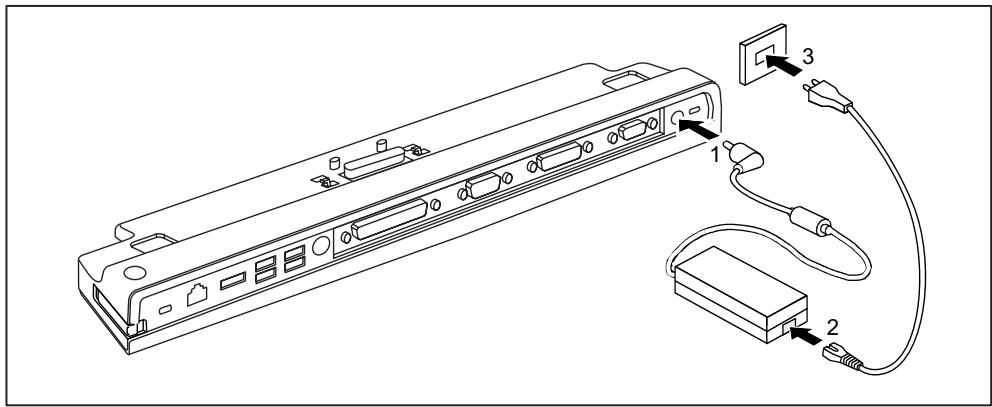
Connect the mains adapter cable to the DC jack (DC IN) of the Port Replicator (1).
Connect the power cable to the mains adapter (2).
Plug the power cable into the mains socket (3).

When the notebook is connected to a Port Replicator, the operating system creates a hardware profile for the "Docked" mode. In this profile, for example, the setting is saved as to which monitor was last used for output. This profile will be loaded, as soon as the notebook is connected to a Port Replicator of the same type.
Connecting the notebook to the Port Replicator

If you connect the notebook to the Port Replicator during operation, problems can occur. We recommend that you switch off the notebook beforehand.

When the notebook is connected to the Port Replicator, you must connect the mains adapter to the Port Replicator. Otherwise some connections will not function.
If the notebook is connected to the Port Replicator, then only the audio ports on the Port Replicator will be operational.
When the notebook is connected to the Port Replicator, we recommend that the notebook not be operated with the LCD screen closed. The resulting overheating can cause reduced performance and increased activity of the integrated fan.
Switch the notebook off.
Unplug the mains plug of the mains adapter from the mains socket.
Disconnect the mains adapter cable from the DC socket (DC IN) of the notebook.

Position the notebook so that it is in line with the back edge of the Port Replicator.
Place the notebook onto the Port Replicator (1) and ensure that it locks into place correctly.
Switching on the notebook via the Port Replicator
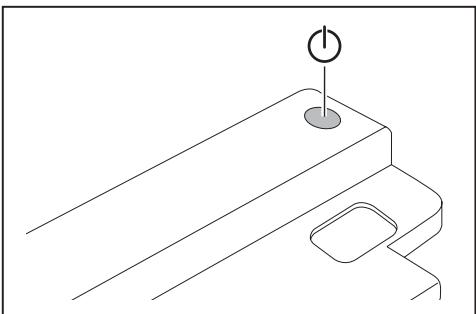
Press the ON/OFF switch on the Port Replicator to switch the notebook on.
The power-on indicator of the Port Replicator lights up.
Switching the notebook off via the Port Replicator
- Close all applications and shut down your operating system (please see operating system manual).

If the notebook cannot be shut down properly, press the ON/OFF button on the Port Replicator for approx. four seconds. The notebook switches off. However, any data which have not been saved may be lost.
Disconnecting the notebook from the Port Replicator

If you disconnect the notebook from the Port Replicator during operation, problems can occur. We recommend that you first switch off the notebook or disconnect the notebook via the corresponding function in the operating system.
Switch the notebook off.
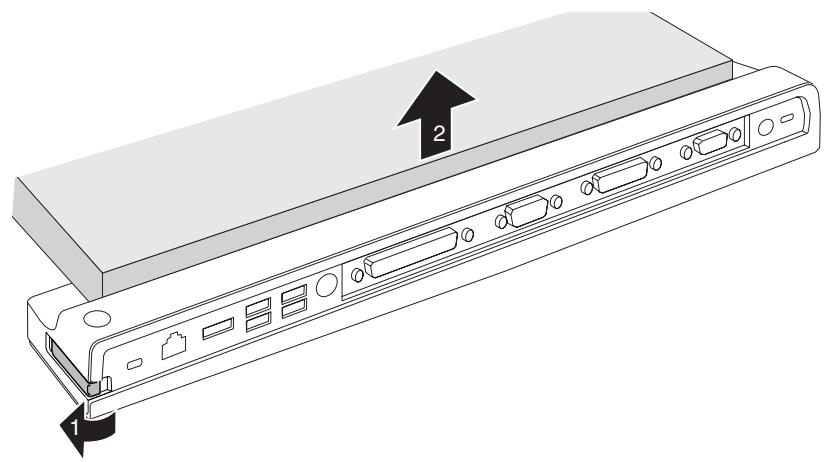
▶ Pull the unlocking lever in the direction of the arrow (1), until you hear the notebook unlatch.
Lift off the notebook (2).
Connecting external devices

Under all circumstances, please observe the safety notes provided in the "Important notes", Page 2 chapter.
Read the documentation on the external device before connecting it.
Do not connect or disconnect cables during a thunderstorm.
Do not pull on the cable when disconnecting a cable. Always take hold of the actual plug.
Follow the steps below in order, when connecting or disconnecting devices to your notebook:
Connecting devices to the notebook
- Turn off all power and equipment switches.
- Remove power plugs from the mains outlets for all devices.
- Connect all the cables to the notebook and the external devices.
- Plug all data communication cables into the appropriate ports for the data networks.
- Plug all power cables into the mains outlets.

Please note that connected external devices can discharge the battery of the notebook if no mains adapter is connected to the port replicator.
Disconnecting devices from the notebook
- Turn off all power and equipment switches.
- Remove power plugs from the mains outlets for all devices.
- Unplug all data communication cables from the ports for the data networks.
- Disconnect all the cables from the notebook and the external devices.

Information about the connections on your notebook can be found in the corresponding EasyGuide.

The "Professional Notebook" manual supplied with your notebook includes a section titled "Connecting external devices". This chapter describes how to connect external devices (e.g. mouse, printer).
Ports on the Port Replicator
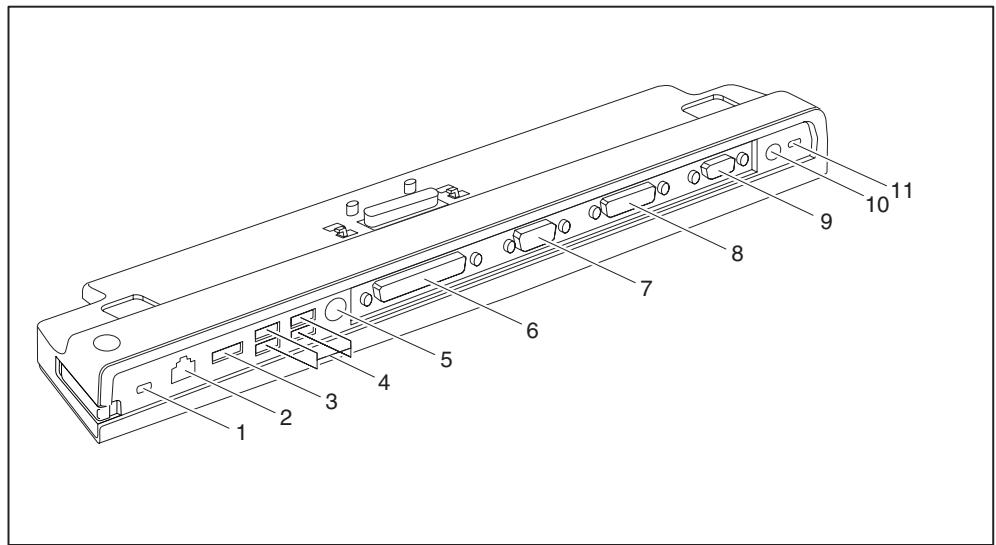
1 = Kensington Lock mechanism (Port Replicator and docked device)
2 = LAN port
3 = eSATA port
4 = USB ports
5 = PS/2 port
6 = Parallel port
7 = Serial port
8 = Digital DVI-D monitor port
9 = VGA monitor port
11 = DC input connector (DC IN)
12 = Kensington Lock mechanism (Port Replicator)
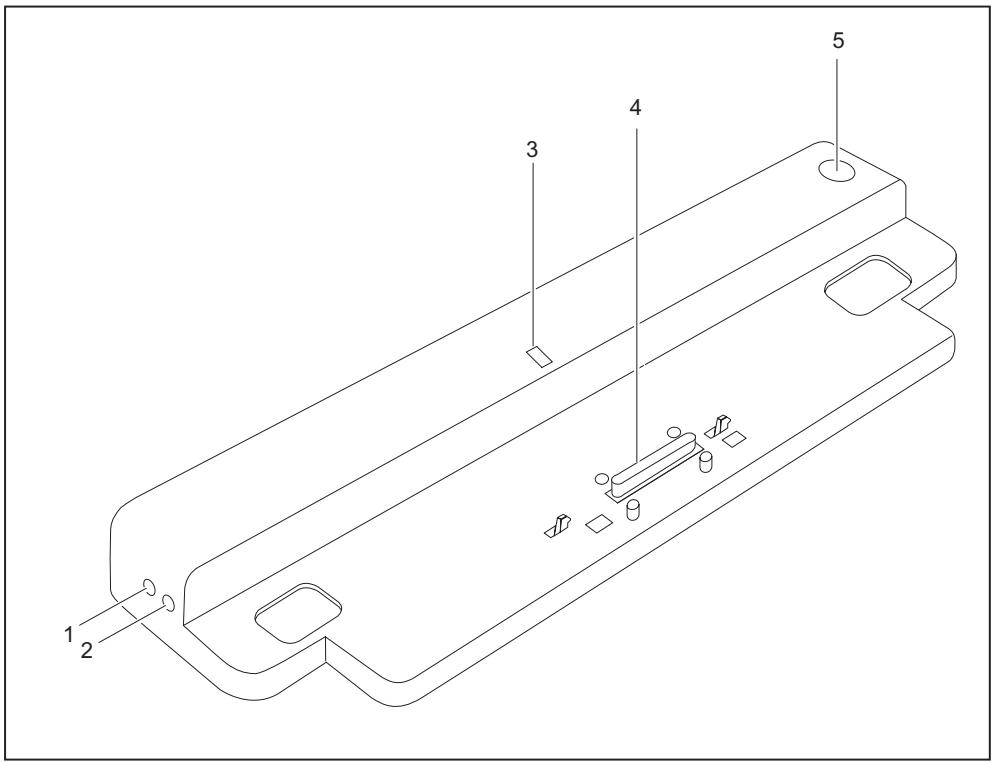
1 = Microphone port
2 = Headphone port
3 = Power-on indicator
4 = Connector on the Port Replicator for the docking port on the underside of the notebook
5 = ON/OFF switch
Anti-theft protection
The Port Replicator has a Kensington Lock device for use with the Kensington MicroSaver. The Kensington MicroSaver is a sturdy steel cable that is used to protect your notebook and Port Replicator against being stolen. The Kensington MicroSaver is available as an accessory.
Protecting the Port Replicator and notebook against theft
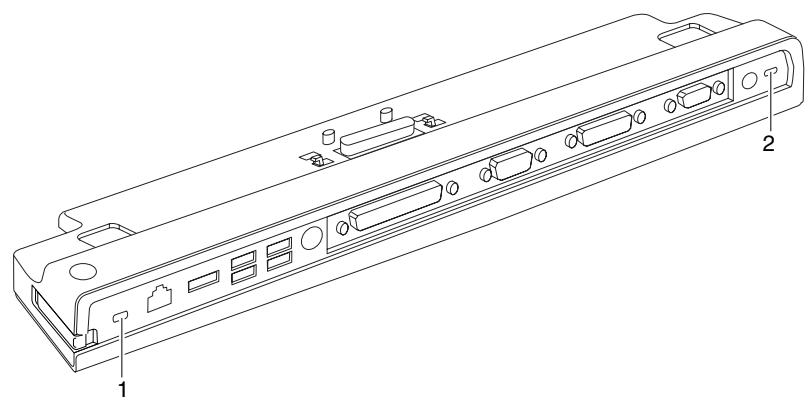

Connecting the Kensington MicroSaver to the Kensington Lock mechanism (1) provides protection for both the Port Replicator and the docked device.
Connecting the Kensington MicroSaver to the Kensington Lock mechanism (2) only provides protection for the Port Replicator, not the docked device.
Connect the notebook to the Port Replicator.
Fit the Kensington MicroSaver to one of the two Kensington Lock mechanisms on the Port Replicator.
Troubleshooting and tips
The "Professional Notebook" manual supplied with your notebook includes a section titled "Troubleshooting and tips". This chapter describes problems that may occur when working with your device. If you are unable to solve a problem, please contact our help desk.
Sommaire
Votreduplicatedeurdeports 1
Symboles 1
Remarques importantes 2
II port replicator 1
Simboli 1
Transport of apparatus 2
Rengoring af apparatus 2
Transport of apparatus

Rengoring at apparatus

EcIn Bby JeenaTe NockNoChuTb K BaUeMy HOuy6yKy IIN OTcoEHNHTb OT Hero BHeHnHe ycTroPcTBa, co6NHOaIte OINcaHHyo HnKe NOcpeIOBaTeBHoCTb DeiCTBn:
5 = CeteBoi BbIKIOuateBb
3auntata ot kpaeni
IopT-penJIkaTop nMeet npncocobJeHne Kensington Lock dJa Kensington MicroSaver. Ipn nomOu nn pincocobEnn aKensington MicroSaver, npouHoro cTaJbHoro KaBeJra, Bbl MoKeTe 3aunntb Baun HoTybK nOpT-penJIkaTop ot KpaJn. PnpCnoCobHe NcKensington MicroSaver moKet 6bTb noCTabNeHO b KaueCTbe npnaDnEeXHoCTn.
3auntata nopTa-pePnIkaTopa n HoyT6yKa OT KpaXn
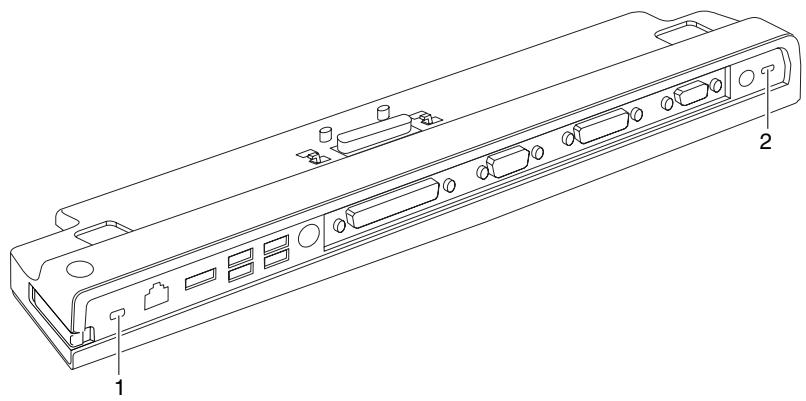

EcnBb3akpenpIeKensington MicroSaver B npncnocobhenn Kensington Lock (1), Bbl 3aunuaete KaopT-penkkatop, TaN pnctbikOBaHHK HeMy Hoyt6yK.
Ecni Bbl 3akpenpaeT eKensington MicroSaver B npncnocoblenn Kensington Lock (2), Bbl 3aunuapeTe Tolbko nopt-penlkaTop, Ho He npnctbikobAHbI K Hemy HOyToYk.
IOnkInouHte HoYToyK K nOpTy-pePnIKAtopy.
3akpenite Kensington MicroSaver B oDHom n3 npncnocobneHn Kensington Lock Baewero nopTa-penNkaTopa.
PeeHne npo6jem coBeTbI
CnpabOchNk "Professional Notebook", nocTabIeHbI BmEcTe c BaIIM HoYt6yKOM, BKJIIOuAET Bce6ra IaBv "PeSeHne npoBem n COBeTb". B 3ToI rnaBe oINcaHbI npoBembl, KOtOpIe MOrYT Bo3HNKHyTB npi paOte c BaIIM yCTpoIcTBOM. EcIn Bi He MoXeTe camOCToRTeNbHO yCTpaHHTb HeNCpapBHOctb, CBAXnTECb C haSeI INTEpAKTbHON CNTeMOI NOMOnl Help Desk.
- Inhalt
- Important notes 2
- Preparation for use and operation 3
- Connecting external devices 7
- Anti-theft protection 11
- Your Port Replicator
- Notational conventions
- Important notes
- Safety information
- Transporting the device
- Cleaning the device
- Preparation for use and operation
- Unpacking and checking the delivery
- Setting up the Port Replicator
- Connecting the mains adapter to the Port Replicator
- Connecting the notebook to the Port Replicator
- Switching on the notebook via the Port Replicator
- Switching the notebook off via the Port Replicator
- Disconnecting the notebook from the Port Replicator
- Connecting external devices
- Connecting devices to the notebook
- Disconnecting devices from the notebook
- Ports on the Port Replicator
- Anti-theft protection
- Protecting the Port Replicator and notebook against theft
- Troubleshooting and tips
- Sommaire
- Votreduplicatedeurdeports 1
- Remarques importantes 2
- II port replicator 1
- Simboli 1
- Transport of apparatus
- Rengoring at apparatus
- 3auntata ot kpaeni
- 3auntata nopTa-pePnIkaTopa n HoyT6yKa OT KpaXn
- PeeHne npo6jem coBeTbI
Brand : FUJITSU SIEMENS
Model : ESPRIMO MOBILE PORT REPLICATOR
Category : Laptop Docking Station