EasyManual
LETRATAG XR - Labeler DYMO - Free user manual and instructions
Find the device manual for free LETRATAG XR DYMO in PDF.



User questions about LETRATAG XR DYMO
0 question about this device. Answer the ones you know or ask your own.
Ask a new question about this device
Download the instructions for your Labeler in PDF format for free! Find your manual LETRATAG XR - DYMO and take your electronic device back in hand. On this page are published all the documents necessary for the use of your device. LETRATAG XR by DYMO.
USER MANUAL LETRATAG XR DYMO
© Esselte NV DYMO 2002
Esselte Industriepark-Noord 30 9100 Sint-Niklaas
DYMO
LETRA IagXR
Electronic Labelmaker
Instructions for Use
This product is CE marked in accordance with the CE directive and is designed to conform with the following international standards:
Safety - BSEN 60950
IEC 950
UL 1950
-EN61000-4-2(1995)
- EN 61000-4-3 (1995)
- ENV 50204 (1995)
- EN 55022 (1994) + amendment 1 (1995)
- FCC Class B
- Although unlikely, it is possible that abnormal behavior may result from electrostatic discharges. In such cases, should normal operation not resume, follow the relevant procedure as detailed in the trouble-shooting section: No response to keys.
The user should avoid directly touching the thermal print head.
Esselte is an ISO 14000 registered company. Plastic components of this printer have been marked to enable final disposal in a manner that is sensitive to the environment.
B
C
E
F
| 1 | 2 | 3 | 4 | 5 | |
| A | |||||
| B | |||||
| C | |||||
| D | ★ | → | ← | ||
| E | € | £ | $ | ¢ | ¥ |
| F | ! | ? | ¢ | i | % |
| G | : | . | , | , | ° |
| H | ( | ) | & | @ | # |
| I | + | - | * | / | = |
What the DYMO LetraTAG XR can do for you
With the LetraTAG XR you can print a wide range of high-quality labels in different sizes and styles. The LetraTAG can print on coloured, transparent, metallic and iron-on fabric tapes. See the list of DYMO cassettes available for the LetraTAG XR at the end of this guide.
How to use your DYMO LetraTAG XR
Getting started: your first label in six easy steps
Step One - insert the batteries
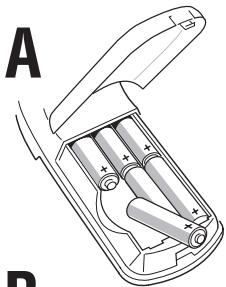
- Remove the battery cover (Fig A)
- Insert six size AA alkaline batteries, observing the polarity markings and close the cover.
- Remove the batteries if the LetraTAG is to remain unused for some time.
Step Two - insert the cassette
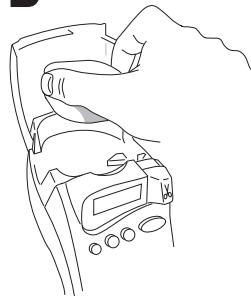
Open the cassette door
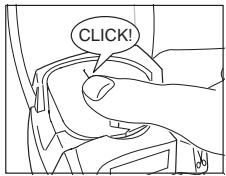
Insert cassette (Fig B). and gently press on the centre of the cassette until it clicks into place (Fig C).
Check the cassette is correctly positioned before closing the cassette door.
Step Three - switch on
Press the red button to switch on.
Note: the label maker switches off automatically after 2 minutes if no keys are pressed.
Step Four - type a label
Type a simple label first to try the machine. Learn more about formatting in the following pages.
Step Five - Print your label
Press "print" to print your label.
Step Six - Cut the label
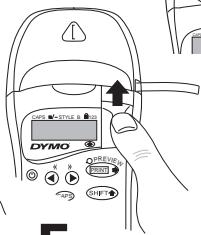
Use the cutter button on the right-hand side of the LetraTag to cut the label (Fig E)
Congratulations ! You've just printed yourfirst label !
Setting the language
Setting the language will define which extra characters your LetraTAG can print, so that you have fast access to the accented characters or currency symbols you need in your language or country. It will also specify the language in which error messages appear on the display.
Press LANGUAGE (Shift + CAPS). An abbreviation of a language will appear. Use or to scroll through the alphabetical list of language abbreviations until you reach the one you require. Then press to select. Note that the starting point for the list of languages depends on the model:
Keyboard model starting point
EU OFF
US US
Note: whenever you change the batteries, you will have to reset the language.
Typing labels
Typing normal characters
If you want to type numbers, press SHIFT and the key.
Or use the number lock as a useful alternative to the shift key.
Press to set this feature which makes F0 become 1-0, press again to exit.
If you make a mistake, press and the cursor will delete the character on the left of the current cursor position, and will move one place to the left.
The CAPS key is a toggle key. Press it to start typing in capitals. You will see the CAPS indicator is highlighted on the display. Press it again when you want to drop back to lower case.
The SPACE key inserts a blank space within your label.
Extra characters
LetraTAG XR also stores a large number of extra characters (such as other letters or accented letters). It uses RACE technology, like a mobile phone keyboard. If you tap the same key repeatedly within a short time, you can scroll through a sequence of characters based on that letter. For example, pressing
the E key repeatedly in the French-language version will scroll through e - e - e - e - e. If you wait for more than one second, the character will be selected, and the cursor will move on to the next position.
Example:
Type a twice, and the letter appears. If you tap the key again within one second, will appear. Pause for a second, and the letter will be selected, and the cursor will move on to the next position.
Graphic symbols
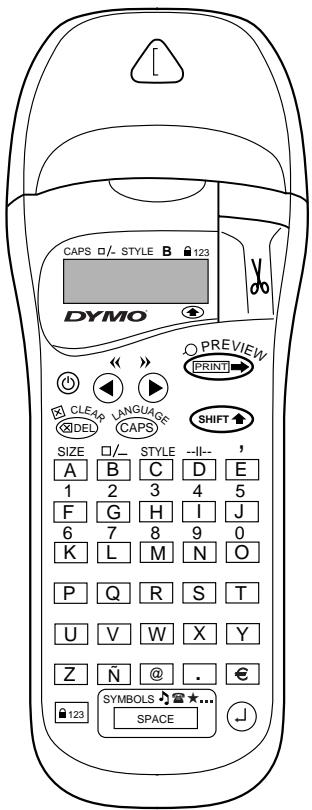
You can also insert a number of graphic symbols. To insert a symbol, press SYMBOL (SHIFT + SPACE)
The display will show: A-1?
Press to cancel or press a letter key 'A' to 'I' until you find the line of symbols required. See table.
Use or to select a symbol. Press to place the symbol in the label.
Text over two lines
You can add a second line to your label by pressing 念 .If the display shows Abc-123, your label will print:
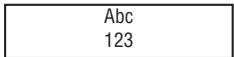
The text will be centred on the label. Note that you cannot print two-line labels in certain formats (big font, vertical). If you try this, the message Error 5 will alert you.
Checking what you've typed
The display will show six characters of the text you have typed, plus the cursor. The PREVIEW function (press SHIFT + PRINT) will automatically scroll through entire text of the label. You can also scroll manually through the label using the and keys. If you want to edit the label, use the and keys to move the cursor through the text to the place you want, then type or delete.
Adding a break between two labels
The --- function (SHIFT + D) is a 'label break'. You can use this to end one label's text and start another.
Storing text: the text buffer
You can store up to 70 characters in the text buffer of your LetraTAG XR, in as many as 20 labels. These characters will remain in the buffer, even if you switch off. If you try to type when the text buffer is full, the message ERROR 4 will appear. You will then have delete part or all of the text in the buffer in order to make a new label.
You can quickly move to the beginning of the buffer by pressing (SHIFT +). Go to the end of the buffer by pressing >> (SHIFT +).
To delete the entire contents of the buffer, press CLEAR (SHIFT + DEL)
Formatting labels
You can use a wide range of formatting options to change the font style in your printed label, such as font size, bold, italic, boxed, vertical etc. The way you format these characters is shown by a combination of indicators above the text display.
Display indicators
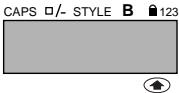
There are 6 display indicators. When one or more of these indicators is highlighted, it shows the relevant formatting option is active:
CAPS: Characters are typed as capital letters / - The label will be printed underlined or in a certain type of box.
STYLE The label will be printed in a certain selected text style.
B The label will be printed in Big Font size.
Numbers are selected instead of the characters.
SHIFT The shifted numbers or functions can now be accessed
If you try a combination of formats which the machine cannot produce, an error message will appear. See error message list in Troubleshooting.
Selecting the text size
Pressing the SIZE key (Shift + A) will display the size menu, with four options:
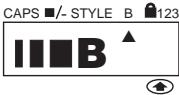
I narrow (condensed)
normal wide (extended)
B big font (highly visible labels using the entire print height)
You can use Narrow, Normal and Wide fonts in two-line labels, where they will be reduced to half their normal height.
Move the cursor to the required size with the and keys, and press to select.
Selecting the text style
Pressing STYLE (_HFT + C) will display the style menu, with six options:
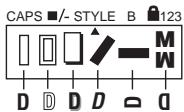
Normal
Outline
Shadow
Italic
0-+--0--
1011iM
You cannot combine these different text styles, or use these styles with the big font setting.
Move the cursor to the required style with the and keys, and press to select.
Underlining or boxing text
Pressing the / - key will display the box/underline menu, with eight options:
1.no box
2. underlined
3. square box
4. Rounded box
5. shaded box
6. pointed box
7. zigzag box
8. crocodile box
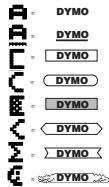
You cannot combine different underlining or box settings, or use them with the big font setting.
Move the cursor to the required setting with the and keys, and press ① to select.
To exit from a menu
Press @Dc) to exit from a menu or cancel an action (except printing).
Clearing formatting and other settings
Use CLEAR ( Shift + DEL ) to delete the entire content of the text you have stored in the buffer. This will delete the text, and
restore all settings to their default values (except for the language settings you have selected). This means that:
- Style is reset to normal
- Box is reset to no boxes
- Size is reset to normal
CAPS are on
Note: if you want to change the language settings, press LANGUAGE (SHIFT + caps) and scroll through the language list. Press to select your language.
Printing labels
Previewing your label(s)
Before printing, you can preview the text you have typed. Press PREVIEW (Shift + Ctrl), and the label will scroll over the display once.
Printing a label
Make sure the cursor is inside the text of the label you want to print, and press Print. During printing the message Print... will be displayed.
Cutting your label
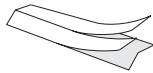
The cutter button is on the right of your machine. To cut a label push the cutter forward (Fig E). The label backing is split down the middle for easy removal.
Troubleshooting
Error messages
| Error Message | Error description | What to do |
| ERROR 1 | Tape jammed or battery low | Remove jam (see Troubleshooting below), or replace batteries |
| ERROR 2 | Big font can not be selected with characters in the buffer | Try another format |
| ERROR 3 | Big font can not be selected with style/box_underline/2line or lower case | Try another format |
| ERROR 4 | Buffer is full | Delete some or all of the buffer text |
| ERROR 5 | 2 line cannot be selected with the selected editing function | Try another format |
| Display blinks | Beyond end of buffer | Your cursor cannot go any further to the right |
| Display blinks | Beyond start of buffer | Your cursor cannot go any further to the left |
| Display blinks | Wrong key pressed in editing mode | |
| Display blinks | Wrong key pressed in menus |
No display
Check the machine is on
Check batteries and replace if necessary
No response to keys
Remove the batteries for a few minutes then refit. The machine will now reset.
No printing or poor text
Check batteries and replace if necessary Check tape cassette is installed correctly and not empty Clean print head (see "Cleaning")
Print contrast
For use under extreme temperature or humidity conditions. Press + + X The display will show the five contrast bolts. Use or to select lighter or d then press to set
Jammed tape
Lift out the cassette and carefully release jammed tape. Cut off excess tape and refit/replace the cassette.
No success?
Call the customer service telephone - see warranty booklet
Cleaning
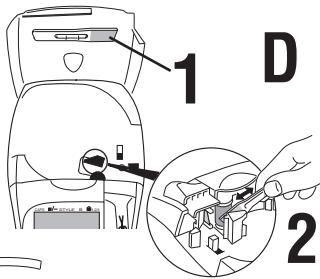
Check and clean the print head regularly to ensure optimum print quality, using the cleaning tool supplied (see Fig D).
DYMO label cassettes for the XR
| Type: | Paper | Plastic | Metallic | Iron-on |
| Length: | 4m | 4m | 4m | 2m |
| White | 91200 | ----- | ----- | 18767 |
| Pearl White | ----- | 91201 | ----- | ----- |
| HyperYellow | ----- | 91202 | ----- | ----- |
| Cosmic Red | ----- | 91203 | ----- | ----- |
| Acid Green | ----- | 91204 | ----- | ----- |
| Ultra Blue | ----- | 91205 | ----- | ----- |
| Silver | ----- | ----- | 91208 | ----- |
| Green | ----- | ----- | 91209 | ----- |
| Clear | ----- | 12267 | ----- | ----- |
Assorted Pack 91240:
1 x paper white
1 x plastic yellow
1 x metallic silver
Tripack assortment 91240: