RADIAL - Bluetooth speaker JBL - Free user manual and instructions
Find the device manual for free RADIAL JBL in PDF.



| Product Type | Dock speaker for iPod with built-in speakers |
| Brand | JBL |
| Model | RADIAL |
| Dimensions (W x D x H) | 130,5 x 135 x 270 mm |
| Power Supply | Mains 120-240 V AC, 50/60 Hz, max consumption 55 W |
| Amplifier (bass) | 1 x 30 watts (subwoofer) |
| Amplifiers (treble) | 2 x 15 watts (speakers), at 1% THD |
| Bass transducers | Hercules 45 mm |
| Treble transducers | Odyssey 25 mm |
| Frequency response | 70 Hz - 20 kHz |
| Signal-to-noise ratio | 85 dB |
| Input impedance | 10 kΩ |
| Main functions | iPod playback, auxiliary input, S-Video output, remote control, iPod charging, USB synchronization |
| Connectivity | iPod dock, 3.5 mm auxiliary input, S-Video output, USB |
| Care and cleaning | Clean with a dry cloth. Do not use liquids. |
| Safety | Do not expose to water or moisture. Unplug during storms. No user-serviceable parts. |
| Spare parts and repairability | Contact JBL technical support for any repairs. Do not open the device. |
| General information | Made in China. Harman International. Compatible with iPod (all versions with dock). |
Frequently Asked Questions - RADIAL JBL
User questions about RADIAL JBL
0 question about this device. Answer the ones you know or ask your own.
Ask a new question about this device
Download the instructions for your Bluetooth speaker in PDF format for free! Find your manual RADIAL - JBL and take your electronic device back in hand. On this page are published all the documents necessary for the use of your device. RADIAL by JBL.
USER MANUAL RADIAL JBL
High Performance Loud Speaker Dock for iPod
User Guide
English
Deutsch
Français
Espanol
Italiano
一
English
Important Safety Instructions
Please read the following operation precautions before use:
| ·Read these instructions. |
| ·Keep these instructions. |
| ·Heed all warnings. |
| ·Follow all instructions. |
| ·Do not use this apparatus near water. |
| ·Clean only with dry cloth. |
| ·Do not block any ventilation openings. Install in accordance with the manufacturer's instructions. |
| ·Do not install near any heat sources such as radiators, heat registers, stoves, or other apparatus (including amplifiers) that produce heat. |
| ·Do not defeat the safety purpose of the polarized or grounding type plug. A polarizing plug has two blades with one wider than the other. A grounding type plug has two blades and a third grounding prong. The wide blade or third prong, are provided for safety. If the provided plug does not fit into your outlet, consult an electrician for replacement of the obsolete outlet. |
| ·Protect the power cord from being walked on or pinched particularly at the plugs, convenience receptacles, and at the point where they exit from the apparatus. |
| ·Only use attachments/accessories specified by the manufacturer. |
| ·Unplug this apparatus during lightning storms or when unused for long periods of time. |
| ·Refer all servicing to qualified service personnel. Servicing is required when the apparatus has been damaged in any way, such as power-supply cord or plug is damaged, liquid has been spilled or objects have fallen into the apparatus, the apparatus has been exposed to rain or moisture, does not operate normally, or has been dropped. |
| ·TO PREVENT THE RISK OF ELECTRIC SHOCK, DO NOT REMOVE THE COVER (OR BACK). THERE ARE NO USER SERVICTABLE PARTS INSIDE THIS UNIT, PLEASE REFER SERVICING TO QUALIFIED HARMAN JBL CORPORATION SERVICE PERSONNEL. |
| ·Never remove grille covers in order to service the speaker system. The speaker system does not contain any user serviceable parts. Refer all servicing to the JBL Technical Support Group. |
Important Note For All Electronic Products: Before inserting or unplugging audio cables from the source device's headphones or line-level output jacks. it is good practice to turn off the device. This will prolong the life of your unit, help protect your device from static electricity. and avoid potential damage.
WARNING: To prevent fire or electrical shock hazard, DO NOT expose this product to rain or moisture.
WARNING: The apparatus should not be exposed to dripping or splashing and that no objects filled with liquid, such as vases, drinking glasses and so forth, should be placed on the apparatus.
WARNING: The apparatus may be static sensitive in some circumstances and may have to be reset after suffering an electrostatic discharge
950-0113-001

THE LIGHTNING FLASH AND ARROWHEAD WITHIN THE TRIANGLE IS A WARNING SIGN ALERTING YOU OF DANGEROU VOLTAGE INSID THE PRODUCT
CAUTION
RISK OF ELECTRIC SHOCK DO NOT OPEN
CAUTION: TO REDUCE THE RISK OF ELECTRIC SHOCK, DO NOT REMOVE COVER. NO USER SERVICEABLE PARTS INSIDE. REFER SERVICING TO QUALIFIED SERVICE PERSONNEL.

THE EXCLAMATION POINT
WITHIN THE TRIANGLE IS A WARNING SIGN ALERTING YOU OF IMPORTANT INSTRUCTIONS ACCOMPANYING THE PRODUCT.
SEE MARKING ON BOTTOM OF PRODUCT
REGULATORY
FCC Statement and Warning
This device complies with part 15 of the FCC rules. Operation is subject to the following two conditions;
1) This device may not cause interference
2) This device must accept interference, including interference that may cause undesired operation of the device
IC Statement and Warning:
Operation is subject to the following two conditions;
1) This device may not cause interference
2) This device must accept interference, including interference that may cause undesired operation of the device
MODIFICATIONS NOT EXPRESSLY APPROVED BY THE MANUFACTURER COULD VOID THE USERS AUTHORITY TO OPERATE THE EQUIPMENT UNDER FCC RULES.
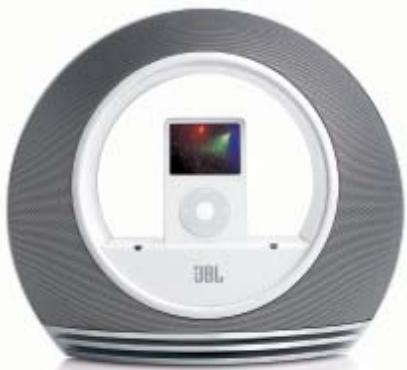
Introduction to your JBL® Radial, High-performance loudspeaker dock for iPod®.
The JBL Radial is the latest innovation from JBL, a long time leader in the manufacturing of high-end, professional component audio systems. JBL's audio heritage combined with continual research has provided the unique technologies included in the JBL Radial.
JBL Radial is a complete iPod docking sound system. It is the new centerpoint of your personal entertainment space. Imagine a complete subwoofer and satellite sound system in one place, no extra wires running across your table or desk surface. JBL Radial is a compact, total, high performance sound center, controllable by remote up to 20 ft away. Connected to your iPod, MP3 player or any other music source with an audio jack, the Radial will provide clean, powerful sound while providing iPod video pass-through to view your pictures and movies on a TV or monitor. Take complete control of your iPod music and videos with JBL Radial.
Compatibility
The JBL Radial is compatible with all docking versions of the iPod. A stereo mini jack connection also allows you to enjoy high quality audio from a variety of other devices such as, iPod Shuffle, MP3 and CD players, desktop computers (all platforms), satellite radio and laptops.
Remote
Music Controls – Just a touch increases or decreases the volume. Navigation Controls – Browse iPod songs and photos, create play lists, change tracks and settings, and more. With the JBL Radial remote you have complete control of your iPod as though it were in your hand.
S-Video out
With a photo or video iPod docked, you can connect the JBL Radial S-Video output (S-Video cable sold separately) to a compatible TV or monitor to view your pictures larger than life on screen
Additional Features Include:
OnePoint design
The OnePoint iPod connector provides the connection to you computer. Connect the standard USB cable to the rear of the JBL Radial and every time you dock your iPod, you will have the connection needed for synchronizing and charging.
Evercharge Topology - The JBL Radial provides power to charge your iPod even when not connected to the computer or when the system is off.
Compact Design
The JBL Radial is a complete 2.1 channel audio system in one easy to place footprint.
Digital Power and DSP - JBL Radial delivers sound with a powerfully tuned digital audio path. The clean and compact digital amplification coupled with DSP (digital signal processing) equalization efficiently provides radial transducers with cool-running power.
Advanced Technology
The JBL Radial combines many proprietary technologies to provide the highest quality sound. The JBL Radial will provide astonishing bass and clear accurate sound from any direction.
Halo acousticsTM - The horizontal acoustic level optimization or Halo acoustics design provides a full, rich sound field from any direction.
The dual left and right tweeters and down-firing low transducer provides a 360 degree sound field.
Hercules™ and Odyssey™ Transducers – The two full range transducers are driven by powerful Neodymium magnets. The Odyssey tweeters provide accurate high frequencies and Hercules provides a ful, rich frequency response from the lowest bass to the highest vocal range.
COE (Computer Optimized Equalization)
The JBL Radial system equalization is computer optimized to provide a rich, complete sound stage.
OCT (Optimized Compression Topology)
The JBL Radial utilizes a proprietary compression technology to ensure clean accurate sound at high output levels.
Unpacking
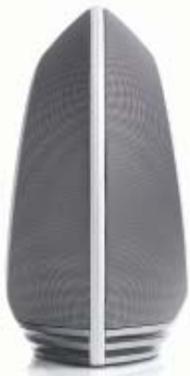
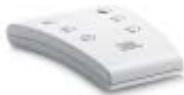
Carefully unpack your speaker system and identify all components:
Volume Control (on_base unit)
Volume increase

Volume decrease

General Setup
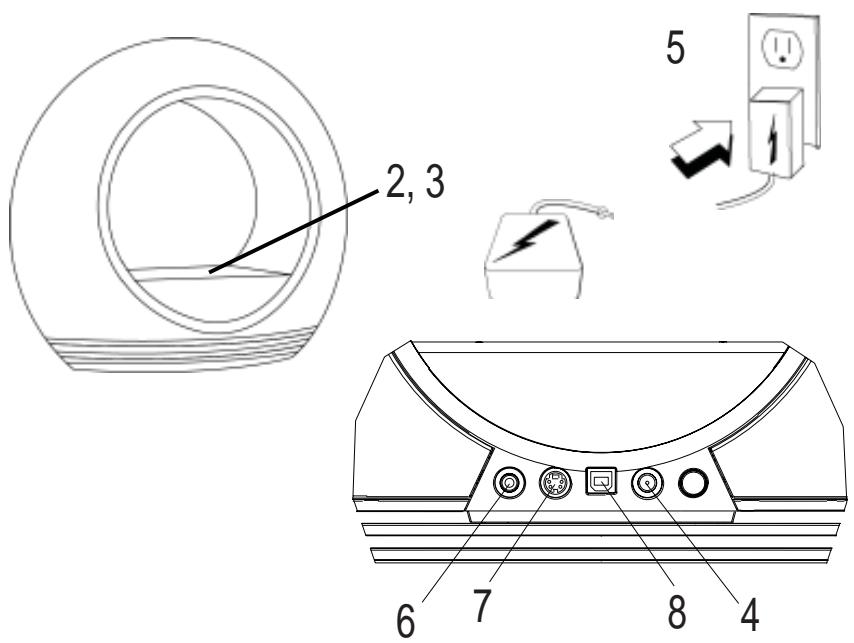
1) Unpack the JBL Radial and power supply
2) Place your iPod adapter (included with iPod) into docking station
3) Place the iPod into the adaptor
4) Plug power adaptor into jack marked 24Vdc in
5) Plug adaptor into wall outlet
6) If an additional audio source is used, connect source into Aux In
7) If the use of S-Video out to a TV or monitor is desired, connect with S-Video cable
8) Connect the JBL Radial to a computer with the supplied USB cable for sync and charge functions
9) Install supplied coincell batteries into remote
Listening to music from an iPod:
First locate and place the appropriate corresponding universal iPod adaptor, included with iPod, into JBL Radial iPod docking location, then connect your iPod.
B) Press the "Power" button on the rear of JBL Radial. A blue LED will indicate that the unit is on.
C) Select and play music through your iPod controls or send commands to your iPod with the JBL Remote. ( Refer to JBL Remote user's guide for more information on the remote)
D) Adjust volume using the "+" and "-" buttons located on the front of JBL Radial.
Listening to music from an auxiliary device:
The JBL Radial includes a 3.5mm minijack cable for connection to any analog music player with a 3.5mm output.
A) Connect the auxiliary device to the JBL Radial using the supplied 3.5mm audio cable.
B) Press the "Power" button on the rear of JBL Radial. A blue LED will indicate that the unit is on.
C) Control music playback through the auxiliary device
D) Adjust volume using the "+" and "-" buttons located on the front of JBL Radial.
*Note: iPod input and auxiliary input are mixed, both may play simultaneously.
Viewing photos or videos on a TV/monitor (S-Video cable sold separately):
A) Make sure that the iPod is docked securely in the JBL Radial iPod dock, making sure to use the appropriate adaptor.
B) Connect one end of an S-Video cable (sold separately) to the back of JBL Radial. Connect the other end to a TV/monitor compatible with S-Video input.
C) Press the "Power" button on the rear of JBL Radial. A blue LED will indicate that the unit is on.
D) Control the iPod directly or by using the JBL Radial remote, refer to the JBL Remote user's guide for more information on the remote, to view photos or videos.
Remote Functionality
For complete remote control functionality please refer to the "JBL Remote control user guide".
| SYMPTOM | POSSIBLE PROBLEM | SOLUTION | NOTE |
| SOUND QUALITY | |||
| No sound from JBL Radial | No power to unit | Make sure wall power outlet or power strip has power. Make sure all switches for outlet / power strip are on and that all switches for speaker system are on. | Is the LED On? If the LED is not on, power is not getting to your JBL Radial. Try the solutions shown. |
| Incorrect source selection | Ensure that the iPod is properly docked or that the auxiliary cable is properly connected to an external audio device. Turn up the volume. Check the system with a known good source. Connect the aux-in cable to the headphone jack on your iPod. | ||
| Sound only comes from one side / channel. | iPod or audio cable is not seated properly. | Make sure the iPod or Aux in cable is seated all the way into the JBL Radial. | If you are using an extension cable or a third party cable, make sure it is a stereo 3.5mm male to male cable. |
| Distortion (static, crackling or hissing sound) | Noise may be caused by interference from a monitor, cell phone or other transmitting device. | Turn monitor off to see if noise is eliminated. Move JBL Radial cables farther away from monitor. | |
| Too much bass or treble | JBL Radial is being overdriven by an amplified audio source. | Ensure that the JBL Radial is connected to an appropriate source device. Make sure that all signal cables are inserted snugly into receptacles. | |
| Volume level may be too high | Check volume of source device. Some devices will distort the output signal if the volume is set to maximum. | ||
| Check the EQ setting on your iPod or source device. | JBL Recommends that the source device EQ be set to flat or OFF | ||
| JBL Radial emits a loud hum or buzzing noise. | Input cables not plugged in properly. | Check input cable connection. | |
| Speaker system experiences radio frequency interference or picks up a radio station. | Input cable may be picking up interference. | Wrap up excess input cable in order to make as short as possible. |
| SYMPTOM | POSSIBLE PROBLEM | SOLUTION | NOTE |
| CHARGING SYNCING | |||
| iPod will not charge | Wrong adaptor is used. | Ensure correct adaptor is used for your specific iPod model. | |
| The iPod is not making full contact with the dock station. | Ensure iPod is seated securely into the docking station. | ||
| iPod is not recognized by the computer when docked into the JBL Radial or there is an error in data transfer. | Third party accessories may be conflicting with the USB or firewire signal. | Make sure you do not have the JBL Radial connected to a USB or firewire hub. Connect the JBL Radial directly into the computers USB or firewire port. | |
| USB or firewire port is not supplying enough power | Try connecting the USB or firewire cable to another port on the back of the computer. |
SPECIFICATIONS
| Manufacturer | Harman Multimedia |
| Model | JBL Radial |
| Driver (Full Range) | Hercules 45mm |
| Drivers (Tweeter) | Odyssey 25mm |
| Power | 1 x 30 watts (woofer), 2 x 15 watts (tweeters), at 1% THD |
| Dimensions | |
| Width: | 12.0 inches 305mm |
| Depth: | 5.25 inches 135mm |
| Height: | 10.5 inches 270mm |
| Input Impedance | >10k Ohm |
| Signal-to-Noise ratio | >85dB |
| Frequency Response | 70 – 20 kHz |
| Input Sensitivity | 250 mV rms for rated power output |
| USA/Canada Power | 120 volts, 60Hz AC |
| Europe/UK | 220-230 volts, 50 or 60 Hz AC |
| Japan | 100 volts, 50 or 60 Hz AC |
| Australia | 240 volts, 50 or 60 Hz AC |
| Maximum Power Consumption | 55 watts |
UL/CUL/CE Approved
Deutsch
DURCHGEFUHRT WERDEN.
COE (Computer Optimized Equalization)
OCT (Optimized Compression Topology)
Concept point unique
Carefully unpack your speaker system and identify all components:
1 x 30 watts (sonidos graves)
COE (Computer Optimized Equalization)
OCT (Optimized Compression Topology)
1 x 30 watt (woofer)
2 x 15 watt (tweeter), a 1 % THD
Dimensioni
Larghezza:
Profondita:
Altezza:
305 mm (12,0")
135 mm (5,25")
270 mm (10,5")
Impedenza ingresso
JBL and Harman International are trademarks of Harman International Industries, Incorporated, registered in the United States and or other countries.