EasyManual
SUPER MARIO GALAXY2 - Video game NINTENDO - Free user manual and instructions
Find the device manual for free SUPER MARIO GALAXY2 NINTENDO in PDF.


User questions about SUPER MARIO GALAXY2 NINTENDO
0 question about this device. Answer the ones you know or ask your own.
Ask a new question about this device
Download the instructions for your Video game in PDF format for free! Find your manual SUPER MARIO GALAXY2 - NINTENDO and take your electronic device back in hand. On this page are published all the documents necessary for the use of your device. SUPER MARIO GALAXY2 by NINTENDO.
USER MANUAL SUPER MARIO GALAXY2 NINTENDO
NEED HELP WITH INSTALLATION, MAINTENANCE OR SERVICE?
Nintendo Customer Service
SUPPORT.NINTENDO.COM
or call 1-800-255-3700
Recorded tips for many titles are available on Nintendo's Power Line at (425) 885-7529.
This may be a long-distance call, so please ask permission from whoever pays the phone bill. If the information you need is not on the Power Line, you may want to try using your favorite Internet search engine to find tips for the game you are playing. Some helpful words to include in the search, along with the game's title, are: "walk through," "FAO," "codes," and "tips."
BESOIN D'AIDE POUR L'INSTALLATION, L'ENTRETIEN OU LA RÉPARATION?
The Official Seal is your assurance that this product is licensed or manufactured by Nintendo. Always look for this seal when buying video game systems, accessories, games and related products.
71175A
- Some people (about 1 in 4000) may have seizures or blackouts triggered by light flashes or patterns, and this may occur while they are watching TV or playing video games, even if they have never had a seizure before.
- Anyone who has had a seizure, loss of awareness, or other symptom linked to an epileptic condition should consult a doctor before playing a video game.
- Parents should watch their children play video games. Stop playing and consult a doctor if you or your child has any of the following symptoms:
Convulsions
Loss of awareness
Eye or muscle twitching
Involuntary movements
Altered vision
Disorientation
-
To reduce the likelihood of a seizure when playing video games:
-
Sit or stand as far from the screen as possible.
- Play video games on the smallest available television screen.
- Do not play if you are tired or need sleep.
- Play in a well-lit room.
- Take a 10 to 15 minute break every hour.
WARNING - Repetitive Motion Injuries and Eyestrain
Playing video games can make your muscles, joints, skin or eyes hurt. Follow these instructions to avoid problems such as tendinitis, carpal tunnel syndrome, skin irritation or eyestrain:
- Avoid excessive play. Parents should monitor their children for appropriate play.
Take a 10 to 15 minute break every hour, even if you don't think you need it. - If your hands, wrists, arms or eyes become tired or sore while playing, or if you feel symptoms such as tingling, numbness, burning or stiffness, stop and rest for several hours before playing again.
- If you continue to have any of the above symptoms or other discomfort during or after play, stop playing and see a doctor.
CAUTION - Motion Sickness
Playing video games can cause motion sickness in some players. If you or your child feel dizzy or nauseous when playing video games, stop playing and rest. Do not drive or engage in other demanding activity until you feel better.
IMPORTANT LEGAL INFORMATION
This Nintendo game is not designed for use with
any unauthorized device. Use of any such device will invalidate your Nintendo product warranty. Copying of any Nintendo game is illegal and is strictly prohibited by domestic and international intellectual property laws. "Back-up" or "archival" copies are not authorized and are not necessary to protect your software. Violators will be prosecuted.
WARRANTY & SERVICE INFORMATION
You may need only simple instructions to correct a problem with your product. Try our website at support.nintendo.com or call our Consumer Assistance Hotline at 1-800-255-3700, rather than going to your retailer. Hours of operation are 6 a.m. to 7 p.m., Pacific Time, Monday - Sunday (times subject to change). If the problem cannot be solved with the troubleshooting information available online or over the telephone, you will be offered express factory service through Nintendo. Please do not send any products to Nintendo without contacting us first.
HARDWARE WARRANTY
Nintendo of America Inc. ("Nintendo") warrants to the original purchaser that the hardware product shall be free from defects in material and workmanship for twelve (12) months from the date of purchase. If a defect covered by this warranty occurs during this warranty period, Nintendo will repair or replace the defective hardware product or component, free of charge.* The original purchaser is entitled to this warranty only if the date of purchase is registered at point of sale or the consumer can demonstrate, to Nintendo's satisfaction, that the product was purchased within the last 12 months.
GAME & ACCESSORY WARRANTY
Nintendo warrants to the original purchaser that the product (games and accessories) shall be free from defects in material and workmanship for a period of three (3) months from the date of purchase. If a defect covered by this warranty occurs during this three (3) month warranty period, Nintendo will repair or replace the defective product, free of charge.*
SERVICE AFTER EXPIRATION OF WARRANTY
Please try our website at support.nintendo.com or call the Consumer Assistance Hotline at 1-800-255-3700 for troubleshooting information and repair or replacement options and pricing.*
*In some instances, it may be necessary for you to ship the complete product, FREIGHT PREPAID AND INSURED FOR LOSS OR DAMAGE, to Nintendo. Please do not send any products to Nintendo without contacting us first.
WARRANTY LIMITATIONS
THIS WARRANTY SHALL NOT APPLY IF THIS PRODUCT: (a) IS USED WITH PRODUCTS NOT SOLD OR LICENSED BY NINTENDO (INCLUDING, BUT NOT LIMITED TO, NON-Licensed GAME ENHANCEMENT AND COPIER DEVICES, ADAPTERS, SOFTWARE, AND POWER SUPPLIES); (b) IS USED FOR COMMERCIAL PURPOSES (INCLUDING RENTAL); (c) IS MODIFIED OR TAMPERED WITH; (d) IS DAMAGED BY NEGLIGENCE, ACCIDENT, UNREASONABLE USE, OR BY OTHER CAUSES UNRELATED TO DEFECTIVE MATERIALS OR WORKMANSHIP; OR (e) HAS HAD THE SERIAL NUMBER ALTERED, DEFACED OR REMOVED.
ANY APPLICABLE IMPLIED WARRANTYES, INCLUDING WARRANTY OF MERCHANTABILITY AND FITNESS FOR A PARTICULAR PURPOSE, ARE HEREBY LIMITED IN DURATION TO THE WARRANTY PERIODS DESCRIBED ABOVE (12 MONTHS OR 3 MONTHS, AS APPLICABLE). IN NO EVENT SHALL NINTENDO BE LIABLE FOR CONSEQUENTIAL OR INCIDENTIAL DAMAGES RESULTING FROM THE BREACH OF ANY IMPLIED OR EXPRESS WARRANTY. SOME STATES DO NOT ALLOW LIMITATIONS ON HOW LONG AN IMPLIED WARRANTY LASTS OR EXCLUSION OF CONSEQUENTIAL OR INCIDENTIAL DAMAGES, SO THE ABOVE LIMITATIONS MAY NOT APPLY TO YOU.
This warranty gives you specific legal rights. You may also have other rights which vary from state to state or province to province.
Nintendo's address is: Nintendo of America Inc., P.O. Box 957, Redmond, WA 98073-0957 U.S.A.
This warranty is only valid in the United States and Canada.
DOLBY
PRO LOGIC II


CONTENT RATED BY
ESR B
Dolby, Pro Logic, and the double-D symbol are trademarks of Dolby Laboratories. Manufactured under license from Dolby Laboratories.
This game is presented in Dolby® Pro Logic II surround sound. Connect your game console to a sound system with Dolby Pro Logic, Dolby Pro Logic II, or Dolby Pro Logic IIx decoding to experience the excitement of surround sound. You need to enable "Surround" in the sound settings of the game console.
© 2010 Nintendo. TM, and the Wii logo are trademarks of Nintendo. © 2010 Nintendo.

Contents


Prologue

Mario's Special Moves


Controls


Starting the Game

Yoshi's Special Moves


Traveling the Galaxies

Objects


Mario's moves

Items


CAUTION: Wrist STRAP USE
Please use the Wii Remote™ wrist strap to help prevent injury to other people or damage to surrounding objects or the Wii Remote in case you accidentally let go of the Wii Remote during game play.
Also remember the following:
Make sure all players put on the wrist strap properly when it is their turn.
- Do not let go of the Wii Remote during game play.
- Dry your hands if they become moist.
- Allow adequate room around you during game play, and make sure
that all areas you might move into are clear of other people and objects.
- Stay at least three feet from the television.
Use the Wii Remote Jacket.
SYSTEM MENU UPDATE
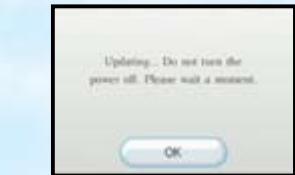
Please note that when first loading the Game Disc into the Wii console, the system will check if you have the latest version of the system menu, and, if necessary, a Wii system menu update screen will
Select OK to proceed with the update. Please note that the Wii console must have the latest version of the Wii system menu in order to play the Game Disc.
When the system menu is updated, unauthorized hardware and/or software modifications may be detected and unauthorized content may be removed.
causing the immediate or delayed inoperability of your console. Failure to accept the update may render this game, and future games, unplayable. Please note that Nintendo cannot guarantee that unauthorized software or accessories will continue to function with the Wii console after this or future updates of the Wii system menu.
Prologue
Shining stardust falls on the Mushroom Kingdom once every hundred years. That time had come again...
Dear Mario.
Would you like to share some cake while we watch the shooting stars? Meet me at the castle!
Peach
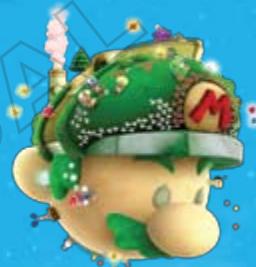
Mario ran through the field with stars falling around him. Suddenly, he noticed a strange light in the grass.
As he peered cautiously through the reeds, he saw a small, lost Luma.
With the baby Luma tucked safely under his
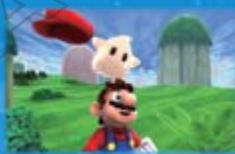
cap, Mario rushed on to the castle.
But when he got there, something unexpected was waiting for him...
Starship Mario
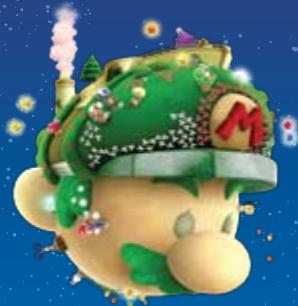
This strange, Mario-shaped spaceship was built by Lubba. You can use it to travel through the universe!
Lubba
Lubba is a spirited spaceship mechanic
who travels the
cosmos. After Bowser™ kidnapped Peach™, Lubba built Starship Mario to help Mario chase down the big villain.


Baby Luma
Mario found this lost little Luma. He grants Mario a mysterious power of the stars, which comes in handy as they explore the cosmos together!
Mario
Peach has been kidnapped by Bowser, so Mario leaps into a deep-space adventure to save her...
Lumas
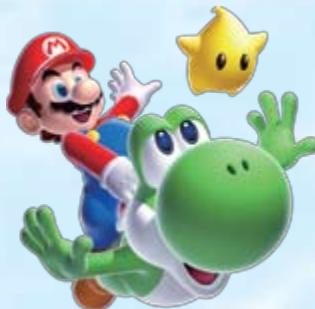
These star-shaped creatures live throughout the universe. They especially love eating Star Bits. There are many different types. The orange one is a Co-Star Luma that will help Mario during his adventures.
Yoshi
After Mario bumps into YoshiTM in a certain galaxy, Yoshi will show up from time to time and help Mario in his quest.
Controls
This game is played using both the Wii Remote™ controller and Nunchuk controller, so you will need to connect a Nunchuk to your Wii Remote.

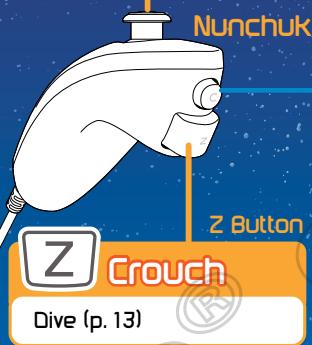
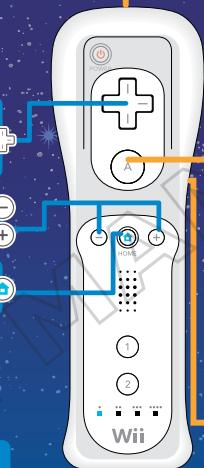
Nunchuk and Wii Remote
Use these controls to play as Mario and his friends. The green text refers to the controls for when you are riding on Yoshi only.
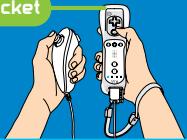
Wii Remote Jacket
How to Hold the Wii Remote and Nunchuk
Please check the Wii Operations Manual and the Wii Remote Jacket manual for more information on how to attach the Wii Remote Jacket and Wii Remote wrist strap.
When using the Nunchuk
Please be sure to refer to the Wii Operations Manual and Nunchuk manual.
Control Stick
move
Move (p. 11)
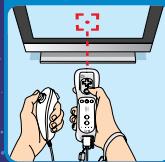
Point like this
+Control Pad
Change camera view Select options
Button/+Button
Display pause menu
HOME Button
Display HOME Menu
If you turn off the sound on your Wi-Fi Remote, that sound will come out of your television.
C Button

Camera reset (Return to normal view)
Shake
Spin
Activate an object Head Shake (p. 17) Bet on Yoshi (p. 16)
Pick up Star Blts
Move pointer, Point at a Pull Star Aim at enemies or fruit (p. 16)

Jump
Select, Speak/Read, Swim, Grab a Pull Star Flutter Jump (p. 17)

Shoot Star Bit
Cancel a command
Bulp/Spit Out (p. 16)
Brab (p. 17)
Pull (p. 16)
Remember, moves performed by shaking the Wii Remote can also be achieved by shaking the Nunchuk.
Co-Star Mode
This game is normally played with one player, but if you have two Wii Remote controllers, you can play with two players. The Co-Star Luma cannot move on his own, so it will follow Mario. Player 2 needs only the Wii Remote. Press A, ①, ②, or the +Control Pad to display the P2 pointer. Move the P2 pointer around and see what you can do with it!
Check the Wii Operations Manual for more information on how to sync a Wii Remote.
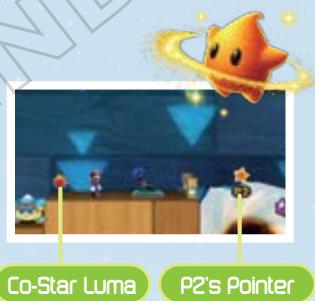
Co-Star Luma Controls
| Collect Star Bits | Point at Star Bits. |
| Shoot Star Bits | Point where you want to shoot and press B |
| Spin | Shake the Wii Remote. |
| Stop an Enemy | Point at an enemy and press A. This may not work on some enemies. |
| Defeat an Enemy | Shake the Wii Remote while an enemy is stopped. This may not work on some enemies. |
| Activate a checkpoint | Point at the checkpoint and press A. |
| Grab a coin | Point at the coin and press A. |
You can check controls for on the file-selection screen.
Starting the Game
Insert the Super Mario Galaxy 2 Game Disc in the Wii console and follow the on-screen instructions.

Playing from the Beginning and Creating a Save File
When playing for the first time, choose a planet where you want to create your save file. Creating a file requires one free block of space in your Wii system memory.
You can also mark your save file with a Mi character stored in your Wii system memory. For more information about creating Mi characters, refer to the Wii Operations Manual.

File Selection Screen
Choose a save file (planet) to play, and choose Start to continue from a previous save. Also, you can point at and press A to display two-player controls (p. 6).
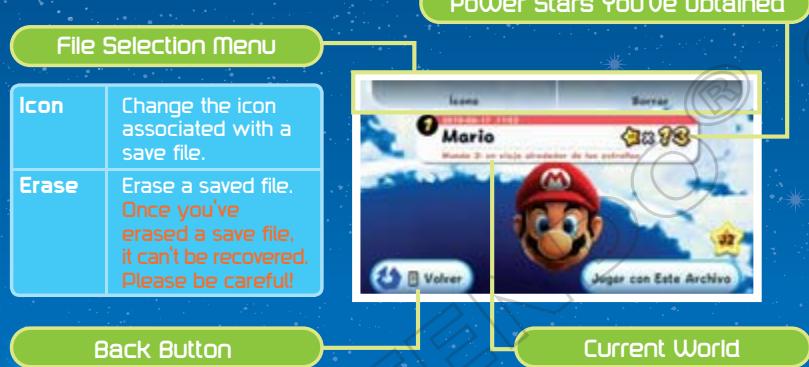
Press B or point here and press A to return to the previous screen.
Saving
Your progress will be saved automatically after you complete a challenge. Data cannot be restored once it is erased, so be careful.
Check your Wii Operations Manual for more information about how to erase files from Wii system memory.
Traveling the Galaxies

You'll control Mario as he launches into a new universe of adventure aboard the Starship Mario, chasing after Bowser and collecting Power Stars.

Look for Power Stars
Mario will adventure through many galaxies. In most galaxies, you will need to complete several objectives to obtain a Power Star. When you obtain the star at the end of a mission, you will open up the next mission in that galaxy, if there are any.

Starship Mario
This is the starting point for many of your adventures throughout the galaxies. You can pilot Starship Mario to distant galaxies, and you can also collect information from Lumason the ship. When you collect the Grand Star in the last galaxy of a World, the path to the next World will open up.

Power Star

Grand Star
Star List
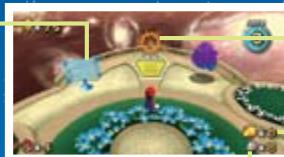
This shows which Power Stars you have collected on your journey through the galaxies.
Star Bits
Wheel
Stand here to go to the World Map.
Coins
Grand World Map
If you zoom out from a galaxy on the World Map, you will go to the Grand World Map. From this map, you can only travel to Worlds you have already visited. Select a World and press or zoom in on a selected World to travel to it.
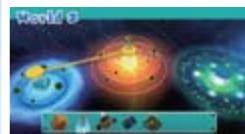
Stand near the steering wheel on Starship Mario to access the World Map.
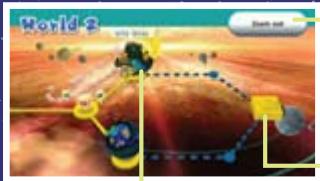
Zoom Out
Point and press A or press down on the +Control Pad. You will zoom the camera back away from the galaxy you have selected.
Star Barrier
Collect a specified number of stars to advance beyond a Star Barrier.
Discovered Galaxy
Point and press A to move to a galaxy.

Mission Selection Screen
Point at a mission and press A to fly to the galaxy. If you point at a mission you have already cleared, you can see your clear time.
Mission You Have Already Completed
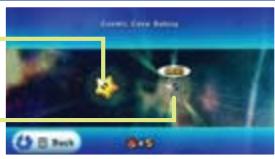
Mission You Have Not Yet Completed
Banktoad
As you advance in the game, a Banktoad will appear near the wheel to hold on to Star Bits you've collected and return them to you as needed. Players using other save files can also access banked Star Bits.
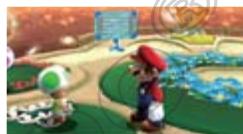

Galaxy Screen
As you go through galaxies, defeat enemies, and collect Power Stars, you'll be looking at this screen. Most of the time the on-screen information will only appear when Mario is standing still, but when your life meter is down to two or less, some of this information will stay on the screen.
Power Stars You've Obtained
Comet Medal
Remaining Lives
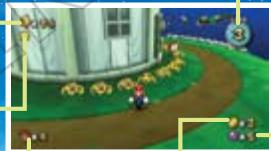
Coins
Life meter
This will go down by one each time you touch an enemy or hazard.
Star Bits
The number of Star Bits you have collected in the current galaxy.

Checkpoint Flag
As you progress through a galaxy, you will eventually see a flag like the one to the right. Touching this flag changes it from a Bowser icon to a Mario icon, and if you lose a life, you will restart from this point until you finish or clear the level.
Returning to the map or getting a game over will force you to restart the mission from the beginning.

Checkpoint Flag

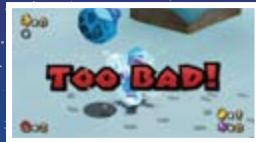
Too Bad! and Game Over
When your life meter reaches zero from touching enemies, thorns, or other dangerous things, or if you fall into a black hole, the number of your remaining lives will go down by one. If you lose your life while you have zero remaining lives, the game will end and you will return to Starship Mario.
Changing the Camera Angle
When you're moving Mario around on the screen, there may be some places where you can change the camera angle. Press to make the Camera icon appear, then press on the direction highlighted in blue to change the camera angle. Press to return the camera view to normal. In some situations, pressing up or down on wi between a first-person view from Mario and the normal v There are some places where you cannot change the ca

Camera Icon
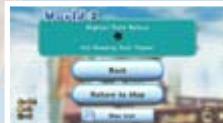
Pause Screen
Press ① or ② during game play to pause the game. On the pause screen, you can confirm your current coin total and the name of the galaxy you're exploring. When you want to get back to the game, choose Back, or choose Return to Map to return to the World Map.
Checking the Star List
Choose Star List on the pause screen to see which Power Stars, Grand Stars, and Comet Medals you've obtained in each World. Press or left and right on to chat which World is being shown. Choose B or press to return to the pause scre
Galaxy Name
Galaxies you haven't yet discovered will look like this: ---
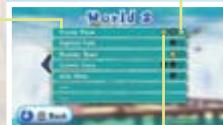
Comet Medals You've Obtained
Power Stars (and Grand Stars) You've Obtained
Mario's Moves / Basic
These are Mario's basic moves. Each one has its uses, depending on the situation, so try experimenting!

move
Move using ⑤ . Tilt ⑥ a little to walk and a lot to run.

spin
As you progress in the game, you will learn how to spin. Spinning allows you to shake the Wii Remote to destroy obstacles or stun enemies. You may also need to spin to activate certain kinds of objects, so try spinning in different places to see what happens.
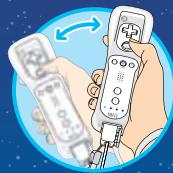
Shake

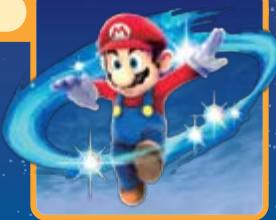
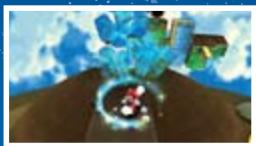
Destroy Obstacles
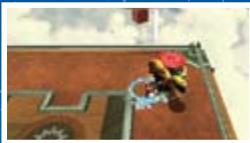
Stun Enemies
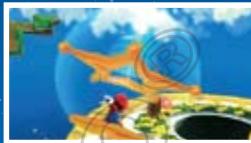
Use Objects

Spin Jump
Shake
while in midair
Spin in midair to perform a spin jump. Jumping and then spinning at the peak of your jump allows you to go higher than in a normal jump.
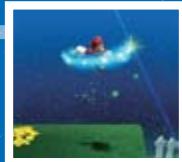
Defeating Enemies
You can defeat most enemies by stomping on them with a jump, stunning them with a spin, or shooting them with a Star Bit and then running into them. However, there are some enemies you can't defeat in these ways. To defeat some enemies, you may need to spin to return an attack or use an item or object.

Jump
Press

to jump
You can jump in many different ways, depending on how you combine the jump with other actions. Try to find the best jump for every situation.

multiple Jumps/Triple Jump
Press

right when you land
After jumping while you run, press A right as you land for up to three consecutive jumps. On your third jump, you may be able to pull off an especially high jump.
Backward Somersault
Hold

and press


If you jump while crouching, you will leap high into the sky and slightly backward.
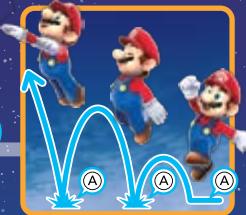

Wall Jump
Face a wall and press


Face a wall and jump toward it, then continue to jump off the wall with good timing by pressing A to kick off the wall. In areas where two walls face each other with a small gap, you can use this method to climb to the top.
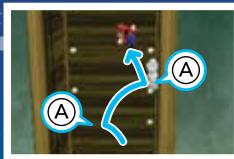

Long Jump
Press

and then

while running
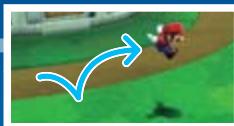
Press Z and then A while running to jump a long distance.

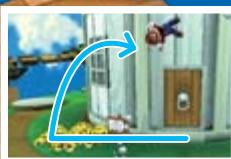
Side Somersault

in the opposite direction while running, then press

While tilting in the opposite direction Mario is running, press A to perform a high jump with a turn.
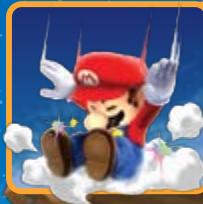
Ground.Pound
Press

while in midair
activate a ground-pound switch (p. 20).
Press Z while in midair to perform a ground pound. You can use a ground pound to
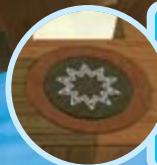
Something will happen if you ground-pound on an area with this symbol.

Speak/Read
Press

When standing in front of certain characters or signs, you can press A to speak or read.
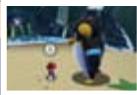

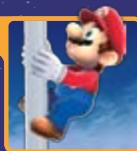
Grab a Pole
Press

Press A to jump near a pole and grab on. You can move around the pole by tilting up, down, left, or right on Press A to jump off.

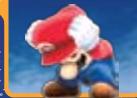
Crouch
Press

Press and hold Z to crouch. You can also move around while crouched by tilting

Hold or Catch/Throw
13/14

Shake

You can pick up shells and other objects by shaking the Wii Remote when standing near them. Shake the Wii Remote again to throw the object in the direction you are facing.
Pick up a shell.
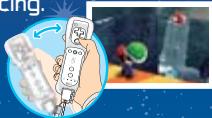

Throw It at your target!
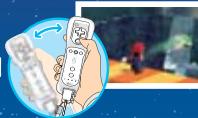

swim
Use to change your direction underwater, and tap A to swim. If you press and hold A, you can swim by kicking your feet. Shake the Wii Remote while swimming to swim faster. Grab a shell to travel quickly through the water. To jump out of the water, press and hold A or shake the Wii Remote at the surface of the water.
Press


Dive
Press Z to dive. While you are underwater, an will appear. If this meter goes empty, you will quickly lose life, so be careful. You can refill your air meter by surfacing or running into an air bubble.
Press

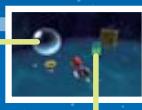
Bubble
Air meter

Skate
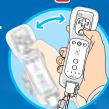
Shake the Wii Remote while standing on ice to skate. You can change your direction while skating with
Sha

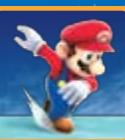

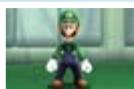
Luigi Joins the Adventure?!
You will find Luigi™ in some galaxies. If you talk to him, you'll have the option to play as Luigi!
Mario's Special Moves / Power-Ups
Grabbing certain power ^2 up's will transform you and give you new abilities. Here's how to use all of your new abilities!


Cloud mario

Grab a Cloud Flower
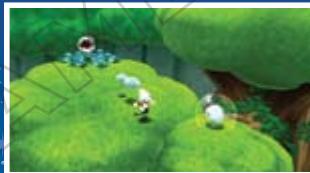
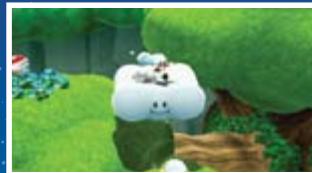
With this power-up, you can walk on clouds! You can also spin in the air to create a cloud platform. Each Cloud Flower will allow you to create up to three cloud platforms. But be careful—clouds disappear after a short time.
How to return to regular Mario:
Touch an enemy, take damage, or touch water.



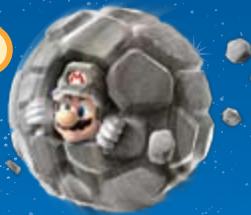
Rock Mario

Grab a Rock Mushroom
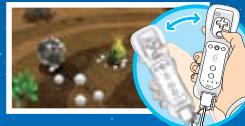
Shake the Wii Remote to scrunch into a ball and roll like a boulder. White rolling, you can break some objects that you can't break with a spin.
How to return to regular Mario:
Take damage or use a Launch Star.

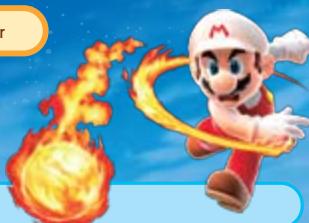
Fire Mario

Grab a Fire Flower
Shake the Wii Remote to throw fireballs.
How to return to regular Mario:
Just wait until the Fire Flower wears off.
Press and hold A to hover, and control your movement by tilting. Your flying meter will continue to go down while you press A. If your A reaches zero, you will begin to fall, so be careful. You can also stick to honeycomb walls as Bee Mario.
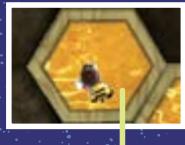
Honeycomb Wall
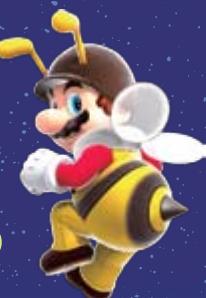
How to return to regular Mario:
Touch an enemy, take damage, or touch water.

Rainbow Mario

Grab a Rainbow Star
You're invincible! You can also instantly defeat any enemy you touch. After you run for a little while, your run speed will increase.
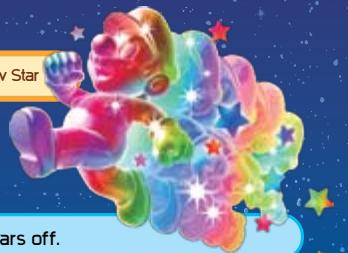
How to return to regular Mario:
Just wait until the Rainbow Star wears off.

Boo mario

Grab a Boo Mushroom
Shake the Wii Remote to turn transparent—that way, you can pass through certain types of walls. You can also press A repeatedly to float.
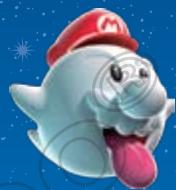
How to return to regular Mario:
Touch an enemy or take damage.

Spring Mario

Grab a Spring Mushroom
Bounce around with your springy body. Press A with good timing when you hit the ground to bounce especially high. You will also wall-jump automatically when you hit a wall.
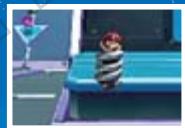
How to return to regular Mario:
Touch an enemy, take damage, or use a Launch Star.
Yoshi's Moves / Basic
In some galaxies, you can ride on Yoshi! Moving is the same as with Mario, but Yoshi has some other moves too.

Get On/Off Yoshi
Get on:
Jump on/spin near Yoshi
Get off:

Z and press


Spin or jump on a Yoshi egg to make Yoshi appear. Jump on Yoshi or spin near Yoshi to get on. Do a backward somersault to dismount.
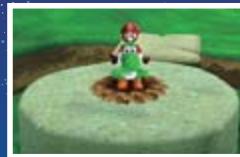

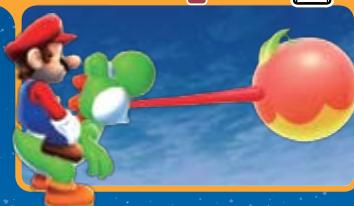
Stick Out Tongue Gulp/Spit Out
You can point at enemies or fruit and press B to stick out Yoshi's tongue and eat something. Some enemies can be spit out again after you've gulped them down. Point in the direction you want to spit something, then press B. Some enemies cannot be eaten.
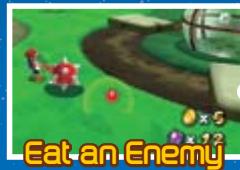

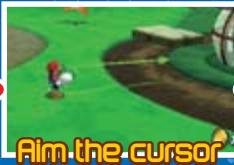

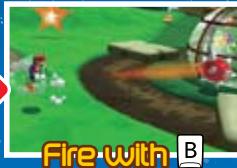

Pull
Press and hold

B, then back away
Yoshi can pull some obstacles and larger fruit by attaching his tongue to them. Point at the thing you want to pull, then press and hold B to stick Yoshi's tongue to it. Then just back away to pull the enemy or object with your tongue.
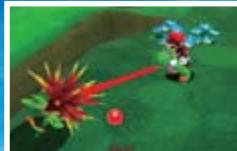
You can point at some objects and press B to swing from them by your tongue, then release for a big jump.
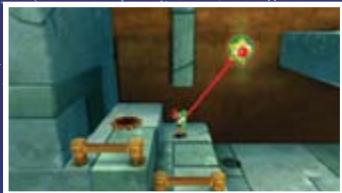

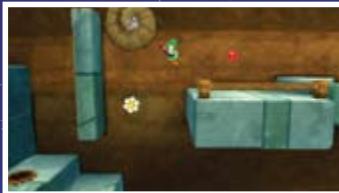

FlutterJump
Press and hold A during a jump to hover in the air with Yoshi's fluttering feet. You can go higher and farther with this kind of jump!

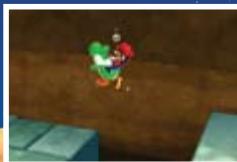
Head Shake
Shake the Wii Remote to make Yoshi batter obstacles, activate objects, or knock out enemies with his head.
Shake
Taking Damage
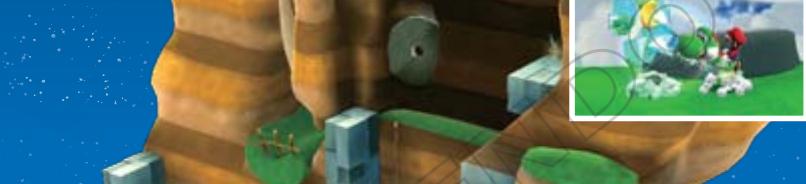
When you take damage while riding Yoshi, you will fall off Yoshi and he will run away. Yoshi will run around for a short amount of time or until he falls down a hole, then he will retreat into his egg. If you can reach him before he disappears, you can hop back on again.
Sometimes he will retreat into his egg immediately after taking damage.
Yoshi's Special Moves / Power-Ups
Yoshi will transform when he eats certain things! While transformed, he can use certain special powers with their own controls. After a short time, the effects will wear off.

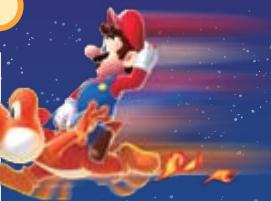
Dash Yoshi
Yoshi will move at blazing-fast speeds after chomping this super-spicy pepper. As Dash Yoshi, you can climb up steep slopes or run on water and reach places you normally can't.

Eat a Dash Pepper

Blimp Yoshi
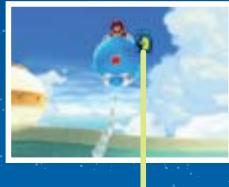
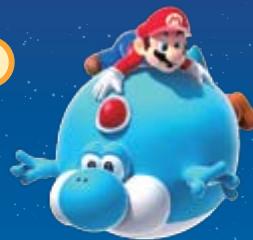
Yoshi will inflate like a balloon and blow air, rising slowly for a short amount of time. You can change the direction you float using Press to hold your breath and stop rising. While rising, your will slowly deplete. Yoshi will stop floating when the meter runs out.

Eat a Blimp Fruit
meter


Bulb Yoshii
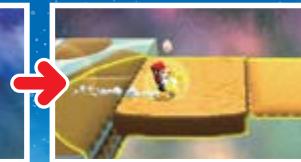
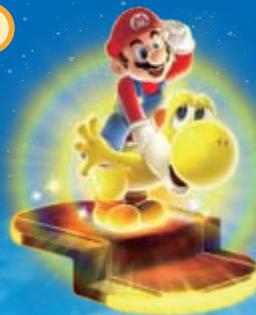
Yoshi will turn bright and emit a mysterious golden light for a short time. This light can reveal hidden platforms you can walk on.
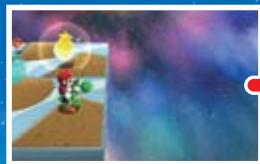
Eat a Bulb Berry
Objects

To make your way through the galaxies, you'll need to know how to use all kinds of objects.

Launch Star
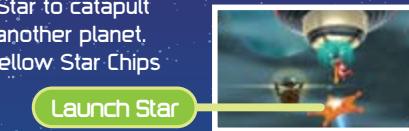
Shake the Wii Remote near a Launch Star to catapult yourself on a path through the sky to another planet. Sometimes you may need to gather Yellow Star Chips to reassemble a broken Launch Star before you can use it.
Shake

Pieces of a Broken Launch Star
Collect all the Yellow Star Chips to reassemble a broken Launch Star.
Yellow Star Chip

Spin Drill
Touch a Spin Drill to pick it up. While holding a Spin Drill, you can shake the Wii Remote to drill through the ground—even to the other side of a planet! You can also use the drill to defeat enemies. The drill can't penetrate some surfaces.

Pipe
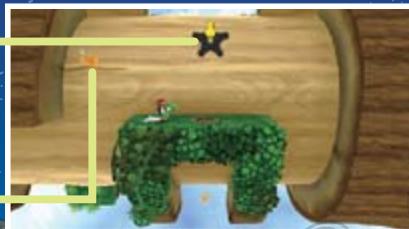
When you enter a pipe, it will warp you to another location.
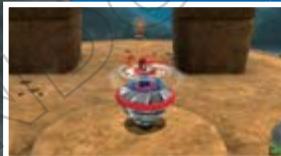
Shake
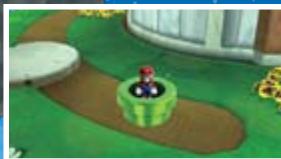
Enter the Pipe

Blocks/Switches
Jump, Spin, etc.
| ? Block | Jump and hit this from below to release coins or Star Bits. |
| Brick Block | Jump to hit this from below, or spin into it to break it. |
| Block | You can't break this block. |
| Flipswitch Panel | Walk over this to change its color. |
| Lever Switch | Spin near this switch to change its position. |
| Ground-Pound Switch | Get on top of this switch, then ground-pound over it to activate it. |
There are many other blocks and switches.

Teleporter
Shake


Shake the Wii Remote white standing on top of a teleporter to warp to a bonus stage. You will have a short time to defeat all enemies on a bonus stage to receive an item before you automatically warp back.
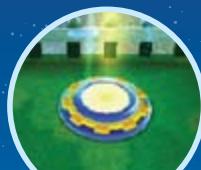
Teleporter

Sproutle Vine
Shake


Shake the Wii Remote near a vine growing from a Sproutle to swing up the vine. When you reach the end, you can jump far off of it. Just keep shaking the Wii Remote until you've jumped off the vine.
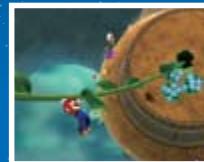

Star Ball
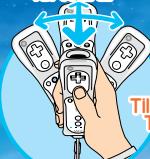
Tilt


Jump to get on top of the Star Ball, then hold your Wii Remote with the top pointing up. To move, tilt the Wii Remote in the direction you want to go. Press A to jump.
Till forward to move forward
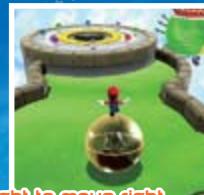
Till back to go backward.
The Leaf Raft will move based on which side of it you stand on. Stand on the edge of the raft toward the direction you want to go. Stand in the middle to make it stop.
Stand on the
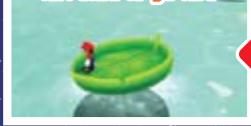
left:side to go left.
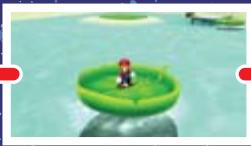
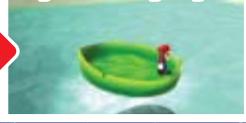
Stand on the right side to go right.

Pull Stars
Point at a Pull Star until you see appear, then press and hold A to draw yourself to that Pull Star. Press A to gently release yourself from a Pull Star's grasp, or press Z or spin to release yourself quickly.

Pull Star
Point and press

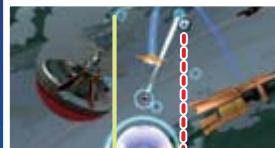
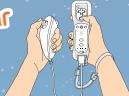
Grab a Pull Star with A!

FluZZard
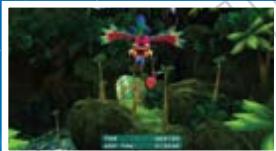
Grab on to this giant bird, then hold the Wii Remote level to fly straight. Dip the remote forward to dive, and tilt the remote back to slow down. Tilt left or right to move in that direction. You can also hear about how to control Fluzzard from the Jibberjay at the start of the level.
Tilt

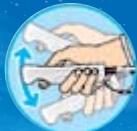
Tilt back or forward to control speed.
Jibberjay
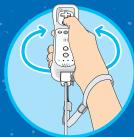
Tilt to change direction.
Tip Network
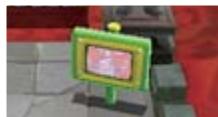
In some galaxies, you'll find TVs showing the Tip Network that can help explain how to perform certain moves or advance through a tough area. If you need a hint, try talking to the TV to see what it has to show you.
Items
Some items will help you right away. Some items need to be collected before they have an effect. Either way, you want them!

Coin
These shiny treasures restore one slice of Mario's health meter. Bring 100 coins back to Starship Mario to earn an extra life.
? Coin
When you grab this, things like coins will appear.

Green Shell

Throw these to break open treasure chests or attack enemies. You can also hold on to one while swimming for a nice speed boost.

Comet medal
Collect Comet Medals to make special Prankster Comets appear in some galaxies.
1-Up Mushroom
Grab these to earn Mario extra lives.
Life Mushroom

Grab one of these to temporarily increase Mario's max health to six. But if Mario's life falls to three or lower, his max health will revert to three.

Chance Cube
Spin these to roll them and receive the item on the side facing up. Some may also make enemies appear, so be careful.
Collecting Star Bits
Grab 100 Star Bits to earn an extra life. You can shoot Star Bits you have collected by pointing at your target and pressing B. Use them to attack enemies or feed Hungry Lumas.
Cosmic Guide
In some galaxies, if you lose enough lives, the Cosmic Spirit will appear somewhere. Speak to her and ask for her help to activate Cosmic Guide. It will show you the way to the Power Star. But remember, any Power Stars you earn this way will be Bronze Stars.