DOGS AND CATS FRENCH BULLDOG - Video game NINTENDO - Free user manual and instructions
Find the device manual for free DOGS AND CATS FRENCH BULLDOG NINTENDO in PDF.


User questions about DOGS AND CATS FRENCH BULLDOG NINTENDO
0 question about this device. Answer the ones you know or ask your own.
Ask a new question about this device
Download the instructions for your Video game in PDF format for free! Find your manual DOGS AND CATS FRENCH BULLDOG - NINTENDO and take your electronic device back in hand. On this page are published all the documents necessary for the use of your device. DOGS AND CATS FRENCH BULLDOG by NINTENDO.
USER MANUAL DOGS AND CATS FRENCH BULLDOG NINTENDO
NEED HELP WITH INSTALLATION, MAINTENANCE OR SERVICE?
Nintendo Customer Service
SUPPORT.NINTENDO.COM
or call 1-800-255-3700
BESOIN D'AIDE POUR L'INSTALLATION, L'ENTRETIEN OU LA RÉPARATION?
Nintendo of America Inc.
P.O.Box 957
Redmond, WA 98073-0957 U.S.A.
www.nintendocom
73932A
Product recycling information:
visitrecycle.nvidia.com
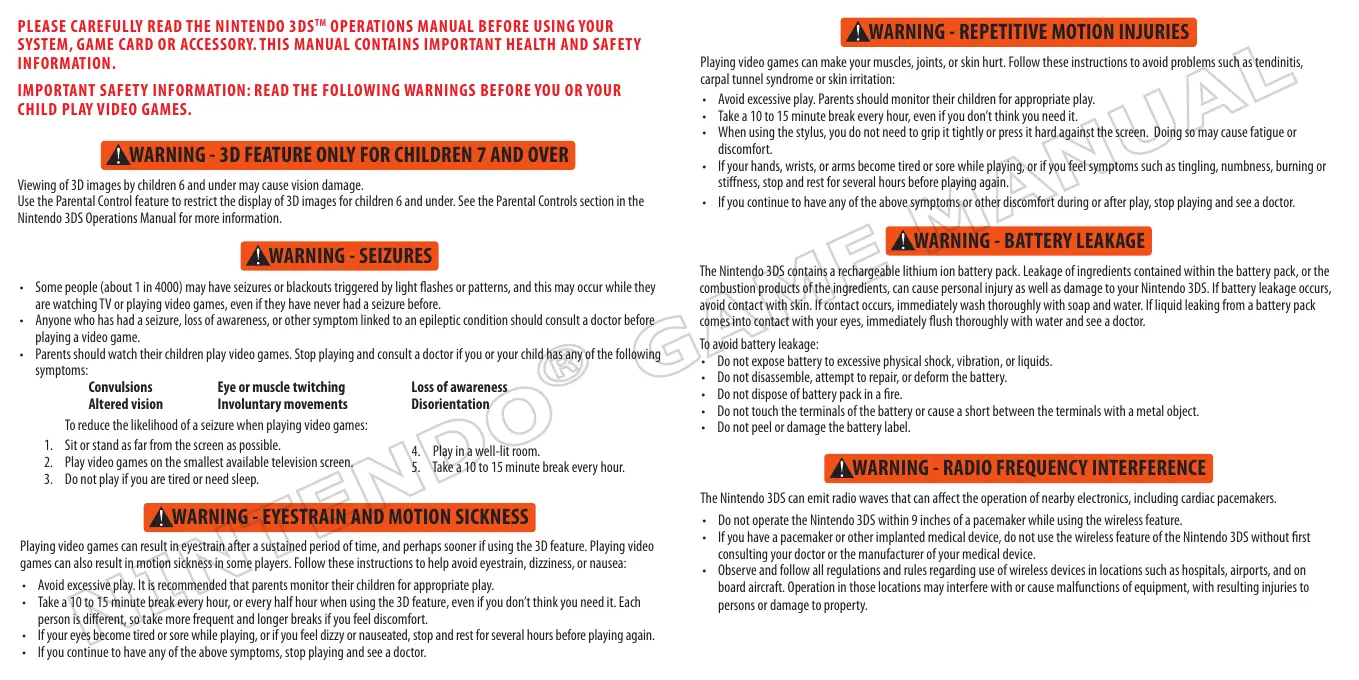
PLEASE CAREFULLY READ THE NINTENDO 3DS™ OPERATIONS MANUAL BEFORE USING YOUR SYSTEM, GAME CARD OR ACCESSORY. THIS MANUAL CONTAINS IMPORTANT HEALTH AND SAFETY INFORMATION.
IMPORTANT SAFETY INFORMATION: READ THE FOLLOWING WARNINGS BEFORE YOU OR YOUR CHILD PLAY VIDEO GAMES.
WARNING - 3D FEATURE ONLY FOR CHILDREN 7 AND OVER
Viewing of 3D images by children 6 and under may cause vision damage.
Use the Parental Control feature to restrict the display of 3D images for children 6 and under. See the Parental Controls section in the Nintendo 3DS Operations Manual for more information.
WARNING - SEIZURES
- Some people (about 1 in 4000) may have seizures or blackouts triggered by light flashes or patterns, and this may occur while they are watching TV or playing video games, even if they have never had a seizure before.
- Anyone who has had a seizure, loss of awareness, or other symptom linked to an epileptic condition should consult a doctor before playing a video game.
- Parents should watch their children play video games. Stop playing and consult a doctor if you or your child has any of the following symptoms:
Convulsions Altered vision
Eye or muscle twitching Involuntary movements
To reduce the likelihood of a seizure when playing video games:
- Sit or stand as far from the screen as possible.
- Play video games on the smallest available television screen.
- Do not play if you are tired or need sleep.
Loss of awareness Disorientation
- Play in a well-lit room.
- Take a 10 to 15 minute break every hour.
WARNING - EYESTRAIN AND MOTION SICKNESS
Playing video games can result in eyestrain after a sustained period of time, and perhaps sooner if using the 3D feature. Playing video games can also result in motion sickness in some players. Follow these instructions to help avoid eyestrain, dizziness, or nausea:
- Avoid excessive play. It is recommended that parents monitor their children for appropriate play.
- Take a 10 to 15 minute break every hour, or every half hour when using the 3D feature, even if you don't think you need it. Each person is different, so take more frequent and longer breaks if you feel discomfort.
If your eyes become tired or sore while playing, or if you feel dizzy or nauseated, stop and rest for several hours before playing again.
If you continue to have any of the above symptoms, stop playing and see a doctor.
WARNING - REPETITIVE MOTION INJURIES
Playing video games can make your muscles, joints, or skin hurt. Follow these instructions to avoid problems such as tendinitis, carpal tunnel syndrome or skin irritation:
- Avoid excessive play. Parents should monitor their children for appropriate play.
Take a 10 to 15 minute break every hour, even if you don't think you need it. - When using the stylus, you do not need to grip it tightly or press it hard against the screen. Doing so may cause fatigue or discomfort.
- If your hands, wrists, or arms become tired or sore while playing, or if you feel symptoms such as tingling, numbness, burning or stiffness, stop and rest for several hours before playing again.
If you continue to have any of the above symptoms or other discomfort during or after play, stop playing and see a doctor.
WARNING - BATTERY LEAKAGE
The Nintendo 3DS contains a rechargeable lithium ion battery pack. Leakage of ingredients contained within the battery pack, or the combustion products of the ingredients, can cause personal injury as well as damage to your Nintendo 3DS. If battery leakage occurs, avoid contact with skin. If contact occurs, immediately wash thoroughly with soap and water. If liquid leaking from a battery pack comes into contact with your eyes, immediately flush thoroughly with water and see a doctor.
To avoid battery leakage:
- Do not expose battery to excessive physical shock, vibration, or liquids.
- Do not disassemble, attempt to repair, or deform the battery.
- Do not dispose of battery pack in a fire.
- Do not touch the terminals of the battery or cause a short between the terminals with a metal object.
- Do not peel or damage the battery label.
WARNING - RADIO FREQUENCY INTERFERENCE
The Nintendo 3DS can emit radio waves that can affect the operation of nearby electronics, including cardiac pacemakers.
- Do not operate the Nintendo 3DS within 9 inches of a pacemaker while using the wireless feature.
- If you have a pacemaker or other implanted medical device, do not use the wireless feature of the Nintendo 3DS without first consulting your doctor or the manufacturer of your medical device.
- Observe and follow all regulations and rules regarding use of wireless devices in locations such as hospitals, airports, and on board aircraft. Operation in those locations may interfere with or cause malfunctions of equipment, with resulting injuries to persons or damage to property.
The Official Seal is your assurance that this product is licensed or manufactured by Nintendo. Always look for this seal when buying video game systems, accessories, games and related products.
For game play assistance, we recommend using your favorite Internet search engine to find tips for the game you are playing. Some helpful words to include in the search, along with the game's title, are: "walk through," "FAQ," "codes," and "tips."
IMPORTANT LEGAL INFORMATION
This Nintendo game is not designed for use with any unauthorized device. Use of any such device will invalidate your Nintendo product warranty. Copying of any Nintendo game is illegal and is strictly prohibited by domestic and international intellectual property laws. "Back-up" or "archival" copies are not authorized and are not necessary to protect your software. Violators will be prosecuted.

This product uses the LC Font by Sharp Corporation. LCFONT, LC Font and the LC logo mark are trademarks of Sharp Corporation.
Nintendo
© 2011 Nintendo. Trademarks are property of their respective owners.
Nintendo 3DS is a trademark of Nintendo. © 2011 Nintendo.
and items with other players
ALLOWS AUTOMATIC SEARCH AND INFORMATION EXCHANGE WITH OTHER NINTENDO 3DS SYSTEMS
ALLOWS INFORMATION EXCHANGE BETWEEN THE NINTENDO 3DS SYSTEM AND A WIREFLESS HOTSPOT.

WARRANTY & SERVICE INFORMATION
You may need only simple instructions to correct a problem with your product. Try our website at support.nintendo.com or call our Consumer Assistance Hotline at 1-800-255-3700, rather than going to your retailer. Hours of operation are 6 a.m. to 7 p.m., Pacific Time, Monday - Sunday (times subject to change). If the problem cannot be solved with the troubleshooting information available online or over the telephone, you will be offered express factory service through Nintendo. Please do not send any products to Nintendo without contacting us first.
HARDWARE WARRANTY
Nintendo of America Inc. ("Nintendo") warrants to the original purchaser that the hardware product shall be free from defects in material and workmanship for twelve (12) months from the date of purchase. If a defect covered by this warranty occurs during this warranty period, Nintendo will repair or replace the defective hardware product or component, free of charge.* The original purchaser is entitled to this warranty only if the date of purchase is registered at point of sale or the consumer can demonstrate, to Nintendo's satisfaction, that the product was purchased within the last 12 months.
GAME & ACCESSORY WARRANTY
Nintedw warrants to the original purchaser that the product (games and accessories) shall be free from defects in material and workmanship for a period of three (3) months from the date of purchase. If a defect covered by this warranty occurs during this three (3) month warranty period, Nintedto will repair or replace the defective product, free of charge.*
SERVICE AFTER EXPIRATION OF WARRANTY
Please try our website at support.nintendo.com or call the Consumer Assistance Hotline at 1-800-255-3700 for troubleshooting information and repair or replacement options and pricing.
*In some instances, it may be necessary for you to ship the complete product, FREIGHT PREPAID AND INSURED FOR LOSS OR DAMAGE, to Nintendo. Please do not send any products to Nintendo without contacting us first.
WARRANTY LIMITATIONS
THIS WARRANTY SHALL NOT APPLY IF THIS PRODUCT: (a) IS USED WITH PRODUCTS NOT SOLD OR LICENSED BY NINTENDO (INCLUDING, BUT NOT LIMITED TO, NON-Licensed GAME ENHANCEMENT AND COPIER DEVICES, ADAPTERS, SOFTWARE, AND POWER SUPPLIES); (b) IS USED FOR COMMERCIAL PURPOSES (INCLUDING RENTAL); (c) IS MODIFIED OR TAMPERED WITH; (d) IS DAMAGED BY NEGLIGENCE, ACCIDENT, UNREASONABLE USE, OR BY OTHER CAUSES UNRELATED TO DEFECTIVE MATERIALS OR WORKMANSHIP; OR (e) HAS HAD THE SERIAL NUMBER ALTERED, DEFACED OR REMOVED.
ANY APPLICABLE IMPLIED WARRANTYES, INCLUDING WARRANTYES OF MERCHANTABILITY AND FITNESS FOR A PARTICULAR PURPOSE, ARE HEREBY LIMITED IN DURATION TO THE WARRANTY PERIODS DESCRIBED ABOVE (12 MONTHS OR 3 MONTHS, AS APPLICABLE). IN NO EVENT SHALL NINTENDO BE LIABLE FOR CONSEQUENTIAL OR INCIDENTAL DAMAGES RESULTING FROM THE BREACH OF ANY IMPLIED OR EXPRESS WARRANTY. SOME STATES DO NOT ALLOW LIMITATIONS ON HOW LONG AN IMPLIED WARRANTY LASTS OR EXCLUSION OF CONSEQUENTIAL OR INCIDENTAL DAMAGES, SO THE ABOVE LIMITATIONS MAY NOT APPLY TO YOU.
This warranty gives you specific legal rights. You may also have other rights which vary from state to state or province to province.
Nintendo's address is: Nintendo of America Inc., P.O. Box 957, Redmond, WA 98073-0957 U.S.A.
This warranty is only valid in the United States and Canada.


Contents
08 Your First Puppy
18 Life with Your Puppy
20 Caring for Your Pets
22 Interacting with Your Puppy
23 Life with Your Kitten
24 Your Journal
26 StreetPass
30 More Fun Stuff You Can Do
32 Manuel en français
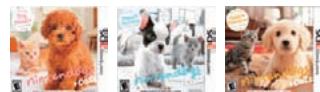
There are three versions of nintendogs ^+ cats.
Every puppy and kitten breed can be unlocked with any version of the game by progressing through the game or by using StreetPass™ feature.
1 Get Started at the Kennel
It all begins at the kennel, where you'll go to pick out the perfect pup to take home with you.
First Step
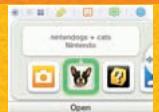
Make sure that the power on the Nintendo 3DS system is off, then insert the nintendogs ^+ cats Game Card securely in the Game Card slot until you hear it click. Next, turn on your Nintendo 3DS system. Tap the nintendogs ^+ cats icon on the Nintendo 3DS HOME Menu, and then tap Start to go to the kennel.
Quick tip!
If you're continuing a game you've already started playing, just tap Start on the HOME Menu to head straight to your home.
2 Which Puppy Will You Choose?
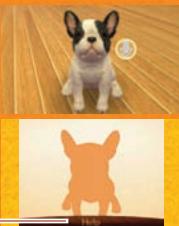
The kennel is full of great puppies looking for a good home. When you touch the puppy silhouette on the lower screen (Touch Screen) using your stylus, you'll notice that you are petting the dog that appears on the top screen. Move the Circle Pad to change your view and see the puppy from different angles.
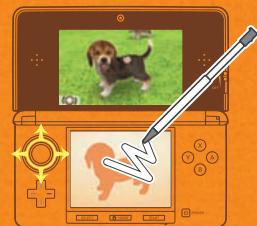
How to Choose Your Puppy
After you pet the puppy for a while, you'll be allowed to pick any dog available at the kennel. If you pick out a breed and coat color you like, you'll see a selection of those pups up close. When you see the one you want, tap Choose This Dog.
Quick tip!
The next time you go to the kennel, you'll be able to pick out a kitten!
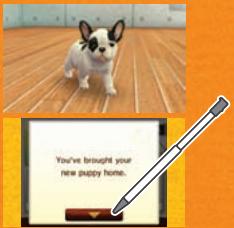
Take Your Puppy Home
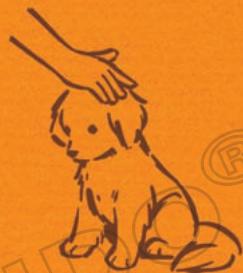
It takes a while for a new puppy to get used to a new home. Tap the icon on the Touch Screen to call your puppy over, and then give it lots of attention and love. After a while, your puppy will calm down.
Quick tip!
Sometimes you don't have to touch to call your puppy over. If you bring your face close to the screen or whistle to get your dog's attention, your puppy may come running over to you!
Note: the system's inner-facing camera (see page 20) is used for facial recognition and will not be used for other purposes.

Give Your Puppy a Name
Once your puppy has calmed down, it's time to give it a name.
Call Your Puppy's Name
Face your puppy and call out its new name a few times. Your puppy will remember its name in the same tone of voice and volume you use the first time, so be sure to say it the same way every time.
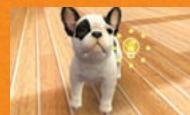
Take Note of Your Puppy's Name
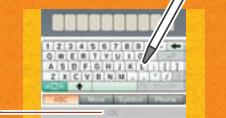
Once your puppy learns its name, you should make a note of it by entering the name using the keyboard on the Touch Screen. Touch the letters to spell out your dog's name, then tap OK when you're done. OK
Caution!
The name you use here will be made public and shared with other owners via StreetPass (see page 26). Be careful not to use offensive language or personally identifying information.
Is Your Dog Having a Hard Time Learning Its Name?
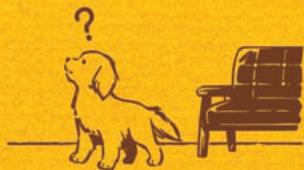
When your puppy understands you, a will appear. If your puppy doesn't understand, a will appear. You'll need to say the name multiple times before your puppy learns it.
When repeating your dog's name, be sure to use the same volume and tone of voice. After saying your dog's name multiple times, you may accidentally find yourself leaning closer to the microphone than recommended, speaking too loudly, or changing your tone. Keep these tips in mind when you are teaching your dog its name:
- Make sure you are about 6 inches away from the microphone.
- Use your normal speaking volume.
- Use the same name every time. Don't use nicknames or draw out the last syllable of the name.
- Pronounce the name clearly from start to end.
- Until your puppy has learned its name, don't hand your game to another player once you've started.
5 Teach Your Puppy to Sit Down
After you bond with your puppy by calling its name and petting it, you'll be able to start teaching it tricks. Training your pup to do tricks is a fun and rewarding activity you can do together.
How to Teach Your Puppy to Sit Down
When your dog is able to start learning tricks, you'll be prompted with a sequence that will show you how to teach it to sit down. Read the instructions on the screen and then say "sit down," repeating it as many times as necessary until your dog learns the command. You can read the instructions by tapping Help. One thing to keep in mind: when teaching voice commands, avoid long pauses between words as this can confuse your puppy.
Help
Quick hip!
After your puppy has learned how to sit down, you'll be able to view tutorials on a variety of other tricks by tapping Tricks on your puppy's status screen (see page 21).
After Learning "Sit Down"
Once your puppy has learned to sit down, you'll be able to go out and play with all of the game's features.
To learn how to care for your puppy and about your home, see pages 20-21.
Saving Your Game
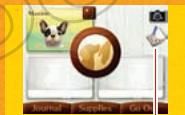
To save the current condition of your pets, home, and items, tap the Save icon on your main home screen. Whenever you stop playing the nintendogs ^+ cats game, always be sure to tap the Save button to save your progress.
Save
Closing the System
Close your Nintendo 3DS system at any time while playing nintendogs + cats to pause play and reduce battery-power consumption. When you open your system, you'll resume your game where you left off. While the system is closed, StreetPass™ (see page 26) and SpotPass™ (see page 30) will remain active.
Entering Sleep Mode
Press the POWER Button and tap Sleep Mode to close nintendogs + cats and put your system into Sleep Mode, which helps to reduce battery-power consumption. While the system is in Sleep Mode, StreetPass (see page 26) and SpotPass (see page 30) will remain active.
NOTE: When you press the POWER Button, your nintendogs + cats game will immediately close, and all unsaved data will be lost. Always save your game before pressing the POWER Button (see page 14).
Life with Your Puppy (At Home)
Give Your Puppy Something to Eat or Drink
If your pet gets hungry or thirsty, please feed it and give it something to drink. Check your pet's status screen (see page 21) to see if it is hungry or thirsty.
Play with Toys and Accessories
It's fun to play with toys and dress up your pets with accessories. If you call your pup's name after throwing a toy, it just might fetch it for you.
Brush and Shampoo Your Dog
If you notice that your pet is looking a little dirty, you can give it a good brushing or even a bath and shampoo.
Take Photos
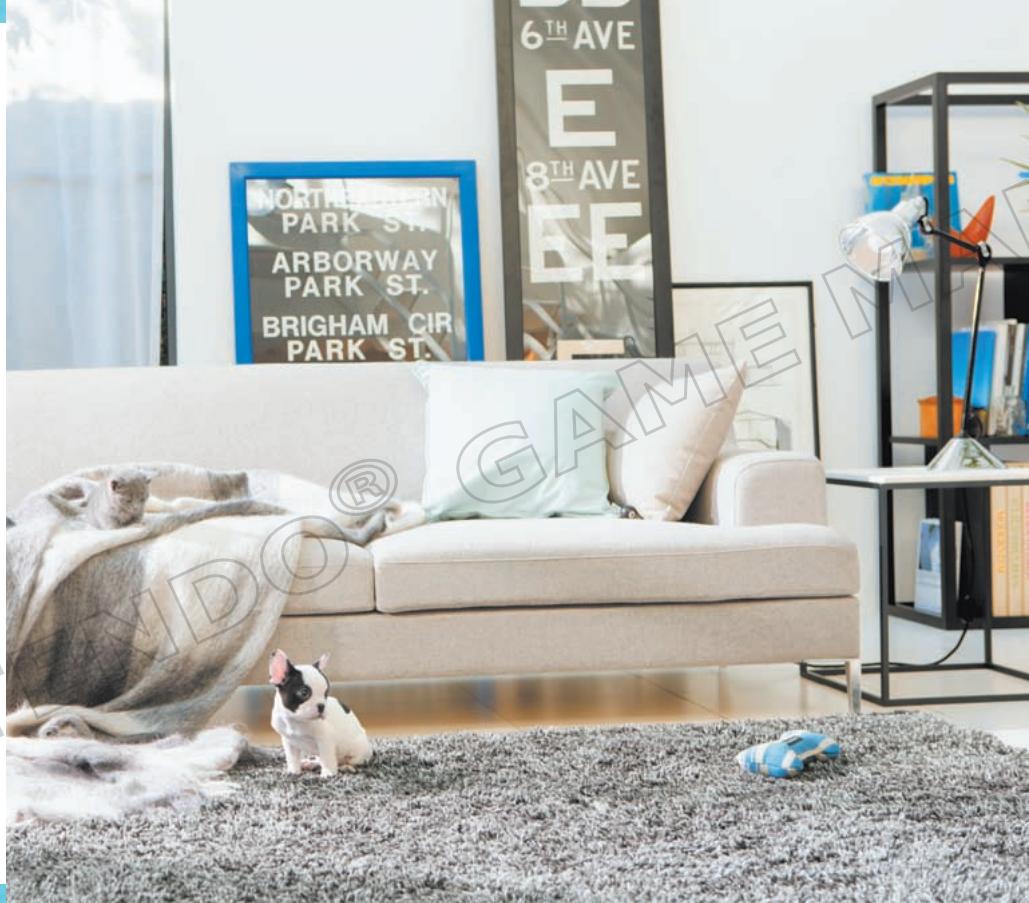
Tap the icon or press the L or R Buttons to take 3D photos of your pets. You can view the photos you take in Nintendo 3DS Camera from your system's HOME Menu.
Use Your Journal
From the journal (see page 24), you can communicate with other owners via StreetPass (see page 26).
Arrange Furniture
If you place furniture like a sofa or bed in your room, your pets may hop on and take a nap.
Play Music
Pick out your favorite music and let it play in the background. Your pets might react to the music in fun and interesting ways, depending on the song.
Life with Your Puppy (Going Out)
Go for a Walk
When taking your puppy out for a walk, you can give the leash a tug to signal where you want it to go. There are lots of places you can discover when you're out for a walk, including the park, café, gym, or shops. And if you select the Pedometer feature, close your system, and carry it around with you as you go about your day, each step you take counts toward taking your pup for a walk.
Enter Competitions
Your dog can only enter the same competition twice per day. If you try to adjust the Nintendo 3DS system clock, you won't be able to enter competitions for a while.
Disc Competition
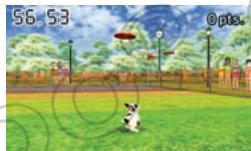
In this competition, you'll toss a flying disc, and your puppy has to catch it and bring it back. The farther away your pup catches it, the more points you earn!
Lure Coursing
In this race, you reel in a lure to lead your puppy to the finish line. Fastest to the finish wins!
Obedience Trial
Your pup can show off the tricks it has mastered within a time limit. This competition makes use of the AR Cards included with your Nintendo 3DS system.
Go Shopping
You can buy things from a variety of shops. Need money? Don't worry-you'll earn prize money when you win competitions. You'll also find items during walks that you can sell at the Secondhand Shop to earn money.
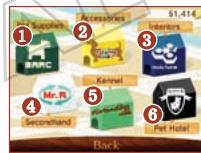
Pet Supply Buy food and drink, toys, and other things here.
Here you can buy fun and stylish accessories for your pup. 2 Accessories You can try them on before you buy.
Interior Designs Here you can buy furniture for your room or even order a complete renovation of your entire home in a new style.
4 Secondhand At this shop, you can sell unwanted items. You can also trade in Shop materials that your puppy finds during walks for more useful stuff!
5 Kennel Buy a new puppy or kitten here.
Pet Hotel take care of a pet for any reason, you can always drop off or "donate" it here. Once you donate a pet, you can never get it back, so be sure this is what you want before you do it.
Caring for Your Pets
In your home, you can play with your puppy or kitten, take care of them, or just see what they're up to.
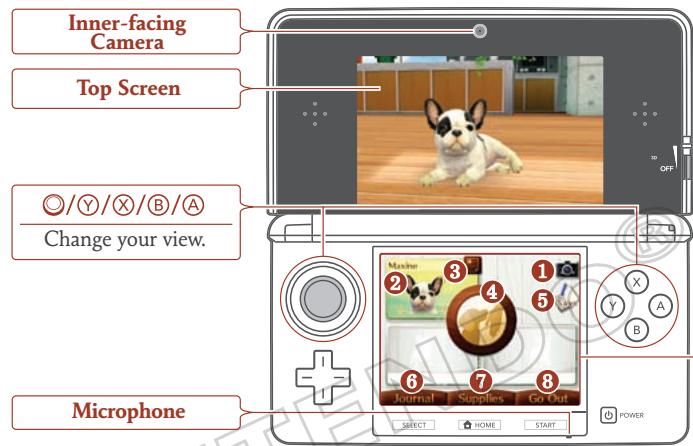

Snap a photo of what's happening in your room (pictured on the top screen). The photos you take will be saved to an SD card and can be viewed in Nintendo 3DS Camera from the HOME Menu.


Camera
Tap this icon to take a photo of whatever is pictured on the top screen.

Your Puppy or Kitten The view will focus on the pet you tap.

Status Info
Tap this icon to view detailed status information.


Call (see page 22)
Tap this button to call your pup or kitten over to you. If you've tapped a specific pet icon first, that pet will come to you.


Save (see page 14)
Save your current progress, including your puppy and kitten, the state of your room, and items.


Journal (see page 24)
Tap to view the journal screen.


Supplies
View your items, and select items you want to use.


Go Out (see page 18)
Take your puppy out.
If you need to delete your save data, start your system, and when the nintendogs ^+ cats title screen appears, simultaneously press and hold down + + + . Data that has been deleted cannot be recovered, so be careful!
Interacting with Your Puppy
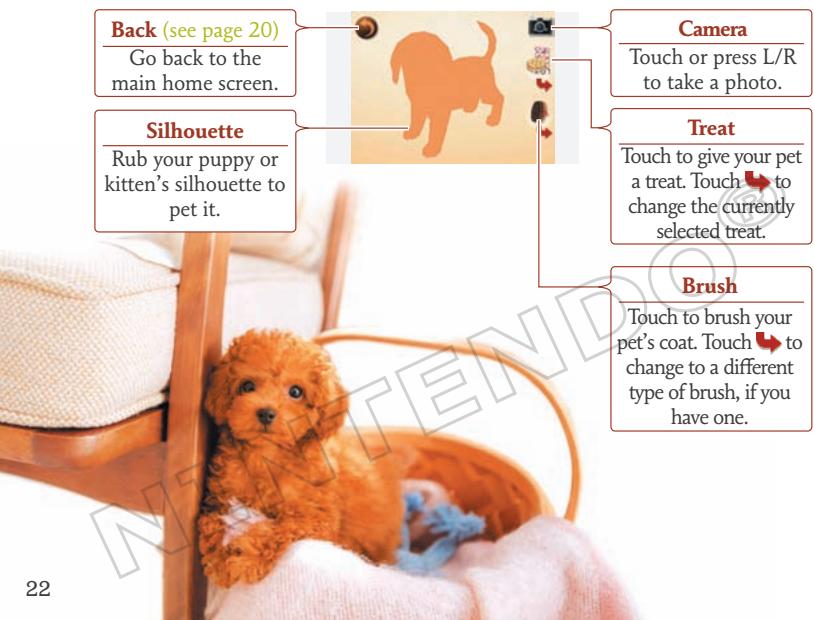
This screen appears after you tap the Call button and your pet has come over. To pet your puppy or kitten, use your stylus to rub its silhouette on the Touch Screen. If the brush or treat icons are displayed, you can tap them to use those items.
Life with Your Kitten
Kittens are different from puppies in so many ways!

Choose a Kitten
The kennel also has lots of kittens. Once you've taken home your first puppy, kittens will be available to choose from at the kennel.
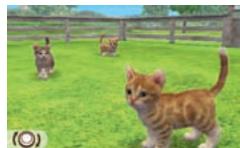
About Kittens
Kittens are different from puppies--they don't come over to you as much. Cats can be a little bit aloof sometimes. You also can't teach them tricks, so just let them wander around and do what they like. Sometimes they'll find interesting items and bring them to you.
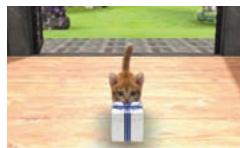
Taking Care of Your Kitten
When your kitten gets hungry, feed it kitten food. Kittens love climbing to high places, so if you buy tall furniture, they'll be happy.
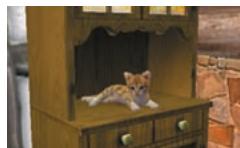
Your Journal
You can communicate with other owners via StreetPass using the journal.
Using the Journal for the First Time
The first time you open your journal, you'll be prompted to create a new journal save file on your SD Card and register nintendogs + cats for StreetPass on your system. If you don't create this save file, you won't be able to use StreetPass or even use the journal at all.
To activate StreetPass, you'll need to read and agree to the User Agreement. For more information about the User Agreement, please refer to the System Settings.

Journal Screen Controls
When you open your journal, you'll see this screen to the right. You can use your stylus to take notes in your journal too.
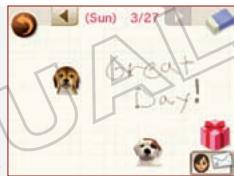

Eraser
Drag and slide over notes you've written to erase them.

Owner Info
With the owner-information feature, you can select your Mii, set a present to hand out, select a photo you've taken, and enter a short message to the world. The message you enter is public and can be seen by all users of StreetPass. Please do not include personal information, offensive language, or any content that may be illegal or infringe upon the rights of others.

StreetPass Info
Tap to see information about an owner you've encountered in StreetPass. You can even meet up with their puppies or kittens at the park.
If you haven't made a Mii character in the Mii Maker™ application, your nickname won't appear in your owner info. Once you create your own Mii and set it on the Owner Info screen, your name will appear.
What You Can Do with StreetPass
When you've had a successful StreetPass exchange, here are some of the things that will happen:
Your owner information, pets, and a preselected photo and present are sent to the other owner.
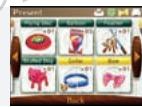
From your journal, you can view another owner's information and receive a present from them.
Tap Meet Up at the Park to meet up with that owner and their pet and play together at the park.
If you meet a lot of owners via StreetPass, more types of puppies may become available in the kennel.
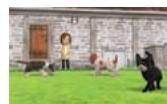
Once you've connected via StreetPass with a particular owner, you won't be able to exchange with them again for a while.
StreetPass
If you carry your system with you when you go out, you can share portions of your nintendogs ^+ cats experience with other players and interact with their puppies or kittens using the StreetPass feature.
How to Use StreetPass
To use StreetPass, follow these instructions.

Open Your Journal (see page 24)
Open your journal and register nintendogs + cats for use with StreetPass on your system.

Set Your Owner Information
Open your journal and set your Mii™ character, photo, message, and present. You'll only be able to send photos taken in-game of your dog or cat.

Carry Your System Around with You
Simply close your system and carry it around with you when you are out and about. When you come into contact with other nintendogs + cats owners also using StreetPass, your system will exchange game data with them.
To use StreetPass, you'll need to have your system powered on and wireless communications enabled.
After a Successful StreetPass Exchange
When you've successfully exchanged game data with another owner, you'll see a sticker in your journal (see page 25). You can tap that sticker to see information about the owner.
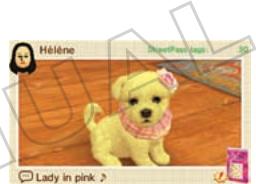
To Stop Using StreetPass
If you want to stop using StreetPass, go to System Settings, select , tap StreetPass Management, tap the nintendogs + cats icon, and then tap Deactivate StreetPass.
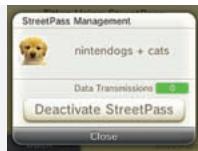
Once you've deactivated StreetPass, you can register it again from the journal.
More Fun Stuff You Can Do
Playing with AR Cards
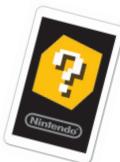
If you select the AR Camera from your room's supplies screen, you can use AR Cards to make your puppy or kitten appear in your world! You can take 3D photos, and if it's a puppy, you can have it perform tricks.
Using AR Cards
AR Cards are included with your Nintendo 3DS system. For more information about safety and proper use of AR Cards, refer to your system's operations manual.
Using SpotPass
If you register nintendogs + cats for SpotPass™ on your system, your system can automatically search for and connect to a wireless Internet access point and download special items. A sticker will be placed in your journal when you've received SpotPass data. Just like StreetPass, you can register and start using SpotPass through the journal, and deactivate it in your Notifications from your system's HOME Menu. For more information about the equipment required for SpotPass, Internet settings, and the User Agreement, refer to the system's operations manual.
About Wireless Game Play
During wireless game play, if communication seems to be affected by other electronic devices, move to another location or turn off the interfering device. You may need to reset the power on the Nintendo 3DS system and start the game again.
- To play wireless Nintendo 3DS games over the Internet, you must first configure your Nintendo 3DS to connect to the Internet. See the Internet Settings section in the Nintendo 3DS Operations Manual.
- To complete the setup, you will need access to a wireless broadband Internet connection. You may need to use a PC to access and configure the settings of your wireless network.
- Wireless game play uses more battery power than other game play. You may prefer to use the AC adapter to prevent running out of power during wireless game play or when connected to the Internet.
- You can also connect to the Internet at Nintendo Zone locations or selected Internet hot spots.
To protect your privacy, do not give out personal information such as last name, phone number, birth date, age, school, e-mail address, or home address when communicating with others.
The Nintendo 3DS Service User Agreement that governs Nintendo 3DS online game play and sets forth the Nintendo 3DS Privacy Policy is available in the Nintendo 3DS Operations Manual, on the Nintendo 3DS by accessing the Internet Settings section of System Settings, or online at support.nintendo.com/useragreement/nintendo3ds.
VEUILLEZ LIRE ATTENTIVEMENT LE MODE D'EMPLOI DE LA CONSOLE NINTENDO 3DS™ AVANT D'UTILISER VOITE CONSOLE, UNE CARTE DE JEU OU UN ACCESSOIRE. CE MODE D'EMPLOI CONTIENT DES INFORMATIONS IMPORTANTE SUI LA SANTÉ ET LA SECURITÉ.
INFORMATIONS IMPORTANTES SUR LA SECURITE : LISEZ LES AVERTISSEMENTS SUIVANTS AVANT QUE VOUS OU VOTRE ENFANT NE JOUIEZ À UN JEU VIDÉO.
