WII SPORTS RESORT - Video game NINTENDO - Free user manual and instructions
Find the device manual for free WII SPORTS RESORT NINTENDO in PDF.



User questions about WII SPORTS RESORT NINTENDO
0 question about this device. Answer the ones you know or ask your own.
Ask a new question about this device
Download the instructions for your Video game in PDF format for free! Find your manual WII SPORTS RESORT - NINTENDO and take your electronic device back in hand. On this page are published all the documents necessary for the use of your device. WII SPORTS RESORT by NINTENDO.
USER MANUAL WII SPORTS RESORT NINTENDO
NEED HELP WITH INSTALLATION, MAINTENANCE OR SERVICE?
Nintendo Customer Service
SUPPORT.NINTENDO.COM
or call 1-800-255-3700
Recorded tips for many titles are available on Nintendo's Power Line at (425) 885-7529.
This may be a long-distance call, so please ask permission from whoever pays the phone bill. If the information you need is not on the Power Line, you may want to try using your favorite Internet search engine to find tips for the game you are playing. Some helpful words to include in the search, along with the game's title, are: "walk through," "FAQ," "codes," and "tips."
BESOIN D'AIDE POUR L'INSTALLATION, L'ENTRETIEN OU LA RÉPARATION?
The Official Seal is your assurance that this product is licensed or manufactured by Nintendo. Always look for this seal when buying video game systems, accessories, games and related products.
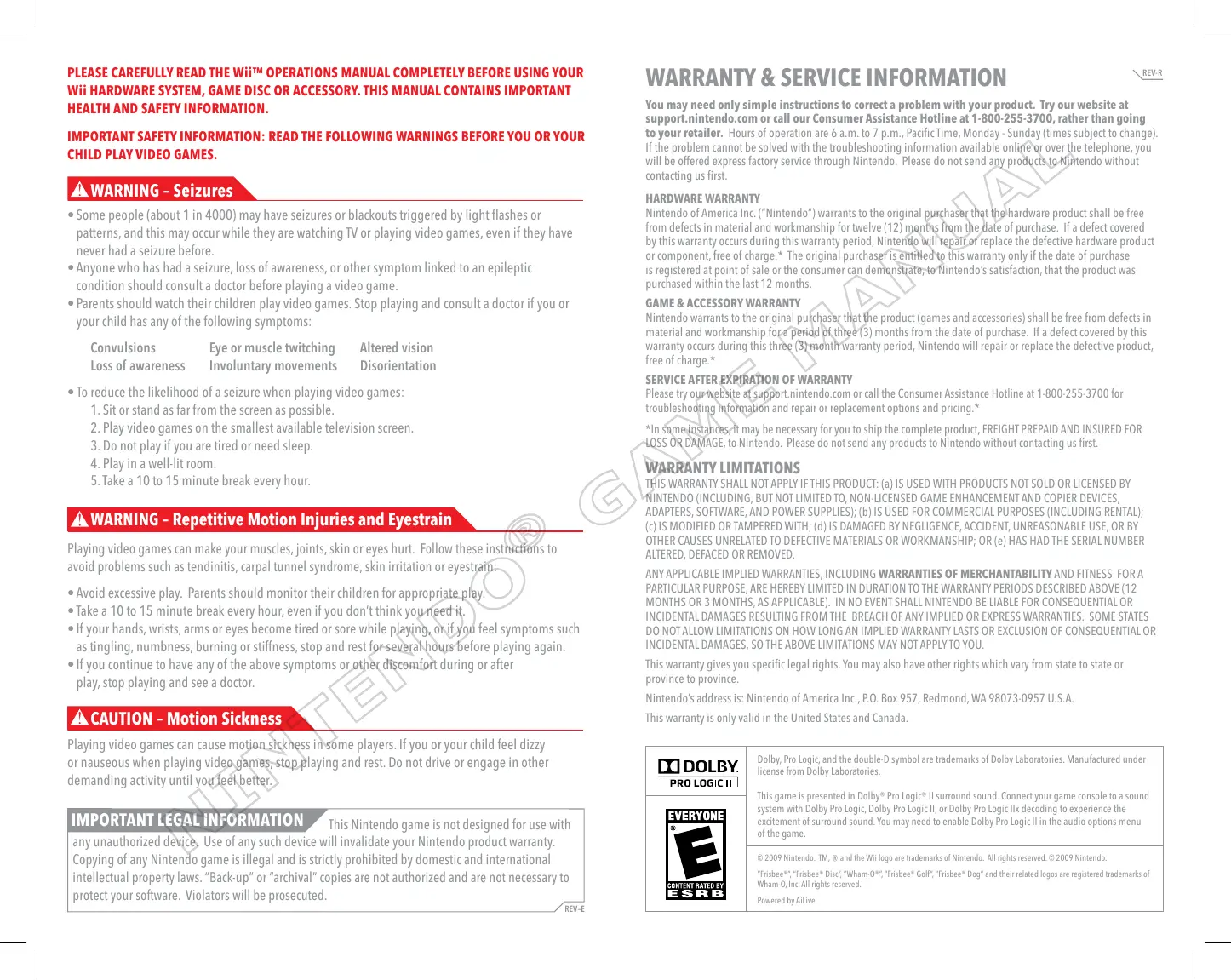
- Some people (about 1 in 4000) may have seizures or blackouts triggered by light flashes or patterns, and this may occur while they are watching TV or playing video games, even if they have never had a seizure before.
- Anyone who has had a seizure, loss of awareness, or other symptom linked to an epileptic condition should consult a doctor before playing a video game.
- Parents should watch their children play video games. Stop playing and consult a doctor if you or your child has any of the following symptoms:
Convulsions
Loss of awareness
Eye or muscle twitching
Involuntary movements
Altered vision
Disorientation
-
To reduce the likelihood of a seizure when playing video games:
-
Sit or stand as far from the screen as possible.
- Play video games on the smallest available television screen.
- Do not play if you are tired or need sleep.
- Play in a well-lit room.
- Take a 10 to 15 minute break every hour.
WARNING - Repetitive Motion Injuries and Eyestrain
Playing video games can make your muscles, joints, skin or eyes hurt. Follow these instructions to avoid problems such as tendinitis, carpal tunnel syndrome, skin irritation or eyestrain:
- Avoid excessive play. Parents should monitor their children for appropriate play.
Take a 10 to 15 minute break every hour, even if you don't think you need it. - If your hands, wrists, arms or eyes become tired or sore while playing, or if you feel symptoms such as tingling, numbness, burning or stiffness, stop and rest for several hours before playing again.
- If you continue to have any of the above symptoms or other discomfort during or after play, stop playing and see a doctor.
CAUTION - Motion Sickness
Playing video games can cause motion sickness in some players. If you or your child feel dizzy or nauseous when playing video games, stop playing and rest. Do not drive or engage in other demanding activity until you feel better.
IMPORTANT LEGAL INFORMATION
This Nintendo game is not designed for use with
any unauthorized device. Use of any such device will invalidate your Nintendo product warranty. Copying of any Nintendo game is illegal and is strictly prohibited by domestic and international intellectual property laws. "Back-up" or "archival" copies are not authorized and are not necessary to protect your software. Violators will be prosecuted.
WARRANTY & SERVICE INFORMATION
You may need only simple instructions to correct a problem with your product. Try our website at support.nintendo.com or call our Consumer Assistance Hotline at 1-800-255-3700, rather than going
to your retailer. Hours of operation are 6 a.m. to 7 p.m., Pacific Time, Monday - Sunday (times subject to change). If the problem cannot be solved with the troubleshooting information available online or over the telephone, you will be offered express factory service through Nintendo. Please do not send any products to Nintendo without contacting us first.
HARDWARE WARRANTY
Nintendo of America Inc. ("Nintendo") warrants to the original purchaser that the hardware product shall be free from defects in material and workmanship for twelve (12) months from the date of purchase. If a defect covered by this warranty occurs during this warranty period, Nintendo will repair or replace the defective hardware product or component, free of charge.* The original purchaser is entitled to this warranty only if the date of purchase is registered at point of sale or the consumer can demonstrate, to Nintendo's satisfaction, that the product was purchased within the last 12 months.
GAME & ACCESSORY WARRANTY
Nintendo warrants to the original purchaser that the product (games and accessories) shall be free from defects in material and workmanship for a period of three (3) months from the date of purchase. If a defect covered by this warranty occurs during this three (3) month warranty period, Nintendo will repair or replace the defective product, free of charge.*
SERVICE AFTER EXPIRATION OF WARRANTY
Please try our website at support.nintendo.com or call the Consumer Assistance Hotline at 1-800-255-3700 for troubleshooting information and repair or replacement options and pricing.*
*In some instances, it may be necessary for you to ship the complete product, FREIGHT PREPAID AND INSURED FOR LOSS OR DAMAGE, to Nintendo. Please do not send any products to Nintendo without contacting us first.
WARRANTY LIMITATIONS
THIS WARRANTY SHALL NOT APPLY IF THIS PRODUCT: (a) IS USED WITH PRODUCTS NOT SOLD OR LICENSED BY NINTENDO (INCLUDING, BUT NOT LIMITED TO, NON-Licensed GAME ENHANCEMENT AND COPIER DEVICES, ADAPTERS, SOFTWARE, AND POWER SUPPLIES); (b) IS USED FOR COMMERCIAL PURPOSES (INCLUDING RENTAL); (c) IS MODIFIED OR TAMPERED WITH; (d) IS DAMAGED BY NEGLIGENCE, ACCIDENT, UNREASONABLE USE, OR BY OTHER CAUSES UNRELATED TO DEFECTIVE MATERIALS OR WORKMANSHIP; OR (e) HAS HAD THE SERIAL NUMBER ALTERED, DEFACED OR REMOVED.
ANY APPLICABLE IMPLIED WARRANTYES, INCLUDING WARRANTYES OF MERCHANTABILITY AND FITNESS FOR A PARTICULAR PURPOSE, ARE HEREBY LIMITED IN DURATION TO THE WARRANTY PERIODS DESCRIBED ABOVE (12 MONTHS OR 3 MONTHS, AS APPLICABLE). IN NO EVENT SHALL NINTENDO BE LIABLE FOR CONSEQUENTIAL OR INCIDENTAL DAMAGES RESULTING FROM THE BREACH OF ANY IMPLIED OR EXPRESS WARRANTYES. SOME STATES DO NOT ALLOW LIMITATIONS ON HOW LONG AN IMPLIED WARRANTY LASTS OR EXCLUSION OF CONSEQUENTIAL OR INCIDENTAL DAMAGES, SO THE ABOVE LIMITATIONS MAY NOT APPLY TO YOU.
This warranty gives you specific legal rights. You may also have other rights which vary from state to state or province to province.
Nintendo's address is: Nintendo of America Inc., P.O. Box 957, Redmond, WA 98073-0957 U.S.A.
This warranty is only valid in the United States and Canada.
DOLBY
PRO LOGIC II

CONTENT RATED BY
ESR B
Dolby, Pro Logic, and the double-D symbol are trademarks of Dolby Laboratories. Manufactured under license from Dolby Laboratories.
This game is presented in Dolby® Pro Logic II surround sound. Connect your game console to a sound system with Dolby Pro Logic, Dolby Pro Logic II, or Dolby Pro Logic IIx decoding to experience the excitement of surround sound. You may need to enable Dolby Pro Logic II in the audio options menu of the game.
© 2009 Nintendo. TM, © and the Wii logo are trademarks of Nintendo. All rights reserved. © 2009 Nintendo.
"Frisbee", "Frisbee" Disc, "Wham-O", "Frisbee" Golf, "Frisbee" Dog and their related logos are registered trademarks of Wham-O, Inc. All rights reserved.
Powered by AiiLive.
Escape to Paradise!

Welcome to Wuhu Island!
On this resort island, you can play 12 fun sports and activities! Head out off the coast to catch some air in Wakeboarding or Power Cruising, or stay onshore and challenge a rival to a Swordplay duel. With so many sports to choose from, there's always something fun to do with your friends and family. You can also use the Mii™ characters you've created on the Mii Channel!
Be sure to use the Wii MotionPlus accessory when you're playing Wii Sports Resort.
Table of Contents
Using the Wii MotionPlus™ Accessory.
Controls 5
Starting the Game 6
Sports 11
For details on how to save, see page


Using the Wii MotionPlus Accessory
What Is the Wii MotionPlus Accessory?
The Wii MotionPlus accessory included with the game makes playing even more precise. Attach the Wii MotionPlus accessory to the Wii Remote controller whenever you are playing Wii Sports Resort. When multiple players are playing, some game modes will require having a Wii Remote, Nunchuk, and Wii MotionPlus for each player.
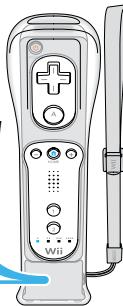
How to Use the Wii MotionPlus Accessory
On the title screen [see page 6], select Instructional Videos to view videos on how to attach and remove the Wii MotionPlus accessory. These videos will play the first time you play Wii Sports Resort. You can then view them again anytime by selecting this feature.
If the Wii MotionPlus Is Not Accurately Reflecting Your Movements
Place your Wii Remote with Wii MotionPlus on a flat surface with facing down and wait a few seconds for it to calibrate. You can press ① to open the pause menu [see page 8] and check the Wii MotionPlus calibration at any time.
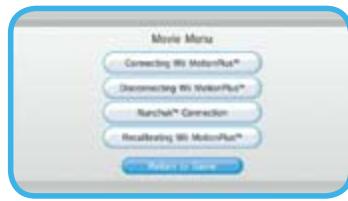
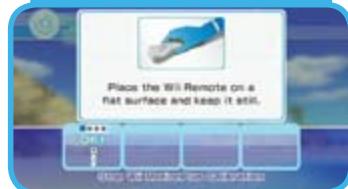
Calibrating the Wii MotionPlus
Place the Wii Remote with A facing down on a stable surface such as a table.
CAUTION: Wrist STRAP USE
Please use the wrist strap to help prevent injury to other people or damage to surrounding objects or the Wii Remote in case you accidentally let go of the Wii Remote during game play.
Also remember the following:
- Make sure all players put on the wrist strap properly when it is their turn.
- Do not let go of the Wii Remote during game play.
- Dry your hands if they become moist.
- Allow adequate room around you during game play and make sure that all areas you might move into are clear of other people and objects.
- Stay at least three feet from the television.
Use the jacket.
In Wii Sports Resort, some activities are played using only a Wii Remote controller with a Wii MotionPlus, and some require you to connect a Nunchuk controller.
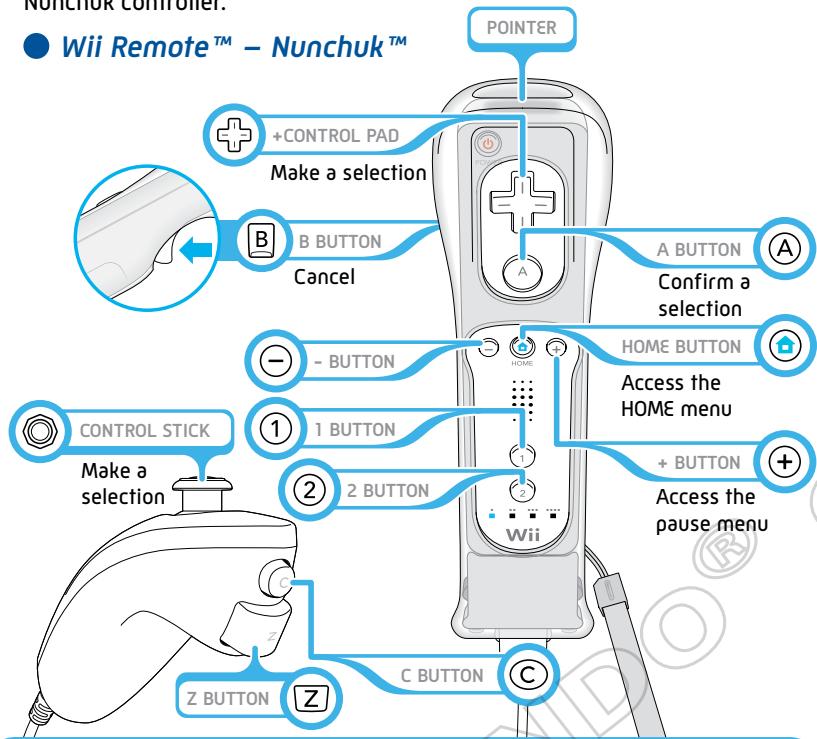
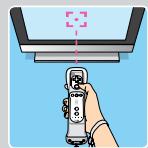
Pointing
With the pointer facing the TV screen, line up the Wii Remote with the place you want to point at. You can use the pointer to make menu selections. You'll also use the pointer to play some of the sports as well.
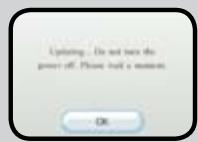
SYSTEM MENU UPDATE
Please note that when first loading the Game Disc into the Wii console, the Wii will check if you have the latest system menu, and if necessary, a Wii system update screen will appear. Press OK to proceed.
Insert the Wii Sports Resort Game Disc into the disc slot on the Wii console. The console power will turn on.

The screen on the right will be displayed. Once you have read the message, press ④ to continue.

HEALTH AND SAFETY SCREEN

On the Wii Menu, point at the Disc Channel and press A. The Channel Preview screen will appear.
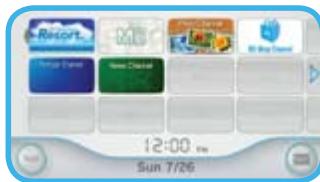
Wii MENU

Point at Start and press A. The Strap Usage screen will appear.
Note: The first time you start the game, you will also see a short instructional video for Wii MotionPlus, then the Strap Usage screen.
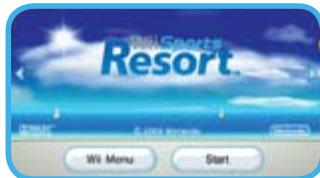
CHANNEL PREVIEW SCREEN

Once you have properly adjusted your wrist strap, press ④ to reach the title screen.
Note: The first time you start the game, the game will perform a Wii MotionPlus test (see page 4).
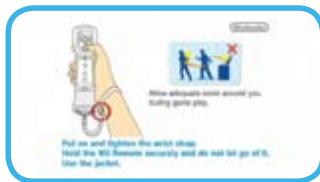
STRAP USAGE SCREEN

Press A and B at the same time to proceed to the main menu (see page 7). From here, you have the option to choose Instructional Videos to view the Wii MotionPlus instructions again.
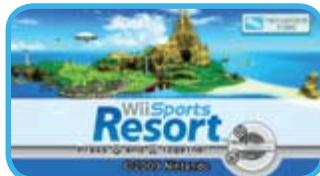
TITLE SCREEN
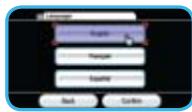
To play this game in English, change your language settings in the Wii System Settings.
Follow the steps below to begin the game.
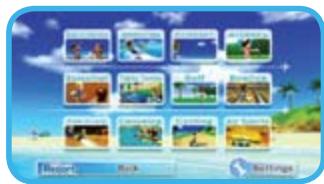
Select a Sport
First, choose the sport you want to play from the main menu. Depending on the sport, you may also need to choose an activity you want to play.
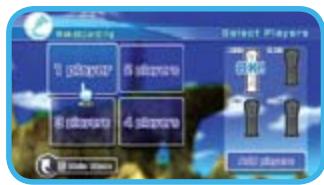
Select the Number of Players
Next, select the number of players. The maximum number of players depends on the sport.
After you have chosen the number of players, a Wii MotionPlus calibration will be performed (see page 4).
Note: When using multiple Wii Remotes to play, you may have to connect the required number of Wii Remotes. Press to display the HOME Menu, select Wii Remote Settings, click the Reconnect button, and then follow the directions on the screen.
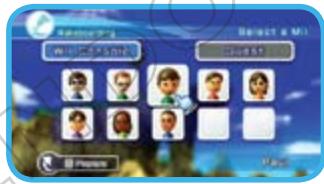
Select a Mii
The first time you play the game, you will need to register Mii characters found in the console to the Wii Sports Resort player list, or you can use guest Mii characters. If there are Mii characters already on the player list, the Mii last used will automatically be chosen. To use this Mii, choose Change Mii.
Depending on the sport, players may also need to choose different control styles, such as left- or right-handed controls. Once you have selected a control style, you must click the Change Mii button again to choose another play style. Up to 100 Mii characters can be registered.
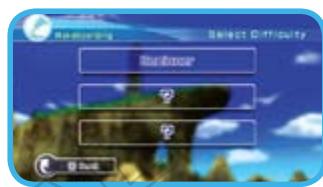
Select Course and Difficulty Level
Depending on the sport and activity, you can choose to play individually or on a team. You can also choose the course or difficulty level. Please follow the instructions on the screen.

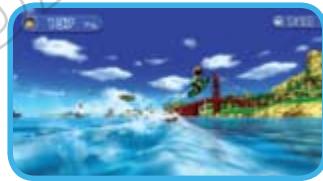
Time to Play!
Once you've made sure there are no people or objects around you, you're ready to play. Have fun!
When the game ends, a results screen will be displayed (see page 9).
Pause Menu
Press ① during a game to display the pause menu. Here you can check the calibration of the Wii MotionPlus. Point at Calibrate Wii MotionPlus Accessory and press ④ to begin calibration.
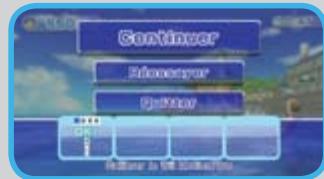
Pause Menu
| Continue | Return to game play. |
| Restart | Start the game again from the beginning. |
| Quit | End the game and return to the main menu. |
IMPORTANT!
If the Nunchuk does not seem to operate correctly after being plugged into Wii MotionPlus, remove and insert the Nunchuk connector plug into the connector on the bottom of Wii MotionPlus several times and then check the operation again. If the Nunchuk still does not operate correctly, visit support.nintendo.com or call 1-800-255-3700.
Playing some sports may unlock extra activities to play! Keep in mind that the rules for some sports in Wii Sports Resort may differ from the official rules for those sports.
Note: Team play requires three or more players.

Swordplay
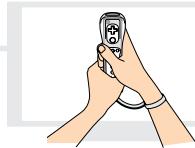
Controls:
- Hold the Wii Remote as if you were gripping a sword, with ④ facing you.
- Use both hands; one hand should be gripping the lower part of the Wii Remote and the Wii MotionPlus unit.
Duel
1 or 2 Players
- Wii Remote (held vertically) required for each player
Available anytime
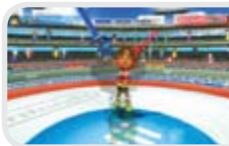
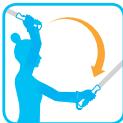
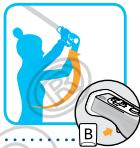
Attack your opponent with a sword and try to knock him or her off the game platform. Win two rounds to win. Move your sword up, down, left, and right to attack, and hold B to block your opponent's attacks.
Speed Slice
1 or 2 Players
- Wii Remote [held vertically] required for each player
- Unlocked after playing Duel mode
Compete to see who can slice the fastest. Cut the logs, balls, pencils, and other objects in the direction indicated as quickly as you can. The controls are the same as in Duel mode. The first to 10 points is the winner.
Showdown
- 1 Player
- One Wii Remote (held vertically) required
- Unlocked after playing Speed Slice mode
Fight a horde of enemy sword fighters!
The game will end if you get hit three times or you defeat all the enemies in the area. The controls are the same as in Duel mode.
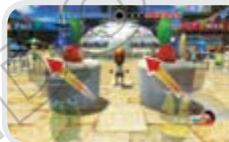

Wakeboarding
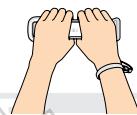
Controls:
- Hold the Wii Remote sideways and grip firmly with both hands.
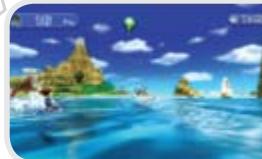
Wakeboarding
1-4 Players
- Wii Remote (held sideways) required; you can use one Wii Remote or a Wii Remote for each player
Available anytime
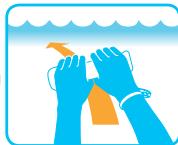
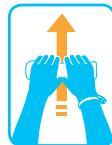
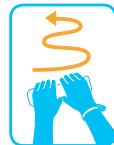
Tilt the Wii Remote left and right to carve through the water, then pull up when you go over the wake to get huge air. Pull off big tricks to earn points! Just make sure up

Archery
Controls:
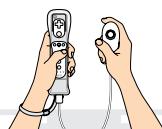
- Hold the Wii Remote in your left hand and the Nunchuk in your right hand. Stand as if you were shooting a real bow and arrow.
Archery
1-4 Players
- Wii Remote [held vertically] and Nunchuk required; you can share one set or use a set for each player
Available anytime
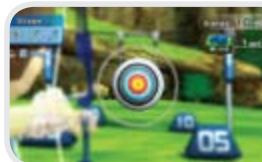
Aim for the center of the target! You have 12 shots in all, and you compete to see who gets the most points.
Keep the Wii Remote vertical and hold ④ to take position, then hold ② to draw the bow. Move the Wii Remote to aim, then release ② to fire your arrow.

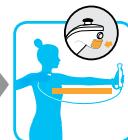
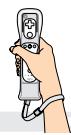
Controls:
- Grip the Wii Remote firmly in one hand without your thumb covering A.
Frisbee Dog
1-4 Players
Wii Remote (held sideways) required; you can use one Wii Remote or a Wii Remote for each player
Available anytime
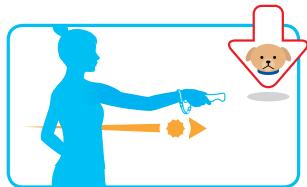
Throw your Frisbee at the target on the beach so your dog can run and catch it! Keep the Wii Remote level and make a motion as if you were throwing a real Frisbee. Release to let go of the disc. Automatic Control is also available.
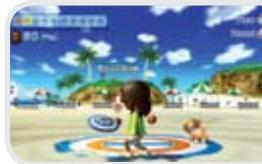
Frisbee Golf
1-4 Players
- Wii Remote (held sideways) required; you can use one Wii Remote or a Wii Remote for each player
- Unlocked after playing Frisbee Dog
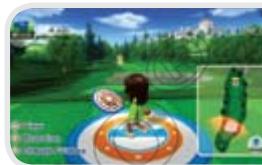
Play golf with a Frisbee! The object is to make it to the glowing pillar on the green in as few throws as you can. You can choose from three types of Frisbee discs based on the distance you have left to go. You'll throw the Frisbee just as you do in Frisbee Dog.
Controls:
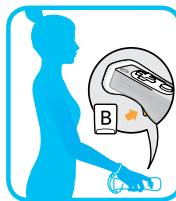
- Grip the Wii Remote in one hand with the buttons facing inward.
3-Point Contest
1-4 Players, competitive play or team play
- Wii Remote (held vertically) required; you can share one Wii Remote or use a Wii Remote for each player
Available anytime
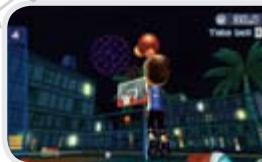
Compete to see who can make the most shots within the time limit.
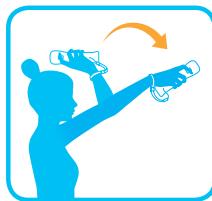
Move the Wii Remote into a level position and press until you take a ball, then return the Wii Remote to a vertical position and shoot the ball. (You can shoot up to 25 balls.)
Pickup Game
1-2 Players
- Wii Remote (held vertically) required for both players
- Unlocked after playing 3-Point Contest
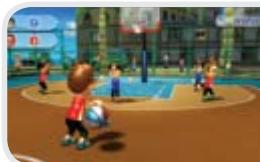
Play a 3-on-3 pickup game! On offense, press A or + to pass and to begin shooting. On defense, flick the Wii Remote to try to steal or block.
Controls:
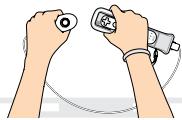
- Hold the Wii Remote and Nunchuk as if you were gripping handlebars.
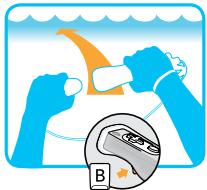
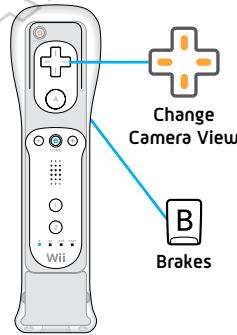
Press to accelerate. Tilt the Wii Remote and Nunchuk left and right to steer your personal watercraft. You can also press A to accelerate.
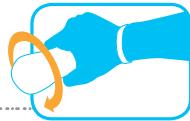
Twist the Wii Remote quickly toward you while the vehicle is moving to get a speed boost.
Slalom Course
1-4 Players
- Wii Remote and Nunchuk required; you can share one Wii Remote and Nunchuk or use a set for each player
Available anytime
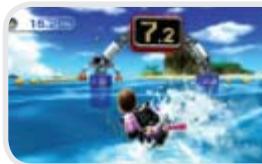
Ride the waves and try to get through the rings in the best time.
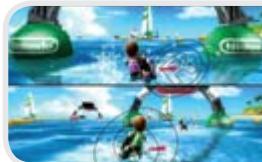
VS
2 Players
- Wii Remote and Nunchuk required for each player
Available anytime
Compete against a friend to make it to the goal first.

Cycling
Controls:
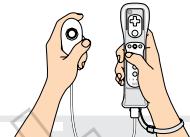
- Hold the Wii Remote and Nunchuk upright.
Pedaling
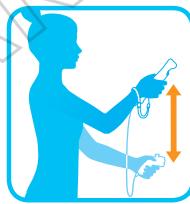
Alternate swinging the Wii Remote and Nunchuk up and down to pedal. To turn, lean the Wii Remote and Nunchuk controller left
or right. If you pedal too hard for too long, your Mii will get tired and need to stop for a break. When your Mii starts to sweat, try easing up a little and wait for your hearts to refill.
Road Race
1-2 Players
- Wii Remotes (held vertically) and Nunchuk controllers required for each player
Available anytime
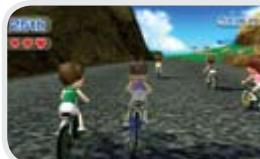
Alternate swinging the Wii Remote and the Nunchuk to pedal the bike. To turn, tilt both the Wii Remote and the Nunchuk in the direction you want to go. If you pedal too hard for too long, you'll have to take a short rest.
VS
2 Players
- Wii Remotes (held vertically) and Nunchuk controllers required for each player
- Unlocked after playing Road Race
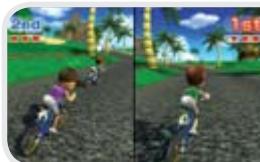
Controls are the same as in Road Race, but you race against another player.
Controls:
- Hold the Wii Remote in both hands pointing downward like a golf club.
Golf
1-4 Players
- Wii Remote (held vertically) required; you can share one Wii Remote or use a Wii Remote for each player
Available anytime
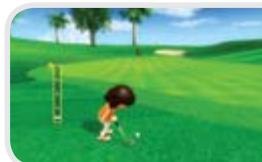
The rules are the same as in real golf. With the Wii Remote pointed down, press and hold B to set up. Press A to address the ball. Swing the Wii Remote to take your swing. You can change clubs by using +.
Swing the Club
Holding the Wii Remote (Right-handed)
Press left and right on to line up your shot.
Press up and down on to change clubs.
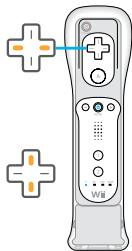
With the Wii Remote pointing down, press to reset your stance.
Swing the Wii Remote with the buttons facing the direction shown in this diagram.
Make a swinging motion as if you were hitting a real ball.
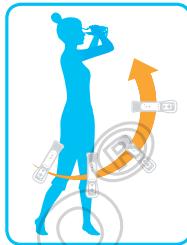
Twist your wrists to bend your shot, or make a flicking motion as you swing to put backspin on the ball. If your swing has too much power, however, your ball may not land on target.
- Putting [On the Green]
Press A and suing the Wii Remote.
![NINTENDO WII SPORTS RESORT - - Putting [On the Green] - 1](/content/2024/12/151461/images/688df5f234fb1655c2f3c57381a156c78cf739808c368e9ca1e7d5e894589025.jpg)
![NINTENDO WII SPORTS RESORT - - Putting [On the Green] - 2](/content/2024/12/151461/images/d18bb8e32578577f123196254ac87beb6346f1953fe5d772144adcf13cd3ffb5.jpg)
![NINTENDO WII SPORTS RESORT - - Putting [On the Green] - 3](/content/2024/12/151461/images/439ee6e4aa883480203b8fb11ecf9f43c560fac3ce4d59500a81aad6a3148070.jpg)
Check elevation
![NINTENDO WII SPORTS RESORT - - Putting [On the Green] - 4](/content/2024/12/151461/images/206167418cc65df85c7b4dcb0d1cdf60ba772631eb7d2a5ed89f660a24c340ec.jpg)
Zoom in
itting
the ball with this side of the Wii Remote.
Swing gently as if you were putting a ball.
![NINTENDO WII SPORTS RESORT - - Putting [On the Green] - 5](/content/2024/12/151461/images/4cb7a382d1809a2b858ebefbb5054a3a7eb49f8c1f005dc8cee8900c1fc919fe.jpg)
Swing Meter
When you swing, the swing meter will be displayed on the left side of the screen. If, for example, you swing with 50% power on the swing meter, the ball will hit the ground at 50% of the distance estimated on the course map on the right side of the screen. Keep in mind that wind, bunkers, rough terrain, and other elements may have an effect on how the ball travels. Also, for left-handed golfers, the positions of the swing meter and course map will be reversed.

Table Tennis
Controls:
- Hold the Wii Remote in one hand like a paddle.
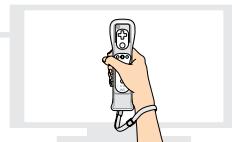
Match
1-2 Players
- Wii Remote (held vertically) required for each player
- Available anytime
To serve, toss the ball using , then swing the Wii Remote. You can hit backhand or forehand. Movement is automatic. You can also twist the Wii Remote when you hit the ball to put spin on it, causing it to turn and cut unexpectedly.
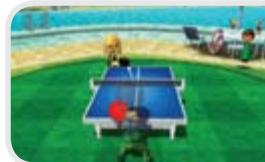
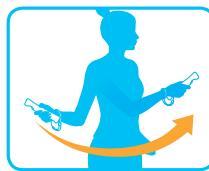
Return Challenge
1-4 Players
- Wii Remote (held vertically) required; you can share one Wii Remote or use a Wii Remote for each player
- Unlocked after playing Table Tennis Match
Return as many serves as you can to get points. Basic controls are the same as in Match mode.
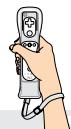
Controls:
- Grip the Wii Remote in one hand.
How to Bowl (Manual throwing style)
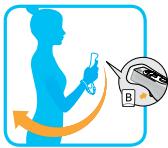
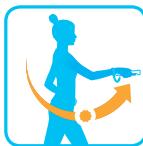
Press and hold B, then raise the Wii Remote to chest level.
Bring your arm back and then forward as if you were throwing a bowling ball. You time the release by letting go of ② . You can also play using Automatic throwing style, where the ball will release automatically. You can change your throwing style by selecting Change Mii.
Standard Game
1-4 Players
- Wii Remote (held vertically) required; you can share one Wii Remote or use a Wii Remote for each player
Available anytime
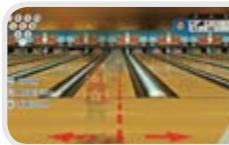
Set up with the Wii Remote in front of your chest and press to begin your throw. You can twist the Wii Remote as you throw to put spin on the ball, causing it to curve.
100-Pin Game
1-4 Players
- Wii Remote (held vertically) required; you can share one Wii Remote or use a Wii Remote for each player
- Unlocked after playing Standard Game
The controls are the same as in Standard Game, but in this game your goal is to knock down 100 pins instead of 10.
Spin Control
1-4 Players
- Wii Remote (held vertically) required; you can share one Wii Remote or use a Wii Remote for each player
- Unlocked after playing 100-Pin Game
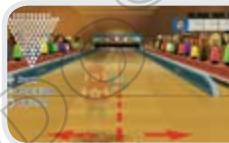
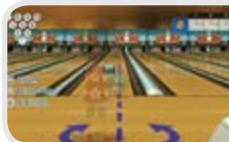
Avoid the barriers that appear in the lane and try to knock down the pins. Controls are the same as in Standard Game.
Canoeing
Controls:
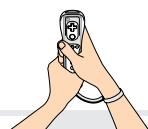
- Hold the Wii Remote upright and grip it with both hands. Keep the buttons facing you.
Paddling
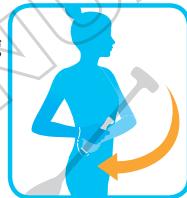
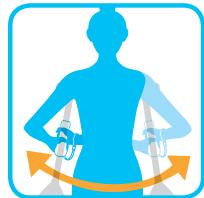
Pull the Wii Remote from front to back as if you were paddling with an oar. Tilt the Wii Remote left or right to change the side you are paddling on. Alternate paddling between your left and right sides to keep your boat going straight.
Speed Challenge
1-4 Players
- Wii Remote (held vertically) required for each player
Available anytime
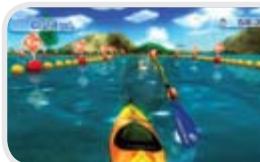
Paddle your canoe and try to make it to the goal before time runs out. Hold the Wii Remote in both hands, just like you would grip a paddle. Paddle to the right and left side of your body to paddle the canoe.
VS
2-4 Players
- Wii Remote (held vertically) required for each player
Available anytime
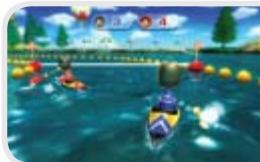
Try to make it past the checkpoints on the course before your opponent does. The first boat to cross five checkpoints first wins. Controls are the same as in Speed Challenge.
Stamps
Some modes have a number of stamps that you can receive if you fulfill certain conditions. Press to see the requirements for each stamp and which stamps you've collected so far.
Controls:
- Hold the Wii Remote in one hand.
Skydiving
Player
Wii Remote required
- Available anytime
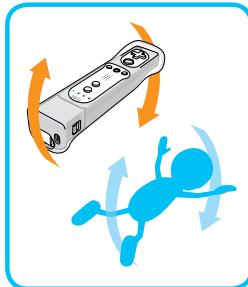
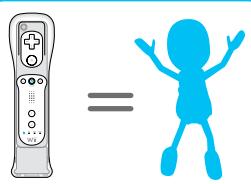
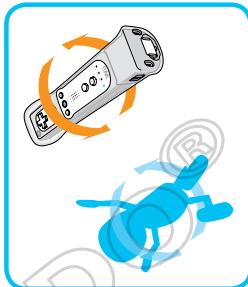
As you fall through the sky, tilt the Wii Remote to glide and catch the other Mii characters jumping with you. Your goal is to link up and get some photos of your jump. Try to catch as many Mii characters as possible on your way down. You can change your position (as well as the Mii characters linked
up with you] by tilting the Wii Remote. Try to get everyone's smile in the picture!
Controls:
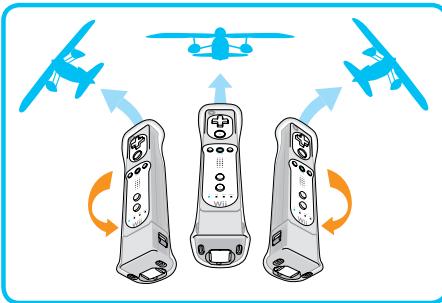
- Hold the Wii Remote in one hand, as if you were holding a toy plane.
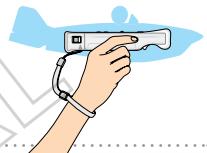
Island Flyover
1 Player
- Wii Remote (held from bottom) required
Available anytime
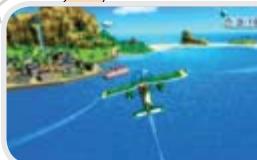
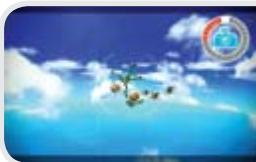
Hold the Wii Remote with your fingertips, like a paper airplane; the plane on the screen will follow the movements of the Wii Remote. You can push the Wii Remote forward to get a speed burst, or pull back to hit the air brake. Press ④ to fire your balloon blaster and ⑤ to cut the engine. Fly around and explore the island to find landmarks!
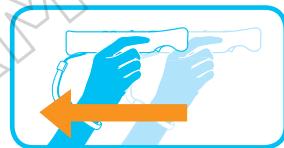
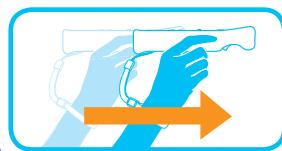
Dogfight
2 Players
- Wii Remote (held from bottom) required for each player
Available anytime
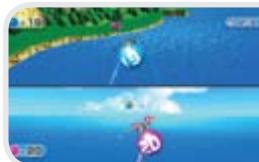
Fire your balloon blaster to knock out your opponent's balloons. When time is up, whoever popped the most balloons wins!
VEUILLEZ LIRE ATTENTIVEMENT L'INTÉGRAlité DU MODE D'EMPLOI DE LA WiiT™ AVANT D'UTILISER VOTRE CONSOLE, VOTRE DISQUE DE JEU OU VOS ACCESSOIRS Wii. CE MODE D'EMPLOI CONTIENT D'IMPORTANTES INFORMATIONS SUR VOTURE SANTÉ ET VOTURE SECURITÉ.
INFORMATIONS IMPORTANTES CONCERNANT VOITE SECURITE : VEUILLEZ LIRE LES PRECAUTIONS SUIVANTES AVANT QUE VOUS OU QUE VOITE ENFANT NE JOUIEZ À DES JEUX VIDEO.
Movements involontaires
Perte de conscience
Désorientation