ROADMATE 300 - Navigation GPS MAGELLAN - Free user manual and instructions
Find the device manual for free ROADMATE 300 MAGELLAN in PDF.


| Product Type | Navigation GPS |
| Brand | MAGELLAN |
| Model | ROADMATE 300 |
| Dimensions | Approximately 10 x 7 x 2 cm |
| Weight | Approximately 150 g |
| Power Supply | Integrated rechargeable battery, AC adapter |
| Screen | Color touch screen |
| Main Functions | GPS navigation, address search, points of interest (POI), sector selection, QuickSpell, online help |
| QuickSpell Technology | Predictive input of street and city names to avoid errors |
| Sector Selection | Choice of one or more sectors to speed up search |
| Available Languages | French, English, German, Italian, Spanish, Portuguese, Dutch, etc. |
| Maintenance | Wipe with a soft, dry cloth. Avoid moisture. |
| Safety | Warning screen on startup; do not use while driving without a mount. |
| Technical Support | Phone support (00800 MAGELLAN) or email (magellansupportfr@thalesnavigation.com) |
| Warranty | See supplier terms |
Frequently Asked Questions - ROADMATE 300 MAGELLAN
User questions about ROADMATE 300 MAGELLAN
0 question about this device. Answer the ones you know or ask your own.
Ask a new question about this device
Download the instructions for your Navigation GPS in PDF format for free! Find your manual ROADMATE 300 - MAGELLAN and take your electronic device back in hand. On this page are published all the documents necessary for the use of your device. ROADMATE 300 by MAGELLAN.
USER MANUAL ROADMATE 300 MAGELLAN
Instructions for Operating the Magellan RoadMate 300
Thank you for purchasing the Magellan RoadMate 300. This document is included to explain the new software features and enhancements not covered or changed since the release of Firmware Version 1.65.
The major enhancement include:
- Improved region selection
- Improved address selection enabling you to find your destination more quickly
Additional on-line help
Please use this addendum in lieu of the corresponding instructions in the Basic User Guide and Reference Manual found on the Documentation CD included.
If you need support for your Magellan RoadMate and you wish to contact Thales, the following information is provided so that you can direct your questions/comments to the proper person.
For Magellan product support and warranty service information in English, French, Italian, German, Spanish, Portuguese, Dutch, Norwegian, Finnish, Danish, and Greek please dial FREE PHONE: 00800MAGELLAN* (00800 62435526) from
9 AM to 6 PM GMT & GMT+1 or send an e-mail in English, French, German, or Spanish, to: magellansupportfr@thalesnavigation.com.
*Free of charge phone access available from Eire, UK, Portugal, Spain, France, Italy, Belgium, The Netherlands, Germany, Austria, Switzerland, Norway, Sweden, Denmark, Finland, and Greece.
For Magellan product telephone support in English, French or German from other Europe, Middle East or African locations please dial: +33 2 28 09 38 00* or send an e-mail to: magellansupportfr@thalesnavigation.com
- international communication charge according to operator.
For Magellan product telephone support in other European, Middle East or African Languages please contact our distributors listed on www.magellangps.com in our dealer locator or send an e-mail to: magellansupportfr@thalesnavigation.com.
New Features
Turning the Magellan RoadMate On
This process assumes you are starting the unit right out of the box. Press the Power button. The Power button is located on the left side of the unit. If power is properly connected, a logo screen is displayed.
Next, you will need to select the language you wish to use for your Magellan RoadMate. The language selection will be used for menu text and audible voice prompts.
The Warning screen will appear. At the bottom of the screen, select your preferred user. The Magellan RoadMate can be personalized for three different users.
A Help screen will appear informing you of the time it may take for a GPS position fix. Press OK to continue. If you do not wish to see this screen again at startup, press Don't Show Again.
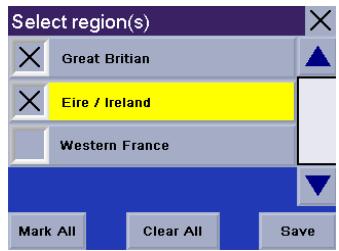
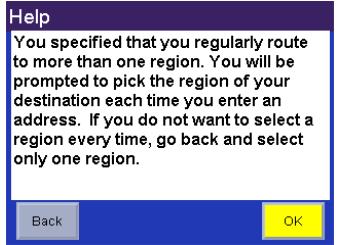
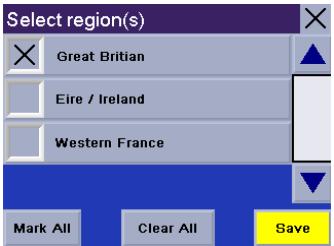
Follow the Help screens and select a region or regions you most often travel within. If you select only one region, all searches will be from that region. If you select two or more regions, when you conduct a search, you will be asked to select the region from which to search. When you have finished, select Save.
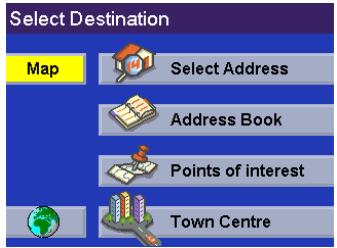
The region is active. Follow the remaining Help screens and the Select Destination screen will appear.

Warning
During vehicle operation, the driver must:
1. Not program the unit unless the vehicle
has come to a complete stop.
2. Remain attentive to driving and look at the
screen only briefly.
3. Comply with all traffic laws.
4. Disregard any hazardous, unsafe or illegal
route suggestions.
USER1
USER2
USER3
Help
At start-up, it may take several minutes to locate your vehicle's GPS position: ensure you are stationary and in clear view of the sky to allow for optimal satellite acquisition.
Don't Show Again
OK
Select Destination
Map

Select Address

Address Book

Points of interest

Town Centre
New Features
Help with Street Names
The Magellan RoadMate uses “Multi-Word Indexing” which allows you to enter any part of a street name. For example, if you know the street name contains “bart” you can simply enter “B-A-R-T” and the Magellan RoadMate will return all streets with those characters in the name.
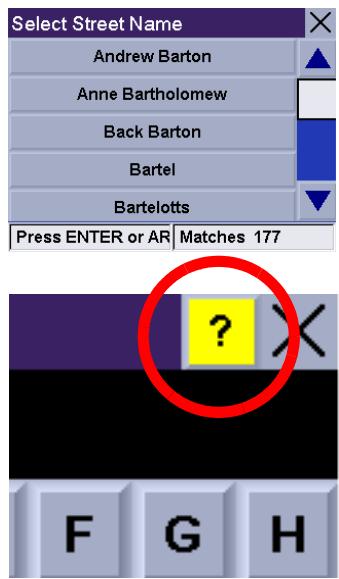
If at any time you need help with entering street names, press the Help button.
Using QuickSpell®
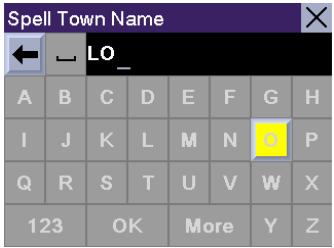
The Magellan RoadMate uses QuickSpell technology to provide you with the fastest method possible to enter characters. QuickSpell eliminates the possibility of a misspelled word or looking for a city or street that is not in the database. As you begin entering characters, the QuickSpell feature of the Magellan RoadMate dims out those characters that are not available, thereby speeding up the process of entering data.
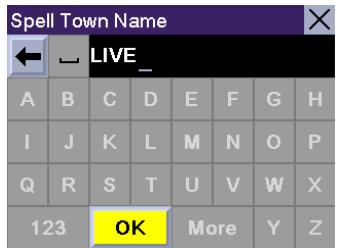
Suppose that you need to input the name of a city, in this case, Liverpool.
Enter the characters. When you have entered enough characters to match the desired city, it will show in the speller. Select OK.
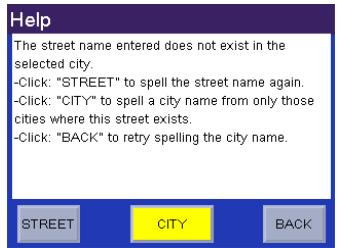
However, because the city search lists all cities in the active region, matching the characters inputted, it is possible to select a city that does not contain the street selected previously.
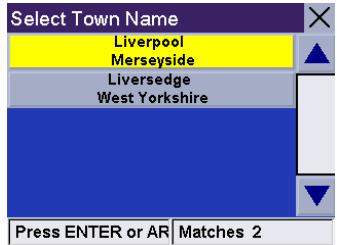
In this case, you can either select Street to re-enter the street name; select City to choose only form cities that contain the desired street; or choose Back to continue spelling the city name. For this example select City.
New Features
Enter the name of the desired city. Notice this time you enter fewer characters to match the desired city in the speller.
Accessing Regions
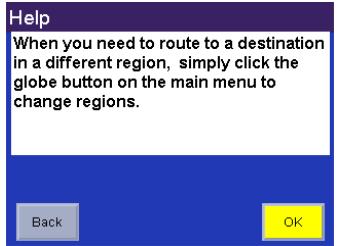
When you turn the unit on you will be asked to select a region you most often travel within. If you select only one region, all searches will be from that region. If you select two or more regions, when you conduct a search, you will be asked to select the region from which to search. If you need to conduct a search from a region that is not active, you will need to first activate the necessary region.
Press the Globe button.
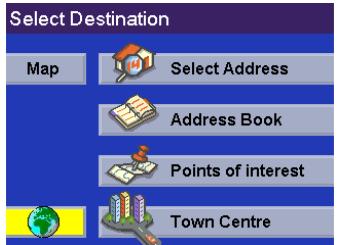
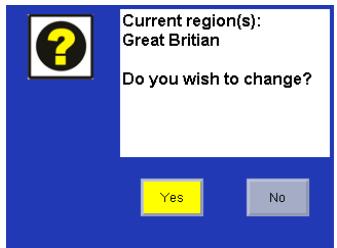
A dialog will appear asking you to confirm your selection. Select Yes.
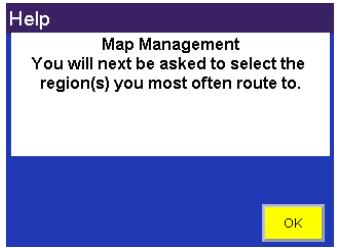
You will be prompted to select the region or regions you most often route to. Select OK.
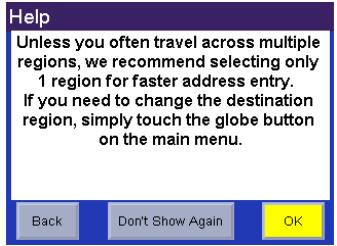
Selecting only one region will greatly speed up the time it takes to search for addresses and POIs. Select OK to proceed to the next screen or, select Back to view the previous screen. If you do not wish to view this screen each time you select a map region, select Don't Show Again.
New Features
Select the region or regions you wish to activate. Select Save.
If you select more than one region to activate, you will be prompted to select the region when searching for an address, POI, or Intersection. Select OK.
Select OK.
The region is active.