SYSTEM 13828 - Audio System HARMAN KARDON - Free user manual and instructions
Find the device manual for free SYSTEM 13828 HARMAN KARDON in PDF.


| Product Type | Home cinema audio system with AVR 138 receiver and DVD 28 player |
| Brand | HARMAN KARDON |
| Model | SYSTEM 13828 |
| Dimensions (AVR receiver) | 440 x 165 x 382 mm |
| Weight (AVR receiver) | 9.6 kg |
| Dimensions (DVD player) | 440 x 50 x 285 mm |
| Weight (DVD player) | 4.0 kg |
| Power supply | AC 230 V / 50 Hz |
| Power consumption (AVR) | 72 W (standby), 580 W max |
| Output power (stereo) | 2 x 40 W (8 ohms, 20 Hz - 20 kHz, < 0.07 % THD) |
| Output power (5 channels) | 5 x 30 W (8 ohms, 20 Hz - 20 kHz, < 0.07 % THD) |
| Surround modes | Dolby Digital, DTS, DTS Neo:6, Logic 7, Dolby Pro Logic II, Stereo, etc. |
| Radio tuner | AM/FM with RDS |
| Audio connectivity | Analog audio inputs (CD, DVD, Tape, Video), optical and coaxial digital inputs, subwoofer output, headphone output |
| Video connectivity | Composite inputs/outputs, S-Video, component Y/Pr/Pb, HDMI (DVD) |
| Supported audio formats (DVD) | DVD-Audio, CD, MP3, WMA, JPEG, DivX, Dolby Digital, DTS |
| Safety | Do not open the enclosure (risk of electric shock). Refer all repairs to qualified personnel. |
| Care and cleaning | Clean with a soft, dry cloth. Do not use volatile substances (benzene, alcohol). |
| Spare parts and repairability | No user-serviceable parts. For any intervention, contact an authorized service center. |
Frequently Asked Questions - SYSTEM 13828 HARMAN KARDON
User questions about SYSTEM 13828 HARMAN KARDON
0 question about this device. Answer the ones you know or ask your own.
Ask a new question about this device
Download the instructions for your Audio System in PDF format for free! Find your manual SYSTEM 13828 - HARMAN KARDON and take your electronic device back in hand. On this page are published all the documents necessary for the use of your device. SYSTEM 13828 by HARMAN KARDON.
USER MANUAL SYSTEM 13828 HARMAN KARDON
AVR 138 Audio/Video Receiver
DVD 28 Digital Versatile Disc Player
OWNER'S MANUAL




AVR 138
3 Safety Information
3 Unpacking
4 Remote Control Functions (AVR 138/DVD 28)
8 Front Panel Controls
10 Rear Panel Connections
12 Installation and Connections
12 Audio Equipment Connections
13 Video Equipment Connections
14 System Configuration
14 First Turn On
14 Settings to be Made With Each Input Use
14 Input Setup
15 Speaker Setup
16 Surround Setup
16 Configuring the Surround Off (Stereo) Modes
16 Stereo-Direct (Bypass) Mode
16 Stereo Digital Mode
16 Delay Settings
17 Night Mode Settings
17 Output Level Adjustment
19 Operation
19 Basic Operation
19 Source Selection
19 Controls and Use of Headphones
19 Surround Mode Selection
20 Digital Audio Playback
21 Selecting a Digital Source
21 Digital Status Indicators
21 Surround Mode Types
22 Night Mode
22 Tape Recording
22 Output Level Trim Adjustment
23 6-Channel Direct Input
23 Display Brigthness
23 Memory Backup
23 Tuner Operation
24 RDS Operation
25 Troubleshooting Guide
25 Processor Reset
DVD 28
26 Terminology
27 Features, Packing List
28 Front Panel Controls
29 Front Panel Information Display
30 Rear Panel Connections
31 Setup and Connections
31 Connecting to a TV Only
31 to a Dolby Digital/DTS Amplifier/Receiver
33 Digital Audio Connections
34Playback Basics
34 Basic Play
34Playback Features
35 About DivX Movie Files
36 System Set-up
36 System Defaults
36 Set Up Menu
36 System Settings
37 Audio Settings
38 Audio Adjustments Submenu
39 Video Settings
40 Test Screen
40 Test Screen
40 TV Picture Adjustment
41 Player Menu
41 Using the Player Information Menu
41 Using the On-Screen Status Display
42 CDPlayback
44 MP3, Windows Media and JPEG Playback
46 Troubleshooting Guide
47 Technical Specifications
48 Specifications
Declaration of Conformity

We, Harman Consumer Group, Inc.
2, route de Tours
72500 Château-du-Loir,
FRANCE
declare in own responsibility, that the product described in this owner's manual is in compliance with technical standards:
EN 55013:2001 +A1:2003
EN 55020:2002 +A1:2003
EN 61000-3-2:2000
EN 61000-3-3:1995 + A1:2001
EN 60065:2002
Jurjen Amsterdam
an Consumer Group, Inc.
07/08
NOTE: This player is designed and manufactured for compatibility with Region Management Information that is encoded on most DVD discs. This player is designed only for playback of discs with Region Code 2, or for discs that do not contain Region Code information. If there is any other Region Code on a disc, that disc will not play on the DVD.

Typographical Conventions
In order to help you use this manual with the remote control, front-panel controls and rear-panel connections, certain conventions have been used.
EXAMPLE - (bold type) indicates a specific remote control or front-panel button, or rear-panel connection jack
EXAMPLE - (OCR type) indicates a message that is visible on the front-panel information display
1 - (number in a square) indicates a specific front-panel control
1 - (number in a circle) indicates a rear-panel connection
1 - (number in an oval) indicates a button or indicator on the remote.
Important Safety Information
- Read these instructions.
- Keep these instructions.
- Heed all warnings.
- Follow all instructions.
- Do not use this apparatus near water.
- Clean only with a dry cloth.
- Do not block any ventilation openings. Install in accordance with the manufacturer's instructions.
- Do not install near any heat sources such as radiators, heat registers, stoves or other apparatus (including amplifiers) that produce heat.
- Do not defeat the safety purpose of the polarized or grounding-type plug. A polarized plug has two blades with one wider than the other. A grounding-type plug has two blades and a third grounding prong. The wide blade or the third prong is provided for your safety. If the provided plug does not fit into your outlet, consult an electrician for replacement of the obsolete outlet.
- Protect the power cord from being walked on or pinched, particularly at plugs, convenience receptacles and the point where they exit from the apparatus.
- Only use attachments/accessories specified by the manufacturer.
- Use only with the cart, stand, tripod, bracket or table specified by the manufacturer or sold with the apparatus. When a cart is used, use caution when moving the cart/apparatus combination to avoid injury from tip-over.
- Unplug this apparatus during lightning storms or when unused for long periods of time.
- Refer all servicing to qualified service personnel. Servicing is required when the apparatus has been damaged in any way, such as power supply cord or plug is damaged, liquid has been
spilled or objects have fallen into the apparatus, the apparatus has been exposed to rain or moisture, does not operate normally, or has been dropped.
- Do not expose this apparatus to dripping or splashing and ensure that no objects filled with liquids, such as vases, are placed on the apparatus.
- To completely disconnect this apparatus from the AC Mains, disconnect the power supply cord plug from the AC receptacle.
- The mains plug of the power supply cord shall remain readily operable.
- Do not expose batteries to excessive heat such as sunshine, fire or the like.
The lightning flash with arrowhead symbol, within an equilateral triangle, is intended to alert the user to the presence of uninsulated "dangerous voltage" within the product's enclosure that may be of sufficient magnitude to constitute a risk of electric shock to persons.
The exclamation point within an equi-lateral triangle is intended to alert the user to the presence of important operating and maintenance
(servicing) instructions in the literature accompanying the product. WARNING: To reduce the risk of fire or electric shock, do not expose this apparatus to rain or moisture.
Do Not Open the Cabinet
There are no user-serviceable components inside this product. Opening the cabinet may present a shock hazard, and any modification to the product will void your guarantee. If water or any metal object such as a paper clip, wire or a staple accidentally falls inside the unit, disconnect it from the AC power source immediately, and consult an authorized service station.
Installation Location
To assure proper operation and to avoid the potential for safety hazards, place the unit on

CAUTION
RISK OF ELECTRIC SHOCK DO NOT OPEN

CAUTION: TO REDUCE THE RISK OF ELECTRIC SHOCK, DO NOT REMOVE COVER (OR BACK). NO USER-SERVICEABLE PARTS INSIDE. REFER SERVICING TO QUALIFIED SERVICE PERSONNEL.

The lightning flash with arrowhead symbol, within an equilateral triangle, is intended to alert the user to the presence of uninsulated "dangerous voltage" within the product's enclosure that may be of sufficient magnitude to constitute a risk of electric shock to persons.

The exclamation point within an equilateral triangle is intended to alert the user to the presence of important operating and maintenance (servicing) instructions in the literature accompanying the appliance.
WARNING: TO REDUCE THE RISK OF FIRE OR ELECTRIC SHOCK, DO NOT EXPOSE THIS APPLIANCE TO RAIN OR MOISTURE.
a firm and level surface. When placing the unit on a shelf, be certain that the shelf and any mounting hardware can support the weight of the product.
Make certain that proper space is provided both above and below the unit for ventilation. If this product will be installed in a cabinet or other enclosed area, make certain that there is sufficient air movement within the cabinet. Under some circumstances a fan may be required.
- Do not place the unit directly on a carpeted surface.
- Avoid installation in extremely hot or cold locations, or an area that is exposed to direct sunlight or heating equipment.
Avoid moist or humid locations.
- Do not obstruct the ventilation slots on the top of the unit, or place objects directly over them.
Cleaning
When the unit gets dirty, wipe it with a clean, soft, dry cloth. If necessary, wipe it with a soft cloth dampened with mild soapy water, then a fresh cloth with clean water. Wipe dry immediately with a dry cloth. NEVER use benzene, aerosol cleaners, thinner, alcohol or any other volatile cleaning agent. Do not use abrasive cleaners, as they may damage the finish of metal parts. Avoid spraying insecticide near the unit.
Moving the Unit
Before moving the unit, be certain to disconnect any interconnection cords with other components, and make certain that you disconnect the unit from the AC outlet.
Unpacking
The carton and shipping materials used to protect your new receiver during shipment were specially designed to cushion it from shock and vibration. We suggest that you save the carton and packing materials for use in shipping if you move, or should the unit ever need repair.
To minimize the size of the carton in storage, you may wish to flatten it. This is done by carefully slitting the tape seams on the bottom and collapsing the carton. Other cardboard inserts may be stored in the same manner. Packing materials that cannot be collapsed should be saved along with the carton in a plastic bag.
If you do not wish to save the packaging materials, please note that the carton and other sections of the shipping protection are recyclable. Please respect the environment and discard those materials at a local recycling center.
Power On Button
Not active
IR Transmitter Window
4 Power Off Button
Mute
Input Selectors
7 Info
Volume Up/Down
9 HD Mode Selector
Speaker Select/Setup
OK Button
Delay/Status Button
Memory/Angle Button
14 Clear Button
15 Preset Up/Down
16 RDS Select/Progressive Scan/Interlaced Button
17 Playlist
18 A-B
DTS Neo:6 Mode Selector
20 Stereo Mode Selector
21 Logic 7 Selector
2 Dim Button
Transport Buttons
24 Skip Up/Down Buttons (DWN)/(UP)
Night Mode
DTS Digital Mode Selector
27 Dolby Mode Selector
Repeat
29 Random
30 Tone Mode/Test Tone ON/OFF
3 Tuning Up/Down
32 Direct Button
3 Tuner Mode/Zoom
34 Numeric Keys
Digital Select/Audio Mode
Navigation Buttons
37 Channel Select /Disc Menu Button
38 V.OFF
39 Surround Mode Selector/Program Down/Subtitle Button
40 Sleep/Program Up/Audio Select Button
41 Title
42 6-Channel Direct Input
43 AM/FM Tuner Select
44 AVR Selector
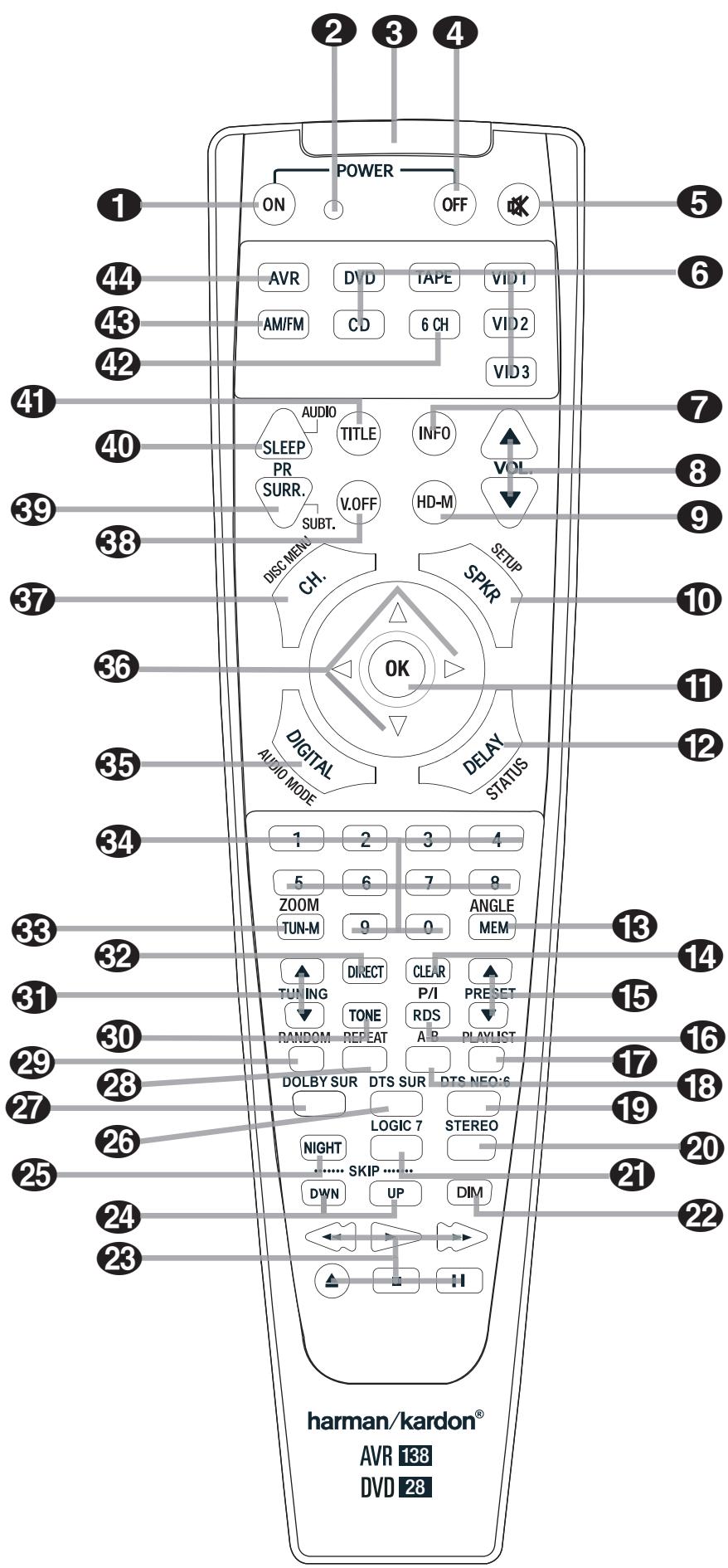
IMPORTANT NOTE: The 13828 remote has some buttons that perform different functions. If you press the AVR Button 4, one set of functions is active, identical to the functions for buttons CD, Tape, Video 1/2/3. If you press the DVD Button 6, some of the buttons change their function as indicated above the button itself, and explained below. Refer to the function table for an overview of functions in both modes.
1 Power On Button: Press this button to turn on the power to the AVR or the DVD selected by pressing either the AVR or the DVD Button 44 or 6.
This indicator is not active.
IR Transmitter Window: Point this window towards the AVR when pressing buttons on the remote to make certain that infrared commands are properly received.
4 Power Off Button: Press this button to place the AVR or a selected device unit in the Standby mode. If held for more than 3 seconds, both the AVR and the DVD switch to Standby.
Mute: Press this button to momentarily silence the AVR or TV set being controlled, depending on which device has been selected.
Input Selectors: Pressing one of these buttons will perform three actions at the same time. First, if the AVR is not turned on, this will power up the unit. Next, it will select the source shown on the button as the input to the AVR. Finally, the DVD Button will switch the double-function remote buttons to their DVD functions. After pressing the DVD Button, you must press the AVR Selector button again to operate all the AVR's functions with the remote. Note that pressing the DVD Button switches on BOTH the AVR and the DVD, whereas pressing the AVR Button just switches on the AVR.
7 Info (DVD): Press for detailed informations on the disc playing (Video/Audio Bit rate, Movie aspect ratio and others), and for current player settings made. Note that the unit doesn't react on any transport button as long as the info menu is displayed. Press again to remove information from screen.
Volume Up/Down: Press these buttons to raise or lower the system volume.
9 HD Mode Selector (DVD): When the DVD player is connected to a video display using the HDMI Output 1, the display sends information to the DVD indicating the highest video resolution it is capable of handling, and the DVD automatically sets the video output to match it. Pressing this button allows you to manually change the output resolution, with your selection indicated by the Video Output Indicators 0.
The DVD will not allow you to select a resolution beyond the capabilities of your display, and if you try to do so, an on-screen error message will appear to alert you to the selection of an incompatible video format. Changes made with this button remain active until the DVD or the display is turned off. When either is turned off, and then on again, the DVD will revert to the default setting transmitted by the display.
Speaker Select/Setup: Press this button to begin the process of configuring the AVR's Bass Management System for use with the type of speakers used in your system. Once the button has been pressed, use the / buttons
36 to select the channel you wish to set up. Press the OK button 11 and then select the speaker type (see page 14 for more information.)
For DVD: Press this button to use the DVD's on-screen menu system to adjust the player's configuration settings. Note that the Info Button
must be pressed to access the DVD's Information menu to obtain detailed disc information, and to configure the playback mode of the disc.
OK Button: This button is used to enter settings into the AVR's memory. It is also used in the setup procedures for delay time, speaker configuration and channel output level adjustment.
Delay/Status Button: Press this button to begin the process for setting the delay times used by the AVR when processing surround sound. After pressing this button, the delay times are entered by pressing the OK button
11 and then using the / buttons 36 to change the setting. Press the Set button again to complete the process. (See page 16 for more information.)
For DVD: Press while a disc is playing to view banner display. Use the ARROW buttons to move through the different features in the Banner Display. When a symbol is highlighted, press OK on the remote to select it.
Memory/Angle Button: Press this button to enter a radio station into the AVR's preset memory. Two underline indicators will flash at the right side of the Main Information Display
16, you then have five seconds to enter a preset memory location using the Numeric Keys 34. (See page 23 for more information.)
For DVD: Press to access various camera angles on a DVD (If the DVD contains multiple camera angles) or to rotate JPEG images.
14 Clear Button: Press this button to clear incorrect entries when using the remote to directly enter a radio station's frequency.
15 Preset Up/Down: When the tuner is in use, press these buttons to scroll through the stations programmed into the AVR's memory. When CD or DVD is selected using the Input Selector button 6, these buttons may function as Slow Fwd/Rev (DVD) or ^ 串 +10 CD).
16 RDS Select/Progressive Scan/Interlaced Button: Press this button to display the various messages that are part of the RDS data system of the AVR's tuner. (See page 24 for more information on RDS).
For DVD: Press this button to change the resolution of the Component Video Output between standard definition and progressive definition (PAL interlaced and PAL progressive; NTSC interlaced and NTSC progressive). The new setting will become effective after quitting the Setup menu.
17 Playlist (DVD): Press this button to change the playback order of the disc.
A-B (DVD): Press to select section A-B and to play repeatedly.
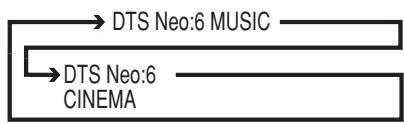
DTS Neo:6 Mode Selector: Pressing this selector button cycles the AVR through the various DTS Neo:6 modes, which extract a five-channel surround field from two-channel program material (from PCM source or analog input signal). The first press selects the last DTS Neo:6 surround mode that was in use, and each subsequent press selects the next mode in the following order:
20 Stereo Mode Selector: Press this button to select a stereo playback mode. When the button is pressed so that DSP SURR OF F appears in the Main Information Display 16, the AVR will operate in a bypass mode with true fully analog, two-channel left/right stereo mode with no surround processing or bass management as opposed to other modes where digital processing is used. When the button is pressed so that SURROUND OF F appears in the Main Information Display 16, you may enjoy a two-channel presentation of the sound along with the benefits of bass management. When the button is pressed so that 5 CHSTEREO appears, the stereo signal is routed to all five speakers, if installed.(See page 16 for more information on stereo playback modes).
Logic 7 Selector: Press this button to select one of the available Logic 7 surround modes. (See page 19 for the available Logic 7 options).
Dim Button: Press this button to activate the Dimmer function, which reduces the brightness of the front panel display, or turn it off entirely. The first press of the button shows the default state, which is full brightness by indicating VFD FULL in the Main Information Display 16. Press the button again within five seconds to reduce the brightness by 50% , as indicated by VFD HALF. Press the button again within five seconds and the main display will go completely dark. Note that this setting is temporary; the display will always return to full brightness when the AVR is turned on. In addition, both the Power Indicator 3 and the blue accent lighting inside the volume control will always remain at full brightness regardless of the setting. This is to remind you that the AVR is still turned on.
23 Transport Buttons: These buttons operate the DVD player.
24 Skip Up/Down Buttons (DVD): (DWN): Press to go to beginning of current track. Press again quickly to go to beginning of previous track. After pressing the PAUSE button, each press of this button will move the image in reverse frame by frame. (UP): Press to go to beginning of next track. After pressing the PAUSE button, each press of this button will move the image forwards frame by frame.
25 Night Mode: Press this button to activate the Night mode. This mode is available only with Dolby Digital encoded digital sources, and it preserves dialog (center channel) intelligibility at low volume levels (See page 17 for more information).
DTS Digital Mode Selector: When a DTS source is in use the AVR will select the appropriate mode automatically and no other mode will be available. Pressing this button will display the mode currently selected by the AVR's decoder, depending on the surround material played and the speaker setting.
21 Dolby Mode Selector: This button is used to select one of the available Dolby Surround processing modes. Each press of this button will select one of the Dolby Pro Logic II modes, Dolby 3 Stereo or Dolby Digital. Note that the Dolby Digital mode is only available with a digital input selected and the other modes only as long as a Dolby Digital source is not playing.
Repeat (DVD): Each press of this button changes the playback mode to repeat a chapter or track or the entire disc. A repeat icon will appear in the upper right corner of the screen indicating the current repeat mode. If the Player Information Screen is active, the changes will be displayed on screen.
29 Random (DVD): Press for RANDOM playback in random order.
30 Tone Mode: Pressing this button enables or disables the Bass and Treble tone controls. When the button is pressed so that the words TONE IN appear in the Main Information Display 16, the settings of the Bass and Treble controls will affect the output signals. When the button is pressed so that the words T ONE OUT appear in the Main Information Display 16, the output signal will be "flat," without any bass or treble alteration.
31 Tuning Up/Down: When the tuner is in use, these buttons will tune up or down through the selected frequency band. If the Tuner Mode button has been pressed or the Band button on the front panel was held pressed so that A U T 0 appears in the Main Information Display 16, pressing either of the buttons will cause the tuner to seek the next station with acceptable signal strength for quality reception. When the M AN U A L appears in the Main Information Display 16, pressing these buttons will tune stations in single-step increments. (See page 23 for more information.)
32 Direct Button: Press this button when the.
tuner is in use to start the sequence for direct
entry of a station's frequency. After pressing the
button simply press the proper Numeric Keys 34 to select a station (See page 23 for more information on the tuner).
Tuner Mode/Zoom: Press this button when the tuner is in use to select between automatic tuning and manual tuning. When the button is pressed so MANUAL appears in the Main Information Display 16, pressing the Tuning buttons 318 will move the frequency up or down in single-step increments. When the FM band is in use and A U T 0 appears in the Main Information Display 16, pressing this button will change to monaural reception making even week stations audible. (See page 23 for more information.)
When a DVD or VCD is playing, press this button to zoom the picture so that it is enlarged. There are 4 steps to the zoom function, each progressively larger. Press through each of the zoom stages to return to a normal picture.
34 Numeric Keys: These buttons serve as a ten-button numeric keypad to enter tuner preset positions. For DVD play you may enter track numbers directly, followed by OK to go to the track.
35 Digital Select/Audio Mode: Press this button to assign one of the digital inputs 5171022 to a source. (See page 14 for more information on using digital inputs.) Audio Mode: When operating the DVD, press this Button to switch between Audio Modes.
Navigation Buttons: These are multi-purpose buttons. They will be used most frequently to select a surround mode. These buttons are also used to increase or decrease output levels when configuring the unit, to select speaker configuration or to select the digital inputs.
37 Channel Select /Disc Menu Button: This button is used to start the process of setting the AVR's output levels with an external source. Once this button is pressed, use the / buttons 36 to select the channel being adjusted, then press the OK button 11, followed by the / buttons again, to change the level setting. (See page 22 for more information.)
DVD Disc Menu: Displays the actual DVD Disc Menu on the TV screen in play mode. When playing discs with JPEG images, pressing this button will access the thumbnails.
38 V.OFF: Press to turn off video output for improved performance from audio-only discs. Press again to restore video output.
Surround Mode Selector/Program
Down/Subtitle Button: Press this button to begin the process of changing the surround mode. After the button has been pressed, use the / buttons 36 to select the desired surround mode. (See page 20 for more information).
When a DVD is playing, press to select a subtitle language or to turn subtitles off.
Note: Due to the variations in how DVD discs are authored, the subtitle languages selected with the Subtitle Button may not accurately reflect the actual languages available on the disc. It is recommended that subtitles be selected using the disc's menu.
40 Sleep/Program Up>/Audio Select
Button: Press this button to place the unit in the Sleep mode. After the time shown in the display, the AVR will automatically go into the Standby mode. Each press of the button changes the time until turn-off in the following order:
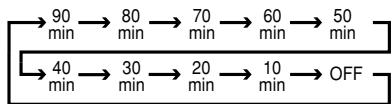
Hold the button pressed for two seconds to turn off the Sleep mode setting.
Note that this button is also used to change channels on your TV, VCR and SAT receiver when selected.
DVD: Press to access various audio languages on a DVD (If the DVD contains multiple audio streams).
41 Title: When a disc is playing, press to make the player go back to the first section of the disc. If you are playing a DVD-Audio disc that contains other formats the DVD is capable of playing, such as linear PCM or Dolby Digital 5.1, pressing this button may enable you to switch playback from one audio format to another.
42 6-Channel Direct Input: Press this button to select the component connected to the
6-Channel Direct Input 24 as the audio. Note that when you wish to use the Six Channel Direct Input in conjunction with a video source, you must first select the video source by pressing one of the Input Selectors 6. Then press this button to choose the 6-Channel Direct Input 24 as the audio source.
43 AM/FM Tuner Select: Press this button to select the AVR's tuner as the listening choice. Pressing this button when the tuner is in use will select between the AM and FM bands.
44 AVR Selector: Pressing this button will switch the remote so that it will operate the AVR's functions. If the AVR is in the Standby mode, it will also turn the AVR on.
| No. | Button Name | AVR/TAPE/CD/VID1/VID2/VID3 | DVD |
| AUDIO | DVD | ||
| 1 | Power On | Power On | Power On |
| 2 | Power Off | Power Off | Power Off |
| 5 | Mute | Mute | Mute (AVR) |
| 44 | AVR | AVR Power On | AVR |
| 6 | DVD | DVD | DVD |
| 6 | TAPE | TAPE | TAPE |
| 6 | VID1 | VID1 | VID1 |
| 43 | AM/FM | AM/FM | AM/FM |
| 6 | CD | CD | CD |
| 42 | 6CH | 6CH | 6CH |
| 6 | VID2 | VID2 | VID2 |
| 6 | VID3 | VID3 | VID3 |
| 40 | Sleep/ Audio | Sleep | Audio |
| 41 | Title | Title | |
| 8 | Info | Info | |
| 8 | Vol Up | Vol Up | Vol Up |
| 39 | Surr./ Subt. | Surr. | Subtitle |
| 38 | V.OFF | V.OFF | |
| 9 | HD-M | HD Mode | |
| 8 | Vol Down | Vol Down | Vol Down |
| 37 | CH. / Disc menu | Channel | Disc Menu |
| 10 | SPKR / Setup | Speaker | Setup |
| 36 | Level+/Up | Level+/Up | Up |
| 36 | Left < | Left < | Left |
| 11 | OK | SET | Enter |
| 36 | Right > | Right > | Right |
| 36 | Level-/Down | Level-/Down | Down |
| 35 | Digital / Audio mode | Digital | Audio mode |
| 12 | Delay / Status | Delay | Status |
| 34 | 1 | 1 | 1 |
| 34 | 2 | 2 | 2 |
| 34 | 3 | 3 | 3 |
| 34 | 4 | 4 | 4 |
| 34 | 5 | 5 | 5 |
| 34 | 6 | 6 | 6 |
| 34 | 7 | 7 | 7 |
| 34 | 8 | 8 | 8 |
| 33 | TUN-M / Zoom | TUN-M | Zoom |
| 34 | 9 | 9 | 9 |
| 34 | 0 | 0 | 0 |
| 13 | MEM / Angle | Memory | Angle |
| 31 | Tuning Up | Tuning Up | |
| 32 | Direct | Direct | |
| 14 | Clear | Clear | Clear |
| 15 | Preset Up | Preset Up | Slow Up |
| 31 | Tuning Down | Tuning Down | |
| 30 | Tone | Tone Mode/Test Tone ON-OFF | |
| 16 | RDS/ P/I | RDS | P/I |
| 15 | Preset Down | Preset Down | Slow Down |
| 29 | Random | Random | |
| 28 | Repeat | Repeat | |
| 18 | A-B | A-B | |
| 17 | Playlist | Playlist | |
| 27 | Dolby Surround | Dolby Surround | Dolby Surround |
| 28 | DTS Surround | DTS Surround | DTS Surround |
| 19 | DTS NEO:6 | DTS NEO:6 | DTS NEO:6 |
| 25 | Night | Night | Night |
| 21 | Logic7 | Logic7 | Logic7 |
| 20 | Stereo | Stereo | Stereo |
| 24 | Skip Down | Skip Down(DVD) | Prev Step |
| 24 | Skip Up | Skip Up(DVD) | Next Step |
| 22 | DIM | Dimmer | Dimmer |
| 23 | Rew(▲) | Rew(DVD) | REW |
| 23 | Play(▲) | Play(DVD) | Play |
| 23 | FF(▲) | FF(DVD) | FF |
| 23 | Open/Close | Open/Close(DVD) | Open/Close |
| 23 | Stop | Stop(DVD) | Stop |
| 23 | Pause | Pause(DVD) | Pause |
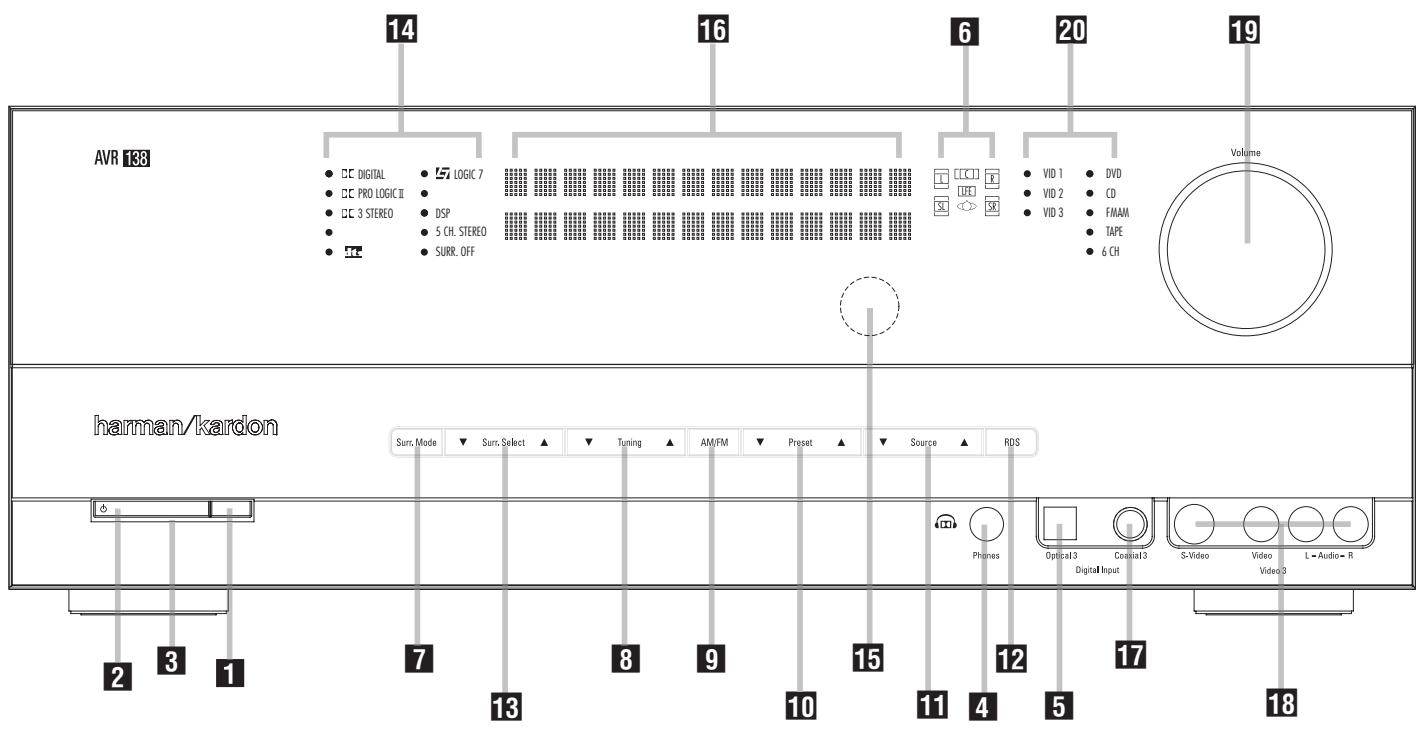
1 Main Power Switch
2 System Power Control
3 Power Indicator
4 Headphone Jack
5 Digital Optical 3 Input
6 Speaker/Channel Input Indicator
7 Surround Mode Group Selector
8 Tuning
9 Tuner Band Selector
10 Preset Stations Selector
11 Input Source Selector
12 RDS Select Button
13 Surround Mode Selector
14 Surround Mode Indicators
Remote Sensor Window
16 Main Information Display
17 Digital Coax 3 Input
18 Video 3 input jacks
19 Volume Control
20 Input Indicators
1 Main Power Switch: Press this button to apply power to the AVR. When the switch is pressed in, the unit is placed in a Standby mode, as indicated by the orange LED 3. This button MUST be pressed in to operate the unit. To turn the unit off completely and prevent the use of the remote control, this switch should be pressed until it pops out from the front panel so that the word "OFF" may be read at the top of the switch.
NOTE: This switch is normally left in the "ON" position.
2 System Power Control: When the Main Power Switch 1 is "ON," press this button to turn on the AVR; press it again to turn the unit off (to Standby). Note that the Power
Indicator 3 will turn blue when the unit is on.
3 Power Indicator: This LED will be illuminated in orange when the unit is in the Standby mode to signal that the unit is ready to be turned on. When the unit is in operation, the indicator will turn blue.
4 Headphone Jack: This jack may be used to listen to the AVR's output through a pair of headphones. Be certain that the headphones have a standard 6.3 mm stereo phone plug. Note that the speakers will automatically be turned off when the headphones are connected.
5 Digital Optical 3 Input: Connect the optical digital audio output of an audio or video product to this jack. When the Input is not in use, be certain to keep the plastic cap installed to avoid dust contamination that might degrade future performance.
6 Speaker/Channel Input Indicators: These indicators are multipurpose, indicating either the speaker type selected for each channel or the incoming data-signal configuration. The left, center, right, right surround and left surround speaker indicators are composed of three boxes, while the subwoofer is a single box. The center box lights when a "Small" speaker is selected, and the two outer boxes light when "Large" speakers are selected. When none of the boxes are lit for the center, surround or subwoofer channels, no speaker has been selected for that position. (See page 16 for more information on configuring speakers.) The letters inside each of the center boxes display active input channels. For standard analog inputs, only the L and R will light, indicating a stereo input. When a digital source is playing, the indicators will light to display the channels begin received at the digital input. When the letters flash, the digital input has been interrupted. (See page 15 for more information on the Channel Indicators).
7 Surround Mode Group Selector: Press this button to select the top-level group of surround modes. Each press of the button will select a major mode grouping in the following order:
Dolby Modes DTS Digital Modes DSP Modes Stereo Modes Logic 7 Modes
Once the button is pressed so that the name of the desired surround mode group appears in the Lower Display Line 16, press the Surround Mode Selector 18 to cycle through the individual modes available. For example, press this button to select Dolby modes, and then press the Surround Mode Selector 18 to choose from the various mode options.
8 Tuning Selector: Press the left side of the button to tune lower frequency stations and the right side of the button to tune higher frequency stations. When a station with a strong signal is reached, MANUAL TUNED or AUTO TUNED will appear in the Main Information Display (see page 23 for more information on tuning stations).
9 Tuner Band Selector: Pressing this button will automatically switch the AVR to the Tuner mode. Pressing it again will switch between the AM and FM frequency bands, holding it pressed for some seconds will switch between stereo and mono receiving and between automatic and manual tuning mode (See page 23 for more information on the tuner).
10 Preset Stations Selector: Press this button to scroll up or down through the list of stations that have been entered into the preset memory. (See page 23 for more information on tuner programming.)
Input Source Selector: Press this button to change the input by scrolling through the list of input sources.
12 RDS Select Button: Press this button to display the various messages that are part of the RDS data system of the AVR's tuner. (See page 24 for more information on RDS).
18 Surround Mode Selector: Press this button to select from among the available surround mode options for the mode group selected. The specific modes will vary based on the number of speakers available, the mode group and if the input source is digital or analog. For example, press the Surround Mode Group Selector
7 to select a mode grouping such as Dolby or Logic 7, and then press this button to see the mode choices available. For more information on mode selection, see page 9.
14 Surround Mode Indicators: Indicator will illuminate in front of the surround mode that is currently in use.
Remote Sensor Window: The sensor behind this window receives infrared signals from the remote control. Aim the remote at this area and do not block or cover it unless an external remote sensor is installed.
16 Main Information Display: This display delivers messages and status indications to help you operate the receiver.
17 Digital Coax 3 Input: This jack is normally used for connection to the output of portable digital audio devices, video game consoles or other products that have a coax digital jack.
18 Video 3 Input Jacks: These audio/video jacks may be used for temporary connection to video games or portable audio/video products such as camcorders and portable audio players.
19 Volume Control: Turn this knob clockwise to increase the volume, counterclockwise to decrease the volume. If the AVR is muted, adjusting volume control will automatically release the unit from the silenced condition.
20 Input indicators: Indicator will illuminate in front of the input that is currently being used as the source for the AVR.
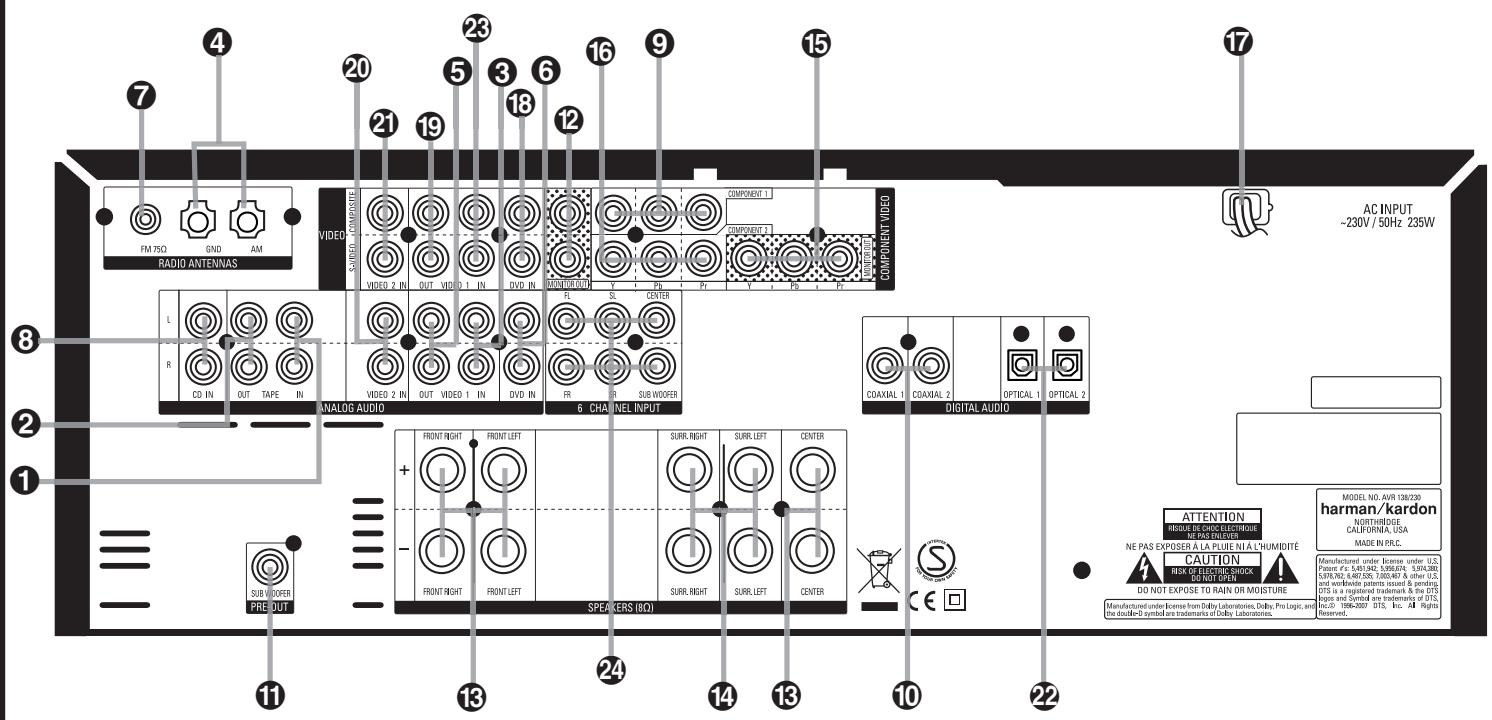
1 Tape Inputs
2 Tape Outputs
3 Video 1 Audio Inputs
4 AM Antenna
Video 1 Audio Outputs
DVD Audio Inputs
FM Antenna
CD Inputs
Video 2 Component Video Inputs
10 Coaxial Digital Inputs
1 Subwoofer Output
12 Video Monitor Outputs
13 Front/Center Speaker Outputs
14 Surround Speaker Outputs
15 Component Video Outputs
16 Video 1 Component Video Inputs
17 AC Power Cord
DVD Video Inputs
Video 1 Video Outputs
Video 2 Audio Inputs
21 Video 2 Video Inputs
Optical Digital Inputs
Video 1 Video Inputs
24 6-Channel Direct Inputs
1 Tape Inputs: Connect these jacks to the PLAY/OUT jacks of an audio recorder.
2 Tape Outputs: Connect these jacks to the RECORD/INPUT jacks of an audio recorder.
3 Video 1 Audio Inputs: Connect these jacks to the PLAY/OUT audio jacks on a TV or other video source.
AM Antenna: Connect the AM loop antenna supplied with the receiver to these terminals. If an external AM antenna is used, make connections to the AM and GND terminals in accordance with the instructions supplied with the antenna.
Video 1 Audio Outputs: Connect these jacks to the RECORD/INPUT audio jacks on a VCR or any other Audio recorder.
DVD Audio Inputs: Connect these jacks to the analog audio jacks on a DVD or other video source.
FM Antenna: Connect the supplied indoor or an optional external FM antenna to this terminal.
CD Inputs: Connect these jacks to the analog output of a compact disc player or CD changer.
Video 2 Component Video Inputs:
Connect the Y/Pr/Pb component video outputs of an HDTV Set-top converter, satellite receiver, or other video source device with component video outputs to these jacks.
Coaxial Digital Inputs: Connect the coax digital output from a DVD player, HDTV receiver, LD player, MD player or CD player to these jacks. The signal may be either a Dolby Digital signal, DTS signal or a standard PCM digital source. Do not connect the RF digital output of an LD player to these jacks.
Subwoofer Output: Connect this jack to the line-level input of a powered subwoofer. If an external subwoofer amplifier is used, connect this jack to the subwoofer amplifier input.
2 Video Monitor Outputs: Connect these jacks to the composite and/or S-Video input of a TV monitor or video projector to view the output of any video source selected by the receiver's video switcher.
18 Front/Center Speaker Outputs: Connect these outputs to the matching + or - terminals on your front/center speakers. When making speaker connections, always make certain to maintain correct polarity by connecting the red (+) terminals on the AVR to the red (+) terminals on the speaker and the black (-) terminals on the AVR to the black (-) terminals on the speakers. (See page 12 for more information on speaker polarity.)
14 Surround Speaker Outputs: Connect these outputs to the matching + or - terminals on your left and right surround speakers. When making speaker connections always make certain to maintain correct polarity by connecting the red (+) terminals on the AVR to the red (+) terminals on the speakers and the black (-) terminals on the AVR to the black (-) terminals on the speakers. See page 12 for more information on speaker polarity.
15 Monitor Component Video Outputs: Connect these outputs to the component video inputs of a video projector or monitor. When a source connected to one of the two Component Video Inputs 9 is selected the signal will be sent to these jacks.
16 Video 1 Component Video Inputs: Connect the Y/Pr/Pb component video outputs of a DVD player to these jacks.
Note: All component inputs/outputs can be used for RGB signals too, in the same way as described for the Y/Pr/Pb signals, then connected to the jacks with the corresponding color. RGB connection is not possible if the source outputs a separate sync signal (see page 13).
AC Power Cord: Connect the AC plug to an unswitched AC wall output.
DVD Video Inputs: Connect these jacks to the composite or S-Video output jacks on a DVD player or other video source.
Video 1 Video Outputs: Connect these jacks to the RECORD/INPUT composite or S-Video jack on a VCR.
20 Video 2 Audio Inputs: Connect these jacks to the PLAY/OUT audio jacks on a VCR or other video source.
2) Video 2 Video Inputs: Connect these jacks to the PLAY/OUT composite or S-Video jacks on a second VCR or other video source.
Optical Digital Inputs: Connect the optical digital output from a DVD player, HDTV receiver, LD player, MD player or CD player to these jacks. The signal may be either a Dolby Digital signal, a DTS signal or a standard PCM digital source.
Video 1 Video Inputs: Connect these jacks to the PLAY/OUT composite or S-Video jacks on a TV or other video source.
Note: Either the Video or S-Video output of any S-Video source must be connected to the AVR, not both in parallel, otherwise the video may be disturbed or its performance be adversely effected.
24 6-Channel Direct Inputs: These jacks are used for connection to source devices such as DVD-Audio or SACD players with discrete analog outputs.
After unpacking the unit, and placing it on a solid surface capable of supporting its weight, you will need to make the connections to your audio and video equipment.
Audio Equipment Connections
We recommend that you use high-quality interconnect cables when making connections to source equipment and recorders to preserve the integrity of the signals.
When making connections to audio source equipment or speakers it is always a good practice to unplug the unit from the AC wall outlet. This prevents any possibility of accidentally sending audio or transient signals to the speakers that may damage them.
Important Note : In order to clearly identify all connectors and simplify installation, as per the new EIA/CEA-863 standard, all connections are colour coded as follows:
For Speakers and Audio In/Outputs: White (Left, speakers front) and Red (Right, speakers front).
For Speakers: Green (Center), Blue (Left Surround) and Grey (Right Surround).
For Audio Output: Purple (Subwoofer).
For Composite Video In/Outputs: Yellow.
For Digital Audio In/Outputs: Orange.
- Connect the analog output of a CD player to the CD inputs ③.
NOTE: When the CD player has both fixed and variable audio outputs it is best to use the fixed output unless you find that the input to the receiver is so low that the sound is noisy, or so high that the signal is distorted. - Connect the analog Play/Out jacks of a cassette deck, MD, CD-R or other audio recorder to the Tape Input jacks ①. Connect the analog Record/In jacks on the recorder to the Tape Output jacks ② on the AVR.
- Connect the output of any digital sources to the appropriate input connections on the AVR rear panel. Note that the Optical and Coaxial digital inputs 210517 may be used with a Dolby Digital or DTS source or the output of a conventional CD, MD or LD player's PCM (S/P-DIF) output.
- Assemble the AM Loop Antenna supplied with the unit as shown below. Connect it to the AM and GND screw terminals 4
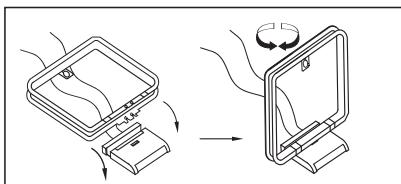
-
Connect the supplied FM antenna to the FM (75 ohm) connection ⑦. The FM antenna may be an external roof antenna, an inside powered or wire lead antenna or a connection from a cable system. Note that if the antenna or connection uses 300-ohm twin-lead cable, you must use a 300-ohm-to-75-ohm adapter to make the connection.
-
Connect the front, center and surround speaker outputs 13 to the respective speakers.
To assure that all the audio signals are carried to your speakers without loss of clarity or resolution, we suggest that you use high-quality speaker cable. Many brands of cable are available and the choice of cable may be influenced by the distance between your speakers and the receiver, the type of speakers you use, personal preferences and other factors. Your dealer or installer is a valuable resource to consult in selecting the proper cable.
Regardless of the brand of cable selected, we recommend that you use a cable constructed of fine, multistrand copper with an area greater than 2mm^2
Cable with an area of 1.5mm^2 may be used for short runs of less than 4m . We do not recommend that you use cables with an area less than 1mm^2 due to the power loss and degradation in performance that will occur.
When connecting wires to the speakers, be certain to observe proper polarity. Remember to connect the "negative" or "black" wire to the same terminal on both the receiver and the speaker. Similarly, the "positive" or "red" wire should be connected to like terminals on the AVR and speaker.
NOTE: While most speaker manufacturers adhere to an industry convention of using black terminals for negative and red ones for positive, some manufacturers may vary from this configuration. To assure proper phase and optimal performance, consult the identification plate on your speaker or the speaker's manual to verify polarity. If you do not know the polarity of your speaker, ask your dealer for advice before proceeding, or consult the speaker's manufacturer.
We also recommend that the length of cable used to connect speaker pairs be identical. For example, use the same length piece of cable to connect the front-left and front-right or surround-left and surround-right speakers, even if the speakers are a different distance from the AVR.
- Connections to a subwoofer are normally made via a line level audio connection from the Subwoofer Output ① to the line-level input of a subwoofer with a built-in amplifier. When a passive subwoofer is used, the connection first goes to a power amplifier, which will be connected to one or more subwoofer speakers. If you are using a powered subwoofer that does not have line-level input connections, follow the instructions furnished with the speaker for connection information.
Note: Speaker sets with two front satellites and a passive subwoofer must be connected to the front speaker outputs 13 only rather than to the Subwoofer Output 1.
- If an external multi-channel audio source with 5.1 outputs such as an external digital processor/decoder, DVD-Audio or SACD player is used, connect the outputs of that device to the 6-Channel Direct Inputs 24.
Video Equipment Connections
Video equipment is connected in the same manner as audio components. Again, the use of high-quality interconnect cables is recommended to preserve signal quality. To ensure best video performance S-Video sources should be connected to the AVR only with their S-Video In/Outputs, not with their composite video connectors too.
- Connect a VCR's audio and video Play/Out jacks to the Video 2 In jacks ② 1 on the rear panel. The Audio and Video Record/In jacks on the VCR should be connected to the Video 1 Out jacks ⑤ 19 on the AVR.
- Although any video device may be connected to these jacks, we recommend connecting your TV to the Video 1 Audio/Video Input Jacks ③ so that you may take advantage of the fact that the remote control is preprogrammed with TV product codes for the Video 1 device. For the same reason, we recommend connecting your video recorder, cable TV converter or satellite receiver to the Video 2 Audio/Video Input Jacks 2021 .
- Connect the analog audio and video outputs of a DVD to the DVD jacks ⑥ 13.
- Connect the digital audio outputs of a CD, MD or DVD player, satellite receiver, cable box or HDTV converter to the appropriate Optical or Coaxial Digital Inputs 102517. Remember that the DVD source defaults to the Coaxial 1 Digital Input 2. All other sources default to their analog inputs, although any source may be assigned to any digital audio input on the receiver.
- Connect the Composite and S-Video (if S-Video device is in use) Monitor Output ② jacks on the receiver to the composite and S-Video input of your television monitor or video projector.
-
If your DVD player and monitor both have component video connections, connect the component outputs of the DVD player to the Video 1 Component Video Inputs ⑥. Note that even when component video connections are used the audio connections must still be made to either the analog DVD Audio Inputs ⑥ or any of the Coaxial or Optical Digital Input jacks ⑩ ②.
-
If another component video device is available, connect it to the Video 2 Component Video Input jacks ⑨ . The audio connections for this device should be made to either the Video 2 Input jacks ② or any of the Coaxial or Optical Digital Input jacks 1022 .
- If the component video inputs are used, connect the Component Video Output ⑤ to the component video inputs of your TV, projector or display device.
- If you have a camcorder, video game or other audio/video device that is connected to the AVR on a temporary, rather than permanent basis, connect the audio, video and digital audio outputs of that device to the Front Panel Inputs 51718. A device connected to the Video 3 jacks 18 is selected as the Video 3 input, and connected to the digital jacks 517 it is selected as "Optical 3" or "Coaxial 3" input. (See page 16 for more information on input configuration.)
Video Connection Notes:
- Y/Pr/Pb Component, RGB (see page 14), or Composite video signals may only be viewed in their native formats and will not be converted to the other formats.
- All component inputs/outputs can be used for RGB signals too, in the same way as described for the Y/Pr/Pb signals, then connected to the jacks with the corresponding color. But this is only correct as long as only the three RGB video signals are output by the video source, with a sync signal in the "G" signal only, without any sync signal output separately by the source.
Once the speakers have been placed in the room and connected, the remaining steps are to program the system configuration memories. With the AVR two kind of memories are used, those associated individually with the input selected, e.g. surround modes, and others working independently from any input selected like speaker output levels, or delay times used by the surround sound processor.
First Turn On
You are now ready to power up the AVR to begin these final adjustments.
- Plug the Power Cable ⑦ into an unswitched AC outlet.
- Press the Main Power Switch 1 in until it latches and the word "OFF" on the top of the switch disappears inside the front panel. Note that the Power Indicator 3 will turn orange, indicating that the unit is in the Standby mode.
- Remove the protective plastic film from the front-panel lens. If left in place, the film may affect the performance of your remote control.
- Install the three supplied AAA batteries in the remote as shown. Be certain to follow the (+) and (-) polarity indicators that are on the bottom of the battery compartment.
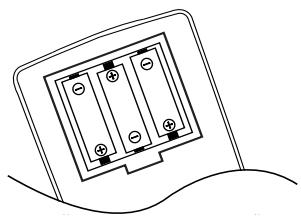
- Turn the AVR on either by pressing the System Power Control 2 or the Input Source Selector 11 on the front panel, or via the remote by pressing the AVR Selector 44 or any of the Input Selectors 6 on the remote. The Power Indicator 3 will turn blue to confirm that the unit is on, and the Main Information Display 16 will also light up.
NOTE: After pressing one of the Input Selector buttons to turn the unit on, press the AVR Selector 44 to have the remote control the AVR functions.


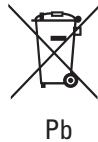
Instructions for users on removal and disposal of used batteries.
Specification of included battery types.
These symbols shown on the product, the packaging or in the manual or separate information sheet mean that the product itself, as well as the batteries included or built into the product, should never be thrown away with general household waste. Take them to applicable collection points, where proper treatment, recycling and recovery takes place, in accordance with national or local legislation, or European Directives 2002/96/EC and 2006/66/EC.
Correct handling of the product and batteries to be disposed helps saving resources and prevents possible negative effects on the environment or human health.
The batteries included with your equipment may be Alkaline, Carbon Zink/Manganese or Lithium (button cells) type. All types should be disposed of according to the above instructions.
To remove the batteries from your equipment or remote control, reverse the procedure described for inserting batteries in the Owners Manual.
For products with a built-in battery that lasts for the lifetime of the product, removal may not be possible for the user. In this case, recycling or recovery centers handle the dismantling of the product and the removal of the battery. If, for any reason, it becomes necessary to replace such a battery, this procedure must be performed by authorized service centers.
Settings to be Made With Each Input Used
The AVR features an advanced memory system that enables you to establish different settings for the speaker configuration, digital input, surround mode, delay times and output levels for each input source. This flexibility enables you to custom tailor the way in which you listen to each source and have the AVR memorize them. This means, for example, that you may associate different surround modes and analog or digital inputs with different sources, or set different speaker configurations with the resultant changes to the bass management system or the use of the Center speaker. Once these settings are made, they will automatically be recalled whenever you select an input.
The default settings for the AVR, as it is shipped from the factory, have all inputs set for an analog source (except for the DVD input, which has the Coaxial Digital Input 1 ⑩ as the default), with Logic 7 Music as the surround mode, all speaker positions set to "small", and a subwoofer connected. Before using the unit, you will probably want to change these settings for most inputs so that they are properly configured to reflect the use of digital or analog inputs, the type of speakers installed and the surround mode associated with the input.
Input Setup
The first step in configuring the AVR is to select an input. This may be done by pressing the front panel Input Source Selector 11 until the desired input's name appears in the Main Information Display 16, and Indicator will illuminate next to the input's name in the front panel Input Indicators 20. The input may also be selected by pressing the appropriate Input Selector on the remote control 643.
The second step is to associate one of the digital inputs with the selected input source (if this is needed, otherwise the selected analog input will remain). Press the Digital Input Select button on the remote. Within five seconds, make your input selection using the / buttons on the remote until the desired digital or analog input is shown in the Main Information Display 16. Then press the OK button to enter the new digital input assignment.
After the setting has been made with one input, repeat as described above with all inputs in use. The digital input associated with the input selected can also be changed at any time later and the AVR's memory system will keep the settings until they are changed again.
Speaker Setup
This setup tells the AVR which type of speakers are in use. This is important as it adjusts the settings that determine which speakers receive low frequency (bass) information and whether a Center speaker should be used or not, separately for each input used. For each of these settings use the LARGE setting if the speakers for a particular position are traditional full-range loudspeakers that are capable of reproducing sounds below 100Hz. Use the SMALL setting for smaller, frequency-limited satellite speakers that do not reproduce sounds below 100Hz. Note that when "small" front (left and right) speakers are used, a subwoofer is required to reproduce low frequency sounds. If you are in doubt as to which category describes your speakers, consult the specifications in the speakers' owner's manual, or ask your dealer.
With the AVR turned on, follow these steps to configure the speakers:
- Press the Speaker button 10 on the remote. The words FRONT SPEAKER will appear in the Main Information Display 16.
- Press the OK button
- Press the / buttons 36 on the remote to select FRONT LARGE or FRONT SMALL, matching the type of speakers you have at the left-front and right-front positions, as described by the definitions shown in preceding section.
When SMALL is selected, low frequency front channel sounds will be sent only to the subwoofer output. Note that if you choose this option and there is no subwoofer connected, you will not hear any low frequency sounds from the front channels. This setting is not available with stereo mode to ensure purest sound by bypassing the crossovers of the DSP's.
When LARGE is selected, a full-range output will be sent to the front left and front right outputs. Depending on the subwoofer configuration (see below), the front left and right bass information may also be directed to a subwoofer.
Important Note: When a speaker set with two front satellites and a passive subwoofer is used, connected to the front speaker outputs ⑧, the fronts must be set for LARGE.
-
When you have completed your selection for the front channels, press the OK button 11 , and then press the / buttons 36 on the remote to change the display to CENTER SPEAKER.
-
Press the OK button 11 again, and use the / buttons 36 on the remote to select the option that best describes your system based on the Center speaker definitions shown in preceding section.
When SMALL is selected, low frequency center channel sounds will be sent to the Fronts, if they are set for LARGE and Sub is turned off. When Sub is on, low frequency center channel sounds will be sent to the subwoofer only.
When LARGE is selected, a full-range output will be sent to the center speaker output, and with analog and digital surround modes (except with the Pro Logic II Music mode) NO center channel signal will be sent to the subwoofer output.
When NONE is selected, no signal will be sent to the center channel output. The receiver will operate in a "phantom" center channel mode and center channel information will be sent to the left and right front channel outputs and its bass will be sent to the subwoofer output too as long as SUB L/R+LFE is selected in the SUB-WOOFER line in this menu (see below). This mode is needed if no Center speaker is used. Note that for the use of Logic 7C surround mode a Center speaker is needed, but Logic 7M works well without a Center too.
-
When you have completed your selection for the center channel, press the OK button 11 and then press the / buttons 36 on the remote to change the display to SURR SPEAKER.
-
Press the OK button again, and then use the / buttons on the remote to select the option that best describes your system based on the Surround speaker definitions shown in preceding section.
When SMALL is selected, with all digital surround modes low frequency surround channel sounds will be sent to the Fronts, when Sub is turned off, or to the subwoofer output when Sub is on. With the analog surround modes the rear bass feed depends on the mode selected and the setting of the sub and front speakers.
When LARGE is selected, a full-range output will be sent to the surround channel outputs (with all analog and digital surround modes), and, except with Hall and Theater modes, NO surround channel bass will be sent to the subwoofer output.
When NONE is selected, surround sound information will be split between the front-left and front-right outputs. Note that for optimal performance when no surround speakers are in use, the Dolby 3 Stereo mode should be used instead of Dolby Pro Logic.
- When you have completed your selection for the surround channel, press the OK button 11, and then press the / buttons 36 on the remote to change the display to S-W SPEAKER.
- Press the OK button 11, and then press the / buttons 36 on the remote to select the option that best describes your Subwoofer system.
The choices available for the subwoofer position will depend on the settings for the other speakers, particularly the front left/right positions.
If the front left/right speakers are set to SMALL, the subwoofer will automatically be set to SUB, which is the "on" position.
If the front left/right speakers are set to LARGE, three options are available:
- If no subwoofer is connected to the AVR, press the arrow buttons 36 so that SUB NONE appears in the display. When this option is selected, all bass information will be routed to the front left/right "main" speakers.
- If a subwoofer is connected to the AVR, you have the option to have the front left/right "main" speakers reproduce bass frequencies at all times, and have the subwoofer operate only when the AVR is being used with a digital source that contains a dedicated Low Frequency Effects, or LFE soundtrack. This allows you to use both your main and subwoofer speakers to take advantage of the special bass created for certain movies. To select that option press the arrow buttons so that SUB LFE appears in the display.
-
If a subwoofer is connected and you wish to use it for bass reproduction in conjunction with the main front left/right speakers, regardless of the type of program source or surround mode you are listening to, press the arrow buttons so that SUBL/R+LFE appears in the display. When this option is selected, a "complete" feed will be sent to the front left/right "main" speakers, and the subwoofer will receive the front left and right bass frequencies under the crossover frequency 80 Hz, additionally to the LFE soundtrack (see above).
-
When all speaker selections have been made for the input selected, press the OK button twice or simply wait for three seconds until the display returns to the normal mode.
To assist in making these settings, the icons in the Speaker/Channel Input Indicators 6 will change as the speaker type is selected at each position. When only the inner icon box is lit, the speaker is set for "small." When the inner box and the two outer boxes with circles inside them are lit, the speaker is set for "large." When no indicator appears at a speaker location, that position is set for "none" or "no" speaker.
As an example, in the Figure below, the left front and right front speakers are set for "large," the center, left surround and right surround speakers are set for small, and a subwoofer is set.





Surround Setup
Once the speaker setup has been completed, the next setup step is to set the surround mode you wish to use with each input. Since surround modes are a matter of personal taste, feel free to select any mode you wish - you may change it later. To make it easier to establish the initial parameters for the AVR, it is best to leave the default setting of Logic 7 Music mode for most analog inputs and Dolby Digital for inputs connected to digital sources. In the case of inputs such as a CD Player, Tape Deck or Tuner, you may wish to set the mode to Stereo, if that is your preferred listening mode for standard stereo sources, where it is unlikely that surround encoded material will be used.
To set the surround mode you wish to use with the input selected, press the Surround Mode Selector button 7 on the front or 39 36 on the remote until the desired surround mode's name appears in the Main Information Display 16.
As the modes are changed, Indicator will illuminate next to the mode names in the Surround Mode Indicators 14 on the front panel.
Note that Dolby Digital and DTS will only appear as choices when a digital input has been selected.
After the surround mode setting has been made with the current input, repeat the setting with all inputs you will use. The surround mode can also be changed at any time later, and the AVR's memory system will keep the settings for the input selected, until they are changed again.
Configuring the Surround Off (Stereo) Modes
For superior reproduction of two-channel program materials, the AVR offers two Stereo modes: an analog Stereo-Direct mode that bypasses the digital signal processing circuitry for a completely analog signal path that preserves the purity of the original signal, and a digital mode that is capable of providing bass management for optimal distribution of the low frequencies between smaller speakers and a subwoofer.
Stereo-Direct (Bypass) Mode
When the analog Stereo-Direct mode is selected by pressing the Stereo Mode Selector 20 until SURROUND OFF appears in the Main Information Display 16 and the Surround Mode Indicator 14 for Surround Off is lit, the AVR will pass the analog source material directly through to the front left and right speakers, bypassing the digital processing circuitry.
In this mode, the front left and right speakers will automatically be configured as LARGE; it is not possible to configure these speakers as SMALL.
When the AVR is in the Stereo Bypass mode you may still configure the subwoofer output so that it is either turned off, with a full-range signal going to the front left/right speakers, or you may configure it so that the subwoofer feed is activated. The factory default setting is to have the subwoofer turned off for this mode, but you may change that setting by following these steps:
- Press the Speaker Button 10.
- Press the OK Button to activate the configuration menu.
- Press the / Buttons 35 on the remote to select the desired option. SUB NONE turns off the feed to the subwoofer, while SUB < L + R> turns it on.
- When the desired setting has been entered, press the OK Button to return to normal operation.
Stereo-Digital Mode
When the Stereo-Direct (Bypass) mode is in use a full range signal is always sent to the front left/right speakers. By its nature, that option does not pass the signal through the AVR's digital signal processing, creating the requirement for full-range speakers. If your front speakers are bandwidth limited, "satellite"speakers, we recommend that you do NOT use the Bypass mode, but rather use the DSP SURROUND OFF mode for stereo listening.
To listen to programs in the two-channel stereo mode while taking advantage of the bass management system, press the Stereo Mode Selector 20 until SURROUND OFF appears in the Main Information Display 16 and the DSP and SURR - OFF Surround Mode Indicators 14 both light up. When only the SURR - OFF Surround Mode Indicators 14 is lit you are in the Stereo-Direct (Bypass) mode.
When this mode is in use, the front left/right speakers and subwoofer may be configured to meet the requirements of your specific speakers using the steps shown in the Speaker Setup section.
Delay Settings
Only for the Dolby or DTS modes, you will need to adjust the delay time setting. Note that the delay time is not adjustable for any other modes.
Due to the different distances between the listening position for the front channel speakers and the surround speakers, the amount of time it takes for sound to reach your ears from the front or surround speakers is different. You may compensate for this difference through the use of the delay settings to adjust the timing for the specific speaker placement and acoustic conditions in your listening room or home theater.
The factory setting is appropriate for most rooms, but some installations create an uncommon distance between the front and surround speakers that may cause the arrival of front channel sounds to become disconnected from surround channel sounds.
To resynchronize the front, center and surround channels, follow these steps:
- Measure the distance from the listening/ viewing position to the front speakers in meters.
- Measure the distance from the listening/ viewing position to the surround speakers.
- Press the Delay Button 12
- When FRONT DELAY appears in the Main Information Display 16 press the OK Button 11.
- Press the / Buttons 36 on the remote to enter the distance from the front left/right speakers to your listening position. Press the OK Button 11 when this is complete.
- Press the / Buttons 35 on the remote so that CENTER DELAY appears in the Main Information Display 16 and press the OK Button 17 (After CENTER DELAY, you will see FRONT DELAY).
- Press the / Buttons 36 on the remote to enter the distance from the center speaker your listening position. Press the OK Button 1 when this is complete.
- Press the / Buttons 36 on the remote so that SURD DELAY R and after that SURD DELAY L appears in the Lower Display Line and press the OK Button 11.
- Press the / Buttons 36 on the remote to enter the distance from the surround speakers to your listening position. Press the OK Button 11 when this is complete.
- When all adjustments have been made, the unit will return to normal operation in five seconds.
Night Mode Settings
The Night mode is a feature of Dolby Digital that uses special processing to preserve the dynamic range and full intelligibility of a movie sound track while reducing the peak level. This prevents abruptly loud transitions from disturbing others, without reducing the sonic impact of a digital source. Note that the Night mode is only available when the Dolby Digital surround mode is selected.
To adjust the Night mode setting press the Input Source Selector 11 on the front or 6 on the remote and select an input that is associated with a digital input and the Dolby Digital surround mode.
Next press the Night button 25 on the remote. When the button is pressed, the words
D-RANGE (Dynamic Range) followed by the current setting (MID, MAX, OFF) will appear in the Main Information Display 16. Press the
/ buttons 36 within five seconds to select the desired setting:
OFF: When OFF is shown in the display, the Night mode will not function.
MID: When MID is shown in the display, a mild compression will be applied.
MAX: When MAX is shown in the display, a more severe compression algorithm will be applied.
When you want to use the Night mode feature, we recommend that you select the MID setting as a starting point and change to the MAX setting later, if desired.
Output Level Adjustment
Output level adjustment is a key part of the configuration process for any surround sound product. It is particularly important for a Dolby Digital receiver such as the AVR, as correct outputs will ensure that you hear sound tracks with the proper directionality and intensity.
NOTE: Listeners are often confused about the operation of the surround channels. While some assume that sound should always be coming from each speaker, most of the time there will be little or no sound in the surround channels. This is because they are only used when a movie director or sound mixer specifically places sound there to create ambiance, a special effect or to continue action from the front of the room to the rear. When the output levels are properly set it is normal for surround speakers to operate only occasionally. Artificially increasing the volume to the rear speakers may destroy the illusion of an enveloping sound field that duplicates the way you hear sound in a movie theater or concert hall.
IMPORTANT NOTE: The output level can be adjusted for each digital and analog surround mode separately. This allows you to compensate for level differences between speakers, that may also vary with the surround mode selected, or to increase or decrease the level of certain speakers intentionally, depending on the surround mode selected. Note that adjustments made for any surround mode are effective with all inputs associated with that surround mode.
Before beginning the output level adjustment process, make certain that all speaker connections have been properly made. The system volume should be turned down at first.
For the easiest set-up, follow these steps while seated in the listening position that will be used most often:
- Make certain that all speaker positions have been properly configured for their "large" or "small" settings (as outlined above) and turn off the OSD system if it is in use.
- Adjust the volume so that it is at -1, 5, as shown in the on-screen display or Main Information Display 16.
To adjust and calibrate the output levels, follow these steps. For accurate calibration, it is a good idea to make these adjustments while seated in your favorite listening position. As the adjustment must be made for each surround mode, it is best to select any input associated with any Dolby Pro Logic II mode, make the adjustment for that surround mode, then step through all inputs you're using (and thus through all surround modes associated with the inputs) and repeat the adjustment when any surround mode appears that has not yet been adjusted.
- Select any input associated with any Dolby Pro Logic II surround mode by pressing the Input Source Selector 11 6 until the Pro Logic II Surround Mode Indicator 14 on the frontdisplay lights up.
- Press and hold the Tone button 3D on the remote for more than 3 seconds. The words T - T F L D B will appear in the Main Information Display 16.
- The test noise will immediately begin to circulate in the speakers in a clockwise rotation, pausing at each position for two seconds. As the test noise rotates the speaker positions FL, C, FR, SR, SL (Front Left, Center, Front Right, Surround Right, Surround Left) will be shown in the Main Information Display 16. As an added assist, while the test noise is circulating, the proper channel position will also be indicated in the Speaker/Channel Indicators 6 by a blinking letter within the correct channel. Turn up the volume now until you can hear the noise clearly.
IMPORTANT NOTE: Because this test noise will have a much lower level than normal music, the volume must be lowered after the adjustment for all channels is made, BEFORE you turn the test tone off.
NOTE: This is a good time to verify that the speakers have been properly connected. As the test noise circulates, listen to make certain that the sound comes from the speaker position shown in the Main Information Display. If the sound from a speaker location does NOT match the position indicated in the display, turn the AVR off using the Main Power Switch 1 and check the speaker wiring to make certain that each speaker is connected to the correct output terminal.
After checking for speaker placement, let the test noise circulate again, and listen to see which channels sound louder than the others. Using the front left speaker as a reference, press the / buttons on the remote to bring all speakers to the same volume level. Note that when one of the / buttons is pushed, the test noise circulation will pause on the channel being adjusted to give you time to make the adjustment. When you release the button, the circulation will resume after five seconds.
Continue to adjust the individual speakers until they all have the same volume. Note that adjustments should be made with the / buttons 36 on the remote only, NOT the main volume controls.
When all channels have the same output level, turn the Volume 19 8 down to about -40dB , otherwise the listening level may be too high as soon as the source's music starts to play. Afterwards press the Tone Button 30 button again to turn the test tone off and complete the process.
IMPORTANT NOTE: The Output level adjustment made will be effective for the surround mode currently selected, also when other inputs are selected using the same surround mode. To adjust the output level with all other surround modes used, step through all inputs you're using by pressing the Source
Selector buttons 11 on the front panel or the appropriate Input Selectors 6 on the remote. When the indicator for any surround mode for which the level adjustment has not yet been made lights in the Main Information Display 16 or its Indicator will illuminate in the
Surround Mode Indicators field 14, repeat the level adjustment described above. This will also allow you to compensate level differences between speakers, that may be different with each surround mode, or to increase or decrease the level of certain speakers intentionally, depending on the surround mode selected.
Once the settings outlined on the previous pages have been made, the AVR is ready for operation. While there are some additional settings to be made, these are best done after you have had an opportunity to listen to a variety of sources and different kinds of program material. These advanced settings are described on page 21 of this manual. In addition, any of the settings made in the initial configuration of the unit may be changed at any time. As you add new or different sources or speakers, or if you wish to change a setting to better reflect your listening taste, simply follow the instructions for changing the settings for that parameter as shown above. Note that any settings changed at any time, will be stored in memory in the AVR, also if it's turned off completely, unless it will be reset (see page 34). Having completed the setup and configuration process for your AVR, you are about to experience the finest in music and home theater listening. Enjoy!
Basic Operation
Once you have completed the setup and configuration of the AVR, it is simple to operate and enjoy. The following instructions should be followed for you to maximize your enjoyment of your new receiver:
Turning the AVR On or Off
- When using the AVR for the first time, you must press the Main Power Switch 1 on the front panel to turn the unit on. This places the unit in a Standby mode, as indicated by the orange color of the Power Indicator 3. Once the unit is in Standby, you may begin a listening session by pressing the System Power Control 2 or the Source button 11 on the front panel or the AVR Selector 44. Note that the Power Indicator 3 will turn blue. This will turn the unit on and return it to the input source that was last used. The unit may also be turned on from Standby by pressing any of the Source Selector buttons on the remote 6 43 44.
NOTE: After pressing the DVD Button 6 to turn the unit on, press the AVR Selector 44 to have the remote control all of the AVR functions.
To turn the unit off at the end of a listening session, simply press the System Power Control 2 on the front panel or the Power Off Button 4 on the remote.
When the remote is used to turn the unit "off" it is actually placing the system in a Standby mode, as indicated by the orange color of the Power Indicator 3.
When you will be away from home for an extended period of time it is always a good idea to completely turn the unit off with the front panel Main Power Switch 1.
NOTE: All preset memories may be lost if the unit is left turned off with the Main Power Switch 1 for more than two weeks.
Using the Sleep Timer
- To program the AVR for automatic turn-off, press the Sleep Button 40 on the remote. Each press of the button will increase the time before shut down in the following sequence:
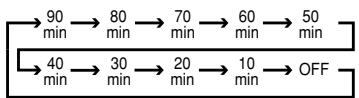
When the programmed sleep time has elapsed, the unit will automatically turn off (to Standby mode). Note that the front panel display will dim to one half brightness when the Sleep function is programmed. To cancel the Sleep function, press and hold the Sleep Button 40 until the information display returns to normal brightness and the SLEEP OFF message appears in the Main Information Display 16.
Source Selection
To select a source, press any of the Source Selector buttons on the remote 64344.
NOTE: After pressing the DVD Button ⑥ you must press the AVR Selector 44 to have the remote control all of the AVR functions.
- The input source may also be changed by pressing the front-panel Input Source Selector button 11. Each press of the button will move the input selection through the list of available inputs.
- As the input is changed, the AVR will automatically switch to the digital input (if selected), surround mode and speaker configuration that were entered during the configuration process for that source.
- The front-panel Video 3 Inputs 18, Optical Digital 3 Input 5 or the Coaxial Digital 3 Input 17 may be used to connect a device such as a video game or camcorder to your home entertainment system on a temporary basis.
- As the input source is changed, the new input name will appear in the Main Information Display 16 and a green LED will light next to the selected input's name in the front-panel Input Indicators 20.
- When a pure audio input (CD, Tuner, Tape, 6/8 Channel Input) is selected, the last video input used remains routed to the Video Outputs ⑤ and Video Monitor Output ② . This permits simultaneous viewing and listening to different sources.
- When a Video source is selected, its audio signal will be fed to the speakers and the video signal for that input will be routed to the appropriate Monitor Output Jack ⑫ and will be viewable on a TV monitor connected to the AVR. If a component video source is connected to the Video 1 ⑮ or Video 2 ⑨ Component Inputs, it will be routed to the Component Video Outputs ⑤. Make certain that your TV is set to the proper input to view the appropriate video signal (composite, S-Video or component video, see Notes for S-Video on page 13).
Controls and Use of Headphones
- Adjust the volume to a comfortable level using the front panel Volume Control 19 or remote Volume Up/Down 8 buttons.
-
To temporarily silence all speaker outputs press the Mute button 5. This will interrupt the output to all speakers and the headphone jack, but it will not affect any recording or dubbing that may be in progress. Press the Mute button 5 again to return to normal operation.
-
During a listening session you may wish to adjust the Bass Control and Treble Control to suit your listening tastes or room acoustics.
- To set the output of the AVR so that the output is "flat," with the Tone controls de-activated, press the Tone Mode button 30 button once or twice so that the words Tone out appear momentarily in the Main Information Display 16. To return the tone controls to an active condition, press the Tone Mode 30 button once or twice so that the words Tone In momentarily appear in the Main Information Display 16.
- To change the Bass or Treble Control settings press the Tone Mode Button 30 until the words Bass or Treble appear momentarily in the Main Information Display 16. Press the OK Button 1 followed by the Buttons 36 to adjust the setting. When done, press the Tone Mode Button 30 again to exit the Tone Mode Menu.
- For private listening, plug the 6.3mm stereo phone plug from a pair of stereo headphones into the front panel Headphone Jack 4. Note that when the headphone's plug is connected, the word HEADPHONE will scroll once across the Main Information Display 16 and all speakers will be silenced. When the headphone plug is removed, the audio feed to the speakers will be restored.
- When the headphones are in use, you may take advantage of the Dolby Headphone modes to bring added spaciousness to headphone listening. Press the Dolby Mode Select Button 27 or the Surround Mode Group Selector 7 to cycle through the three Dolby Headphone modes to select the one that you prefer.
Surround Mode Selection
One of the most important features of the AVR is its ability to reproduce a full multichannel surround sound field from digital sources, analog matrix surround encoded programs and standard stereo or even mono programs. In all, a total of fifteen listening modes are available on the AVR. Selection of a surround mode is based on personal taste, as well as the type of program source material being used.
For example, motion pictures, CD's or TV programs bearing the logo of one of the major surround encoding processes, such as Dolby Surround should be played in either the Dolby Pro Logic II Movie (with movies) or Music (with music) surround mode or with the Harman Kardon's exclusive Logic 7 Movie Mode, to create a full range discrete 5.1 channel surround signal from surround encoded programs with a stereophonic left and right rear signal, just as it was recorded in real life (e.g.
sound being recorded from left rear side will be heard from that side only.
When no rear speakers are in use, the Dolby 3 Stereo mode should be selected with all surround recordings.
Note that when Dolby Digital 2.0 signals (e.g. "D.D. 2.0" tracks from DVD), that are encoded with Dolby Pro Logic information, are received via any digital input, the Dolby Pro Logic II Movie mode will be selected automatically (in addition to the Dolby Digital mode) and will decode a full range 5.1 channel surround sound even from those recordings.
To create wide, enveloping sound field environments and defined pans and flyovers with all analog stereo recordings select the Dolby Pro Logic II Music mode or Harman Kardon's exclusive Logic 7 Music mode for a dramatic improvement in comparison to the Dolby Pro Logic (I) mode of former times.
NOTE: Once a program has been encoded with matrix surround information, it retains the surround information as long as the program is broadcast in stereo. Thus, movies with surround sound may be decoded via any of the analog surround modes such as Dolby Pro Logic II or Logic 7, when they are broadcast via conventional TV stations, cable, pay TV and satellite transmission. In addition, a growing number of made-for-television programs, sports broadcasts, radio dramas and music CDs are also recorded in surround sound. You may view a list of these programs at the Dolby Laboratories Web site at www.dolby.com.
Even when a program is not listed as carrying intentional surround information, you may find that the Dolby Pro Logic II, Dolby 3 Stereo or Logic 7 modes often deliver enveloping surround presentations through the use of the natural surround information present in all stereo recordings.
However, for stereo programs without any surround information the Theater, Hall and 5CH Stereo modes should be tried (effective particularly with old "extreme" stereo recordings) and for mono programs, we suggest that you try the Theater or Hall modes.
Surround modes are selected using either the front panel controls or the remote. To select a surround mode from the front panel, press the Surround Mode Group Selector Button 7 to scroll through the list of available surround groups (for example, any Dolby mode or Logic 7 mode). Next press the Surround Mode
Selector Button 13 to choose the specific mode within the desired group (for example, within the Dolby mode group the options are Dolby Pro Logic, Dolby Pro Logic II Music, Dolby Pro Logic II Movies and Dolby 3 Stereo). To select a surround mode using the remote, any of the surround mode selector buttons 192021
26 27 39 until the desired mode appears. As you press the buttons, the Surround mode name will appear in the Main Information Display 16. As the surround mode changes, a blue LED will light next to the current mode in the
Surround Mode Indicators list 14 on the front panel. Regard that any time a surround mode is changed it remains associated with the input just selected until another choice is made.
NOTE: The name of each Surround Mode will scroll through the Main Information Display 16 while the modes are being selected. To avoid exiting from the surround mode selection process, be certain to push the / buttons 36 while a mode name is still visible.
Note that the Dolby Digital or DTS modes may only be selected when a digital input is in use. In addition, when a digital source is present, the AVR will automatically select and switch to the correct mode (Dolby Digital or DTS), regardless of the mode that has been previously selected. For more information on selecting digital sources, see the following section of this manual.
To listen to a program in traditional two channel stereo, using the front left and front right speakers only (plus the subwoofer if installed and configured), follow the instructions shown above for using the remote until SURR OF F appears in the Main Information Display 16.
Digital Audio Playback
Digital audio is a major advancement over older analog matrix surround systems. It delivers five discrete channels: left front, center, right front, left surround and right surround. Each channel reproduces full frequency range (20Hz to 20kHz) and offers dramatically improved dynamic range and significant improvements to signal-to-noise ratios. In addition, digital systems have the capability to deliver an additional channel that is specifically devoted to low frequency information. This is the .1" channel referred to when you see these systems described as "5.1". The bass channel is separate from the other channels, but since it is intentionally bandwidth limited, sound designers have given it that unique designation.
Dolby Digital
Dolby Digital (originally known as AC-3) is a standard part of DVD, and is available on satellite broadcasts and is a part of the new high-definition television (HDTV) system.
DTS
DTS is another digital audio system that is capable of delivering 5.1 audio. Although both DTS and Dolby Digital are digital, they use different methods of encoding the signals, and thus they require different decoding circuits to convert the digital signals back to analog.
PCM Audio Playback
PCM (Pulse Code Modulation) is the non-compressed digital audio system used for compact discs, and some special PCM encoded DVDs. The digital circuits in the AVR are capable of high quality digital-to-analog decoding, and they may be connected directly to the digital audio output of your CD/DVD player.
Connections may be made to the Optical or Coaxial inputs 1022 on the rear panel or front panel 517.
To listen to a PCM digital source, first select the input for the desired source (e.g., CD) to feed its video signal (if any) to the TV monitor and to provide its analog audio signal for recording. Next press the Digital Select button 35 and then use the / buttons 36 on the remote until the desired choice appears in the Main Information Display 16, then press the OK button 1 to confirm the choice.
When a PCM source is playing, a brief message PCM will appear in the Main Information Display 16. During PCM playback you may select any surround mode except Dolby Digital or DTS.
Selecting a Digital Source
To utilize either digital mode you must have properly connected a digital source to the AVR. Connect the digital outputs from DVD players, HDTV receivers, satellite systems or CD players to the Optical or Coaxial inputs on the rear or front panel 1022517. In order to provide a backup signal and a source for analog stereo recording, the analog outputs provided on digital source equipment should also be connected to their appropriate inputs on the AVR rear panel (e.g., connect the analog stereo audio output from a DVD to the DVD inputs 6 on the rear panel when you connect the source's digital outputs).
When playing a digital source such as DVD, first select its input using the remote or front panel controls as outlined in this manual in order to feed its video signal (if any) to the TV monitor and to provide its analog audio signal for recording. When the digital input appropriate with the DVD player is not selected automatically (due to the input settings made earlier during the system configuration, see page 14), select the digital source by pressing the Digital Input
Selector button 35 and then using the / buttons 36 on the remote to choose any of the OPTICAL (OPT) or COAXIAL
(COAX) inputs, as they appear in the Main Information Display 16. When the digital source is playing, the AVR will automatically detect whether it is a multichannel Dolby Digital DTS source or a conventional PCM signal, which is the standard output from CD players.
Digital Status Indicators
When a digital source is playing, the AVR senses the type of bitstream data that is present. Using this information, the correct surround mode will automatically be selected. For example, DTS bitstreams will cause the unit to switch to DTS decoding, and Dolby Digital bitstreams will enable Dolby Digital decoding. When the unit senses PCM data, from CDs and LDs and some music DVDs or certain tracks on normal DVDs, it will allow the appropriate surround mode to be selected manually. Since the range of available surround modes depends on the type of digital data that is present, the AVR uses a variety of indicators to let you know what type of signal is present. This will help you to understand the choice of modes and the input channels recorded on the disc.
When a digital source is playing, the AVR will display a variety of messages to indicate the type of bitstream received. These messages will appear shortly after an input or surround mode is changed, and will remain in the Main
Information Display 16 for about five seconds before the display returns to the normal surround mode indication.
Surround Mode Types
For Dolby Digital and DTS sources, a three digit indication will appear, showing the number of channels present in the data. An example of this type of display is 3/2/.1.
The first number indicates how many discrete front channel signals are present.
- A 3 tells you that separate front left, center and front right signals are available. This will be displayed for Dolby Digital 5.1 and DTS 5.1 programs.
- A 2 tells you that separate front left and right signals are available, but there is no discrete center channel signal. This will be displayed for Dolby Digital bit streams that have stereo program material.
- A 1 tells you that there is only a mono channel available in the Dolby Digital bitstream.
The middle number indicates how many discrete surround channel signals are present.
- A 2 tells you that separate surround left and right signals are available. This will be displayed for Dolby Digital 5.1 and DTS 5.1 programs.
- A 1 tells you that there is only a single, surround encoded surround channel. This will appear for Dolby Digital bit streams that have matrix encoding.
- A 0 indicates that there is no surround channel information. This will be displayed for two-channel stereo programs.
The last number indicates if there is a discrete Low Frequency Effects (LFE) channel. This is the ".1" in the common abbreviation of "5.1" sound and it is a special channel that contains only bass frequencies.
- A .1 tells you that an LFE channel is present. This will be displayed for Dolby Digital 5.1 and DTS 5.1 programs, as available.
- A 0 indicates that there is no LFE channel information available. However, even when there is no dedicated LFE channel, low frequency sound will be present at the subwoofer output when the speaker configuration is set to show the presence of subwoofer.
An UNL OK message may appear in the Lower Display Line 16. This is your indication that the digital audio data stream has been interrupted or is no longer present. When that occurs, the unit's digital signal processor has no signal to lock onto, and is thus "unlocked." You may see this message when a DVD is first started until the stream is playing and the processor determines which mode to apply; or any time the data stream is stopped or paused, such as when the menus of some discs are displayed or when the player is switching between the different sections of a disc. You may also see the message when a satellite receiver, cable set-top or HDTV tuner is in use if the digital audio is temporarily interrupted when channels are changed or when a cable box switches from a channel with a digital data stream to a channel with analog audio only. The UNL OK message is normal, and does not indicate any problem with your receiver. Rather, it tells you that the incoming data has simply been paused or is not present for a variety of possible reasons.
When Dolby Digital 3/2/.1 or DTS 3/2/.1 signals are being played, the AVR will automatically switch to the proper surround mode, and no other processing may be selected. When a Dolby Digital signal with a 3/1/0 or 2/0/0 signal is detected you may select any of the Dolby surround modes.
It is always a good idea to check the readout for the channel data to make certain that it matches the audio logo information shown on the back of a DVD package. In some cases you will see indication for "2/0/0" even when the disc contains a full 5.1, or 3/2/.1 signal. When this happens, check the audio output settings for your DVD player or the audio menu selections for the specific disc being played to make certain that the player is sending the correct signal to the AVR.
In addition to the Bitstream Indicators, the AVR features a set of unique channel input indicators that tell you how many channels of digital information are being received and if the digital signal is interrupted.
These indicators are the L/C/R/SL/SR/LFE letters that are inside the center boxes of the
Speaker/Channel Input Indicators in the front panel 6. When a standard analog stereo or matrix surround signal is in use, only the "L" and "R" indicators will light, as analog signals have only left and right channels, respectively, even surround recordings, carry surround information on the left and right channels only.
Digital signals, however, may have one to six separate channels, depending on the program material, the method of transmission and the way in which it was encoded. When a digital signal is playing, the letters in these indicators will light in response to the specific signal being received. It is important to note that although Dolby Digital, for example, is referred to as a "5.1" system, not all Dolby Digital DVD or audio tracks selected on DVD or other Dolby Digital programs are encoded for 5.1. Thus, it is sometimes normal for a DVD with a Dolby Digital soundtrack to trigger e.g. only the "L" and "R" indicators.
The letters used by the Speaker/Channel Input Indicators 6 also flash to indicate when a bitstream has been interrupted. This will happen when a digital input source is selected before the playback starts, or when a digital source such as a DVD is put into a Pause mode. The flashing indicators remind you that the playback has stopped due to the absence of a digital signal and not through any fault of the AVR. This is normal, and the digital playback will resume once the playback is started again.
Night Mode
A special feature of Dolby Digital is the Night mode, which enables Dolby Digital input sources to be played back with full digital intelligibility while reducing the maximum peak level and lifting the low levels by 1/4 to 1/3. This prevents abruptly loud transitions from disturbing others without reducing the impact of the digital source. The Night mode is available only when Dolby Digital mode is selected.
The Night mode may be engaged when a Dolby Digital DVD is playing by pressing the Night Button 25 on the remote. Next, press the / buttons 36 to select either the middle range or full compression versions of the Night mode. To turn the Night mode off, press the / buttons 36 until the message in the lower third of the video display and the Main Information Display 16 reads D-RANGE OFF.
The Night mode may also be selected to always be on at either level of compression as soon as the Dolby Digital mode is turned on using the options in the Night Mode settings. See above for information on using this option.
IMPORTANT NOTES ON DIGITAL PLAYBACK:
-
When the digital playback source is stopped, or in a pause, fast forward or chapter search mode, the digital audio data will momentarily stop, and the channel position letters inside the Speaker/Channel Indicators 6 will flash. This is normal and does not indicate a problem with either the AVR or the source machine. The AVR will return to digital playback as soon as the data is available and when the machine is in a standard play mode.
-
Although the AVR will decode virtually all DVD movies, CDs and HDTV sources, it is possible that some future digital sources may not be compatible with the AVR.
-
Note that not all digitally encoded programs and not all audio tracks on a DVD contain full 5.1-channel audio. Consult the program guide that accompanies the DVD to determine which type of audio has been recorded on the disc. The AVR will automatically sense the type of digital surround encoding used and adjust to accommodate it.
-
When a Dolby Digital or DTS source is playing, you normally may not be able to select some of the analog surround modes such as Dolby Pro Logic II, Dolby 3 Stereo, Hall, Theater, 5CH Stereo or Logic 7, except with special audio tracks (see indication "Dolby Digital" on previous page) or data format selected (see "PCM" on previous page).
-
When a Dolby Digital or DTS source is playing, it is not possible to make an analog recording using the Tape ② or Video 1 ⑤ record outputs, if the source is connected to any digital input of the AVR only. But the analog two
channel signal of that source, the "Downmix" to Stereo or Dolby Surround, can be recorded by connecting its analog audio outputs to the appropriate analog inputs (e.g. DVD) of the AVR, even if the digital input of the AVR remains selected. Additionally, the digital signals will be passed through to the Digital Audio Outputs ⑨.
Tape Recording
In normal operation, the audio or video source selected for listening through the AVR is sent to the record outputs. This means that any program you are watching or listening to may be recorded simply by placing machines connected to the outputs for Tape Outputs 2 or Video 1 Outputs 5 in the record mode.
Output Level Trim Adjustment
Normal output level adjustment for the AVR is established using the test tone, as outlined on page 17. In some cases, however, it may be desirable to adjust the output levels using program material such as a test disc, or a selection you are familiar with. Additionally, the output level for the subwoofer can only be adjusted using this procedure.
To adjust the output levels using program material, first select the surround mode for which you want to trim the speakers (see NOTE below) by selecting the appropriate input, associated with the desired surround mode, start your program material source and set the reference volume for the front left and front right channels using the Volume Control 19.
Once the reference level has been set, press the Channel Select button 37 and note that FRONT LEVEL will appear in the Main Information Display for five seconds. To change the level, first press the OK button 11 , and then use the / buttons to raise or lower the level. DO NOT use the volume control, as this will alter the reference setting.
Once the change has been made, press the OK button 11 and then press the / buttons 36 to select the next output channel location that you wish to adjust. To adjust the subwoofer level, press the / buttons 36 until 00 OFER LEVEL appears in the Main Information Display 16 (only available if the subwoofer was selected during the speaker configuration, page 14).
Press the OK button 1 when the name of the desired channel appears in the Main Information Display 16 and on-screen display, and follow the instructions shown above to adjust the level.
Repeat the procedure as needed until all channels requiring adjustment have been set. When all adjustments have been made press the OK button twice, the AVR will return to normal operation.
NOTE: The output levels may be separately trimmed for each digital and analog surround mode. If you wish to have different trim levels for a specific mode, select that mode and then follow the instructions in the steps shown above.
Changing the levels by the trim adjustment as described above will automatically change the level settings shown during the Output Level Adjustment (see page 22) correspondingly (and vice versa) and will remain in the AVR's memory system, even when the unit is turned off. With Stereo modes the adjustment procedure described above is the only way to trim the output level.
6-Channel Direct Input
The AVR is equipped for future expansion through the use of optional, external adapters for formats that the AVR may not be capable of processing. When an adapter is connected to the 6-Channel Direct Input 24, you may select it by pressing the 6-Ch Direct Input Selector 42. The 6-Channel Direct Input may also be selected by pressing the Input Source Selector button 11 on the front panel until the words CH DIRECT appear in the Main Information Display 16, and a blue LED lights next to 6 CH in the Input Indicators 20.
Note that when the 6-Channel Direct Input is in use, you may not select a surround mode, as the external decoder determines processing. In addition, there is no signal at the record outputs when the 6-Channel Direct Input is in use.
Display Brightness
The AVR's front panel Main Information Display is set at a default brightness level that is sufficient for viewing in a normally lit room. However, in some home theater installations, you may wish to occasionally lower the brightness of the display, or turn it off completely.
You can also adjust the Display Brightness by pressing the Dim Button 2 on the remote control. Note that the blue lighting inside the volume control and the Power Indicator 3 will remain lit at normal brightness to remind you that the unit is still turned on.
Memory Backup
This product is equipped with a memory backup system that preserves tunes presets and system configuration information if the unit is turned off completely, accidentally unplugged or subjected to a power outage. This memory will last for approximately 1 week, after which time all information must be reentered.
Tuner Operation
The AVR's tuner is capable of tuning AM, FM and FM Stereo broadcast stations and receiving RDS data. Stations may be tuned manually, or they may be stored as favorite station presets and recalled from a 30 position memory.
Station Selection
- Press the AM/FM Tuner Select button 43 on the remote to select the tuner as an input. The tuner may be selected from the front panel by either pressing the Input Source Selector 11 until the tuner is active or by pressing the Tuner Band Selector 9 at any time.
- Press the AM/FM Tuner Select button 43 or Tuner Band Selector 9 again to switch between AM and FM so that the desired frequency band is selected.
- Press the Tuner Mode button 33 on the remote or hold the Band Selector 9 on the front panel pressed for 3 seconds to select manual or automatic tuning.
When the button is pressed so that A U T O appears in the Main Information Display 16 each press of the Tuning Selectors 831 will put the tuner in a scan mode that seeks the next higher or lower frequency station with acceptable signal strength. An AUTO TUNED indication will momentarily appear when the station stops at a stereo FM station, and an AUTO TUNED indication will momentarily appear when an AM or monaural FM station is tuned. Press the Tuning buttons again to scan to the next receivable station.
When the button is pressed so that MANUAL appears in the Main Information Display 16 each tap of the Selector will increase or decrease the frequency by one increment. When the tuner receives a strong enough signal for adequate reception, MANUAL TUNED will appear in the Main Information Display 16.
4. Stations may also be tuned directly by pressing the Direct button 32, and then pressing the Numeric Keys 34 that correspond to the station's frequency. The desired station will automatically be tuned after the latest number is entered. If you press an incorrect button while entering a direct frequency, press the Clear button 14 to start over.
NOTE: When the FM reception of a stereo station is weak, audio quality will be increased by switching to Mono mode by pressing the Tuner Mode button on the remote or holding the Band Selector on the front panel so that MANUAL appears momentarily in the Main Information Display and then goes out.
Preset Tuning
Using the remote, up to 30 stations may be stored in the AVR's memory for easy recall using the front panel controls or the remote.
To enter a station into the memory, first tune the station using the steps outlined above. Then:
- Press the Memory button 13 on the remote. Note that two underscore lines will appear in the Main Information Display 16.
- Within five seconds, press the Numeric Keys corresponding to the location where you wish to store this station's frequency. Once entered, the preset number will appear in the Main Information Display 16.
- Repeat the process after tuning any additional stations to be preset.
Recalling Preset Stations
- To manually select a station previously entered in the preset memory, press the Numeric Keys 34 that correspond to the desired station's memory location.
- To manually tune through the list of stored preset stations one by one, press the Preset Stations Selector buttons 10 15 on the front panel or remote.
RDS Operation
The AVR is equipped with RDS (Radio Data System), which brings a wide range of information to FM radio. RDS is a system for transmitting station call signs or network information, a description of station program type, text messages about the station or specifics of a musical selection, and the correct time.
RDS Tuning
When an FM station is tuned in and it contains RDS data, the AVR will automatically display the station's call sign or other program service in the
Main Information Display 16.
RDS Display Options
The RDS system is capable of transmitting a wide variety of information in addition to the initial station call sign that appears when a station is first tuned. In normal RDS operation the display will indicate the station name, broadcast network or call letters. Pressing the RDS button 12 16 enables you to cycle through the various data types in the following sequence:
- The station's call letters (with some private stations other information too).
- The station's frequency (FREQ).
The Program Type (PTY) as shown in the list below. - A "text" message (Radiotext, RT) containing special information from the broadcast station. Note that this message may scroll across the display to permit messages longer than the eight positions in the display. Depending on signal quality, it may take up to 30 seconds for the text message to appear; in that time, the word TEXT will flash in the Information Display when RT is selected.
- The current time of day (CT). Note that it may take up to two minutes for the time to appear, in that time the word TIME will flash in the information display when CT is selected. Please note that the accuracy of the time data is dependent on the radio station, not the AVR.
Some RDS stations may not include some of these additional features. If the data required for the selected mode is not being transmitted, the Main Information Display 16 will show a N O T Y P E, N O T E X T or N O T I M e message after the individual time out.
In any FM mode the RDS function requires a strong enough signal for proper operation.
Program Search (PTY)
An important feature of RDS is its capability of encoding broadcasts with Program Type (PTY) codes that indicate the type of material being broadcast.
You may search for a specific Program Type (PTY) by following these steps:
- Press the RDS button 12 16 until the current PTY is shown in the Main Information Display 16.
- While the PTY is shown, press the Preset Up/Down button 10 or hold them pressed to scroll through the list of available PTY types, as shown above. To simply search for the next station transmitting any RDS data, use the Preset Up/Down button 10 until RDS ONLY appears in the display.
- Press any of the Tuning Up/Down buttons 831, the tuner begins to scan the FM band upwards or downwards for the first station that has RDS data that matches the desired selection, and acceptable signal strength for quality reception.
- The tuner will make up to one complete scan of the entire FM band for the next station that matches the desired PTY type and has acceptable reception quality. If no such station is found, the display will read NONE for some seconds and the tuner will return to the last FM station in use before the search.
NOTE: Many stations do not transmit a specific PTY. The display will show NONE, when such a station is selected and PTY is active.
NOTE: Some stations transmit constant traffic information. These stations can be found by selecting TRAFFIC. The AVR will find the appropriate station, even if it is not broadcasting traffic information when the search is made.
Troubleshooting Guide
| SYMPTOM | CAUSE | SOLUTION |
| Unit does not function when Main Power Switch 1 is pushed | • No AC Power | • Make certain AC power cord is plugged into a live outlet • Check to see if outlet is switch controlled |
| Display lights, but no sound or picture | • Intermittent input connections • Mute is on • Volume control is down | • Make certain that all input and speaker connections are secure • Press Mute button • Turn up volume control |
| Sound is heard, but Front-Panel Display does not light | • Display brightness is turned off | • Follow the instructions in the Display Brightness section on page 23 so that the display is set to VFD FULL |
| No sound from any speaker; light around Power switch 2 is red | • Amplifier is in protection mode due to possible short • Amplifier is in protection mode due to internal problems | • Check speaker-wire connections for shorts at receiver and speaker ends • Contact your local Harman Kardon service depot |
| No sound from surround or center speakers | • Incorrect surround mode • Incorrect configuration • Stereo or Mono program material | • Select a mode other than Stereo • Check speaker mode • With (analog or digital) Dolby surround modes, the surround decoder may not create rear-channel information from non-encoded programs • Check speaker-wire connections or use test tone to verify connections (see page 20) |
| • Speakers not properly connected | ||
| Unit does not respond to remote commands | • Weak batteries in remote • Wrong device selected • Remote sensor 15 is obscured | • Change remote batteries • Press the AVR selector 44 • Make certain front-panel sensor is visible to remote or connect remote sensor |
| Intermittent buzzing in tuner | • Local interference | • Move unit or antenna away from computers, fluorescent lights, motors or other electrical appliances |
| Letters flash in the Channel Indicator Display 30 and Digital Audio stops | • Digital audio feed paused | • Resume play for DVD • Check that Digital Signal is fed to the Digital Input selected |
Processor Reset
In the rare case where the unit's operation or the displays seem abnormal, the cause may involve the erratic operation of the system's memory or microprocessor.
To correct this problem, first unplug the unit from the AC wall outlet and wait at least three minutes. After the pause, reconnect the AC power cord and check the unit's operation. If the system still malfunctions, a system reset may clear the problem.
To clear the AVR's entire system memory including tuner presets, output level settings, delay times and speaker configuration data, first put the unit in Standby by pressing the System Power Control button 2. Next, press and hold the Surround Mode Button 7 for 5 seconds.
The unit will turn on automatically. Note that once you have cleared the memory in this manner, it is necessary to re-establish all system configuration settings and tuner presets.
NOTE: Resetting the processor will erase any configuration settings you have made for speakers, output levels, surround modes, digital input assignments as well as the tuner presets. After a reset the unit will be returned to the factory presets, and all settings for these items must be reentered.
If the system is still operating incorrectly, there may have been an electronic discharge or severe AC line interference that has corrupted the memory or microprocessor.
If these steps do not solve the problem, consult an authorized Harman Kardon service depot.
DVD 28 Digital Versatile Disc Player Terminology
Terminology
Since they share some of the characteristics and technology of CD players, many of the terms and operational concepts used in a DVD player are similar to what you may be familiar with from CD players and changers, or older video disc formats such as Laser Disc. However, if this is your first DVD product, some of the terms used to describe the features of a DVD player may be unfamiliar. The following explanations should solve some of the mysteries of DVD, and help you to enjoy all the power and flexibility of the DVD format and the DVD.
With the arrival of DVD, disc data capacity has increased dramatically. On a DVD Video disc most of this capacity is taken up by MPEG 2 video and the multichannel movie soundtrack in Dolby Digital and/or DTS. This information is compressed.
Aspect Ratio: This is a description of the width of a video image in relation to its height. A conventional video screen is four units wide for every three units of height, that's why the ratio is called "4:3". Newer wide aspect ratio video displays are 16 units wide for every nine units of height, making them more like the screen in a movie theater. The program material on a DVD may be recorded in either format and, in addition, you may configure the DVD to play back in either format, depending on the features recorded on a disc.
Component Video: This form of video signal eliminates many of the artifacts of traditional composite video signals by splitting the signal into a separate luminance channel (the "Y" signal channel) and two color-difference signals (the Pr and Pb signal channels). With a component video connection, you will see greater picture resolution and eliminate many picture imperfections such as the moiré patterns often seen on check-patterned cloth. However, in order to benefit from component video, you must have a video display with Y/Pr/Pb component video inputs. Do not connect the component video outputs of the DVD 28 to the standard composite or S-video inputs of a TV or recorder.
HDCP (High-Bandwidth Digital Content Protection): HDCP is the specification for protecting digitally encoded content from unauthorized copying when it is transmitted from a DVD player (or other video source) to a video display using HDMI or DVI connections. In order to take advantage of the high-resolution output of the DVD 28 via its HDMI output, your display must be HDCP-compliant. Virtually all displays with HDMI inputs are HDCP-compliant, but not all DVI-equipped displays are. If you are using the DVD 28 with an optional HDMI-to-DVI cable or adapter, check the owner's manual for your display to determine whether it is HDCP-compliant.
HDMI™ (High-Definition Multimedia
InterfaceTM): HDMI is a serial-bus form of communication between the DVD player and the video display or audio/video receiver. With 5Gbps of bandwidth, it is capable of passing uncompressed digital audio and high-definition digital video using a single cable. With HDMI, the DVD 28 is capable of outputting high-resolution (720p or 1080i) video and 5.1-channel Dolby Digital or DTS digital audio, with the convenience of just a single cable connection.
JPEG Files: JPEG stands for the Joint Photographic Experts Group, which developed a standard for compressing still images, such as photographs. JPEG files may be created on a personal computer by importing images from a digital camera, or scanning printed photographs. These files may be burned onto a compact disc. The DVD 28 is capable of recognizing JPEG files and enabling you to view them on your video screen.
Title: For a DVD, a title is defined as an entire movie or program. There can be as many chapters within a title as the producers decide to include. Most discs include only one title, but some may have more than one, to give you a "Double Feature" presentation.
Chapter: DVD programs are divided into chapters and titles. Chapters are the sub-sections programmed into a single title on a disc. Chapters may be compared to the individual tracks on an audio CD.
Progressive Scan: Due to the immense data storage capacity of DVD, images are nowadays stored progressively (intact, rather than interlaced). This allows all of the lines in each frame (odd and even) to be shown at the same time. Harman Kardon Cinema Lounge comes with true progressive scan video output resulting in a 40% greater light output than a conventional TV and a stunningly detailed, high definition image with absence of visible scanlines and motion artifacts.
WMA Files: WMA (Windows Media® Audio) is an audio compression format that was developed by the Microsoft® Corporation for use with its Windows Media Player. WMA files can be even smaller in size than MP3 files, while maintaining similar quality. The DVD 28 is among those DVD players capable of playing discs containing WMA files. Note that Windows Media Player uses other file formats; however, the DVD 28 is only capable of playing files that end in the“.wma” extension. See page 5 for more information on WMA file support.
Multiple Angle: DVDs have the capability to show up to four different views of the same scene in a program. When a disc is encoded with multiple-angle information, pressing the Angle button will enable you to switch between these different views. Note that at present, few discs take advantage of this capability and, when they do, the multiple-angle technology may only be present for short periods of time within the disc. Producers will usually insert some sort of icon or graphic in the picture to alert you to the availability of multiple viewing angles.
Reading: This is a message that you will see after you've loaded the disc and the tray has closed. It refers to the fact that the player must first examine the contents of the disc to see if it is a CD or DVD, and then extract the information about the type of material on the disc, such as languages, aspect ratios, subtitles, number of titles and more. The slight delay while the contents of the disc are read is normal.
Resume: The operation of the Stop Button on the DVD works differently from what you are used to on CD players. On a traditional CD player, when you press the Stop button, the unit does just that: it stops playback. On a CD player, when you press the start button again, the disc starts from the beginning. With the DVD, however, you have two options when playing DVD discs. Pressing Stop once will stop playback, but it actually puts the unit in the Resume mode. This means that you can turn the machine off and, when you press play the next time, the disc will resume or continue from the point on the disc where the Stop button was pressed. This is helpful if you are watching a movie and must interrupt your viewing session but wish to pick up where you left off. Pressing the Stop button twice will stop the machine in a traditional manner and, when the disc is played again, it will start from the beginning.
In resume mode, the cover of the DVD will be displayed, if available. Otherwise, the Harman Kardon screen will appear.
DivX
DivX is the name of a revolutionary new video codec which is based on the MPEG-4 compression standard for video. This DVD player will playback discs created with DivX software. The DVD player's playback functionalities of DivX video discs will vary depending on the DivX software version used for creating your movies. For more information about the different software versions of DivX, please go to www.divx.com.
High quality video
- High Definition Multimedia Interface (HDMI) for a single wire, digital connection to your HD-Ready screen.
- Advanced sophisticated 10-bit MPEG-2 video decoding circuits.
- Direct RGB output via SCART (selectable) for optimum video performance. SCART connector also configurable for Composite Video output.
- Test screen videos available for testing video performance and setup.
Pure PAL with NTSC disc due to true NTSC/PAL conversion. - Dual-layer compatibility for extended play DVD.
- Progressive Scan component video outputs (NTSC and PAL)
- Playback of JPEG image files
High quality digital audio
- Built-in DVD-Audio decoder for improved musical realism.
- By connecting a DTS (Digital Theater Systems) or a Dolby Digital decoder, you can enjoy high quality 5.1 digital surround sound from DTS or Dolby Digital discs.
- With linear PCM audio at 16-24 bits and 44 - 96kHz (also on digital output, see table page 14), audio quality exceeding that of CD becomes possible.
- Optical and coaxial digital audio output.
Many convenient features
- On-Screen Menu Icons for disc information or player information and access to many major functions of this unit.
- Subtitles may be displayed in one of numerous languages*.
- The multi-angle function allows you to choose the viewing angle of scenes which were shot from a number of different angles (Limited to DVD's recorded with multiple camera angles.)
- Multiple options for dialog language and soundtrack selection (limited to DVD's recorded with multiple dialog languages or soundtracks).
- Intuitive menu operating system.
- 4 step Zoom during play and pause.
- Backlit, ergonomically designed remote control.
- Future software upgrades accessible via Internet. (See information below.)
- The number of languages recorded depends on the software.
Compatible with CD as well as DVD
- The DVD 28 will play any conventional Audio CD or recordable (CD-R) or erasable CD (CD-RW), MP3, WMA (v8) or any DivX or VCD or DVD/Video with the region code 0 or 2.
Disc formats supported by this player
The unit can play the following disc formats (8 cm and 12 cm size):
DVD-AUDIO
DVD
DVD-R
DVD-RW
DVD+R
DVD+RW
CD
CD-R
CD-RW
VCD
WMA (v8)
NOTE: Due to differences in the format of certain discs, it is possible that some discs may include a mix of features that are not compatible with the DVD. Similarly, although the DVD is capable of a wide range of features, not all discs include every capability of the DVD system. For example, although the DVD is compatible with multi-angle discs, that feature is only possible when the disc is specially encoded for multiple angle play. In addition, the DVD is capable of playing back both Dolby Digital and DTS soundtracks, but the number and types of tracks available will vary from disc to disc. To make certain that a specific feature or soundtrack option is available, please check the options noted on the disc jacket.
- Playback capability for CD-R, CD-RW, WMA, JPEG, MP3, DivX, VCD/SVCD, DVD-R, DVD+R, DVD-RW and DVD+RW discs may vary due to variations in the quality of the disc and the recorder used to create the disc.
The DVD 28 is compatible with most discs recorded with files encoded using MP3 or Windows Media 8, as well as JPEG still images. However, note that variations in the encoder or codec used and the bit rate of the encoding may affect the DVD 28's ability to play back a specific disc. As a result, we cannot guarantee complete compatibility with all encoders and versions of the CODECs. For best results, we recommend that MP3 files be encoded at bit rates ranging between 32kbps and 320kbps. WMA files should be encoded at bit rates between 64kbps and 320kbps. Although the DVD 28 is capable of playing some WMA 9 files, not all features of version 9 are supported. JPEG files should contain no more than 5 megapixels, and the file size should be no larger than 5Mb.
The DVD 28 will NOT play the following:
DVD discs with a Region Code other than 2
DVD-ROM data discs
DVD-RAM discs
CD-1 discs
CD-G discs
- SVCD discs
- Kodak Photo CD™ discs (Kodak Picture CD discs, available to consumers, may be viewed using the DVD 28).
- Discs intended for use in video game consoles
- Discs recorded in the "VR" mode or at any speed other than "SP"
- High-definition optical discs such as WMVHD, HD-DVD and Blu-ray
Upgradeability via Internet
The "firmware" controlling the functionality of the Harman Kardon DVD is fully upgradeable. In the event of future improvements to its operations and features, it will be possible to download firmware upgrades from www.harmankardon.com/International/ All you have to do is create a CD-R with the data and insert it in the DVD for an automatic upgrade.
Packing List
1 Harman Kardon DVD Player
1 A/V cable for stereo analog audio and composite video
1 S-Video cable
1 HDMI cable
1 owner's manual

1 Main Information Display
4 Play
2 Power On/Off (Standby)
5 Pause
3 Open/Close
6 Stop
7 Skip/Search (Previous)
Skip/Search (Next)
9 Dimmer
1 Main Information Display: This display delivers messages and status indications to help you operate the DVD player.
2 Power On/Off (Standby): Press the button once to turn the DVD player on, press it again to put the unit in the Standby mode.
3 Open/Close: Press this button to open or close the Disc Tray.
4 Play: Press to initiate playback or to resume playback after Pause has been pressed.
5 Pause: Press this button to momentarily pause playback. To resume playback, press the button again. If a DVD is playing, action will freeze and a still picture will be displayed when the button is pressed.
6 Stop: Press this button once to place the disc in the Resume mode, which means that playback will stop, but as long as the tray is not opened or the disc changed, DVD playback will continue from the same point on the disc when the Play Button is pressed again. Resume will also work if the unit was turned off. To stop a disc and have play start from the beginning, press the button twice.
7 Skip/Search (Previous): Press this button to move backward through the music tracks on a CD disc or the chapters on a DVD disc. Keep the button pressed to search backwards at one of the available speeds.
8 Skip/Search (Next): Press to move forward through the music tracks on a CD or the chapters on a DVD disc. Keep the button pressed to search forwards at one of the available speeds.
9 Dimmer: Press this button to reduce the brightness of the Information Display by 50% or to turn the display off completely in the following order: FULL BRIGHTNESS HALF BRIGHTNESS OFF FULL BRIGHTNESS.
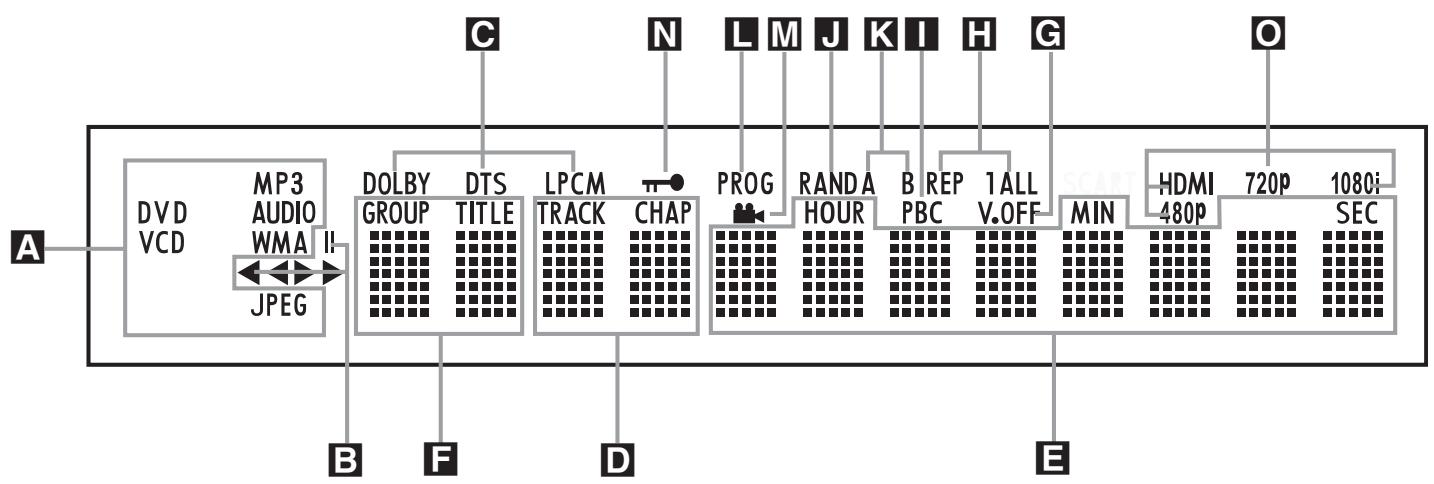
A Disc Type Indicators
BPlayback-Mode Indicators
Audio Bitsstream Indicators
Chapter/Track Number Indicators
Time Indicators
F Title Indicators
G V-OFF Indicator
Repeat Indicators
VCDPlayback Control Indicator
J Random Indicator
A-B Repeat Indicator
Program Indicator
M Angle Indicator
N Parental Lock Indicator
Video Output Indicators
A Disc Type Indicators: The CD, DVD, DVD-Audio, VCD, MP3, WMA or JPEG indicator will illuminate to show the type of disc currently being played.
Playback-Mode Indicators: These indicators light to show the current playback mode:
Lights when a disc is playing in the normal mode
Lights when the disc is in the Fast Search Forward mode. The on-screen banner display indicates the selected speed (x2, x4, x8, x20, x100).
II Lights when the disc is paused.
Lights when the disc is in the Fast Search Reverse mode. The on-screen banner display indicates the selected speed (x2, x4, x8, x20, x100).
Audio Bitstream Indicators: When a Dolby® Digital, DTS® or linear PCM digital audio signal is present on the disc, one of these indicators will light. DVD-Audio, MP3 and WMA bitstreams will be indicated by the Disc Type Indicator A.
Chapter/Track Number Indicators: When a DVD disc is playing, these two positions in the display will show the current chapter. When a CD disc is playing they will show the current track number.
Time Indicators: These positions in the indicator will show the running time of a DVD in play. When a CD is playing, these indicators will show the current track time, time remaining in the current track, or the total remaining time on the disc.
NOTE: The Indicators DEF will also display text messages about the DVD's status, including LOADING when a disc is loading, POWER OFF when the unit is turned off, and DISC ERROR when a disc not compatible with the DVD is put into the play position.
F Title Indicators: These two positions in the display will show the current title number when a DVD disc is playing.
V-OFF Indicator: This indicator lights when the unit's video output has been turned off by pressing the V-OFF button on the remote control.
H Repeat Indicators: These indicators light when any of the Repeat functions are in use.
VCD Playback Control Indicator: This indicator lights when the playback control function is turned on with VCDs.
J Random Indicator: This indicator lights when the unit is in the Random Play mode.
A-B Repeat Indicator: This indicator lights when a specific passage for repeat playback has been selected.
L Program Indicator: This indicator lights when the programming functions are in use.
M Angle Indicator: This indicator blinks when alternative viewing angles are available on the DVD currently playing.
N Parental Lock Indicator: This indicator lights when the parental-lock system is engaged in order to prevent anyone from changing the rating level without a code.
Video Output Indicators: When the DVD 28 is connected to a video display using the HDMI Output 1, the display sends information to the DVD 28 indicating the highest video resolution it is capable of handling, and the DVD 28 automatically sets the video output to match it. That resolution is displayed here. You may use the HD Mode Selector 3 to manually select a lower video output resolution.

Optical Digital Output
Coaxial Digital Output
AC Power Cord
4 Composite Video Output
S-Video Output
6 Component Video Outputs
Scart TV Output
Remote Control Output
Remote Control Input
10 Analog Audio Output
1 HDMI Output
6-Channel Audio Outputs
1 Optical Digital Output: Connect this jack to the optical digital input of an A/V receiver or surround processor for Dolby Digital, DTS or PCM audio playback.
Coaxial Digital Output: Connect this jack to the coaxial digital input of an A/V receiver or surround processor for Dolby Digital, DTS or PCM audio playback.
NOTE: The coaxial digital output should only be connected to a digital input. Even though it is the same RCA-type connector as standard analog audio connections, DO NOT connect it to a conventional analog input jack.
Connect either the Optical Digital Audio Output 1 or the Coaxial Digital Audio Output 2 to a corresponding digital audio input on your receiver or processor, but not both.
AC Power Cord: Connect this plug to an AC outlet. If the outlet is controlled by a switch, make certain that it is in the ON position.
4 Composite Video Output: Connect this jack to the video input on a television or video projector, or to a video input on an A/V receiver or processor if you are using that type of device for video input switching.
S-Video Output: Connect this jack to the S-Video input on a television or video projector, or to an S-Video input on an A/V receiver or processor if you are using that type of device for S-Video input switching.
6 Component Video Outputs: These outputs carry the component video signals for connection to display monitors with component video inputs. For standard analog TV's or projectors with inputs marked Y/Pr/Pb or Y/Cr/Cb, connect these outputs to the corresponding inputs. If you have a high-definition television or projector that is compatible with high scan rate progressive video, connect these jacks to the "HD Component" inputs. Note that if you are using a progressive scan display device, then
"Progressive" must be selected in the Video Setup Menu in order to take advantage of the progressive scan circuitry. See page 19 for more information on progressive scan video.
IMPORTANT: These jacks should NOT be connected to standard composite video inputs.
SCART OUT (TV): If your TV has a SCART socket, you can connect a SCART cable to your TV and to your DVD Player for improved video quality. The SCART cable carries both audio and video. You can select Composite Video or RGB video for that SCART connector's video output signal.
Remote Control Output: Connect this jack to the infrared (IR) input jack of another compatible Harman Kardon remote controlled product to have the built-in Remote Sensor on the DVD provide IR signals to other compatible products.
Remote Control Input: Connect the output of a remote infrared sensor, or the remote control output of another compatible Harman Kardon product, to this jack. This will enable the remote control to operate even when the front panel Remote Sensor on the DVD is blocked. This jack may also be used with compatible IR remote control-based automation systems.
10 Analog Audio Output: Connect these jacks to an audio input on an A/V receiver or surround processor for analog audio playback.
HDMI Output: If you have an HDMI-compatible receiver or video display device, connect this output to an HDMI input on the receiver or video display for the highest-quality uncompressed digital audio and video available. Even if your receiver is not capable of processing audio in the HDMI format, you may still experience the superb reproduction of HDMI video.
If your video display has a DVI input, you may use an optional HDMI-to-DVI cable or adapter for the connection to the display. In all cases, the video display must be HDCP-compliant in order to use the HDMI output. For best results, we do not recommend HDMI connections in excess of ten feet.
The following audio formats may be output via the HDMI connection:
Audio CD - 2-Channel PCM or 5.1-channel DTS DVD-Audio - 2-Channel PCM
DVD-Video - Up to 5.1-channel Dolby Digital or DTS
Note: To hear the high-resolution surround sound recorded on DVD-Audio discs, you need to connect the 6-Channel Audio Outputs to the corresponding input jacks on your receiver or processor. These formats are not output digitally.
6-Channel Audio Outputs: Connect these outputs to the matching 6-channel analog audio inputs on your receiver or surround sound processor. This connection is required to listen to the multichannel tracks on DVD-Audio discs. If the disc also contains a linear PCM, Dolby Digital or DTS track, you may listen to it using the HDMI ①, Optical ① or Coaxial Digital Audio Output ② or the Analog Audio Outputs ⑩.
Note: You'll find more details about all Audio/Video connections under Setup and Connections on the following pages.
Before connecting your DVD 28, please:
Ensure that the power switch of this unit and other equipment to be connected is set to off before commencing connection.
- Do not block ventilation holes of any of the equipment and arrange them so that air can circulate freely.
Read through the instructions before connecting other equipment.
For the best quality, if your receiver or processor and/or video display are HDMI-capable, we recommend using the HDMI output. With a single cable connection between components, HDMI is able to deliver uncompressed high-definition digital video and digital audio programming.
Note: If your video display has a DVI input, you may use an optional HDMI-to-DVI cable or adapter for the connection to the display. In all cases, the video display must be HDCP-compliant in order to use the HDMI output.
If your equipment is not HDMI-ready, we recommend the use of component video for higher quality pictures.
If you are using a television or video display that is compatible with high-resolution 576P video signals, make sure to use the input jacks on the video display marked "HD Component," if available. Also, make sure to configure the display's input settings for use with "576P" video signals. You will also need to change the scan type in the DVD 28's Video Setup menu from "Interlaced" to "Progressive." See above.
The Video output (yellow) combines the complete video signal (composite) and sends it to the TV (or to the AV Receiver) by one line only. Use the Video output, when your TV set is equipped with a Video input jack only.
The S (separate) video output connector sepa
rates the color (C) and luminance (Y) signals before transmitting them to the TV set in order to achieve a sharper picture. Use the S-video cable when connecting the player to a TV equipped with an S-video input for improved picture clarity. Never connect both outputs, Video and S-Video, to your TV or AV Receiver, only one of them.
Most European TV's are equipped with SCART connectors rather than with a normal video input (yellow cinch). In that case the SCART connection should be used, providing the audio signal too. Separate analog audio connections to TV are needed only if your TV is connected to the video or S-video output.
You may also use the standard S-video or composite video connection if your TV does not have component video inputs. The component and S-video outputs are not available simultaneously.
- Modern audio/video receivers are capable of connection to several video source devices, such as the DVD 28 and a VCR, cable television set-top box, HDTV tuner or other device. The receiver is equipped with video monitor outputs for connection to your television, projector or plasma display. As you select any input source device, the receiver selects the correct video input and routes it to the correct video monitor output to your televi
Ensure that you observe the color coding when connecting audio and video cables.
sion. It is recommended that you connect one of the video outputs from the DVD 28 to the corresponding input on your receiver to simplify operation of your home entertainment system. Refer to the owner's guide for your receiver for more information.
- If your receiver is capable of multiroom operation, it is recommended that you connect both the component (or HDMI) and composite video outputs of the DVD 28 to the receiver. This enables the highest-quality picture (component video) for viewing in the main listening room, while enabling the multiroom system, if it is video-capable, to distribute the composite video signal to the remote zone. Consult the owner's guide for your receiver to determine whether it has video multiroom capability.
Connecting to a TV Only
When using the DVD 28 with a television but no audio receiver or processor, connect it as follows. Make the Analog Audio Connection A and one of the Video Connections (Composite Video B, S-Video C, Component Video D). If your television or video display is HDMI-capable, you only need to make the HDMI E connection, as it handles both audio and video. Remember to plug in the power cord.
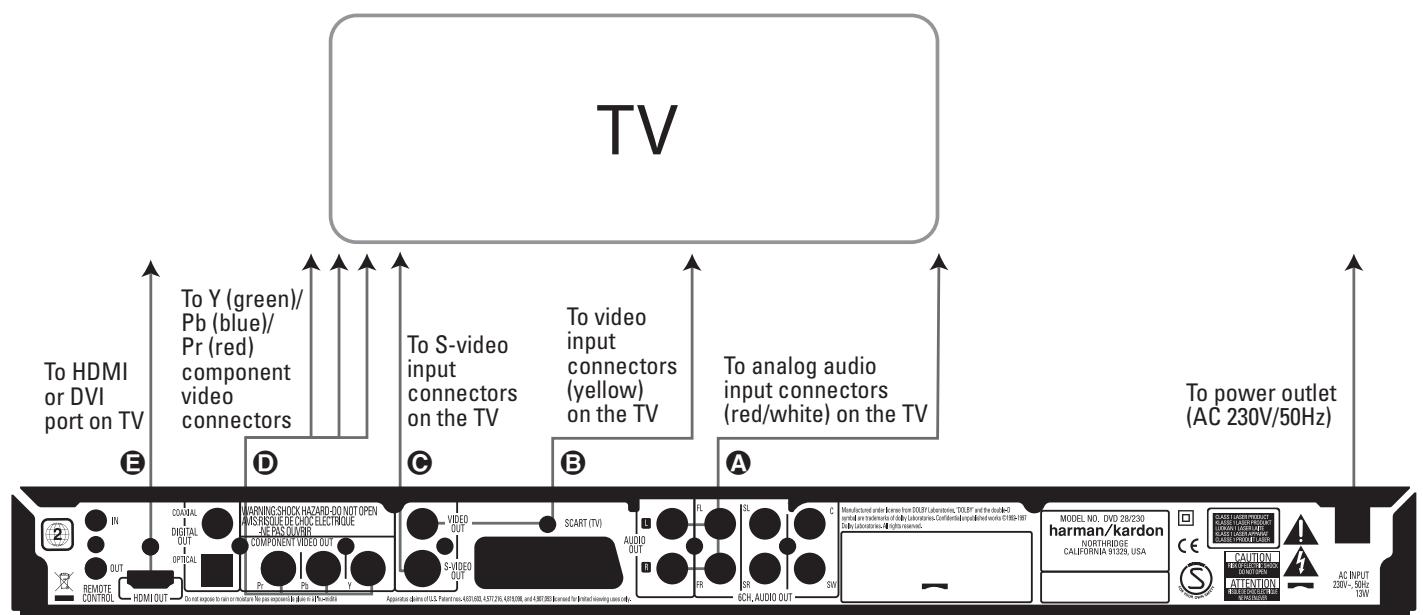
Connecting to a Receiver/Amplifier With a Dolby Digital or DTS Decoder
One of the major advantages of the DVD format is its ability to use a variety of digital audio formats for the ultimate in sonic performance. However, in order to enjoy the benefits of digital audio, you must use a receiver or processor that has digital audio decoding capabilities and make an optical or coaxial digital audio connection between the DVD 28 and your home theater system. This simple connection is made as shown below with an optional coax or optical cable. Only one of these connections is required, and both should not be made at the same time.
In order to take advantage of the high-resolution DVD-Audio output of the DVD 28, you must connect the 6-Channel Audio Outputs ② to the matching 6-channel inputs on your receiver or processor.
NOTES FOR ANALOG AUDIO:
- If you wish to use the DVD 28 as the input for a multiroom system, the Analog Audio Outputs should be connected to the standard analog left/right DVD or CD inputs on your digital receiver or processor.
-
The connection from the Analog Audio Outputs to the TV is optional.
-
When the audio signal is to be fed to an analog receiver rather than to the TV, connect the Analog Audio Outputs to any analog audio inputs on your receiver or processor.
- The analog audio connection should also be made if you wish to play high-resolution 96kHz PCM audio discs where your receiver does not support 96kHz processing.
NOTES ON VIDEO:
Note: With multiple video sources, your Audio/Video device can be used for selecting the video signal and routing it to the TV. Connect the video or S-video output of the DVD player (whatever is provided with your device) to the video or S-video input on your device and the video/S-video output of this device to your TV. For more details, see the manual of your Audio/Video amplifier/receiver.
Note for Analog Audio: The connection from Audio Out to the TV is optional only. Normally you'll hear the sound from your AV-system's speakers, so the TV volume should be completely turned down. If you plan to use your DVD player also without having to turn on your complete system, this connection must exist, then you can turn up the TV's volume as needed.
Connecting to a Receiver
When using the DVD 28 with an audio/video receiver or processor, connect it as follows. First, make one of the video connections (Composite Video , S-Video D, Component Video E or HDMI H) to the video input jacks on the A/V receiver, and then connect the receiver's video monitor output to the TV. In addition, to benefit from the high-resolution surround sound formats recorded on DVD-Audio discs, which are not output via the HDMI connection, you will need to make the 6-Channel Audio Connection A to your receiver or processor.
Second, if your receiver or processor is not HDMI-capable, make either the Optical Digital Audio Connection or the Coaxial Digital Audio Connection F, to the receiver or processor.
IMPORTANT NOTE: Make certain that any device being connected, including the DVD 28, your receiver or processor and your TV or video display, is turned off whenever you make connections between products.
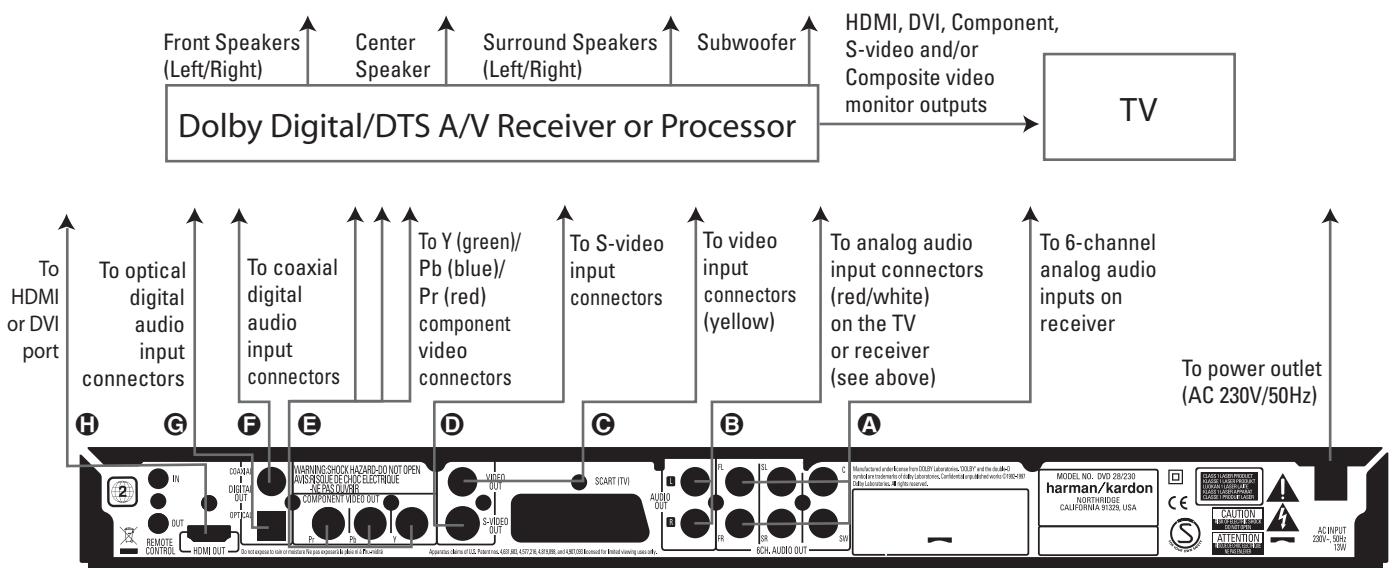
Important Notes on SCART and RGB format:
■ Your DVD is equipped with a SCART connector for direct connection to the TV.
The SCART connector provides the video signal as well as audio (stereo L/R) signals.
The SCART connector for the TV provides the composite video signal or the direct RGB signal, delivering the best video performance possible, selectable in the Setup menu.
To view RGB video on your TV, the RGB compatible SCART connector on the TV must be used and the DVD's TV SCART connector must be set to "RGB".
Note that with RGB video the color intensity cannot be adjusted with most TVs.
- When the RGB video signal is used, DVD's recorded with the NTSC format (with regional code 0 or 2) can be viewed even on non-NTSC compatible TVs.
Audio output from the unit's optical/coaxial digital audio output connector
Gently push the cable plug through the built-in shutter that covers the optical digital audio output and connect the cable firmly so that the configurations of both the cable and the connector match.
| Disc | Sound recording format | Optical/coaxial digital audio output |
| DVD | Dolby Digital | Dolby Digital bitstream (2-5.1ch) or PCM (2ch, 48kHz, 16-bit)†† |
| Linear PCM (48/96kHz, 16/20/24-bit) | Linear PCM (2ch) (48/96kHz, 16/20/24-bit) | |
| DTS | Bitstream or no output* | |
| MPEG (2.0) | MPEG bitstream (2ch) or linear PCM (2ch, 48kHz) | |
| VCD | MPEG-1 CD-DA | Linear PCM* |
| CD | Linear PCM | Linear PCM (44.1kHz sampling) |
| MP3 | Linear PCM (44.1-48kHz, depending on source, if digital output format selected as "Bitstream"). (48kHz if digital output format selected as "PCM") | |
| MPEG-1 Audio Layer 3) | ||
| WMA (Windows Media Audio) | Linear PCM (32-48kHz) |
- Digital Format must be selected as "ORIGINAL" or "PCM" respectively in Menu
For your reference:
Dolby Digital (AC-3) is a digital sound compression technique developed by the Dolby Laboratories Licensing Corporation, supporting 5.1-channel surround sound, as well as stereo (2-channel) sound, this technique enables a large quantity of sound data to be efficiently recorded on a disc.
Linear PCM is a signal recording format used in CDs. While CDs are recorded in 44.1kHz/16 bit, DVDs are recorded in 48kHz/16 bit up to 96kHz /24 bit.
If you have a Dolby Pro Logic Surround decoder connected to the DVD's analog AUDIO OUT connectors, thanks to the "Downmix" function of the DVD you will obtain the full benefit of Pro Logic from the same DVD movies that provide full 5.1-channel Dolby Digital soundtracks, as well as from titles encoded with Dolby Surround.
The DVD is designed to digitally output 96kHz-PCM audio with a 96kHz sampling rate. However, some 96kHz DVD's may include copy protection codes that do not permit digital output. For full 96kHz fidelity from these discs, use the analog outputs of the DVD.
IMPORTANT: If your surround processor/D/A converter does not support 96kHz PCM audio, you must use the DVD analog outputs for full 96kHz fidelity with these discs.
Caution for the optical/coaxial digital audio outputs:
- When connecting an amplifier (with an optical/coaxial digital input) which does not contain a Dolby Digital (AC-3) or DTS decoder, be sure to select "PCM" as initial setting in the "Digital Output" menu. Otherwise, any attempt to play a DVD may cause such a high level of noise that it may be harmful to your ears and damage your speakers.
CD's can be played as they would normally be played.
Note:
Some first generation DTS decoders which do not support DVD-DTS interface may not work properly with the DVD/CD player.
Dolby Digital, DTS and PCM signals are passed through the HDMI Output 1. However, DVD-Audio signals are not carried via the HDMI connection. You must connect the 6-Channel Audio Outputs 2 to the corresponding input jacks on your receiver or processor in order to enjoy DVD-Audio materials.
Dolby Digital and DTS
Both Dolby Digital and DTS are audio formats used to record 5.1-channel audio signals onto the digital track of film. Both of these formats provide six separate channels: left, right, center, left rear, right rear, and common subwoofer. The latest 6.1-formats, Dolby Digital EX and DTS ES, even one (or two) additional "Surround Back" channel for a center between the rears.
Remember, that Dolby Digital or DTS will only play 5.1-channel sound if you've connected the optical or coaxial output of the DVD player to a DTS or Dolby Digital receiver or decoder and if the disc was recorded in the Dolby Digital or DTS format.
DVD-Audio
The high-resolution output of DVD-Audio discs is only available as an analog signal. For that reason, it is necessary to make direct analog connections between the 6-Channel Audio Outputs on the DVD 28 and the matching 6-channel inputs on your receiver or surround processor.
Basic Play
Preparation
- Switch the TV ON and select its video input connected to the DVD.
- Press POWER to turn on the unit, the DVD harman/kardon logo should appear now on the screen. If that logo appears distorted on the screen or without any color, change the appropriate settings at the Video Setting Submenu according to your TV set and to the connection used between the DVD and your TV.
- When you see no video at all, not even the harman/kardon logo, check the setting of the video input used on your TV (most SCART inputs on TVs can be configured in the TV's menu). When you don't succeed, connect your TV with different cables to the DVD, e.g. via Composite (yellow jacks) or S-Video cables, rather than per SCART to view the setup menus until all appropriate "Video menu" settings are made properly.
- Switch on your A/V system's power, if the player has been connected to such a system.
- Press OPEN/CLOSE to open the disc tray.
- Place a disc on the disc tray.
Hold the disc without touching either of its surfaces, position it with the side you wish to play facing down, align it with the guides, and place it in its proper position.
3'' (8 cm) discs or 5'' (12 cm) discs can be used.
7. Press PLAY. The disc tray is automatically closed and play begins.
When the disc tray is closed by pressing OPEN/CLOSE, play will start automatically.
- With most DVD's, a Disc Menu appears on the screen. Select specific menu item by using ARROW buttons on the remote, then press OK.
DiscPlaybackFeatures
Skipping tracks or titles/chapters
To move forward or backward through the tracks on a CD or the titles or chapters on a DVD, press skip on the front panel or Previous/Next on the remote.
Fast Motion Playback/Fast Search
- To move forward or backward through the DVD or CD disc being played at fast speed, press SEARCH on the remote. Once one of these buttons is pressed, the fast search will continue until PLAY is pressed.
There are four fast-play speeds. Each press of the SEARCH Buttons will cycle to the next speed in the following order: x2, x4, x8, x20, x100, indicated by a number of arrow indicators on the right top of the screen. - Press PLAY at any time to resume normal playback.
Note that there will be no audio playback during fast-forward or -reverse play of DVD discs. This is normal for DVD, as A/V receivers and surround processors cannot process the digital audio streams during fast-play modes; audio will be heard during fast-play of conventional CD's.
Freeze Frame and Frame Advance (with DVD only)
- Press PAUSE when a DVD is playing to freeze the picture.
- Each time you press one of the STEP (FWD or REV) buttons, the picture advances one frame.
- Press PLAY to resume normal playback.
Slow Motion Playback (with DVD only)
- When a DVD disc is in pause or freeze frame mode, you may move slowly forward or backward through the program being played at one of the speeds by pressing the Play Buttons on the remote. Each press of the buttons will move to the next speed, indicated by a number of arrow indicators on the right top of the screen.
- Press PLAY to resume normal playback.
Note that there will be no audio playback during slow-forward or -reverse play of DVD discs. This is normal for DVD, as A/V receivers and surround processors cannot process the digital audio streams during slow modes. Slow play is not available for CD.
Notes:Playback features may not be available during the opening credits of a movie. This is intended by the disc author and is not a failure of the DVD.
Playback of a DVD with 96kHz/24-bit audio requires the use of circuitry normally used for other features. Accordingly, Slow Play Reverse and Step Advance features are not available with these discs.
Depending on the structure of a VCD disc, the functions Slow Reverse and Step Reverse may be prohibited or have no function and Fast Playback (Search) may not function.
About DivX Movie Files
The DivX disc compatibility of this DVD player is limited by the following:
- the available resolution size of the DivX file should be below 720x576 (W x H) pixels.
- the total number of files and folders on the disc should be less than 999.
- the number of screen frames per second should be below 29.97 frames per second.
- the video and audio structure of recorded file should be interleaved.
The player is capable of playing DivX files with the extensions ".avi".
The player is capable of playing subtitle files with the extensions ".smi", ".srt", ".sub (Micro DVD format only)" or "ssa". Other subtitle files won't be displayed. Subtitle files need to carry the same name as the movie file (but with either one of the above extensions) and should be located in the same directory.
Playing a DivX Movie Disc
Before playing DivX movie discs, please note the following:
- multi session DVD containing Windows Media Audio files may not be supported.
open session discs are not supported. - the DVD player does not support PC data.
-
this DVD player does not support an unfinalized disc with a closed session.
-
Insert a disc and close the tray.
- Press the OSD button of the remote control and select a folder by pressing the up/down cursor buttons and press OK. A list of files in the folder appears. If you are in a file list and want to return to the Folder list, use the up/down buttons on the remote to highlight and press OK.
- If you want to view a particular file, press the up/down buttons to highlight a file and press PLAY.
When playing back a DivX movie you can use variable playback functions like fast and slow backward and forward, as well as step forward and step backward.
4. Press STOP to stop the playback.
The DVD player's playback functionalities of DivX video discs will vary depending on the DivX version used for creating your movies.
NOTE: Before attempting to use the 13828 system remote to control DVD 28, you must press the DVD Button in the Input button group ⑥ This activates the secondary functions for double-function buttons. Refer to the function list on page 7.
System Defaults
The final step of the installation is to establish the system's defaults. It is helpful to take a few minutes to familiarize yourself with these settings, as they may require change before the first use and later from time to time.
General Functionality of the OSD Menu The complete setup and control of the DVD 28 takes place in an advanced user-guided On Screen Display (OSD) menu system. The OSD can be activated by pressing the SETUP button on the remote control. Pressing this button again deactivates the OSD.
The main menu consists of a PLAYER INFORMATION Menu and a SET-UP Menu. The PLAYER INFORMATION Menu will show all information and options available for the disc currently playing. The SET-UP Menu will help you configure all audio and video settings which are normally only made once.
Each Main Menu contains Submenus. These sub- menus are shown as icons on the left side of the menu. They can be highlighted by a white square around the icon by moving the cursor with the ARROW buttons. Icons can be activated by pressing OK as soon as an icon is highlighted. When OK has been pressed, the color of the icon will change to dark blue and you will see that the Actual Settings of this submenu will appear on the right side of the menu.
Although each Menu has various Submenus and Settings, navigating through menus, submenus and settings goes the same way. All submenus, settings and options can be accessed with the help of the ARROW (▲▼▶) and OK buttons on the remote control.
To change a setting, simply move the cursor to the setting you wish to change. This setting will be highlighted in light blue, and a brief explanation will appear in the Instruction Line on the bottom of your screen. Next, press the OK Button 11 and a dropdown menu will appear that contains the available options for that setting. Press the Navigation Buttons 36 until the desired option is highlighted, then press the OK Button 11 to select that option.
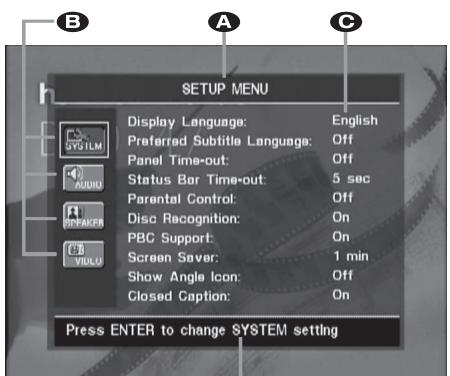
D
A Main Menu Line
B Submenus
Actual Settings
D Instruction Line
Most DVDs are created to allow setup menus to be displayed while the disc is playing, super-imposed over the video playback. However, some discs are authored in a way that does not allow this. If you see the icon displayed on the screen after pressing the Setup Button or the Info Button, press the Stop Button and then press the Setup or Info Button again.
Set Up Menu
The first step in checking or changing the system defaults is to access the Setup Menu. First, make certain that the DVD is properly connected to a video display, and that power is connected. For this process, however, you do not need to load any discs into the unit.
During STOP, PAUSE or PLAY mode, if you press SETUP on the remote, the Set Up Menu appears on the screen.
This Main Menu and all menus in the following section may look different, listing the settings with different languages, depending on the settings made previously. With the factory default setting all languages are set to "English", that's why with all menus the English version is shown in the manual.
In the SET-UP Menu you will find submenus for making or changing all settings and adjustments for both Audio and Video handling of your DVD 28.
System Settings
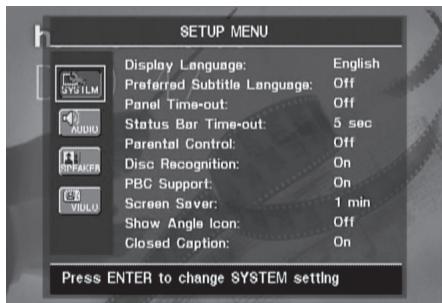
The System Setting Submenu contains the following settings. Follow the explanations in the Instruction Line on the bottom of your screen to change the settings.
Please note that when the menus prompt you to press ENTER, you must press the OK Button on the 13828 system remote.
Display Language: Sets the language in which the OSD menus are shown on your screen.
Preferred Subtitle Language: Defines your preferred subtitle language. Every time a disc will be played that contains this subtitle language, it will be shown automatically. If you do not find your preferred language in the list of options, you can select your preferred language by highlighting OTHER. Press OK and use the Navigation Buttons to select your preferred language from the list shown on the screen. Note that only those languages will be available that are actually on the DVD you would like to play. You can also set the preferred subtitle language to OFF. In that case no subtitles will be shown.
Panel Time-Out: Sets the time-out interval for the Front Panel Information Display. After the selected time, the display will dim completely.
Status Bar Time-Out: Sets the time-out interval for the Status Bar, after which the Status Bar will disappear from the screen.
Parental Control: Defines a password used to control viewing of restricted programs. The default password is 1234. After pressing the default password, either the parental control setting can be chosen, or a new password. The five standard US rating symbols are "G" (General, level 2), "PG" (Parental Guidance, level 4), "PG13" (Parental Guidance and 13 years old, level 4), "R" (Restricted, level 6) and "NC 17" (from 17 years old, level 7). The DVD will accommodate a total of eight rating steps, as set by the DVD creators. These additional steps allow for more critical control of program playback for all audiences. Level 8: All DVDs can be played. Levels 7 to 2: DVDs for general audiences/ children can be played. Level 1: DVDs for children can be played; DVDs for adults/general audiences are prohibited. Follow the explanations on the screen to set a new password.
Disc Recognition: This setting controls the Disc Recognition feature. When turned on, it allows you to pause a DVD, remove it from the player, play another disc, and then resume playback of the original disc at a later time from the point at which you paused. Note that even when the setting is activated, you must pause playback, rather than bring it to a full stop, and the unit must not be turned off between discs. The DVD 28 is capable of storing the information for up to five DVDs at a time.
PBC Support: Activates PBC (Play Back Control) Support for VCD discs.
Screen Saver: Activates a Screen Saver to prevent an image to "burn" into a video display device. If you connect the DVD 28 to a LCD or plasma screen or video projector, we recommend you activate the screen saver at all times.
Show Angle Icon: Determines whether the Angle Icon will appear on the screen when there are different angles available on a DVD disc.
Closed Caption: This setting enables viewing of closed caption messages, if they have been encoded in the video material. Closed captions are text displays of the program's dialogue, normally hidden from view, that are made available for the hearing-impaired or others. Select the ON setting to activate the DVD 28's closed captioning decoder so that these messages may be viewed.
Audio Settings
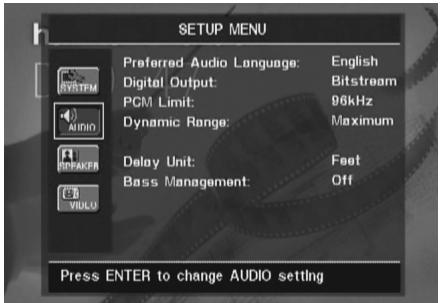
The Audio Setting Submenu contains the following settings. Follow the explanations in the Instruction Line on the bottom of your screen to change the settings. In case the audio settings have been changed, they will take effect after the next time the player goes through STOP mode.
Preferred Audio Language: Defines your preferred audio language. Every time a disc is played that contains this audio language, it will be activated automatically. If you do not find your preferred language in the list of options, you can select your preferred language by highlighting OTHER. Press OK and use the Navigation Buttons to select your preferred language from the list shown on the screen. Note that only those languages will be available that are actually on the DVD you would like to play.
Digital Output: If your system includes 5.1 digital audio surround decoding (Dolby Digital and/or DTS), select BITSTREAM as the digital output. In that case all audio signals will be output with their original format. If your system only includes stereo and/or Dolby Pro Logic, select PCM. Then all audio signals will be output in PCM format only (DTS will output no signal).
PCM Limit: The DVD 28 is compatible with both 48kHz and 96kHz sampling, but some early A/V receivers and surround processors are not. If your A/V receiver or surround processor is NOT capable of handling 96kHz signals, select the 48kHz option. If your A/V receiver or surround processor IS capable of handling 96kHz signals, select the 96kHz option to achieve the greatest audio fidelity available. The AVR 138 is capable of handling 96kHz signals.
Note: Due to copyright restrictions, the DVD 28 will not output an uncompressed signal in the PCM format from a disc recorded with 96kHz / 24 -bit resolution, such as some DTS audio CDs. If the Digital Output setting in the AUDIO SETUP submenu is set to PCM, and the PCM Limit setting is set to 96KHZ, no audio will be outputted, and the message CGMS MUTE will appear in the Main Information Display. "CGMS" stands for "Copy General Management System." Should this message appear, change the PCM Limit setting to 48KHZ to hear the audio at a lower resolution.
Dynamic Range: This setting allows you to take advantage of the programming present on some Dolby Digital recordings to reduce the volume of louder passages while maintaining intelligibility of quieter passages. This means that you may listen to programs at a level that allows the full impact of a soundtrack to be heard at a volume that is lower than you might otherwise use to avoid disturbing others. The DVD 28 accomplishes this by compressing the audio to a greater or lesser degree, depending on which setting you choose. Three options are available:
- MAXIMUM does not make any changes to the original playback, and should be used when the volume setting in the listening room may be as loud as you desire.
- MEDIUM applies a moderate amount of compression so that louder passages are a little bit quieter.
MINIMUM applies more compression so that louder passages are much softer.
Feel free to experiment with the settings at any time. Note that if your receiver or processor also allows you to program the dynamic range setting, also known as the "Night Mode," you do not need to make any adjustments on the DVD 28 and should leave the setting at MAXIMUM.
While DVD-Audio also is output only in analog form, many discs also contain PCM, Dolby Digital or DTS digital tracks and may be played through the Digital Audio Outputs 12.
Delay Unit: This setting selects the unit of distance used for calculating delay times when the AUDIOADJUSTMENTS menu is activated. The default unit is feet, but you may select meters.
Bass Management: This setting activates the AUDIO ADJUSTMENTS menu's bass management settings, to optimize playback of DVD-Audio discs through the Analog Audio Outputs 1012. Three settings are available:
- O n: This is the default setting. If your receiver or processor is equipped with "direct" 6-channel inputs and the receiver is not capable of performing bass management on these inputs, then leave this setting on the DVD 28 at the default of O N, and proceed to the AUDIOADJUSTMENTS menu to program the bass management settings.
- Bypass: If your receiver or processor is equipped with 6-channel inputs and is capable of adjusting the bass management settings (speaker size, output levels and delay times) for its 6-channel analog inputs, then Harman Kardon recommends that you change this setting to Bypass, and adjust the bass management settings on your receiver.
- Stereo: If your receiver or processor is not equipped with 6-channel inputs at all, then change this setting to Stereo, which will send a downmixed 2-channel signal to the Analog Audio Outputs for use with any 2-channel analog input on your receiver. You may then select an analog surround mode available on your receiver.
Audio Adjustments Submenu
This menu allows you to adjust bass management settings that control the audio output of the 6-Channel Audio Outputs ② for speaker size, output level and delay times. The proper adjustment of these settings is key to optimal reproduction of DVD-Audio discs, when the DVD 28 is used with a receiver or processor that does not have audio adjustment capabilities for the direct inputs.
Important Note: In order to avoid audio problems, when the DVD 28 is connected to a receiver or processor that does have the capability to adjust bass management parameters for its multichannel inputs, you have the option to either use that capability or adjust the settings in the DVD 28. The preferred method of operation is to use the receiver for these adjustments. In that case, remember to set the Bass Management setting in the AUDIO SETUP menu to Bypass. If you make the adjustments using the DVD 28's settings, it is important that the receiver's settings for the multichannel direct inputs be disabled, or set to "Large" for the speaker sizes and "0" for the level adjustments and delay times, unless these settings are also used for the receiver's other source inputs, in which case they should be left the way you set them when you configured your receiver. If you have any questions about the capabilities of your receiver or processor, we recommend that you consult its owner's manual or the manufacturer's Web site for further information.
If your receiver or processor does not have 6-channel analog inputs, make sure to select Stereo for the Bass Management setting in the AUDIO SETUP menu. Then connect the Analog Audio Outputs to any 2-channel analog inputs on your receiver.
Before proceeding with the DVD 28's audio setup adjustments, we recommend that you first use the menu system in your receiver or processor to ascertain the settings already established for "Speaker Size," "Output Level" and "Delay Time," which may be set as a distance. Write these settings down to refer to during the configuration process.
Press the Setup Button 10 to activate the Setup menu; then use the ▲▼ Navigation Buttons 36 until the AUDIO ADJUSTMENTS submenu is highlighted within a white outline box, and press the OK Button 11.
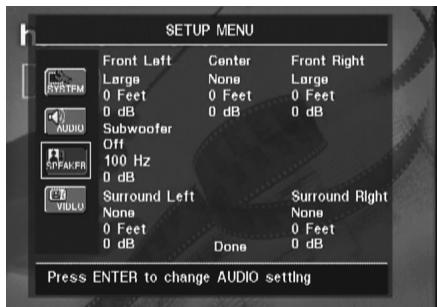
The following adjustments are available on the AUDIO ADJUSTMENTS menu for each speaker position. It is recommended that you cycle through the adjustments for each speaker position using the Navigation Buttons to enter the settings that are appropriate for your system. Pressing the OK Button displays a dropdown menu with the selections available for that setting. Use the Navigation Buttons to highlight the appropriate setting, and then press the OK Button to select it.
You will notice that the adjustments for speaker size and distance (used to calculate delay times) are set in tandem for the front left and right speaker pair, and for the surround left and right speaker pair. Changing the settings for either speaker in these pairs also affects that setting for the other speaker in that pair. For this reason, it is important to select the same brand and model for both speakers in each pair, and also to place them at about the same distance from the listening position.
Speaker Size: Speaker size is part of the bass management system which determines which frequencies are sent to the specific speaker position, and which are sent to the subwoofer. The designation of "size" does not refer to the speaker's physical size, but rather to the lowest frequency a speaker can handle. For this purpose, "full-range" speakers are considered "large," while those not capable of reproduction below 100Hz are considered "small." In general, if you are using a packaged speaker system with smaller satellite-type speakers and a subwoofer, you should select Smal1 for all five speakers. Large should only be selected if you are certain that your speakers are capable of handling extreme low-frequency sounds.
At the subwoofer setting, you can select the frequency under which bass information is directed to the Subwoofer Output and above which the remaining signal is directed to all other speakers. When making these selections, choose the crossover frequency that is closest to the lower frequency limit of your "SMALL" speakers. This figure is normally printed in the owner's manual or data sheet for the speakers; or consult the speaker's manufacturer.
Delay
Due the different distances between the listening position for the front channel speakers and the surround speakers, the amount of time it takes for sound to reach your ears from the front or surround speakers is different. You may compensate for this difference through the use of the delay settings to adjust the timing for the specific speaker placement and acoustic conditions in your listening room or home theater. Measure the distance from the listening position to each of the individual loudspeakers. Once done, select per loudspeaker the distance that is closest to the one measured.
Output level adjustment
Output level adjustment is a key part of the configuration process for any surround sound product. It is particularly important for DVD-Audio, as correct outputs will ensure that you hear sound tracks with the proper directionality and intensity.
NOTE: Listeners are often confused about the operation of the surround channels. While some assume that sound should always be coming from each speaker, most of the time there will be little or no sound in the surround channels. This is because they are only used when a movie director or sound mixer specifically places sound there to create ambiance, a special effect or to continue action from the front of the room to the rear. When the output levels are properly set it is normal for surround speakers to operate only occasionally. Artificially increasing the volume to the rear speakers may destroy the illusion of an enveloping sound field that duplicates the way you hear sound in a movie theater or concert hall.
The default settings of the DVD player is 0dB for all channels. In case you feel adjustments are necessary in your setup, we advise you to copy the settings currently in use with 5.1 surround modes (for instance Dolby Prol Logic II) of your AV receiver to the DVD player.
Video Settings
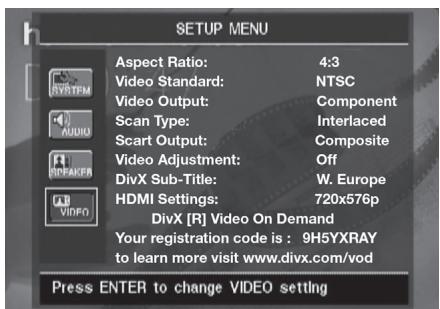
The Video Setting Submenu contains the following settings. Follow the explanations in the Instruction Line on the bottom of your screen to change the settings.
Aspect Ratio: This step selects the TV aspect ratio, conventional screen shape (4:3) or widenscreen (16:9), according to your TV.
When the HDMI Output 1 is used, the aspect ratio will automatically be set appropriately for the specific display. However, you may select an alternate view.
Video Standard: Sets the output video format i.e. NTSC, PAL or SECAM, of the DVD player. If you have a multi standard TV, we recommend the AUTO setting for optimal picture quality.
Video Output: Sets the video output type to S-Video, Component or SCART. Scart will be used for most TV's. Component will be used for most LCD, Plasma and projectors.
Scan Type: This setting allows you to select between progressive and interlaced scanning for the Component Video Outputs ⑥ to maximize the image resolution for the type of video display in use. The output at the S-Video ⑤ and Composite Video ④ outputs will always be standard-rate video that is compatible with any television set or video display. Two choices are available:
Progressive: Select this option if you have a video display that is compatible with input sources of 480P or greater. Displays labeled as "HDTV Ready," including virtually all large-screen LCD and plasma displays, are compatible with progressive scan.
Interlaced: Select this option when you are using an older video display that has Y/Pr/Pb component inputs, but which is not capable of displaying high scan rate, or "HD" signals.
NOTES:
- The Scan Type may only be changed when the Video Output setting has been set to Component.
- If you have connected the DVD 28 to a video display that is not capable of displaying progressive scan video using the Component (Y/Pr/Pb) Video Outputs 4, and you have inadvertently changed the Video Output Setting to Component and the Scan Type setting to Progressive, you may reset the scan type to interlaced by pressing the
Progressive Scan/Interlaced Button 16
The display will blink, indicating that the scan type has been reset to interlaced mode.
Scart Output: Selects which kind of video output signals will be routed over the scart. RGB will be used for most TV's and is therefore recommended.
Video Adjustment: The Video Adjustment Submenu contains access to the Test Screen. First adjust the video display device (TV) with the help of the Test Screen. After that the output settings of the player can be fine-tuned with the Brightness, Sharpness and Black Level settings. In order to change the settings, move the cursor to the "+" or "-" icon on the same line as the setting. Once one of the icons is highlighted, pressing OK will increase or decrease the value of the setting, as will be shown in the bar behind the setting. To exit the Video Adjustment Menu, move the cursor to DONE, and press OK.
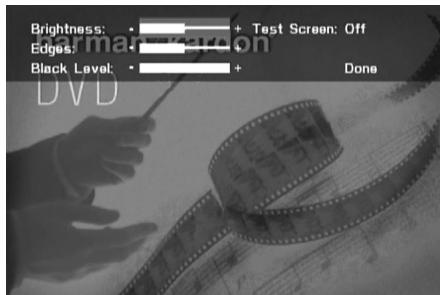
DivX Subtitle: This setting selects the desired subtitle language for DivX movies.
Below the menu items you will find your personal DivX Video On Demand (VOD) code.
This code allows you to rent and purchase videos using the DivX VOD service. For more information, visit www.divx.com/vod. Follow the instructions and download the video onto a disc for playback on this unit. Note that all the downloaded videos from DivX VOD can only be played back on this unit.
Once the DivX icon is highlighted, press OK to access your personal DivX VOD code.
HDMI Settings: This setting displays the characteristics of the video output signal at the HDMI Output ①. When the DVD 28 is connected to a video display using the HDMI Output ①, the display sends information to the DVD 28 that indicates the highest video resolution it is capable of handling, and the DVD 28 automatically sets the video output to match it. That resolution is displayed here. You may use this setting to manually select a lower video output resolution. Changes made here remain active until the DVD 28 or the display is turned off. When either is turned off, and then on again, the DVD 28 will revert to the default setting transmitted by the display. Make sure your video display or other video switching equipment (such as an HDMI-capable receiver) is capable of handling the DVD 28's HDMI output signal.
Test Screen
When you activate the Test Screen via the OSD you can activate a still image to test all settings and the video performance of your TV. With the vertical color bars you can test the following:
proper color intensity setting on your TV,
the proper color of each bar, showing if the proper video standard is turned on: the colors should be (left to right): black, white, yellow, cyan (turquoise), green, magenta (purple), red, blue, black.
proper color transition, seen as sharp separation of the bars, S-Video will be better than Video, RGB best of all.
the performance of the color filter in your TV (with "Video" signals), bar edges should show no vertical crawling dots. Here S-Video and RGB formats usually give no problems.
With the grey scale and the black/white fields below the color bars the brightness and contrast of your screen can be adjusted optimally, see chapter "TV Picture Adjustment" below.
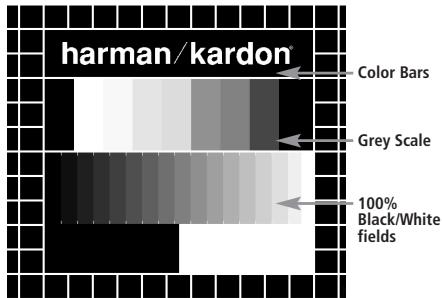
TV Picture Adjustment with Test Screen
These adjustments may be done now, but you can also make them after setup has been finalized.
Brightness adjustment:
- Turn down the color control on your TV until the color bars are visible in black and white.
- Adjust the contrast to the lowest level where you still can see all bars within the grey scale in the test picture separately and clearly.
- Adjust the Brightness so that the bars in the grey scale are all visible. The bar furtherst to the left has to be as black as possible rather than grey but the next aside must clearly be differable. All the bars in the grey scale have to be gradually and evenly changing from black to whiter, going from left to right.
Contrast adjustment:
- Adjust the contrast on your TV until you see a bright white bar in the right low corner of the screen and a deep dark black bar at the left. The optimal contrast setting will depend from your preference and the surrounding light in the TV room.
- If the brightness of the white bar will no more increase while turning up the contrast or when the borders of the white "harman/kardon" text letters on top will bloom (overlight) into the black areas, what drastically will decrease the sharpness of the script, then the Contrast has been turned up too much. Reduce the contrast until these effects will disappear and the video still looks realistic.
- If you are watching TV with a usual surrounding daylight, adjust the Contrast so that a normal video picture has about the same looking as the surroundings in your room. By that way the eye is relaxed when watching the TV picture. This contrast setting may be reduced when the surrounding light is dimmed, usually improving the sharpness of a video a lot thereby.
- The grey scale in the middle line needs to have the same clear difference between each bar as before the contrast adjustment. If not, go back to the brightness adjustment and repeat step 3 and then the contrast adjustments, making only minor adjustments each time for optimisation.
Color adjustment.
-
When the Brightness and the Contrast are set optimally, turn up the color control to the level of your preference. Adjust to the level where the colors look strong but still natural, not overdone. If the color level is too high, depending from the TV used some of the bars will seem wider or the color intensity will not increase while the control is turned up. Then the color control must be reduced again. At the end you should test the color intensity also with a video, e.g. pictures of natural faces, flowers, fruit and vegetables and other well known natural articles of our life most useful for an optimal setting of the color intensity.
-
If your TV has a Tint option (with most European TVs this is available or effective only with NTSC signals, not with PAL), use the large white bar below the Greyscale to tweak the warmth of the picture. Every viewer has a difference in preference as how the glow of the picture should be. Some prefer a little colder picture, some a warmer glow. The Tint function on your TV and the white bar can be used to control this. Adjust the Tint to the level where you feel the white color has the tone you prefer.
Sharpness Adjustment
Contrary to intuition, the picture will appear sharper and clearer with the sharpness, or Edges, setting backed off from the maximum setting. Reduce the sharpness setting on your television, and the Edges setting on the DVD 28 video adjustments menu if necessary, to minimize the appearance of any white lines between the bars in the gray scale portion of the test screen.
The crosshatch pattern that surrounds the test screen may be used to evaluate edge focus and convergence in front- or rear-projection video displays. However, the controls used to adjust these parameters are often not user-accessible. In any event, these adjustments are extremely complex, and require proper training and experience to avoid worsening the situation. Therefore, it is recommended that if you are unable to improve the picture using the available controls, contact the video display manufacturer's authorized service representative for assistance.
When all desired setup and configuration entries have been made, use the Navigation
Buttons 36 until "Done" is highlighted at the bottom of the Video Adjustments submenu. Press the OK Button 11 to select it to return to the on-screen menu system. Then, press the Setup
Button 10 to remove the menu displays from the screen. The unit will return to normal operation and you are ready to enjoy the finest in DVD or CD playback!
Using the Player Information Menu
The DVD 28's Player Information menu displays disc information and enables you to program playback modes. Press the Info Button to display the Player Information menu.
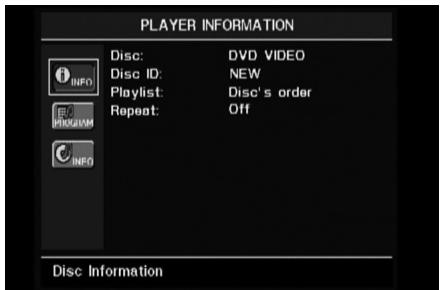
The Player Information menu has two submenus which may be accessed by using the
Navigation Buttons to highlight the submenu's icon, and pressing the OK Button to select it. These submenus are different from the Setup menus in that many items are for display only and cannot be changed using the menu system.
PLAYBACKINFO Submenu: This submenu displays basic disc and playback mode information. You may not make any changes to the items shown in this submenu, except for the Repeat mode.
Disc: This line displays the disc type, such as DVD-Video.
Disc ID: If the disc is encoded with an identification label, such as a movie title, it will appear here.
■ Playlist: For DVDs, this line will reflect that playback will occur in the disc's order. Programmable playlists are not available when a DVD is loaded.
Repeat: This line displays the current repeat mode, or Off if Repeat mode is not active.
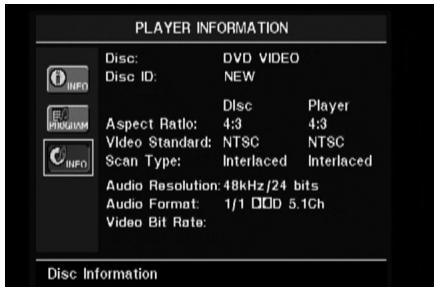
PROGRAM submenu: The PROGRAM submenu is not accessible for DVDs.
DISCINFO Submenu: This submenu displays detailed information about the disc content. You will not be able to make any changes to the items on this submenu. However, you may use the SETUP menu system as described on page 39 to change the DVD 28 player settings for video aspect ratio or scan type.
Disc: This line displays the disc type.
Disc ID: If the disc is encoded with an identification label, it will appear here.
■ Aspect Ratio: This line displays the aspect ratio of the video content on the disc, and the format in which it is being played back according to the setting established in the VIDEO SETUP submenu as shown on page 39. Some discs may contain two versions of the same program with a widescreen aspect ratio on one side of the disc, and a standard aspect ratio on the other.
Video Standard: The disc's format is shown here. For Region 2 players, this will normally be PAL, although some DVDs that are open region (playable in all regions) may be in the NTSC format.
- Scan Type: This line displays whether the video program on the DVD was recorded with a progressive or interlaced scan rate. It also displays how the program is being played back, based on the setting established in the VIDEO SETUP submenu as shown on page 39.
Audio Resolution: This line displays the sample rate and bit rate for the current audio format.
Audio Format: This line displays the current audio track, such as Dolby Digital 5.1 or linear PCM.
Video Bit Rate: This line displays the video bit rate up to the limit of 10 Mbps. This indication will vary as a disc is played in response to changes in the amount of compression that was applied to the video signal when the disc was created. Thus, when the disc is stopped or paused, this line will remain blank.
When you have finished viewing the Player menus, press the Info Button 7 to remove the displays from the screen and return to normal play.
Using the On-Screen Status Display
When a DVD is playing, you may press the Status Button 12 at any time to view a quick summary of the disc's playback status. The Status Bar not only gives you a snapshot of the unit's current state; it also provides an easy way to select a different title, chapter or track, or use the time search feature.

- Title: This displays the current title on the left, and the total number of titles on the disc on the right.
- Chapter: This displays the current chapter on the left, and the total number of chapters on the disc on the right.
- Play Mode Icon: This displays the current play mode icon: e.g. Play▶, Pause II, Stop ■.
- Time Display: This section of the display shows the time corresponding to the type of display indicated in the Time Display Type. The Time Search function enables you to start playback at any point in the program. Use the Navigation Buttons to highlight this display, and the numbers will change to dashes. You may then use the Numeric Keys to enter the numbers corresponding to the time on the disc at which you wish play to commence. Press the OK Button, and play will immediately begin at the selected time position.
- Time Bar: This display is a graphic representation of the time elapsed for the title being played. As the disc plays, the number of bars will increase to reflect approximately what percentage of the title has been played thus far.
- Time Display Type: This section identifies the type of information in the Time Display section of the display. Use the Navigation Buttons 36 to select this setting, and each subsequent press of the OK Button 11 will change the time display from Title Elapsed, to Title Remaining, to Chapter Elapsed to Chapter Remaining, and cycle back to Title Elapsed. The time displayed on screen and in the front-panel Information Display 1 will change accordingly.
Many functions of the DVD 28 operate the same way for CD playback as for DVD play; however, there are some important differences. When a CD is loaded, the DVD 28 will automatically display the Player Information menu. Status banners are not available during CD play.
A greater variety of playback options are available during CD play, including Random play and programmed playlists.
These and other features unique to CD play are described in this section.
Using the Player Information Menu
The DVD 28's Player Information menu displays disc information and enables you to program playback modes. Press the Info Button to display the Player Information menu.
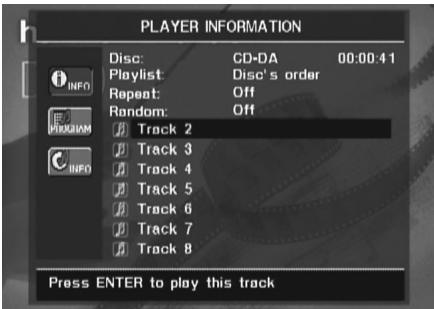
The Player Information Menu has three sub-menus which may be accessed by using the
Navigation Buttons to highlight the submenu's icon, and pressing the OK Button to select it. These submenus are different from the Setup menus in that many items are for display only and cannot be changed using the menu system.
PLAYBACKINFO Submenu: This submenu displays basic disc and playback mode information.
Disc: This line displays the disc type, such as CDDA (Compact Disc Digital Audio).
Audio: This line displays the type of audio recorded on the disc, usually Stereo.
■ Playlist: For CDs only, you may choose to play the tracks in order as they appear on the disc, or you may program a playlist containing some or all of the tracks in the order in which you wish to hear them. This line indicates which of these two modes has been selected. In order to change this setting, you will need to access the PROGRAM submenu as described below.
Repeat: With this line highlighted, press the OK Button to activate Repeat mode. Each press will change the repeat mode from Repeat 1 (to repeat one track) to Repeat All (to repeat all tracks on the disc) to Repeat Off.
Random: With this line highlighted, press the OK Button to activate Random mode. Each press will toggle between turning the Random play on or off.
Track List: A list of tracks on the disc will appear. Use the Navigation Buttons to scroll through the list. Press the OK Button or the Play Button while a track is highlighted, to begin play.
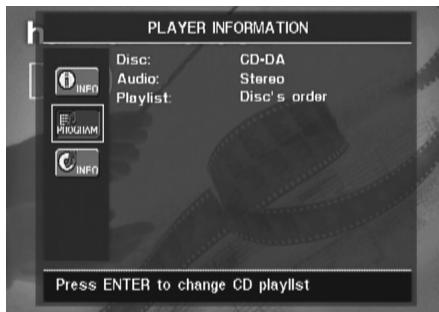
PROGRAM Submenu: This submenu lets you program a playlist. The PROGRAM submenu is only accessible for CDs.
Disc: This line displays the disc type.
Audio: This line displays the type of audio recorded on the disc, usually Stereo.
■ Playlist: With this line highlighted, press the OK Button 1 to change the order in which the tracks are played from the order in which they appear on the disc (Disc's order) to a playlist order which you may program (Programmed order). A list of program steps and the track programmed for each step will appear at the bottom of the screen. You may enter a track number using the Numeric Keys 34 and then press the Navigation Button 36 to program another track.
Use the Navigation Button 36 to select the desired program steps. Note that you may not enter a track more than once in the playlist, if it appears in an earlier step. However, you may use the Repeat function while the playlist is playing. After you have finished programming the playlist, press the Play Button 423 to begin play.
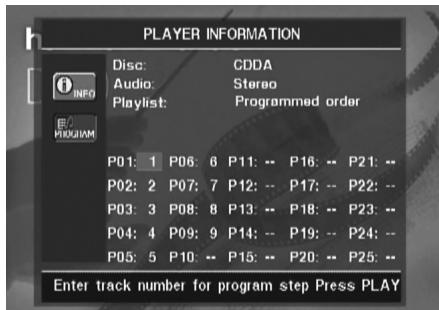
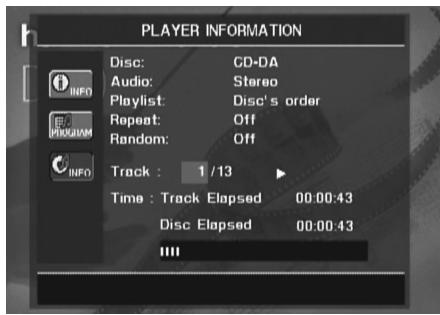
Disc Information Submenu: This screen displays abbreviated track and playback information, plus more detailed timing information. It is only available for CDs.
The information at the top of the screen provides the same information on the disc type, audio format, playlist setting, Repeat play setting and Random play setting as on the Playback Info submenu. The following additional information appears next.
-
Track: This line displays the current track on the left, and the total number of tracks on the disc to the right.
Play Mode Icon: This icon will appear to the right of the Track display and will indicate the current playback mode.
Time: This section consists of three lines: -
Track Elapsed: Displays the elapsed or remaining time of the current track.
- Disc Elapsed: Displays the elapsed or remaining time of the disc.
- Elapsed Time Bar: Displays in graphical form a temperature bar reflecting the percentage of the disc that has been played.
Use the Navigation Buttons to highlight either Track Elapsed or Disc Elapsed, and each press of the OK Button will toggle between the elapsed and remaining settings. The time displayed to the right and in the front-panel Information Display will change accordingly.
The Time Search function enables you to start playback at any point in the program. Use the Navigation Buttons to highlight the time display. Press the Numeric Keys followed by the OK Button to select a new point in the track from which to commence play. When you have finished viewing the Player menus, press the Info Button to remove the displays from the screen and return to normal play.
Selecting a Track
To select a track, make sure the Player Information menu is on screen. Press the Info Button 7 to activate it if necessary. Next,
press the Navigation Button 36 so that the Track Number is highlighted. Use the Numeric Keys 34 to enter the desired track, and press the OK Button 11 to begin playing the new track.
To select a specific track on a CD at any time during playback, simply press the number corresponding to the track you wish to listen to using the Numeric Keys ③ 4 . You may also move one by one through the chapters at any time by pressing the Skip DWN (Down)/
Skip Up Buttons 7824. When you press the DWN or Skip Reverse 7 button once, the player will return to the start of the current track. Additional presses of either button will step back through the available tracks, one at a time.
Note: When a JPEG, MP3 or Windows Media disc is playing, a special screen will appear.
Repeat Play
The DVD 28 offers several repeat functions for CDs that allow you to take advantage of the capacity of the unit for unattended playback:
- Repeat Program: Repeats the current playlist if Programmed Order has been selected at the Playlist setting.
- Repeat 1 Track: For CDs, VCDs, MP3s and WMAs, repeats the track or file currently being played until the disc is manually stopped. The Repeat and 1 indicators will light in the front-panel display, and the REPEAT 1 icon will appear on screen.
- Repeat Disc: For CDs, VCDs, MP3s, WMAs, and JPEGs, repeats the entire disc until play is manually stopped. The Repeat and All indicators will light in the front-panel display, and the REPEAT ALL icon will appear in the Status Bar.
- Repeat Folder: For MP3s, WMA's and JPEGs, repeats all tracks within the current folder until play is manually stopped. The Repeat H indicator will light in the front-panel display, and the REPEAT FOLDER icon will appear on screen.
- Repeat A-B: Repeats any selected portion of the disc until the disc is manually stopped (see below for more information).
To select any Repeat mode (other than Repeat A-B):
While a disc is playing, press the Repeat Button on the remote. The Repeat icon will appear on screen, indicating the new repeat mode. Each press of the Repeat Button will cycle through the available repeat modes. To end Repeat play, continue pressing the Repeat Button until the Off mode is selected.
A-B Repeat Play
The Repeat A-B function allows you to select any portion of a CD and have it repeat continually until the unit is manually stopped.
To initiate a Repeat A-B playback sequence, follow these steps while a disc is playing:
- Press the A-B Repeat Button 18 on the remote when you want to choose the beginning point; the Repeat icon appears in the upper right corner of the screen, followed by A - to indicate the beginning of the passage to be repeated.
- Press the A-B Repeat Button 13 again to choose the end point. Repeat A-B has been set, and the A-B section will be played continuously.
- Press the A-B Repeat Button 18 on the remote again to cancel Repeat A-B mode.
Random Play
The Random Play function will play all of the tracks on a CD in a random order, as selected by the DVD 28. Once the DVD 28 has played all of the tracks on the disc once, it will stop.
You may select the random mode by pressing the Random Button 29 on the remote. Each press of the Random Button 29 will toggle the setting between "Off" and "On", meaning that the remaining tracks on the disc will be played in random order.
The Random Indicator J in the Front-Panel Information Display will light any time the Random setting is on.
Video Off Feature
During CD playback, some listeners may prefer to turn off the DVD 28's video circuitry. Although the video section is electrically isolated from the audio section, some users may prefer to turn the video displays off during audio playback to prevent any possibility of interference between audio and video. You may also wish to turn the video display off if you find the menu system distracting or unnecessary during CD playback.
IMPORTANT NOTE: It is strongly recommended that plasma video display owners use the Video Off feature to avoid burn-in.
To turn the video displays off while a CD is playing, simply press the Video Off Button 38. Press the button again to restore the video output. The V-Off Indicator G will light to remind you that the video displays have been turned off. Note that the video output will automatically be restored each time the DVD 28 is turned on.
MP3, Windows Media and JPEG Playback
The DVD 28 will recognize data from CD-ROM discs recorded in the MP3, Windows Media 8 (WMA) or JPEG formats, including images stored on Kodak Picture CDs. You may also play discs with more than one of the three formats.
The Specific File Types That May be Played on the DVD 28 Are:
- MP3 Files: MP3 is a popular audio compression format that was developed by the Motion Picture Experts Group as part of the MPEG-1 video compression format. Depending on the specific MP3 encoder used, file size is greatly reduced so that you store many more songs on one compact disc than in the standard audio CD format. MP3 is also used to download audio files to computers for home use. Note, however, that in order to play an MP3 file on the DVD 28, the disc may not contain any encryption or coding that prevents playback. Always be certain that you have, or have purchased, the proper rights or authorization before creating a CD-ROM with MP3 or any other codec format. Due to variations in the different encoders and variations of the MP3 codec and the different bit rates used to record MP3 discs, the DVD 28 may not be able to play all discs with MP3 files. We cannot guarantee complete compatibility with MP3 discs, even though they may play on a computer. This is normal and does not indicate a problem with the DVD 28. Note, also, that when a multisession disc with both standard CD audio and MP3 (or WMA) content is used, the DVD 28 will only play the CD audio sections of the disc.
- WMA Files: WMA (Windows Media Audio) is an audio compression format developed by the Microsoft® Corporation for use with its Windows Media Player. WMA files may be created with greater compression than MP3 without sacrificing audio quality so that even more songs may be recorded on a disc. Note that there have been a number of versions of Windows Media, and the DVD 28 is compatible only with files that end in the "wma" extension and that were recorded using the Windows Media Series 8 encoding.
- JPEG Files: "JPEG" is the acronym used to identify image files recorded according to specifications established by Joint Photographic Experts Group for compressing still images. Identified by the file extension "jpg" when they are recorded on most computers, JPEG files may be created by a digital still camera and then edited and "burned" to a disc in your personal computer, recorded on a CD-ROM disc from film images by a photo processor, or scanned from printed photos into your personal computer and then burned onto a CD-ROM.
Discs containing MP3, WMA or JPEG files are navigated and controlled differently from standard DVDs and CDs. When a disc containing one or more of these types of files is loaded in the DVD 28, the Player Information menu screen will appear.
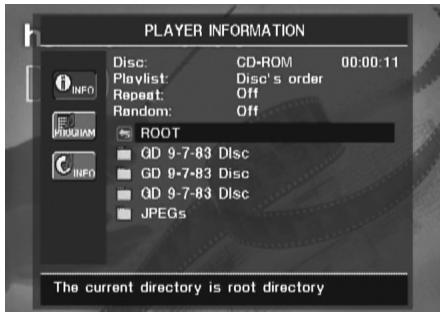
This screen will display a list of the main folders contained on the disc. The elapsed time will appear in the upper right corner of the screen. It isn't possible to change the time display, and the Time Search function is not available.
MP3 or WMA Disc Playback
MP3 and WMA discs may contain 200 tracks or even more. To get the best overview about all tracks on the disc and their names and to select them comfortably, use the on-screen display rather than the front-panel display. The front-panel display will only show the number and the elapsed time of the track being played for WMA files.
The supported bit rate for WMA files is between 64k bits and 320k bits. The supported bit rate for MP3 files is between 32k bits and 320k bits.
- To select a folder (if any), press the Navigation Buttons until the desired folder name is high-lighted, then press the OK Button.
- To select a track, press the Navigation Buttons 36 until the desired track name is highlighted. To start play of the track selected on the list, press the OK Button 11 or Play Button 423.
During MP3/WMA playback, some of the standard CD/DVD playback controls operate in their normal fashion:
- You may skip forward to the next track on the disc by pressing the Skip/UP Button 8 24.
- You may skip back to the previous track on the disc by pressing the Skip/DWN Button 724.
-
Press the Pause Button 5 to momentarily stop playback. Press the Play Button 4 to resume play. Press the Stop Button 6 to enter stop mode.
-
Press the Search Forward 8 23 or Search Reverse 7 23 buttons, for fast search of a track. Press the Play 4 23, Pause 5 23 or Stop Button 6 23 to end fast play.
- Slow-play is not available during MP3/WMA playback.
- You may play an MP3 or WMA disc in random mode like a normal CD. You may also access the Random function while an MP3 or WMA disc is playing by pressing the Random Button 29 .
- The Repeat function may be accessed during playback of an MP3 or WMA disc by pressing the Repeat Button 23 on the remote. Repeatedly press the Repeat Button 28 to scroll through the options of Repeat 1 (repeat one file), Repeat All (repeat all files) or Repeat Folder (repeat all files within the current folder). The next press will turn the repeat function off. Repeat A-B is not available during MP3/WMA playback.
NOTES ON MP3 AND WMA PLAYBACK
- During playback, the front-panel display and the time indicator on the screen above the list will show the elapsed time of the track being played. Other time display options are not available with MP3/WMA playback.
- The DVD 28 is only compatible with standard MP3- and WMA-encoded discs. Other compressed audio formats used for Internet audio downloads will not play on the DVD 28.
- Due to the differences in various versions of the MP3 and WMA formats, and the many differences between the CD-R machines used to record discs on a computer, it is possible that some discs may not play on the DVD 28 even though they will work on a computer. This is normal and does not indicate a fault with the unit.
- When a multisession disc with both standard CD audio and MP3 or WMA content is in use, the DVD 28 will play only the CD audio sections of the disc. Track numbers will be visible in the display, but the files will not be decoded.
-
If a disc containing MP3, WMA and/or JPEG files is created in more than one session, the DVD 28 may not recognize files added during the later sessions, especially if the disc was finalized after the first session.
-
When a disc with multiple folders is playing, only tracks from one folder can be displayed and played at a time. Select the desired folder and press the Play Button 4 23 or
OK Button to start the first track. To see and play tracks from other folders, you must first select the root folder using the
Navigation Buttons 36, and press the OK Button 1 to open or close that folder. You may then navigate an open folder and select the desired folder. Press the OK Button 1 to open the folder, and select the desired track. Then press the Play Button 4 23.
- Only stereo audio playback is available for MP3 and WMA discs.
- Programmed playlists are not available for MP3/WMA discs.
- Use the Navigation Buttons to select the DISCINFO Submenu icon on the left side of the screen, and press the OK Button to view it. If the disc contains ID3 tag information, then the current MP3 track information will appear: song title, artist, album, year, genre, and any comments. For WMA and JPEG files, only the file name will appear.
JPEG Playback
The DVD 28 is capable of recognizing JPEG still-image files and displaying them. When a disc or folder containing JPEG files is loaded, the JPEG Disc-Type Indicator A will light in the Main Information Display 1. The disc will immediately begin displaying the images on the disc in order.
When viewing JPEG images, the Angle Button 13 may be used to rotate the image. With the image on-screen, press the Angle Button 13 once to display the current orientation of the image, usually +0 . Press the Angle Button 13 again within one second to rotate the image clockwise 90 degrees. The new orientation of +90 will be displayed. Each additional press of the Angle Button 13 will continue to rotate the image clockwise by 90 degrees.
You may use the Zoom Button to enlarge a JPEG image, and the Navigation Buttons to explore the enlarged image.
You may view thumbnails of the images in the selected folder by pressing the Disc Menu Button 37. When the images appear on screen, you may use the Navigation Buttons to move the picture frame around until the desired image is selected. Press the OK Button 11 to display a full-size view of that image.
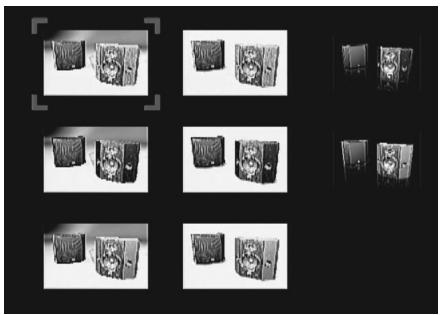
TroubleShooting Guide
| Symptom | Possible Cause | Solution |
| Unit does not turn on | • No AC power | • Check AC power plug and make certain any switched outlet is turned on. |
| Disc does not play | • Disc loaded improperly | • Load disc label-side up; align the disc with the guides and place it in its proper position. • Incorrect disc type • Check to see that disc is CD, CD-R, CD-RW, DivX, VCD, MP3, WMA, JPEG, DVD-R, DVD-RW, DVD-R+R, DVD-RW (standard conforming), DVD-Audio or DVD-Video; other types will not play. • Invalid Region Code • Use Region 2 or Open Region (0) disc only. • Rating is above parental preset • Enter password to override or change rating settings. |
| No picture | • Intermittent connections • Wrong input • Progressive Scan output selected | • Check all video connections. • Check input selection of TV or receiver. • Use Progressive Scan mode only with compatible TV. If needed, press the Progressive Scan/Interlaced Button 16 to toggle to the correct mode. • Press Video Off Button 33 to reactivate video circuitry (see page 43) • The HDMI Output 1 may not be used with video displays that are not HDCP-compliant. Unplug the cable and select another audio and video connection (see pages 31 through 32). |
| • Video Off feature active • HDMI Output 1 is connected to a video display that is not HDCP-compliant. | ||
| No sound | • Intermittent connections • Incorrect digital audio selection • DVD disc is in fast or slow mode • Surround receiver not compatible with 96kHz PCM audio • DVD Audio disc is loaded without using analog audio connection | • Check all audio connections. • Check digital audio settings. • There is no audio playback on DVD discs during fast or slow modes. • Use analog audio outputs. • Use 6-Channel Audio Outputs 2 or Analog Audio Outputs 10. |
| Picture is distorted or jumps during fast forward or reverse play | • MPEG-2 decoding | • It is a normal artifact of DVD playback for pictures to jump or show some distortion during rapid play. |
| Some remote buttons do not operate during DVD play; prohibited symbol ⓷ appears (see below) | • Function not permitted at this time | • With most discs, some functions are not permitted at certain times (e.g., Track Skip) or at all (e.g., direct audio track selection). |
| The OSD menu is in a foreign language | • Incorrect OSD language | • Change the display language selection. |
| The ⓸ symbol appears | • Requested function not available at this time | • Certain functions may be disabled by the DVD itself during passages of a disc. |
| Picture is displayed in the wrong aspect ratio | • Incorrect match of aspect ratio settings to disc | • Change aspect ratio settings. |
| Remote control inoperative | • Weak batteries • Sensor is blocked | • Change both batteries. • Clear path to sensor or use optional outboard remote sensor. |
| Disc will not copy to VCR | • Copy protection | • Many DVDs are encoded with copy protection to prevent copying to VCR. |
| Password not accepted. | • Incorrect password being used or password has been forgotten. | • Stop play of disc. Press and hold the Clear Button 14 until the display blinks. This resets the password and all settings to their defaults. |
Audio Section
Stereo Mode
Continuous Average Power (FTC)
40 Watts per channel, 20Hz-20kHz
@ < 0.07% THD, both channels driven into 8 ohms
Five-Channel Surround Modes
Power Per Individual Channel, all channels driven simultaneously
Front L&R channels:
30 Watts per channel,
@ < 0.07% THD, 20Hz-20kHz into 8 ohms
Center channel:
30 Watts, @ < 0.07% THD, 20Hz-20kHz into 8 ohms
Surround channels:
30 Watts per channel,
@ < 0.07% THD, 20Hz-20kHz into 8 ohms
Input Sensitivity/Impedance
Linear (High Level) 200mV/47kohms
Signal-to-Noise Ratio (IHF-A) 95dB
Surround System Adjacent Channel Separation
Analog Decoding 40dB
(Pro Logic, etc.)
Dolby Digital (AC-3) 55dB
DTS 55dB
Frequency Response
@ 1W (+0dB, -3dB) 10Hz-100kHz
High Instantaneous
Current Capability (HCC) ±25 Amps
Transient Intermodulation
Distortion (TIM) Unmeasurable
Rise Time 16 μsec
Slew Rate 40V/μsec
FM Tuner Section
Frequency Range 87.5-108MHz
Useable Sensitivity IHF 1.3 V / 13.2dBf
Signal-to-Noise Ratio Mono/Stereo: 70/65dB (DIN)
Distortion Mono/Stereo: 0.15/0.3%
Stereo Separation 35dB @ 1kHz
Selectivity ±400kHz: 70dB
Image Rejection 80dB
IF Rejection 90dB
AM Tuner Section
Frequency Range 522-1620kHz
Signal-to-Noise Ratio 45dB
Usable Sensitivity Loop: 500 V
Distortion 1kHz, 50% Mod: 0.8%
Selectivity ±10kHz: 30dB
Video Section
Video Format PAL/NTSC
Input Level/Impedance 1Vp-p/75 ohms
Output Level/Impedance 1Vp-p/75 ohms
Video Frequency
Response 10Hz-8MHz (-3dB)
General
Power Requirement AC 230V/50Hz
Power Consumption 72W idle, 580W maximum
(2 channels driven)
Dimensions (Max)
Width 440mm
Height 165mm
Depth 382mm
Weight 9.6 kg
Depth measurement includes knobs, buttons and terminal connections.
Height measurement includes feet and chassis.
All features and specifications are subject to change without notice.
Harman Kardon is a registered trademark.
*Manufactured under license from Dolby Laboratories.
"Dolby", "Pro Logic", and the Double-D symbol are
trademarks of Dolby Laboratories, Inc.
Manufactured under license under U.S. Patent #s: 5,451,942; 5,956,674; 5,974,380; 5,978,762; 6,487,535; 7,003,467 & other U.S. and worldwide patents issued & pending. DTS, DTS Digital Surround, ES, and Neo:6 are registered trademarks and the DTS logos Symbol are trademarks of DTS, Inc. © 1996-2007 DTS, Inc. All Rights Reserved.
Logic 7 is a registered trademark of Lexicon, Inc.
Technical Specifications for DVD 28
| Applicable Disc: | Disc formats: 5 inch (12 cm) or 3 inch (8 cm) DVD Video, DVD-Audio, Standard conforming DVD+RW, DVD+R, DVD-R, DVD-RW, DivX, VCD, CD, CD-R, MP3, WMA, JPEG or CD-RW discs, Regio code: DVD Movie disc with Code 2 or 0 only. DVD-Layers: Single Side/Single Layer, Single Side/Dual Layer, Dual Side/Single Layer, Dual Side/Dual Layer Audio formats: DVD-Audio MLP lossless, Linear PCM, MPEG, Windows Media® 9, Dolby Digital or DTS Audio discs Still-image format: JPEG |
| Video Signal System: | PAL/NTSC |
| HDMI™ Output: | Video: 576p, 720p, 1080i HDMI Version 1.0-compliant HDCP Version 1.1-compliant |
| Composite Video Output: | 1 Vp-p/75 Ohms, sync negative polarity |
| S Video Output: | Y/Luminance: 1 Vp-p/75 Ohms, sync negative polarity C/Chrominance: 0.286 Vp-p |
| Component Video Output: | Y: 1 Vp-p/75 Ohms, sync negative polarity Cr: 0.7 Vp-p/75 Ohms Cb: 0.7 Vp-p/75 Ohms |
| Analog Audio Output: | 2 Vrms max |
| Frequency Response: | DVD (Linear PCM): 2Hz - 22kHz (48kHz sampling) 2Hz - 44kHz (96kHz sampling) |
| CD: 2Hz - 20kHz | |
| Signal/Noise Ratio (SNR): | 105 dB (A-weighted) |
| Dynamic Range: | DVD: 100dB (18 Bit) / 105dB (20 Bit) CD/DVD: 96dB (16 Bit) |
| THD/1kHz: | DVD/CD: 0.0025 % |
| Wow & Flutter: | Below Measurable Limits |
| AC Power: | 100 - 240 V/50 ~ 60 Hz |
| Power Consumption: | 1 Watts (Standby)/13 Watts (Max) |
| Dimensions (WxHxD): | 440 x 50 x 285 mm |
| Weight: | 4.0 kg |
Depth measurement includes knobs and connectors.
Height measurement includes feet and chassis.
All specifications subject to change without notice.
Harman Kardon and Harman International are registered trademarks of Harman International Industries, Incorporated.
Manufactured under license from Dolby Laboratories. Dolby, Dolby Digital, ProLogic and the double-D symbol are trademarks of Dolby Laboratories.
Manufactured under license under U.S. Patent #: 5,451,942 & other U.S. and worldwide patents issued & pending. DTS and DTS Digital Out are registered trademarks and the DTS logos and Symbol are trademarks of DTS, Inc. © 1996-2007 DTS, Inc. All Rights Reserved.
Microsoft, Windows and WMA are either registered trademarks or trademarks of Microsoft Corporation in the United States and/or other countries.
HDMI, the HDMI logo and High-Definition Multimedia Interface are trademarks or registered trademarks of HDMI Licensing LLC.
DivX, DivX Certified, and associated logos are trademarks of DivX Networks, Inc and are used under license.
This product incorporates copyright protection technology that is protected by method claims of certain U.S. patents and other intellectual property rights owned by Macrovision Corporation and other rights owners. Use of this copyright protection technology must be authorized by Macrovision Corporation and is intended for home and other limited viewing uses only unless otherwise authorized by Macrovision Corporation. Reverse engineering or disassembly is prohibited.