
S6 - Sports Watch SUUNTO - Free user manual and instructions
Find the device manual for free S6 SUUNTO in PDF.



| Product type | Sports watch (wrist computer) |
| Model | Suunto S6 |
| Brand | Suunto |
| Weight | 54 g |
| Water resistance | 100 m / 330 ft (ISO 2281 standard, not for diving) |
| Glass | Mineral crystal |
| Battery | CR2032 (3 V, user-replaceable) |
| Operating temperature | -20 °C to +50 °C / -5 °F to +120 °F |
| Storage temperature | -30 °C to +60 °C / -22 °F to +140 °F |
| Altimeter | Range: -500 m to 9,000 m / -1,600 ft to 29,500 ft; resolution 1 m / 3 ft |
| Barometer | Range: 300 to 1,100 hPa / 8.90 to 32.40 inHg; resolution 1 hPa / 0.05 inHg |
| Thermometer | Range: -20 °C to +60 °C / -5 °F to +140 °F; resolution 1 °C / 1 °F |
| Compass | Resolution 1°; calibratable |
| Clinometer (inclination) | Units: degree (°) or percentage (%) |
| Modes | Time (watch), Compass, Weather, Skiing, SkiChrono |
| Additional functions | Alarms, stopwatch, logbook, weather memory, ski, etc. |
| PC interface | DataSnake (multicable) with serial connection; Suunto Ski Manager software |
| Maintenance and cleaning | Rinse with fresh water after contact with salt water; avoid chemicals; replace battery with original kit |
| Warranty | 2 years for manufacturing or material defects |
| Certification | CE (electromagnetic compatibility) |
Frequently Asked Questions - S6 SUUNTO
User questions about S6 SUUNTO
0 question about this device. Answer the ones you know or ask your own.
Ask a new question about this device
Download the instructions for your Sports Watch in PDF format for free! Find your manual S6 - SUUNTO and take your electronic device back in hand. On this page are published all the documents necessary for the use of your device. S6 by SUUNTO.
USER MANUAL S6 SUUNTO
4.1. Ordinary Skiing/Snowboarding Day 53
4.2. Skiing/Snowboarding Day with Speed Measurement 54
4.3. Training on a Course 55
- ADDITIONAL FEATURES 56
5.1. Datasnake 56
5.1.1. Transferring Data 56
5.1.2. Suunto Ski Manager 57
5.2.Suuntoports.com 59
5.2.1. System Requirements 59
5.2.2.SuntaToSports.com Sections 60
5.2.3. Getting Started 62
- TECHNICAL DATA 63
- COPYRIGHT AND TRADEMARK NOTICE 64
- CE 64
- LIMITS OF LIABILITY 65
10.DISPOSAL OF THE DEVICE 65
1. GENERAL INFORMATION
Suunto S6 Wristop Computer is a reliable high-precision electronic instrument that is intended for recreational use.
NOTE: You should not use Suunto S6 to obtain measurements that require professional or industrial precision or to obtain measurements when skydiving, hang gliding, paragliding, gyrocopter riding or flying a small aircraft.
1.1.CHECKLIST
Make sure the package contains the following items:
Suunto S6
- Datasnake interface cable
- CD containing the Suunto Ski Manager software
Suunto S6 User's guide
Should any of these be missing from the package, contact the resale agent who sold you the package.
1.2.CARE AND MAINTENANCE
Care of the Suunto S6
Only perform the procedures described in this manual. Never attempt to disassemble or service your Suunto S6. Protect it from shocks, extreme heat and prolonged exposure to direct sunlight. Avoid rubbing your Suunto S6 against rough surfaces as this may scratch the face. If not in use, store the Suunto S6 in a clean, dry environment at room temperature.
After use or exposure to salt water, flush the Suunto S6 with water to remove the
salt. Turn the bezel ring and push the buttons while washing. Finally wipe your Suunto S6 clean and dry with a soft cloth. If there are persistent stains or marks, you can apply mild soap to the area. Do not expose your Suunto S6 to strong chemicals such as gasoline, cleaning solvents, acetone, alcohol, insect repellents, adhesives and paint, as they will damage the unit's seals, case and finish.
1.3.WATER RESISTANCE
Suunto S6 is water-resistant and tested with ISO (International Organization for Standardization, www.iso.ch) standard 2281. Suunto S6 is also marked with an indication of a test overpressure given as a depth in meters (100 m/330 feet). This, however, does not correspond to a diving depth but refers to the pressure at which the water overpressure test was conducted.
This means that you cannot dive to a depth of 100 m/330 ft. with your Suunto S6. Rain, showering, swimming and other normal exposure to water will not affect the operation. However, do not press the buttons under water under any circumstances.
NOTE: The Suunto S6 is not meant for diving.
1.4. REPLACING THE BATTERY
Your Suunto S6 operates on a 3-Volt lithium cell, type: CR 2032.
A low-battery warning indicator is activated on the display when approximately 5-15 percent of the battery capacity is still available. When this occurs, you should replace the battery. However, extremely cold weather may activate the low battery-warning indicator even when the battery is still fully operational. If the battery-warning indicator is activated in temperatures above 10^ ( 50^ ), replace the battery.
NOTE: Heavy use of the backlight will significantly reduce battery life.
You can replace the batteries yourself as long as you do it properly to avoid any leakage of water into the battery compartment or computer. Always use original battery replacement kits that include a new battery, battery lid, opening tool and O-ring. You can purchase the battery kits from official Suunto retailers.
NOTE: Change the battery at your own risk and use the original Suunto battery replacement kit. Suunto recommends you to have the batteries changed in official Suunto services.
NOTE: When replacing the battery, also replace the battery lid and O-ring. Never use the old ones.
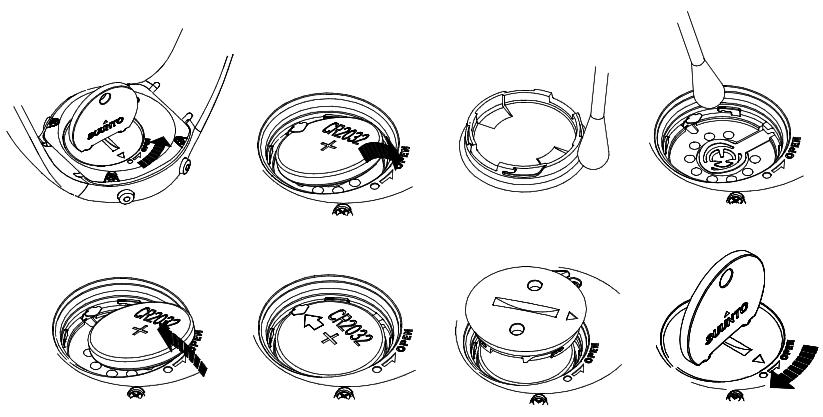
To replace the battery:
- Insert the opening tool or a coin into the slot located on the battery compartment cover on the backside of your Suunto S6.
- Turn the tool/coin counterclockwise until it is aligned with the open position marker.
- Remove the battery compartment cover and the O-ring, and discard them. Ensure that all surfaces are clean and dry.
- Remove the old battery carefully.
- Place the new battery into the battery compartment under the metal flap, with the positive side facing up.
- With the O-ring in the correct position, replace the battery compartment cover and turn it with the tool/coin clockwise until it is aligned with the closed position marker. Make sure that the cover stays straight while turning it. Do not use force or press the cover excessively.
NOTE: Perform battery replacement with extreme care to ensure that your Suunto S6 remains water resistant. Careless battery replacement may void warranty.
WARNING: This Suunto product contains a Lithium cell. To reduce risk of fire or burns, do not disassemble, crush, puncture, short external contacts, charge or dispose of in fire or water. Replace only with manufacturer specified batteries. Recycle or dispose of used batteries properly.
Refer to the pictures when changing the battery.
1.5. AFTER SALES SERVICE
If a claim under warranty appears to be necessary, return the product, freight prepaid, to your Suunto dealer who is responsible for having your product repaired or replaced. Include your name, address, proof of purchase and/or service registration card, as required in your country. The claim will be honored and the product repaired or replaced at no charge and returned in what your Suunto dealer determines a reasonable amount of time, provided that all necessary parts are in stock. All repairs that are not covered under the terms of this warranty will be made at the owner's expense. This warranty is non-transferable from the original owner. If it is not possible to contact your Suunto dealer, contact your local Suunto distributor for further information. You can locate your local Suunto distributor in www.suunto.com.
1.6. ONLINE WARRANTY REGISTRATION
Suunto's dive computers and wristop computers can be registered online at www.suunto.com. With our new online warranty registration service, we've removed the need for paperwork and trips to the mailbox by making it possible to register your Suunto device online, in real time, either in the store when you buy it, or later at home. Registering your unit makes it quicker and easier for us to help you if you ever need to send your product for servicing, or if you need information about using your unit from our Global Help Desk. By typing in your device's serial number, our help desk and service professionals can find all the information required to give you the best possible service. Registration will also make it possible for us to contact you in case we have important safety information concerning your Suunto product.
2. HOW TO USE YOUR SUUNTO S6
2.1 DISPLAY
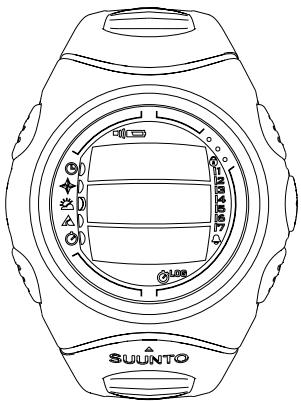
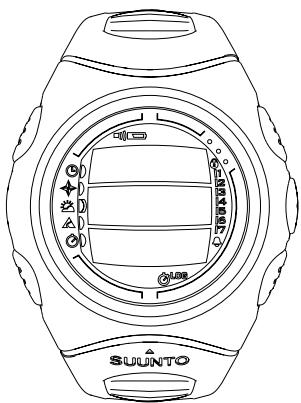
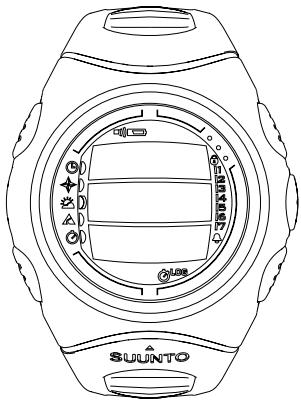
When your Suunto S6 leaves the factory, it is in the sleep mode, and its display is blank. You can then select which mode is displayed.
In addition to mode-specific information, the Suunto S6 display includes several symbols:
2.1.1. Mode symbols
The mode symbols are located on the left side of the display. The moving segment next to them indicates the active mode.
Time



2.1.2. Function symbols
The function symbols indicate that either a function (such as an Alarm) has been activated or something needs to be done (battery symbol). The function symbols are:
Active when at least one of the alarms is on.
Weather/Altitude alarm
Active when the weather alarm, altitude alarm or Asc/Dsc alarm is on.
Log Logbook
Active when the logbook is recording data.
Chrono
Active when SkiChrono/Chrono is recording data.
Use alti/baro
Indicates that the air pressure sensor is used as a barometer and the altitude reading is fixed.
Active when you select the air pressure to be displayed as weather information. In this case the altitude reading in Skiing, Chrono and Compass modes is fixed. For more information refer to chapter 3.3.2. Use.
Battery
Active when 5-15 percent of the battery capacity is left and the battery should be replaced.
Button Lock
Active when the button lock is activated.
2.2.BUTTONS
2.2.1. Short and Long Press
The buttons may have different functions depending on how long you press them.
The ordinary press or short press means that the button is pressed quickly.
The long press means that the button is pressed for more than 2 seconds.
2.2.2.Start button
Short Press
In the SkiChrono mode, it locks the slope angle and starts the timing.
- In the normal chrono of the SkiChrono mode, it starts the timing and saves and displays the split/lap times.
- In the Skiing mode it saves the split/lap times.
- In the Compass mode, it starts the compass again after it has switched to the power-saving mode.
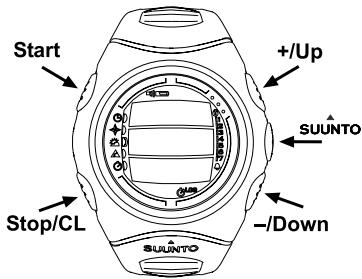
Long Press
- Activates the backlight when the backlight is not set to the off position. The backlight stays on as long as a selection is active and 5 seconds after the last selection. For more information about the backlight settings, see chapter 3.2.5. General.
2.2.3. Stop/CL button
Short Press
- Returns to the previous menu level or to the previous selection without accepting the selection.
In the SkiChrono mode, it stops timing. - In the main mode displays, it acts as a shortcut button that toggles the lowest field of the main display between three different alternatives. The selection stays active even if the mode or menu level is changed.
Long Press
- Returns to the main display of the current mode without accepting the last selection.
In the SkiChrono mode it resets the stopwatch.
2.2.4. Suunto Button
Short Press
- Scrolls to a lower menu level.
- Accepts the selections made with arrows and moves to the next phase.
After the last selection, it returns to the settings menu. - With two possible selections (e.g. light on/off), it activates the selection and accepts the selections made with arrows.
Long Press
- Returns to the main display of the current mode and accepts the selection.
- With two possible selections (e.g. light on/off), it accepts the selection and returns directly to the main display of the current mode.
2.2.5. Arrow Buttons
Short Press
Changes modes in the main mode display.
- Scrolts the menus up and down, and the logbook and memory forward and back
- Changes the values. The up arrow increases the value and the down arrow decreases the value.
- With two possible selections (e.g. light on/off), both arrows change the value.
2.2.6. Button Lock
The button lock prevents you from pushing the buttons accidentally. If the buttons are locked and you try to press a button, the message "UNLOCK PRESS SUUNTO" is displayed.
Activating the button lock
To activate the button lock:
- Press Suunto. Suunto S6 switches to the function menu.
- Press Start within 2 seconds. Suunto S6 switches to the main display of the current mode, and the button lock symbol appears on the upper right corner of the display.
Deactivating the button lock
To deactivate the button lock:
- Press Suunto. The following text is displayed: "NOW PRESS START".
- Press Start within 2 seconds. Suunto S6 switches to the main display of the current mode and the buttons are unlocked.
2.3.MENUS
2.3.1. Basic Menu Structure
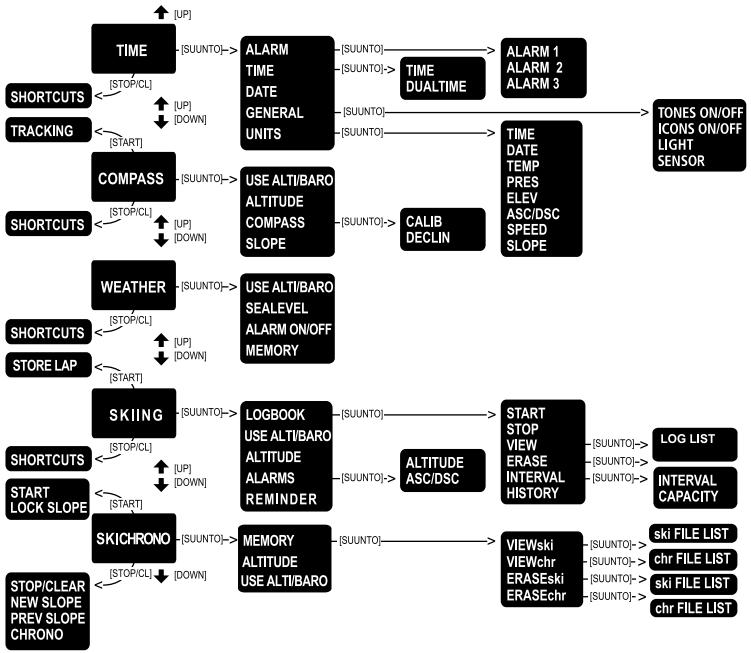
The menus are organized hierarchically under the modes. When you select a mode, its main display appears. When you press Suunto in the mode's main display, the mode's function menu is displayed. The function menu includes several functions, all of which include sub-functions or settings. This is called the hierarchical menu structure. The figure on the opposite page presents the basic idea of the menu structure.
2.3.2. Navigating in Menus
You can scroll the menu items with the up and down arrows located on the right side of Suunto S6. Three menu items are displayed at the same time. The menu item that is currently active and can thus be selected is displayed in reversed color. The indicator bar on the right side of the display shows the total number of menu items. The number of the active menu item is displayed next to the indicator bar.
To move deeper into the hierarchy, select a menu item and press Suunto. To return one step up in the hierarchy, press Stop/CL. Remember that if you just press Stop/CL, the changes you made in the menu are not saved. First you have to accept the changes with the Suunto button.
If you want to return directly to the main display of the active mode, press either Suunto (saves the changes) or Stop/CL (discards the last change) for more than 2 seconds.
Suunto S6 will guide you as much as possible when you navigate in the menus. When you perform a function, Suunto S6 often automatically returns to the menu item you are likely to use next. And if you try to do something that is impossible, Suunto S6 first displays a message and then automatically recommends a function in reversed color to help you to use the functions.
3. MODES
3.1. GENERAL INFORMATION
Suunto S6 has five different modes: Time, Compass, Weather, Skiing and SkiChrono. The symbols for each mode are displayed on the left of the display. When you select a mode, the active mode indicator appears on the display next to the symbol of the selected mode.
To select a mode, press either the up or down arrow while in the main display of any mode and scroll to the desired mode. During scrolling, the icon of the selected mode and its name appear on the display. When you stop scrolling, the icon stays for a little while and then the main display of that mode opens automatically.
NOTE: In addition to the active mode indicator, the Use indicator can also be displayed next to the Compass or Weather mode symbols. If the Use is set to Alti, the indicator is next to the Compass mode symbol and if the Use is set to Baro, the indicator is next to the Weather mode symbol. For more information about the Alti or Baro Use, see chapter 3.3.2. Use.
3.2. TIME MODE
3.2.1. Main Display
When you select the Time mode, the main display opens. The main display has three rows:
Date
The first row displays the date in the selected format. For more information about changing the date format, see chapter 3.2.6. Units.
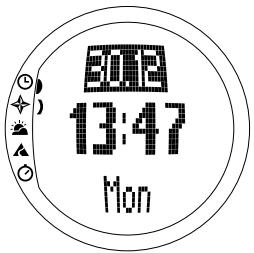
Time
The second row displays the time in the selected format. For more information about changing between 12- and 24-hour displays, see chapter 3.2.6. Units.
Shortcuts
The third row displays alternatively the weekday, the seconds or the dual time. Switch between these with Stop/CL.
- Weekday: Displays the current weekday.
- Seconds: Displays seconds.
- Dual time: Displays the dual time if it has been set. For more information on setting the dual time, see chapter 3.2.3. Time.
3.2.2. Alarm
You can set up to three separate alarms. In addition to time, you can also define a date when the alarm sounds. If you do not define the date, the alarm will sound daily as long as it is set to on.
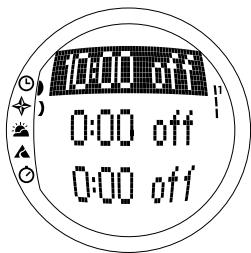
When the alarm is set, the alarm symbol appears on the lower right side of the display.
Activating alarms
To activate an alarm:
-
In the Function menu, Alarm is already the first menu item. Press Suunto to select it. The alarm menu displays the status of the alarms. When you open the menu for the first time, the alarm indicators are set to off as default.
-
Scroll to the alarm you want to set and press Suunto. The alarm information is displayed on the screen (status, time, date). The alarm status is active (in reversed color).
- Press either the up or down arrow to change the alarm status to on. Press Suunto. The alarm symbol appears on the display and the hour selection is activated.
- Set the correct hour with the arrow buttons and press Suunto. The minute selection is activated.
- Set the correct minutes with the arrow buttons and press Suunto. The month selection is activated.
- If you want the alarm to sound every day, accept the dd.mm format by pressing Suunto. (A long press takes you directly back to the main display. A short press takes you to the function menu.) The alarm is set to sound every day and you return to the function menu.
- If you want to set the alarm for a specific date, set the day and month in the dd and mm fields with the arrow buttons and press Suunto to accept the date. The alarm is now set to sound only once on the selected date and you return to the function menu.
Deactivating alarms
To deactivate the alarm:
- In the Function menu, Alarm is already the first menu item. Press Suunto to select it.
- Scroll to the alarm you want to deactivate and press Suunto. The alarm information is displayed on the screen (status, time, date). The alarm status is active (in reversed color).
- Press either the up or down button to change the alarm status to off and press Suunto. The alarm symbol disappears from the display.
Acknowledging alarms
When you hear the alarm, you can acknowledge it by pressing any of the buttons. If you do not do anything, the alarm will automatically stop after 30 seconds.
3.2.3. Time
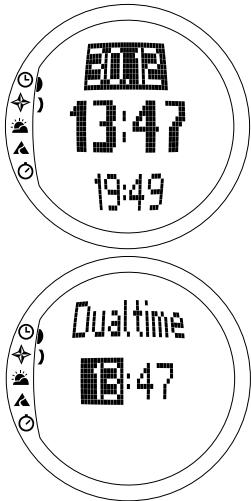
Time is displayed on the second row of the Time mode's main display. It functions like an ordinary clock and displays the current time. If the time is displayed as a 12-hour clock, the symbol AM or PM is displayed on the last row. (For more information about the 12/24-hour clock, see chapter 3.2.6. Units.)
The dual time can be displayed as a shortcut on the third row of the Time mode's main display. Dual time makes it possible to keep track of another time, for example, another time zone. To scroll to the dual time shortcut, press Stop/CL in the main display.
Setting the time and the dual time
To set the time and the dual time:
- In the Function menu, scroll to Time and press Suunto. The menu with the Time and Dual time is displayed
- Scroll either to Time or Dual time and press Suunto. The hour selection is activated.
- Change the hour with the arrow buttons and press Suunto. The minute selection is activated.
- Change the minutes with the arrow buttons and press Suunto. The second selection is activated.
Note: When you set the dual time, you can only set hours and minutes. The seconds are retrieved from the Time option. So, when you press Suunto in the Dual time option, you automatically return to the function menu.
- When you press the down arrow, the seconds are zeroed. If you want to set specific seconds, press the up arrow and the seconds start running. When the settings are correct, press Suunto. You automatically return to the function menu.
3.2.4. Date
The date has three different formats: dd.mm, mm.dd or day. For more information about changing the format, see chapter 3.2.6. Units.
Changing the date
To change the date:
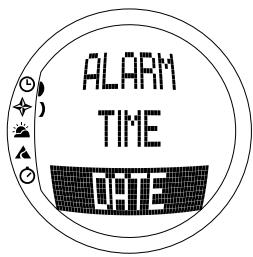
- In the Function menu, scroll to Date and press Suunto. The date menu is displayed with the first field active.
- Change the value in the first field (either day or month depending on the format) with the arrow buttons and press Suunto. The second field is activated.
- Change the value in the second field with the arrow buttons and press Suunto. The year field is activated.
- Change the year with the arrow buttons and press Suunto. (All the years mean the 21st century.) You automatically return to the function menu.
NOTE: The weekday is updated automatically on the third row according to the set date.
3.2.5. General
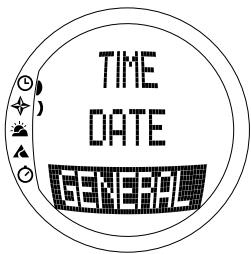
The General function includes general settings for using your Suunto S6. These settings include Tones, Icons and Light, and they affect all the modes.
Setting the tones
Tones are sounds that indicate that you have successfully pressed the buttons. The tones can be set to the on or off position.
To set the tones:
- In the function menu, scroll to General and press Suunto. The General menu is displayed.
- Scroll to Tones and press Suunto. The On/Off field is activated.
- Change the field to either On or Off with the arrow buttons and press Suunto. The tones are now set.
Setting the icons
Icons are the mode logos that appear on the screen for a moment when you change the mode. You can either show or hide the icons.
To set the icons:
- In the Function menu, scroll to General and press Suunto. The General menu is displayed.
-
Scroll to Icons and press Suunto. The On/Off field is activated.
-
Change the field to either on or off with the arrow buttons and press Suunto. The icons are now set.
Setting the light
Light is the backlight of the Suunto S6 display. It has three possible settings:
- Normal: The light switches on when you press Start for more than 2 seconds. The light is on for 5 seconds after the last press of a button.
- Off: The light does not switch on from any button or during an alarm.
- Night Use: The light switches on when you press a button and stays on for 5 seconds after the last press of a button.
NOTE: The backlight goes on when an alarm sounds in Normal and Night Use.
To change the light settings:
- In the Function menu, scroll to General and press Suunto. The General menu is displayed.
- Scroll to Light and press Suunto. The current light setting is displayed in reversed color.
- Select the suitable light setting with the arrow buttons and press Suunto. The light setting is set and you return to the function menu.
Calibrating the air pressure sensor
The pressure sensor of the Suunto S6 is accurately calibrated when the product leaves the factory. However, the calibration can slightly shift over time. You can adjust the calibration offset but you should only do it if you notice that the current air pressure shown on the bottom row in the Weather mode differs from a reference value of the barometric pressure measured with a certificated high-accuracy barometer. You can set the value by 0,1 hPa or 0,01 inHg steps. The reference value
should be measured with at least the same accuracy. If you are uncertain, contact the Suunto technical service before changing the calibration.
To change the pressure sensor calibration:
- In the Function menu, scroll to General and press Suunto. The General menu is displayed.
- Scroll to Sensor and press Suunto. The text SENSOR CALIBRATION appears and the current measured absolute air pressure is displayed as active.
- With the arrow buttons, set the absolute air pressure value to match the measured reference value and press Suunto. You return to the Function menu.
NOTE: You can return the original calibration by scrolling the sensor calibration value until text DEFAULT is displayed in the middle row.
3.2.6. Units
This menu includes the units that are used with all the Suunto S6 functions and settings. The settings include Time, Date, Temp, Pres, Elev, Asc/Dsc, Speed and Slope, and they affect the way information is displayed in all the Suunto S6 modes.
Setting the time format
The time settings define whether the 12- or 24-hour display is used.
To change the time format:
- In the Function menu, scroll to Units and press Suunto. The Units menu is displayed.
- Scroll to Time and press Suunto. The time format field is activated.
- Select the correct time format with the arrow buttons and press Suunto. The time format is now set.
Setting the date format
The date settings define the format in which the date is displayed. The possible formats are:
MM.DD: Month before the day, e.g. 11.27.
- DD.MM: Day before the month, e.g. 27.11.
Day: Only the day is displayed, e.g. 27.
To change the date format:
- In the Function menu, scroll to Units and press Suunto. The Units menu is displayed.
- Scroll to Date and press Suunto. The date format field is activated.
- Select the correct date format with the arrow buttons and press Suunto. The format is set and you return to the function menu.
Setting the temperature unit
The Temp settings define the unit in which the temperature is displayed. The options are Celsius (°C) and Fahrenheit (°F).
To change the temperature unit:
- In the function menu, scroll to Units and press Suunto. The Units menu is displayed.
- Scroll to Temp and press Suunto. The temperature unit field is activated.
- Select the correct unit with the arrow buttons and press Suunto. The temperature unit is now set.
Setting the air pressure unit
The Pres settings define the unit in which the air pressure is displayed. The options are hPa and inHg .
To change the air pressure unit:
- In the Function menu, scroll to Units and press Suunto. The Units menu is displayed.
- Scroll to Pres and press Suunto. The air pressure unit field is activated.
- Select the correct unit with the arrow buttons and press Suunto. The air pressure unit is now set.
Setting the elevation unit
The Elev settings define the unit in which the elevation is displayed. The options are meters (m) and feet (ft).
To change the elevation unit:
- In the Function menu, scroll to Units and press Suunto. The Units menu is displayed.
- Scroll to Elev and press Suunto. The elevation unit field is activated.
- Select the correct unit with the arrow buttons and press Suunto. The elevation unit is now set.
Setting the ascent/descent rate unit
The Asc/Dsc settings define the way the ascent or descent rate is displayed. The possible formats are:
m/s
m/min
m/h
ft/s
ft/min
ft/h
To change the Asc/Dsc format:
- In the Function menu, scroll to Units and press Suunto. The Units menu is displayed.
- Scroll to Asc/Dsc and press Suunto.
- Select the correct format with the arrow buttons and press Suunto. The format is set and you return to the Units menu.
Setting the speed unit
The speed settings define the unit in which the speed is displayed. The options are kilometers (km/h) and miles (mph).
To change the speed unit:
- In the Function menu, scroll to Units and press Suunto. The Units menu is displayed.
- Scroll to Speed and press Suunto.
- Select the correct format with the arrow buttons and press Suunto. The format is set and you return to the Units menu.
Setting the slope unit
The Slope settings define the unit in which the slope is displayed. The options are degree (^) and percentage (%) .
To change the slope unit:
- In the Function menu, scroll to Units and press Suunto. The Units menu is displayed.
- Scroll to Slope and press Suunto. The slope unit field is activated.
- Select the correct unit with the arrow buttons and press Suunto. The slope unit is set.
3.3. COMPASS MODE
3.3.1. Main Display
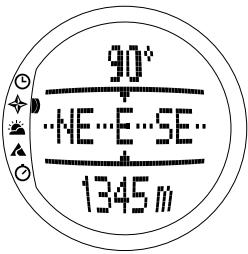
When you select the Compass mode, the main display opens. The main display has three rows.
Bearing
The first row displays the bearing pointed with the sighting marks of Suunto S6. The bearing is displayed in bold when the compass is level. Level position is needed to ensure accurate bearings.
Compass
The second row displays the heading of Suunto S6 as a graphical presentation of a compass rose. The rose displays the cardinal and half-cardinal points.
The magnetic sensor of the compass functions for 40 seconds at a time. After this period, the compass moves into the power-saving mode and the message "START COMPASS" is displayed. To activate the compass again, press Start.
Shortcuts
The third row contains shortcuts to three functions. Press Stop/CL to switch between the functions.
-
Altitude: In Alti use, it displays the current altitude, and in Baro use, it displays the reference altitude.
-
Bearing tracking: Bearing tracking helps you follow a certain bearing in terrain. When you scroll to bearing tracking for the first time, it is 0^ . To activate the search for bearing, move your Suunto S6 horizontally until the chosen bearing is displayed on the first row and press Start. The selected bearing is displayed on the third row until you select a new bearing. When you have selected the bearing tracking, the compass rose in the middle row displays a dotted vertical line that indicates the set bearing tracking.
NOTE: When you scroll to bearing tracking the next time, it always displays the last selected bearing.
- Time: The current time.
NOTE: The shortcuts function normally in the power-saving mode. When you select the bearing tracking shortcut, the compass is automatically activated.
3.3.2.Use
The Use function allows you to define whether the air pressure measurement is used to measure the altitude or to represent weather conditions.
If you select Alti (altimeter), the measured air pressure is displayed as altitude and all atmospheric pressure changes are interpreted as changes in altitude.
When you select Alti, the altitude reading of the Compass, Skiing and SkiChrono modes changes but the atmospheric pressure (sea level) in the second row of the Weather mode remains constant. The absolute pressure changes if it is selected as a shortcut in the third row of the Weather mode.
If you select Baro (barometer), the measured air pressure is displayed as weather information and all changes in atmospheric pressure are interpreted as being due to a change in the weather.
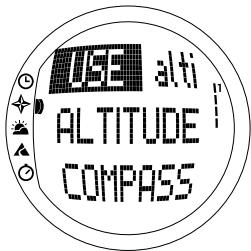
When you select Baro, the altitude reading in the Compass, Skiing and SkiChrono modes remains constant. The atmospheric pressure (sea level and absolute) in the Weather mode changes.
Select the correct use according to what you want to measure. For example, on a skiing trip, you can select Alti for the day to see how high you have climbed. When you camp for the night, you can change to Baro to make sure that the weather changes do not catch you by surprise.
To select either Altimeter or Barometer use:
- In the Function menu, scroll to Use with the arrow buttons and press Suunto. The Alti/Baro field is activated.
- Change the content of the field with the arrow buttons and press Suunto. You then return to the Function menu.
3.3.3. Altitude/Sealevel
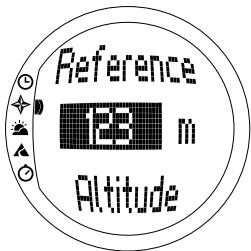
For the altimeter to function correctly, you need to set the reference altitude. This means that you must set an altitude reading equal to the real altitude. Set the reference altitude in a place where you know the altitude, for example, with the help of a topographical map. Suunto S6 has a factory set reference altitude, which corresponds to the standard barometric pressure (1013 hPa/
29.90inHg at sea level). If you do not know your current altitude or the correct sea level pressure, you can estimate your altitude by setting the sea level pressure to 1013hPa/29.90inHg.
In the Weather mode, Altitude is replaced with Sealevel. This functions and is set in the same way as Altitude.
To set the reference altitude:
- In the Function menu, scroll to Altitude with the arrow buttons and press Suunto. The altitude field is activated.
- Set the reference altitude with the arrow buttons to match the altitude of your current location and press Suunto. You return to the Function menu.
If you do not know the altitude of the place you are in, you can use the air pressure to help determine the altitude. To do this, switch to the Weather mode and set the current sea level air pressure. You can find out the sea level air pressure, for example, from the airport, weather station or on the Internet weather pages.
3.3.4. Compass
The compass menu includes functions for either calibrating the compass or setting its declination.
Calibrating the compass
Calibrate the compass if it does not seem to work well,
for example, when it displays the wrong compass bearing or the bearing changes too slowly. You should also calibrate the compass after replacing the Suunto S6 battery.
Strong electromagnetic fields, such as electric lines, loudspeakers and magnets, can affect the compass calibration. Therefore you should calibrate the compass if your Suunto S6 has been exposed to these fields.
You should also calibrate the compass before a long skiing trip.
NOTE: Calibrate the compass before using it for the first time.
NOTE: Remember to hold the Suunto S6 level during the calibration.
To calibrate the compass:
- In the Function menu, scroll to Compass with the arrow buttons and press Suunto.
- In the compass menu, scroll to Calib with the arrow buttons and press Suunto.
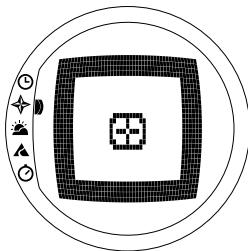
- The screen displays the text "ROTATE 360" and begins a countdown from 5 to 0. When the countdown reaches 0, the calibration starts. Hold Suunto S6 level and slowly rotate the device in a full clockwise or counterclockwise circle.
- The level symbol indicates the ongoing calibration. When the cross is in the middle of the symbol, Suunto S6 is held level. The animation represents the progress of the calibration.
-
If the calibration succeeds, the "COMPLETE" message is displayed and Suunto S6 returns to the function menu.
-
If the calibration fails, the "TRY AGAIN" message is displayed and the process returns to the countdown for a further attempt.
- If the calibration fails five times, the "FAILED, REFER MANUAL" message is displayed and Suunto S6 returns to the compass menu.
If the calibration fails five times in a row, you may be in an area that has sources of magnetism, such as large metal objects, power lines, loudspeakers and electric motors. Move to another location and try to calibrate the compass again.
You can also remove the battery and then insert it again. Also make sure, that the compass remains level during the calibration. The calibration may fail if the level is unstable.
If the calibration continues to fail, contact the authorized Suunto service.
Setting the compass declination
You can compensate for the difference between true north and magnetic north by adjusting the compass declination. You can find the declination, for example, in the topographic maps of your local area.
To set the compass declination:
- In the Function menu, scroll to Compass with the arrow buttons and press Suunto.
- In the compass menu, scroll to Declin with the arrow buttons and press Suunto. The first row of the next window is activated.
- Select the correct option (Off/East/West) with the arrow buttons and press Suunto. The degree field is activated.
- Set the degree with the arrow buttons. The initial value is either 0.0^ or the value accepted when last setting the declination. Press Suunto. You return to the compass menu.
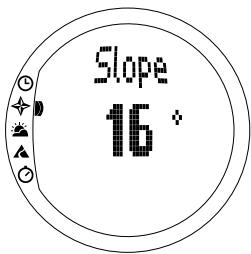
3.3.5. Slope
The slope function is intended for measuring the degree of slope.
To measure the slope:
- In the Function menu, scroll to Slope with the arrow buttons and press Suunto. When you incline the Suunto S6, it starts to display the angle indicating the degree of slope on the screen.
- When the angle is selected, lock it by pressing Start. The angle remains on the display.
- Press Start to unlock the angle and to start measuring the slope again.
- To move back to the function menu, press Suunto. The declination is now set and you return to the function menu.
NOTE: The measured value is not saved in the Suunto S6 memory in the Compass mode.
3.4. WEATHER MODE
3.4.1. Main Display
When you select the Weather mode, the main display opens. The main display has three rows:
Temperature
The first row displays the temperature in the selected unit. For more information on defining the temperature unit, see chapter 3.2.6. Units.
NOTE: Because the sensor is close to your wrist, you have to keep Suunto S6 away from the body temperature for at least 15 minutes to measure the correct temperature.
Air Pressure
The second row displays the air pressure at sea level. (For more information on defining the air pressure unit, see chapter 3.2.6. Units.)
Shortcuts
The third row contains shortcuts to three functions. Switch between these with Stop/CL.
- Trend: A graphical presentation of the development of the air pressure (sea level) during the last 6 hours in 15-minute intervals. One step on the vertical axis represents one hPa and one step on the horizontal axis represents 15 minutes.
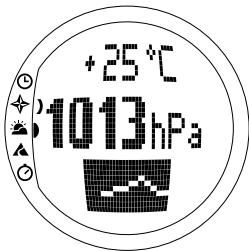

- Absolute air pressure: The absolute air pressure is the actual pressure in the location you are at the moment.
Time: Displays the current time.
3.4.2. Use
With the Use function you can define whether the air pressure measurement is used to define the altitude or to represent the weather conditions. (For more information, see chapter 3.3.2. Use.)
NOTE: For most Weather mode functions the correct Use setting is Baro.
3.4.3. Sealevel
With this function you can set the sea level barometric pressure. This is the value of barometric pressure at your current location reduced to sea level.
To set the sea level barometric pressure:
- In the Function menu, scroll to Sealevel with the arrow buttons and press Suunto. The sea level field is activated.
- Set the sea level pressure with the arrow buttons to match the current sea level barometric pressure and press Suunto. You return to the Function menu.
3.4.4. Alarm
When active, the weather alarm informs you if the air pressure drops more than 4 hPa/0,118 inHg in 3 hours.
NOTE: You can only use the weather alarm when the Use function is set to Baro.
To activate or deactivate the weather alarm:
-
In the Function menu, scroll to Alarm with the arrow buttons. The current status of the alarm can be seen in the Function menu.
-
Press Suunto. The On/Off field is activated.
- Change the field to either On or Off with the arrow buttons and press Suunto.
When the weather alarm goes on, the alarm symbol flashes and the backlight goes on. To acknowledge the weather alarm, press any of the buttons.
3.4.5. Memory
The memory automatically stores weather-related information from the last 48 hours. When you scroll through the stored information, it is presented in the following order:
Maximum sea level air pressure during the period measured, time and date.
Minimum sea level air pressure during the period measured, time and date.
Maximum temperature during the period measured, time and date.
- Minimum temperature during the period measured, time and date.
- Sea level air pressure and temperature in relation to the time and date, starting from the current moment. The first 6 hours are displayed in 1-hour intervals, the next 42 hours in 3-hour intervals.
NOTE: If the Use function has been set to Alti (altimeter), the barometric value stored in memory is always the same.
To view the weather information stored in the memory:
- In the Function menu, scroll to Memory with the arrow buttons and press Suunto. The first information page is displayed.
- Scroll the information with the arrow buttons. (The up arrow scrolls forward and the down arrow backward.)
- To stop viewing the memory content, press either Suunto or Stop/CL at any time.
3.5. SKIING MODE
3.5.1. Main Display
When you select the Skiing mode, the main display opens. The main display has three rows:
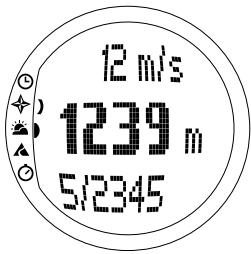
Vertical speed
The top row displays the ascent/descent speed in the units you have defined. (For information on defining the units, see chapter 3.2.6. Units.)
Current altitude
The middle row displays the current altitude in relation to the user-defined reference altitude. The altitude changes if you have selected Alti in the Use function. If you have selected Baro, this row displays the reference altitude. (For more information on this, see chapter 3.3.2. Use.)
Shortcuts
The third row contains shortcuts to three functions. Press Stop/CL to switch between the functions.
- Total vertical: Number of runs and the total vertical descent since the logbook was activated. A run is counted for a descent followed by an ascent, both with a vertical difference of at least 50m / 150ft .
- Elapsed time: Time elapsed since the Logbook was activated (hh:mm:ss)
Time: Current time
3.5.2. Logbook
Logbook is a memory function that saves the altitude profile of the recorded activity and all the extra information derived from it. Logbook is the default option and is shown on the screen in reversed color.
Starting the logbook
To start the logbook:
- In the Function menu, Logbook is already the first menu item. Press Suunto to select it.
- Scroll to Start and press Suunto.
If the logbook is not running and there is enough memory left, saving begins. The message "LOGBOOK STARTED" is displayed and you return to the Function menu.
If the logbook is already active, the message "LOGBOOK ALREADY RUNNING" is displayed and you return to the Function menu where the Stop field is displayed in reversed color.
If there is not enough memory left, the message "MEMORY FULL" is displayed and Suunto S6 moves to a display that asks you to erase a logbook file.
To save a lap time in the logbook, go to the main display of the Skiing mode and press Start. The message "LAP TIME SAVED" is displayed. The number of lap times is not limited.
Stopping the logbook
To stop the logbook:
- In the Function menu, Logbook is already the first menu item. Press Suunto to select it.
- Scroll to Stop and press Suunto. The saving stops and the message "LOGBOOK STOPPED" is displayed. You automatically return to the function menu.
- If the logbook was not running when you tried to stop it, you just return to the Function menu.
Viewing logbook files
The logbook list includes the logs saved in the Suunto S6 memory.
To view the logbook files:
- In the Function menu, Logbook is already the first menu item. Press Suunto to select it.
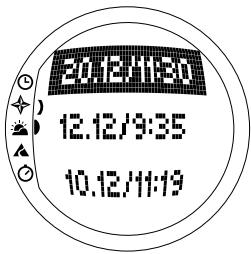
- Scroll to View and press Suunto. A list of all the saved logbook files is displayed. The three latest saves are shown on the screen. The newest is on the top in reversed color.
- Scroll the list with the arrow buttons until the logbook file you want to view is active and press Suunto. The first display of the logbook file is shown.
-
Press the up arrow to move to the next display. The displays are shown in the following order:
-
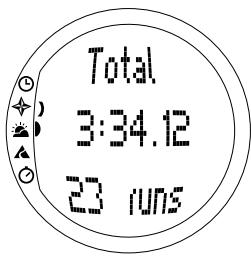
Total: The total length of the saved Logbook files (h:mm:ss), and the total number of runs (only those with over 50 m altitude difference)
- Descent: The total vertical descent and the average descent rate in the units that you have defined in the Time mode
-
Ascent: The total vertical ascent and the average ascent rate in the units that you have defined in the Time mode
-
High Point: The highest point measured, and the date and time of the measurement
- Low Point: The lowest point measured, and the date and time of the measurement
-
Displays in recorded intervals:
-
Top row: Elapsed time in recorded intervals
- Middle row left: Graphical display of altitude
- Middle row right: Vertical speed at the elapsed time shown on the top row.
- Bottom row: Altitude at the elapsed time shown on the top row.
Erasing logbook files
To erase the logbook files:
- In the Function menu, Logbook is already the first menu item. Press Suunto to select it.
- Scroll to Erase and press Suunto. A list of all the saved logbook files is displayed.
- Scroll the list with the arrow buttons until the logbook file you want to erase is active and press Suunto. Suunto S6 displays the file and the text "ERASE?"
- To accept the deletion, press Suunto. You return to the previous menu.
- To cancel the deletion, press Stop/CL. You return to the list of logbook files.
Interval
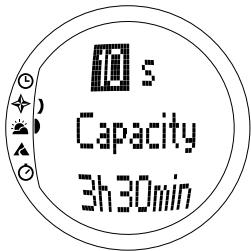
With this function you can choose how often information is saved. Interval also defines the free memory capacity. You can choose one of the following:
2 seconds (Free memory capacity 6 h 30 min.)
10 seconds (Free memory capacity 33 h.)
- 60 seconds (Free memory capacity 200 h.)
To change the interval:
- In the Function menu, Logbook is already the first menu item. Press Suunto to select it.
- Scroll to Interval and press Suunto. The current interval is displayed in reversed color.
- Change the interval with the arrow buttons. The free memory capacity is displayed underneath the interval.
- Press Suunto to accept the selection. You return to the Function menu.
Viewing the logbook history
The logbook history contains the cumulative values of descents and ascents and the highest point of all logbooks recorded during the Suunto S6 lifetime.
To view the history:
- In the Function menu, Logbook is already the first menu item. Press Suunto to select it.
- Scroll to History and press Suunto.
- Press the up arrow to scroll the history information.
Resetting the logbook history
To reset the logbook history:
- Connect your Suunto S6 to Suunto Ski Manager.
- Click Wristop History Reset History. This will
transfer the current history data to SKIM database and set the history values in the Wristop computer memory to zero.
3.5.3.Use
With the Use function you can define whether the air pressure measurement is used to set the altitude or to represent the weather conditions. (For more information, see chapter 3.3.2. Use.)
3.5.4. Altitude
You can use Altitude to set the reference altitude manually. The figure will be used to update the altitude changes (Alti) and sea level air pressure changes (Baro). (For more information on the reference altitude, see chapter 3.3.3. Altitude/Sealevel.)
3.5.5. Alarms
You can use this function to set alarms related to your altitude and ascent/descent rate. The altitude alarm warns you if you pass the preset altitude limit. The ascent/ descent alarm warns you if your ascent/descent rate is faster than the preset rate. When the alarm sounds, you can acknowledge it by pressing any of the buttons.
NOTE: The alarms can be activated and are functional only when the Use function is set to Alti.
Setting the Asc/Dsc alarm
To set the ascent/descent alarm:
- In the Function menu, scroll to Alarms with the arrow buttons and press Suunto. The alarm menu is displayed.
-
Scroll to Asc/Dsc and press Suunto. The On/Off field of the next display is activated.
-
Change the status of the alarm to either on or off with the arrow buttons and press Suunto. The rate field is activated.
- Change the Asc/Dsc rate with the arrow buttons and press Suunto. You return to the Function menu.
NOTE: The ascent is displayed with positive values, the descent with negative values.
Setting the altitude alarm
To set the altitude alarm:
- In the Function menu, scroll to Alarms with the arrow buttons and press Suunto. The alarm menu is displayed.
- Scroll to Altitude and press Suunto. The on/off field of the next display is activated.
- Change the status of the alarm to either on or off with the arrow buttons and press Suunto. The altitude field is activated.
- Change the altitude with the arrow buttons and press Suunto. You return to the Function menu.
3.5.6. Reminder
You can use this function to set alarms that are independent from the application's other functions. For, example, you can set the instrument to remind you of something important every 5 minutes.
To set the Reminder:
- In the Function menu, scroll to Reminder with the arrow buttons and press Suunto.
-
Scroll to Int and press Suunto. The minute selection is activated.
-
Set the minutes (0-59) with the arrow buttons and press Suunto. The second selection is activated.
- Set the seconds (0-59) with the arrow buttons and press Suunto. The Start key is activated.
NOTE: The minimum reminder time is 5 seconds. However, with times that are over a minute long, you can set fewer seconds if you wish.
NOTE: If the function is already active, Stop is activated instead.
- Press Suunto, and the text "REMINDER STARTED" is displayed on the screen. You then return to the Function menu.
Note: If the function is already active, the text "REMINDER ALREADY STARTED" is displayed on the screen, and you return to the previous menu with Stop in reversed color.
To stop the Reminder:
- In the Function menu, scroll to Reminder with the arrow buttons and press Suunto.
- If the Function is active, Stop is already shown on the screen in reversed color. Just press Suunto, and the text "REMEINDER STOPPED" is displayed on the screen. You then return to the Function menu.
3.6. SKICHRONO
3.6.1. Main Display
When you select the SkiChrono mode, the main display opens. The main display has three rows:
Top row
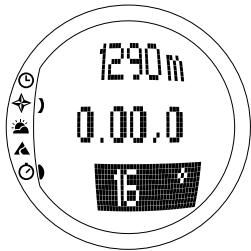
- Current altitude: Displays the current altitude in relation with the user-defined (m/ft) reference altitude.
Middle row
- Elapsed time: Displays the time elapsed since SkiChrono or Chrono was activated.
Bottom row before activating the SkiChrono/ Chrono function
The bottom row contains shortcuts to three functions. Press Stop/CL to switch between the functions.
- SkiChrono with slope angle measurement
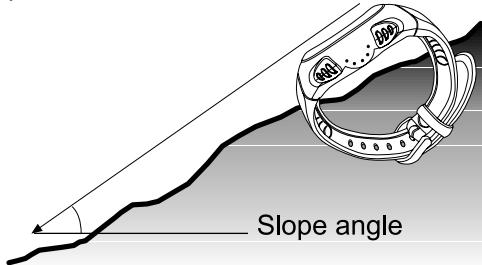
The slope angle is in a continuous measurement mode. The inclination is measured along the line on the cover of your Suunto S6. To lock the slope angle, press Start. To unlock the slope angle to measure a new angle, press Stop/CL.
You need the slope measurement function when you want to measure your speed on a new slope or to set a new slope angle value for the current slope.
- SkiChrono with a fixed slope angle
Suunto S6 remembers the previous slope angle that you locked with Start. It is shown on reversed background.
You need the fixed slope angle when you want to use the previously measured slope angle for your next run.
Normal Chrono: 0.00,0
This is a stopwatch that you can use for timing events without using the speed and slope angle measurement.
Bottom row after activating the SkiChrono/Chrono function
- In the SkiChrono mode, it displays the real-time average speed from the start of the run. It is based on the slope angle measured before the activation and on the vertical speed measured with the altimeter.
- In the Chrono mode, it displays the time of the current lap, i.e. the time from the point when the previous split/lap time was saved. To save a split/lap time, go to Chrono and press Start. When you save a split/lap, the time freezes for 3 seconds and then continues.
Bottom Row after stopping the SkiChrono/Chrono function
- In the SkiChrono mode it displays the average and the top speed recorded during the run.
- In the Chrono mode it displays the last Lap time.
NOTE: To change between SkiChrono and Chrono with a short press of Stop/CL, you first need to reset the previous timing with a long press of Stop/CL.
Using the SkiChrono
To measure your speed on a slope:
- Select the slope angle measurement shortcut on the bottom row.
- Point to the bottom of the slope with Suunto S6.
- Press Start to lock the slope angle.
- When you start your run, press Start again to start the speed measurement. Bottom row starts showing your average speed.
- At the bottom of the slope, press Stop/CL. The bottom row shows the average speed and the highest speed of the run.
- If you continue riding the same slope and use the same slope angle, you can start recording a new run directly by pressing Start. You do not need to reset the SkiChrono or to measure the slope angle again.
- If you ride a new slope and measure a new slope angle, reset the SkiChrono with a long press of Stop/CL. Then press Stop/CL again to call the slope measurement function and start again from step 1.
Using the Chrono
- Press Stop/CL to select the Chrono function.
- Press Start to start timing.
- Press Start to save split/lap times.
- Press Stop/CL to stop timing.
- To start a new timing or to change from Chrono to SkiChrono function, reset the Chrono with a long press of Stop/CL.
Tips for the best results of speed measurement
- The average speed of a run corresponds very well with the real average speed as long as the measured slope is close to the average angle of the slope.
- Because of the calculation algorithm, Suunto S6 usually records the top speed on the steepest part of the slope. If this part is clearly steeper than the measured average slope angle, the recorded top speed is higher than the real top speed. If you are more interested in measuring the correct top speed than the average speed, use the angle of the steepest part of the slope.
- If you want to compare speeds with your friends, make sure that you all have the same slope angle before the run.
3.6.2. Memory
You can use Memory to view the files saved in the memory of your Suunto S6 with the SkiChrono and Chrono functions. You can also use it to erase files when you wish to free some memory space. The memory can include up to 40 SkiChrono files and 15 Chrono files. Each Chrono file can include 20 Split/lap times. SkiChrono files do not have Split/lap times.
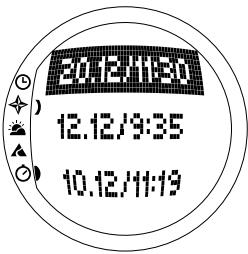
VIEWski
One SkiChrono file includes information of one run.
To view SkiChrono files:
- In the Function menu, scroll to Memory with the arrow buttons and press Suunto.
- Scroll to View ski with the arrow buttons and press Suunto. The list of saved SkiChrono files is displayed.
- Scroll to the desired file with the arrow buttons and press Suunto. The first display opens.
-
Scroll the displays with the arrow buttons. The following displays can be viewed:
-
Total: The total duration (h:mm:ss) and the total vertical descent of the run in the unit of your choice (m or ft).
- Speed: The average (Avg) and the maximum (Max) speed of the run in the unit of your choice (km/h or mph).
- Vert: The average (Avg) and the maximum (Max) vertical speed of the run in the unit of your choice (m/s, m/min, ft/s or ft/min).
- Start: The altitude measured when SkiChrono was started, in the unit of your choice (m or ft), and the date and the starting time of the run (same as the one in the file list).
- Distance: The total distance of the run, in the unit
of your choice (m or ft), and the slope angle measured before the run in the unit of your choice (\% or °).
- Finish: The altitude measured when SkiChrono was stopped, in the unit of your choice (m or ft), and the total duration of the run (same as on the first display).
VIEW chr
To view Chrono files:
- In the Function menu, scroll to Memory with the arrow buttons and press Suunto.
- Scroll to View chr with the arrow buttons and press Suunto. The list of saved Chrono files is displayed.
- Scroll to the desired file with the arrow buttons and press Suunto. The first display opens.
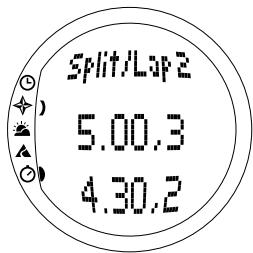
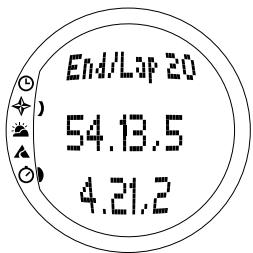
- Scroll the displays with the arrow buttons. The following displays can be viewed:
Total: The total amount of recorded time (0.00,0) and the number of split/lap times.
- Split/Lap 1, 2, 3 etc: The split/lap number on the top row, the corresponding split time in the middle and the lap time on the bottom row.
End/Lap #: The number of the last lap on the top row, the total duration of the file in the middle and the last lap time on the bottom row.
Erase ski
To erase SkiChrono files:
- In the Function menu, scroll to Memory with the arrow buttons and press Suunto.
- Scroll to Erase ski with the arrow buttons and press Suunto. The list of saved SkiChrono files is displayed.
- Scroll to the desired file with the arrow buttons and press Suunto. Suunto S6 displays the file and the text "ERASE?".
- Press Suunto to erase the file. You return to the function menu.
- If you do not wish to erase the file, press Stop/CL and you return to the file list without erasing the file.
Erase chr
To erase Chrono files:
- In the Function menu, scroll to Memory with the arrow buttons and press Suunto.
- Scroll to Erase chr with the arrow buttons and press Suunto. The list of saved Chrono files is displayed.
- Scroll to the desired file with the arrow buttons and press Suunto. Suunto S6 displays the file and the text "ERASE?".
- Press Suunto to erase the file. You return to the function menu.
- If you do not wish to erase the file, press Stop/CL and you return to the file list without erasing the file.
3.6.3. Altitude
You can use Altitude to set the reference altitude manually. The figure will be used to update the altitude changes (Alti) and sea level air pressure changes (Baro). (For more information on the reference altitude, see chapter 3.3.3. Altitude/Sealevel.)
3.6.4. Use
With the Use function you can define whether the air pressure measurement is used to set the altitude or to represent the weather conditions. (For more information, see chapter 3.3.2. Use.)
4. EXAMPLES OF SUUNTO S6 USAGE
This chapter describes three ideal situations in which you can use your Suunto S6. These instructions are described very briefly and should be used when you have familiarized yourself with Suunto S6 more thoroughly. More detailed instructions for each procedure can be found in the earlier chapters.
4.1. ORDINARY SKIING/SNOWBOARDING DAY
Before the start
- Scroll to the Skiing mode.
- Set the Reference altitude.
- Set the logbook interval to 10s or 60s.
- Start the logbook.
During the day
- Save lap times in the logbook with the Start button.
- View the shortcuts on the bottom row (total vertical/Elapsed time/Time).
After the day
- Stop the logbook.
- View the logbook information.
- Transfer the logbook information to the Ski Manager for more detailed inspection.
4.2. SKIING/SNOWBOARDING DAY WITH SPEED MEASUREMENT
Before the start
- Scroll to the Skiing mode.
- Set the Reference altitude.
- Set the logbook interval to 2s or 10s.
- Start the logbook.
Speed measurement
- Scroll to the SkiChrono mode.
- Measure the slope angle (If there are people who wish to compare their speeds with each other, they all have to set the same slope angle).
- Press Start when you begin the run.
- Press Stop/CL when you finish the run.
- If you ski the same hill again (same slope angle), start the speed measurement again with Start.
- If you go to a new hill, reset the SkiChrono and measure a new slope angle.
After the day
- Stop the logbook.
- View the logbook information.
- View the speed information in the SkiChrono memory.
- Transfer the logbook information to the Ski Manager for more detailed inspection.
4.3. TRAINING ON A COURSE
Before the practice session
- Scroll to the Skiing mode.
- Set the Reference altitude.
- Set the Logbook interval to 2s.
- Start the logbook.
- During the first run, mark all the desired lap time spots:
Stop at every lap time gate and press Start in the Skiing mode. The gate altitudes are saved in the Suunto S6 memory.
NOTE: You have to set the lap time spots at least 10 seconds apart from each other so that the Ski Manager can handle them properly.
During the practice session
- Scroll to the SkiChrono mode.
- Measure the slope angle.
- Press Start when you begin the run.
- Press Stop/CL when you finish the run.
- Because the slope angle is always the same, just press Start to start recording each subsequent run.
After the practice session
- Stop the logbook.
- Transfer the logbook information to the Ski Manager for more detailed inspection. Ski Manager creates charts of all the individual runs and creates a comparison of lap times at the altitudes recorded before the practice session.
- Compare the runs with each other to find out e.g. which parts of the run you need to practice more.
5. ADDITIONAL FEATURES
5.1.DATASNAKE
With the Datasnake interface cable you can transfer the Suunto S6 logs to your PC and store them there. The logs can be either skiing logs stored in the Skiing mode memory, weather logs stored in the weather memory or SkiChrono or Chrono logs stored in the SkiChrono memory. When the data has been transferred, you can easily organize, view and add related information in it with the Suunto Ski Manager software.
The Datasnake and the Suunto Ski Manager software are delivered in the same package with your Suunto S6. The installation instructions for the software can be found on the cover of the Suunto Ski Manager CD-ROM.
5.1.1. Transferring Data
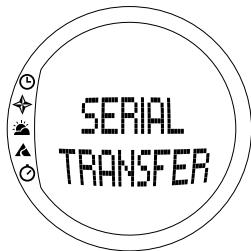
To transfer data:
- Make sure your computer has a free serial port.
- Attach the cable to the computer serial port and plug the other end in your Suunto S6.
- Open the Suunto Ski Manager.
- Click the Wristop icon and then click Connect. The Suunto S6 logbooks are displayed in the log list.
- Choose the logs you wish to save and click Download.
- Add the information required in the Download window and click Download. The logs are now saved on the hard disk of your PC.
- When you have uploaded the logs, you can delete them from Suunto S6 with Suunto Ski Manager to create more space for new logs.
For more detailed information, refer to the Suunto Ski Manager Help. To access the Help, click the help icon on the upper right corner of the display. You can also refer to the Suunto Ski Manager Tutorial for step-by-step instructions. The tutorial is located in the Suunto Ski Manager Help.
5.1.2. Suunto Ski Manager
Suunto Ski Manager (SKIM) software is included in your Suunto S6 package on a CD-ROM. The instructions for installing the software are displayed on the cover of the CD. The newest version of the SKIM can always be downloaded from www.suunto.com or www.suuntosports.com. Please check for updates regularly as new features are continuously being developed.
User
You can create a list of your activities and your snow sport equipment. These lists are used to define the activity and equipment of your logs in the Logs section. This brings you the best benefits of the detailed analysis and statistics tools of the Logs section.
Logs
When you have uploaded the logs from Suunto S6, you can organize and open them in the Logs section. You can also create folders where you can store the logs. You can sort the logs, move them between folders and delete them or search for the log information. To edit log header information in the log list (log name, activity, equipment etc.), click the field you wish to edit with the right mouse button.
To upload logs on the SuuntoSports.com site, select the logs and click the "Suuntosports" icon. Then give your user name and password and click "Upload".
Charts, Data and Analyze
To open one or more logs for closer examination, open the folders that contain the logs you want to view. Then select the logs and click Open logs. The logs open on a "CHART" page. The charts show the log data in graphic form. Skiing logs contain altitude-related information and weather logs barometric pressure and temperature. You can also add bookmarks to the charts. The bookmarks can either be text or images.
To print a chart, modify the view to match your needs and then click Print. Print preview opens. When the preview is to your liking, click Print again.
You can also view the log information as a data list where the values of the individual samples are listed in chronological order. To do this, select the "DATA" page after opening the logs. To export the data to another application, click Copy data.
When you open the "ANALYZE" page, the Ski Manager shows a statistical presentation of the open logs. You will see, for instance, how much time you have been training for each activity in different altitude zones. The results are displayed as 3-D bar diagrams that you can rotate on the screen and print in the same way as charts.
NOTE: The Analyze section is not included in the SKIM 1.0.
Changing the Settings
You can also change some Suunto S6 settings with the Wristop Computer section of the Suunto Ski Manager. You can modify the following settings:
Light—select the light setting (Normal, NightUse, Off).
- Tones—set the buttons on or off.
- Icons—set the mode icons on or off.
- Time—select between 12- or 24-hour displays.
- Date—select the date format (day/month, month/day, day).
- Asc/Dsc—select the ascent/descent unit (m/s, m/min, m/h, ft/s, ft/min, ft/h).
- Altitude—select the altitude unit (m or ft).
- Pressure—select the pressure unit (hPa or inHg).
- Temperature—select the temperature unit (^ or ^ C)
- Slope—select the slope unit (% or °).
- Speed—select the speed unit (km/h or mph).
For more detailed information and step-by-step instructions on these features, see the SKIM Help or Tutorial.
5.2.SUUNTOSPORTS.COM
SuuntoSports.com is an international free web community where you can refine and share the data that you have measured with your personal Suunto instrument and analyzed with the sport-specific PC interface. SuuntoSports.com offers you a number of features that help you get the most out of your sport and your Suunto S6.
If you already own a personal Suunto sports instrument, you can access all sport-specific functions through registration. If you do not have an instrument yet, you may either log in as a guest or register yourself. As a guest you can view and read, but registration gives you the right to use other functions and participate in discussions.
5.2.1. System Requirements
SuuntoSports.com has the following system requirements:
- Internet connection
Modem: recommended 56k or faster - Browser: IE 4.0 or better, Netscape 4.7x or newer
- Resolution: minimum 800 × 600 , best viewed with 1024 × 768
5.2.2. SuuntoSports.com Sections
SuuntoSports.com includes three sections all of which have several functions. The following paragraphs describe only the basic functions of SuuntoSports.com. You can find detailed descriptions of all the site functions and activities and step-by-step instructions for using them in the site Help. The Help is available on each page and its icon is located on the right side of the bar that divides the screen. The Help is frequently updated as the site develops.
SuuntoSports.com offers several possibilities for searching the information on site. In addition to the free search, you can search for groups, users, locations, logs and sports.
The information published on the SuuntoSports.com contains internal links so that you do not always have to search for the information from the very beginning. For example, if you view a resort description, you can follow the links and view the personal information of the one who sent the resort information, the logs related to the resort and charts created from the logs if the sender has made this information public.
My Suunto
This section is meant for your personal information. You can store information about yourself, your wristop computer, your skiing activities, favorite locations etc. When you upload your logs to SuuntoSports.com with Suunto Ski Manager, they are displayed in your personal information but not shown to anybody else. In My Suunto you can also manage the logs and decide whether they can be published within communities or presented to all SuuntoSports users.
When you upload logs to SuuntoSports.com, you will see their altitude profiles on the website. You can compare them with other users' logs and add text and images to them to create travel reports.
Communities
In the Communities section, SuuntoSports.com users can form and manage their own groups or search for other groups. For example, you can create a group for all your skiing or snowboarding friends, and share information about each other's results, give advice and discuss where and when you could go skiing or snowboarding together. Groups can be either open or closed. Closed means that you have to apply for membership and be accepted before you can participate in group activities.
All groups have a home page that displays information about group events and includes news, a notice board and other information. Group members can also use group-specific bulletin boards, chat rooms and group calendars, and add links and create group activities. All registered SuuntoSports users are automatically members of the World of SuuntoSports community.
Sport Forums
SuuntoSports.com has its own forum for each Suunto sport. The basic features and functions are the same for all sport forums. Sport forums are public places open to all visitors. The forums include news, discussions, presentations of locations related to the sport, an event calendar, a list of published travel reports, ranking lists and links to other websites. Users can suggest events, locations and links to be published. The ranking lists rank the best locations, the most active users, the biggest groups and other related information. For example you can have a list of users who have collected the biggest total vertical during the season.
5.2.3. Getting Started
To join the SuuntoSports.com community, connect to the Internet, open your web browser and go to www.suuntosports.com. When the opening page appears, click the Register icon and register yourself and your Suunto sports instrument. You can change and update your personal and equipment profiles in the My Suunto section afterwards.
After the registration you automatically enter the SuuntoSports.com home page that introduces the site structure and functional principles.
NOTE: SuuntoSports.com is continuously developed further and its content is subject to change.
6. TECHNICAL DATA
General
- Operating temperature -20^ to +50^ / -5^ to +120^
Storage temperature -30^ to +60^ / -22^ to +140^
Weight 54 g
Water resistant to 100m / 330ft (according to ISO 2281) - Mineral crystal glass
- User-replaceable battery CR2032
PC interface with serial connector - Extension strap
Altimeter
- Display range -500 m to 9000 m / -1600 ft to 29500 ft
Resolution 1 m / 3 ft
Barometer
Display range 300 to 1100hPa /8.90 to 32.40 inHg
Resolution 1hPa / 0.05 inHg
Thermometer
Display range -20^ to +60^ / -5^ to +140^
Resolution 1^ / 1^
Compass
Resolution 1^
Clinometer
Display range 0^ to 60^
Resolution 1^
7. COPYRIGHT AND TRADEMARK NOTICE
This publication and its contents are proprietary to Suunto Oy and are intended solely for the use of its clients to obtain knowledge and key information regarding the operation of Suunto S6 products.
Its contents shall not be used or distributed for any other purpose and/or otherwise communicated, disclosed or reproduced without the prior written consent of Suunto Oy.
Suunto, Suunto S6 and their logos are all registered or unregistered trademarks of Suunto Oy. All rights are reserved.
While we have taken great care to ensure that the information contained in this documentation is both comprehensive and accurate, no warranty of accuracy is expressed or implied. Its content is subject to change at any time without notice. The newest version of this documentation can always be downloaded from www.suunto.com.
8. CE
The CE mark is used to mark conformity with the European Union EMC directive 89/336/EEC.
9. LIMITS OF LIABILITY
If this product should fail due to defects in materials or workmanship, Suunto Oy will, at its sole option, repair or replace it with new or rebuilt parts, free of charge, for two (2) years from the date of its purchase. This warranty is extended only to the original purchaser and only covers failures due to defects in materials and workmanship that occur during normal use while in the period of the warranty.
It does not cover battery replacement, damage or failures resulting in accident, misuse, neglect, mishandling, alteration or modifications of the product, or any failure caused by operation of the product outside the scope of its published specifications, or any causes not covered by this warranty.
There are no express warranties except as listed above. The client can exercise the right to repair under the warranty by contacting Suunto Oy's Customer Service department to obtain a repair authorization.
Suunto Oy and its subsidiaries shall in no event be liable for any incidental or consequential damages arising from the use of or inability to use the product. Suunto Oy and its subsidiaries do not assume any responsibility for losses or claims by third parties that may arise through the use of this device.
10. DISPOSAL OF THE DEVICE
Please dispose of the device in an appropriate way, treating it as electronic waste. Do not throw it in the garbage. If you wish, you may return the device to your nearest Suunto representative.

GUIDE DE L'UTILISATEUR
COORDONNEES DU SERVICE CLIENTS
Time
Compass
Weather
A Skiing
SkiChrono
1.ALLGEMEINE INFORMATIONEN 5
Time
Compass
Weather
A Shiing
SkiChrono
2.1.PANTALLA
Time
Compass
Weather
A Skiing
SkiChrono
2.1 DISPLAY
Log Logbook (Registro)
Resolutie 1^
Hellingmeter
Display range 0^ tot 60^
- Resolutie 1^
7. COPYRIGHT EN HANDELSMERK
2.2.3. Stop/CL-nappain
Lyhyt painallus
INNEHÄLLSFÖRTECKNING
1. ALLMÄN INFORMATION 5
1.1. Kontrollera 5
1.2. Skötsel och unterhäll 5
1.3. Vattentäligeh (Vattentäthet) 6
1.4. Byte batteri 6
1.5. Service after forsäljning 8
1.6. Online-garantiregistrering 9
2. SÄ HÄR ANVÄNDER DU SUUNTO S6 10
2.1. Display 10
2.2.2. Start-knappen
Kort knapptryckning
2.2.3. Stop/CL-knapp
Kort knaptryckning
Stalla in hastighetsenheten (speed)
Visa loggboksfiler (view)
This publication and its contents are proprietary to Suunto Oy.
Suunto, Wristop Computer, Suunto S6, Replacing Luck and their logos are registered or unregistered trademarks of Suunto Oy. All rights reserved.
While we have taken great care to ensure that information contained in this documentation is both comprehensive and accurate, no warranty of accuracy is expressed or implied. Its content is subject to change at any time without notice.
www.suunto.com
- GENERAL INFORMATION
- 1.1.CHECKLIST
- 1.2.CARE AND MAINTENANCE
- Care of the Suunto S6
- 1.3.WATER RESISTANCE
- REPLACING THE BATTERY
- AFTER SALES SERVICE
- ONLINE WARRANTY REGISTRATION
- HOW TO USE YOUR SUUNTO S6
- DISPLAY
- Mode symbols
- Function symbols
- 2.2.BUTTONS
- Short and Long Press
- 2.2.2.Start button
- Short Press
- Long Press
- Stop/CL button
- Suunto Button
- Arrow Buttons
- Button Lock
- Activating the button lock
- Deactivating the button lock
- 2.3.MENUS
- Basic Menu Structure
- Navigating in Menus
- MODES
- GENERAL INFORMATION
- TIME MODE
- Main Display
- Date
- Time
- Shortcuts
- Alarm
- Activating alarms
- Deactivating alarms
- Acknowledging alarms
- Time
- Setting the time and the dual time
- Date
- Changing the date
- General
- Setting the tones
- Setting the icons
- Setting the light
- Calibrating the air pressure sensor
- Units
- Setting the time format
- Setting the date format
- Setting the temperature unit
- Setting the air pressure unit
- Setting the elevation unit
- Setting the ascent/descent rate unit
- Setting the speed unit
- Setting the slope unit
- COMPASS MODE
- Main Display
- Bearing
- Compass
- 3.3.2.Use
- Altitude/Sealevel
- Compass
- Calibrating the compass
- Setting the compass declination
- Slope
- WEATHER MODE
- Main Display
- Temperature
- Air Pressure
- Use
- Sealevel
- Alarm
- Memory
- SKIING MODE
- Main Display
- Vertical speed
- Current altitude
- Logbook
- Starting the logbook
- Stopping the logbook
- Viewing logbook files
- Erasing logbook files
- Interval
- Viewing the logbook history
- Resetting the logbook history
- 3.5.3.Use
- Altitude
- Alarms
- Setting the Asc/Dsc alarm
- Setting the altitude alarm
- Reminder
- SKICHRONO
- Main Display
- Top row
- Middle row
- Bottom row before activating the SkiChrono/ Chrono function
- - SkiChrono with slope angle measurement
- Bottom row after activating the SkiChrono/Chrono function
- Bottom Row after stopping the SkiChrono/Chrono function
- Using the SkiChrono
- Using the Chrono
- Tips for the best results of speed measurement
- Memory
- VIEWski
- VIEW chr
- Erase ski
- Erase chr
- Altitude
- Use
- EXAMPLES OF SUUNTO S6 USAGE
- ORDINARY SKIING/SNOWBOARDING DAY
- Before the start
- During the day
- After the day
- SKIING/SNOWBOARDING DAY WITH SPEED MEASUREMENT
- Speed measurement
- TRAINING ON A COURSE
- Before the practice session
- During the practice session
- After the practice session
- ADDITIONAL FEATURES
- 5.1.DATASNAKE
- Transferring Data
- Suunto Ski Manager
- User
- Logs
- Charts, Data and Analyze
- Changing the Settings
- 5.2.SUUNTOSPORTS.COM
- System Requirements
- SuuntoSports.com Sections
- My Suunto
- Communities
- Sport Forums
- Getting Started
- TECHNICAL DATA
- General
- Altimeter
- Barometer
- Thermometer
- Clinometer
- COPYRIGHT AND TRADEMARK NOTICE
- CE
- LIMITS OF LIABILITY
- DISPOSAL OF THE DEVICE
- GUIDE DE L'UTILISATEUR
- COORDONNEES DU SERVICE CLIENTS
- 1.ALLGEMEINE INFORMATIONEN 5
- 2.1.PANTALLA
- Hellingmeter
- COPYRIGHT EN HANDELSMERK
- Stop/CL-nappain
- Lyhyt painallus
- INNEHÄLLSFÖRTECKNING
- ALLMÄN INFORMATION 5
- SÄ HÄR ANVÄNDER DU SUUNTO S6 10
- Start-knappen
- Kort knapptryckning
- Stop/CL-knapp
- Kort knaptryckning
- Stalla in hastighetsenheten (speed)
- Visa loggboksfiler (view)
Brand : SUUNTO
Model : S6
Category : Sports Watch