
379E - Gate Automation CHAMBERLAIN - Free user manual and instructions
Find the device manual for free 379E CHAMBERLAIN in PDF.


User questions about 379E CHAMBERLAIN
0 question about this device. Answer the ones you know or ask your own.
Ask a new question about this device
Download the instructions for your Gate Automation in PDF format for free! Find your manual 379E - CHAMBERLAIN and take your electronic device back in hand. On this page are published all the documents necessary for the use of your device. 379E by CHAMBERLAIN.
USER MANUAL 379E CHAMBERLAIN
Model 379E Fingerprint Keyless Entry
OVERVIEW
For use with any Chamberlain 433MHz Rolling Code garage door opener having an orange "learn" button.
The system uses biometric technology that enables an
authorized user to gain access by scanning their fingerprint.
The sensor strip on the unit makes a numeric template of the fingerprint that is unique to that user. The unit's memory can store up to ten fingerprints.
- The term "enroll" refers to scanning the fingerprint so the device will recognize the user.
- The term "stripe" refers to the movement of the finger across
the sensor strip. - The term "LED" stands for Light Emitting Diode. There are 6 LEDs located on the Fingerprint Keyless Entry.
When unit is on, it is programmed to shut off after a short period of time. The unit's sensor strip is sensitive so it is important to read the Tips for Success before attempting to use the Fingerprint Keyless Entry.
NOTE: Do not attempt swiping your finger across sensor strip until you are ready to enroll as you may inadvertently begin the enroll process.
STEP 1 INSTALL THE UNIT
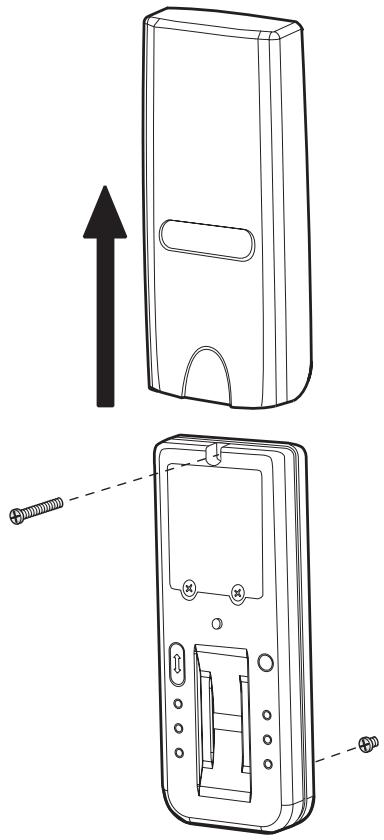
- Remove cover.
- Fasten bottom screw to mounting surface. Allow 1/8
(3 mm) to protrude above surface. Position unit on screw head and adjust for snug fit. - Fasten top screw. Replace cover.
WARNING
To prevent possible SERIOUS INJURY or DEATH from a moving gate or garage door:
- Install Keyless Entry Control within sight of the garage door, out of reach of children at a minimum height of 5 feet (1.5 m), and away from all moving parts of door.
- ALWAYS keep remote controls out of reach of children. NEVER permit children to operate, or play with remote control transmitters.
- Activate gate or door ONLY when it can be seen clearly, is properly adjusted, and there are no obstructions to door travel.
- ALWAYS keep gate or garage door in sight until completely closed.
NEVER permit anyone to cross path of moving gate or door.
TIPS FOR SUCCESS
CORRECT
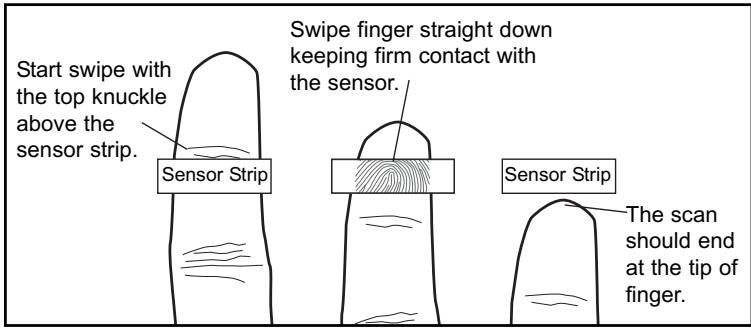
- Make sure finger is clean and dry. Place finger flat above the sensor strip with the top knuckle above the sensor.
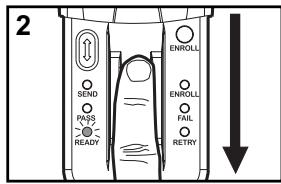
- Swipe finger straight down keeping firm contact with the sensor. The swipe should be a slow, constant speed.
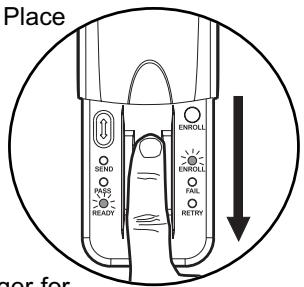
SPECIAL NOTES: Use the same finger for every swipe. It is important to swipe finger slowly and firmly as this is the reason most swipes fail.
INCORRECT
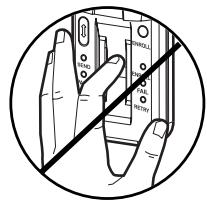
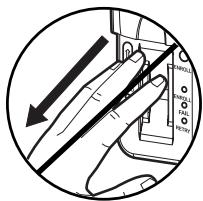
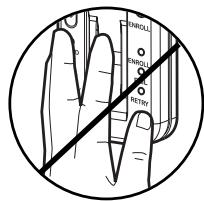
- Do not bend finger during swipe as this will only scan the tip of your finger.
- Swipe finger straight down, not at an angle.
- Swipe flat, not tilted or rolled to one side.
REFERENCE
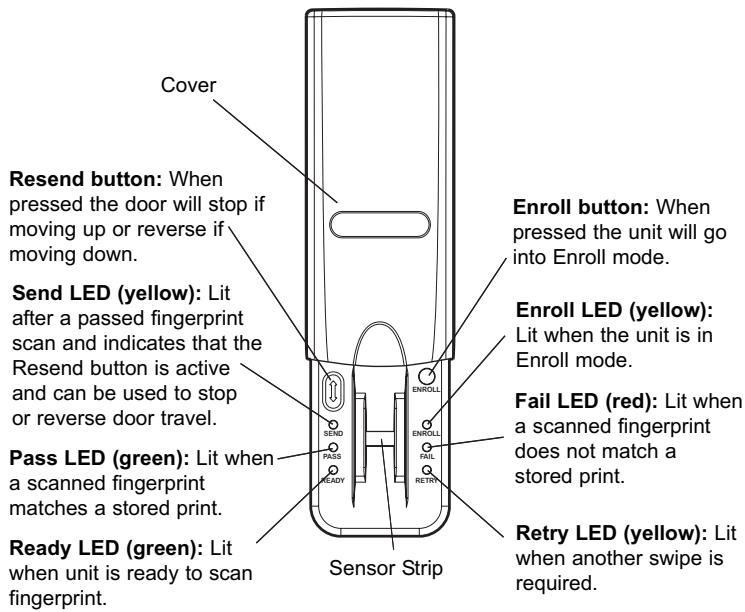
STEP 2 ENROLL INITIAL USER
NOTE: The unit requires 3 passed swipes to enroll a user.
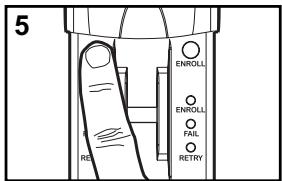
- Open cover to turn unit on. Wait until Enroll LED and Ready LED are lit (not flashing).
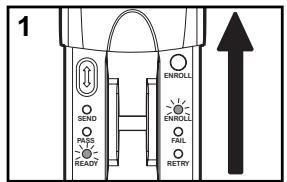
- Swipe finger slowly and firmly down the sensor strip until three passed swipes are made.
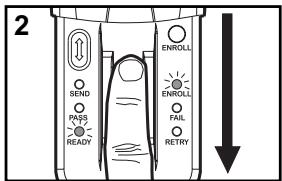
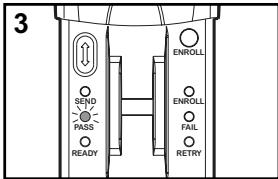
NOTE: The Pass LED will light for a passed swipe. The Retry LED will light if another swipe is needed. Swipe slowly and with more pressure if this occurs.
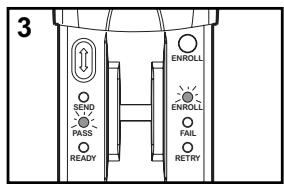
- After the third passed swipe, the Enroll and Pass LED will flash. Enrollment is complete.
NOTE: If cover is already open, press either the Resend or the Enroll button to turn unit on. If the Ready LED is lit refer to Factory Reset in the Erase/Reset section.
STEP 3 ENROLL ADDITIONAL USER(S)
NOTE: The device can store up to ten fingerprints at a time.
An enrolled user must swipe finger first to enroll new user.
- Open cover and wait until Ready LED is lit.
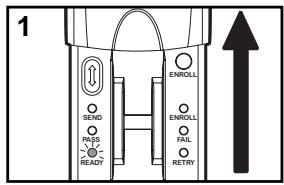
- Press and hold Enroll button until Enroll LED starts to flash.
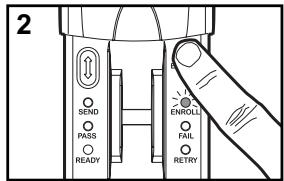
- While the Enroll LED is flashing an enrolled user must slowly and firmly swipe finger.
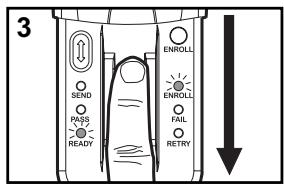
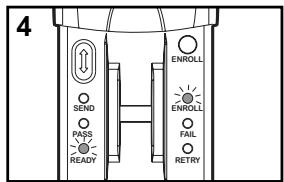
- The Enroll LED and Ready LED will light when ready for new user to swipe finger.
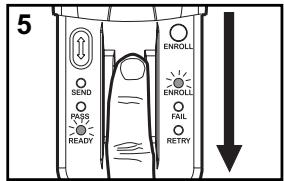
- New user should swipe finger slowly and firmly down the sensor strip until three passed swipes are made.
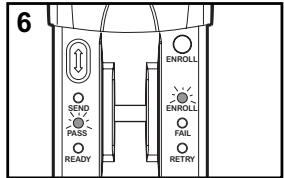
- The Enroll LED and Pass LED will flash when new user is enrolled. Unit will return to Ready mode.
NOTE: If cover is already open, press either the Resend or the Enroll button to turn unit on. The Pass LED will light for a passed swipe. The Retry LED will light if another swipe is needed.
STEP 4 PROGRAM TO OPENER
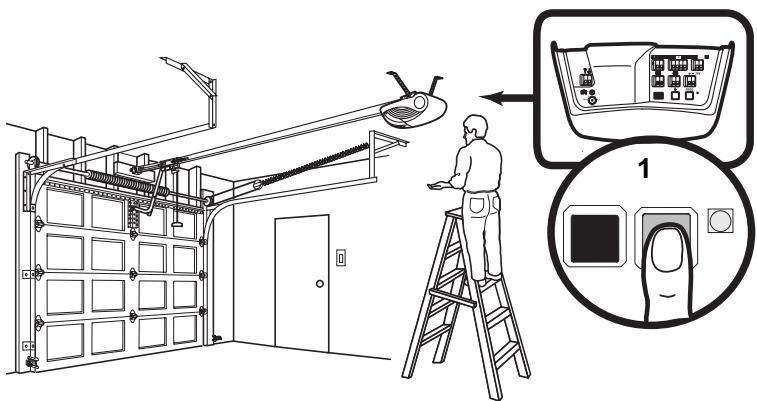
NOTE: The unit must have an enrolled user before it can be programmed to the opener. Due to the 30 second time interval, a second person may be needed to press the "learn" button.
1. Press and release the "learn" button on the motor unit of the garage door opener. See illustration above.
2. Open cover and wait for Ready LED to light.
- Within 30 seconds of pressing the "learn" button, slowly and firmly swipe enrolled finger.
NOTE: The Retry LED will light if another swipe is needed. - After a passed swipe the Pass LED will light followed by a lit Send LED. The opener lights will flash. Programming is complete.
- If the opener lights don't flash, press and release the Resend button at 1 second intervals for up to 5 seconds until the opener lights flash or the door moves. Programming is complete.
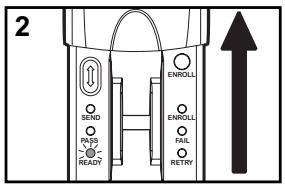
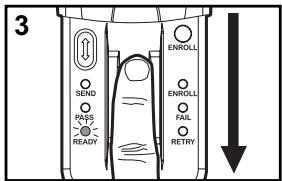
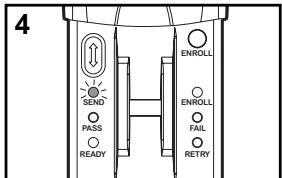
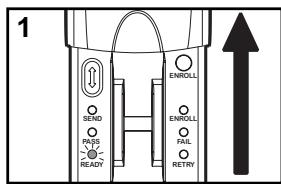
NOTE: If unit will not program to opener repeat the steps above or refer to Troubleshooting.
STEP 5 OPERATION
- Open cover and wait until Ready LED is lit.
- Swipe finger slowly and firmly down the sensor strip.
- The Pass LED will flash and garage door will either open or close.
NOTE: If cover is already open, press either the Resend or the Enroll button to turn unit on. The Fail or Retry LED will light if another swipe is needed. If this occurs, swipe slowly and with more pressure. It may require multiple swipes to get a passed swipe.
While the door is traveling the Send LED will be lit. During this time the only way to reverse or stop the door is to press the Resend button.
ERASE/RESET
To erase users:
NOTE: Erasing a user will erase ALL stored fingerprints. User does NOT need to reprogram to opener.
- Open cover and wait until Ready LED is lit.
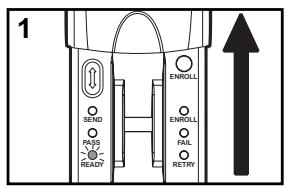
- Enrolled user must slowly and firmly swipe fingerprint.
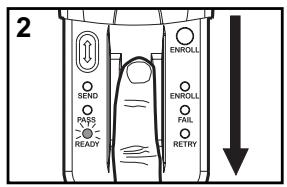
- Press and hold the Enroll button for at least 6 seconds. The Pass LED and Fail LED will flash for 15 seconds. During this time the Resend button is active. After 15 seconds the Enroll and Ready LEDs will light indicating fingerprints are erased. The unit will return to Enroll mode.
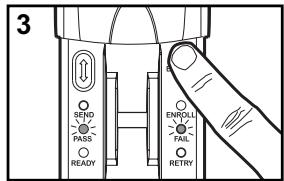
- To return unit to Factory Reset state:
NOTE: Factory reset state will erase ALL stored fingerprints. This method should be used ONLY when an enrolled user is not available as it requires user to reprogram unit to opener.
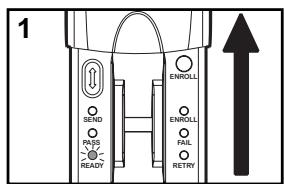
- Open cover and wait until Ready LED is lit.
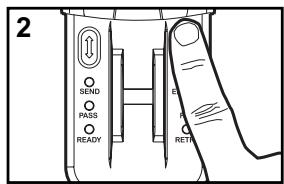
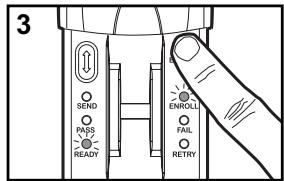
- Press and hold the Enroll button until all LEDs turn off. Release button.
- Again press and hold the Enroll button until the Ready and Enroll LEDs are lit and not flashing.
-
If finger is enrolled but unit will not program to opener:
-
Ensure that the opener has an orangee "learn" button. If opener does not have an orange "learn" button it is not compatible with the unit.
- If the unit is in Enroll mode at power up:
- Complete enrollment process for initial user.
- The initial enroll process failed (signalled by a lit Enroll LED and Fail LED) and must be repeated.
-
If enrolling new user and all LEDs flash and unit returns to Ready mode:
-
The memory is full. In order to add new user, the memory needs to be erased. Refer to Erase User or Factory Reset.
If the unit does not wake: - A button may be stuck. Press Enroll and Resend buttons to ensure free movement.
- The batteries may need to be replaced.
- If the Fail LED flashes during use:
- The batteries need to be replaced.
NOTE: If sensor is dirty, user should wipe sensor with a clean finger. It is recommended that the sensor be periodically cleaned with a lint-free cloth dampened with alcohol.
THE BATTERY
WARNING
To prevent possible SERIOUS INJURY or DEATH:
- NEVER allow small children near batteries.
If battery is swallowed, immediately notify doctor
The batteries should produce power for at least one year.
Replace when the Fail LED flashes during use. The unit requires 4 AAA batteries.
Dispose of old batteries properly.
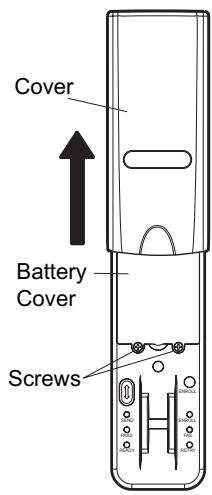
- Slide cover completely off.
- Unscrew the two screws and remove the battery cover.
- Replace the batteries. Screw the battery cover back on.
- Slide cover back into place.
Sparepart:
Cover. 41A6481
TROUBLESHOOTING
-
If no known enrolled users are available:
-
The memory must be erased using the Factory Reset process.
- If the unit does not recognize a swiped fingerprint:
- Ensure that the Ready LED is lit before you swipe.
- Ensure that fingerprint is swiped correctly (See Tips for Success).
- Ensure that fingerprint is enrolled.
- Ensure that sufficient pressure is being applied to sensor strip (do not press too hard).
- Ensure that the sensor and finger are not wet.
Declaration of Conformity
The undersigned, hereby declare that the equipment specified conforms to the Directives and Standards stated.
Model:
EN 301 489-3, EN 300 220-3
2004/108/EC
1999/5/EC
Chamberlain GmbH
Alfred-Nobel-Strasse 4
D-66793 Saerwellingen
June, 2008

Babba P. Keckhoff
Barbara P. Kelkhoff
Manager, Reg. Affairs
ÜBERBLICK
NEVER allow small children near batteries.
If battery is swallowed, immediately notify doctor