
PHASER 3100MFP - Multifunction Printer XEROX - Free user manual and instructions
Find the device manual for free PHASER 3100MFP XEROX in PDF.

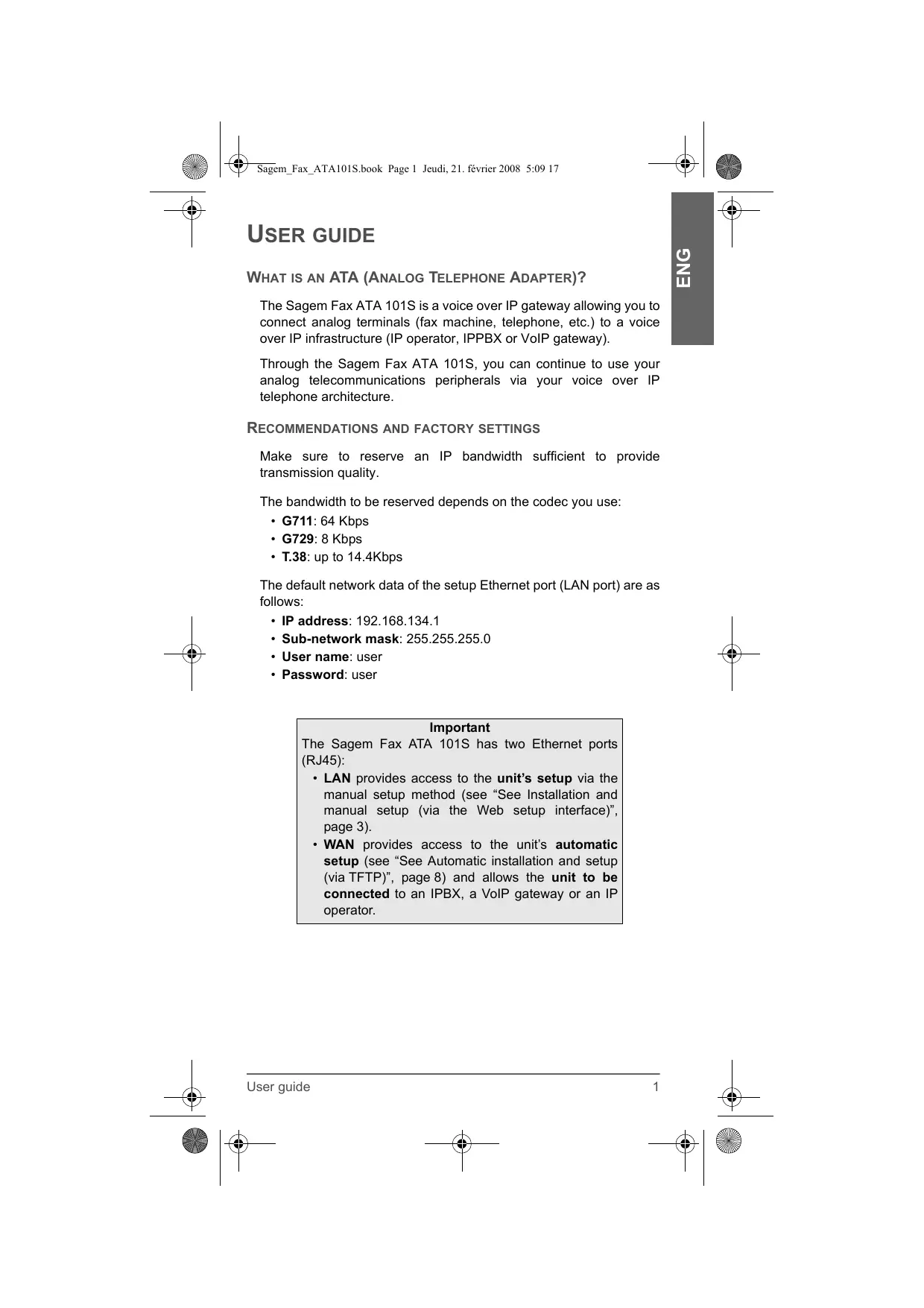


| Brand | Xerox |
| Model | Phaser 3100MFP |
| Type | Monochrome laser multifunction printer |
| Functions | Print, copy, scan, fax |
| Print speed | Up to 30 pages per minute |
| Print resolution | 1200 x 1200 dpi |
| Monthly duty cycle | Up to 50,000 pages |
| Standard paper capacity | 250-sheet tray, 50-sheet multipurpose tray |
| Supported paper sizes | A4, A5, Letter, Legal, Envelopes |
| Connectivity | USB 2.0, Ethernet 10/100 Base-TX |
| Display | LCD screen |
| Memory | 256 MB |
| Dimensions (W x D x H) | Approx. 400 x 400 x 500 mm |
| Weight | Approx. 15 kg |
| Power supply | 220-240 V, 50/60 Hz |
| Power consumption | Average during printing: 550 W, standby: 80 W |
| Noise level | Less than 55 dB during printing |
| Maintenance | Regular cleaning of rollers and drum |
| Safety | Unplug before cleaning, do not block vents |
| Warranty | 1 year parts and labor |
| System compatibility | Windows, macOS, Linux |
| Included software | Print drivers, scanning software |
Frequently Asked Questions - PHASER 3100MFP XEROX
User questions about PHASER 3100MFP XEROX
0 question about this device. Answer the ones you know or ask your own.
Ask a new question about this device
Download the instructions for your Multifunction Printer in PDF format for free! Find your manual PHASER 3100MFP - XEROX and take your electronic device back in hand. On this page are published all the documents necessary for the use of your device. PHASER 3100MFP by XEROX.
USER MANUAL PHASER 3100MFP XEROX
- Access the setup interface of your Sagem Fax ATA 101S using your Internet browser by entering the address http:// 192.168.134.1, then enter the required access codes.
You can use the following default access codes:
- User name: user
- Password: user

SAGEM
Welcome to the Sagem FAX ATA 101S configuration interface
Welcon
Quick Status Save/Beehnt
USER
user
VQIP
SIP Configuration
STUN Setup
Line Settings
BASIC
LAN/WAN Setup
Access Control
Factory Default
Upgrade
ADVANCED
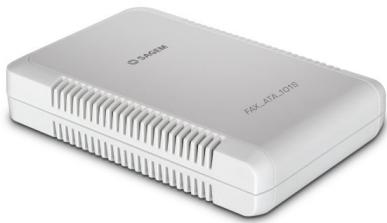
You can then assign an IP address (fixed or dynamic via a DHCP server) to the Sagem Fax ATA 101S WAN port via the Web setup interface.
Manual setup of the Sagem Fax ATA 101S
Step 1 - Basic > LAN/WAN Setup menu
LAN/WAN Setup
| Select | Interface name | IP address | Subnet mask | MAC address | Status |
| C | eth0 | 192.168.134.1 | 255.255.255.0 | 00:60:4c:99:99:99 | Up |
| C | vif0 | 10.204.131.151 | 255.255.255.0 | 00:60:4c:99:99:99 | Up |
Configure Interface
DNS & Default G/W
Help
eth0 setting
These settings do not need to be changed as they are the settings of the Sagem Fax ATA 101S "LAN" interface, i.e. the interface that allows you to access the ATA unit setup interface.








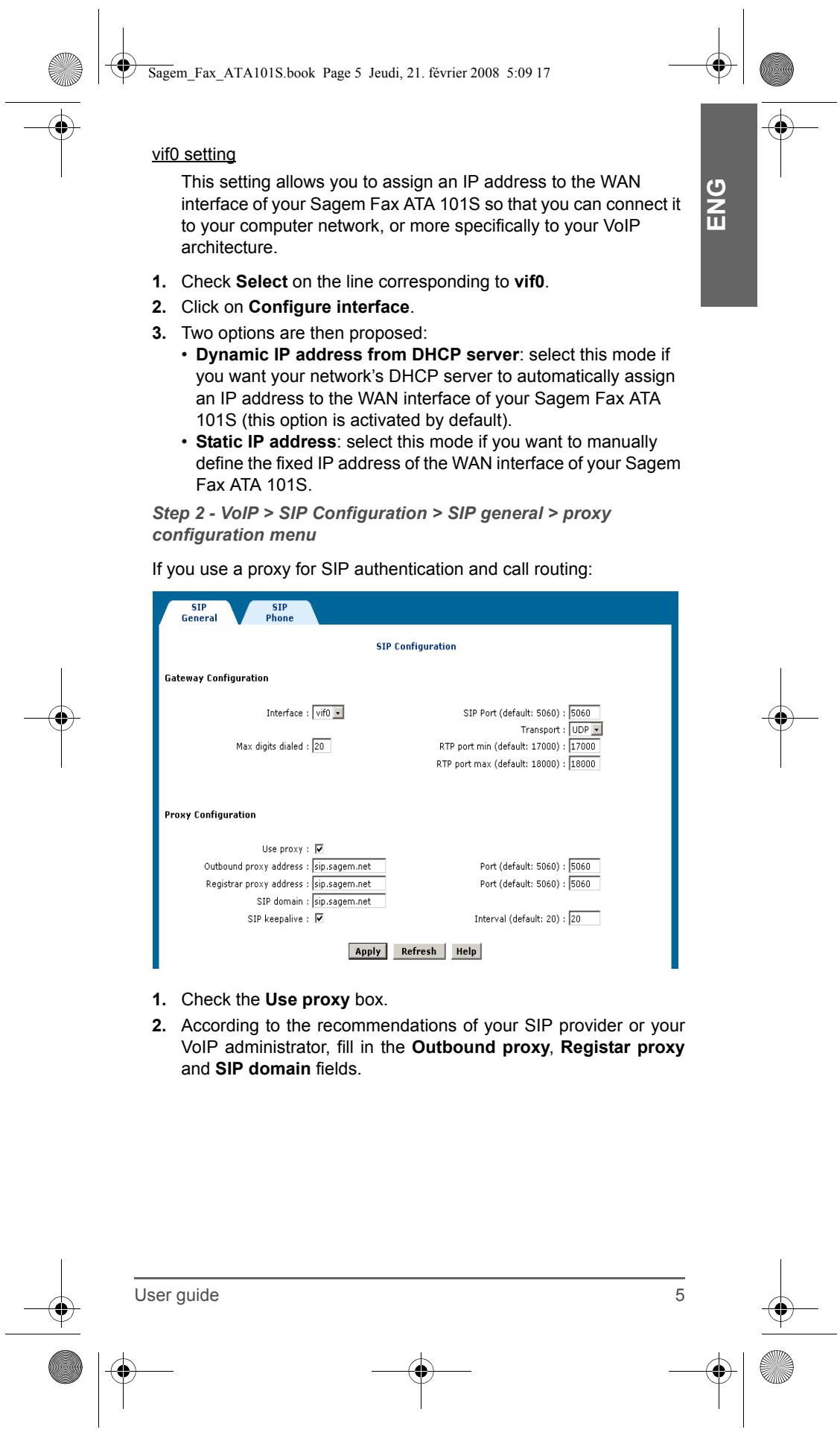
Step 3 - SIP Configuration > SIP general > Tel to IP routing table menu
If you do not use a proxy, you can set up the routing tables via this menu. The routing tables of the Sagem Fax ATA 101S allow you to create a routing of type "Tel to IP".
Route the call coming from the analog terminal connected to the Sagem Fax ATA 101S to a specific IP terminal (IPBX, VoIP gateway, IP telephone, IP fax machine, etc.) according to the dialled number prefix.
- To create a routing table click on Add.
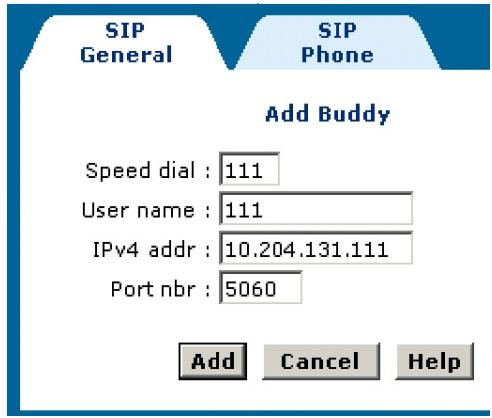
The following window is displayed:
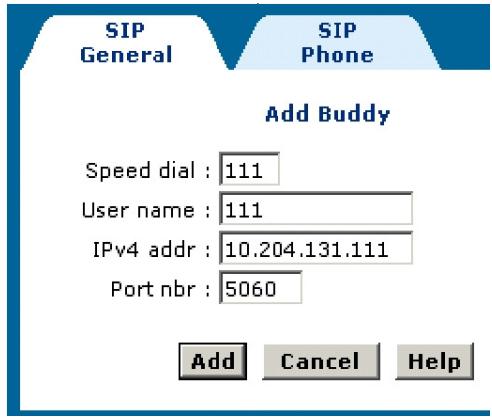
- In the Speed dial field, enter the code used to detect the routing table to be used when the user dials a number starting with this code. This code can contain one to three digits.
- In the User name and IPv4 addr fields, enter the information relating to the VoIP peripheral to which the call is to be routed. You can also define the communication port (the ATA default port proposed is the port normally used by the SIP protocol).
- To validate, click on Add.
The new routing rule is then created.
Remote Callees
| Select | Speed dial | Remote SIP URI |
| ○ | 111 | sip:111@10.204.131.111 |
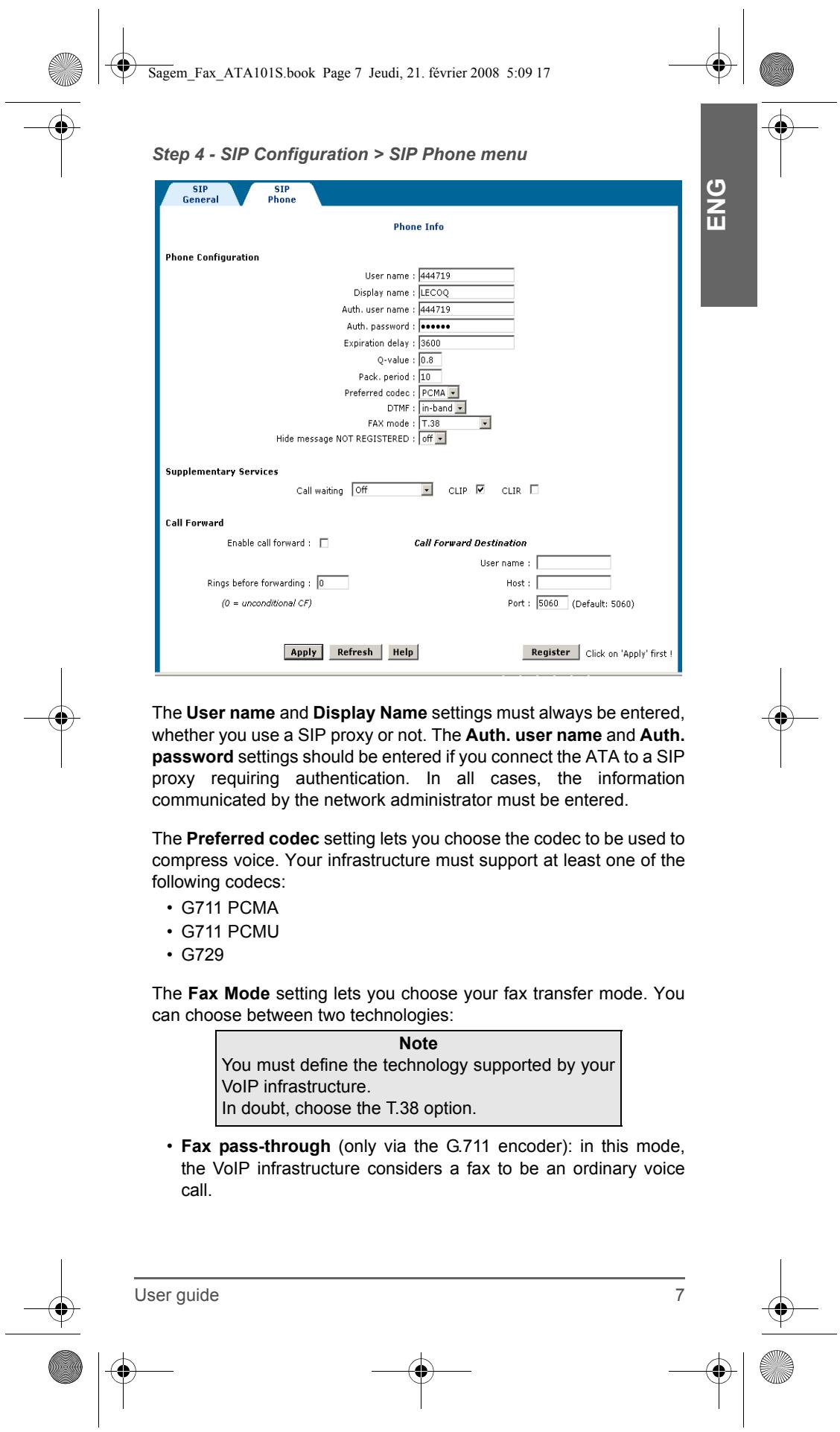
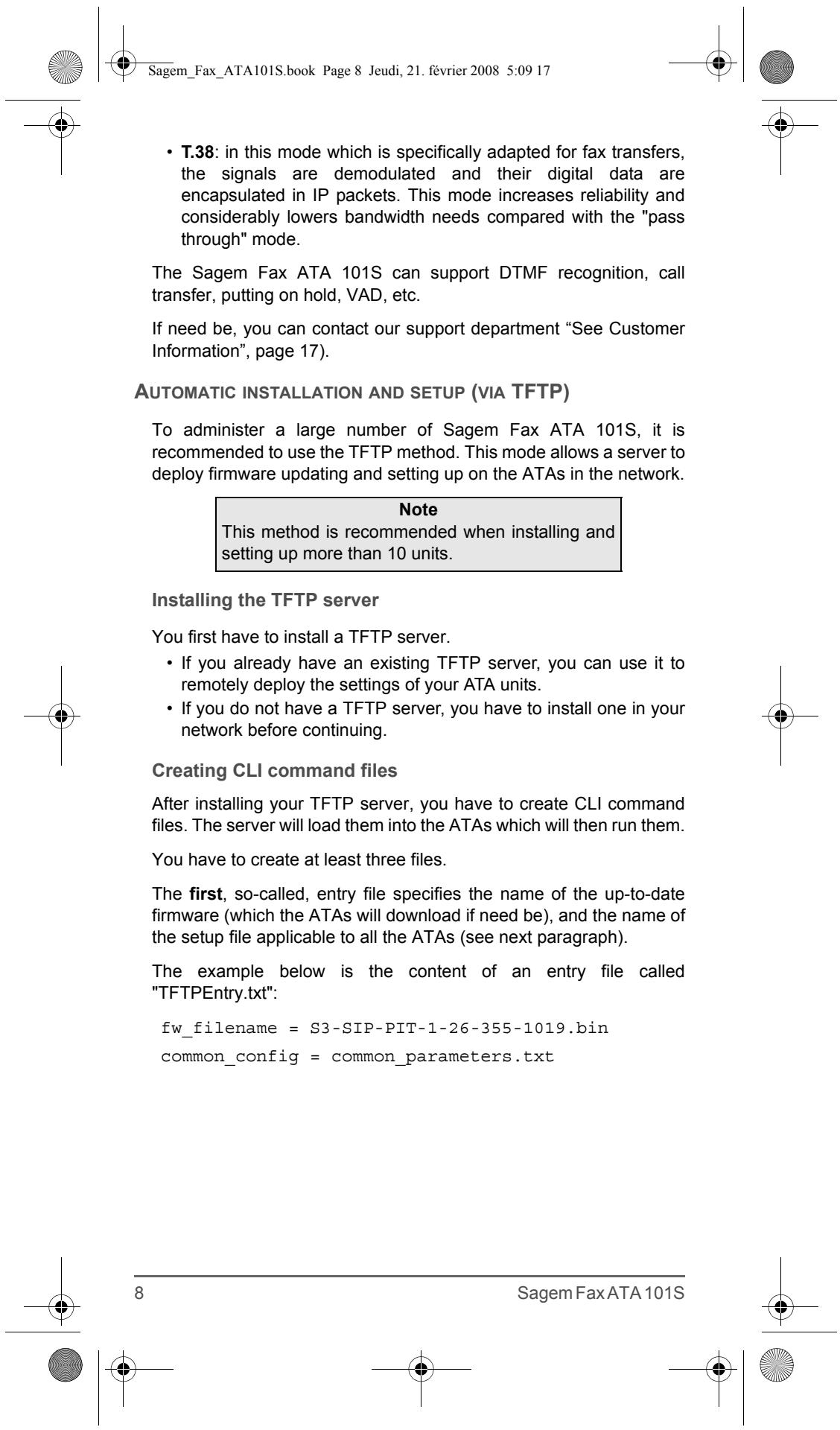
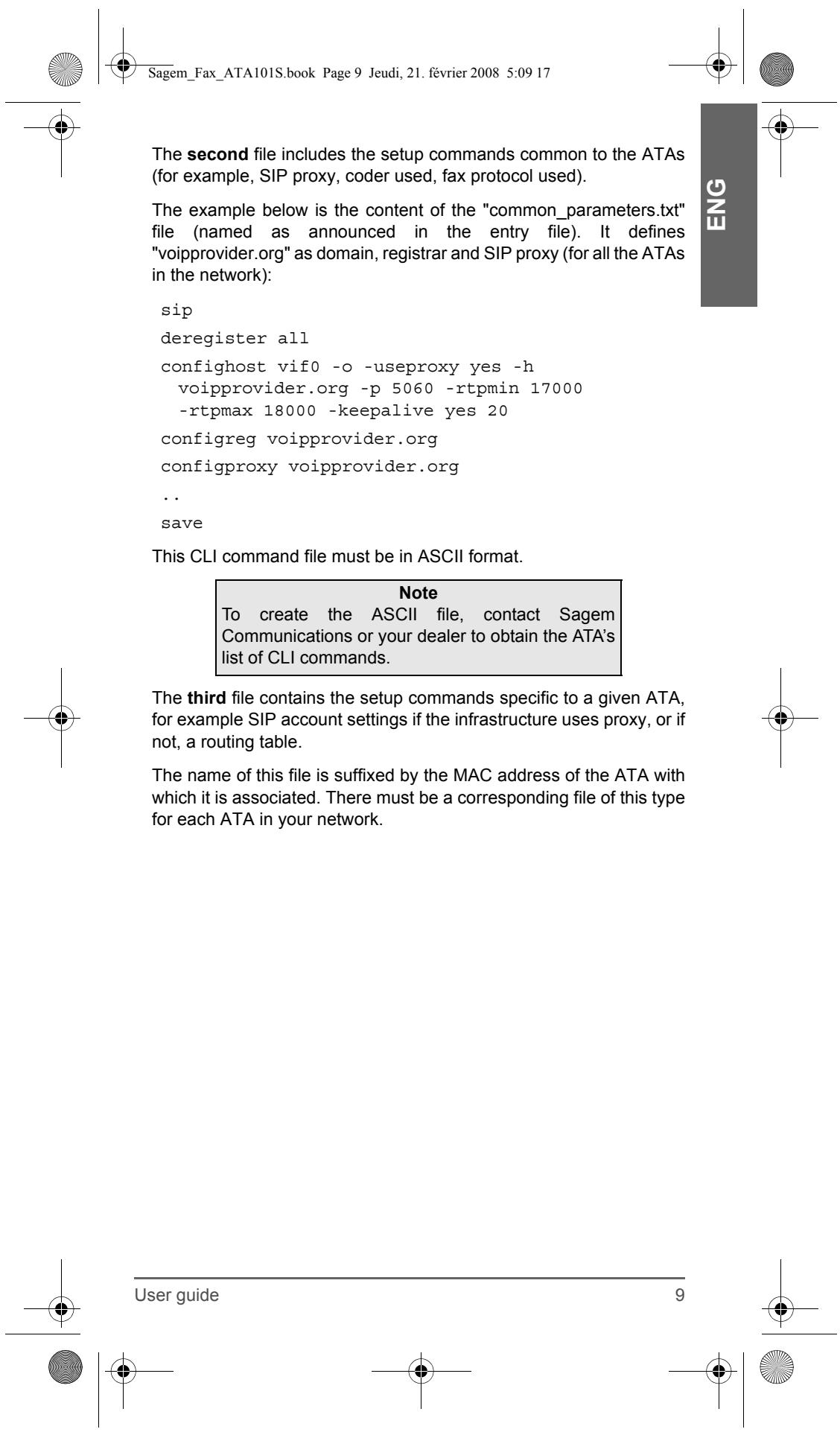
TABLE DE MATIÈRES
Welcome to the Sagem FAX ATA 101S configuration interface
Welcome Quick Status Save/Behost
USER
VOIP
SIP Configuration STUN Setup Line Settings
BASIC
LAN/WAN Setup Access Control Factory Default
Upgrade
ADVANCED
SAGEM COMMUNICATIONS
Service des relations clientèle
Welcome to the Sagem FAX ATA 101S configuration interface
Welcome Quick Stat Save/Rebo
USER
VOIP
SIP ConfigurationSTUN SetupLine Settings
BASI
LAN/WAN Setup Access Control Factory Default Upgrade
ADVANCED
| Select | Interface name | IP address | Subnet mask | MAC address | Status |
| C | eth0 | 192.168.134.1 | 255.255.255.0 | 00:60:4c:99:99:99 | Up |
| G | vif0 | 10.204.131.151 | 255.255.255.0 | 00:60:4c:99:99:99 | Up |
Configure Interface
DNS & Default G/W
Help
Parameter „eth0"
SAGEM COMMUNICATIONS
Fase 3 - Menu SIP Configuration > SIP general > Tel to IP routing table
G711 PCMA
G711 PCMU
G729
-rtpmax 18000 -keepalive yes 20
configreg voipprovider.org
configproxy voipprovider.org
.
salva
MACConfigversion = V1_01
sip/configphone 1 444719 -o -d Lecoq
sip/configauth 1 444719 MySecretPassword
salva
sip/register all
ÍNDCICE DE CONTENIDOS
Welcome to the Sagem FAX ATA 101S configuration interface
Welcome
Quick Status
Save/Reboot
USER
VOIP
SIP ConfigurationSTUN SetupLine Settings
BASI
LAN/WAN Setup Access Control Factory Default Upgrade
ADVANCED
| Select | Interface name | IP address | Subnet mask | MAC address | Status |
| C | eth0 | 192.168.134.1 | 255.255.255.0 | 00:60:4c:99:99:99 | Up |
| R | vif0 | 10.204.131.151 | 255.255.255.0 | 00:60:4c:99:99:99 | Up |
Configure Interface
DNS & Default G/W
Help
Parametro eth0
G711 PCMA
G711 PCMU
G729
SAGEM COMMUNICATIONS
Service des relations clientèle
Welcome to the Sagem FAX ATA 101S configuration interface
Welcon
Quick Status
Save/Reboot
USER
ISEN
VOIP
SIP Configuration
STUN Setup
Line Settings
BASI
B
LAN/WAN Setup
Access Control
Factory Default
Upgrade
ADVANCED
Poder é除外月至每 10000000000000000000000000000000000000000000000000000000000000000000000000000000000000000000000000000
List of Interface Entries
| Select | Interface name | IP address | Subnet mask | MAC address | Status |
| C | eth0 | 192.168.134.1 | 255.255.255.0 | 00:60:4c:99:99:99 | Up |
| C | vif0 | 10.204.131.151 | 255.255.255.0 | 00:60:4c:99:99:99 | Up |
Configure Interface
DNS & Default G/W
Help
Parametro eth0
SAGEM COMMUNICATIONS
Service des relations clientèle