
DVH943 - Car radio CLARION - Free user manual and instructions
Find the device manual for free DVH943 CLARION in PDF.



| Product Type | Car stereo with surround decoder |
| Brand | CLARION |
| Model | DVH943 |
| Dimensions (W × H × D) | 230 × 25 × 170 mm |
| Weight | 900 g |
| Power supply | DC 14.4 V (10.8 - 15.6 V), negative ground |
| Power consumption | 480 mA |
| Decoded audio formats | DTS, Dolby Digital 5.1, Dolby Pro Logic II |
| DSP processor | 32-bit, with 6 DSF modes (Hall, Church, Stadium, Live, Jazz Club, Theater) |
| Parametric equalizer | 3 bands × 3 channels (center, front, surround), range 20 Hz - 20 kHz, Q 1-20, gain ±12 dB |
| D/A converter | 24-bit / 96 kHz on all channels |
| Input connectors | Optical digital (up to 96 kHz), analog RCA 2-channel (with optional module) |
| Outputs | 6 RCA channels (front, rear, center, subwoofer), 4 V / 330 Ω |
| Frequency response | 20 Hz - 44 kHz (PCM 96 kHz) |
| Signal-to-noise ratio | 95 dB or more (IHF-A, effects off) |
| CeNET compatibility | Can be controlled by CeNET-compatible Clarion head units |
| Installation | Under seat (slim chassis), with mounting brackets and screws included |
| Maintenance | Clean with a soft, dry cloth; do not use thinner, alcohol, or harsh cloth |
| Precautions | Avoid high humidity, shocks, opening the case; disconnect battery before wiring |
| Included accessories | CeNET cable (5 m), optical cable (5 m), speed pulse cord, RCA cable (5 m), mounting brackets, wire ties, screws, cable tie |
| Repairability | Consult a qualified professional; any unauthorized modification voids warranty |
Frequently Asked Questions - DVH943 CLARION
User questions about DVH943 CLARION
0 question about this device. Answer the ones you know or ask your own.
Ask a new question about this device
Download the instructions for your Car radio in PDF format for free! Find your manual DVH943 - CLARION and take your electronic device back in hand. On this page are published all the documents necessary for the use of your device. DVH943 by CLARION.
USER MANUAL DVH943 CLARION
All Rights Reserved. Copyright © 2003: Clarion Co., Ltd.
Printed in Japan / Imprimé au Japon / Gedruckt in Japan / Stampato in Giappone
Gedruckt in Japan / Impreso en Japon / Tryckt i Japan / Impresso no Japão
GP-978E
280-8081-00
Thank you for purchasing the Clarion product.
- Please read this owner's manual in its entirety before operating this equipment.
- After reading this manual, be sure to keep it in a handy place (e.g., glove compartment).
- Check the contents of the enclosed warranty card and keep it carefully with this manual.
- The DVH943 can be operated by the CeNET-compatible Clarion Centre Units.
These operating instructions note functions which change as the result of connecting the DVH943 to one of the above components.
Contents
- PRECAUTIONS 2
2 FEATURES 3 - SPECIFICATIONS 4
- CONFIRM BEFORE OPERATION 5
- OPERATIONS 7
Operations (DXZ748RMP) 7
Setting Acoustic Features 8
- WIRING TECHNIQUES 11
Name of Parts 11
How to Wire This Unit 12 - INSTALLATION 13
Installation Precautions 13
Installation Example (for installation beneath seat) 13 - SYSTEM EXPANSION 14
- IN CASE OF DIFFICULTY 16
1. PRECAUTIONS
- The DVH943 can easily be damaged by moisture, high temperatures or high humidity. Keep the inside of the car clean and well ventilated.
- Never subject the DVH943 to strong shocks or open its case. Doing so may result in damage.
- Use a soft, dry cloth to wipe dirt off the DVH943. Never use a hard cloth or thinner, alcohol, etc. For tough dirt, apply some cold or lukewarm water to a soft cloth and wipe off the dirt gently.
- When the main unit is switched to the traffic announcement or PTY interrupt reception while using the DVH943, the effect from DVH943 doesn't work.
- Some tracks may sound distorted when adjustment; this is normal and not a cause for concern.
CAUTION
CHANGES OR MODIFICATIONS NOT EXPRESSLY APPROVED BY THE MANUFACTURER FOR COMPLIANCE COULD VOID THE USER'S AUTHORITY TO OPERATE THE EQUIPMENT.
INFORMATION FOR USERS:
CHANGES OR MODIFICATIONS TO THIS PRODUCT NOT APPROVED BY THE MANUFACTURER WILL Void THE WARRANTY.
2. FEATURES
Onboard DTS/Dolby Digital/Pro Logic II Decoder
- Independent playback of DVD video surround format DTS, Dolby Digital 5.1ch.
- Utilizes Pro Logic II with advanced digital matrix technology for 5.1 channel decoding of 2-channel CD and radio.
Newly developed 32-bit DSP LSI with advanced processing performance
- DSF function allows application of 6 sound field effect patterns following decoding of DTS, Dolby Digital 5.1ch format, or Dolby Pro Logic II signals.
- The parametric equalizer function allows you to adjust the frequency characteristics to suit the car.
High precision 96 kHz / 24 bit D/A converter used in all channels
New-type digital input connectors
- New digital input connectors support sampling rate of 96 kHz.
32 kHz: MP3 etc.
44.1 kHz: CD, CD-R, CD-RW, MD
48 kHz: DVD video
96 kHz: DVD video
Supports analog input connectors (RCA 2ch) (when optional control unit is connected)
- When centre unit or other RCA 2ch output is connected to analog input connectors, Dolby Pro Logic II function can convert to 5.1ch output.
Thin-line chassis can be installed beneath seat.
DTS
- DTS (Digital Theater System) is an audio compression technology developed by Digital Theater Systems, Inc. Its low compression ratio provides a higher quantity of data and thus higher quality sound.
- Manufactured under license from Digital Theater Systems, Inc. US Pat. No. 5,451,942,
5,956,674, 5,974,380, 5,978,762 and other world-wide patents issued and pending.
"DTS" and "DTS Digital Surround" are registered trademarks of Digital Theater Systems, Inc. © 1996, 2000 Digital Theater Systems, Inc. All Rights Reserved.
Dolby Pro Logic II
- Using the newest in digital matrix technology, Dolby Pro Logic II is a matrix decoder technology which further improves earlier Dolby Pro Logic. This new technology produces superb 5.1ch sound even with CDs and other stereo sources.
The surround channel is converted to full-band (20 Hz-20 kHz) stereo, thus allowing stereo sources to be enjoyed with the impact of 5.1ch sound. Four modes can be set in accordance with the playback source, including MUSIC mode, MATRIX mode, MOVIE mode, and VIRTUAL mode. - Dolby Digital is a totally discrete digital 5.1 channel format. Signals for the front 3 channels, 2 surround channels, and the low-frequency 0.1 channel are recorded discretely, so no crosstalk occurs between channels, and the sense of placement and depth of the sounds is reproduced faithfully.
- Manufactured under license from Dolby Laboratories. "Dolby", "Pro Logic" and double-D symbol are trademarks of Dolby Laboratories.
3. SPECIFICATIONS
Digital/Analog Processing Section
Frequency response: 20 Hz - 44 kHz (Linear PCM 96 kHz)
S/N ratio: 95 dB or more (IHF-A, sound-field effects OFF)
Separation: 80 dB or more (with digital input)
Total harmonic distortion: 0.01% or less (with digital input)
Analog output / impedance: 4 V / 330 Ω (6ch output)
DSP/EQ section
DSF:
6 patterns
P.EQ functions
Band:
3-band × 3 ch (centre, front, surround)
F (central frequency):
20 Hz - 20 kHz (1/3 octave step, 31 points)
Q curve: 1 - 20 (5 points)
Gain: ±12
General
Power supply: DC 14.4 V (10.8 - 15.6 V)
Ground: Negative ground
Power consumption: 480 mA
Dimensions: 230(W) × 25(H) × 170(D) mm
Weight: 900 g
Note:
- Specifications and design are subject to change without notice for further improvement.
List of accessories
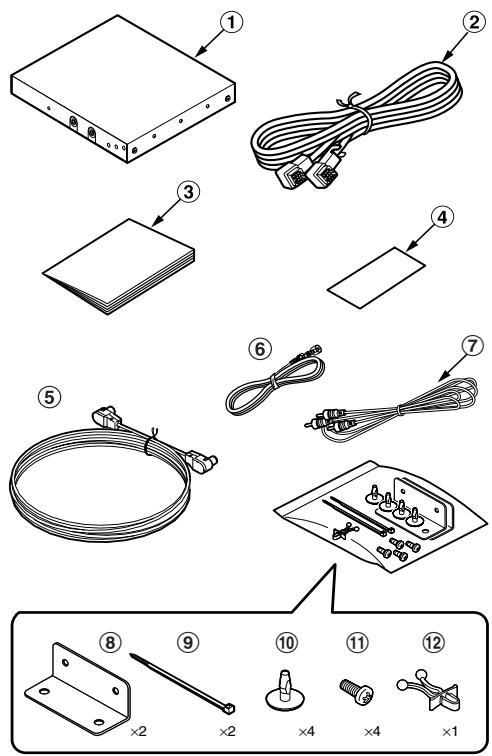
① DVH943 1
② CeNET cable (5 m) 1
③ Owner's manual. 1
④ Warranty 1
⑤ Optical Digital Cable (5 m) 1
⑥ Speed pulse extension Cable (5 m) 1
⑦ RCA PIN Cable (5 m) 1
⑧ Mounting brackets 2
⑨ Cord clamps 2
10 Canoe clips 4
① Mounting screws. 4
⑫ CableClip 1
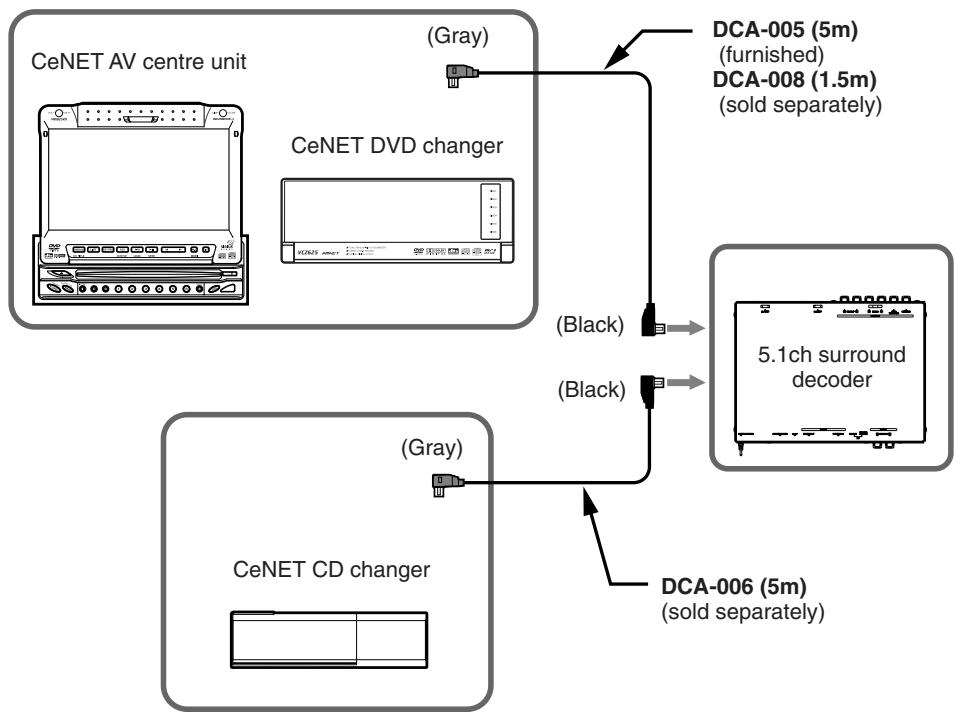
This component does not operate independently as an stand-alone unit and must be used in conjunction with an operational Clarion Source Unit (CeNET supported), or a 5.1 CH surround decoder control unit (DVC923).
See section "8. SYSTEM EXPANSION" (P. 14) for details regarding other compatible components.
CeNET Cable
The CeNET cable used must not be over 20m long (including the length of the CeNET branch cable CCA-519). When making connections be sure that your cable length is not over 20m .
Optical Digital Cables (sold separately or furnished)
Optical digital cables (sold separately or furnished) connected to this unit differ depending on the model of CeNET component involved.
Consult your dealer regarding the kind of optical digital cable required for your component.
Likewise, consult the operating instructions accompanying your component for details regarding connections.
CeNET connections
Speaker System
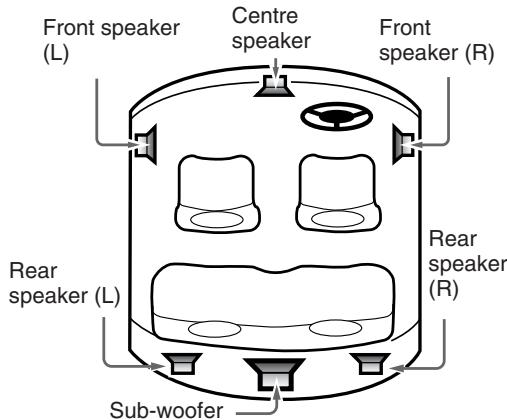
- To get maximum enjoyment from the sound-field functions of this component, the use of a 5.1ch speaker system is recommended. To demonstrate optimum audio response, modify the adjust mode's default settings for "SP-SEL," "FILTER," "SP-GAIN," and "DELAY" in accordance with the composition of your speaker system (see P.8-10). Note that in order to play 2-ch sound sources (music CDs, etc.) in 5.1ch mode, one of the Dolby Pro Logic II modes must be selected, or DSF must be set to ON (see P.7).
DVD Video
- When playing a DTS-compatible DVD video or music CD, some noise may be heard for the short interval required for this unit to detect the DTS signal.
- During playback of Dolby digital or DTS source, some sound interruption may be heard if the search/skip/pause modes are operated before playback.
Digital Inputs (When Optical Digital Cable is Connected)
- When optical digital cable is used to connect components like a DVD changer, the digital signals are given precedence in processing.
- When Dolby Digital (other than 2ch), DTS, Linear PCM (96 kHz) or other digital signals are input, the Dolby Pro Logic II mode can be selected, but the mode will not perform ordinary audio processing.
- When MP3 (32 kHz) and Linear PCM (96 kHz) digital signals are input, the Parametric Equalizer (P.EQ) function can be operated, but it will not perform audio processing.
Sound Effects and Sound-Field Compensation with Digital and Analog Signals
| Input Signal | Sampling Rate | Recording Format | Recording channels | PLII function | DSF function | P.EQ function |
| Digital signals | fs=32 kHz | MP3 etc. | 2ch | O | O | × |
| fs=44.1 kHz | CD-DA | 2ch | O | O | O | |
| fs=48 kHz | Linear PCM | 2ch | O | O | O | |
| Dolby Digital | 2ch | O | O | O | ||
| (Not 2ch) | × | O | O | |||
| DTS | 2ch~5.1ch | × | O | O | ||
| fs=96 kHz | Linear PCM | 2ch | × | O | × | |
| Analog signals | — | — | 2ch | O | O | O |
O: Adjustable × Adjustable without audio processing
(Analog signals: when connected to CeNET connectors or analog input connectors)
5. OPERATIONS
Operations (DXZ748RMP)
Dolby Pro Logic II Menu Selection
About the Dolby Pro Logic II Mode
- Initial setting is [PL II OFF].
■ MUSIC mode
- Suitable for CDs and other stereo sources.
■ MATRIX mode
- Suitable for AM/FM radio sources.
MOVIE mode
- Suitable for DVD video movies.
■ VIRTUAL mode
-
Suitable for movies and other audio sources.
-
Press the [ADF] button to enter PLII mode.
- Press the [ ] or [▶] button to select PLII.
[MUSIC] → [MATRIX] → [MOVIE] →
[VIRTUAL] → [PLII OFF] - Press the [ADF] button to return to the original mode.
Notes:
- The PL II menu cannot be selected when [SP-SEL] has been used to set centre speakers and rear (surround) speakers to [OFF].
- Sound is produced from the centre speaker only when either Dolby Pro Logic II mode, or DSF mode is set to ON (2-channel source playback).
DSF Setting
DSF(Digital Sound Field) makes it possible through sound simulation to enjoy the acoustic experience you would have in a concert hall or a live performance hall.
-
Initial setting is [OFF].
-
Press the [ADF] button to enter DSF mode.
- Press the [ 艹 ] or [ 艹 ] button to select DSF menu.
① HALL: Large concert hall.
② CHURCH: Charch with a vaulted ceiling.
③ STADIUM: Large stadium without roof or walls.
④ LIVE: Live performance hall, larger than a jazz club.
⑤ JAZZCLUB: Jazz club with a low ceiling.
⑥ THEATER: Movie or drama theater.
⑦ OFF: DSF off.
- Press the [ADF] button to return to the original mode.
Setting parametric equalizer (P.EQ)
The parametric equalizer function allows you to adjust the frequency characteristics to suit the car.
- The initial value provides the following settings for all speakers.
FREQ = 1kHz, Q = 1, GAIN = 0dB -
Some distortion may be heard if the [ROTARY] knob is turned rapidly.
-
Press and hold the [ADJ] button for 1 second or longer to enter adjust mode.
- Press the [ ] or [ ] button to change to the [P.EQ] display.
- Press the [ENT] button to display the adjustment item.
Press the [<] or [>>] button to select [EFFECT], [SIGNAL], [SP-SEL], [BAND], [FREQ], [Q], [GAIN] or [SIGNAL].
EFFECT: P.EQ effect is turned on or off.
- Initial setting is [OFF]
SIGNAL: selects the adjustment signal.
- SGNL P-NOIS: set when pink noise is to be used
-
SGNL MUSIC: set to use music signals
-
SP-SEL: selects the speakers whose P.EQ value is to be adjusted.
-
SP FRONT: front speaker
- SP CENTER: centre speaker
- SP SURROUND: surround speaker
BAND: selects the frequency band (Band 1 to 3) to adjust.
FREQ: selects the frequency for bands 1 to 3.
- The range of adjustments is from 20Hz to 20kHz .
Q : sets the Q curve.
- Larger numbers produce a sharper Q characteristics curve while smaller numbers produce gentler characteristics. Adjustments are made in the range Q1 to Q20.
GAIN: adjusts the output level.
- Adjustments are made in the range -12 dB to +12 dB.
- Turn the [ROTARY] knob clockwise or counterclockwise to adjust each value.
- Press the [ADJ] button to return to the original mode.
Setting Acoustic Features
Turning speakers on or off (SP-SEL)
The centre speaker, rear (surround) speakers and sub woofer have to be set to on or off to achieve maximum sound quality.
The initial setting is [ON].
-
Press and hold the [ADJ] button for 1 second or longer to enter adjust mode.
-
Press the [←] or [▶] button to change to the [SP-SEL ] display.
-
Press the [ENT] button to display the adjustment item. Press the [ ] or [ ] button to select [CENTER-SP], [SURROUND-SP] or [SUB-WOOFER].
-
CENTER-SP: centre speaker
- SURROUND-SP: rear (surround) speaker
-
SUB-WOOFER: subwoofer
-
Turn the [ROTARY] knob clockwise or counterclockwise to select [ON] or [OFF].
-
ON: Speaker installed
OFF:Speaker not installed -
When a subwoofer is used, set [ON + ] , [ON - ] or [OFF]. The normal setting is [ON + ] , but use the [ON-] setting when this provides a better effect for low frequency range.
-
Press the [ADJ] button to return to the original mode.
Setting speaker filter frequency (FILTER)
This function is used to set a filter frequency that suits the frequency characteristics of the used speakers.
- The initial value of [FRONT HPF], [SRD HPF] is [THRGH] (no filter).
- The initial value of [CENTER HPF], [SUB-W LPF] is [120 Hz]
- A speaker that was turned off in the Section "Turning speakers on or off (SP-SEL)" is not displayed.
- Press and hold the [ADJ] button for 1 second or longer to enter adjust mode.
- Press the [←] or [→] button to change to the [FILTER E] display.
-
Press the [ENT] button to display the adjustment item.
-
Press the [←] or [▶] button to select the speaker to adjust.
-
FRONT HPF: high pass filter for front speakers
- CENTER HPF: high pass filter for the centre speaker
- SRD HPF: high pass filter for the rear (surround) speakers
-
SUB-W LPF: low pass filter for the subwoofer
-
Turn the [ROTARY] knob clockwise or counterclockwise to select the frequency.
-
In case of [FRONT HPF] and [SRD HPF], the frequency is 50Hz , 80Hz , 120Hz and [THRGH] (no filter).
In case of [SUB-W LPF], [CENTER HPF] the frequency is 50 Hz, 80 Hz or 120 Hz. -
Press the [ADJ] button to return to the original mode.
Adjusting speaker output level (SP-GAIN)
Use the built-in test tone function of the unit to adjust the speaker output level to the same level.
The initial value is [0 dB]
- A speaker that was turned off in the Section "Turning speakers on or off (SP-SEL)" is not displayed.
-
Press and hold the [ADJ] button for 1 second or longer to enter adjust mode.
-
Press the [←] or [→] button to change to the [SP-GAIN ] display.
-
Press the [ENT] button to display the adjustment item.
-
In the adjustment mode, the test tone is output from the selected speaker.
-
Press the [←] or [▶] button to select the speaker to adjust.
-
FRONT-L: front left speaker
- CENTER: front centre speaker
- FRONT-R: front right speaker
- SURROUND R: right rear (surround) speaker
- SURROUND L: left rear (surround) speaker
-
SUB-WOOFER: rear subwoofer
-
Turn the [ROTARY] knob clockwise or counterclockwise to adjust the gain.
The adjustment range is -10dB to +10dB . - Press the [ADJ] button to return to the original mode.
Adjusting speaker delay time (DELAY)
The timing when the sound of each speaker reaches the listening position depends on speaker installation and the size of the car. Adjust the delay time of each speaker so that the sound of all speakers reach the listening position at the same time as the sound from the front speakers.
- The initial value is [0 ms].
-
A speaker that was turned off in the Section "Turning speakers on or off (SP-SEL)" is not displayed.
-
Press and hold the [ADJ] button for 1 second or longer to enter adjust mode.
- Press the [←] or [▶] button to change to the [DELAY ] display.
- Press the [ENT] button to display the adjustment item.
- Press the [←] or [▶] button to select the speaker to adjust.
CTR-SP: centre speaker
- SRD-SP: rear (surround) speaker
-
Turn the [ROTARY] knob clockwise or counterclockwise to select the delay time.
-
The [CTR-SP] adjustment range is 0 to 5 ms.
-
The [SRD-SP] adjustment range is 0 to 15 ms.
-
Press the [ADJ] button to return to the original mode.
Setting the Dolby Digital functions (Dolby D)
- Dynamic range compression function (D-RANGE):
This function compresses the dynamic range of Dolby Digital to maintain low level sounds such as actor conversation and suppress loud sound volumes.
These functions are only available on Dolby Digital DVD discs.
- Press and hold the [ADJ] button for 1 second or longer to enter adjust mode.
-
Press the [ ] or [>>] button to change to the [Dolby D] display.
-
Turn the [ROTARY] knob clockwise or counterclockwise to select the value from [MAX], [STD] or [MIN].
The initial value is [MAX].
MAX: maximum dynamic range mode of the original source
- STD: recommended mode for standard listening
MIN: the most compressed dynamic range mode that renders even low sounds easy to hear.
- Press the [ADJ] button to return to the original mode.
MUSIC Mode Fine Adjustments (PL II CONT)
When MUSIC Mode has been selected on the PL II menu, finer adjustments can be made when desired.
CTR WIDTH is not available when centre speaker is turned off in the section "Turning speakers on or off (SP-SEL)".
- Press and hold the [ADJ] button for 1 second or longer to enter adjust mode.
- Press the [←] or [→] button to show the [PL II CONT ] display.
- Press the [ENT] button to display the adjustment item.
- Press the [←] or [→] button to select the item.
PANorama (Y or N):
Selecting PANorama mode will extend the front sound field image to the rear. If surround effect does not seem to be presented sufficiently, select the setting position [Y].
The initial setting is [N].
DIMENSION (0 to 6):
Selecting DIMENSION mode will shift the sound field image to the front or the rear. If the balance of the sound field image is too much pulled towards the front or rear, the balance front/rear can be corrected.
The adjusting value 3 is the centre position. The range of 3 to 0 shifts the balance front/ rear to the rear. The range of 3 to 6 shifts the balance front/rear to the front.
The initial value is [3].
- CTR WIDTH (0 to 7):
Selecting CTR WIDTH mode will adjust the localization of the centre channel between the centre speaker and the front speaker L/R.
Distributing the centre channel sound to the right and left will increase the integrated sound field image, providing you with an natural spatial feeling of sound.
Setting to the value 0 will produce the centre sound with the centre speaker.
Setting to the value 7 will distribute the centre sound to the front speaker L/R as the existing stereo sound does.
The initial value is [3].
- Turn the [ROTARY] knob clockwise or counterclockwise to adjust the value.
- Press the [ADJ] button to return to the original mode.
Setting Auto Volume
- Press and hold the [ADJ] button for 1 second or longer and enter adjust mode.
- Press the [←] or [→] button to select the [CALIBRATE].
- Press the [ENT] button and [START ] is displayed.
- Keep driving speed 50km / h and press the [ENT] button.
- "CALIBRATION" is flash for 2 seconds in display.
-
If calibration is successful display indicate "SUCCEED" and sound long beep, or if calibration is not successful display indicate "FAILED" and sound 2 times a short beep.
-
If you failed, repeat steps 3 to 6.
Note:
- When installing this device or transferring it into another vehicle, for sake of safety, always have this work done by the store of purchase or your nearest Clarion dealer. Installation requires specialized techniques and experience.
Setting Auto Volume sensitivity
- Press and hold the [ADJ] button for 1 second or longer and enter adjust mode.
- Press the [←] or [▶] button to select the [A-VOL SENS]
- Turn the [ROTARY] knob clockwise or counterclockwise to make the adjustment.
The adjustment steps are below 6 steps, Off
Low M-L Mid M-H High.
6. WIRING TECHNIQUES
Name of Parts
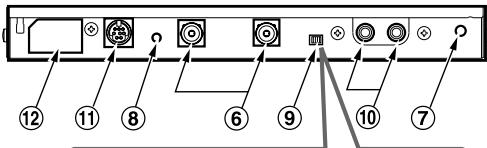
[STAND-ALONE/SLAVE] switch
The factory default setting is
SLAVE position.
SLAVE

STAND ALONE
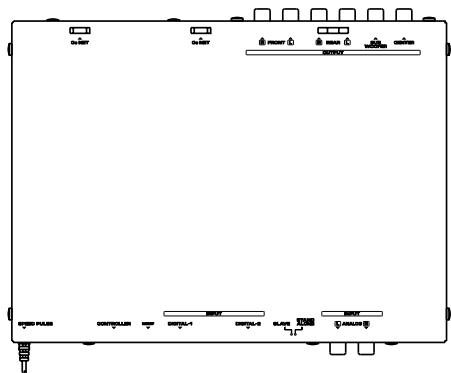
Speed pulse cord
Connect to speed pulse signal cord of the vehicle. If you already own DXZ748RMP and use it with Auto Volume, disconnect the speed pulse cord and replace with the speed pulse cord provided with this unit, then perform calibration.
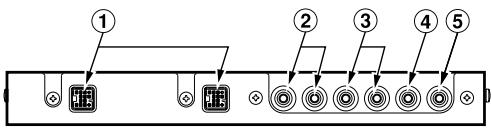
① CeNET connectors
Connect to centre unit using CeNET cable.
② Front RCA output connectors
Connect to external power amplifier using RCA pin cable.
③ Rear RCA output connectors
Connect to external power amplifier using RCA pin cable.
④ Sub-woofer RCA output connectors
Connect to external power amplifier using RCA pin cable.
⑤ Centre speaker RCA output connectors
Connect to external power amplifier using RCA pin cable.
⑥ Digital input connector
Connect to DVD/CD changer using optical digital cable (sold separately or included).
- Connect to black connector side
⑦ Cable clip hole
Insert cable clip to hold optical digital cable in place.
⑧ RESET switch
Press to reset circuitry if no sound is produced.
Note:
- Be sure the CeNET cable is connected when pressing the [RESET] switch.
Use When Connecting Optional Control Unit (DVC923)
[STAND-ALONE / SLAVE] switch
- Set to STAND ALONE when connecting a control unit.
- Leave at SLAVE position when no control unit is connected.
⑩ Analog input connectors (RCA)
Connect to centre unit's RCA 2ch output. Note:
- The following are enabled only when a control unit is connected.
Connect to control unit.
12 Control unit power connector
Connect control unit's power cable here.
* Leave tape in place when not in use.
Perform the settings and connections in the order indicated by the drawing below.
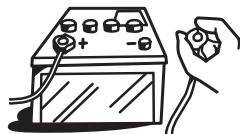
CAUTION
Throughout the process of wiring this unit, disconnect the negative (-) terminal of your automobile's battery, and leave it disconnected until completely finished. Handling wires while the terminal is connected could result in danger of electrical shock or injury if an occident short circuit should occur.
1 CeNET Cable
- To connect a CeNET cable, hold it with the connector facing as shown, and insert securely.
- When disconnecting a CeNET cable, grasp the slide cap and squeeze gently.
2 Optical Digital Cable
- Insert the black connector securely into the digital signal input connector until it locks. The cable clip can be used to secure up to two optical digital cables.
- When disconnecting a optical digital cable, squeeze the tabs at the right and left sides of the connector, and pull gently.
Note:
- The optical digital cable should not be bent with a gentle arc radius of 1.5cm or less. If it is bent sharper than this, the performance of the cable will be greatly reduced and the cable may be damaged.
3 RCA Pin Cable
- When connecting an RCA pin cable, be sure to confirm the source of the connection first.
4 [RESET] switch
- Following completion of wiring, press the [RESET] switch to return to default settings.
![CLARION DVH943 - [RESET] switch - 1](/content/2019/11/148012/images/1339ce2ac0e9fb2b7404970d01bc21ce138ba014d220c3f387aff79e10f4c75e.jpg)
Note:
- Route the CeNET cable with plenty of extra room so that the connector will not become disconnected accidentally.
Optical Digital cable (black connection)
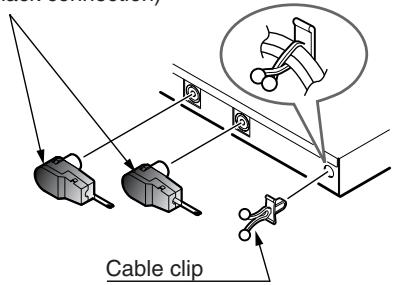
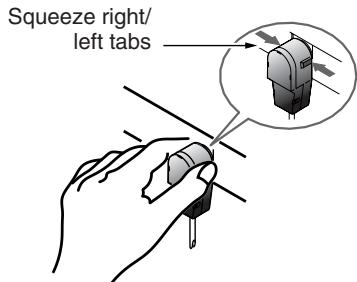
Note:
- Always turn the main [POWER] switch [OFF] before connecting or disconnecting digital fiber-optic cables.
7. INSTALLATION
Installation Precautions
CAUTION!
- Install correctly, using only the screws supplied as accessories. Using other screws may result in damage or injury.
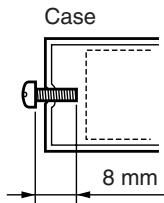
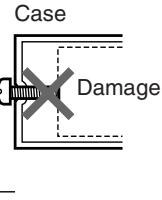
Installation Example (for installation beneath seat)
- Use the supplied screws (M4x8) to attach the accessory mounting bracket to the sides of the unit.
- The main unit's case has been provided with 3 screw holes on either side. Select the screw holes required for your installation conditions.
- Position the unit on the floor mat, then mark and open holes in the floor mat so they are aligned with the mounting bracket's holes.
- Press the accessory canoe clips from the underside upward through the mat and into the mounting bracket holes.
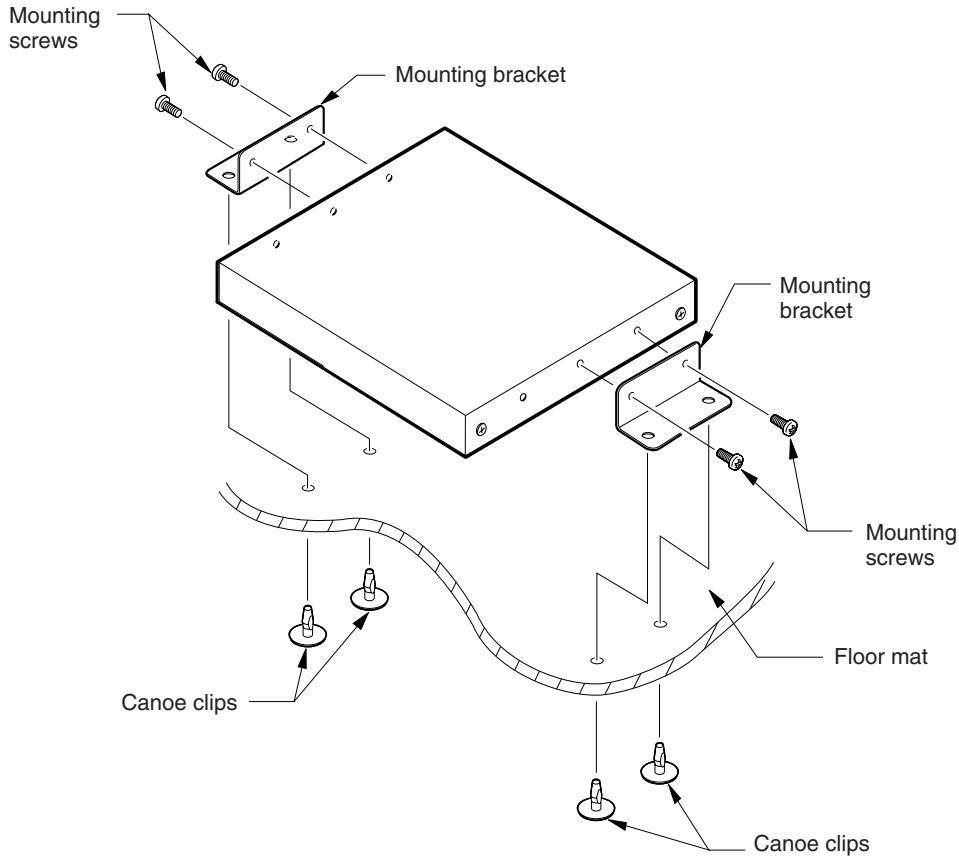
8. SYSTEM EXPANSION
Refer to the Owner's manual for the DVC923 for an example of the stand-alone system connections.
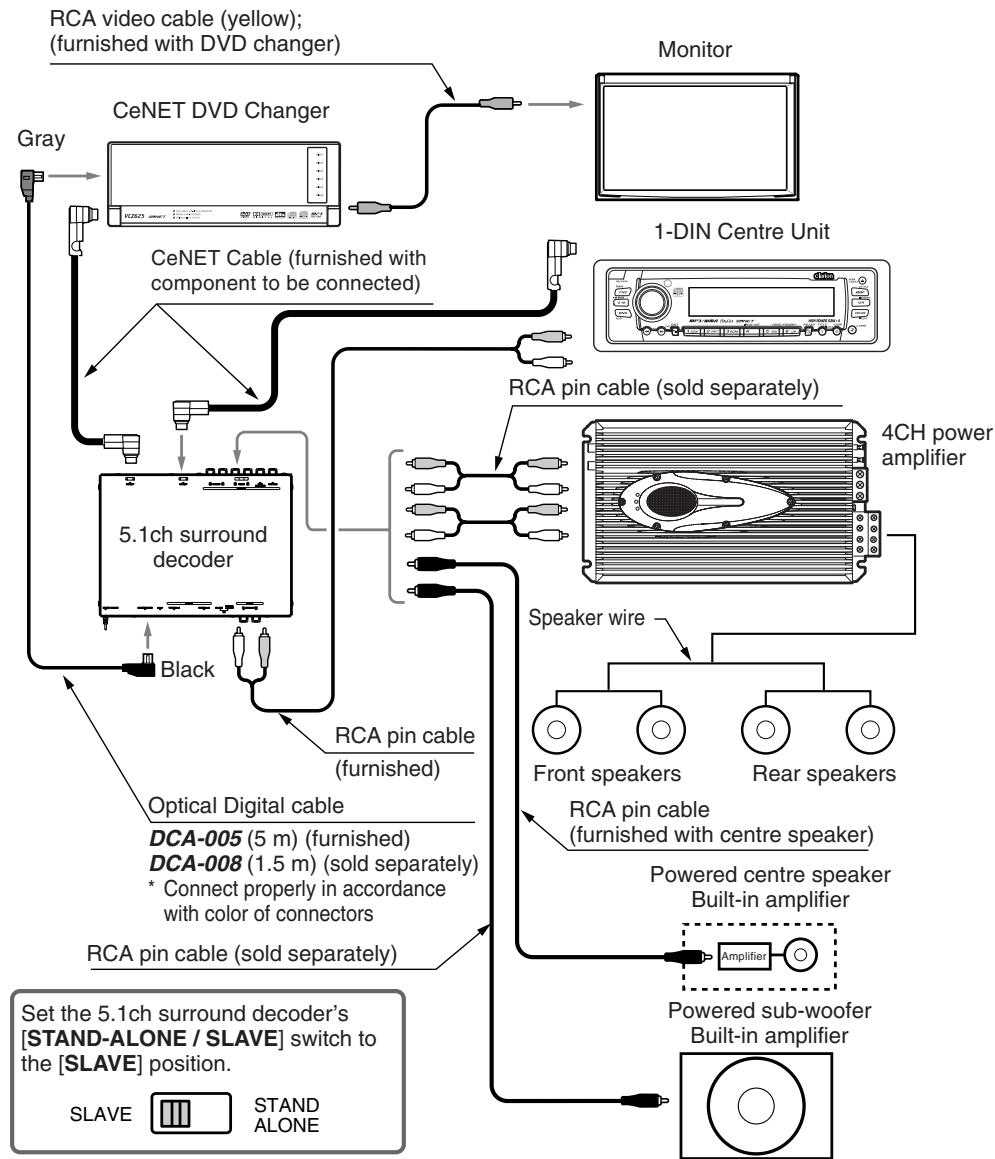
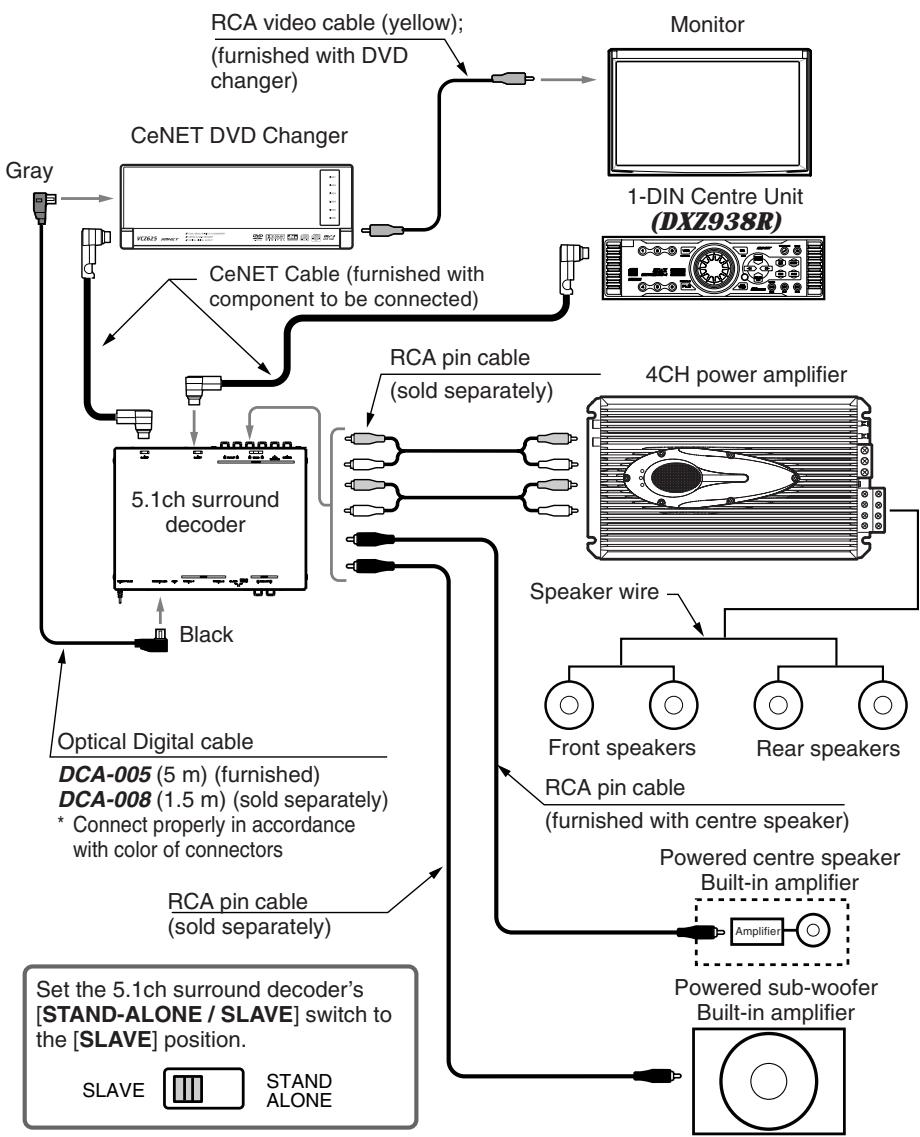
9. IN CASE OF DIFFICULTY
| Problem | Cause | Measure |
| Nothing happens when buttons are pressed. | The microprocessor has malfunctioned due to noise, etc. | Use a narrow stick to press the [RESET] switch on the side of the 5.1ch surround decoder. Note that when the [RESET] switch is pressed, all titles and other data placed in memory will be erased. 5.1ch surround decoder [RESET] switch decoder |
| No sound produced from centre speaker | The source being played is a 2-ch source lacking a centre channel (music CD, linear PCM stereo, etc.). | Either choose one of the Dolby Pro Logic II modes, or set DSF effect to ON (see P. 7). |
| Dolby Pro Logic II or DSF is set to OFF. | ||
| The centre speaker setting is OFF (default setting is ON). | Set centre speaker (SP-SEL) to ON (see P. 8) |
Dimensions: 230 × 25 × 170 (L × H × P) mm
Poids: 900 g
Remarque:
1. VOORZORGSGMAATREGELEN
SUB-WOOFER: subwoofer, awhile
Delen for digital/analog bearbetting
Frekvensomfang:
Total harmonisk distorsion:
44.1 kHz: CD, CD-R, CD-RW, MD
48 kHz: Video DVD
96 kHz: Video DVD
20 Hz - 44 kHz (PCM 96 kHz Linear)
Relação sinal/ruís:
95 dB ou mais
Distortion harmonica total:
0,01% ou menos (com entrada digital)
Curva Q: 1 - 20 (5 points)
Ganho: ±12 dB
Geral
Alimentação:
4 Interruptor [RESET]
- Contents
- PRECAUTIONS
- CAUTION
- INFORMATION FOR USERS:
- FEATURES
- Onboard DTS/Dolby Digital/Pro Logic II Decoder
- Newly developed 32-bit DSP LSI with advanced processing performance
- High precision 96 kHz / 24 bit D/A converter used in all channels
- New-type digital input connectors
- Supports analog input connectors (RCA 2ch) (when optional control unit is connected)
- Thin-line chassis can be installed beneath seat.
- DTS
- Dolby Pro Logic II
- SPECIFICATIONS
- Digital/Analog Processing Section
- DSP/EQ section
- General
- Note:
- List of accessories
- CeNET Cable
- Optical Digital Cables (sold separately or furnished)
- CeNET connections
- Speaker System
- DVD Video
- Digital Inputs (When Optical Digital Cable is Connected)
- OPERATIONS
- Operations (DXZ748RMP)
- Dolby Pro Logic II Menu Selection
- ■ MUSIC mode
- ■ MATRIX mode
- MOVIE mode
- ■ VIRTUAL mode
- Notes:
- DSF Setting
- Setting parametric equalizer (P.EQ)
- Setting Acoustic Features
- Turning speakers on or off (SP-SEL)
- Setting speaker filter frequency (FILTER)
- Adjusting speaker output level (SP-GAIN)
- Adjusting speaker delay time (DELAY)
- Setting the Dolby Digital functions (Dolby D)
- - Dynamic range compression function (D-RANGE):
- MUSIC Mode Fine Adjustments (PL II CONT)
- Setting Auto Volume
- Setting Auto Volume sensitivity
- WIRING TECHNIQUES
- Name of Parts
- Speed pulse cord
- Use When Connecting Optional Control Unit (DVC923)
- CeNET Cable
- Optical Digital Cable
- RCA Pin Cable
- [RESET] switch
- INSTALLATION
- Installation Precautions
- CAUTION!
- Installation Example (for installation beneath seat)
- SYSTEM EXPANSION
- IN CASE OF DIFFICULTY
- VOORZORGSGMAATREGELEN
- Delen for digital/analog bearbetting
- Geral
- Interruptor [RESET]
Brand : CLARION
Model : DVH943
Category : Car radio