MD20089 - Monitor MEDION - Free user manual and instructions
Find the device manual for free MD20089 MEDION in PDF.



| Product type | LCD Monitor |
| Brand | MEDION |
| Model | MD20089 |
| Screen size | 47 cm (18.5") |
| Native resolution | 1366 x 768 |
| Aspect ratio | 16:9 |
| Brightness | 250 cd/m² |
| Static contrast | 1,000:1 |
| Dynamic contrast | 8,000:1 |
| Response time | 5 ms |
| Viewing angles (H/V) | 170° / 160° |
| Video inputs | 1x VGA (D-Sub 15) |
| Audio input | 1x 3.5 mm jack |
| Speakers | 1 W RMS |
| Power supply | 100-240 V ~ 50/60 Hz, 1.5 A |
| Power consumption (on) | < 32 W |
| Power consumption (standby) | < 1 W |
| Dimensions (W x H x D) | 450 × 344 × 195 mm |
| Net weight | 3.5 kg |
| Operating temperature | 0 °C to 40 °C |
| OSD menu | Yes (image, color, position adjustments, etc.) |
| Power saving functions | Standby < 1 W |
Frequently Asked Questions - MD20089 MEDION
User questions about MD20089 MEDION
0 question about this device. Answer the ones you know or ask your own.
Ask a new question about this device
Download the instructions for your Monitor in PDF format for free! Find your manual MD20089 - MEDION and take your electronic device back in hand. On this page are published all the documents necessary for the use of your device. MD20089 by MEDION.
USER MANUAL MD20089 MEDION
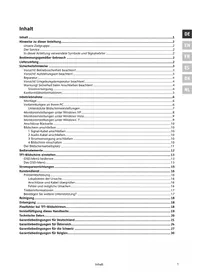
Information about these instructions 2
Target group 2
Quality. 2
Service 2
Use in accordance with regulations 2
Scope of supply 2
Safety information 3
Safety in operation 3
Set-up location 3
Repair 4
Intended environment 4
Power supply. 4
Norms / Electromagnetic compatibility 5
Bringing the device into operation 6
Setup. 6
Preparation of your PC 6
Supported monitor settings 6
Windows XP: Display Characteristics 7
Windows Vista: Display Settings. 8
Back Connections 9
Connecting the monitor 9
1 Connect signal cable. 9
2 Connect audio cable 9
3 Connect the power supply. 9
4 Switch on the monitor 9
The video workstation. 10
Front Operating elements 11
Setting up the TFT monitor 12
Operating the OSD menu 12
The OSD menu 12
Energy-saving properties. 14
Customer Service 14
Solving problems 14
Localisation of the cause 14
Check the connections and cables 14
Faults and possible causes 14
Driver information 15
Do you need further support? 15
Cleaning 15
Disposal 16
Technical data 16
Pixel errors in the TFT monitor 17
Reproduction of this Handbook 18
Warranty Terms for United Kingdom 19
Information about these instructions
Read through these instructions carefully and follow all the information given under all circumstances. You will guarantee reliable operation and a long useful life of your TFT monitor in this way. Always keep these instructions ready to hand, close to your TFT monitor. Keep the instructions safe, in order for you to be able to pass them on to a new owner, in the case of you selling the monitor.
We have structured these instructions so that you will be able to read the information needed subject-related at any time. Keep the instructions safe, in order for you to be able to pass them on to a new owner, in the case of you selling the monitor.
Target group
These instructions are intended for both first times users and those with previous experience.
Quality
We have selected the components that make up this product with an attention to functionality, ease of operation, safety and reliability. We are proud to have produced a TFT monitor that will provide pleasure when used in a business or pleasure application.
We would like to thank you for your purchase and look forward to welcoming you again as a Medion customer.
Service
We are here to support you in your daily use of this monitor.
Please contact us if you have questions or require assistance in operation. You will find a special chapter on the subject of Customer Service, starting on page 14 of these Operating Instructions.
Use in accordance with regulations
- This device is only suitable for use in dry internal rooms.
This device has only been conceived for private use. The device is not designed for operation in a heavy industry business. Use subject to extreme environmental conditions can result in damage to your device.
Scope of supply
Please check the items received in the box and inform us within 14 days from purchase if anything is missing. You should receive the following items:
TFT monitor
- Mains connection cable
15-pin D-Sub data cable
Audio cable
Monitor stand
- Guarantee card
These Operating Instructions
Safety information
Safety in operation
- Do not allow children to play with electrical devices without supervision. Children can not always recognise possible dangers correctly.
- Keep the packaging materials, such as plastic film, away from children. The danger of suffocation could arise in the case of misuse.
- Never open the casing of the TFT monitor (electric shock, short circuit and the danger of fire)!
- Do not introduce any objects into the inside of the TFT monitor through the slots and openings (electric shock, short circuit and the danger of fire)!
- The slits and opening of the TFT monitor serve ventilation. Do not cover these openings (overheating, danger of fire).
- Do not exert any pressure on the display unit. There will be the danger of the monitor breaking.
- Attention! There will be the danger of injury if the display unit has been broken. Pack up the broken parts with protective gloves and send them to your service centre for specialist recycling. Then wash your hands with soap, because it cannot be excluded that chemicals can escape.
- Do not touch the display unit with your fingers or with sharp objects, in order to avoid damage.
Contact Customer Service if:
- The mains cable has been contaminated or damaged
- Liquid has penetrated the monitor
- The TFT monitor is not functioning correctly
- The TFT monitor has been dropped or the casing is damaged
Set-up location
- New devices can emit a typical, unavoidable but completely harmless smell, which reduces increasingly in the course of time, in the initial hours of operation. We recommend that you ventilate the room regularly, in order to counter the formation of the smell. We have taken care that the applicable limits are clearly fallen below during the development of this product.
- Keep your TFT monitor and all the connected devices away from moisture and avoid dust, heat and direct solar radiation. Failure to comply with this information can lead to faults or damage to the TFT monitor.
- Do not operate your device in the open air, because external influences, such as rain, snow, etc. could damage the device.
- Do not subject the device to drops of water or spray and do not put any containers filled with liquid (vases or similar) on the device. Liquids penetrating can impair the electrical safety of the device.
- Do not put any open sources of fire (candles or similar) on the device.
- Pay attention to sufficiently large clearances in the wall unit. Maintain a minimum clearance of 10cm around the device for sufficient ventilation.
- Place and operate all components on a stable, level and vibration-free base, in order to avoid the TFT monitor falling.
- Avoid fading effects, mirror effects and too strong contrasts between light and dark, to save your eyes and to guarantee comfortable workstation ergonomics.
- Take regular breaks when working at your TFT monitor, to prevent tension and tiredness.
Repair
- Leave the repair of your TFT monitor exclusively to qualified specialist personnel.
- Please contact our authorised Service Partners exclusively in the case of a necessary repair.
Intended environment
- The TFT monitor can be operated at a surrounding temperature from 0^ to +40^ and at a relative ambient moisture level of < 80% (non-condensing).
- The TFT monitor can be stored at -20^ to +60^ when it has been turned off.
- Wait to bring the device into operation until it has reached the surrounding temperature, after the TFT monitor has been transported.
Moisture, which can cause an electrical short-circuit, can form within the TFT monitor in the case of wide variations in temperature or moisture.
Power supply

Please pay attention: Parts of the device will be subject to voltage, even if the mains switch has been switched off. Pull the mains plug from the socket, to interrupt the power supply to your TFT monitor or to release the device from voltage completely.
- Only operate the TFT monitor at an earthed socket with 100-240V~, 50/60 Hz. Ask your energy supplier if you are not sure about the power supply at the set-up location.
- We recommend the use of protection against excess voltage for additional safety, in order to protect your TFT monitor against damage because of voltage peaks or electrical flashes on the mains network.
- Pull the mains plug from the socket, in order to interrupt the power supply to your monitor.
- The socket must be located close to the TFT monitor and be easily accessible.
- Lay the cable so that no-one can tread on it or trip over it.
- Do not place any objects on the cable, because it could be damaged otherwise.
- Please pay attention to the fact that the standby switch does not separate the device completely from mains electricity. The device will consume electricity in standy operation apart from this. Pull the mains plug out of the mains socket to separate the device from the network completely.
Norms / Electromagnetic compatibility
The TFT monitor fulfils the requirements for electromagnetic compatibility and electrical safety of the following regulations:
EN 55022:2006
Information technology equipment, interference - Limiting values and measuring procedure
EN 55024:1998 +
A1:2001 +
A2:2003
Information technology equipment - Characteristics resisting interference - Limiting values and test procedure
EN 61000-3-2:2006
Electromagnetic compatibility (EMV); Part 3: Limiting values; Section 2: Limiting values for harmonic currents (device input current < 16A per conductor)
EN 61000-3-3:1995 +
A1:2001 +
A2:2005
Electromagnetic compatibility (EMV); Part 3: Limiting values; Section 3: Limiting values for variations in voltage and flickerin in low voltage networks for devices with and input current < 16A per conductor
EN 60950-1:2001 +
A11:2004
Safety of information technology equipment
- The Guidelines for electromagnetic compatibility (EMV) must be observed at the connection.
- Maintain at least one metre clearance from high frequency and magnetic sources of interference (television device, loudspeakers, mobile phone, cell phone, etc.), in order to avoid disruptions to function and data loss.
- The failure of individual or several scanning spots can arise in rare cases, in spite of the most modern manufacture, because of the highly complex technology.
Your device complies with the European Norm ISO 13406-2 Class II (Pixel error class) (see P. 16).
Your device complies with the basic requirements and the relevant guidelines of the 2004/108/EU EMV Guidelines [electromagnetic compatibility] and the 2006/95/EU Guideline for low voltage devices.
Bringing the device into operation
Information
Please read the "Safety information" chapter on page 3 under all circumstances before bringing the device into operation.
Setup
Attach the stand of the TFT monitor as illustrated. Carry out this step before connecting the monitor.
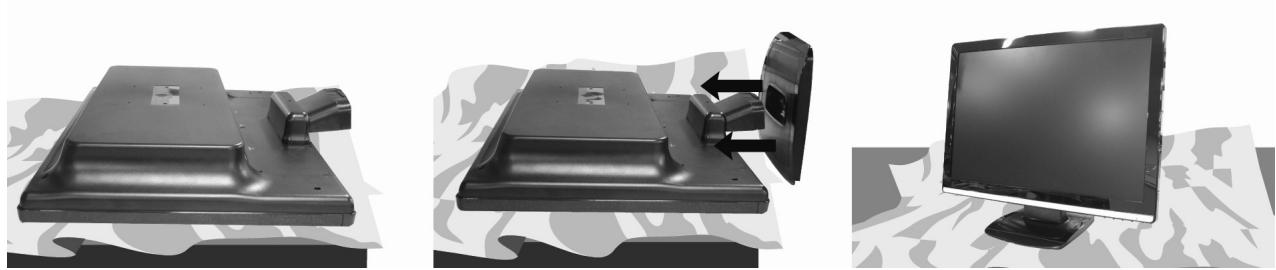
(III.: Installation of the monitor stand)
Preparation of your PC
You will possibly have to make some preparations if you have operated a CRT monitor with your computer in the past. This will be necessary if your current monitor is operated with settings that are not supported by your new TFT monitor.
Supported monitor settings
This TFT monitor supports the following modes.
| Resolution | Horizontal Frequency | Vertical Frequency |
| 720 x 400 | 31.47 KHz | 70 Hz |
| 640 x 480 | 31.47 KHz | 60 Hz |
| 640 x 480 | 31.47 KHz | 67 Hz |
| 640 x 480 | 37.50 KHz | 75 Hz |
| 800 x 600 | 37.88 KHz | 56 Hz |
| 800 x 600 | 37.88 KHz | 60 Hz |
| 800 x 600 | 48.08 KHz | 72 Hz |
| 800 x 600 | 46.87 KHz | 75 Hz |
| 1024 x 768 | 48.36 KHz | 60 Hz |
| 1024 x 768 | 56.48 KHz | 70 Hz |
| 1024 x 768 | 60.02 KHz | 75 Hz |
| 1152 x 864 | 67.40 KHz | 75 Hz |
| 1280 x 1024 | 63.98 KHz | 60 Hz |
| 1280 x 1024 | 80.00 KHz | 75 Hz |
| 1440 x 900 | 55.47 KHz | 60 Hz |
| 1366 x 768* | 47.70 KHz | 60 Hz |
- Recommended resolution (physical)
The settings of your graphics card under "Display Characteristics" within Windows XP/Vista.
Windows XP: Display Characteristics
This Windows control panel interface offers the ability to adjust the setting of the desktop representation to your monitor and the graphics card.
The program can be started as follows:
- Right mouse-click on the Windows interface (Desktop) and left mouse-click on „Characteristics".
or
- Double-click on the "Display" icon in "System Control".
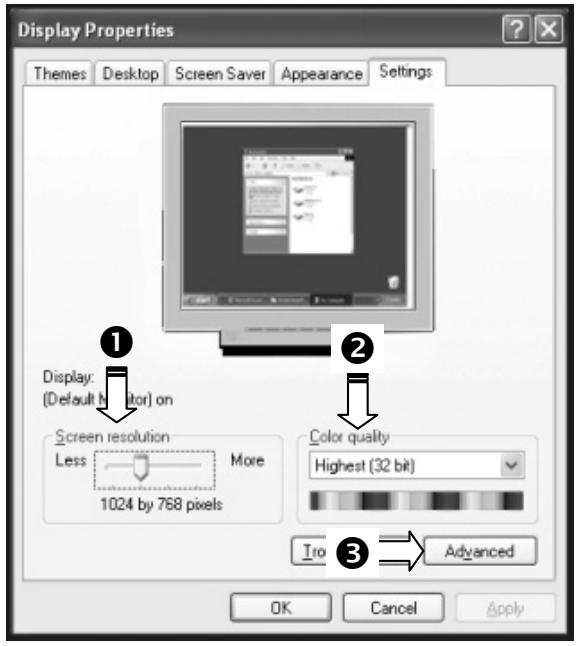
(III.: Display characteristics)
Set the resolution under "Screen resolution" (0). Your TFT monitor can represent a maximum resolution of 1366 x 768 pixels scanning elements. Check whether an update of the driver of your graphics card can solve the problem, if your graphics card does not support this resolution.
This resolution corresponds to the physical resolution. TFT monitors reach complete image quality with the physical resolution.
You can set the depth of colour (number of the colours represented) under “Colour quality” (2). Your TFT monitor will support a depth of colour of a maximum of 16 million colours, which corresponds to 32 bits or ‘Real Color’.
The image refresh frequency can be set under "Expanded" (6).
A Window with the characteristics of your graphics card will appear, according to the configuration of your computer.
You will be able to set the required value in the “List all modes” field under “Graphics card”. The optimal value lies at 60 HZ
in the case of a TFT monitor.
75 Hz can be set as a maximum.
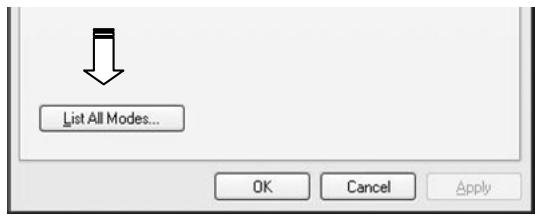
(III.: Detail of Display Characteristics)
Attention!
You will possibly not receive any images if your setting does not correspond to the values supported by your display unit.
In this case, reconnect your CRT monitor and set the applicable values in correspondence with the options specified above under “Display Characteristics”.
Windows Vista: Display Settings
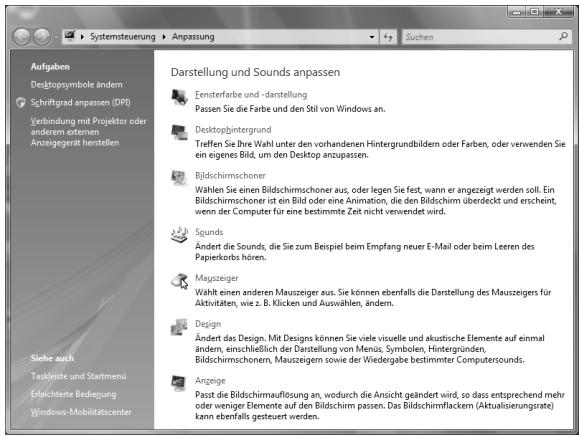
Make the screen settings under 'Display and Sound' in 'System Control' under Windows Vista.
The program can be started by means of the following steps:
- Right mouse click on the Windows interface (Desktop) and left mouse click on "Adjust".
or
- By clicking with the left mouse button on 'Start' 'System control' 'Adjust display and sound'.
(III.: Display and sound)
Back Connections
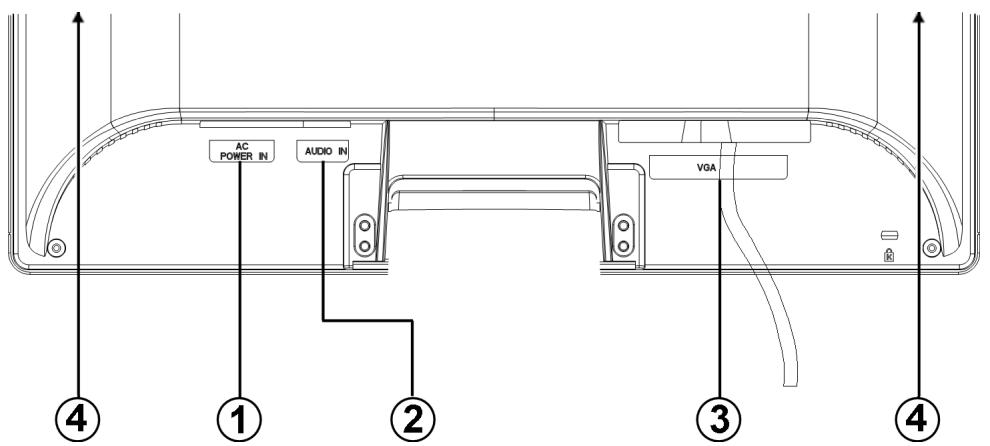
(III.: Back of the monitor)
- Power supply (POWER IN)
- 3.5 mm stereo jack audio connection (AUDIO IN)
- Mini 15-pin D-sub connection (VGA)
- Speakers
Connecting the monitor
Please read the "Safety information" chapter (from page 3), in order to bring the TFT monitor into operation immediately.
We recommend that you also read the other chapters, in order to receive detailed explanations and operating instructions for your TFT display unit.
- Ensure that the TFT monitor has not yet been connected to the electricity supply (mains plug not yet plugged in) and that neither the TFT monitor nor the computer has been switched on.
- Prepare your computer for the TFT monitor if necessary, so that the correct settings for it will be present.
1 Connect signal cable
- Plug the signal cable into the appropriate VGA connection on the computer.
2 Connect audio cable
- Plug the audio cable into the appropriate audio sockets on the computer and the TFT monitor.
3 Connect the power supply
- Now connect one end of the mains cable supplied with the device to TFT power supply connection and then the other end to an appropriate socket. The mains socket must be in the vicinity of the TFT monitor and be easily accessible (use the same electricity circuit as for the PC).
4 Switch on the monitor
- Switch your monitor on at the Standby/On switch on the front of the device. Finally, switch your computer on.
The video workstation
Please pay attention to the following: The monitor device should be set up so that mirror effects, fading and strong contrasts between light and dark are avoided (even if the view from the window is still so attractive!)

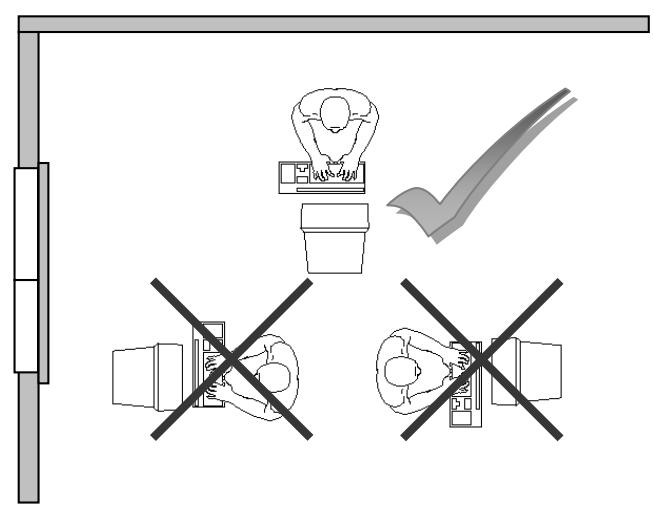
(III.: Setting up the monitor)
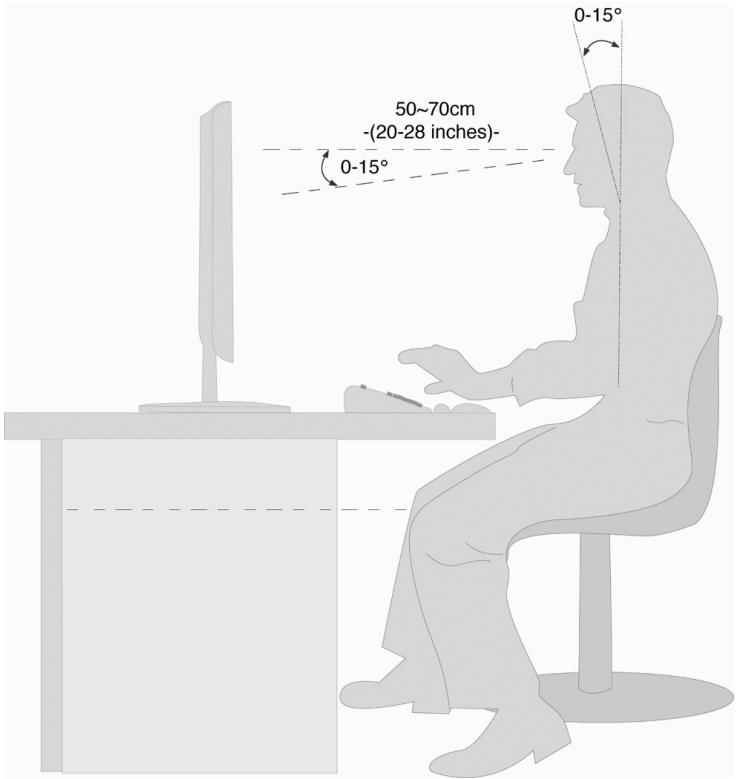
(III.: Video workstation)
- Surface supporting the hands: 5 - 10cm
- Highest monitor line at eye level or somewhat below it
Viewing distance: 40 to 70~cm - Leg-room (vertical): At least 65~cm
- Leg-room (horizontal): At least 60~cm
Front Operating elements
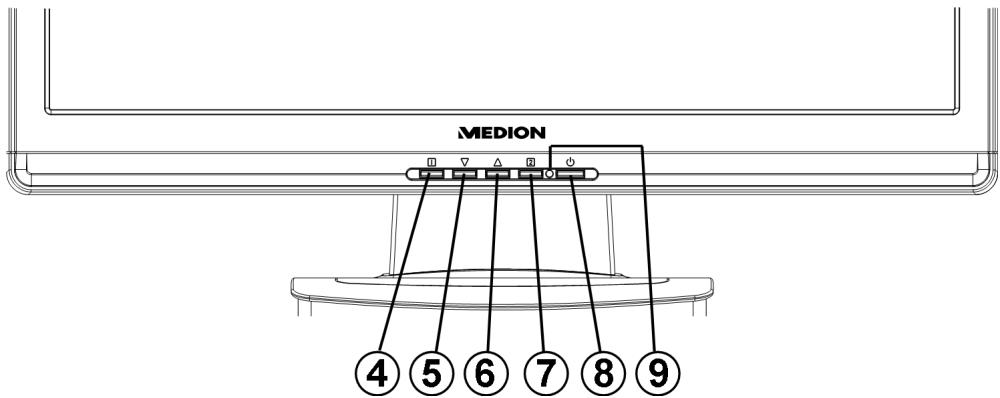
(III.: Front operating elements)
| Ref. | Button | Description |
| 4 | 11 | You will start the OSD (On Screen Display) with this button. Press this button again if you wish to leave the OSD. + ▽ Power block, when the OSD is not activated + △ OSD block, when the OSD is not activated Hold the key combination until the bar displayed has moved from left to right completely, to activate/de-activate the block. A corresponding message will appear on the screen. |
| 5 | 7 | Select a parameter and reduce its value with this button, when the OSD is switched on. If you are not in the OSD: direct call-up of the Contrast/Brightness menu. |
| 6 | △ | Select a parameter and increase its value with this button, when the OSD is switched on. When the OSD is not active: direct access to the Aspect Ratio menu. |
| 7 | 2 | Confirm the selection of the parameter to be changed with this button. When the OSD is not active: direct access to the Auto Image Adjust menu. |
| 8 | You can switch the TFT monitor on or to the Standby mode with this button. | |
| 9 | Operational display | Shows the operational state. Please also refer to page 14. |
Setting up the TFT monitor
You can set certain parameters for the TFT monitor in the OSD menu (ON screen display).
Operating the OSD menu
- Press the button, in order to activate the OSD.
- Select the options from the Main Menu with the / function selection buttons.
- Confirm your selection with the 2 button.
- Press the button, in order to leave the OSD.
Information
The OSD will be faded out automatically if you have not operated any button on the TFT monitor for the pre-set time.
The OSD menu
The main functions or possible settings through the OSD are explained in the following.
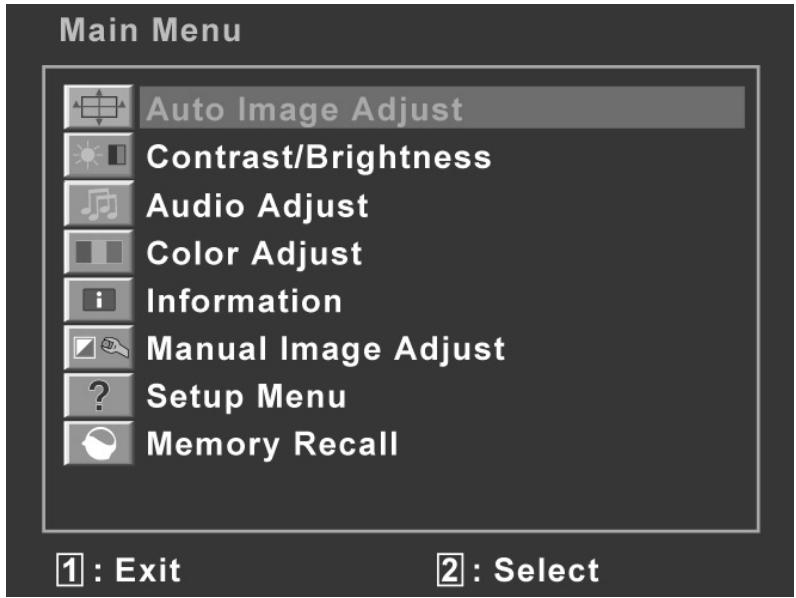
(III.: OSD menu)
Information
The menus described here can differ from those on your monitor because of possible technical changes.
| Menu point | Function / sub-menu | |
| Auto Image Adjust: Sets the horizontal and vertical position, phase (fine tune) and clock cycle (H size) automatically. | ||
| Contrast: Sets the white value of the monitor foreground. Brightness: To adjust the brightness of the video. DCR: You can switch the DCR function (dynamic contrast) on and off here | ||
| Audio Adjust: For setting the audio function. | ||
| Volume: Sets the sound output of the loudspeakers. Mute: Enables the selection between Mute On/Off. | ||
| Color Adjust: For the selection of the colours, in order to improve the brightness and the colour saturation. | ||
| 9300 K: Adds blue to the monitor, creating a cooler white. 6500 K: Adds red to the monitor, creating a warmer white and a brighter red. 5400 K: Adds green to the monitor, creating a darker colour tone. User Color: Individual settings for red(R), green(G) and blue(B). | ||
| i | Information: Displays information about the current input signal of the graphics card of your computer. | |
| Manual Image Adjust: Horizontal size. H./v. position, fine tune, sharpness, aspect ratio and optical colour mode. | ||
| Horizontal Size: Sets the width of the monitor. | ||
| H./V. Position: Sets the horizontal and vertical position of the video image. | ||
| Fine Tune: Fine tune to improve the display of the TFT monitor. | ||
| Sharpness: For the adjustment of the clarity in the case of a signal that does not correspond the physical resolution of the screen. | ||
| Aspect Ratio: Setting the display format: Select 16:9 or 4:3. | ||
| ? | Setup Menu: Set the language, OSD position and OSD time out. | |
| Language Select: Enables the user to select between the available languages. | ||
| OSD Position: Horizontal and vertical setting of the OSD position. | ||
| H. Position: For the horizontal setting of the OSD position. V. Position: For the vertical setting of the OSD position. | ||
| OSD Time Out: For switching off the On Screen Display (OSD) automatically after the expiry of a preset period of time. | ||
| OSD Background Off: Enables the OSD background to be switched on and off. | ||
| Memory Recall: To recreate the factory settings for controlling video and audio. | ||
Energy-saving properties
This monitor will switch to various energy-saving statuses set in advance by the respective computer / operating system. This complies with the current requirements to reduce energy consumption.
The monitor supports the following types of energy-saving mode:
| Status | Power (nominal value) | Colour of the LED | Readiness (approx.) |
| ON | < 32 Watts | Blue | - |
| STAND-BY | < 1 Watts | Orange | 6 seconds |
The monitor will remain in the energy-saving status until you press a key on the keyboard or move the mouse, depending on the operating system.
The monitor will need about 6 seconds to switch from the STAND-BY status to the ON operating mode.
Customer Service
Solving problems
Make sure that the TFT monitor has been installed correctly (read the "Bringing into operation" chapter from Page 5), if problems with your TFT monitor arise. Read the information in this chapter about possible solutions if the problems continue to exist.
Localisation of the cause
Problems with functionality sometimes have commonplace causes but can also arise from defective components. We cannot provide every solution possible in this manual but would be more than happy to help you by telephone. Please call us if you need support.
Check the connections and cables
Start with a careful visual check of all cable connections. Ensure that the TFT monitor and the computer are correctly supplied with electricity, if the indicator lights are not functioning.
Faults and possible causes
The monitor does not display any image:
Check:
- Mains supply: The power supply cord must be sitting firmly in the socket and the mains switch must be switched on.
- Signal input: Please check whether the signal input (computer or other device) is switched on and the connection cables are sitting firmly in the sockets.
- Image refresh frequencies: The current image refresh frequency must be suitable for the TFT monitor.
- Energy-saving mode: Press any button or move the mouse to deactivate the mode.
- Screen saver: Press a button on the keyboard or move the mouse if the screen saver of the computer is activated.
- Signal plugs: Please contact your respective customer service if pins are bent.
- Set the applicable values for your TFT monitor (see "Preparations on your PC", Page 6).
The image slips or is erratic:
Check:
- Signal plugs: Please contact your respective customer service if pins are bent.
- Signal plugs: The plugs of the signal cable must be sitting firmly in the sockets.
- Graphics card: Check whether the settings are correct (see Page 6).
-
Image refresh frequencies: Select the permissible values in your graphics settings.
-
Monitor output signal. The monitor output signal of the computer must agree with the technical data of the monitor.
- Remove disruptive devices (mobile telephones, cell phones, loudspeakers, etc.) from the vicinity of your TFT monitor.
- Avoid the use of monitor extension cables.
Symbols are displayed darkly, the image is too small or not centred, etc.:
- Readjust the respective settings (Setting the TFT monitor, Page 6)
Colours are not displayed cleanly:
- Check the signal cable pins. Contact your respective customer service if pins are bent.
- Readjust the colour settings in the OSD menu.
- Avoid the use of monitor extension cables.
The display is too light or too dark:
- Check whether the video output level of the computer agrees with the technical data of the monitor.
- Select automatic control, to optimise the settings for brightness and contrast. The display unit should show a text page (e.g. Explorer, Word, etc.) for its optimisation.
The image flutters:
- Check whether the operational voltage agrees with the technical data of the monitor.
- Select automatic control, to optimise the settings for the synchronisation of pixels and phases. The display unit should show a text page (e.g. Explorer, Word, etc.) for its optimisation.
Driver information
No driver installation is necessary for the functioning of your monitor.
You will be able to download the driver program file from the internet website listed below if the operating system nevertheless requests the installation of a monitor driver.
The installation of a driver can differ according to the operating system. Follow the specific instructions for your operating system.
www.medion.com
Do you need further support?
Please contact us if the suggestions in the above sections have not solved your problem. It would help us very much if you make the following information available to us:
What is your computer's configuration?
What peripheral devices are you using?
What messages appear on the monitor?
What software were you using when the fault arose?
- What steps have you already taken to solve the problem?
- Give us your customer number if you have already received one.
Cleaning
You will be able to extend the useful life of the TFT monitor by the following measures:
Attention!
No parts to be maintained or cleaned are located within the monitor casing.
- Always pull out the mains plug and all connecting cables before cleaning.
- Do not use any solvents, corrosive or gaseous cleaning substances.
- Clean the screen with a soft, fluff-free cloth.
-
Pay attention that no drops of water remain on the TFT monitor. Water can cause long-lasting discolouring.
-
Do not subject the screen to either dazzling sunlight or to ultra-violet radiation.
- Please keep the packaging material and use this exclusively to transport the TFT monitor.
Disposal

Packaging
Your device is in packaging for protection against transport damage. Packaging is made from materials that can be disposed off in an environmentally friendly way and taken to correct recycling.
Device
Do not throw the device into the normal domestic refuse after the end of its useful life under any circumstances. Obtain information about the possibilities of environmentally friendly and correct disposal.
Technical data
Model MD 20089
- Monitor size 47 cm (18,5"), TFT
Size ratio 16:9
Nominal voltage AC 100-240 V ~ 50/60 Hz Nominal electricity 1,5 A
Resolution 1366 x 768
- Brightness 250 cd/m²(typ.)
- Contrast 1,000:1 (typ.) 8,000:1 (dyn.)
- Reaction time 5 ms (typ.)
Viewing angle h/v 170/160° (typ.) CR>10
- RGB input, analog 15-terminal D-SUB connection
Audio Input 1 Vrms max. 100Hz 20kHz
3.5 mm stereo jack
1 W rms
- Audio Output 1 W rms
- User control Standby ON/OFF, OSD
- Temperatures In operation 0^ C +40^ C Not in operation -20^ C +60^ C
- Moisture In operation < 80%
- (Non-condensing) Not in operation < 90%
Weight (net/gross) 3.4kg / 4.3kg
- Dimensions (WxHxD) approx. 450 × 344 × 195 ~mm
Power consumption (Stand-by)
Power consumption (operation)
approx. 1 Watt
less than 32 Watt
C E
Pixel errors in the TFT monitor
A total of approx. 3.1m control transistors are used in the case of Active Matrix TFTs with a resolution of 1366 x 768 Pixel, each composed of three sub-pixels (red, green, blue). A failure or incorrect control of pixels or individual sub-pixels can arise occasionally, because of this very high number of transistors and the extremely complex manufacturing process associated with it.
There have been continuous approaches to define the number of permitted pixel errors in the past. However, these attempts have for the most part been very complicated and completely different from manufacturer to manufacturer. MEDION follows the strict and transparent requirement of the ISO 13406-2, Class II Norm, which are summarised in brief in the following, in the handling of guarantees for all TFT display products for this reason.
Among other matters, the 13406-2 ISO Standard defines generally applicable guidelines in relation to pixel errors. The pixel errors are categorised into four error classes and three types of error. Each individual pixel is composed in its turn of three sub-pixels each with a basic colour (red, green, blue).
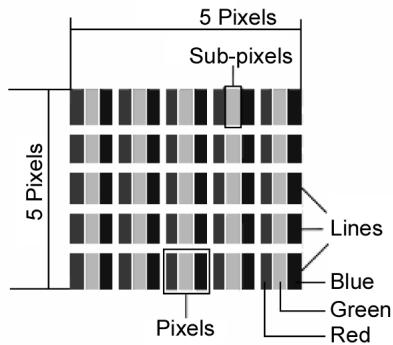
Types of pixel error:
- Type 1: Pixels shining for a long time (bright, white point), although not activated. A white pixel arises because of the illumination of all three sub-pixels.
- Type 2: Pixels not shining (dark, black point), although activated
- Type 3: Abnormal or defective sub-pixels coloured red, green or blue (e.g. shining for a long time with half brightness, not lighting one colour, flashing or flickering, but not Type 1 or 2)
Addition: Cluster of Type 3 (= failure of two or more sub-pixels in a block of 5 × 5 pixels. A cluster is a field of 5 × 5 pixels ( 15 × 5 sub-pixels).
Classes of pixel error:
| Error Class | Type 1 | Type 2 | Type 3 | Cluster of Type 3 |
| I | 0 | 0 | 0 | - |
| II | 2 | 2 | 5 | - |
| III | 5 | 15 | 50 | |
| IV | 50 | 150 | 500 | 50 |
The permitted number of errors of the types specified above in each class of error relates to a million pixels and must be converted in accordance with the physical resolution of the display.
A maximum permitted number in Error Class II follows from this:
| For a resolution of | M. pixel | Sub-pixels | (Type, see above) |
| 1024 x 768 (15") | 0.786432 | 2.359296 | 2 2 4 - 2 |
| 1280 x 1024 (17,18, 19") | 1.310720 | 3.932160 | 3 3 7 - 3 |
| 1600 x 1200 (19") | 1.920000 | 5.760000 | 4 4 10 - 4 |
| 1440 x 900 (19" wide) | 1.296000 | 3.888000 | 3 3 7 - 3 |
| 1680 x 1050 (20" wide, 22" wide) | 1.764000 | 5.292000 | 4 4 10 - 4 |
| 1920 x 1080 (23.6" wide) | 2.073600 | 6.220800 | 4 4 10 - 4 |
| 1920 x 1200 (25.5" wide) | 2.304000 | 6.912000 | 4 4 10 - 4 |
Error Class I is only used in the case of special applications, e.g. in the medical sector, and is associated with corresponding supplementary costs. Error Class II has become established as the standard for manufacturers conscious of quality and with very good display units.
Example:
A 19" WSXGA display unit consists of 1440 horizontal and 900 vertical scanning elements (pixels), that is 1,27 Mn pixels in total. This gives a factor of about 1.27 in relation to one million pixels.
Error Class II therefore allows 3 errors of both Type 1 and Type 2, 7 Type 3 errors and 3 Type 3 clusters.
However, this does not usually concern a guarantee case.
A guarantee may possibly exist if the number of errors given above is exceeded in a category.
Reproduction of this Handbook
This document contains legally protected information. All rights reserved. Reproduction in a mechanical, electronic or any other form is forbidden without the written permission of the manufacturer.
Copyright © 2009
All rights reserved.
This Handbook is protected by copyright.
The copyright is the property of the Medion Company.
Trademark:
MS-DOS and Windows are registered trademarks of the Microsoft Company.
Pentium* is a registered trademark of the Intel Company.
Other trademarks are the property of their respective owner.
Technical and visual changes and printing errors are reserved.
Warranty Terms for United Kingdom
Restricted Warranty
I. General Conditions of Warranty
1. General
This warranty covers defects relating to workmanship and manufacture in MEDION products. The period during which this warranty is valid and during which claims against the warranty can be made to MEDION must be in accordance with the following terms in order to be considered eligible:
- Is effective from the date of purchase or receipt of the MEDION product from an authorised seller of MEDION products; and
- expires at the end of the warranty period specified on the warranty card provided with the product.
For the warranty to be valid, you must:
- provide suitable evidence of purchase, a copy of the original purchase receipt from an authorised seller of MEDION products is preferred; or
- register your product within 28 days of purchase either online at www.MEDION.co.uk or by completing and returning the pre-paid registration card included with the product.
Please keep the original purchase receipt and the warranty card in a safe place. MEDION and its authorised sellers reserve the right to refuse a repair under warranty or a warranty confirmation if a proof of purchase [or registration of purchase] cannot be established, or has not been, submitted.
When it is necessary to return your product for repair please ensure that your product is suitably packed for transportation.
Provided that your product is still within warranty (please check the duration of the warranty period as described above) and is eligible for repair or replacement under the terms of the warranty, to return your product, please telephone MEDION on the service hotline number. You will be sent a pre-paid transportation box suitable for returning your product to MEDION. PLEASE MAKE SURE THAT YOU HAVE A BACKUP COPY OF ALL DATA ON THE PRODUCT BEFORE RETURNING THE PRODUCT TO MEDION. MEDION shall bear the costs of postage and packaging for returning the product and the transportation risk. However, if following examination of the defective product in question, MEDION, in its reasonable opinion, considers that the defect has been caused by:
- your operating and/or using the product other than as instructed in the accompanying documentation;
- damage caused in transit as a result of your negligence in packaging of the product; and/or
- otherwise than in accordance with the terms of this warranty;
This warranty shall be void and you may be required by MEDION to reimburse MEDION for the reasonable costs of postage and packaging before MEDION will return the product to you. If so and you would still like MEDION to repair or replace the product, MEDION may do so but you will be charged MEDION's standard rates for repair and replacement for this service.
Before returning the product, please contact MEDION via the service hotline or via the internet (www.MEDION.co.uk). You will receive a reference number (RMA No.) on the warranty card. Please mark the outside of your package to ensure that this reference number is clearly visible. Please submit a letter containing as much detailed information as possible and, a full description of the defect or fault.
This should include:
- a description of the fault;
- when it occurred, how long it has been evident and how frequently it occurs;
- any errors message(s) displayed when using the product;
- a description of the circumstance(s) and conditions in which the fault occurs; and
- whether it is an intermittent or persistent fault;
This will greatly assist MEDION in identifying the defect, when submitted together with the defective product.
Unless otherwise instructed by a MEDION representative in all cases, the product must be returned complete with all parts which were included with the original product. Incomplete contents of the returned package may lead to a delay in the repair or replacement. MEDION does not accept any liability for any additionally submitted material(s) which were not supplied with the original MEDION product.
This warranty does not affect your statutory rights in any way and is subject to the applicable legal statutes of the country where the product was sold to you by an authorised MEDION seller.
2. Scope
Subject to any exclusions set out within this warranty, where there is a defect in your MEDION product covered by this warranty, MEDION will repair or replace the MEDION product. The decision whether to repair or replace the product will be made solely at the discretion of MEDION. MEDION may, in its own discretion, replace the product returned for repair under warranty with a replacement product that is either identical or, in the event that such product(s) are no longer available, a product of equal or superior specification and quality.
No warranty is given for batteries or rechargeable batteries or for consumable materials subject to wear and tear, i.e. for parts which have to be replaced periodically during the normal use of the product, such as video projector lamp.
Non critical failures that fall within industry specified tolerances e.g. noise, LCD pixels are not covered by this warranty. Please consult the appropriate section in your user or instruction manual for this product for exact specifications and tolerances.
To the extent which is permitted under law, MEDION will accept no liability for burnt-in images on plasma or LCD products as a result of normal wear and tear during the operation of the product. Please refer to your user or instruction manual for this product for detailed operating instructions for your plasma or LCD product.
The warranty does not cover errors relating to the playback of data media in an incompatible format or created with unsuitable software.
If it is found during repair or assessment that the defect concerned is not covered under warranty, MEDION reserves the right to invoice you for all reasonable costs incurred by MEDION. These costs will be in relation to the return of the product, including reasonable administration costs, plus reasonable costs for materials used and labour provided when repairing or replacing the product. This is subject to MEDION providing you with an estimate for carrying out such work prior to costs being incurred and that you have accepted the estimate.
You are entitled to seek independent advice or consultation relating to your product or any of MEDION's findings. MEDION will not be liable for any costs incurred to you when doing so.
3. Exclusion from warranty
To the extent permitted by law, this warranty shall be void in the event that defects or loss caused by:
a. failure and damage resulting from the operation of the product in an environment other than that recommended in the accompanying user or instruction manual (e.g. in direct sunlight or in a damp room);
b. accidental damage;
c. use other than in accordance with the accompanying user or instruction manual;
d. modifications, conversions, expansions, maintenance and/or repairs made to the MEDION product by unauthorised repairers or use of unauthorised third party parts;
e. negligence;
f. virus attack or software errors; or
g. improper transportation or packaging during return of the product.
This warranty will also be considered void if labels or serial numbers of the product or of a component of the product are modified or made illegible.
To the extent permitted by law, MEDION shall; only be responsible for losses which are a reasonably foreseeable consequence of the relevant defect in the product; MEDION will not be responsible for any costs incurred in relation to software configuration; economic loss; loss of opportunity; loss of income; or loss of data or software arising out of its repair or replacement of a MEDION product under this warranty
4. Service Hotline
Before returning the product to MEDION you must contact us using the service hotline or via the internet (www.MEDION.co.uk). You will receive further instructions for making your claim under warranty when you call.
The service hotline is available on 362 days in the year, including Sundays and bank holidays but excluding Christmas day, New Years Day and Easter day. The service hotline is subject to [national rate] telephone call charges. These charges are subject to change. The price of your call will be stated at the beginning of the call.
II. Special warranty conditions for MEDION PC, notebook, pocket PC (PDA) and navigation devices (PNA)
The following terms apply to MEDION PC, notebook, desktop, pocket PC and laptop products and optional items included with such products. If one of these items has a fault, you also have a warranty claim for its repair or
replacement, from MEDION. The warranty covers the costs of materials and labour for repairing or replacing the defective MEDION product or the optional item in question.
Hardware connected to your product that was not produced or marketed by MEDION can invalidate the warranty if MEDION can reasonably demonstrate that damage to the MEDION product or of the optional item included with the delivery was caused by such hardware. You are entitled to seek independent advice or consultation relating to your product or any of MEDION's findings. MEDION will not be liable for any costs incurred to you when doing so.
This warranty is restricted in relation to any pre-installed operating system as well as to application programme software that is included with the MEDION product in question. This warranty is restricted as follows:
For pre-installed operating system as well as to application programme software included in the MEDION product, MEDION only guarantees the data media (e.g. the diskettes and CD-ROMs) upon which this software is delivered and warrants that such data media shall be free from material and processing defects for a period of 90 days from the date of purchase of the MEDION product from an authorised seller of MEDION. MEDION will replace defective data media free of charge.
Any claims in respect of defective pre-installed operating system as well as to application programme software are hereby expressly excluded and you should contact the relevant licensor or copyright owner of the defective software in question. MEDION does not guarantee that any software supplied with MEDION products will function without interruption, will be free from errors or that it will fulfil your requirements. MEDION does not guarantee the 100% accuracy of the maps provided with the Navigation device.
It may be necessary to delete all data in the product in order to repair the MEDION product. PLEASE MAKE SURE THAT YOU HAVE A BACKUP COPY OF ALL DATA ON THE PRODUCT BEFORE RETURNING THE PRODUCT TO MEDION. To the extent permitted by law, MEDION excludes all liability for loss of data and MEDION recommends in all cases that you back up all data on your MEDION product before returning the product to MEDION.
III. Special warranty conditions for repair on site or replacement on site
If a claim for repair or replacement on site is included within the terms of the warranty card provided with the product, the special warranty conditions for repair or replacement of your MEDION product on site apply.
The following provisions must be made by you for carrying out repairs or replacements on site:
- MEDION or its authorised personnel must have unrestricted, safe and immediate access to the products.
- Telecommunication facilities required by MEDION or its authorised personnel for proper execution of your order, for testing and diagnostic purposes and for remedying faults are provided by you at your own expense.
- You are responsible yourself for restoring the application software after the repair services have been carried out by MEDION or its authorised personnel.
- You must take all other necessary steps to enable MEDION or its authorised personnel to carry out your order properly.
- You are responsible yourself for connecting and configuring any existing external peripheral products after MEDION or its authorised personnel have carried out their repairs.
- The free cancellation period for repairs or replacements on site is 24 hours, thereafter our reasonable costs resulting from late or missing cancellation shall be invoiced at your expense.
Sommaire
Bettening of OSD-menuen 12
OSD-menuen. 12