
8 IN 1 UNIVERSAL REMOTE CONTROL MD 81035 - Universal remote MEDION - Free user manual and instructions
Find the device manual for free 8 IN 1 UNIVERSAL REMOTE CONTROL MD 81035 MEDION in PDF.


| Product type | Universal remote control 8 in 1 |
| Brand | MEDION |
| Model | MD 81035 |
| Power supply | 2 LR03/AAA 1.5 V batteries (alkaline recommended) |
| Number of controllable devices | Up to 8 devices (TV, VCR, DVD, CD, CBL, ASAT, DSAT, AUX) |
| Learning memory | Up to 150 commands |
| Learning function | Yes, transfer of functions from the original remote |
| Macro programming | Yes, 3 macros of up to 10 commands each |
| All off function | Yes, turns off all programmed devices |
| Sleep function (SLEEP) | Yes, timer from 1 to 99 minutes |
| Backlighting | Yes, source keys with blue backlighting |
| Infrared range | Approximately 10 m (depending on conditions) |
| Care and cleaning | Clean with a soft, dry cloth; do not use harsh products |
| Safety | Infrared diode class 1M; do not view with optical instruments |
| Used batteries | Do not dispose of in household waste; deposit at a collection point |
Frequently Asked Questions - 8 IN 1 UNIVERSAL REMOTE CONTROL MD 81035 MEDION
User questions about 8 IN 1 UNIVERSAL REMOTE CONTROL MD 81035 MEDION
0 question about this device. Answer the ones you know or ask your own.
Ask a new question about this device
Download the instructions for your Universal remote in PDF format for free! Find your manual 8 IN 1 UNIVERSAL REMOTE CONTROL MD 81035 - MEDION and take your electronic device back in hand. On this page are published all the documents necessary for the use of your device. 8 IN 1 UNIVERSAL REMOTE CONTROL MD 81035 by MEDION.
USER MANUAL 8 IN 1 UNIVERSAL REMOTE CONTROL MD 81035 MEDION
Taste 3 = Sony, Akai, Panasonic, JVC, Sharp, Toshiba, Daewo
Taste 4 = Thomson, Brandt, Fergusson
Taste 5 = Saba, Nordmende, Telefunken
Toets 3 = Sony, Akai, Panasonic, JVC, Sharp, Toshiba, Daewo
Toets 4 = Thomson, Brandt, Fergusson
Toets 5 = Saba, Nordmende, Telefunken
Toets 6 = Grundig, Blaupunkt
Toets 0 = alle merken
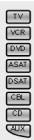
Source keys with background lighting for selecting the device







Contents
Safety instructions 3
Product use 3
Inserting batteries 3
Programming device codes 4
Normal operation 6
Learn function 8
Programming macros. 9
Special functions 10
Troubleshooting 13
Disposal 13
Technical data 13
Safety instructions

Before using the remote control for the first time, please read these instruction carefully. Keep the instructions in a safe place for reviewing purposes or for passing them on to third parties.
Do not attempt to repair the remote control yourself.
The universal remote control has a class 1M infrared diode. Do not examine the laser with optical instruments!
- Do not subject your remote control to dust, strong sunlight, moisture, high temperatures or strong vibrations.
- Do not use any corrosive or aggressive cleaning products.
Product use
This universal remote control can operate the following device types:
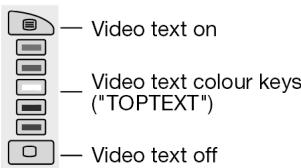
TV Television set with video text, projector
VCR Video recorder
DVD DVD player and DVD recorder
CD CD player
CBL Cable Pay-TV decoder
ASAT Analogue satellite receiver
DSAT Digital satellite receiver
AUX Any additional devices (amplifier, tuner, MD, etc)
Inserting batteries
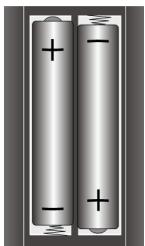
Insert the two both batteries [micro batteries LR03 AAA (included)] into the compartment at the back of the device while observing the + / - polarity.
- Never use old and new batteries together.
The programmed settings (codes, learn function and macros) will remain stored in the universal remote control when you remove the batteries.
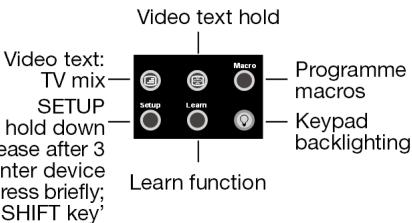
Keypad backlight: Press the key to turn the keypad backlighting on or off. - Please note that the keypad backlighting is only visible in a dark environment.
Programming device codes
General
For every device that you would like to operate using the universal remote control, you must program a three-digit device code to a source key (TV, VCR, DVD, ASAT, DSAT, CBL, CD, AUX). You can assign any key to any device ("Flex Mode"), with exception of the TV key which can only be assigned to a TV.
Combined devices (e.g. TV set with video recorder): It is often necessary to assign two source keys with the respective code for each part of the device. However, there are also combined devices with only one code for both device parts (see also "Operating combined devices", page 7).
VCR's: The code search for VCR's must be done while a tape is inserted.
Pre-programming
The remote control has been pre-programmed for several devices produced by Medion. Because of this you can use certain basic functions for, for example, a Medion television directly and without having to programme in the device code.
Entering the device code according to the Code List
The codes of the corresponding devices can be found in the Code List enclosed with these operating instructions. Proceed as follows:
- Switch the relevant device on manually.
- Keep the SETUP key pressed down for approx. 3 seconds, the background lighting of the source key will flash for a short time and then remain permanently lit. (Briefly pressing the SETUP key will activate the SHIFT function.)
- Briefly press the desired source key (TV, VCR, DVD, ASAT, DSAT, CBL, CD, AUX).
- Enter the three-digit code from the Code Table.

The background lighting will extinguish briefly each time the key is pressed.
If the entered code was valid, the light of the source key will extinguish after the last digit has been entered. If an invalid code was entered, the source key will flash for three seconds before extinguishing.
If the device does not respond as expected, repeat the programming, or try a different code. Please try all the codes specified for your brand. Select the code that causes all the available commands of your remote control to respond correctly.
If this is not successful either, then try using the search method described in the chapter "Automatic Search".
Manual code search
Carry out a manual search as follows:
- Switch the relevant device on manually.
- Keep the SETUP key pressed down for approx. 3 seconds, the background lighting of the source key will flash for a short time and then remain permanently lit.
- Briefly press the desired source key (TV, VCR, DVD, ASAT, DSAT, CBL, CD, AUX).
- Keep pressing the (up to 350 times) POWER; P+ or P- or (VCR only) key until the device that is to be controlled switches off, changes channels, or responds accordingly. The code search begins at the currently stored three-digit number.
- Briefly press OK to save the code.

Due to the considerable quantity of different code numbers, up to 350 different codes are pre-programmed per device type. In individual cases it may be possible that only the most common main functions are available. For some particular device models, the described method may not lead to success.
Automatic search
If your device does not respond to the remote control even though you have tried all of the codes listed for your device type and the relevant brand, then try using the automatic search. This will enable you to find codes for brands that were not listed in the device Code List.
- Switch the relevant device on manually.
- Keep the SETUP key pressed down for approx. 3 seconds, the background lighting of the source key will flash for a short time and then remain permanently lit.
- Briefly press the desired source key (TV, VCR, DVD, ASAT, DSAT, CBL, CD, AUX).
- Point the remote control at the device and briefly press the P+ key once.
If the device does not have a program function, then instead of pressing P+ press or POWER.
The remote control will begin the code search after 6 seconds and will transmit all codes consecutively at one-second intervals (see also the next section). The source key will light up for each transmission.
- As soon as the device responds to the remote control, press OK. - If you missed pressing OK in time, you can go back in steps to the code which which the device responded by using the P- key.
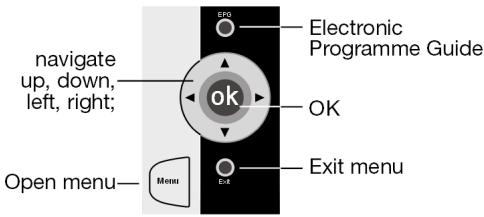
To cancel the search, press EXIT.
1 second or 3 second intervals
If you want the remote control to transmit a new code every 3 seconds instead of every second, proceed as follows:
Within 6 seconds of pressing the P+ key (or or POwER) as described in Point 4, press the P+ or P- key again. The remote control will now only transmit a new code every 3 seconds. This gives you more time, but the procedure will also take longer.
Code searching by brand name
This function offers you the option of searching by brand name. You can find the brand name in the Code Table under "Code Search by Brand Name". This is done as follows:
- Switch the relevant device on manually.
- Keep the SETUP key pressed down for approx. 3 seconds, the background lighting of the source key will flash for a short time and then remain permanently lit.
- Briefly press the desired source key (TV, VCR, DVD, ASAT, DSAT, CBL, CD, AUX).
- Enter the one-digit code according to the following table:
Key 1 = Medion, Tchibo
Key 2 = Philips, Radiola, Philco, Erres, Pye
Key 3 = Sony, Akai, Panasonic, JVC, Sharp, Toshiba, Daewoo
Key 4 = Thomson, Brandt, Fergusson
Key 5 = Saba, Nordmende, Telefunken
Key 0 = all brands.
- Continue pressing the P+ key (or for video recorders POWER or ), until the device responds accordingly. Proceed quickly otherwise the automatic code search will start.
- Save the code by pressing OK.
If all the codes have been searched, the source key will flash for approx. 3 seconds.
Code identification
Code identification gives you the opportunity to determine codes that have already been entered and stored in the remote control. Proceed as follows:
- Switch the relevant device on manually.
- Keep the SETUP key pressed down for approx. 3 seconds, the background lighting of the source key will flash for a short time and then remain permanently lit.
- Briefly press the desired source key (TV, VCR, DVD, ASAT, DSAT, CBL, CD, AUX).
- Briefly press the SETUP button. The source key will briefly extinguish after the key has been pressed.
- To find the first number, press the number keys from 0 to 9. If the source key extinguishes briefly, then it is the first stored number.
- To determine the second number, press the number keys again from 0 to 9. Repeat the procedure for the third number.
- The source key will extinguish as soon as the button for the third number has been pressed.
Code identification has now been completed.
Normal operation
Operating individual devices
After you have finished programming your remote control for your audio/video devices, the remote control will work in the common main functions just like the original remote control of the respective device.
Point your remote control at the desired device and press the relevant source key. The key will light up briefly but will not remain lit.
Activate the functions by pressing the corresponding function key of your universal remote control. The source key will light up briefly each time the key is pressed.

Please note:
-
In certain circumstances, not every function of your original remote control may be directly available on the universal remote control.
-
Especially for newer devices, it might be possible that the functions are stored to different keys than expected or may not even be available at all.
In these cases you can use the learn function to transfer the functions of your original remote control to the desired keys of the universal remote control (see "Learn function" on page 8).
Recording with a VCR (video recorder)
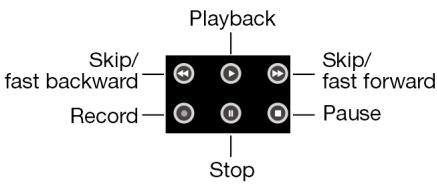
The key for recording to video recorder must be pressed twice. This acts as a protection from accidental recordings.
Operating combined devices
Several controlling options are available to combined devices.
Combined devices with two device codes
Some combined devices (e.g. TV set with video recorder) require two device codes - one for each device part. The combined device is then controlled like two separate devices.
Combined devices with one device code
Other combined devices only require one code. In this case, you must first select the device part you would like to operate.
Example: The device is a combined DVD recorder/video recorder. The device code was stored on the DVD source key.
Now activate the DVD part in the combined device by holding down the DVD source key for longer than one second.
To activate the video recorder in the combined device, first briefly press the SETUP key, then the DVD source key.
If your combined unit only requires one code but you would like to operate it with two source keys, then proceed as follows:
Programme the device code to two source keys.
Operate one of the unit parts with one of the two source keys.
- Use the learn function (see next chapter) to transfer the desired functions of the other unit part to the other source key.
UK
Learn function
You can manually save the functions of an original remote control to your universal remote control. The universal remote control can "learn" up to 150 commands.
Notes on learn function
Use new batteries for both remote controls.
One original remote control can be saved to every source key (8-in-1 function).
Once the memory is full, the background lighting of the source key will flash for 3 seconds.
□ Programming each key can take approx. 3 seconds.
If you are programming an additional function to an existing code, please take note which keys are still unassigned beforehand.
The following keys cannot be assigned to functions: LEARN, SETUP, ALL OFF, MACRO and all source keys.
Some original remote controls (for DVD, video recorder, SAT) can themselves be programmed with the device codes of some TV brands to carry out basic TV set functions (volume, mute, channel search).
Do not attempt to transfer the functions of an original remote control that has been programmed with the code of a different TV set to your universal remote control. This could cause programming errors.
- First try to program any type of command and then test it. Then delete all commands (see "Deleting commands for all source keys" on page 9) and begin with the actual programming.

Do not execute the learn function under a low-energy lamp. Such lamps (e.g. fluorescent lamps) can contain infrared light components that could influence the learn function.
Programming the functions
To programme, proceed as follows:
Place the remote controls with the infrared diodes facing each other spaced 15 to 50~mm apart on the table.

15-50mm
- Keep the SETUP key pressed down for approx. 3 seconds, the background lighting of the source key will flash for a short time and then remain permanently lit.
- Briefly press the desired source key (TV, VCR, DVD, ASAT, DSAT, CBL, CD, AUX) for this original remote control.
- Press the LEARN key.
- Now press the key on the universal remote control that is to be assigned to the relevant function (the source key is permanently lit).
- Now keep the key of your original remote control pressed down until the source key of the universal remote control extinguishes once (each faulty programming will be indicated by a flashing key).
- Repeat steps 4 and 5 until all of the desired functions have been saved.
- Stop the programming by pressing the SETUP key.
SHIFT function
Some of the keys of the universal remote control can have two assigned functions. To use these functions, briefly press the SETUP key (the source key will light up) and then press one of the function or number keys.
If no other key is pressed for 15-20 seconds after the SETUP key was briefly pressed, the SHIFT function will not become active.
Deleting functions
Deleting commands for only one source key
- Keep the SETUP key pressed down for approx. 3 seconds, the background lighting of the source key will flash for a short time and then remain permanently lit.
- Briefly press the desired source key (TV, VCR, DVD, ASAT, DSAT, CBL, CD, AUX).
- Press the LEARN key twice.
- Press the SETUP key.
All commands of the relevant source key have now been deleted.
Deleting commands for all source keys
To delete all commands altogether, proceed as follows:
- Keep the SETUP key pressed down for approx. 3 seconds, the background lighting of the source key will flash for a short time and then remain permanently lit.
- Press the LEARN key twice.
- Press the SETUP key.
All codes that were programmed using the learn function have now been deleted.
Programming macros
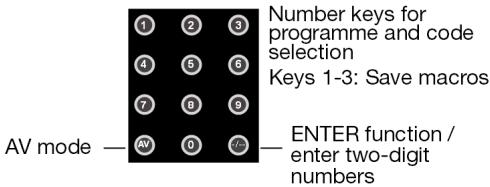
Using a macro, you can save a chain of commands, meaning that several functions can be executed consecutively. You can program three macros and store them on the number keys 1, 2 and 3.
Each macro can include up to ten key commands. A macro can include different devices. In this way you could, for example, switch on the TV set, the desired channel, the video recorder and the recording function.
- Switch the device(s) on.
- Keep the SETUP key pressed down for approx. 3 seconds until the background lighting of the source key flashes briefly and then remains permanently lit.
- Press the MACRO key. The source key will flash briefly.
- Press the number under which the macro should be stored, i.e. "1", "2", or "3".
- Press a source key (device selection, e.g. VCR) for the device with which you would like to start (first key command).
- Now carry out the functions that you would like to save as a macro in the desired sequence. You may now carry out nine key commands. The source key will extinguish briefly each time the button is pressed.
- To save the macro, press MACRO (the macro will be saved automatically after the 10th key has been pressed). The source key will extinguish permanently.
Incorporating delays
It can be useful to incorporate a time delay before a command step in order to take the warm-up phase of the TV set into consideration, for example.
- While entering the steps (see Point 6 above) press the key (pause) at the spot where the time delay should be incorporated.
- Press a number key corresponding to the seconds by which you would like to delay (e.g. "4" for a 4-second delay). The maximum delay is 9 seconds.
Executing macros
- To execute a macro, briefly press the MACRO key once in the normal mode.
- Then press the number key where the macro was saved within 20 seconds (1, 2 or 3).
Deleting macros
- Keep the SETUP key pressed down for approx. 3 seconds until the background lighting of the source key will flash for a short time and then remain permanently lit.
- Press the MACRO key. The source key will extinguish briefly.
- Press the number key ("1", "2" or "3") of the stored macro that you would like to delete.
- Keep the SETUP key pressed down until the source key extinguishes. The macro is now deleted.
Special functions
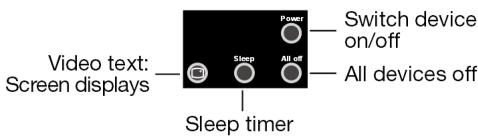
ALL OFF function
You can switch off all pre-programmed devices at the same time. This is done as follows:
- Briefly press the ALL OFF key. The selected device switches off and the relevant source key will light up.
- Immediately press the ALL OFF key again and keep it pressed down for 3 seconds. Now all pre-programmed devices will be switched off consecutively. This takes about 3 seconds. The source key will extinguish afterwards.
Keep the remote control pointed at the devices to be operated until the source key extinguishes.
Some devices can be switched on and off with the POWER key. Devices switched off in such a way will be switched back on after carrying out the ALL OFF function.
SLEEP - Programmed switch-off
If your television has a sleep timer function you can call this up by using the SLEEP button in the usual manner.
Programming the functions
Even if your television does not have this function, or the programmed code does not support this function, you can still programme an automatic shutdown after 1 to 99 minutes. Proceed as follows:
-
Keep the SETUP key pressed down for approx. 3 seconds until the background lighting of the source key flashes for a short time and then remains permanently lit. Press the SLEEP button.
-
Use the number buttons to enter a number between 01 and 99. Always prefix single digit numbers with a "0". The source key will go out.
- Lay the universal remote control down so that it is pointing towards the television and is not obstructed. The device will be switched off after the programmed period.
Cancel function
You can cancel the sleep timer by carrying out the following:
Enter Setup mode (press and hold the SETUP button for three seconds).
Press SLEEP once.
EPG - Electronic Programme Guide
The EPG ("Electronic Program Guide") button has various functions, depending on which code has been used:
For TV and satellite codes (e.g. SAT-TV or DVB-T) the button calls up the electronic programme guide.
For DVD codes the button opens the title menu.
For VCR codes you can use the button for programming, if your video recorder has a Showview / Videoplus function.
Universal functions ("Punch Through")
The universal functions (also called "Punch Through" functions) enable you to carry out certain functions on a different device type than the programmed one. These are the volume, mute and playback functions.
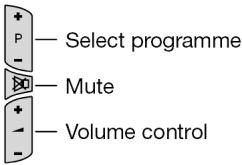
If the remote control is in VCR, DVD, SAT or CBL mode, the volume and mute keys ( l ) control the TV set (provided the other devices do not have their own volume control);
- if the remote control is in TV mode or in another mode without playback function, the PLAY, STOP, PAUSE, FAST FORWARD/BACK, SKIP keys and perhaps RECORD will actuate a connected video recorder, DVD player or DVD recorder. The last selected device is actuated.
Programming the volume/mute universal functions to another device type
In its delivered state, the universal remote control is programmed in such a way that the volume and mute functions automatically control the TV set if a source key for a device with image transmission (DVD, video recorder) is pressed. You can program the universal remote control so that the universal functions Volume and Mute will actuate another device type than the TV set.
- Keep the SETUP key pressed down for approx. 3 seconds until the background lighting of the source key will flash for a short time and then remain permanently lit.
- Press the key, until the source key extinguishes briefly.
- Press a source key for the device to which the volume and mute functions should be transferred to. The light for this source key will remain lit.
- Press the key; the source key light will extinguish. If you accidentally selected a device that does not have its own volume control, the source key will flash for 3 seconds.
UK
Programming the volume/mute universal functions to a particular device
You can program the universal remote control in such a way that it will use only that particular device's own volume and mute functions. The universal function for this mode or device type is therefore switched off.
- Keep the SETUP key pressed down for approx. 3 seconds until the background lighting of the source key flashes for a short time and then remains permanently lit.
- Press the key until the source key light extinguishes briefly.
- Press the source key for the device that is only to have its own volume and mute functions.
- Press the desired volume key. The light of the source key remains lit.
- Press the key again, and the source key light will extinguish.
Restoring the universal volume/mute functions
If you have changed the universal volume and mute functions, as described in the previous two sections, you can reset the functions back to the factory settings and thus restore the "Punch Through" effect.
- Keep the SETUP key pressed down for approx. 3 seconds until the background lighting of the source key flashes for a short time and then remains permanently lit.
- Keep the key pressed down until the source key light extinguishes briefly.
- Press again. The source key light will extinguish completely. The volume and mute functions are now restored to their factory defaults.
Troubleshooting
The remote control does not work:
Check whether your devices have been properly connected and are switched on.
Check whether the remote control batteries have been correctly inserted and have matching + / - polarity.
□ If the batteries are too weak then replace them with new ones.
There are several device codes listed under the brand name of my device. How do I determine the correct device code?
To determine the correct device code for your device, try each consecutive code until most of the functions of the device function properly.
The devices only respond to a few remote control commands:
- Continue testing further codes until the devices respond to the commands accordingly.
If manual code entry and automatic code search are unsuccessful, it may be that the device is not compatible to your universal remote control.
Disposal
Packaging

Your universal remote control is wrapped in pak-. kaging to protect it against transportation damage. Packaging is raw material and can be re-used or added to the recycling system.
Device

At the end of its life, the universal remote control should NOT be disposed of in household rubbish. Seek the advice of your local authority on correct, environmentally-friendly disposal.
Batteries

Do not dispose of used batteries in the household rubbish! They should be deposited at a collection point for used batteries.
Technical data
Batteries:
2 × 1.5 ~V Micro (LR03/AAA) (Alkaline recommended)
Laser class
1
FRANÇAIS
1
Tasto 4 = Thomson, Brandt, Fergusson
Tasto 5 = Saba, Nordmende, Telefunken
Tasto 6 = Grundig, Blaupunkt
TV Televisor com teletexto, projector
VCR videogravador
Tast 1 = Medion, Tchibo
Tast 2 = Philips, Radiola, Philco, Erres, Pye
Tast 3 = Sony, Akai, Panasonic, JVC, Sharp, Toshiba, Daewo
Tast 4 = Thomson, Brandt, Fergusson
Tast 5 = Saba, Nordmende, Telefunken
Przycisk 3 = Sony, Akai, Panasonic, JVC, Sharp, Toshiba, Daewo
Przycisk 4 = Thomson, Brandt, Fergusson
Przycisk 5 = Saba, Nordmende, Telefunken