
FS-3718M - Laser printer KYOCERA - Free user manual and instructions
Find the device manual for free FS-3718M KYOCERA in PDF.


| Product Type | MICR monochrome laser printer |
| Brand | Kyocera |
| Model | FS-3718M |
| Print Speed | 18 pages per minute |
| Print Resolution | 600 dpi |
| Print Technology | MICR (magnetic ink) |
| Supported Paper Sizes | Letter, universal (with optional cassette) |
| Standard Paper Capacity | PC-21L cassette (500 sheets) |
| Optional Paper Feeder | PF-21L (up to 2 feeders, 500 sheets each) |
| Toner Type | TK-90HM (MICR specific) |
| Maintenance Kit | MK-91M (scheduled replacement every 150,000 pages) |
| Drum | DK-91M |
| Developer | DV-90M |
| Charger | FE-90M |
| Integrated MICR Fonts | E-13B and CMC-7 (on FC-01M memory card) |
| Display | Display with navigation keys |
| Security | Lockable cassette with key set provided; store keys separately |
| Maintenance | Scheduled consumable replacement; alert messages for toner and maintenance kit |
| Clearing Jams | Procedure described in manual; for fuser unit, lift cover and remove paper |
| Spare Parts and Repairability | Consumables and kits available (toner, drum, developer, charger, fuser unit); maintenance kit every 150,000 pages |
| Recommended Ambient Conditions | Temperature: 10 to 24°C; Humidity: 20 to 60% RH |
Frequently Asked Questions - FS-3718M KYOCERA
User questions about FS-3718M KYOCERA
0 question about this device. Answer the ones you know or ask your own.
Ask a new question about this device
Download the instructions for your Laser printer in PDF format for free! Find your manual FS-3718M - KYOCERA and take your electronic device back in hand. On this page are published all the documents necessary for the use of your device. FS-3718M by KYOCERA.
USER MANUAL FS-3718M KYOCERA
Supplementary Version
Thank you for purchasing a Kyocera MICR printer. Kyocera MICR printers are an extension of the Kyocera FS-Series Ecosys Printers Family. These printers are especially designed and optimized for MICR printing. The following chart shows the key specifications of your MICR printer.
| MICR Printer Model | Page Per Minute | FS-Series Modified |
| FS-1714M | 14ppm | FS-1750 |
| FS-3718M | 18ppm | FS-3750 |
| FS-7028M | 28ppm | FS-7000+ |
This manual supplement describes instructions for using an FS-Series printer as a MICR printer. For other instructions including the basic operating procedures, refer to the printer's original User's Manual enclosed with this supplement or provided on the Kyocera Digital Library CD-ROM.
About MICR
Magnetic Ink Character Recognition (MICR) is a technology developed in 1959 for use in automated processing of checks and other financial transactions. The MICR line, which appear across the bottom of a check, allow sophisticated bank reader/sorters to rapidly process information.
MICR document processing is widely used because it has a very high reading accuracy. MICR accuracy is due in part to the magnetic quality of the ink. It is less sensitive to background color and patterns common in checks, and can even be recognized when obscured by a piece of paper.
Kyocera MICR printers are specifically designed to print MICR checks and documents.
First Steps
When you set up your printer, we recommend you print at least 3 pages on normal paper to ensure sufficient MICR toner yield before printing on check paper.
Features
These Kyocera MICR printers have the following features:
- Your Kyocera MICR printer comes with a lockable cassette for securely storing check stock. It is recommended that you store the keys for your printer locks in 2 separate secure locations.
Types of cassettes:
- FS-1714M and FS-3718M : PC-21L
-
FS-7028M : PC-30L
-
Your MICR printer will only operate with MICR toner container installed, eliminating the possibility of printing checks without magnetic toner. Kyocera MICR toner containers are specially designed to eliminate accidental use of commercial toner. The top of a MICR toner container is green. This toner will not fit in a non-MICR machine. Standard toner containers are black.
Since MICR read-accuracy is essential, Kyocera MICR printers are specially designed to only operate when toner levels are adequate to guarantee completion of printed check. The message Toner Low indicates that the toner container is nearly empty. Please prepare new toner kit as soon as possible. If you continue to print, Replace Toner Clean printer appears on the message display and printing is disabled.
The E-13B MICR font and the CMC-7 MICR font for your Kyocera MICR printer are supplied on a font card (FC-01M) with your printer. See How to Use the MICR Fonts section for directions on selecting the MICR font. For memory card operating instructions and handling precautions, refer to the Memory Card section of the printer's original User's Manual enclosed with this supplement or provided on the Kyocera Digital Library CD-ROM.
Consumables
Refer to the following matrix to determine the following table for consumables, options and parts for your Kyocera MICR printer.
| Item | FS-1714M | FS-3718M | FS-7028M |
| MICR Toner | TK-90HM | TK-90HM | TK-92HM |
| Maintenance Kit | MK-90M | MK-91M | MK-92M |
| Developer | DV-90M | DV-90M | DV-92M |
| Drum | DK-90M | DK-91M | DK-92M |
| Fuser | FK-90M | FK-91M | FK-92M |
| Feeder | FE-90M | FE-90M | FE-35 |
| Font Card | FC-01M | FC-01M | FC-01M |
| Paper Cassette | PC-20L/PC-21L/PC-23 | PC-20L/PC-21L/PC-23 | PC-30L |
| Paper Feeder Unit | PF-21L | PF-21L | PF-30L |
MICR drum unit, fuser unit, developer unit and feeder need scheduled replacement every 150,000 pages.
Maintenance Messages
This section introduces messages that are displayed exclusively by the MICR printer. For other messages, please refer to the printer's original User's Manual.
| Message | Corrective Action |
| Top cover Open | Open the top cover, then close tightly. |
| [FS-1714M/FS-3718M only] The wrong type of toner container is installed. Install a toner container made for use with MICR printers. | |
| Missing Developer unit | The developer unit is not installed. Securely install the developer unit in the printer. (For details, see the printer's original User's Manual.) |
| [FS-7028M only] The wrong type of toner container is installed. Install a toner container made for use with MICR printers. | |
| Toner low Clean printer [FS-1714M/FS-3718M only] | Prepare new toner kit. (This message indicates that the toner container is nearly empty.) |
| Toner low [FS-7028M only] | |
| Replace Toner Clean printer | Replace the toner container with a new one and clean the printer as explained in the printer's original User's Manual that is provided with each new toner kit. The printer does not operate when this message is displayed. |
| MK Near end | The MICR maintenance kit should be replaced within 3,000 pages. Call your Kyocera MICR reseller to schedule replacement of maintenance kit. |
Optional Paper Feeder
You can upgrade your Kyocera MICR printer with optional lockable paper feeders for securely storing check stock. The following table shows the paper handling upgrade options for your Kyocera MICR printer.
| FS-1714M | FS-3718M | FS-7028M | |
| Model Name | PF-21L | PF-21L | PF-30L |
| Paper Size | Letter | Letter | Universal |
| Maximum Output | 500 | 500 | 1,000 |
| Maximum number of feeders | 2 | 2 | 3 |
How to Use the MICR Fonts
MICR fonts for your Kyocera MICR printer are secured on a font card. For basic printer operating instruction refer to the printer's original User's Manual enclosed with this supplement or provided on the Kyocera Digital Library CD-ROM. Print samples for the E-13B MICR font and CMC-7 MICR font are shown on the last page of this manual.
To install the MICR fonts:
- Turn power off.
- Set the provided font card into the printer's PC card slot.
- Turn power on.
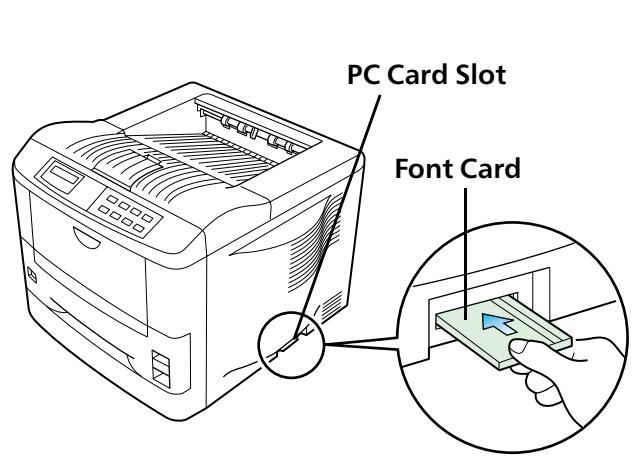
[FS-1714M/FS-3718M]
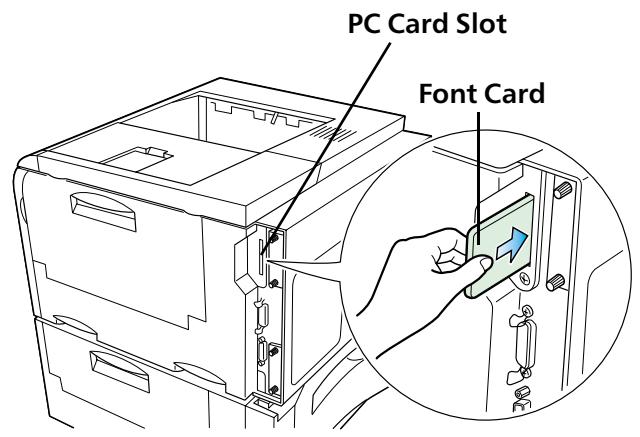
[FS-7028M]
To select the MICR font (FS-1714M/FS-3718M):
- Press the MODE key to enter Mode Selection Menu. Then, press the + or -key until the message display indicates FONT > . If the font type displayed is Internal , go to step 2. If it is Option, go to step 5.
Font Internal
- Press the ENTER key so that flashes.
Font? Internal
- Press the + or - key until Option is displayed.
Font ? Option
- Press the ENTER key so that disappears.
Font >Option
- Press the key to enter font Selection mode. Font number is displayed.
>
M000E13-B
M201 : CMC-7
- Press the ENTER key so that flashes.
>>M
- Press the + or - key until the desired font number is displayed.
>>M201
- Press the ENTER key so that disappears.
>
- Press the EXIT key. This returns the menu display to Read. The MICR font has been selected.
Ready
To select the MICR font (FS-7028M):
- Press the MODE key to enter Mode Selection Menu. Then, press the + or -key until the message display indicates FONT > . If the font type displayed is Scaleable, go to step 2. If it is Bit -- map, go to step 5.
Font > Scalable
- Press the ENTER key so that flashes.
Font? Scalable
- Press the + or - key until Bit map is displayed.
Font ? Bitmap
- Press the ENTER key so that disappears.
Font >Bitmap
- Press the key to enter Bitmap Selection mode. Bitmap font is displayed.
>Bitmapfont 00001
0707 : E13-B
00701 : CMC-7
- Press the ENTER key so that flashes.
>Bitmapfont?00001
- Press the + or - key until the desired font number is displayed.
>Bitmapfont 00700
- Press the ENTER key so that disappears.
>Bitmapfont?00700
- Press the EXIT key. This returns the menu display to Read. The MICR font has been selected.
Ready
The MICR font can now be selected for printing through your application software. See the user's manual for reading fonts/data from a memory card.
Using the cassette
Keys are provided for the cassette lock on MICR printer.
Using the key
The key can open or close the cassette as shown in the figures below.
There are locks fitted to the cassettes with the optional paper feeders (PF-21L, PF-30L). The method of opening or closing these cassette locks is the same as the printer. Also, the key for the paper feeder and the printer are the same shape.
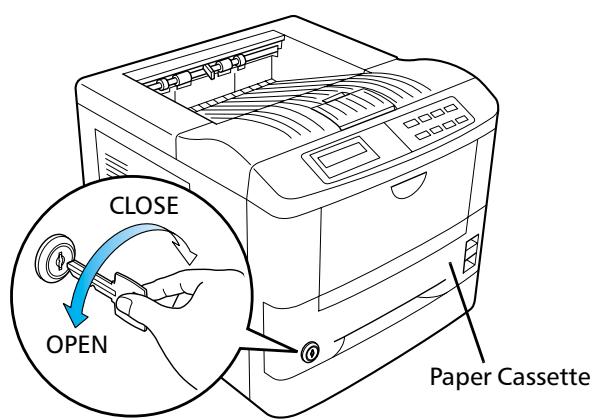
[FS-1714M/FS-3718M]
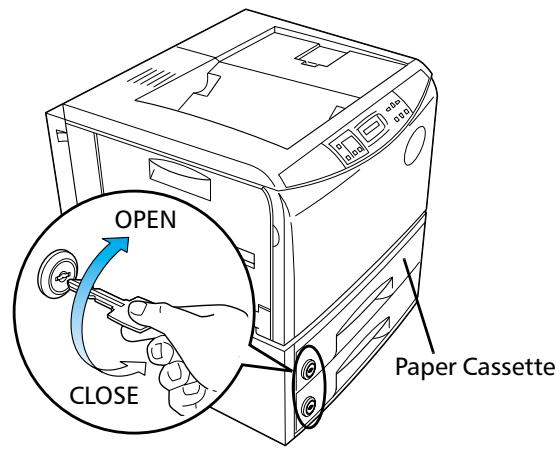
[FS-7028M]
Setting the Universal Cassette for FS-1714M/FS-3718M
By using the optional universal cassette in place of the paper cassette (PC-21L) that is supplied with the printer, you can print on a wider variety of paper sizes.
Before installing the universal cassette, you must remove the retention bracket from the printer. The following explains how to remove the retention bracket and install the universal cassette.
The universal cassette is not equipped with a lock.
For details regarding the use of the universal cassette, refer to chapter 1 in the FS-1750/ FS-3750 User's Manual.
To remove the retention bracket and set the cassette:
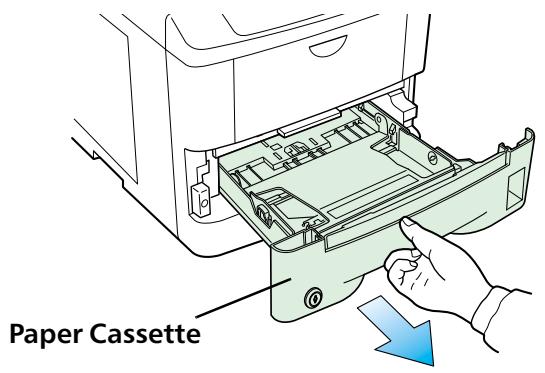
- Remove the paper cassette from the printer, and place it on a flat, stable surface.
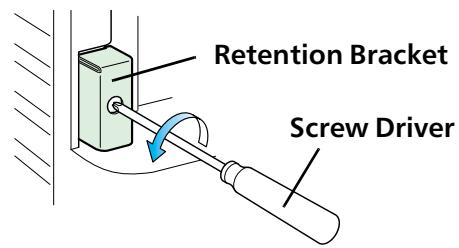
- Put a screw driver into the hole in the retention bracket and remove the screw from the back of the retention bracket.
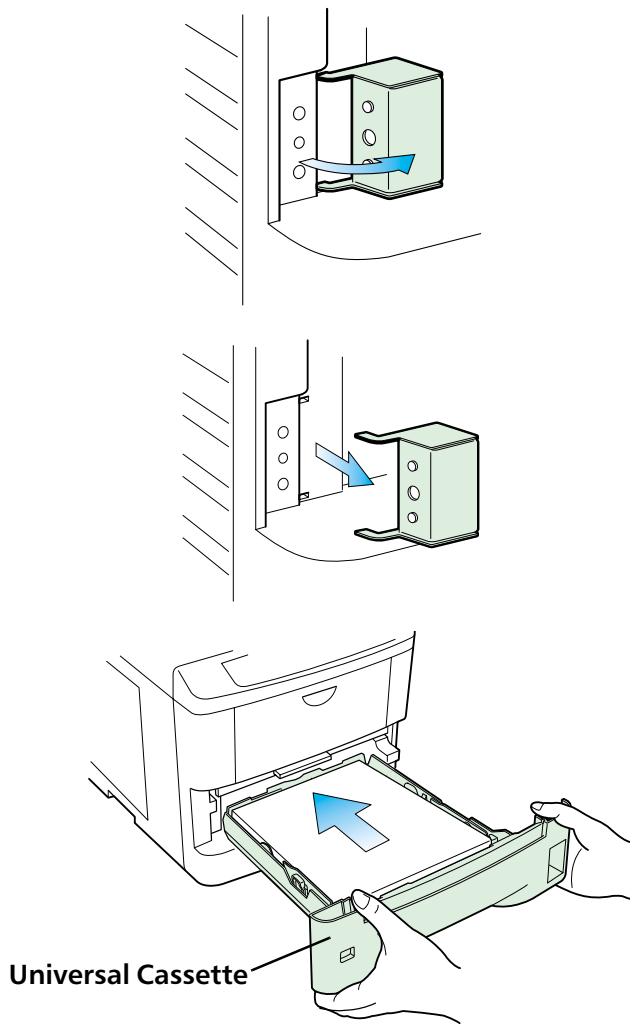
- With the screw removed and the retention bracket loose, rotate it to the right as shown in the figure.
- Take the retention bracket off the printer.
Please be careful not to lose the retention bracket. You will need it the next time you want to use the MICR printer's standard paper cassette. - Hold the cassette as shown in the illustration and insert the universal cassette into the printer cassette slot. Push it straight in as far as it will go.
This completes setting of the universal cassette.
Specification Compliance
Kyocera MICR printers have been tested and conform to MICR printing specifications as outlined in:
ANSI X9.27 Printer and Test Specifications for Magnetic Ink Printing
ISO-1004 Information Processing-Magnetic Ink Character Recognition-Print Specifications
Canadian Payroll Association Standard
All testing was performed using paper stock standard outlined in:
ANSI X9.18 Paper Specifications for Checks
MICR Printer Specifications
For general printer specifications, refer to the printer's original User's Manual. However, for ambient conditions, refer to the table below rather than the values indicated in the User's Manual.
| Item | Description |
| Ambient Conditions | Temperature: 10 to 24°C (50 to 75.2°F) |
| Humidity: 20 to 60% RH |
If you install the printer where the temperature or humidity is outside the above ranges, you may not get the best print quality, and there will be an increased chance of paper jams.
Introduction
ANSI X9.27 Printer and Test Specifications for Magnetic Ink Printing
ISO-1004 Information Processing-Magnetic Ink Character Recognition-Print Specifications
Canadian Payroll Association Standard
ANSI X9.18 Paper Specifications for Checks
Specifications de l'imprimante MICR
ANSI X9.27 Printer and Test Specifications for Magnetic Ink Printing
ISO-1004 Information Processing-Magnetic Ink Character Recognition-Print Specifications
Canadian Payroll Association Standard
Removing the paper jammed inside the fuser unit for FS-7028M
On page 5-25, Chapter 5 Troubleshooting, the original User's Manual supplied with the printer explains that you have to Raise these two levers... when removing the jammed paper. These two levers are not provided with the printer you have purchased. To remove paper jammed inside the fuser unit, simply raise the fuser unit cover and pull the paper as shown below.