
DF-650 - Multifunction Printer KYOCERA - Free user manual and instructions
Find the device manual for free DF-650 KYOCERA in PDF.



| Type | Multifunction printer |
| Brand | KYOCERA |
| Model | DF-650 |
| Dimensions (L x W x H) | 79,6 x 64 x 107 cm |
| Weight | Approx. 73 kg |
| Number of trays | 2 (tray A and tray B) |
| Tray A capacity | Up to 3000 sheets (80 g/m²) depending on size |
| Tray B capacity | 200 sheets (80 g/m²) |
| Stapling capacity | Up to 50 sheets (A4, Letter) or 30 sheets (A3, Legal) |
| Finishing modes | Sort, staple, booklet binding, punch (optional) |
| Options | Punch unit, folder, multi-tray unit (5 trays) |
| Supported paper sizes | A3, A4, A4R, B4, B5, Letter, Legal, 11x17", etc. |
| Paper weight | 45 to 200 g/m² |
| Power supply | Via the copier (not specified separately) |
| Noise level | ≤ 70 dB(A) |
| Maintenance | Staple replenishment, emptying punch tray (optional), clearing jams |
| Safety | Warning labels, burn precautions, grounding instructions |
| Operating temperature | Approx. 20°C (68°F), humidity ~65% |
| Use | Professional multifunction printer with finisher |
Frequently Asked Questions - DF-650 KYOCERA
User questions about DF-650 KYOCERA
0 question about this device. Answer the ones you know or ask your own.
Ask a new question about this device
Download the instructions for your Multifunction Printer in PDF format for free! Find your manual DF-650 - KYOCERA and take your electronic device back in hand. On this page are published all the documents necessary for the use of your device. DF-650 by KYOCERA.
USER MANUAL DF-650 KYOCERA
Safety Information 1-1
Names of Parts 1-6
1-7
Maintenance. 1-16
Troubleshooting 1-19
Specifications 1-32
2 Deutsch
ALWAYS read this Operation Guide thoroughly before use. After reading, keep it together with the Operation Guide for your copier.
Refer to the Operation Guide for your copier for information on the service representative for your product.
The sections of this Operation Guide and parts of this product marked with symbols are safety warnings. These are designed to protect the user, other individuals and surrounding objects, and ensure correct and safe usage of the product.

DANGER: Indicates that serious injury or even death will very possibly result from insufficient attention to or incorrect compliance with the related points.

WARNING: Indicates that serious injury or even death may result from insufficient attention to or incorrect compliance with the related points.

CAUTION: Indicates that personal injury or mechanical damage may result from insufficient attention to or incorrect compliance with the related points.
Symbols
The symbol indicates that the related section includes safety warnings. Specific points of attention are indicated inside the symbol.

[General warning]
The symbol indicates that the related section includes information on prohibited actions. Specifics of the prohibited action are indicated inside the symbol.

[Warning of prohibited action]

[Disassembly prohibited]
The symbol indicates that the related section includes information on actions which must be performed. Specifics of the required action are indicated inside the symbol.

···
[Alert of required action]

[Remove the power plug from the outlet]

[Always connect the machine to an outlet with a ground connection]
Please contact your service representative to order a replacement if the safety warnings in this Operation Guide are illegible or if the guide itself is missing (fee required).

CAUTION LABELS
Caution labels have been attached to the Document Finisher at the following locations for safety purposes. BE VERY CAREFUL to avoid getting your fingers caught in or burned by the machine when clearing a paper jam.
LABEL 1
WARNING: To avoid injury to your hands, wait until the copier stops before removing paper.
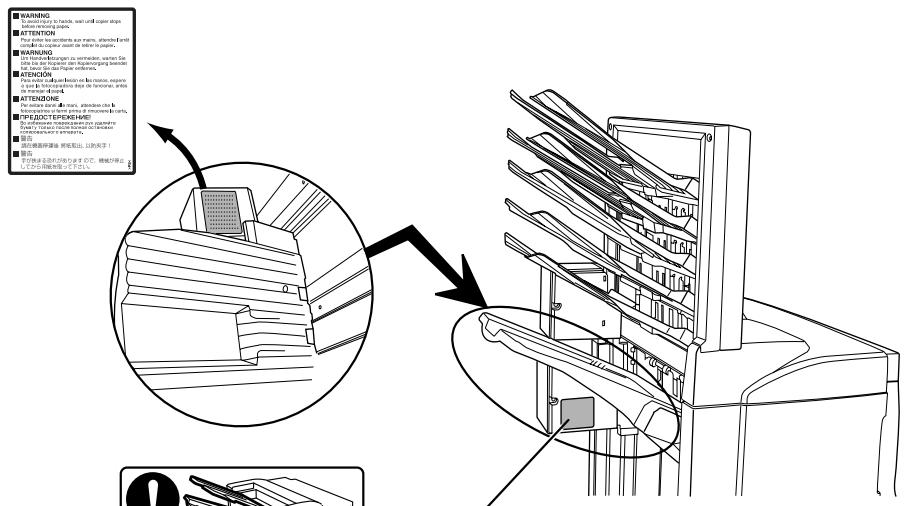
LABEL 2
DO NOT place any objects underneath Tray A.
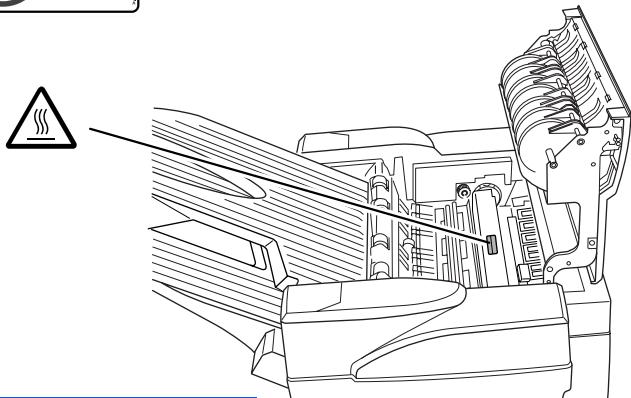
LABEL 3
The interior of this section reaches high temperatures. DO NOT touch this section as there is a danger of being burned.
NOTE: DO NOT REMOVE THESE LABELS.

INSTALLATION PRECAUTIONS
Environment
CAUTION: Avoid placing this product on or in locations which are unstable or not level. Such locations may cause the product to fall down or fall over. This type of situation presents a danger of personal injury or damage to the product.
CAUTION: Avoid locations near radiators, heaters, or other heat sources, or locations near flammable items, to avoid the danger of fire.
Other precautions
Depending upon the location in which this product is installed, adverse environmental conditions may affect its performance. Ensure this product is installed in an air-conditioned room (recommended room temperature: around 68^ (20^) , humidity: around 65% ) and avoid the following locations when selecting a site for installation:
- bright locations near a window or with exposure to direct sunlight
- locations with vibrations
- locations with drastic fluctuations in temperature or humidity
- locations with direct exposure to hot or cold air
Handling of plastic bags
WARNING: Keep the plastic bags that are used with this product away from children. The plastic may cling to their nose and mouth causing suffocation.
PRECAUTIONS FOR USE
Cautions when using this product
WARNING: DO NOT place metallic objects or containers with water (flower vases, flower pots, cups, etc.) on or near this product. This type of situation presents a danger of fire or electrical shock should any water fall inside.
WARNING: DO NOT damage, break or attempt to repair the signal line. DO NOT place heavy objects on the signal line, pull it, bend it unnecessarily or cause any other type of damage. These types of situations present a danger of fire or electrical shock.
WARNING: NEVER attempt to repair or disassemble this product or its parts as there is a danger of injury or fire.
WARNING: If this product becomes excessively hot, smoke appears, there is an odd smell, or any other abnormal situation occurs, there is a danger of fire or electrical shock. Immediately turn OFF (O) the copier's main power switch, remove the copier's power plug from its outlet and contact your service representative.
WARNING: If anything harmful (paper clips, water, other fluids, etc.) falls into this product, turn OFF (O) the copier's main power switch immediately, remove the copier's power plug from its outlet and contact your service representative. If you continue to use this product without taking these steps, there is a danger of fire or electrical shock.
WARNING: ALWAYS contact your service representative for maintenance or repair of internal parts.
CAUTIONS
CAUTION: For safety purposes, ALWAYS turn OFF (O) the copier's main power switch and remove the copier's power plug from its outlet when performing cleaning operations on this product.
CAUTION: DO NOT touch the ejection tray when the product is in operation as there is a danger of injury.
CAUTION: If dust accumulates within this product, there is a danger of fire or other problems. It is therefore recommended that you consult with your service representative in regard to cleaning of internal parts. This is particularly effective if performed prior to seasons of high humidity. Consult with your service representative in regard to the cost of cleaning the internal parts of the product.
Other Precautions
DO NOT place heavy objects on this product or cause other damage to the product.
When lifting or moving the product, contact your service representative.
Do not touch electrical parts, such as connectors or printed circuit boards. They could be damaged by static electricity.
DO NOT attempt to perform any operations not explained in this Operation Guide.
Names of Parts
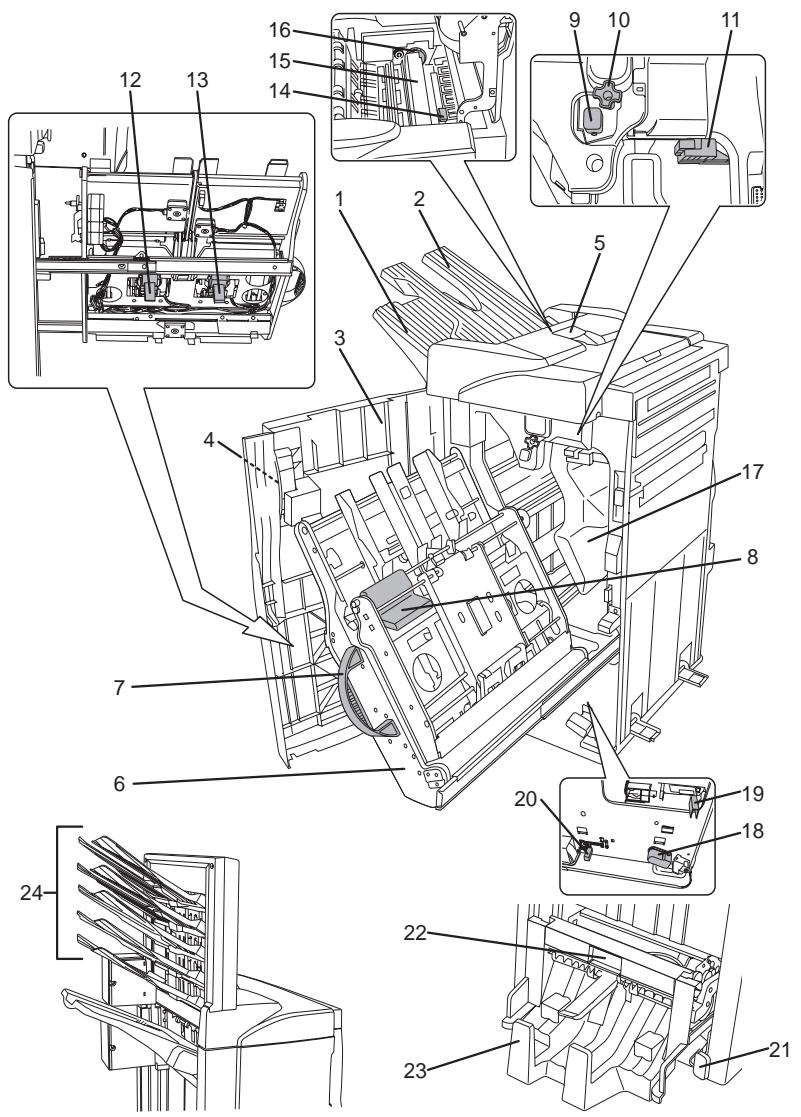
Document Finisher (main body)
1 Tray A
2 Tray B
3 Front cover
4 Front cover handle
5 Upper cover
6 Internal tray
7 Internal tray handle (G3)
8 Internal tray release lever (G4)
9 Pressure roller adjuster (G5)
10 Conveyor knob (G1)
11 Coupling section's lower guide lever (G2)
12 Staple cartridge holder A
13 Staple cartridge holder B
14 Coupling section's upper guide lever
Hole Punch Unit (option)
15 Hole Punch Unit (main body)
16 Hole Punch Unit adjustment dial
17 Waste Hole Punch box
Center-Folding Unit (option)
18 Unit release lever (G6)
19 Unit release handle (G7)
20 Center-Folding Unit lock release lever
21 Center-Folding Unit installation buttons
22 Conveyor guide lever
23 Storage cover
Multi-Job Tray Unit (option)
24 Job Trays 1 - 5
Modes
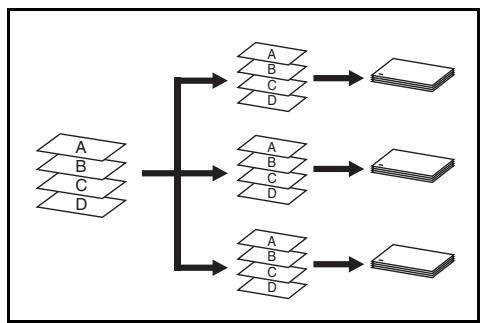
Sort: ON Mode
Sorts copies of multiple originals into identical sets. For example A,B,C,D A,B,C,D A,B,C,D
The following paper sizes can be used in Sort:ON Mode:
A3, B4, A4, A4R, B5,11 x 17", 8 1/2 x 14" (Legal), 8 1/2 x 11" (Letter) and 11 x 8 1/2".
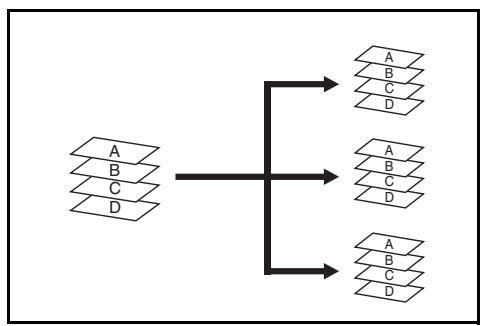
1 Select Sort: On Mode on the operation panel of your copier.
2 Load the originals in the Document Processor, or one at a time on the Platen.
NOTE: Refer to the Operation Guide for your copier for Document Processor and Platen specifications.
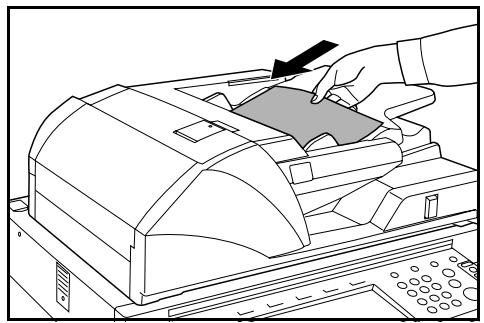
3 Select other features as required and press Start.
4 Copies are ejected onto the specified tray.
If Tray A is selected, each copy set can be offset from the previous set. Refer to the Operation Guide for your copier for further details.
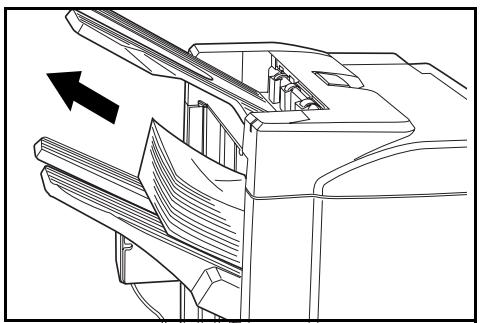
If Tray A and Tray B both reach their maximum capacity, a message displays. Remove all copies from both trays to continue.
NOTE: The maximum number of copies that can be stored on Tray A and Tray B differs depending on the size of copy paper being used. For further information refer to Tray Capacity on page 1-32.
5 On completion of the job, remove the copies.
Sort: OFF Mode
Groups the copies of each individual original together in one stack. For example A,A,A B,B,B C,C,C.
The following paper sizes can be used in Sort:OFF Mode:
A3, B4, A4, A4R, B5,11 x 17", 8 1/2 x 14" (Legal), 8 1/2 x 11" (Letter) and 11 x 8 1/2".
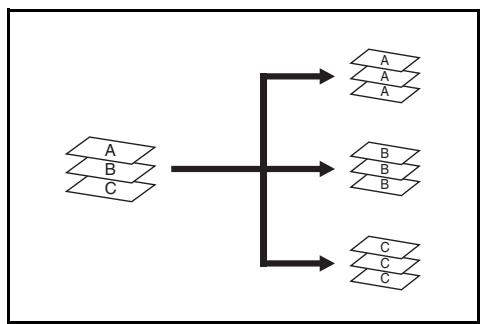
1 Select Sort: Off Mode on the operation panel of your copier.
2 Load the originals in the Document Processor, or one at a time on the Platen.
NOTE: Refer to the Operation Guide for your copier for Document Processor and Platen specifications.
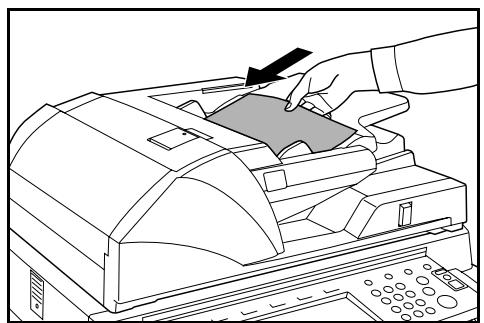
3 Select other features as required and press Start.
4 Copies are ejected onto the specified tray.
If Tray A is selected, each stack can be offset from the previous stack. Refer to the Operation Guide for your copier for further details.
If Tray A and Tray B both reach their maximum capacity, a message displays. Remove all copies from both trays to continue.
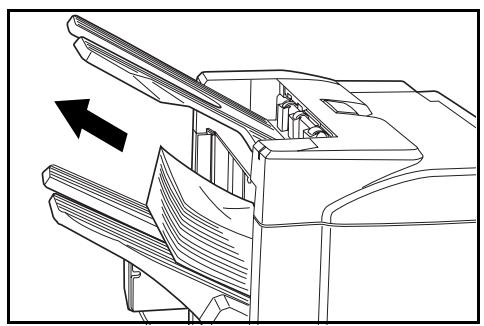
NOTE: The maximum number of copies that can be stored on Tray A and Tray B differs depending on the size of copy paper being used. For further information refer to Tray Capacity on page 1-32. If the number of copies to be made at one time in Non-Sort Mode exceeds the maximum capacity for Tray B (200 sheets), all copies thereafter are ejected onto Tray A.
5 On completion of the job, remove the copies.
Staple Mode
Sorts and staples each copy set.
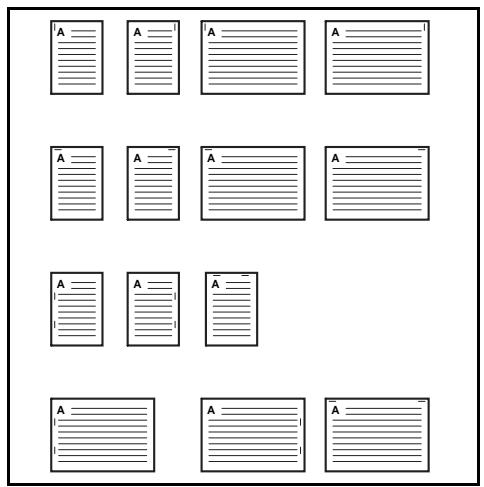
Stapling options are as follows:
Upper Left Single Staple
Upper Right Single Staple
Double Staple
NOTE: For stapling specifications, refer to Staple Unit on page 1-32.
1 Select Sort: On Mode on the operation panel of your copier.
2 Select the staple setting required.
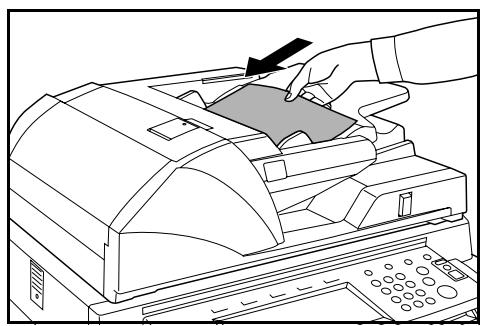
3 Load the originals in the Document Processor, or one at a time on the Platen.
NOTE: Refer to the Operation Guide for your copier for Document Processor and Platen specifications.
4 Select other features as required and press Start.
5 Copies will be stapled and ejected onto Tray A, face down.
If Tray A reaches its maximum capacity, a message displays. Remove all copies from Tray A to continue.
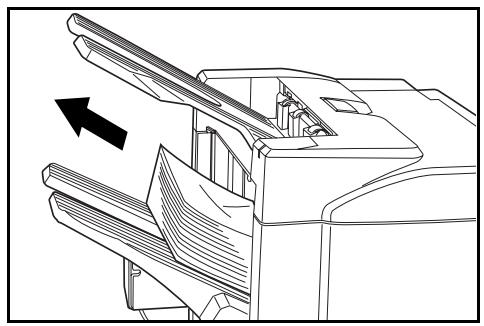
NOTE: The maximum number of copies that can be stored on Tray A differs depending on the size of copy paper being used. For further information refer to Tray Capacity on page 1-32.
6 On completion of the job, remove the copies.
Non-Sort Mode
Use this mode when sorting or grouping are not required.
ALWAYS use Non-Sort Mode when copying onto transparencies or other special material or paper.
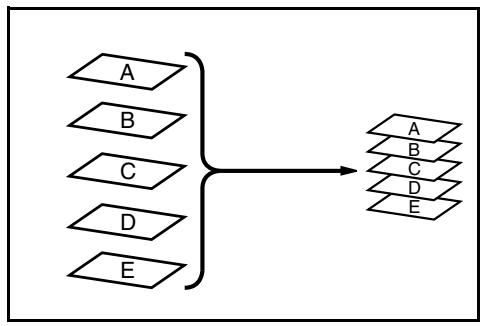
Booklet Statching Mode
In this mode, copies are stapled in two positions in the center of the paper.
The following paper sizes can be used in Booklet Stitching mode:
A3,B4,A4R,11x17",81/2x14" (Legal)and 11× 81 / 2^
Stapling Capacity: 2 to 16 sheets at a time.
The optional Center-Folding Unit is required for automatic folding.
The Booklet Copy function on your copier can be used to automatically produce booklets ready for stitching and folding. Refer to the Operation Guide for your copier for more information.
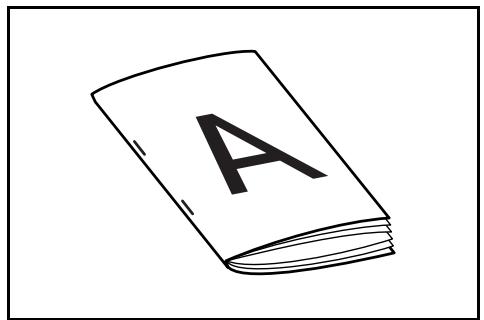
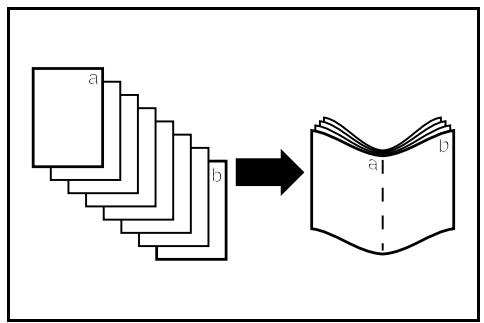
1 Select the Booklet Statching mode on the operation panel of your copier.
Refer to the Operation Guide for your copier for more detailed information.
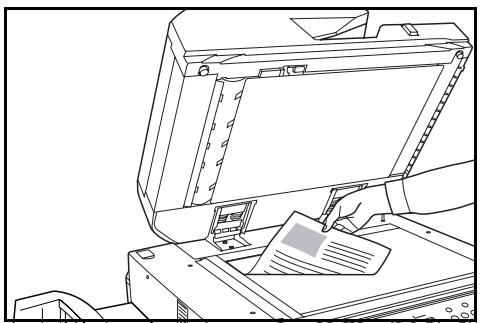
2 Load the originals in the Document Processor, or one at a time on the Platen.
NOTE: Refer to the Operation Guide for your copier for Document Processor and Platen specifications.
The maximum number of sheets that can be stitched at one time is 16. Up to 64 originals can be used in this mode.
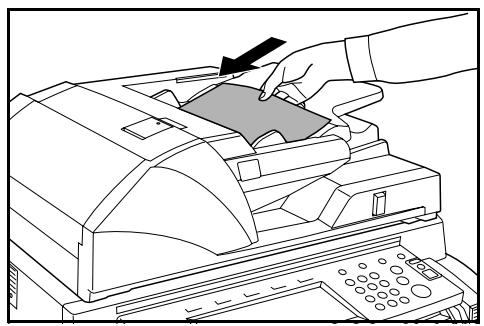
3 Select other features as required and press Start.
If using the Platen, a message displays after each original is scanned to determine whether another original requires scanning or if copying can commence.
NOTE: Refer to the Operation Guide for your copier for further details.
4 Copies will be automatically stapled and ejected onto the storage cover.
If the maximum capacity is reached, a message displays. Remove all copies from the storage cover to continue.
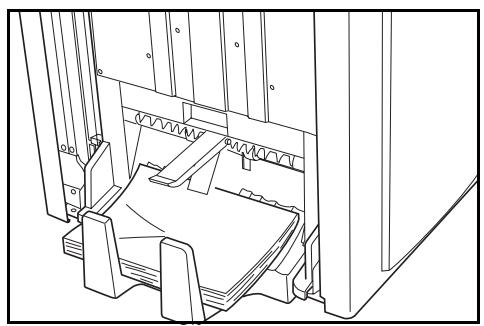
NOTE: For further information refer to Center-Folding Unit (option) on page 1-33.
5 On completion of the job, remove the copies from the storage cover.
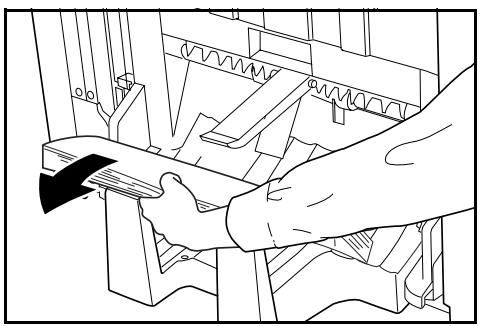
Hole Punch Mode
The Hole Punch Unit is an optional device. This mode produces hole punched copies automatically.
The following paper sizes can be used:
2-hole punch: A3, B4, A4, A4R, B5, B5R, A5R, Folio, 8 1/2 x 14" (Legal), 8 1/2 x 11" (Letter) and 5 1/2 x 8 1/2"
3-hole punch: 11 × 17'' and 11 × 8 12''
4-hole punch: A3 and A4
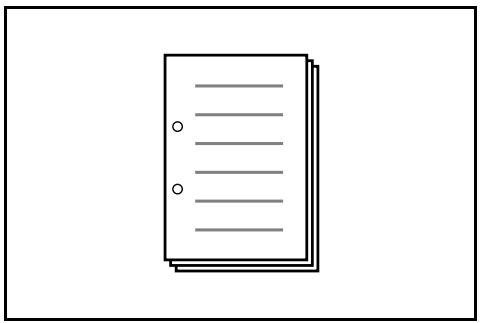
Hole Punch mode can be used with Sort: ON, Staple and Sort: OFF modes. Paper weights must be between 45g / m^2 and 200g / m^2 .
NOTE: B5R can only be selected if copies are ejected onto Tray A. In Sort: ON mode and Staple mode, B5R and Folio cannot be selected.
1 Select Hole Punch mode on the operation panel of your copier.
NOTE: Refer to the Operation Guide for your copier for more detailed information.
2 Load the originals in the Document Processor, or one at a time on the Platen.
Ensure the orientation of the originals is the same as that selected for Hole Punch mode on the copier.
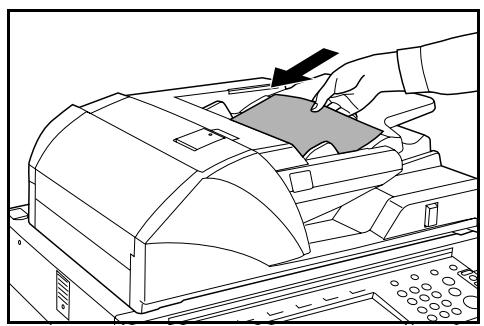
NOTE: Refer to the Operation Guide for your copier for Document Processor and Platen specifications.
3 Select other features as required and press Start.
4 The copies are automatically hole punched and ejected onto Tray B.
NOTE: Holes are punched in each copy individually, therefore the location of the holes may vary on each sheet.
On completion of the job, remove all the copies.
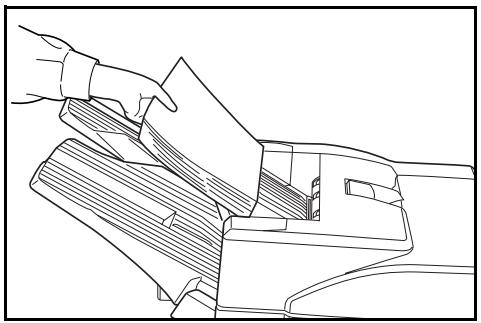
NOTE: If the maximum capacity for Tray B is exceeded, all subsequent copies will be ejected onto Tray A. If Tray A is not engaged when Tray B becomes full, an error message displays. Remove all copies to continue.
Interrupt Mode
When using Interrupt Mode, the copies for the interrupt job are usually ejected onto the finisher tray not currently in use. If required, a different tray can be selected on the copier Operation Panel.
NOTE: Refer to the Operation Guide for your copier for further details.
Multi-Job Tray Mode
The Multi-Job Tray Unit is an optional device. Print or Copy output can be ejected into a specified Multi-Job Tray.
This option is extremely useful when more than one user is using the copier as a printer. The printed documents for each user will be ejected into the job tray selected.
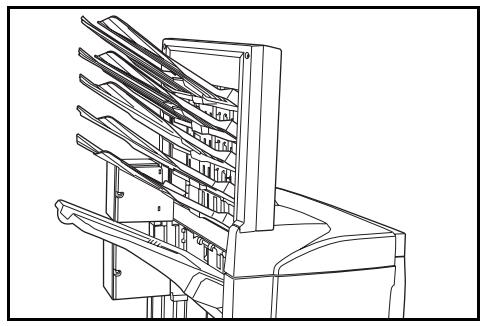
The following paper sizes can be used:
Plain paper (80 g/m²): between A3 and B6R, or Folio, 11 x 17" and 8 1/2 x 11"
Recycled paper (80 g/m²): A3, A4, A4R, 11 x 17", 11 x 8 1/2" and 8 1/2 x 11"
Colored paper (80 g/m²): A4, A4R, 8 1/2 x 11" and 11 x 8 1/2"
NOTE: The maximum number of copies that can be stored in each job tray will differ depending on the size of copy paper being used. For further information refer to Multi-Job Tray Unit (option) on page 1-33.
1 Write the name of the user of each job tray on the labels provided.
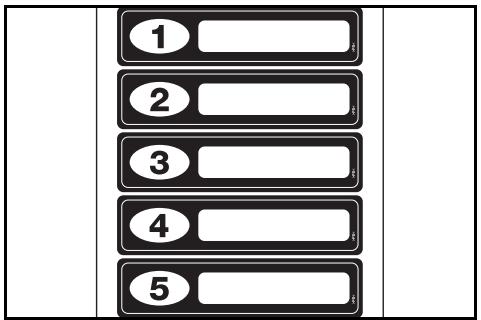
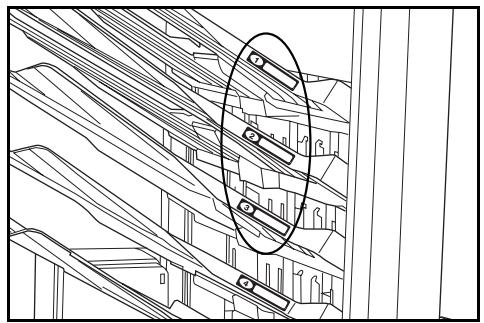
2 Attach the labels to the job trays, in the location indicated on the illustration.
The trays to which labels should be applied are 1, 2, 3, 4, and 5, as counted from the top down.
3 Use the application in your computer to select a job tray between 1 and 5.
4 Select the paper size, page(s) to be printed and number of prints required.
5 Print the job.
Prints will be ejected onto the selected job tray.
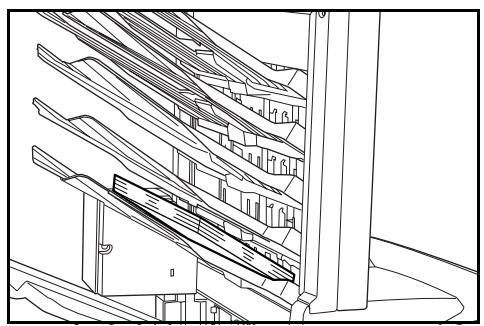
6 On completion of the job, remove all prints from the job tray.
NOTE: To use the copier to select the tray required, refer to the Operation Guide for your copier.
Maintenance
Replacing Staples
The Document Finisher is equipped with two staple cartridge holders, A and B. The procedure for replenishing staples is the same for both holders.
If a message displays indicating that staples have run out, the staple cartridge holder(s) need to be replenished with staples.
NOTE: If the Staple Unit runs out of staples, contact your service representative or the place of purchase.
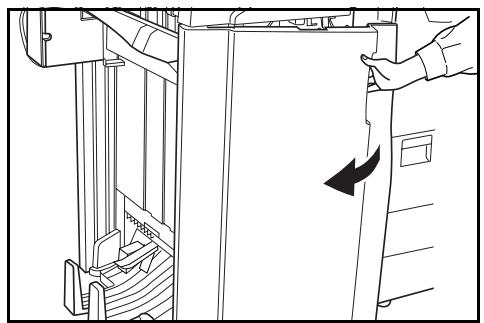
1 Grasp the front cover handle and open the front cover.
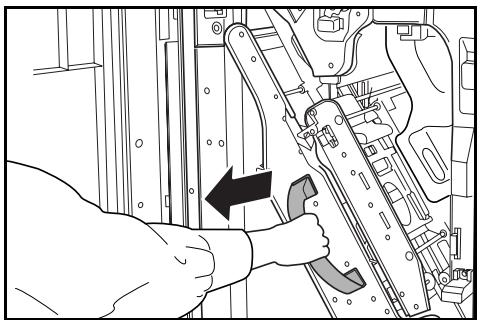
2 Grasp the internal tray handle (G3) and pull the internal tray out.
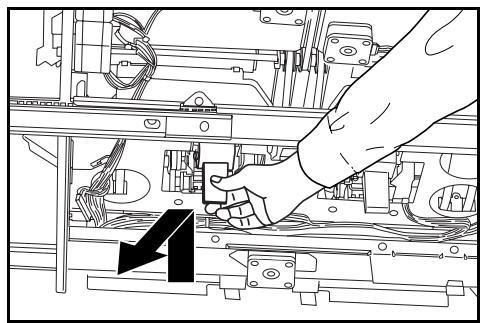
3 Lift up the staple cartridge holder and pull it out.
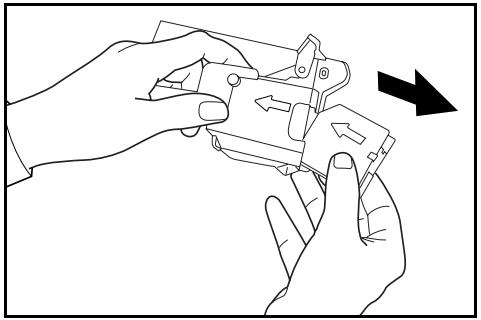
4 Remove the empty staple cartridge from the staple cartridge holder.
5 Remove the new staple cartridge from its box.
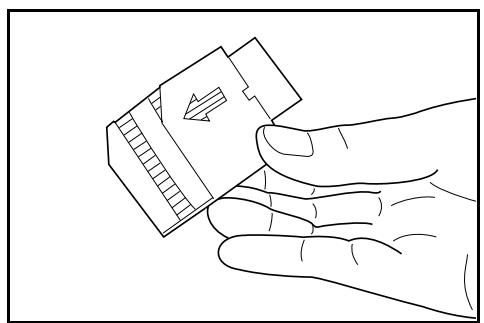
6 Holding the staple cartridge holder in one hand and the new staple cartridge in the other, insert the staple cartridge into the holder.
Ensure the direction of insertion is correct. Both arrows should point in the same direction.
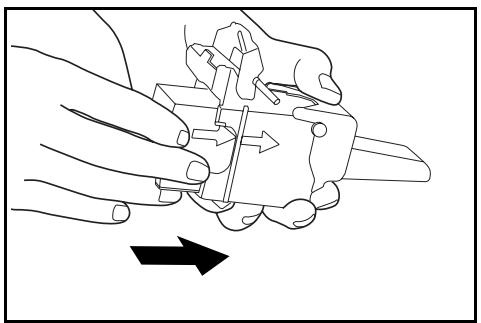
7 Ensure the new staple cartridge is inserted completely into the staple cartridge holder, then peel off the paper tape.
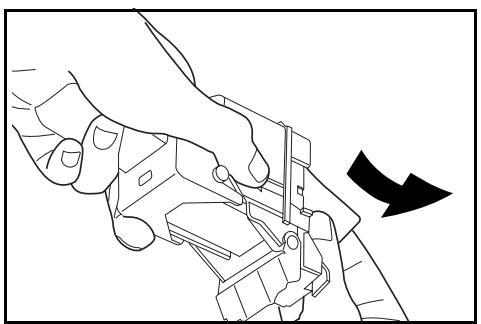
8 Re-install the staple cartridge holder.
The staple cartridge holder will click into place when it has been inserted correctly.
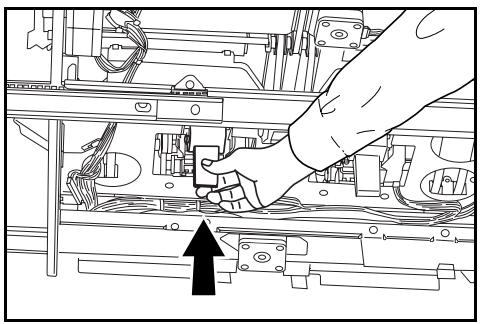
9 Push the internal tray back into position and close the front cover.
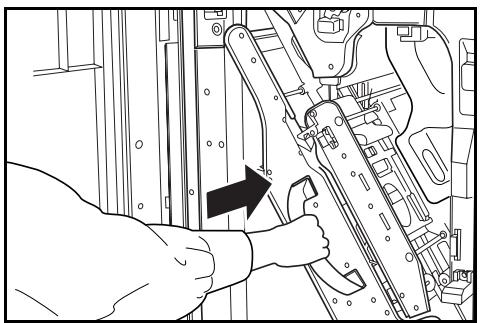
Emptying the Waste Hole Punch Box
If the message "Empty waste punch box" displays, the scraps in the waste hole punch box require emptying.
Leave the main power switch on your copier switched ON ( | ) while performing this procedure.
1 Grasp the front cover handle and open the front cover.
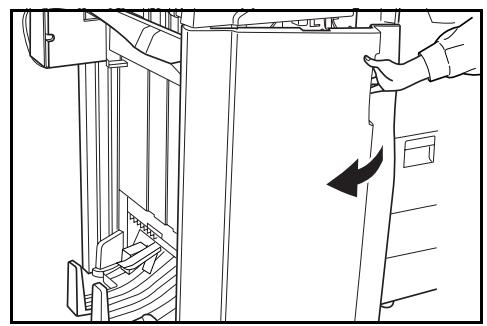
2 Grasp the waste hole punch box handle and remove the box from the Document Finisher.
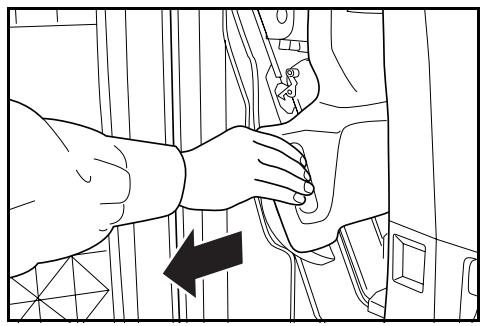
3 Dispose of the hole punch scraps appropriately.
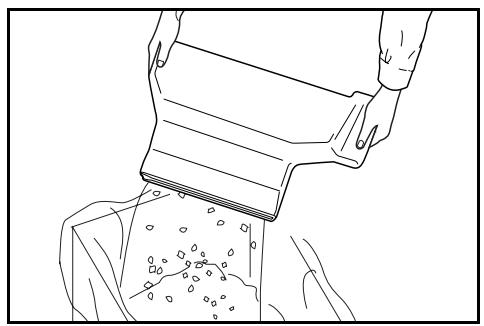
4 Re-install the waste hole punch box. Align it with the guides in the Document Finisher.
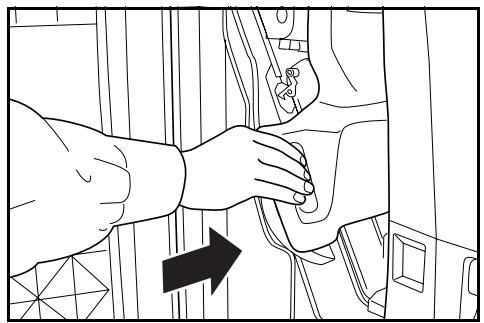
5 Close the front cover.
Troubleshooting
General
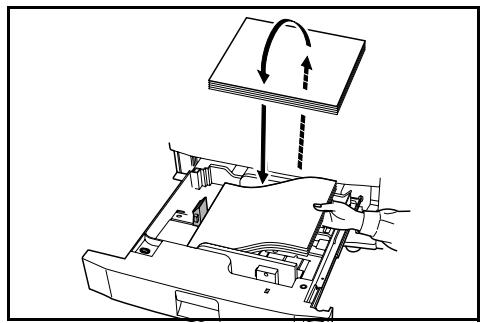
If ejected copies are not flat or are stacked unevenly, turn over the paper in the cassette and reload it.
If copies are curled, refer to Curled Output on page 1-29.
If a paper jam occurs, check the side guide located in the cassette is adjusted to the size of paper loaded.
Clearing Paper Jams
Leave the main power switched ON ( | ) while performing the procedure to clear paper jams.
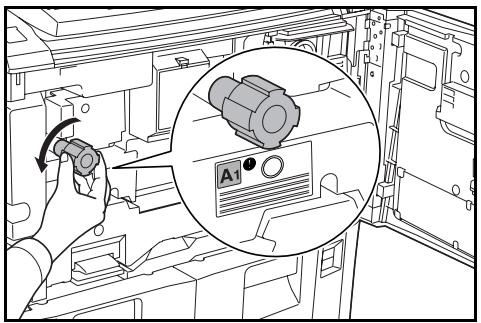
Open the cover of the copier and turn the fixer knob (A1) to the left at least 20 times before carrying out the paper jam removal procedure.
Once the jam is cleared, the operation panel on your copier will return to the status and settings prior to the jam.
Paper Jam in the Coupling Section
If the illustration shown displays on the operation panel of your copier, there is a paper jam in the coupling section between the Document Finisher and your copier.
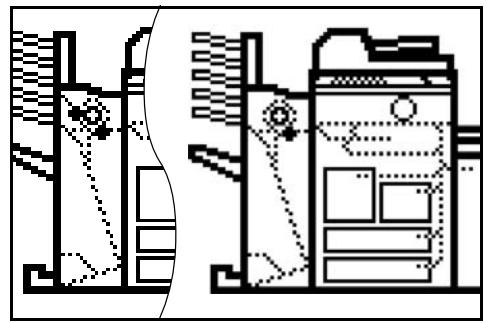
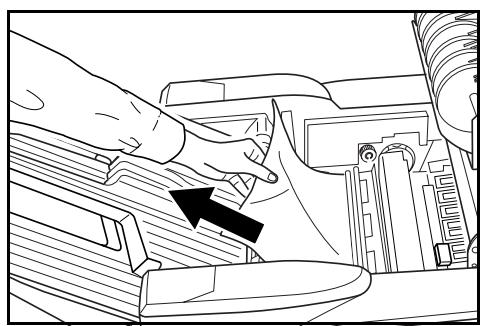
1 Open the upper cover and remove the jammed paper.
If the jammed paper cannot be easily removed, proceed to the next step.
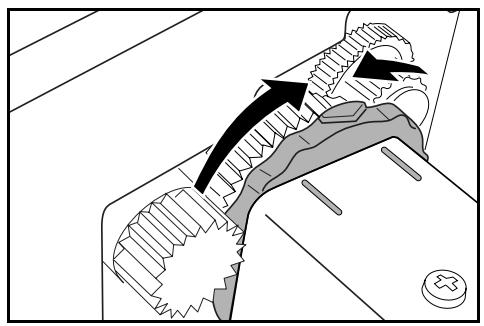
If the optional Hole Punch Unit is installed, ensure the arrow on the adjustment dial points somewhere between the grooves on the main body of the Hole Punch Unit.
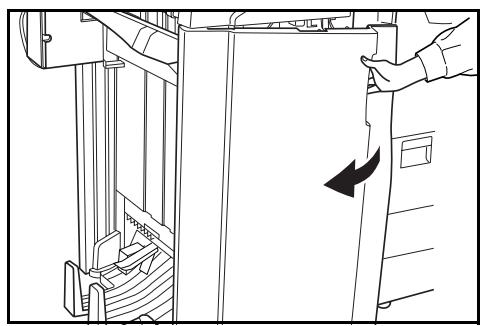
2 Grasp the front cover handle and open the front cover.
3 Turn the conveyor knob (G1) to feed the paper further along to enable easy removal.
Remove the paper.
If the jammed paper cannot be easily removed, proceed to the next step.
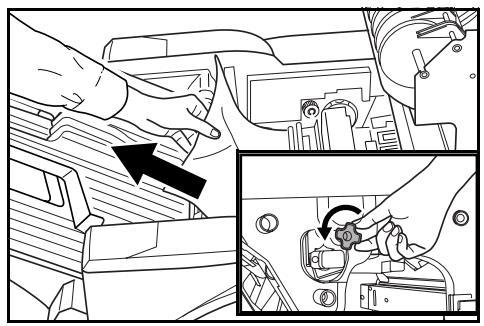
4 Lift the coupling section's upper guide lever and remove the jammed paper.
Close the upper guide lever and the upper cover.
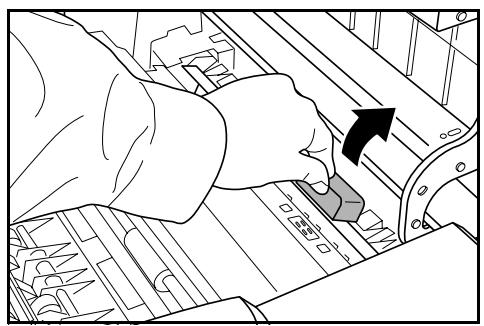
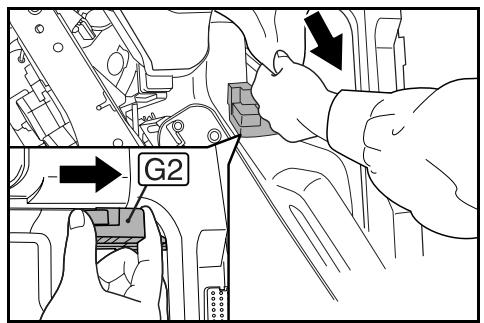
5 Hold the coupling section's lower guide lever (G2) and open.
Close the lower guide.
6 Close the front cover.
Paper Jam in Tray A
If the illustration shown displays on the operation panel of your copier, there is a paper jam in the conveyor section to Tray A.
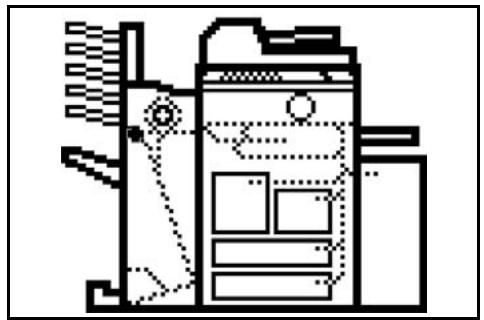
1 Lift open Tray B.
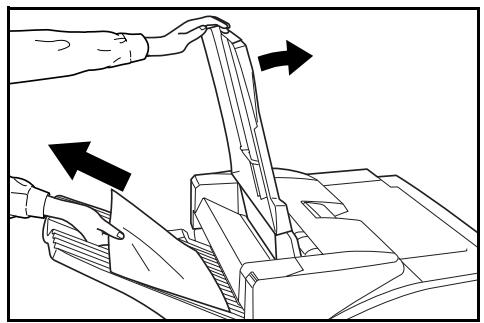
2 If the jammed paper is visible in the eject slot, pull it out in the direction of ejection without tearing it.
Paper Jam in Tray B
If the illustration shown displays on the operation panel of your copier, there is a paper jam in the conveyor section to Tray B.
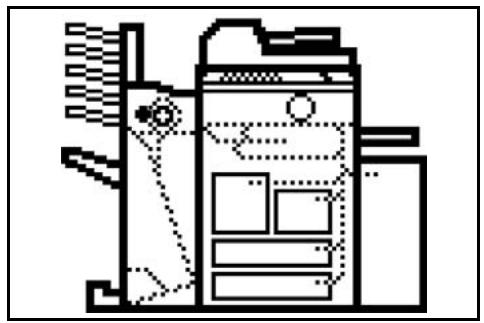
1 If the jammed paper is visible in the eject slot, pull it out in the direction of ejection, without tearing it.
If the jammed paper cannot be easily removed, proceed to the next step.
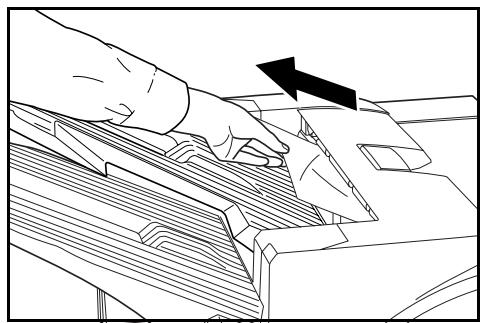
2 Open the upper cover and remove the jammed paper.
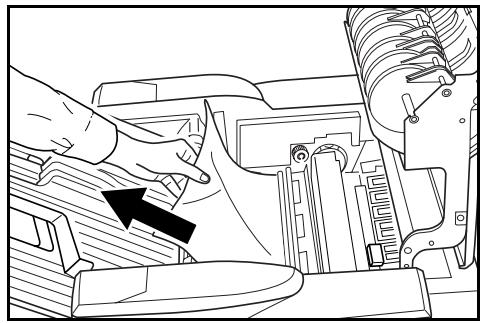
3 Close the upper cover.
Paper Jam in the Conveyor Section
If the illustration shown displays on the operation panel of your copier, there is a paper jam in the conveyor section to the internal tray.
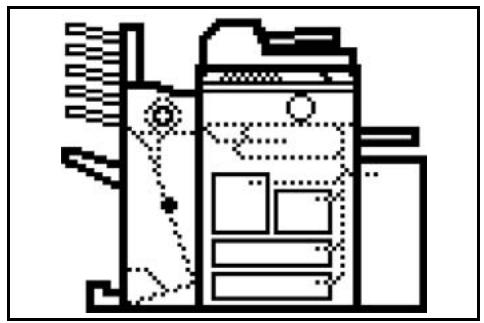
1 Lift open Tray B.
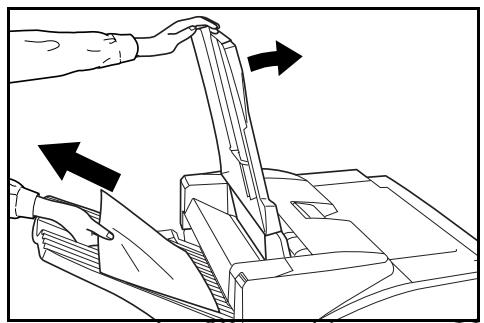
2 If the jammed paper is visible in the eject slot, pull it out in the direction of ejection, without tearing it.
If the jammed paper cannot be easily removed, proceed to the next step.
3 Grasp the front cover handle and open the front cover.
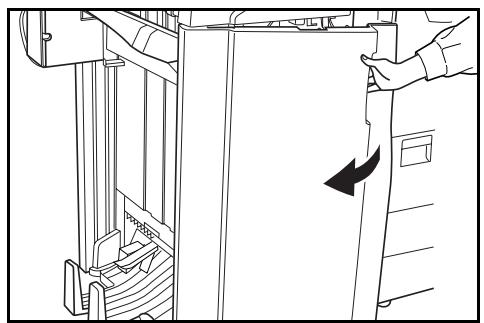
4 Grasp the internal tray handle (G3) and carefully pull out the internal tray.
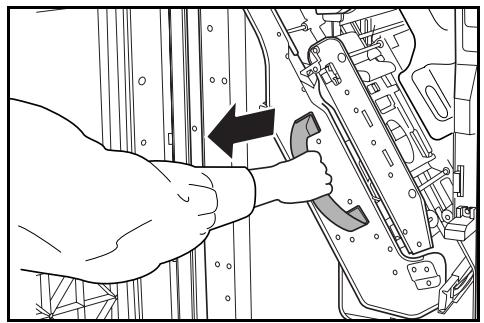
5 Hold the internal tray release lever (G4) and open the internal tray.
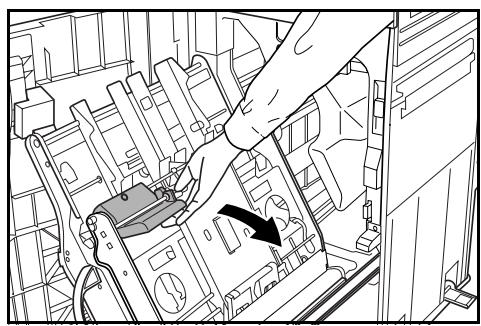
6 Remove the jammed paper.
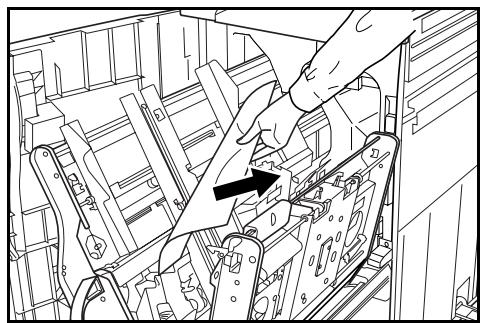
7 Hold the internal tray release lever (G4) and close the internal tray.
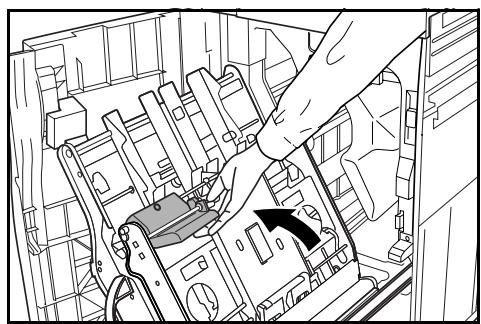
Push down on the frame to lock the internal tray in place.
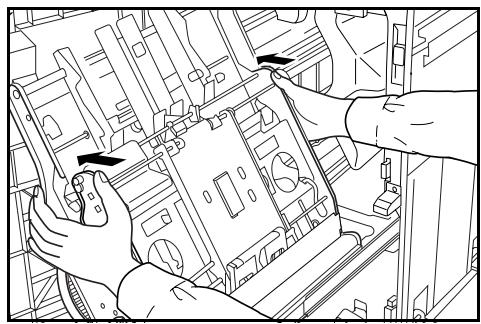
9 Push the internal tray back into the Document Finisher and close the front cover.
Paper Jam in the Multi-Job Tray Unit
If a paper jam occurs in the Multi-Job Tray Unit, follow the procedure below to remove the jammed paper.
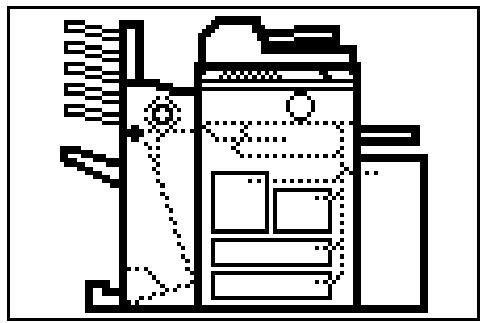
1 If there is any jammed paper in any of the job trays, remove it without tearing it.
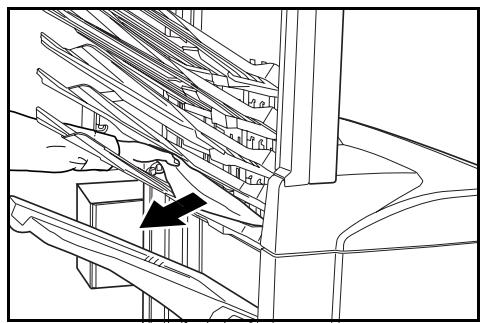
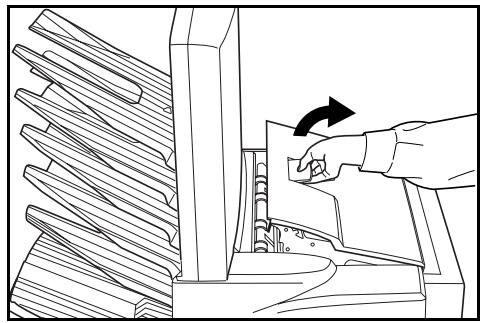
2 If the jammed paper cannot be easily removed, open the upper cover to the Document Finisher and remove the jammed paper.
For further information refer to Paper Jam in the Coupling Section on page 1-20.
Paper Jam in the Center-Folding Unit
Conveyor Section
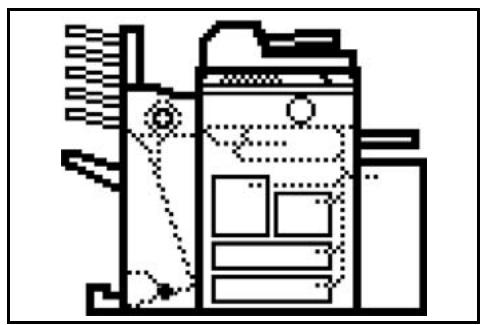
If the illustration shown displays on the operation panel of your copier, there is a paper jam in the conveyor section of the Center-Folding Unit.
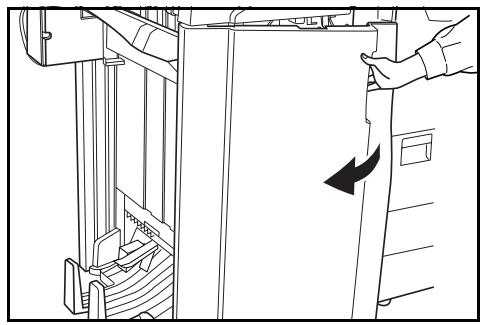
1 Grasp the front cover handle and open the front cover.
2 Turn the unit release lever (G6), and then hold the unit release handle (G7) and move the Center-Folding Unit in the paper ejection direction.
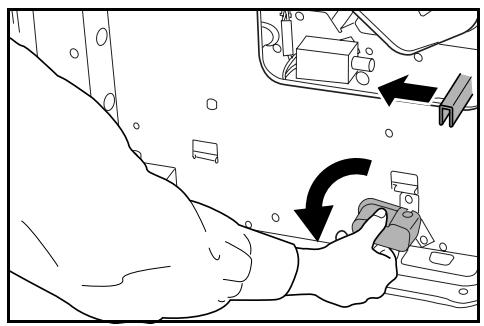
3 If the jammed paper is visible from under the internal tray, remove the jammed paper.
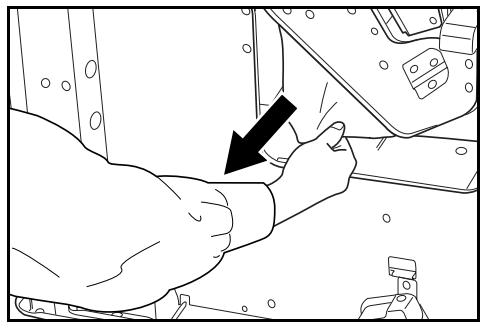
4 If paper is jammed inside the internal tray, remove the jammed paper using the instructions on page 1-23.
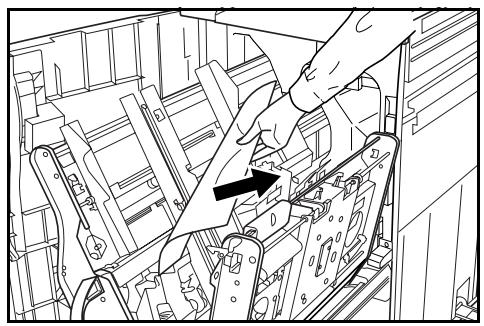
5 Hold the conveyor guide lever to open the conveyor guide and remove the jammed paper.
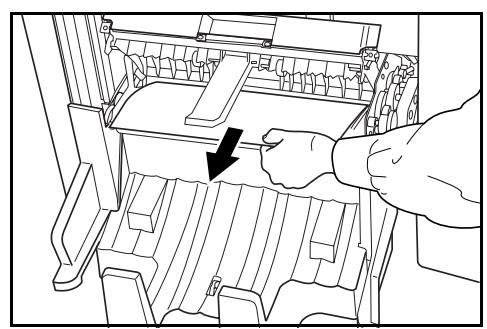
6 Lift open the storage cover and remove any jammed paper. Lower the storage cover.
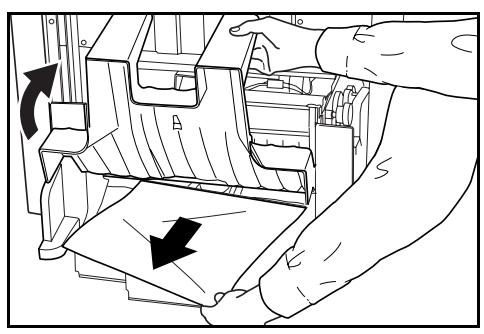
7 Close the conveyor guide and push in the Center-Folding Unit back to its original position while pressing the Center-Folding Unit installation button A.
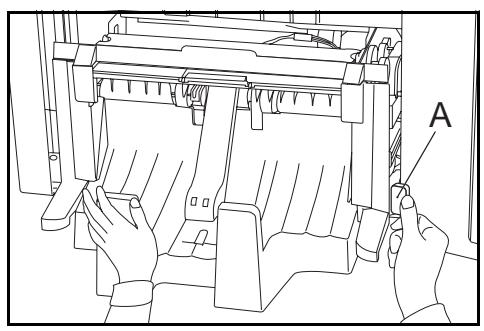
8 Close the front cover.
Ejection Section
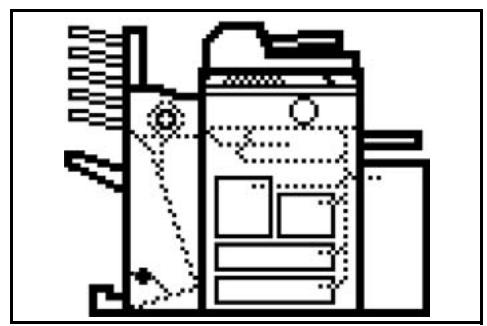
If the illustration shown displays on the operation panel of your copier, there is a paper jam in the ejection section of the Center-Folding Unit.
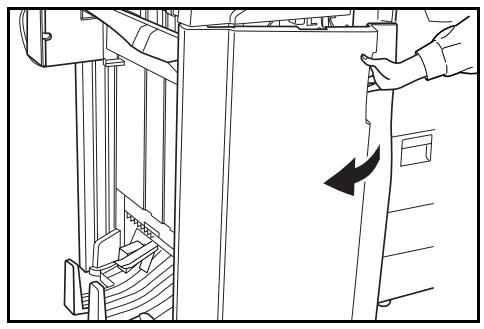
1 Grasp the front cover handle and open the front cover.
2 Turn the unit release lever (G6), and then hold the unit release handle (G7) and move the Center-Folding Unit in the paper ejection direction.
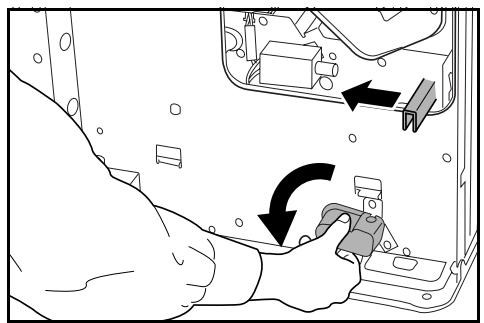
3 Hold the conveyor guide lever to open the conveyor guide and remove the jammed paper.
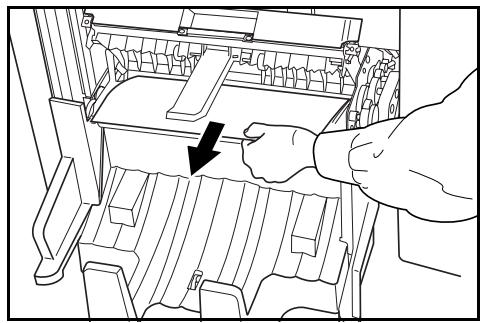
4 If the jammed paper cannot be easily removed, turn the conveyor guide knob to feed the paper further along for easy removal.
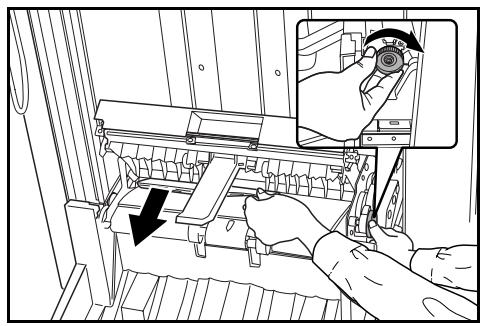
Remove the paper.
5 Close the conveyor guide and push in the Center-Folding Unit back to its original position while pressing the Center-Folding Unit installation button A.
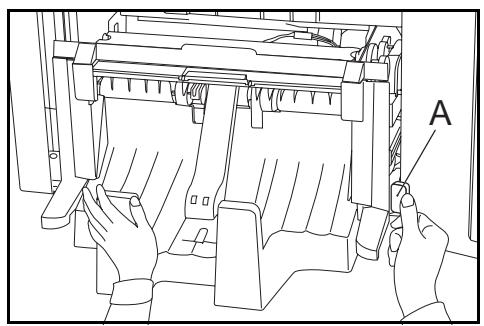
6 Close the front cover.
Curled Output
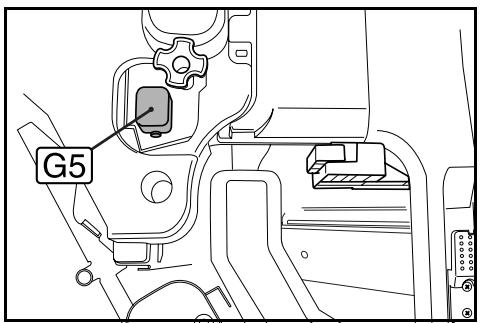
If the copies ejected are curled, pull out the pressure roller adjuster (G5) slightly and turn it so that its projection is set into one of the five small holes.
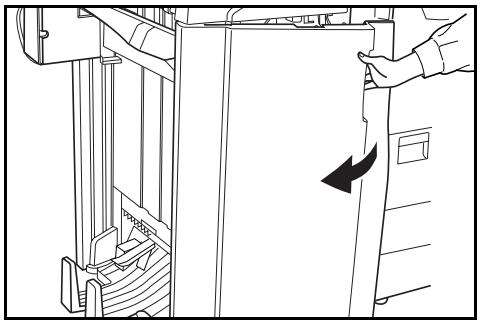
1 Grasp the front cover handle and open the front cover.
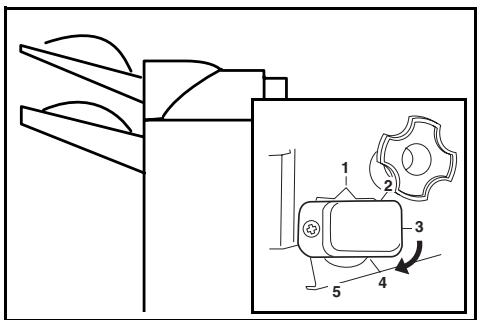
2 If ejected copies are curled downward when using a non-sorting mode, turn the pressure roller adjuster (G5) in the direction of a higher number.
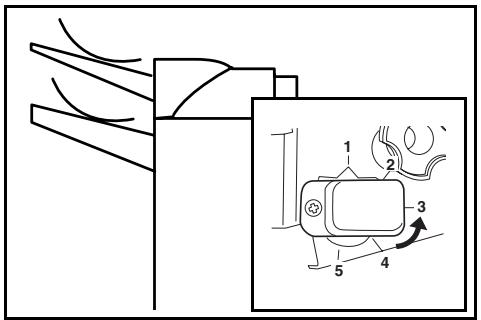
3 If ejected copies are curled upward when using a non-sorting mode, turn the pressure roller adjuster (G5) in the direction of a lower number.
4 Once adjustment is complete, close the front cover.
Clearing a Staple Jam
The Document Finisher is equipped with two staple cartridge holders, A and B. The procedure for clearing a staple jam is the same for both holders.
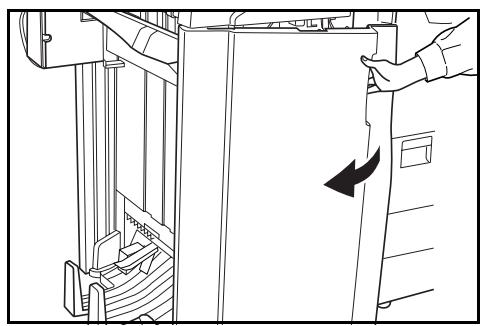
1 Grasp the front cover handle and open the front cover.
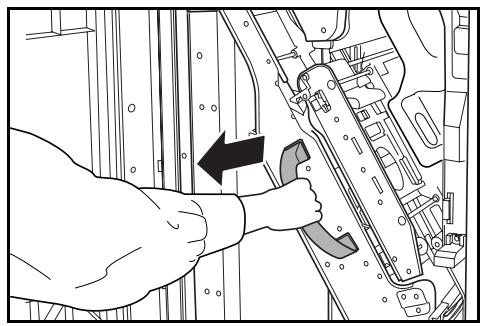
2 Grasp the internal tray handle (G3) and carefully pull the internal tray out.
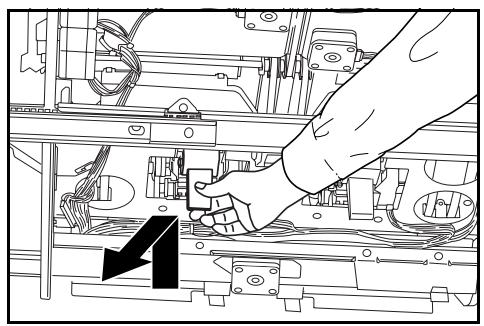
3 Lift up the staple cartridge holder and pull it out.
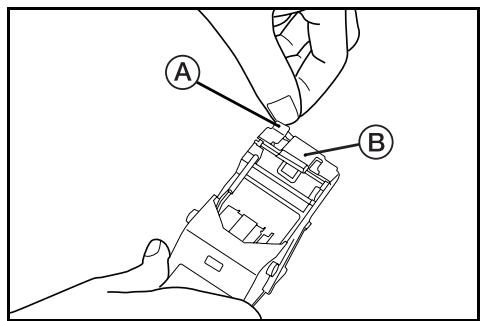
Push on tab (A) on the staple cartridge holder's face plate to open the cover plate (B).
5 Remove any jammed staples from the tip of the staple cartridge.
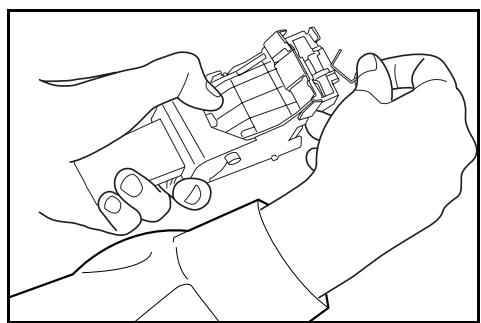
6 Lower the cover plate of the staple cartridge holder into its original position.
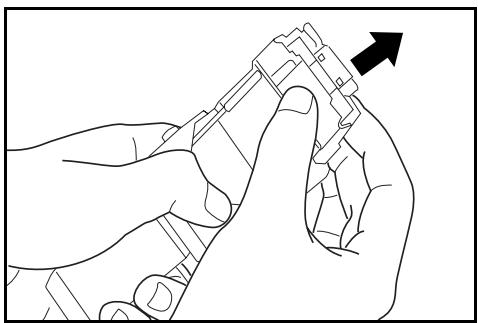
7 Re-install the staple cartridge holder.
The staple cartridge holder will click into place when it is inserted correctly.
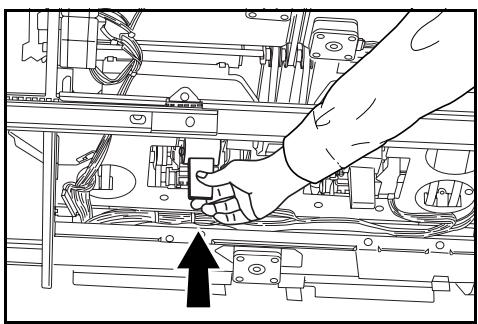
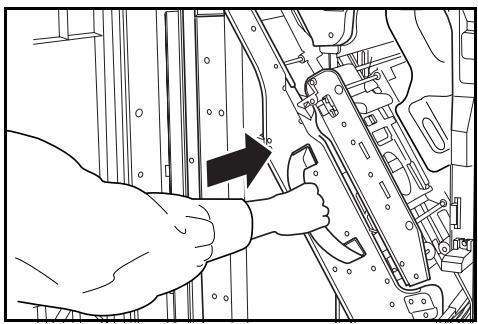
Push the internal tray into its original position in the Document Finisher and close the front cover.
Specifications
NOTE: Specifications are subject to change without notice.
| Item | Description | |
| Type | Floor model | |
| Number of Trays | 2 | |
| Tray Capacity(80 g/m2weight paper) | Tray A | A3, B4, 11 x 17", 8 1/2 x 14" (Legal): 1500 sheets |
| A4, A4R, B5, B5R, A5R, B6R, A6R, Folio, 8 1/2 x 11" (Letter), 11 x 8 1/2", 5 1/2 x 8 1/2": 3000 sheets | ||
| Tray B | A3, B4, A4, A4R, B5, B5R, A5R, B6R, A6R, Folio, 11 x 17", 8 1/2 x 14" (Legal), 8 1/2 x 11" (Letter), 11 x 8 1/2", 5 1/2 x 8 1/2": 200 sheets | |
| Dimensions (W x D x H) | 796 mm x 640 mm x 1070 mm31 5/16" x 25 3/16" x 43 1/3" | |
| Weight | Approx. 73 Kg (161.6 lbs) | |
| Noise Emission | ≤ 70 dB(A) | |
| Staple Unit | Stapling Capacity | A3, B4, 11 x 17", 8 1/2 x 14" (Legal): 30 sheets |
| A4, A4R, B5, 8 1/2 x 11" (Letter), 11 x 8 1/2": 50 sheets | ||
| Storage Capacity - A3, B4, 11 x 17", 8 1/2 x 14" (Legal) | Stapling 2 to 4 sheets: 150 setsStapling 5 to 10 sheets: 100 setsStapling 11 to 30 sheets: 50 sets | |
| Storage Capacity - A4, A4R, 8 1/2 x 11"(Letter), 11 x 8 1/2", 5 1/2 x 8 1/2" | Stapling 2 to 4 sheets: 150 setsStapling 5 to 10 sheets: 100 setsStapling 11 to 30 sheets: 50 setsStapling 31 to 50 sheets: 3000 sheets | |
| Hole Punch Unit (option) | Paper Size | A3, B4, A4, A4R, B5, B5R, A5R, Folio, 11 x 17", 8 1/2 x 14" (Legal) 8 1/2 x 11" (Letter), 11 x 8 1/2", 5 1/2 x 8 1/2" |
| Multi-Job Tray Unit (option) | Number of Trays | 5 |
| Paper Size | A3, B4, A4, A4R, B5, B5R, A5R, B6R, Folio, 11 x 17", 8 1/2 x 14" (Legal) 8 1/2 x 11" (Letter), 11 x 8 1/2", 5 1/2 x 8 1/2" | |
| Tray Capacity (80 g/m2 weight paper) | A3, B4, 11 x 17", 8 1/2 x 14" (Legal): 100 sheets | |
| A4, A4R, B5, B5R, A5R, B6R, Folio, 8 1/2 x 11" (Letter), 11 x 8 1/2", 5 1/2 x 8 1/2": 150 sheets | ||
| Dimensions | 368 mm x 392 mm x 573 mm | |
| 14 1/2" x 15 7/16" x 22 9/16" | ||
| Weight | Approx. 15 kg / 33 lbs | |
| Center-Folding Unit (option) | Sizes | A3, B4, A4R, 11 x 17", 8 1/2 x 11" |
| Number of Sheets | 1 to 16 (no stapling for 1 sheet) | |
| Maximum Number for Storage | 5 or less copies in a set: 30 sets | |
| 6 to 10 copies in a set: 20 sets | ||
| 11 to 16 copies in a set: 10 sets | ||
2 Deutsch
Sicherheitshinweise
Retirez le papier coincide.
6 Retirez le papier coince.
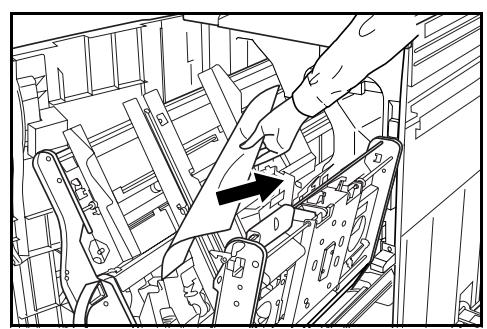
Retirez le papier coincide.
ATTENZIONE: Anything that is not considered a good candidate for the test of the test of the test of the test of the test of the test of the test of the test of the test of the test of the test of the test of the test of the test of the test of the test of the test of the test of the test of the test of the test of the test of the test of the test of the test of the test of the test of the test of the test of the test of the test of the test of the test of the test of
Simboli
This machine has passed all quality controls and final inspection