EasyManual
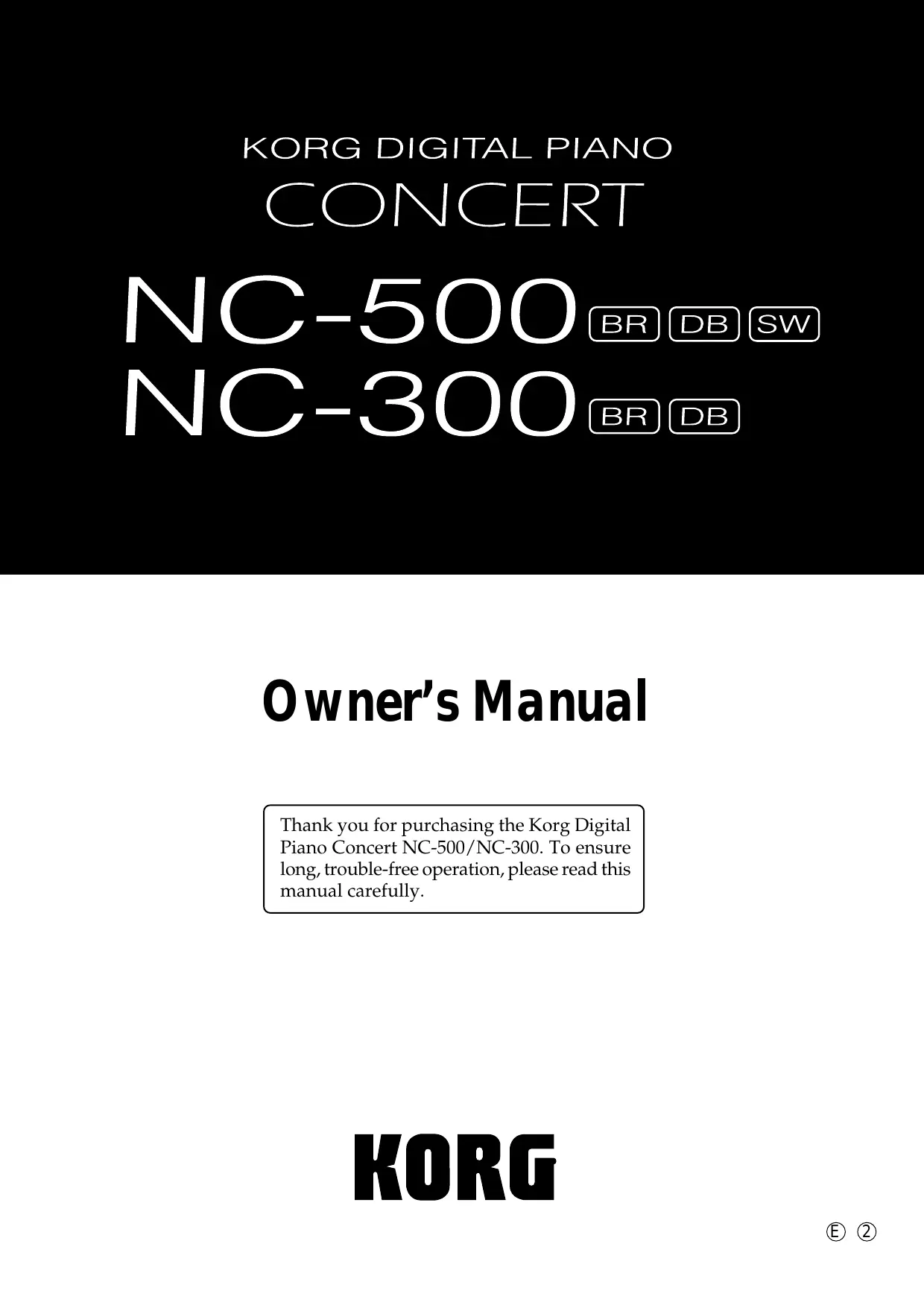
NC300 - Synthesizer KORG - Free user manual and instructions
Find the device manual for free NC300 KORG in PDF.


User questions about NC300 KORG
0 question about this device. Answer the ones you know or ask your own.
Ask a new question about this device
Download the instructions for your Synthesizer in PDF format for free! Find your manual NC300 - KORG and take your electronic device back in hand. On this page are published all the documents necessary for the use of your device. NC300 by KORG.
USER MANUAL NC300 KORG
Thank you for purchasing the Korg Digital Piano Concert NC-500/NC-300. To ensure long, trouble-free operation, please read this manual carefully.
IMPORTANT SAFETY INSTRUCTIONS
- Read these instructions.
- Keep these instructions.
Heed all warnings. - Follow all instructions.
- Do not use this apparatus near water.
- Mains powered apparatus shall not be exposed to dripping or splashing and that no objects filled with liquids, such as vases, shall be placed on the apparatus.
- Clean only with dry cloth.
- Do not block any ventilation openings, install in accordance with the manufacturer's instructions.
- Do not install near any heat sources such as radiators, heat registers, stoves, or other apparatus (including amplifiers) that produce heat.
- Do not defeat the safety purpose of the polarized or grounding-type plug. A polarized plug has two blades with one wider than the other. A grounding type plug has two blades and a third grounding prong. The wide blade or the third prong are provided for your safety. If the provided plug does not fit into your outlet, consult an electrician for replacement of the obsolete outlet. (for U.S.A. and Canada)
- Protect the power cord from being walked on or pinched particularly at plugs, convenience receptacles, and the point where they exit from the apparatus.
- Only use attachments/accessories specified by the manufacturer.
- Unplug this apparatus during lightning storms or when unused for long periods of time.
- Turning off the power switch does not completely isolate this product from the power line so remove the plug from the socket if not using it for extended periods of time.
- Refer all servicing to qualified service personnel. Servicing is required when the apparatus has been damaged in any way, such as power-supply cord or plug is damaged, liquid has been spilled or objects have fallen into the apparatus, the apparatus has been exposed to rain or moisture, does not operate normally,
or has been dropped. - Do not install this equipment on the far position from wall outlet and/or convenience receptacle.
- Do not install this equipment in a confined space such as a box for the conveyance or similar unit.
- Use only with the cart, stand, tripod, bracket, or table specified by the manufacturer, or sold with the apparatus. When a cart is used, use caution when moving the cart/apparatus combination to avoid injury from tip-over.
WARNING: TO REDUCE THE RISK OF FIRE OR ELECTRIC SHOCK DO NOT EXPOSE THIS PRODUCT TO RAIN OR MOISTURE.
The lightning flash with arrowhead symbol within an equilateral triangle, is intended to alert the user to the presence of uninsulated "dangerous voltage" within the product's enclosure that may be of sufficient magnitude to constitute a risk of electric shock to persons.

The exclamation point within an equilateral triangle is intended to alert the user to the presence of important operating and maintenance (servicing) instructions in the literature accompanying the product.
THE FCC REGULATION WARNING (for U.S.A.)
This equipment has been tested and found to comply with the limits for a Class B digital device, pursuant to Part 15 of the FCC Rules. These limits are designed to provide reasonable protection against harmful interference in a residential installation. This equipment generates, uses, and can radiate radio frequency energy and, if not installed and used in accordance with the instructions, may cause harmful interference to radio communications. However, there is no guarantee that interference will not occur in a particular installation. If this equipment does cause harmful interference to radio or television reception, which can be determined by turning the equipment off and on, the user is encouraged to try to correct the interference by one or more of the following measures:
- Reorient or relocate the receiving antenna.
- Increase the separation between the equipment and receiver.
- Connect the equipment into an outlet on a circuit different from that to which the receiver is connected.
- Consult the dealer or an experienced radio/TV technician for help.
Unauthorized changes or modification to this system can void the user's authority to operate this equipment.
CE mark for European Harmonized Standards
CE mark which is attached to our company's products of AC mains operated apparatus until December 31, 1996 means it conforms to EMC Directive (89/336/EEC) and CE mark Directive (93/68/EEC).
And, CE mark which is attached after January 1, 1997 means it conforms to EMC Directive (89/336/EEC), CE mark Directive (93/68/EEC) and Low Voltage Directive (73/23/EEC).
Also, CE mark which is attached to our company's products of Battery operated apparatus means it conforms to EMC Directive (89/336/EEC) and CE mark Directive (93/68/EEC).
About Recorder data
Since it is possible for the contents of memory to be accidentally lost, you should save important data on an external data file (storage device) etc.
Korg will accept no responsibility for any damages that may result from loss of data.
Conventions in this manual

This symbol indicates a caution.
(p.**
This indicates a reference page.
MeMO
This indicates an explanation concerning a setting.
Table of contents
Features 5
Controls and Connectors 6
Top Controls 6
Lower Controls. 8
Getting Ready to Play 9
Getting Ready 9
Using Headphones 10
Using the Music Stand 10
Using the INPUT Jack (NC-500 only) .... 11
Using the OUTPUT Jacks 11
Attaching the Speaker Covers 11
Listening to the Demos 12
Listening to Sound Demos 12
Listening to Piano Songs 14
Playing Along with a Piano Song for Practice (NC-500 only) 16
Playing the Instrument 17
Selecting a Sound (Single Mode) 17
Combining Two Sounds (Layered Mode) ..17
Using the Reverb and Chorus Effects.....18
Using the Pedals 19
Using the Metronome 20
Setting the Keyboard Touch 22
Transposing the Keyboard 23
Adjusting the Pitch 24
Selecting a Temperament 24
Recording and Replaying Your Performances (NC-500 only) 26
Recording 26
Replaying 28
Editing a recording 29
Erasing the Recording 30
Checking the Amount of Recorded Data in Part 1 or Part 2 30
MIDI 31
What is MIDI? 31
Connections 31
DefaultMIDI Settings 32
Changing the MIDI Channel Setting 32
Using the Piano as a Multitimbral Tone Generator 33
Program Change 34
Control Change 35
MIDI Data Dumps (NC-500 only) 36
Connecting to a Computer by USB (NC-500 only) 38
What is USB? 38
Making the USB Connection 38
Driver Ports for the NC-500 USB MIDI Interface 39
Operation of the NC-500's MIDI Connectors 39
Installing and Setting the Korg USB MIDI Driver 40
Troubleshooting 47
Specifications 49
Assembling the NC-500 Piano Stand ... 50
Montage du support de piano NC-500 .. 52
Assembling the NC-300 Piano Stand ... 54
Operation of Piano Switches and Keys 58
SOUND Switches 58
Recorder Section (NC-500 only) 58
Keyboard 58
MIDI Implementation Chart 59
Features
- Twenty-four high-quality sounds. (p.17)
A rich selection of high-quality expressive sounds, including two stereo concert grand pianos. You can use the Layered mode to play two sounds at the same time.
Digital Effects (p.18)
Includes a reverb effect that simulates concert-hall acoustics, and a chorus effect that adds depth and motion to the sound. Each effect can be applied at any of three different levels.
- Three Pedals (p.19)
Enjoy the same three pedals offered by an acoustic piano: a damper pedal, a sostenuto pedal, and a soft pedal. The damper and soft pedal both respond to half-pedaling, so that you can control the effect by varying the pressure on the pedal.
- Metronome (p.20)
Offers adjustable tempo, adjustable volume, and adjustable meter. You can accent the first beat of each measure with either a louder metronome "click" or a bell sound.
- Touch Control (p.22)
The keyboard action is one of the most important features of a piano keyboard. The front panel allows you to select one of three different sensitivity curves, so that you choose how the sound level changes in response to your own playing style.
- Keyboard Transposition, and Fine Tuning (p.23)
The transposition feature lets you shift the pitch of the entire keyboard, so you can play on the keyboard in one key while the sound is produced in a different key. This makes it easy to play along with other instruments, or to play songs in unfamiliar keys. The fine-tuning feature allows you to adjust the overall tuning of the piano either up or down.
Choice of Temperaments, and Stretch Tuning. (p.24)
In addition to today's standard equal temperament, the piano also offers two classical temperaments—Werckmeister and Kirnberger. You can use these older temperaments to recreate the original sound of older classical pieces. When you choose any of the acoustic piano sounds, stretch tuning is automatically selected.
INPUT jack (NC-500 only). (p.11)
The sound from any CD player, audio device, or other electronic instrument connected to this jack will play through the NC-500's speakers or headphone jacks, along with the sound of the NC-500.
Recorder (NC-500 only) (p.26)
A built-in recorder lets you record and replay your performances. The recorder is as easy to use as a conventional tape recorder.
MIDI Support (p.31)
MIDI is a widely supported interface that allows communication of performance and control information among electronic instruments and computers. This feature allows you to connect your piano to a computer and/or other instruments so that you can exchange data, control the piano from other instruments, or control those instruments from your piano. This feature also makes it possible to use the NC-500 as a 16-part multitimbral MIDI tone generator.
- USB Support (NC-500 only) (p.38)
The NC-500 can be connected directly to your computer through the computer's standard USB interface—allowing you to exchange data, control your software from the piano, or control the piano from your software. It is easy to save your performance data to your computer, and to use your computer to automatically play the NC-500 via USB.
Controls and Connectors
Top Controls
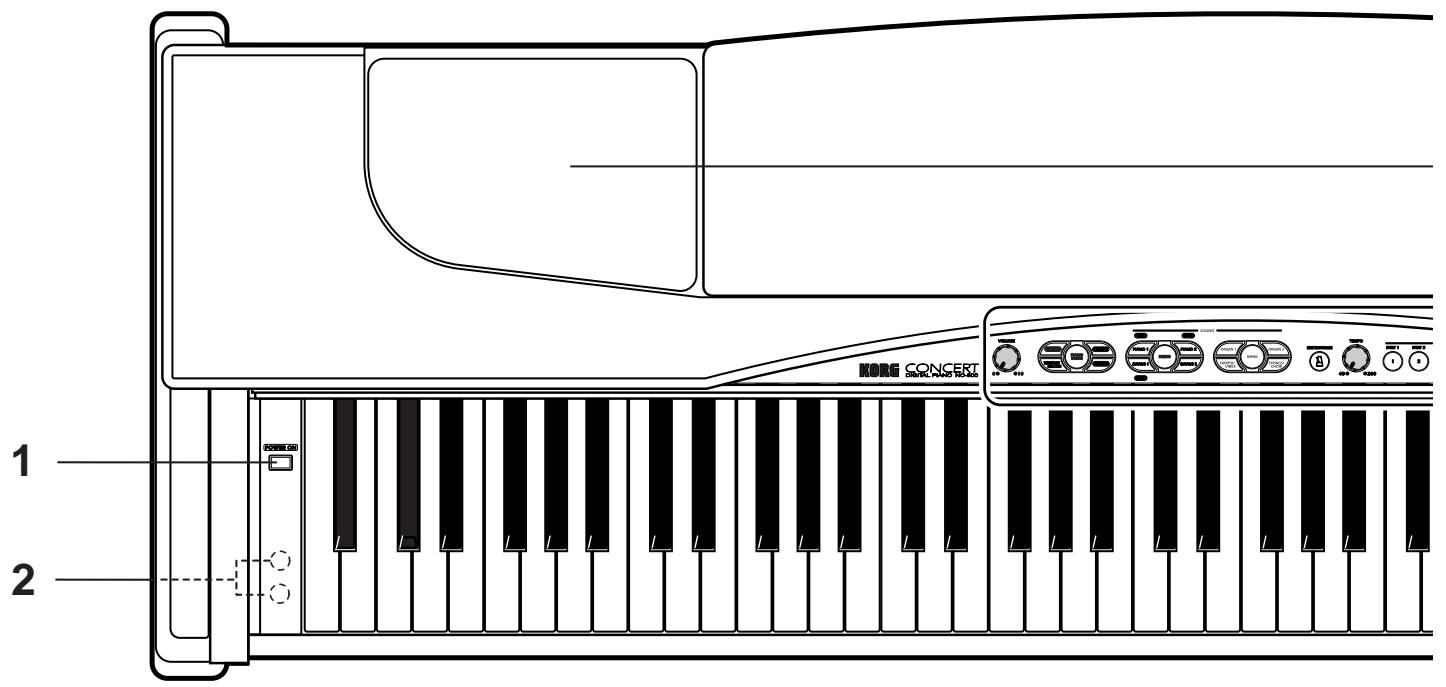
1. POWER switch
Turns the power on and off. (p. 9)
2. Headphone jacks
Each jack can be connected to a set of stereo headphones. (p. 10)
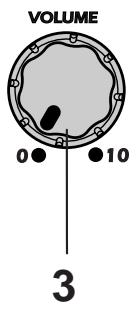
3. VOLUME knob
Adjusts the output level of the internal speakers, the headphone jacks, and the OUTPUT jacks. (p. 10)
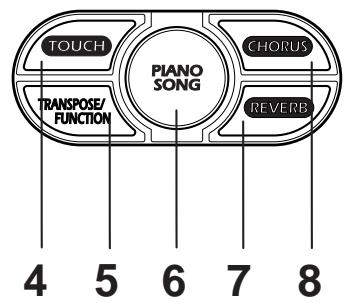
4. TOUCH button
Selects the touch curve of the keyboard sensitivity. (p. 22)
5. TRANSPOSE/FUNCTION button
Use this button when you want to transpose the keyboard or access various other functions (pitch settings, recording settings, MIDI settings, etc.).
6. PIANO SONG button
Use this to select one of the 32 demo piano songs. (p. 14)
7. REVERB button
Adjust the reverb amount and turns the reverb effect on or off. (p. 18)
8. CHORUS button
Adjust the reverb amount and turns the chorus effect on or off. (p. 18)
Illustration shows the NC-500.
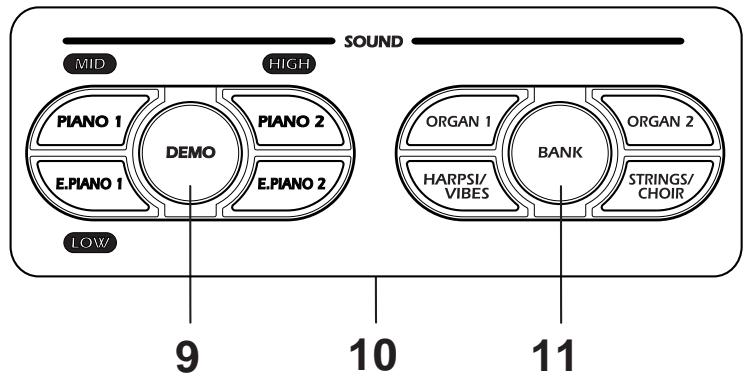
9. DEMO button
Select one of the eight sound demos. (p. 12)
10. SOUND buttons
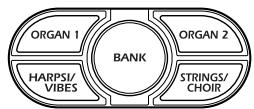
Use the eight small buttons in this section, together with the BANK button, to select from among the piano's 24 sounds (3 banks of 8 sounds). If you wish, you can use the Layered Mode (p. 17) to play two sounds simultaneously.
11. BANK button
Selects the sound bank. (p. 17)
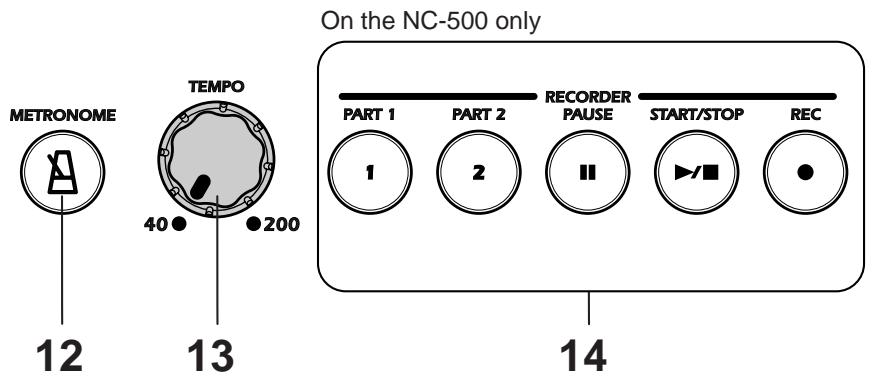
12. METRONOME button
Turns the metronome on or off. (p. 20)
13. TEMPO knob
Adjuststhetempoofthemetronomeandtherecorder. (±b L p.16)
14. REORDER section (NC-500 only)
Letsyou record,replayand play alongwith your performances. (p.26)
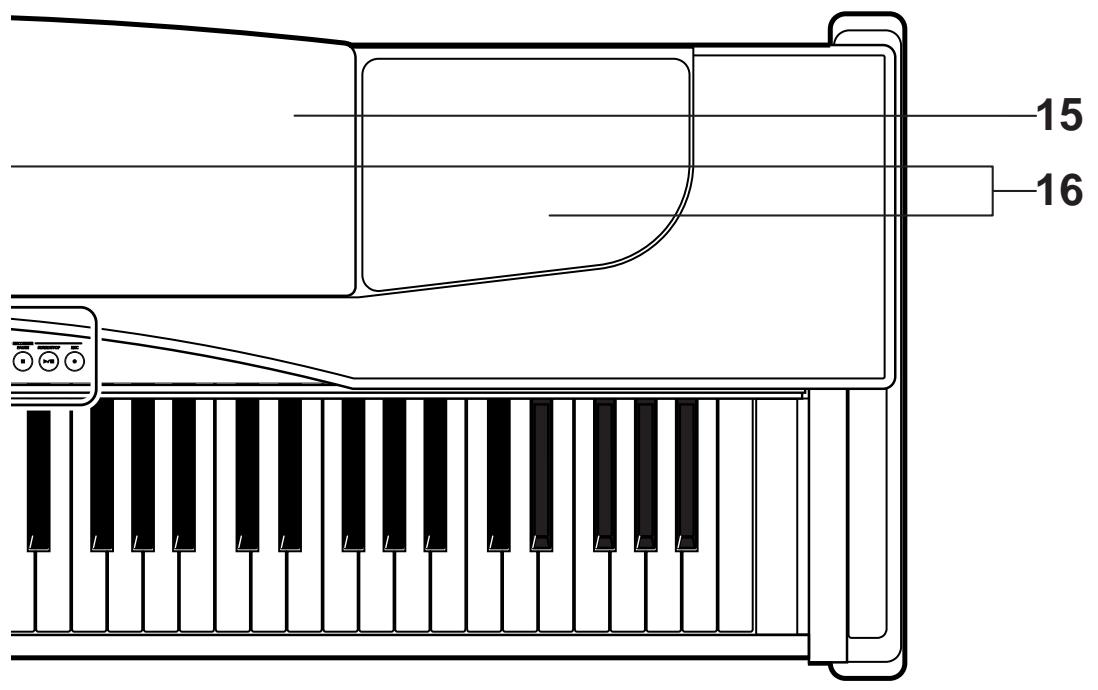
15. Music stand (p. 10)
16. Speakers
Although the speaker covers can be removed, we recommend that you leave them attached at all times. For information about how to reattach the speaker covers, refer to "Attaching the Speaker Covers" on page 11.
Lower Controls
NC-500
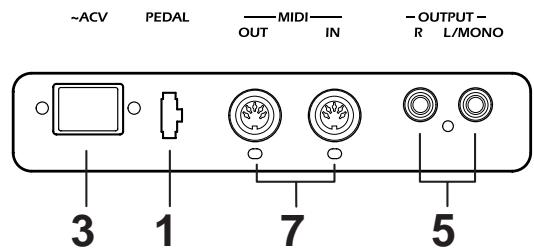
NC-300
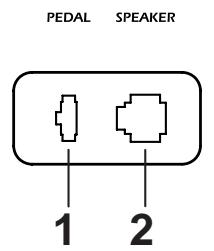
1. PEDAL jack
The connection cable from the pedal pod (included) plugs into this socket.
2. SPEAKER jack (NC-500 only)
The connection cable from the speakers in the NC-500 stand plugs in here.
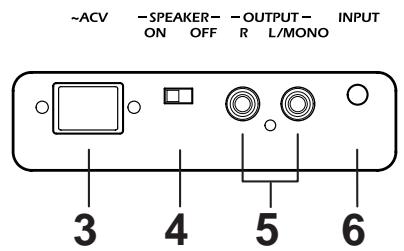
3. AC IN connector
The AC power cord (included) connects here. (p. 51, 53)
4. SPEAKER switch (NC-500 only)
Switches the NC-500's internal speakers on or off.
5. OUTPUT jacks
These jacks can be used to send the sound of the NC-500/NC-300 to external amplified speakers or an external audio device. Make the connections using standard mono cables (1/4" plugs). (p. 11)
6. INPUT jack (NC-500 only)
You can use this jack to play the sound from a CD player, audio device, or electronic instrument through the NC-500 speakers and headphones. This jack accepts a stereo miniplug cable. (p. 11)
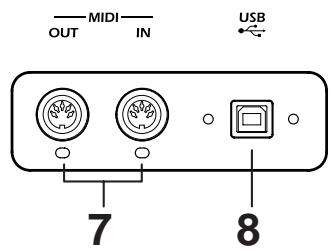
7. MIDI jacks
Use these jacks to connect to external MIDI devices such as synthesizers, sequencers, and rhythm machines. (p. 31)
MIDI IN Receives MIDI information. Connect this jack to the MIDI OUT jack of the device that you will use to control the piano.
MIDI OUT Sends MIDI information. Connect this jack to the MIDI IN jack of the device that you wish to control from the NC-500/NC-300.
8. USB connector (NC-500 only)
Connect the piano to your computer using a USB cable, for sending or receiving data. (p. 38)
Getting Ready to Play
Getting Ready
Connect the power.
Connect the socket end of the AC power cord to the piano's AC IN connector. Then plug the other end of the power cord into a wall power outlet.
■ Raise the keyboard cover. (NC-500 only)
Lift the front edge of the cover near the center of the keyboard, and slide the cover all the way back into the cabinet.
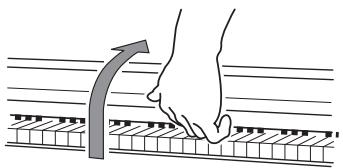
To close the cover: Lift the cover in the same location, and gently pull it all the way out. Lower the front edge of the cover.
A Be careful to avoid snagging your hand or your fingers when opening or closing the cover.
A Handle the cover gently and don't try to force it. The cover may break if mishandled.
Before raising the cover, be sure that there are no small objects (such as coins and paper debris) resting on it. Such objects can fall inside the piano when the cover is lifted.
Turn on the power.
Press the POWER switch to turn the power on.
The selected SOUND button, the BANK button, and various other buttons on the front panel light up.
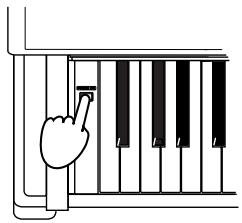
To turn the power off: Press the POWER switch once again.

Turning the power off returns all settings to their factory defaults. The NC-500's recorder memory will retain any song data that has been recorded.
Adjust the volume.
Turn the VOLUME knob to adjust the output volume.
The VOLUME knob adjusts the level to the internal speakers, the headphones, and the OUTPUT jacks. Turn the knob left to reduce the volume, or right to increase it. Setting the knob to the "0" position cuts off all sound output.
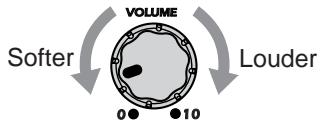
Start with the knob in the "0" position and turn it slowly to raise the volume as desired.
Using Headphones
Twin stereo headphones jacks are located under the left side of the keyboard. Connecting headphones to either jack will cut off the sound through the speakers. Use headphones when playing at night or whenever you want to practice silently. You can connect up to two headphone sets at the same time, so that two people can listen together.
To connect a stereo headphone set: Insert the headphone plug (stereo 1/4"plug) into either headphone jacks.
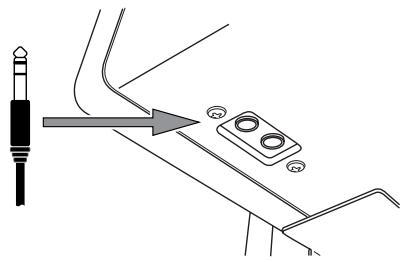
If you are using headphones fitted with a 1/8"-to-1/4"adapter plug, be sure to grasp the adapter plug when connecting or unplugging the headphones.
To protect your ears and prevent possible loss of hearing, avoid prolonged listening to headphones at high volume.
Using the Music Stand
Raise the stand by lifting the back edge, and insert the front edge of the stand into the groove on the piano. Lift the front edge up out of the groove and tilt the music stand back to lower it down into the top of the piano.
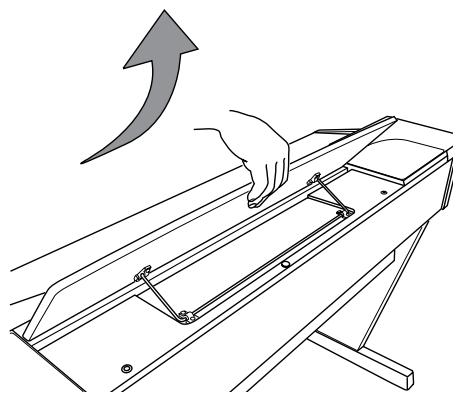
When lowering the stand, please hold it with both hands.
Using the INPUT Jack (NC-500 only)
This jack lets you play an audio device (such as a CD or MD player) or an electronic instrument through the NC-500's speakers and headphones, along with the sound of the NC-500. Use a stereo miniplug to make the connection.
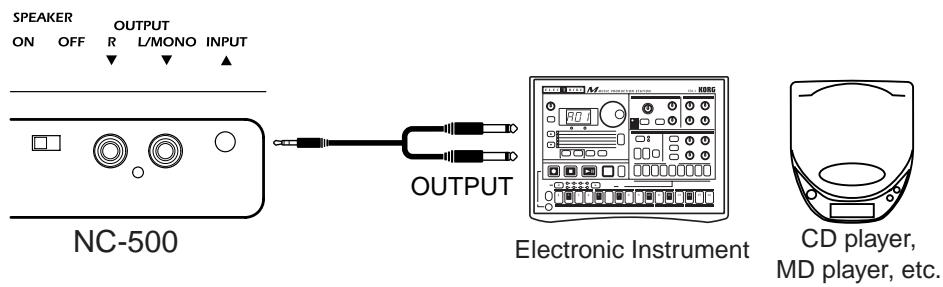
Using the OUTPUT Jacks
Use these jacks to send the sound to an external sound system or to recording equipment. Use mono cables with standard (1/4") plugs. Connect each cable to the corresponding INPUT jack on the external device. When connecting only one output, use the L/MONO jack only.
Use the volume knob to adjust the level through the OUTPUT jacks.
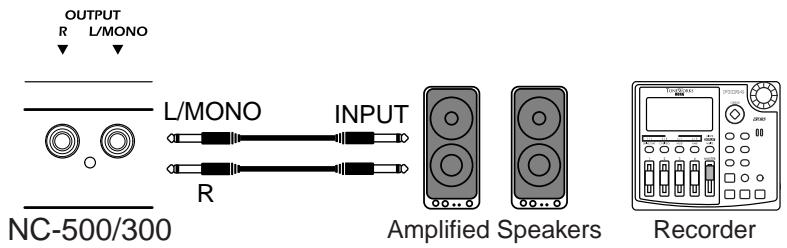
When playing through the speakers of an external device, you can turn off the sound from the piano's speakers by plugging headphones (or any 1/4'' phone connector) into one of the headphone jacks. On the NC-500, you can also turn off the sound by turning the SPEAKER switch to OFF.
2 Be sure to turn the power off before making any connections. Connections made incorrectly may result in damage to (or misoperation) of the piano or the external device.
Different devices require different types of cables. Please purchase cables that are appropriate for the external devices you wish to use.
Attaching the Speaker Covers
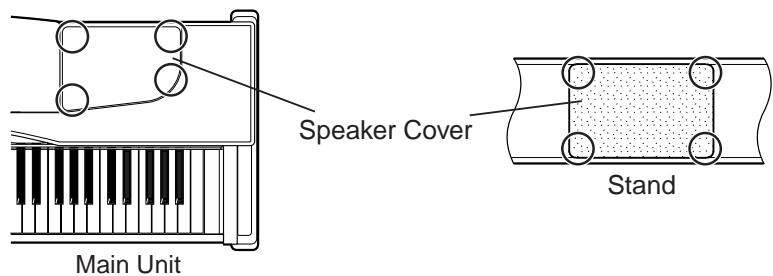
If you have removed a speaker cover from the main unit or (on the NC-500) from the stand, you can reattach the cover by placing it into position and pressing gently at the four locations indicated by the circles below.
Listening to the Demos
Your piano includes 40 built-in demo songs: eight sound demos that demonstrate the expressive power of the instrument's various sounds, and 32 piano songs - well known piano pieces featuring the high-quality piano sounds of the NC-500/NC-300. The piano songs can also be used for as practice exercises, and the scores for the piano songs are included.
Listening to Sound Demos
Sound Demos
| No. | Sound switch | Title | Composer |
| 1 | PIANO 1 | KORG Original I Heard That Rhapsody | T.lmaizumi |
| 2 | PIANO 2 | KORG Original Reflection | M.Tempia |
| 3 | E.PIANO 1 | KORG Original Three Hands | H.Minami |
| 4 | E.PIANO 2 | KORG Original All The Ones You Don't Know | M.Tempia |
| 5 | ORGAN 1 | KORG Original Cool "B" | M.Tempia |
| 6 | ORGAN 2 | Fuga G minor | J.S.Bach |
| 7 | HARPSI/VIBE | Italian Concert | J.S.Bach |
| 8 | STRINGS/CHOIR | Air on the G string | J.S.Bach |
The keyboard remains live while playback is in progress, but the SOUND buttons are disabled. In other words, you are free to play along on the keyboard, using the same sound as the demo.
You cannot change the effect settings (chorus and reverb settings) while the demo song is playing.
The tempo of the demo song's playback cannot be changed.
■ Listening to All the Sound Demos in Order
1. Press DEMO.
The DEMO button will light up, and the SOUND buttons will begin flashing in order. If you do not select a demo within three seconds, the first sound demo begins playing automatically (#1 in the table above). After completing the first demo, the second demo will play, then the third, and so on. After completing the eighth demo, the piano goes back and starts again from the first. While each demo is playing, the corresponding SOUND button is lit on the piano.
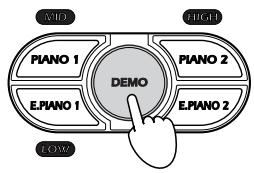
2. To stop the demo playback, press DEMO once again.
The DEMO button and the SOUND button will both go dark, demo playback will stop, and the piano automatically changes to the PIANO 1 sound. (The PIANO 1 button lights up to show that PIANO 1 is selected.). The bank will remain the same as before you entered DEMO mode.
Selecting a Specific Sound Demo
1. Press DEMO.
The DEMO button lights up, and the SOUND buttons begin flashing in order.
2. Press the SOUND button corresponding to the demo that you want to hear. (Refer to the list on the previous page.)
The selected button will light up, and the demo will begin to play. When the piano finishes playing the selected demo, it automatically plays the next demo, and then continues to cycle through all demos in order.
If you do not select a demo within three seconds, the piano automatically begins playing all the demos in order starting from #1.
3. To select a different sound demo while demo playback is already in progress, press the corresponding SOUND button.
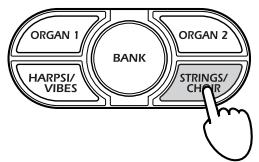
If you are listening to sound demo #1 and decide that you would rather listen to sound demo #8, for example, just press the STRINGS/CHOIR button. This button lights up and demo #8 begins playing.
4. To stop the demo playback, press DEMO once again.
The DEMO button and the SOUND button will both go dark, and the piano will exit the demo mode.
■ Pausing the Demo Playback (NC-500 only)
1. Press PAUSE while demo play is in progress.
The PAUSE button will light up and the demo playback will pause.
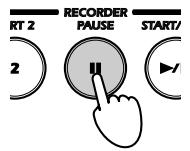
2. To resume playback, press PAUSE again.
The PAUSE button will go dark and the demo playback will resume.
Using START/STOP to Stop the Demo Playback (NC-500 only)
1. If you press START/STOP while a demo is playing: playback stops.
The DEMO button remains lit. If you now wish to exit song playback mode and return to normal operation, press the DEMO button so that the button goes dark.
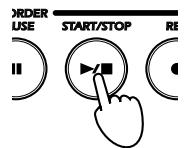
2. Press START/STOP again to restart the song from the beginning.
Listening to Piano Songs
Piano Songs
| C1 | No. | Key | Title | Composer | |
| 1 | A0 | "Prelude" The Well-Tempered Clavier,Book 1 | J.S.Bach | ||
| 2 | A#0 | Invention No.1 | J.S.Bach | ||
| 3 | B0 | Jesu,Joy of Man's Desiring | J.S.Bach | ||
| 4 | C1 | Sonata K.545 | W.A.Mozart | ||
| 5 | C#1 | "Turkish March" Sonana K.331 | W.A.Mozart | ||
| 6 | D1 | For Elise | L.v.Beethoven | ||
| 7 | D#1 | Piano Sonata Op.13-2 | L.v.Beethoven | ||
| 8 | E1 | A Maiden's Prayer | T.Badarzewka | ||
| 9 | F1 | "Arabesque" Op.100-2 | F.Burgmuller | ||
| 10 | F#1 | "La styRIenne" Op.100-14 | F.Burgmuller | ||
| 11 | G1 | "La chevaleresque" Op.100-25 | F.Burgmuller | ||
| 12 | G#1 | Springs Song Op.62-6 | F.Mendelssohn | ||
| 13 | A1 | "Träumerei" Op.15-7 | R.Schumann | ||
| 14 | A#1 | Heidenroslein | G.Lange | ||
| 15 | B1 | Spinning Song | A.Ellmenreich | ||
| 16 | C2 | Dolly's Dreaming and Awakening | T.Oesten | ||
| 17 | C#2 | La fille aux cheveux de lin | C.Debussy | ||
| 18 | D2 | Arabesque No.1 | C.Debussy | ||
| 19 | D#2 | "Prelude" Suite Bergamasque | C.Debussy | ||
| 20 | E2 | Golliwog's Cake walk | C.Debussy | ||
| 21 | F2 | Claire de lune | C.Debussy | ||
| 22 | F#2 | Walz No.6 Db-major Op.64-1 | F.Chopin | ||
| 23 | G2 | Walz No.7 E-minor Op.64-2 | F.Chopin | ||
| 24 | G#2 | Nocturne Op.9-2 | F.Chopin | ||
| 25 | A2 | Mazurka Op.7-1 | F.Chopin | ||
| 26 | A#2 | Fantaisie-Impromptu Op.66 | F.Chopin | ||
| 27 | B2 | Etude Op.10-3 | F.Chopin | ||
| 28 | C3 | Etude Op.25-3 | F.Chopin | ||
| 29 | C#3 | "Promenade" Tableaux d'une exposition | M.P.Moussorgsky | ||
| 30 | D3 | Gymnopedie No.1 | E.Satie | ||
| 31 | D#3 | Je Te Veux | E.Satie | ||
| 32 | E3 | Salut d'Amour | E.Elgar |

The Piano scores (sheet music) for these songs are included with your NC-500/NC-300 piano.
■ Listening to All the Piano Songs in Order
1. Press PIANO SONG.
The PIANO SONG button lights up, and the SOUND buttons begin flashing in order. If you do not select a song within three seconds, the piano automatically begins playing through the songs in order, starting with piano song #1, continuing to piano song #32, and then restarting again at #1.
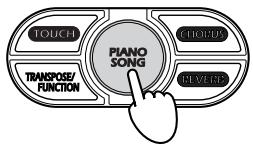
2. To stop song play, press PIANO SONG once again.
The PIANO SONG button goes dark and playback stops. The piano automatically sets the sound to the PIANO 1 sound of the bank that was selected just before you started song play. You can now proceed to play normally.
Selecting a Specific Piano Song
1. Hold down PIANO SONG, and press a key from A0 to E3.
Each of these keys corresponds to a different piano song, as shown in the table on the preceding page. When you press the key, the piano begins playing the corresponding song. Once song play is in progress, you can switch to a different song by pressing holding down PIANO SONG and pressing another key.
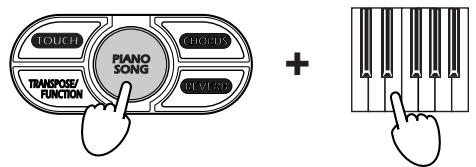
2. To stop the song playback, press PIANO SONG once again.
The PIANO SONG goes dark and the piano exits song-play mode.

You can use the keyboard to play along in the same sound while the song is playing, and you can use the SOUND buttons to change sounds as the song plays back.

You cannot change the effect settings (chorus or reverb settings) while the song is playing.
■ Pausing the Song Playback (NC-500 only)
1. Press PAUSE while the song is playing back.
The PAUSE button lights up and playback pauses.
2. To resume playback, press PAUSE again.
The PAUSE button goes dark and song play resumes.
Using START/STOP to Stop and Restart Song Play(NC-500 only)
- If you press START/STOP while the song is playing: playback stops.
The PIANO SONG button remains lit. If you now wish to exit song playback mode and return to normal operation, press the PIANO SONG button so that the button goes dark.
- Press START/STOP again to restart the song from the beginning.
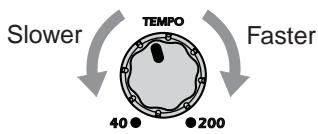
Changing the Tempo
- To adjust the tempo, turn the TEMPO knob while the song is playing or paused.
Playing Along with a Piano Song for Practice (NC-500 only)
■ Practicing the Left Hand Part or the Right Hand Part
When a piano song is playing, you can lower the volume of either the right-hand part or the left-hand part, and then play that part yourself as the song plays back.
- Select a piano song.
- To lower the volume of the left-hand part, press PART 1. To lower the volume of the right-hand part, press PART 2.
The pressed PART button begins flashing and the volume of the part is lowered. You can now practice playing along with the song.
Lowers the volume of the left-hand part.
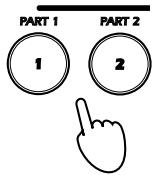
Lowers the volume of the right-hand part.
- To return the volume to normal, press the flashing PART button again.

To adjust the volume of the lowered part while playback is in progress: Hold down the TOUCH switch and press HARPSI/VIBES several times as desired to reduce the volume, or STRINGS/CHOIR several times as desired to raise the volume.
Playing the Instrument
Selecting a Sound (Single Mode)
Your digital piano offers you a choice of 24 high-quality sounds arranged in three banks, each containing eight sounds, as shown in the chart below. Each time the BANK button is pressed, it will change color to show the currently selected bank
1. Press one of the SOUND buttons .
The button lights up.
2. Press the BANK button as necessary.
Select one of the three banks. The currently selected bank is indicated by the color of the BANK button: red, green, or orange.
Example. To select the Mellow Piano sound: press PIANO 2 to select the sound type (so that the PIANO 2 button light up), and then press BANK twice so that it lights up orange, indicating that you have selected Bank C.

The piano memorizes the last bank selection for each SOUND button. These bank selections remain in effect until you change them or until you turn the power off.

When you turn the piano off, all SOUND buttons reset to Bank A.
Sound List
| Sound switch (Bank color) | Bank A (Red) | Osc#* | Bank B (Green) | Osc#* | Bank C (Orange) | Osc# |
| PIANO 1 | Grand Piano 1 | 2 | Standard Piano | 1 | Honky Tonk Piano | 2 |
| PIANO 2 | Grand Piano 2 | 2 | Bright Piano | 1 | Mellow Piano | 1 |
| E.PIANO 1 | E. Piano 1 | 1 | Soft E.P. | 1 | Clavi | 1 |
| E.PIANO 2 | E. Piano 2 | 1 | Vintage E.P. | 1 | E.P. Pad | 2 |
| ORGAN 1 | Jazz Organ 1 | 2 | Jazz Organ 2 | 2 | Jazz Organ 3 | 2 |
| ORGAN 2 | Church Organ 1 | 3 | Church Organ 2 | 1 | Church Organ 3 | 1 |
| HARPSI/VIBE | Harpsichord 1 | 1 | Harpsichord 2 | 2 | Vibraphone | 1 |
| STRINGS/CHOIR | Strings | 1 | Slow Strings | 2 | Choir | 1 |
*Indicates the number of oscillators used to produce the voice. Refer also to page 48, "Maximum Polyphony."
Combining Two Sounds (Layered Mode)
Layered mode lets you combine two sounds and play them at the same time from the keyboard.
1. Simultaneously press the two SOUND buttons corresponding to the sounds that you wish to use.
The SOUND buttons light up and the two sounds will now play in combination.
The banks used are as previously selected during Single mode. If you wish to select a specific bank for each sound, select the bank for each sound while in the Single mode.
Example. To combine Grand Piano 2 (Piano 2, Bank A) and Jazz Organ 2 (ORGAN 1, Bank B): Press Piano 2 and then press the BANK button so that it lights up red, setting the Piano 2 sound to Grand Piano 2. Next, press ORGAN 1 and then press the BANK button so that it lights up green, setting the ORGAN 1 sound to Jazz Organ 2. Then press Piano 2 and ORGAN 1 at the same time to enter Layered mode.

Use of Layered Mode reduces the maximum available polyphony in accordance with the total number of oscillators used by two sounds. For infomation, see "Maximum Polyphony" on page 48.

It is not possible to combine two sounds assigned to the same SOUND button. For example, it is not possible to combine Grand Piano 1 and Standard Piano, since both of these sounds are assigned to the same PIANO 1 button.
Adjusting the Volume Balance of the Layered Sounds
- While holding down the SOUND button of the sound you wish to make relatively softer, press the SOUND button of the other sound (the one you want to make louder) several times in succession.
■ Returning to the Single Mode
- Press any one of the SOUND buttons.
The button lights up and the piano returns to single mode.
Using the Reverb and Chorus Effects
The piano offers two built-in effects: reverb and chorus. The reverb effect adds reverberation and depth, emulating the acoustic ambience of a concert hall. The chorus effect adds modulation that gives the sound a richer, fatter tone. The effect settings are stored separately for each sound.
- To add a reverb, press REVERB. To add a chorus effect, press CHORUS. The corresponding buttons (REVERB and/or CHORUS) light up to indicate that the effect is selected.
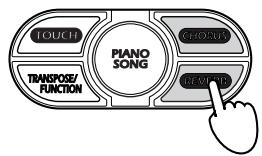
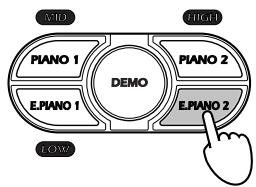
- You can set each effect to any of three different depths: Light, Standard, or Deep. To change the depth setting, hold down the corresponding effect button (REVERB or CHORUS) and press the appropriate SOUND button. Press E.PIANO 1 (LOW) to set the depth to Light, PIANO 1 (MID) to set the depth to Standard, or PIANO 2 (HIGH) to set the depth to Deep.
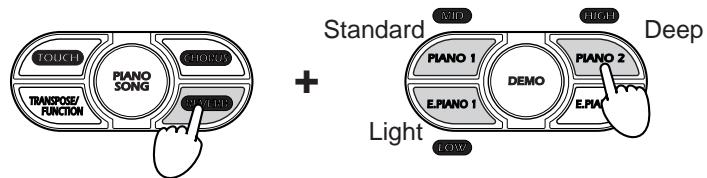
The above illustration shows how to set the reverb depth to High.
| SOUND Button | Reverb Depth | Chorus Depth |
| E.PIANO 1 (LOW) | Light | Light |
| PIANO 1 (MID) | Standard | Standard |
| PIANO 2 (HIGH) | Deep | Deep |
- To turn the reverb or chorus effect off, press the REVERB button or CHORUS button.
The button goes dark to indicate that the effect is off.
MeMo The piano remembers the effect settings that you make in the Single mode. When you enter Layered mode, the piano will use the most recent settings from the Single mode. If you wish you may change the settings while playing in Layered mode, but these changes will be lost and the prior settings restored when you return to the Single mode.
MeMo Use of these effects reduces the maximum available polyphony. For infomation, see "Maximum Polyphony" on page 48.
Using the Pedals
Your digital piano offers three pedals, just as on a conventional piano. Use these pedals to add expressiveness to your performances.
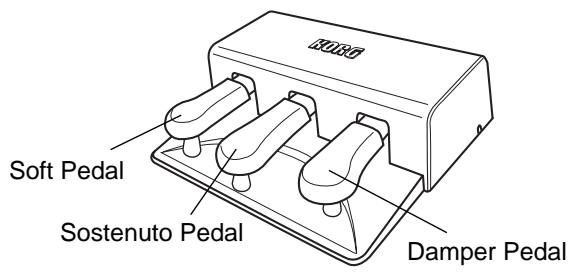
Damper Pedal
This pedal sustains the sound of the keys that you hit, so that the sound continues with a very slow decay after you release the key. Properly used, this pedal can add a rich, reverberant sound to your play. Push the pedal all the way down to get a strong sustain, or only part of the way down ("half pedaling") to get a partial sustain.
Sostenuto Pedal
This pedal produces the same type of sustain as the damper pedal, but operates only on the keys that are being held down at the moment you step down on the pedal. Keys that are played after the pedal is already down are not sustained. This pedal makes it possible to sustain some notes while other notes play normally.
Soft Pedal
This pedal softens the sound. Push the pedal all the way down to get the full effect, or only part of the way down ("half-pedaling") to get partial softening.
Using the Damper Pedal While in Layered Mode
When playing in Layered mode, you can set the damper pedal to operate on either or both of the sounds. After entering Layered mode, proceed as follows to assign the pedal.
1. Hold down TRANSPOSE/FUNCTION and step on the damper pedal as while watching the SOUND buttons.
The SOUND buttons light up to indicate which sound(s) will be affected by the damper pedal. The setting changes each time you press the pedal: first one sound, then the other sound, then both sound.
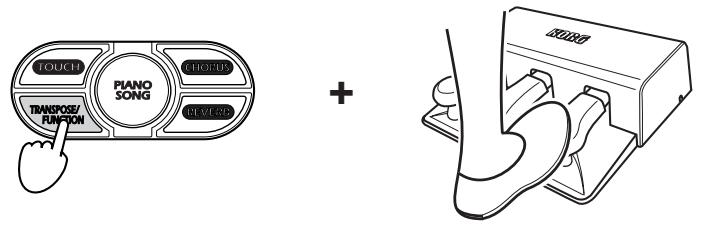
2. When the appropriate button (or both buttons, if you want to apply the pedal to both sound) lights up, release the TRANSPOSE/ FUNCTION button.
MeMo The Pedal settings return to their factory defaults when the power goes off.
Using the Metronome
The piano includes a built-in metronome feature that you can use as an aid for practice. You can adjust the metronome's beat, tempo, volume, and accentuate the first beat as described below.
■Turning the Metronome On and Off
1. To turn the metronome on, press the METRONOME button.
The button lights up, and the metronome begins playing at the tempo selected by the TEMPO knob.
- To turn the metronome off, press the METRONOME button again. The button goes dark and the metronome stops.
Adjusting the Volume of the Metronome
- Press the METRONOME button to start the metronome.
- Hold down the METRONOME button and press the HARPSI/VIBES repeatedly to lower the volume, or STRING/CHOIR repeatedly to raise the volume.
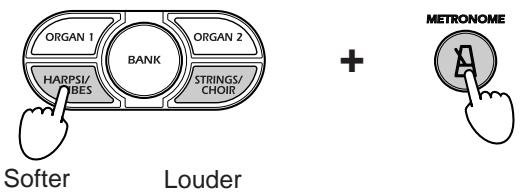
- To return to the original metronome volume, hold down the METRONOME button and press HARPSI/VIBES and STRINGS/CHOIR at the same.
| Button | Action |
| HARPSI/VIBES | Makes the metronome quieter. |
| STRINGS/CHOIR | Makes the metronome louder. |
Changing the Tempo using the TEMPO Knob
- Press the METRONOME button to start the metronome.
- Turn the TEMPO knob to adjust the tempo.
Changing the Tempo by Numerical Input
Although the TEMPO knob allows you to make a rough tempo setting, there may also be times when you want to use a more precise setting. You can enter a numerical setting using the keyboard, as described below. The available range is: ( =) 40 to 200.
- Hold down the METRONOME button and enter the desired three-digit number by pressing keys between C5 and A5 in the correct sequence. (See the table on the next page.)
MeMo Always enter all three digits. If you are setting a value of 40 to 99, enter a 0 first. To set the tempo to 72, for example, enter "072".
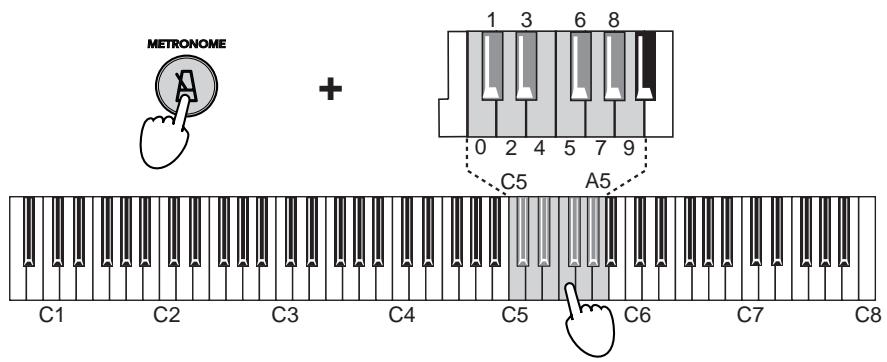
| Key | Digit | Key | Digit |
| C5 | 0 | C#5 | 1 |
| D5 | 2 | D#5 | 3 |
| E5 | 4 | F5 | 5 |
| F#5 | 6 | G5 | 7 |
| G#5 | 8 | A5 | 9 |
Example: To set the tempo to 168, hold down the METRONOME button and press C#5 (1), then F#5 (6), and then G#5 (8).

If you attempt to enter a value below 40 or above 200, the piano ignores the input and retains the previous tempo setting.
Setting the Meter
If you set a meter, the metronome will accent the first beat in each measure by playing a distinct accent sound.
| SOUND Button | Meter |
| PIANO 1 | Duple (2/4, 2/8,...) |
| PIANO 2 | Triple (3/4, 3/8,...) |
| E. PIANO 1 | Quadruple (4/4, 4/8,...) |
| E. PIANO 2 | Sextuple (6/4, 6/8,...) |
- Press the METRONOME button to start the metronome.
- Hold down the METRONOME button and press the appropriate SOUND button to select the meter.
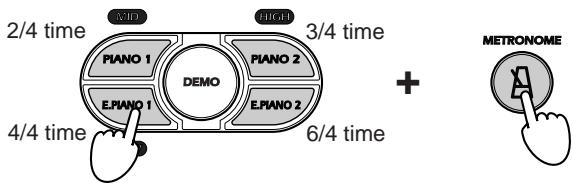
Now that you have selected the meter, the metronome will play an accent sound at the first beat of each measure. If you wish to turn the accent off (if you want all beats to sound the same), hold down the METRONOME button and press the illuminated SOUND button (the button you used to select the meter) so that the button goes dark.

When you hold down the METONOME button, the SOUND button corresponding to the selected meter lights up.

When you turn the power off, the meter setting is lost and the metronome returns to the unaccented mode.
Changing the Standard Accent Sound to a Bell Sound
1. Hold down the METRONOME button and press ORGAN 2.
The ORGAN 2 button lights up to indicate that the bell accent is selected.
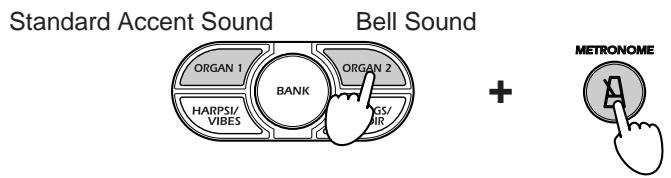
2. To reset to the standard accent sound: hold down the METRONOME button and press ORGAN 1.
The ORGAN 1 button lights up.
When you hold down the METONOME button, the ORGAN button corresponding to the selected accent sound (standard or bell) lights up.
When you turn the power off, the metronome resets to the standard accent sound.
Setting the Keyboard Touch
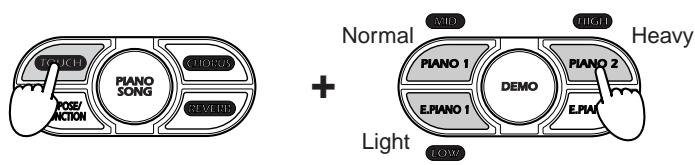
You can set the keyboard sensitivity to three different levels: light, normal, and heavy to suit your own style of playing. The touch setting determines how the output volume changes in response to the force used to hit the keys. When you turn the power on, normal action is selected.
1. Hold down TOUCH and press the appropriate SOUND button: E. PIANO 1 (LOW) to select light action, PIANO 1 (MID) to select normal action, or PIANO 2 (HIGH) to select heavy action.
If you select light or heavy action, the TOUCH button lights up. If you select normal action, the TOUCH button goes dark.
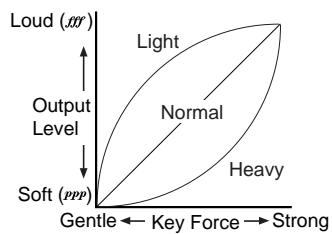
| SOUND Button | Touch Setting |
| E. PIANO 1 (LOW) | Light (Loud sound even with relatively light key strikes.) |
| PIANO 1 (MID) | Normal (Normal piano action.) |
| PIANO 2 (HIGH) | Heavy (To get a loud sound, you must hit the key hard.) |
MeMo When you hold down the TOUCH button, the SOUND button corresponding to the selected touch lights up.
MeMO When you turn the power off, the touch setting returns to normal.
Transposing the Keyboard
The transpose feature allows you to shift the pitch of the keyboard so that you can play in one key (such as the key of C) and have the sound come out in another key (such as the key of C#). This is useful if you want to avoid too many sharps and flats, or if you want to accompany someone in another key without changing the fingering that you are used to.
You can transpose (shift) over a range of 11 semitones. If you shift up by 1 semitone, for example, then when you play the keys shown at left you will produce the notes shown at right.

1. Hold down TRANSPOSE/FUNCTION and press a key from F#6 and F7 to transpose the keyboard as desired.
If you press a key other than C7, the TRANSPOSE/FUNCTION button lights up and the keyboard pitch shifts by the corresponding number of semitones, as indicated below. If you press C7, the button goes dark and the keyboard returns to its normal state.
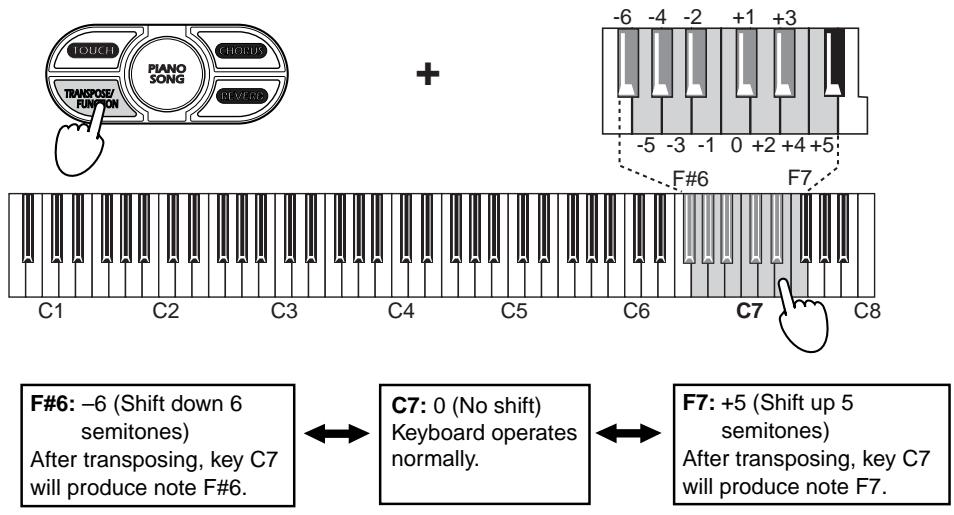
2. To return the keyboard to its normal pitch, hold down TRANSPOSE/ FUNCTION and press key C7.
The TRANSPOSE/FUNCTION button goes dark.

The transposition setting is lost when you turn the power off.
Adjusting the Pitch
This feature allows you to make fine adjustments to the piano's overall pitch, so that you can correct for small pitch differences when playing with other instruments.
The standard pitch (for the reference note A4) is 440Hz . You can use this feature to adjust up or down by as much as 12.5Hz (from 427.5Hz to 452.5Hz ), in 0.5-Hz increments.
1. Hold down TRANSPOSE/FUNCTION and press key B5 or C6 as many times as necessary.
Each time you press B5 the pitch drops 0.5Hz . Each time you press C6, the pitch goes up 0.5Hz .
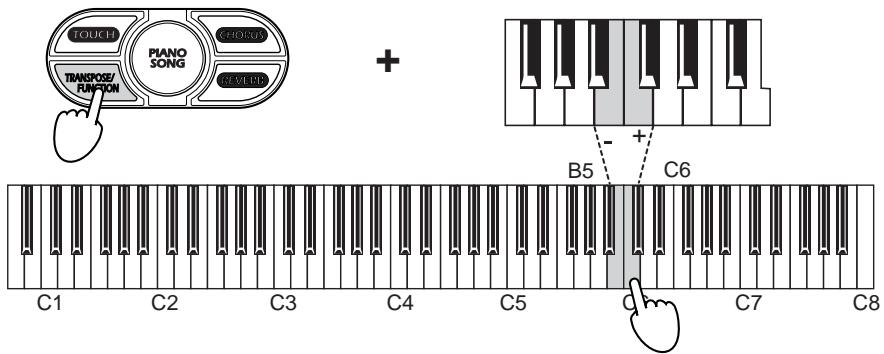
| Key(s) | Pitch |
| B5 | Each press drops the pitch by 0.5 Hz. |
| B5 + C6 | Returns keyboard to normal pitch (A4=440 Hz). |
| C6 | Each press raises the pitch by 0.5 Hz. |
2. To return to normal pitch, hold down TRANSPOSE/FUNCTION and press B5 and C6 at the same time.
MeMO The pitch setting returns to normal (A4 = 440Hz) when you turn the power off.
Selecting a Temperament
The tuning scheme used to arrange notes into a scale is referred to as a temperament. Early keyboards were tuned to temperaments that are no longer in common use, and many classical pieces were intended to be played in these temperaments. Your digital piano therefore offers two temperaments appropriate for these older pieces: the Werckmeister temperament and the Kirnberger temperament.
The piano's standard temperament is equal temperament, which is the temperament most widely used on keyboards today.
1. To select the Werckmeister or Kirnberger temperament, hold down TOUCH and press ORGAN 1 or ORGAN 2.
The selected button lights up.
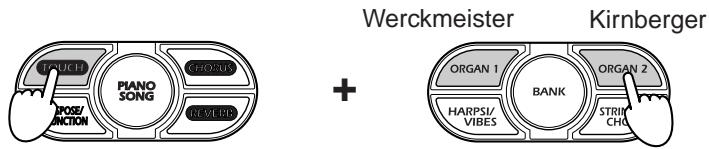
2. To return to equal temperament, hold down TOUCH and press the illuminated ORGAN button (ORGAN 1 or ORGAN 2) so that both ORGAN buttons are dark.
When you hold down the TOUCH button, the SOUND button corresponding to the selected temperament lights up.
| SOUND Button | Temperament |
| ORGAN 1 lit | Werckmeister: Uses the Werckmeister III scale proposed in the late Baroque period by organist and musicologist Andreas Werckmeister, with the intention of enabling relatively unrestricted play in multiple keys. |
| ORGAN 2 lit | Kirnberger: Uses the Kirnberger III scale proposed in the Johann Philip Kirnberger in the early 18th century. This temperament is mainly used for tuning harpsichords. |
| ORGAN 1 and 2 both dark | Equal temperament: The temperament used on almost all modern keyboard instruments. This temperament uses equal semitone increments, so that scales sound identical in all keys. |
MeMO The setting returns to equal temperament when you turn the power off.
A Note About "Stretch Tuning"
To achieve a natural acoustic sound, modern acoustic pianos commonly use a modification of equal temperament called stretch tuning. In stretch tuning, the bass region is tuned flatter than with equal tuning, while the treble is tuned sharper. To more accurately reproduce the true piano experience, your digital piano uses stretch tuning with all of the six piano sounds shown in the table below.
| Sound switch (Bank color) | Bank A (Red) | Bank B (Green) | Bank C (Orange) |
| PIANO 1 | Grand Piano 1 | Standard Piano | Honky Tonk Piano |
| PIANO 2 | Grand Piano 2 | Bright Piano | Mellow Piano |
Recording and Replaying Your Performances (NC-500 only)
The NC-500's built-in recorder makes it easy to record and replay your performances. Operation is as easy and intuitive as using a conventional tape recorder.
The recorder lets you store performances for two parts. You can use these parts to record two completely unrelated pieces, or you may use them to separately record the left-hand and right-hand lines of a single piece. You can play the recorded parts back individually or in combination.

If you wish to keep a performance permanently, you can save the data using a commercially available data file or commercially available sequencer software. For information, see "MIDI Data Dumps" on page 36.

Recorded performance data is retained in memory even after power goes off.

When you start to record a part, all data previously stored for that part is erased.
Recording
■ To Record a Performance...
- Use the BANK and SOUND buttons to select the sound you want to use for the recording.
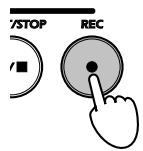
- Press the REC button.
The button lights up.
The PART 1 and PART 2 buttons will light to indicate each part's current recording status: each button is either lit solid, flashing, or off. If data is already recorded in the part, the corresponding button is lit solid.
- Select the part you want to record by pressing the appropriate PART buttons. The buttons will flash.
When recording in single-voice mode, press only one button. When recording in layered mode, press both buttons. Each part will be recorded with the sound currently selected for that part.
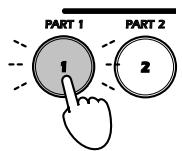
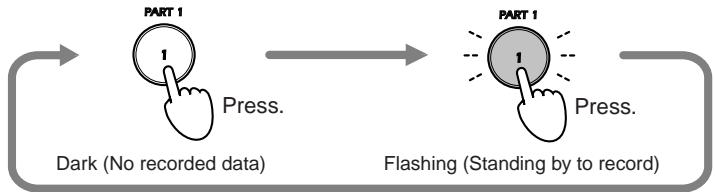
The selected button begins flashing, indicating that the part is standing by to start recording.
If you wish, you can now press the same button to change the state, as shown in the illustration on the next page.
If the part does not currently contain recorded data...
If the part already contains recorded data...
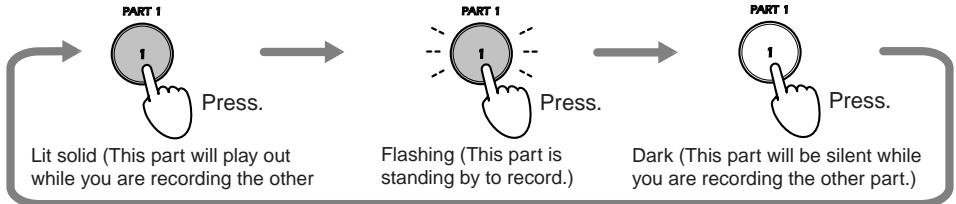
When using Single mode, you can only record to one part at a time. The piano will not let you set both parts into recording standby.
If you press the other PART button, that part will immediately enter recording-standby regardless of whether that part already contains data.
4. To start recording, do any of the following: press START/STOP, hit any key, or step on any pedal. Recording will also start if you press the appropriate SOUND buttons to select another sound.
If you use START/STOP to begin recording, the piano gives you a 2-measure count-in before starting to record. If you use any of the other methods, the piano starts recording immediately. The piano will also begin recording if it receives a MIDI message (p. 31) on the channel assigned to the part that is standing by to record.

The START/STOP button flashes in time with the beat while recording is in progress. You can change sounds during recording by pressing the appropriate SOUND buttons. The sound changes are included in the recorded data, and will be reproduced during playback.
If you are recording in Layered mode, note that any pedal actions you make during recording will be recorded for both sounds.
If you wish, you may use the metronome (p. 20) as a guide while recording.
5. To end the recording, press START/STOP.
The START/STOP button stops flashing and goes dark, and the piano saves the recorded data into memory. The recorder automatically returns the playback/record position to the first measure.

If you run low on memory during recording, the REC button will start flashing to alert you. The button starts flashing when you have used up 90% of memory; that is, when you have recorded more than 900 measures (the maximum is 999) or when remaining note capacity for a given part falls below 1,040.

Please do not turn the power off while recording is in progress.
To pause the recording...
You can pause your recording at any time. This feature is useful for recording a part a little at a time, etc.
1. If you want to pause the recording, press PAUSE.
The PAUSE button lights up. The START/STOP button continues flashing.
2. To resume recording, first press the REC button, then press the PART button for the part you want to record. The button will flash.
The part stands by to start recording.
3. To start recording, do any of the following: press START/STOP, press PAUSE, hit any key, or step on any pedal. Recording will also start if you press the appropriate SOUND buttons to select another sound.
If you use START/STOP to begin recording, the piano gives you a 2-measure count-in before starting to record. If you use any of the other methods, the piano starts recording immediately. The piano will also begin recording if it receives a MIDI message (p. 31) on the channel assigned to the part that is standing by to record.

When you pause and then resume a recording, you may get a rough transition at the resume point. A good way to avoid this problem is to use the metronome when recording. With the metronome running, press the PAUSE button in sync with the beat at which you want to pause. When you resume, recording will begin again from that beat point.
Replaying
■ To Play a Recording...
1. Look at the the PART 1 and PART 2 buttons to see which parts have recorded data.
The button is dark if no recorded data is present. The button is lit solid if the part has been recorded.
If both parts are recorded but you only want to play one of the parts, press the PART button for the part you do not want to play, so that the button goes dark.
2. Press START/STOP to start playback.
The START/STOP button flashes in sync with the tempo as playback proceeds, with a long flash (eighth note) on the first beat in the measure and a shorter flash (sixteenth note) on the remaining beats. You can use the TEMPO knob (p. 16) to change the tempo while playback is in progress.
3. When you are ready to stop playback, press START/STOP again.
Playback stops, and the playback position returns to the first measure. Press START/STOP again to restart the song from the beginning. If you wish to pause the playback, press the PAUSE button (so that the button lights up). To resume playback, press PAUSE again.

Playback stops automatically when it reaches the end of the recorded data. The START/STOP button goes dark, and the playback position returns to the first measure.
■ To Adjust the Volume Balance when Playing Two Parts...
- Begin playback of both parts, and then hold down the TOUCH button and press the PART button of the part that you want to make relatively louder. Press the button several times, if necessary.
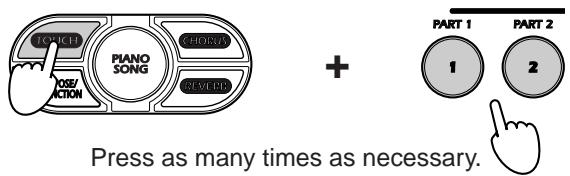
- To return to the original balance: Hold down the TOUCH button and press PART 1 and PART 2 at the same time.
■ Looping the Playback
You can set the piano to play the recorded performance repeatedly. The piano will play the performance to the end, and then loop back and start again from the beginning.
- While playback is in progress, press TRANSPOSE/FUNCTION.
The TRANSPOSE/FUNCTION button flashes, and playback enters loop mode. Playback will continue looping until you stop it.
- To stop playback, press START/STOP.
The TRANSPOSE/FUNCTION button goes dark, playback stops, and loop mode is canceled.
Editing a recording
You can re-record over previously recorded data. You can also add extra recordings onto the end of your previous recordings.
You cannot add extra recordings from a point that does not store any recorded data. Please start recording from a point that overlaps your previous recording.
- Press the START/STOP button.
The recorded data is replayed. For infomation, see "Replaying" on page 28.
- When you reach the point at which you want to record, press the PAUSE button.
The playback pauses, and the PAUSE button flashes.
- Press the REC button.
The button lights up.
- Select the part you want to record by pressing the appropriate PART buttons. The buttons will flash.
The part stands by to start recording.
- To start recording, do any of the following: press START/STOP, press PAUSE, hit any key, or step on any pedal. Recording will also start if you press the appropriate SOUND buttons to select another sound.
If you use START/STOP to begin recording, the piano gives you a 2-measure count-in before starting to record. If you use any of the other methods, the piano starts recording immediately. The piano will also begin recording if it receives a MIDI message (p. 31) on the channel assigned to the part that is standing by to record.
- To end the recording, press START/STOP.
The START/STOP button stops flashing and goes dark, and the piano saves the recorded data into memory. The recorder automatically returns the playback/record position to the first measure.
Erasing the Recording
■ To Erase a Recorded Part...
1. With playback stopped, hold down TRANSPOSE/FUNCTION and press the PART button of the part that you wish to erase.
The TRANSPOSE/FUNCTION button and the selected PART button both flash, indicating that the piano is waiting for you to confirm that you really want to erase the part.
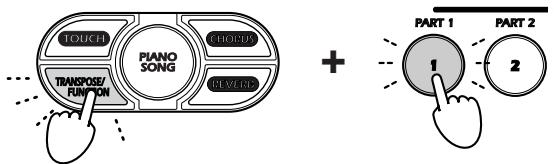
If you change your mind and decide you do not want to erase the part, press TRANSPOSE/FUNCTION again to cancel.
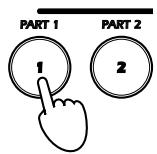
2. To delete the part, press the same PART button.
The recording is deleted, and the flashing buttons go dark.
MeMo If you wish to keep a performance permanently, you can save the data using a commercially available data file or commercially available sequencer software. For information, see "MIDI Data Dumps" on page 36.
Checking the Amount of Recorded Data in Part 1 or Part 2
- Press the PART button of the part you want to check, so that the button lights up. Then hold down the TRANPOSE/FUNCTION button and the START/SWITCH button at the same time, and look at how many SOUND buttons light up.
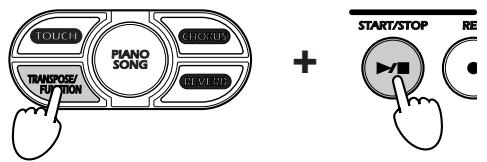
The quantity of recorded data is indicated by the number of SOUND buttons that light up: a greater number of lit buttons indicates a greater amount of stored data. The button lighting progresses in the order indicated below.
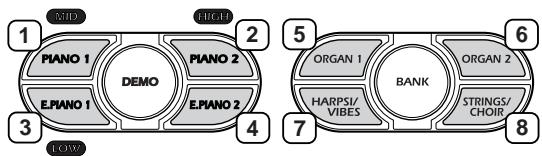
During recording, the REC button will begin flashing when you have used up 90% of available memory. If you continue until you have used up all memory, the piano automatically stops recording and exits recording mode. The PART buttons for the recorded parts stay lit, indicating that recorded data is present.
MeMo When both of the PART lamps are lit or when both are dark, the SOUND buttons will indicate the quantity of data in part 1.
What is MIDI?
MIDI (for "Musical Instrument Digital Interface") is an internationally recognized standard that enables electronic instruments, computers, sequencers, and other such devices to communicate with one another. The MIDI standard supports transmission of various types of performance-related data.
How Can I Use It?
Your piano's MIDI capability allows you to control the piano from external devices, and to control external devices from the piano. You can connect the piano to sequencers and other MIDI devices to create and play complex ensemble performances.
Connections
MIDI devices communicate through commercially available MIDI cables. These cables connect to MIDI jacks on each device. Your piano is equipped with two MIDI jacks, a MIDI OUT jack and a MIDI IN jack.
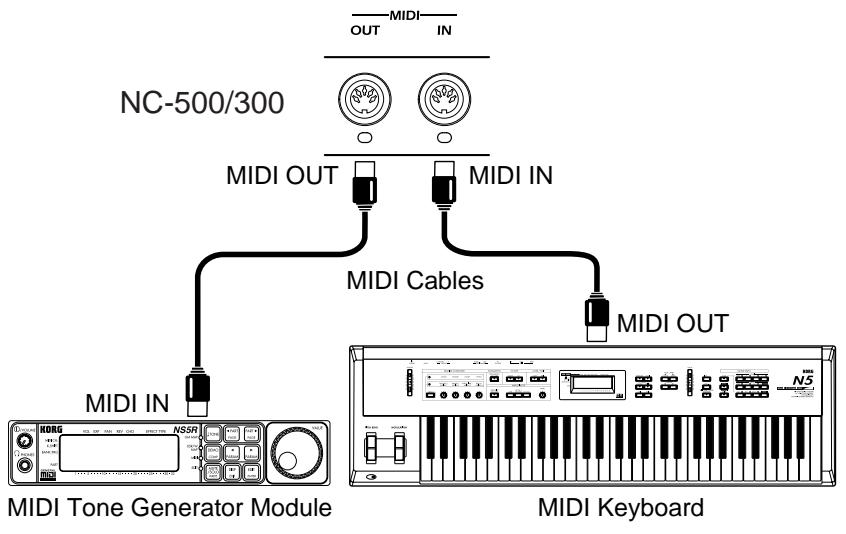
MIDI IN
Receives MIDI information from external MIDI devices (keyboards, sequencers. etc.). This information can be used to control the piano in various ways: to play notes, to change sounds, to adjust effects, and so on. To make the connection: Connect one end of a MIDI cable to the MIDI IN jack on the piano, and the other end to the MIDI OUT jack of the relevant external MIDI device.
MIDI OUT
Transmits control information from the piano to external MIDI devices. For example, this connection makes it possible to use the piano's keyboard to play sound from a remote device. To make the connection: Connect one end of a MIDI cable to the MIDI OUT jack on the piano, and the other end to the MIDI IN jack of the relevant external MIDI device.
Default MIDI Settings
The piano's default MIDI settings are as follows. These settings are automatically restored each time you turn the power on.
| Parameter | Setting |
| Send Channel | 1 |
| Receive Channels | 1 to 16 |
| Local | On |
| Omni | Off |
Changing the MIDI Channel Setting
The MIDI standard provides 16 channels for communication among devices. When you first turn the piano on, the base channel is set to channel 1. If you wish, you can change this setting.
1. Hold down TRANSPOSE/FUNCTION and press a key from C2 to D#3 to set the channel assignment.
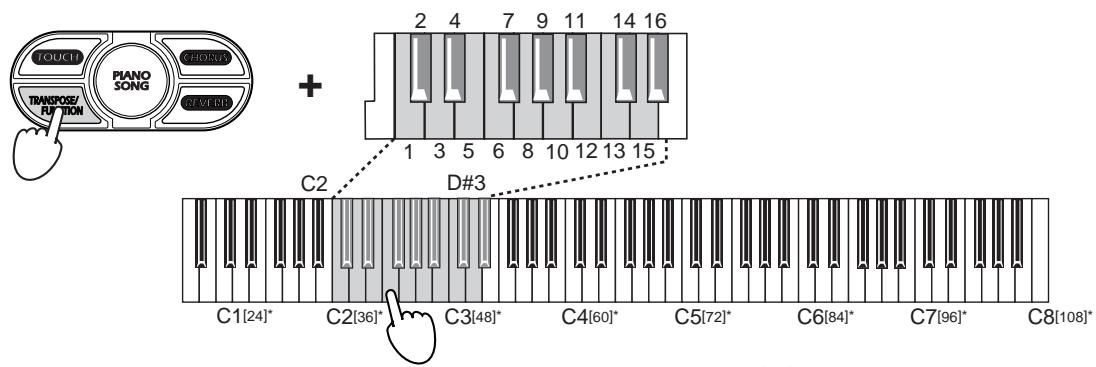
Figures in [ ]^* indicate MIDI note numbers.
MeMo In Single mode, the selected sound is set to the base channel. In Layered mode, the sound with the lower program number is set to the base channel, while the other sound is set to the next channel up (base + 1). On the NC-500, the recorder's Part 1 is set to (base + 2), while Part 2 is set to (base + 3). For information about the program number assignments, refer to the table on page 34.
MIDI Channel Assignment
| Key | Base/Single | Layered Sound | Part 1 | Part 2 |
| C2 | 1 | 2 | 3 | 4 |
| C#2 | 2 | 3 | 4 | 5 |
| D2 | 3 | 4 | 5 | 6 |
| D#2 | 4 | 5 | 6 | 7 |
| E2 | 5 | 6 | 7 | 8 |
| F2 | 6 | 7 | 8 | 9 |
| F#2 | 7 | 8 | 9 | 10 |
| G2 | 8 | 9 | 10 | 11 |
| G#2 | 9 | 10 | 11 | 12 |
| A2 | 10 | 11 | 12 | 13 |
| A#2 | 11 | 12 | 13 | 14 |
| B2 | 12 | 13 | 14 | 15 |
| C3 | 13 | 14 | 15 | 16 |
| C#3 | 14 | 15 | 16 | 1 |
| D3 | 15 | 16 | 1 | 2 |
| D#3 | 16 | 1 | 2 | 3 |
Using the Piano as a Multitimbral Tone Generator
Your piano can also operate as a 16-part multitimbral tone generator. Connect a sequencer or similar MIDI control device to the piano, and then use that device to drive the piano's sound.
- Connect one end of a MIDI cable to the MIDI IN jack on the piano, and the other end to the MIDI OUT jack of the sequencer or other device that you will use to control the piano.
- Transmit the performance data from the controlling device. (Refer to the controlling device's instruction manual.)
The piano will play the performance data sent by the control device. If you have not disabled Program Change, the piano will change sounds in accordance with the Program Change messages received from that device.
The Local On/Off Setting
The Local setting determines whether the piano keyboard produces sound (a) at both the piano and the external MIDI device, or (b) at the external device only. If Local is ON, then when you hit a key the piano will play the sound from its tone generator and will also send the sound to be played on the external device—so that you will hear the note played from both places. If Local is OFF, the piano will be silent and only the external device will play.
The typical setting is Local ON. You should set Local to OFF, however, if you wish to use the piano as a master keyboard to drive the voices provided by an external tone-generator module or external keyboard. Another time to set Local OFF is if you have connected a sequencer that is set to echo the data that it receives. In this case, setting Local to OFF will prevent the sound from playing twice: once when you hit the key and then again when the data is returned. To change the Local setting, proceed as follows.
- Hold down TRANSPOSE/FUNCTION and press PIANO 1.
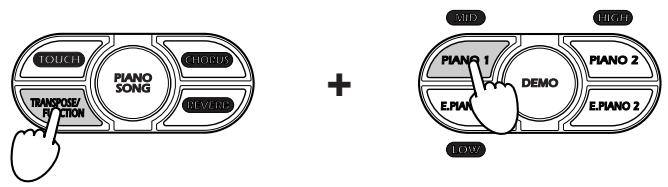
Pressing PIANO 1 toggles the Local setting On and Off.
| “Local” Setting | PIANO 1 Lamp |
| ON | Lit |
| OFF | Dark |
MeMo When you turn the power off, the Local setting returns to Off.
Program Change
MIDI program change messages are used to switch to different programs (different sounds or patches) on a remote MIDI device. Program changes make it possible for you to use the piano to switch among different setups on a remote MIDI device, or to use a remote MIDI device to select different sounds on the piano.
Sending a Program Change
When you change the sound on the piano, the piano also sends a program change message with the corresponding program number to the remote MIDI device, causing the program at that device to change accordingly.
1. Each sound on the piano corresponds to a different program number (0 to 23), as indicated in the table below.
Receiving a Program Change
When the remote MIDI devices sends the piano a program change message with a program number of 0 to 23, the piano switches to the corresponding sound, as indicated in the table below. If the received program number is 24 or higher, the piano leaves the current sound unchanged.
Program Numbers and Piano Sounds
| PC# | SOUND Button | Bank | Sound |
| 0 | PIANO 1 | A | Grand Piano 1 |
| 1 | B | Standard Piano | |
| 2 | C | Honky Tonk Piano | |
| 3 | PIANO 2 | A | Grand Piano 2 |
| 4 | B | Bright Piano | |
| 5 | C | Mellow Piano | |
| 6 | E. PIANO 1 | A | E.Piano 1 |
| 7 | B | Soft E.P. | |
| 8 | C | Clavi | |
| 9 | E. PIANO 2 | A | E.Piano 2 |
| 10 | B | Vintage E.P. | |
| 11 | C | E.P.Pad | |
| 12 | ORGAN 1 | A | Jazz Organ 1 |
| 13 | B | Jazz Organ 2 | |
| 14 | C | Jazz Organ 3 | |
| 15 | ORGAN 2 | A | Church Organ 1 |
| 16 | B | Church Organ 2 | |
| 17 | C | Church Organ 3 | |
| 18 | HARPSI/VIBE | A | Harpsichord 1 |
| 19 | B | Harpsichord 2 | |
| 20 | C | Vibraphone | |
| 21 | STRINGS/CHOIR | A | Strings |
| 22 | B | Slow Strings | |
| 23 | C | Choir |
■ Enabling or Disabling Program Changes
If you wish, you can disable the program change feature. If the feature is disabled, the piano will neither accept nor transmit program changes. To disable or re-enable the setting, proceed as described below.
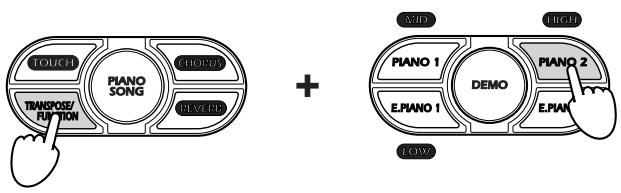
1. Hold down TRANSPOSE/FUNCTION and press PIANO 2.
Pressing PIANO 2 toggles the setting between Enabled and Disabled.
| Setting | PIANO 2 lamp |
| Enabled | Lit |
| Disabled | Dark |
MeMO When you turn the power off, the setting returns to Enabled.
Control Change
MIDI control change messages are used to remotely control various switches and controls on an external MIDI device. This allows a remote MIDI device to control the piano's damper pedal, effects, and other such features, and it likewise allows the piano to control similar features at an external MIDI machine.
■ Enabling or Disabling Control Changes
You can disable or enable control changes as described below. If you set this to disabled, the piano will neither accept nor transmit control change messages.
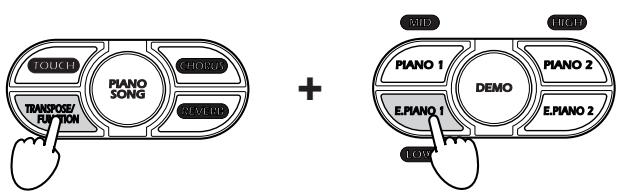
1. Hold down TRANSPOSE/FUNCTION and press E. PIANO 1.
Pressing E. PIANO 1 toggles the setting between Enabled and Disabled.
| Setting | PIANO 2 lamp |
| Enabled | Lit |
| Disabled | Dark |
MeMO When you turn the power off, the setting returns to Enabled.
MIDI Data Dumps (NC-500 only)
You can use the MIDI data dump capability to save your recorded performances into a MIDI data file or other external storage device. When you want to hear a saved performance again, you use this same feature to reload the data and settings back into the NC-500.

To protect against accidental data loss, be sure to follow the instructions that come with your storage device.
Saving Data
- Run a MIDI cable from the MIDI OUT connector on the piano to the MIDI IN connector on the data filer (or other storage device).
- Set the data file so that it is standing by to receive the MIDI data from the piano. (Refer to the data file's instruction manual.)
- On the piano, hold down TRANSPOSE/FUNCTION and press STRINGS/CHOIR.
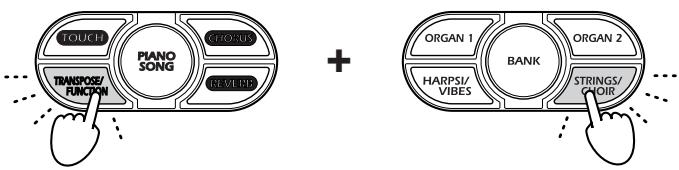
The two buttons begin flashing, indicating that the piano is now standing by to transmit the data.
If you want to cancel at this time without sending the data: Press either TRANSPOSE/FUNCTION or STRING/CHOIR.
4. Press TOUCH.
The piano starts dumping the data into the data filer. When the transfer is completed, the flashing TRANSPOSE/FUNCTION and STRING/CHOIR go dark and the piano returns to normal operating mode.

Please don't touch any of the piano's buttons or controls while data transfer is in progress.

The piano keyboard is disabled (the piano will not produce any sound) during standby and transmission.
■ Reloading the Saved Data
- Run a MIDI cable from the MIDI IN connector on the piano to the MIDI OUT connector on the data filer or (or other storage device) where the saved data is stored.
- On the piano, hold down TRANSPOSE/FUNCTION and press STRINGS/CHOIR.
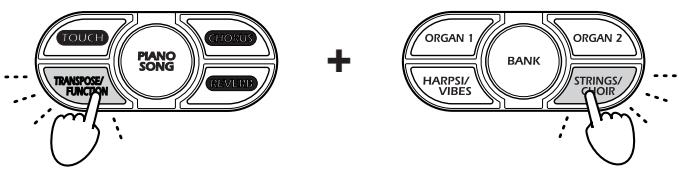
The two buttons begin flashing, indicating that the piano is now standing by to receive the data.
If you want to cancel at this time without transferring the data: Press either TRANSPOSE/FUNCTION or STRINGS/CHOIR.
- Go to the data file and carry out the operations required to start transfer of the saved data to the piano. (Refer to the data file's instruction manual.)
- The piano receives the data.
When the transfer is completed, the flashing TRANSPOSE/FUNCTION and STRING/CHOIR go dark and the piano returns to normal operating mode.
Please don't touch any of the piano's buttons or controls while data transfer is in progress.
The piano keyboard is disabled (the piano will not produce any sound) during standby and transmission.
Connecting to a Computer by USB (NC-500 only)
What is USB?
The USB (Universal Serial Bus) is an interface for connecting computers to peripheral devices. The NC-500 includes a USB connector that can be connected directly to your computer. You can use this connection to save important performance data to your computer. If you run appropriate sequencer software on the computer, you can also use this connection to play the NC-500 from your computer or to record from the NC-500 directly into your computer.
The NC-500 maintains its data in a proprietary, non-compatible format. It is not possible to edit or replay this data at a computer or other playback device. To replay the data, please reload it into the NC-500.
The USB connection works with a computer only. It is not possible to connect the NC-5000 to USB peripherals such as hard disks and CD-R/RW drives.
Making the USB Connection
Make the connection using a commercially available USB cable. A USB connector has differently shaped connectors at each end: an "A" connector at one end and a "B" connector at the other. Connect the "B" connector to the NC-500, and then connect the "A" connector to your computer. Note that the USB standard supports hot swapping, which means that you can connect the NC-500 to your computer while your computer is running, with no need to restart the computer.
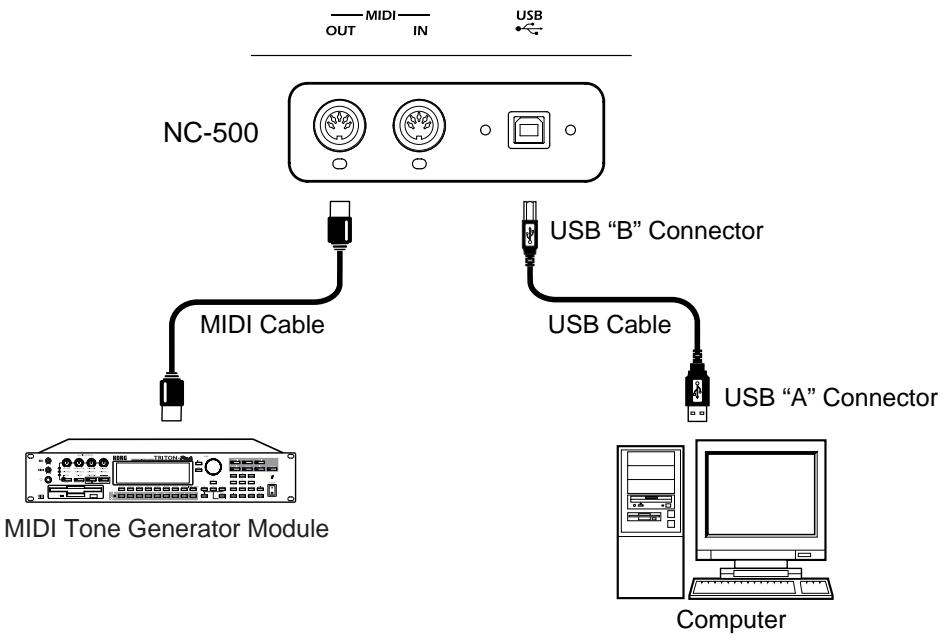

You can use the NC-500 itself as a USB MIDI interface. Connect the USB to a computer and the MIDI OUT jack to a MIDI tone generator. The computer and tone generator can then communicate via the NC-500.

If the USB is connected, the piano's MIDI OUT will output only the data coming from the USB. It will not output any MIDI information (keyboard action and MIDI messages) generated by the piano itself.
Driver Ports for the NC-500 USB MIDI Interface
The driver side (computer side) implements a 2-in/2-out port configuration for the NC-500's USB MIDI interface.
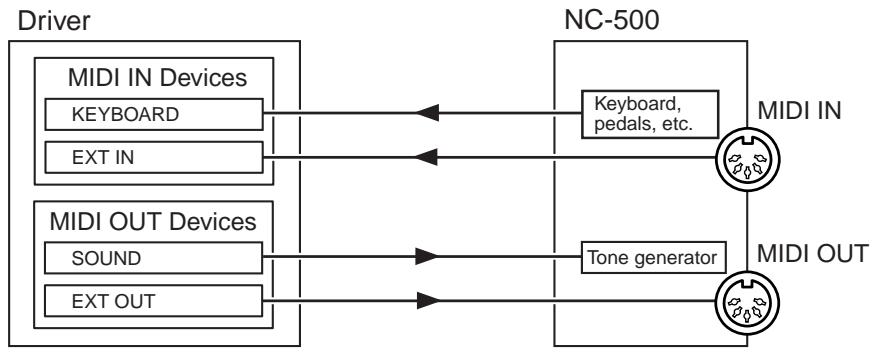
■ MIDI IN Devices
KEYBOARD
This port receives the MIDI messages generated by the piano; that is, the messages generated when you play the piano's keyboard and using it's pedals and control buttons. If you want to use the piano to control an application running on the computer, select this port as the application's remote MIDI input.
EXT IN
This port receives the MIDI messages that are input to the NC-500's MIDI IN connector. If you want to use the NC-500 as a USB MIDI interface for relaying MIDI messages from an external sequencer to an application on the computer, then select this port as the application's remote MIDI input.
■ MIDI OUT Devices
SOUND
Sends MIDI messages generated by the computer's software to the NC-500.
EXT OUT
Passes MIDI message generated by the computer's software directly to the MIDI OUT connector on the NC-500. These messages exit from the NC-500's MIDI OUT connector without having any effect on the NC-500 itself. If you want to use the NC-500 as a USB MIDI interface for relaying MIDI messages from an application to a remote MIDI device connected to the NC-500's MIDI OUT connector, set the application's output port to this setting.
Operation of the NC-500's MIDI Connectors
If the NC-500 is not connected to a computer by USB
MIDI IN
Receives MIDI messages and sends these to the NC-500's internal tone generator.
MIDI OUT
Outputs MIDI messages generated by playing the NC-500 keyboard and using the NC-500's pedals and control buttons.
If the NC-500 is connected to a computer by USB
MIDI IN
The messages received at this connector are relayed without change to the EXT IN port.
MIDI OUT
The messages output from the EXT OUT port are sent directly out through this connector. Note that in this case the NC-500 does not send out any MIDI messages from its own keyboard, pedals, or control buttons.
Installing and Setting the Korg USB MIDI Driver
On Windows XP
Your piano includes a dedicated USB MIDI driver for Windows XP. If you are running XP, you can install this driver on your computer. The first time you connect the NC-500 to your computer's USB port, Windows will automatically install its own default USB MIDI driver. To replace the default driver with the included KORG USB MIDI Driver for Windows XP, proceed as described follows.
Use of this product's software is governed by the software license agreement included in the product's package. Please read this agreement before installing the software. Installation of the software indicates that you have accepted the terms of this agreement.
Please do not attempt to play the included CD-ROM on a conventional audio player, as doing so may damage the speakers. If using headphones, be aware that loud volumes may cause damage to ears.
The "Korg USB MIDI Driver for Windows XP" is for Windows XP platforms only. This driver cannot be used with Windows 95, Windows 98, Windows Me, or Windows 2000.
■ Installing the Driver on Windows XP
You require Administrator privilege to install or uninstall the driver. This means that you must log in to Windows XP as a member of the Administrator group. If you do not have Administrator privilege, please talk to the site administrator.
Please set Windows XP so that it will allow you to install the driver even though the driver does not have a digital signature. For information, refer to page 45, "Disabling the Requirement for a Digital Signature."
Each installation is effective only for a single specific USB port on the computer. If sometime after installing the driver you connect the NC-500 to a different USB port on the computer, you will need to install the driver again (repeating the procedure given below) for this other USB port.
- Turn on the NC-500 power, and connect the NC-500 and the computer by USB cable.
Windows detects the connection...
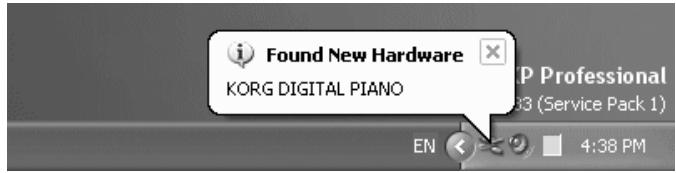
...and automatically installs the default driver.
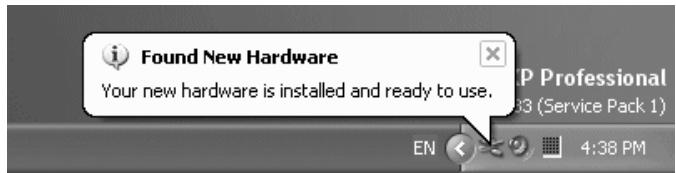
Administrator privilege is required to install or uninstall the driver on Windows XP. For information, consult your system administrator.
- Click the taskbar's Start button to open the Start menu. In the menu, click on Control Panel. In the Control Panel, double-click on Sounds and Audio Devices to open the Sounds and Audio Devices Properties dialog. Click the dialog's Hardware tab. In the device list, click once on USB Audio Devices, so that it is highlighted. Then look directly under the list pane and confirm that KORG DIGITAL PIANO appears next to the Location: heading. Then click the dialog's Properties button.
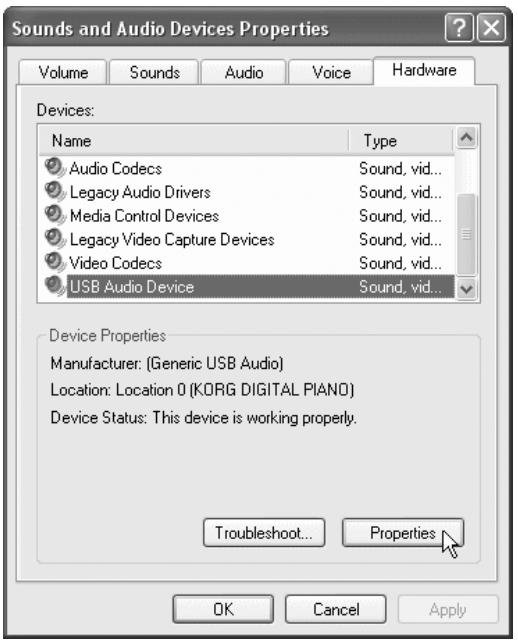
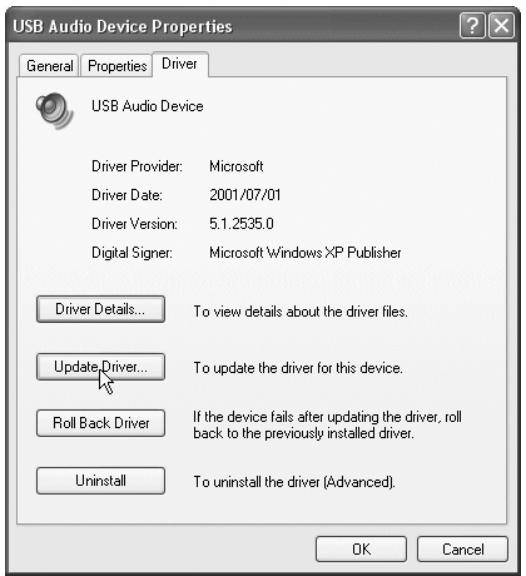
- The USB Audio Device Properties dialog now opens. Click the Driver tab, and then click the Update Driver... button.
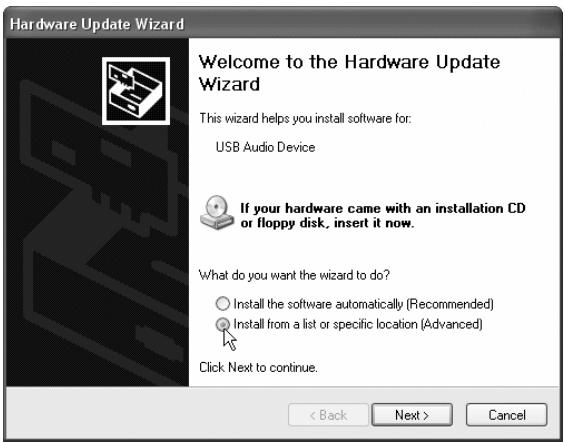
- The Hardware Update Wizard now opens. Click Install from a list or specific location [Advanced], and then click the Next button.
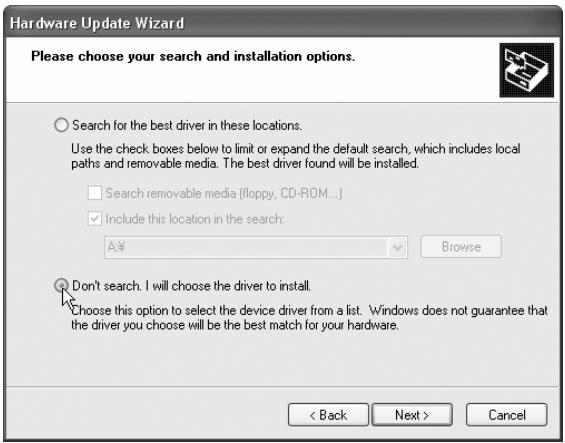
- The dialog now asks you to select search options. Click on Don't search. I will choose the driver to install. Then click the Next button again.
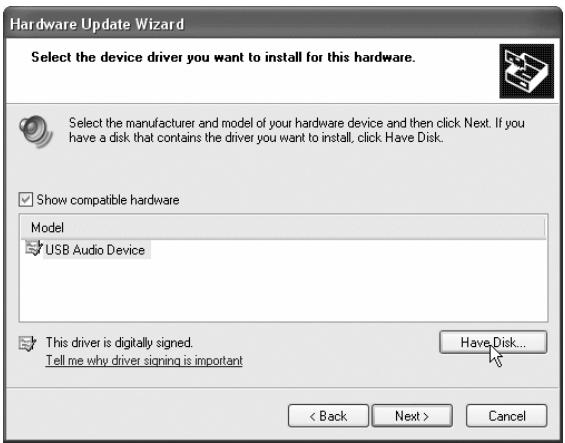
- The dialog now asks you to select the device driver to be installed. Click on Have Disk..., and then click the Next button.
- Insert the CD-ROM that came with the NC-500 into your computer's CD-ROM drive. Where the dialog says Copy manufacturer's files from:, write in D:\Driver (assuming that your CD-ROM drive is Drive D).
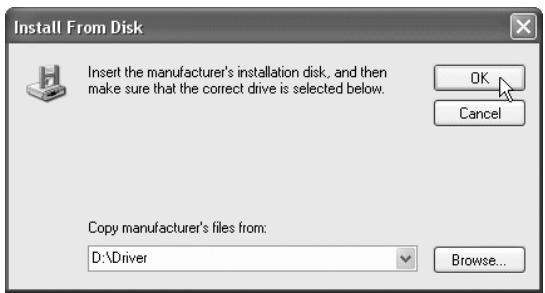

If the CD-ROM drive on your computer is not drive D, then replace the "D" above with the appropriate drive letter. If the CD-ROM drive's name is "E", for example, then enter E:\Drive.
- Be sure that Model is identified as KORG Digital Piano, and then click Next to start the installation of the driver.
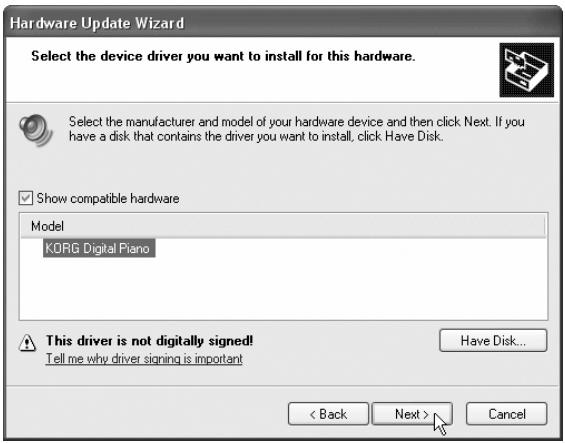
- If the warning shown below appears after you have started the installation, click Continue Anyway.
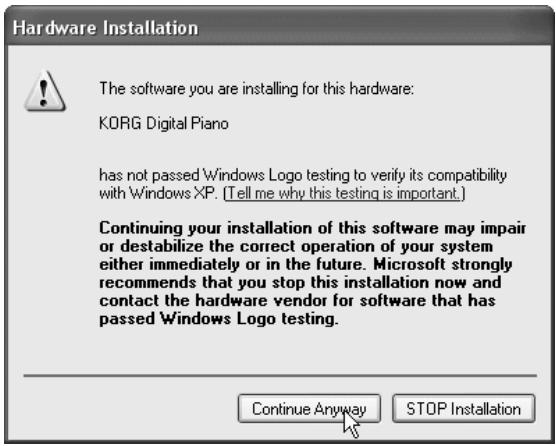
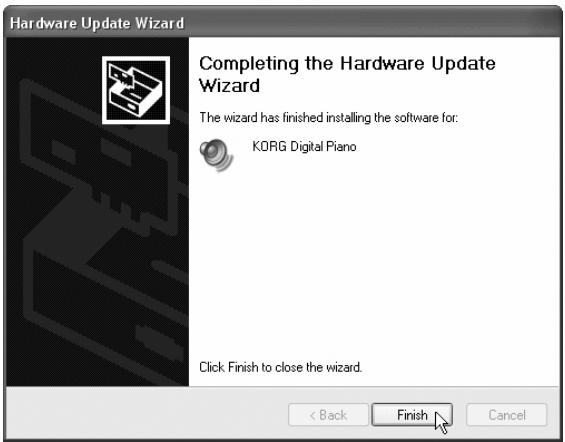
- When installation is completed, the dialog shown below appears. Click the Finish button to conclude. If the computer displays a dialog asking you whether to restart Windows, select Yes.
■ Uninstalling the Korg USB MIDI Driver for Windows XP
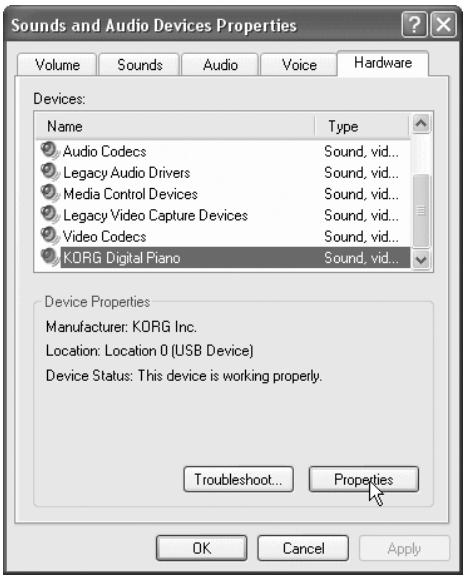
- Click the taskbar's Start button to open the Start menu. In the menu, click on Control Panel. In the Control Panel, double-click on Sounds and Audio Devices to open the Sounds and Audio Devices Properties dialog. Click the dialog's Hardware tab. In the device list, select KORG Digital Piano, and then click the Properties button.
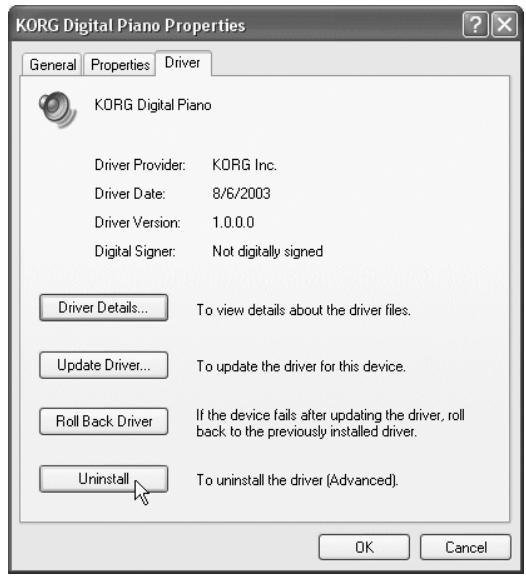
- In the KORG Digital Piano Properties dialog, click the Driver tab and then click the Uninstall button.
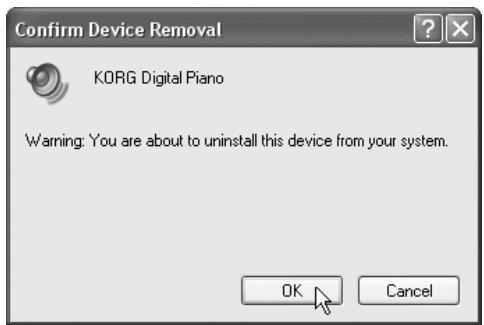
- A confirmation dialog now appears. Click OK to proceed with the uninstall.
Disabling the Requirement for a Digital Signature
If your Windows XP system is set to block installation of driver software that does not carry a recognized digital signature, it will not allow you to install the Korg USB MIDI Driver for Windows XP. Use the following procedure to disable this requirement so that you can install the driver.
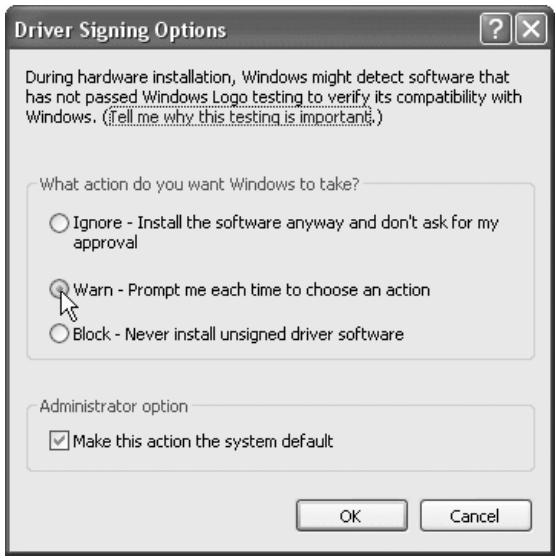
- Click the taskbar's Start button to open the Start menu. In the menu, click on Control Panel. In the Control Panel, double-click on System to open the System Properties dialog. Click on the dialog's Hardware tab, and then click the Driver Signing button.
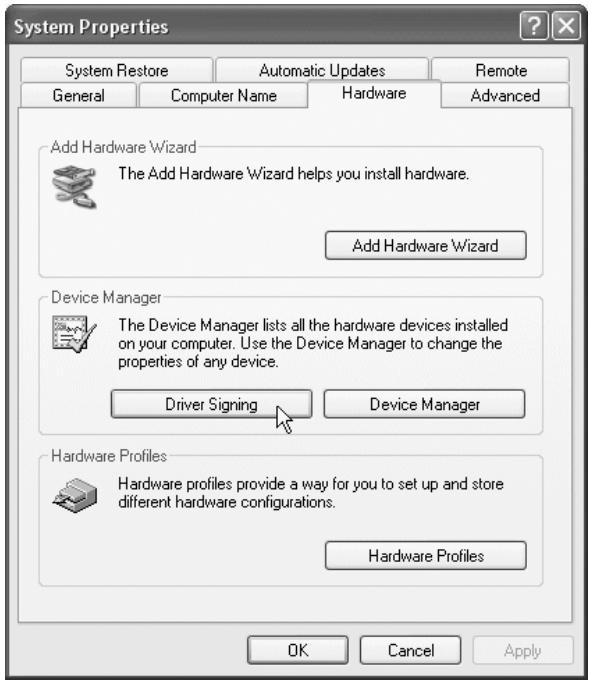
- A dialog opens and asks you What actions do you want Windows to take? Select either Ignore or Warn, and then click OK. You can then proceed to install the Korg driver. After installing the driver you may, if you wish, go back to the dialog and change the setting back to Block.
On Mac OS X
If connecting the piano to a computer running Mac OS X, use the operating system's default MIDI driver.

The Mac OS X version must be 10.2 or higher.
- Connect the NC-500 to the computer with a USB cable.
- Turn on the power to the NC-500.
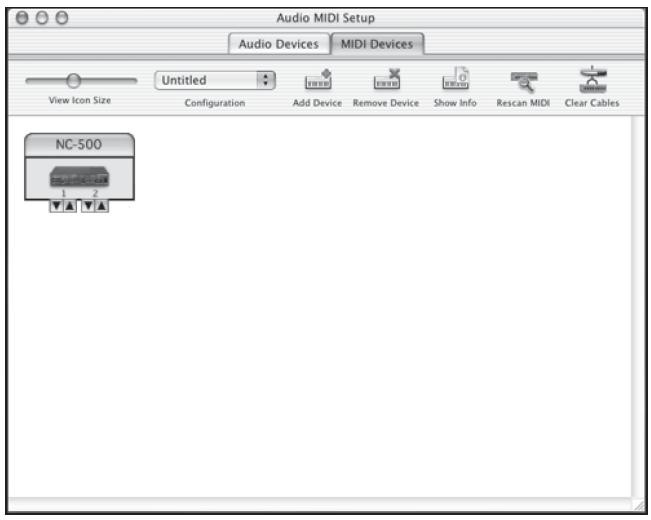
- Open the Applications folder and then the Utilities folder, and double-click Audio MIDI Setup.
- Click the MIDI Devices tab, and confirm that the NC-500 appears.
■ Port Configuration on Mac OS X's Default MIDI Driver
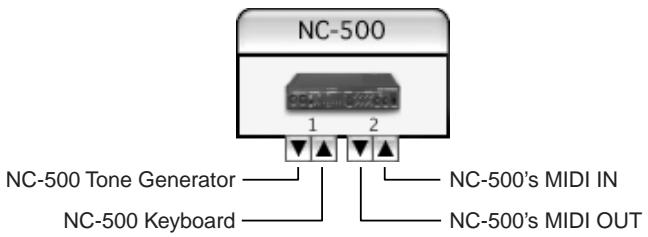
Port 1 at the driver (the computer) corresponds to the NC-500's KEYBOARD and SOUND (tone generator), while Port 2 corresponds to the NC-500's MIDI IN and MIDI OUT. For infomation, see "Driver Ports for the NC-500 USB MIDI Interface" on page 39.
■ Input Settings for Applications
If you are using NC-500 to control a DAW application and you want the application to receive MIDI messages from the NC-500 keyboard and controllers, set the application's input port to Port 1.
| NC-500 Name | Names Displayed by Application | |
| Input | KEYBOARD | (MIDI input settings:) Port 1 |
| EXT IN | (MIDI input settings:) Port 2 | |
| Output | SOUND | (MIDI output settings:) Port 1 |
| EXT OUT | (MIDI output settings:) Port 2 | |
If the piano does not seem to be working correctly, please go through the following list to see if you can identify and correct the problem. If you are unable to solve the problem after going through this list, please call your dealer or Korg service for advice.
■ Piano doesn't turn on
Check that the power cord is correctly connected to a piano and a properly functioning power outlet. (p. 51, 53)
Be sure that the POWER switch is turned on. (p. 9)
No sound
□ Be sure that the VOLUME knob is set higher than "0". Setting the volume to "0" turns off the sound. (p. 10)
Is a plug inserted in either of the headphone jacks? Insertion of a plug into the jack cuts off the sound to the piano's speakers. (p. 10)
Check the MIDI Local setting. If the setting is Off, turn it to On. (p. 33)
NC-500 only
□ If you are trying to play back from the recorder, be sure that the selected part has been set up to play back. (p. 28)
If you are trying to play back from the recorder, be sure that selected part contains recorded data. (p. 28)
Be sure that the SPEAKER switch is in the ON position. (p. 8)
Notes are dropping out or being cut off before playing to completion
You are exceeding the piano's polyphony limit. See "Maximum Polyphony" on the next page.
A piano sound seems to sound slightly odd or out of pitch over a certain range of the keyboard
The digital piano sounds have been designed to produce a true acoustic piano sound. This means that you may sometimes perceive variations in sound characteristics (timbre, overtone strength, etc.) at different pitches or ranges of the keyboard. This is not a malfunction.
Can't record (NC-500 only)
Check that the recorder has enough free memory left. (p. 30)
External MIDI device does not respond to MIDI data sent from the piano
Be sure that the MIDI cable is correctly connected. (p. 31)
Be sure that the piano's MIDI send channel matches the external device's MIDI receive channel. (p. 32)
■ Can't install the USB-MIDI driver for Windows XP(NC-500 only,with Windows XP)
Be sure that the USB cable is correctly connected. (p. 38)
- Be sure that CD-ROM that came with the piano is inserted in your computer's CD drive.
The lens on your CD drive may be dirty. If necessary, use a commercially available lens cleaner to clean the lens.
- Are you trying to install from a networked CD drive? It is not possible to install the driver over a network connection.
- Be sure that your computer's USB capability is enabled. If you are using Windows XP: Open the Control Panel, click on System, click on the Hardware tab, double-click the Device Manager button, select Universal Serial Bus controllers, and check USB Root Hub.
It is possible that the computer has not correctly recognized the NC-500. Go into the Device Manager (as described directly above) and check that the NC-500 has been recognized. If the NC-500 is listed under Other Devices and/or is identified as an Unknown Device, then the computer has not recognized it. If, after reconnecting the USB cable, the Unknown Device entry appears, the computer has not correctly recognized the NC-500. Delete the Unknown Device entry and then reinstall the driver (p. 40).
Software doesn't respond
Be sure that the USB cable is correctly connected. (p. 38)
- Be sure that the driver is installed.
Check that the computer is correctly recognizing the NC-500. On Windows XP: Open the Control Manager, double-click on Sounds and Audio Devices, click on the Hardware tab, and check that the piano is correctly indicated. On Max OS X: Open Macintosh HD — Applications folder – Utilities folder, double-click Audio MIDI Setup, click the MIDI Devices tab, and confirm that the NC-500 appears correctly.
Please be aware that there are some computer hardware environments under which the computer may be unable to recognize this device by USB connection.
Check the NC-500 assignment settings and the USB MIDI port settings. (p. 46)
- Your software or other connected devices may not support the features offered by the NC-500. Please check the documentation for your software and devices.
Maximum Polyphony
Maximum polyphony is the maximum number of notes that the piano is capable of producing at a single time. If you try to play more than this limit, the piano automatically switches off older notes so that it can sound the newer notes. If you exceed the limit, therefore, you may notice that sounds are dropping out or being cut off.
The maximum available polyphony varies according to the number of oscillators and effects used to produce the sound. The piano generates each sound using either one or two oscillators. Maximum available polyphony for 1-oscillator sounds (such as the HARPSI/VIBES sounds) is 60 notes, while maximum polyphony for 2-oscillator sounds (such as Grand Piano 1 [Piano 1, Bank A] and Grand Piano 2 [Piano 2, Bank A]) is 30 notes. The reverb effect, when used, counts as ten 1-oscillator notes, while the chorus counts as three. You can roughly calculate the maximum polyphony from the following formula.
Maximum polyphony = (60 - effect "notes") ÷ oscillators
Example 1: For Grand Piano 1 (PIANO 1, Bank A), with reverb ON.
(60 - 10)÷ 2 = 25 , so maximum polyphony is 25.
Example 2: For Vintage E. P. (E. PIANO 2, Bank B), with chorus ON.
(60 - 3)÷ 1 = 57 , so maximum polyphony is 57.
When using Layered mode (playing two sounds at the same time) together with the damper pedal and effects, choose sounds carefully with due consideration to polyphony limits. For a listing of the number of oscillators used for each sound, refer to the table in "Selecting a sound (Single Mode)" on page 17.
Specifications
| NC-500 | NC-300 | |
| Keyboard | 88 keys (A0 to C8), RH2 (Real Weighted Hammer Action 2) keyboard | |
| Touch Control | Light, Normal, Heavy | |
| Keyboard Pitch | Transposition, Fine Tuning | |
| Temperaments | Equal, Kirnberger, Werckmeister | |
| Tone Generator | Stereo sampling | |
| Polyphony | 60 (Maximum) | |
| Sounds | 24 (3 banks of 8) | |
| Effects | Reverb, Chorus (3 depths each) | |
| Demo Songs | 8 sound demos, 32 piano songs | |
| Metronome | Tempo, Beat, Accent, Volume | |
| Recorder | 2 parts; 10,400 notes/part; 20,800 notes (max.); Record; Start/Stop; Pause | Not included |
| Pedals | Damper, Soft, Sostenuto (Damper and Soft with half-pedaling) | |
| Connectors | OUTPUTs (L/MONO, R); INPUT (Mini stereo); MIDI IN; MIDI OUT; USB; 2 headphone jacks; PEDAL jack; SPEAKER jack | OUTPUTs (L/MONO, R); MIDI IN; MIDI OUT; 2 headphone jacks; PEDAL jack |
| Controls | POWER switch, Master volume, REVERB, CHORUS, TOUCH, TRANSPOSE/FUNCTION, BANK, 8 sound buttons, TEMPO, METRONOME, DEMO; PIANO SONG | |
| Speaker On/Off | Yes | No |
| Amp Output | 20 W × 2 | 15 W × 2 |
| Speakers | 13 cm × 2; 3.5 cm × 2 | 10 cm × 2 (bass-reflex type) |
| Power | 120 V / 51 W 220 V / 49 W | 120 V / 44 W 220 V / 41 W |
| Dimensions (W × D × H) | 1426 × 436 × 817 mm / 56.14 × 17.17 × 32.17 ins. | 1426 × 436 × 780 mm / 56.14 × 17.17 × 30.71 ins. |
| Weight (including stand and pedal unit) | 47.3 kg / 104.28 lbs. | 41.3 kg / 91.05 lbs. |
| Available Colors | Brown, Dark Brown, Snow white | Brown, Dark Brown |
| Key Cover | Yes | No |
| Included Accessories | Dedicated pedal unit, pedal cord, power cord, music book, CD-ROM (KORG USB MIDI-Driver for Windows XP) | Dedicated pedal unit, pedal cord, power cord, music book |
Specifications are subject to change without notice for purpose of product improvement.
MIDI is a registered trademark of the Association of Manufacturers of Electronic Instruments (AMEI).
Sound processed with INFINITYTM.
Assembling the NC-500 Piano Stand

Warning
Assembly must be carried out by at least two persons.
Precautions
To ensure safe and correct assembly, please observe the following precautions.
- Be sure to use the correct parts at each step, be sure that parts are oriented correctly, and be sure to follow the steps in the order given below.
- When lowering the piano body onto the stand, position hands carefully so that hands don't get caught between the body and the stand.
□ After setting the body in place on the stand: Do not press or lean heavily on the front side of the piano bod y until you have securely fastened it to the stand. The bod y may fall from the stand if you lean or press in the wrong place .
What You Will Need…
You will need a Phillips (cr osshead) scre wdriver.

Assembly Procedure
1. Open the box and take out the contents
Be sure that you have all of the items shown below.

Speaker Box
Sideboard A (left side)
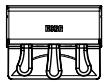
Pedal Unit
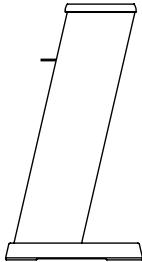
Sideboard B (right side)
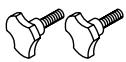
Assembly Accessories
1) 2 piano fasteners
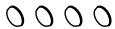
2) 4 caps
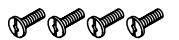
3) 4 screws (M6 × 26)
4) 4 spring washers
5) 4 flat washers
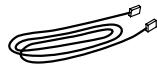
6) 1 pedal cord

7) 3 cord holders
2. Assemble the sideboards and speak box.
Fit the ends of the speaker box into the metal fittings on the two sideboards, lining up the screw holes at both sides. Be sure that each end of the box is flush against the corresponding sideboard, with no gap. Then take the four screws (3), set a spring washer (4) and then a flat washer (5) onto each of these screws, and use the screws (two for each sideboard) to fasten the sideboards to the speaker box. Cover the top of each screw with a cap(2).
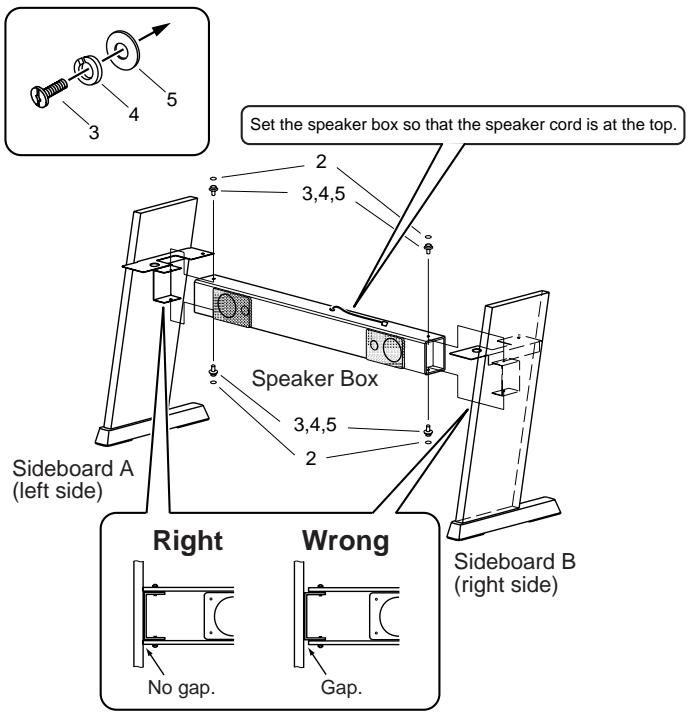
3. Mount the piano on the assembled stand, and fasten it into place
Set the piano so that the plastic feet on the piano body fit into the holes in the metal fittings of the sideboards. Then fasten the piano body into place from the bottom with the two piano fasteners(1).
2 Set the piano into place slowly and carefully, taking care not to drop it. When lowering the piano, position hands carefully so that they don't become caught between the piano and the stand.
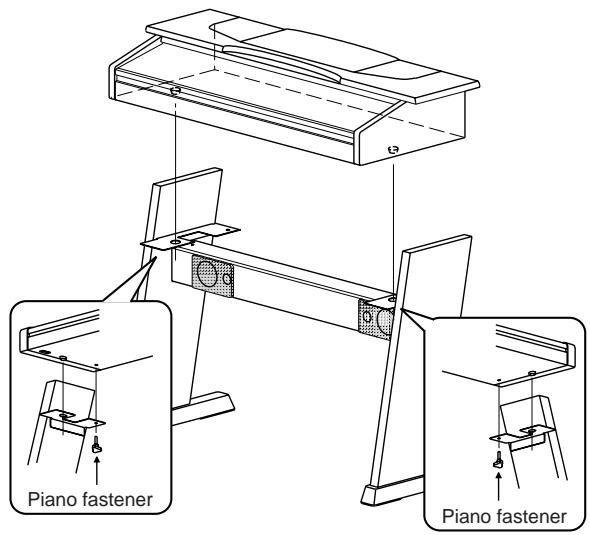
- Connect the pedal cord(6) to the connector on the underside of the pedal unit.
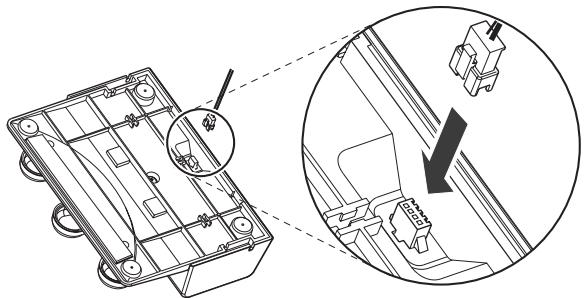
- Run the cord along the move on the underside of the pedal unit as illustrated below. Be sure that the cord is oriented correctlyPush the cord into the groove so that it is fied in place
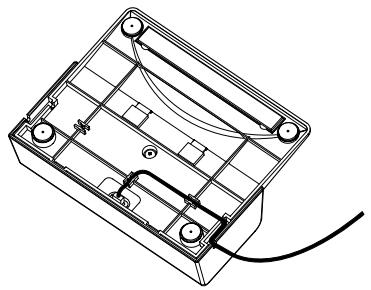
- Plug the pedal cord and the speak cord into the corresponding sdets on the underside of the piano Connect the power cord to the piano's @ IN connector
2 Be sure that connectors are oriented correctly when making connections.
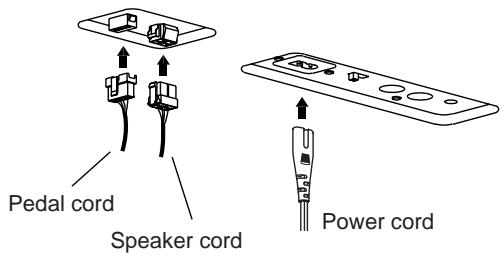
- Attach the cord holders (7), and then secure the pedal cord into the holders
Cord holders (example)
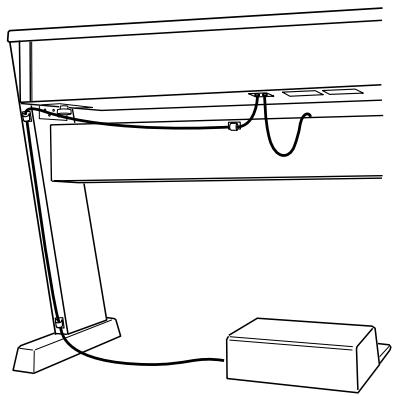
Checking the Finished Assembly
Are any parts left over?
If any parts are left, refer to the assembly diagram to see where they should go, and then assemble them into place.
- Be sure that all screws and fasteners are tight.
Maintenance, Transport, and Disassembly
Periodically check the assembled stand, and obser ve the following precautions.
Periodically check all screws and fasteners
Scre ws and fastener s may loosen with time . Periodically y chec k to confirm that no screws or fastener s are loose . If the stand seems to shake more than usual, check scre ws and fastener s immediately y and tighten as necessary y.
To move the piano...
Removethe piano from the stand,then movethe piano and the stand separately. Thenremount the piano and fasten it bac k into placeas described in the assembIy instructions.
Disassembling the stand
You can disassemble the stand by reversing the assembly sequence. After taking the stand apart, store the screw, fastener, and other parts carefully so that they do not get lost.
When disconnecting the connectors...
Be sure to press on the latch when disconnecting the speaker cord or pedal cord, as illustrated below. Don't tug or pull on the cord. Excessive force may cause connector or soc kets to break.
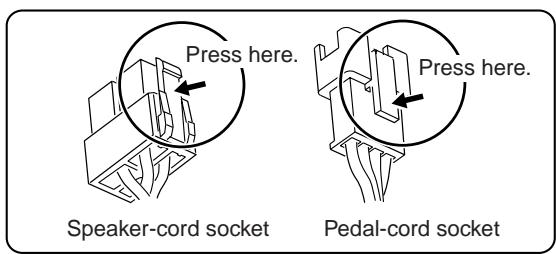
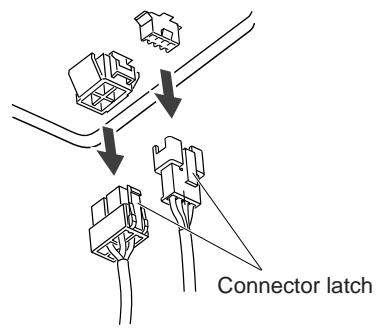
A note about the pedal unit...
Please be aware that keeping the pedal unit fixed in the same place on the floor for an extended period of time may leave a depression or mark on the flooring (depending on the flooring material).


Avtissement
Assembling the NC-300 Piano Stand

Warning
Assembly must be carried out by at least two persons.
Precautions
To ensure safe and correct assembly, please observe the following precautions.
- Be sure to use the correct parts at each step, be sure that parts are oriented correctly, and be sure to follow the steps in the order given below.
- When lowering the piano body onto the stand, position hands carefully so that hands don't get caught between the body and the stand.
□ After setting the body in place on the stand: Do not press or lean heavily on the front side of the piano bod y until you have securely fastened it to the stand. The bod y may fall from the stand if you lean or press in the wrong place .
What You Will Need…
You will need a Phillips (cr osshead) scre wdriver.

Assembly Procedure
1. Open the box and take out the contents
Besure that you have all of the items shown below.
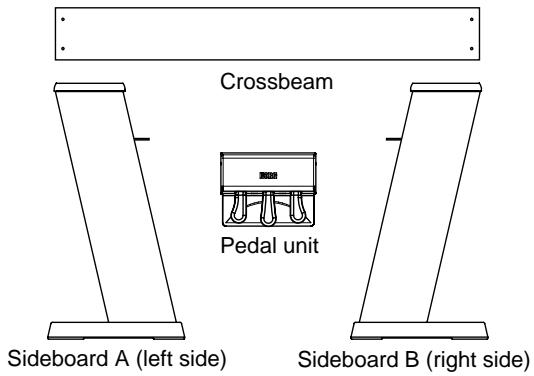
Assembly Accessories
1) 2 piano fasteners
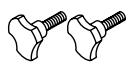
2) 4 caps
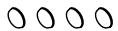
3) 4 screws (M6 × 26)
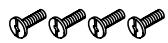
4) 3 cord holders
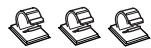
5) 1 pedal cord
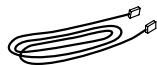
Note: Flat washers and spring washers are not used.
2. Assemble the sideboards and crossbeam.
Fit the ends of the crossbeam into the metal fittings on the two sideboards, lining up the screw holes at both sides. Fasten with the 4 screws (2 at each side)(3). Cover the top of each screw with a cap(2).
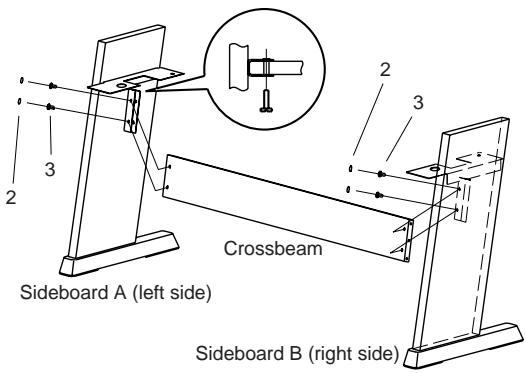
3. Mount the piano on the assembled stand, and fasten it into place
Set the piano so that the plastic feet on the piano body fit into the holes in the metal fittings of the sideboards. Then fasten the piano body into place from the bottom with the two piano fasteners(1).

Set the piano into place slowly and carefully, taking care not to drop it. When lowering the piano, position hands carefully so that they don't become caught between the piano and the stand.
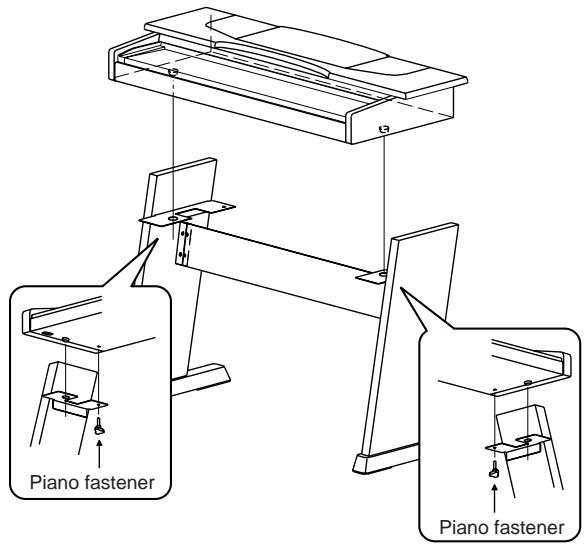
- Connect the pedal cord(5) to the connector on the underside of the pedal unit.
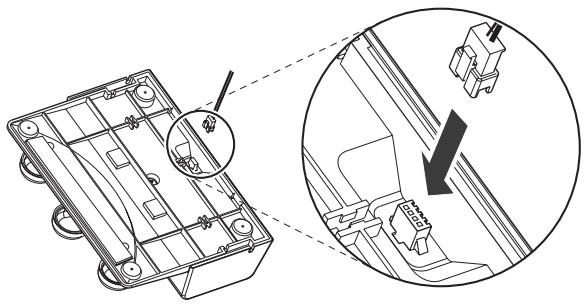
- Run the cord along the move on the underside of the pedal unit as illustrated below. Be sure that the cord is oriented correctlyPush the cord into the groove so that it is fixed in place
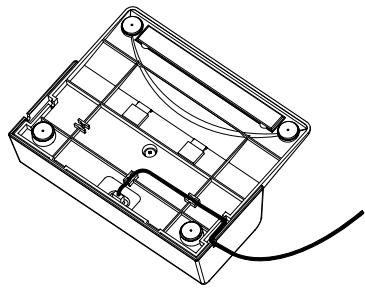
- Connect the pedal cord to the connector on the underside of the pianoConnect the power cord to the AC IN connector on the underside of the piano.

Be sure that connectors are oriented correctly when making connections.
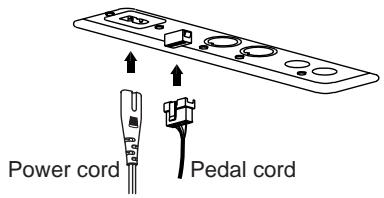
- Attach the cord holders(4), and then secure the pedal cord into the holders
Cord holders (example)
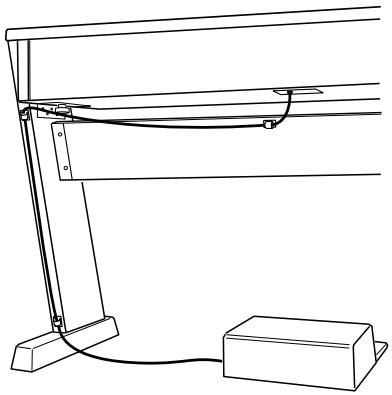
Checking the Finished Assembly
Are any parts left over?
If any parts are left, refer to the assembly diagram to see where they should go, and then assemble them into place.
- Be sure that all screws and fasteners are tight.
Maintenance, Transport, and Disassembly
Periodically check the assembled stand, and observe the following precautions.
Periodically check all screws and fasteners
Scre ws and fastener s may loosen with time. Periodically y chec k to confirm that no scre ws or fastener s are loose . If the stand seems to shake more than usual, chec k screw ws and fastener s immediately y and tighten as necessary y.
To move the piano...
Removethe piano from the stand,then movethe piano and the stand separately. Thenremount the piano and fasten it bac k into placeas described in the assembIy instructions.
Disassembling the stand
You can disassemble the stand by reversing the assembly sequence. After taking the stand apart, store the screw, fastener, and other parts carefully so that they do not get lost.
When disconnecting the connectors...
Be sure to press on the latc h when disconnecting the cor d, as illustrated below. Don't tug or pull on the cor d. Excessive force may cause the connector or soc ket to break.
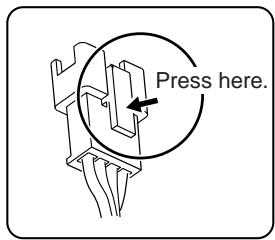
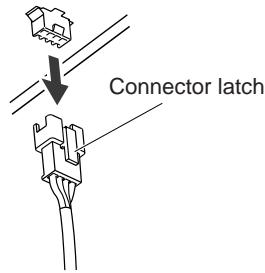
A note about the pedal unit...
Please be a ware that keeping the pedal unit fixed in the same place on the floor for an extended period of time may leave a depression or mark on the flooring (depending on the flooring material).
Operation of Piano Switches and Keys
SOUND Switches
The following table shows the action or setting that results when you hold down the button indicated along the left (TOUCH, REVERB, CHORUS, METRONOME, or TRANSPOSE/FUNCTION) and press one of the SOUND buttons indicated along the top.
| PIANO 1 | PIANO 2 | E.PIANO 1 | E.PIANO 2 | ORGAN 1 | ORGAN 2 | HARPSI/VIBE | STRINGS/CHOIR | |
| TOUCH | Normal | Heavy | Light | —— | Werckmeister | Kirnberger | Mute Part Volume Down | Mute Part Volume Up |
| REVERB | Deeper | Deepest | Light | —— | —— | —— | —— | —— |
| CHORUS | Deeper | Deepest | Light | —— | —— | —— | —— | —— |
| METRONOME | 2 beats | 3 beats | 4 beats | 6 beats | Accent Normal Sound | Accent Bell Sound | Metronome Vol. Down | Metronome Vol. Up |
| TRANSPOSE/FUNCTION | Local On/Off | Program Change On/Off | Control Change On/Off | —— | —— | —— | —— | Data Dump (NC-500 only) |
Recorder Section (NC-500 only)
The table below shows the action or setting that results when you hold down the TRANSPOSE/ FUNCTION button and press the indicated Recorder button.
| PART 1 | PART 2 | PAUSE | START/STOP | REC | |
| TRANSPOSE/FUNCTION | Erase Part 1 | Erase Part 2 | — | Remaining memory | — |
| PART 1 | PART 2 | |
| TOUCH | Raises the volume of the corresponding part. | |
Keyboard
The graphic below shows the setting that results when you hold down one of the indicated buttons (PIANO SONG, METRONOME, or TRANSPOSE/FUNCTION) and press one of the active keys on the keyboard.
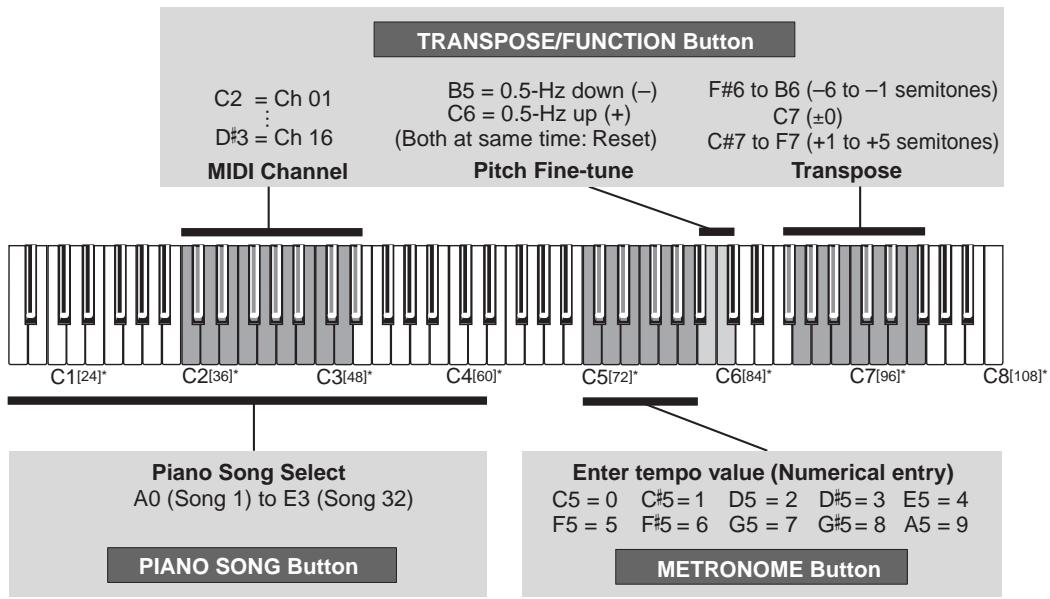
*Values in brackets are MIDI Note Numbers.
| Function | Transmitted | Recognized | Remarks | |
| Basic Channel | Default | 1 | — | |
| Changed | 1-16 | 1-16 | ||
| Modes | Default | 3 | ||
| Messages | × | × | ||
| Altered | ********** | |||
| Note Numbers | True Voice | 15-113 | 0-127 | |
| ********** | 21-108 | |||
| Velocity | Note ON | ○ 9n, V=1-127 | ○ 9n, V=1-127 | |
| Note OFF | × | × | ||
| Aftertouch | Key's | × | × | |
| Channel's | × | × | ||
| Pitch Bender | × | ○ | ||
| Control Change | 7 | ○ | ○ | Volume *1 |
| 11 | × | ○ | Expression *1 | |
| 64 | ○ | ○ | Damper Pedal *1, *3 | |
| 66 | ○ | ○ | Sostenuto Pedal *1 | |
| 67 | ○ | ○ | Soft Pedal *1, *3 | |
| 91 | ○ | ○ | Reverb *1 | |
| 93 | ○ | ○ | Chorus *1 | |
| 120, 121 | ○ | ○ | All Sound Off, Reset All Controls | |
| Program Change | ○ 0-23 | ○ 0-23 | *2 | |
| True # | ********** | 0-23 | ||
| System Excludes | ○ | ○ | Device Inquiry, Sound Data Dump | |
| System Common: | Song Position | × | × | |
| Song Select | × | × | ||
| Tune | × | × | ||
| System Real Time | Clock | × | × | |
| Commands | × | × | ||
| Aux Messages | Local ON/OFF | × | ○ | *4 |
| All Notes OFF | ○ | × | ||
| Active Sense | ○ | ○ | ||
| System Reset | × | × | ||
| Notes *1: Transmitted/recognized if Control Change is set to Enabled. *2: Transmitted/recognized if Program Change is set to Enabled. *3: Half pedal output values: 0, 38, 74, 127. *4: Transmitted when changing from Layered mode to Single-voice mode, and when Local mode is turned off. | ||||
Mode 1: OMNI ON, POLY
Mode 2: OMNI ON, MONO
:Yes
Mode 3: OMNI OFF, POLY
Mode 4: OMNI OFF, MONO
X:No
Consult your lacal Korg distributor for more information on MIDI Implementation.
IMPORTANT NOTICE TO CONSUMERS
This product has been manufactured according to strict specifications and voltage requirements that are applicable in the country in which it is intended that this product should be used. If you have purchased this product via the internet, through mail order, and/or via a telephone sale, you must verify that this product is intended to be used in the country in which you reside.
WARNING: Use of this product in any country other than that for which it is intended could be dangerous and could invalidate the manufacturer's or distributor's warranty.
Please also retain your receipt as proof of purchase otherwise your product may be disqualified from the manufacturer's or distributor's warranty.