
SC300 - Calculator LEXIBOOK - Free user manual and instructions
Find the device manual for free SC300 LEXIBOOK in PDF.



| Product Type | Scientific calculator |
| Brand | LEXIBOOK |
| Model | SC300 |
| Dimensions (L x W x H) | 80 x 150 x 19 mm |
| Power Supply | 3 V DC, 2 AG12 (LR44) batteries |
| Number of functions | 183 |
| Display | LCD, 12-digit mantissa, scientific notation |
| Memories | 6 temporary (A-D, X, Y), 1 independent (M), last answer (ANS) |
| Calculation modes | Normal, Single-variable statistics, Two-variable statistics |
| Angle units | Degrees, Radians, Grads |
| Automatic shut-off | After approximately 10 minutes of inactivity |
| Reset | RESET button on back (clears all memories) |
| Operating temperature | 0 °C to 40 °C |
| Included accessories | Batteries x2, user guide, calculation examples sheet, quick reference card, case |
| Warranty | 2 years |
| Care and cleaning | Clean with a soft, dry cloth. Do not expose to moisture, shocks, or extreme temperatures. |
| Safety | Avoid electrostatic discharges, do not insert metal objects, handle with care to protect the LCD screen. |
| Spare parts and repairability | Batteries replaceable by user. For any other repair, contact the after-sales service. |
| General information | Scientific calculator with trigonometric, logarithmic, statistical functions and coordinate conversion. Designed in Europe, made in China. |
Frequently Asked Questions - SC300 LEXIBOOK
User questions about SC300 LEXIBOOK
0 question about this device. Answer the ones you know or ask your own.
Ask a new question about this device
Download the instructions for your Calculator in PDF format for free! Find your manual SC300 - LEXIBOOK and take your electronic device back in hand. On this page are published all the documents necessary for the use of your device. SC300 by LEXIBOOK.
USER MANUAL SC300 LEXIBOOK
Mode normal (NORMAL) : 2ndF MODE 0
$$ 5 0 0 + (5 0 0 x $$
$$ 25\%) = $$
$$ 500 + 25\% $$
$$ 4 0 0 - (4 0 0 x $$
$$ 30\% = $$
$$ 400\text{-} 30\text{2ndF}\% $$
$$ \sqrt {4 9 - 4 ^ {x} \sqrt {8 1}} = \begin{array}{l} \text {D E G} \ 4. \end{array} $$
$$ 4! = \begin{array}{c} \text {D E G} \ \hline \end{array} $$
$$ 1 0 P 3 = \begin{array}{c} \text {D E G} \ 7 2 0. \end{array} $$
$$ 5 C 2 \begin{array}{c} \text {D E G} \ 1 0. \end{array} $$
$$ \begin{array}{c}500\times 25\% \ 125. \end{array} $$
$$ \begin{array}{c}120\div 400\% \ \hline 30. \end{array} $$
$$ \begin{array}{c} \text {DEG} \ 500 + 25 \% \ 625. \end{array} $$
$$ \begin{array}{c}400 - 30\% \ 280. \end{array} $$
Nombres aléatoires
(3)
$$ 2 4 \div (8 \times 2) = $$
$$ (8 \times 2) \times 5 $$
$$ \begin{array}{c c c c} \hline \text {O N / C} & 8 \times 2 & \text {S T O} \ \hline \end{array} \text {M} $$
$$ 2 4 \div [ \mathrm {R C L} ] = $$
$$ \begin{array}{c c c} \text {R C L} & \text {M} & \text {x} \ \hline \end{array} 5 = $$
$$ (1 5 0 \times 3 + 2 5 0) $$
$$ - (150 \times 3 + 250) \times 5 \% $$
$$ \$ 150 \times 3 \rightarrow M 1 $$
$$ +)\( 250 \rightarrow M 2 = M 1 + 2 5 0 $$
$$ \frac {-) M 2 \times 5 \%}{\text {Total} = \mathrm {M}} $$
$$ \begin{array}{c c c} \text {O N / C} & \text {S T O} & \text {M} \ \hline \end{array} $$
$$ \boxed { \begin{array}{c c} \times & 3 \end{array} } \boxed { \begin{array}{c c} \mathrm {M} + \ \hline \end{array} } $$
$$ 2 5 0 \boxed {M +} $$
$$ \mathrm{RCL}\quad \mathrm{M}\times 5\quad 2\mathrm{ndF}\quad \% $$
$$ \begin{array}{c c c} \text {2 n d F} & \text {M -} & \text {R C L} \ \hline \end{array} $$
$$ \$ 1 = \yen 140 $$
$$ 1 4 0 \boxed {S T O} \boxed {Y} $$
$$ \yen 33,775 = \(? $$
$$ 3 3 7 7 5 \quad + \quad R C L \quad Y \quad = $$
$$ \$ 2,750 = \yen ? $$
$$ 2 7 5 0 \times R C L Y = $$
$$ r = 3 c m $$
$$ \pi r ^ {2} = ? $$
$$ (r \rightarrow y) $$
$$ 3 \boxed {S T O} \boxed {Y} $$
$$ \frac {2 4}{4 + 6} = 2. 4 \dots (\text {A N S}) $$
$$ \mathrm {d F} \quad \text {A L P H A} $$
$$ \begin{array}{c c} \mathrm {Y} & \mathrm {X} ^ {2} \ \hline \end{array} = $$
$$ 2 4 \div [ (4 + ] $$
$$ 6 \text {)} = $$
$$ 3 \times (\text {A N S}) + 6 0 \div (\text {A N S}) = $$
$$ 3 \times 2 n d F \quad \text {A N S} + $$
$$ 6 0 \div 2 n d F \quad A N S = $$
$$ \begin{array}{c c} \hline 8 \times 2 \Rightarrow M & \text {D E G} \quad \text {M} \ \hline \end{array} $$
$$ 2 4 \div 1 6 = \begin{array}{c c} \text {D E G} & M \ & 1. 5 \end{array} $$
$$ \text {A N S} \times 5 = \begin{array}{c c} \text {D E G} & \text {M} \ & 8 0. \end{array} $$
$$ \boxed { \begin{array}{c c} & \text {D E G} \ 0 \Rightarrow \mathsf {M} & \ & & 0. \end{array} } $$
$$ 1 5 0 \times 3 M + \begin{array}{c} \text {D E G} \ \text {M} \ 4 5 0. \end{array} $$
$$ \begin{array}{c c} \hline 2 5 0 M + & \text {D E G} \quad M \ \hline & 2 5 0. \end{array} $$
$$ \begin{array}{c} \text {ANS} \times 5 \% \ \text {35}. \end{array} $$
$$ M = \begin{array}{c c} & \text {D E G} \ & 6 6 5. \end{array} $$
$$ 1 4 0 \Rightarrow Y \begin{array}{c} \text {D E G} \ 1 4 0. \end{array} $$
$$ \begin{array}{c} \text {D E G} \ 3 3 7 7 5 + 1 4 0 = \ 2 4 1. 2 5 \end{array} $$
$$ \begin{array}{c}\text{\rm DEG}\ 2750\times 140 = \ 385000. \end{array} $$
$$ 3 \Rightarrow Y \quad \begin{array}{c} \text {D E G} \ 3. \end{array} $$
$$ \pi Y ^ {2} = \begin{array}{c} \text {D E G} \ 2 8. 2 7 4 3 3 3 8 8 \end{array} $$
$$ \boxed {2 4 \div (4 + 6) =} \begin{array}{c} \text {D E G} \ 2. 4 \end{array} $$
$$ \begin{array}{c} \text {D E G} \ 3 \times \text {A N S} + 6 0 \div \text {A N S -} \ 3 2. 2 \end{array} $$
Poids : Approx. 104g (piles comprises)
Thank you very much for purchasing the LEXIBOOK Scientific Calculator SC300. This manual will introduce you to the SC300. Please keep this manual for the reference.
Operational Notes
To ensure trouble-free operation, please observe the following points:
- Do not carry the calculator in your hip pocket.
- Do not subject the calculator to humidity and extreme temperature (below 0^ or above 40^ ).
- Do not drop or bend the calculator.
- Clean only with a soft, dry cloth. Never use volatile fluid such as lacquer, thinner, benzene etc.
GETTING STARTED
Before using your calculator for the first time, please follow the steps given below:
- Remove carefully the two protection tabs of the battery compartment by pulling on the end of the tabs. If one of the tabs remains jammed, unscrew the battery compartment, remove the battery and then the tab. Close again the battery compartment.
- Locate the RESET hole at the back of the unit. Insert a narrow pointed object (e.g. a paper clip) and press in gently.
- Hold the calculator with the display side uppermost and slide downwards the calculator protecting cover in order to expose the display. Never hold the calculator with the keypad uppermost when sliding the cover, as it may fall.
- Remove the protective static film from the LCD display.
- Press the ON/C key to switch the calculator on.
Auto Off function
If none of the keys is pressed, the calculator will switch itself off after approximately ten minutes. Should that be the case, press the [ON/C] key to switch it back on.
On/Off
Press the ON/C key to switch the calculator on. Press 2ndF and then the ON/C key to switch the calculator off.
ABNORMAL CONDITIONS
If this calculator is exposed to a powerful external electric field or shock during use, an abnormal condition may occur in which all the keys, including ON/C, do not function. In this case, press the RESET switch on the back of the calculator. Note that the memory contents will be completely cleared when this operation is performed.
Press the RESET switch only in the following cases:
- When you first use the calculator.
After replacing the batteries. - To clear all memory contents.
- When an abnormal condition occurs and all keys are inoperative.
Display
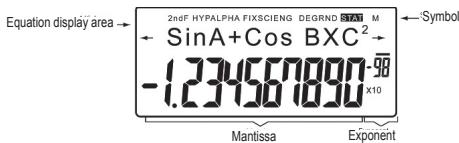
(While using your calculator, not all the symbols shown will be displayed at once.)
If the value of the mantissa (fractional part) is not between ± 0.00000001 and ± 9999999999 , the number will be displayed in scientific notation. The display mode can be modified to meet a particular requirement.
/ : This symbol will show on the display when the equation being entered or the result obtained cannot fit completely in the display. Press the keys in order to view the missing (hidden) part of the equation/result.
2ndF: This symbol will show on the display when you press the 2ndF key, and indicates that the secondary functions shown in yellow on the keys are available.
HYP: After pressing the hyp key, this abbreviation will appear on the display to indicate that the hyperbolic functions are available. If you enter the combination "2ndF arc hyp", the symbols "2ndF HYP" will appear on the display to indicate that the inverse hyperbolic functions are available.
ALPHA: This indicates that the keys 2ndF ALPHA or STO RCL have been pressed and that you can consult or modify a variable stored in the memory, or use the statistical functions.
FIX/SCI/ENG: This indicates the notation used to display the value, and it changes each time after the 2ndF and FSE keys are pressed.
DEG/RAD/GRAD: They indicate the angular unit being used, and it changes when the DRG key is pressed.
STAT: This abbreviation is shown on the display when the statistical mode is selected.
M: This letter indicates that a numerical value is stored in the independent memory.
Method used for representing the keys in these instruction manual
A special notation to describe the keys of the calculator is used throughout this manual. The keys on the front of the calculator make it possible to access functions (numbers, calculations, functions etc.) that are indicated by the characters shown on the keys, above them and on their side. In order to use a logarithmic function, press the In key.
In order to use an exponential function, press 2ndF first, and then the In key.
To use the temporary memory X, press 2ndF first, then ALPHA and finally the In key.
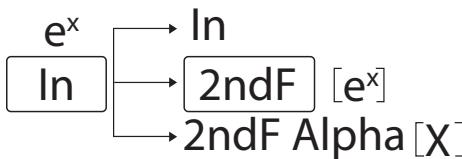
In order to access the functions printed in yellow above the keys, you must press the 2ndF key first. The functions printed in red can be accessed by pressing the 2ndF and ALPHA keys first. The ALPHA key is located above the RCL key.
Methods for deleting characters
The following three methods are used for deleting characters.
| Delete | Data entered | M*1 | A-D,X,Y*2 |
| action | (Display) | STAT,ANS |
| ON/C | O | X | X |
| 2ndF CA | O | X | O |
| RESET | O | O | O |
O:Delete x:Keep
1 Independent memory M.
2 Temporary memories A-D, X and Y, statistical data and last result memory.
Editing equations
- Press or to move the cursor. You can also return to the equation after obtaining a result by pressing the keys. See below the multiple line recall function.
- If you need to delete a number, move the cursor to reach the number you want to delete and press DEL.
The number under the cursor will be deleted.
- If you want to insert a number, place the cursor to the right of the place where you want to insert it, and simply enter the number.
Multiple line recall function
This calculator features a function that makes it possible to recall previously entered equations. The equations also include calculation ending instructions such as “=” and a maximum of 142 characters that can be stored in the memory. When the memory is full, stored equations are deleted in sequence, starting with the oldest equation stored in the memory. Pressing will bring on the display the previous equation and its result. Pressing again the key will display previous equations (after returning to the previous equation, press to view the equations in order). In addition, the 2ndF key can be used to jump to the oldest stored equation.
The multiple line memory is cleared using the following methods: 2ndF CA, 2ndF OFF (including the auto off function), change of mode, RESET, 2ndF RANDOM, 2ndF ANS, calculations with constants, conversion/change of angular unit, conversion of coordinates, storing a numerical value in the temporary memories and in the independent memory, and entering/ deleting statistical data.
Calculation Priority Levels
- This calculator performs operations according to the following priority:
- Functions preceded by the argument (x-1, x2, n!, etc.)
- Y^× x√
- Multiplications using a value stored in the memory (2Y, etc.)
- Functions followed by the argument (sin, cos, etc.)
- Multiplications using a function (2sin30, etc.)
- nCr, nPr
- x_1÷
- +, -
- =, M+, =>M, DEG, RAD, GRAD, DATA, CD, → rθ →, → xy and other calculation ending instructions.
- Equations in brackets have priority over any other calculation.
Initial Setup
Mode Selection
Normal mode (NORMAL): 2ndF MODE 0
Used to perform arithmetic operations and calculations using functions.
Statistical mode with one variable (STAT x): 2ndF MODE 1
Used to perform statistical calculations that include one variable.
Statistical mode with two variables (STAT xy): 2ndF MODE 2
Used to perform statistical calculations that include two variables.
When a calculation mode is selected or the same mode is selected for a second time, any temporary memories, statistical data and last result memory will be cleared.
- Selecting the notation for the display and the number of decimal places
The calculator offers the choice of four different notations for displaying the calculation results. When the abbreviations FIX, SCI, or ENG are displayed, the number of decimal places can be set to any value between 0 and 9. The displayed value will be rounded off to the relevant number of digits.
100000÷3=
[Floating decimal point] ON/C 100000 ÷ 3 = 33333.33333
[Fixed decimal point] 2ndF FSE 33333.33333
[TAB set to 2] 2ndF TAB 2 33333.33
[Scientific notation] 2ndF FSE 3.33 x10⁴
[Engineering notation] 2ndF FSE 3.33 x10⁴
[Floating decimal point] 2ndF FSE 33333.33333
- The calculator will display the result using the scientific notation if the value does not fit in the following range:
0.000000001≤|x|≤9999999999
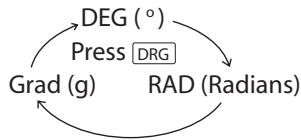
- Selecting of the angular unit
This calculator offers the choice of three angular units:
Scientific Calculations
- Press the key sequence "2ndF MODE 0" to select the normal mode.
- Before entering any calculation, press the ON/C key to clear the display. If any of the abbreviations FIX, SCI, or ENG is displayed, clear them from the display by entering the key sequence 2ndF FSE.
Arithmetic Operations / Calculations using Constants (1)
- When performing calculations involving constants, the addend becomes the constant.
Subtractions and divisions are performed exactly in the same way. In the case of multiplications, the multiplicand becomes the constant. - When performing calculations using constants, the latter will be identified on the display by the letter K.
| Example | Calculation | Display |
| 45+285+3= | ON/C 45 + 285 + 3 = | DEG 45+285÷3= 140. |
| 18 + 6/15 - 8 | [18 + 6] + [15 - 8] = | DEG (18+6)÷(15-8)→ 3.428571429 |
| 42x(-5)+120= | 42 x +/- 5 + 120 = | DEG 42x-5+120= -90. |
| (5 x 10^3)÷(4×10^-3)= | 5 Exp 3+4 Exp +/- 3 = | DEG 5E03÷4E03= 1250000. |
| 34+57= | 34 + 57 = | DEG 34+57= 91. |
| 45+57= | 45 + 57 = | DEG 45+57= 102. |
| 68 x 25 = | 68 x 25 = | DEG 68x25= 1700. |
| 68 x 40= | 68 x 40 = | DEG 68x40= 2720. |
Important notes:
- Entering the end bracket) just before the sign = or M+ is optional.
· (5 + + / - ) = + / - 5 - When performing calculations involving constants, the addend becomes the constant.
Subtractions and divisions are performed exactly in the same way. In the case of multiplications, the multiplicand becomes the constant.
When performing the calculations, the constants will be identified on the display by the letter K.
Functions
(2)
- Refer to the calculation examples shown for each function.
- Before beginning any calculation, specify the angular unit to be used.
- The results of inverse trigonometric functions are displayed inside the following intervals.
| θ=sin-1x, θ=tan-1x | θ=cos-1x | |
| DEG | -90≤θ≤90 | 0≤θ≤180 |
| RAD | -π/2≤θ≤π/2 | 0≤θ≤π |
| GRAD | -100≤θ≤100 | 0≤θ≤200 |
| Example | Calculation | Display |
| sin60°= | ON/C sin 60 = | DEG sin60= 0.866025403 |
| sin230= | [ sin 30 x² ] = | DEG (sin30)²= 0.25 |
| cos245= | [ cos 45 x² ] = | DEG (cos45)²= 0.5 |
| cos π/4 [rad] = | DRG cos [π + 4] = | RAD cos(π÷4)= 0.707106781 |
| tan-1[ g] | DRG 2ndF tan-1 | GRAD tan-1= 50. |
| (cosh1.5+ sinh1.5)²= | ON/C [ ] hyp cos 1.5 + hyp sin 1.5 x² = | DEG (cosh1.5+ → 20.08553692 |
| tanh-1 5/7 = | 2ndF arc hyp tan [5+7] = | DEG tanh-1(5÷7)= 0.895879734 |
| In 20= | ln 20 = | DEG In 20= 2.995732274 |
| log 50 | log 50 = | DEG log50= 1.698970004 |
| e³ | 2ndF e^x 3 = | DEG e^x 3= 20.08553692 |
| 10^17 | 2ndF 10^x 1.7 = | DEG 10^17= 50.11872336 |
| 1/6 + 1/7 = | 6 2ndF x' + 7 2ndF x' = | DEG 6^-1 + 7^-1= 0.309523809 |
| 8^2 - 3^4 x 5^2= | 8 y^x + 7 - 2 3 y^x 4 x 5 x^2 = | DEG 8^-2 - 3^-4 x 5^2= -2024.984375 |
| (12^3)^1= | 12 y^x 3 y^1 4 2ndF x^1 = | DEG 12^3 - 3^4^-1= 6.447419591 |
$$ \begin{array}{l} \sqrt {4 9} - \sqrt [ 4 ]{8 1} \ \boxed {\sqrt {4 9}} \boxed {- 4} \ \boxed {2 n d F} \boxed {\sqrt [ 3 ]{8 1}} \boxed {8 1} = \ \end{array} $$
$$ 4! = $$
$$ 4 2 n d F \quad n! = $$
$$ P _ {1 0} ^ {3} = $$
$$ 1 0 \boxed {2 n d F} \boxed {n P r} 3 \boxed {=} $$
$$ C _ {5} ^ {2} = $$
$$ 5 \boxed {2 n d F} \boxed {n C r} 2 \boxed {-} $$
$$ 500\times 25\% = $$
$$ 500\boxed{x}25\boxed{2ndF}\% $$
$$ 120\div 400 = ? \% $$
$$ 120 \div 400 2ndF \% $$
$$ 5 0 0 + (5 0 0 x $$
$$ 25\%) = $$
$$ 500\boxed{+}25\boxed{2ndF}\% $$
$$ 4 0 0 - (4 0 0 x $$
$$ 30\% = $$
$$ 400 - 30\text{2ndF}\% $$
Random Numbers
(3)
A pseudo-random number with three significant digits can be generated by entering the key sequence 2ndF RANDOM = . Press = to generate the next random number. You can perform this function both in normal and statistical mode.
- Random numbers use memory Y. Each new random number is generated based upon the value previously stored in memory Y (pseudorandom number string).
Angular Unit Conversion
(4)
Each time the key sequence 2ndF DRG is pressed, the angular units available alternate in the display.
This calculator features 6 temporary memories (A-D, X and Y), one independent memory (M), and one last result memory. The independent and temporary memories are only available in normal mode.
a) Temporary memories (A-D, X and Y)
A value stored in the memory can be recalled either as a value or a variable so it can be used in an equation.
- If you have an infinite decimal stored in the memory, recall it as a variable in order to obtain highly accurate results.
E.g. 1 ÷ 3 STO Y (0.3333...is stored in Y)
3 X RCL Y = 1.
3x2ndF ALPHA Y = 1.
b) Independent memory (M)
In addition to the available option of temporary memories, a value can also be added to or subtracted from an existing value stored in the independent memory.
c) Last result memory (ANS)
The result obtained by pressing = or any other calculation ending instruction is automatically stored in the last result memory.
Please note:
The results from calculations that use the functions indicated below are automatically stored in the X or Y memories. Therefore, be aware of this fact when using the X and Y memories.
- Random numbers .... Y memory
- →rθ, →xy. X memory, Y memory
Temporary memories and last result memory are cleared when a mode is selected, even if the same mode is selected for a second time.
| Example | Calculation | Display |
| 24+(8 x 2) = (8 x 2) x 5 | ON/C 8 x 2 STO M | DEG M 8x2⇒M 16. |
| 24 + RCL M= | DEG M 24÷16= 1.5 | |
| RCL M x 5= | ANSx5= 80. | |
| (150x3+250) - (150x3+250)x5% | ||
| $150x3→M1 | ON/C STO M | DEG 0⇒M 0. |
| +)\\(250→M2=M1+250 | 150 x 3 M+ | DEG M 150x3M+ 450. |
| -M2 x 5%: | ||
| Total=M | 250 M+ | DEG M 250M+ 250. |
| RCL M x 5 2ndF % | DEG M ANSx5% 35. | |
| 2ndF M- RCL M | DEG M M= 665. | |
| $1=¥140 | 140 STO Y | DEG 140⇒Y 140. |
| ¥33,775=$? | 33775+RCL Y= | DEG 33775+140= 241.25 |
| $2,750=¥? | 2750 x RCL Y= | DEG 2750x140= 385000. |
| r=3cm | 3 STO Y | DEG 3⇒Y 3. |
| \( \mathrm{r} \rightarrow \mathrm{y} \) | π 2ndF ALPHA' Y X²= | DEG π Y²= 28.27433388 |
| \( \frac{24}{4 + 6} = {2.4}\ldots \left( \begin{array}{l} \text{ANS} \end{array}\right) \) | 24+4+ 6 | DEG 24÷(4+6)= 2.4 |
| 3x (ANS)+60+(ANS)= | 3 x 2ndF ANS+ 60+ 2ndF ANS= | DEG 3xANS+60÷ANS- 32.2 |
Chain calculations
(6)
These are calculations in which the previous result is used as the first operand in the next calculation. For example, you can calculate = and = .
The previous calculation result will not be recalled after entering multiple instructions.
| Example | Calculation | Display |
| 6+4=ANS | ON/C 6 + 4 = | DEG |
| ANS +5= | + 5 = | 6+4= |
| ANS+5= | ||
| 15. | ||
| 44+37=ANS | 44 + 37 = | DEG |
| 44+37= | ||
| 81. | ||
| √ANS = | √ = | DEG |
| √ANS | ||
| 9. |
Calculations using fractions
(7)
This function is used to perform arithmetic operations and memory calculations using a fraction and the conversion between a decimal number and a fraction.
- In all cases, a total of up to 10 digits including integer, numerator, denominator and the symbol (r) can be entered.
- If the number of digits to be displayed is greater than 10, the number will be converted to a decimal number and displayed as such.
- Decimal numbers, variables, or exponents cannot be used as fractions.
| Example | Calculation | Display |
| 3 1/2 + 4/3 = [a b/c] | ON/C 3 a b/c 1 a b/c 2 | DEG 3r1r2+4r3= 4r5r6 |
| 4 a b/c 3= | ||
| →[a.xxx] | a b/c | DEG 3r1r2+4r3= 4.8333333333 |
| →[c] | 2ndF d/c | DEG 3r1r2+4r3= 29r6 |
| *(4 5 6=4 5/6) | ||
| 10 2/3 | 2ndF 10x2 a b/c 3= | DEG 10^2r3= 4.641588834 |
| 1.25 + 2/5 = [a.xxx] | 1.25 + 2 a b/c 5= | DEG 1.25+2r5= 1.65 |
| →[c] | a b/c | DEG 1.25+2r5= 1r13r20 |
Time, decimal and sexagesimal calculations (8)
This calculator makes it possible to perform conversions between decimal and sexagesimal numbers. In addition, the four basic arithmetic operations and memory calculations can also be performed using the sexagesimal system.
| Example | Calculation | Display |
| 12°39'18"05 | ON/C 12 D°M'S 39 D°M'S | DEG 12°38'18.05"-12.65501389 |
| →[10] | 18 D°M'S 5 2ndF ↔DEG | |
| 123.678 | 123.678 2ndF ↔DEG | DEG 123.678= 123°40'40.80 |
| →[60] | ||
| 3h 30m 45s + | 3 D°M'S 30 D°M'S | DEG 3°30°45.00°+→10°16'21.00 |
| 6h 45m 36s | 45 + 6 D°M'S 45 D°M'S | |
| [60] | 36 = | |
| 3h 45m-1.69h= | 3 D°M'S 45 = | DEG 3°45°00.00"-→2°03'36.00 |
| [60] | 1.69 = 2ndF ↔DEG | |
| sin62°12'24"= | sin 62 D°M'S | DEG SIN60°12'24.→0.884635235 |
| [10] | 12 D°M'S 24 = |
Coordinate conversions (9)
- Before performing a calculation, select the angular unit.
- Calculation results are automatically stored in the X and Y memories.
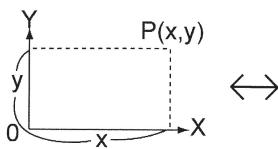
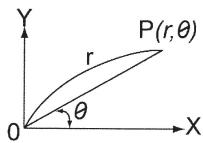
In this calculator, all calculation results are internally processed in scientific notation, with up to 12 digits for the mantissa.
However, since the calculation results are displayed in the selected notation format and number of decimal places, the internal calculation value may differ from that shown in the display. By using the modification function, the internal value is converted in order to match that of the display, so that the latter can be used in subsequent operations.
| Example | Calculation | Display |
| 5+9=ANS | ON/C 2ndF FSE 2ndF TAB 1 | FIX DEG 0.0 |
| ANS x 9= [FIX, TAB=1] | 5 + 9 = " | FIX DEG 5÷9=0.6 |
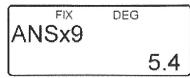
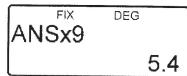
| x 9 = | FIX DEG ANSx9 5.0 | |
| 5 ÷ 9 = 2ndF MDF | FIX DEG 5÷9=0.6 |
x9=2
2ndF FSE 2ndF FSE
2ndF FSE
1:5.55555555555 x 10-1 x 9
2: 0.6 x 9
Statistical Calculations
(11)
Press the key sequence 2ndF MODE 1 to select statistical mode with one variable, or 2ndF MODE 2 to select the two-variable mode. The following statistics can be obtained for every statistical calculations being performed (please refer to the table shown below):
Single-variable statistical calculation: Statistics of 2
Linear regression calculation: Statistics of 1 and 2 and, in addition, estimate of y for a given x (estimate y' ) and estimate of x for a given y (estimate x' ).
The data you enter will be stored in the memory as long as you do not used the key sequence 2ndF CA or 2ndF MODE 1 2. Remember to clear the content of the memory before entering new data.
a) Entering data
Single-variable data
Data DATA
Data (x,y) frequency DATA (In order to enter the same data several times)
Data x (x, y) Data y DATA
Data x (x, y) Data y (x, y) frequency DATA (In order to enter the same x and y data several times)
b) Correcting the data
Correction prior to pressing the DATA key:
Delete the incorrect data using the ON/C key.
Correction after pressing the DATA key:
Press the key to confirm the last key being pressed and enter the key sequence 2ndF CD to delete it.
Examples: 95, 80, 80, 75, 75, 75, 50
| Calculation | Display |
| 2ndF MODE 1 | DEG STAT Stat x 0. |
| 95 DATA | DEG STAT n= 1. |
| 80 DATA | DEG STAT n= 2. |
| DATA | DEG STAT n= 3. |
| 75,3 DATA | DEG STAT n= 6. |
| 50 DATA | DEG STAT n= 7. |
| RCL x | DEG STAT x= 75.71428571. (x) |
| RCL ox | DEG STAT Ox= 12.37179148. (Ox) |
| RCL Σx | DEG STAT Σx= 530. (Σx) |
| RCL Σx2 | DEG STAT Σx2= 41200. (Σx2) |
| RCL sx | DEG STAT sx= 13.3630621. (sx) |
| x² = | ANS²= 178.5714286. (sx²) |
Examples:
| X | 2 | 2 | 12 | 21 | 21 | 21 | 15 |
| Y | 5 | 5 | 24 | 40 | 40 | 40 | 25 |
| Calculation | Display | |
| 2ndF | MODE 2 | |
| Stat | xy | |
| 0. | ||
| 2 | (x,y) 5 DATA | |
| n= | 1. | |
| DATA | DEG STAT | |
| 2. | ||
| 12 | (x,y) 24 DATA | |
| n= | 3. | |
| 21 | (x,y) 40 3 DATA | |
| n= | 6. | |
| 15 | (x,y) 25 DATA | |
| RCL a | DEG STAT | |
| 1.050261097 | ||
| RCL b | DEG STAT | |
| 1.826044386 | ||
| RCL r | DEG STAT | |
| 0.995176343 | ||
| RCL sx | DEG STAT | |
| 8.541216597 | ||
| RCL sy | DEG STAT | |
| 15.67223812 | ||
| X=3→Y=? | 3 | 2ndF y |
| Y=46→X=? | 46 | 2ndF x |
Formulae for statistical calculations:
$$ \bar {x} = \frac {\sum x}{n} \quad \bar {y} = \frac {\sum y}{n} $$
$$ S X = \sqrt {\frac {\sum X ^ {2} - n \bar {X} ^ {2}}{n - 1}} \quad S Y = \sqrt {\frac {\sum y ^ {2} - n \bar {y} ^ {2}}{n - 1}} $$
$$ \sigma x = \sqrt {\frac {\sum X ^ {2} - n \bar {X} ^ {2}}{n}} \quad \sigma y = \sqrt {\frac {\sum y ^ {2} - n \bar {y} ^ {2}}{n}} $$
$$ \sum x = x _ {1} + x _ {2} \dots + x _ {n} $$
$$ \sum x ^ {2} = x _ {1} ^ {2} + x _ {2} ^ {2} \dots + x _ {n} ^ {n} $$
$$ \sum x y = x _ {1} y _ {1} + x _ {2} y _ {2} \dots + x _ {n} y _ {n} $$
$$ \sum y = y _ {1} + y _ {2} \dots + y _ {n} $$
$$ \sum y ^ {2} = y _ {1} ^ {2} + y _ {2} ^ {2} + \dots + y _ {n} ^ {n} $$
(n:examples)
Formulae for statistical calculations:
Please refer also to the calculation examples sheet.
When using statistical calculation formulae, an error will occur if any of the following applies:
The absolute value of the intermediate or final result is equal to or greater than 1^*100
The denominator is zero.
An attempt has been made to extract the square root of a negative number.
Errors and calculation ranges
(12)
a) ERRORS
An error will occur if an operation exceeds the calculation range, or when attempting to perform an invalid mathematical operation.
When an error occurs, pressing or automatically moves the cursor back to the place in the equation where the error has occurred. Edit the equation or press ON/C to delete the equation.
b) Error codes and types
Syntax error (Error 1):
- An attempt was made to perform an invalid operation.
EX.2 2ndF re
Calculation error (Error 2):
The absolute value of the intermediate or final result is equal to or greater than 10100.
An attempt was made to divide by 0.
- The calculation range was exceeded while performing the calculations.
Depth error (Error 3):
- The calculation requested exceeds the available number of buffers (there are 8 buffers for numerical values and 16 buffers for calculation instructions). 4 buffers in STAT mode.
Equation too long (Error 4): - The equation exceeded its maximum input buffer (142 characters). Equations must be shorter than 142 characters.
c) Calculation Ranges
Please refer also to the calculation examples sheet.
- Within the ranges specified hereinafter, this calculator is accurate to ± 1 in the least significant digit of the mantissa. When performing continuous calculations (including chain calculations), errors will accumulate, hence causing a lower degree of accuracy.
Calculation Ranges
± 10^-99 ± 9.999999999× 10^99 and O.
If the absolute value of any entry or final / intermediate calculation result is less than 10^-99 , the value will be considered as 0 in both the calculations and the display.
| Function | Domaine |
| sin x | DEG: |x| < 10^10 |
| cos x | [tan x: |x| ≠ (2n-1)x90]* |
| tan x | RAD: |x| < π/180 x10^10 |
| [tan x: |x| ≠ (2n-1)x(π/2)]* | |
| sin^-1x | |x| ≤ 1 |
| cos^-1x | |
| tan^-1x, √x | |x| ≤ 10^100 |
| ln x | 10^-99 ≤ x < 10^100 |
| log x | |
| y^x | • y > 0: -10^100 < x log y < 100 • y = 0: 0 < x < 10^100 • y < 0: x = n(0 < |x| < 1: 1/x = 2n-1, x ≠ 0)*, -10^100 < x log|y| < 100 |
| x√y | • y > 0: -10^100 < 1/x log y < 100(x ≠ 0) • y = 0: 0 < x < 10^100 • y < 0: x = 2n-1 (0 < |x| < 1: 1/x = n, x ≠ 0)*, -10^100 < 1/x log|y| < 100 |
| ex | -10^100 < x ≤ 230.2585092 |
| 10^x | -10^100 < x < 100 |
| sinh x cosh x tanh x | |x|≤230.2585092 |
| sinh⁻¹ x | |x|<10^50 |
| cosh⁻¹ x | 1≤x<10^50 |
| tanh⁻¹ x | |x|<1 |
| X² | |x|<10^50 |
| √x | 0<|x|<10^100 |
| x⁻¹ | |x|<10^100 (x≠0) |
| n! | 0≤n≤69* |
| nP r | 0≤r≤n≤9999999999* n!/(n-r)! < 10^100 |
| nCr | 0≤r≤n≤9999999999* 0≤r≤69 n!/(n-r)!r! < 10^100 |
| -DEG, D°M'S | 0°00'00.01 ≤ |x|<10000° |
| X,y→r,θ | √x²+y² <10^100 |
| r,θ→x,y | 0≤r<10^100 DEG: |θ|<10^10 RAD: |θ|<π/180 x 10^10 GRAD: |θ|<10/9 x 10^10 |
| DRG▶ | DEG→RAD, GRAD→DEG: |x|<10^100 RAD→GRAD: |x|<π/2 x 10^98 |
BATTERY REPLACEMENT
Power source:
2 x AG12 batteries.
Notes on Battery Replacement
Improper handling of batteries can cause electrolyte leakage or explosion. Make sure to observe the following handling rules:
- Replace both batteries at the same time.
- Do not mix new and old batteries.
- Make sure the new batteries are the correct type.
- Batteries are factory-installed before shipment, and may be exhausted before they reach the service life stated in the specifications.
When to Replace the Batteries
If the display has poor contrast, the batteries require replacement.
Caution
- Keep batteries out of the reach of children.
- Exhausted batteries left in the calculator may leak and damage the calculator.
- Explosion risk may be caused by incorrect handling.
- These batteries must be replaced only with others of the same type.
- Some batteries are rechargeable and some are not. Be sure to use the nonrechargeable type.
- Do not throw batteries into a fire as they may explode.
Replacement Procedure
- Turn the power off by pressing [2ndF] [OFF].
- Open the battery compartment using a screwdriver. Remove the 2 screws.
- Remove used batteries.
- Install two new batteries and make sure the "+" side facing up.
- Press the RESET switch (on the back.)
- Make sure that the display appears as shown below. If the display does not appear as shown, remove the batteries reinstall them and check the display once again.
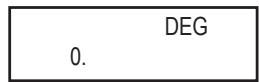
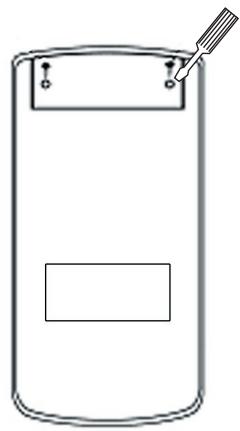
Warranty
This product is covered by our 2-year warranty.
To make use of the warranty or after-sales service, please contact your retailer and supply proof of purchase. Our warranty covers material or installation-related defects attributable to the manufacturer, with the exception of wear caused by failure to respect the instructions for use or any unauthorised work on the equipment (such as dismantling, exposure to heat or damp etc).
Note: It is recommended that all packaging be kept for future reference. Keep this instruction manual in a safe place as it contains important information. In our constant concern for improvement, the colours and details of the product may differ slightly from those shown on the packaging.
Reference: SC300
Warranty: 2 years
Lexibook UK Ltd
Unit 10 Petersfield Industrial Estate
Bedford Road, Petersfield
Hampshire, GU32 3QA
United Kingdom
Freephone helpline: 0808 100 3015
www.lexibook.com
C E
Environmental Protection
Unwanted electrical appliances can be recycled and should not be discarded along with regular household waste! Please actively support the conservation of resources and help protect the environment by returning this appliance to a collection centre (if available).

Technical specifications
Type of calculations: Scientific calculations, statistical calculations, etc.
Functions: 183
Internal calculations: Mantissas of up to 12 digits
Simultaneous calculations: 16 calculations, 8 numerical values
(4 numeric values in STAT mode)
Power source: 3V ... (DC)
2 x AG 12 batteries
Operating temperature: 0 - 40°C (32 - 104°F)
External dimensions: 80mm (L) x 150mm (D) x 19mm (H)
Weight: Approx 104g (including the batteries)
Accessories: 2 x AG12 batteries (installed)
Instruction manual, Calculation examples sheet
Quick start-up guide and Calculator case.
INTRODUCCION
| ON/C | O | X | X |
| 2ndF CA | O | X | O |
| RESET | O | O | O |
O:Borrar x:Conservar
Modo normal (NORMAL): 2ndF MODE 0
$$ 5 0 0 + (5 0 0 x $$
$$ 25\%) = $$
$$ 500 + 25 \boxed{2\mathrm{ndF}} \% $$
$$ 4 0 0 - (4 0 0 x $$
$$ 30\% = $$
$$ 400\boxed{30}\boxed{2ndF}\% $$
$$ \sqrt {4 9 - 4 ^ {x} \sqrt {8 1}} = 4. $$
$$ 4! = \begin{array}{c} \text {D E G} \ \hline \end{array} $$
$$ 1 0 P 3 = \begin{array}{c} \text {D E G} \ 7 2 0. \end{array} $$
$$ 5 C 2 \begin{array}{c c} & \text {D E G} \ & & 1 0. \end{array} $$
$$ \begin{array}{c}500\times 25\% \ 125. \end{array} $$
$$ \begin{array}{c}120\div 400\% \ \hline 30. \end{array} $$
$$ \begin{array}{c}500\div 25\% \ 625. \end{array} $$
$$ \begin{array}{c}400 - 30\% \ 280. \end{array} $$
Números aleatorios
(3)
$$ \yen 33,775 = \(? $$
$$ 3 3 7 7 5 + [ R C L Y ] = $$
$$ \$ 2,750 = \yen ? $$
$$ 2 7 5 0 \times R C L Y = $$
$$ \begin{array}{l} r = 3 c m \ \pi r ^ {2} = ? \ \end{array} $$
$$ (r \rightarrow y) $$
$$ \boxed {m} \boxed {2 n d F} \boxed {A L P H A}, $$
$$ \begin{array}{c c} \mathrm {Y} & \mathrm {X} ^ {2} \ \hline \end{array} = $$
$$ \frac {2 4}{4 + 6} = 2. 4 \dots (\mathrm {A N S}) $$
$$ 2 4 \div \square \square 4 + $$
$$ 6 \square = $$
$$ 3 \times (\text {A N S}) + 6 0 \div (\text {A N S}) = $$
$$ 3 \times 2 n d F \quad A N S + $$
$$ 6 0 \div 2 n d F \quad A N S = $$
$$ \begin{array}{l} \boxed {2 5 0 M +} \begin{array}{c c} \text {D E G} & M \ \hline & 2 5 0. \end{array} \ \begin{array}{c} \text {ANSx5\%} \ 35. \end{array} \ M = \begin{array}{c c} & \text {D E G} \ & 6 6 5. \end{array} \ \begin{array}{c} 1 4 0 \Rightarrow Y \quad \text {D E G} \ \hline \hline 1 4 0. \end{array} \ \begin{array}{c} \text {D E G} \ 3 3 7 7 5 + 1 4 0 = \ 2 4 1. 2 5 \end{array} \ \begin{array}{c}\text{\rm DEG}\ 2750\times 140 = \ 385000. \end{array} \ 3 \Rightarrow Y \quad \begin{array}{c} \text {D E G} \ 3. \end{array} \ \pi \Upsilon^ {2} = \begin{array}{c} \text {D E G} \ 2 8. 2 7 4 3 3 3 8 8 \end{array} \ \boxed {2 4 \div (4 + 6) =} \quad 2. 4 \ \boxed {3 \times A N S + 6 0 \div A N S -} \tag {32.2} \ \end{array} $$
Calculos enadena
(6)
Formulae for statistical calculations:
$$ \bar {x} = \frac {\sum x}{n} \quad \bar {y} = \frac {\sum y}{n} $$
$$ S X = \sqrt {\frac {\sum X ^ {2} - n \bar {X} ^ {2}}{n - 1}} \quad S Y = \sqrt {\frac {\sum y ^ {2} - n \bar {y} ^ {2}}{n - 1}} $$
$$ \sigma x = \sqrt {\frac {\sum X ^ {2} - n \bar {X} ^ {2}}{n}} \quad \sigma y = \sqrt {\frac {\sum y ^ {2} - n \bar {y} ^ {2}}{n}} $$
$$ \sum x = x _ {1} + x _ {2} \dots + x _ {n} $$
$$ \sum x ^ {2} = x _ {1} ^ {2} + x _ {2} ^ {2} \dots + x _ {n} ^ {n} $$
$$ \sum x y = x _ {1} y _ {1} + x _ {2} y _ {2} \dots + x _ {n} y _ {n} $$
$$ \sum y = y _ {1} + y _ {2} \dots + y _ {n} $$
$$ \sum y ^ {2} = y _ {1} ^ {2} + y _ {2} ^ {2} + \dots + y _ {n} ^ {n} $$
(n:examples)
Fórmulas de calculos estadisticos:
EX.2 2ndF re
Error de calculo (Error 2):
| ON/C | O | X | X |
| 2ndF CA | O | X | O |
| RESET | O | O | O |
O: Apagar x: Manter
Modo normal (NORMAL): 2ndF MODE 0
$$ 5 0 0 + (5 0 0 x $$
$$ 25\%) = $$
$$ 500 + 25 \boxed{2\mathrm{ndF}} \% $$
$$ 4 0 0 - (4 0 0 x $$
$$ 30\% = $$
$$ 400\text{-} 30\text{2ndF}\% $$
$$ \sqrt {4 9 - 4 ^ {x} \sqrt {8 1}} = 4. $$
$$ 4! = \begin{array}{c} \text {D E G} \ \hline \end{array} $$
$$ 1 0 P 3 = \begin{array}{c} \text {D E G} \ 7 2 0. \end{array} $$
$$ 5 C 2 \begin{array}{c c} & \text {D E G} \ & 1 0. \end{array} $$
$$ \begin{array}{c}500\times 25\% \ 125. \end{array} $$
$$ \begin{array}{c}120\div 400\% \ \hline 30. \end{array} $$
$$ \begin{array}{c}500\div 25\% \ 625. \end{array} $$
$$ \begin{array}{c}400 - 30\% \ 280. \end{array} $$
Númos aleatorios
(3)
LEXIBOOK Electronica Lda
Quinta dos Loios
Praceta Jose Domingos dos Santos, 6B-8A
2835-343 Lavradio-Barreiro
Portugal
Apoio Tecnico: 212 039 600
http://www.lexibook.com

Proteção Ambiental
| ON/C | O | X | X |
| 2ndF CA | O | X | O |
| RESET | O | O | O |
$$ 5 0 0 + (5 0 0 x $$
$$ 25\%) = $$
$$ 500\boxed{+}25\boxed{2ndF}\% $$
$$ 4 0 0 - (4 0 0 x $$
$$ 30\% = $$
$$ 400\text{-} 30\text{2ndF}\% $$
Numeri aleatori
(3)
$$ \sin^ {- 1} 0. 8 = $$
$$ 5 3. 1 3 0 1 0 2 3 5 $$
$$ \rightarrow [ \mathrm {r a d} ] $$
$$ \begin{array}{c c} \text {2 n d F} & \text {D R G} \ \hline \end{array} $$
$$ \rightarrow [ g ] $$
$$ \begin{array}{c c} \text {2 n d F} & \text {D R G} \ \hline \end{array} $$
RAD
$$ \text {A N S} \triangleright \text {R A D} $$
$$ 0. 9 2 7 2 9 5 2 1 8 $$
GRAD
$$ \text {A N S} \triangleright \text {G R A D} $$
$$ 5 9. 0 3 3 4 4 7 0 6 $$
$$ \rightarrow [ ^ {\circ} ] $$
$$ \begin{array}{c c} \text {2 n d F} & \text {D R G} \ \hline \end{array} $$
DEG
$$ \text {A N S} \rightarrow \text {D E G} $$
$$ 5 3. 1 3 0 1 0 2 3 5 $$
Calcolo con memorie
(5)
$$ 2 4 \div (8 \times 2) = $$
$$ (8 \times 2) \times 5 $$
$$ \mathrm {O N / C} 8 \mathrm {x} 2 \mathrm {S T O} \mathrm {M} $$
$$ 2 4 \div [ \mathrm {R C L} ] = $$
$$ \begin{array}{c c c c} \hline \text {R C L} & \text {M} & \text {x} & 5 \ \hline \end{array} $$
$$ (1 5 0 \times 3 + 2 5 0) $$
$$ - (150 \times 3 + 250) \times 5 \% $$
$$ \$ 150 \times 3 \rightarrow M 1 $$
$$ +)\(250\rightarrow M2 = M1 + 250 $$
$$ \frac {-) M 2 \times 5 \%}{T o t a l = M} $$
$$ \begin{array}{c c c} \hline \text {O N / C} & \text {S T O} & \text {M} \ \hline \end{array} $$
$$ 1 5 0 \boxed {x} 3 \boxed {M +} $$
$$ 2 5 0 \boxed {M +} $$
$$ \mathrm{RCL}\mathrm{M}\times 52\mathrm{ndF}\% $$
$$ \begin{array}{c c c c} 2 \text {n d F} & \text {M -} & \text {R C L} & \text {M} \end{array} $$
$$ \$ 1 = \yen 140 $$
$$ 1 4 0 \boxed {S T O} \boxed {Y} $$
$$ \yen 33,775 = \(? $$
$$ 3 3 7 7 5 \pm \boxed {R C L} \boxed {Y} = $$
$$ \$ 2,750 = \yen ? $$
$$ 2 7 5 0 \times \mathrm {R C L} \mathrm {Y} = $$
$$ r = 3 c m $$
$$ \pi r ^ {2} = ? $$
$$ 3 \boxed {S T O} \boxed {Y} $$
$$ (r \rightarrow y) $$
$$ \begin{array}{c c} \text {m} & 2 \text {n d F} \ \hline \end{array} \text {A L P H A} $$
$$ \mathrm {Y} \times^ {2} = $$
$$ \frac {2 4}{4 + 6} = 2. 4 \dots (\mathrm {A N S}) $$
$$ 2 4 \boxed {+} \boxed {4} \boxed {+} $$
$$ 6 \square = $$
$$ 3 \times (\text {A N S}) + 6 0 \div (\text {A N S}) = $$
$$ 3 \times 2 n d F A N S + $$
$$ 6 0 \div 2 n d F \quad A N S = $$
$$ \begin{array}{c c} \hline 8 \times 2 \Rightarrow M & \text {D E G} \quad \text {M} \ \hline \end{array} $$
$$ 2 4 \div 1 6 = \begin{array}{c c} \text {D E G} & M \ & 1. 5 \end{array} $$
$$ \boxed {A N S \times 5 = \begin{array}{c c} D E G & M \ & 8 0. \end{array} } $$
$$ \boxed { \begin{array}{c c c} & & \text {D E G} \ 0 \Rightarrow M & & \ & & 0. \end{array} } $$
$$ \boxed {1 5 0 \times 3 M +} \begin{array}{c c} \text {D E G} & M \ & 4 5 0. \end{array} $$
$$ \boxed {2 5 0 M + \begin{array}{c c} & \text {D E G} \ & \text {2 5 0 .} \end{array} } $$
$$ \begin{array}{c} \text {DEG} \quad \text {M} \ \text {ANS} \times 5 \% \ 35. \end{array} $$
$$ \begin{array}{c c} \hline & \text {D E G} \quad \text {M} \ \hline M = & \ & 6 6 5. \end{array} $$
$$ \begin{array}{c} 1 4 0 \Rightarrow Y \quad \text {D E G} \ \hline 1 4 0. \end{array} $$
$$ \begin{array}{c} \text {D E G} \ 3 3 7 7 5 + 1 4 0 = \ 2 4 1. 2 5 \end{array} $$
$$ \begin{array}{c} \text {D E G} \ 2 7 5 0 \times 1 4 0 = \ 3 8 5 0 0 0. \end{array} $$
$$ \begin{array}{c c} \hline 3 \Rightarrow Y & \text {D E G} \ \hline & 3. \end{array} $$
$$ \frac {\pi Y ^ {2} = \begin{array}{c} \text {D E G} \ 2 8 . 2 7 4 3 3 3 8 8 \end{array} }{} $$
$$ 2 4 \div (4 + 6) = \begin{array}{c} \text {D E G} \ 2. 4 \end{array} $$
$$ \boxed {3 \times A N S + 6 0 \div A N S -} \tag {DEG} $$
Calcoli in catena
(6)
| ON/C | O | x | x |
| 2ndF CA | O | x | O |
| ZURÜCKSETZEN | O | O | O |
Normaler Modus (NORMAL): 2ndF MODE 0
$$ 5 0 0 + (5 0 0 x $$
$$ 25\%) = $$
$$ 500 + 25 \boxed{2\mathrm{ndF}} \% $$
$$ 4 0 0 - (4 0 0 x $$
$$ 30\% = $$
$$ 400\boxed{30}\boxed{2ndF}\% $$
$$ \begin{array}{l} \sqrt {4 9 - 4 ^ {x} \sqrt {8 1}} = 4. \ 4! = \begin{array}{c} \text {D E G} \ \hline \end{array} \ \end{array} $$
$$ \begin{array}{l} \begin{array}{c} 1 0 \mathrm {P} 3 = \ \hline & 7 2 0. \end{array} \ 5 C 2 \begin{array}{c} \text {D E G} \ 1 0. \end{array} \ \end{array} $$
$$ \begin{array}{l} \begin{array}{c}500\times 25\% \ 125. \end{array} \ \begin{array}{c}120\div 400\% \ \hline 30. \end{array} \ \end{array} $$
$$ \begin{array}{l} \begin{array}{c}500\pm 25\% \ 625. \end{array} \ \begin{array}{c}400 - 30\% \ 280. \end{array} \ \end{array} $$
Zufallvariables
(3)
$$ \sin^ {- 1} 0. 8 = $$
$$ 5 3. 1 3 0 1 0 2 3 5 $$
$$ \rightarrow [ \mathrm {r a d} ] $$
$$ \begin{array}{c c} \text {2 n d F} & \text {D R G} \ \hline \end{array} $$
$$ \rightarrow [ g ] $$
$$ \begin{array}{c c} \text {2 n d F} & \text {D R G} \ \hline \end{array} $$
RAD
$$ \text {A N S} \triangleright \text {R A D} $$
$$ 0. 9 2 7 2 9 5 2 1 8 $$
$$ \rightarrow [ ^ {\circ} ] $$
$$ 2 \text {n d F} \quad \mathrm {D R G} $$
GRAD
$$ \text {A N S} \triangleright \text {G R A D} $$
$$ 5 9. 0 3 3 4 4 7 0 6 $$
DEG
$$ \text {A N S} \triangleright \text {D E G} $$
$$ 5 3. 1 3 0 1 0 2 3 5 $$
EX.2 2ndF re
| ON/C | O | X | X |
| 2ndF CA | O | X | O |
| RESET | O | O | O |
O: Wissen x:Bewaren
Normale modus (NORMAL): 2ndF MODE 0
$$ 5 0 0 + (5 0 0 \times $$
$$ 25\%) = $$
$$ 500\boxed{+}25\boxed{2ndF}\% $$
$$ 4 0 0 - (4 0 0 x $$
$$ 30\% = $$
$$ 400 - 30\text{2ndF}\% $$
$$ \begin{array}{l} \begin{array}{c} \text {D E G} \ \hline \end{array} \ \begin{array}{c} \sqrt {4 9 - 4 ^ {x}} \sqrt {8 1} = \ \hline 4. \end{array} \ \end{array} $$
$$ \begin{array}{l} 4! = \ \ 2 4. \ \end{array} $$
$$ 1 0 P 3 = $$
$$
$$
$$ 7 2 0. $$
$$ 5 \mathrm {C} 2 $$
$$ \mathrm {D E G} $$
$$ 1 0. $$
$$ \mathrm {D E G} $$
$$ \begin{array}{l} 500 \times 25 \% \ 1 2 5. \ \end{array} $$
$$ \begin{array}{l} \begin{array}{c} \text {D E G} \end{array} \ 120 \div 400 \% \ \end{array} $$
$$ 3 0. $$
$$ \mathrm {D E G} $$
$$ \begin{array}{l} 500\pm 25\% \ 6 \ \end{array} $$
$$ \begin{array}{l} 400 - 30\% \ \ \overline {{\cdot}} \ 2 \ \end{array} $$
Willekeurige getallen
(3)
$$ \sin^ {- 1} 0. 8 = $$
$$ 5 3. 1 3 0 1 0 2 3 5 $$
$$ \rightarrow [ \mathrm {r a d} ] $$
$$ \begin{array}{c c} \text {2 n d F} & \text {D R G} \ \hline \end{array} $$
$$ \rightarrow [ g ] $$
$$ \begin{array}{c c} \text {2 n d F} & \text {D R G} \ \hline \end{array} $$
RAD
$$ \text {A N S} \triangleright \text {R A D} $$
$$ 0. 9 2 7 2 9 5 2 1 8 $$
GRAD
$$ \text {A N S} \triangleright \text {G R A D} $$
$$ 5 9. 0 3 3 4 4 7 0 6 $$
$$ \rightarrow [ ^ {\circ} ] $$
$$ \begin{array}{c c} \text {2 n d F} & \text {D R G} \ \hline \end{array} $$
DEG
$$ \text {A N S} \rightarrow \text {D E G} $$
$$ 5 3. 1 3 0 1 0 2 3 5 $$
Geheugenberekeningen
(5)
BIJV.2 2ndF re
Rekenfout (fout 2):

- Nombres aléatoires
- (3)
- Operational Notes
- GETTING STARTED
- Auto Off function
- On/Off
- ABNORMAL CONDITIONS
- Display
- Method used for representing the keys in these instruction manual
- Methods for deleting characters
- Editing equations
- Multiple line recall function
- Calculation Priority Levels
- Initial Setup
- Mode Selection
- - Selecting the notation for the display and the number of decimal places
- - Selecting of the angular unit
- Scientific Calculations
- Arithmetic Operations / Calculations using Constants (1)
- Important notes:
- Functions
- Random Numbers
- Angular Unit Conversion
- a) Temporary memories (A-D, X and Y)
- b) Independent memory (M)
- c) Last result memory (ANS)
- Chain calculations
- Calculations using fractions
- Time, decimal and sexagesimal calculations (8)
- Coordinate conversions (9)
- Statistical Calculations
- Formulae for statistical calculations:
- Errors and calculation ranges
- a) ERRORS
- b) Error codes and types
- Syntax error (Error 1):
- EX.2 2ndF → re
- Depth error (Error 3):
- c) Calculation Ranges
- Calculation Ranges
- BATTERY REPLACEMENT
- Power source:
- x AG12 batteries.
- When to Replace the Batteries
- Replacement Procedure
- Warranty
- Environmental Protection
- Technical specifications
- INTRODUCCION
- Números aleatorios
- Calculos enadena
- Fórmulas de calculos estadisticos:
- Númos aleatorios
- Proteção Ambiental
- Numeri aleatori
- Calcolo con memorie
- (5)
- Calcoli in catena
- Zufallvariables
- Willekeurige getallen
- Geheugenberekeningen
- Rekenfout (fout 2):
Brand : LEXIBOOK
Model : SC300
Category : Calculator