
AX1500 - Router Xiaomi - Free user manual and instructions
Find the device manual for free AX1500 Xiaomi in PDF.


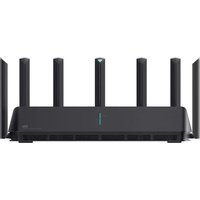
| Product Type | WiFi Router |
| Brand | Xiaomi |
| Model | AX1500 |
| WiFi Standard | IEEE 802.11ax (WiFi 6) |
| Frequency Bands | Dual band 2.4 GHz and 5 GHz |
| Maximum Theoretical Speed | Up to 1500 Mbps (5 GHz: 1201 Mbps, 2.4 GHz: 300 Mbps) |
| Antennas | 4 external antennas |
| Processor | Dual core, 880 MHz |
| RAM Memory | 256 MB |
| Flash Memory | 128 MB |
| Ethernet Ports | 1 WAN port 10/100/1000 Mbps + 2 LAN ports 10/100/1000 Mbps |
| Power Supply | 12 V / 1 A |
| Power Consumption | Less than 10 W |
| Dimensions (L x W x H) | 200 x 140 x 30 mm |
| Weight | 300 g |
| Operating Temperature | 0 °C to 40 °C |
| Security | WPA2/WPA3, SPI firewall |
| Advanced Functions | Parental controls, QoS, guest network |
| Installation | Mi WiFi app or web interface |
| Maintenance | Clean with a dry, soft cloth |
| Repairability | Not user-repairable (no spare parts available) |
Frequently Asked Questions - AX1500 Xiaomi
User questions about AX1500 Xiaomi
0 question about this device. Answer the ones you know or ask your own.
Ask a new question about this device
Download the instructions for your Router in PDF format for free! Find your manual AX1500 - Xiaomi and take your electronic device back in hand. On this page are published all the documents necessary for the use of your device. AX1500 by Xiaomi.
USER MANUAL AX1500 Xiaomi
Read this manual carefully before use, and retain it for future reference.
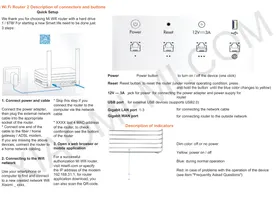
Connecting the Network Cable
Power on the router, and use the network cable to connect any port on the back of the router to the LAN port of the broadband modem.

* Broadband modem is provided by the broadband operator. If none of these is available, you can connect the network cable to the router and the Internet wall socket, or directly connect the indoor network cable to the router's any port.
Configuring the Network
- When the router's system indicator turns blue, use your phone or computer to connect with the initial Wi-Fi.

* See the nameplate on the bottom of the router for the initial Wi-Fi name. 2. Once the initial Wi-Fi is connected, you will be directed to the configuration page. Follow the instructions on the page to complete the configuration process. If the configuration page is not present, open the browser and go to router.miwifi.com or 192.168.31.1 to complete the configuration.

This product works with the Mi Home/Xiaomi Home app*. Control your device with Mi Home/Xiaomi Home app.
Scan the QR code to download and install the app.
You will be directed to the connection setup page if the app is installed already.
Or search for "Mi Home/Xiaomi Home" in the app store to download and install it.

FD17A37B
Open the Mi Home/Xiaomi Home app, tap "+" on the upper right, and then follow the instructions to add your device.
* The app is referred to as Xiaomi Home app in Europe (except for Russia). The name of the app displayed on your device should be taken as the default.
Note:
The version of the app might have been updated, please follow the instructions based on the current app version.
To achieve network coverage as much as possible in a larger-sized home, you can purchase the routers that support the Xiaomi Mesh function to realize the networking. Follow the steps below to configure the network.
* Go to www.mi.com/global to check the model and version of the routers that support the Xiaomi Mesh function.
Method 1 (Recommended):
Open the Mi Home/Xiaomi Home app, and enter the "Mesh network devices" page of the main router. Click "Add", and then follow the instructions to complete the wireless networking.

* Illustrations of the product, accessories, and user interface in the user manual are for reference purposes only. Actual product and functions may vary due to product enhancements.
Method 2:
- Reset the satellite router to the factory settings, and then power it on. To avoid mutual interference, place two routers near each other but keep the distance between them greater than one meter so that the network can be configured successfully.
- When the satellite router's system indicator turns blue, the main router will automatically discover the satellite router, and the Internet indicator of the main router will blink slowly (one blink per second).
- Press the Mesh button on the top of the main router, and the Internet indicator will begin to blink quickly (two blinks per second), indicating the Mesh networking starts.
- When the Internet indicator of the satellite router turns blue, the networking is successfully completed. Then place the satellite router in the room that needs network coverage.
Method 3:
- Reset the satellite router to the factory settings, and then power it on. Wait until the satellite router's system indicator turns blue or white (the indicator's color depends on the specific model), and its Internet indicator turns orange.
- Connect the network cable to the satellite router's any port (or WAN port) and the main router's any port (or LAN port), then the Internet indicator of the main router will begin to blink quickly (two blinks per second), indicating the Mesh networking starts.
- When the Internet indicator of the satellite router turns blue, the Mesh networking via cable is successfully completed.

Satellite Router Main Route
Indicator Status Descriptions

Internet Indicator
| Off | No network cable is connected to any port. |
| Orange | On: The network cable is connected to one of the ports, but the upper-level network has an error. |
| Blue | On: The network cable is connected to one of the ports, and the upper-level network is working normally.Blink slowly (one blink per second): Available Mesh satellite routers are discovered.Blink quickly (two blinks per second): Mesh networking and pairing are ongoing. |
System Indicator
| Off | Not connected to power |
| Orange | Blinking: The system is updating.On (turns blue in about one minute):The system is starting up.On (does not turn blue for more than two minutes):The system has an error. |
| Blue | On: Working normally |
1. Why cannot I access the Internet after configuring the network?
Step 1: Use your phone to search for the Wi-Fi that is configured by the router. If you cannot find the Wi-Fi, make sure the router is powered on and starts working.
Step 2: Connect the phone to the router's Wi-Fi and go to router.miwifi.com. Then try to fix the problem according to the network's diagnosis.
2. What should I do if I forget the router's management password?
If you do not make any change to the management password, it will be the same as the Wi-Fi password, please try to sign in with this password. If the problem still persists, it is recommended to restore the router to the factory settings and reconfigure the network.
3. How do I reset the router to the factory settings?
Make sure the router is powered on and starts working. Press and hold the Reset button on the back of the router for more than five seconds, and release the button when the system indicator turns orange. The resetting will be complete after the router is successfully restarted.
Operating Frequency and Radio Frequency Power
Wi-Fi 2412 MHz–2472 MHz (≤ 20 dBm), 5150 MHz–5350 MHz (≤ 23 dBm)
5470 MHz–5725 MHz (≤ 30 dBm)
NOTE: 5470~5725 MHz is not supported in Egypt, Morocco

Hereby, Beijing Xiaomi Electronics Co., Ltd.
declares that the radio equipment type RD12 is in compliance with Directive 2014/53/EU, Directive 2011/65/EU and Directive 2009/125/EC. The full text of the EU declaration of conformity is available at the following internet address:
http://www.mi.com/global/service/support/declaration.html
For detailed e-manual, please go to
https://www.mi.com/global/support/user-guide

All products bearing this symbol are waste electrical and electronic equipment (WEEE as in directive 2012/19/EU) which should not be mixed with unsorted household waste. Instead, you should protect human health and the environment by handing over your waste equipment to a designated collection point for the recycling of waste electrical and electronic equipment, appointed by the government or local authorities. Correct disposal and recycling will help prevent potential negative consequences to the environment and human health. Please contact the installer or local authorities for more information about the location as well as terms and conditions of such collection points.
- Disposal of electrical and electronic appliances
The crossed-out waste bin means that you are legally obliged to dispose of these appliances separately from unsorted municipal waste. Disposal via the residual waste bin or the yellow bin is prohibited. If the products contain batteries or rechargeable batteries that are not permanently installed, these must be removed before disposal and disposed of separately as batteries.
- Options for returning old appliances (EAR)
Owners of old appliances can hand them in at the facilities set up and available by public waste disposal organisations for the return or collection of old appliances to ensure proper disposal of old appliances.
3.Data protection
We would like to point out to all end users of waste electrical and electronic equipment that they themselves are responsible for deleting personal data on the waste equipment to be disposed of.
- Warning: To comply with CE RF exposure requirements, the device must be installed and operated 20cm (8 inches) or more between the product and all person's body.
- The adapter shall be installed near the equipment and shall be easily accessible.
- You can find the product specification label at the base of the device.
Warning:
Operation of this equipment in a residential environment could cause radio interference.
This device is restricted to indoor use only when operating in 5150–5350 MHz frequency range in following countries:
 | AT | BE | BG | HR | CY | CZ | DK | EE | FI |
| FR | DE | EL | HU | IE | IT | LV | LT | LU | |
| MT | NL | PL | PT | RO | SK | SI | ES | SE | |
| UK (NO) | IS | LI | NO | CH | TR | ||||
Specifications
| Name | Xiaomi Router AX1500 |
| Model | RD12 |
| Input | 12 V = 1 A |
| Ports | 4 × 10/100/1000 Mbps WAN/LAN self-adaptive port |
| Wireless Technology | 2.4 GHz Wi-Fi (300 Mbps)5 GHz Wi-Fi (1201 Mbps) |
| Power Consumption | Networked standby mode: ≤ 3.2 W |
| Time to Enter the Condition | Networked standby mode: ≤1 min |
| Operating Temperature | 0°C to 40°C |
Notes:
- The network standby power consumption is 3.7 W if all wired network ports are connected and all wireless network ports are activated.
- You can activate or deactivate the Wi-Fi network in the "Settings" of the management page (router.miwifi.com).
Manufactured by: Beijing Xiaomi Electronics Co., Ltd.
Address: Room 802, 8 Floor, Building 5, No.15, Kechuang Ten Street, Beijing Economic and Technological Development Zone, Beijing, China
For further information, please go to www.mi.com
Address: Room 802, 8 Floor, Building 5, No.15, Kechuang Ten Street, Beijing Economic and Technological Development Zone, Beijing, China
http://www.mi.com/global/service/support/declaration.html
SEPARATE COLLECTION
Address: Room 802, 8 Floor, Building 5, No.15, Kechuang Ten Street, Beijing Economic and Technological Development Zone, Beijing, China
FD17A37B
http://www.mi.com/global/service/support/declaration.html
FR
Address: Room 802, 8 Floor, Building 5, No.15, Kechuang Ten Street, Beijing Economic and Technological Development Zone, Beijing, China
FD17A37B
http://www.mi.com/global/service/support/declaration.html
Address: Room 802, 8 Floor, Building 5, No.15, Kechuang Ten Street, Beijing Economic and Technological Development Zone, Beijing, China
FD17A37B
http://www.mi.com/global/service/support/declaration.html
For a detailed electronic manual, go to www.mi.com/global/support/user-guide

FD17A37B
Address: Room 802, 8 Floor, Building 5, No.15, Kechuang Ten Street, Beijing Economic and Technological Development Zone, Beijing, China
FD17A37B
http://www.mi.com/global/service/support/declaration.html
To view the detailed online manual, visit www.mi.com/global/support/user-guide

Address: Room 802, 8 Floor, Building 5, No.15, Kechuang Ten Street, Beijing Economic and Technological Development Zone, Beijing, China
FD17A37B
http://www.mi.com/global/service/support/declaration.html
Address: Room 802, 8 Floor, Building 5, No.15, Kechuang Ten Street, Beijing Economic and Technological Development Zone, Beijing, China
FD17A37B
Ten Street, Beijing Economic and Technological
Development Zone, Beijing, China
FD17A37B
http://www.mi.com/global/service/support/declaration.html
https://www.mi.com/global/service/support/declaration.html
| WLAN 802.11 b/g/n | 2412-2472MΓμ ≤20 дБм (EIRP) | |
| WLAN 802.11 a/n/ac/ax | 5150-5350MΓμ5470-5725MΓμ | ≤20 дБм (EIRP) |
Specifications
Address: Room 802, 8 Floor, Building 5, No.15, Kechuang Ten Street, Beijing Economic and Technological Development Zone, Beijing, China
http://www.mi.com/global/service/support/declaration.html
Address: Room 802, 8th Floor, Building 5, No. 15, Kechuang Ten Street, Beijing Economic and Technological Development Zone, Beijing, China
Xiaomi Technology Netherlands B.V.
Prinses Beatrixlaan 582, 2595BM, The Hague, The Netherlands contact@support.mi.com
UK REP.
Xiaomi Technology UK Limited
Davidson House, Forbury Square, Reading, Berkshire RG1 3EU contact@support.mi.com


- CONNECTING THE NETWORK CABLE
- CONFIGURING THE NETWORK
- METHOD 1 (RECOMMENDED)
- METHOD
- INDICATOR STATUS DESCRIPTIONS
- INTERNET INDICATOR
- SYSTEM INDICATOR
- WHY CANNOT I ACCESS THE INTERNET AFTER CONFIGURING THE NETWORK
- WHAT SHOULD I DO IF I FORGET THE ROUTER'S MANAGEMENT PASSWORD
- HOW DO I RESET THE ROUTER TO THE FACTORY SETTINGS
- WARNING
- SPECIFICATIONS
- NOTES
- SEPARATE COLLECTION
- FR
- UK REP
Brand : Xiaomi
Model : AX1500
Category : Router