
Mi AIoT Router AX3600 - Router Xiaomi - Free user manual and instructions
Find the device manual for free Mi AIoT Router AX3600 Xiaomi in PDF.
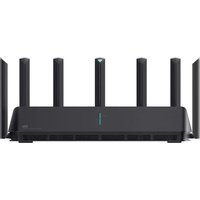


| Product Type | Wi-Fi 6 Router |
| Brand | Xiaomi |
| Model | Mi AIoT Router AX3600 |
| Dimensions | 250 mm x 150 mm x 50 mm |
| Weight | Approx. 1 kg |
| Power Supply | DC 12V, 2A |
| Processor | Qualcomm IPQ8071A |
| RAM | 512 MB |
| Storage | 256 MB NAND flash |
| Wi-Fi Standard | 802.11ax (Wi-Fi 6), dual-band |
| Antennas | 4 external + 1 AIoT antenna |
| Ports | 1 WAN (10/100/1000M), 3 LAN (10/100/1000M), 1 USB 3.0 |
| AIoT Function | Dedicated antenna for IoT devices (BLE, Zigbee) |
| Security | WPA3, built-in firewall, parental controls |
| Supported Protocols | IPv4, IPv6, VPN passthrough |
| Maintenance | Clean with dry cloth; avoid liquids |
| Operating Temperature | 0°C to 40°C |
| Spare Parts & Repairability | Not user-serviceable; contact Xiaomi support |
| Box Contents | Router, power adapter, Ethernet cable, user manual |
| General Information | Released 2020; compatible with Mi Home app |
Frequently Asked Questions - Mi AIoT Router AX3600 Xiaomi
User questions about Mi AIoT Router AX3600 Xiaomi
0 question about this device. Answer the ones you know or ask your own.
Ask a new question about this device
Download the instructions for your Router in PDF format for free! Find your manual Mi AIoT Router AX3600 - Xiaomi and take your electronic device back in hand. On this page are published all the documents necessary for the use of your device. Mi AIoT Router AX3600 by Xiaomi.
USER MANUAL Mi AIoT Router AX3600 Xiaomi
All images are for illustration purposes only and may differ from the actual product by model and region.
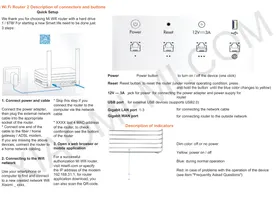
Step 1: Connect the cables

Power on the router, then connect the Internet (WAN) port to the DSL/Cable/satellite modem.
* If your Internet network is connected via an Ethernet cable at the wall, connect the Ethernet cable directly to the Internet (WAN) port on the router.
Step 2: Set up the network connection


1
Connect to the Wi-Fi using a mobile phone or computer (no password). The Wi-Fi name is indicated on the product specification label at the base of the router.
* Wait until the system indicator light turns blue. Search for the Wi-Fi network and connect.
2
At this point, you will automatically be directed to the landing page for connecting to the Internet (if you aren't, open up the browser that comes with your system and enter "router.miwifi.com" or "192.168.31.1").
* Mi Router End User License Agreement is available at: http://www1.miwifi.com/router/eula/20191230.html
3
Please enter the account name and password provided by your broadband provider, then click Next (there are different ways of connecting to the internet, so this step may be skipped).
* If you have forgotten your broadband account name or password, you can get them by contacting your broadband provider.
English
![graph TD A["Setting Wi-Fi"] --> B["Wi-Fi name"] A --> C["Wi-Fi password"] A --> D["Next"]](/content/2026/06/1350613/images/e7b4809ef5d9ab38484e93db14cbbfa8db72d655ae5501a7d150c211ee719b5c.jpg)

4
Set a new Wi-Fi and administrator password. You can choose to use your Wi-Fi password as your administrator password as well.
* Please wait until the indicator light turns blue and stops flashing, then reconnect to the Wi-Fi.


How to set up the AIoT Intelligent Antenna and add devices
- Scan the QR code to download the Mi WiFi app and the Mi Home/Xiaomi Home app.


- Add the router to your Mi Account.
Connect your smartphone to the Wi-Fi hotspot of your Mi Wi-Fi router. Open the Mi WiFi app and log in to your Mi account. Follow the prompts to add the router to your Mi account.

- Add Mi Smart Home devices
Connect your Mi Smart Home device to the power supply. The AIoT Intelligent Antenna will automatically detect the device. Open the Mi Home app and log in to the Mi account used in the previous step. A prompt will be displayed indicating that a new device has been discovered. Follow the instructions to add the device.

*Supports most Wi-Fi-enabled Smart Home devices that connect via the Mi Home app. Ensure that your device is updated to the latest version and place it within range of the Mi Wi-Fi router.
FAQ
What should I do if the Mi Home app fails to automatically detect my Mi Smart Home device?
Step 1: Check that you have configured the network settings on your router and that the router is connected to the Internet. The Internet indicator should be constant blue.
Step 2: Check that the router has been added to the Mi Home app, and that the Mi Home app is logged in to the same Mi account as the Mi WiFi app.
Step 3: Make sure the "AIoT Intelligent Antenna Automatic Scan" option has been enabled on the router. This option can be configured in the Mi WiFi app.
Step 4: Check that your Mi Smart Home device is a Wi-Fi-enabled device and that it is running the latest version. The device must be placed within range of the Mi Wi-Fi router. Some devices with built-in Internet connectivity are not supported.
I have finished setting up my network. Why can't I connect to the Internet?
Step 1: Use your phone to search for the Wi-Fi network set by your router. If you can't find it, make sure that the router is connected to the power and has finished booting up.
Step 2: Connect your phone to your router's Wi-Fi network, go to router.miwifi.com, and try to fix the problem based on the network diagnostics results.
I've forgotten the administrator password for my router. What should I do?
If you haven't set a specific password, your administrator password will be the same as your Wi-Fi password, so try using this to log in. If the problem persists, it is recommended that you restore your router to the factory settings, then set up the network again.
How do I restore my router to the factory settings?
First make sure that the router has finished booting up, then hold down the Reset button at the base of the router for more than 5 seconds and let go when the system status light turns orange. When the router finishes booting up again, the reset was successful.
What do the different indicator lights mean on the router?
AIoT status indicator
Network status light
System status light

| Network status indicator Internet | two colors (blue and orange) |
| Off | The network cable is not plugged into the WAN port |
| Orange | Constant: The network cable is plugged into the WAN port but the upstream network is not available |
| Blue | Constant: The network cable is plugged into the WAN port and the upstream network is available |
| System status indicator System | two colors (blue and orange) |
| Off | Not connected to power supply |
| Orange | flashing: System update in progressConstant (turns blue after approx. 1 minute): The system is starting Constant (does not turn blue after approx. 2 minutes): System fault |
| Blue | Constant: Working normally |
| AIoT status indicator | Single color light (blue) |
| Off | AIoT Intelligent Antenna Automatic Scan OFF |
| Blue | AIoT Intelligent Antenna Automatic Scan ON |
| Network port indicator | one color (green) |
| Off | The network port has no physical connection |
| Green | The network port has a physical connection |
Specifications:
Operating Temperature: 0~40°C
Input: 12V, 2A
Operating Frequency: 2400MHz~2483.5MHz (≤20dBm), 5150MHz~5350MHz (≤23dBm),
Hereby, Xiaomi Communications Co., Ltd declares that the radio equipment type R-3600 is in compliance with Directive 2014/53/EU. The full text of the EU declaration of conformity is available at the following internet address:
http://www.mi.com/global/service/support/declaration.html

All products bearing this symbol are waste electrical and electronic equipment (WEEE as in directive 2012/19/EU) which should not be mixed with unsorted household waste. Instead, you should protect human health and the environment by handing over your waste equipment to a designated collection point for the recycling of waste electrical and electronic equipment, appointed by the government or local authorities. Correct disposal and recycling will help prevent potential negative consequences to the environment and human health. Please contact the installer or local authorities for more information about the location as well as terms and conditions of such collection points.
English

Caution:
The product can be used within all European Union countries (BE/FR/DE/IT/LU/NL/DK/
IE/GB/GR/PT/ES/AT/FI/SE/CY/CZ/EE/HU/LV/LT/MT/PL/SK/SI/BG/RO/HR).
To comply with CE RF exposure requirements, the device must be installed and operated 20cm (8
(inches) or more between the product and all person's body.
The adapter shall be installed near the equipment and shall be easily accessible.
Use only power supplies listed in the user manual / user instruction.
Power Adapter Model: AD-0241200200EU-1
Manufactured by: SHENZHEN AMC TECHNOLOGY CO.,LTD
Power Adapter Model: CYBD-P120200E
Manufactured by: Chenyang elec.
Power Adapter Model: RD1202000-C55-154OG
Manufactured by: Shenzhen Ruide Electronic Industrial Co., Ltd.
Manufactured by: Xiaomi Communications Co., Ltd
019, 9th Floor, Building 6, 33 Xi'erqi Middle Road, Haidian District, Beijing, China, 100085


- STEP 1: CONNECT THE CABLES
- POWER ON THE ROUTER, THEN CONNECT THE INTERNET (WAN) PORT TO THE DSL/CABLE/SATELLITE MODEM
- STEP 2: SET UP THE NETWORK CONNECTION
- ENGLISH
- HOW TO SET UP THE AIOT INTELLIGENT ANTENNA AND ADD DEVICES
- FAQ
- CAUTION
- TH FLOOR, BUILDING 6, 33 XI'ERQI MIDDLE ROAD, HAIDIAN DISTRICT, BEIJING, CHINA
Brand : Xiaomi
Model : Mi AIoT Router AX3600
Category : Router