
Mi WiFi Router 2 - Router Xiaomi - Free user manual and instructions
Find the device manual for free Mi WiFi Router 2 Xiaomi in PDF.


| Product Type | Router |
| Brand | Xiaomi |
| Model | Mi WiFi Router 2 |
| Dimensions | 150 x 120 x 30 mm (approx) |
| Weight | 200 g (approx) |
| Power Supply | 5V DC, 1A |
| Wireless Standard | IEEE 802.11b/g/n |
| Frequency Band | 2.4 GHz |
| Maximum Data Rate | 300 Mbps |
| Antenna Type | Internal |
| Ports | 1 x WAN (10/100 Mbps), 2 x LAN (10/100 Mbps) |
| Security Protocols | WPA / WPA2, WEP, WPS |
| WPS Support | Yes |
| Guest Network | Yes |
| Parental Controls | Yes |
| QoS | Yes |
| DHCP Server | Yes |
| Firewall | Yes |
| Maintenance & Cleaning | Use a soft, dry cloth to clean the surface. Do not use liquids or solvents. |
| Safety | Do not expose to water, moisture, or heat sources. Use only the provided power adapter. |
| Spare Parts & Repairability | No user-replaceable parts. Contact Xiaomi service for repairs. |
| General Information | Manufactured by Xiaomi, China. Suitable for home use. |
Frequently Asked Questions - Mi WiFi Router 2 Xiaomi
User questions about Mi WiFi Router 2 Xiaomi
0 question about this device. Answer the ones you know or ask your own.
Ask a new question about this device
Download the instructions for your Router in PDF format for free! Find your manual Mi WiFi Router 2 - Xiaomi and take your electronic device back in hand. On this page are published all the documents necessary for the use of your device. Mi WiFi Router 2 by Xiaomi.
USER MANUAL Mi WiFi Router 2 Xiaomi
Mi WiFi Router 2 - Description of connectors and buttons
Quick Setup
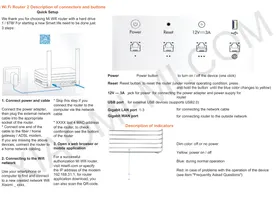
We thank you for choosing the Mi WiFi Router with a hard drive of 1/6TB! To start a new smart life, you only need to complete 3 steps:

1. Connect power and cable
Connect the power adapter, then plug the external network cable into the appropriate socket on the router.
* Connect one end of the cable to the fiber optic / home gateway / ADSL modem.
If you do not have the above devices, connect the router to your home network cabling.
2. Connect to the WiFi network
Use your smartphone or computer to find and connect to the newly created WiFi network named Xiaomi_XXXX.
* Skip this step if you connect the router to the computer via an Ethernet cable.
* XXXX are the last 4 characters of the router's MAC address; to verify, check the bottom of the router.
3. Open a web browser or mobile app
To successfully configure the Mi WiFi Router, visit miwifi.com or enter the IP address 192.168.31.1. To download the router app, you can also scan the QR code.
Power
Reset
12V=3A
→
.
...
...
G
Power
Power button
to turn on / off the device (one click)
Reset Reset button to reset the router (under normal operating condition, press and hold the button until the blue color changes to yellow)
12V --- 3A jack for power for connecting the power adapter and power supply for router
USB port for external USB devices (supports USB2.0)
Gigabit LAN port 1-3
for connecting the network cable
Gigabit WAN port
for connecting router to the outside network

Dim color: off or no power
Yellow: power on / off
Blue: during normal operation
Red: in case of problems with the operation of the device (see item "Frequently Asked Questions")
Placement of the router
The best signal coverage
For a good signal coverage it is recommended to place the Mi Wifi router with the foreign PBC high-gain antenna in the room, thus providing widespread availability of the Wifi signal.
* The vertical position of the antenna provides a better signal
Optimal heat dissipation
The Mi Wifi router is equipped with a smart system for controlling the speed of heat removal. Therefore, to ensure optimal system performance and heat dissipation, make sure that the two air outlets are not blocked.
Network

Interoperability of two ranges of WIFI network
The 2.4G network supports the 802.11N agreement, with a maximum data transfer rate of up to 300Mbps, more comprehensive signal, higher permeability of the signal through walls, but the bandwidth is slightly lower.

The 2.4G network is sufficient for quite long distances and does not require the use of devices for high throughput (to browse webpages on your smartphone).

The 5G network supports the 802.11AS agreement, with a maximum data transfer rate of up to 867Mbps, low noise, and a more powerful and stable signal, but it is not better than
the bandwidth of the 2.4G network.
The 5G network is suitable for shorter distances and for devices that require sufficiently high bandwidth (such as watching movies on a tablet or TV).
The Mi WiFi router supports three Gigabit ports (data transfer rate of 1000Mbps). It is recommended to use UTP cables (Cat 5 and higher) for higher data rates.
* Network adapters and cables must support Gigabit Ethernet.
System
Built-in Smart OS Mi WiFi Router
Security and stability
The Mi WiFi Smart system has a safety mechanism with dual automatic switching, ensuring reliable and stable operation of the router under any circumstances.
Constant updates
The Mi WiFi system is constantly updated. Through regular OTA updates, the router's performance is continuously improved, eliminating any interference.
Outstanding router performance
The Mi WiFi system can work independently with a large 512 MB flash memory and interact with a dual-core Broadcom CPU, all of which guarantees perfect and error-free operation of the Mi WiFi system.
HDD
Working condition
Monitoring 7 days a week / 24 hours a day, thanks to built-in router 3.5-inch hard drive. For normal operation of the router, do not let it shake or fall.
Sleep mode
Automatic switching functions operating mode / sleep mode, low power consumption.
Switched off
If you need to turn off the router, simply press the power on / off. Grey indicator indicates that router is off. Before turning off the power adapter, first make sure that you have actually turned off the router.
"Health" of hard drive
It is recommended to regularly check the operating status of the hard drive, using the software "control of the magnetic disk", as well as to make a habit of regularly backing up important data.
Hard Drive Warranty
We provide a guarantee for Mi router and hard drive for one year. In case of problems in the hard disk during the warranty period, you are eligible for replacement.
* In the case of renovation / repair of hard drive, all data stored on it disappears. So before you give your hard disk for repair, use the software and back up important data.
Configuration

Broadcom BCM4709S, 2 core, clocked at 1.4GHz

Dual Channel PCB antenna, 2.4G, the maximum gain to 4dBi, 5G, the maximum gain to 6dBi

Large memory, 512MB extensive memory, Hosting OS Mi Wifi Smart Router

HDD, Monitoring of the internal hard disk 7 days a week / 24 hours a day, Powerful home center storage and data processing
Frequently Asked Questions
Why, after a successful connection of the cable for the outside network and completion of all settings, does an error occur when accessing the network?
First, check whether you have connected the network cable, and make sure your username and password are correct. Visit any web page, via mobile app or a web browser, and use the smart error detection to find and resolve the problem. It may take a few minutes.
Error 678: The server operator does not accept the same login.
Remedy: Once again, pull out and reinsert the cable for the outer network, reboot the optical fiber / home gateway / ADSL modem, and after 10 minutes, try to connect again.
Error 691: The server operator shows an error in login password or expiration of your account.
Remedy: Check whether the user name and password are correct, or enter a login and password on the operator's website to check the details of payment services.
If your operator does not specify an error number, we recommend that you restart the device (optical fiber / home gateway / ADSL modem).
Is it possible to install the name of the WiFi network (SSID) in Chinese? Why sometimes is the name of the WiFi network distorted?
Mi router supports Chinese names for WiFi networks, but for the normal image network name, you must be connected to the router device (smartphone / pad / computer) that also supports Chinese SSID.
Why can I not find a 5G signal of Mi router?
To connect to the frequency of 5G, it is necessary that the network card device also supports 5G. If you find that the device supports the 5G signal, but still cannot connect to it, in that case, the device does not support the domestic channel signal 5G.
Recommended: check which signals are supported by the device, and then configure the operation of the signal Mi router.
What is the IP address and password of web-tools?
IP address of the site Mi router miwifi.com or 192.168.31.1. Password for utilities same as WiFi password set during device initialization.
If you have forgotten your password, go to the mobile app to see the password, or click router reset.
Why does the red light indicate after switching on the router?
A red light on the indicator shows the occurrence of system errors or problems with the operation of the device, and indicates that you are in safe mode. During safe mode, all the data stored on the router will be protected. You can restore the normal operation of the device firmware via USB or call maintenance to address this issue.
If the red light is constantly showing up, the data stored on the router is not lost, however, problems are arising when switching on and during work of memory/card. To resolve this issue, you can send the router for repair or upgrade it, or be contacted by phone service to address this issue.
Guarantee
In case of problems with the operation of the device that are not related to the human factor, you can obtain warranty service:
For 7 days from the date of purchase, in case of problems with the operation of the device, the Xiaomi service center determines the cause of the problem, after the presentation of the receipt, you can choose a free replacement product, return, or repair.
Within 15 days from the date of purchase, in case of problems with the operation of the device, the Xiaomi service center determines the cause of the problem, after the presentation of the receipt, you are entitled to a free replacement item of the same model.
Warranty - 1 year
Terms of warranty repair
The list of circumstances (including, but not limited to) under which compensation is not possible:
- No warranty card, check, or expired warranty;
- Damage caused by force majeure, such as lightning, fire, or flood
- Damage caused by improper use of the device, its maintenance, or storage;
- Damage caused by unauthorized repair work, etc. Service Center;
- Do not match the model or code on the device and in the warranty card;
- Discoloration or deterioration of the device due to its use.
In the case of the above problems, you have to solve these problems on your own, or use the paid services of the service center.
The presence of toxic and hazardous substances
| Name | Toxic and hazardous substances or elements | |||||
| Pb | Hg | Cd | Cr6+ | P BB | PBDE | |
| Case | 0 | 0 | 0 | 0 | 0 | 0 |
| Mounting board | x | 0 | 0 | 0 | 0 | 0 |
| Power adapter | x | 0 | 0 | 0 | 0 | 0 |
| Additional components | 0 | 0 | 0 | 0 | 0 | 0 |
| Explanation | O: toxic and harmful substances in all components of the device contained in an amount below the limit value according to SJ / T11363-2006 requirements limiting the presence of toxic and hazardous substances in products. X: indicates the presence of toxic and hazardous substances at least one of the components in this product in excess of the limit value, according to SJ / T11363-2006 requirements for restrictions of presence of toxic and hazardous substances in products. | |||||
This product conforms to the European RoHS requirements and regulations for the protection of the environment; international countries still cannot replace or reduce the aluminum content in copper alloy.


- MI WIFI ROUTER 2 - DESCRIPTION OF CONNECTORS AND BUTTONS
- QUICK SETUP
- CONNECT POWER AND CABLE
- CONNECT TO THE WIFI NETWORK
- OPEN A WEB BROWSER OR MOBILE APP
- PLACEMENT OF THE ROUTER
- THE BEST SIGNAL COVERAGE
- OPTIMAL HEAT DISSIPATION
- NETWORK
- SYSTEM
- BUILT-IN SMART OS MI WIFI ROUTER
- SECURITY AND STABILITY
- CONSTANT UPDATES
- OUTSTANDING ROUTER PERFORMANCE
- HDD
- SLEEP MODE
- SWITCHED OFF
- HEALTH" OF HARD DRIVE
- HARD DRIVE WARRANTY
- CONFIGURATION
- FREQUENTLY ASKED QUESTIONS
- GUARANTEE
- TERMS OF WARRANTY REPAIR
Brand : Xiaomi
Model : Mi WiFi Router 2
Category : Router