
5G CPE Pro - Router Xiaomi - Free user manual and instructions
Find the device manual for free 5G CPE Pro Xiaomi in PDF.


| Product Type | 5G CPE Pro Router |
| Brand | Xiaomi |
| Model | 5G CPE Pro |
| Dimensions | 150 x 150 x 50 mm |
| Weight | 500 g |
| Power Supply | DC 12V / 2A |
| Wireless Standard | 5G NR, Wi-Fi 6 (802.11ax) |
| Maximum Data Rate | 3.5 Gbps (5G), 2.4 Gbps (Wi-Fi 6) |
| Ethernet Ports | 1 x Gigabit WAN/LAN, 1 x Gigabit LAN |
| USB Port | 1 x USB 3.0 Type-A |
| Antenna | Internal high-gain antennas |
| Frequency Bands | 5G: n1/n3/n5/n7/n8/n20/n28/n38/n40/n41/n77/n78/n79; 4G: B1/B3/B5/B7/B8/B20/B28/B38/B40/B41 |
| Wi-Fi Frequency | 2.4 GHz & 5 GHz |
| LED Indicators | Power, Network, Wi-Fi, Signal Strength |
| Buttons | Power, WPS, Reset |
| Supported Protocols | IPv4, IPv6, VPN pass-through |
| Security | WPA/WPA2/WPA3, Firewall, Parental Control |
| Maintenance | Clean with a soft, dry cloth; avoid liquids |
| Spare Parts & Repairability | Spare parts available via Xiaomi authorized service centers; device not user-serviceable |
| Operating Temperature | 0°C to 40°C |
| Certifications | CE, FCC, RoHS |
Frequently Asked Questions - 5G CPE Pro Xiaomi
User questions about 5G CPE Pro Xiaomi
0 question about this device. Answer the ones you know or ask your own.
Ask a new question about this device
Download the instructions for your Router in PDF format for free! Find your manual 5G CPE Pro - Xiaomi and take your electronic device back in hand. On this page are published all the documents necessary for the use of your device. 5G CPE Pro by Xiaomi.
USER MANUAL 5G CPE Pro Xiaomi
Read this manual carefully before use, and retain it for future reference. Thank you for choosing Xiaomi 5G CPE Pro. It provides a high-speed 5G experience. You can enjoy data service via Wi-Fi or ethernet cable.
This user manual briefly describes the appearance, usage, and procedures on how to configure the settings of this product.


Note: Illustrations of product, accessories, and user interface in the user manual are for reference purposes only. Actual product and functions may vary due to product enhancements.
Parts Introduction
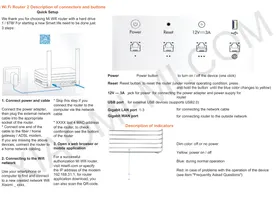
| 1 | Indicator | Show the status of the 5G signal, 4G signal, Wi-Fi, and SYSTEM of the router |
| 2 | Power Button | Turn on: Press and hold the button for more than 3 seconds when the router is offTurn off: Press and hold the button for more than 3 seconds when the router is on |
| 3 | Reset Button | Press and hold the button for more than 5 seconds to restore factory settings |
| 4 | SIM Card Slot | Open the cover, and then insert the SIM card |
| 5 | Ethernet Port | For endpoint device or broadband connections |
| 6 | Power Port | For power input |
Indicator Descriptions
| 5G | White: Strong signalBlinking white: Weak signalOff: No signal |
| 4G | White: Strong signalBlinking white: Weak signalOff: No signal |
| Wi-Fi | White: Wi-Fi is onOff: Wi-Fi is off |
| SYSTEM | White: Operating normallyOrange then turns into white: Starting normallyOrange: ErrorBlinking orange: System updatingOff: The router is turned off |
How to Use
- Make sure to use nano-SIM card.


mini-SIM (2FF) micro-SIM (3FF) nano-SIM (4FF)
- Open the SIM card cover on the back of the router.
- Insert the SIM card into the slot as illustrated.

- Close the SIM card cover.
- Plug the power adapter into the router, and the indicators will light on when the router is connected to the network successfully.
Connecting to Wi-Fi
You can connect your smartphone or other electronic devices to the Wi-Fi by the default Wi-Fi name and password. The Wi-Fi name and password are on the bottom of the router.
Note: Please open the management page to change the default Wi-Fi name and password in time. You need to reconnect to the Wi-Fi after the Wi-Fi name or password is changed.
Managing Your Router
Once the initial Wi-Fi is connected, log in to the management page at router.miwifi.com or 192.168.31.1 via a web browser to manage your router. Follow the instructions on the page to complete the configuration process. The default login password is on the bottom of the router.
Note: Please open the management page to change the default login password in time.
FAQ
1. How to reset the router to factory settings?
Make sure the router is turned on and starts working. Press and hold the Reset button for more than 5 seconds, and release the button when the system indicator turns orange. The reset will be completed after the router is successfully restarted.
Caution: Restoring to factory settings will cause a total loss of the data, including CPE configuration and SMS. It is recommended to back up your data before restoring factory settings.
2. What should I do if the 5G signal indicator and 4G signal indicator are off?
Step 1: Check whether the SIM card is correctly installed.
Step 2: Check whether the SIM card works well.
Step 3: If your SIM card requires a PIN, enter the correct code to unlock the card.
Step 4: Restore to factory settings and try again if the problem still exists.
3. What should I do if I forget the login password or Wi-Fi password?
Restore the router to factory settings. The default login password and Wi-Fi password are on the bottom of the device.
4. What should I do if the Internet speed is slow?
Step 1: Check whether the indicator is blinking. If it is, move the router to a place with better signal reception.
Step 2: Make sure to use the 5 GHz Wi-Fi network if your smart device is connected to the internet via Wi-Fi.
Step 3: Check whether the cellular speed is limited by your operator.
Step 4: Restore to factory settings and try again if the problem still exists.
Regulatory Compliance Information
Europe - EU declaration of conformity

Hereby, Xiaomi Communications Co., Ltd. declares that the radio equipment type CB0401 is in compliance with Directive 2014/53/EU. The full text of the EU declaration of conformity is available at the following internet address: http://www.mi.com/global/service/support/declaration.html
Disposal and recycling information

All products bearing this symbol are waste electrical and electronic equipment (WEEE as in directive 2012/19/EU) which should not be mixed with unsorted household waste. Instead, you should protect human health and the environment by handing over your waste equipment to a designated collection point for the recycling of waste electrical and electronic equipment, appointed by the government or local authorities. Correct disposal and recycling will help prevent potential negative consequences to the environment and human health. Please contact the installer or local authorities for more information about the location as well as terms and conditions of such collection points.
Warning
To comply with CE RF exposure requirements, the device must be installed and operated 20 cm (8 inches) or more between the product and all person's body. Operation of this equipment in a residential environment could cause radio interference.
This device is restricted to indoor use only when operating in 5150-5350MHz frequency range in following countries:
 | AT | BE | BG | HR | CY | CZ | DK | EE | FI |
| FR | DE | EL | HU | IE | IT | LV | LT | LU | |
| MT | NL | PL | PT | RO | SK | SI | ES | SE | |
| UK(NO) | IS | LI | NO | CH | TR | ||||
Specifications
| Name | Xiaomi 5G CPE Pro |
| Model | CB0401 |
| Input | 12 V, 3 A |
| Operating Temperature | -10°C to 45°C |
Operating Frequency and Radio Frequency Power (radiated and/or conducted) nominal limits applicable to this radio equipment are as follows:
| Wi-Fi | 2412 MHz–2472 MHz (≤20 dBm)5150 MHz–5350 MHz (≤23 dBm)5470 MHz–5725 MHz (≤30 dBm) |
| 5G NR NSA | n1/n3/n7/n28/n38/n78 (≤26 dBm) |
| LTE | Band 1/3/7/8/20/28/32/38 (≤25.7 dBm) |
Manufactured by: Xiaomi Communications Co., Ltd.
Address: #019, 9th Floor, Building 6, 33 Xi'erqi Middle Road, Haidian District, Beijing, China
Product Overview
mini-SIM (2FF) micro-SIM (3FF) nano-SIM (4FF)
http://www.mi.com/global/service/support/declaration.html
Address: #019, 9th Floor, Building 6, 33 Xi'erqi Middle Road, Haidian District, Beijing, China
Product Overview
http://www.mi.com/global/service/support/declaration.html
Manufacturer: Xiaomi Communications Co., Ltd.
Address: #019, 9th Floor, Building 6, 33 Xi'erqi Middle Road, Haidian District, Beijing, China
Product Description
http://www.mi.com/global/service/support/declaration.html
Disposal and Recycling Information

Address: #019, 9th Floor, Building 6, 33 Xi'erqi Middle Road, Haidian District, Beijing, China

- HOW TO USE
- CONNECTING TO WI-FI
- MANAGING YOUR ROUTER
- FAQ
- HOW TO RESET THE ROUTER TO FACTORY SETTINGS
- WHAT SHOULD I DO IF THE 5G SIGNAL INDICATOR AND 4G SIGNAL INDICATOR ARE OFF
- WHAT SHOULD I DO IF I FORGET THE LOGIN PASSWORD OR WI-FI PASSWORD
- WHAT SHOULD I DO IF THE INTERNET SPEED IS SLOW
- REGULATORY COMPLIANCE INFORMATION
- EUROPE - EU DECLARATION OF CONFORMITY
- DISPOSAL AND RECYCLING INFORMATION
- WARNING
- PRODUCT OVERVIEW
- PRODUCT DESCRIPTION
Brand : Xiaomi
Model : 5G CPE Pro
Category : Router