
YOO MOVE 6001 - Video screen YOO DIGITAL - Free user manual and instructions
Find the device manual for free YOO MOVE 6001 YOO DIGITAL in PDF.


| Product type | Portable multimedia player / video screen |
| Brand | YOO DIGITAL |
| Model | YOO MOVE 6001 |
| Display | 4.3-inch TFT HD touchscreen, 800×480 resolution |
| Power | Polymer battery 1350 mAh 3.7 V |
| Video playback time | About 3 hours (full charge, with headphones) |
| Audio playback time | About 13 hours (full charge, screen off, headphones) |
| Supported audio formats | MP3, WMA, FLAC, AAC, AC3, OGG, WAV, APE |
| Supported video formats | AVI, RM, RMVB, DAT, MOV, MPG, FLV, VOB, MKV |
| Supported image formats | JPG, BMP, GIF |
| E-book formats | TXT, LRC (ANSI encoding) |
| Voice recording | WAV format, 11 kHz sampling |
| Connectivity | USB 2.0 High Speed, 3.5mm headphone jack, TF card slot, AV input, TV-OUT output |
| Main functions | Audio/video player, photo viewer, e-book, voice recorder, file browser, calendar, calculator, stopwatch, WiTi (screen decoration) |
| Remote control | Infrared included |
| Languages | Simplified Chinese and English |
| Compatible systems | Windows 2000, XP, Vista |
| Operating temperature | -5 to 40 °C |
| Safety | Do not expose to shocks, extreme temperatures, humidity. Use only the supplied headphones. |
| Maintenance | Clean with a dry cloth, no chemicals. Regularly back up data. |
| Spare parts / Repairability | No user-replaceable parts. Do not disassemble. Updates available via YOO DIGITAL website. |
Frequently Asked Questions - YOO MOVE 6001 YOO DIGITAL
User questions about YOO MOVE 6001 YOO DIGITAL
0 question about this device. Answer the ones you know or ask your own.
Ask a new question about this device
Download the instructions for your Video screen in PDF format for free! Find your manual YOO MOVE 6001 - YOO DIGITAL and take your electronic device back in hand. On this page are published all the documents necessary for the use of your device. YOO MOVE 6001 by YOO DIGITAL.
USER MANUAL YOO MOVE 6001 YOO DIGITAL
All warranty information, product features and specifications are subject to change without notice!
Main Functions 40
Precautions 42
Surface Layout 44
Main Interface 45
Basic Operations 46
Function Description 48
Music 48
Video 53
EBook 57
Photo 59
Settings 60
Other Functions 64
Calender 65
Record 66
Explorer 67
Firmware Update 68
Troubleshooting 69
Technical Specification 70
- 4.3 inch HD TFT touch panel with resolution of 800 × 480 .
- Support audio format of Mp3, WMA, FLAC, AAC, Ac3, OGG, WAV and APE format. support lyric display, memory play and 9 sound effects like PLAY FX, 3D, etc.
- Support video format of AVI, RM, RMVB, DAT, MOV, MPG, FLV, VOB, MKV.
Support earphone. - Support TF card.
- Support AV of standard & HD PAL or NTSC standard and TV-OUT function.
- Support picture format of JPG, BMP, GIF.
- Power saving, backlight adjustment and auto power off are available.
- Extra long voice record function.
- Support simplified CHINESE and ENGLISH.
Support systems of Win2000,Win XP and Vista.
High speed USB2.0 interface.
E-BOOK and trademark function. -
Portable disk function.
-
Multi task handling function, you can listen to music while reading E-book or viewing pictures.
- Firmware updating function.
Infrared remote control.
All warranty information, product features and specifications are subject to change without notice!
Please read the manual carefully before using the player to avoid unexpected damage.
I. Do not use the player in extremely hot, cold, dusty or damp environments.
2. Avoid dropping or strongly crashing the player. Protect the TFT display from damage caused by strongly crash, which is out of the warranty range.
3. The usage life of battery varies from the operating conditions and environments.
4. Do not disconnect the USB line during formatting, uploading and downloading to avoid damage.
5. Do not clean the machine surface with alcohol or other chemical cleanser to avoid corrosion.
6. It is normal to find the machine is hot during charging.
- Please backup the important files before maintenance or other abnormal operations.
- The memory size shown in the machine is different to that shown in the computer. If virus infected the player and caused damage to the files and firmware, please update the firmware and format the flash.
- This player contains no user serviceable parts. Disassembling the player may damage the player and will void the warranty. Please check the troubleshooting section of this manual if experiencing problems.
SURFACE LAYOUT
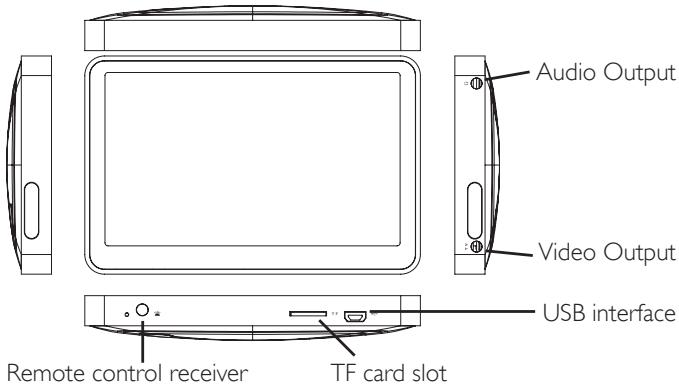
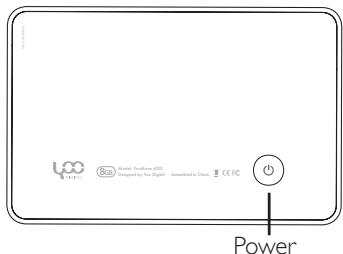
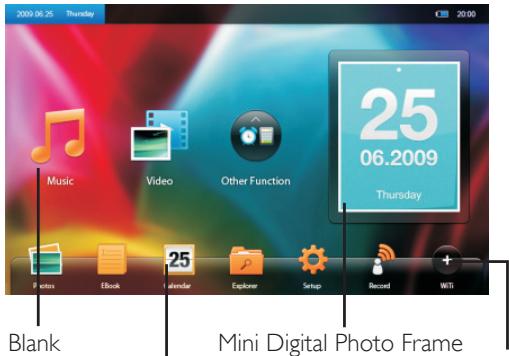
Function Icon
WITI Function
I. The place of any small button and that of big buttons can be exchanged. For example, if press and drag one Small button with finger to the place of one big buttons, then the two buttons exchanged their position on the screen.
2. Background switch long press the blank on the screen.
3.Mini digital photo frame: it shows calendar after turning on the player , then it plays slides of all pictures in the player after about
15S. It shows the disc cover and track formation when disc with cover being played.
Note : Pressing the frame to enter the corresponding function interface is available.
4.WiTi function Touch the WITI button, then touch a cute item to decorate the screen. Press and drag the item on the main interface can change its position.
BASIC OPERATIONS
Power on
long press the power button for about 3S.
Power off
A. Long press the power button for about 3S.
B. The player is turned off automatically when the battery run out.
Player reset
If the player displays abnormal or cannot be operated, long press the power button for about 10S to reset it, then turn on the player.
Power monitor
The battery icon on the screen shows the rest volume of electricity. To save the power, adjust the LightTime Brightness and Light Mode to a reasonable level is helpful. Please charge the player timely when the battery icon shows blank.
Charge
the player can be charged via the admissible charger or connecting to a computer with standard USB interface. During the charging period, the battery icon shows pulse. After finishing the charging, the battery icon shows full. In screen off mode, charging will take about 4 hours to be finished. In other playing mode the charge will need about 6 hours.
Connect with computer and transfer file
Start your computer and connect the player using the supplied USB cable. The player will be detected as standard removable disks by your computer and allows the transfer and management of files on the player without the need for the instillation of 3^rd party software.
FUNCTION DESCRIPTION
The main interface is displayed when the player is powered on. Touch the corresponding icon to enter the required function interface (Music / Video / Photo / Record / Ebook / Other Function / Explorer / Settings / WiTi).
MUSIC
On the main interface, touch function icon "MUSIC" enter the music file managementinterface shown below :
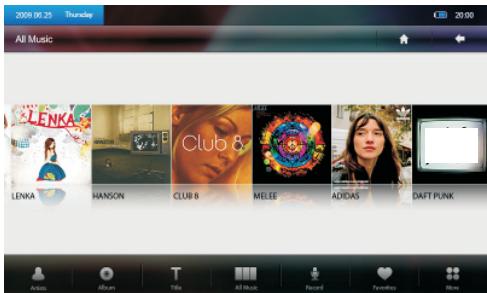
Touch to list all the music file on the screen as above. Slide finger on the screen left and right to view the list.
Touch to show all music according to artist, touch to add the wanted song to the play list.
Touch to show all music according to album, touch to add the wanted album to the play list.
Touch to show all music according to genre, touch to add the wanted song to the play list.
Touch to show play list, touch to select whether remove file.
Touch to view more functions.
Touch to show all the directory related with music.
Music play interface
Touch an audio file on the above screen to enter music play interface shown below :
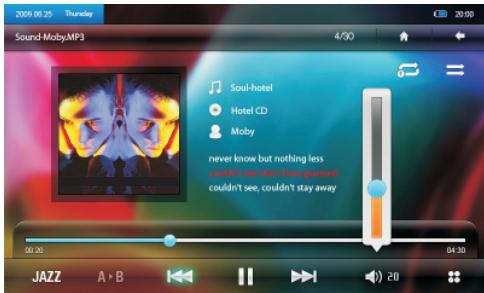

Touch to exit to the previous directory.

Touch to exit to the main interface.
JAZZ Touch to shift the sound effect (JAZZ, USEREQ, NORMAL, 3D, MSEQ, ROCK, POP, CLASSIC, BASS)
A-B If Touch to set the start point A, touch again to set the point B, then the music part A-B will be played again and again until press the icon A-B again.


Touch to play the previous/next music file, long press to fast backward/forward the play speed.
Touch to pause / play the music.
Touch to popup the volume controller.
Touch to do setting show below.
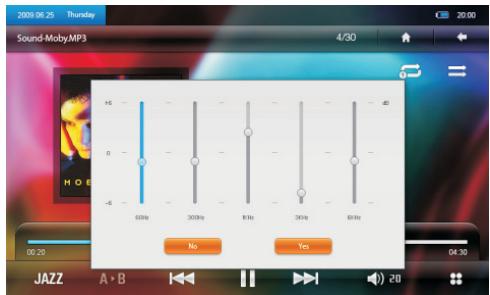
Repeat Mode
A.Once : play the selected song once.
B. Repeat : Repeat the selected song.
C.All : play all music once.
D. All Repeat : repeat play all music.
Play Mode
Two items, In order and Shuffle for choice.
MSEQ
Three items, 3D, Bass and Normal for choice.
User EQ Setup
Touch to do setting on screen shown below.

I. The lyrics user may from www.yoodigital.com Websites and so on COM downloads the song correspondence the LRC lyrics, or through software's manufactures the lyrics voluntarily. Then preserves into your player with the MP3 song same name, might realize the lyrics synchronization to demonstrate.
- Has few code very special MP3 /WMA audio frequency document, has the possibility to be unable on this aircraft to broadcast, after please use the audio frequency transformation tool transforms, to duplicate on this aircraft to broadcast again. The APE song only supports 3.95.3.97.3.98.3.99 edition NORMAL and FAST compression edition.
VIDEO
On the main interface, touch icon "VIDEO" to enter video file management interface :
I. Touch one folder to open it.
2. View the video list by sliding a finger on the screen up and down.
3. If want delete a video file, long press it and select yes on the popup item.
4. Touch one video file to play it.
5. Touch to return the previous menu, touch to return the main interface.
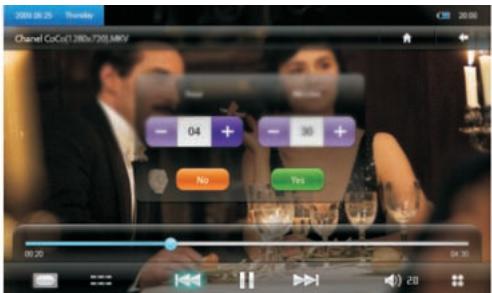
6. If a video had not been played completely last time, then the player support playing from the pause part next time as below :
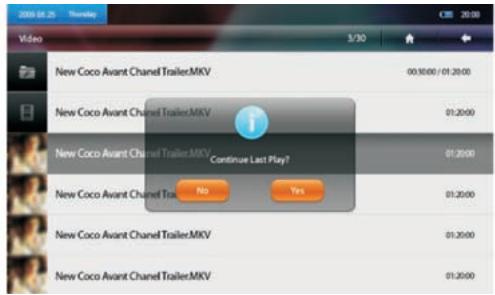
Video Play Interface
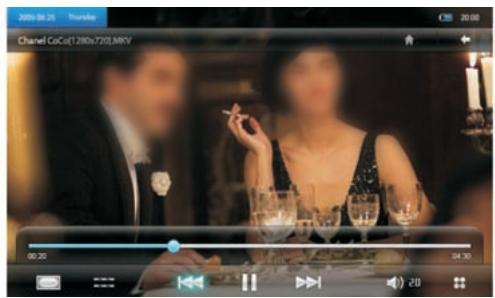

Touch to return the previous menu.

Touch to return the main interface.

Touch to play the previous / next video, long press to fast bac

kward / forward the play.


Touch to play / pause the play.

Touch to adjust the volume.

Touch to adjust the screen size.

Touch to set the start point of a video, if well set, the video will start play from the point.
Touch to shown the below screen :
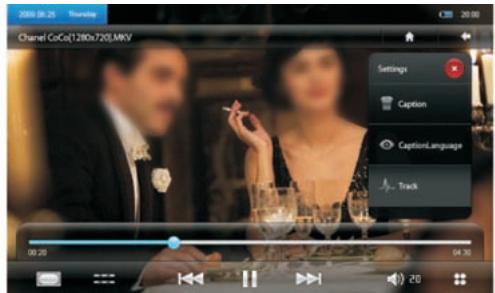
Caption : touch to select whether display the caption on screen.
Caption Language : touch to select the displayed language.
Track: touch to select track.
: touch to exit the setting item
Memory play
The player can play the rest part directly if the same video file is not played completely last time.
Download the caption file to the player, then rename it the same name as the corresponding video file. Put the caption file and the corresponding video file in a directory, then the caption is syn
EBOOK
On the main interface, touch function icon "EBOOK" enter the text file management interface, then touch the wanted text file to enter the text reading interface :
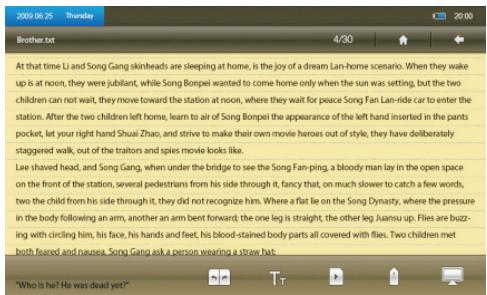
The text will be shown in full screen, slide finger on the screen up and down to read it. Under full screen mode, touch screen to show toolbar.

Touch to set a page number by touch icon + or -, then the screen jumps to this page.

Touch to set the size and colour of word.

Touch to set the auto page flipping interval.

Bookmark function save bookmark: 3 bookmarks can be used to save the wanted page, touch to confirm. Pick up bookmark: touch the saved bookmark directly. Delete bookmark: touch to delete the saved bookmark.

Touch to select the page color.

This player on supports files saved as TXT or LRC. files in ANSI code. Files of other format will not be displayed.
On the main interface, touch function icon "PHOTO" enter the photo file management interface, then touch the wanted photo file to enter the photo viewing interface shown below:
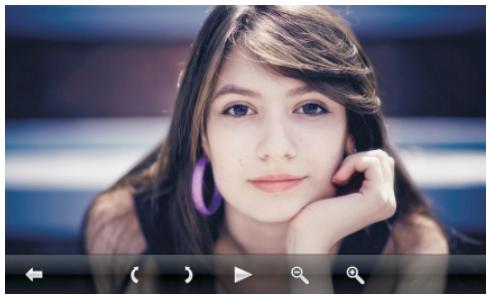
Under full screen mode, touch screen to show toolbar.

Touch to return the previous menu.

Touch to left/right revolve the photo.
Touch to set the interval of auto photo browse.
Touch screen to exit the photo auto browsing status.
Touch to zoom out/in the photo, touch to back to normal state.
Few JPEG picture applied in the system of APPLE PC maybe not browsed before not changing its format.
SETTINGS
On the main interface, touch icon " SETTINGS" enter the system setting screen shown below:
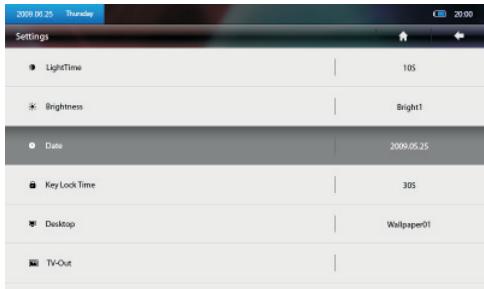
Touch to return the previous menu, touch to return the main interface. User can view the setting items by sliding the finger on the screen up and down.
LightTime
Five items, 10S, 15S, 20S, 30S and Always On for your choice. Touch the wanted item to set the on time of Backlight.
Brightness
Five items, Bright 1, Bright 2, Bright 3, Bright 4 and Bright 5 for choice. Touch the wanted item to set the brightness of Backlight.
LightMode
Two items, All Dark, Penumbra for choice.
Key Lock Time
Five items, 10S, 30S, 5MinS, 10MinS and No Locking for your choice. If touch 10S, then the screen will be locked after 10 seconds. To lock the screen, please touch the lock icon on the screen.
The screen can be locked or unlocked by short pressing power key too. (Exclude TV-OUT mode)
Desk Top
Five items for choice.
Language
Simplified Chinese and English for choice.
AutoShut Time
Five items for choice.f touch 5 MinS, then the player will be turned off automatically after 5 minutes
TV Switch
If select item OPEN, then the player enters the TV-OUT mode and its screen shows black. Please see the Tv operation manual for how to link the player to TV.To exit the TV-OUT mode, please short press the power switch.
TV Mode
Five items, CVBS PAL, CVBS NTSC,Yprpb 480,Yprpb 576 and Yprpb 720 for choice.
Tv Screen Size
Three items, Small, Middle and Big for choice.
Key Volume Switch
Touch this item to turn or turn off the key touch sound.
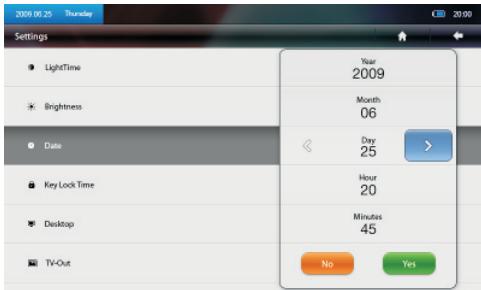
Time Setting
Touch this item to enter interface shown below :
Touch key "<" or "> " to well set the date and time, then touch "YES" or "NO" to confirm or cancel the settings.
Default Setting
Touch this item to select whether recover the player to the original factory setting.
System Information
Touch this item to view system information like Manufacturer, Product Name, etc.
Touch to return the previous menu, touch to return the main interface.
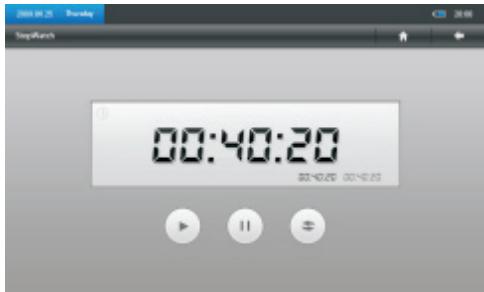
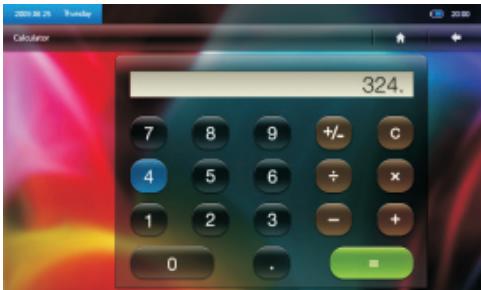
On the main interface, touch icon “OTHER FUNCTIONS” to use the function stopwatch or calculate :
1. STOPWATCH
Touch to start time counting, touch to stop the record. Touch to clear the record.
2.CALCULATE
CALENDER
On the main interface, touch icon "CALENDER" to enter the date setting interface shown below:
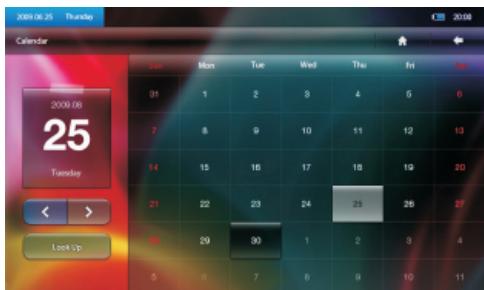
Touch icon "LOOKUP" to set the wanted date by icon "<" and ">", then touch "YES" to confirm.
RECORD
On the main interface touch Explorer to enter the voice record interface shown below :
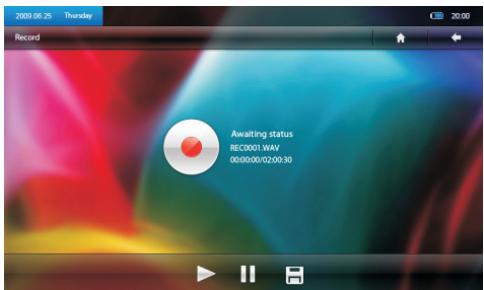
Press to start the record, press to pause the record if necessary, press again to continue the record, press to save the record and enter the next record awaiting status.
Touch to return the previous menu, touch to return the main interface.
To play the record file, find it in the folder record under interface of MUSIC or explorer.
EXPLORER
On the main interface touch "EXPLORER" to enter the file management interface :
User can view all the file in the Explorer.
Long press the file name, a dialogue frame popup to ask whether to delete the selected file.
View the file folder or file list by sliding a finger on the screen up and down.
Touch to return the previous menu, touch to return the main interface.
FIRMWARE UPDATE
Visit website http://www.yoodigital.com and download the latest software and update tool for YooMove 6001.
Run the update tool in computer, then connect the closed player with computer, when the update tool find the new USB device, select program T9HD.img at item BROWSE.
Click SWITCH to switch to update mode.
Click UPDATE to start updating the firmware. Do not disconnect the player from computer until the update is well finished. The player screen is always shown black when it is being updated.
When the update tool promotes the update is well done, disconnect the player.
The player cannot be turned on.
Check if the battery is low or flat recharge the play if required by connecting to your PC with the USB cable.
Ensure that the computer is on during the charging process.
No sound can be heard from the earphones.
- Check if the volume is set as 0. Adjust the volume as required.
- Check the volume of the file attempting to be played.
- Confirm the microphone is properly connected.
Noise through earphones.
- Check if the earphone plug is clean, foreign particles can cause static to be heard through the earphone during playback.
- Check if the music file is damaged. Confirm by playing other music. The damaged file might create serious noises or voice dithering.
- Incorrect language displayed.
Please make sure that you have selected the correct language. Set language in Setting > Language > Language Selection.
Files cannot be downloaded.
I. Make sure the proper connection between computer and player.
- Check if the memory is full.
- Check if the USB cable is damaged and replace if necessary.

Note : before plug in the earphone, adjust the volume to low level, then increase the volume slowly to protect it from being burned or damaged.
TECHNICAL SPECIFICATION
| Display | 4.3 inch touch panel with resolution of 800×480 |
| USB Type | High speed USB 2.0 |
| Memory | 1GB-16GB |
| Power Volume | 1350mAh 3.7V polymer battery |
| Support video play for about 3 hours (Fully charged, with earphone) | |
| Support music play for about 13 hours (Fully charged, screen off, with earphone) |
| Voice Record | Sample Rate | I I KHZ |
| MIC Record Format | WAV | |
| Record Time | About 360 hours 8 GB | |
| Audio Play | Max. Earphone Output | (L 8mW+ R 8mW 32ohm) |
| Mp3 Bit Rate | 8Kbps-320kbps | |
| WMA Bit Rate | 64Kbps-192kbps | |
| Frequency Response | 20HZ-20KHZ 3dB | |
| S/N | >85dB | |
| Distortion | <1% | |
| Video Play | AVI | 1280×720 below |
| RM | 1280×720 below | |
| RMVB | 1280×720 below | |
| MKV | 1280×720 below | |
| FLV | 720×576 below | |
| Work Temperature | -5 to 40°C | |
| Language | Simplified Chinese and English | |
| System | Windows 2000/XP/Vista |
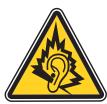
- Use only the earphones supplied with the product, or a having model even characteristic.
- In full power, the prolonged listening of the player can damage the ear of the user.
Copyright Yoo DigitalTM 2009.
All rights reserved.


- SURFACE LAYOUT
- BASIC OPERATIONS
- Power on
- Power off
- Player reset
- Power monitor
- Charge
- Connect with computer and transfer file
- FUNCTION DESCRIPTION
- MUSIC
- Music play interface
- Repeat Mode
- Play Mode
- MSEQ
- User EQ Setup
- VIDEO
- Video Play Interface
- Touch to shown the below screen :
- Memory play
- EBOOK
- SETTINGS
- LightTime
- Brightness
- LightMode
- Key Lock Time
- Desk Top
- Language
- AutoShut Time
- TV Switch
- TV Mode
- Key Volume Switch
- Time Setting
- Default Setting
- System Information
- STOPWATCH
- 2.CALCULATE
- CALENDER
- RECORD
- EXPLORER
- FIRMWARE UPDATE
- The player cannot be turned on.
- No sound can be heard from the earphones.
- Noise through earphones.
- Files cannot be downloaded.
- TECHNICAL SPECIFICATION
Brand : YOO DIGITAL
Model : YOO MOVE 6001
Category : Video screen