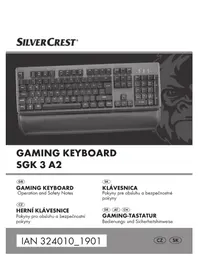
SGK 3 A2 - Keyboard SILVERCREST - Free user manual and instructions
Find the device manual for free SGK 3 A2 SILVERCREST in PDF.


| Product Type | Keyboard |
| Brand | SilverCrest |
| Model | SGK 3 A2 |
| Connection Type | Wired (USB) |
| Keyboard Layout | QWERTY (US/International) |
| Number of Keys | 104 keys (standard) |
| Multimedia Keys | Yes (dedicated buttons) |
| Cable Length | Approx. 1.5 m |
| Dimensions (W x D x H) | 45 x 15 x 2.5 cm |
| Weight | Approx. 650 g |
| Power Supply | Via USB port |
| Operating System Compatibility | Windows, macOS, Linux |
| Key Switch Type | Membrane |
| Wrist Rest | No |
| Backlight | No |
| Maintenance | Clean with a soft, dry cloth |
| Safety Precautions | Avoid liquids, do not disassemble |
| Spare Parts Availability | Not available separately |
| Repairability | Not designed for user repair |
Frequently Asked Questions - SGK 3 A2 SILVERCREST
User questions about SGK 3 A2 SILVERCREST
0 question about this device. Answer the ones you know or ask your own.
Ask a new question about this device
Download the instructions for your Keyboard in PDF format for free! Find your manual SGK 3 A2 - SILVERCREST and take your electronic device back in hand. On this page are published all the documents necessary for the use of your device. SGK 3 A2 by SILVERCREST.
USER MANUAL SGK 3 A2 SILVERCREST
GAMING KEYBOARD SGK 3 A2
GB
GAMING KEYBOARD
Operation and Safety Notes
CZ
HERNÍ KLÁVESNICE
GB Operation and Safety Notes Page 5
Warnings and symbols used ...... Page 6
Introduction Page 7
Intended use...... Page 8
Trademark notices Page 8
Scope of delivery Page 9
Safety notes...... Page 9
Description of parts ...... Page 12
Technical data Page 13
Before use Page 14
Operation Page 14
Lighting mode key combination ...... Page 15
Function keys...... Page 18
Software Installation...... Page 19
Storage when not in use Page 26
Cleaning Page 26
Troubleshooting Page 26
Disposal Page 27
Warranty and service...... Page 28
Warranty Page 28
Warranty claim procedure...... Page 29
Service Page 29
| Warnings and symbols usedThese instructions for use contain the following symbols and warnings: | |
 | DANGER! This symbol with the signal word “DANGER” indicates a hazard with a high level of risk which, if not avoided, will result in serious injury or death. |
 | WARNING! This symbol with the signal word “WARNING” indicates a hazard with a medium level of risk which, if not avoided, could result in serious injury. |
 | CAUTION! This symbol with the signal word “CAUTION” indicates a hazard with a low level of risk which, if not avoided, could result in minor or moderate injury. |
 | ATTENTION! This symbol with the signal word “ATTENTION” indicates a possible property damage. |
 | NOTE: This symbol with the signal word “NOTE” provides additional useful information. |
 | Direct current |
GAMING KEYBOARD
●Introduction
We congratulate you on the purchase of your new product. You have chosen a high quality product. The instructions for use are part of the product. They contain important information concerning safety, use and disposal. Before using the product, please familiarise yourself with all of the safety information and instructions for use. Only use the product as described and for the specified applications. If you pass the product on to anyone else, please ensure that you also pass on all the documentation with it.
●Intended use
This GAMING KEYBOARD (hereinafter referred to as "product") is an information technology device. This product is intended as an input device for the connection at the USB port of a computer. This product may only be used privately and not for industrial or commercial purposes. Furthermore, this product may not be used in tropical climates. Any other use is considered improper. Any claims resulting from improper use or due to unauthorised modification of the product will be considered un-warranted. Any such use is at your own risk.
●Trademark notices
- iUSB Registered trademark of USB Implementers Forum, Inc.
- Windows registered trademark of Microsoft Corporation in the United States and other countries. The SilverCrest trademark and trade name is the property of their respective owners. ■ Any other names and products are trademarks or registered trademarks of their respective owners.
- Scope of delivery
1 Gaming keyboard (including Hand rest) 1 Instructions for use 1 Quick start guide 1 CD-ROM 1 Cable management tie

Safety notes
Before using the product, please familiarize yourself with all of the safety instructions and instructions for use! When passing this product on to others, please also include all the documents!

WARNING! DANGER TO LIFE AND RISK OF ACCIDENT FOR INFANTS AND CHILDREN!

DANGER! RISK OF SUFFOCATION! Never leave children unsupervised with the packaging material. The packaging material poses a suffocation hazard. Children frequently underestimate the dangers. The packaging material is not a toy.
This product may be used by children age 8 years and up as well as by persons with reduced physical, sensory or mental capacities or lacking experience and/or knowledge, so long as they are supervised or instructed in the safe use of the product and understand the associated risks. Do not allow children to play with the product.
Cleaning and user maintenance should not be performed by children without supervision. The product is not a toy.
ATTENTION! RISK OF PROPERTY DAMAGE
- Check the product before every use! Discontinue use if any damage to the product or the connection cable is detected!
This product does not contain any parts which can be serviced by the user.
- Do not place burning candles or other open fire on or next to the product.
If you notice smoke or unusual noise or odour, immediately disconnect the USB connection.
- Do not pull the plug out of the connection socket by the cable, but always touch the plug.
■ Sudden temperature changes may cause condensation inside the product. In this case, allow the product to acclimate for some time before using it again to prevent short circuits!
- Do not operate the product near heat sources, e.g. radiators or other devices emitting heat!
- Do not throw the product into fire and do not expose to high temperatures.
- Do not try to open the product! It has no internal parts requiring maintenance.

ATTENTION! Ensure that:
■ no direct heat sources (e.g. heating) can affect the product ■ any contact with splashed and dripping water and corrosive liquids is avoided and the product is not operated in the vicinity of water. In particular, the product should never be submerged in liquid; do not place any vessels filled with liquid, for example, vases or drinks, on or near the product.
■ the product is not used in the immediate vicinity of magnetic fields (e.g. speakers).
■ no fire sources (e.g. burning candles) are placed on or near the product.
■ no objects are inserted into the interior of the product.
■ the product is never subjected to excessive shocks and vibrations.
- no objects are placed on a connected cable and that a cable is not connected over sharp edges because it could be damaged otherwise.

NOTE: The user must take regular breaks during the use of the product, in case of pain in the hands, arms or shoulder and neck area the work must be interrupted and some stretching exercises must be done.
It is necessary to repair the product if they have been damaged in any way, for example, if the housing is damaged, if liquid or objects have penetrated the product or
if the product has been exposed to rain or moisture.
Repair work is also required if the product is not working properly or has been dropped. If smoke is produced, or there are any unusual sounds or smells, turn the product off immediately. In such cases, the product should not be used until they have been inspected by authorised service personnel. Only have the product repaired by qualified personnel. Never open the housing of the product.
●Description of parts
Please refer to the fold out page.
Function keys 1 - 5
1 My computer key
7 Hand rest
2 Internet browser key
8 Windows key
3 Calculator key
9 Instructions for use
4 Music player key
10 Quick start guide
5 Music playback function keys
11 Software CD-ROM
6 Backlight on / off key
12 Cable management ties
NOTE:
1) Regional keyboard layouts may differ. 2) All special functions and/or multi-assignments can only be used with the "Fn" function key.
●Technical data
Operating systems: Microsoft® Windows® 7 / 8 / 10
Required ports: 1 free USB port
Working voltage: 5 V

Current consumption: 500 mA (max.)
Cable length: approx. 1.8 m
Operating temperature: 5 to 35 °C
Operating humidity: 40 to 80 % RH
Storage temperature: 0 to 40 °C
Storage humidity: 20 to 90 % RH
Dimension (L x W x H): 440 x 140 x 45 mm
Net weight (incl. Hand rest): approx. 1050 g
The specification and design may be changed without notification.
Before use
i NOTE:
Before use, verify the package contents are complete and undamaged! All parts have to be unpacked and the packaging material has to be removed completely.
Operation
Setup your product
- Turn ON your computer.
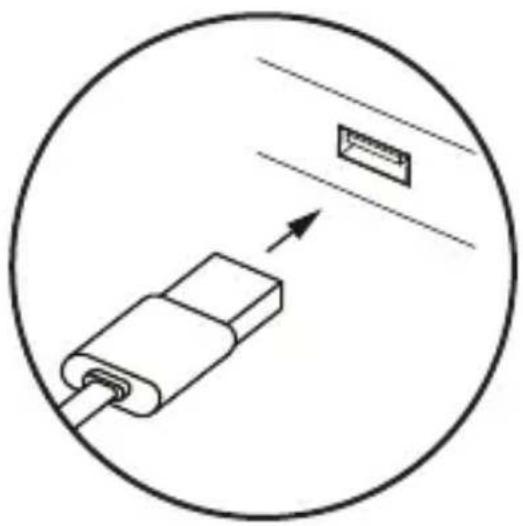
- Connect your gaming keyboard to any free USB port of your computer.
- Your gaming keyboard will be recognized by your computer and, if necessary, the necessary drivers will be installed automatically. The keyboard is now ready for use.
The keys in the top row are reserved for special functions.
Corresponding to the symbols used, they can be used to directly control program features such as media playback.
Depending on the OS used, the keys may have slightly different functions. Note that depending on the version of the operating
system, some standard and special keys may not work with the described function, e.g., the Windows key.

NOTE: This keyboard fulfills all functions of a normal standard keyboard; the special functions and settings can be checked via the function key "Fn".
Please refer to the "Function key" section for more details on the special functions that differ from a standard keyboard.
● Lighting mode key combination
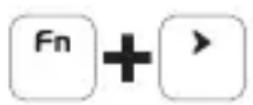
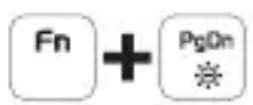
To access the special functions, press and hold the "Fn" function key and then press the desired key.
| Key combinations | Lighting effect | Functions |
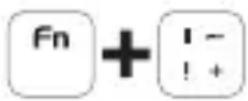 | Static | Continuous light with colour gradient, color from left to right is Green, Yellow, Orange, Red, Purple, Blue, Cyan |
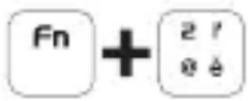 | Alternate brightness | Interval running light |
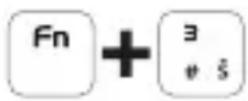 | Alternative respiration | Pulsating color change |
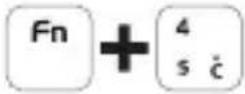 | Left/right tail | DEFAULT - Running light |
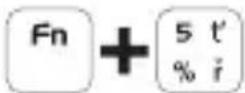 | Diffusion/contraction | Running light from the middle to both sides (low speed) |
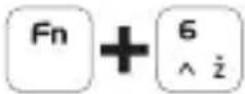 | Left/Right Overlay | Running light from right to left, Filling |
 | Center superposition | Running light from the middle to both sides (high speed) |
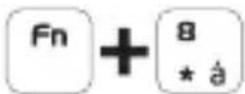 | Triggered diffusion | Key confirmation; when a key is released, a running light to the right and left is triggered. |
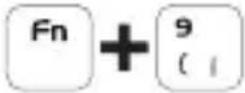 | Demo mode | All light modes of functions FN+2 to FN+7 are called up one after the other. |
Key combinations Functions
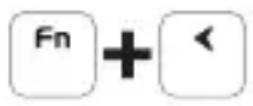 | In FN+4 to FN+8, changes the flashing light direction to the right |
 | In FN+4 to FN+8, changes the flashing light direction to the left |
 | In modes FN+2 to FN+8 the light intensity increases, when the maximum brightness is reached the 3 status LEDs on the keyboard flash. |
 | In modes FN+2 to FN+8 the light intensity decreases, when the minimum brightness is reached the 3 status LEDs on the keyboard flash. |
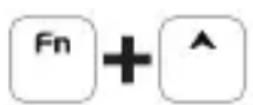 | Increases the LED running speed |
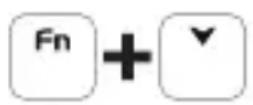 | Decreases the LED running speed |
Key combinations Functions
Enables / disables LED lighting effects
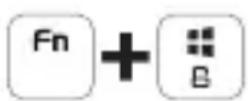
Locks the Win key to avoid switching between Windows and Apps.
● Function keys
To access these functions, press the FN key and the desired key simultaneously.
Keys Functions
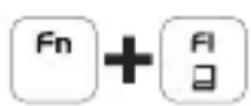
This key combination opens the "My Computer (Windows Explorer)" of the computer.
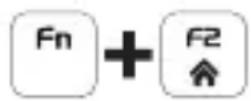
Starts the default web browser and loads the home page
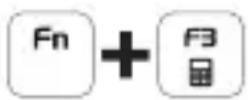
Opens the calculator
Keys Functions
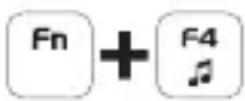
Starts the default media player program

Back to previous track
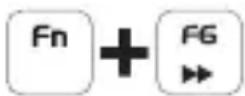
Go to next track
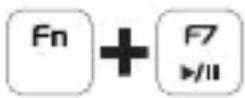
Play / pause track.
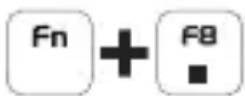
Stop track
●Software Installation
- Insert the provided Setup Disc into the computer's CD-ROM.
- It will auto-run the setup software, otherwise choose "SilverCrest SGK gaming software.exe" from your CD-ROM drive.
- Follow the installation instructions to complete the whole installation process.
NOTE: The software is not compatible with MAC OS and Android system.
NOTE: You can also download the mouse installation software on www.Lidl-service.com
After entering into this Lidl service website then you have to input product number (IAN) for search for the software download.
General Function
After the installation of the software is completed, the following window opens automatically:
Overview of the software operation elements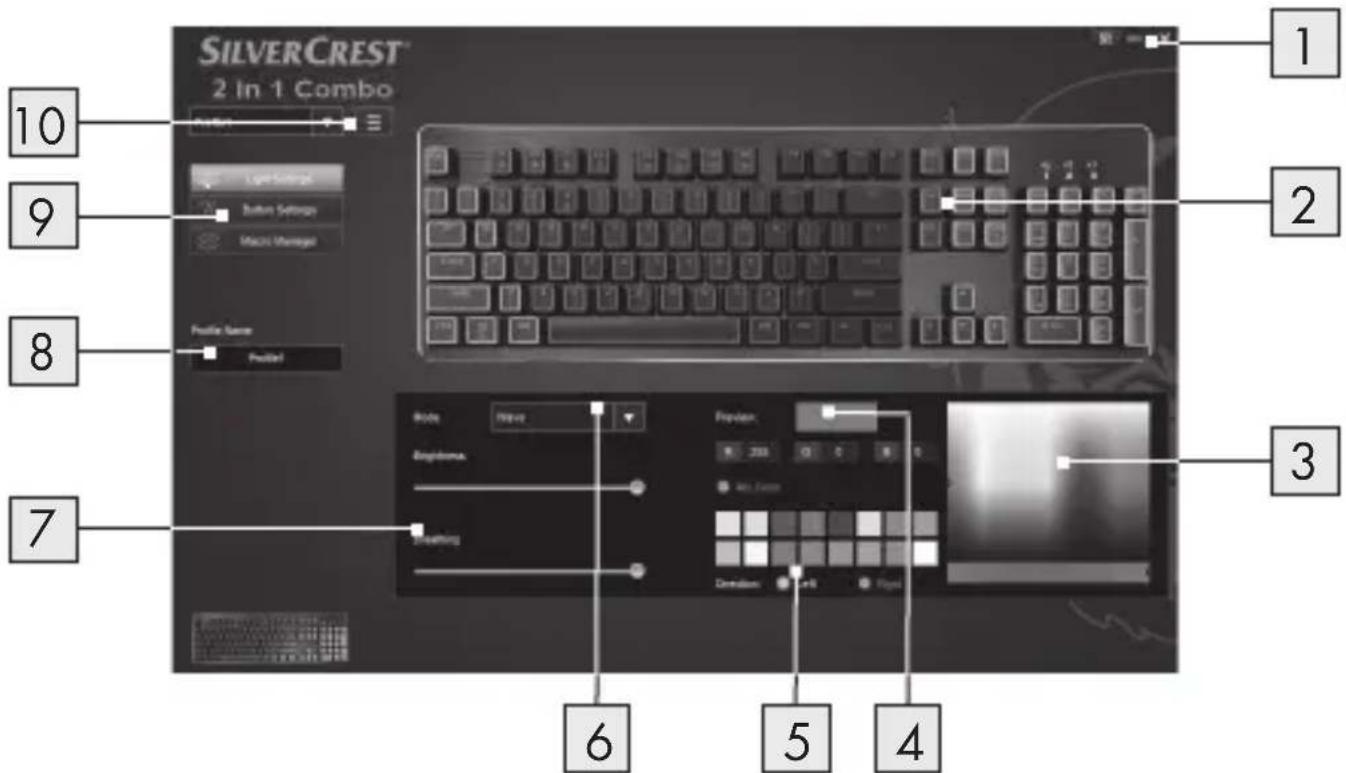
- Minimize the software interface
- Current view of color rendering on product
- RGB color palette
- Selected RGB color from color palette
- LED light direction (Forward/Backward)
- LED light effect selection
- LED light flashing speed
- Naming profile
- Light Settings/Button Settings/Macro Manager
- MENU
Button Settings
Select the menu item "Button Settings" in the selection on the left side.

1. Customizing the Buttons
Change the keyboard function of the individual button according to your wishes.
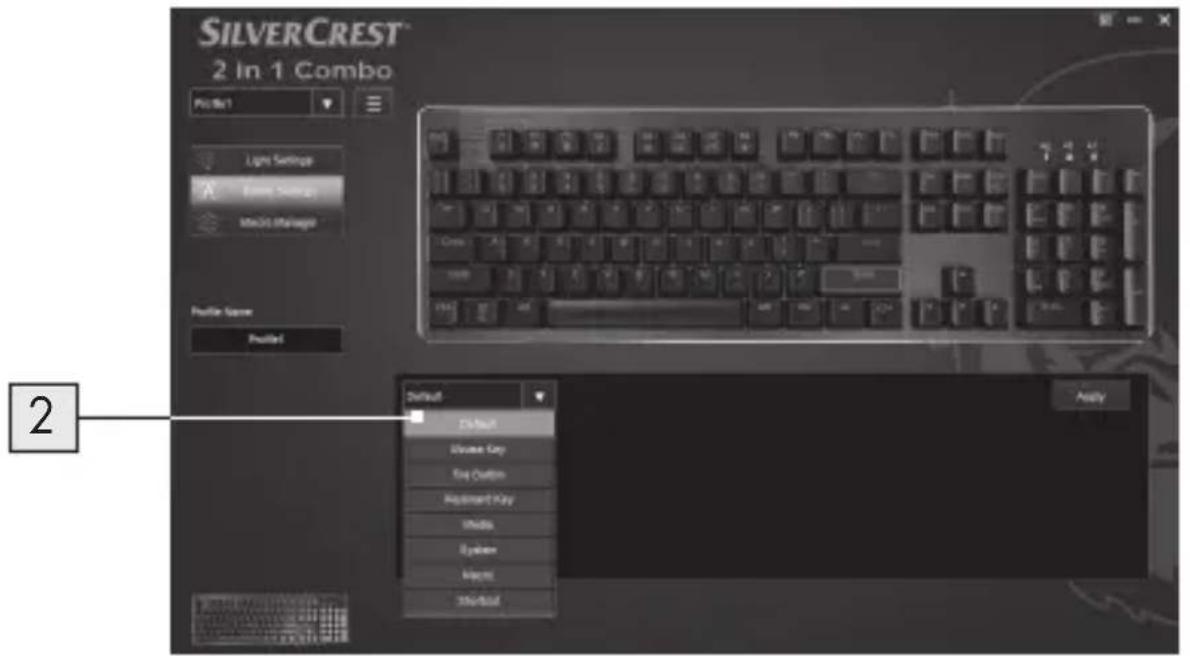
2. Key Function list
Assign each keyboard key function from the list
Adjustable function Corresponding parameters
Default Clear all key setting
Keyboard Key Assign a keyboard key to special function
Mouse Key
Left Click / Right Click / Middle Click / Forward / Backward /
Adjustable function
Corresponding parameters
Media Select Multimedia function
Macro
Select Macro name pre-defined / Select Macro finish
Macro Setting
Select the menu item "Macro Manager" in the selection on the left side.
This Macro Manager section allows you to create a series of precise keystroke and button presses.
(This section describes how to Record and Edit MACRO commands, ALL Preset Macros will be shown in the Key function list.)
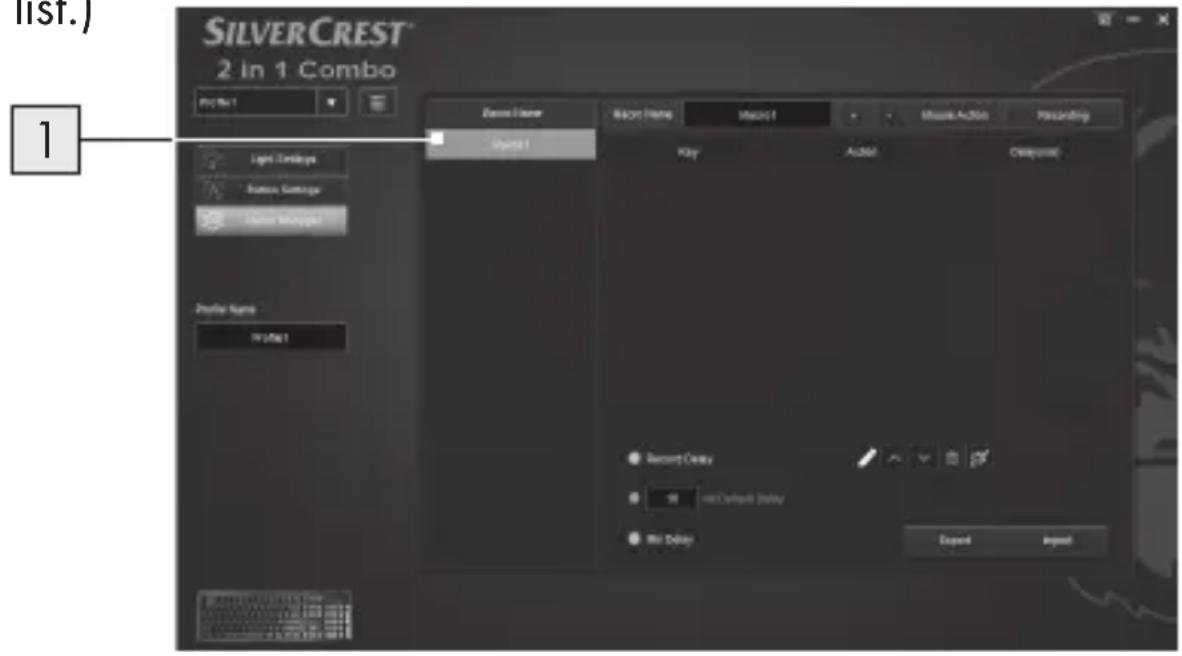
- Click the “+” button to create a new Macro profile (“Macro1” is default setting) Click the “-” button to delete an existing Macro profile.

- Press "Mouse Action" button and then you will see a list of Mouse command drop down from the left side. Choose your favorite mouse actions combination one by one.
- Meanwhile you can press "Recording" button to start construct your keyboard events in combination of key setting in sequence.
- Press "STOP" button to end the recording of key combination.
- Double click the time to modify the delay time, type desired seconds of time delay in-between commands.
- Press "SAVE" to finish MACRO setting.
- End users can also export the Macro setting profile to the computer. When you need to use the Macro setting, you can import the Macro setting profile again from your computer.
By assigning a preset MACRO profile to a keyboard button, you can execute complex combinations with ease.
- Go back to the Button Settings page, choose a desired keyboard button to apply the MACRO setting from the key function list.
- Select the MACRO function from the list.
- Select the preset MACRO profile setting, for example, named "Macro1".
- After setting your preferred customized button, you can enjoy the game with more ease!
![SILVERCREST 2 In 1 Combo. Project1, Light Settings, Balance Settings, Back to Managed, Pre-Set Status, Pre-Set1, Modify, Select A BASIC: BASIC1, Repeat Mode: The Number Options To Play, Loop Theme1 - [20] 1.](/content/2026/06/1361881/images/cccd8cc179f9cb48c6938170addca525ace7343a51cdaedf188d94db3753d4c2.jpg)
● Storage when not in use
Store the product in a dry indoor location protected from direct sunlight, preferably in its original packaging.
● Cleaning
■ Disconnect the USB connection before cleaning! ■ Only clean the outside of the product using a soft, dry cloth! For persistent soiling, a mild cleaning agent can be used. - Never use any corrosive liquids for cleaning the product.
Use a slightly moistened cloth and a mild cleaning agent to remove stubborn dirt.
● Troubleshooting
Problem Solution
The product does not work properly.
Option 1: Make sure the USB plug is fully plugged into a USB port and the computer is on, or try using a different USB port.
Option 2: Re-insert the USB plug into the USB port.
Disposal
Packaging:
The packaging is made of environmentally friendly materials, which may be disposed of through your local recycling facilities.
Product:
Contact your municipality for information on how to dispose of your worn-out product.
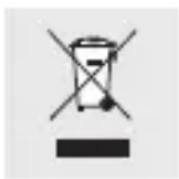
The adjacent symbol of a crossed-out dustbin on wheels indicates this product is subject to Directive 2012/19/EU. This directive states that at the end of its life, this product must not be disposed of through regular household refuse but must be returned to special collection sites, recycling depots, or waste management companies.
This disposal is free of charge to you.
Protect the environment and dispose of properly.
The product is recyclable, subject to extended manufacturer responsibility, and collected separately.
Warranty and service
Warranty
The product has been manufactured to strict quality guidelines and meticulously examined before delivery. In the event of product defects, you have legal rights against the retailer of this product. Your legal rights are not limited in any way by our warranty detailed below.
The warranty for this product is 3 years from the date of purchase. Should this product show any fault in materials or manufacture within 3 years from the date of purchase, we will repair or replace it – at our choice – free of charge to you.
The warranty period begins on the date of purchase. Please keep the original sales receipt in a safe location. This document is required as your proof of purchase. This warranty becomes void if the product has been damaged, or used or maintained improperly.
The warranty applies to defects in material or manufacture. This warranty does not cover product parts subject to normal wear, thus possibly considered consumables (e.g. batteries) or for damage to fragile parts, e.g. switches, rechargeable batteries or glass parts.
- Warranty claim procedure
To ensure quick processing of your case, please observe the following instructions:
Please have the till receipt and the item number (e.g. IAN 123456_7890) available as proof of purchase.
You will find the item number on the type plate, an engraving on the front page of the instructions (bottom left), or as a sticker on the rear or bottom of the appliance.
If functional or other defects occur, please contact the service department listed either by telephone or by e-mail.
You can return a defective product to us free of charge to the service address that will be provided to you. Ensure that you enclose the proof of purchase (till receipt) and information about what the defect is and when it occurred.
Service

Service Great Britain
Tel.: 0800 404 7657
E-Mail: owim@lidl.co.uk

●Software installation
1. Adjust keys




- GAMING KEYBOARD SGK 3 A2
- GAMING KEYBOARD
- HERNÍ KLÁVESNICE
- WARNINGS AND SYMBOLS USED ...... PAGE 6
- INTRODUCTION PAGE 7
- INTENDED USE...... PAGE 8
- TRADEMARK NOTICES PAGE 8
- SCOPE OF DELIVERY PAGE 9
- SAFETY NOTES...... PAGE 9
- DESCRIPTION OF PARTS ...... PAGE 12
- TECHNICAL DATA PAGE 13
- BEFORE USE PAGE 14
- OPERATION PAGE 14
- LIGHTING MODE KEY COMBINATION ...... PAGE 15
- FUNCTION KEYS...... PAGE 18
- SOFTWARE INSTALLATION...... PAGE 19
- STORAGE WHEN NOT IN USE PAGE 26
- CLEANING PAGE 26
- TROUBLESHOOTING PAGE 26
- DISPOSAL PAGE 27
- WARRANTY AND SERVICE...... PAGE 28
- ●INTRODUCTION
- ●INTENDED USE
- ●TRADEMARK NOTICES
- SCOPE OF DELIVERY
- SAFETY NOTES
- WARNING! DANGER TO LIFE AND RISK OF ACCIDENT FOR INFANTS AND CHILDREN
- ATTENTION! RISK OF PROPERTY DAMAGE
- ATTENTION! ENSURE THAT
- ●DESCRIPTION OF PARTS
- FUNCTION KEYS 1 - 5
- NOTE
- ●TECHNICAL DATA
- BEFORE USE
- I NOTE
- OPERATION
- SETUP YOUR PRODUCT
- ● LIGHTING MODE KEY COMBINATION
- KEY COMBINATIONS FUNCTIONS
- ● FUNCTION KEYS
- KEYS FUNCTIONS
- ●SOFTWARE INSTALLATION
- GENERAL FUNCTION
- BUTTON SETTINGS
- CUSTOMIZING THE BUTTONS
- KEY FUNCTION LIST
- ADJUSTABLE FUNCTION CORRESPONDING PARAMETERS
- ADJUSTABLE FUNCTION
- CORRESPONDING PARAMETERS
- MACRO SETTING
- ● STORAGE WHEN NOT IN USE
- ● CLEANING
- ● TROUBLESHOOTING
- PROBLEM SOLUTION
- DISPOSAL
- PACKAGING
- PRODUCT
- THIS DISPOSAL IS FREE OF CHARGE TO YOU
- WARRANTY AND SERVICE
- WARRANTY
- WARRANTY CLAIM PROCEDURE
- SERVICE
- SERVICE GREAT BRITAIN
- ADJUST KEYS
Brand : SILVERCREST
Model : SGK 3 A2
Category : Keyboard