
STBS 6 A1 - Keyboard SILVERCREST - Free user manual and instructions
Find the device manual for free STBS 6 A1 SILVERCREST in PDF.


| Product Type | Wireless Keyboard |
| Brand | SilverCrest |
| Model | STBS 6 A1 |
| Colour | Black |
| Dimensions (approx.) | 44 x 13 x 2 cm |
| Weight (approx.) | 500 g |
| Power Supply | 2x AAA batteries (not included) |
| Battery Life (approx.) | Up to 12 months |
| Connectivity | 2.4 GHz wireless via USB receiver |
| Range (approx.) | 10 m |
| Number of Keys | 105 (including media keys) |
| Multimedia Keys | Yes (volume, play/pause, etc.) |
| Numpad | Yes |
| Layout | QWERTY (US/UK depending on region) |
| Compatible Operating Systems | Windows, macOS, Linux |
| Key Type | Membrane |
| Built-in Stand | Yes, foldout |
| Maintenance & Cleaning | Wipe with a soft, dry cloth; do not use solvents |
| Safety Notice | Keep away from liquids and extreme temperatures |
| Spare Parts / Repairability | Batteries user-replaceable; other parts not user-serviceable |
| Package Contents | Keyboard, USB receiver, user manual |
Frequently Asked Questions - STBS 6 A1 SILVERCREST
User questions about STBS 6 A1 SILVERCREST
0 question about this device. Answer the ones you know or ask your own.
Ask a new question about this device
Download the instructions for your Keyboard in PDF format for free! Find your manual STBS 6 A1 - SILVERCREST and take your electronic device back in hand. On this page are published all the documents necessary for the use of your device. STBS 6 A1 by SILVERCREST.
USER MANUAL STBS 6 A1 SILVERCREST
Bluetooth® KEYBOARD COVER STBA 6 A1
GB IE
Bluetooth® KEYBOARD COVER
Operating instructions and safety instructions
NL
Bluetooth®-TOETSENBORD-COVER
Before reading, unfold the page containing the illustrations and familiarise yourself with all functions of the device.
DK
GB / IE Operating instructions and safety instructions Page 1

natural_image
Coiled black cable with USB port, no text or symbols visible
natural_image
Line drawing of a laptop with keyboard and screen, showing a scroll with arrows indicating rotation (no text or symbols)
natural_image
Line drawing of a tablet device with keyboard and mouse, no text or symbols present
natural_image
Line drawing of a laptop with a keyboard and screen, no text or symbols present
natural_image
Diagram of a laptop keyboard with directional arrows indicating movement (no text or symbols)Contents
Introduction 2
Information concerning these operating instructions 2
Copyright 2
Limitation of liability 2
Notes on trademarks 2
Intended use 3
Warnings used 3
Safety. 4
Basic safety guidelines 4
Notes on the radio interface 5
Descriptions of components....5
Before use 6
Check the package contents 6
Disposal of packaging materials 6
Charging the battery 6
Handling and operation 7
Positioning your iPad 7
Using the keyboard as a display protector 7
Switching the keyboard on and off 7
Connecting to an iPad 7
Function keys 8
Troubleshooting 9
Cleaning 9
Storage when not in use 9
Disposal 10
Disposal of the device 10
Appendix 10
Technical data 10
Notes on the EU Declaration of Conformity 11
Warranty 11
Service 11
Importer 12
Introduction
Information concerning these operating instructions
Congratulations on the purchase of your new device. You have selected a high-quality product. The operating instructions are part of this product. They contain important information on safety, usage and disposal. Read the supplied operating instructions fully and familiarise yourself with all handling and safety guidelines before using the product. Use the product only as described and for the range of applications specified. Keep these operating instructions for later reference and hand them over to the new owners when the product is sold.
Copyright
This documentation is protected by copyright.
Any copying or reproduction, including in the form of extracts, or any reproduction of images (even in a modified state), is permitted only with the written authorisation of the manufacturer.
Limitation of liability
All the technical information, data and instructions regarding installation, connection and operation contained in these operating instructions correspond to the latest information available to us at the time of printing and take into account our previous experience and know-how.
No claims can be derived from the details, illustrations and descriptions in these instructions.
The manufacturer assumes no responsibility for damage caused by failure to observe these instructions, improper use, incompetent repairs, unauthorised modifications or for the use of non-approved replacement parts.
Notes on trademarks
■ The Bluetooth® word mark and Bluetooth® logos are registered trademarks owned by Bluetooth SIG, Inc. (Special Interest Group). Any use of the trademarks by Kompernaß Handels GmbH is made under the provisions of a licence.
■ USB is a registered trademark of USB Implementers Forum, Inc.
■ Apple, the Apple logo, the brands iPad Air and iOS are registered trademarks of Apple Inc., Cupertino Calif., USA.
All other names and products may be trademarks or registered trademarks of their respective owners.
Intended use
The Bluetooth® keyboard is an information technology device and can be used as an input device for Apple iPad Air. The keyboard can also be used as a display protector. This device is not intended for use in companies or for other commercial uses (e.g. office productivity applications). Use the device only in the home for private purposes. It is not intended for any other or more extensive use. Claims of any kind for damage arising as a result of incorrect use will not be accepted. The risk shall be borne solely by the user. Comply with the respective provisions or laws of the country in which you are using the device.
Warnings used
The following warning notice types are used in these operating instructions:

DANGER
A warning notice at this hazard level indicates a potentially hazardous situation.
If the hazardous situation is not avoided, it could result in serious injury or death.
▶ Follow the instructions in this warning notice to avoid the risk of serious injury or death.
CAUTION
A warning notice at this hazard level indicates a potential for property damage.
Failure to avoid this situation could result in property damage.
▶ Follow the instructions in this warning notice to prevent property damage.
NOTE
▶ A note provides additional information that will assist you in using the device.
Safety
In this section, you will find important safety instructions for using the device. This device complies with statutory safety regulations. Improper use may result in personal injury and property damage.
Basic safety guidelines
To ensure safe operation of the device, follow the safety guidelines set out below:
This device may be used by children aged 8 years and above and by persons with limited physical, sensory or mental capabilities or lack of experience and knowledge, provided that they are under supervision or have been told how to use the device safely and are aware of the potential risks. Children must not use the device as a plaything. Cleaning and user maintenance tasks may not be carried out by children unless they are supervised.
- Check the device for visible external damage before use. Do not operate a device that has been damaged or dropped.
■ Always place the device on a stable and level surface. It can be damaged if dropped.
Do not expose the device to direct sunlight or high temperatures. Otherwise it may overheat and be irreparably damaged.
- Do not place the product near heat sources such as radiators or other heat-generating devices.
■ Do not operate the device close to naked flames (e.g. candles).
■ The device is not designed for use in rooms with high temperatures or humidity (e.g. bathrooms) or where there is excessive dust.
■ Never open the keyboard housing! There are no user-serviceable or replaceable components inside the device.
■ Do not make any unauthorised modifications or alterations to the device.
All repairs must be carried out by authorised specialist companies or by the Customer Service department. Failure to make proper repairs may put the user at risk. It will also invalidate any warranty claims.
Do not expose the device to spray or dripping water and do not place liquid-filled objects, such as vases or open drink containers, on or near the device.
■ Switch the device off immediately and disconnect any connected charging cables from the device if you smell fumes or notice any smoke. Have the device checked by a qualified specialist before using it again.
If you are using a USB power supply, the mains socket used must always be easily accessible so that the USB power supply can be quickly disconnected from the socket in a hazardous situation. You should also observe the operating instructions for the USB power supply.
4DANGER! Mishandling the batteries can cause fires, explosions, leakages or other hazards! Do not throw the device into a fire as the integrated battery could explode.
■ DANGER! Do not allow children to play with the packaging material! Keep all packaging materials out of the reach of children.
Risk of suffocation!
■ Working with keyboards can cause health problems. We recommend taking regular breaks.
Notes on the radio interface
■ Switch off the device if you are in an aeroplane, hospital, operating theatre or in the vicinity of a electronic medical system. The transmitted radio waves can affect the functionality of sensitive devices.
- Keep the device at least 20 cm away from a pacemaker, as the proper functioning of the pacemaker could be affected by radio waves.
■ The transmitted radio waves can cause noise interference in hearing aids.
Do not use the unit with the radio components switched on in the presence of flammable gases or in a potentially explosive atmosphere (e.g. in a paint shop), as the transmitted radio waves can cause an explosion or ignite a fire.
■ The range of the radio waves is dependent on the environment and the ambient conditions.
■ Data transmissions via a wireless connection can be intercepted by unauthorised third parties.
Descriptions of components
① iPad stand
② Keypad
③ Charging socket ( ; micro USB)
4 Charging LED (;orange)
5 Connection LED ( ;blue/orange)
6 ON/OFF switch (1 / 0)
7 Connect button (CONNECT)
8 Charging cable (USB to micro USB)
9 Operating instructions
Before use
Check the package contents
(For illustrations see the fold-out page)
The following components are included in delivery:
- Bluetooth® keyboard STBA 6 A1
- Charging cable ^8
• These operating instruction⑨
Remove all parts of the device from the packaging and remove all packaging materials.
NOTE
▶ Check the package for completeness and for signs of visible damage.
▶ If any items are missing or damaged as a result of defective packaging or insufficient care during transportation, contact the Service hotline (see the section Service).
Disposal of packaging materials
The packaging protects the device from damage during carriage. The packaging materials have been selected for their environmental friendliness and ease of disposal, and are therefore recyclable.

Returning the packaging to the material cycle conserves raw materials and reduces the amount of waste which is generated. Dispose of packaging materials that are no longer needed in accordance with applicable local regulations.
Charging the battery
Before using the keyboard, the integrated battery must be completely charged.
Connect the USB plug of the charging cable to a PC or to a USB power supply.
Connect the micro USB plug of the charging cable to the charging socke ^3 on the keyboard. The charging LED lights up orange and the battery charges. When charging is complete, the charging LED goes out.
NOTE
The maximum charging time is approx. 3 hours.
If the connection LED5 starts flashing constantly orange, the battery is flat and needs to be charged.
▶ If you connect the powered-on keyboard to a PC, the message "USB device not recognised" can appear. This is not a malfunction as the keyboard is designed only for Apple iPads and cannot be used with a PC.
Handling and operation
This section provides you with important information on handling and using the device.
Positioning your iPad
The keyboard has an iPad stand ①n which you can stand the iPad either upright or horizontally (see Fig. A + B).

CAUTION!
If you position the iPad upright, ensure that it is secured by the two pins of the iPad stand ① (see Fig. B). Otherwise there is a risk of tipping over.
Using the keyboard as a display protector
◆ Remove the iPad from the iPad stand1 (see Fig. C).
- Turn the iPad with the display facing down so that the home button is on the right-hand side.
Place the iPad on the keyboard so that it protrudes from under the rear retaining pins and fold it down (see Fig. D).
◆ To remove the iPad, flip it upwards on the front recess of the keyboard.
Switching the keyboard on and off
Set the ON/OFF switch 6 to the I position to switch the keyboard on and activate the Bluetooth® function. The connection LED lights up for 2 seconds.
- Set the ON/OFF switch ^6 to the 0 position to switch the keyboard off and deactivate the Bluetooth ^ function.
Connecting to an iPad
Before you can use the keyboard, you must pair it with a compatible iPad.
◆ Activate the Bluetooth® function on your iPad and carry out a search for Bluetooth® devices. A detailed description of how to do this is to be found in the operating instructions for your iPad.
Switch the keyboard on using the ON/OFF switch. The connection LED lights up for 2 seconds.
- Press the connect button CONNECT ^7 , to activate Bluetooth ^ discovery function for 3 minutes. The connection LED ^5 flashes at one-second intervals until the connection is made.
Select the entry STBA 6 A1 from the list of discovered devices on your iPad.
The connection code is now displayed on your iPad. This must entered on the keyboard and confirmed using the return key (←). After the connection between the keyboard and the iPad has been successfully established, the connection LED 5 flashes blue every 3 seconds.
NOTE
After about 5 minutes without pressing a button, the keyboard enters sleep mode to conserve battery power.
▶ To reactivate the keyboard, press any key and wait for 3 seconds. After this, you can start using the keyboard again.
Function keys
The keys in the top row are reserved for special functions. Corresponding to the symbols used, they can be used to directly control program features such as media playback or volume. Note that depending on the iOS version, some special keys may not work with the described function.
Overview of all the function keys
 | Home key Reduce screen brightnet |  | |
 | Increase screen brightness Search |  | |
 | Hide/show on-screen keyboard |  | Select all |
 | Copy Cut |  | |
 | Paste Previous track/rewind*1 |  | |
 | Play/pause Next track/fast forward |  2 2 | |
 | Mute/unmute sound Decrease vo |  | |
 | Increase volume Lock/release*3 |  | |
 | Select international keyboard | ||
*1: Previous track - single press; rewind when the key is held down.
*2: Next track - single press; fast forward when the key is held down.
*3: If no code is stored, the display is simply switched on/off. If the key is held down, the iPad can be switched off. The usual shutdown query appears.
Troubleshooting
If the keyboard cannot pair with a compatible iPad or does not respond to keystrokes, proceed as follows:
◆ Check the battery charge level and charge the battery if necessary.
◆ Check whether the keyboard is switched on.
◆ Check whether the Bluetooth® interface is enabled on your iPad.
If you use several Bluetooth devices, ensure that any previous connection is disconnected. This may indicate that a previously paired device is in range.
Make sure that the keyboard is no more than 8 metres from the iPad and that no obstacles or electronic devices are located in between.
If the function keys on the keyboard have no function/the wrong function, check to see if the correct keyboard language has been set (you will find a detailed description of how to do this in the operating instructions for your iPad).
NOTE
▶ If you cannot solve the problem with the above-mentioned solutions, please contact the Service Hotline (see section Service).
Cleaning
CAUTION!
Possible damage to the device.
There are no serviceable parts or parts requiring cleaning inside the keyboard. Moisture can cause damage to the device.
▶ To avoid irreparable damage to the device, ensure that no moisture gets into it during cleaning.
▶ Do not use caustic, abrasive or solvent-based cleaning materials. These can damage the surfaces of the device.
- Clean the housing of the device with a lightly moistened cloth and a mild detergent only.
Storage when not in use
◆ Store the device in a location which is clean, dry, dust-free and not in direct sunlight.
◆ To ensure a long battery life, charge the battery at regular intervals.
Disposal
Disposal of the device
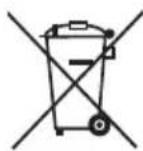
The adjacent symbol of a crossed-out wheelie bin means that this device is subject to Directive 2012/19/EU. This directive states that this device may not be disposed of in normal household waste at the end of its usable life, but must be handed over to specially set-up collection locations, recycling depots or disposal companies.
This disposal is free of charge for the user. Protect the environment and dispose of this device properly.
You can obtain further information from your local disposal company or the city or local authority.
Appendix
Technical data
| Integrated battery 3.7 V /180 mAh (lithium-polymer) | |
| Bluetooth® specification Version 3.0 (range of up to 8 metres) | |
| Frequency band 2.4 GHz | |
| Supported operating systems iOS 7.0 or higher | |
| Keyboard layout 82 key design | |
| Battery life: operation approx. 24 h | |
| Battery life: standby approx. 7 days | |
| Operating temperature 5°C to +40°C | |
| Storage temperature | -10°C to +55°C |
| Humidity (no condensation) 10% - 70% | |
| Dimensions (W x H x D) approx. 24.3 x 17.2 x 1.1 cm | |
| Weight approx. 360 g | |
Notes on the EU Declaration of Conformity
CE
This appliance complies with the essential requirements and other relevant provisions of the Low Voltage Directive 2014/35/EU, the R&TTE Directive 1999/5/EC and the RoHS Directive 2011/65/EU. The complete EU Declaration of Conformity is available from the importer.
Warranty
The warranty for this appliance is for 3 years from the date of purchase.
The appliance has been manufactured with care and meticulously examined before delivery.
Please retain your receipt as proof of purchase. In the case of a warranty claim, please make contact by telephone with our Customer Service Department.
Only in this way can a post-free despatch for your goods be assured.
NOTICE
The warranty covers only claims for material and manufacturing defects, but not for transport damage, wearing parts or for damage to fragile components, e.g. buttons or batteries.
This product is for domestic use only and is not intended for commercial use.
The warranty is void in the case of abusive and improper handling, use of force and internal tampering not carried out by our authorised service branch.
Your statutory rights are not restricted in any way by this warranty. The warranty period is not extended by repairs made under the warranty. This applies also to replaced and repaired parts.
Damages and defects extant at the time of purchase must be reported immediately after unpacking, resp. no later than two days after the date of purchase.
Repairs made after the lapse of the warranty period are subject to charge.
Service

Service Great Britain
Tel.: 0871 5000 720 (£ 0.10/Min.)
E-Mail: kompernass@lidl.co.uk
IAN 274179

Service Ireland
Tel.: 1890 930 034
(0,08 EUR/Min., (peak))
(0,06 EUR/Min., (off peak))
E-Mail: kompernass@lidl.ie
IAN 274179
Importer
KOMPERNASS HANDELS GMBH
BURGSTRASSE 21
44867 BOCHUM
GERMANY
www.kompernass.com
Indholdsfortegnelse
Introduktion 14
KOMPERNASS HANDELS GMBH
BURGSTRASSE 21
44867 BOCHUM
GERMANY
www.kompernass.com
Inhoud
Inleiding 26
KOMPERNASS HANDELS GMBH
BURGSTRASSE 21 · 44867 BOCHUM · GERMANY
www.kompernass.com
Inhaltsverzeichnis
Einführung 38
KOMPERNASS HANDELS GMBH
BURGSTRASSE 21
44867 BOCHUM
GERMANY
www.kompernass.com
KOMPERNASS HANDELS GMBH
BURGSTRASSE 21
44867 BOCHUM
DEUTSCHLAND / GERMANY
www.kompernass.com
Last Information Update · Tilstand af information
Stand van de informatie · Stand der Informationen:
03 /2016 · Ident.-No.: STBA6A1-022016-3



- Bluetooth® KEYBOARD COVER STBA 6 A1
- Bluetooth® KEYBOARD COVER
- Bluetooth®-TOETSENBORD-COVER
- DK
- Contents
- Introduction 2
- Safety. 4
- Descriptions of components....5
- Before use 6
- Handling and operation 7
- Troubleshooting 9
- Cleaning 9
- Storage when not in use 9
- Disposal 10
- Appendix 10
- Introduction
- Information concerning these operating instructions
- Copyright
- Limitation of liability
- Notes on trademarks
- Intended use
- Warnings used
- DANGER
- A warning notice at this hazard level indicates a potentially hazardous situation.
- CAUTION
- A warning notice at this hazard level indicates a potential for property damage.
- NOTE
- Safety
- Basic safety guidelines
- Risk of suffocation!
- Notes on the radio interface
- Descriptions of components
- Before use
- Check the package contents
- Disposal of packaging materials
- Charging the battery
- Handling and operation
- Positioning your iPad
- CAUTION!
- Using the keyboard as a display protector
- Switching the keyboard on and off
- Connecting to an iPad
- Function keys
- Troubleshooting
- Cleaning
- Possible damage to the device.
- Storage when not in use
- Disposal
- Disposal of the device
- This disposal is free of charge for the user. Protect the environment and dispose of this device properly.
- Appendix
- Technical data
- Notes on the EU Declaration of Conformity
- CE
- Warranty
- NOTICE
- Service
- Importer
- Indholdsfortegnelse
- Introduktion 14
- Inhoud
- Inleiding 26
- Inhaltsverzeichnis
- Einführung 38
Brand : SILVERCREST
Model : STBS 6 A1
Category : Keyboard