
C170 - Webcam LOGITECH - Free user manual and instructions
Find the device manual for free C170 LOGITECH in PDF.



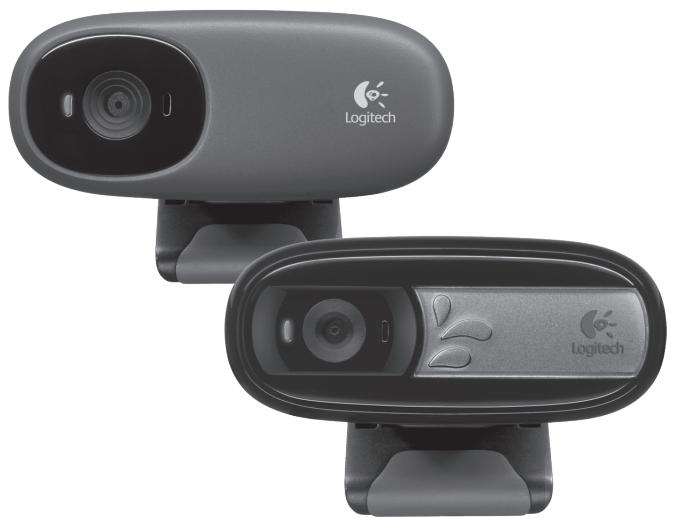
| Product type | Webcam |
| Brand | Logitech |
| Model | C170 |
| Maximum video resolution | 640 x 480 pixels (VGA) |
| Maximum photo resolution | 1.3 megapixels (interpolated) |
| Video frame rate | 30 frames per second |
| Built-in microphone | Yes |
| Connection | USB 2.0 |
| Cable length | Approximately 1.5 meters |
| Field of view | 60° |
| Focus | Fixed |
| Mounting support | Flexible clip/base for screen or tripod |
| Dimensions (approx.) | 8.5 x 5.5 x 5 cm |
| Weight (approx.) | 75 g |
| System compatibility | Windows, macOS (depending on included software) |
| Main software features | Photo/video capture, motion detection, RightLight, video effects, sharing gallery |
| Care and cleaning | Clean the lens with a soft, dry cloth |
| Safety | Use on a stable support; avoid shocks and humidity |
| Spare parts and repairability | No user-replaceable parts; fixed USB cable |
Frequently Asked Questions - C170 LOGITECH
User questions about C170 LOGITECH
0 question about this device. Answer the ones you know or ask your own.
Ask a new question about this device
Download the instructions for your Webcam in PDF format for free! Find your manual C170 - LOGITECH and take your electronic device back in hand. On this page are published all the documents necessary for the use of your device. C170 by LOGITECH.
USER MANUAL C170 LOGITECH
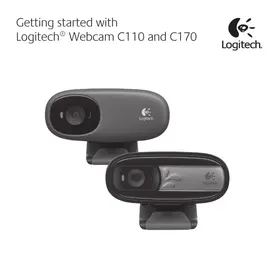
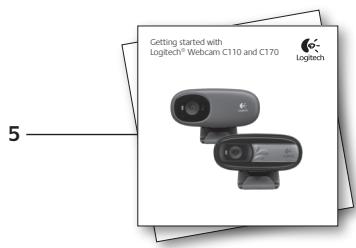
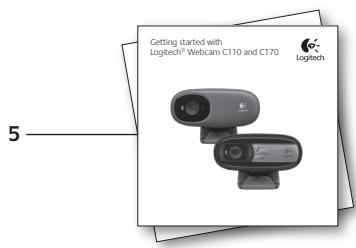
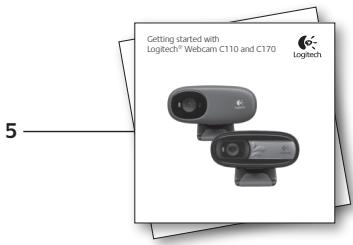
Getting started with
Logitech® Webcam C110 and C170

Logitech
Contents
English 4 Deutsch 15 Francais 26 Pp-cnn 37 Po polsku 48 yKpaIHcbKa 59 Magyar 70 Slovencina 81 BbIrapckn 92
Romana 103 Hrvatski 114 Srpski 125 Slovenscina 136 Eesti 147 Latviski 158 Lietuviu 169 Italiano 180 Ceská verze 191
www.logitech.com/support 203

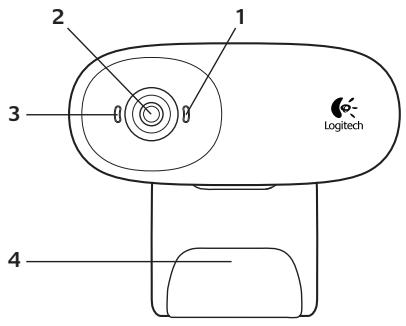
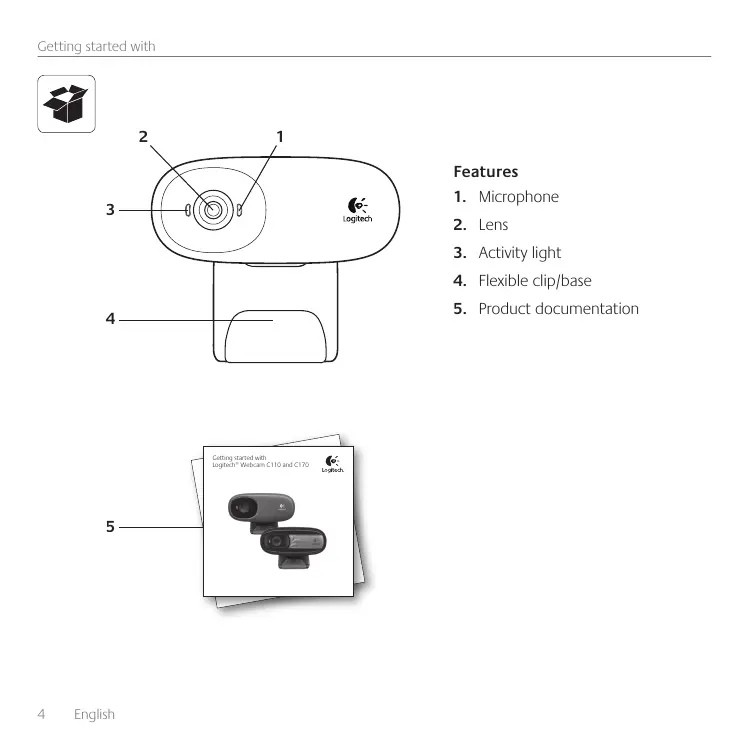
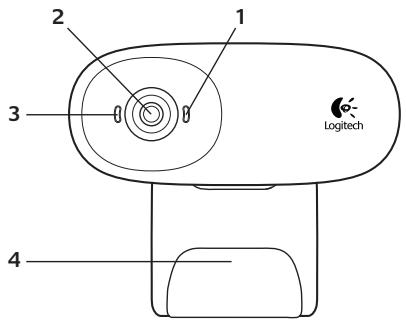
Features
- Microphone
- Lens
- Activity light
- Flexible clip/base
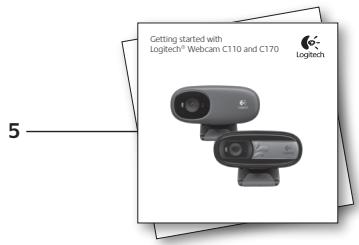
- Product documentation
Thank you for buying a Logitech webcam!
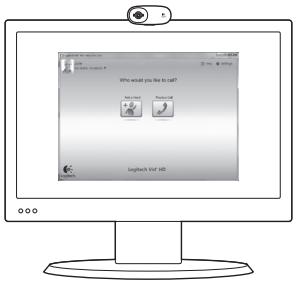
Use this guide to set up your Logitech webcam and to begin making video calls.
If you have questions before you start, please visit the websites listed below to learn more about Logitech webcams and video calling.
www.logitech.com/support
www.logitech.com/webcam_howto
www.logitech.com/whatisvid
www.logitech.com
Setting up your webcam
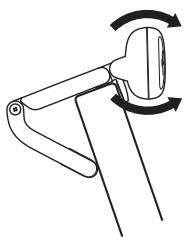
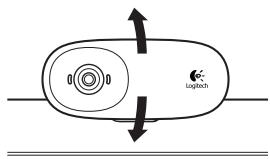
1. Place your webcam
2. Install software
www.logitech.com/downloads
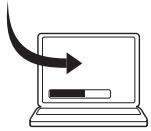
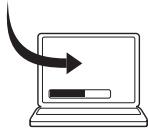
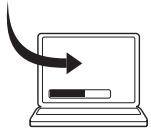
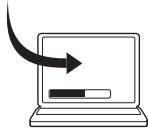
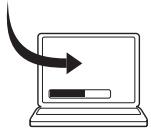
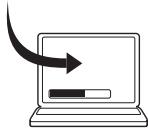
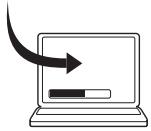
To download and install your webcam software, visit www.logitech.com/downloads, double-click Webcams, choose your product from the list, select Software Downloads, and then follow the on-screen prompts.
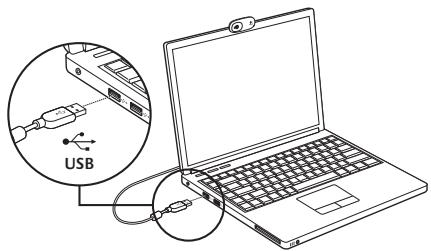
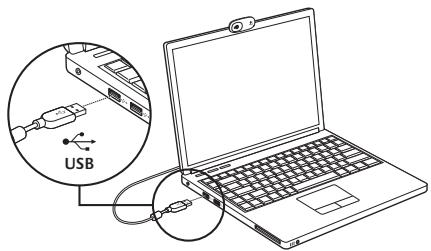
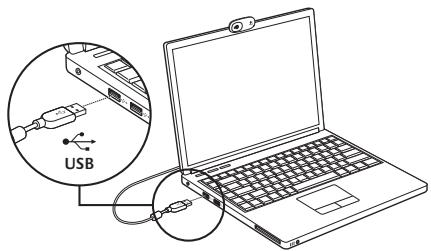
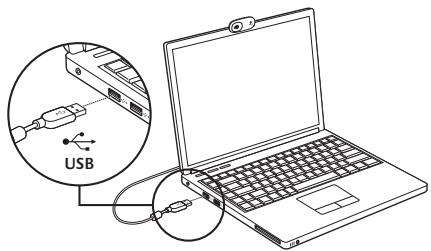
3. When prompted, connect your webcam
Getting started with video calling

Your webcam comes with Logitech Vid™ HD
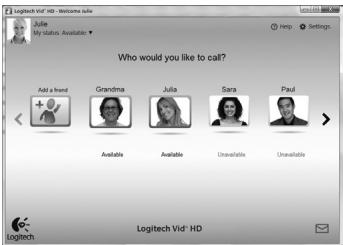
With Logitech Vid HD, video calling live over the Internet takes only a few, easy steps:
Install Logitech Vid HD - Create an account - Add a friend and make a video call
Learn more: http://www.logitech.com/whatisvid
Setting up Logitech Vid HD
1
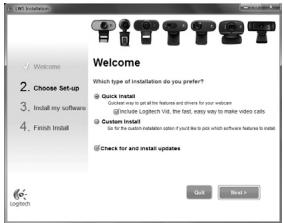
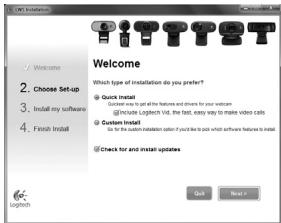
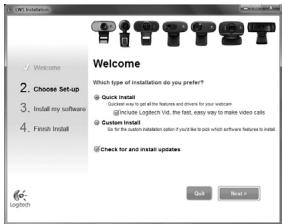
Install Logitech Vid HD
We recommend that you install both the Logitech Webcam and Logitech Vid HD software.
Tip: If you prefer another video-calling application, you will need to download and install third-party software.
Learn more: www.logitech.com/webcamhowto

A webcam - A computer with speakers and a microphone (or a headset with a microphone; many Logitech webcams have a built-in microphone)
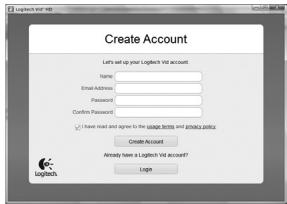
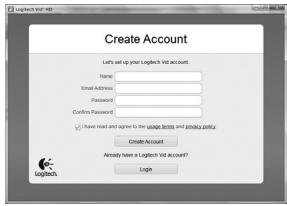
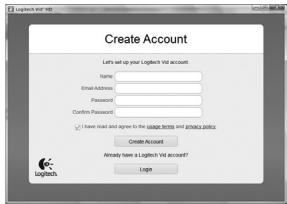
Create an account
Follow the on-screen instructions to create your Logitech Vid HD account and to set up your webcam for video calling.
To make video calls with any application, both you and the person you call must have:
- A broadband Internet connection (e.g., DSL, T1, or cable)
- The same video-calling application (e.g., Logitech Vid HD) Video calling accounts
3
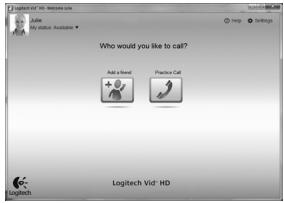
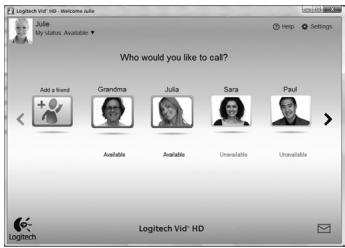
Add a friend or make a practice call

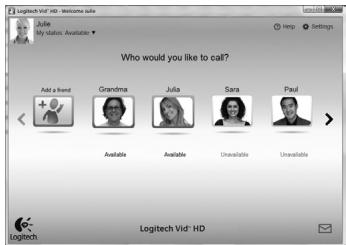
Click on the Practice Call tile to test your settings.
Tip: The Practice Call tile is always available on your Contact List so you can test your settings.

To add a friend, click on the Add a Friend tile and enter your friend's e-mail when prompted.
After your friend has accepted your invitation, click on your friend's picture to make a call.
Accessing account settings and starting applications
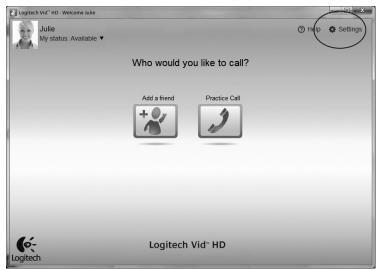
Logitech automatically detects and adjusts the best settings for your webcam. If you would like to re-take your profile picture or update any of your settings, click the Settings icon.
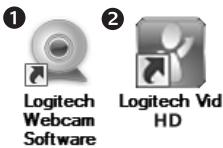
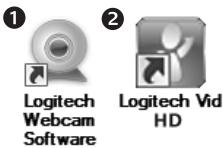
Double-click the icons to launch your applications.
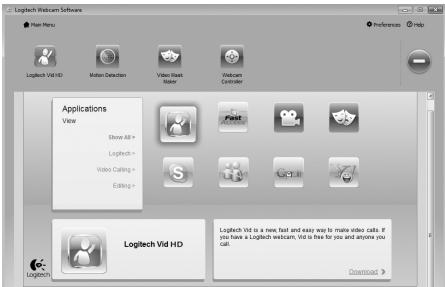
- Logitech Webcam Software
- Logitech Vid HD
Tip: The Logitech Vid HD icon is only present if you chose to install Logitech Vid HD. To learn about third-party video calling, please visit: www.logitech.com/webcam_howto
Navigating the Logitech Webcam Software
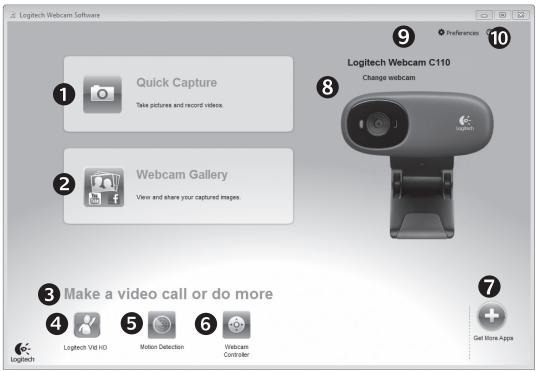
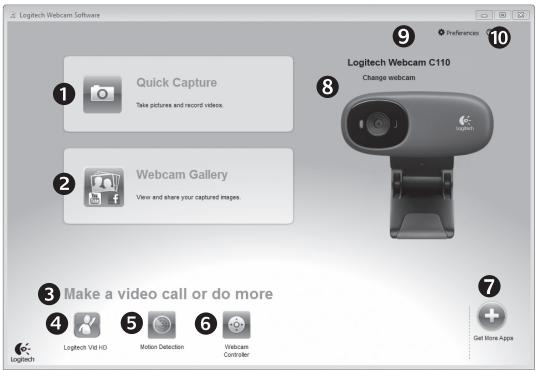
- Capture pictures and videos
- View captured images and share via e-mail, Facebook, or YouTube
- An area for easy access to your installed webcam-related applications
- Launch Logitech Vid HD (if installed)
- Capture videos triggered by detected motion
- Control your video effects and webcam while on a video call
- Download additional webcam applications
- Change webcams (when you have more than one)
- Open Logitech Webcam Software settings
- Open help dashboard (manuals and how-to videos)
Capturing video and snapping pictures
The gallery: viewing and sharing
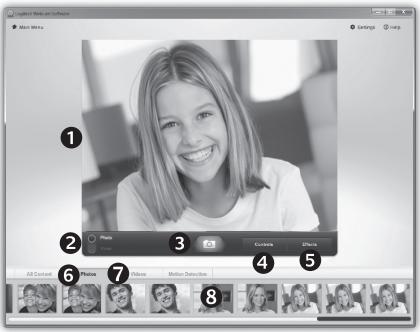
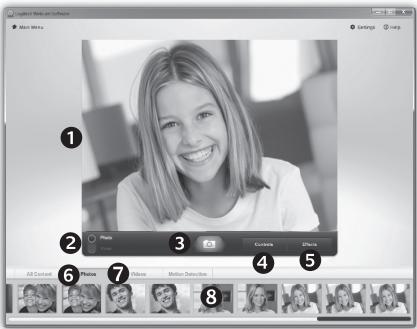
Quick Capture allows you to take photos or record videos easily.
You have easy access to webcam controls and settings as well as video effects to personalize your images and recordings.
- Preview window
- Capture mode: photo/video
- Capture button
- Webcam controls
- Video effects and fun filters (for webcams that support this feature)
- Photo thumbnails
- Video thumbnails
- Click a thumbnail to enter the gallery
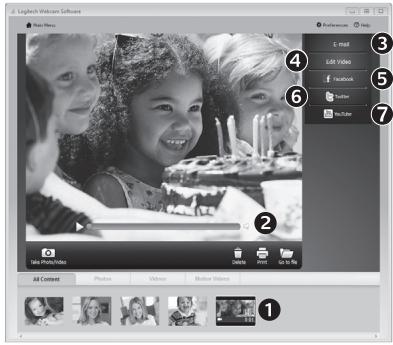
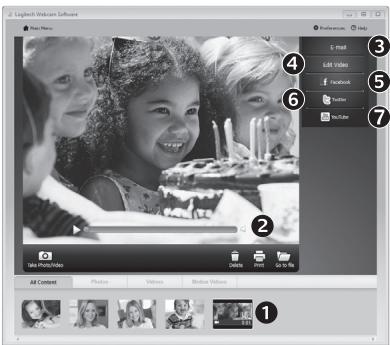
Clicking on an image thumbnail in the gallery (1) opens the video or photo in the review window (2).
- Attach a video or picture file to an e-mail (3)
- Edit a photo or splice together video (4)
- Upload a picture or video to Facebook (5)
- Upload a video to Twitter (6)
- Upload a video to YouTube (7)
You may also drag and drop a gallery image onto one of the function tiles (items 3-7) to launch an editing application or to attach or upload.
Using motion detection
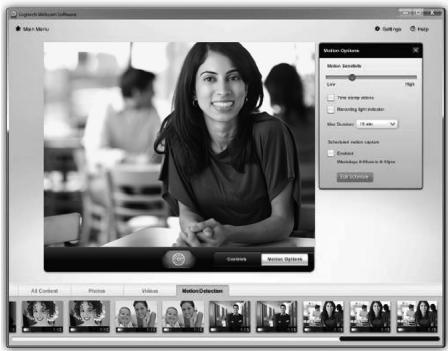
- Set up your webcam to record video when it detects movement.
- Adjust captured video duration and detection sensitivity.
- Captured video is automatically saved to your computer. View content in the Gallery or upload it using the One-touch Upload window.
Fine tuning your webcam during a video call
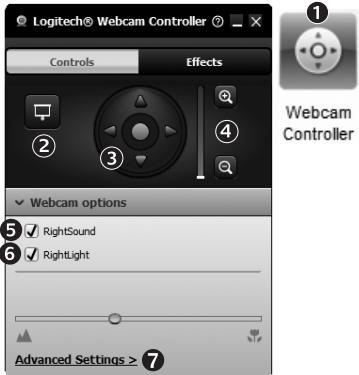
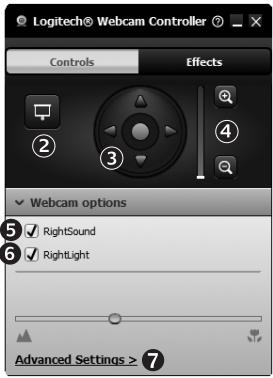
- Launch the webcam controller when on a video call.
- Hide your video image with a photo while your webcam stays connected.
- Use pan and tilt to find the best angle.
- Zoom in or out to include/exclude your surroundings.
- Enjoy clear conversations without annoying background noise.
- Correct for poor lighting environments using RightLight.
- Access advanced webcam settings.
Get more applications for your webcam
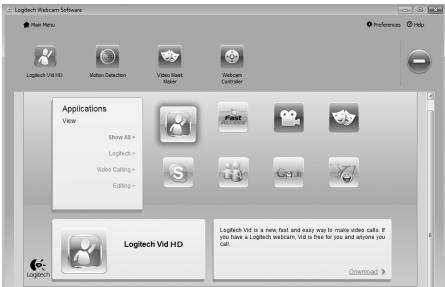
Download and install additional applications for your webcam, like video calling, photo and video editing, and other value-added programs.
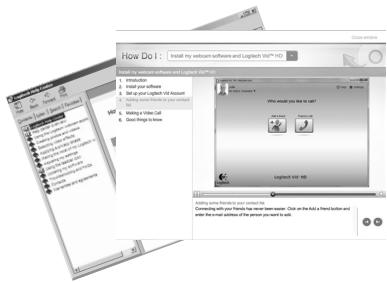
Getting help
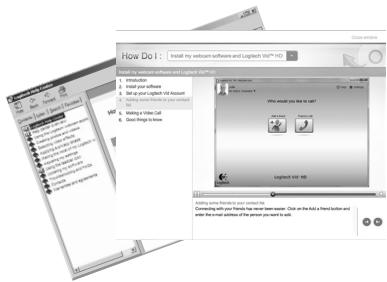
Click on the help icon to access a complete user manual, or watch how-to videos that show you how to get the most out of your Logitech webcam and software.
Tip: If you are not sure about a feature, click the help icon, and our manual will open to the right place.

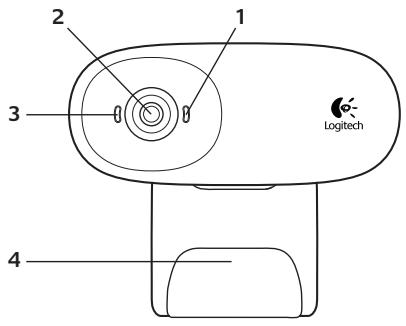
Features
www.logitech.com/downloads
www.logitech.com/downloads
www.logitech.com/downloads
Using video calls

The webcam package includes Logitech Vid™ HD
Using Logitech Vid HD, you can make video calls over the internet by following a few simple steps.
- Install Logitech Vid HD Create an account - Add friends and make video calls
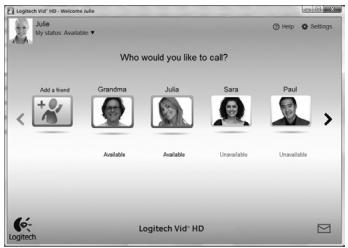
For more information, visit: http://www.logitech.com/whatisvid
Setting up Logitech Vid HD
1
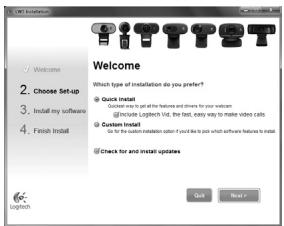
Install Logitech Vid HD
It is recommended to install the Logitech software for the Logitech webcam and Logitech Vid HD.
Tip: If you prefer to use another video calling application, you need to download and install the software from independent developers.
Additional information: http://www.logitech.com/webcam_howto
2
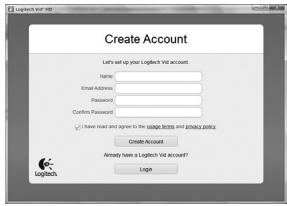
Create a user account
Follow the on-screen instructions to create a user account in Logitech Vid HD and configure your webcam settings for video calls.
Whatever application you use for video calling, both you and the person you are calling must meet the following conditions.
- Webcam, computer with speakers and microphone (or headset with microphone; many Logitech webcams have a built-in microphone)
Using motion detection
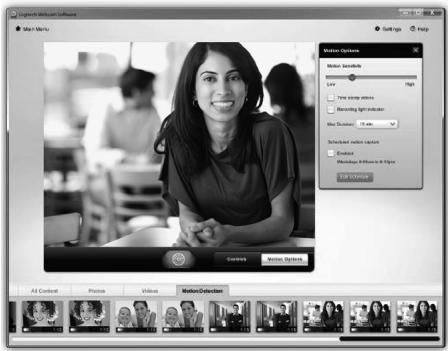
- Configure your webcam to record video when motion is detected. Adjust the recording duration and the sensitivity of the sensor.
- Recorded video is automatically saved to the computer's hard drive. The material can be viewed in the gallery or uploaded to the Internet using the upload window in one touch.
Fine-tuning the webcam during video calls
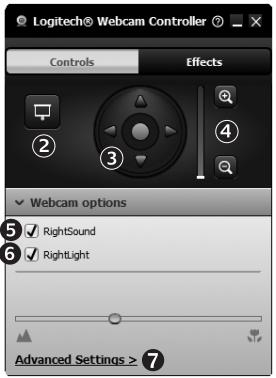
Webcam Controller
- 1. During a video call, launch the Webcam Controller. 2. When the video is connected, adjust the video image and photo. 3. To get the best angle, use the pan and tilt functions. 4. To add or remove elements from the surrounding environment in the frame, use the zoom function.
- Clear image without annoying background noise.
- Insufficient lighting can be compensated for using the RightLight function.
- Access to additional webcam parameters.
Additional applications for your Logitech webcam
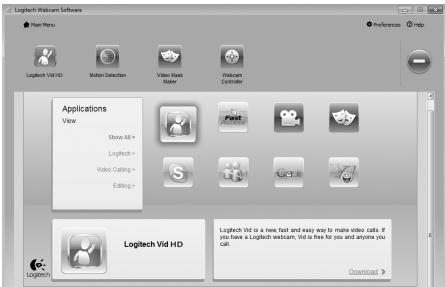
Here you can download and install additional applications for working with the webcam, such as programs for video conferencing, photo and video editing, and other applications that expand your capabilities.
Technical support
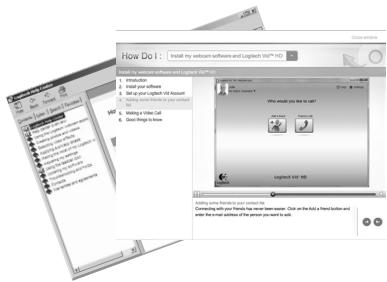
Press the Help icon to open the full user manual or watch training videos from which you will learn how to best use your Logitech webcam and software.
Tip: If you are unsure about the purpose of a particular function, press the Help icon, and the manual will open at the relevant section.

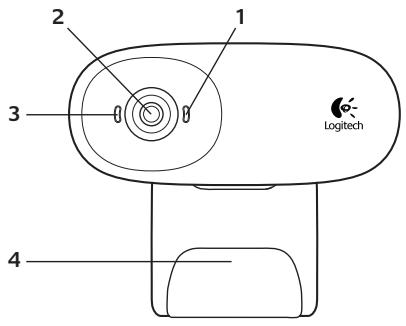
Functions
www.logitech.com/downloads
www.logitech.com/downloads
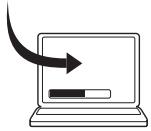
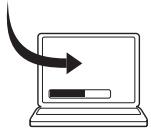
To download and install software for your webcam, visit the website www.logitech.com/downloads, click on "Webcams", select your product from the list, then click "Software Downloads" and follow the on-screen instructions.
When prompted, connect your webcam
Getting started with video calls

The webcam comes with Logitech Vid™ HD
With Logitech Vid HD, to make video calls over the Internet, you only need to follow a few simple steps as described below.
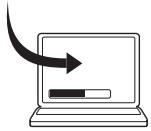
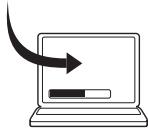
To download and install software for your webcam, go to www.logitech.com/downloads, double-click on Webcams, select your product from the list, select Software Downloads, and follow the on-screen instructions.
3 When prompted, connect your webcam.
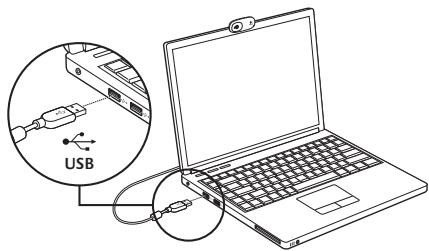
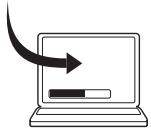
To download and install the software for your webcam, go to www.logitech.com/downloads, double-click on "Webcams", select your product from the list, then "Software Downloads" and follow the on-screen instructions.
3 | When prompted, connect the webcam.
Start video calls

The webcam comes with Logitech Vid HD.
With Logitech Vid HD, video calls over the Internet require only a few simple steps:
- Install Logitech Vid HD, create an account, add a friend, and start a video call.
Learn more: http://www.logitech.com/whatisvid
Setting up Logitech Vid HD
1
Install Logitech Vid HD
Install the Logitech webcam software, as well as the Logitech Vid HD software.
Tip: If you prefer another video calling application, you do not need to install the software of another manufacturer.
Learn more: http://www.logitech.com/webcam_howto

Create an account
Follow the on-screen instructions to create your Logitech Vid HD account and to set up your webcam for video calls.
To make video calls with any application, the person you are talking to must have:
- A webcam and a computer with a built-in microphone (or a separate microphone; many Logitech webcams have a built-in microphone)
A high-speed internet connection (e.g., DSL, T1, or cable) - A video calling application (e.g., Logitech Vid HD) - An account for video calls
3
Add friends or make a test call
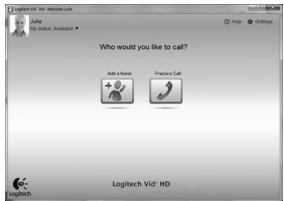

Click the "Test Call" button to try out your settings.
Tip: The "Test Call" button is located at the top of the contact list, so you can test your settings.

To add friends, click the "Add Friend" button and enter your friend's name when prompted.
Once your friend accepts the invitation, click on your friend's picture to make a call.
Access your account from the start of the application
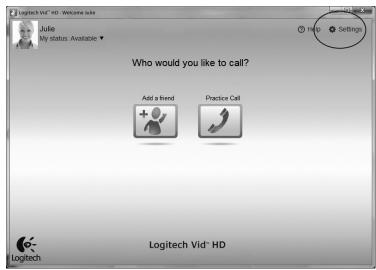
Logitech automatically opens and adjusts the settings for your webcam. If you want to change the image for your profile or if you want to reset the settings, click the settings icon.
Briefly click the icons to launch your applications.
- Logitech Webcam Software
- Logitech Vid HD
Tip: The Logitech Vid HD icon appears only if you have chosen to install Logitech Vid HD. To find out about video calls with other products, visit: www.logitech.com/webcam_howto
Getting started with your Logitech webcam software
- Taking photos and videos
- Uploading photos and videos and sharing names on Facebook© and YouTube®
- Privacy area for your installed applications connected to the webcam
- Getting started
Logitech Vid HD
(if installed)
- Taking videos, which
BKNIOUByPnO TKPUBaHe Ha
Movement
- Control of the video camera
Effects camera
Video call time
7. Additional settings.
Recommendations for the webcam
- Changing the webcam (when you have a message from it)
- Resetting the Logitech webcam software settings
- About the help table (guide for video calls with instructions
Video and photo capture
Playback: display and playback
Quick Capture allows you to take photos and videos easily.
You have full control over the webcam controls and also over video effects, to personalize your images and video recordings.
- Visualization window
- PexkIM Ha 3aChemaHe: fTO/BuJeO
- ByToH 3a CHImaHe
- KOHTPOJIN Ha BIneOKaMepeTa
- BnIeO ekeTN 3a6abHN fHNTPN (3a ye6KaMepa, KOrTO nOndbPka Ta3NfHyKlU)
- MInHaTIOpN Ha CHIMKIN
- MnHnTaIopu Ha BnIeO
- lpaKHeTe Bbpxy MmHnATopa, 3a da Bne3eTe B ralepnaTAta
UpaKaBaHe BbPxMy MNHnAToPa Ha N3O6paKeHneB rAJIepNrTa(1)OTbApRA BnDEOTOnIIMCHNIMKaTAtB nPo3OpeLa 3a BV3yAln3aLna(2).
- Пикадане на саин На видево Или Симма Кьм Имейл (3)
- PeJaKTIpaHe Ha CHIMKa IJIIM MOHTIpaHe Ha BIVdeO (4)
- KaYBaHHe Na CHIMKa IIN BInDeO B Facebook (5)
- KaYBaHe Na BIVDeOKeINB Twitter (6)
- KaYBaHe Ha BInDeO B YouTube (7)
Mokete Cbso Da nIb3HeTe N pChTe H3O6paXeHne OT ranePrrA T BbPxY EDIN OT da CTapTnPaTe npInoKeHne 3a MOHTaK, 3a PnK4BaHe NJN 3a KaBuaHe.
N3non3BaHe Ha OTKpUbaHeTo Ha DnBxKeHne
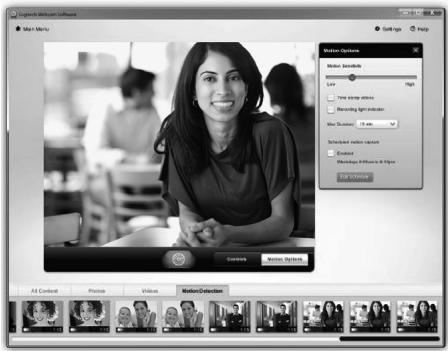
Setting up the webcam for video recording when motion is detected. - Adjusting the recording time of the video and the sensitivity of motion detection. The recorded video is automatically saved to the computer. - Play back the recording using the player or use the "Record with one click" feature.
Setting up the webcam for video calls.
Webcam Controller
- Setting up the webcam controller for video calls.
- Capture a still image from the video while the webcam is connected. 3. The function used is highlighted in the image.
- Zoom in or out to enable/disable the window mode.
- Enjoy clear calls without background noise.
- Use RightLight to correct low-light environments.
- Define the working characteristics of the webcam.
Improve the usability of your webcam.
Install additional software for your webcam, such as video calls, video editing, and programs for additional processing.
Getting help
Click the Help button, read the user guide, or watch a video showing how to best work with your Logitech webcam software.
Tip: If you are unsure about any function, click the Help button, and the guide will open the exact section you need.

Characteristics
- Microphone
- Lens
- Activity LED
- Flexible clip/base
- Product documentation
www.logitech.com/downloads
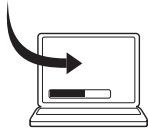
www.logitech.com/downloads
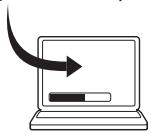
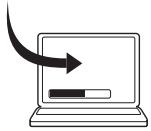
To download and install webcam software, visit www.logitech.com/downloads, select your product from the list, choose Software Downloads, and then follow the on-screen instructions.
www.logitech.com/downloads
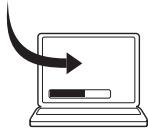
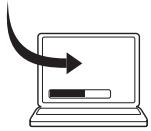
To download and install webcam software, visit www.logitech.com/downloads, double-click the Webcams icon, select your product from the list, choose Software Downloads, and then follow the on-screen instructions.
www.logitech.com/downloads
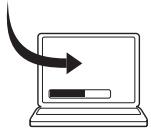
To download and install webcam software, visit www.logitech.com/downloads, double-click the Webcams icon, select your product from the list, choose Software Downloads, and then follow the on-screen instructions.
3 When prompted, connect the webcam
Introduction to video calling

The webcam comes with Logitech Vid™ HD software
If you have Logitech Vid HD software, you only need to follow a few simple steps to make live video calls over the internet:
- Install Logitech Vid HD software
- Create an account
- Add a friend and make a test video call
For more information, visit the website: http://www.logitech.com/whatisvid
Setting up Logitech Vid HD software
1
Install Logitech Vid HD software
We recommend that you install the Logitech webcam and Logitech Vid HD software.
Tip: If you would rather use other video calling software, you must download and install software from another manufacturer.
For more information, visit the website: http://www.logitech.com/webcam_howto

Create an account
To create a Logitech Vid HD account and set up your webcam for video calls, follow the instructions on the screen.
www.logitech.com/downloads
www.logitech.com/downloads
www.logitech.com/downloads
www.logitech.com/downloads
www.logitech.com/downloads
www.logitech.com/support

Belgium/Belgique Dutch: +32 (0)2 200 644 French: +32 (0)2 200 640
Czech Republic +420 239 000 335 Denmark +45-38 32 31 20 Germany +49-(0)69-51 709 427
Spain +34-91-275 45 88 France +33-(0)1-57 32 32 71
Ireland +353 - (0)1 524 5080
Italy +39-02-91 48 30 31
Hungary +36-1-777-4853 Netherlands +31-(0)-20-200 84 33
Norway +47-(0)24 159 579
Austria +43-(0)1 206 091 026 Poland 00800 441 17 19
Portugal +351-21-415 90 16
Russia +7 (495) 641 3460 Switzerland/Suisse D +41 (0)22 761 4012 Svizzera F +41 (0)22 761 4016 I +41 (0)22 761 4020 E +41 (0)22 761 4025
South Africa 0800 981 089 Finland +358-(0)9 725 191 08 Sweden +46-(0)8-501 632 83 Turkey 00800 44 882 5862 United Arab Emirates 8000 441-4294
United Kingdom +44-(0)203-024-81 59 European, English: +41-(0)22 761 40 25 Mid. East., & Fax: +41-(0)21 863 54 02 African HQ. Morges, Switzerland
Eastern Europe English: 41-(0)22 761 40 25 United States +1 646-454-3200 Argentina +0800 555 3284 Brasil +0800 891 4173
Canada +1-866-934-5644 Chile +1230 020 5484 Latin America +55 11 3444 6761 Mexico +001 800 578 9619
www.logitech.com


- GETTING STARTED WITH
- LOGITECH® WEBCAM C110 AND C
- CONTENTS
- FEATURES
- THANK YOU FOR BUYING A LOGITECH WEBCAM
- SETTING UP YOUR WEBCAM
- PLACE YOUR WEBCAM
- INSTALL SOFTWARE
- WHEN PROMPTED, CONNECT YOUR WEBCAM
- GETTING STARTED WITH VIDEO CALLING
- YOUR WEBCAM COMES WITH LOGITECH VID™ HD
- SETTING UP LOGITECH VID HD
- INSTALL LOGITECH VID HD
- CREATE AN ACCOUNT
- ADD A FRIEND OR MAKE A PRACTICE CALL
- ACCESSING ACCOUNT SETTINGS AND STARTING APPLICATIONS
- NAVIGATING THE LOGITECH WEBCAM SOFTWARE
- CAPTURING VIDEO AND SNAPPING PICTURES
- THE GALLERY: VIEWING AND SHARING
- USING MOTION DETECTION
- FINE TUNING YOUR WEBCAM DURING A VIDEO CALL
- GET MORE APPLICATIONS FOR YOUR WEBCAM
- GETTING HELP
- USING VIDEO CALLS
- THE WEBCAM PACKAGE INCLUDES LOGITECH VID™ HD
- CREATE A USER ACCOUNT
- FINE-TUNING THE WEBCAM DURING VIDEO CALLS
- ADDITIONAL APPLICATIONS FOR YOUR LOGITECH WEBCAM
- TECHNICAL SUPPORT
- FUNCTIONS
- GETTING STARTED WITH VIDEO CALLS
- THE WEBCAM COMES WITH LOGITECH VID™ HD
- WHEN PROMPTED, CONNECT THE WEBCAM
- START VIDEO CALLS
- THE WEBCAM COMES WITH LOGITECH VID HD
- ADD FRIENDS OR MAKE A TEST CALL
- ACCESS YOUR ACCOUNT FROM THE START OF THE APPLICATION
- GETTING STARTED WITH YOUR LOGITECH WEBCAM SOFTWARE
- VIDEO AND PHOTO CAPTURE
- PLAYBACK: DISPLAY AND PLAYBACK
- N3NON3BAHE HA OTKPUBAHETO HA DNBXKEHNE
- SETTING UP THE WEBCAM FOR VIDEO CALLS
- IMPROVE THE USABILITY OF YOUR WEBCAM
- CHARACTERISTICS
- INTRODUCTION TO VIDEO CALLING
- THE WEBCAM COMES WITH LOGITECH VID™ HD SOFTWARE
- SETTING UP LOGITECH VID HD SOFTWARE
- INSTALL LOGITECH VID HD SOFTWARE
- WWW.LOGITECH.COM/SUPPORT
Brand : LOGITECH
Model : C170
Category : Webcam