
QUICKCAM COMMUNICATE STX - Webcam LOGITECH - Free user manual and instructions
Find the device manual for free QUICKCAM COMMUNICATE STX LOGITECH in PDF.



| Product type | Webcam |
| Brand | Logitech |
| Model | QuickCam Communicate STX |
| Approximate dimensions | 10 x 5 x 5 cm |
| Approximate weight | 100 g |
| Power source | Computer USB port |
| Main functions | Video calls, video instant messaging, photo and video capture, built-in microphone with RightSound echo cancellation |
| Included software | QuickCam software |
| Compatibility | Common video applications, eBay Video (older) |
| Maintenance and cleaning | Clean with a soft, dry cloth. Avoid contact with liquids. |
| Safety | Do not expose to moisture or extreme temperatures. Plug into a compliant USB port only. |
| General information | Release year: approximately 2006. Support at logitech.com/support. |
Frequently Asked Questions - QUICKCAM COMMUNICATE STX LOGITECH
User questions about QUICKCAM COMMUNICATE STX LOGITECH
0 question about this device. Answer the ones you know or ask your own.
Ask a new question about this device
Download the instructions for your Webcam in PDF format for free! Find your manual QUICKCAM COMMUNICATE STX - LOGITECH and take your electronic device back in hand. On this page are published all the documents necessary for the use of your device. QUICKCAM COMMUNICATE STX by LOGITECH.
USER MANUAL QUICKCAM COMMUNICATE STX LOGITECH
QuickCam Communicate STX
Contents
English 3
Espanol. 8
Français 13
Portugues 18
English
Thank you for purchasing your new Logitech QuickCam, the world's most popular webcams.
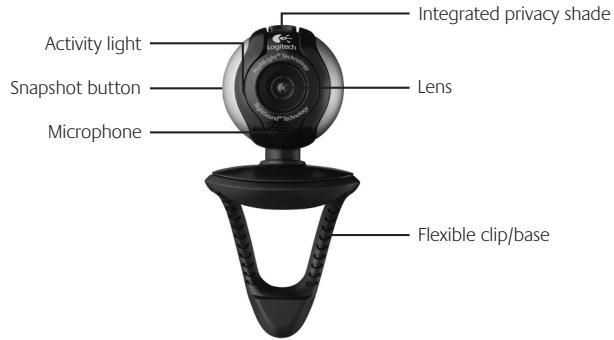
1 Camera Features
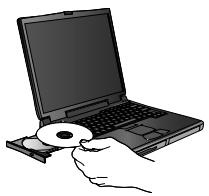
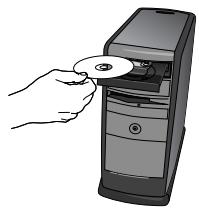
2 Install the Software First
Install the software before plugging in the camera.
3 Camera Setup
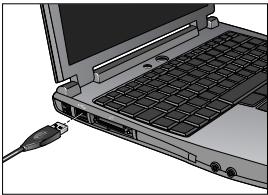
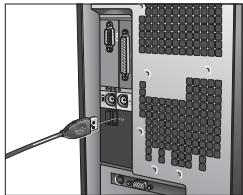
During the Camera Setup step of the installation process, you will be prompted to connect the camera to a USB port on your computer. Important: Do NOT connect the camera until you are prompted to do so.
4 Position Your Camera, Microphone, and Speakers
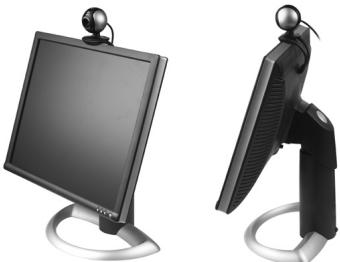
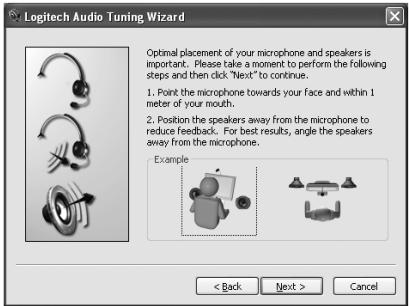
Your camera comes with Logitech RightSound echo-cancellation technology. The following steps will ensure the best possible audio performance:
- Position your camera in the middle of your monitor for optimal eye contact.
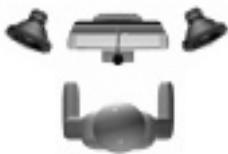
- Position your camera's microphone no more than 3 feet (1 m) away from you and point it toward you.
- Position your speakers (if used) at least 12 inches (30~cm) away from your microphone to reduce feedback, and then angle your speakers away from your microphone.
Tip Do not place objects between you and the microphone.
5 The Audio Tuning Wizard
The first time that you start QuickCam, you are guided through the Microphone/Speaker Setup Utility and Audio Tuning Wizard that lets you do the following:
- Select the audio input device (microphone) and audio output device (speakers).
- Enable Acoustic Echo Cancellation (AEC)—recommended.
- Specify microphone input volume and speaker output volume.
Test audio settings.
Tip To change these settings later, in the QuickCam software, click the Settings button and then click the Audio tab.

6 Congratulations
Your camera is now set up and ready to go! Enjoy using your new QuickCam* to make live video calls with any popular video messaging program.
You have successfully completed installation. Now you can begin to enjoy live video images with your webcam using any popular video application. For example, you can do the following:
Make free video calls and video instant messages (IM)
Take still photos or videos and email them
- Use the integrated microphone for audio calls
Add videos to your eBay auctions (see www.logitech.com/videosnap).
7 Using the QuickCam Software
To start the Logitech QuickCam program, do either of the following:
- On your desktop, double-click the QuickCam icon.
-or
- In the lower-right corner of your desktop in the taskbar, click the QuickCam icon.
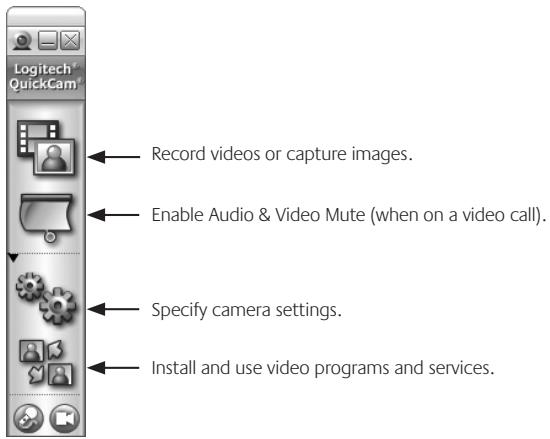
8 QuickCam Software Features
9 For More Information
Audio Information. Go to http://www.logitech.com/rightsound.
Software Updates. Go to http://www.logitech.com/support.
Additional Help. Launch the software and click the Help button.
To learn more about Logitech products, go to http://www.logitech.com.
Espanol
Brand : LOGITECH
Model : QUICKCAM COMMUNICATE STX
Category : Webcam