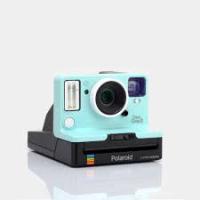
IE090 - Instant Camera POLAROID - Free user manual and instructions
Find the device manual for free IE090 POLAROID in PDF.



| Product type | Instant camera with built-in printer |
| Brand | Polaroid |
| Model | IE090 (Polaroid Snap) |
| Dimensions (approx.) | 12 x 8 x 4 cm |
| Weight (approx.) | 300 g (with paper) |
| Power supply | Built-in rechargeable battery 7.4V, charging via micro USB |
| Paper types | ZINK Paper™ Premium, pack of 10 sheets max |
| Internal memory | Sufficient for 1 5MP photo; expandable via SD card up to 32 GB |
| Main features | ZINK instant printing, auto flash, autofocus, 10s self-timer, color modes (sepia, B&W, classic), Polaroid borders, photo booth mode (4 consecutive photos) |
| Viewfinder | Foldable, also serves as power switch |
| Connectivity | Micro USB port for file transfer and charging |
| Maintenance and cleaning | Clean the lens with a soft cloth; avoid sand, moisture, and shocks |
| Safety | Do not use near water, do not disassemble battery, operating temperature 15-32°C |
| Spare parts and repairability | ZINK Premium paper, micro USB cable, wrist strap; repair by qualified technician only |
| General information | Registered trademark PLR IP Holdings; support: cspolaroid@camarketing.com; website: www.polaroidsnapcamera.com |
Frequently Asked Questions - IE090 POLAROID
User questions about IE090 POLAROID
0 question about this device. Answer the ones you know or ask your own.
Ask a new question about this device
Download the instructions for your Instant Camera in PDF format for free! Find your manual IE090 - POLAROID and take your electronic device back in hand. On this page are published all the documents necessary for the use of your device. IE090 by POLAROID.
USER MANUAL IE090 POLAROID
What's in the Box
Get to Know Your Snap
Using Your Snap
DE
Polaroid Snap™ Instant Print Camera
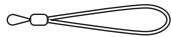
Camera Strap
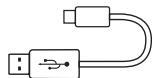
Micro USB Cable
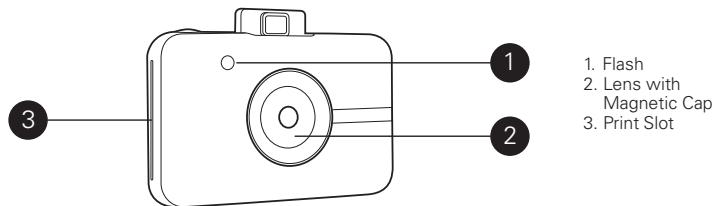
Get to Know Your Polaroid Snap
Back View
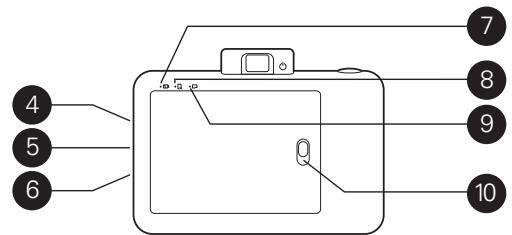
- MicroSD Card Slot
- Wrist Strap Anchor
- Micro USB Connector
- Battery Status LED
- Paper Status LED
- MicroSD Card
Status LED
- Paper Door Latch
Top View

- Polaroid Border Selector
- Color Mode Selector
- Pop-Up Viewfinder/Power Switch
14.Shutter Button - Self-Timer
Table of Contents
Turning On
Turning Off
Restarting
Taking Photos
Printing
Inserting Photo Paper
Refilling Photo Paper
Paper Do's & Don'ts
Memory
Inserting an SD Card
Removing an SD Card
SD Card Memory
9 Transferring Files 12
9 Via USB Cable 12
9 Via SD Card 12
9 Battery & Charging 13
10 Auto Sleep 13
10 Self-Timer 13
11
11 Adding Effects 13
Photo Frames 13
11 Color Tints 14
11 Photo Booth 14
12
12 Precautions & Safety Tips 14
Using Your Snap
Turning On
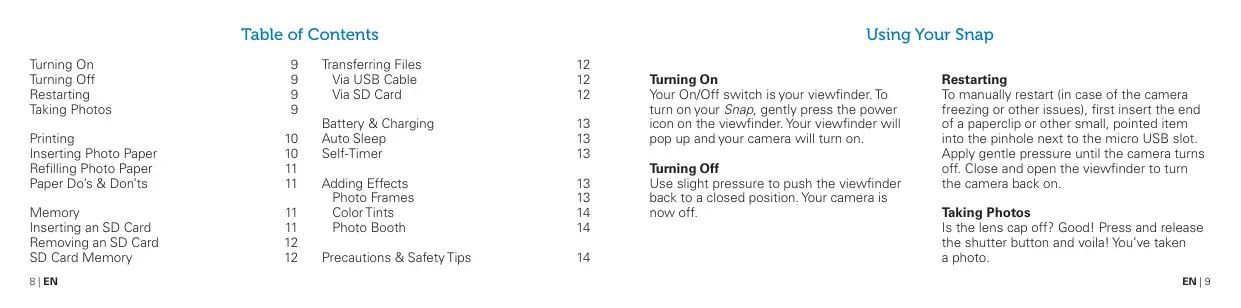
Your On/Off switch is your viewfinder. To turn on your Snap, gently press the power icon on the viewfinder. Your viewfinder will pop up and your camera will turn on.
Turning Off
Use slight pressure to push the viewfinder back to a closed position. Your camera is now off.
Restarting
To manually restart (in case of the camera freezing or other issues), first insert the end of a paperclip or other small, pointed item into the pinhole next to the micro USB slot. Apply gentle pressure until the camera turns off. Close and open the viewfinder to turn the camera back on.
Taking Photos
Is the lens cap off? Good! Press and release the shutter button and voila! You've taken a photo.
Your camera will automatically flash and auto focus for every photo. A lens cap has been included to keep your lens clean and scratch-free. Don't forget to use it!
Printing
The Snap camera instantly prints every photo for you when ZINK Paper™ is loaded.
Inserting Photo Paper
-
Slide the latch on the paper tray and open the door.
-
Slide the entire pack of ZINK Paper™ into the paper tray.
-
Make sure the ZINK Smart Sheet™ is placed and loaded with the bar code face down.
-
Shiny side of paper faces up.
-
Close the paper tray door.
The ZINK Smart Sheet™ will eject when you take a picture, then your photo will print.
For bright, sharp instant photos that come out dry to the touch and ready to peel and stick, we recommend Polaroid Premium ZINK Paper™.
Refilling Photo Paper
When the last ZINK Paper™ is used, the LED next to the paper icon on the back of your Snap will glow red. You can now safely reload printing paper into your camera.
Paper Do's & Don'ts
- Do not add more paper if the paper compartment is not completely empty.
- Do not fill the paper compartment with more than one 10-pack of Premium ZINK Paper™. Filling over 10 sheets can damage the printer.
-
Do avoid bending the ZINK Paper™.
-
Do hold the paper by its edges. Avoid touching the surface with your fingers.
If there is a paper jam, if you insert the wrong type of paper, or there is some other printing/paper related error, all indicators will blink red. Open your camera and correct the error (clear jam, replace paper, etc.) then restart your camera.
Memory
Your Snap is built with enough memory to capture and print one 5MP image at a time.
Inserting an SD Card
Your Snap comes with an SD Card slot for
images that you'd like to save, as well as print. To insert a memory card, gently push the SD card into the slot on the side of your camera. You'll feel a slight click when the card is fully inserted and the SD LED will glow white. Use cards with up to 32GB max capacity.
Removing an SD Card
Give a light push to the top of the card and the SD card will pop out. Pull to fully remove from your Snap.
SD Card Memory Indicator
When the memory on your SD card dips below 1GB the LED on the back of your
Snap will glow red. When the memory reaches zero, or if there is an error reading the SD card, the LED will blink red.
Transferring Files
Via USB Cable
- Using the included micro USB cable, connect your Snap to a computer. Double-click the SD card when it appears on your computer desktop to view and save your images to a photo roll or other location.
Via SD Card
- Remove the SD card per the directions above then insert the card into your card reader.
Battery & Charging
When the battery power dips below 10% the battery LED will glow red. At 2% power, your camera will automatically shut down.
To charge your Snap, plug it into either a wall outlet or computer, using the included micro USB cable. The battery LED will blink red until the battery is fully charged.
Auto Sleep
To help save battery power, your Snap will automatically go into sleep mode after several minutes of no use. To turn your camera back on, close and re-open the viewfinder.
Self-Timer
Your Snap comes with a ten-second self-timer. To set it, press the timer button (located on the top of the camera), then press the shutter button. The timer button will blink white while the timer counts down and in ten seconds, your photo will be captured.
Adding Effects
Photo Frames
- To add a Polaroid border to your print, press the frame button located on top of your camera.
Color Tints
- To give your print a sepia or black and white treatment, press the color button (located on the top of your camera) to select the color tint for your next print.
Photo Booth
- To take photos with a photo booth effect, press and hold the shutter button for three seconds. The timer button will blink and the camera will take four photos in a row, capturing a photo every four seconds. The photos will print on one sheet with these four consecutive images.
Precautions & Safety Tips
Turn the power off if:
- Foreign objects or water enter the camera
- The camera has been dropped or its case has been damaged Continued use after these issues may cause personal injury.
Service should only be performed by a qualified technician.
This camera isn't waterproof. It's not water-resistant, either, so use caution when using near water.
Do not place the camera on unstable surfaces.
Adult supervision is recommended when the product is being operated by young children.
Do not use the camera while you are walking, driving or riding a motorcycle. This may result in you having an accident.
For optimal performance, use your Snap in temperatures between 60^ and 90^ (15.6°C and 32.2°C) and between 20% to 80% relative humidity.
Do not use the camera near sand as this may damage the camera.
Do not fire the flash close to anyone's eyes.
This may cause damage to the person's eyesight.
This camera is a precision instrument. Do not drop, strike or use excessive force when handling the camera.
Do not use the camera in humid, steamy, smoky or dusty places. This may cause fire or electric shock.
Use the camera in a well-ventilated area. Do not wrap the camera or place it in cloth or blankets. This may cause heat to build up and deform the case, resulting in personal injury.
Do not leave the camera in places where the temperature may rise significantly, such as the inside of a car. This may adversely affect the performance of the product.
Before moving the camera, disconnect all cords and cables. Failure to do this may damage cords and cables, resulting in personal injury or damage to the product.
Notes on Battery Usage
Carefully read and strictly observe the safety instructions and the notes described below.
-
Use only the included, non-removable battery (7.4V).
-
Avoid extremely cold environments as low temperatures can shorten the battery life and reduce camera performance.
- When you are using a Polaroid Snap that has not been used for an extended period of time, it may affect the battery life and the number of images that can be captured. To maximize its battery performance and lifetime, we recommend that you fully charge the battery and discharge it for at least one complete cycle before use.
-
Properly dispose of the battery when disposing of the camera.
-
Do not disassemble the Snap camera or remove the battery at any time. The battery is not designed to be removed from the camera, nor charged outside the camera.
Disclaimer
During extended use, your Polaroid Snap camera may feel warm to the touch. This is a normal operating occurrence and does not indicate any product defect or reason to slow down the fun.
That's it!
Have questions? Need technical support? Want to know more? Get in touch at: cspolaroid@camarketing.com www.polaroidsnapcamera.com
Federal Communication Commission
Interference Statement
This equipment has been tested and found to comply with the limits for a Class B digital device, pursuant to Part 15 of the FCC Rules. These limits are designed to provide reasonable protection against harmful interference in a residential installation. This equipment generates, uses and can radiate radio frequency energy and, if not installed and used in accordance with the instructions, may cause harmful interference to radio communications. However, there is no guarantee that interference will not occur in a particular installation. If this equipment does cause harmful interference to radio or television reception, which can be determined by turning the equipment off and on, the user is encouraged to try to correct the interference by one
or more of the following measures:
- Reorient or relocate the receiving antenna.
- Increase the separation between the equipment and receiver.
- Connect the equipment into an outlet on a circuit different from that to which the receiver is connected.
- Consult the dealer or an experienced radio/TV technician for help.
FCC Caution: Any changes or modifications not expressly approved by the party responsible for compliance could void the user's authority to operate this equipment.
This device complies with Part 15 of the FCC Rules. Operation is subject to the following two conditions: (1) This device may not cause harmful interference, and (2) this device must accept any interference received, including interference that may cause undesired operation.
This device and its antenna(s) must not be co-located or operating in conjunction with any other antenna or transmitter.
For product available in the USA/Canada market, only channel 1-11 can be operated. Selection of other channels is not possible.
IMPORTANT NOTE:
Federal Communication Commission (FCC) Radiation Exposure Statement
This EUT is compliance with SAR for general population/ uncontrolled exposure limits in ANSI/IEEE C95.1-1999 and had been tested in accordance with the measurement methods and procedures specified in OET Bulletin 65 Supplement C. This equipment should be installed and operated contact with the radiator & your body.
This device complies with Industry Canada's licence-exempt RSSs. Operation is subject to the following two conditions:
(1) This device may not cause interference; and
(2) This device must accept any interference, including interference that may cause undesired operation of the device.
This EUT is compliance with SAR for general population/ uncontrolled exposure limits in IC RSS-102 and had been tested in accordance with the measurement methods and procedures specified in IEEE 1528. This equipment should be installed and operated with minimum distance 0cm between the radiator & your body. CAN ICES-3 (B)/NMB-3(B)
BRAZIL ANATEL
PLR IP Holdings, LLC, its licensees and affiliates, fully supports all electronic waste initiatives. As responsible stewards of the environment, and to avoid violating established laws, you should properly dispose of this product in compliance with all applicable regulations, directives or other governments in the area where you reside. Please check with local authorities or the retailer where you purchased this product to determine a location where you can appropriately dispose of the product. You may also go to www.polaroid.com and
reference Social Responsibility www.polaroid.com/social-responsibility to learn more about the specific laws in your area and to locate a collection facility near your home.
If your electronic device has internal memory on which personal or other confidential data may be stored, you may want to perform a data sanitization process before you dispose of your device to assure another party cannot access your personal data. Data sanitization varies by the type of product and its software, and you may want to research the best sanitization process for your device before disposal. You may also check with your local recycling facility to determine their data sanitization procedures during the recycling process.
EN | Polaroid, Polaroid & Pixel, Polaroid Classic Border Logo, Polaroid Color Spectrum, and Polaroid Snap are trademarks of PLR IP Holdings, LLC, used under license. All other trademarks are the property of the respective owner, who has not sponsored, endorsed or approved this product. PLR IP Holdings, LLC does not manufacture this product or provide any Manufacturer's Warranty or support.
Instantly recognizable, instantly reassuring, The Polaroid Classic Border and Polaroid Color Spectrum logos let you see the best of our work. It's that exemplifies the best qualities of our brand and that contributes to our rich heritage of quality and innovation.